AWS EKS Microservices Setup
This guide walks you through deploying ThingsBoard in microservices mode on AWS EKS. We use Amazon RDS for managed PostgreSQL, Amazon MSK for managed Kafka, and Amazon ElastiCache for managed Redis.
Prerequisites
Section titled “Prerequisites”Install and Configure Tools
Section titled “Install and Configure Tools”Install kubectl, eksctl, and AWS CLI.
Configure your AWS credentials. To get Access and Secret keys, follow this guide. The default region should be the ID of the region where you want to deploy the cluster.
aws configurePull ThingsBoard Images
Section titled “Pull ThingsBoard Images”Verify that you can pull the images from Docker Hub:
docker pull thingsboard/tb-node:4.4.0.1docker pull thingsboard/tb-web-report:4.4.0.1docker pull thingsboard/tb-web-ui:4.4.0.1docker pull thingsboard/tb-js-executor:4.4.0.1docker pull thingsboard/tb-http-transport:4.4.0.1docker pull thingsboard/tb-mqtt-transport:4.4.0.1docker pull thingsboard/tb-coap-transport:4.4.0.1docker pull thingsboard/tb-lwm2m-transport:4.4.0.1docker pull thingsboard/tb-snmp-transport:4.4.0.1docker pull thingsboard/tb-integration-executor:4.4.0.1Step 1. Clone ThingsBoard K8S Scripts Repository
Section titled “Step 1. Clone ThingsBoard K8S Scripts Repository”Clone the repository containing the Kubernetes deployment scripts:
git clone -b release-4.4.0.1 https://github.com/thingsboard/thingsboard-pe-k8s.git --depth 1cd thingsboard-pe-k8s/aws/microservicesStep 2. Configure and Create EKS Cluster
Section titled “Step 2. Configure and Create EKS Cluster”In the cluster.yml file you can find the suggested cluster configuration. Key fields you can change:
| Field | Default | Description |
|---|---|---|
region |
us-east-1 |
AWS region for the cluster |
availabilityZones |
[us-east-1a, us-east-1b, us-east-1c] |
Region availability zones |
instanceType |
m5.xlarge |
EC2 instance type for nodes |
Create the cluster:
eksctl create cluster -f cluster.ymlStep 3. Create AWS Load-Balancer Controller
Section titled “Step 3. Create AWS Load-Balancer Controller”Once the cluster is ready, create the AWS load-balancer controller by following this guide.
The cluster provisioning scripts create several load balancers:
| Load Balancer | Type | Purpose |
|---|---|---|
tb-http-loadbalancer |
ALB | Web UI, REST API, HTTP transport |
tb-mqtt-loadbalancer |
NLB | MQTT transport |
tb-coap-loadbalancer |
NLB | CoAP transport |
tb-edge-loadbalancer |
NLB | Edge instances connectivity |
Step 4. Provision Databases
Section titled “Step 4. Provision Databases”4.1 Amazon PostgreSQL DB Configuration
Section titled “4.1 Amazon PostgreSQL DB Configuration”Set up PostgreSQL on Amazon RDS. ThingsBoard uses it as the main database for devices, dashboards, rule chains, and device telemetry. Follow this guide, but take into account the following requirements:
- Keep your PostgreSQL password in a safe place. We will refer to it later as YOUR_RDS_PASSWORD.
- Make sure your PostgreSQL version is latest 16.x.
- Make sure your PostgreSQL RDS instance is accessible from the ThingsBoard cluster. The easiest way is to deploy the RDS instance in the same VPC and use the
eksctl-thingsboard-cluster-ClusterSharedNodeSecurityGroup-*security group. - Make sure you use “thingsboard” as the initial database name. If you do not specify a database name, Amazon RDS does not create one.
Recommendations:
- Use Production template for high availability.
- Use Provisioned IOPS for better performance.
- Consider creating a custom parameters group for your RDS instance.
- Consider deploying the RDS instance into private subnets.
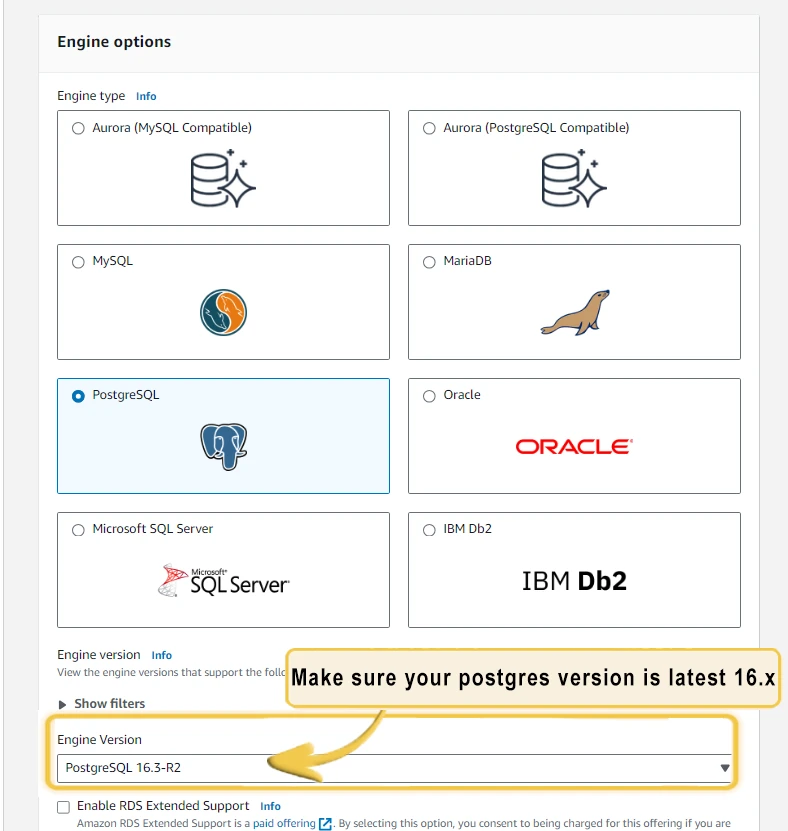
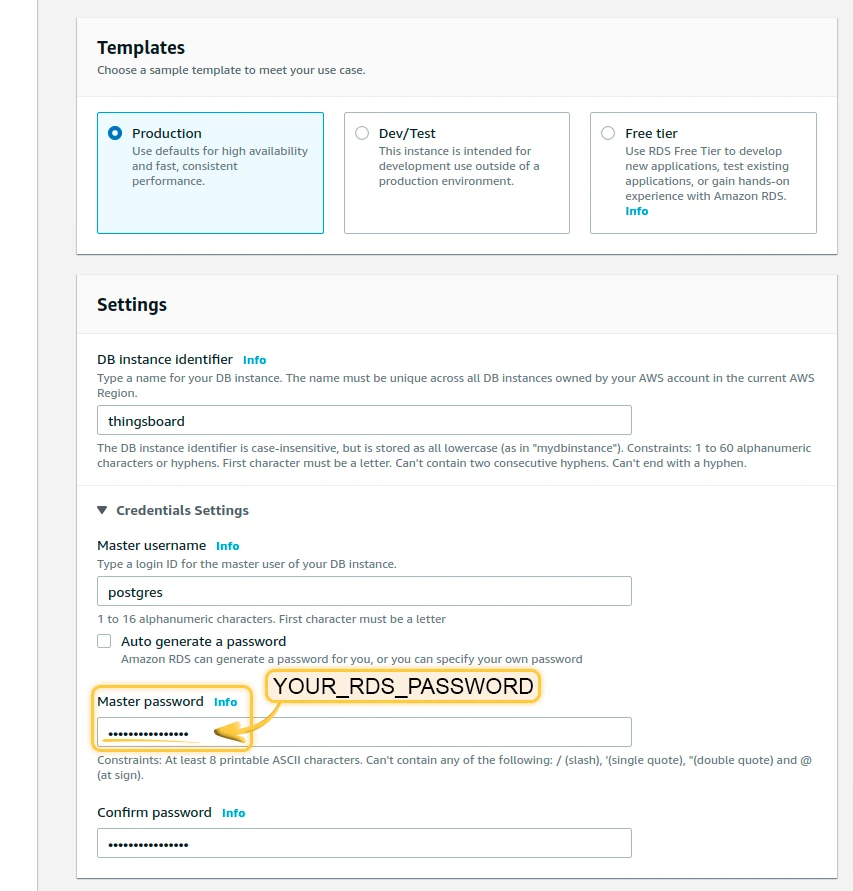
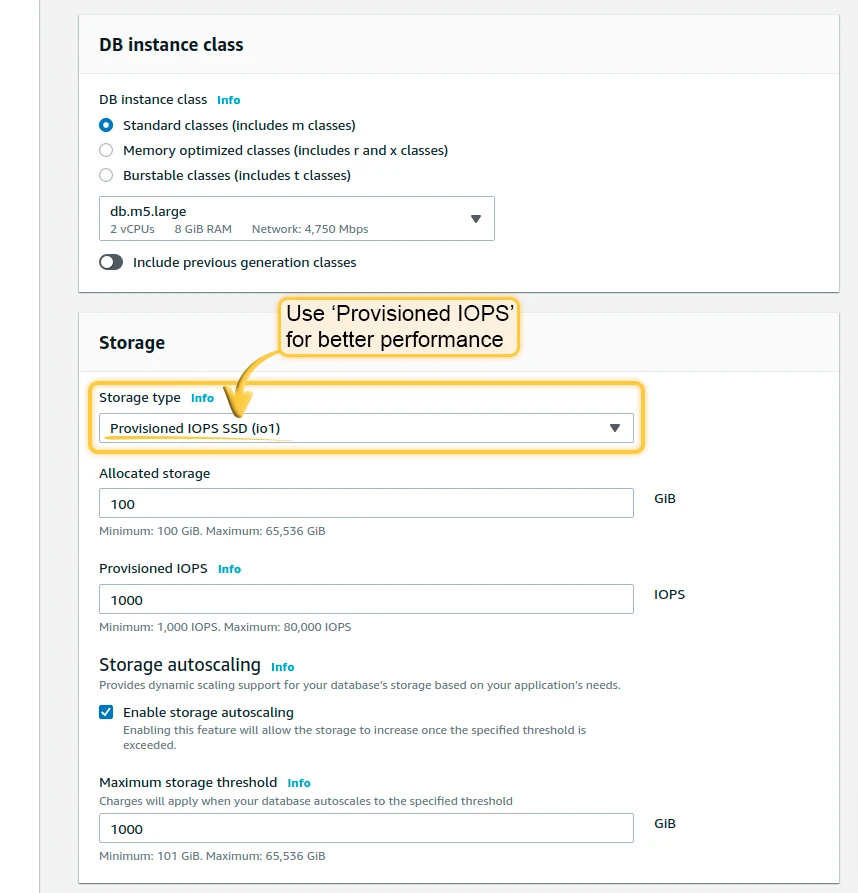
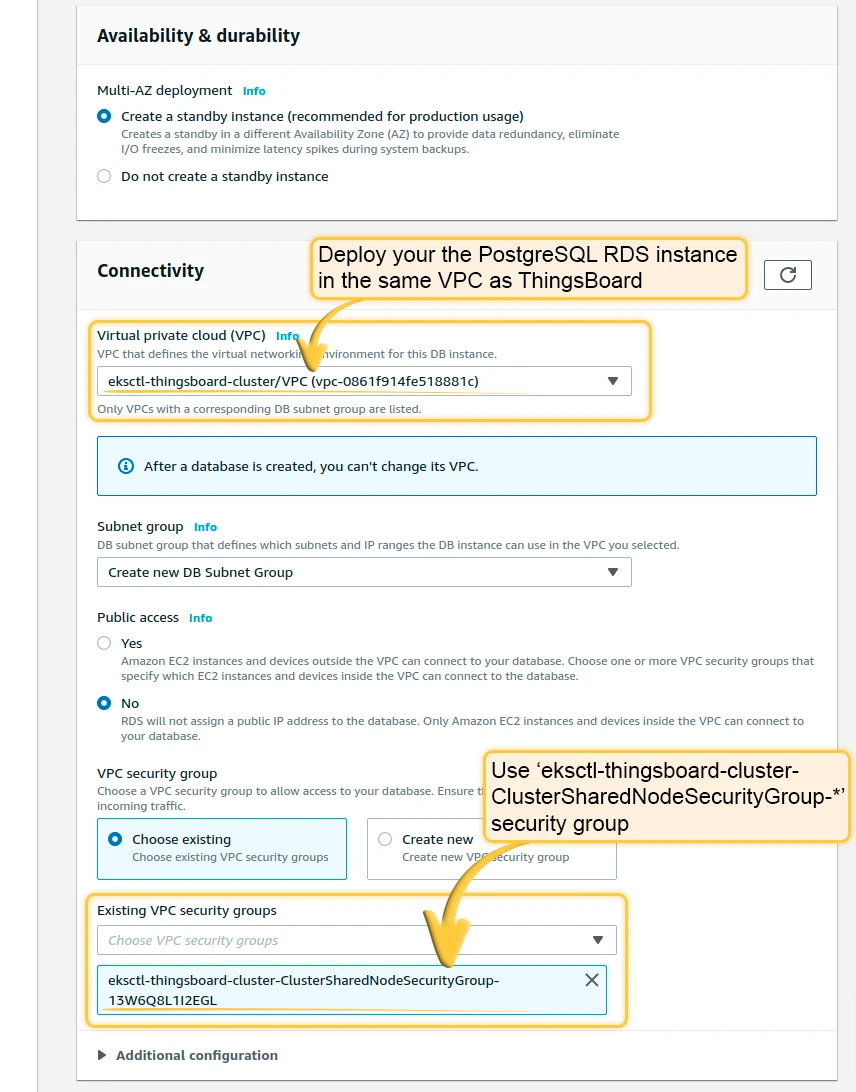
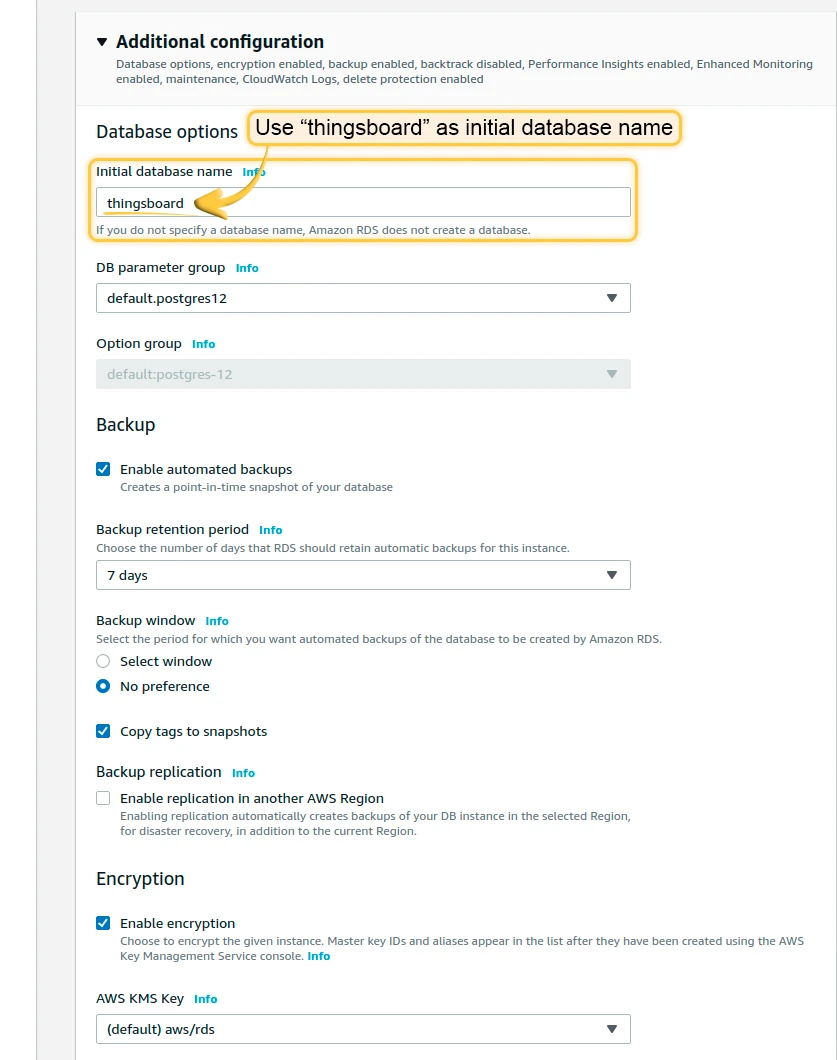
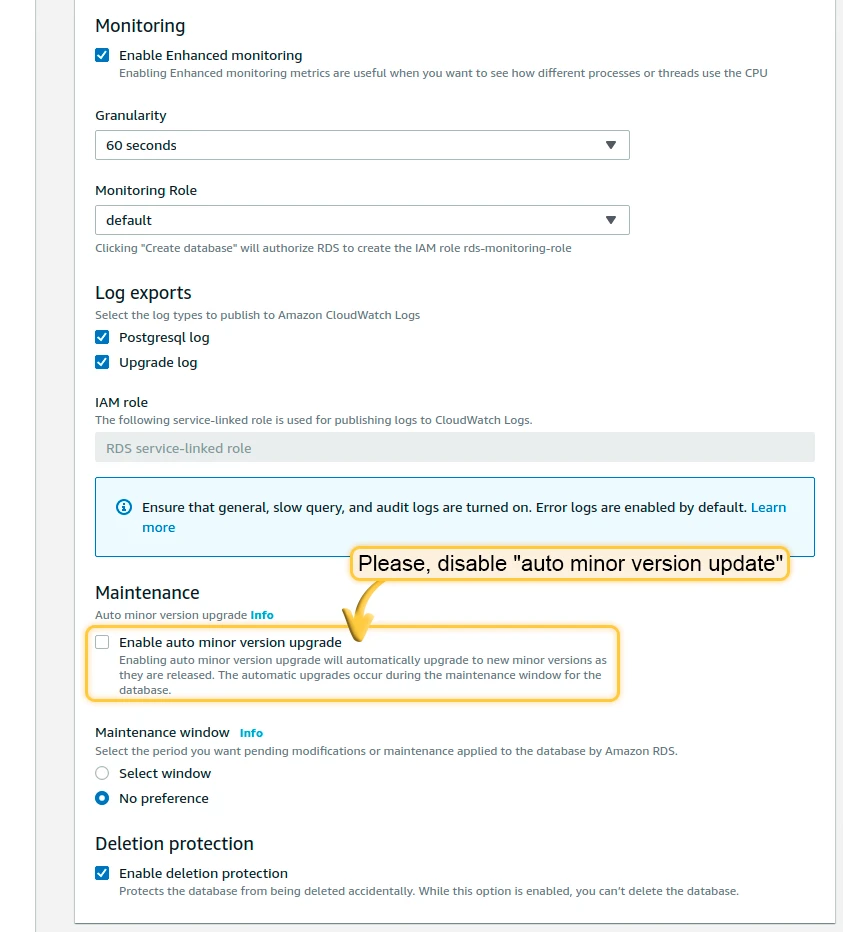
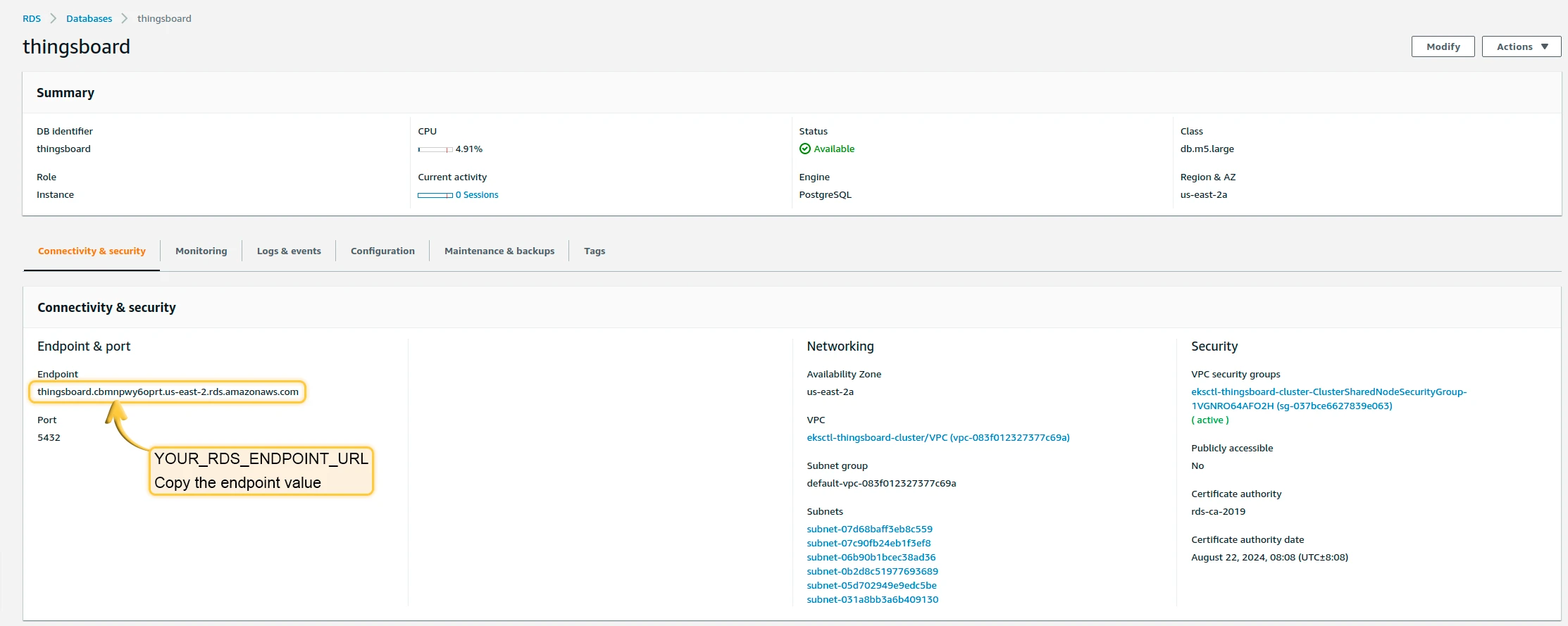
Once the database switches to the Available state, navigate to Connectivity and Security and copy the endpoint value. We will refer to it as YOUR_RDS_ENDPOINT_URL.
4.2 Cassandra (Optional)
Section titled “4.2 Cassandra (Optional)”Using Cassandra is optional. We recommend it if you plan to insert more than 5K data points per second or want to optimize storage space.
Provision Additional Node Groups
Section titled “Provision Additional Node Groups”Provision additional node groups to host Cassandra instances. At least 4 vCPUs and 16 GB of RAM is recommended.
Create 3 separate node pools with 1 node per zone:
eksctl create nodegroup --config-file=<path> --include='cassandra-*'Deploy Cassandra Stateful Set
Section titled “Deploy Cassandra Stateful Set”Create the namespace, then deploy Cassandra:
kubectl apply -f tb-namespace.ymlkubectl config set-context $(kubectl config current-context) --namespace=thingsboardDeploy Cassandra:
kubectl apply -f receipts/cassandra.ymlMonitor the process:
kubectl get podsUpdate DB Settings
Section titled “Update DB Settings”Don’t forget to replace YOUR_AWS_REGION with the name of your AWS region.
echo " DATABASE_TS_TYPE: cassandra" >> tb-node-db-configmap.ymlecho " CASSANDRA_URL: cassandra:9042" >> tb-node-db-configmap.ymlecho " CASSANDRA_LOCAL_DATACENTER: YOUR_AWS_REGION" >> tb-node-db-configmap.ymlVerify:
cat tb-node-db-configmap.yml | grep DATABASE_TS_TYPECreate Keyspace
Section titled “Create Keyspace”Create the ThingsBoard keyspace inside Cassandra:
kubectl exec -it cassandra-0 -- bash -c "cqlsh -e \ \"CREATE KEYSPACE IF NOT EXISTS thingsboard \ WITH replication = { \ 'class' : 'NetworkTopologyStrategy', \ 'us-east' : '3' \ };\""Step 5. Amazon MSK Configuration
Section titled “Step 5. Amazon MSK Configuration”ThingsBoard uses Kafka as an external queue for exchanging data between microservices, storing unprocessed messages, and more. By default, the deployment uses local Kafka, but ThingsBoard is also compatible with managed services such as Amazon MSK.
Steps to create a basic Kafka MSK cluster:
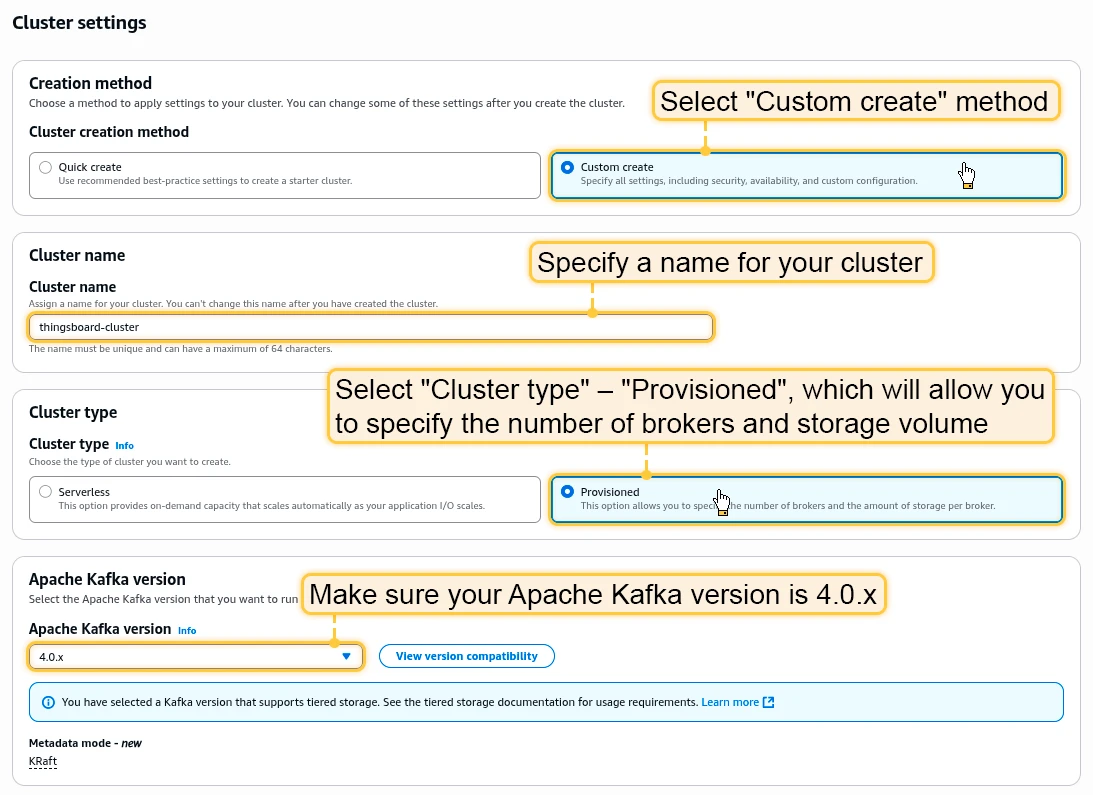
- Open the AWS console, go to MSK and click Create Cluster.
- Select Custom creation method.
- Specify a name for your cluster and select Cluster type → Provisioned.
- Select Apache Kafka version 3.8.x to use Express brokers or version 4.0.x for Standard brokers.
- Choose kafka.m7.large or similar instance types.
- Select the storage size for the broker (with default ThingsBoard partition settings, Kafka can use up to 100 GB).
- Deploy the MSK instance in the same VPC as the ThingsBoard cluster. Use private subnets.
- Use the default security settings. Make sure Plaintext mode is enabled.
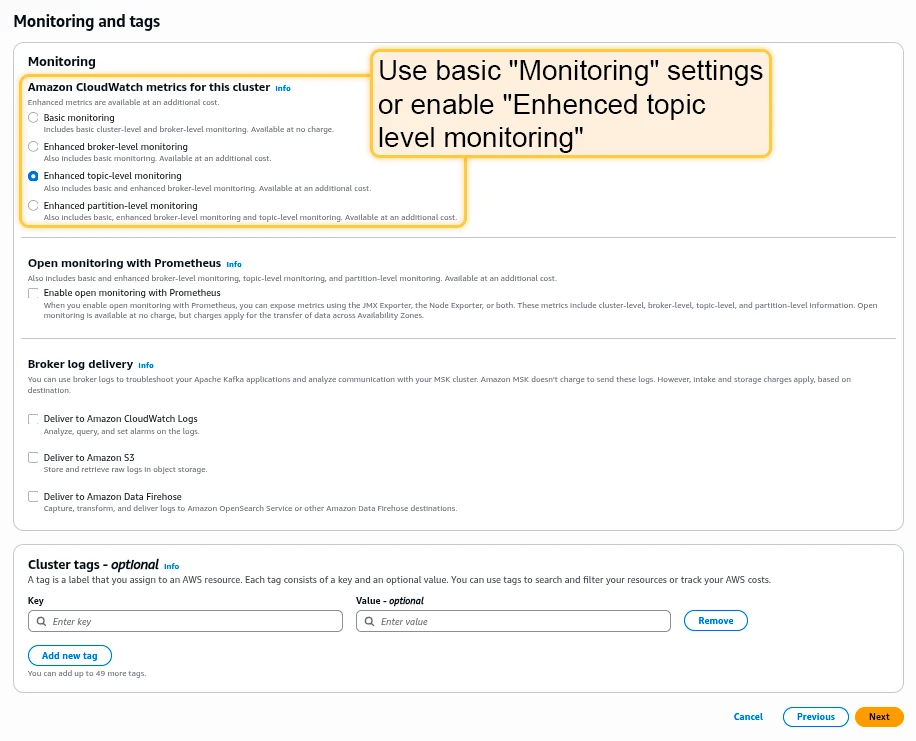
- Use either Basic monitoring or Enhanced topic-level monitoring settings.
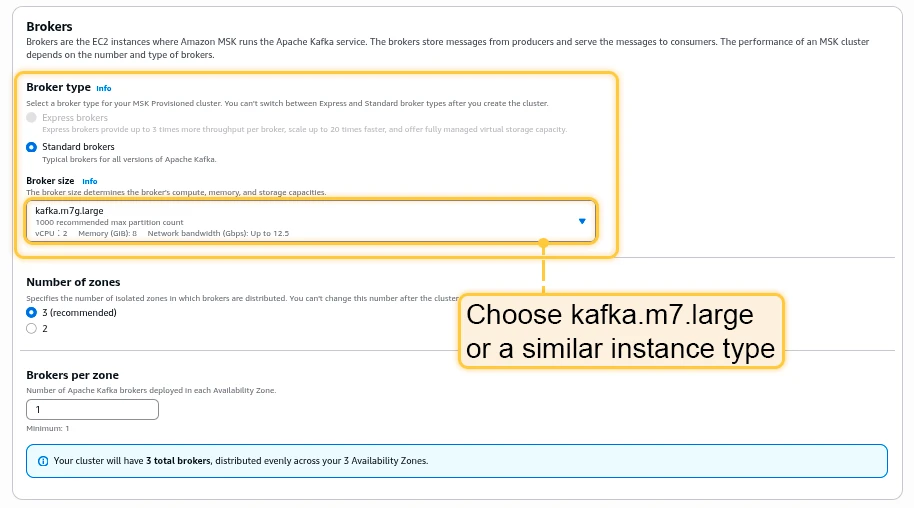
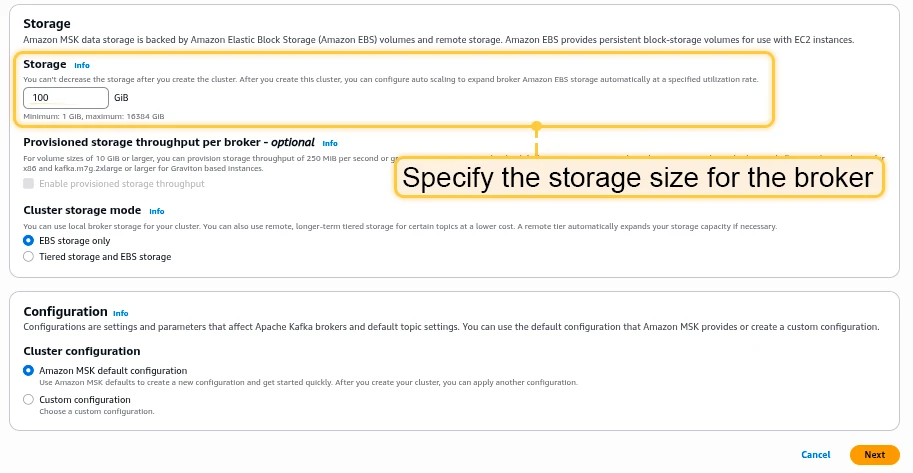
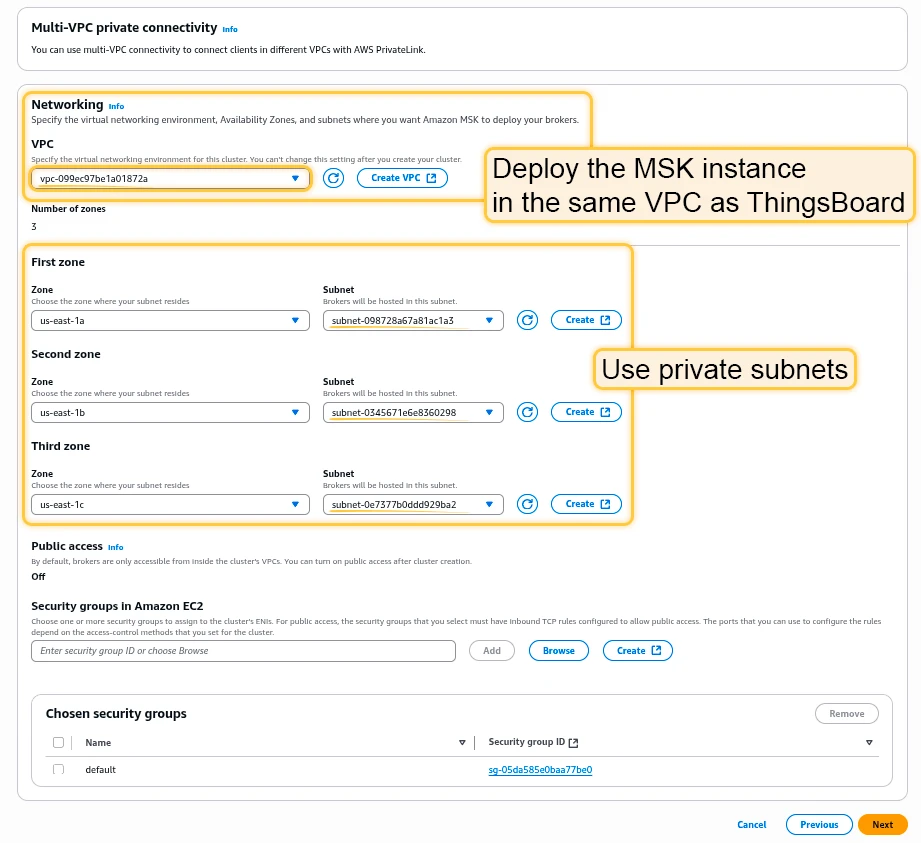
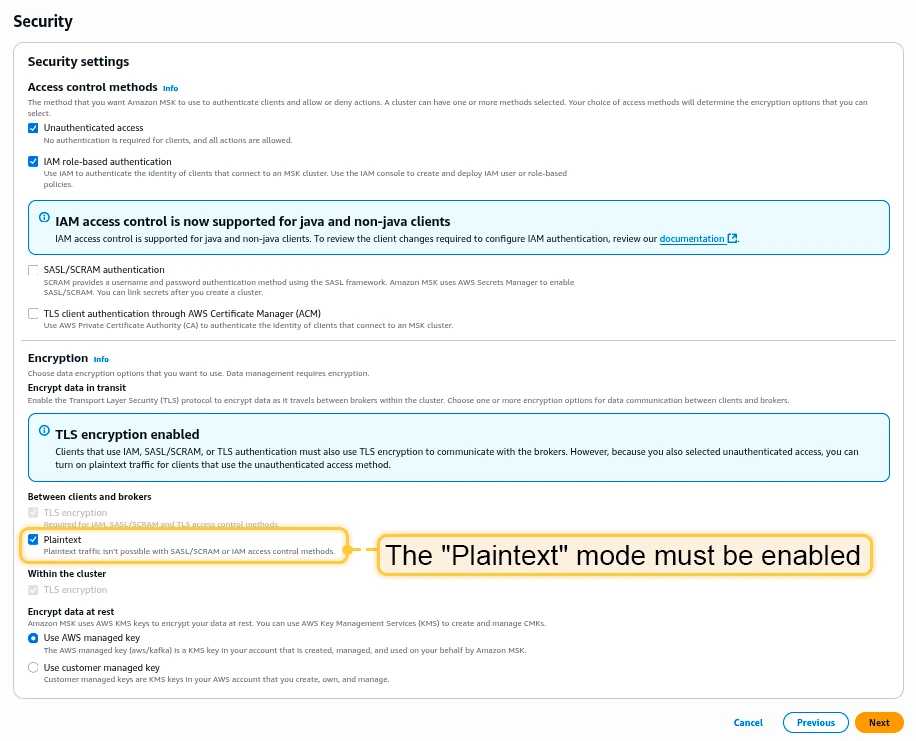
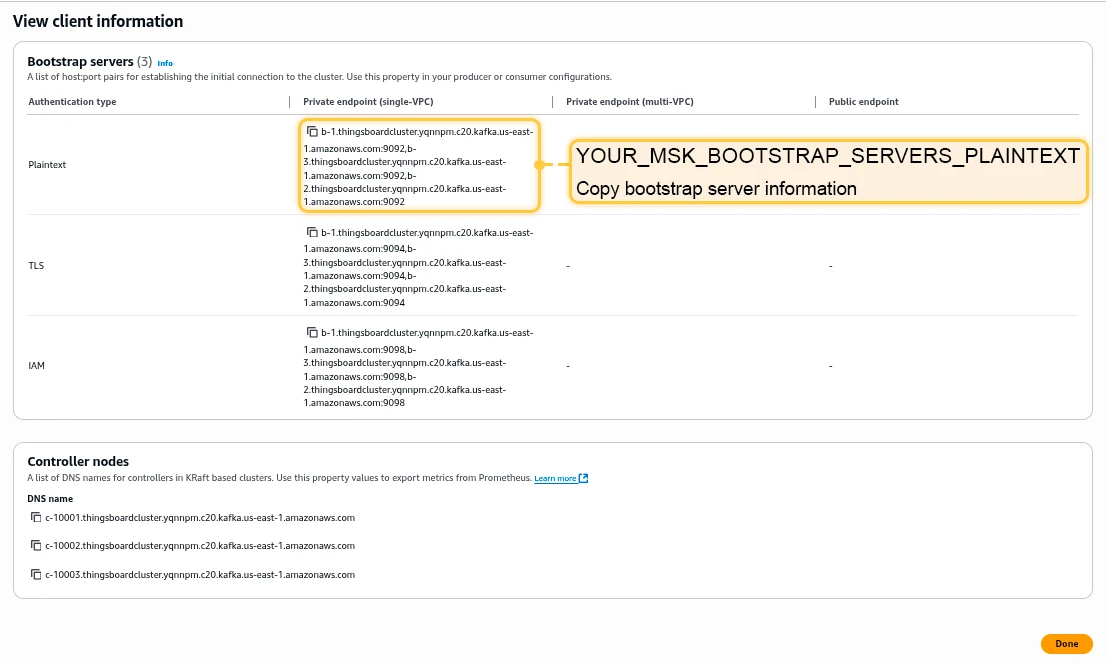
Once the MSK cluster switches to the Active state, navigate to Details and click View client information. Copy the bootstrap server information in plaintext — this is your Kafka endpoint.

Edit the tb-kafka.yml file, find the StatefulSet section named tb-kafka, and set spec.replicas to 0 to disable the default local Kafka deployment.
Edit tb-kafka-configmap.yml and replace TB_KAFKA_SERVERS value with your MSK endpoint.
Step 6. Amazon ElastiCache (Redis) Configuration
Section titled “Step 6. Amazon ElastiCache (Redis) Configuration”ThingsBoard uses cache to improve performance and reduce frequent database reads. By default, the deployment uses a local Valkey cache, but ThingsBoard is also compatible with managed services such as Amazon ElastiCache.
Steps to create a basic ElastiCache Valkey cluster:
- Open the AWS console and navigate to ElastiCache Valkey caches and click Create.
- Choose the Deployment option Serverless or Design your own cache.
- Specify Valkey Engine version 8.x and a node type with at least 1 GB of RAM.
- Deploy the Valkey cluster in the same VPC as the ThingsBoard cluster. Use private subnets and your group ID.
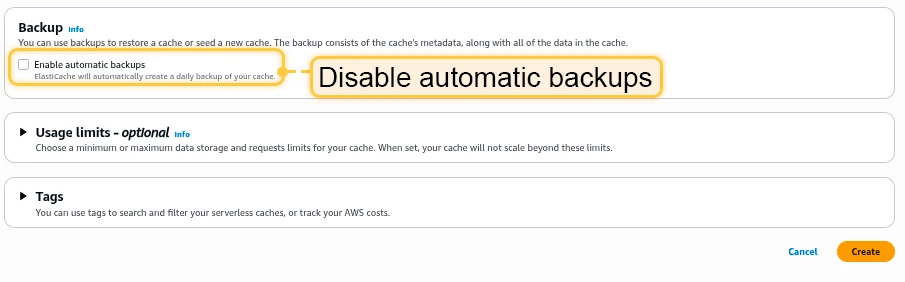
- Disable the Enable automatic backups option.
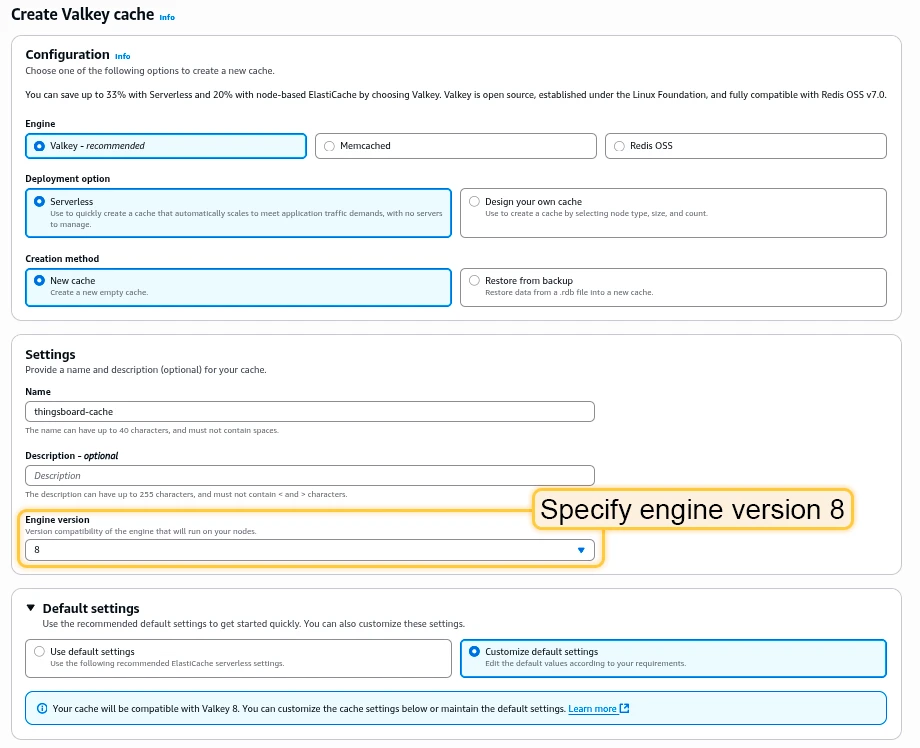
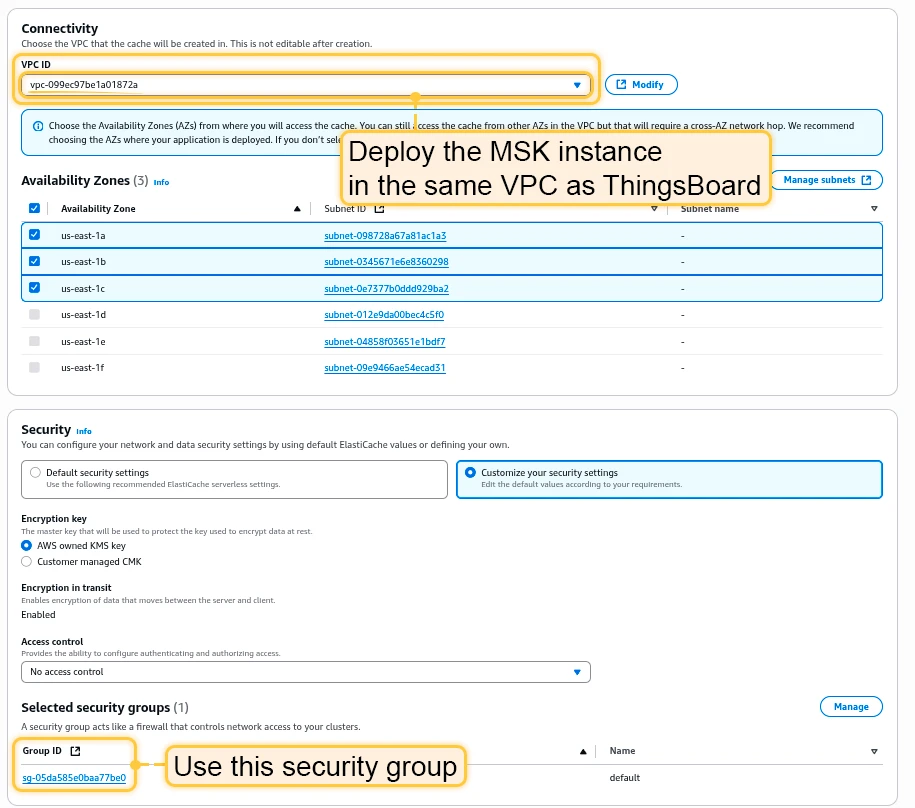
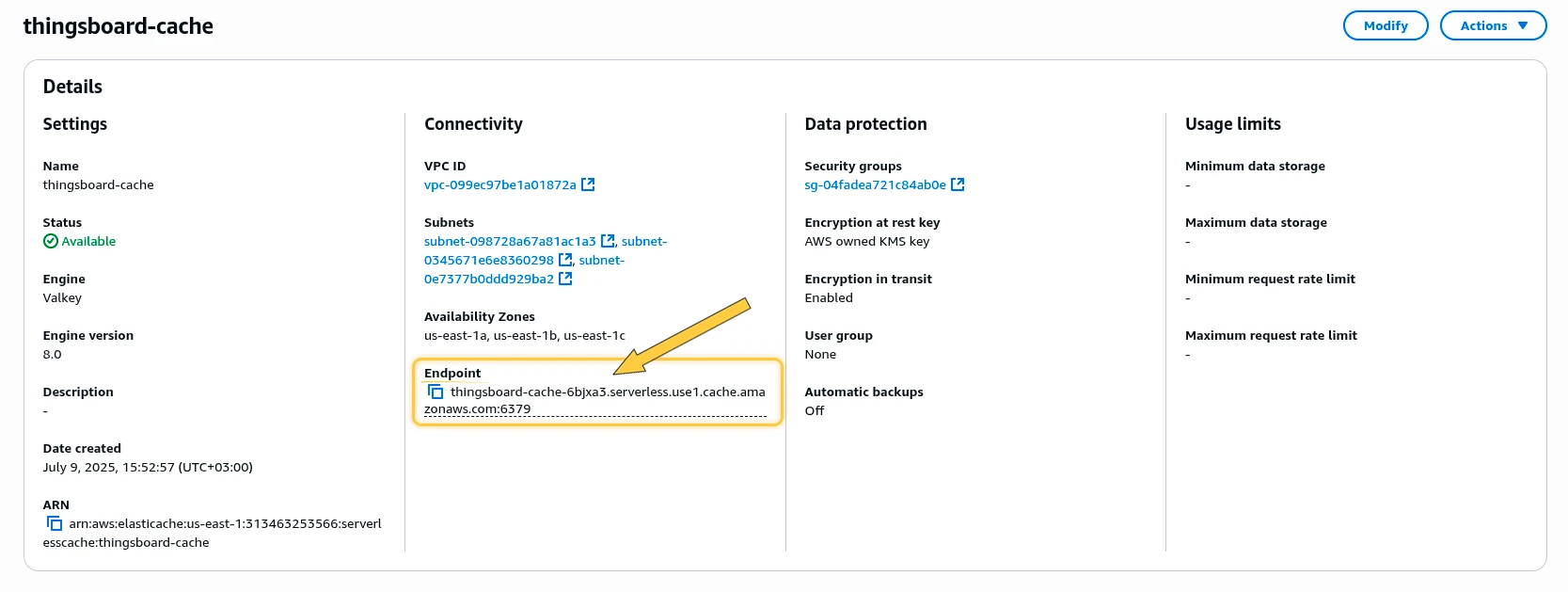
Once the Valkey cluster switches to the Available state, navigate to the Details section and copy the Endpoint field without the “:6379” port suffix.
Edit the tb-valkey.yml file, locate the StatefulSet section named tb-valkey, and set spec.replicas to 0 to disable the default local Valkey deployment.
Then, edit tb-cache-configmap.yml and replace the REDIS_HOST value with your Valkey endpoint.
Step 7. Configure Links to Kafka (Amazon MSK)/Redis/Postgres
Section titled “Step 7. Configure Links to Kafka (Amazon MSK)/Redis/Postgres”Edit tb-node-db-configmap.yml and replace YOUR_RDS_ENDPOINT_URL and YOUR_RDS_PASSWORD with the values obtained during Step 4.
Edit tb-kafka-configmap.yml and replace YOUR_MSK_BOOTSTRAP_SERVERS_PLAINTEXT with the value obtained during Step 5.
Edit tb-redis-configmap.yml and replace YOUR_REDIS_ENDPOINT_URL_WITHOUT_PORT with the value obtained during Step 6.
Step 8. Obtain and Configure License Key
Section titled “Step 8. Obtain and Configure License Key”We assume you have already chosen your subscription plan or decided to purchase a perpetual license. If not, navigate to the pricing page.
Create a docker secret with your license key:
export TB_LICENSE_KEY=PUT_YOUR_LICENSE_KEY_HEREkubectl create -n thingsboard secret generic tb-license --from-literal=license-key=$TB_LICENSE_KEYStep 9. CPU and Memory Resources Allocation
Section titled “Step 9. CPU and Memory Resources Allocation”The scripts have preconfigured values of resources for each service. You can change them in .yml files under the resources section.
Recommended CPU/memory resources allocation:
| Service | CPU | Memory |
|---|---|---|
| TB Node | 1.5 | 6Gi |
| TB HTTP Transport | 0.5 | 2Gi |
| TB MQTT Transport | 0.5 | 2Gi |
| TB CoAP Transport | 0.5 | 2Gi |
| TB Web UI | 0.3 | 0.5Gi |
| JS Executor | 0.1 | 0.3Gi |
| Zookeeper | 0.3 | 1Gi |
| Trendz (optional) | 2 | 4Gi |
| Trendz Python Executor (optional) | 1 | 4Gi |
Step 10. Installation
Section titled “Step 10. Installation”Execute the following command to run the initial setup of the database:
./k8s-install-tb.shAfter this command finishes you should see:
Installation finished successfully!Step 11. Starting
Section titled “Step 11. Starting”Deploy ThingsBoard services:
./k8s-deploy-resources.shAfter a few minutes, call kubectl get pods. If everything went fine, you should see:
- 5x
tb-js-executor - 1x
tb-node(scale to more nodes if you have additional license instances) - 2x
tb-web-ui - 3x
zookeeper
Every pod should be in the READY state.
Deploy Transport Microservices
Section titled “Deploy Transport Microservices”Deploy the transport microservices you need. Omit protocols you don’t use to save resources:
# HTTP Transport (optional)kubectl apply -f transports/tb-http-transport.yml
# MQTT Transport (optional)kubectl apply -f transports/tb-mqtt-transport.yml
# CoAP Transport (optional)kubectl apply -f transports/tb-coap-transport.yml
# LwM2M Transport (optional)kubectl apply -f transports/tb-lwm2m-transport.yml
# SNMP Transport (optional)kubectl apply -f transports/tb-snmp-transport.yml
Step 12. Configure Load Balancers
Section titled “Step 12. Configure Load Balancers”12.1 Configure HTTP(S) Load Balancer
Section titled “12.1 Configure HTTP(S) Load Balancer”You have 2 options:
- HTTP — recommended for development. Simple configuration and minimum costs.
- HTTPS — recommended for production. Acts as an SSL termination point with automatic redirect from HTTP to HTTPS.
kubectl apply -f receipts/http-load-balancer.ymlCheck the status:
kubectl get ingressOnce provisioned, you should see:
NAME CLASS HOSTS ADDRESS PORTS AGEtb-http-loadbalancer <none> * 34.111.24.134 80 7m25sUse the address to access the HTTP web UI (port 80) and connect devices via HTTP API.
Administrator account creation on first access is covered next, in Step 13. Create Your Administrator Account.
Use AWS Certificate Manager to create or import an SSL certificate. Note your certificate ARN.
Edit the load balancer configuration and replace YOUR_HTTPS_CERTIFICATE_ARN:
nano receipts/https-load-balancer.ymlDeploy:
kubectl apply -f receipts/https-load-balancer.yml12.2 Configure MQTT Load Balancer (Optional)
Section titled “12.2 Configure MQTT Load Balancer (Optional)”kubectl apply -f receipts/mqtt-load-balancer.ymlThe load balancer forwards all TCP traffic for ports 1883 and 8883.
Make the AWS NLB act as a TLS termination point. Traffic between devices and the load balancer is encrypted.
Use AWS Certificate Manager to create or import an SSL certificate. Edit the load balancer configuration:
nano receipts/mqtts-load-balancer.ymlReplace YOUR_MQTTS_CERTIFICATE_ARN, then deploy:
kubectl apply -f receipts/mqtts-load-balancer.ymlFollow the MQTT over SSL guide to create a .pem file.
Create a config-map:
kubectl create configmap tb-mqtts-config \ --from-file=server.pem=YOUR_PEM_FILENAME \ --from-file=mqttserver_key.pem=YOUR_PEM_KEY_FILENAME \ -o yaml --dry-run=client | kubectl apply -f -Uncomment all sections in tb-services.yml marked with “Uncomment the following lines to enable two-way MQTTS”, then apply:
kubectl apply -f tb-services.ymlDeploy the “transparent” load balancer:
kubectl apply -f receipts/mqtt-load-balancer.yml12.3 Configure UDP Load Balancer (Optional)
Section titled “12.3 Configure UDP Load Balancer (Optional)”kubectl apply -f receipts/udp-load-balancer.ymlThe load balancer forwards all UDP traffic for ports:
| Port | Protocol |
|---|---|
| 5683 | CoAP non-secure |
| 5684 | CoAP secure DTLS |
| 5685 | LwM2M non-secure |
| 5686 | LwM2M secure DTLS |
| 5687 | LwM2M bootstrap non-secure |
| 5688 | LwM2M bootstrap secure DTLS |
For CoAP over DTLS, follow the CoAP over DTLS guide. For LwM2M over DTLS, follow the LwM2M over DTLS guide.
12.4 Configure Edge Load Balancer (Optional)
Section titled “12.4 Configure Edge Load Balancer (Optional)”kubectl apply -f receipts/edge-load-balancer.ymlThe load balancer forwards all TCP traffic on port 7070.
To get the external IP address:
kubectl get services | grep "EXTERNAL-IP\|tb-edge-loadbalancer"Use the external IP address as CLOUD_RPC_HOST in Edge connection parameters.
Step 13. Create Your Administrator Account
Section titled “Step 13. Create Your Administrator Account”After launching ThingsBoard, open the web UI at the load balancer address. ThingsBoard prompts you to create your System Administrator account — the account that manages the platform itself (tenants, system settings, platform-wide resources).
- Enter Email, Password, and Confirm password.
- The Set up a demo tenant option is selected by default: it creates a ready-made tenant with dashboards, devices, and rule chains for exploring the platform before building your own solution. Clear it if you want to start with an empty platform.
- Click Create account. You are signed in as the system administrator.
Your ThingsBoard instance is now installed and running.
Validate the Setup
Section titled “Validate the Setup”Confirm that the load balancers created in Step 12 are provisioned and reachable, and note their addresses — you need them to open the web UI and to connect devices.
Validate Web UI Access
Section titled “Validate Web UI Access”Get the DNS name of the HTTP load balancer:
kubectl get ingressUse the address to open the ThingsBoard web interface in your browser.
Validate MQTT/CoAP Access
Section titled “Validate MQTT/CoAP Access”Get the load balancer services:
kubectl get serviceTwo load balancers are available:
tb-mqtt-loadbalancer-external— for MQTT protocoltb-coap-loadbalancer-external— for CoAP protocol
Use the EXTERNAL-IP field of the load balancers to connect to the cluster.
[Optional] Configure Trendz Analytics
Section titled “[Optional] Configure Trendz Analytics”Pull Trendz Images
Section titled “Pull Trendz Images”Pull the Trendz images from Docker Hub:
docker pull thingsboard/trendz:1.16.0.1docker pull thingsboard/trendz-python-executor:1.16.0.1Create a Trendz Database in the Existing RDS Instance
Section titled “Create a Trendz Database in the Existing RDS Instance”Edit trendz/trendz-secret.yml and replace YOUR_RDS_ENDPOINT_URL and YOUR_RDS_PASSWORD, then apply:
kubectl apply -f ./trendz/trendz-secret.ymlkubectl apply -f ./trendz/trendz-create-db.ymlCheck logs:
kubectl logs job/trendz-create-db -n thingsboardDeploy Trendz
Section titled “Deploy Trendz”./k8s-deploy-trendz.shAfter this command finishes you should see:
Trendz installed successfully!Troubleshooting
Section titled “Troubleshooting”To examine ThingsBoard node logs:
kubectl logs -f tb-node-0Other useful commands:
kubectl get pods— see the state of all podskubectl get services— see the state of all serviceskubectl get deployments— see the state of all deployments
See the kubectl Cheat Sheet for more details.
Cluster Deletion
Section titled “Cluster Deletion”Delete all ThingsBoard pods:
./k8s-delete-resources.shDelete all ThingsBoard pods and configmaps:
./k8s-delete-all.shDelete the EKS cluster (change cluster name and region as needed):
eksctl delete cluster -r us-east-1 -n thingsboard -wNext Steps
Section titled “Next Steps”With ThingsBoard running, these concept guides help you build your first solution:
- Getting Started — a guided walkthrough of the platform after installation.
- Multi-Tenancy & Hierarchy — how tenants, customers, and users are organized.
- Digital Twin Model — how devices and assets are modeled in the platform.
- Data Processing — how the Rule Engine transforms and routes incoming data.
- Alarms & Notifications — how to detect conditions and notify users.
- Data Visualization — how to build dashboards and widgets.
Was this helpful?