Installing ThingsBoard Edge on CentOS/RHEL
This guide provides step-by-step instructions for installing ThingsBoard Edge on RHEL/CentOS 8 and RHEL/CentOS 9.
Prerequisites
Section titled “Prerequisites”To run ThingsBoard Edge, you need an active ThingsBoard Professional Edition account that supports Edge functionality.
You can use ThingsBoard Cloud or install a local ThingsBoard PE server.
Hardware requirements
Section titled “Hardware requirements”The hardware requirements for ThingsBoard Edge depend on the number of connected devices and platform interaction intensity.
| Workload | RAM | Description |
|---|---|---|
| Light | 1 GB | Fewer than 100 devices, minimal dashboard/device management usage |
| Heavy | 4 GB | 100+ devices or intense platform interactions |
Deploy a new Edge instance
Section titled “Deploy a new Edge instance”To create a new Edge instance on your ThingsBoard Server:
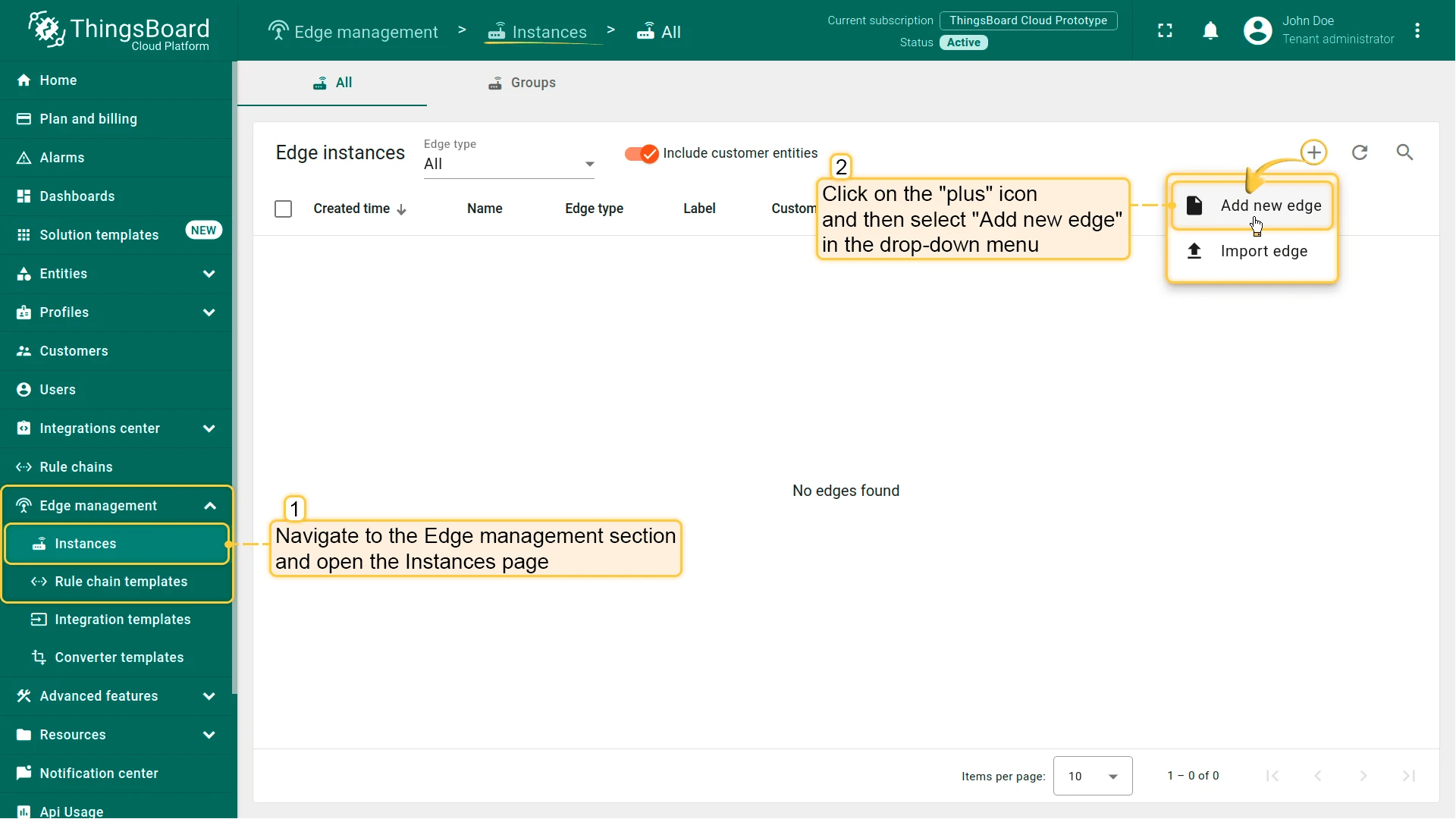
- Sign in to your ThingsBoard PE instance and go to Edge Management → Instances. Click Add (+) in the top-right corner and select Add new edge.
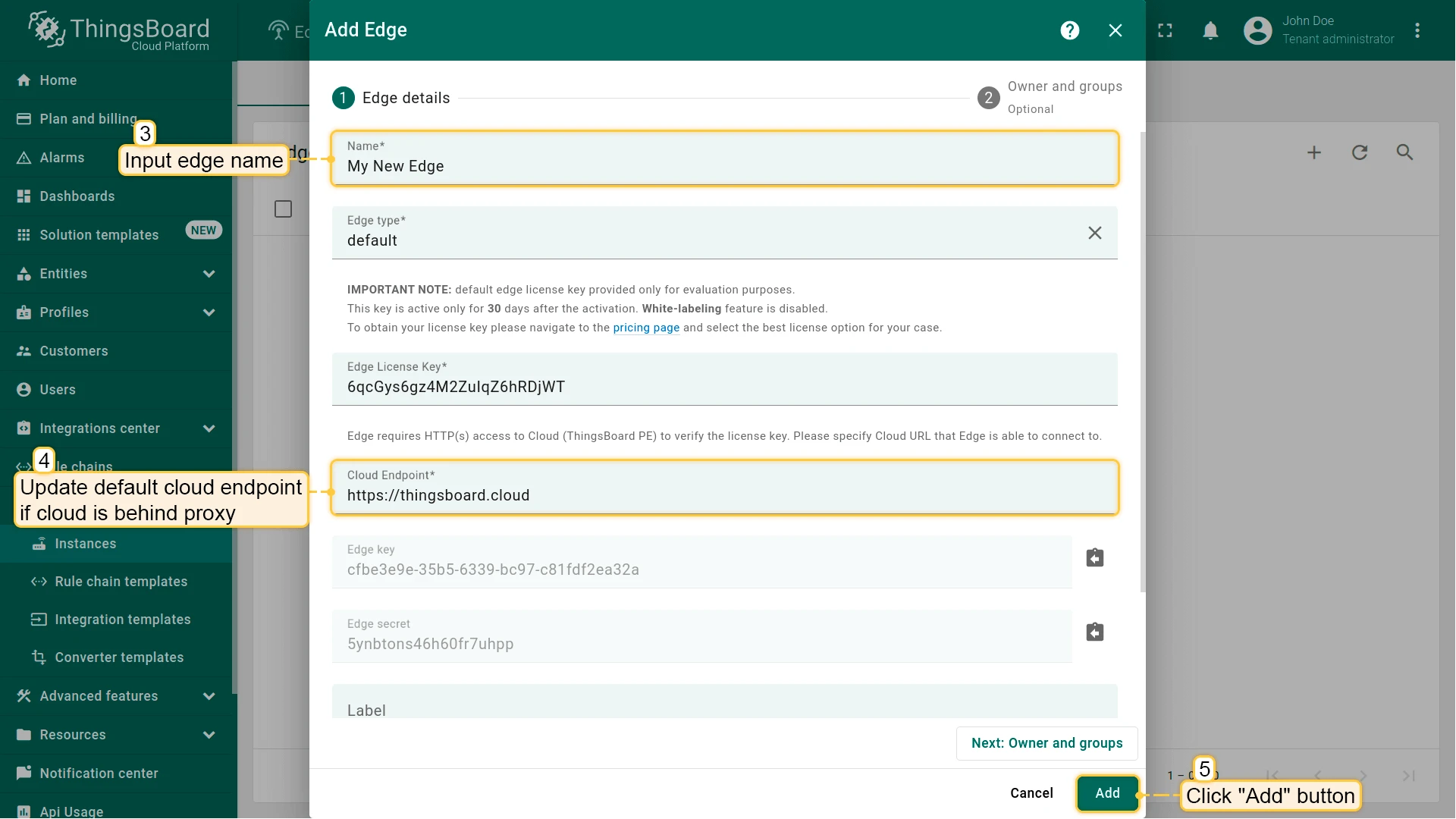
Enter a name for the Edge, like My New Edge.
If needed, update the Cloud endpoint. If Edge runs in a Docker container, do not uselocalhost— use the IP address of the machine where ThingsBoard PE is hosted (e.g.,http://10.7.2.143:8080). If you use ThingsBoard Cloud, keep the default. Click Add.- Your new Edge instance is created and appears at the top of the list.

Guided installation using ThingsBoard Server instructions
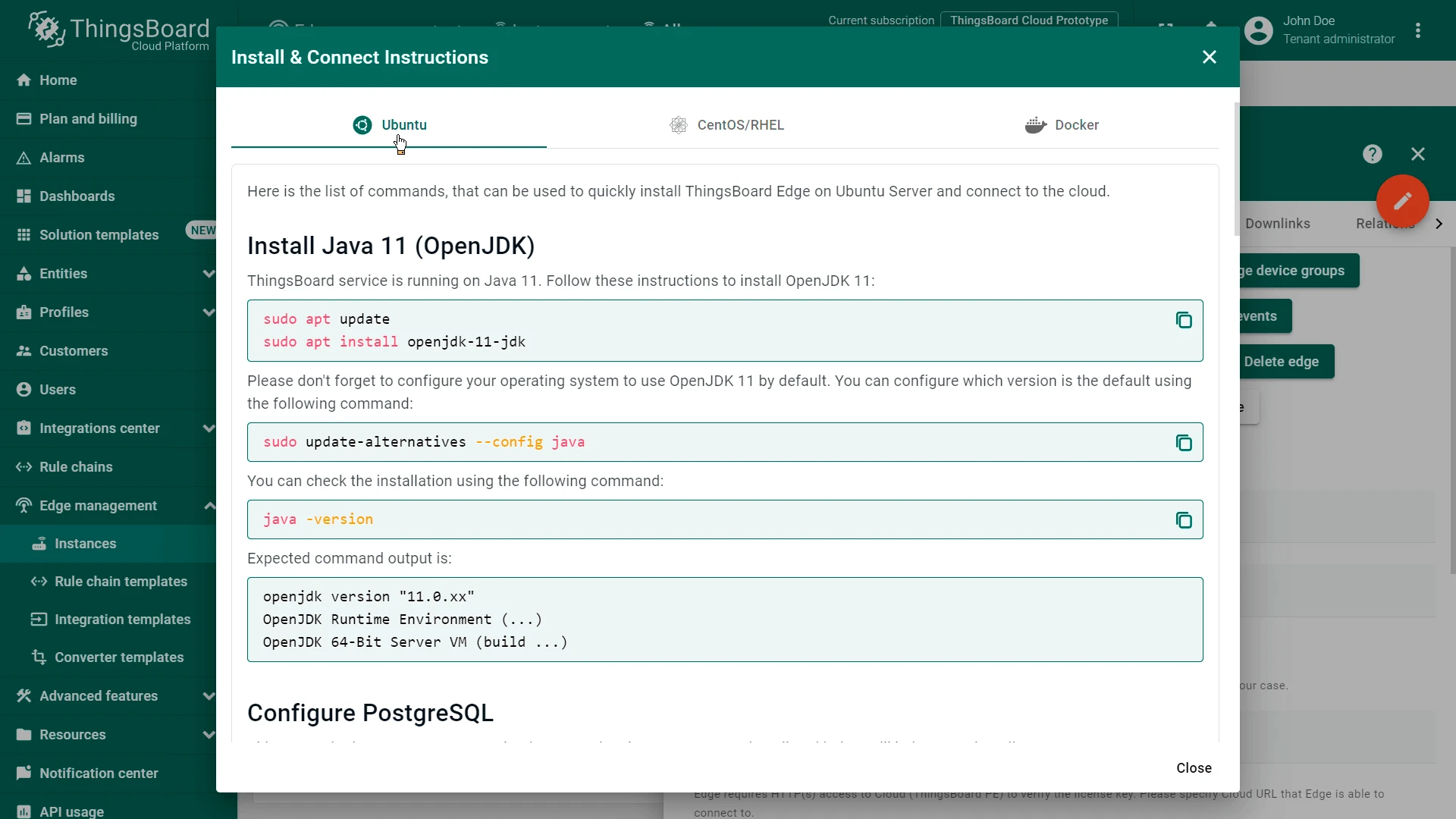
Section titled “Guided installation using ThingsBoard Server instructions”Once an Edge instance is created, the server generates pre-configured installation instructions containing the Edge credentials (Edge Key, Edge Secret, etc.). To access them:
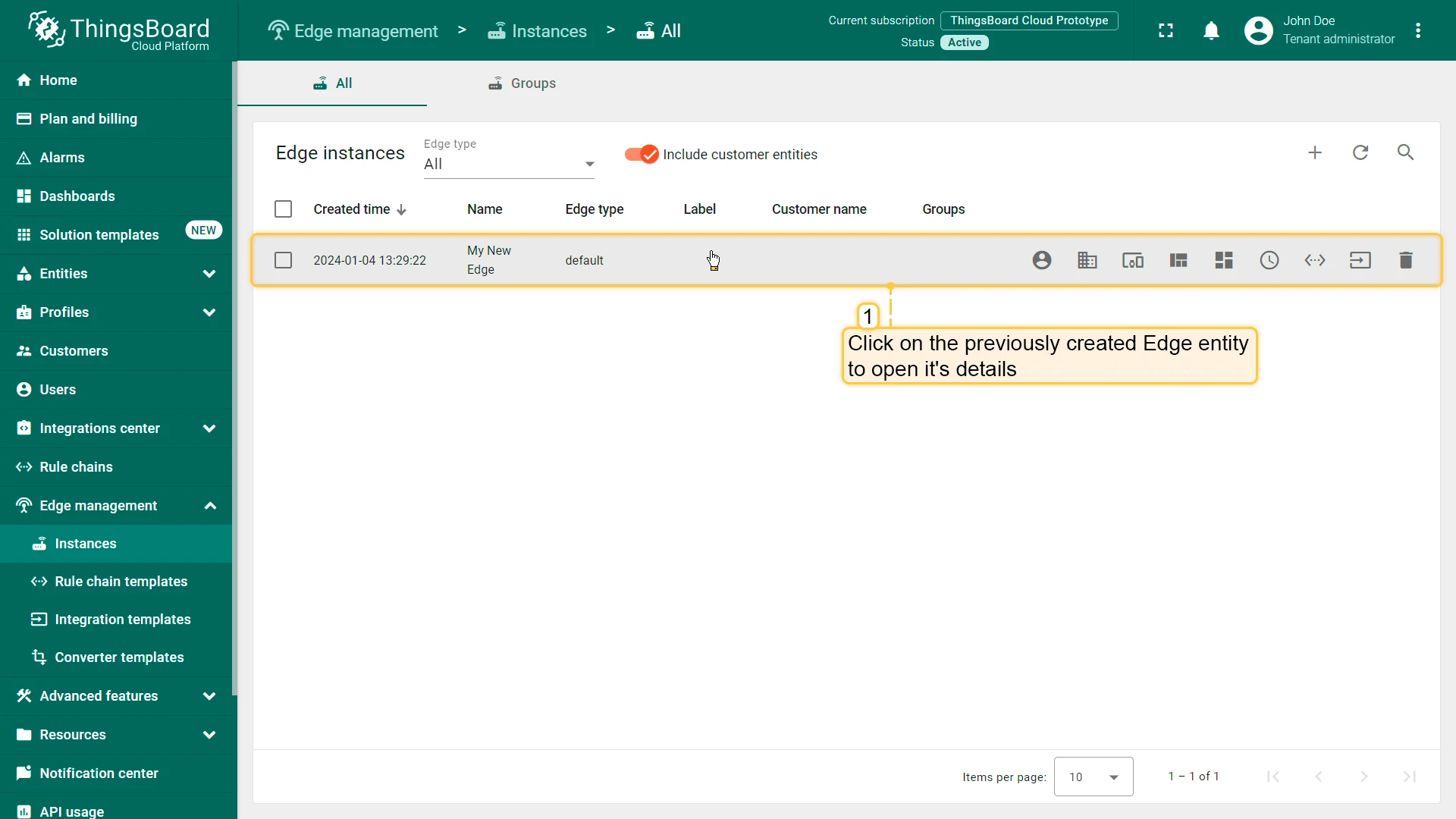
- Click the Edge entity to open its details.
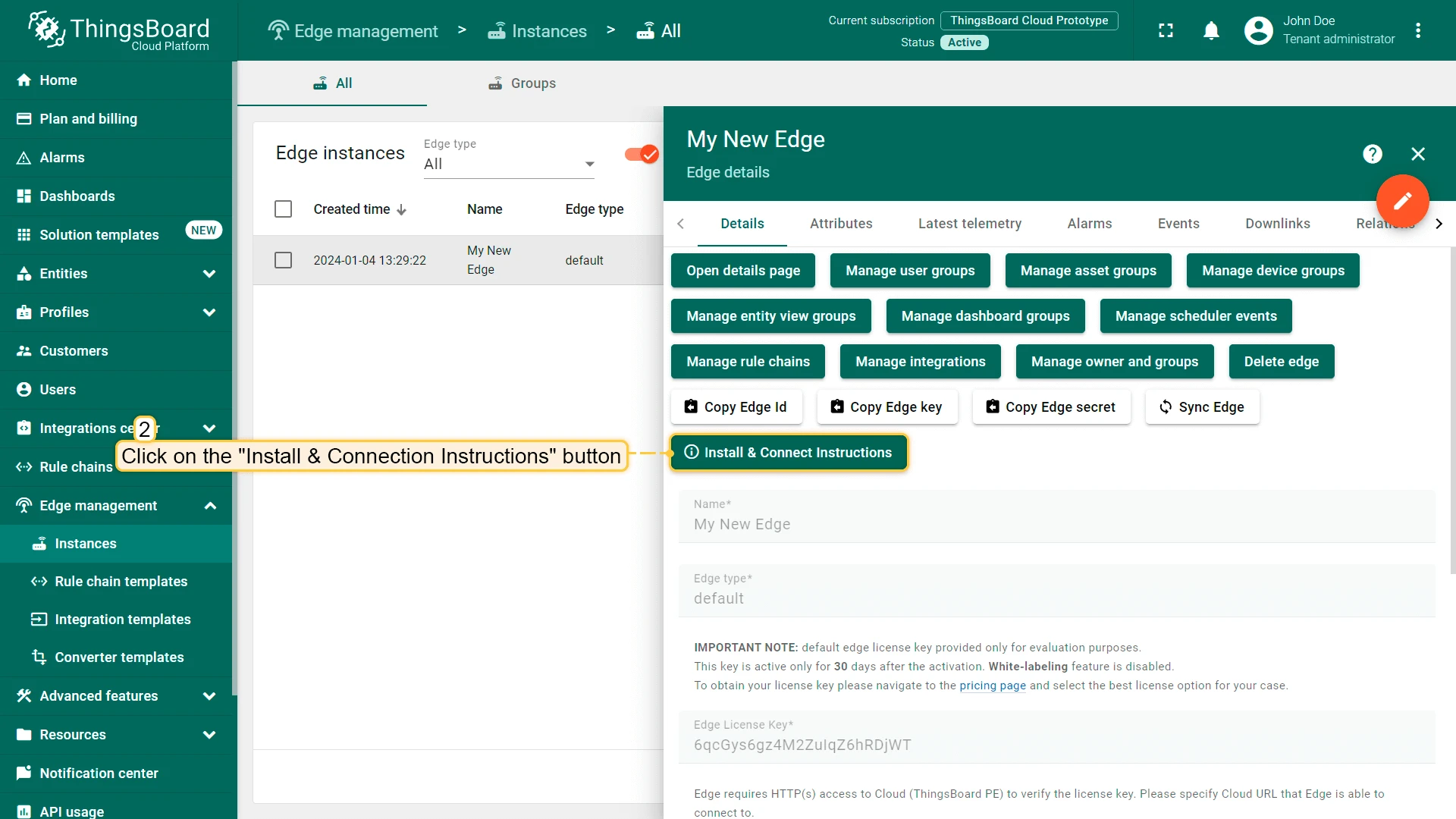
- Click Install & Connection Instructions.
- Select the installation method and follow the instructions to install Edge and connect it to the server.
Manual installation and configuration
Section titled “Manual installation and configuration”If you are unable to use the guided instructions above, follow the steps below to install and configure Edge manually.
Pre-installation
Section titled “Pre-installation”Install the required tools:
sudo yum install -y nano wget && sudo yum install -y https://dl.fedoraproject.org/pub/epel/epel-release-latest-7.noarch.rpmStep 1. Configure the ThingsBoard Edge database
Section titled “Step 1. Configure the ThingsBoard Edge database”ThingsBoard Edge supports SQL and hybrid database approaches.
PostgreSQL is recommended for development and production environments with moderate load (fewer than 5,000 messages/sec). Many cloud providers offer managed PostgreSQL services, making it a cost-effective option for most deployments.
Update your system:
sudo dnf updateInstall the PostgreSQL repository RPM for your OS version:
sudo dnf -y install https://download.postgresql.org/pub/repos/yum/reporpms/EL-8-x86_64/pgdg-redhat-repo-latest.noarch.rpmsudo dnf -y install https://download.postgresql.org/pub/repos/yum/reporpms/EL-9-x86_64/pgdg-redhat-repo-latest.noarch.rpmInstall PostgreSQL and initialize the database. The PostgreSQL service will start automatically on system boot:
sudo dnf -qy module disable postgresql && \sudo dnf -y install postgresql16 postgresql16-server postgresql16-contrib && \sudo /usr/pgsql-16/bin/postgresql-16-setup initdb && \sudo systemctl enable --now postgresql-16Set the password for the main PostgreSQL user:
sudo -u postgres psql -c "\password"Enter and confirm the password when prompted.
Configure MD5 authentication for local connections, then restart PostgreSQL and create the tb_edge database:
sudo sed -i 's/^host\s\+all\s\+all\s\+127\.0\.0\.1\/32\s\+ident/host all all 127.0.0.1\/32 md5/' /var/lib/pgsql/16/data/pg_hba.confsudo systemctl restart postgresql-16.service && psql -U postgres -d postgres -h 127.0.0.1 -W -c "CREATE DATABASE tb_edge;"The hybrid approach is recommended when you plan to manage 1M+ devices in production or handle high data ingestion rates (more than 5,000 messages/sec). In this case, ThingsBoard Edge stores time-series data in Cassandra while using PostgreSQL for primary entities like devices, assets, dashboards, and customers.
PostgreSQL installation
Section titled “PostgreSQL installation”Update your system:
sudo dnf updateInstall the PostgreSQL repository RPM for your OS version:
sudo dnf -y install https://download.postgresql.org/pub/repos/yum/reporpms/EL-8-x86_64/pgdg-redhat-repo-latest.noarch.rpmsudo dnf -y install https://download.postgresql.org/pub/repos/yum/reporpms/EL-9-x86_64/pgdg-redhat-repo-latest.noarch.rpmInstall PostgreSQL and initialize the database:
sudo dnf -qy module disable postgresql && \sudo dnf -y install postgresql16 postgresql16-server postgresql16-contrib && \sudo /usr/pgsql-16/bin/postgresql-16-setup initdb && \sudo systemctl enable --now postgresql-16Set the password for the main PostgreSQL user:
sudo -u postgres psql -c "\password"Configure MD5 authentication, restart PostgreSQL, and create the tb_edge database:
sudo sed -i 's/^host\s\+all\s\+all\s\+127\.0\.0\.1\/32\s\+ident/host all all 127.0.0.1\/32 md5/' /var/lib/pgsql/16/data/pg_hba.confsudo systemctl restart postgresql-16.service && psql -U postgres -d postgres -h 127.0.0.1 -W -c "CREATE DATABASE tb_edge;"Cassandra installation
Section titled “Cassandra installation”Add the Cassandra repository. Create the repo file:
sudo nano /etc/yum.repos.d/cassandra.repoAdd the following content:
[cassandra]name=Apache Cassandrabaseurl=https://redhat.cassandra.apache.org/50x/gpgcheck=1repo_gpgcheck=1gpgkey=https://downloads.apache.org/cassandra/KEYSInstall and start Cassandra:
sudo yum updatesudo yum install cassandrasudo service cassandra startThingsBoard Edge configuration for hybrid mode
Section titled “ThingsBoard Edge configuration for hybrid mode”Open the ThingsBoard Edge configuration file:
sudo nano /etc/tb-edge/conf/tb-edge.confAdd the following lines. Replace PUT_YOUR_POSTGRESQL_PASSWORD_HERE with your actual PostgreSQL user password:
# DB Configurationexport DATABASE_TS_TYPE=cassandraexport SPRING_DATASOURCE_URL=jdbc:postgresql://localhost:5432/tb_edgeexport SPRING_DATASOURCE_USERNAME=postgresexport SPRING_DATASOURCE_PASSWORD=PUT_YOUR_POSTGRESQL_PASSWORD_HEREOptionally, add the following parameters to connect to external Cassandra nodes:
export CASSANDRA_CLUSTER_NAME=Edge Clusterexport CASSANDRA_KEYSPACE_NAME=thingsboardexport CASSANDRA_URL=127.0.0.1:9042export CASSANDRA_USE_CREDENTIALS=falseexport CASSANDRA_USERNAME=export CASSANDRA_PASSWORD=Step 2. Select the queue service
Section titled “Step 2. Select the queue service”ThingsBoard Edge can use different messaging systems for storing messages and enabling communication between its services.
The In Memory queue is the built-in default implementation. It is suitable for development or proof-of-concept environments, but is not recommended for production or clustered deployments due to limited scalability.
No additional configuration is required.
Kafka is recommended for production deployments and is used in most ThingsBoard production environments. It provides high throughput, durability, and horizontal scalability.
Install Docker for CentOS/RHEL if you have not done so already.
To install Kafka in a Docker container, run the following command. It creates a docker-compose-kafka.yml file and starts the container:
cat > docker-compose-kafka.yml <<EOF && docker compose -f docker-compose-kafka.yml up -dservices: kafka: restart: always image: bitnamilegacy/kafka:4.0 ports: - 9092:9092 #to localhost:9092 from host machine - 9093 #for Kraft - 9094 #to kafka:9094 from within Docker network environment: ALLOW_PLAINTEXT_LISTENER: "yes" KAFKA_CFG_LISTENERS: "OUTSIDE://:9092,CONTROLLER://:9093,INSIDE://:9094" KAFKA_CFG_ADVERTISED_LISTENERS: "OUTSIDE://localhost:9092,INSIDE://kafka:9094" KAFKA_CFG_LISTENER_SECURITY_PROTOCOL_MAP: "INSIDE:PLAINTEXT,OUTSIDE:PLAINTEXT,CONTROLLER:PLAINTEXT" KAFKA_CFG_INTER_BROKER_LISTENER_NAME: "INSIDE" KAFKA_CFG_AUTO_CREATE_TOPICS_ENABLE: "false" KAFKA_OFFSETS_TOPIC_REPLICATION_FACTOR: "1" KAFKA_TRANSACTION_STATE_LOG_MIN_ISR: "1" KAFKA_TRANSACTION_STATE_LOG_REPLICATION_FACTOR: "1" KAFKA_CFG_PROCESS_ROLES: "controller,broker" #KRaft KAFKA_CFG_NODE_ID: "0" #KRaft KAFKA_CFG_CONTROLLER_LISTENER_NAMES: "CONTROLLER" #KRaft KAFKA_CFG_CONTROLLER_QUORUM_VOTERS: "0@kafka:9093" #KRaft volumes: - kafka-data:/bitnamivolumes: kafka-data: driver: localEOFConfigure ThingsBoard Edge to use Kafka:
echo -e "\nexport TB_QUEUE_TYPE=kafka\nexport TB_KAFKA_SERVERS=localhost:9092" | sudo tee -a /etc/tb-edge/conf/tb-edge.conf > /dev/nullReplace localhost:9092 with your actual Kafka bootstrap server address if necessary.
Step 3. Download and install ThingsBoard Edge
Section titled “Step 3. Download and install ThingsBoard Edge”wget https://dist.thingsboard.io/tb-edge-4.3.1.1pe.rpmsudo rpm -Uvh tb-edge-4.3.1.1pe.rpmStep 4. Configure ThingsBoard Edge
Section titled “Step 4. Configure ThingsBoard Edge”ThingsBoard Edge requires Java 17. To install OpenJDK 17:
sudo dnf install java-17-openjdk-headlessConfigure your operating system to use OpenJDK 17 by default:
sudo update-alternatives --config javaVerify the installation:
java -versionThe expected output:
openjdk version "17.x.xx"OpenJDK Runtime Environment (...)OpenJDK 64-Bit Server VM (build ...)In the Edge instance details panel, click Copy Edge Key and Copy Edge Secret. Store these values — you need them in the next step.
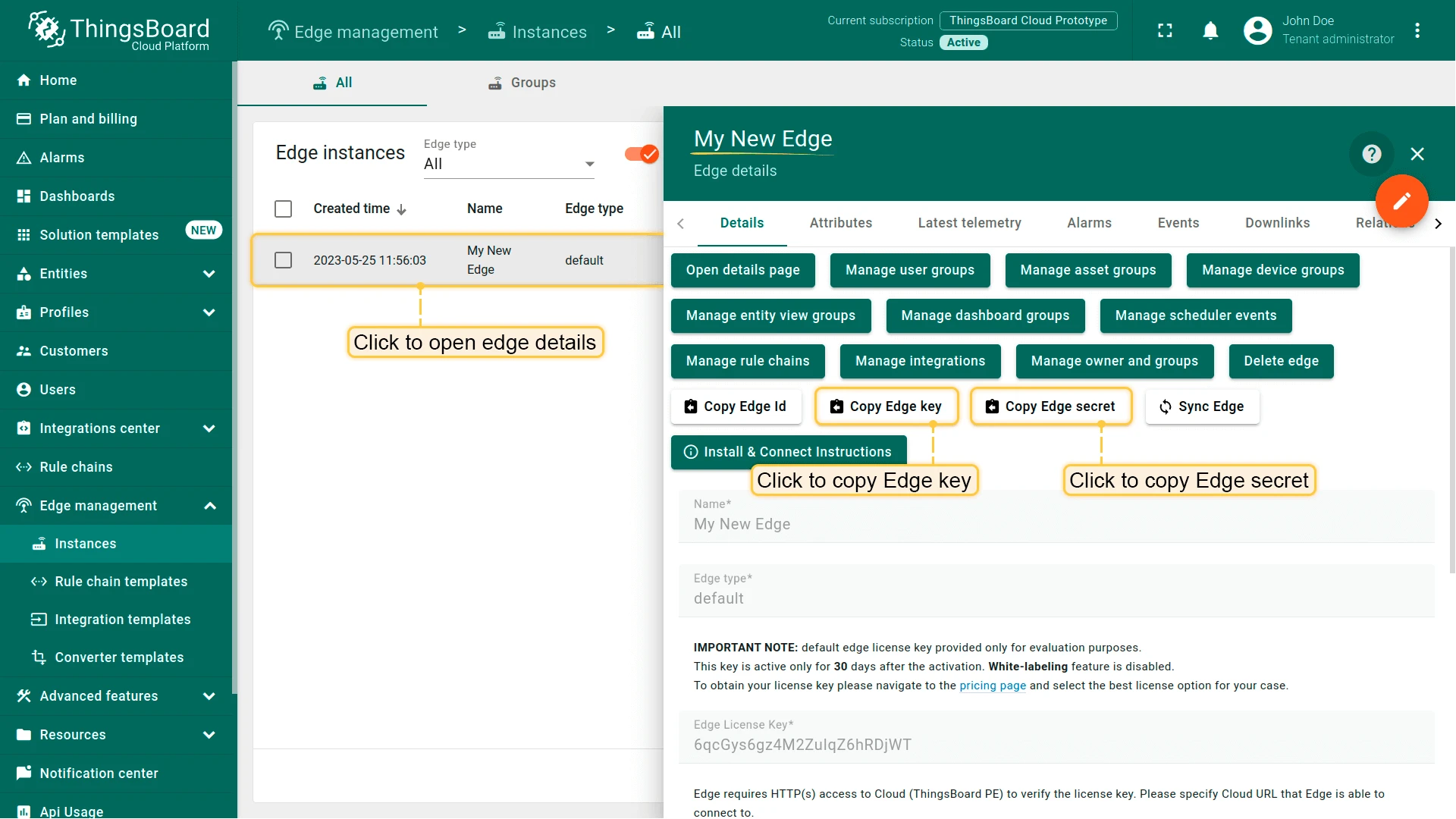
Edit the ThingsBoard Edge configuration file to set your Edge credentials and cloud connection parameters.
Use this configuration to connect to ThingsBoard Cloud hosted in North America.
sudo sh -c 'cat <<EOL >> /etc/tb-edge/conf/tb-edge.confexport CLOUD_ROUTING_KEY=PUT_YOUR_EDGE_KEY_HEREexport CLOUD_ROUTING_SECRET=PUT_YOUR_EDGE_SECRET_HEREexport CLOUD_RPC_HOST=thingsboard.cloudexport CLOUD_RPC_PORT=7070export CLOUD_RPC_SSL_ENABLED=trueexport INTEGRATIONS_RPC_PORT=19090EOL'Use this configuration to connect to ThingsBoard Cloud hosted in Europe.
sudo sh -c 'cat <<EOL >> /etc/tb-edge/conf/tb-edge.confexport CLOUD_ROUTING_KEY=PUT_YOUR_EDGE_KEY_HEREexport CLOUD_ROUTING_SECRET=PUT_YOUR_EDGE_SECRET_HEREexport CLOUD_RPC_HOST=eu.thingsboard.cloudexport CLOUD_RPC_PORT=7070export CLOUD_RPC_SSL_ENABLED=trueexport INTEGRATIONS_RPC_PORT=19090EOL'Use this configuration to connect to a self-hosted ThingsBoard PE server on your local network.
sudo sh -c 'cat <<EOL >> /etc/tb-edge/conf/tb-edge.confexport CLOUD_ROUTING_KEY=PUT_YOUR_EDGE_KEY_HEREexport CLOUD_ROUTING_SECRET=PUT_YOUR_EDGE_SECRET_HEREexport CLOUD_RPC_HOST=PUT_YOUR_RPC_HOSTexport CLOUD_RPC_PORT=7070export CLOUD_RPC_SSL_ENABLED=falseexport HTTP_BIND_PORT=18080export MQTT_BIND_PORT=11883export COAP_BIND_PORT=15683export LWM2M_ENABLED=falseexport SNMP_ENABLED=falseexport INTEGRATIONS_RPC_PORT=19090EOL'Configuration parameters:
| Parameter | Description |
|---|---|
CLOUD_ROUTING_KEY | Your Edge key (copied above) |
CLOUD_ROUTING_SECRET | Your Edge secret (copied above) |
CLOUD_RPC_HOST | Hostname or IP address of the ThingsBoard Server |
CLOUD_RPC_PORT | gRPC port used for Edge–server communication (default: 7070) |
CLOUD_RPC_SSL_ENABLED | Set to true to enable SSL — required when connecting to ThingsBoard Cloud |
INTEGRATIONS_RPC_PORT | Port used for integration communication between Edge and ThingsBoard PE |
Step 5. Complete the installation
Section titled “Step 5. Complete the installation”Once ThingsBoard Edge is installed and configured, execute the installation script:
sudo /usr/share/tb-edge/bin/install/install.shStart the ThingsBoard Edge service:
sudo service tb-edge startOnce the service is running, open the Edge UI at http://localhost:8080.
Log in using your tenant credentials from ThingsBoard Server or ThingsBoard Cloud.
Troubleshooting
Section titled “Troubleshooting”ThingsBoard Edge logs are stored in:
/var/log/tb-edgeTo check for errors:
cat /var/log/tb-edge/tb-edge.log | grep ERRORService management
Section titled “Service management”To stop the ThingsBoard Edge service:
sudo service tb-edge stopTo restart the ThingsBoard Edge service:
sudo service tb-edge restartTo check the status of the ThingsBoard Edge service:
sudo service tb-edge statusWas this helpful?