HTTP Integration
HTTP Integration exposes an HTTP endpoint on the Edge that accepts inbound device data (uplink) and can send commands back to devices (downlink). It is useful when:
- You are streaming device or asset data from an external system or connectivity provider.
- You have a custom application that posts data over HTTP.
- You want to connect a device to ThingsBoard Edge using a custom HTTP-based protocol.

Create converter and integration templates
Section titled “Create converter and integration templates”Integration and Converter templates are created in the Cloud (ThingsBoard PE server) and then assigned to Edge instances.
-
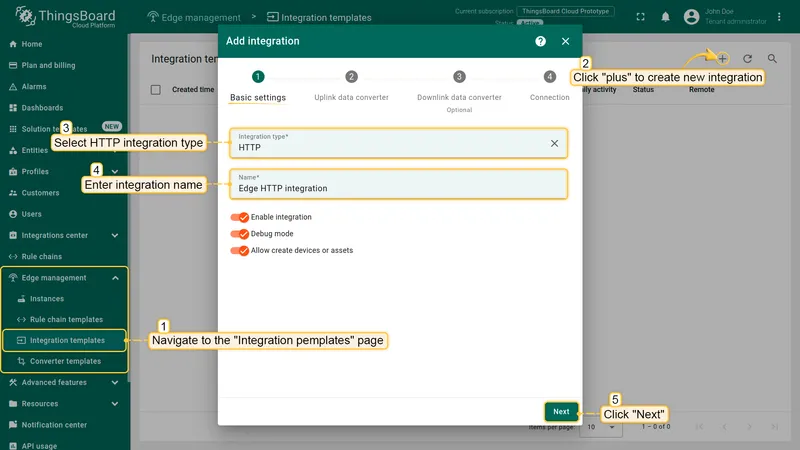
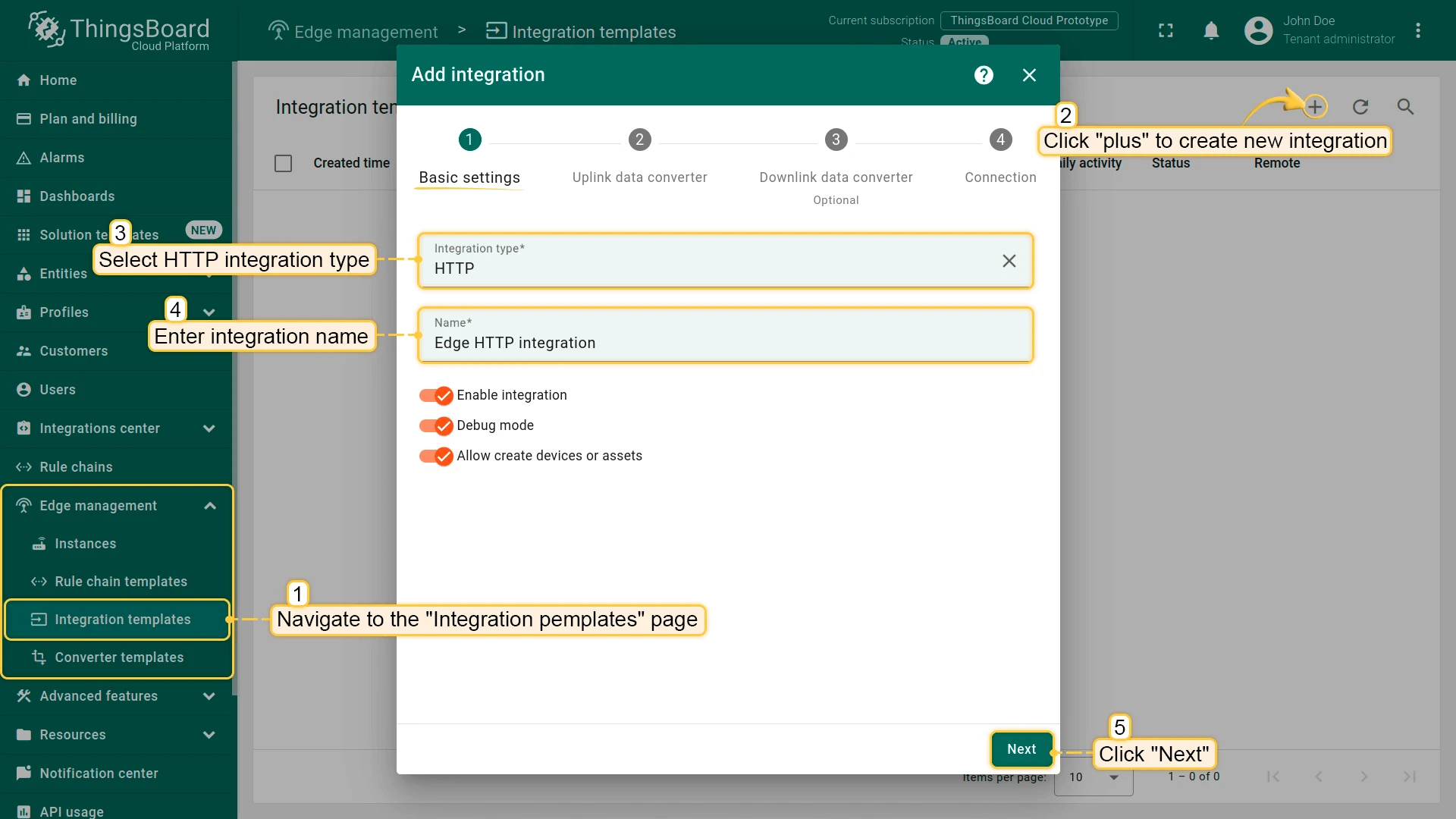
In the Cloud, go to Edge management > Integration templates and click the + button. Select HTTP as the type and name it Edge HTTP Integration, then click Next.
-
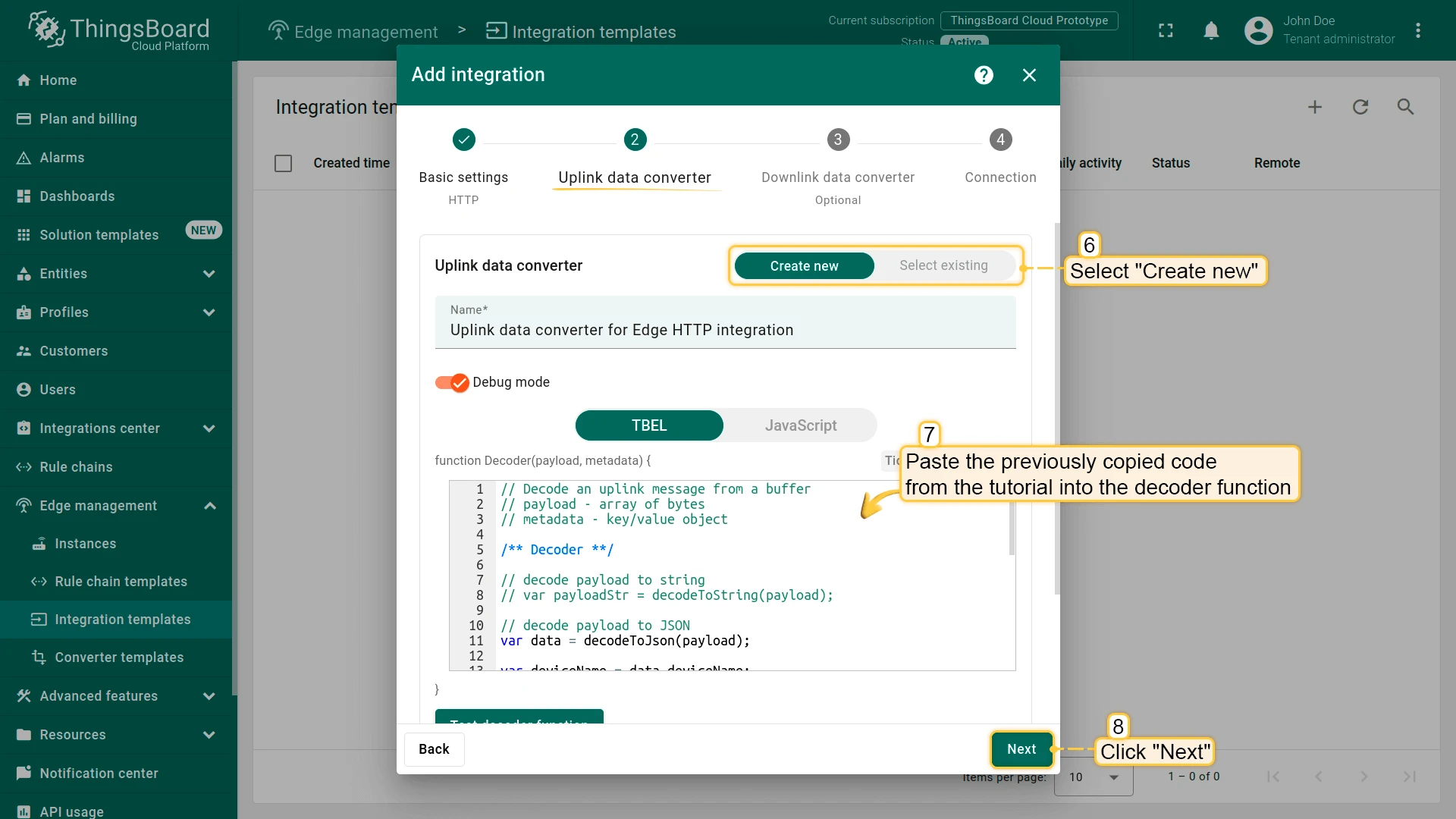
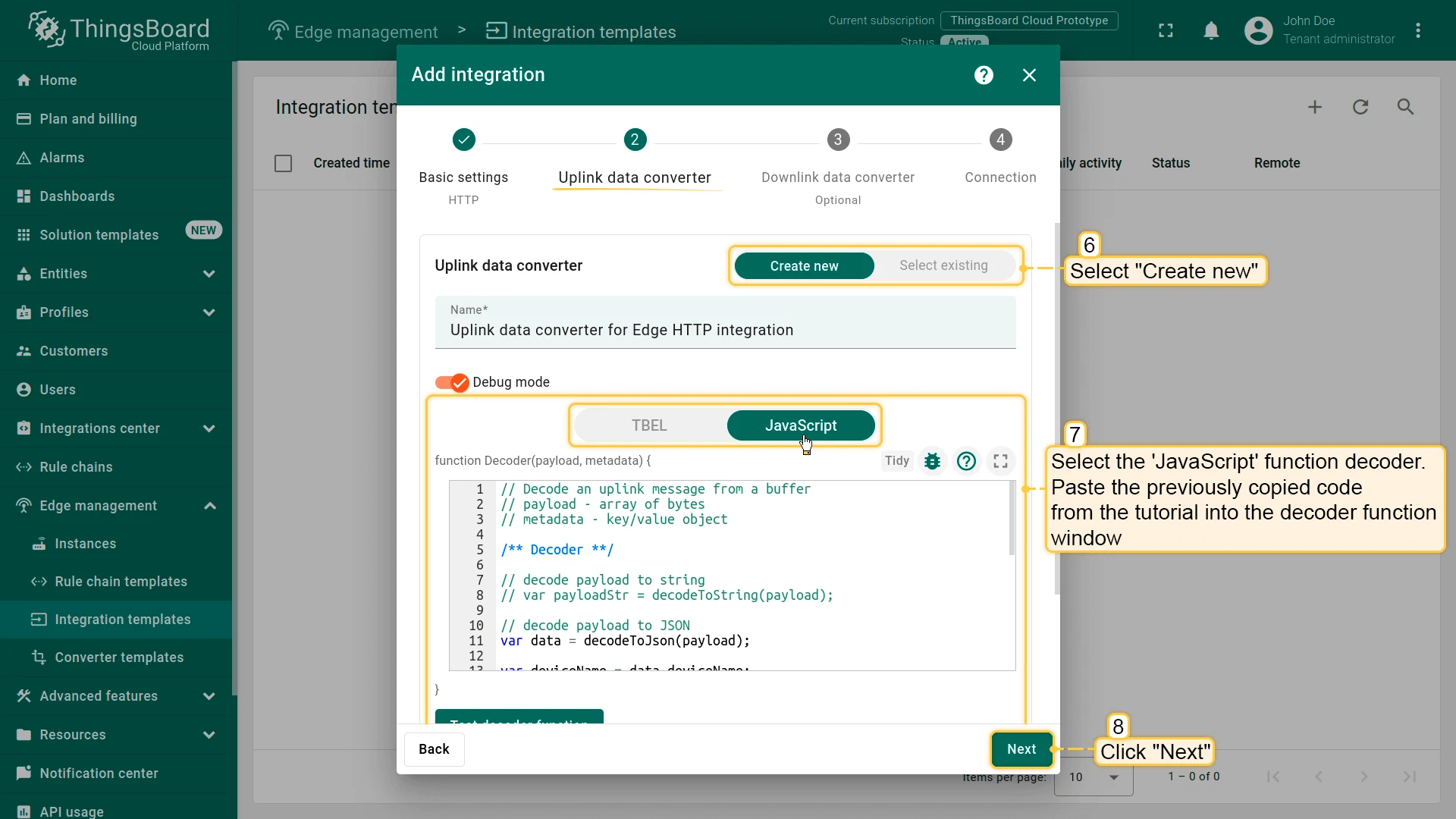
Create the Uplink converter. The uplink converter decodes the raw HTTP payload into ThingsBoard telemetry and attributes.
// Decode an uplink message from a buffer// payload - array of bytes// metadata - key/value objectvar data = decodeToJson(payload);var deviceName = data.deviceName;var deviceType = data.deviceType;var result = {deviceName: deviceName,deviceType: deviceType,attributes: {model: data.model,serialNumber: data.param2,},telemetry: {temperature: data.temperature}};// Helper functions 'decodeToString' and 'decodeToJson' are built-inreturn result;// Decode an uplink message from a buffer// payload - array of bytes// metadata - key/value objectvar data = decodeToJson(payload);var deviceName = data.deviceName;var deviceType = data.deviceType;var result = {deviceName: deviceName,deviceType: deviceType,attributes: {model: data.model,serialNumber: data.param2,},telemetry: {temperature: data.temperature}};function decodeToString(payload) {return String.fromCharCode.apply(String, payload);}function decodeToJson(payload) {var str = decodeToString(payload);return JSON.parse(str);}return result;Select Create new, paste the script into the Decoder function field, and click Next.
-
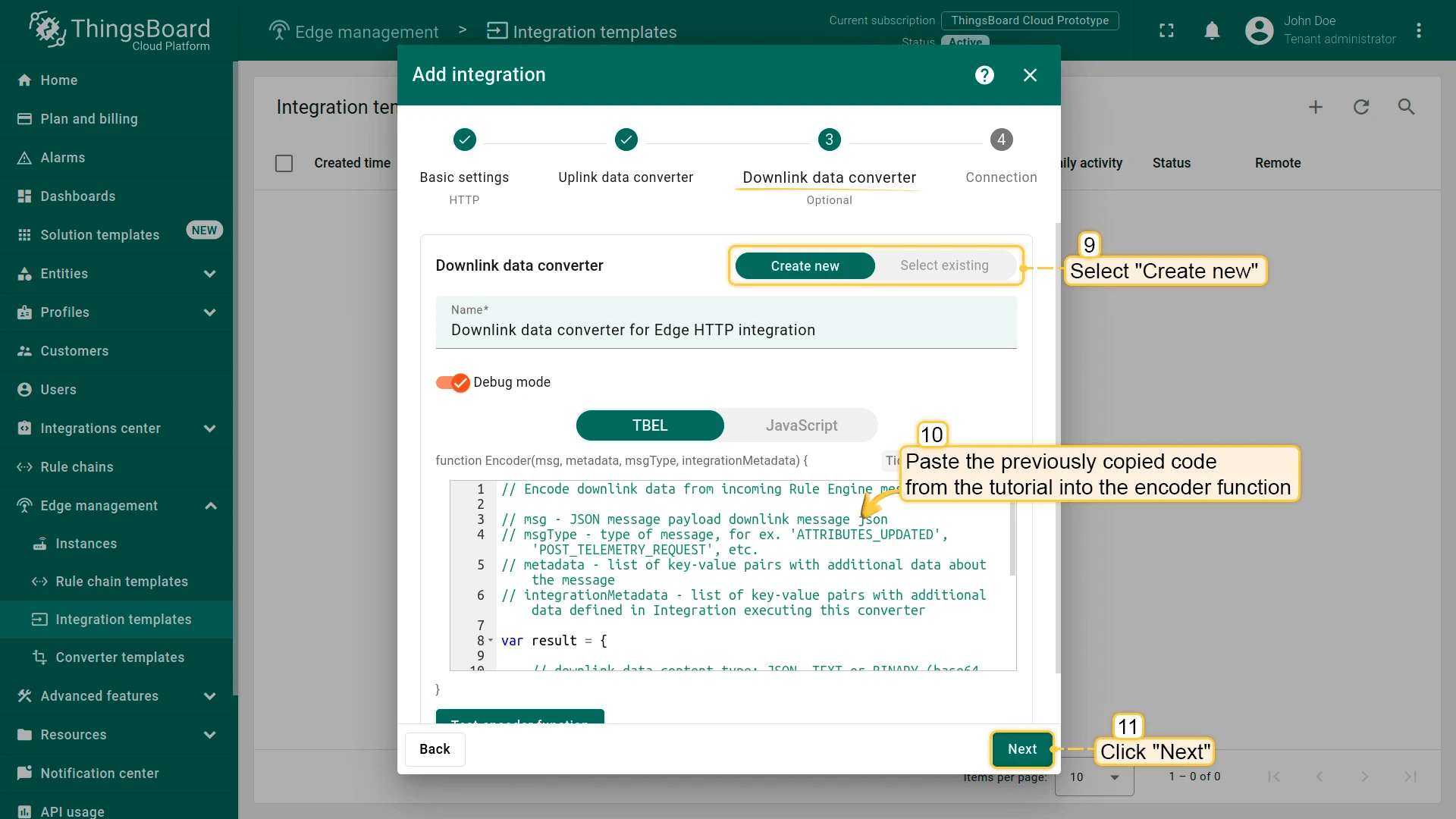
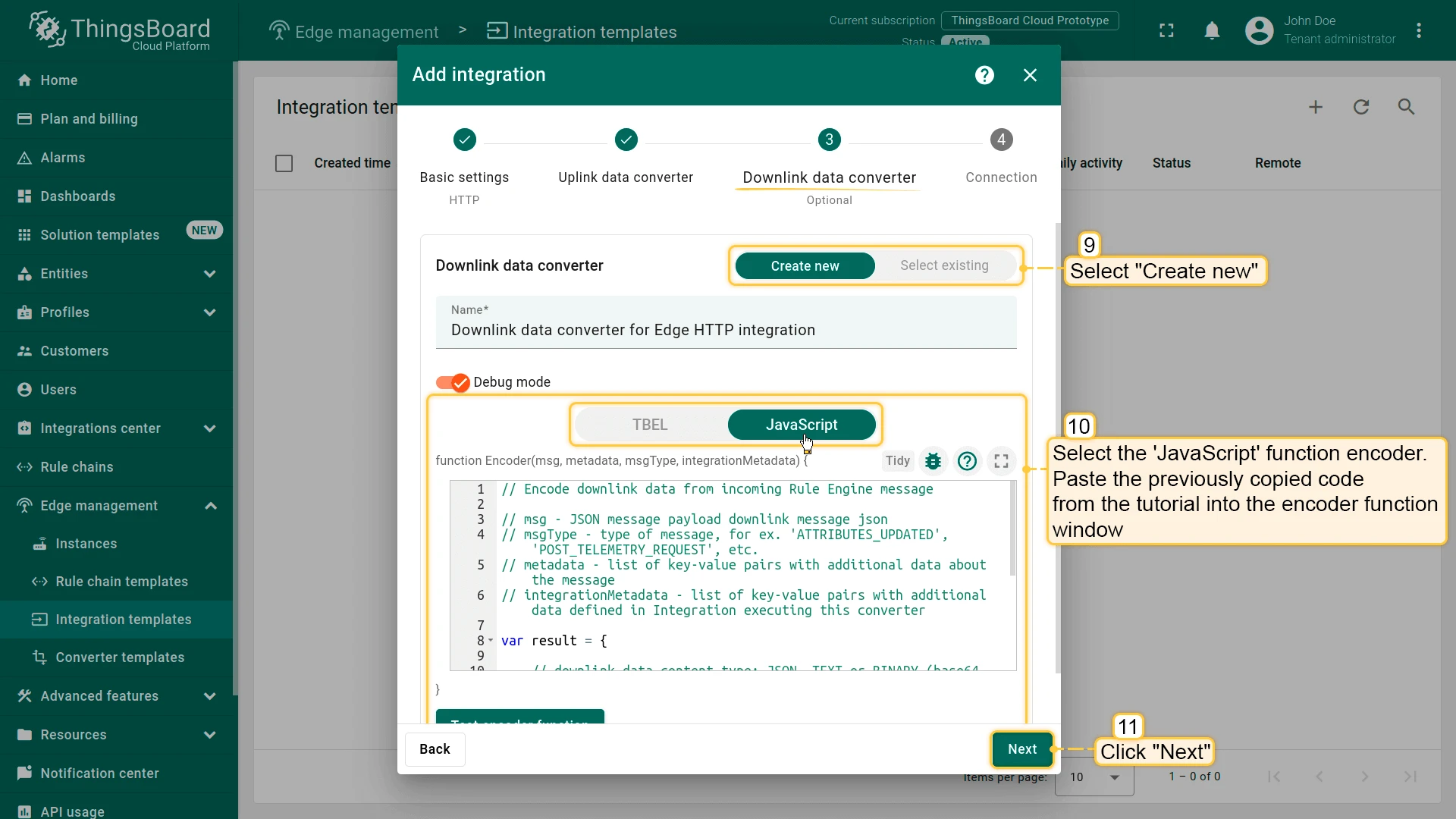
Create the Downlink converter. The downlink converter encodes outbound messages (e.g. attribute updates) into the format expected by the device.
// Encode downlink data from incoming Rule Engine message// msg - JSON message payload// msgType - e.g. 'ATTRIBUTES_UPDATED', 'POST_TELEMETRY_REQUEST'// metadata - key/value pairs with message metadata// integrationMetadata - key/value pairs defined in the Integrationvar result = {contentType: "JSON",data: JSON.stringify(msg),metadata: {}};return result;// Encode downlink data from incoming Rule Engine message// msg - JSON message payload// msgType - e.g. 'ATTRIBUTES_UPDATED', 'POST_TELEMETRY_REQUEST'// metadata - key/value pairs with message metadata// integrationMetadata - key/value pairs defined in the Integrationvar result = {contentType: "JSON",data: JSON.stringify(msg),metadata: {}};return result;Select Create new, paste the script into the Encoder function field, and click Next.
-
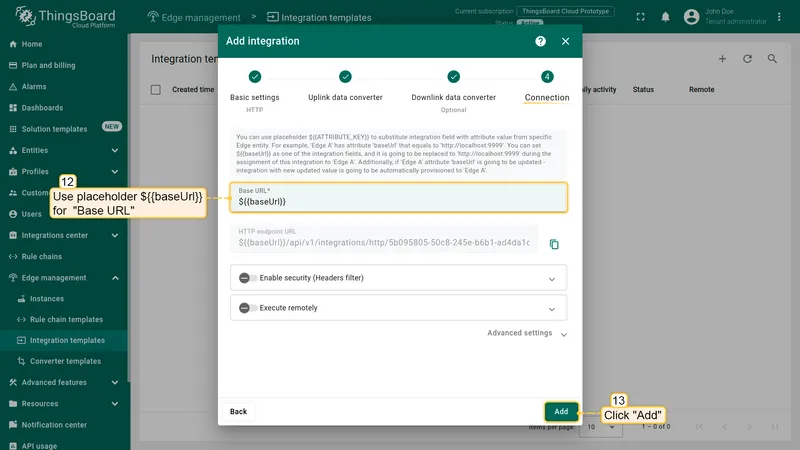
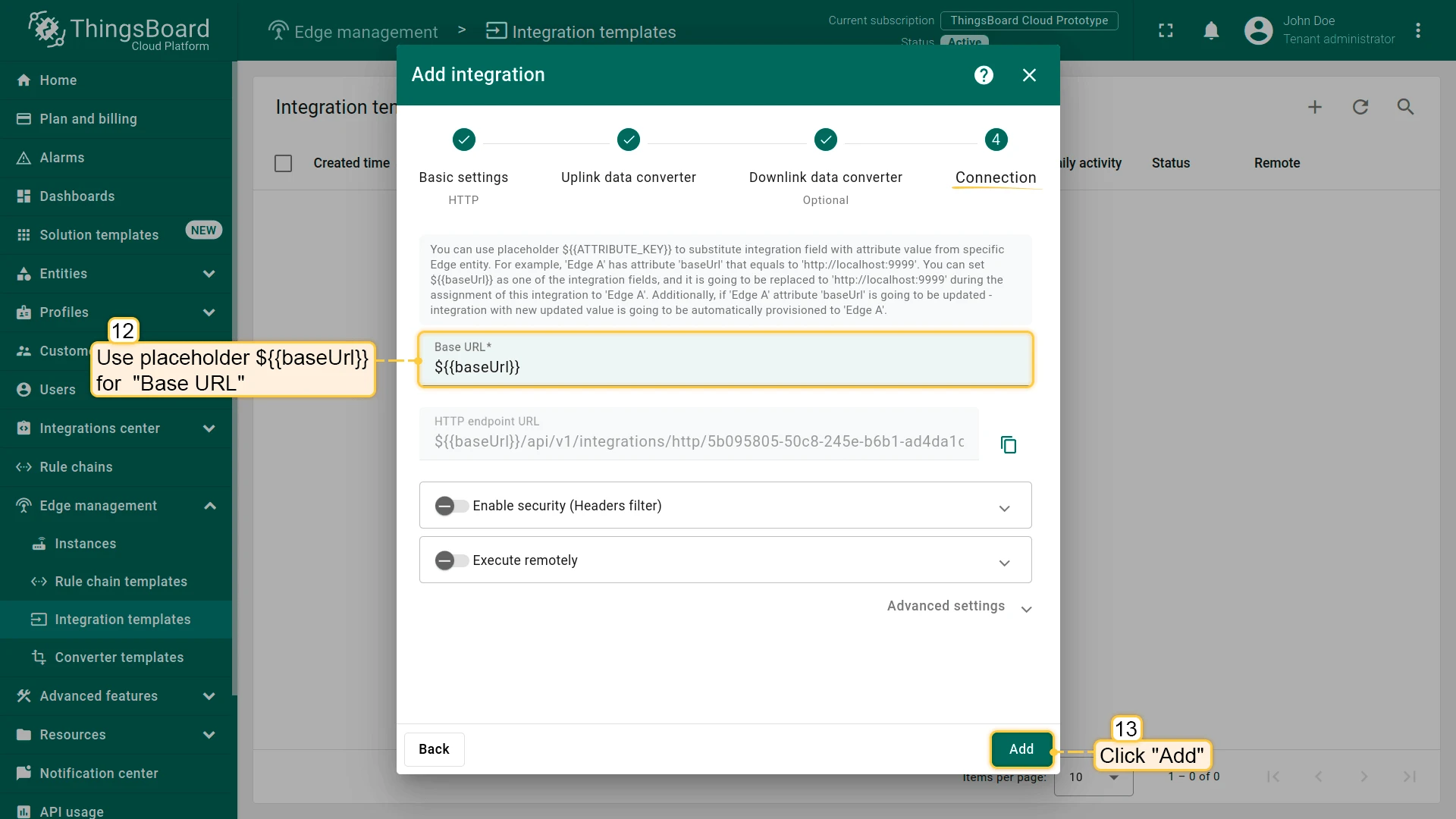
On the Connection page, set the Base URL to the IP address and port of your Edge instance in
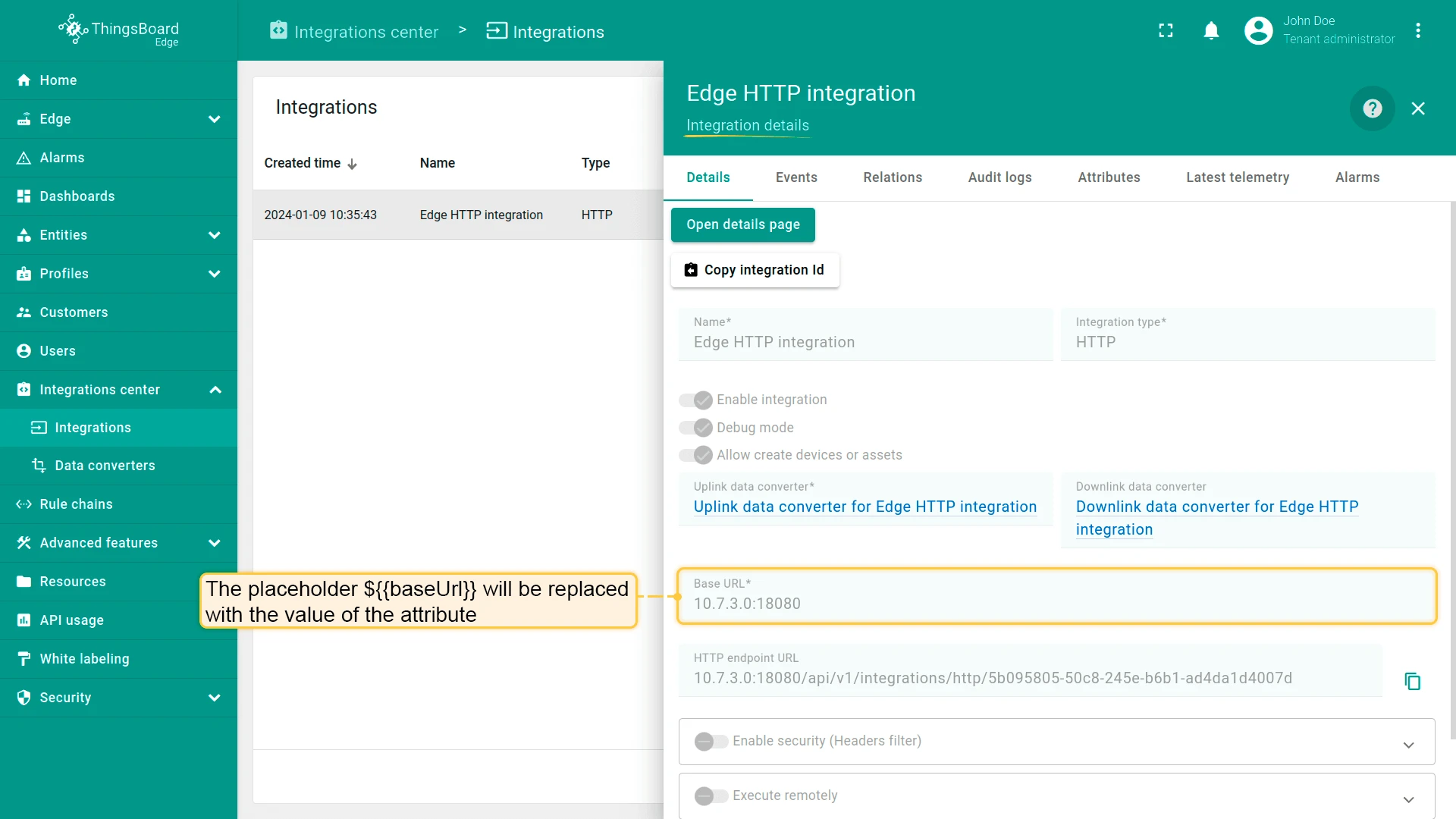
host:portformat.To reuse this template across multiple Edge instances with different addresses, use the placeholder
${{baseUrl}}instead of a hardcoded value. The placeholder is replaced at assignment time by the value of thebaseUrlattribute on each Edge.Click Add to save the integration template.
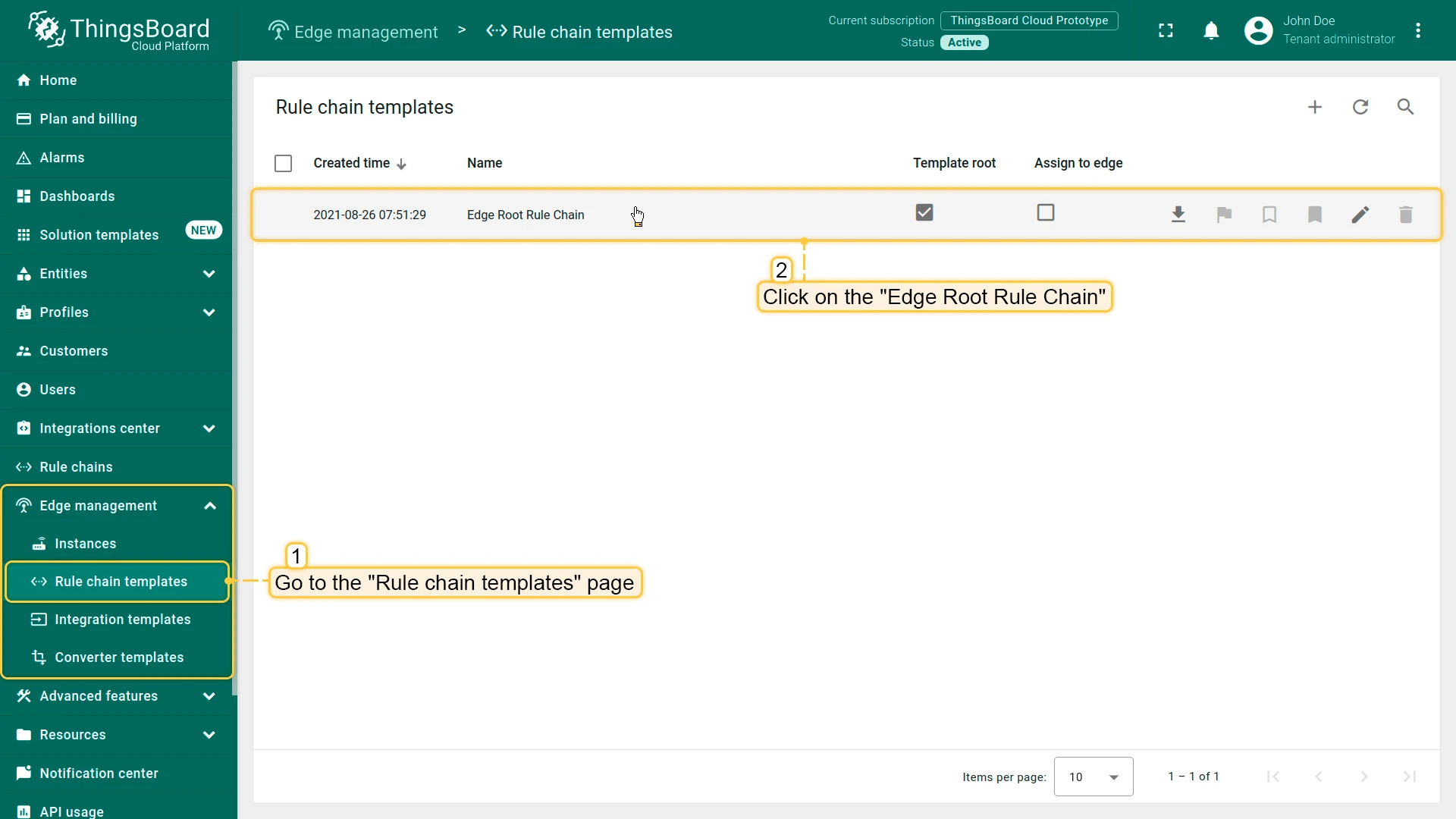
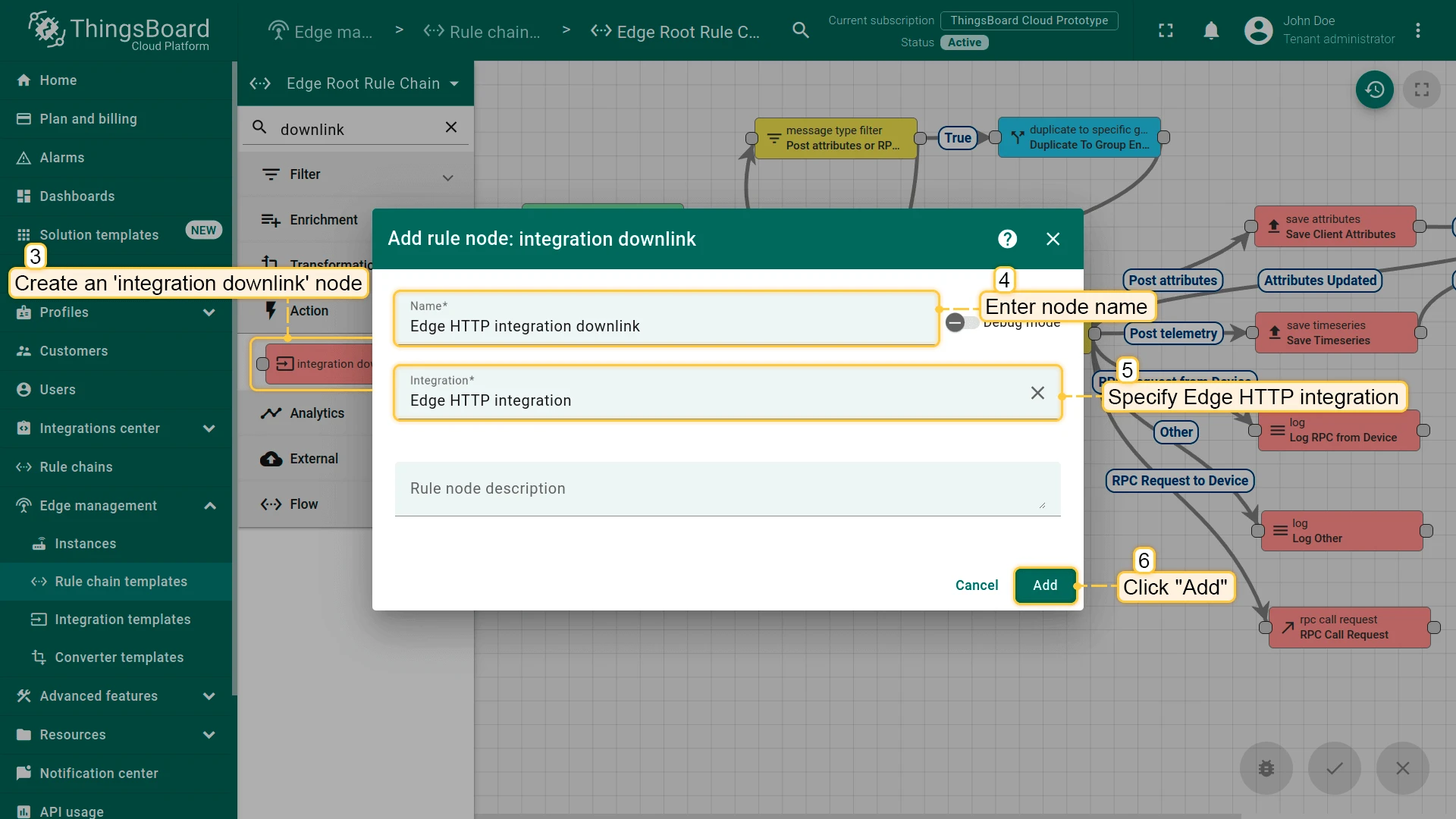
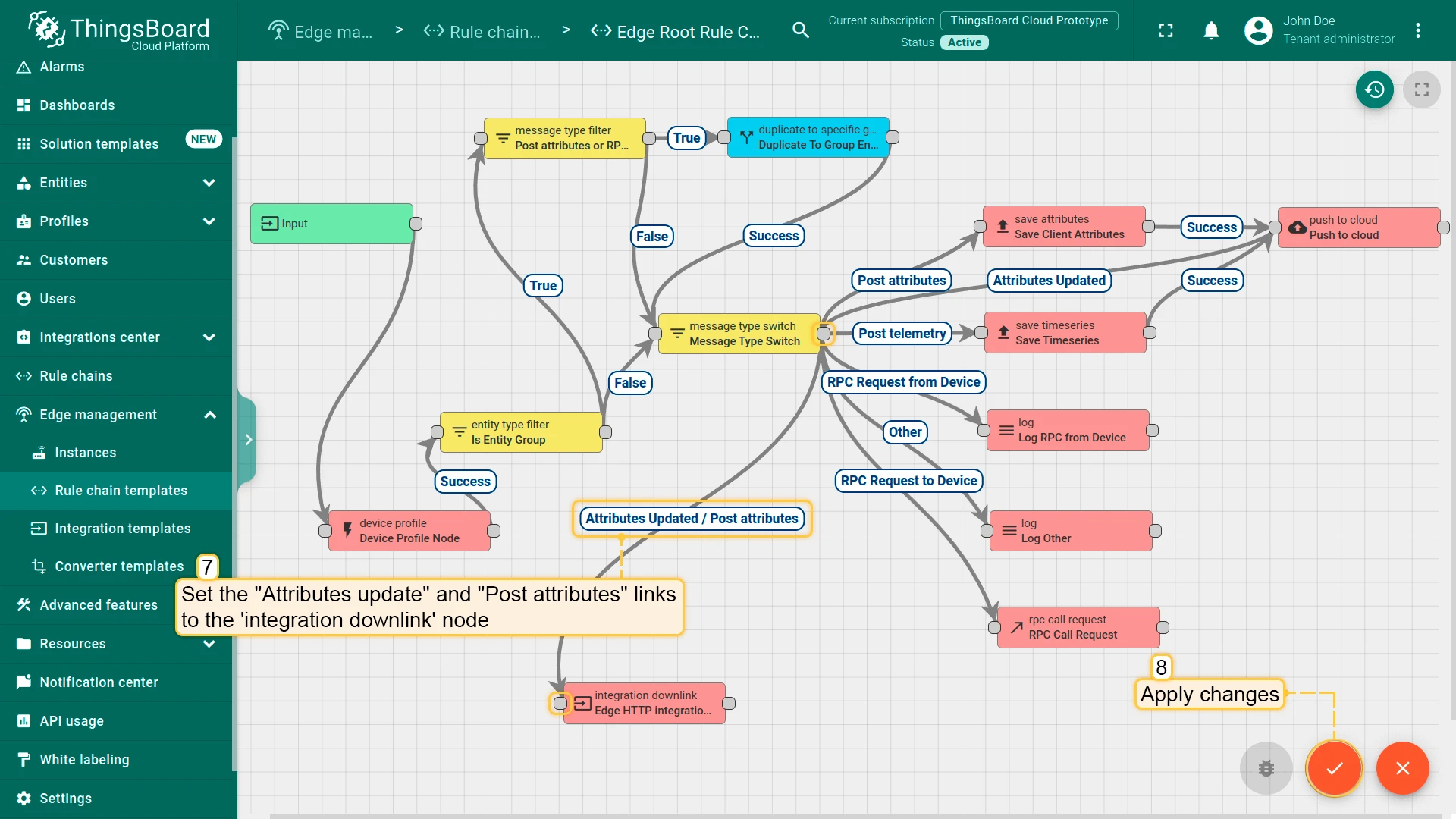
Modify Edge Root Rule Chain for downlinks
Section titled “Modify Edge Root Rule Chain for downlinks”To send downlink messages from the Rule Engine to the HTTP integration, add an integration downlink node to the Edge Root Rule Chain.
Assign integration to Edge
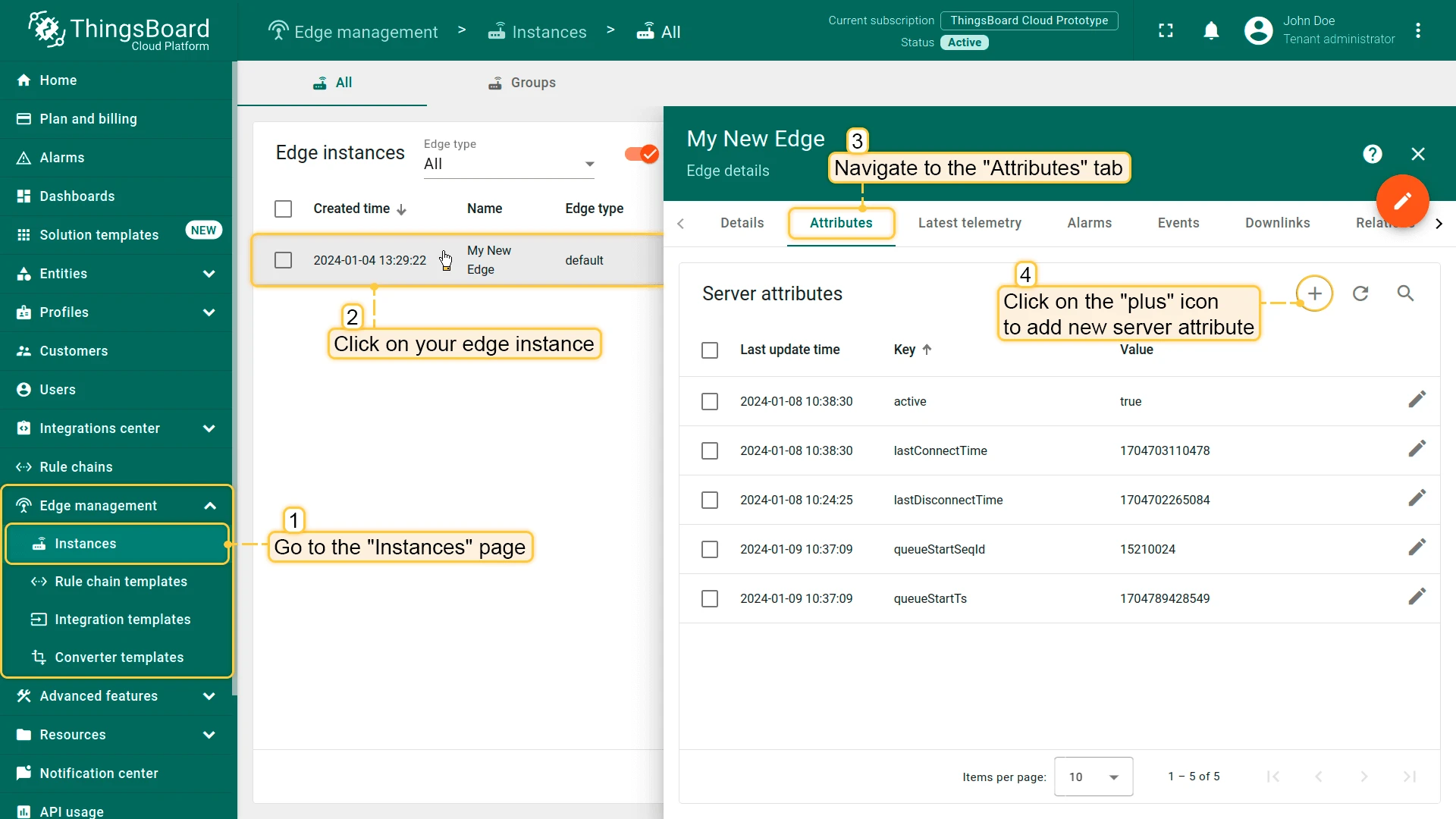
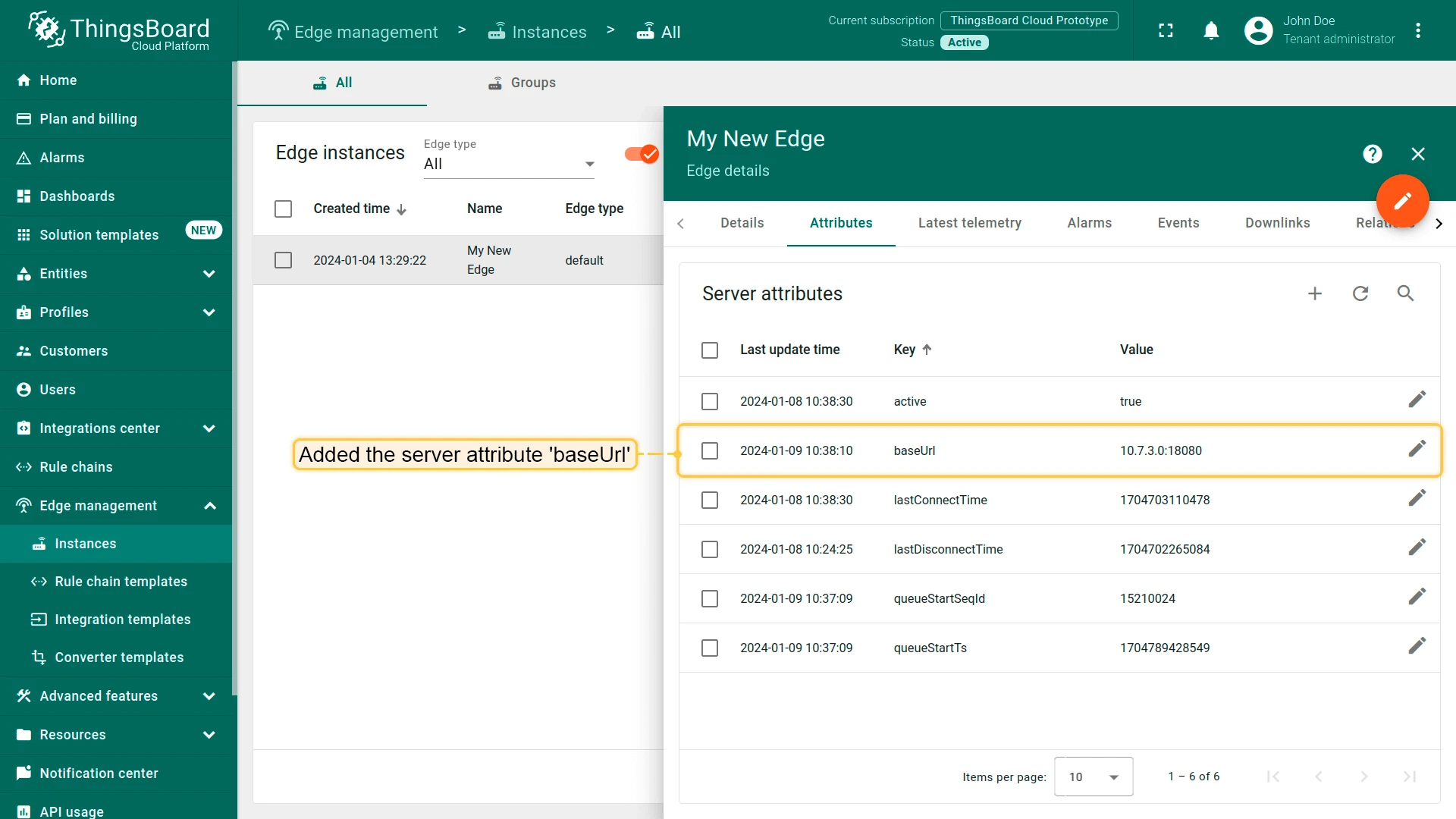
Section titled “Assign integration to Edge”Before assigning the integration template, add the baseUrl attribute to the Edge instance. This provides the ${{baseUrl}} placeholder value used in the integration configuration.
-
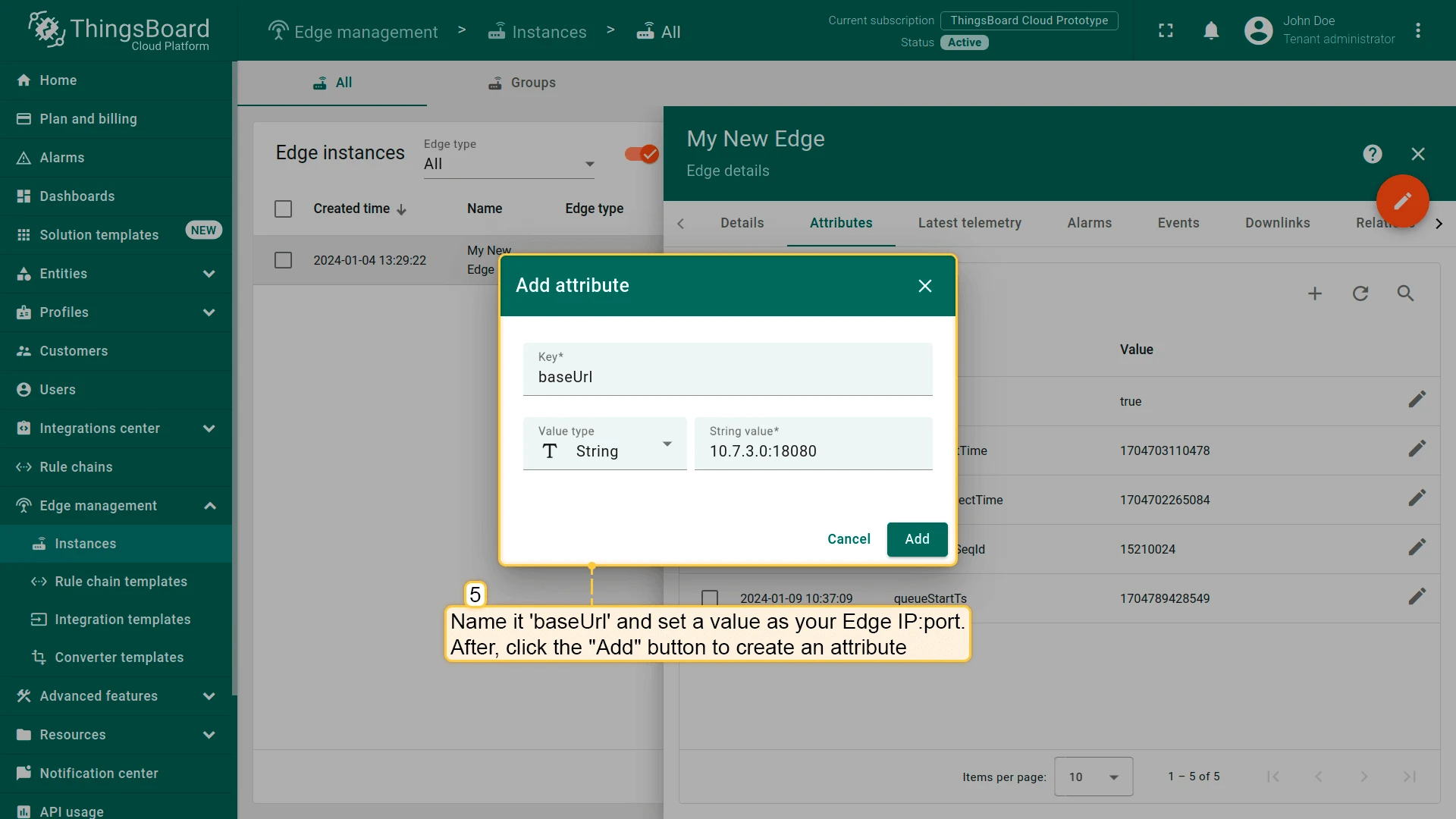
Go to Edge management > Instances, open your Edge, and navigate to the Attributes tab. Click + to add a new server attribute.
-
Enter
baseUrlas the attribute name and your EdgeIP:portas the value. Click Add. -
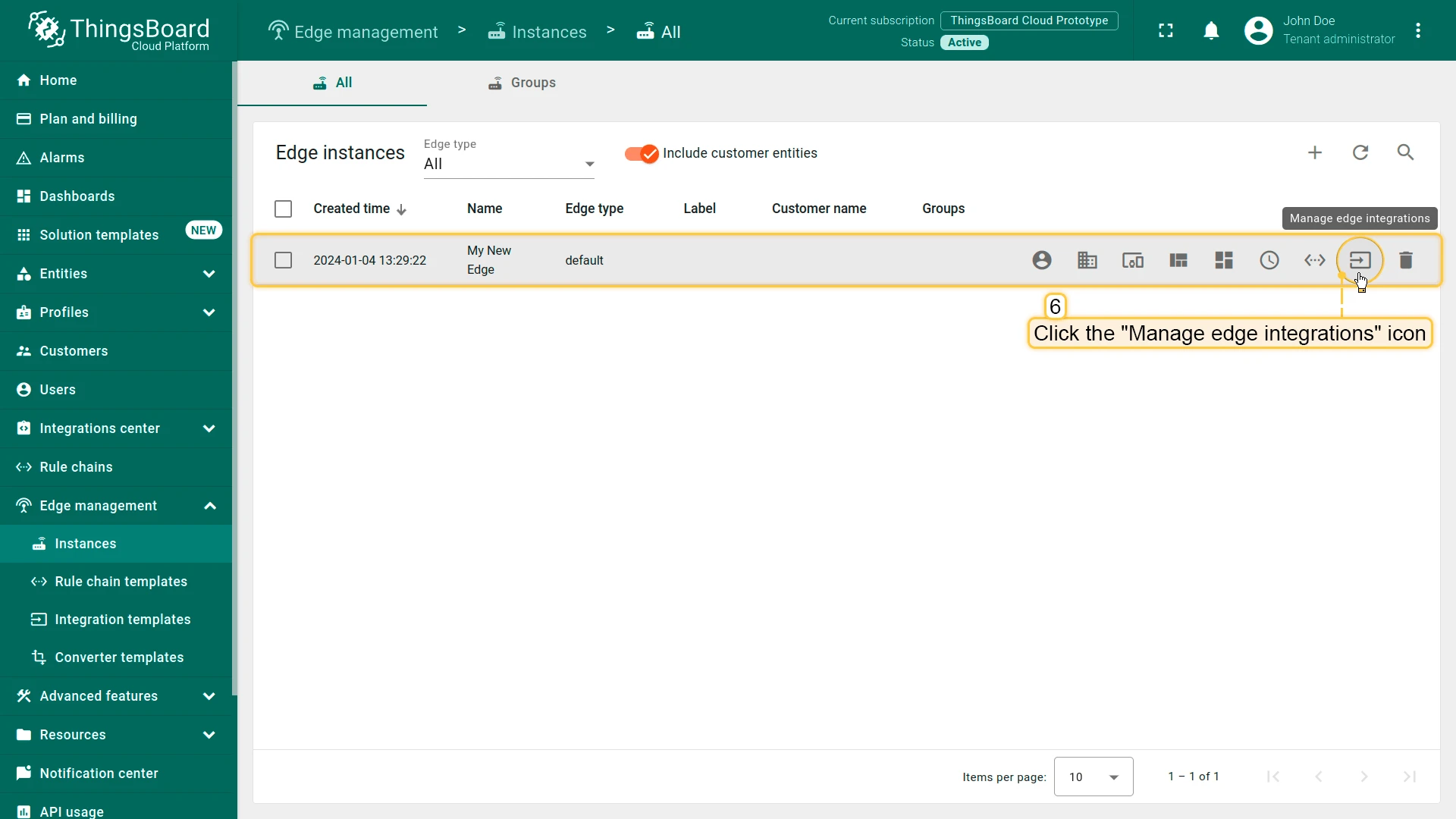
Click the Manage edge integrations button on the Edge instance.
-
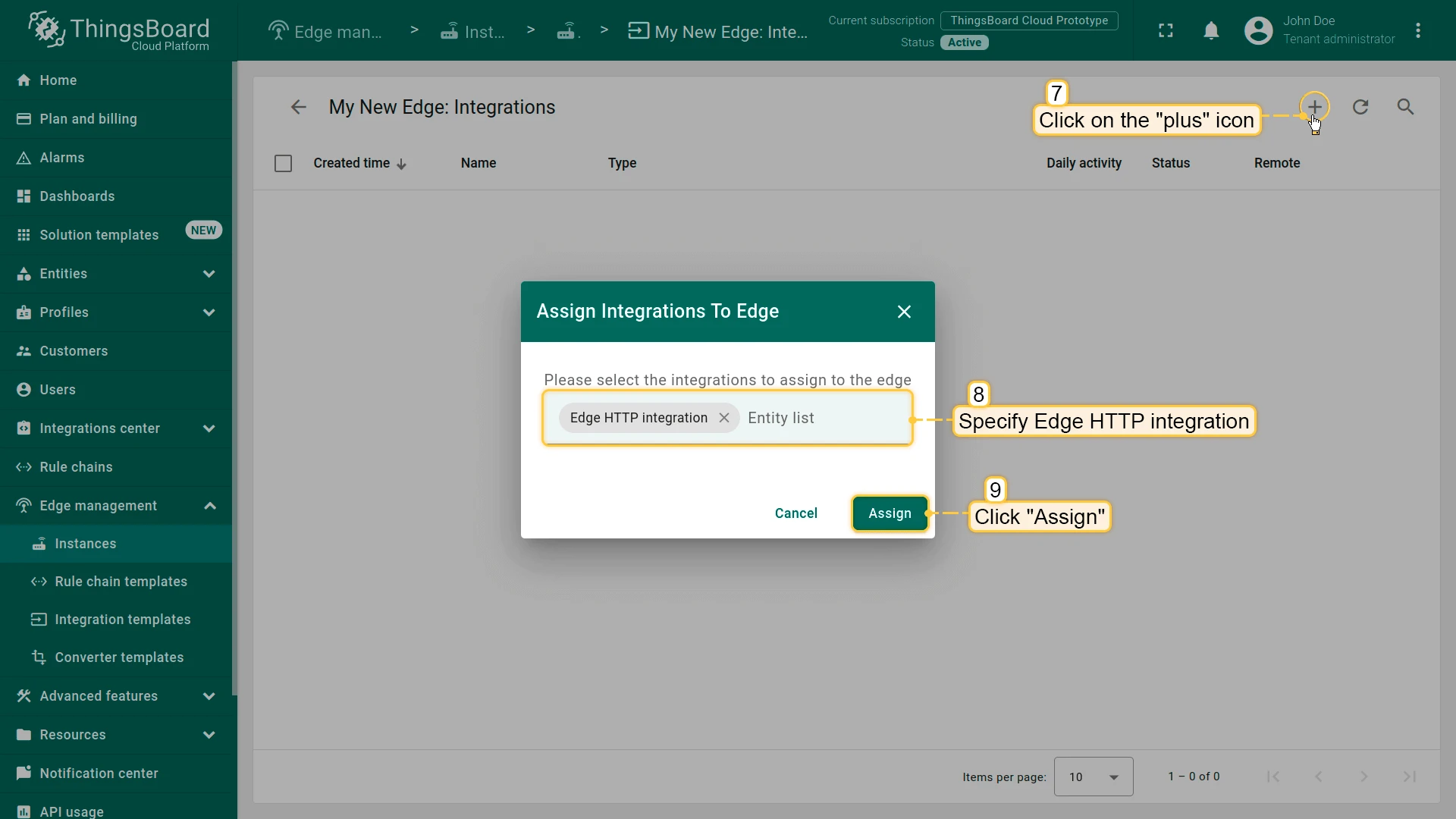
Click +, select the HTTP integration from the drop-down, and click Assign.
-
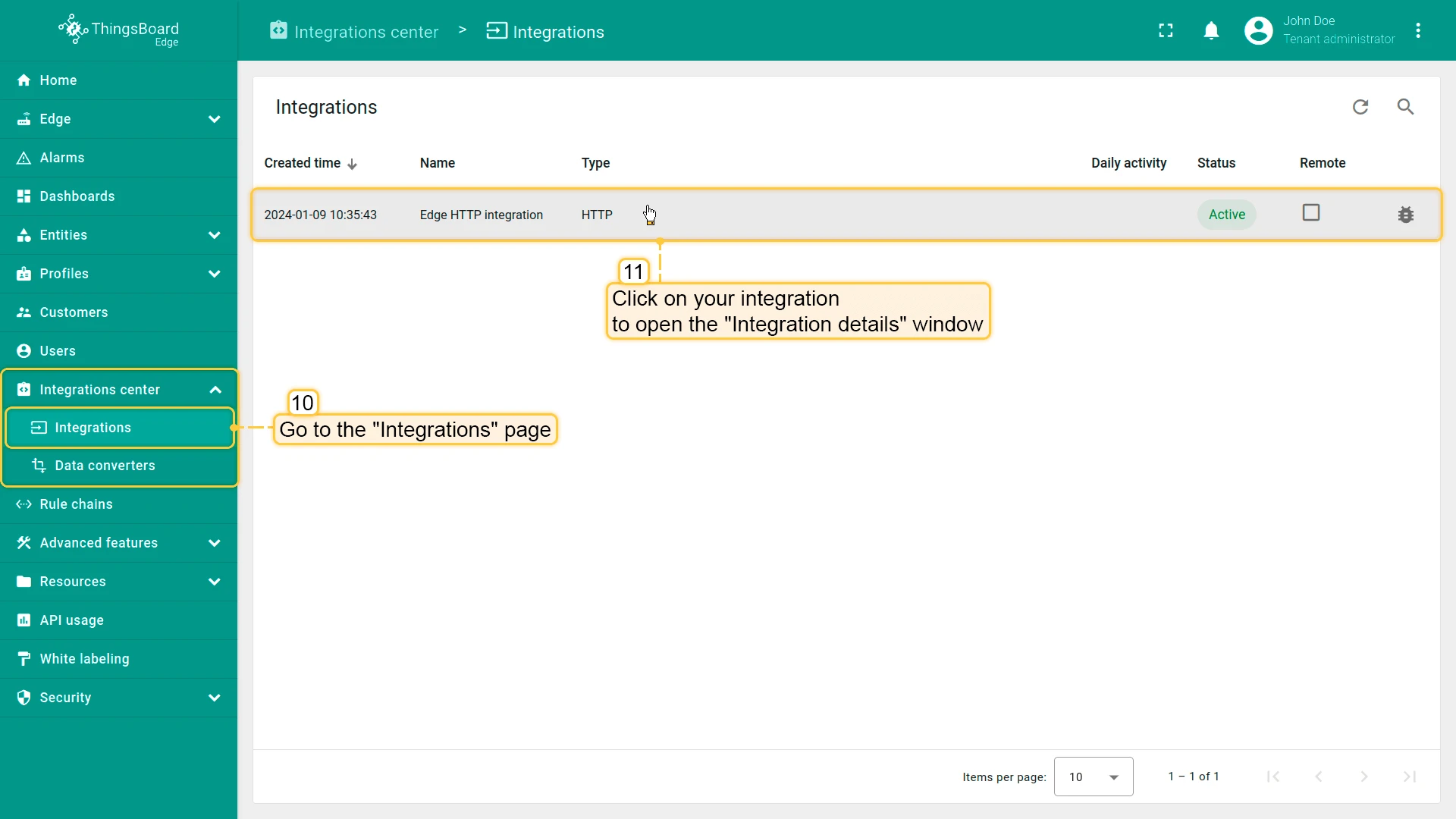
Log in to your Edge instance and go to Integration center > Integrations. Open the integration and confirm the
${{baseUrl}}placeholder is replaced with the attribute value.
Send uplink message
Section titled “Send uplink message”-
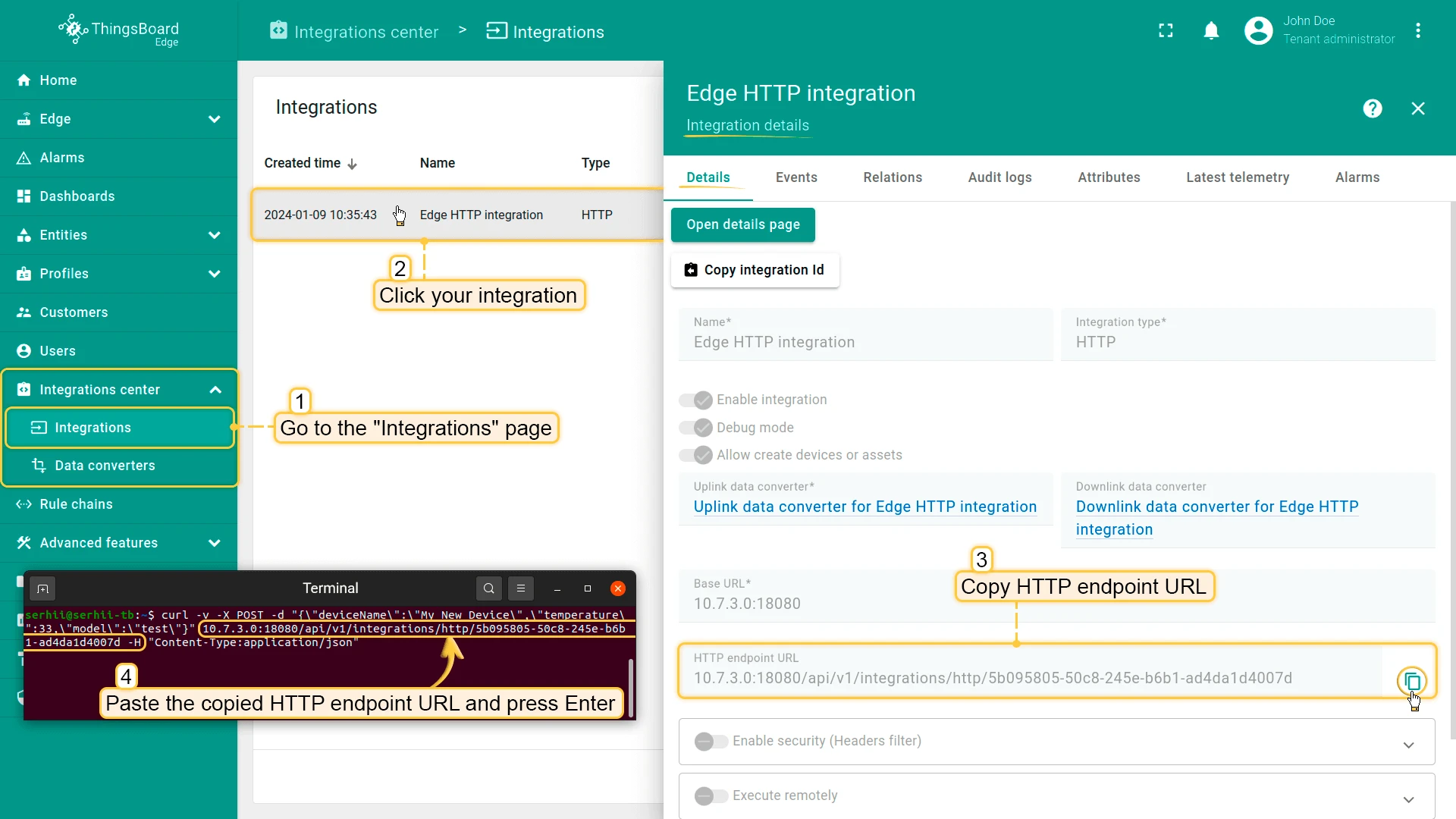
On the Edge, go to Integration center > Integrations, click the HTTP integration, and copy the HTTP endpoint URL.
-
Send a test uplink message using
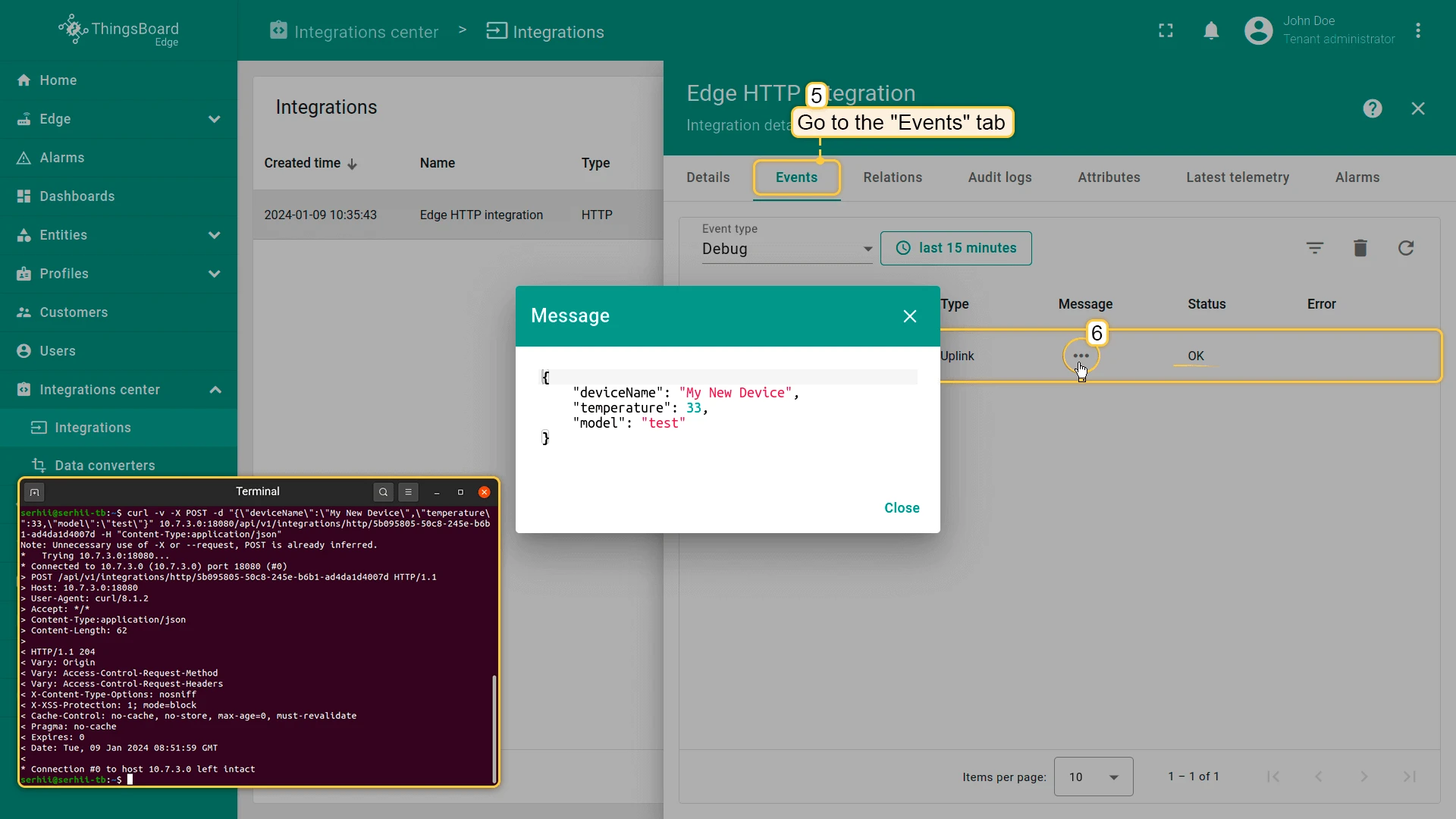
curl. Replace$DEVICE_NAMEand$YOUR_HTTP_ENDPOINT_URLwith actual values:Terminal window curl -v -X POST \-d '{"deviceName":"$DEVICE_NAME","temperature":33,"model":"test"}' \$YOUR_HTTP_ENDPOINT_URL \-H "Content-Type:application/json" -
Open the Events tab on the integration. A message with status OK should appear. Click the three dots in the Message column to inspect the payload.
-
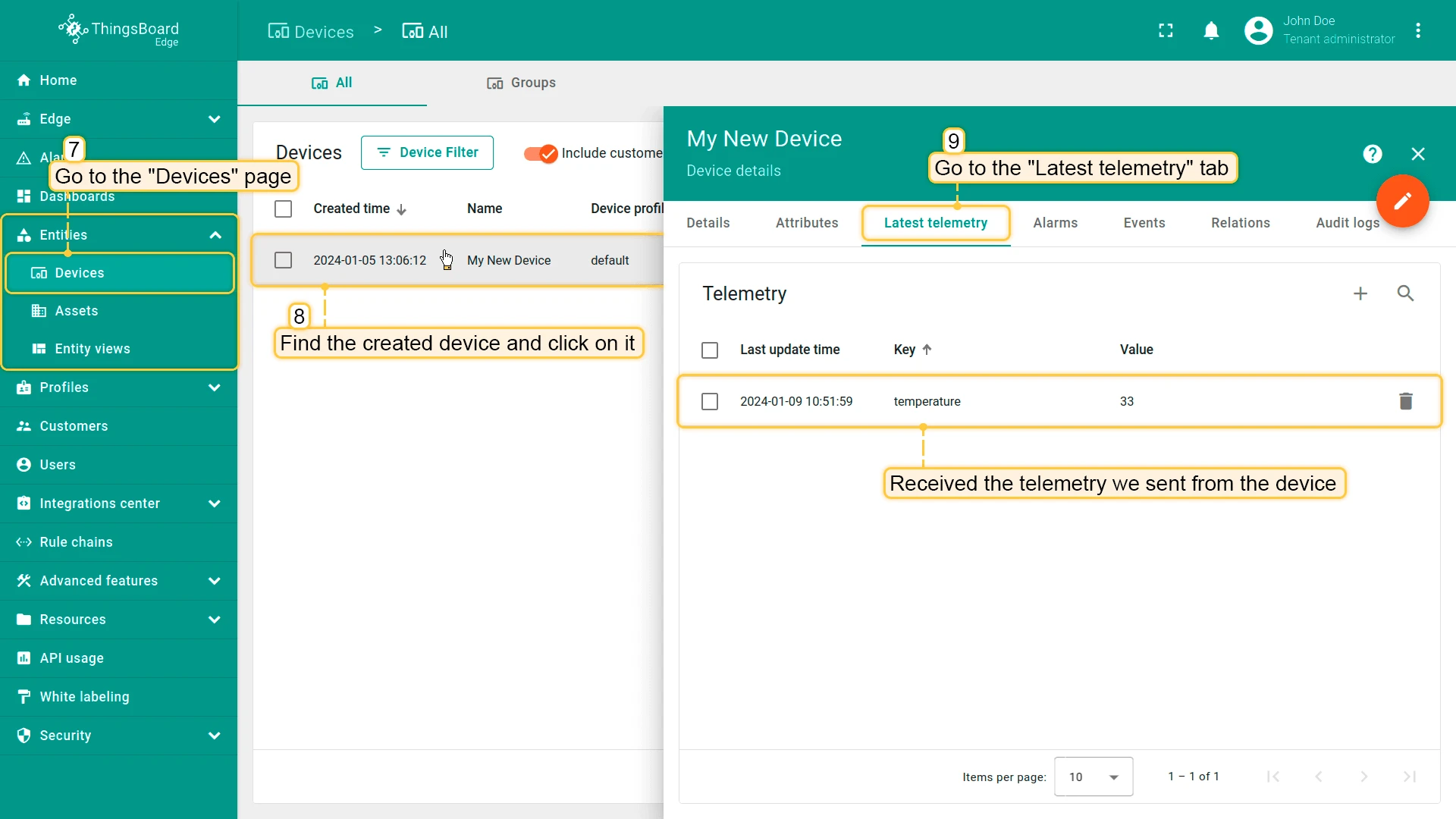
A new device is created automatically. Go to Entities > Devices on the Edge to see it.
-
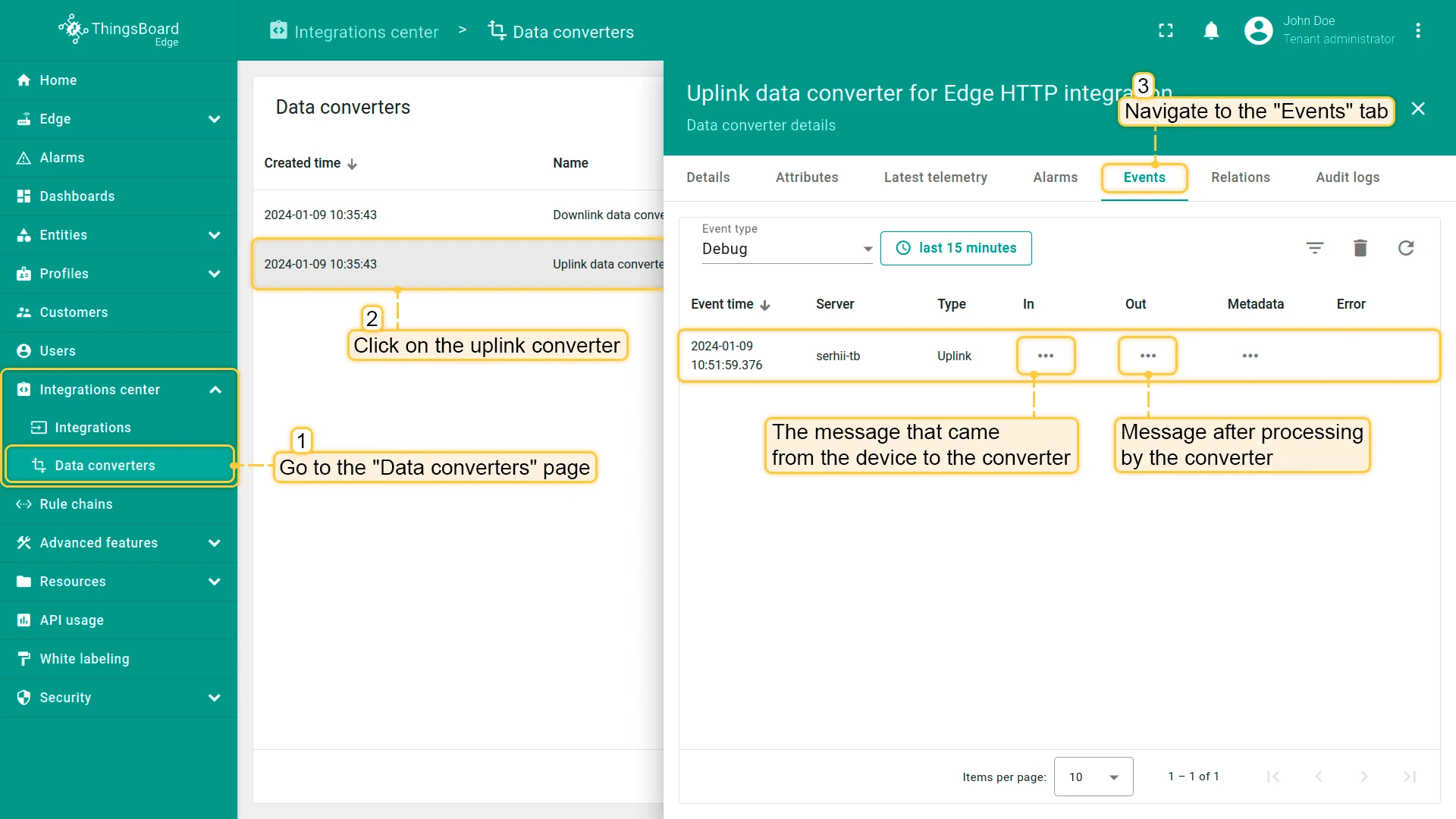
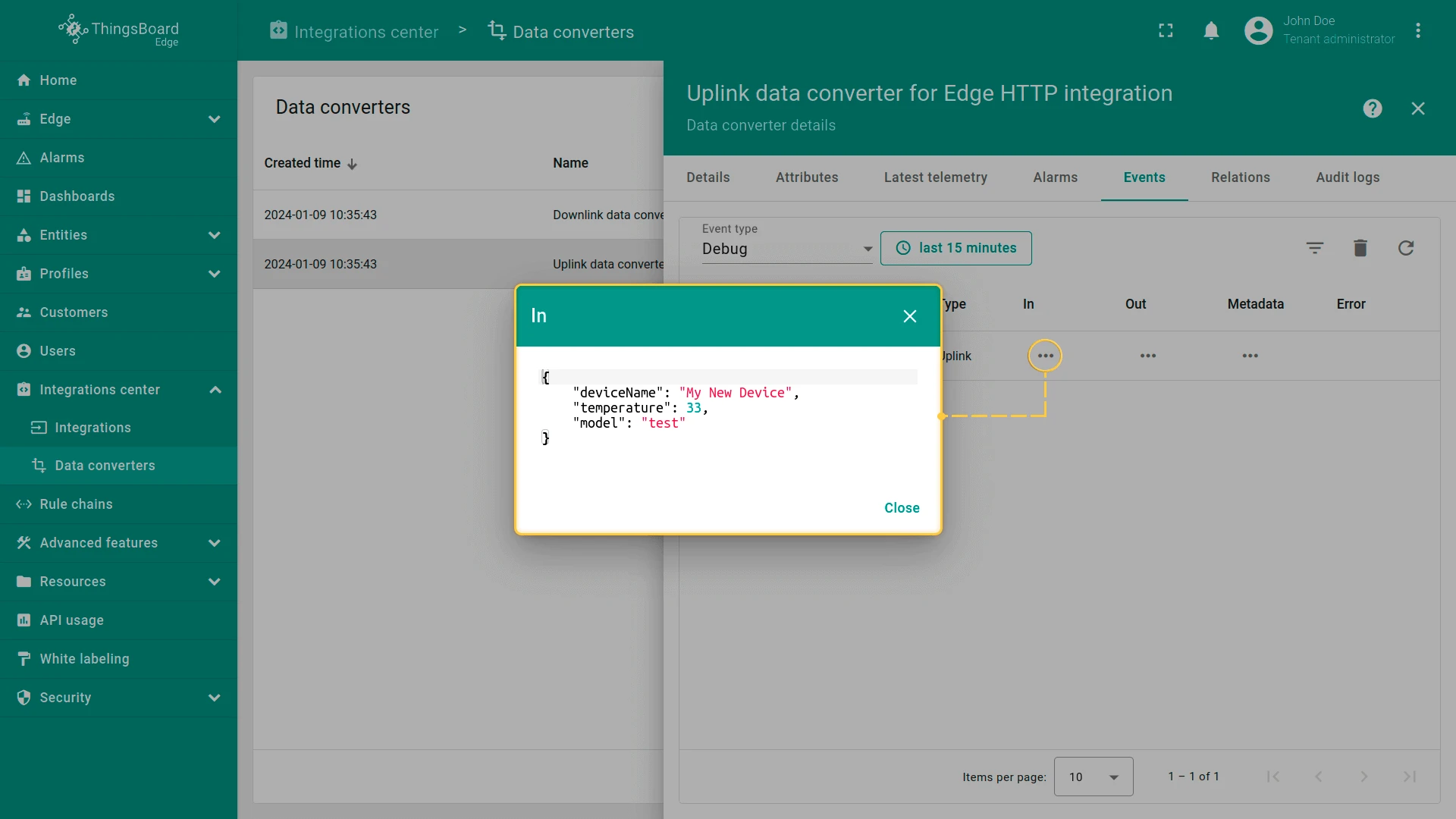
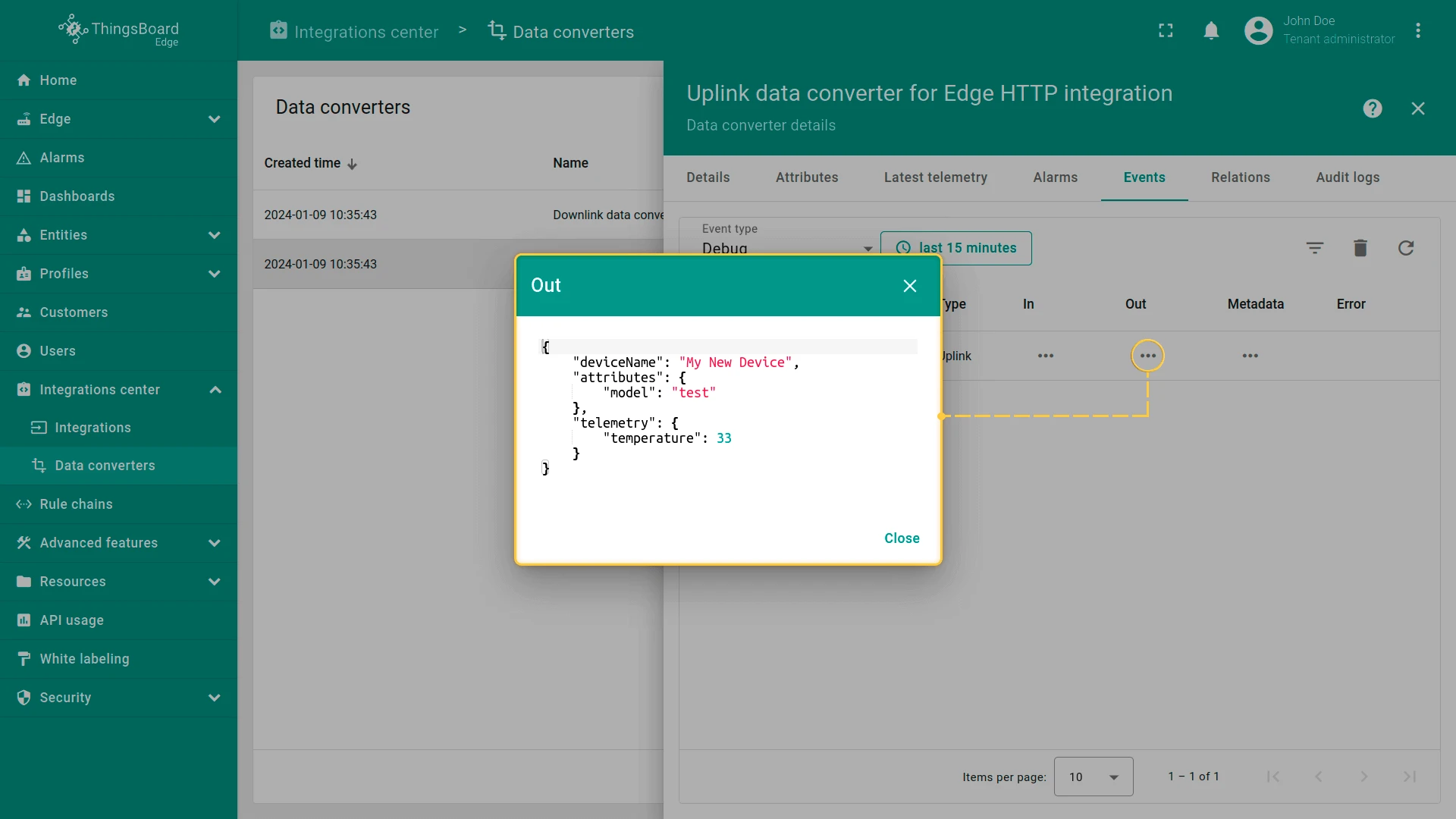
To inspect how the Uplink Converter processed the message, go to Integration center > Data converters, open the uplink converter, and select the Events tab.
Send downlink message
Section titled “Send downlink message”-
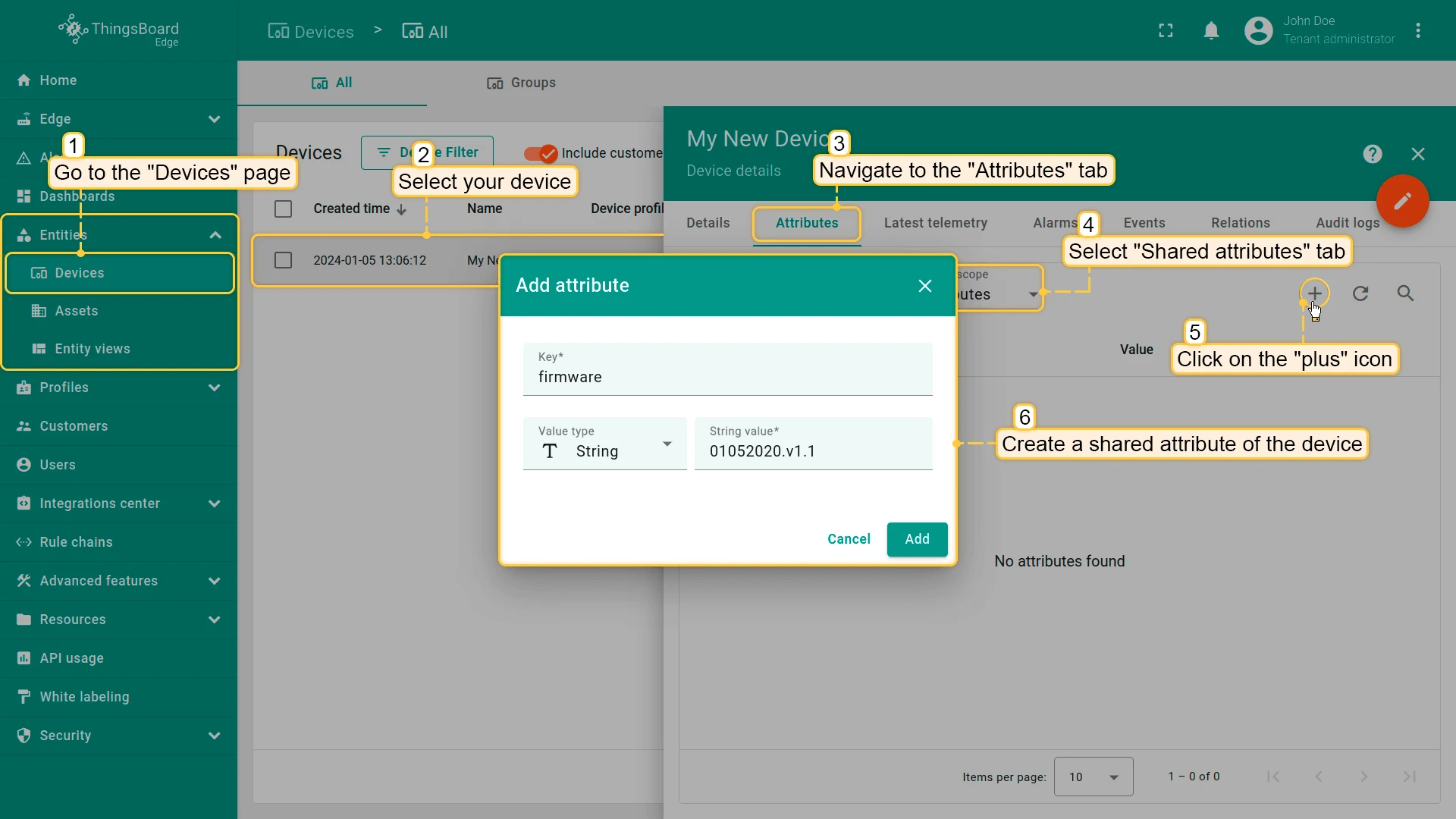
On the Edge, go to Entities > Devices, select your device, and open the Attributes tab. Under Shared attributes, click + and add a new attribute — for example, key
firmware, value01052020.v1.1. Save. -
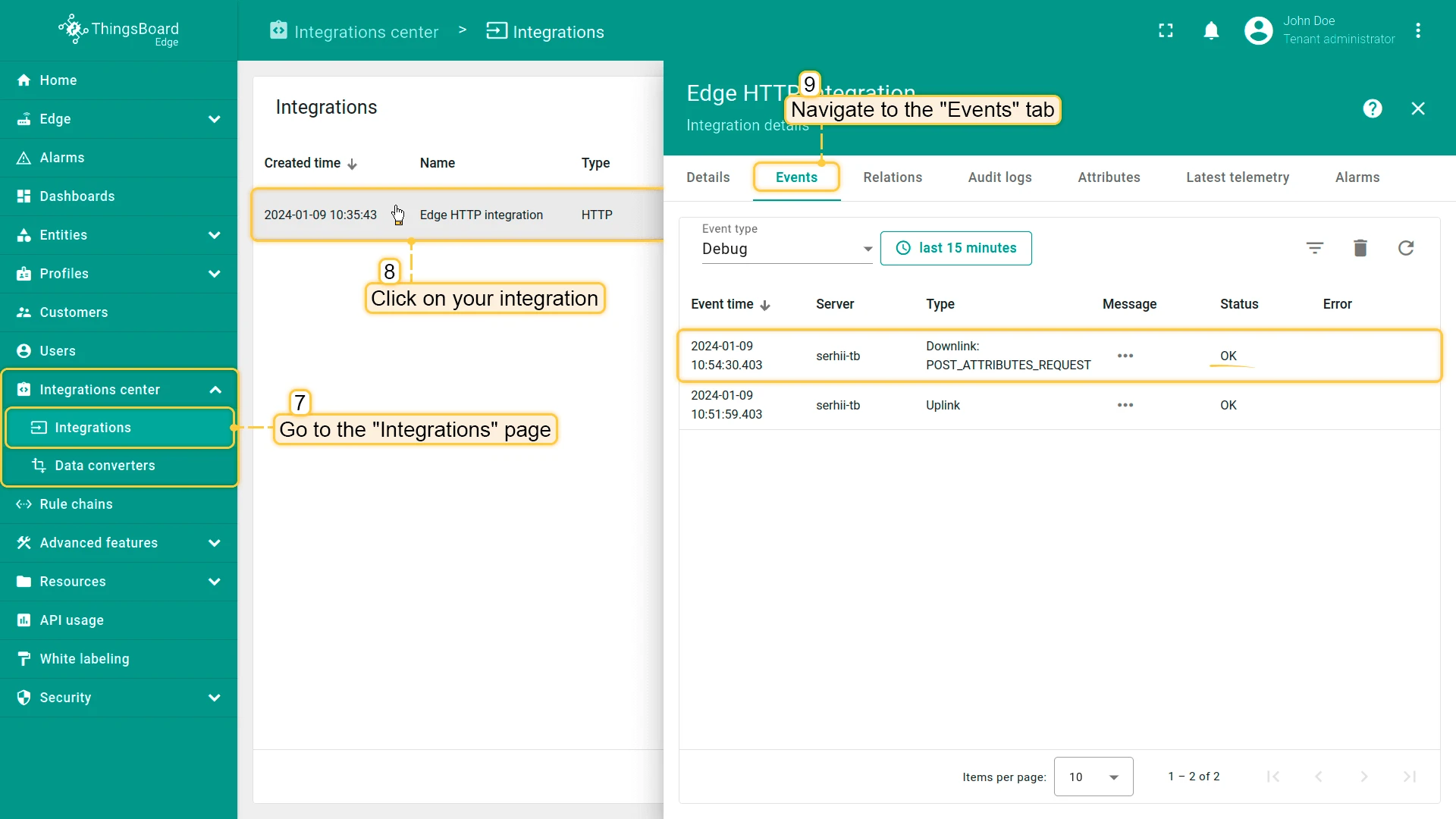
Verify the downlink was sent to the integration by opening the integration’s Events tab.
-
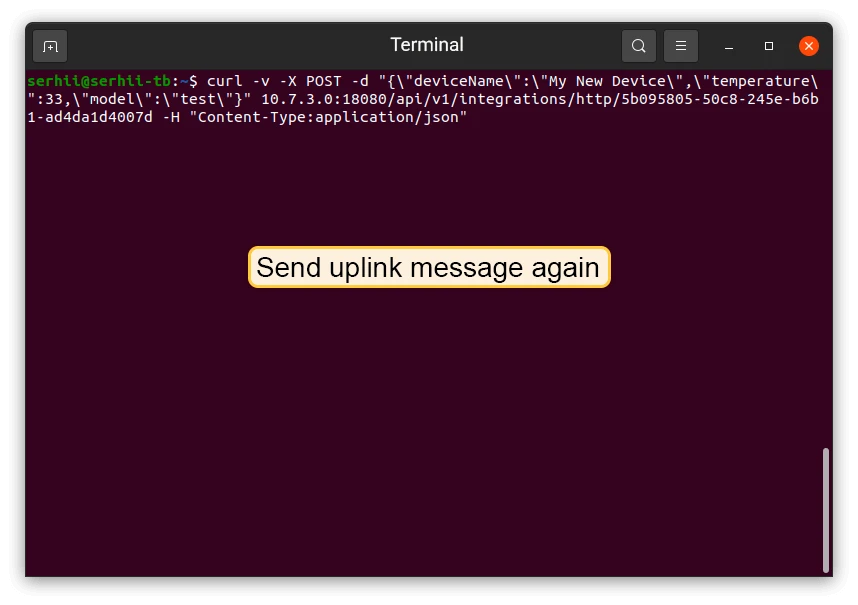
Send another uplink message with the same
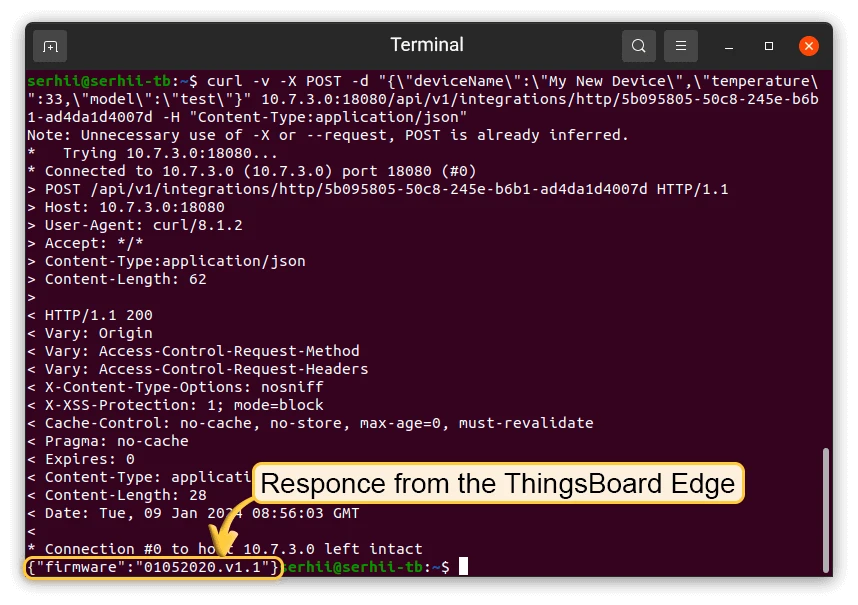
curlcommand to receive the downlink response:Terminal window curl -v -X POST \-d '{"deviceName":"$DEVICE_NAME","temperature":33,"model":"test"}' \$YOUR_HTTP_ENDPOINT_URL \-H "Content-Type:application/json"The terminal will show the response returned by ThingsBoard.
-
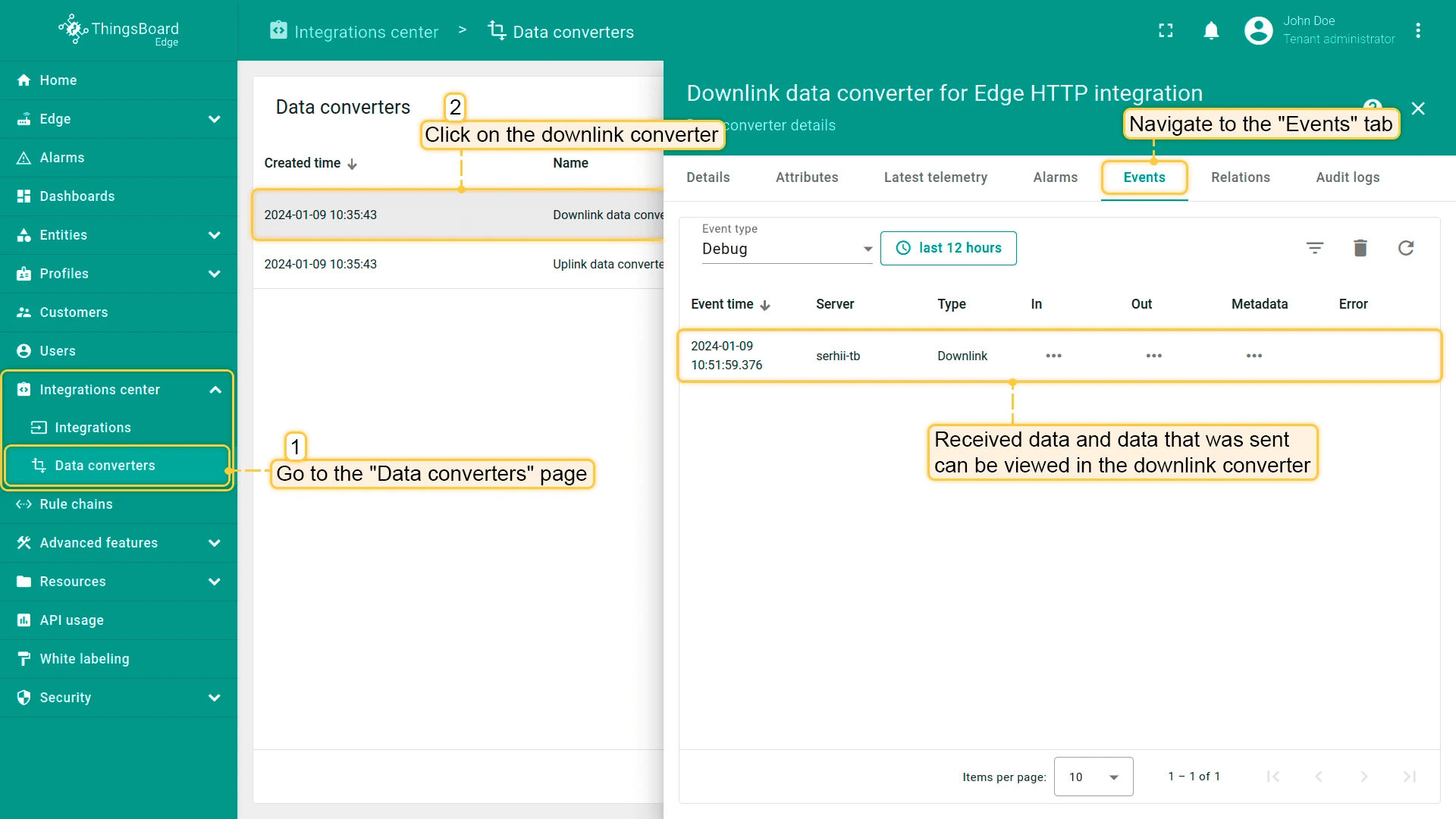
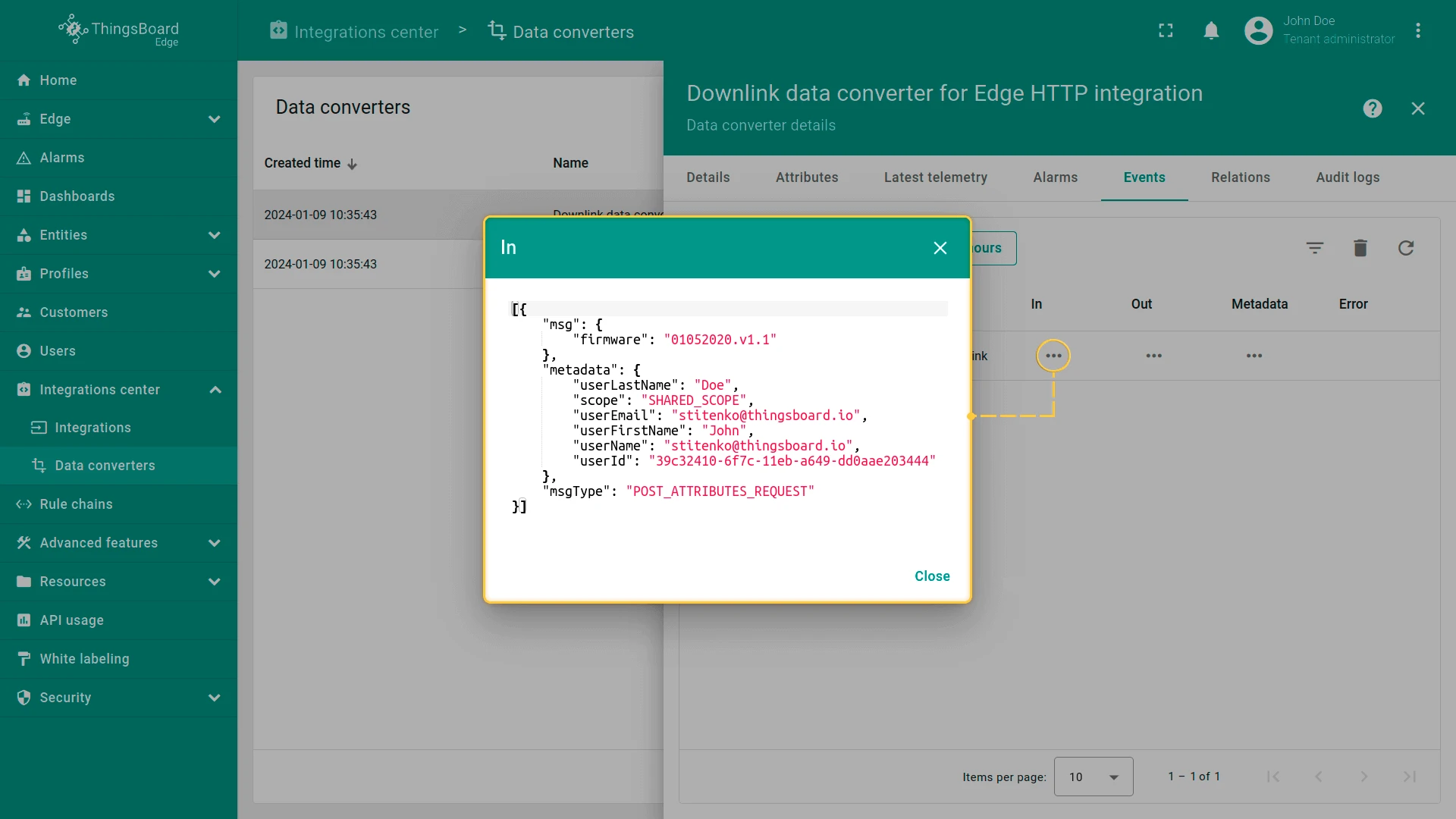
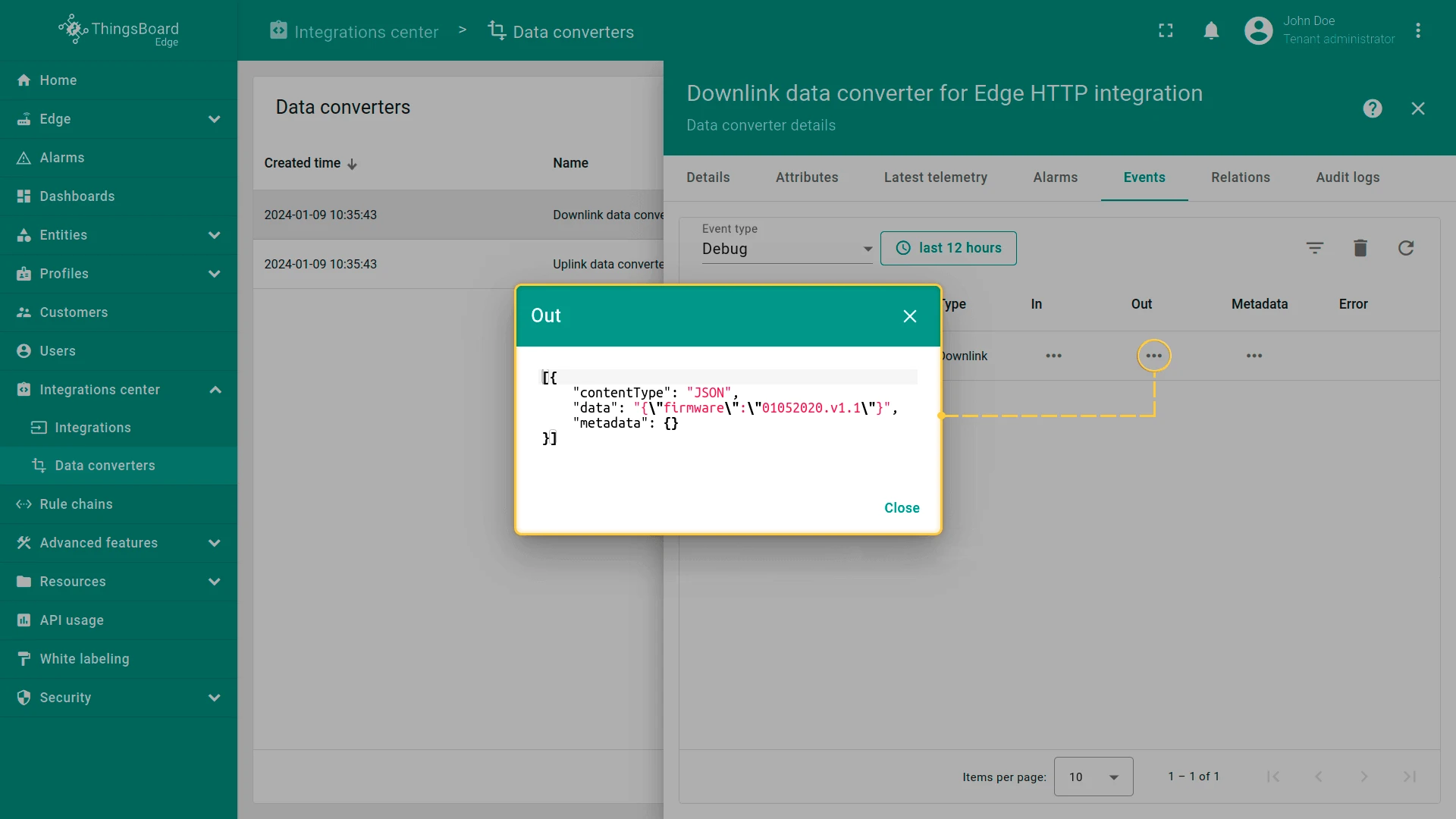
Inspect the downlink in the Downlink Converter. Go to Integration center > Data converters, open the downlink converter, and select the Events tab.
Was this helpful?