Deploy with IoT Gateway
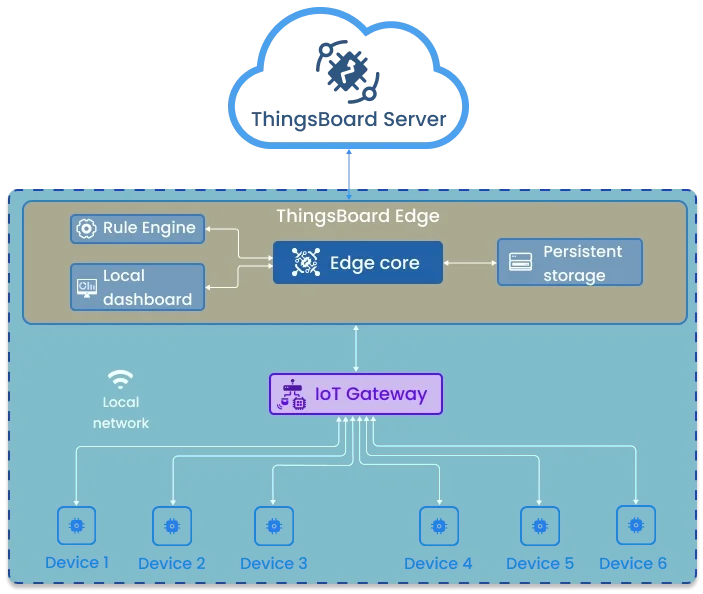
ThingsBoard Edge can run alongside the ThingsBoard IoT Gateway on the same device. The IoT Gateway collects data from local sensors and legacy protocols, translates it into ThingsBoard-compatible format, and sends it to the Edge. The Edge rule engine processes it in real time and synchronizes results with the central server.
Prerequisites
Section titled “Prerequisites”- Docker installed on the IoT Gateway device.
- A ThingsBoard server account (Cloud, Professional Edition, or Community Edition).
- A Linux-based IoT Gateway device with SSH access.
Step 1. Create a new Edge instance
Section titled “Step 1. Create a new Edge instance”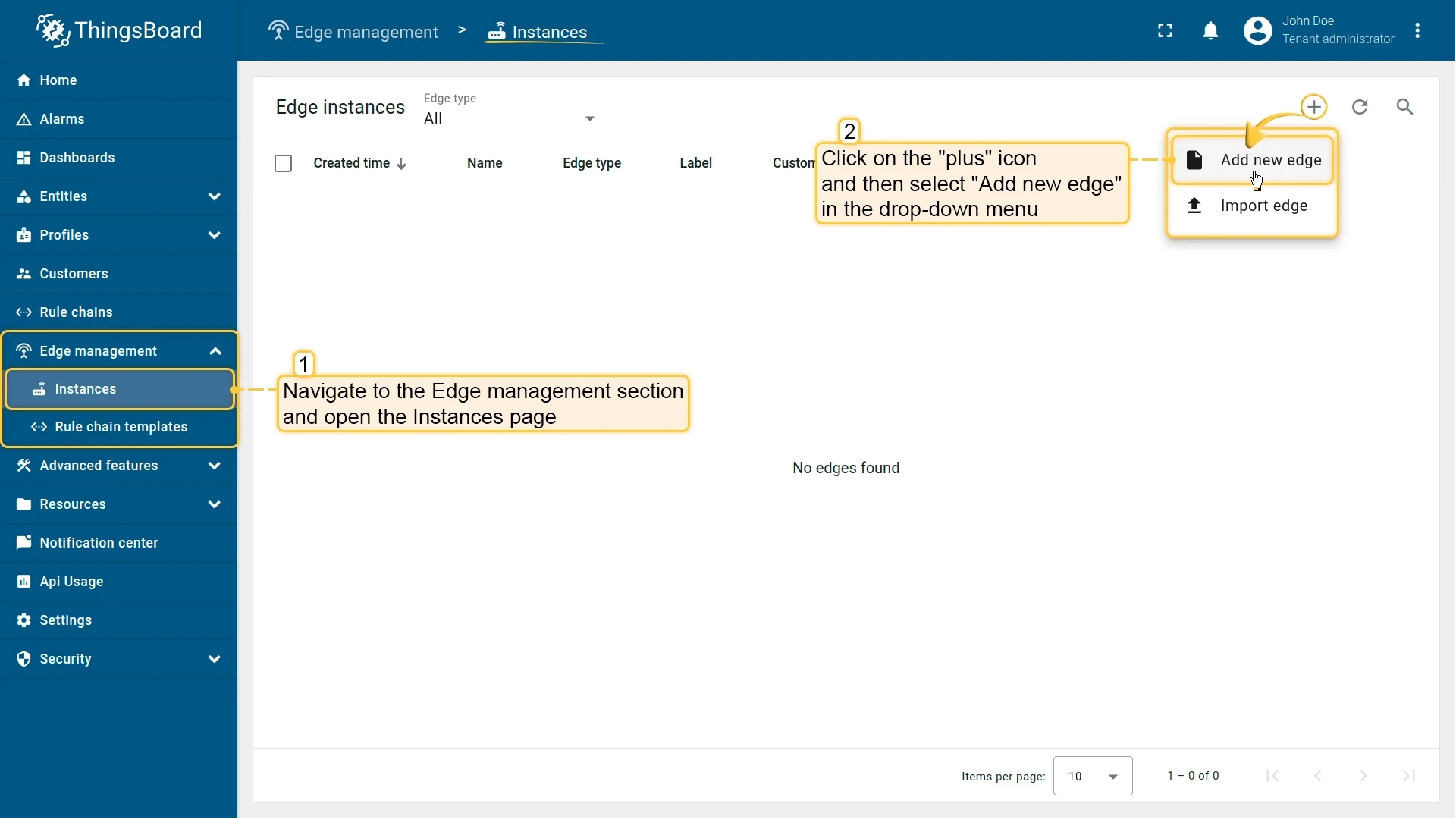
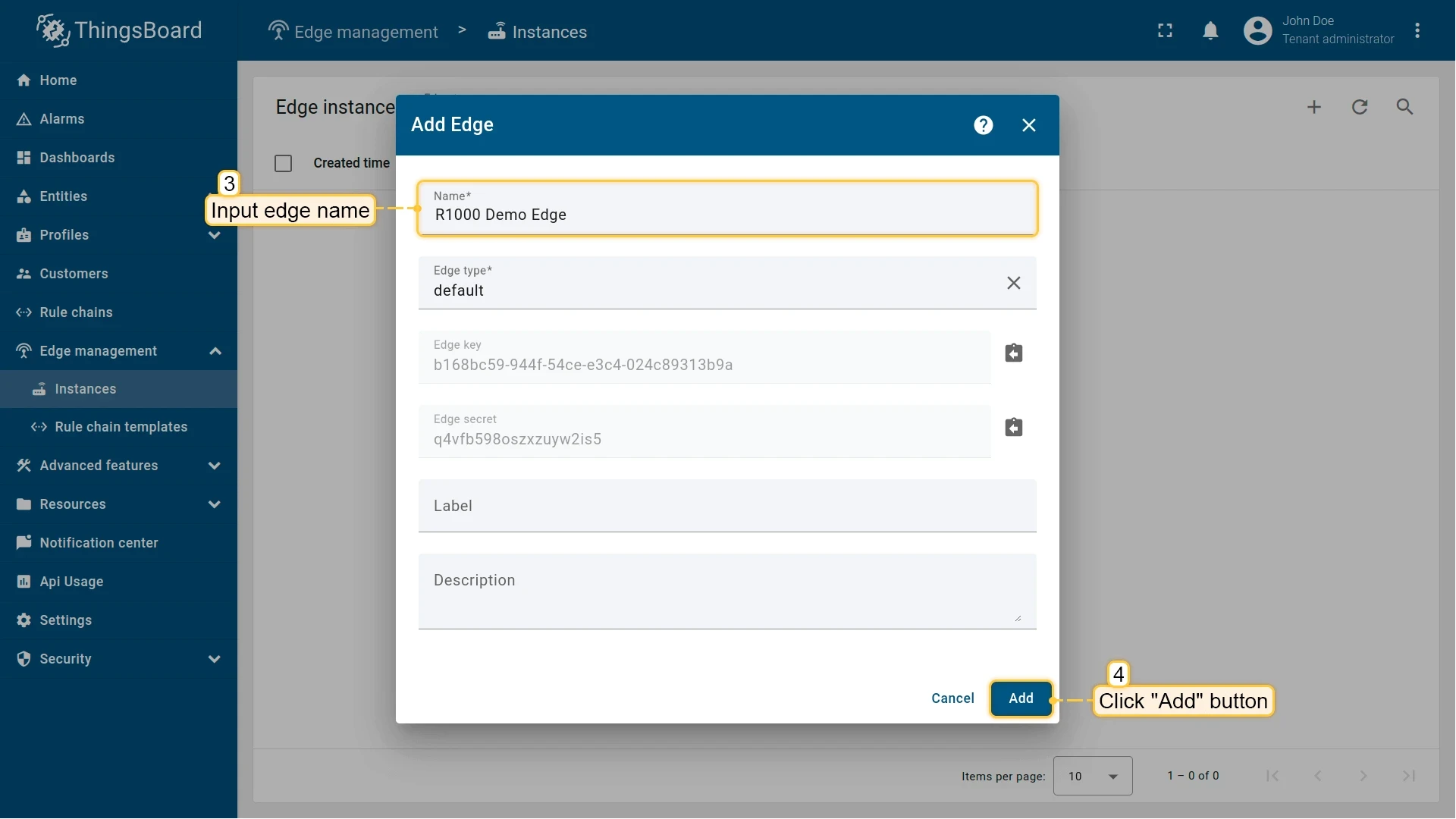
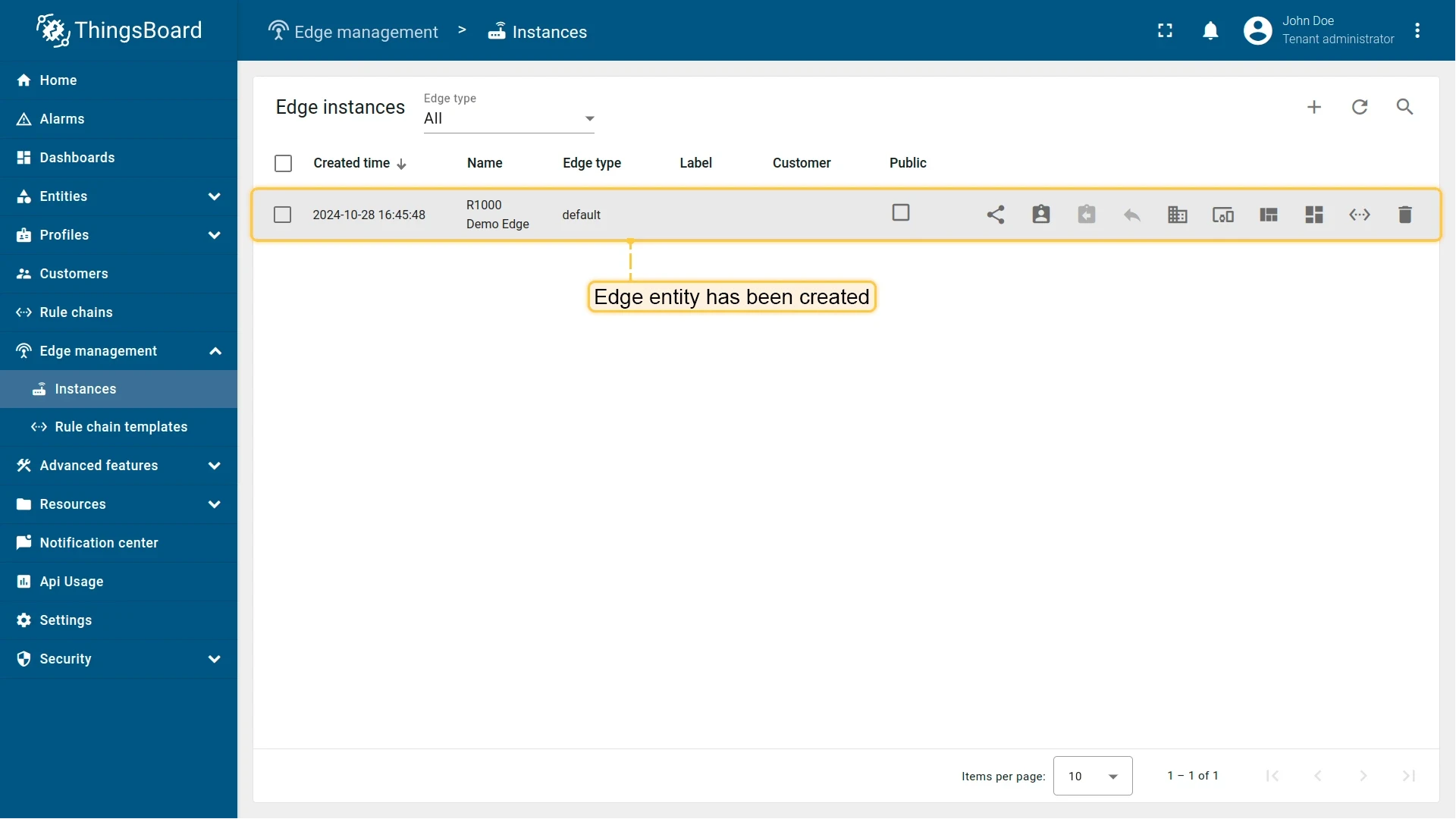
Step 2. Install Edge on the IoT Gateway device
Section titled “Step 2. Install Edge on the IoT Gateway device”Connect to the device over SSH:
ssh username@ip_addressReplace username and ip_address with your device credentials. If SSH runs on a non-default port, add -p <port> to the command.
-
Create a directory for the Edge service:
Terminal window mkdir tb_edge -
Inside that directory, create a
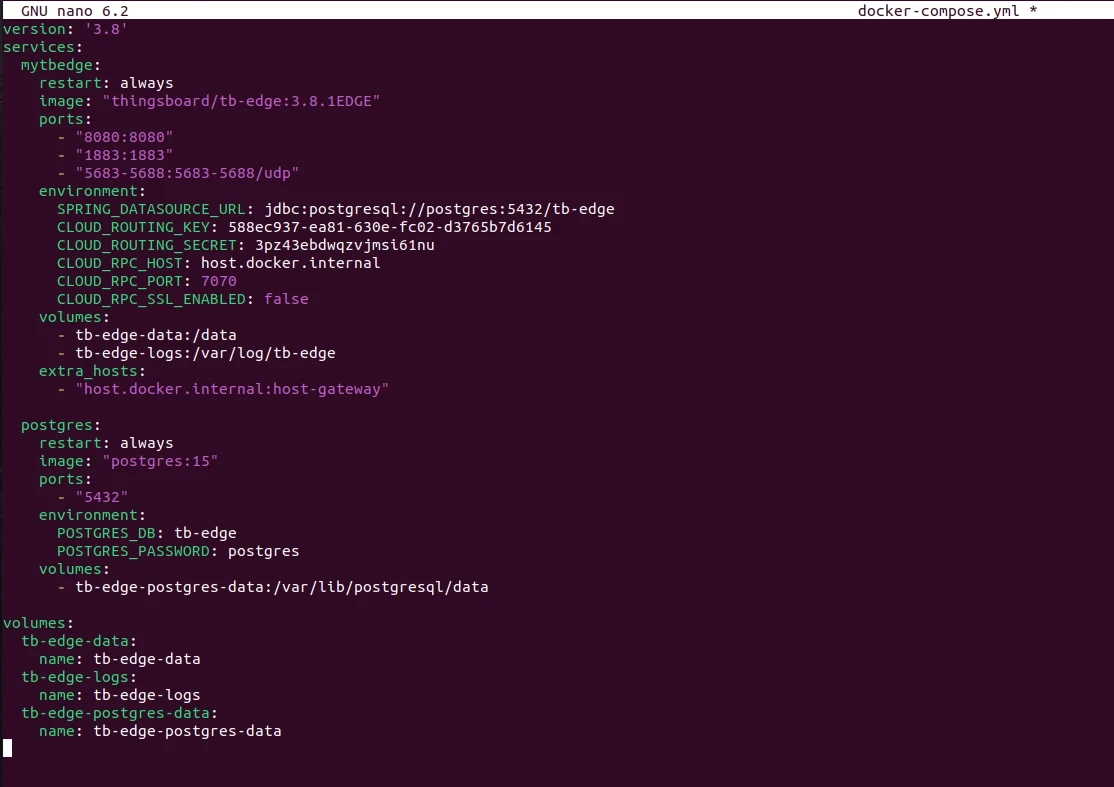
docker-compose.ymlfile:Terminal window nano docker-compose.yml -
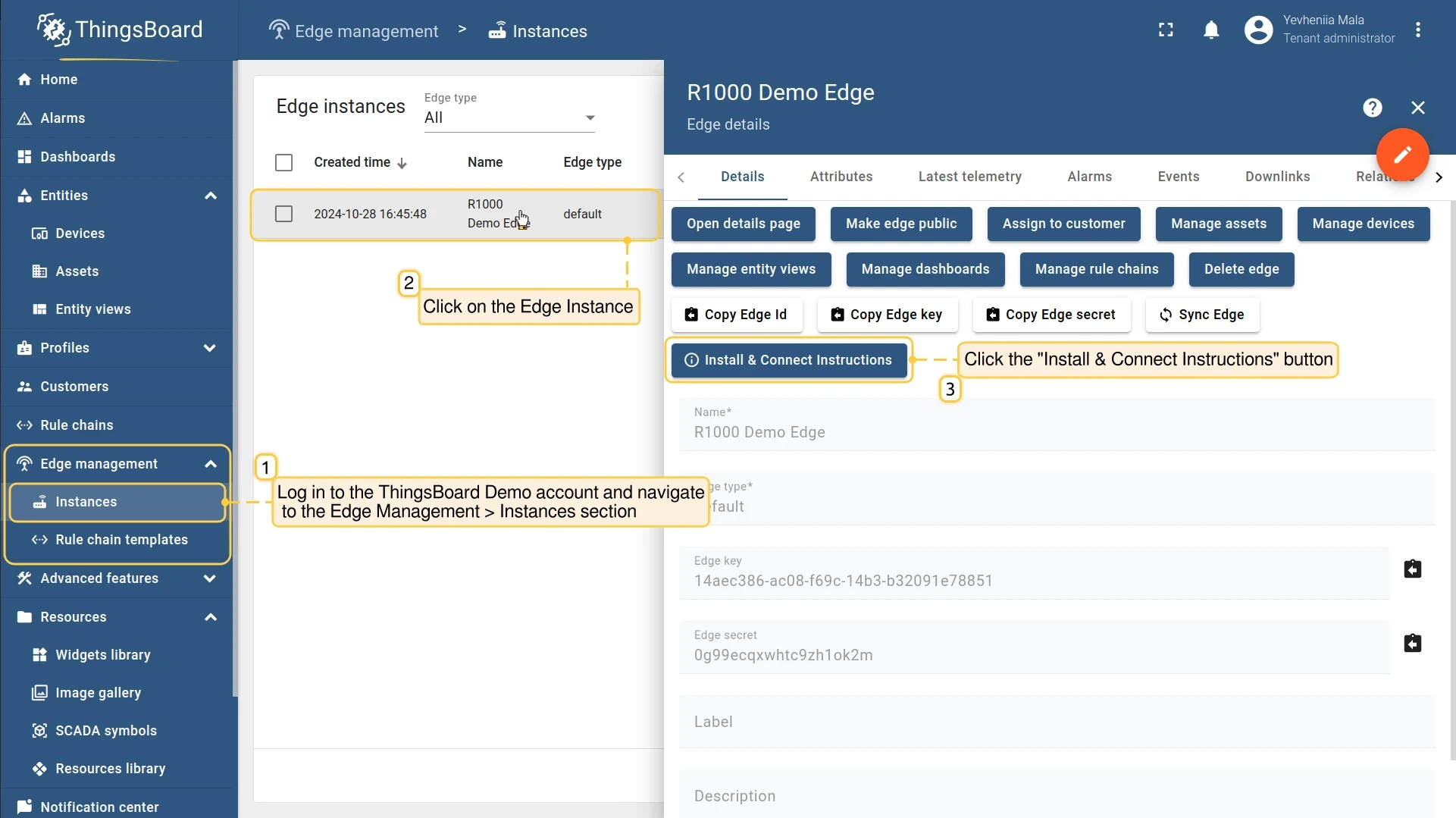
On the server, go to Edge management → Instances, click the Edge instance, and click Install & Connect Instructions.
-
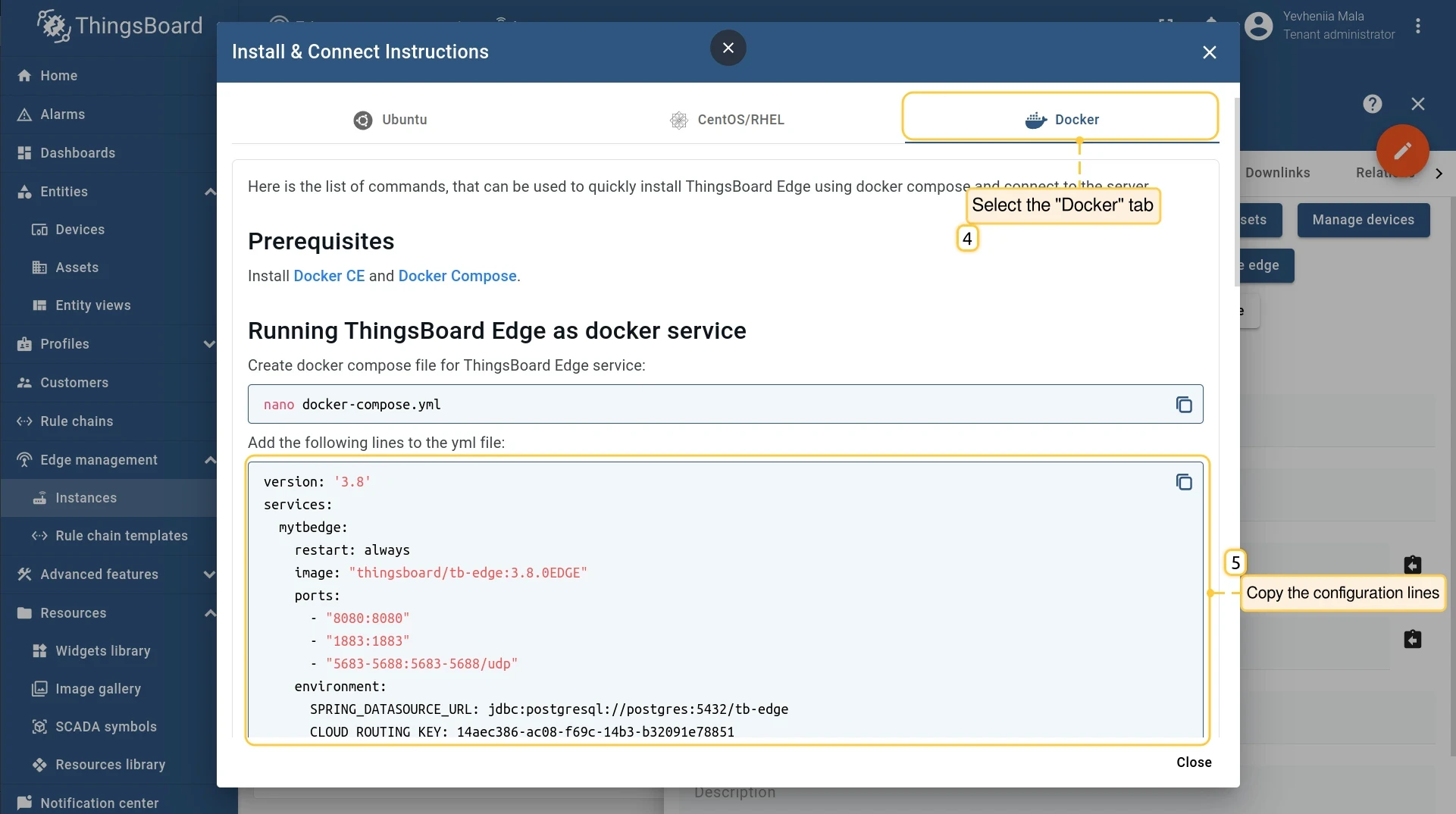
Select the Docker tab, copy the configuration lines, paste them into
docker-compose.yml, and save the file. -
Start the Edge container:
Terminal window docker compose up -ddocker compose logs -f mytbedgeRun both commands from the
tb_edgedirectory.
To verify Edge started successfully, log in to the Edge UI and go to Edge → Status. The Status field should show Connected.
To access the Edge UI from your local machine, open another terminal tab and set up SSH port forwarding:
ssh -N -L 8080:127.0.0.1:8080 username@ip_address8080(first): The port on your local machine.127.0.0.1: The target host accessible from the IoT Gateway device.8080(second): The port on the IoT Gateway device.username: The username with access to the device.ip_address: The IP address of the device.
Any connection to localhost:8080 on your local machine is forwarded to 127.0.0.1:8080 on the IoT Gateway device. Open http://127.0.0.1:8080 and log in with your tenant credentials.
Step 3. Provision the IoT Gateway on Edge
Section titled “Step 3. Provision the IoT Gateway on Edge”-
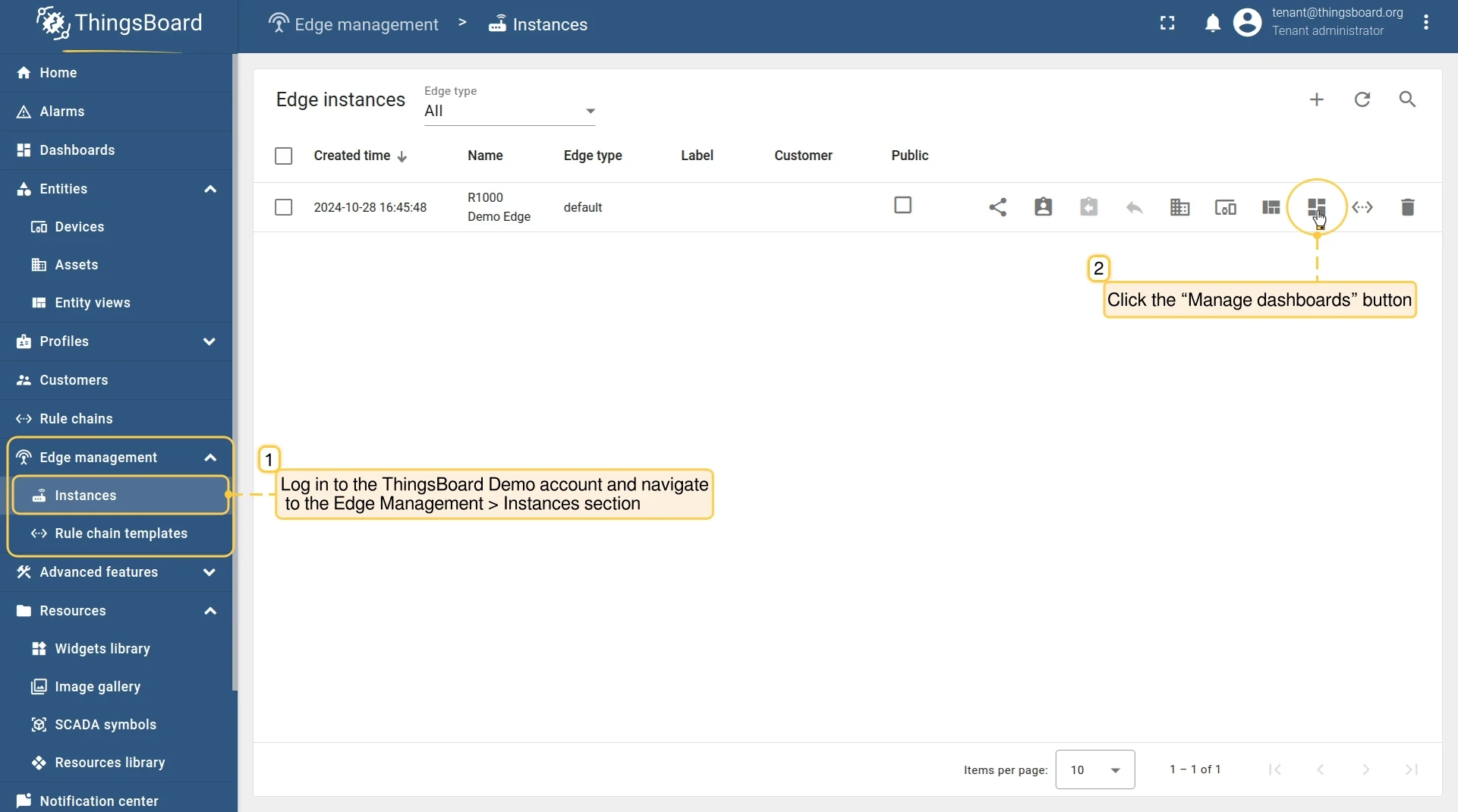
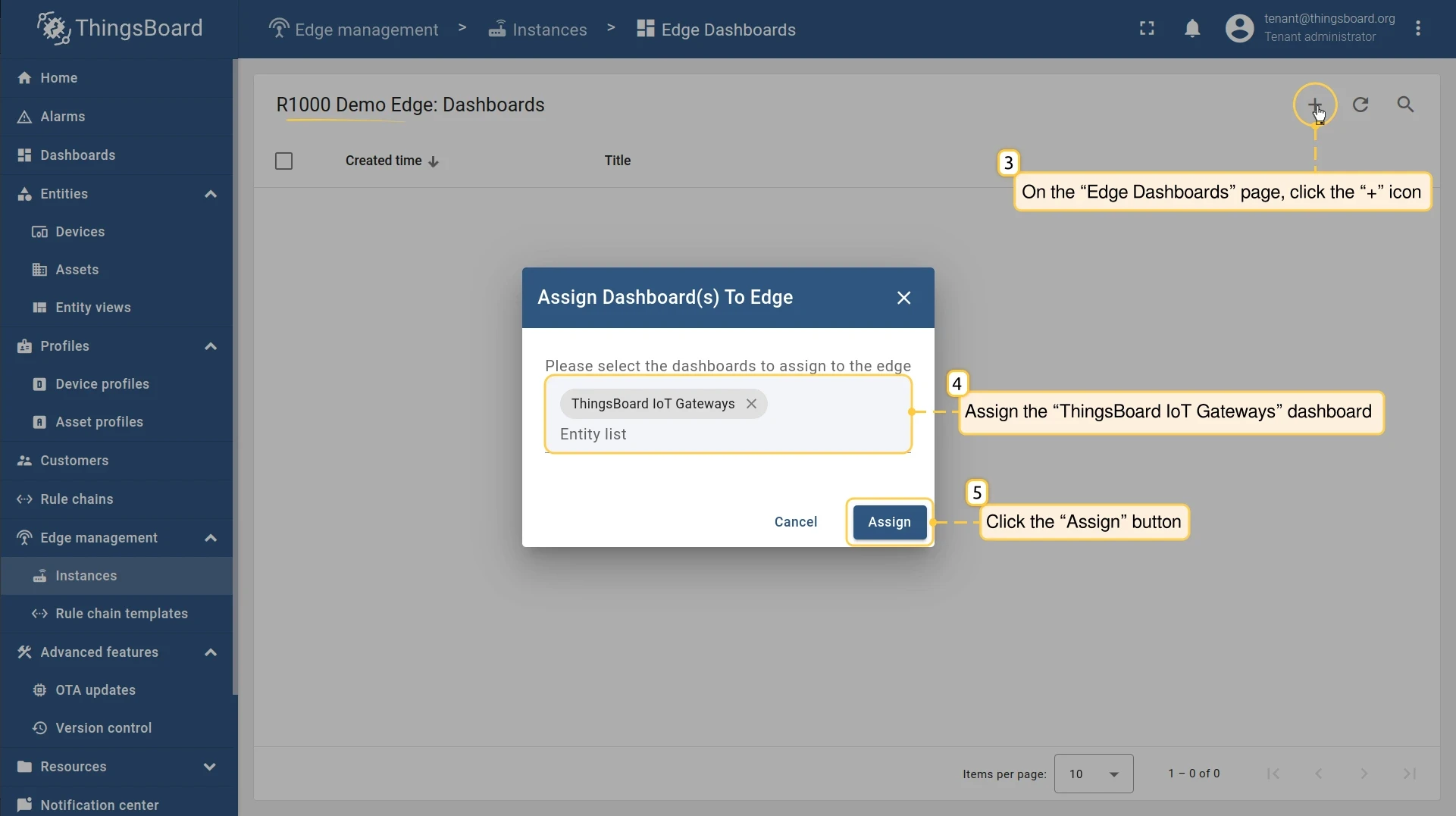
Log in to your ThingsBoard server, go to Edge management → Instances, and click Manage dashboards next to the Edge instance.
-
Click Add (+), select the ThingsBoard IoT Gateways dashboard from the drop-down menu, and click Assign. The ThingsBoard IoT Gateways dashboard is a built-in dashboard available on every ThingsBoard installation.
-
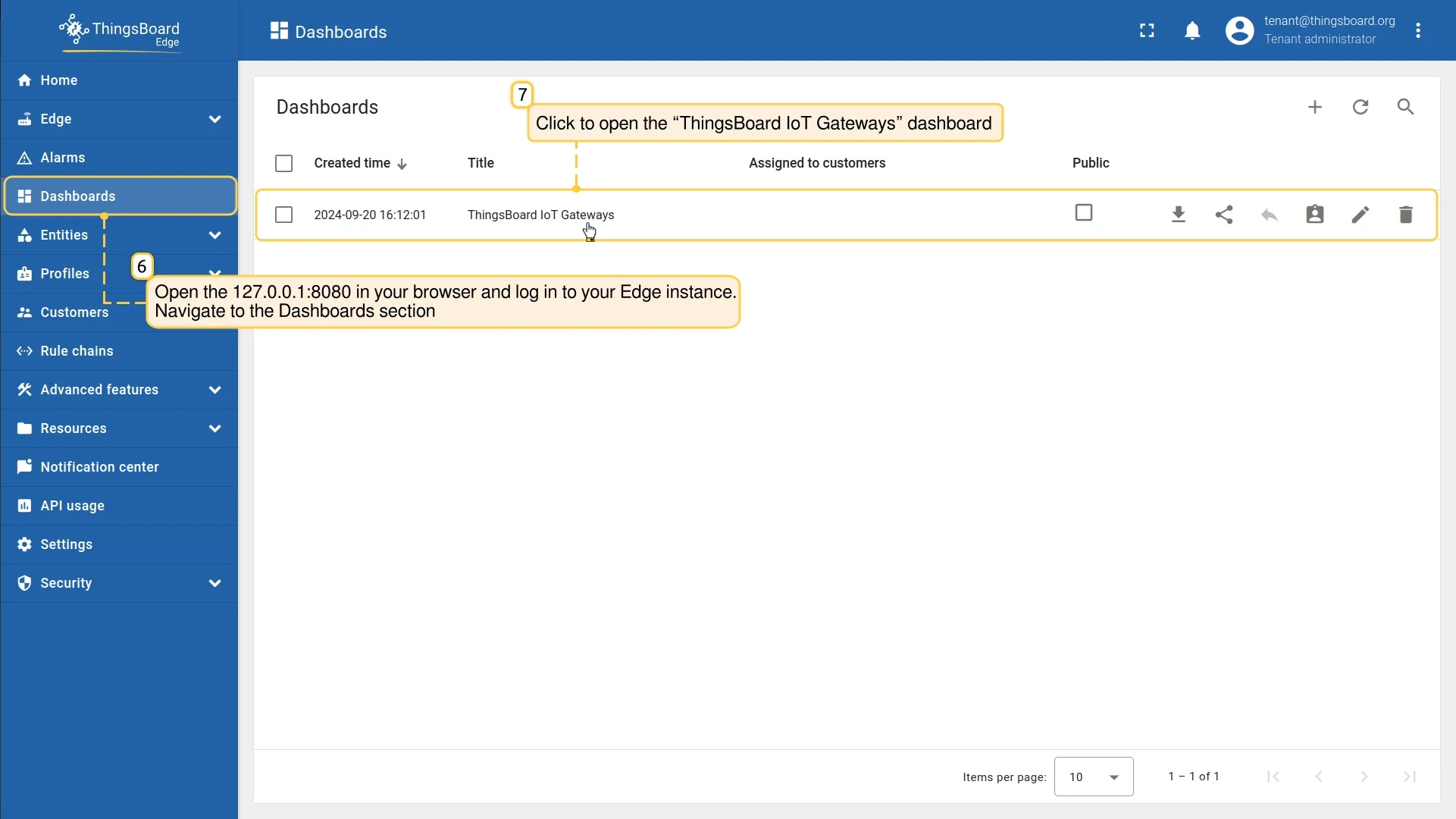
Open the Edge instance at http://127.0.0.1:8080, log in with your tenant credentials, and go to Dashboards. Open the ThingsBoard IoT Gateways dashboard.
-
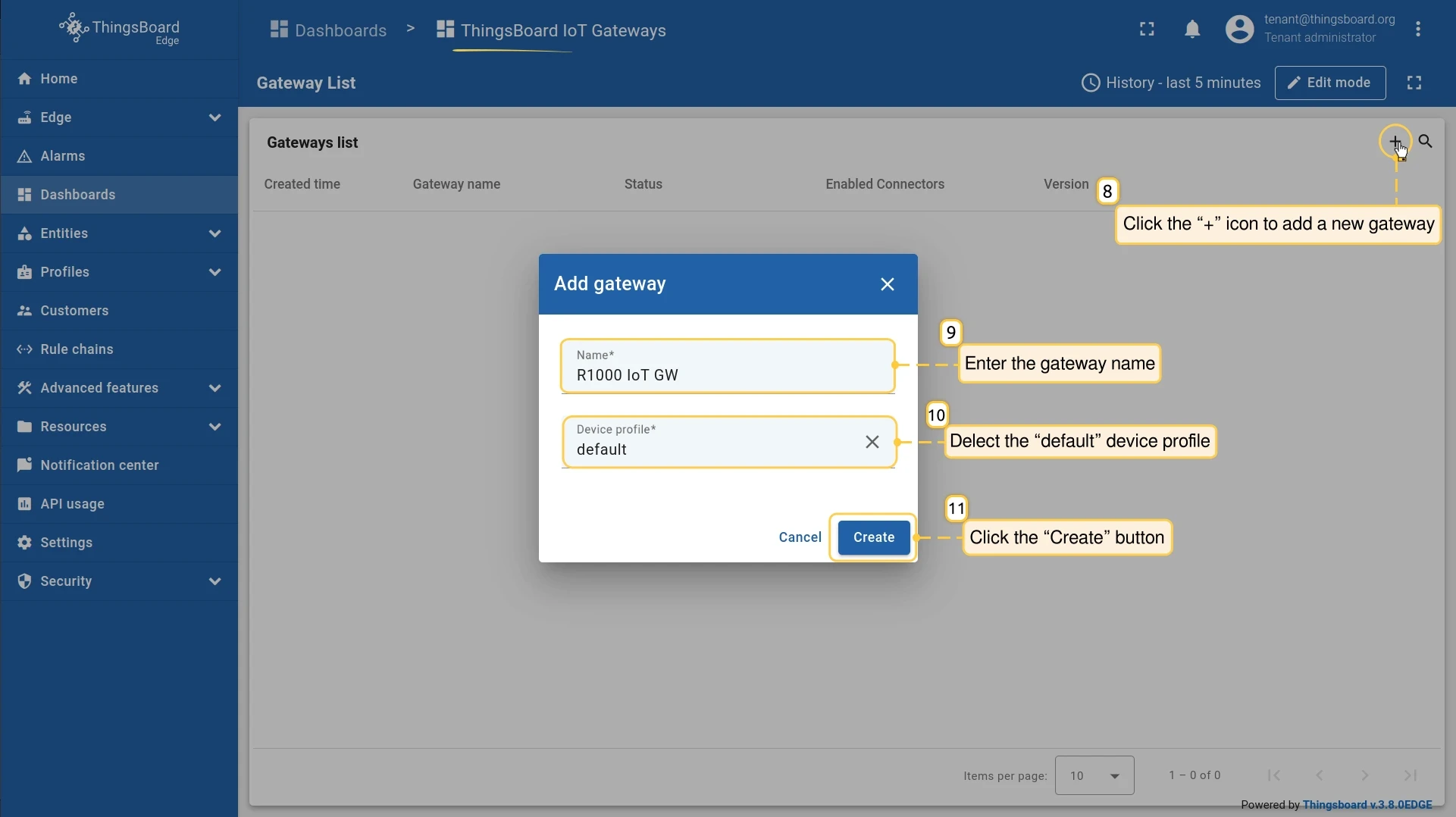
Click Add (+), enter the gateway name in the Name field, select the default device profile, and click Create.
-
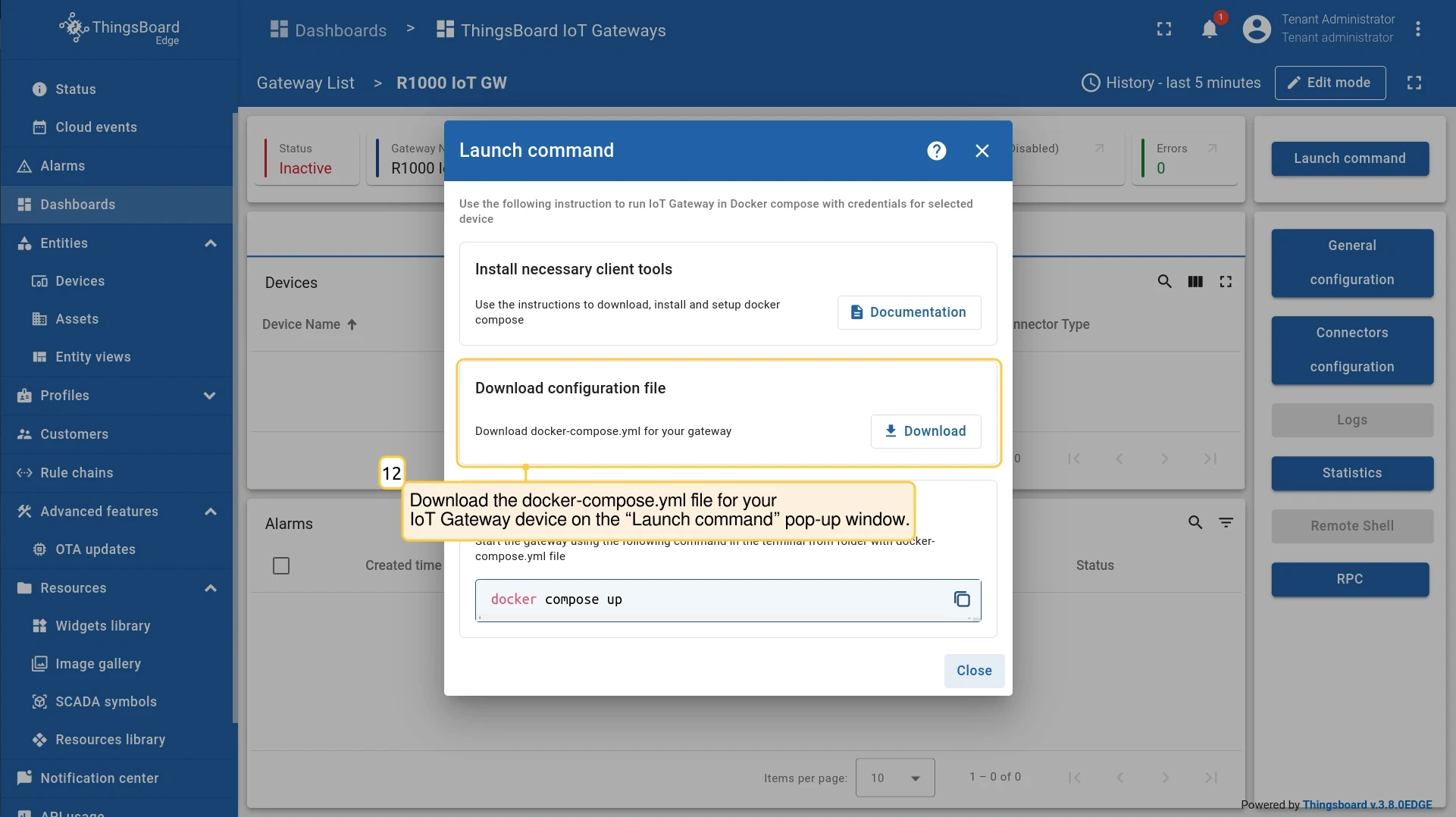
Download the
docker-compose.ymlfile for the IoT Gateway from the Launch command pop-up window.
Step 4. Install the IoT Gateway software on the device
Section titled “Step 4. Install the IoT Gateway software on the device”Connect to the device over SSH:
ssh username@ip_address-
Create a directory for the IoT Gateway service:
Terminal window mkdir iot_gateway -
Inside that directory, create a
docker-compose.ymlfile:Terminal window nano docker-compose.yml -
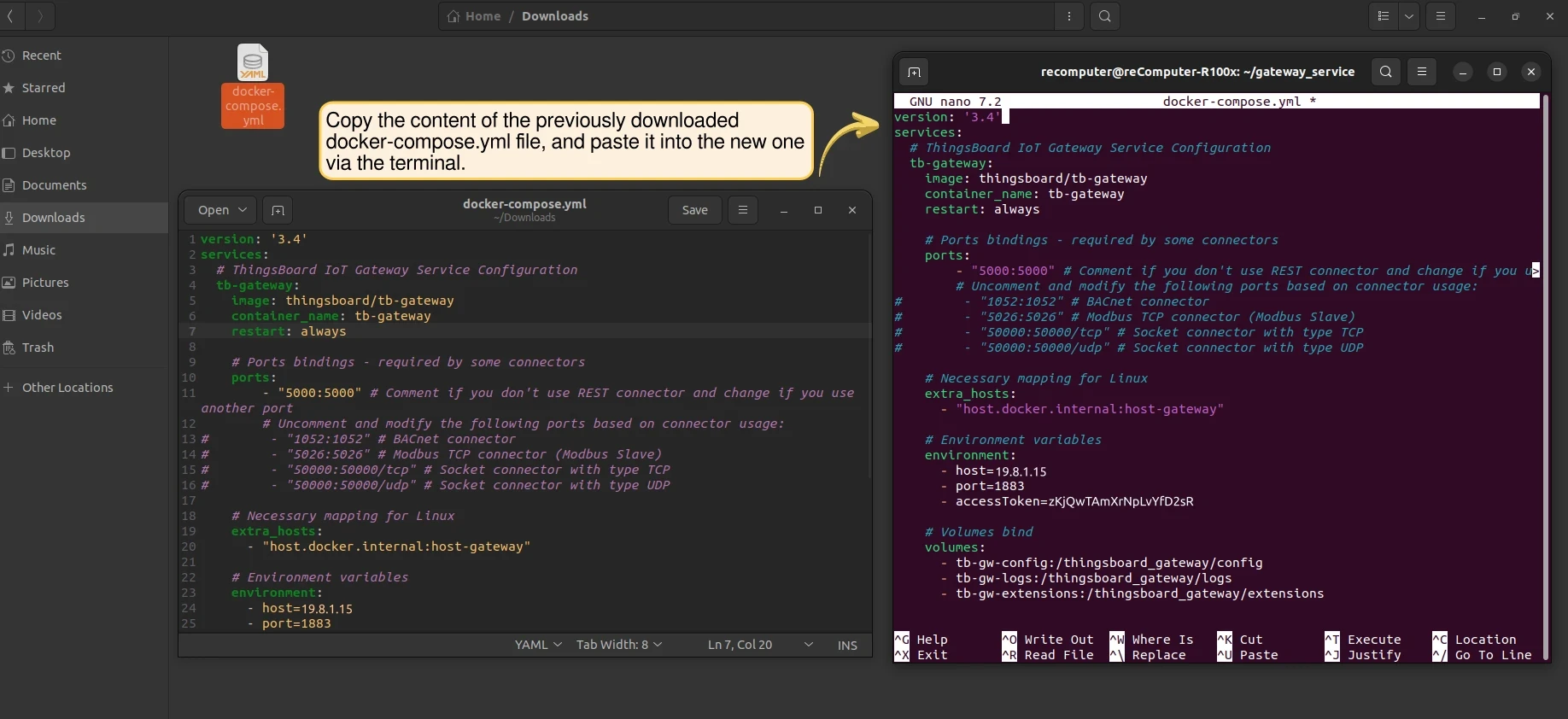
Paste the contents of the downloaded
docker-compose.ymlinto the new file and save it. Press CTRL+X to close.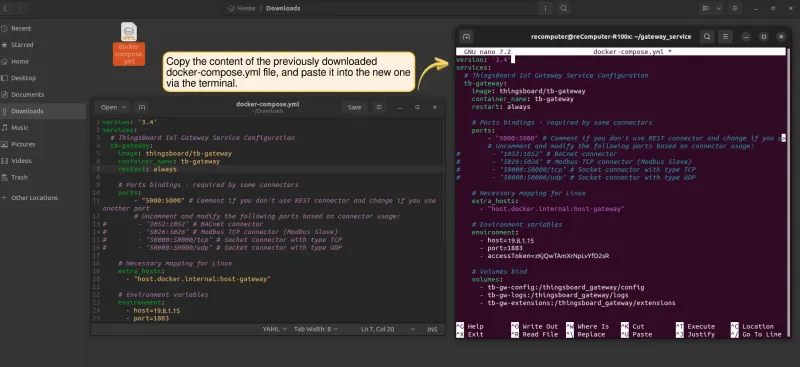
-
Start the IoT Gateway:
Terminal window docker compose up -ddocker compose logs -f
To verify the IoT Gateway connected successfully, open the ThingsBoard IoT Gateways dashboard on the Edge instance. The gateway device should appear in the list with an active status.
Was this helpful?