Asset management
Assets are abstract entities that represent real-world objects — factories, vehicles, warehouses, buildings, and similar — and organize other entities beneath them in a relational hierarchy. Devices report telemetry; assets give that telemetry context by grouping the devices that produce it. Dashboard aliases can then use asset relations to dynamically aggregate data from all related devices in a single widget.
For a general introduction to assets, see Assets.
There are two ways to get an asset onto an Edge instance:
- Create on Edge: Use this when the asset is new and will be managed primarily on Edge. ThingsBoard pushes it to the server automatically.
- Assign from server: Use this when the asset already exists on the server and you want to extend its management to a specific Edge instance.
Create an asset on Edge
Section titled “Create an asset on Edge”-
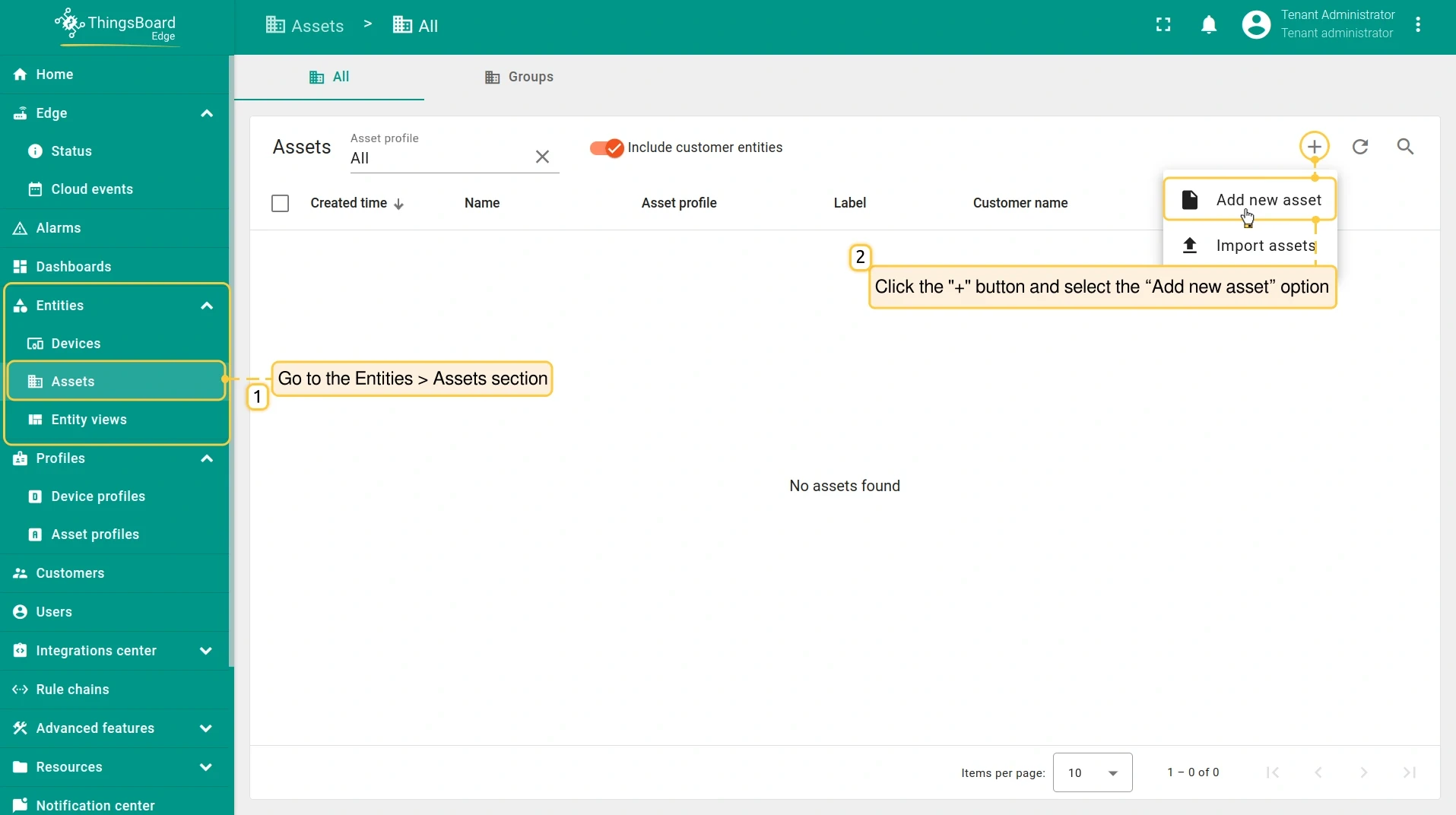
Go to Entities → Assets and click Add (+), then select Add new asset.
-
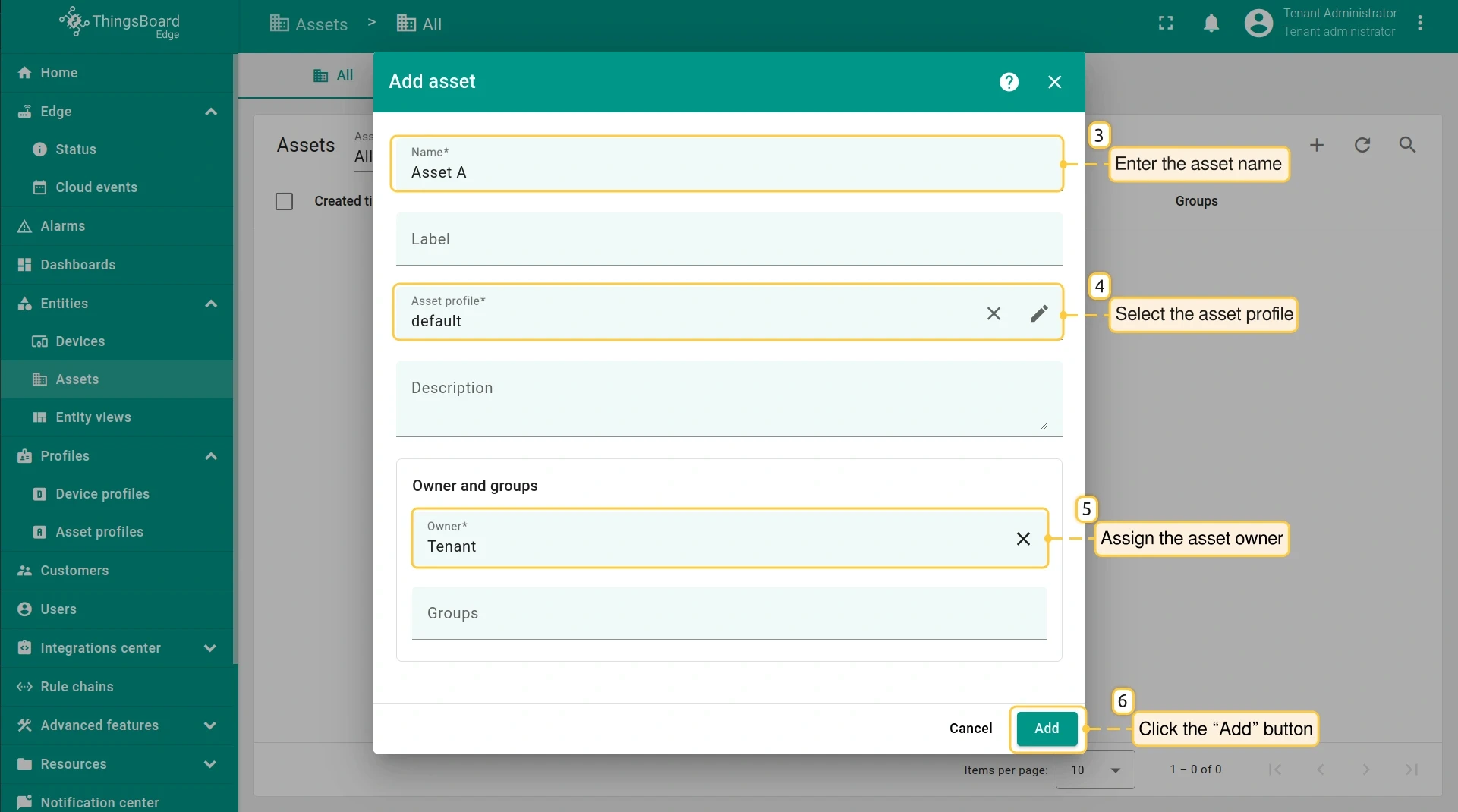
Enter the asset Name and select an Asset profile.
-
Click Add.
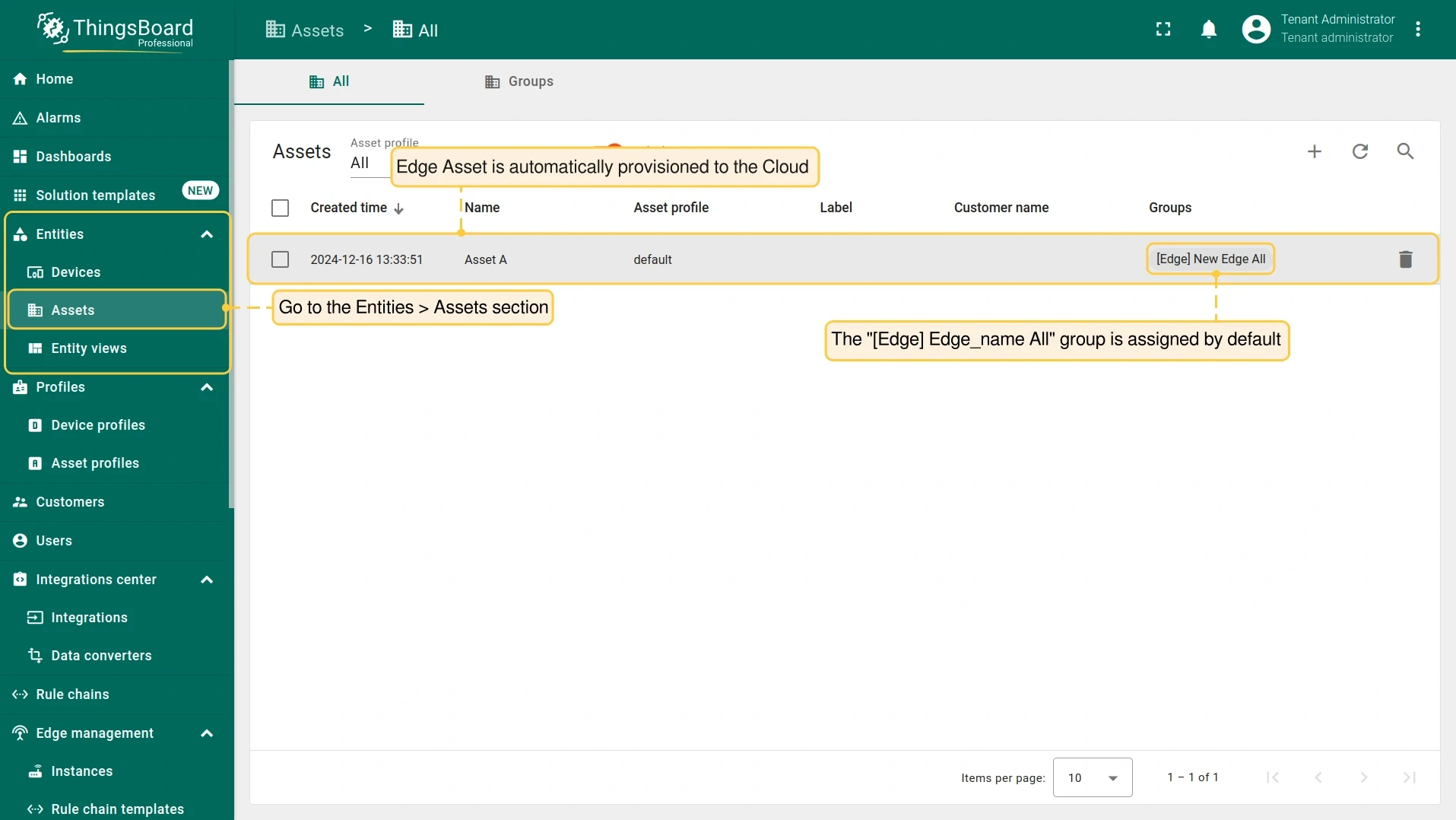
The asset appears in the list and is pushed to the server automatically once the Edge connection is established.
Create relations
Section titled “Create relations”Relations define the hierarchy between entities. An asset typically acts as the parent that Manages one or more devices. Once the relation is set up, you can use it as a filter in dashboard aliases to display data from all related devices dynamically.
The two key parameters are:
| Parameter | Options | Meaning |
|---|---|---|
| Direction | From (outbound) | The relation originates from this entity |
| Direction | To (inbound) | The relation points to this entity |
| Relation type | Contains | This entity is a part of another |
| Relation type | Manages | This entity is responsible for another |
To add a Manages relation from an asset to a device:
-
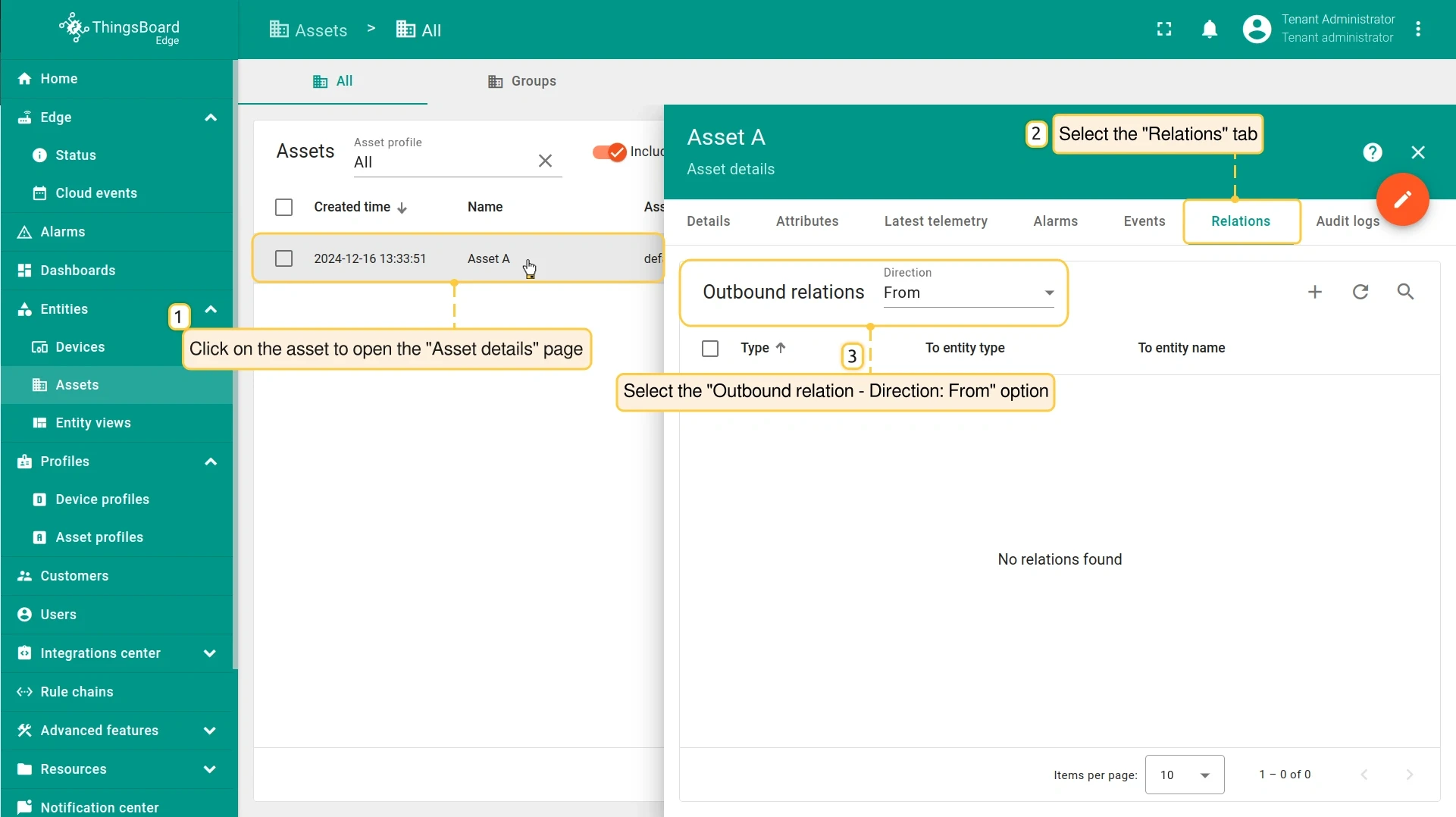
Go to Entities → Assets and open the asset.
-
Go to the Relations tab and select Outbound relations — From.
-
Click Add (+), set Relation type to Manages, set To entity type to Device, and select the device from the dropdown.
-
Click Add.
The relation appears in the Relations tab.
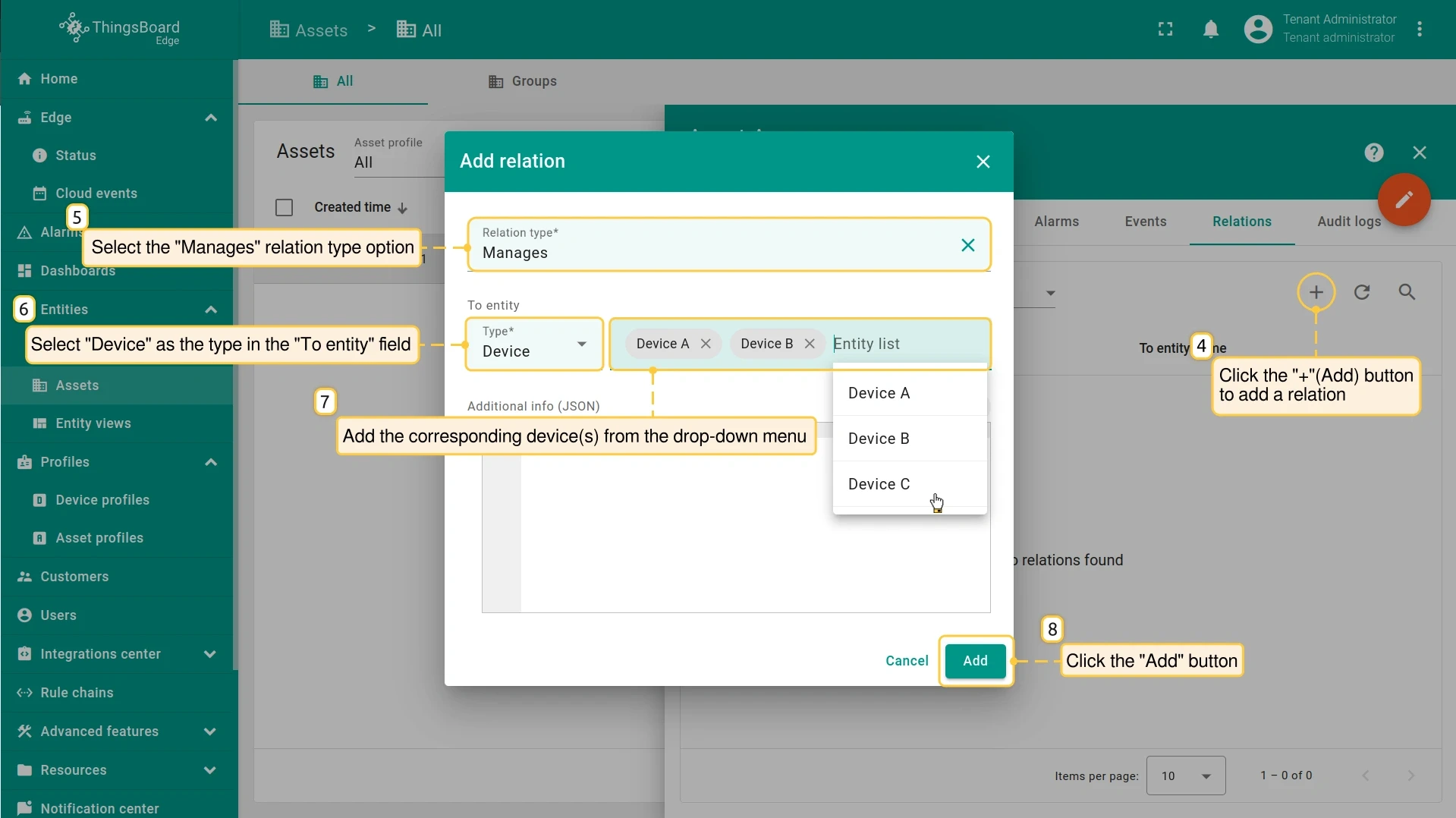
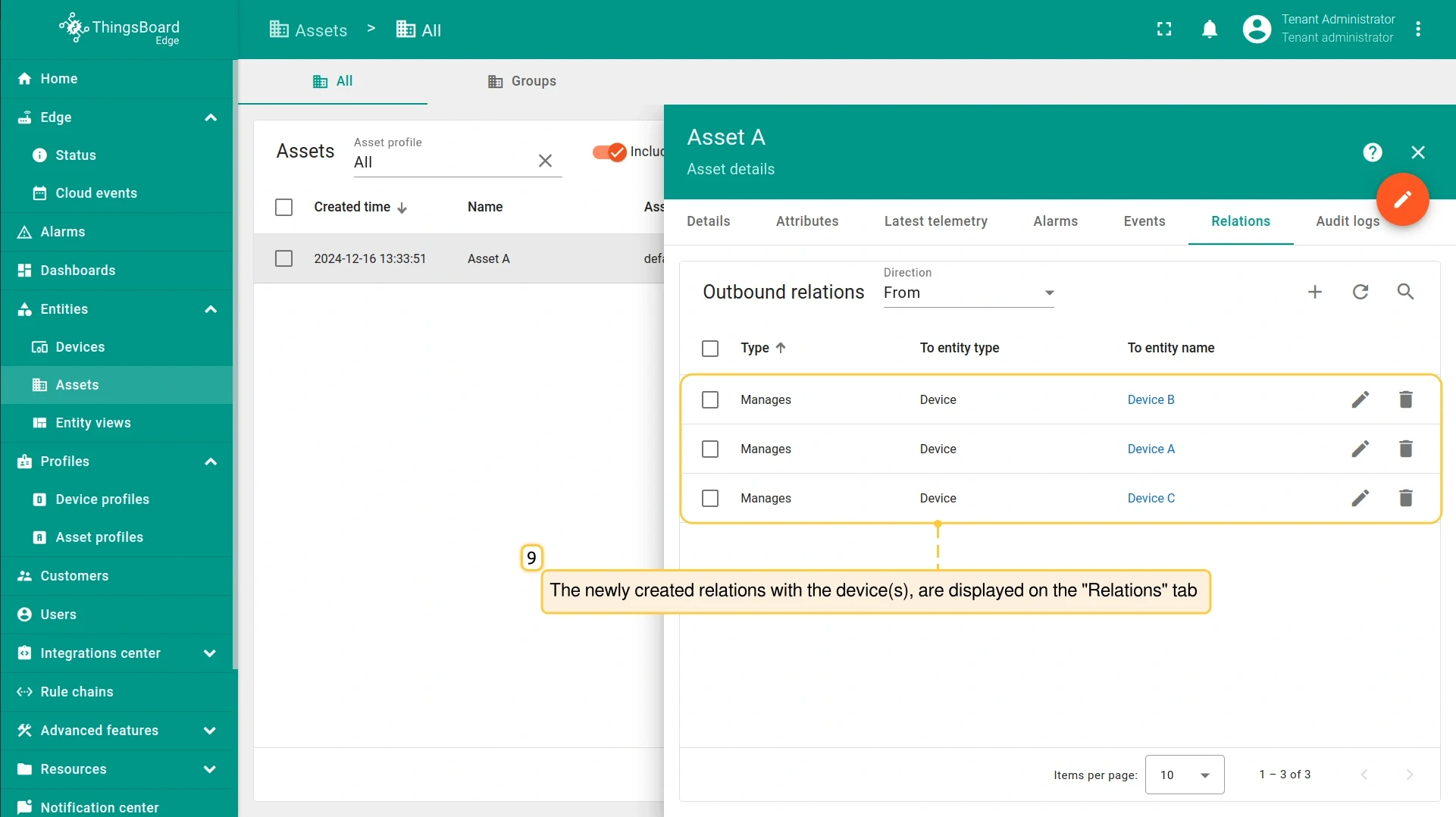
To display telemetry from asset-related devices on a dashboard, use a Relations query alias with the asset as the root entity. For details, see Entity aliases.
Assign an asset from the server
Section titled “Assign an asset from the server”Use this flow when the asset already exists on the server and you want to make it available on a specific Edge instance.
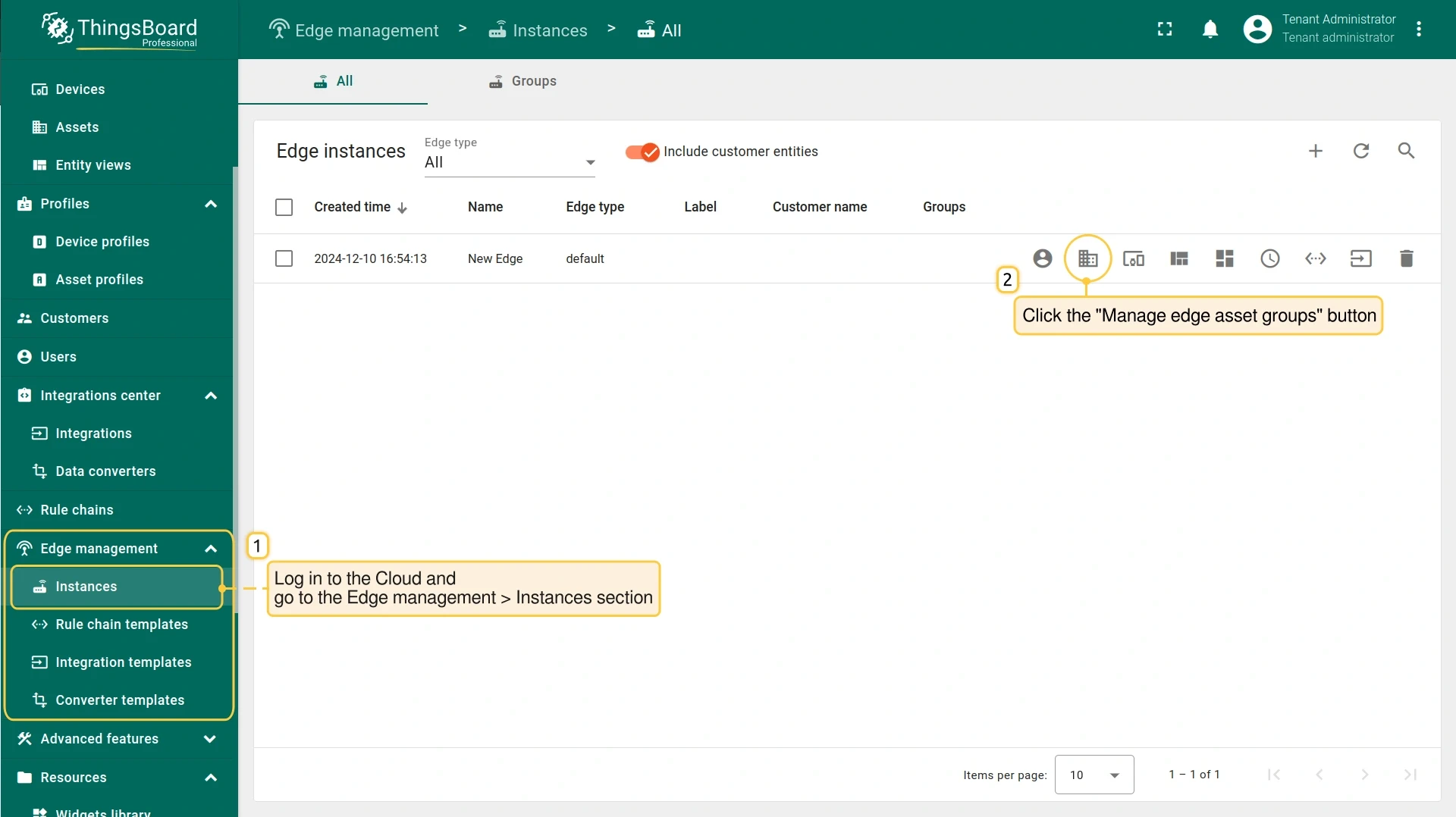
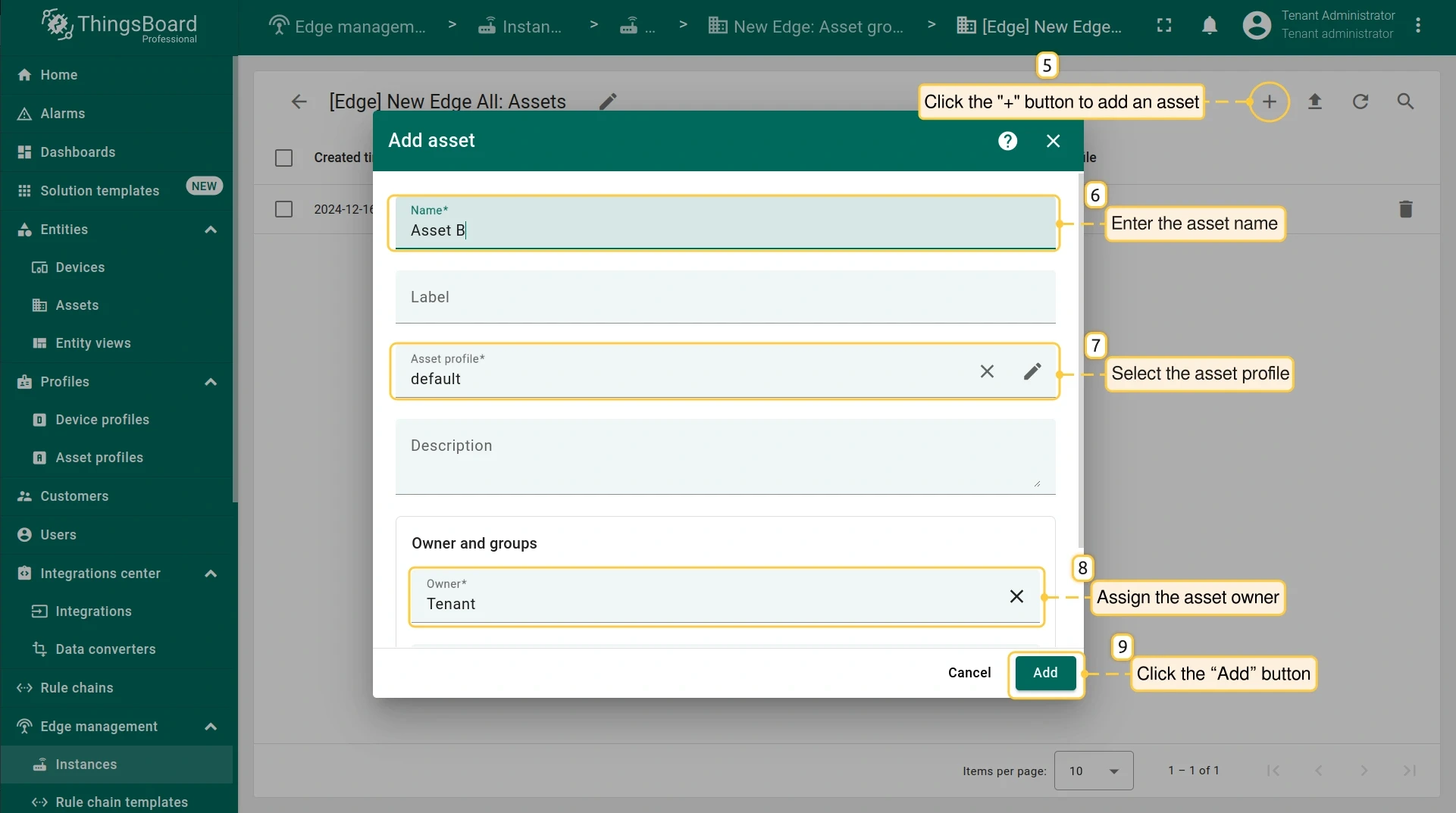
- Log in to your ThingsBoard server and go to Edge management → Instances.
- Open the Edge instance and click Manage edge asset groups.
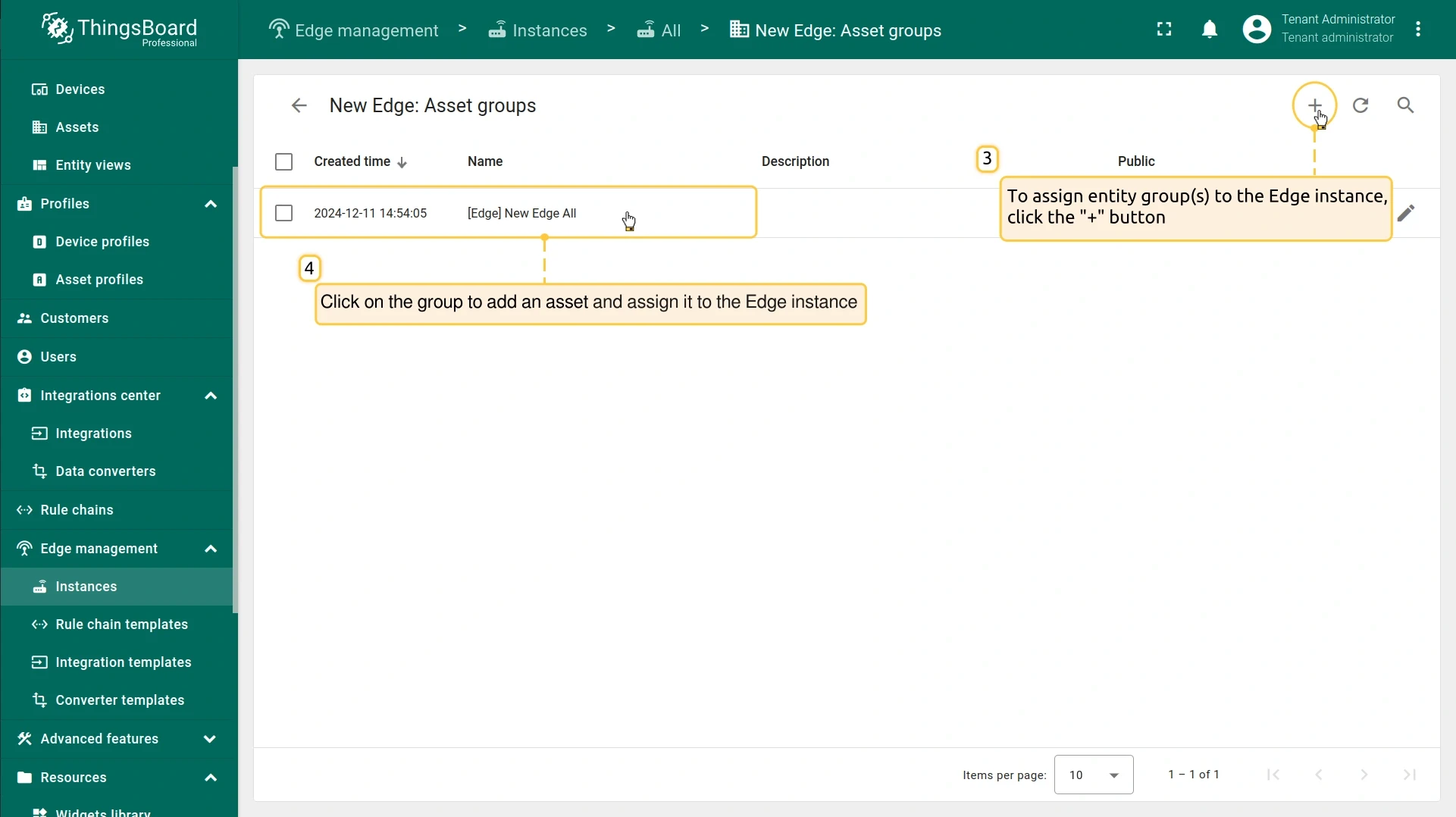
- Click Add (+) to assign an existing asset group, or open a group and click Add (+) to add a new asset to it.
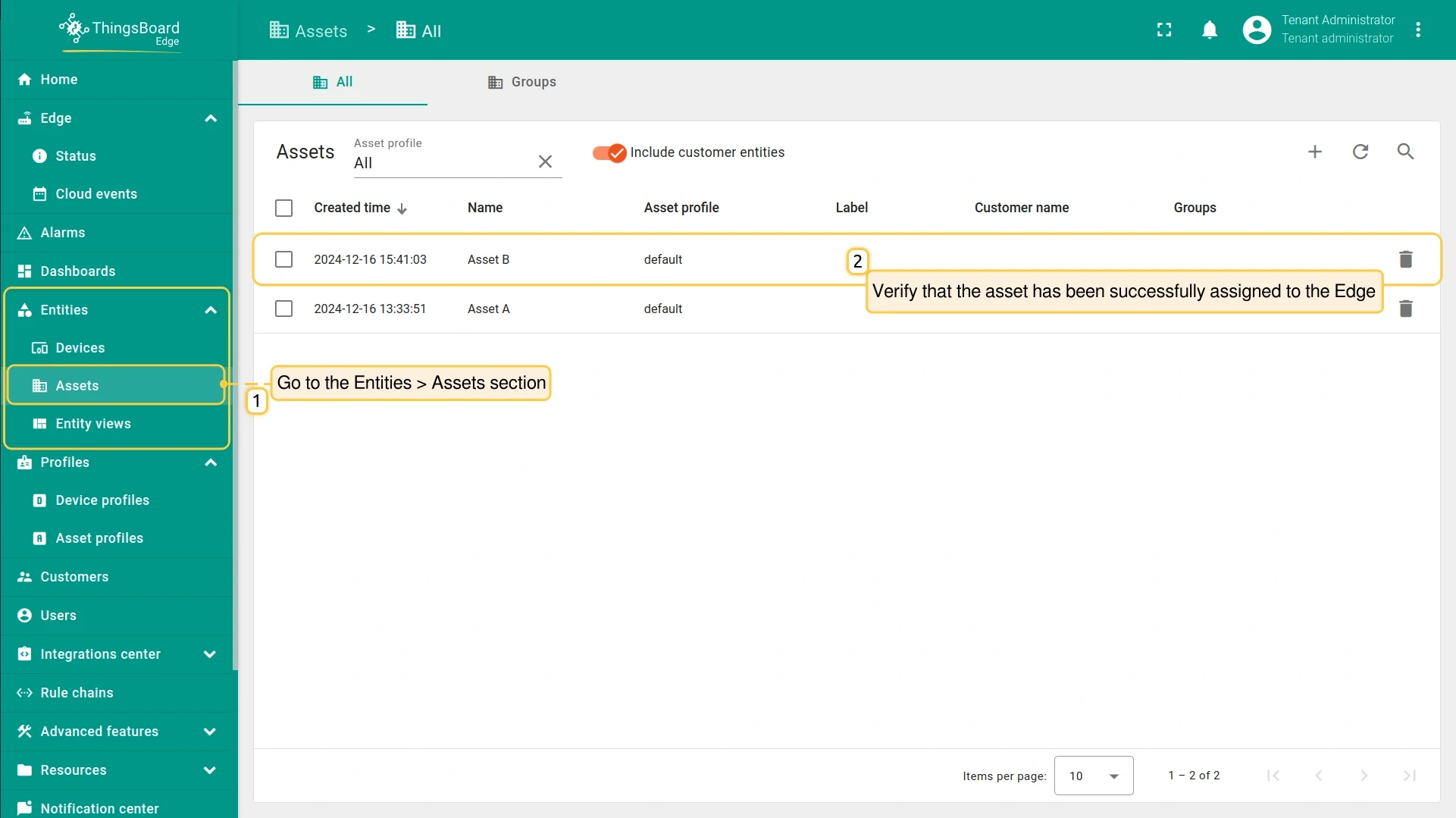
- Log in to your Edge instance and go to Entities → Assets to confirm the asset was assigned.
Unassign an asset from Edge
Section titled “Unassign an asset from Edge”Unassigning removes the asset from the Edge instance but keeps it on the server. All data associated with the asset is preserved on the server.
-
Log in to your ThingsBoard server and go to Edge management → Instances.
-
Open the Edge instance and click Manage assets.
-
Find the asset in the list and click Unassign from edge (×).
The asset is removed from the Edge instance immediately and remains fully accessible on the server.
Was this helpful?