Microsoft Teams Settings
To send notifications to Microsoft Teams channels, create an incoming webhook workflow in Teams and paste the generated URL into a ThingsBoard notification recipient.
Create a Webhook Workflow in Microsoft Teams
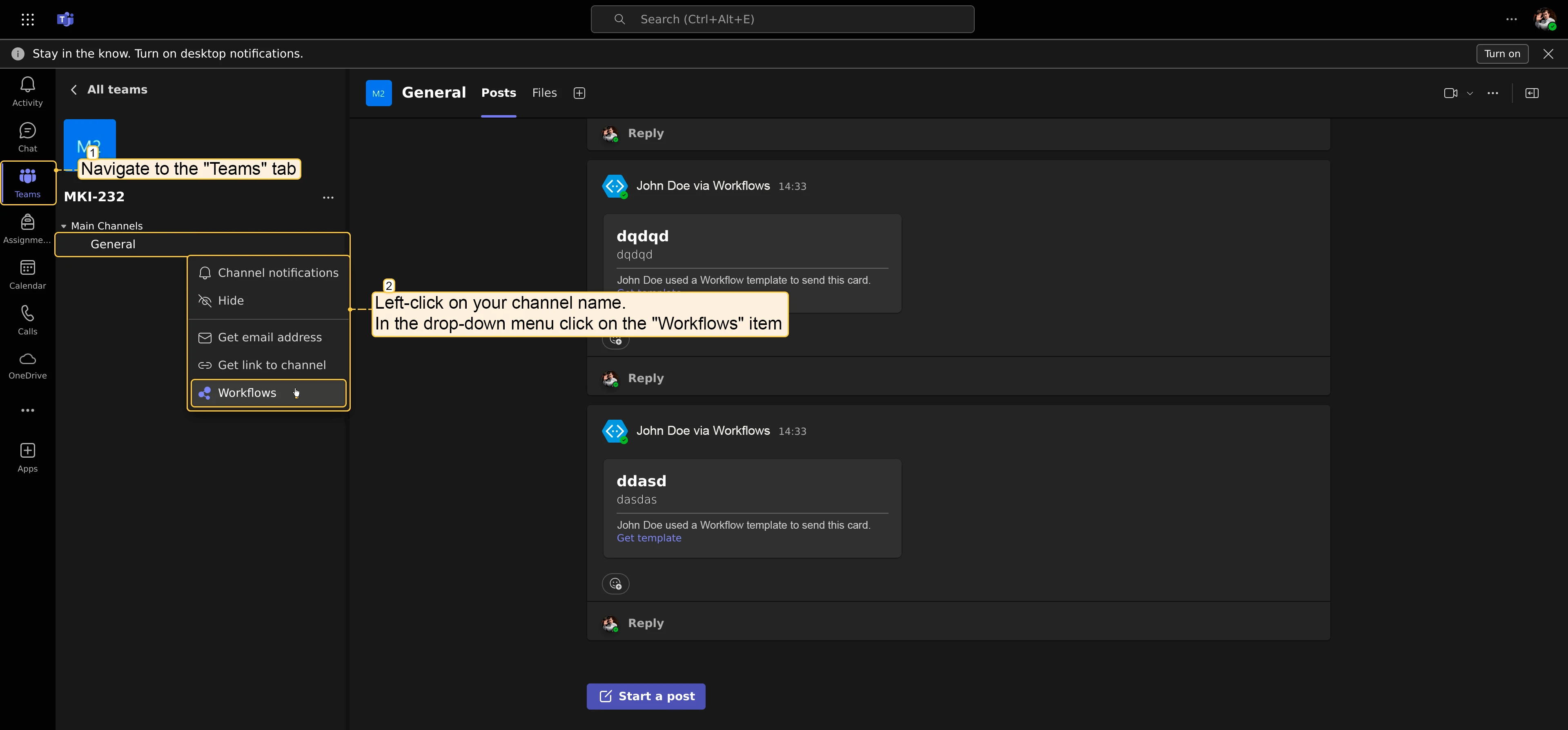
Section titled “Create a Webhook Workflow in Microsoft Teams”- Open Microsoft Teams and go to the Teams tab. Right-click the channel you want to receive notifications and select Workflows.
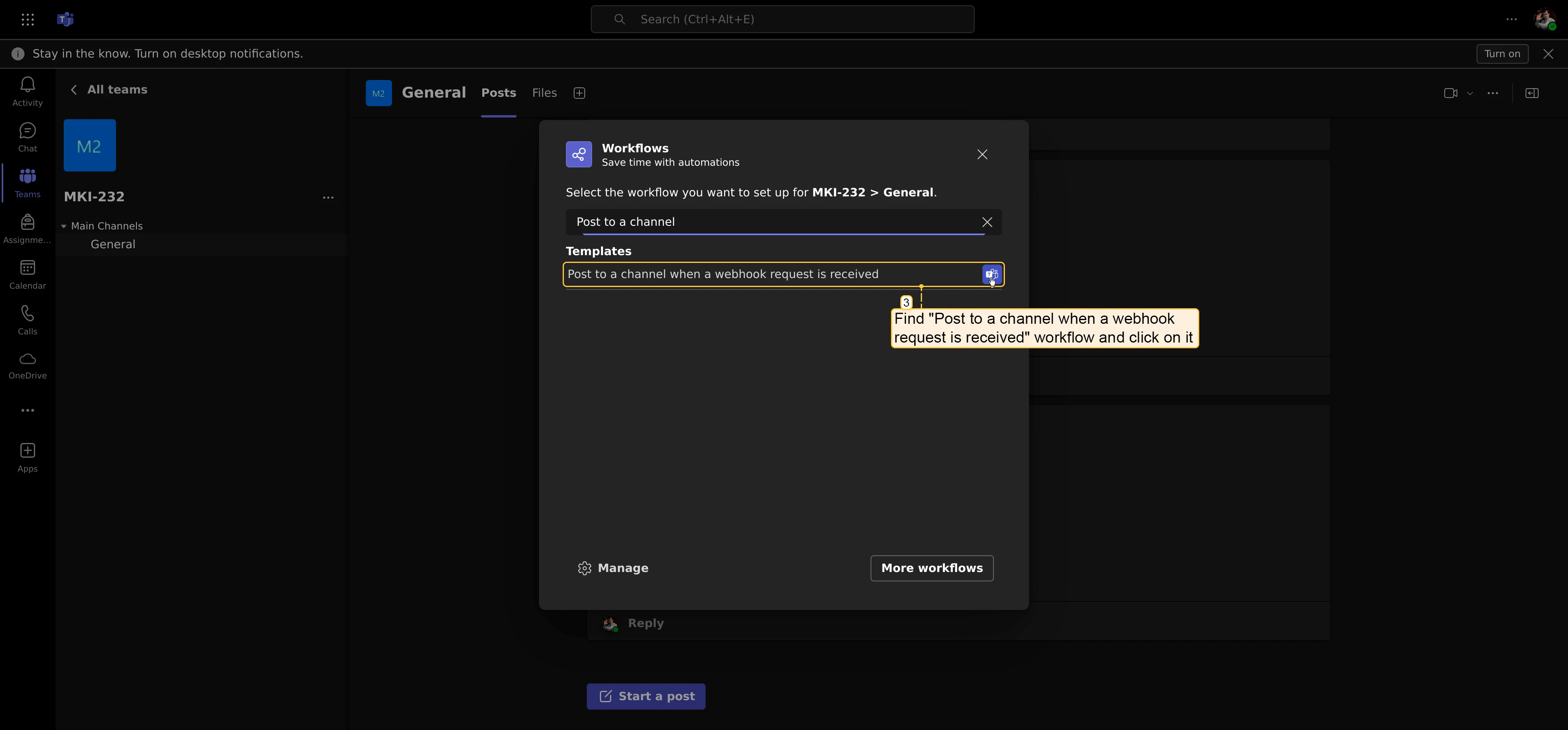
- Find and click Post to a channel when a webhook request is received.
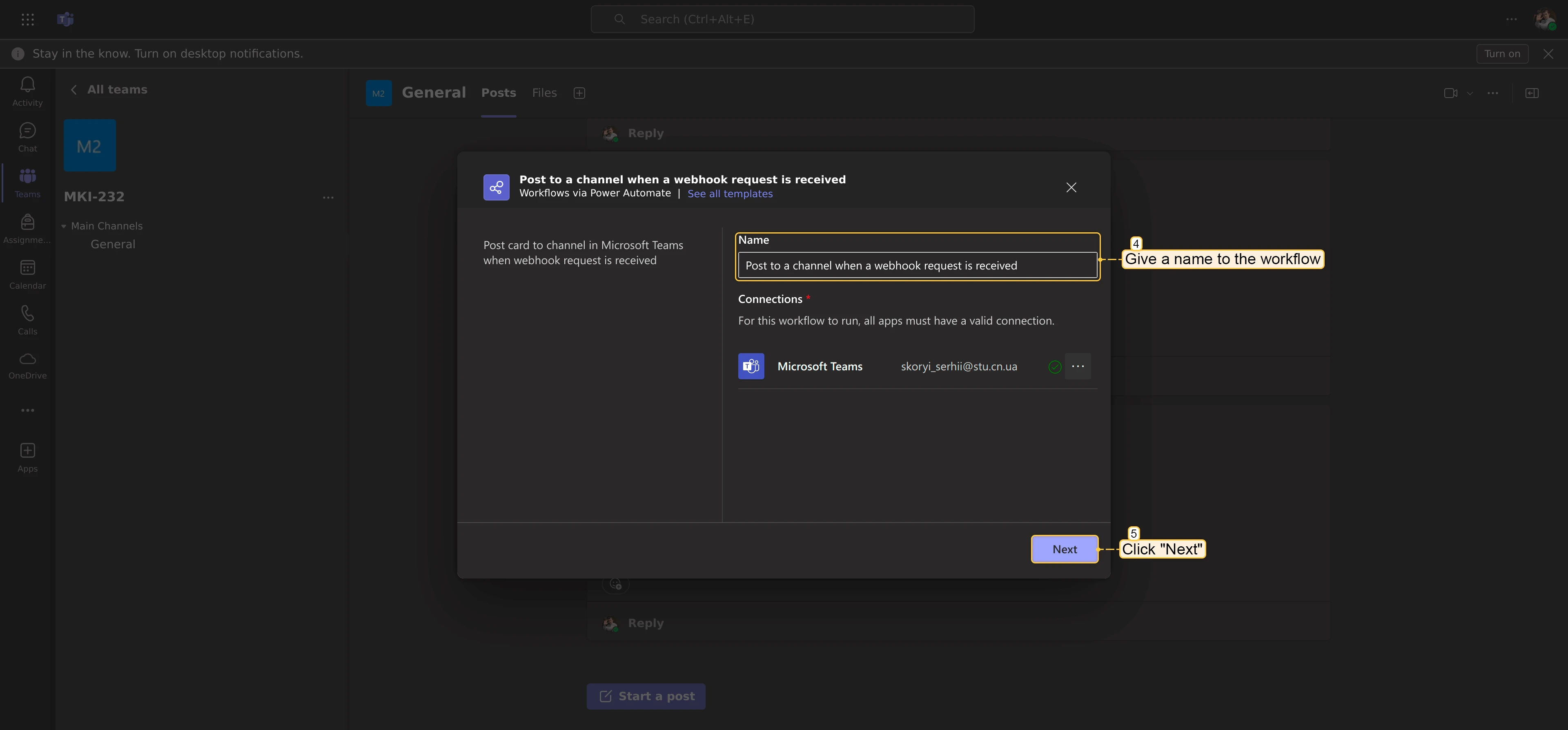
- Enter a name for the workflow and click Next.
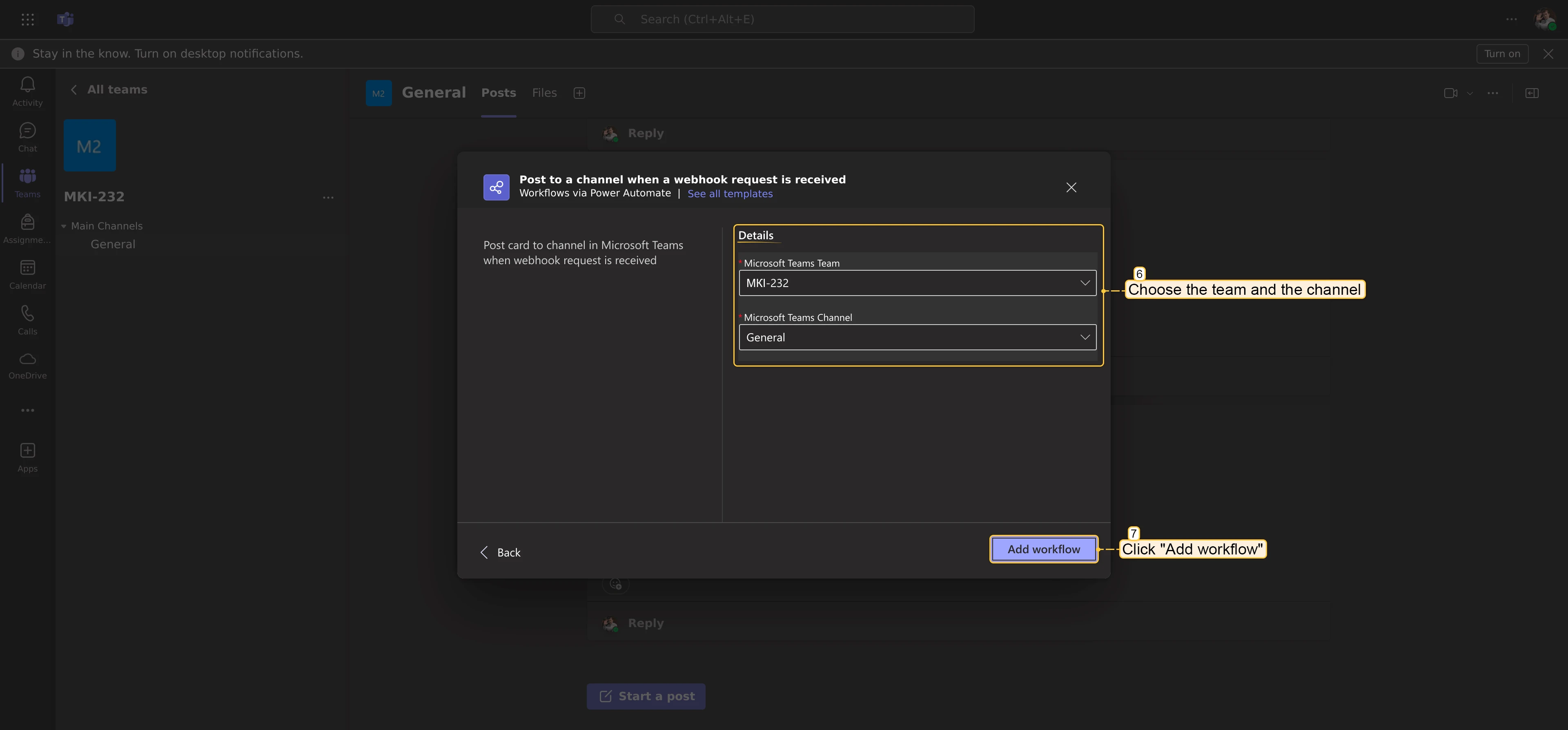
- Select the team and channel, then click Add workflow.
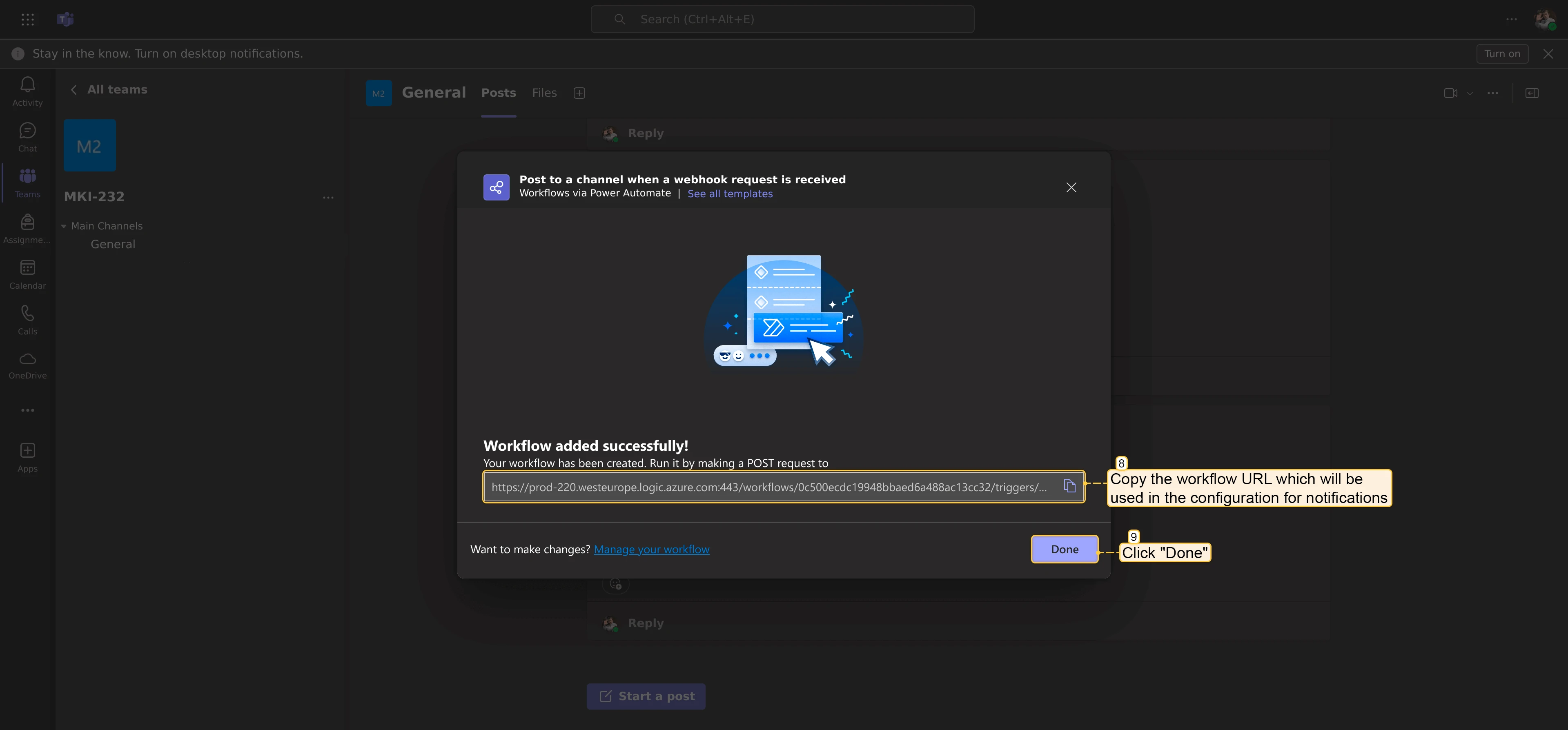
- Copy the generated webhook URL and click Done.
Configure in ThingsBoard
Section titled “Configure in ThingsBoard”In the Monitor ⇾ Notifications, create a recipient of type Microsoft Teams and paste the webhook URL. ThingsBoard will POST notification messages to this URL when a matching notification rule fires, and they will appear in the configured channel.
Example
Section titled “Example”The Send Microsoft Teams Notification on Alarm recipe walks through the full setup: configuring a recipient with the webhook URL, creating an alarm notification template, and setting up a rule that posts a message to the Teams channel when an alarm is created.
Was this helpful?
Thank you for your feedback!