OTA updates
OTA updates on ThingsBoard Edge follow the same model as on the ThingsBoard server. Firmware and software packages are created on the server, automatically propagated to each connected Edge instance, and then assigned to devices or device profiles on the Edge.
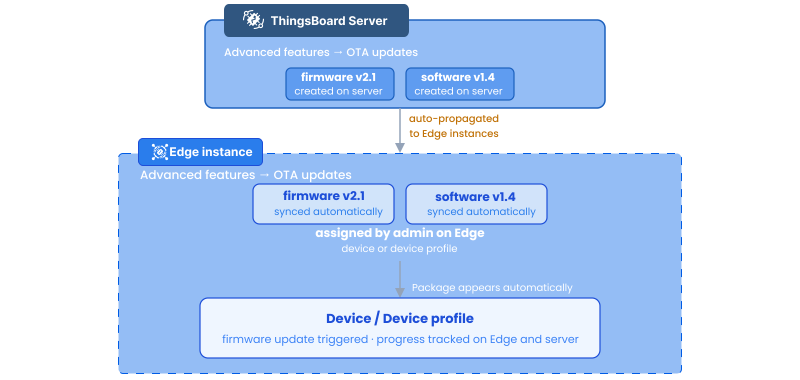
For a general overview of how OTA updates work, see OTA updates.
Create an OTA update package
Section titled “Create an OTA update package”-
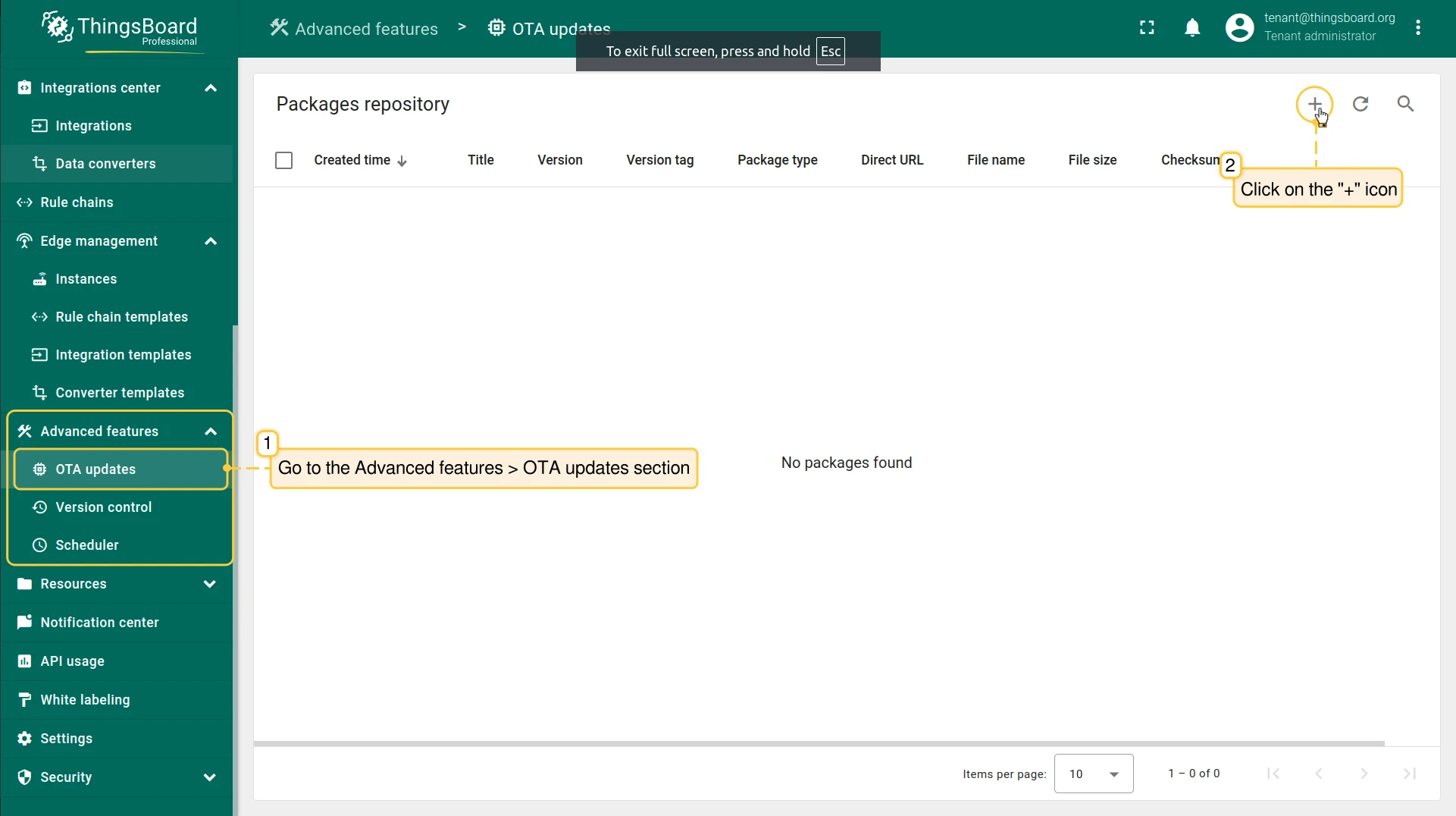
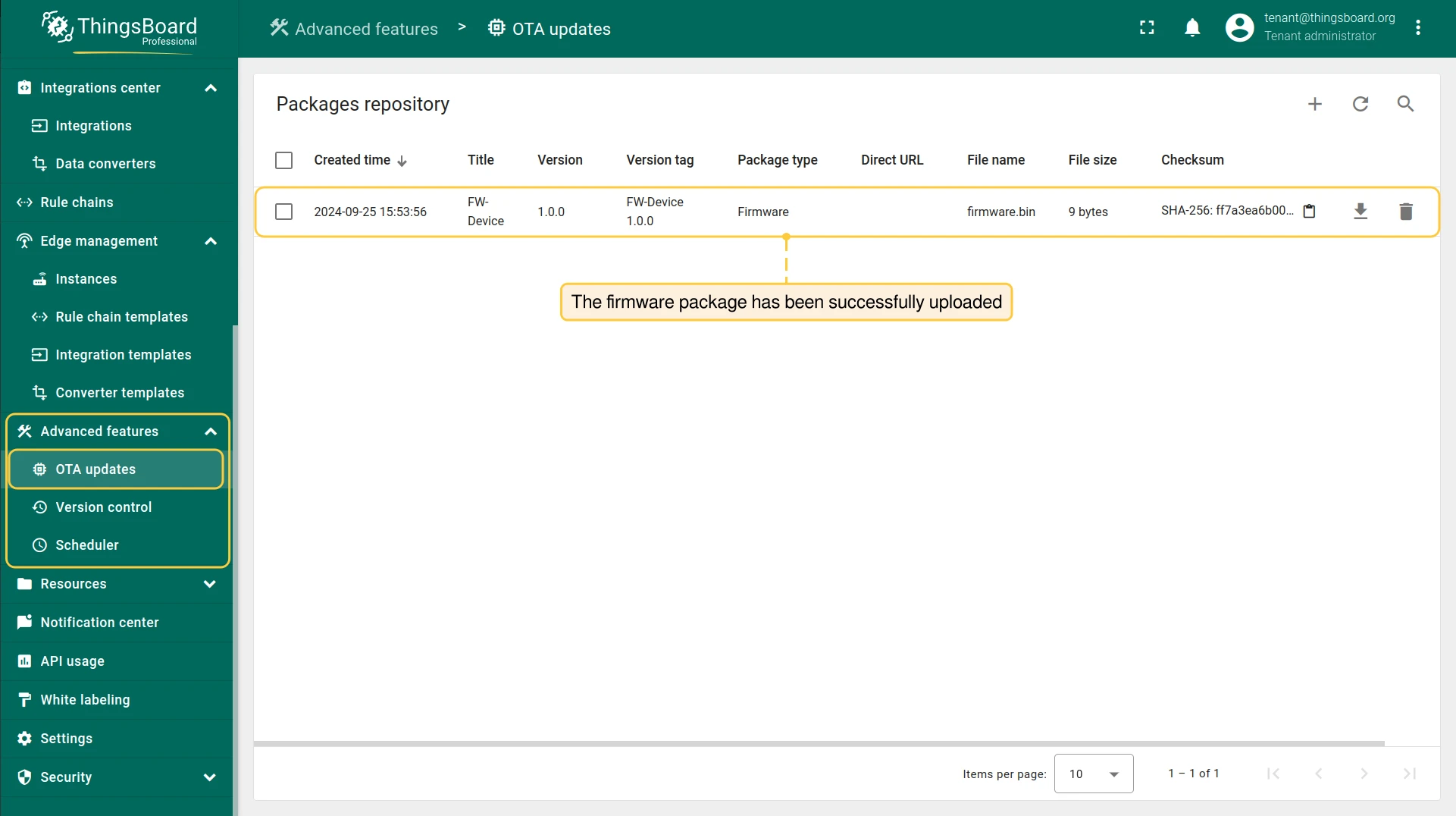
Log in to your ThingsBoard server and go to Advanced features → OTA updates.
-
Click Add (+) to open the new package dialog.
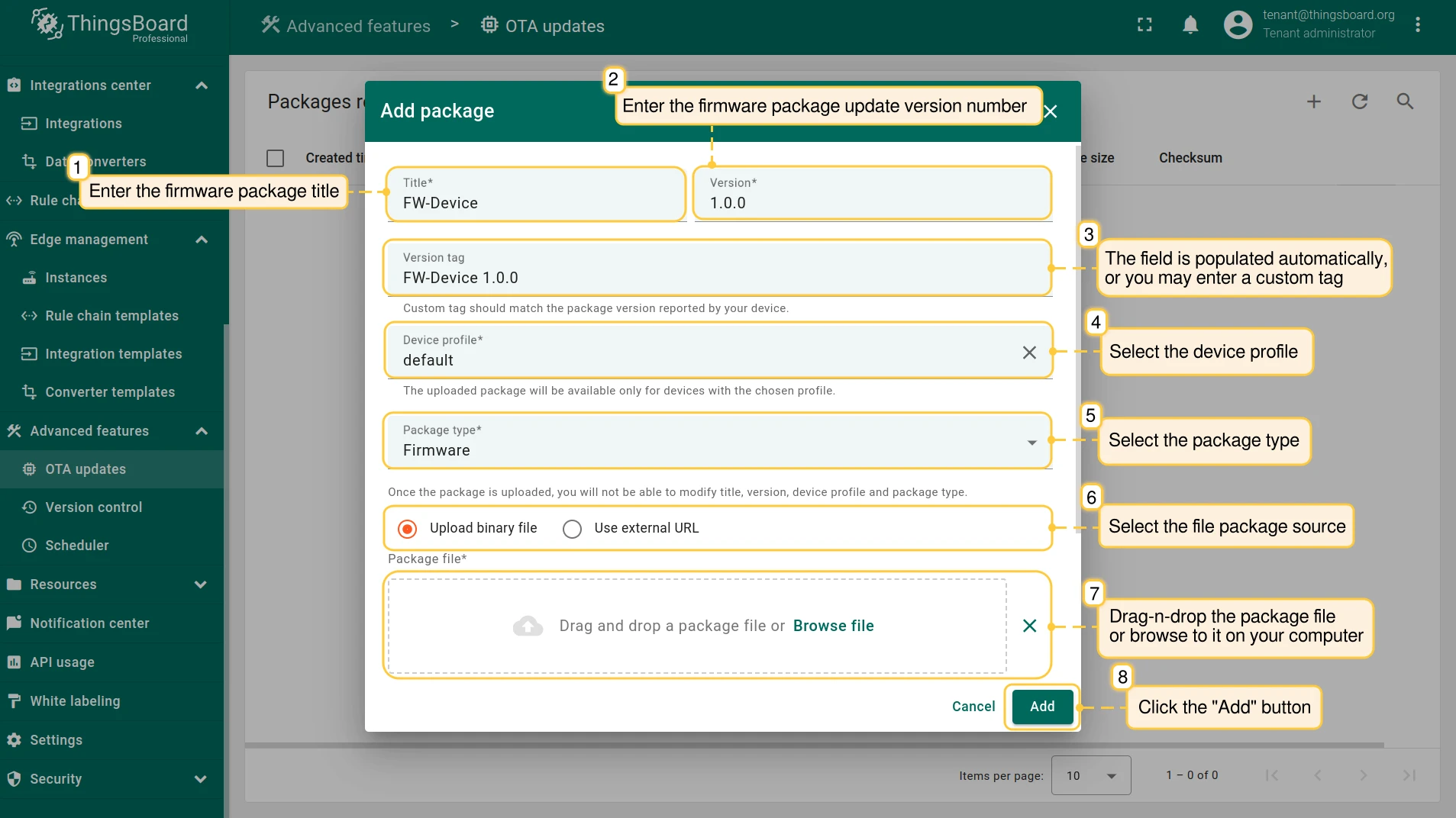
Fill in the following fields:
- Title: The firmware package name.
- Version: The package version number.
- Version tag: Populated automatically. Enter a custom value only if it must match the version string reported by the device.
- Device profile: The target device profile.
- Package type: Select Firmware or Software.
- Source: Select Upload binary file to upload a file from your computer, or Use external URL to provide a download URL.
-
Click Add.
Once uploaded, the title, version, device profile, and package type cannot be modified.
-
Confirm the package appears in the list.
Verify the package on Edge
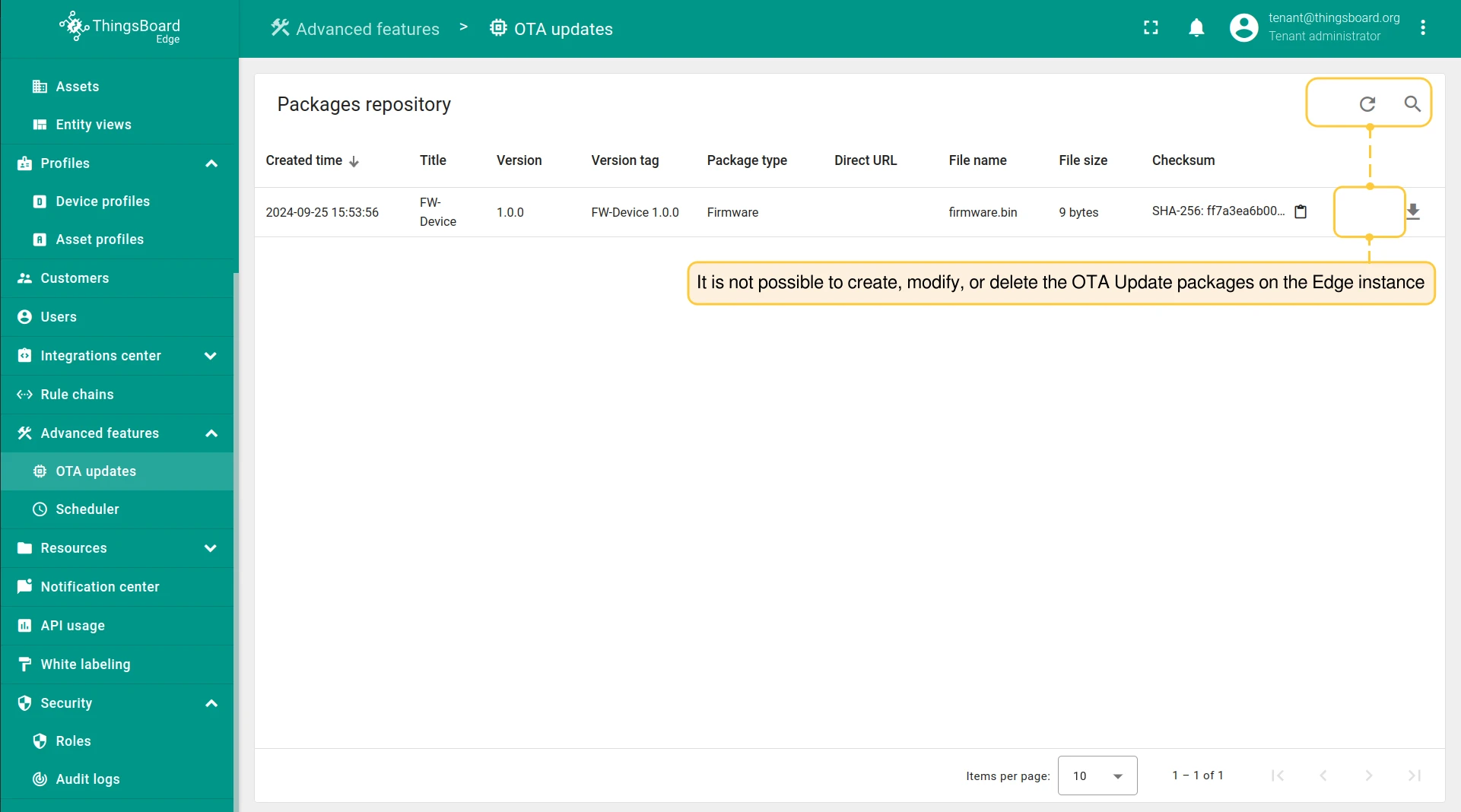
Section titled “Verify the package on Edge”After the package is created on the server, ThingsBoard automatically propagates it to all connected Edge instances.
-
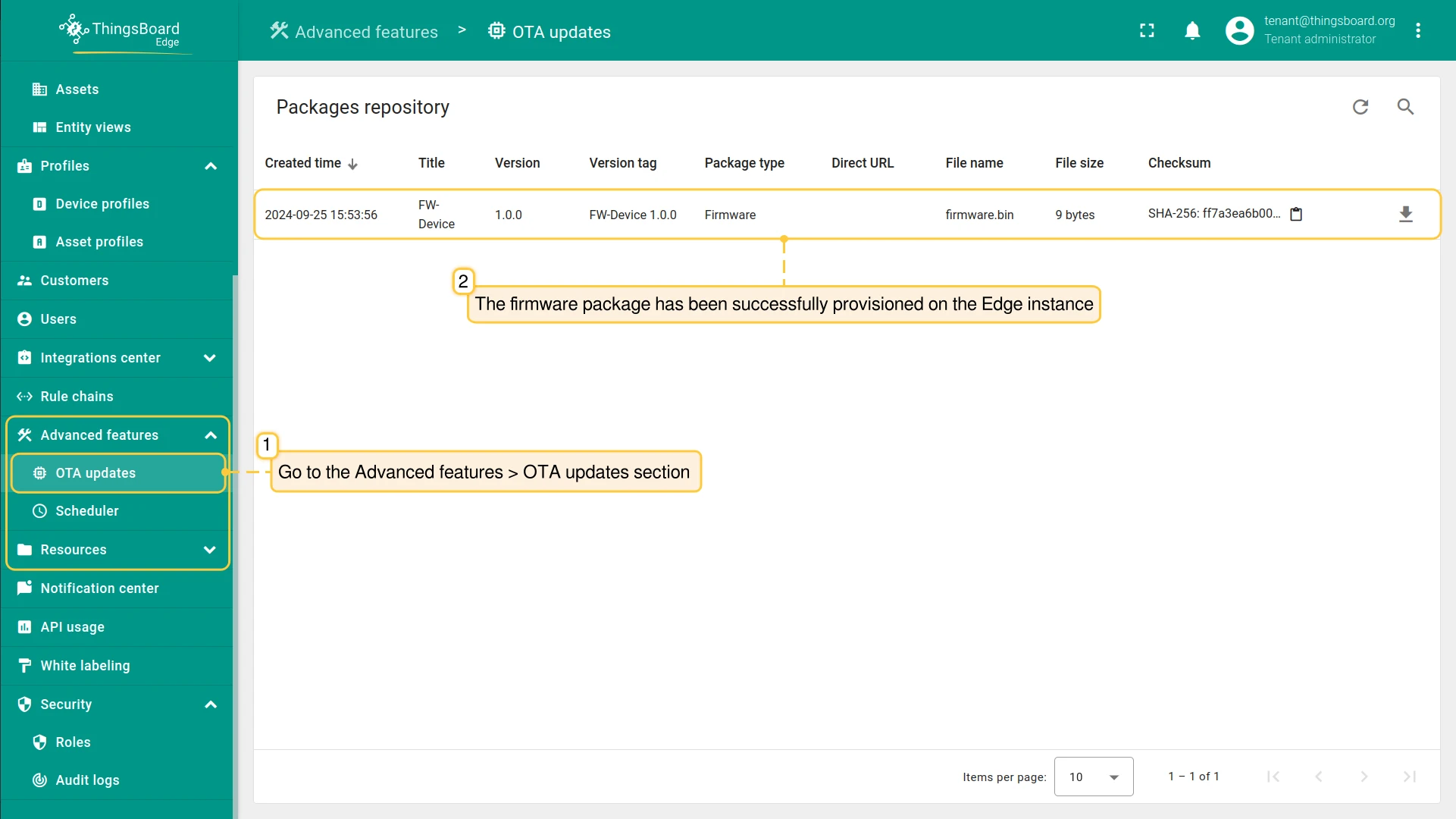
Log in to your ThingsBoard Edge instance and go to Advanced features → OTA updates.
-
Confirm the package appears in the list.
If the package is missing, check the Cloud Events log on the Edge instance for sync errors.
Deploy the package to devices
Section titled “Deploy the package to devices”After the package is available on Edge, assign it to devices. You can assign it to a single device or to a device profile — any device using that profile, including devices added later, will receive the update automatically.
By device
Section titled “By device”-
Go to Entities → Devices and open the target device.
-
Go to the Firmware or Software tab, depending on the package type.
-
Select the package from the dropdown and click Apply.
ThingsBoard Edge sends the update to the device. Monitor the update progress in the device’s Attributes — the
fw_stateorsw_stateattribute changes fromDOWNLOADINGthroughUPDATINGtoUPDATEDonce the device confirms the new version.
By device profile
Section titled “By device profile”-
Go to Profiles → Device profiles and open the target profile.
-
Go to the OTA updates tab.
-
Select the firmware and/or software package and click Save.
All current and future devices using this profile receive the update notification.
Was this helpful?