Edge management
Edge management covers the server-side tools for provisioning Edge instances, assigning entities, and inspecting synchronization state. All operations on this page are performed from the ThingsBoard server — not from the Edge itself.
Provisioning Edge instances
Section titled “Provisioning Edge instances”Before installing Edge, you must create an Edge instance on the server. This generates the Edge key and Edge secret used during installation to bind the Edge to the server.
- On the server, go to Edge management → Instances and click Add Edge (+).
- Open the instance and copy the Edge key and Edge secret from the Details tab. These credentials are required when running the Edge installation.
For installation instructions, see Edge installation.
Assigning entities to an Edge
Section titled “Assigning entities to an Edge”Most entities can be created directly on the Edge instance. The exceptions are Customers and Users — these must be created on the server and then assigned to the Edge.
- On the server, go to Edge management → Instances and click the Edge instance. A context menu opens with entity management options.
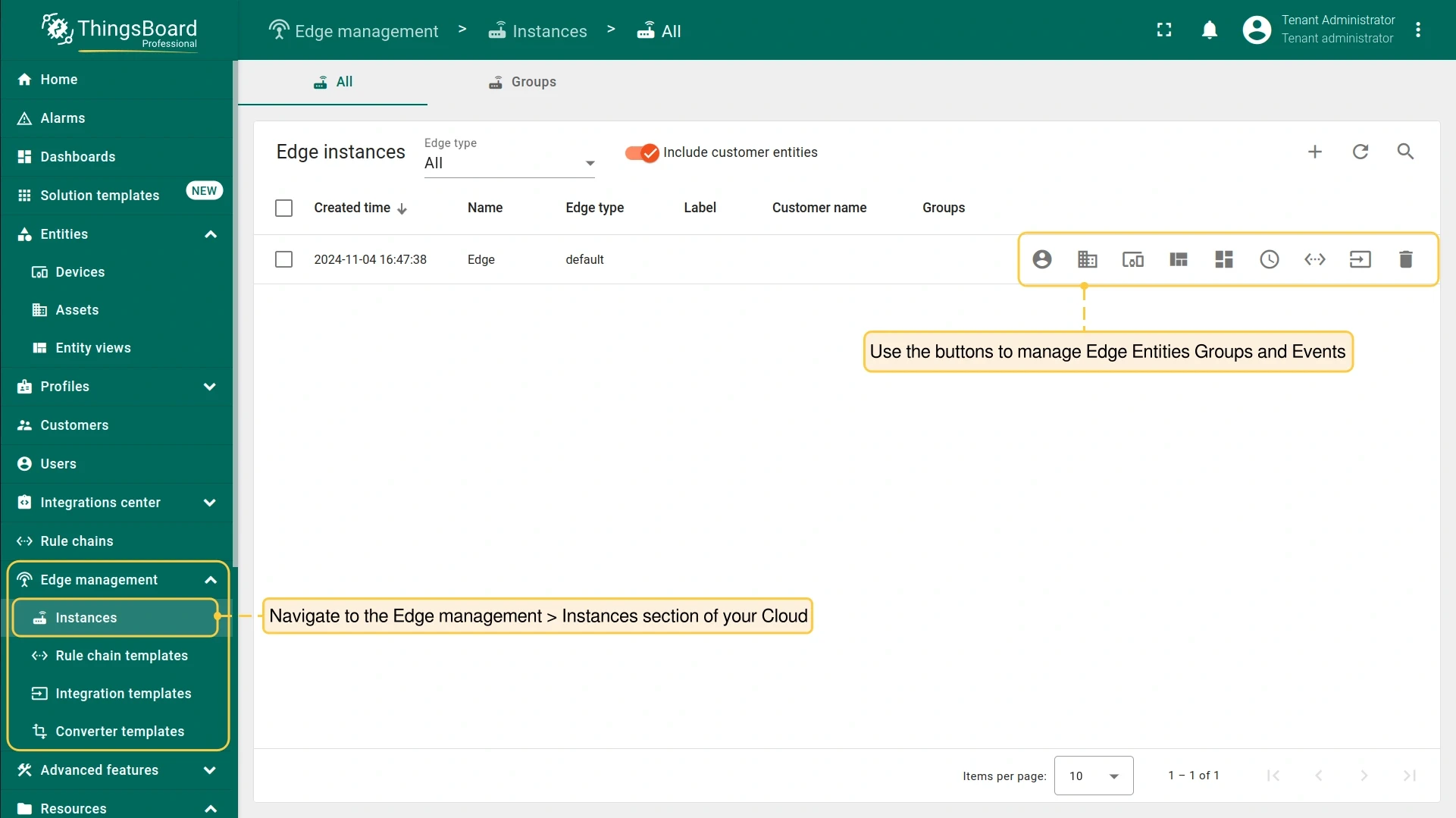
The following entity groups and events can be managed from this menu:
- Manage edge user groups: Organizes and controls user groups assigned to the Edge.
- Manage edge asset groups: Manages collections of assets grouped at the Edge.
- Manage edge device groups: Manages groups of devices assigned to the Edge.
- Manage edge entity view groups: Manages groups of entity views at the Edge.
- Manage edge dashboard groups: Manages groups of dashboards at the Edge.
- Manage edge scheduler events: Defines and manages scheduled events at the Edge.
- Manage edge rule chains: Assigns rule chains to run on the Edge.
- Manage edge integrations: Configures platform integrations at the Edge.
- Delete: Removes the Edge instance and all related data.
Once an entity is assigned to an Edge, it is pushed to the Edge event queue. If Edge is connected to the server, the entity is created on Edge immediately. If Edge is disconnected, the entity is created once the connection is restored.
Unassigning entities
Section titled “Unassigning entities”-
On the server, go to Edge management → Instances and click the Edge instance.
-
Select the entity type from the context menu (e.g., Manage devices).
-
Remove the entity from the list.
The entity is removed from the Edge on the next synchronization.
Deleting an Edge instance
Section titled “Deleting an Edge instance”- On the server, go to Edge management → Instances and click the Edge instance.
- Select Delete from the context menu and confirm.
Edge details page
Section titled “Edge details page”The Edge Details page is the primary place to manage a specific Edge instance from the server. Use it to retrieve credentials during installation, assign entities, or trigger force synchronization.
- On the server, go to Edge management → Instances and click the Edge.
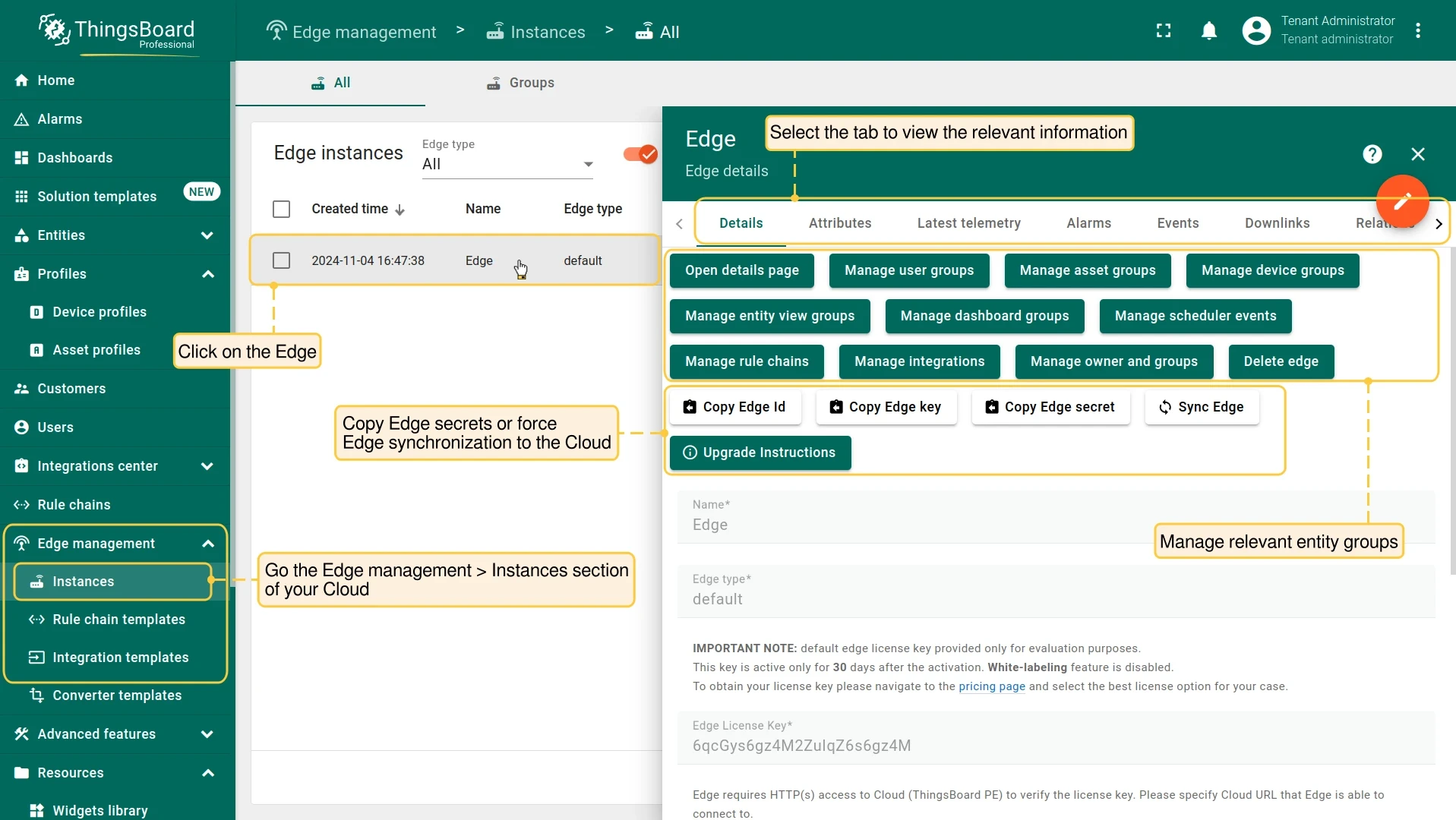
The following tabs are available:
- Details: Shows general information: Edge ID, Edge key, and Edge secret. Also used to assign entities and trigger force synchronization.
- Attributes: Shows the latest attributes published from the Edge to the server.
- Latest telemetry: Shows the most recent telemetry records received from the Edge.
- Alarms: Lists alarms triggered on the Edge and synchronized to the server.
- Events: Shows lifecycle and system events related to the Edge instance.
- Downlinks: Lists messages pushed from the server to the Edge — entity assignments, configuration changes, and rule chain updates.
- Relations: Lists other entities connected to this Edge instance.
- Audit logs: Records user actions performed on this Edge instance.
Viewing downlinks
Section titled “Viewing downlinks”Downlinks are messages pushed from the server to the Edge — entity assignments, configuration changes, and rule chain updates. Inspect the Downlinks tab when an Edge instance is missing an expected configuration to verify whether the server has sent it and whether it was received.
- On the server, go to Edge management → Instances and click the Edge instance.
- Select the Downlinks tab.
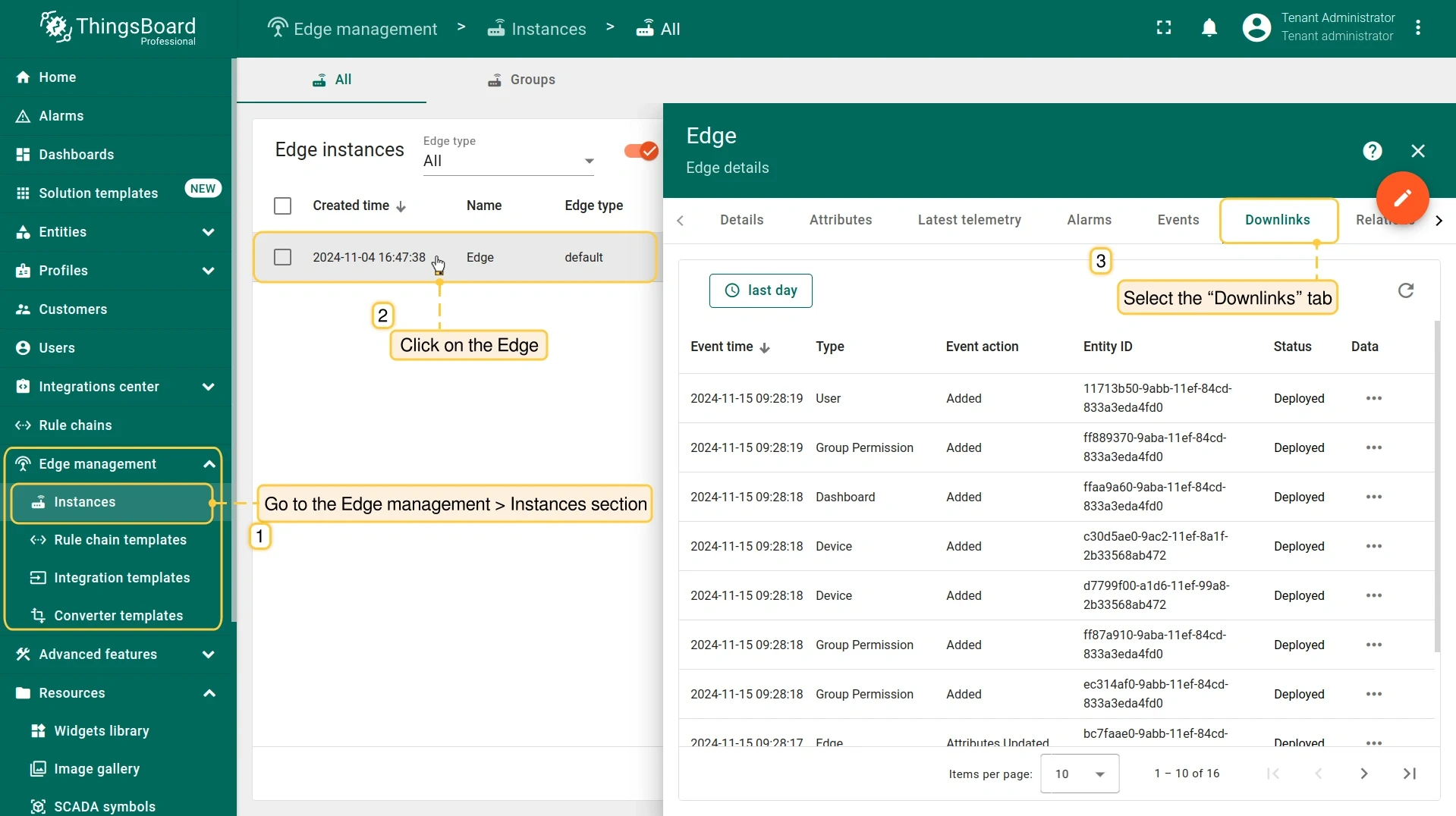
Each row in the table contains:
| Column | Description |
|---|---|
| Created time | Date and time the downlink was created, in YYYY-MM-DD H:Min:Sec format |
| Type | The type of entity the message concerns, like a device, asset, or rule chain |
| Entity ID | Unique identifier of the entity |
| Action | The operation sent to the Edge: Added, Updated, Deleted, etc. |
| Status | Deployed: The message was delivered to the Edge. Pending: The message is queued and will be delivered when connectivity is restored. |
| Data | Click to view the full payload |
Force synchronization
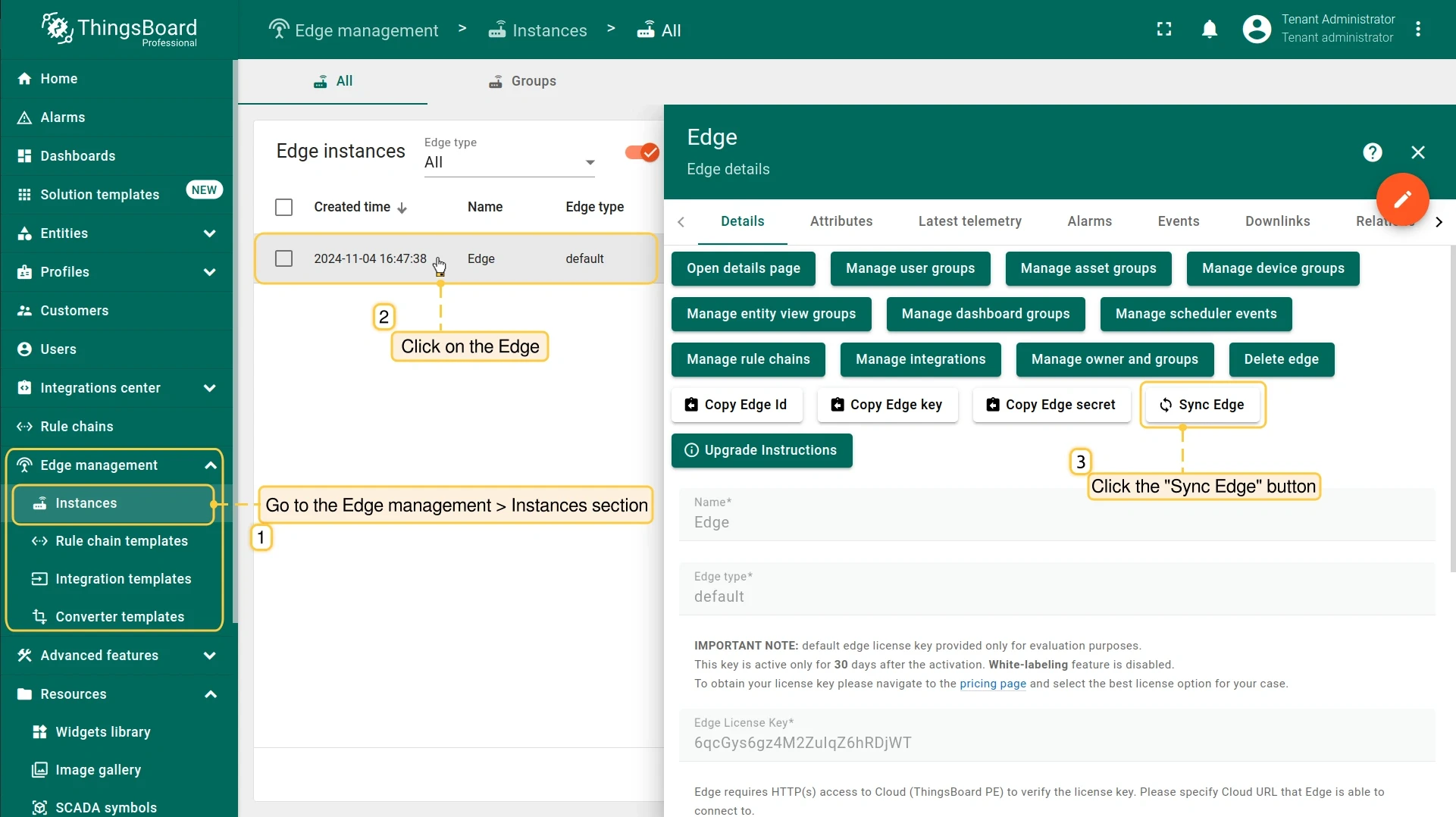
Section titled “Force synchronization”When connectivity is restored, Edge synchronizes automatically. If synchronization does not complete — for example, after a prolonged outage or a configuration mismatch — you can trigger it manually.
- On the server, go to Edge management → Instances and click the Edge instance.
- Click Sync Edge.
Was this helpful?