UDP Integration
UDP Integration streams data from devices that use a UDP transport protocol to ThingsBoard Edge, converting payloads into telemetry and attributes. It also supports downlink — sending messages back to devices over the same UDP socket.

Prerequisites
Section titled “Prerequisites”In this tutorial we will use:
- A ThingsBoard PE Edge instance.
- The UDP Integration running as a remote service on port 11560.
- The
echocommand andnetcat(nc) utility to simulate a device sending data.
The example device SN-001 publishes temperature and humidity readings to UDP Integration on port 11560. Depending on your device capabilities, you can use one of four payload formats:
SN-001,default,temperature,25.7,humidity,69[{"deviceName": "SN-001", "deviceType": "default", "temperature": 25.7, "humidity": 69}]\x53\x4e\x2d\x30\x30\x31\x64\x65\x66\x61\x75\x6c\x74\x32\x35\x2e\x37\x36\x39Byte layout:
| Bytes | Hex | Value | Description |
|---|---|---|---|
| 0–5 | \x53\x4e\x2d\x30\x30\x31 |
SN-001 |
Device name |
| 6–12 | \x64\x65\x66\x61\x75\x6c\x74 |
default |
Device type |
| 13–16 | \x32\x35\x2e\x37 |
25.7 |
Temperature |
| 17–18 | \x36\x39 |
69 |
Humidity |
534e2d30303164656661756c7432352e373639Byte layout (each pair of hex digits = 1 byte):
| Bytes | Hex | Value | Description |
|---|---|---|---|
| 0–5 | 534e2d303031 |
SN-001 |
Device name |
| 6–12 | 64656661756c74 |
default |
Device type |
| 13–16 | 32352e37 |
25.7 |
Temperature |
| 17–18 | 3639 |
69 |
Humidity |
Create converter templates
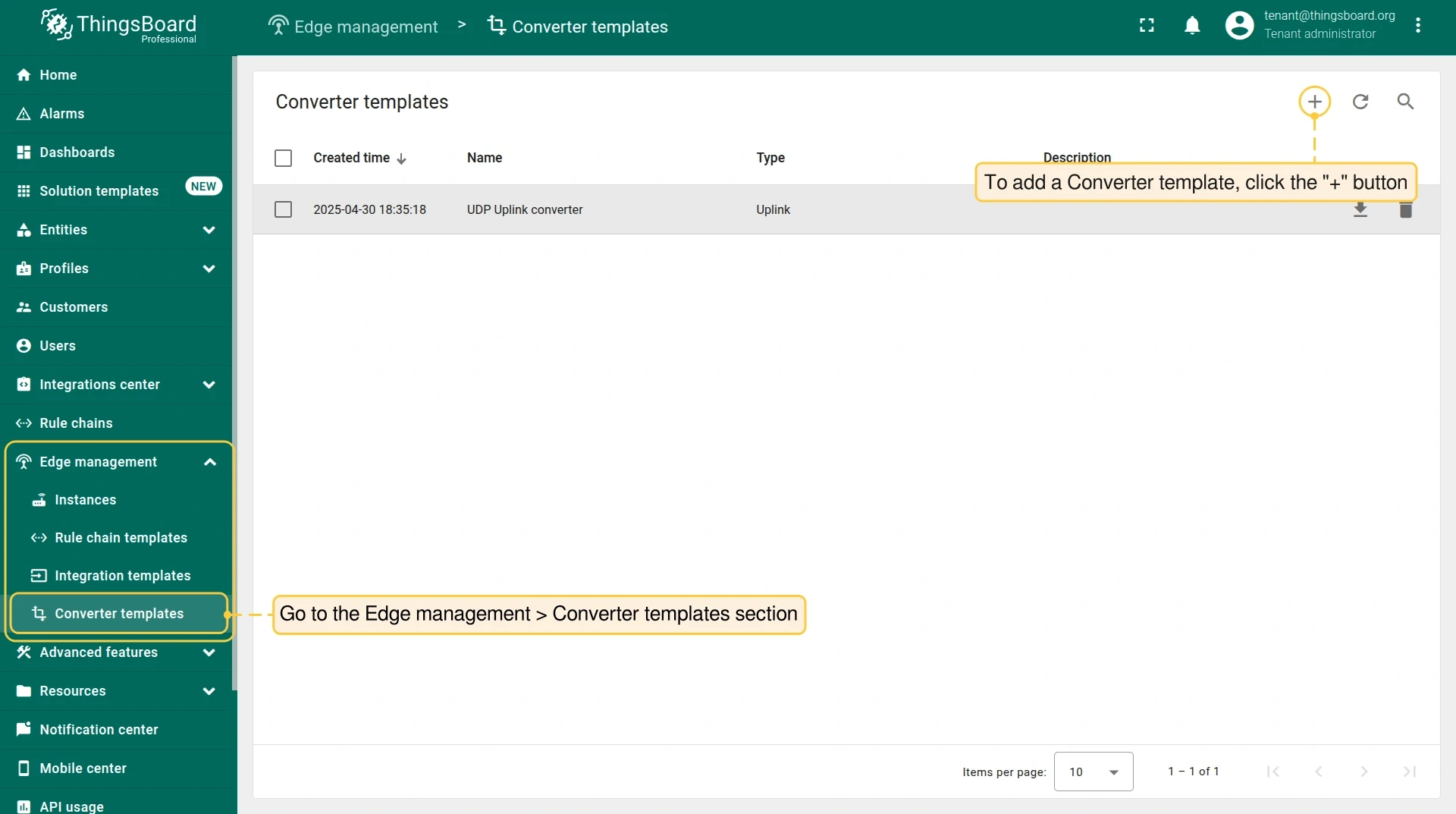
Section titled “Create converter templates”Converter and integration templates are created on the Cloud (ThingsBoard PE server). Log in as Tenant administrator.
Uplink converter
Section titled “Uplink converter”The uplink converter decodes the incoming UDP payload into ThingsBoard telemetry and attributes.
-
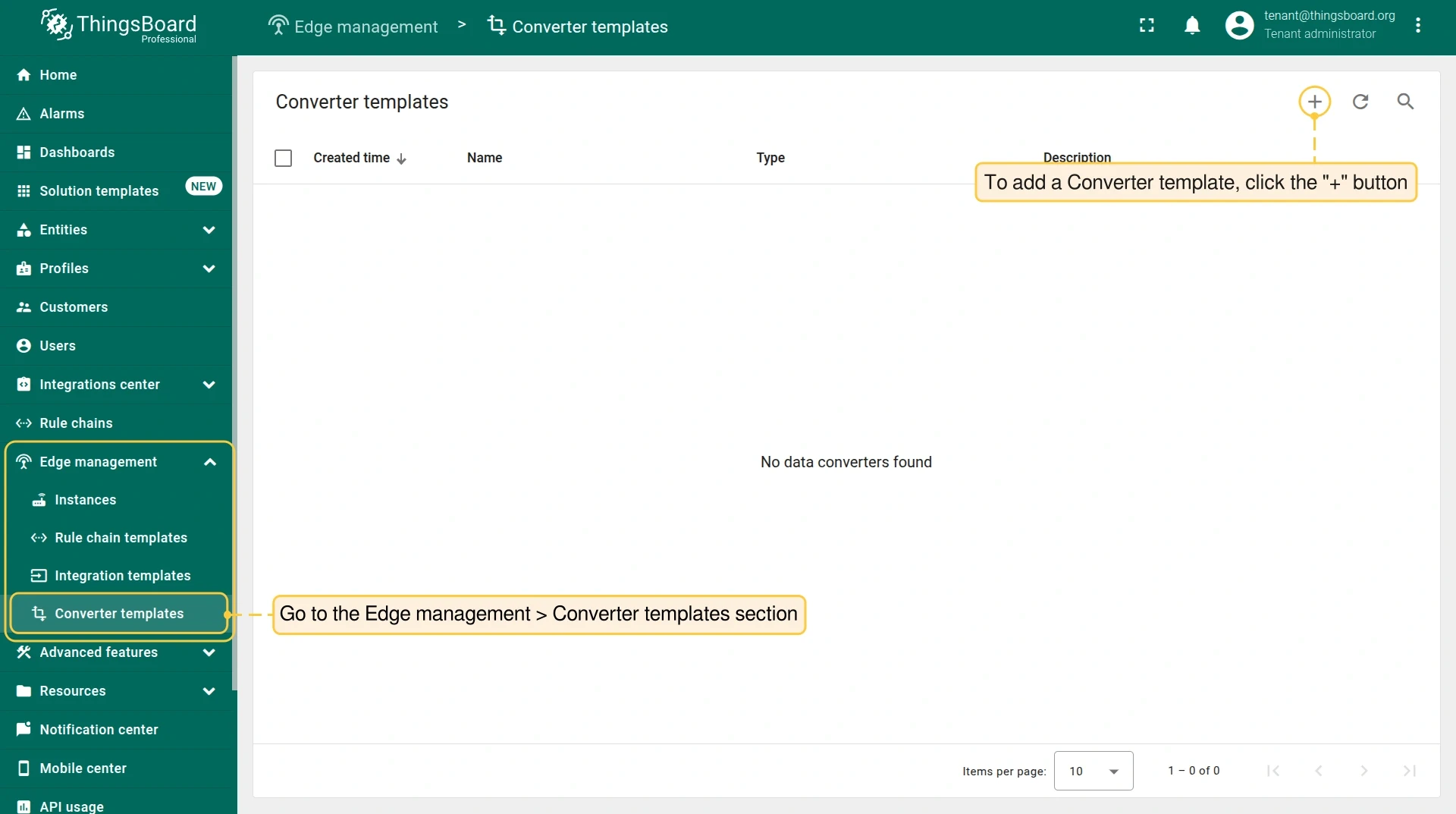
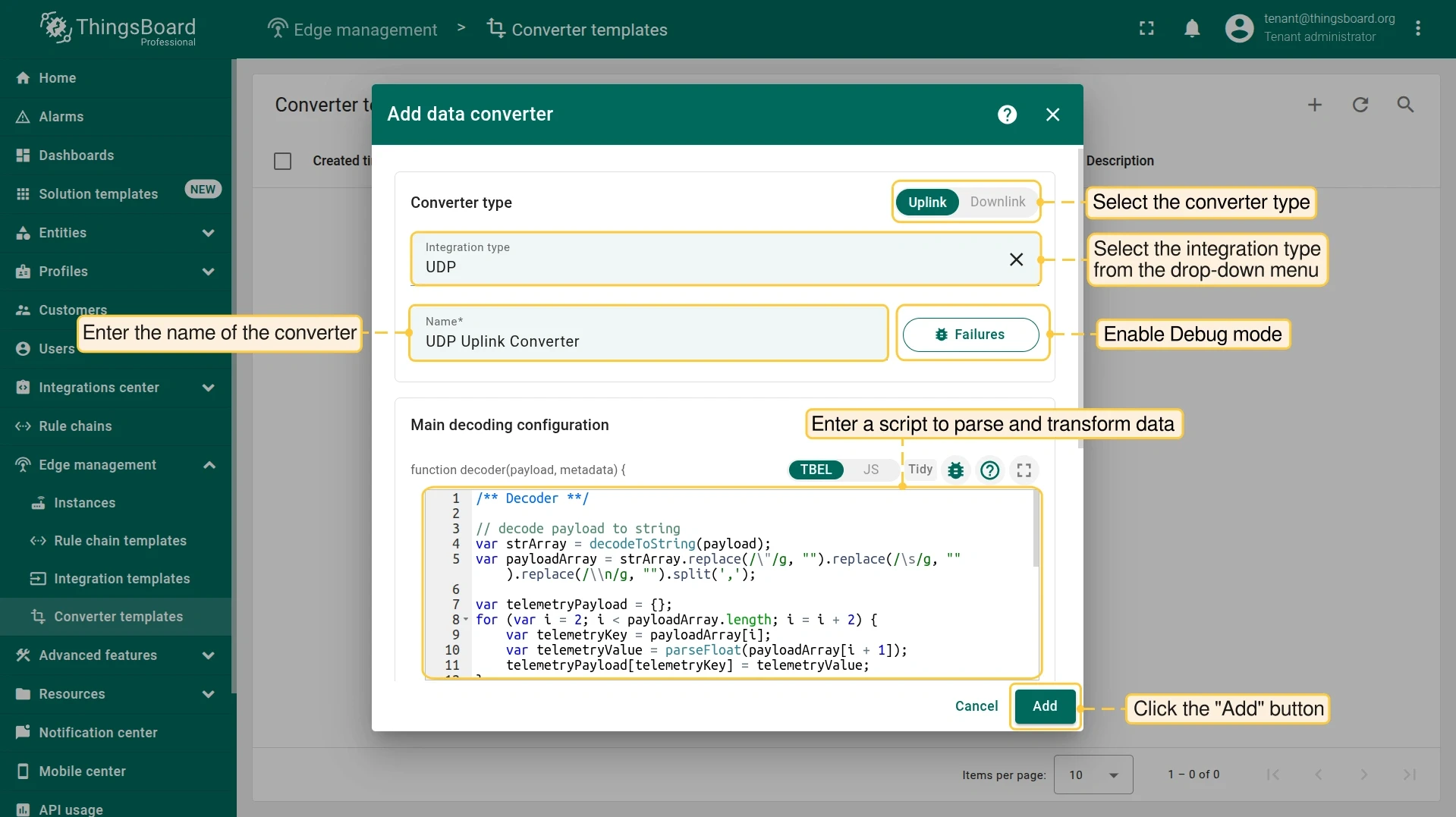
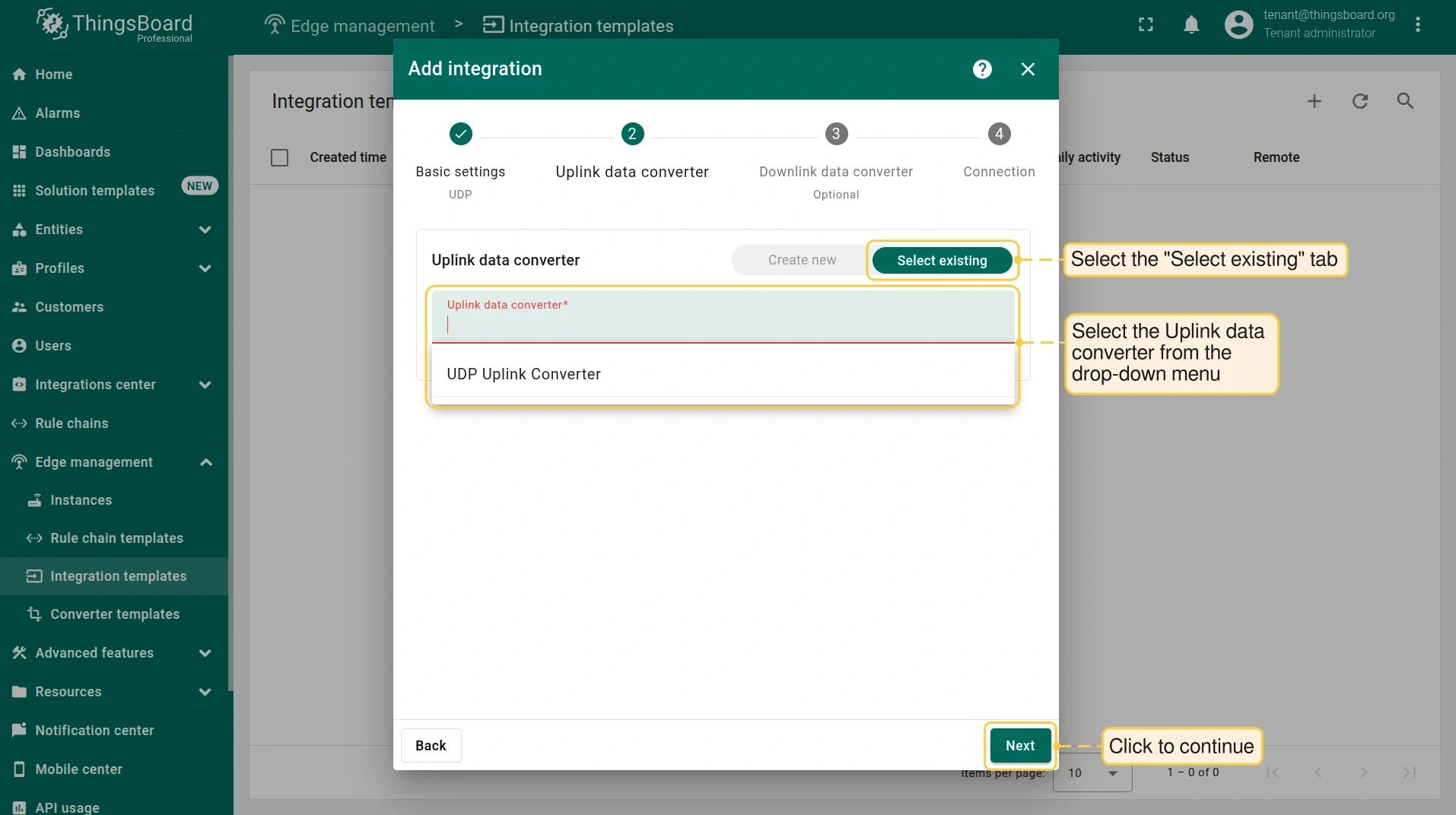
In the Cloud, go to Edge management > Converter templates and click +, then Create new converter. Set type to Uplink and enable Debug mode.
-
Paste the decoder script for your payload type into the function Decoder field, then click Add.
/** Decoder **/// decode payload to stringvar strArray = decodeToString(payload);var payloadArray = strArray.replace(/\"/g, "").replace(/\s/g, "").replace(/\\n/g, "").split(',');var telemetryPayload = {};for (var i = 2; i < payloadArray.length; i = i + 2) {var telemetryKey = payloadArray[i];var telemetryValue = parseFloat(payloadArray[i + 1]);telemetryPayload[telemetryKey] = telemetryValue;}// Result object with device attributes/telemetry datavar result = {deviceName: payloadArray[0],deviceType: payloadArray[1],telemetry: telemetryPayload,attributes: {}};function decodeToString(payload) {return String.fromCharCode.apply(String, payload);}return result;/** Decoder **/// decode payload to JSONvar data = decodeToJson(payload);var result = {deviceName: data.deviceName,deviceType: data.deviceType,attributes: {},telemetry: {temperature: data.temperature,humidity: data.humidity}};function decodeToString(payload) {return String.fromCharCode.apply(String, payload);}function decodeToJson(payload) {var str = decodeToString(payload);return JSON.parse(str);}return result;/** Decoder **/// decode payload to stringvar payloadStr = decodeToString(payload);var deviceName = payloadStr.substring(0, 6);var deviceType = payloadStr.substring(6, 13);var result = {deviceName: deviceName,deviceType: deviceType,attributes: {},telemetry: {temperature: parseFloat(payloadStr.substring(13, 17)),humidity: parseFloat(payloadStr.substring(17, 19))}};function decodeToString(payload) {return String.fromCharCode.apply(String, payload);}return result;/** Decoder **/// decode payload to JSON — HEX handler wraps the hex string in a reports structurevar data = decodeToJson(payload).reports[0].value;var result = {deviceName: hexToString(data.substring(0, 12)),deviceType: hexToString(data.substring(12, 26)),telemetry: {temperature: parseFloat(hexToString(data.substring(26, 34))),humidity: parseFloat(hexToString(data.substring(34, 38))),}};function decodeToString(payload) {return String.fromCharCode.apply(String, payload);}function hexToString(hex) {var str = '';for (var i = 0; i < hex.length; i += 2) {var notNullValue = parseInt(hex.substr(i, 2), 16);if (notNullValue) {str += String.fromCharCode(notNullValue);}}return str;}function decodeToJson(payload) {var str = decodeToString(payload);return JSON.parse(str);}return result;
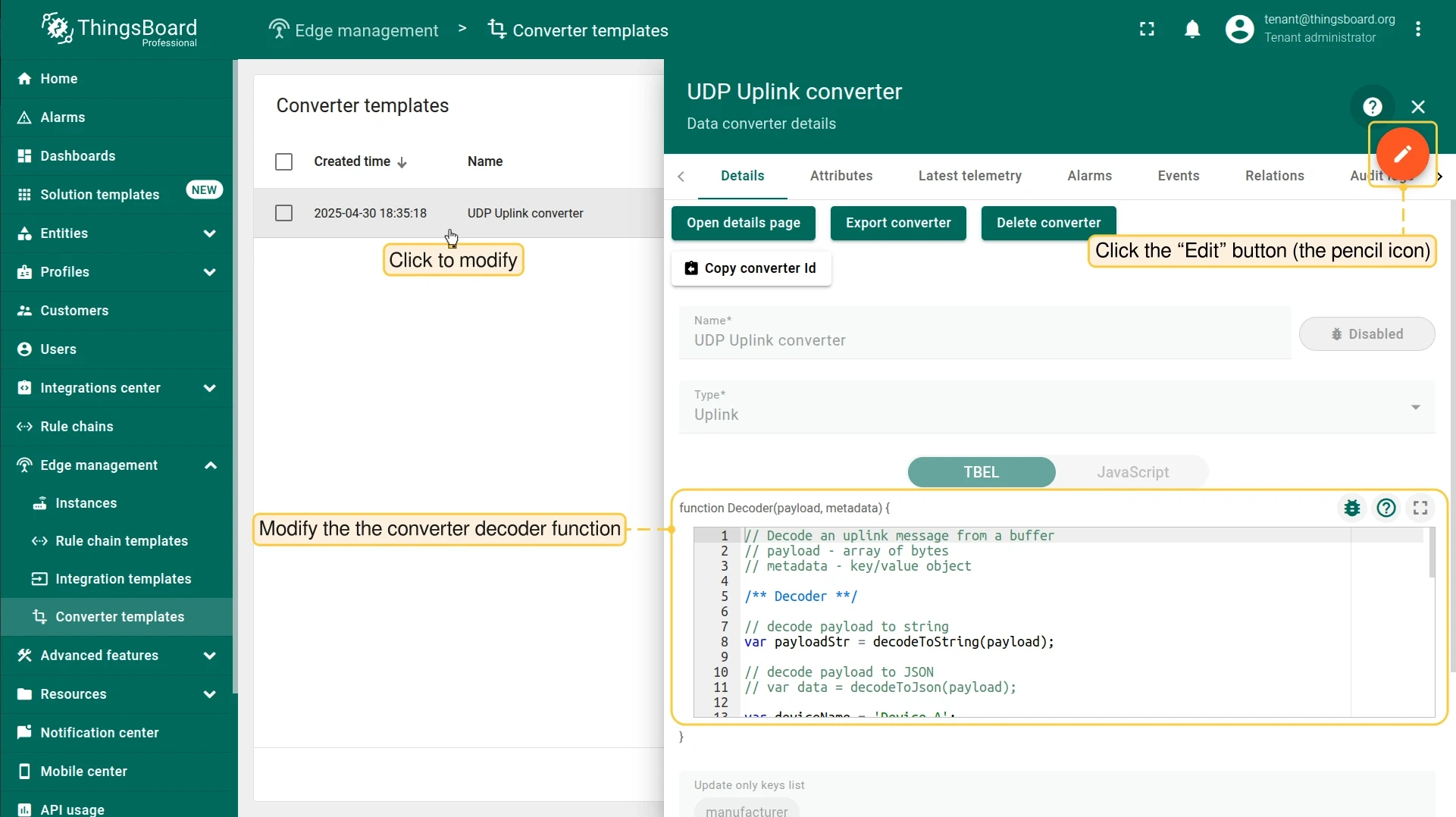
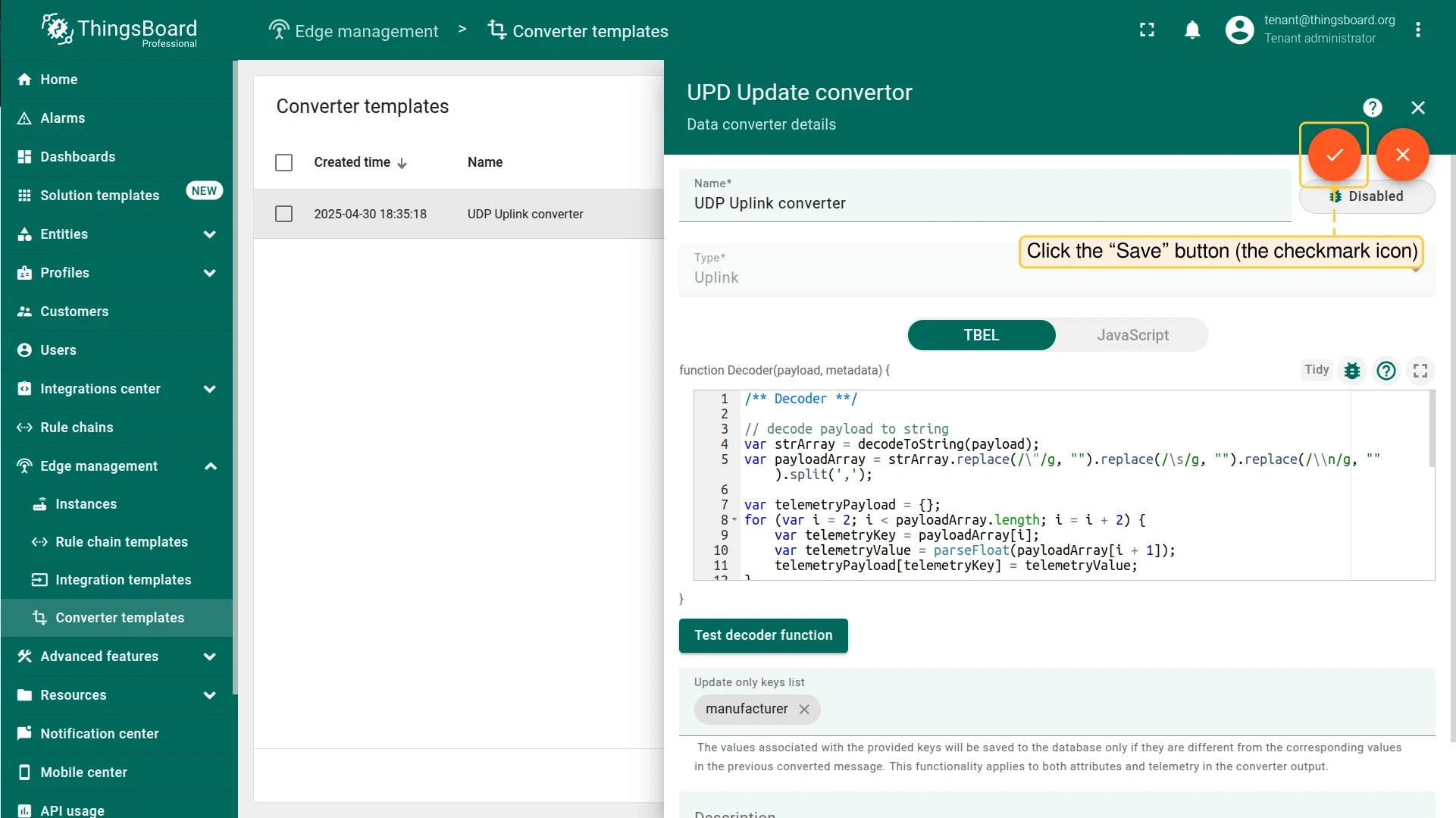
To edit the converter later, open it from the Converter templates page, click the pencil icon, update the script, and click the checkmark to save.
Downlink converter
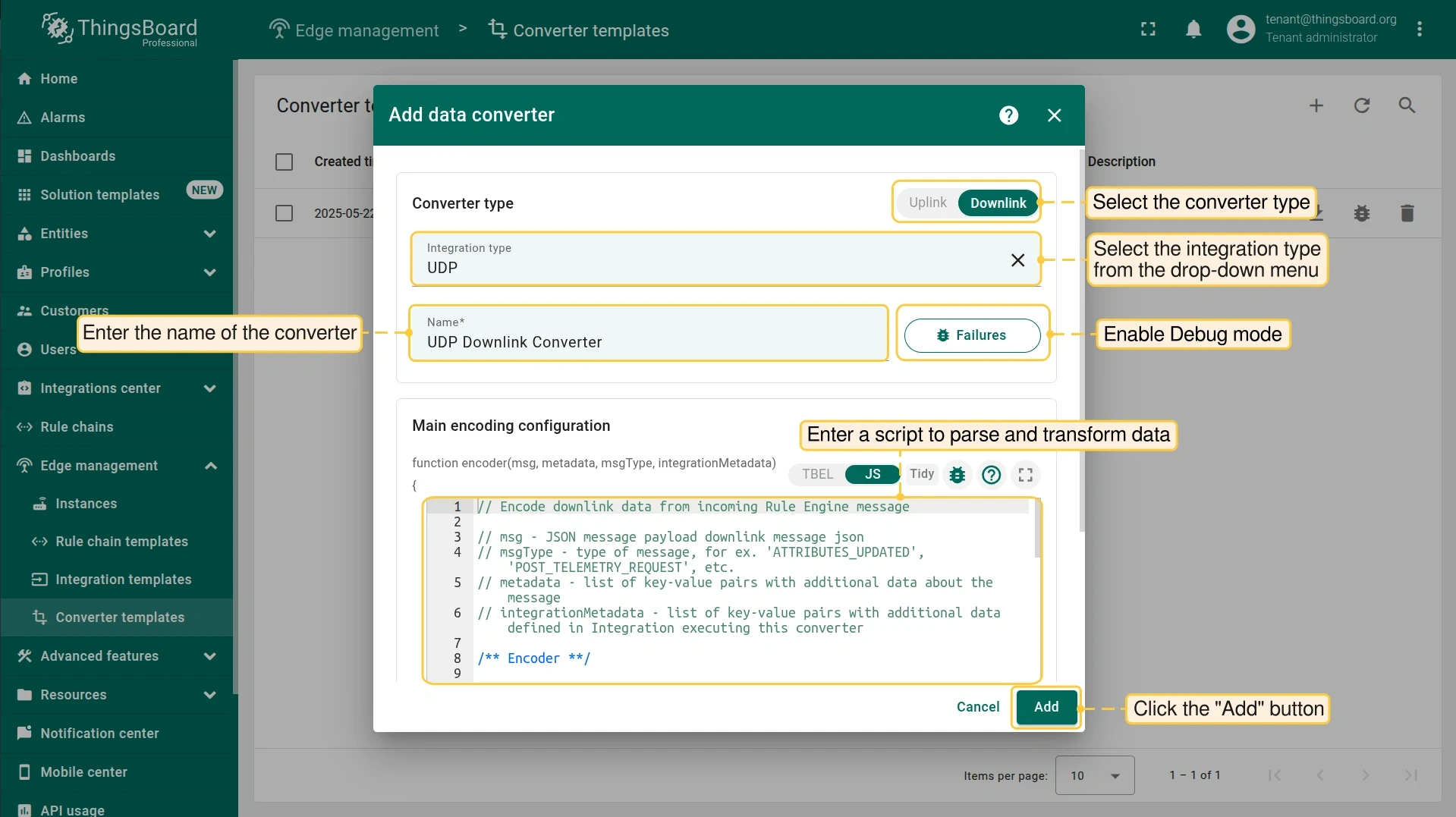
Section titled “Downlink converter”The downlink converter encodes outbound messages (e.g. attribute updates) into the format sent back to the device.
-
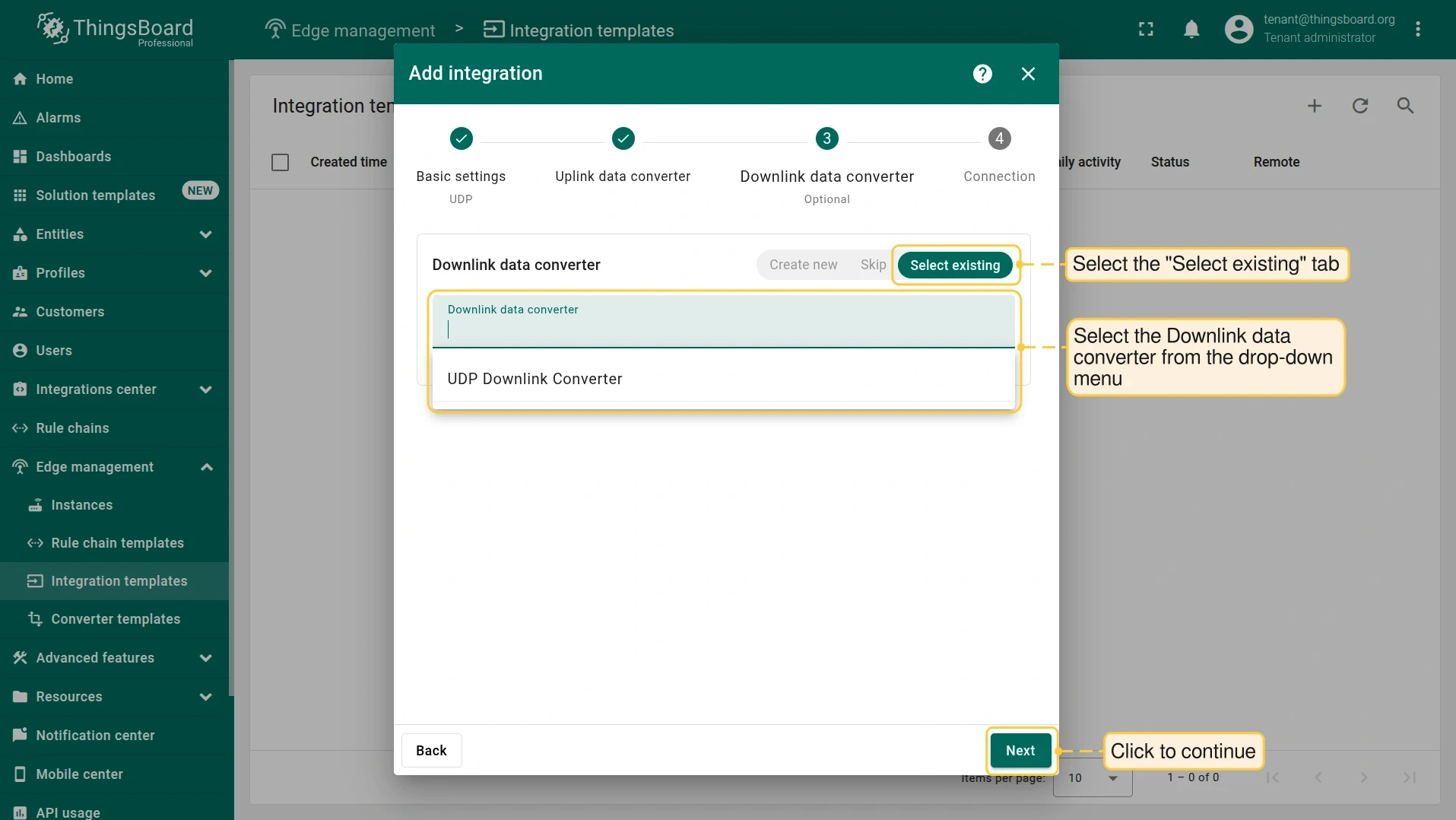
On the Converter templates page, click +, then Create new converter. Set type to Downlink and enable Debug mode.
-
Paste the following script into the function Encoder field, then click Add:
// Encode downlink data from incoming Rule Engine message// msg - JSON message payload// msgType - e.g. 'ATTRIBUTES_UPDATED', 'POST_TELEMETRY_REQUEST'// metadata - key/value pairs with message metadata// integrationMetadata - key/value pairs defined in the Integrationvar result = {// downlink data content type: JSON, TEXT or BINARY (base64 format)contentType: "JSON",// downlink datadata: JSON.stringify(msg),// Optional metadata object presented in key/value formatmetadata: {}};return result;
Create integration template
Section titled “Create integration template”-
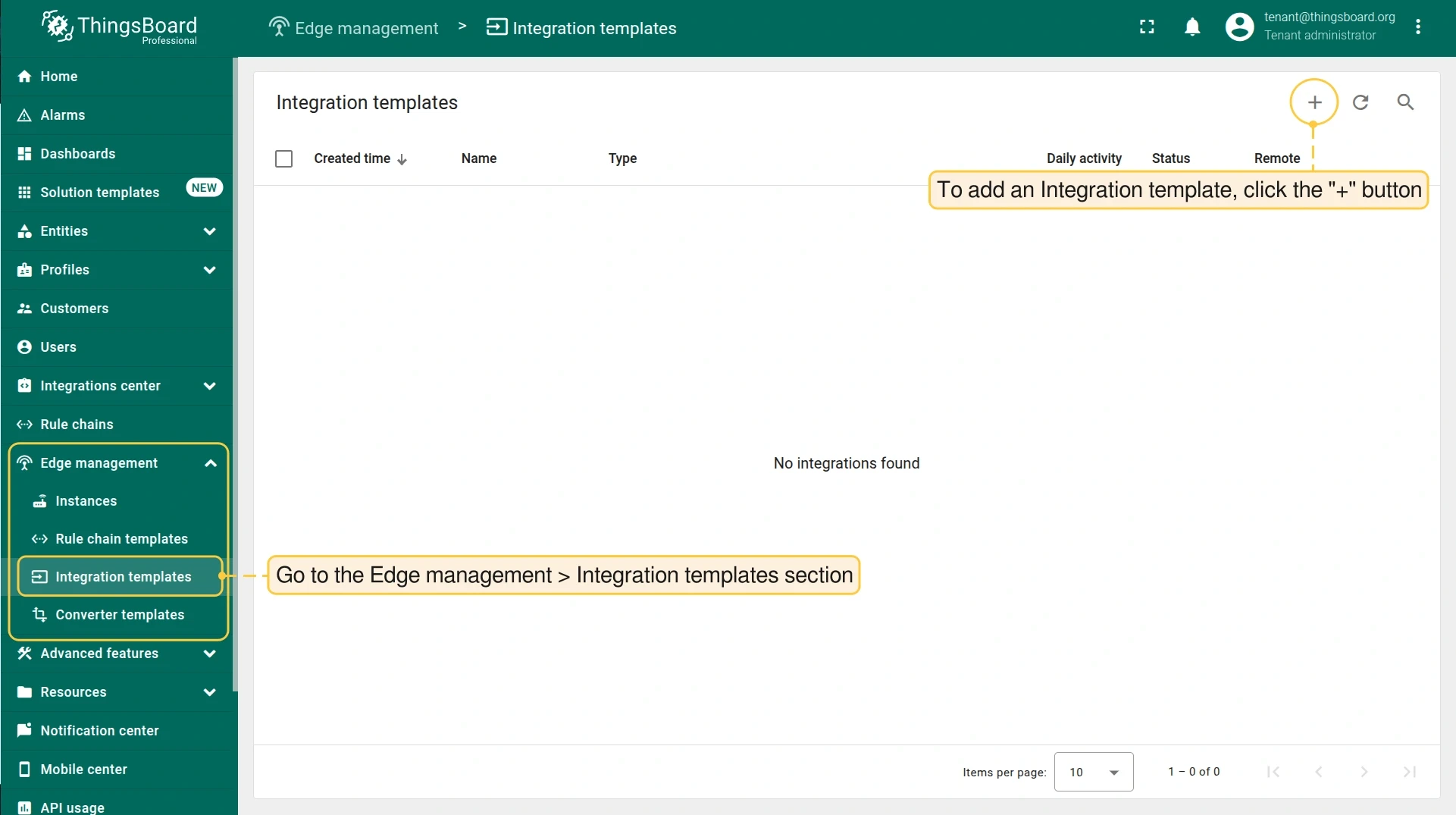
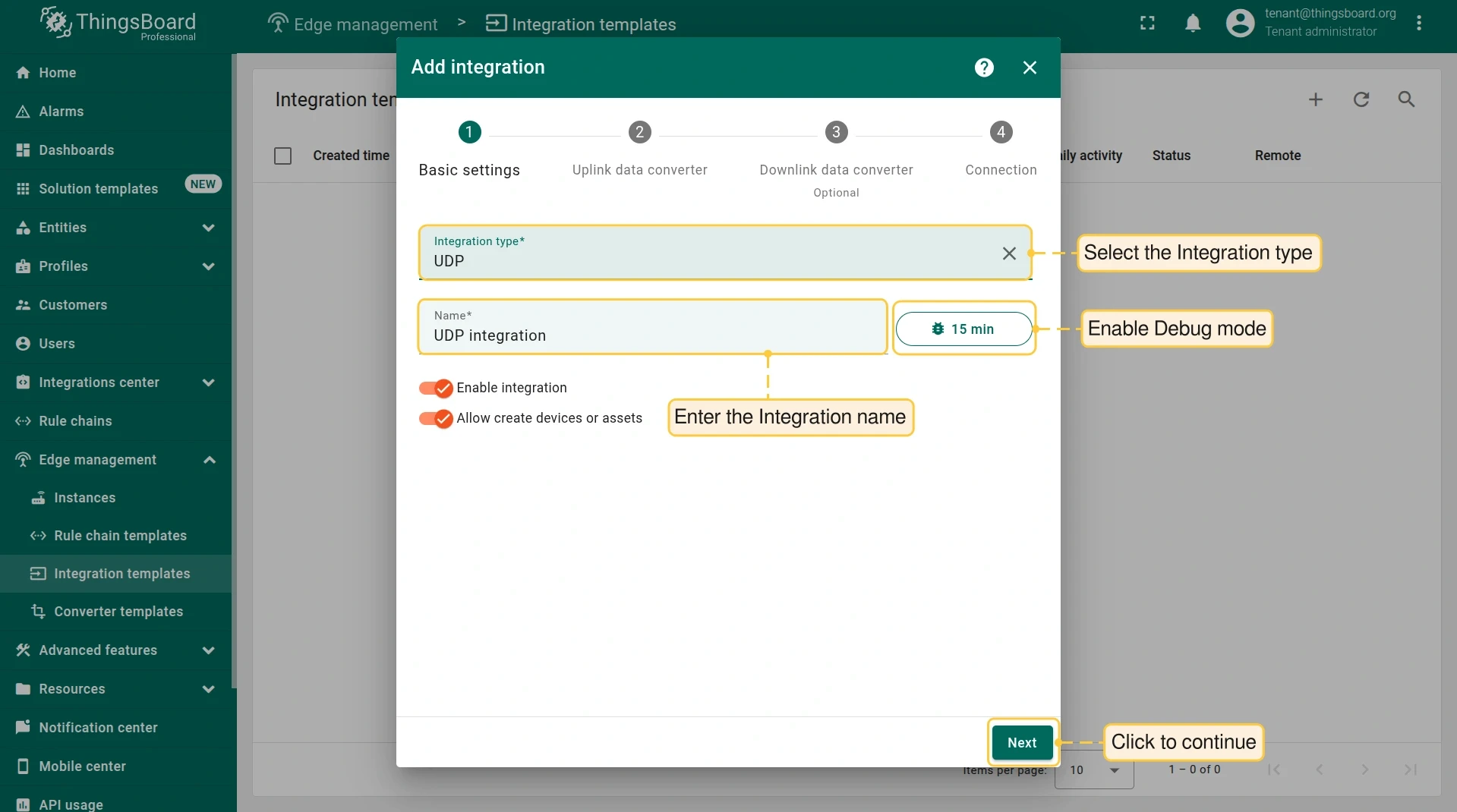
Go to Edge management > Integration templates and click +. Select UDP as the type, name it, and attach the uplink and downlink converters.
-
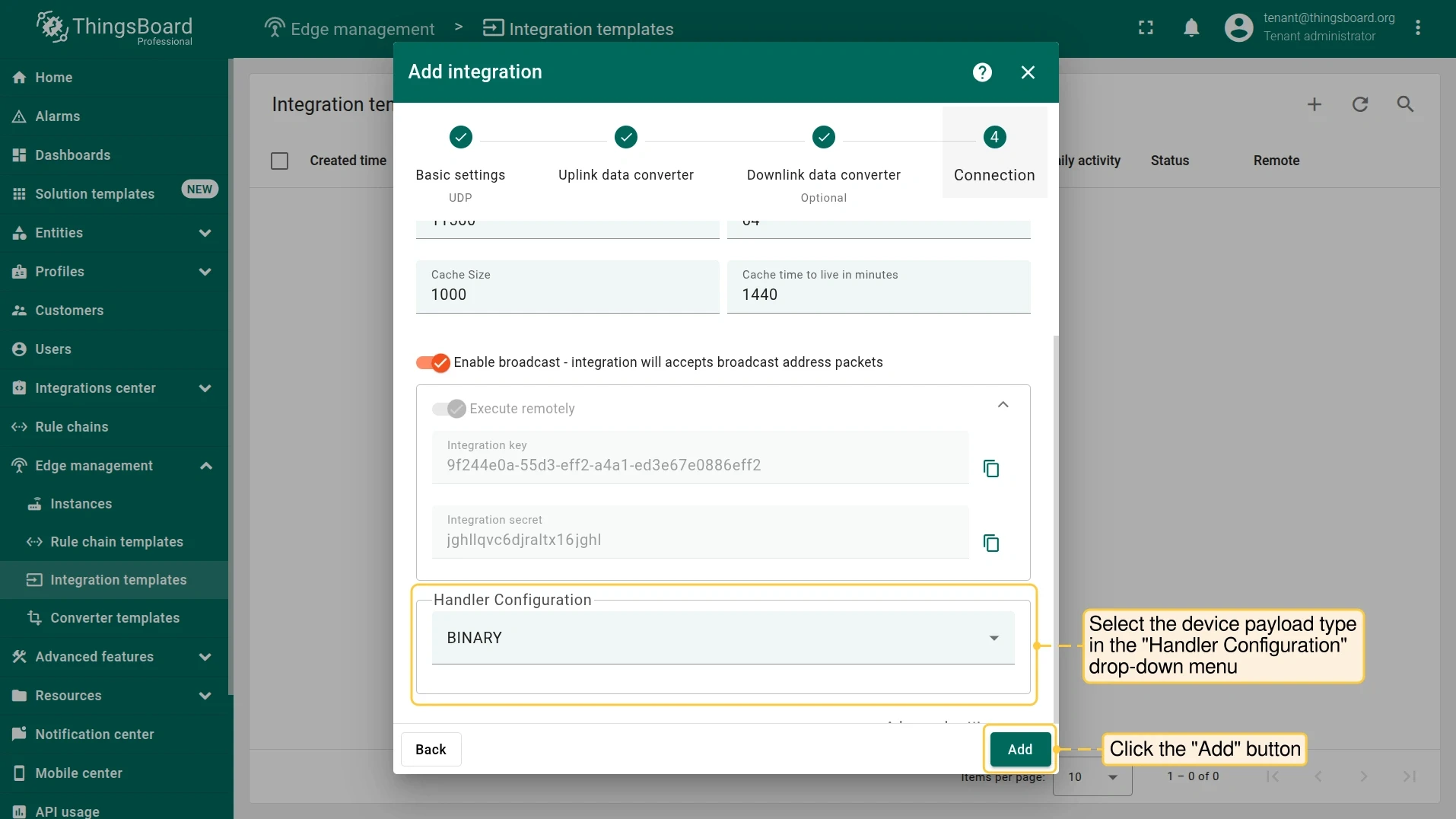
In the Connection block, set the Port to 11560 (or another available port). Set the Handler Configuration for your payload type:
- Handler type:
Text - Charset Name:
UTF-8
- Handler type:
JSON
- Handler type:
Binary
- Handler type:
HEX
Additional Connection settings:
Setting Description Size of the buffer for inbound socket (in KB) Socket receive buffer size. Cache Size Maximum number of cached UDP sessions. Cache time to live in minutes How long a UDP session is kept in cache. Enable broadcast When enabled, the integration accepts packets sent to the broadcast address. Copy the Integration key and Integration secret — you will need them when running the remote service.
- Handler type:
-
Click Add to save the integration template.
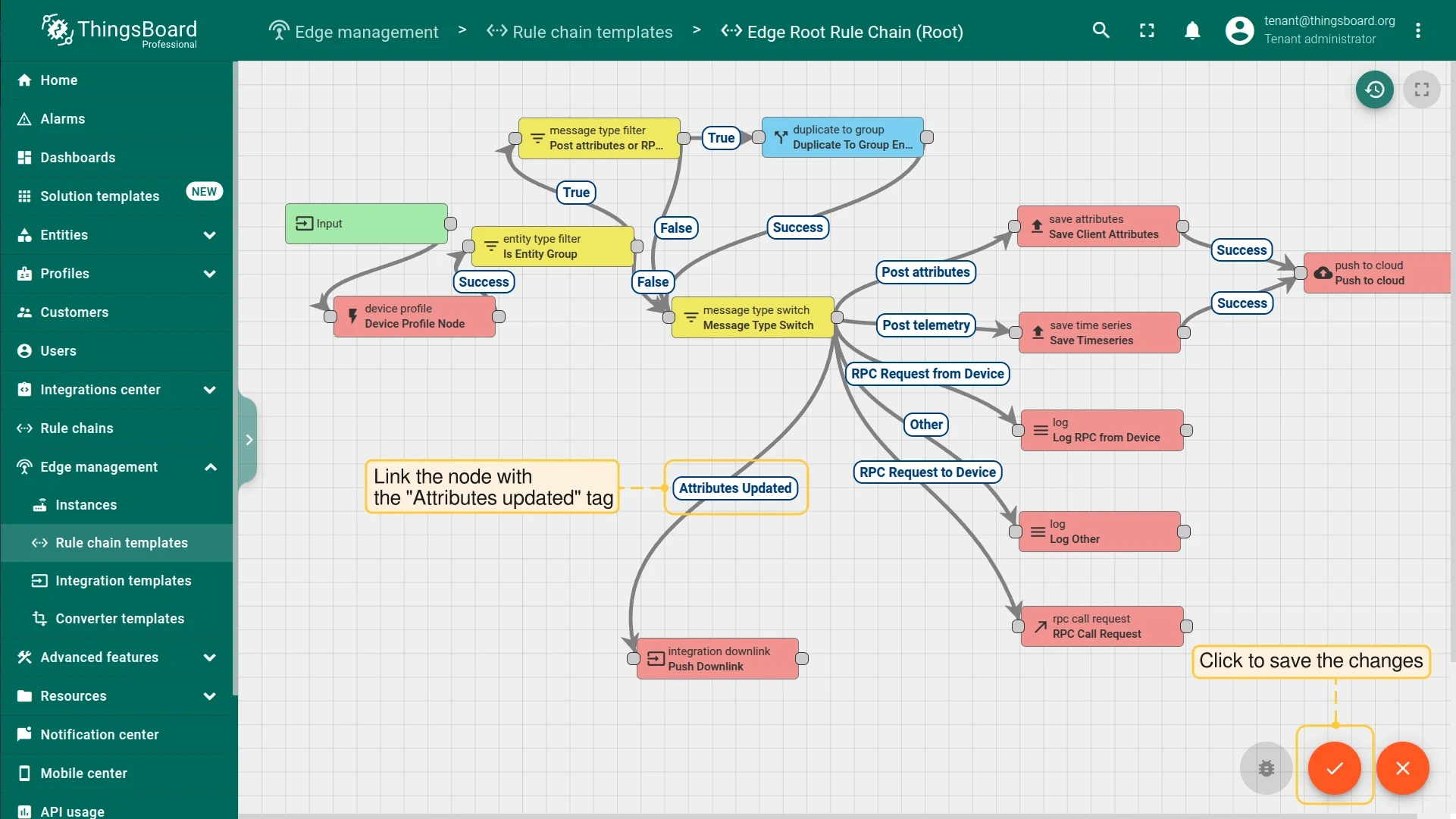
Modify Edge Root Rule Chain for downlinks
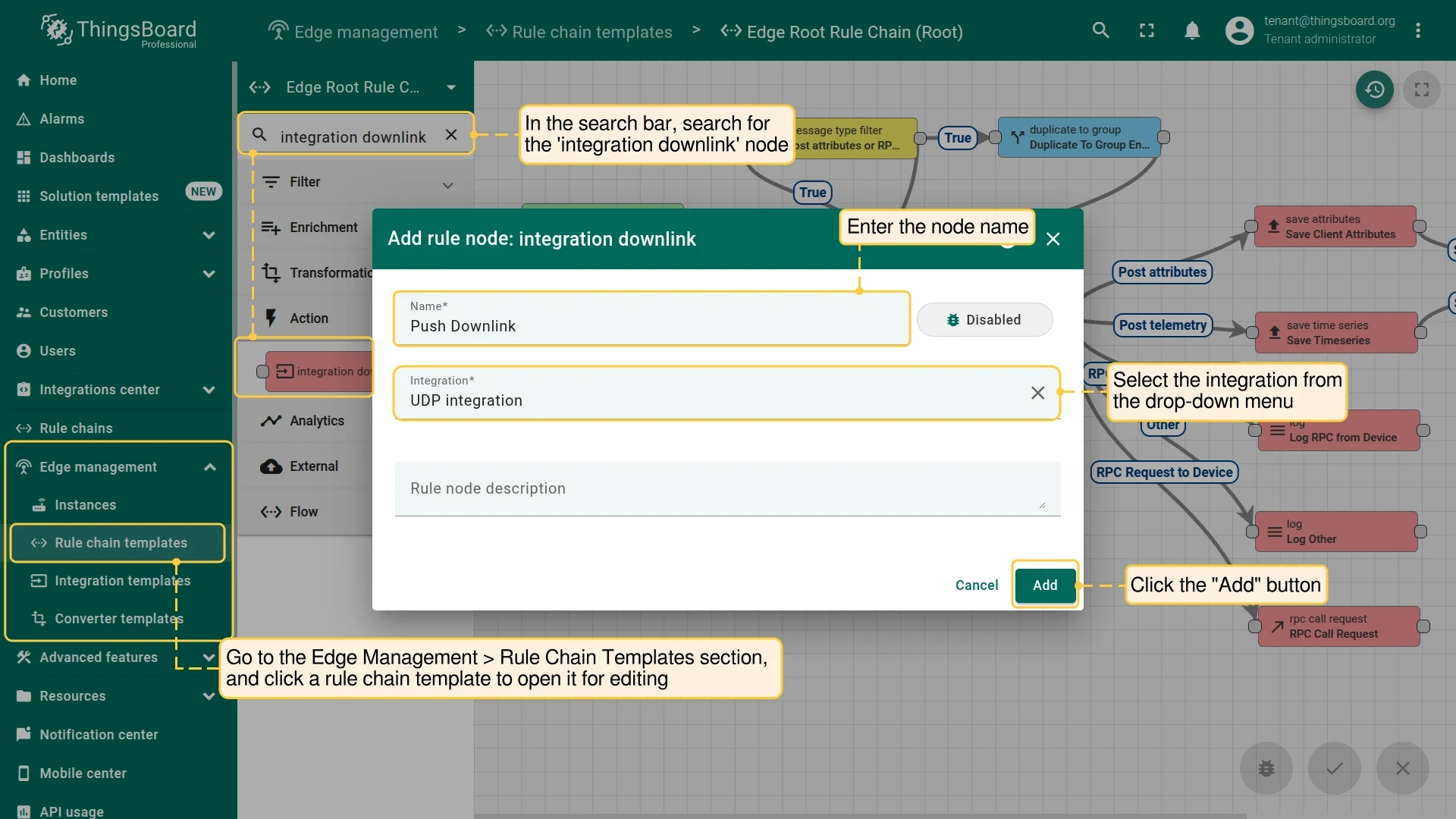
Section titled “Modify Edge Root Rule Chain for downlinks”To send downlink messages from ThingsBoard Edge to devices, add an integration downlink node to the Edge Root Rule Chain.
Assign integration to Edge
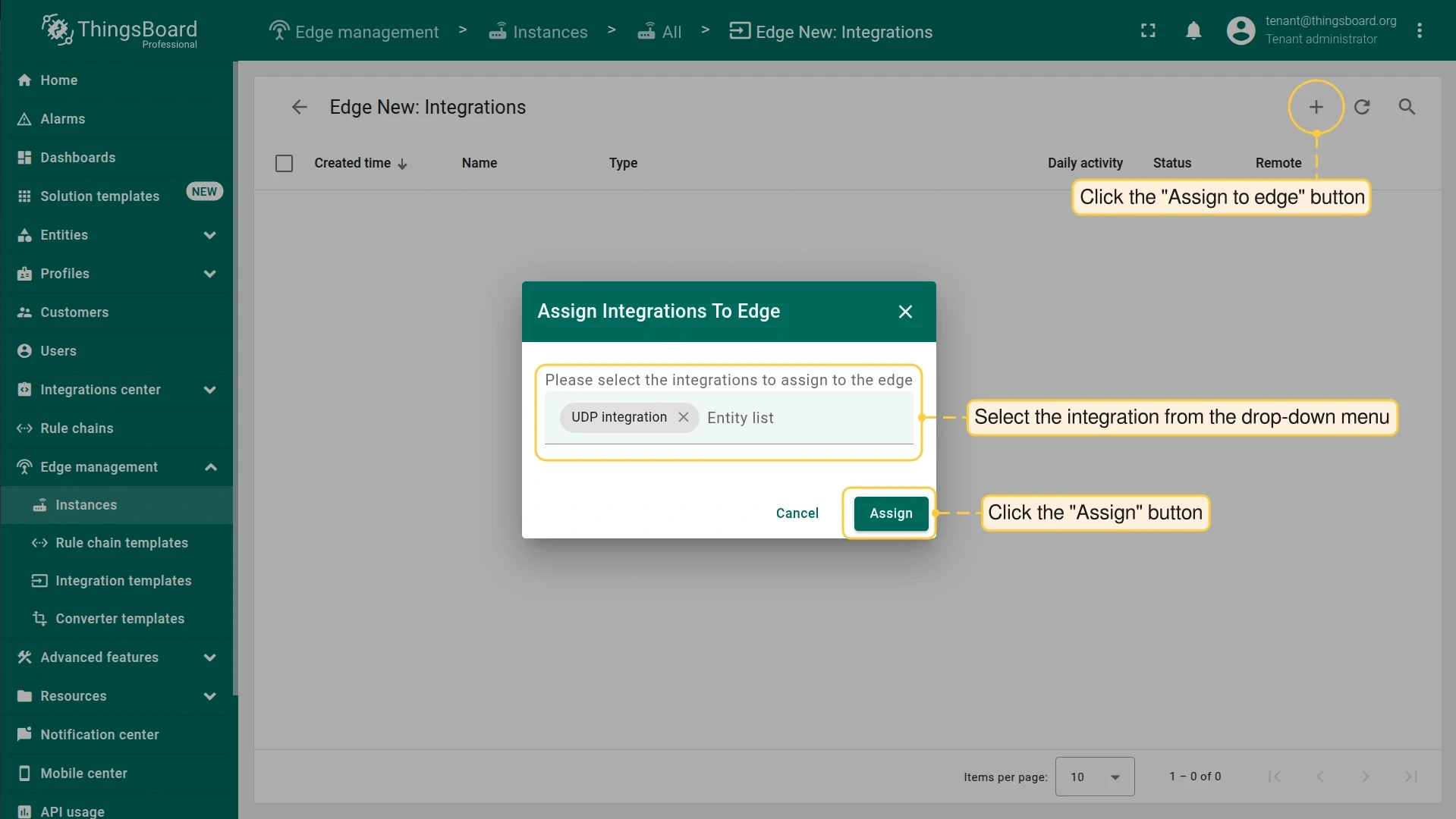
Section titled “Assign integration to Edge”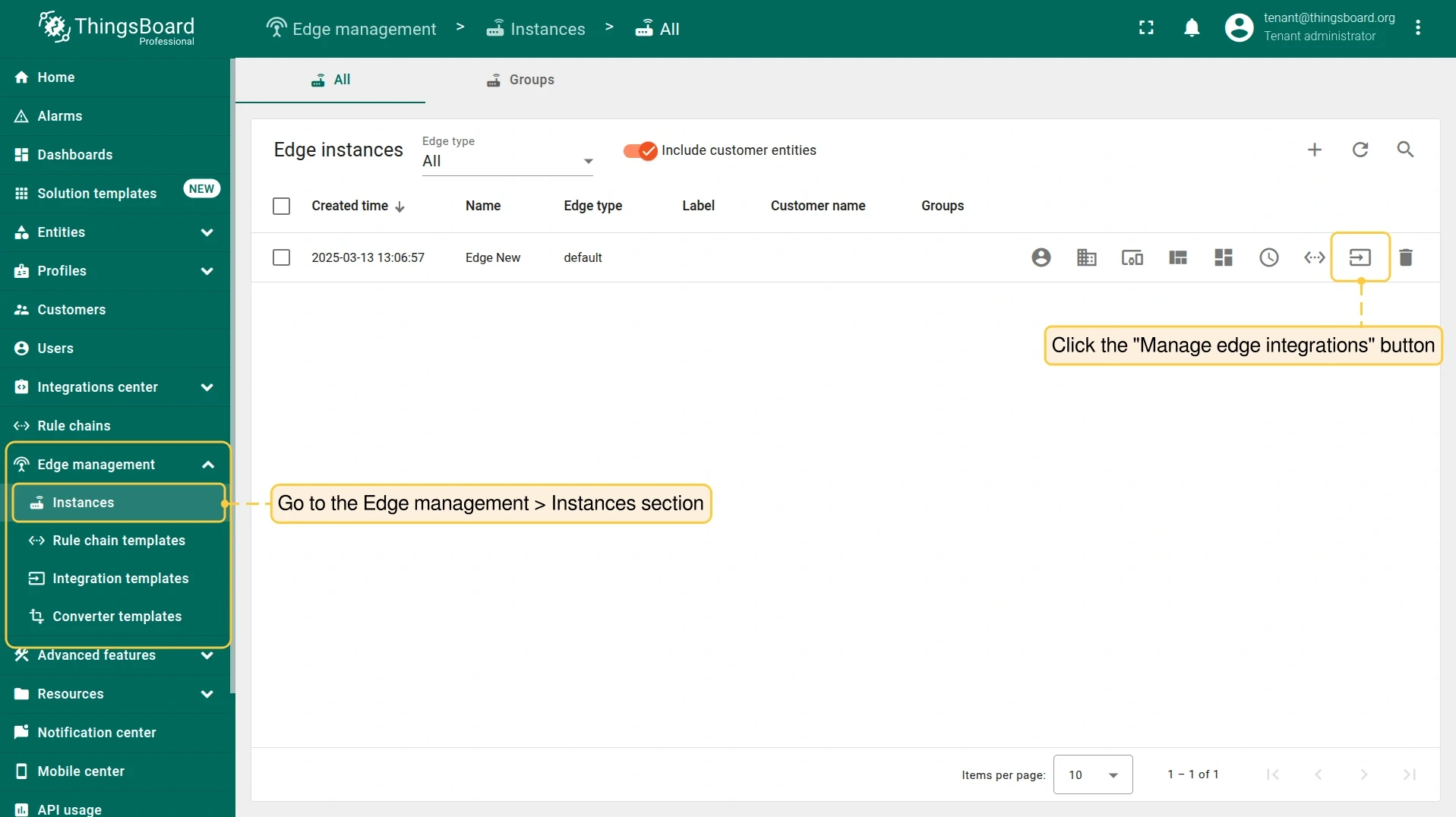
Install and run the remote UDP Integration
Section titled “Install and run the remote UDP Integration”Use the Integration key and Integration secret from the integration page to configure the remote service.
Pull the image:
docker pull thingsboard/tb-tcp-udp-integration:4.4.0Create a log volume:
mkdir -p ~/.tb-pe-tcp-udp-integration-logs && sudo chown -R 799:799 ~/.tb-pe-tcp-udp-integration-logsRun the integration (replace placeholders with your values):
docker run -it -p 11560:11560/udp \-v ~/.tb-pe-tcp-udp-integration-logs:/var/log/tb-tcp-udp-integration \-e "RPC_HOST=mytbedge" \-e "RPC_PORT=9090" \-e "INTEGRATION_ROUTING_KEY=YOUR_ROUTING_KEY" \-e "INTEGRATION_SECRET=YOUR_SECRET" \--name my-tb-pe-tcp-udp-integration \--network NETWORK_NAME \--restart always \thingsboard/tb-tcp-udp-integration:4.4.0| Parameter | Description |
|---|---|
mytbedge |
Hostname of the ThingsBoard Edge service |
9090 |
Integration RPC port (INTEGRATIONS_RPC_PORT in tb-edge.yml) |
-p 11560:11560/udp |
Maps local UDP port 11560 to the container port |
YOUR_ROUTING_KEY |
Integration routing key from the integration page |
YOUR_SECRET |
Integration secret from the integration page |
NETWORK_NAME |
Docker network where mytbedge runs. Check with docker network ls |
To detach from the terminal without stopping the container, press Ctrl+p then Ctrl+q.
Useful container commands:
docker attach my-tb-pe-tcp-udp-integration # reattach to logsdocker stop my-tb-pe-tcp-udp-integrationdocker start my-tb-pe-tcp-udp-integrationSend uplink message
Section titled “Send uplink message”Once the UDP Integration is running, the UDP server starts listening on port 11560.
-
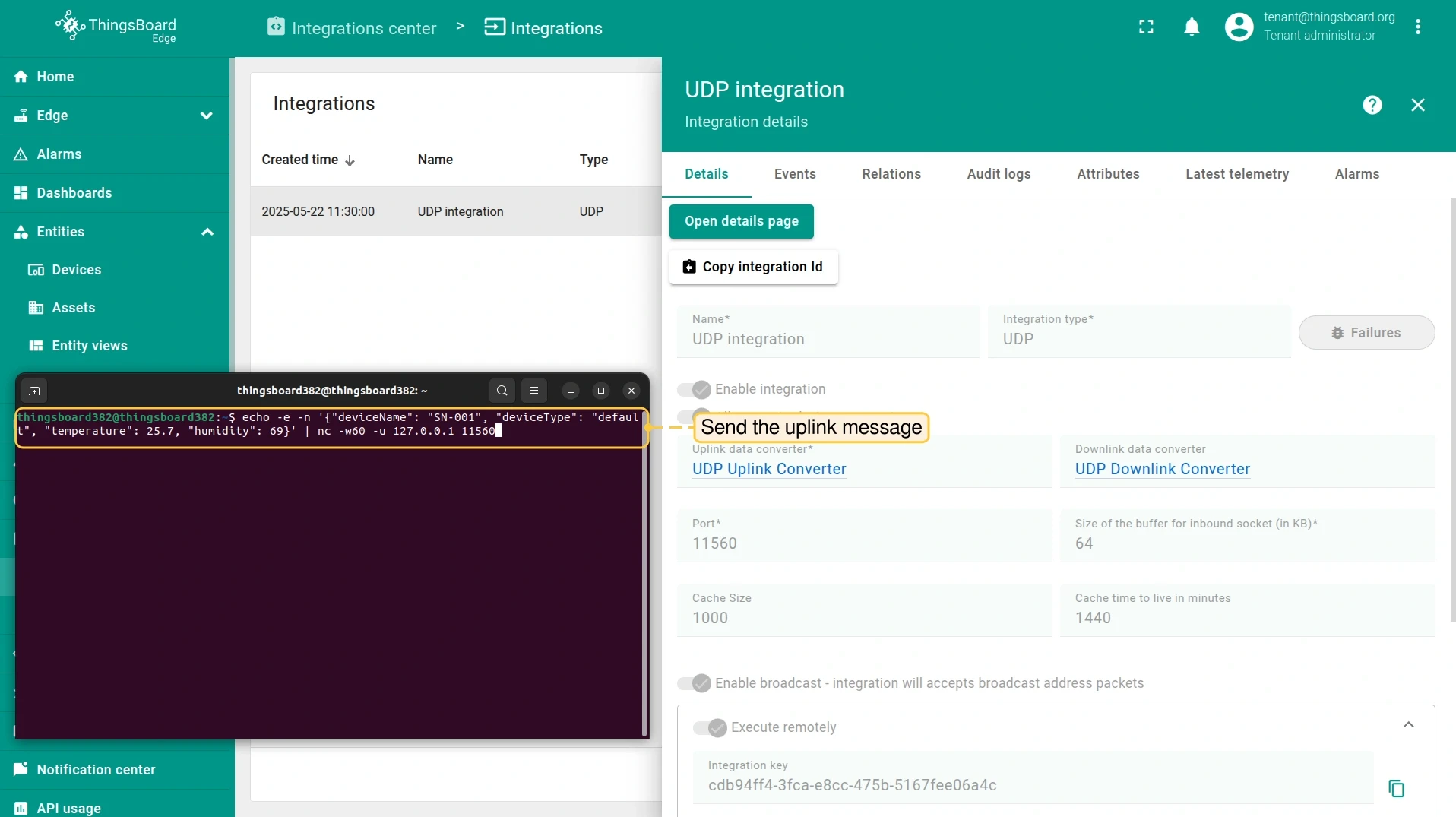
Send a test uplink using
echoandnc. Choose the command for your payload type:Terminal window echo -e 'SN-001,default,temperature,25.7,humidity,69' | nc -w5 -u 127.0.0.1 11560Terminal window echo -e -n '{"deviceName": "SN-001", "deviceType": "default", "temperature": 25.7, "humidity": 69}' | nc -w60 -u 127.0.0.1 11560Terminal window echo -e -n '\x53\x4e\x2d\x30\x30\x31\x64\x65\x66\x61\x75\x6c\x74\x32\x35\x2e\x37\x36\x39' | nc -w5 -u 127.0.0.1 11560Terminal window echo -e -n '534e2d30303164656661756c7432352e373639' | xxd -r -p | nc -w5 -u 127.0.0.1 11560 -
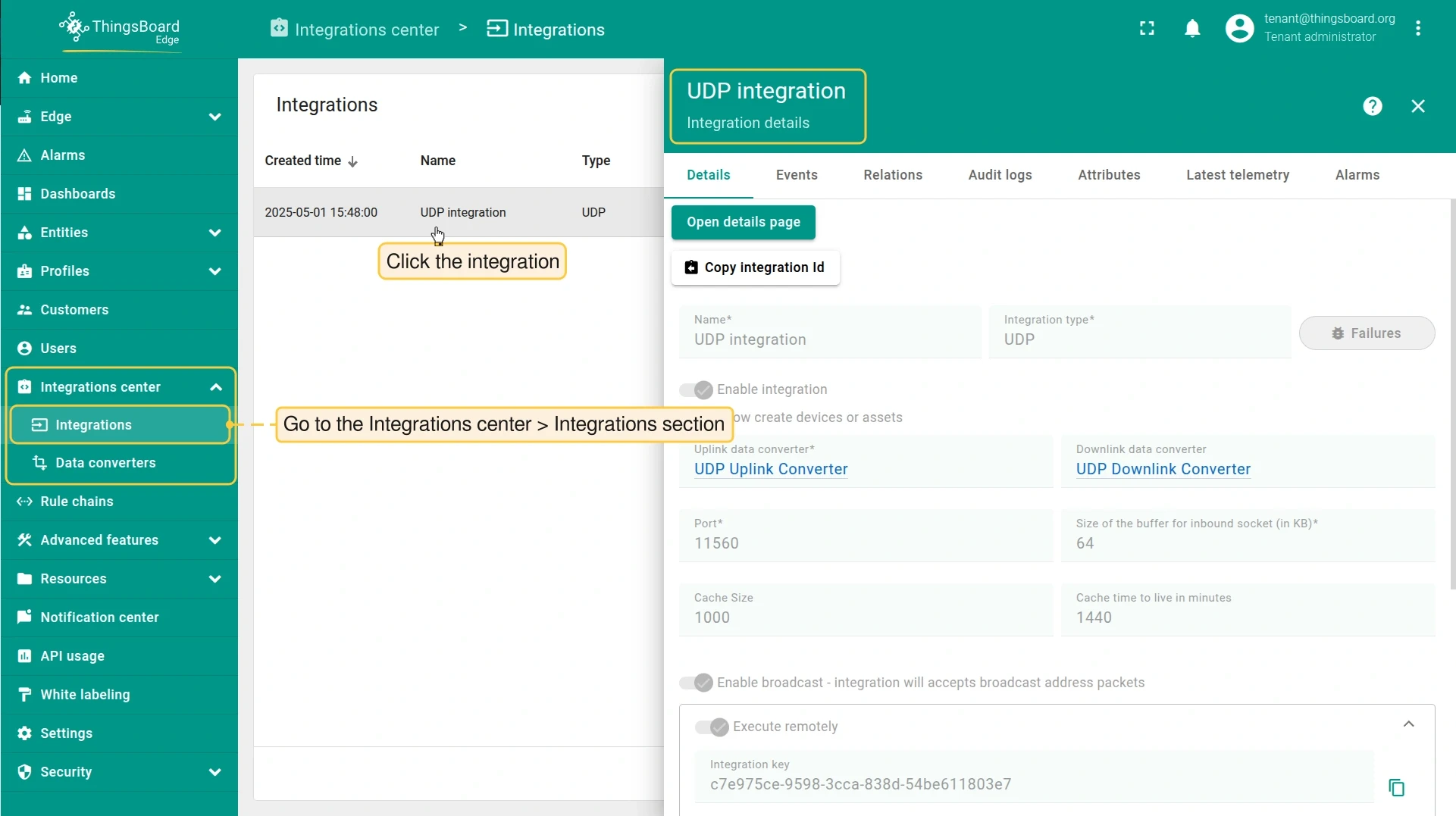
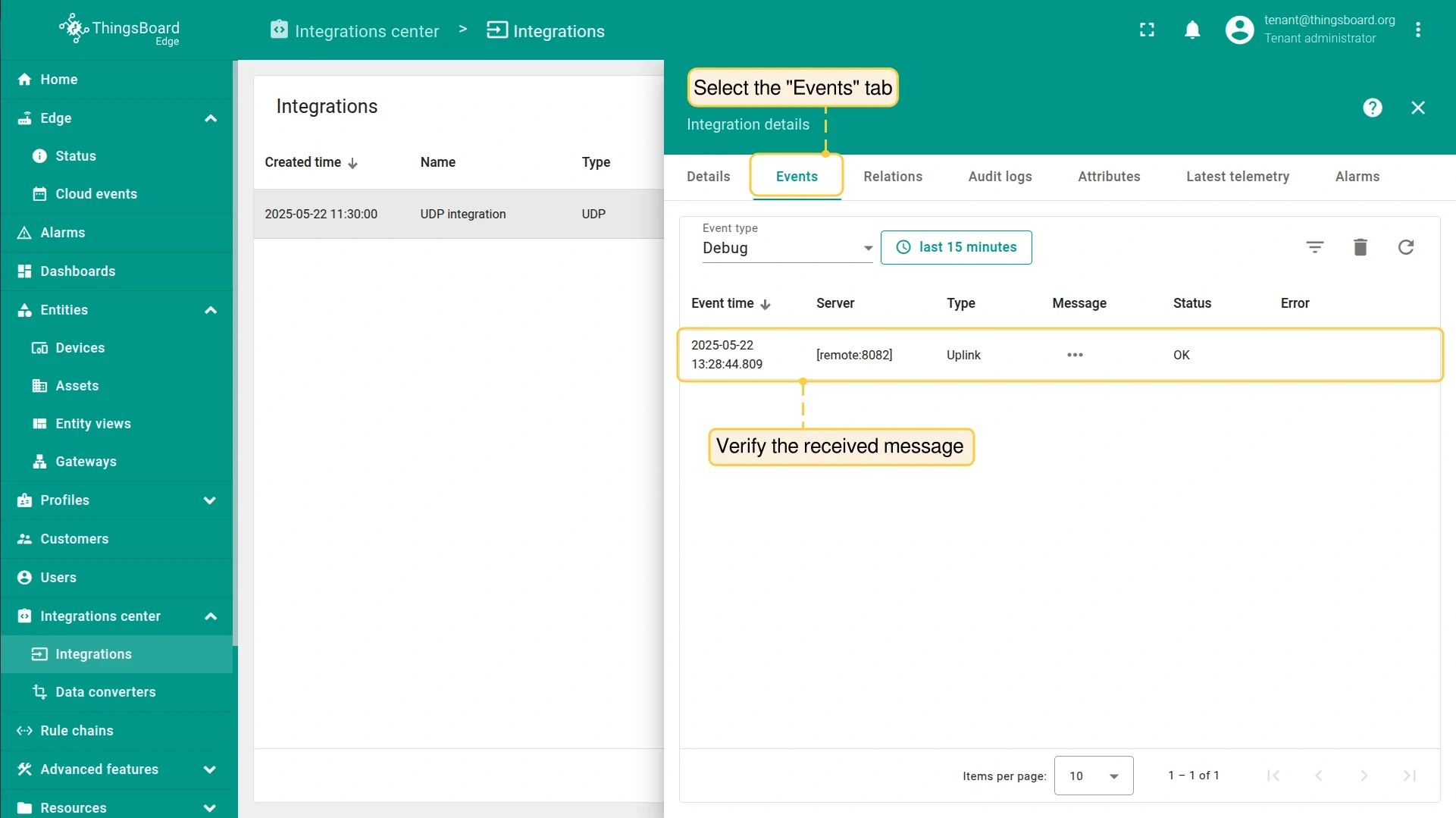
On the Edge, go to Integration center > Integrations, open the UDP integration, and select the Events tab. A message with status OK should appear.
-
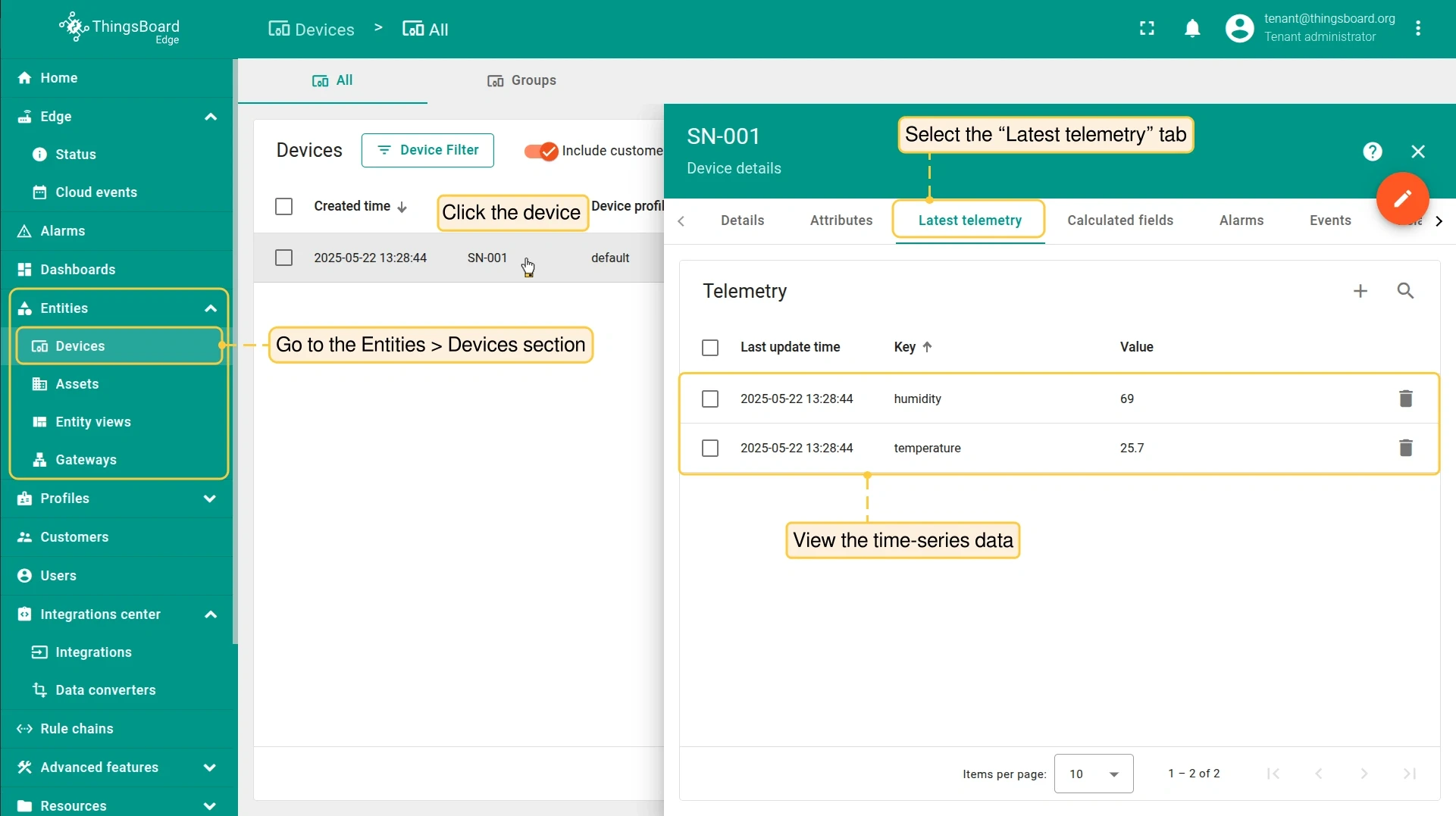
Go to Entities > Devices to see the newly created device and its latest telemetry.
-
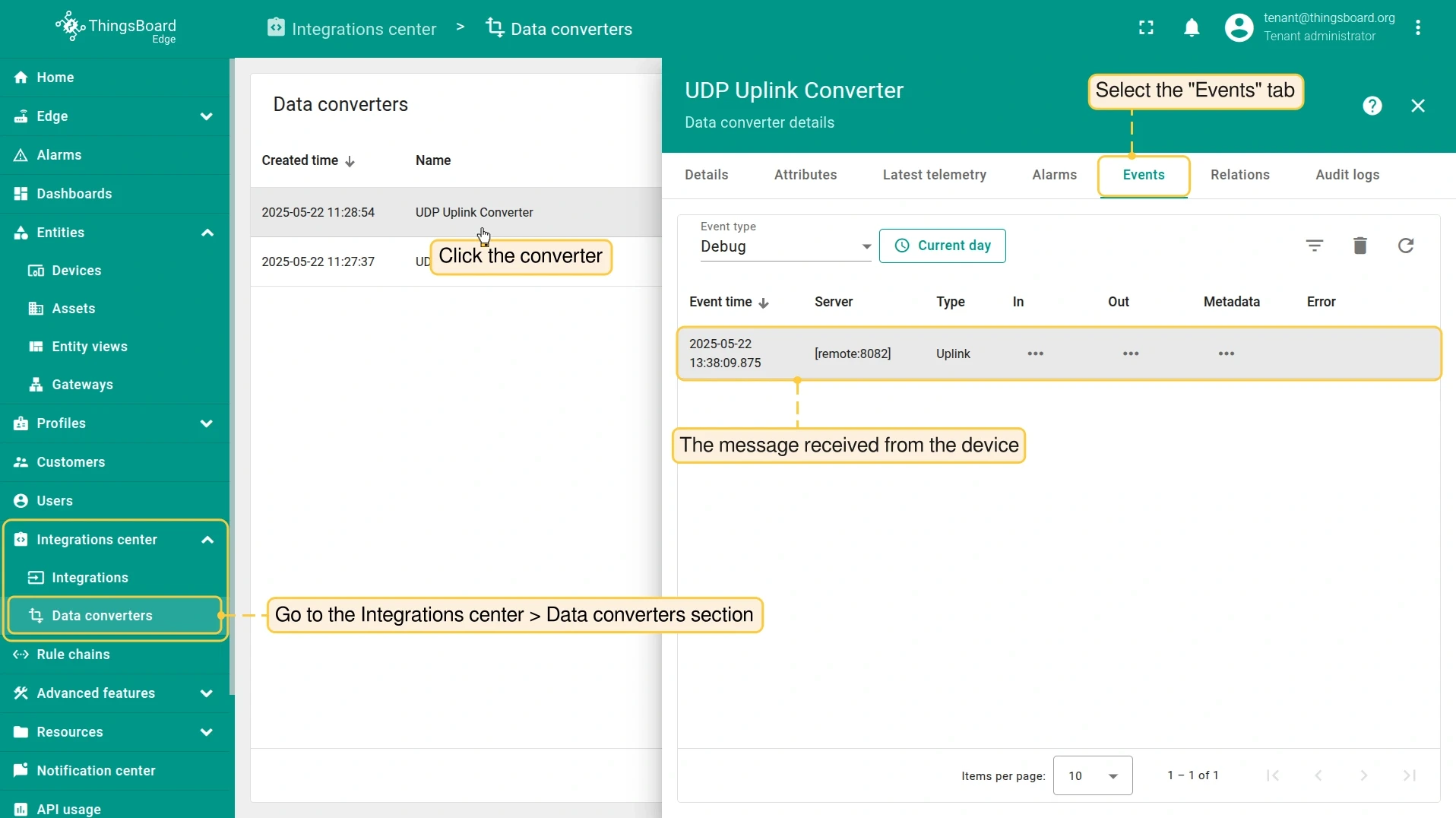
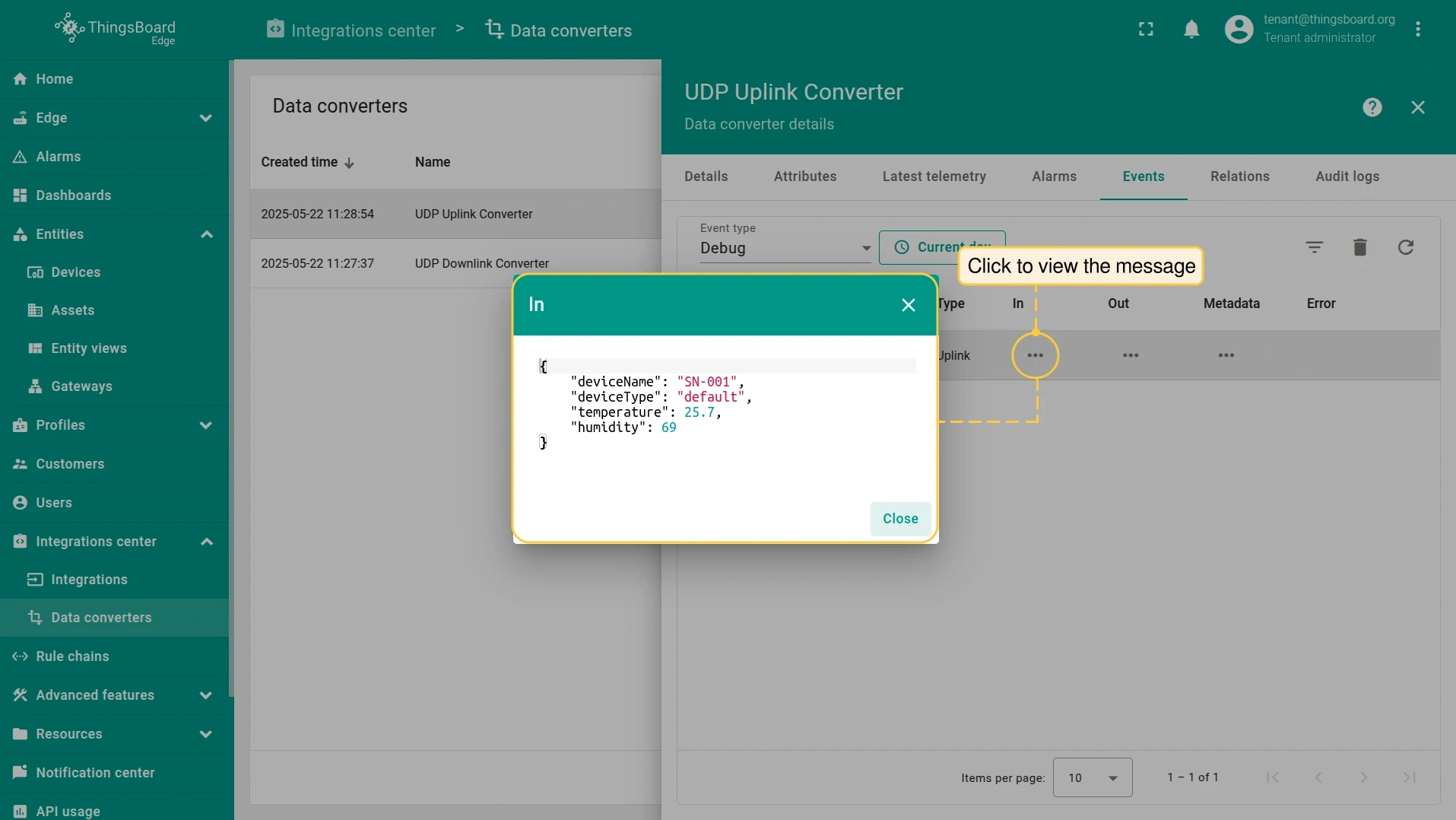
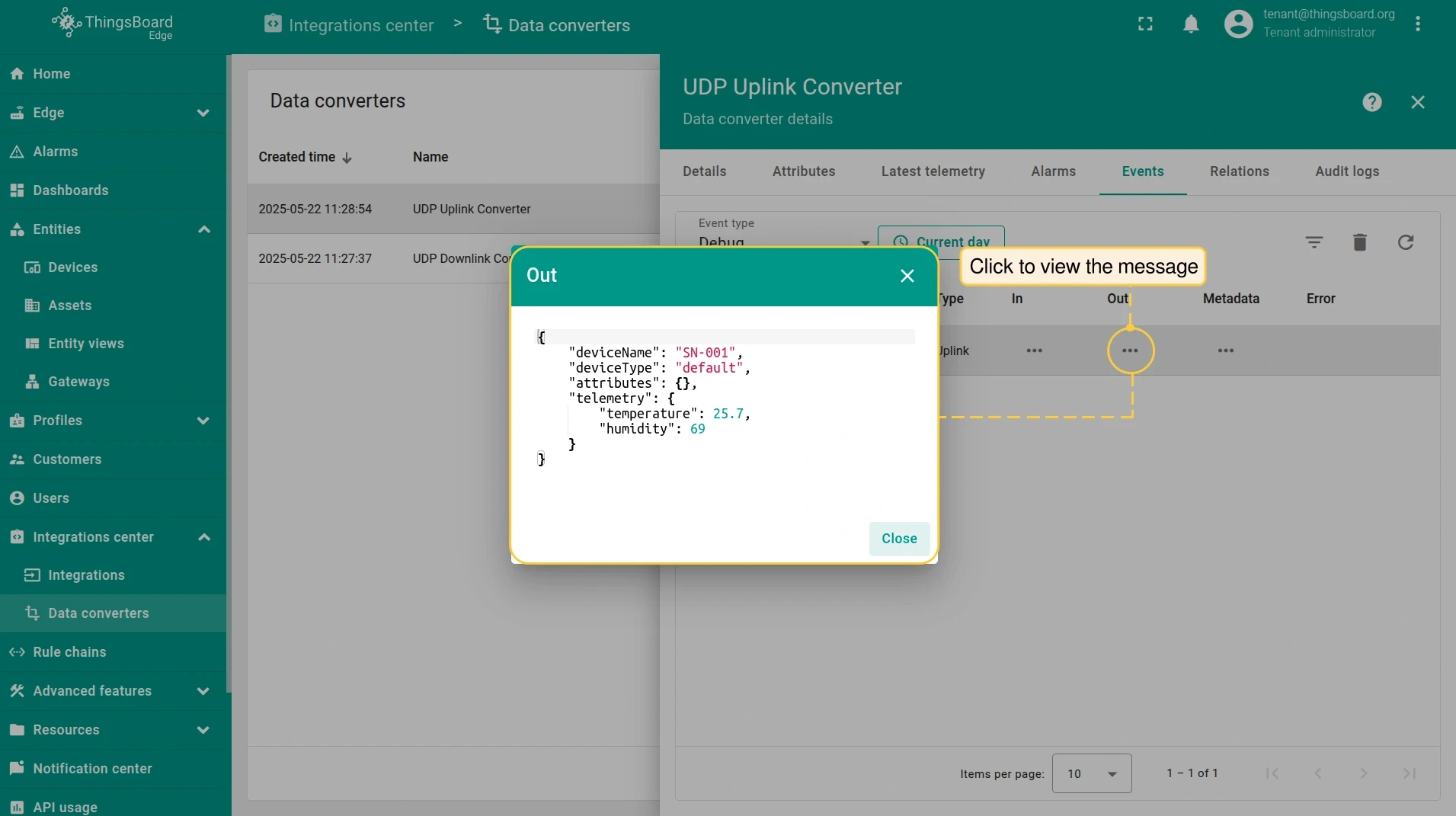
To inspect how the Uplink Converter processed the message, go to Integration center > Data converters, open the uplink converter, and select the Events tab.
Send downlink message
Section titled “Send downlink message”-
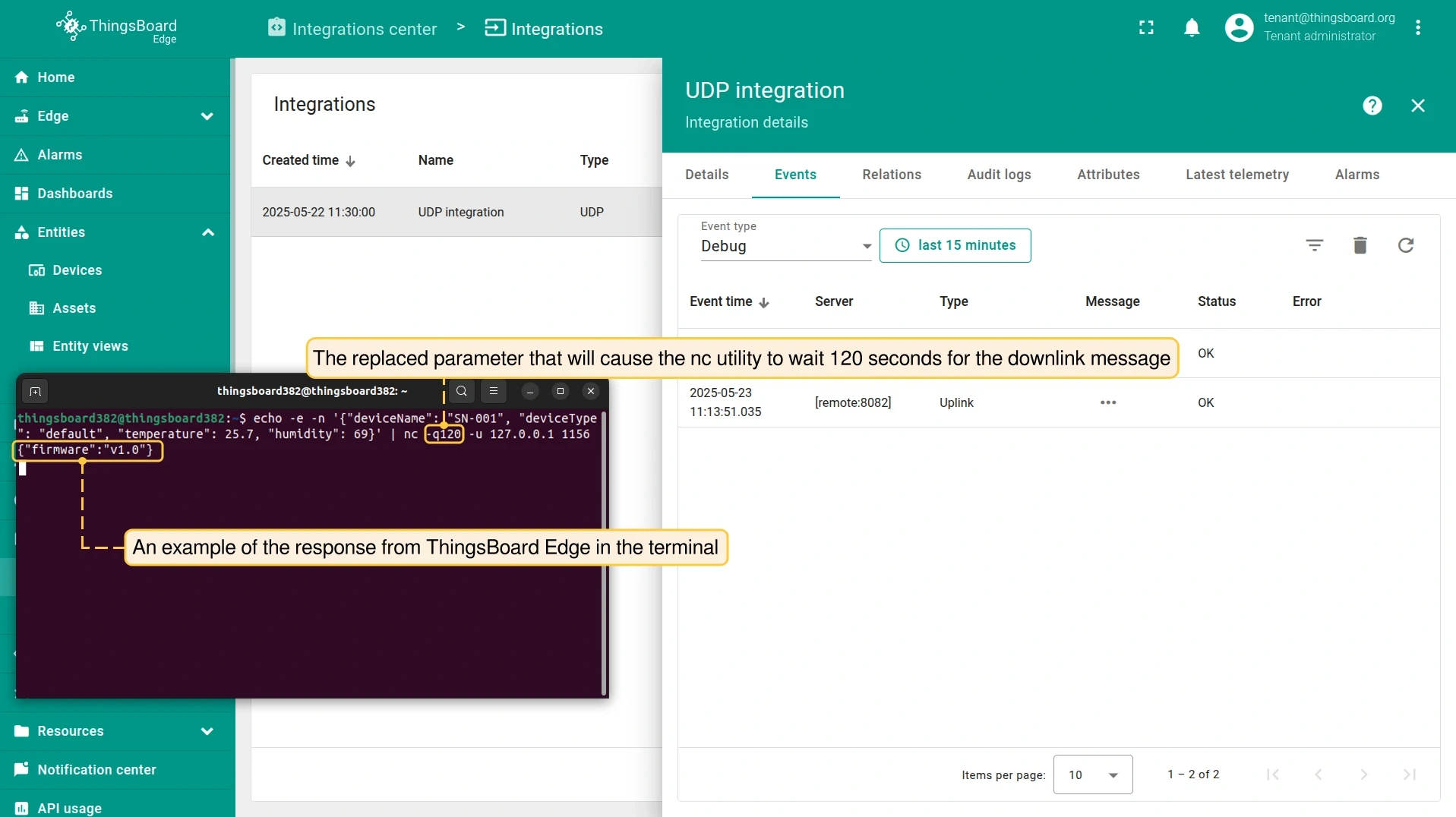
Send another uplink with
-q120soncwaits 120 seconds for the downlink response:Terminal window echo -e 'SN-001,default,temperature,25.7,humidity,69' | nc -q120 -u 127.0.0.1 11560Terminal window echo -e -n '{"deviceName": "SN-001", "deviceType": "default", "temperature": 25.7, "humidity": 69}' | nc -q120 -u 127.0.0.1 11560Terminal window echo -e -n '\x53\x4e\x2d\x30\x30\x31\x64\x65\x66\x61\x75\x6c\x74\x32\x35\x2e\x37\x36\x39' | nc -q120 -u 127.0.0.1 11560Terminal window echo -e -n '534e2d30303164656661756c7432352e373639' | xxd -r -p | nc -q120 -u 127.0.0.1 11560 -
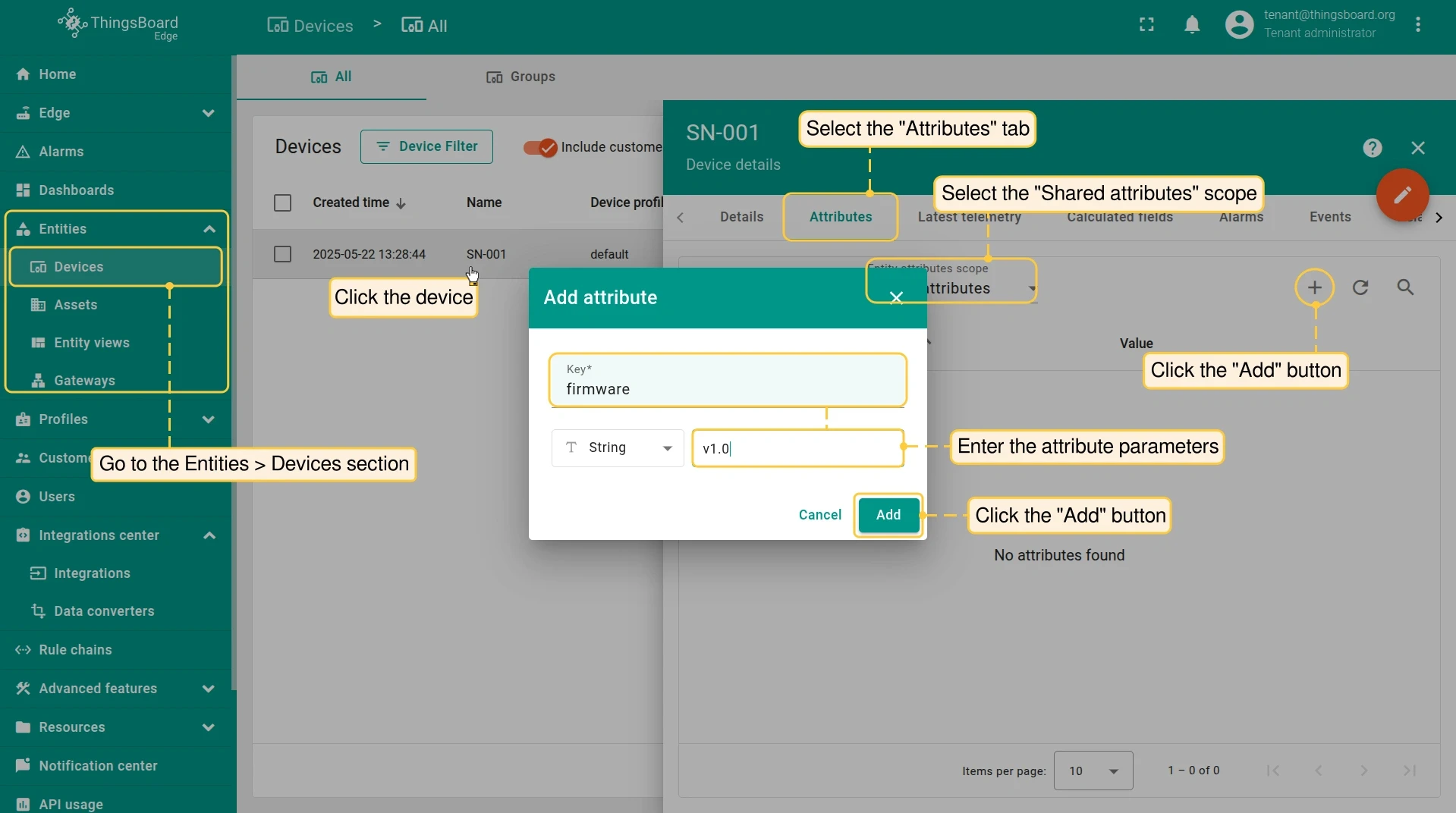
Within 120 seconds, go to Entities > Devices, select device SN-001, and open the Attributes tab. Under Shared attributes, click + and add a new attribute — for example, key
firmware, valuev1.0. Save. -
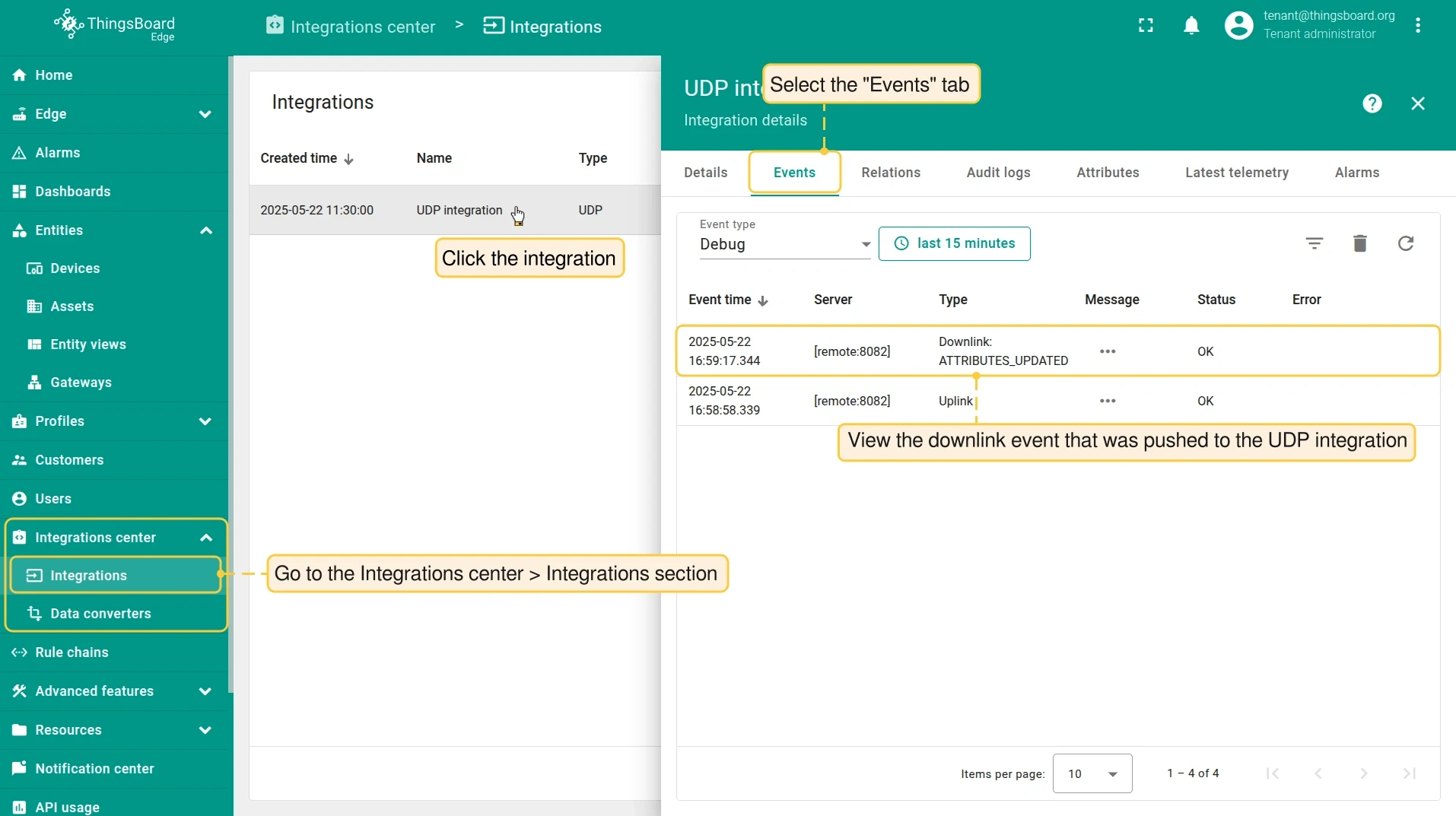
Verify the downlink was sent by opening the integration’s Events tab.
-
The terminal will show the response returned by ThingsBoard Edge.
Was this helpful?