Attribute updates with post-processing
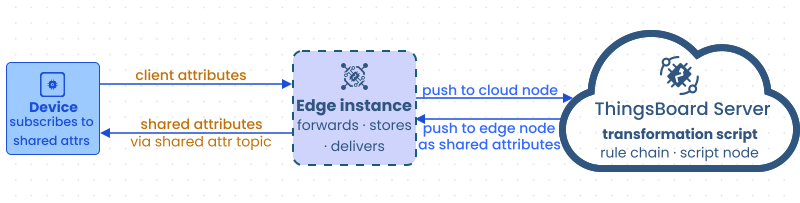
When a device publishes client attributes to Edge, Edge forwards them to the server, the server applies a transformation script, and pushes the result back to Edge as shared attributes. The device receives the update by subscribing to the shared attribute topic on Edge.
For a general introduction to attribute types and how they work, see Attributes.
Prerequisites
Section titled “Prerequisites”Before you begin:
- A ThingsBoard server (ThingsBoard Cloud or self-hosted) is running and reachable from Edge.
- ThingsBoard Edge is installed and connected to the server.
- A device is connected to Edge via MQTT, HTTP, or CoAP.
Step 1: Route device attributes to the server
Section titled “Step 1: Route device attributes to the server”Configure the Edge rule chain to forward client attributes from the device to the server using the push to cloud node.
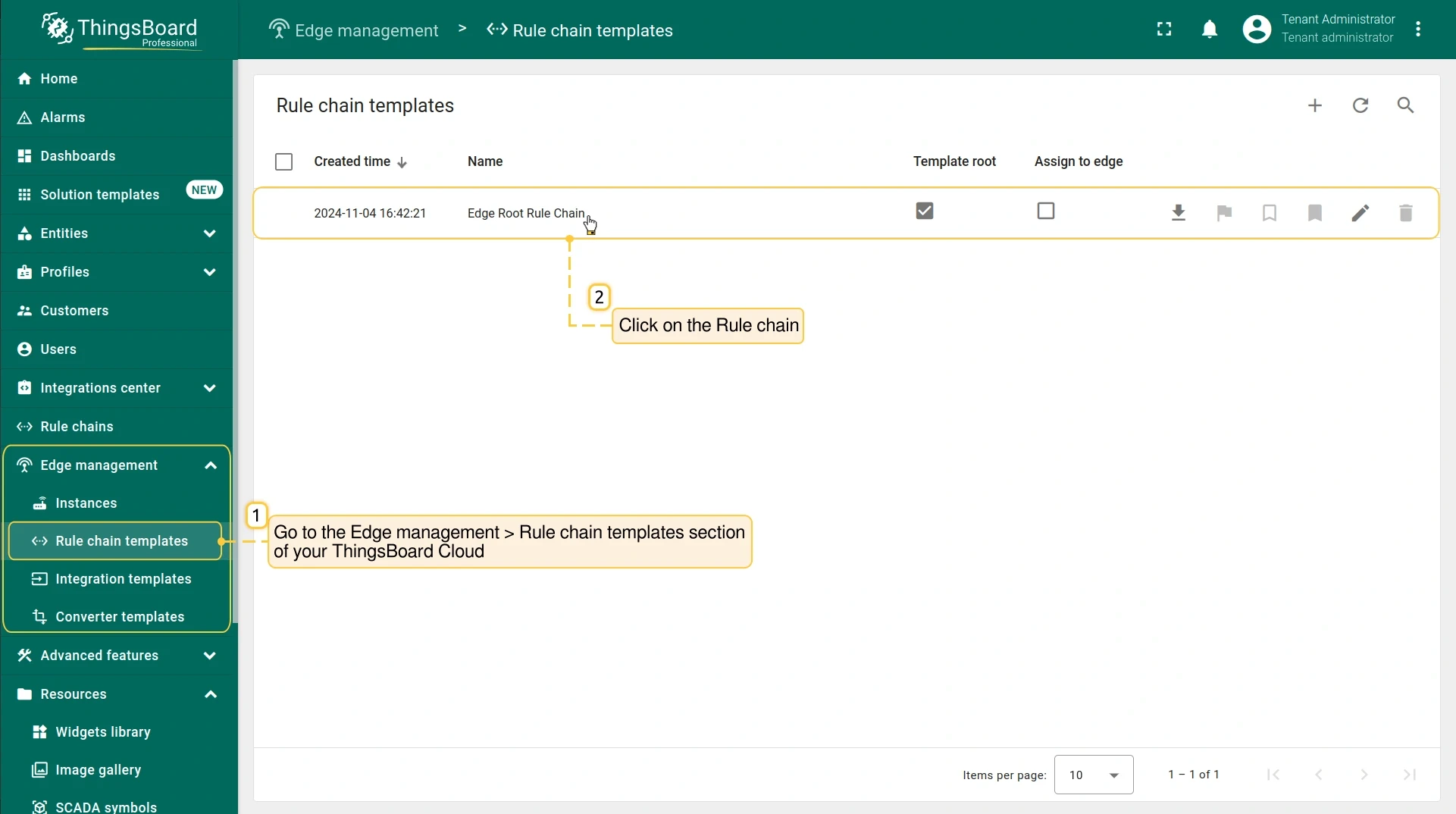
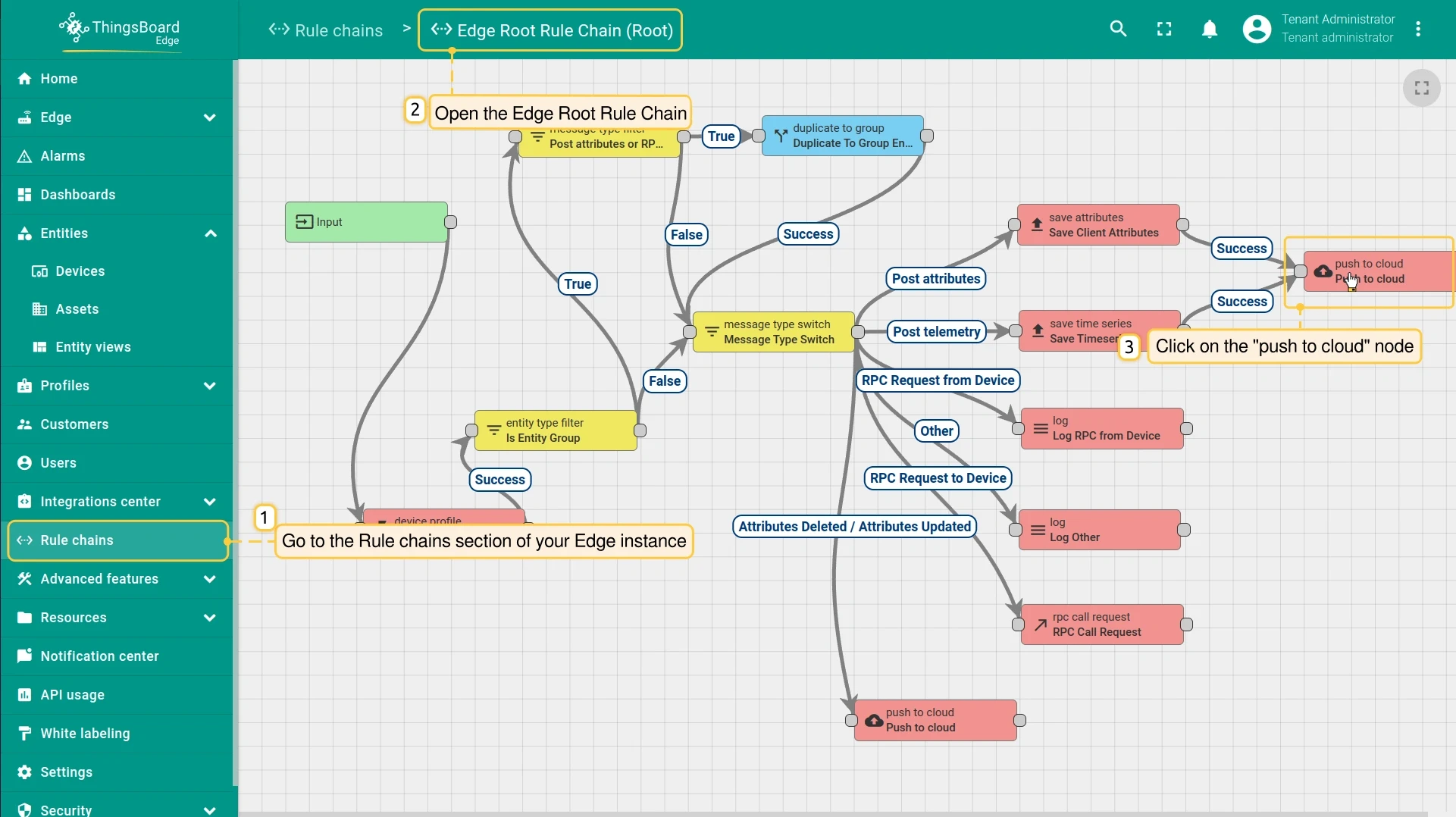
- Log in to the server. Go to Edge management → Rule chain templates and open the rule chain assigned to your Edge instance. On Edge 4.0 or later, go to Rule chains on the Edge instance directly.
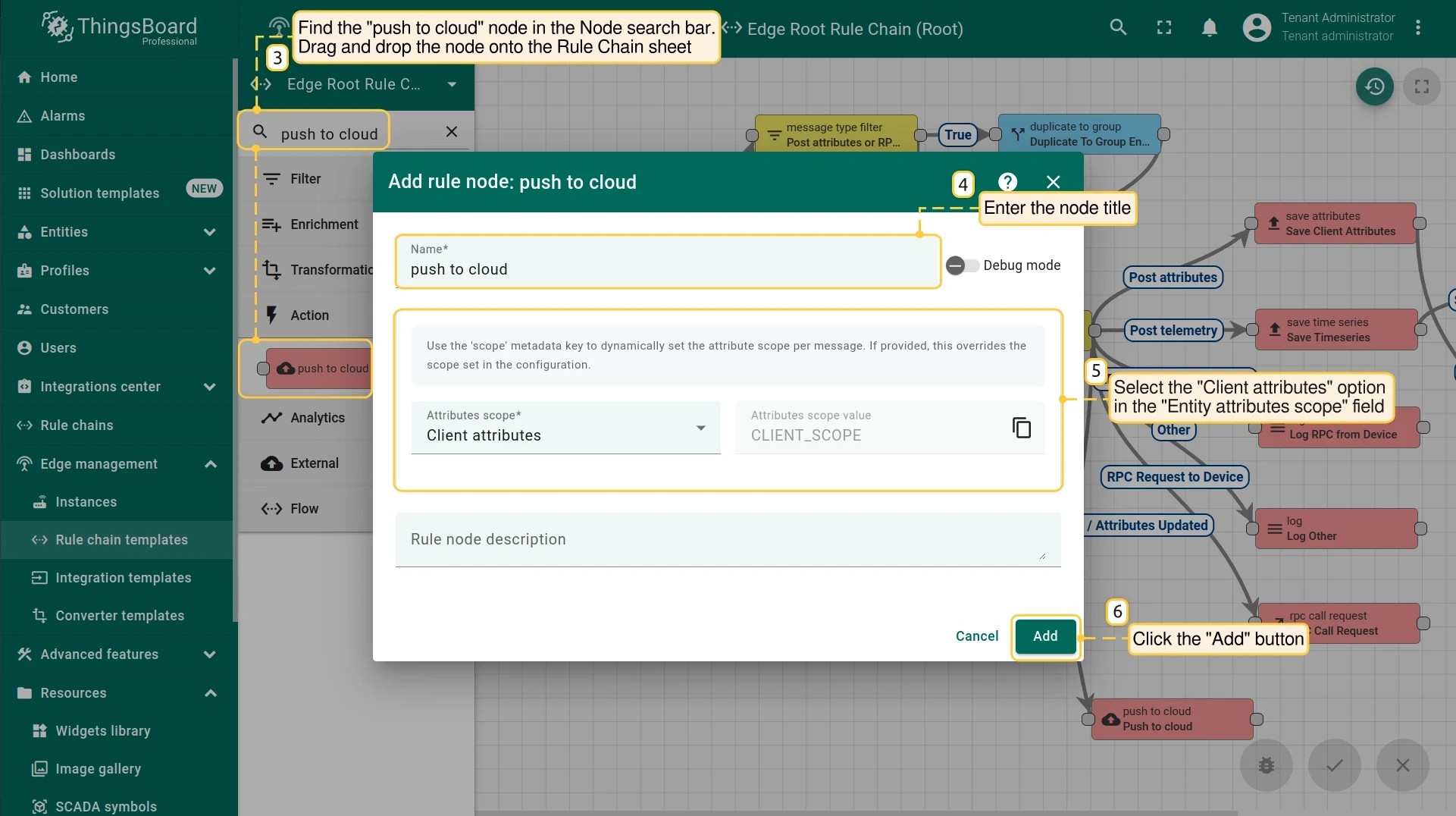
- Find the push to cloud node in the Node search bar and drag it onto the rule chain sheet. In the Add rule node dialog, enter a name and select Client attributes in the Entity attributes scope field. Click Add.
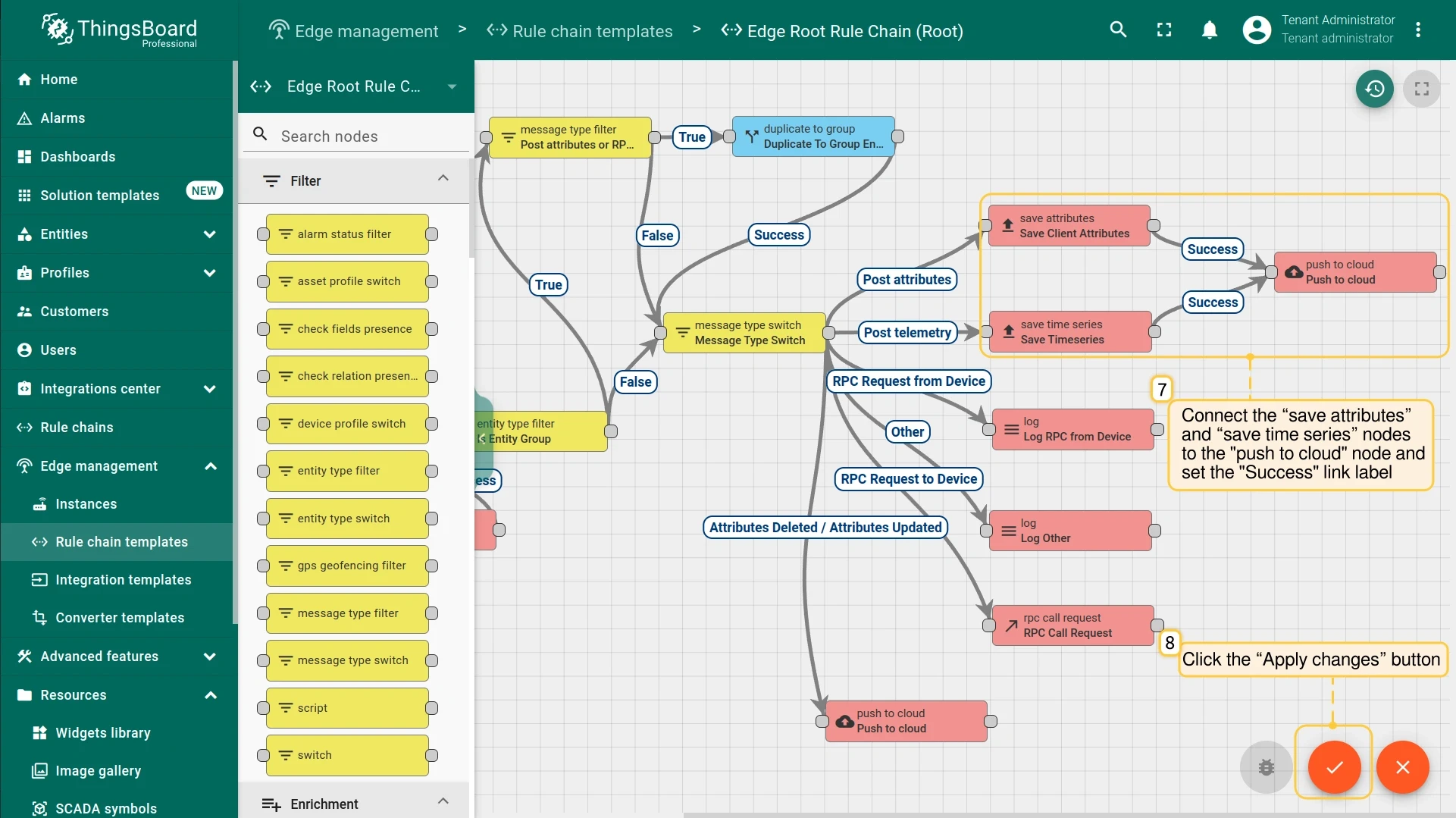
- Connect the save attributes and save time series nodes to the push to cloud node with the Success label. Click Apply changes.
Step 2: Process and return attributes to Edge
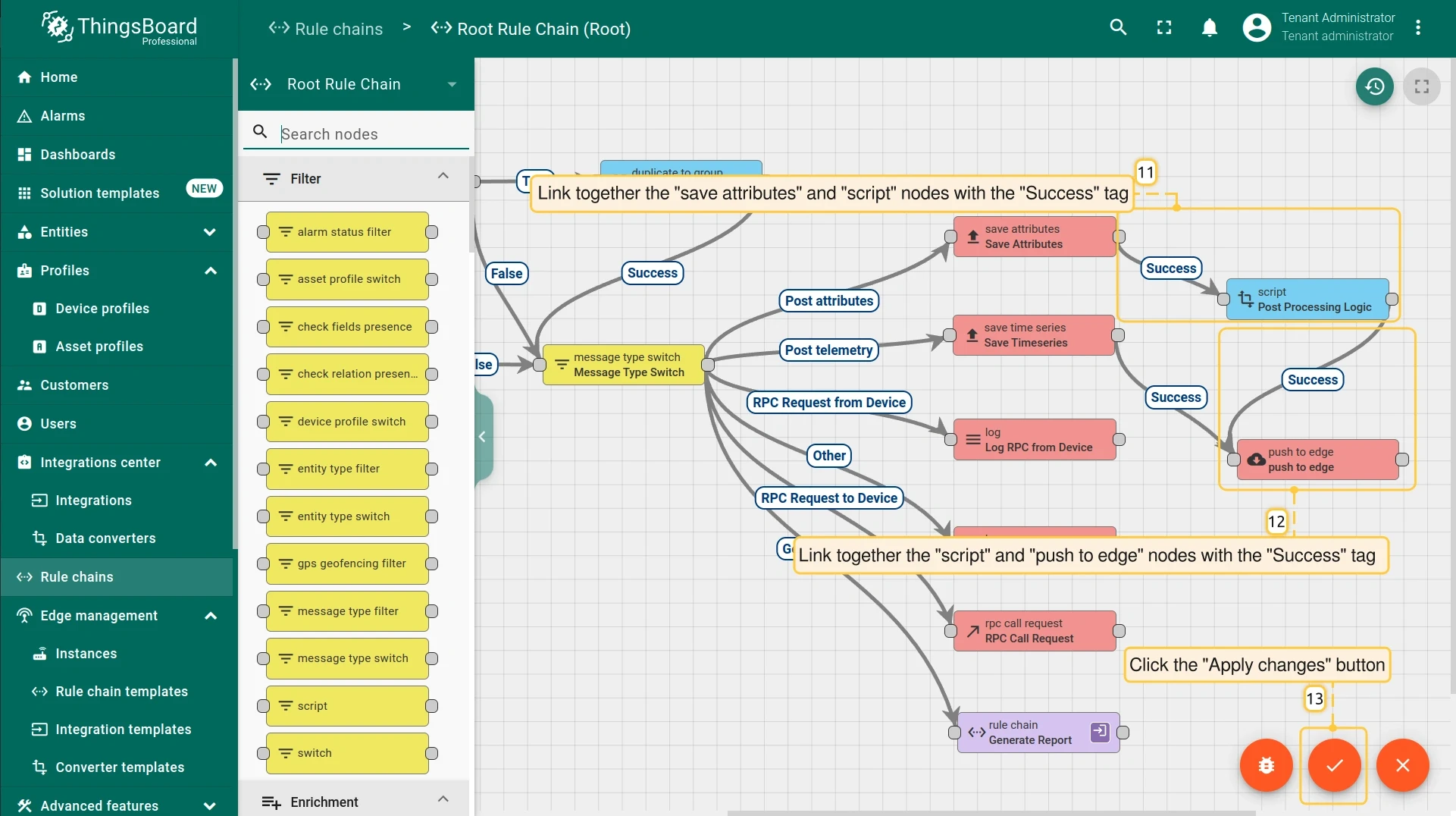
Section titled “Step 2: Process and return attributes to Edge”Configure the server’s root rule chain to transform the incoming attributes and push the result back to Edge as shared attributes. The script node sits between the save nodes and the push to edge node:
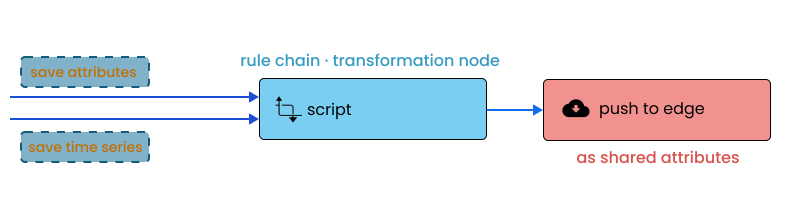
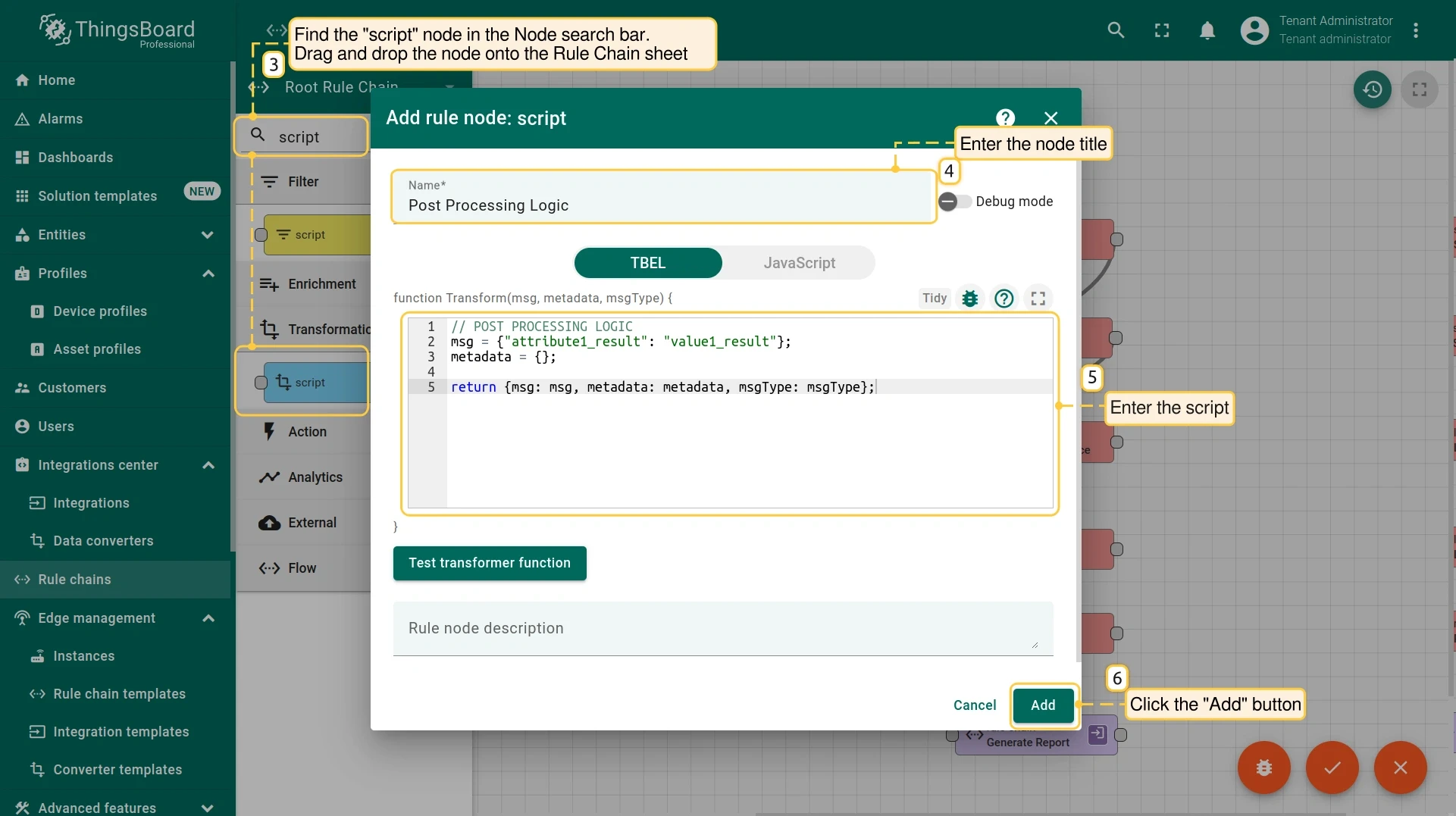
Use the following post-processing script in the script node — modify the transformation logic as needed:
// Post-processing script — modify as neededmsg = { attribute1_result: "value1_result" };metadata = {};
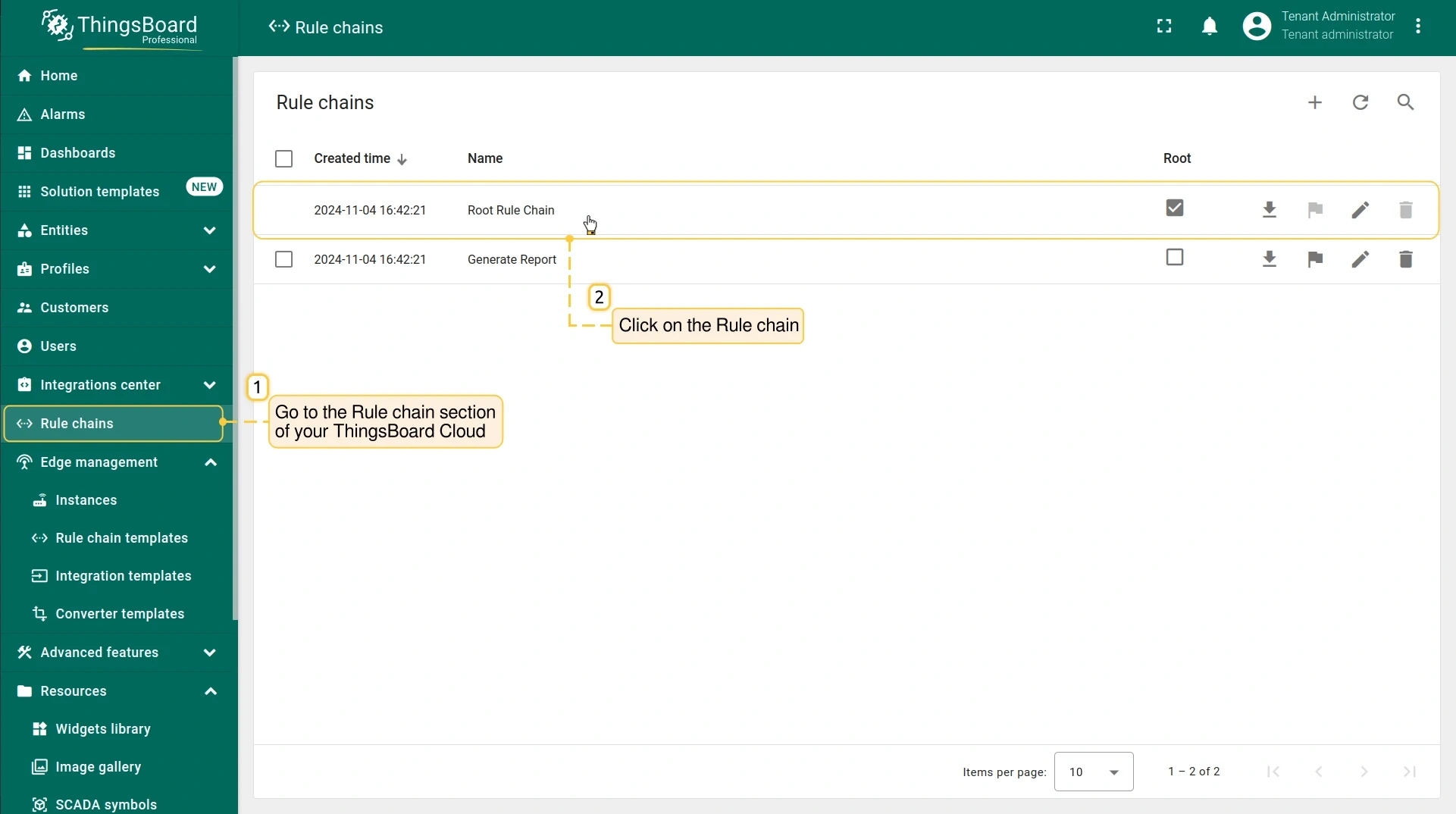
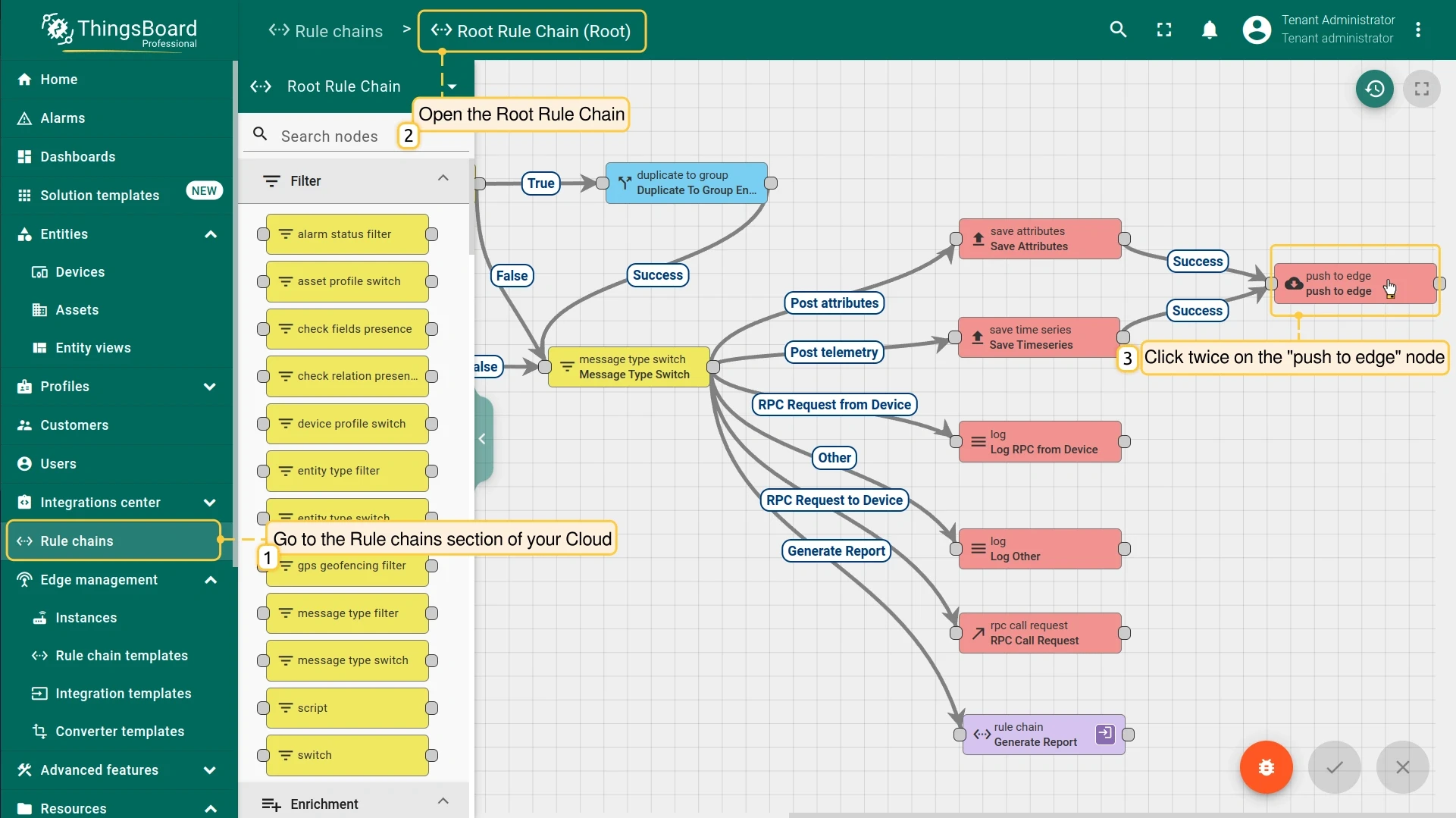
return { msg, metadata, msgType };- On the server, go to Rule chains and open the root rule chain.
- Find the script node in the Node search bar and drag it onto the sheet. Enter a name, paste the script above, and click Add.
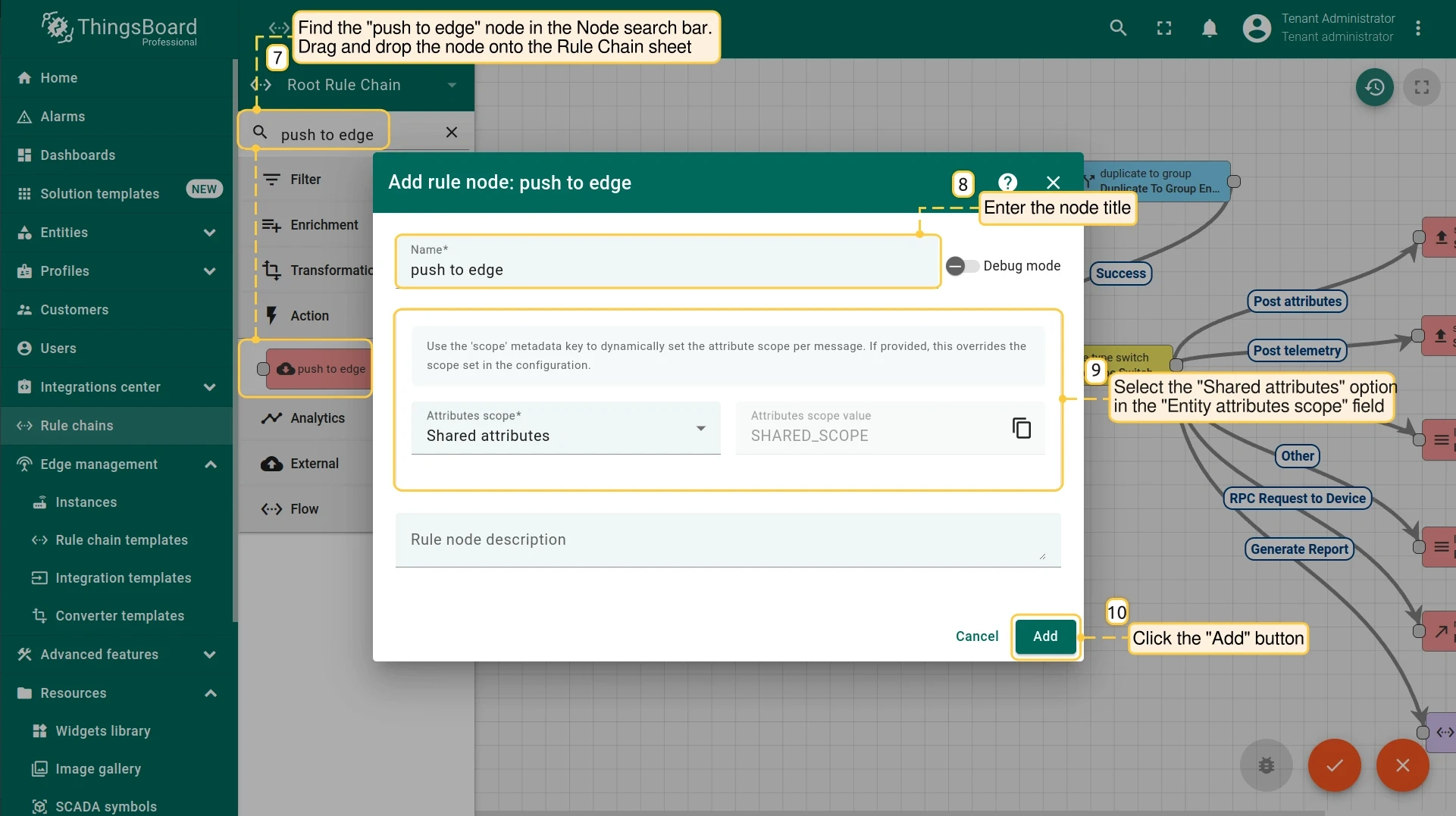
- Find the push to edge node and drag it onto the sheet. Enter a name and select Shared attributes in the Entity attributes scope field. Click Add.
- Connect the save attributes and save time series nodes to the script node with the Success label. Connect the script node to the push to edge node with the Success label. Click Apply changes.
Step 3: Subscribe then publish device attributes
Section titled “Step 3: Subscribe then publish device attributes”Subscribe to shared attribute updates before publishing — this ensures the device is listening when the server pushes the processed result back.
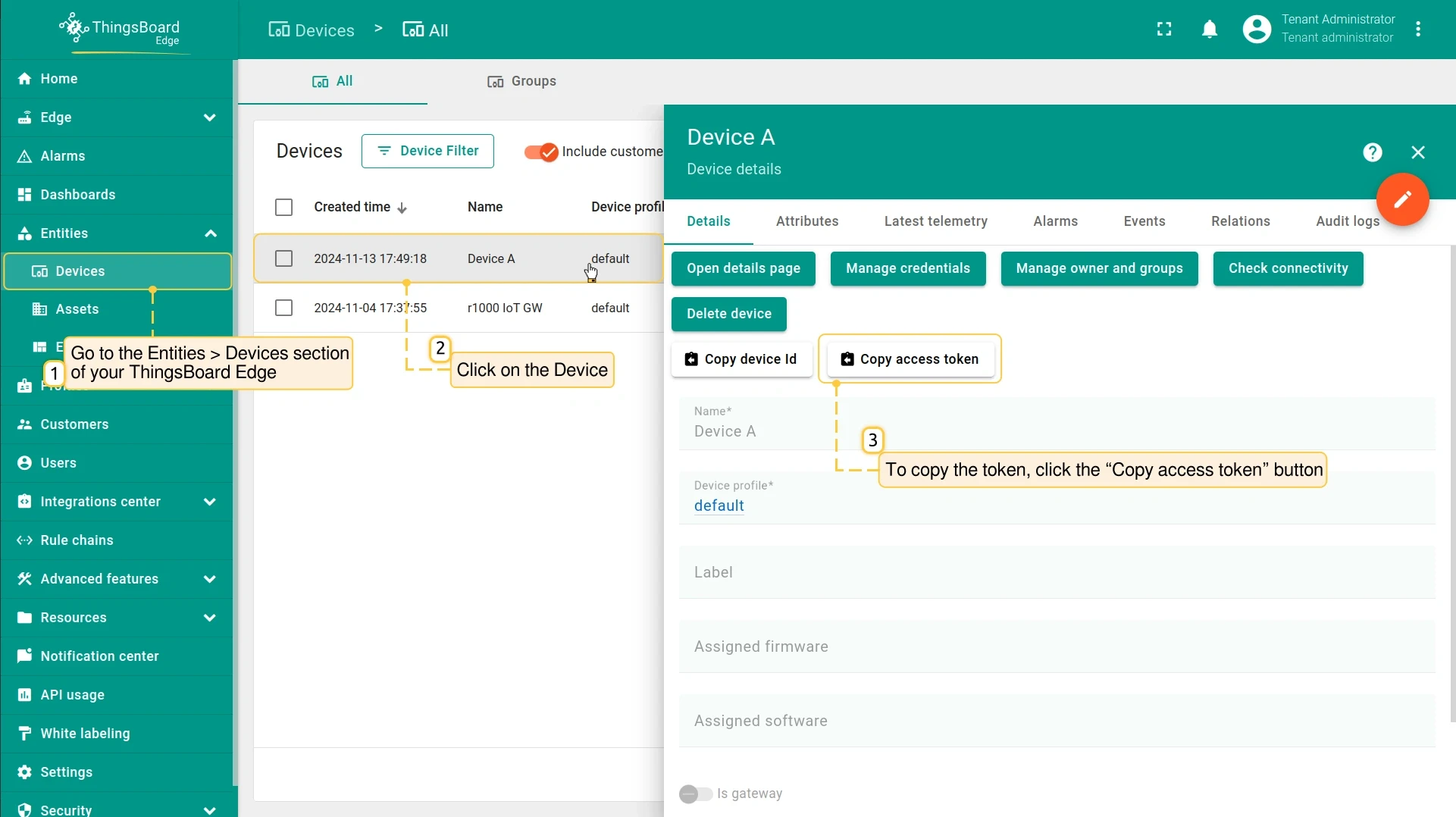
Find the device access token in Entities → Devices, open the device, and click Copy access token on the Device details page.
Use the protocol your device supports to subscribe to shared attribute updates and publish client attributes:
Subscribe to shared attribute updates:
mosquitto_sub -d -h $THINGSBOARD_HOST_NAME -t "v1/devices/me/attributes" -u "$ACCESS_TOKEN"$THINGSBOARD_HOST_NAME— hostname or IP address of your Edge instance.$ACCESS_TOKEN— access token copied above.
Publish client attributes:
mosquitto_pub -d -h $THINGSBOARD_HOST_NAME -t "v1/devices/me/attributes" -u "$ACCESS_TOKEN" -m '{"attribute1": "value1", "attribute2": true}'Subscribe to shared attribute updates:
curl -v -X GET "http://$THINGSBOARD_HOST_NAME/api/v1/$ACCESS_TOKEN/attributes/updates?timeout=20000"$THINGSBOARD_HOST_NAME— hostname or IP address of your Edge instance.$ACCESS_TOKEN— access token copied above.timeout=20000— the connection stays open for 20 seconds; if a shared attribute updates in that time, the server responds immediately.
Publish client attributes:
curl -v -X POST \ --data '{"attribute1": "value1", "attribute2": true}' \ "http://$THINGSBOARD_HOST_NAME/api/v1/$ACCESS_TOKEN/attributes" \ --header "Content-Type: application/json"Subscribe to shared attribute updates:
coap get -o coap://$THINGSBOARD_HOST_NAME/api/v1/$ACCESS_TOKEN/attributes$THINGSBOARD_HOST_NAME— hostname or IP address of your Edge instance.$ACCESS_TOKEN— access token copied above.
The client receives an update when a shared attribute changes on Edge.
Publish client attributes:
coap post coap://$THINGSBOARD_HOST_NAME/api/v1/$ACCESS_TOKEN/attributes --payload '{"attribute1": "value1", "attribute2": true}'Step 4: Verify the flow
Section titled “Step 4: Verify the flow”After publishing from the device, confirm the attributes are received at each point.
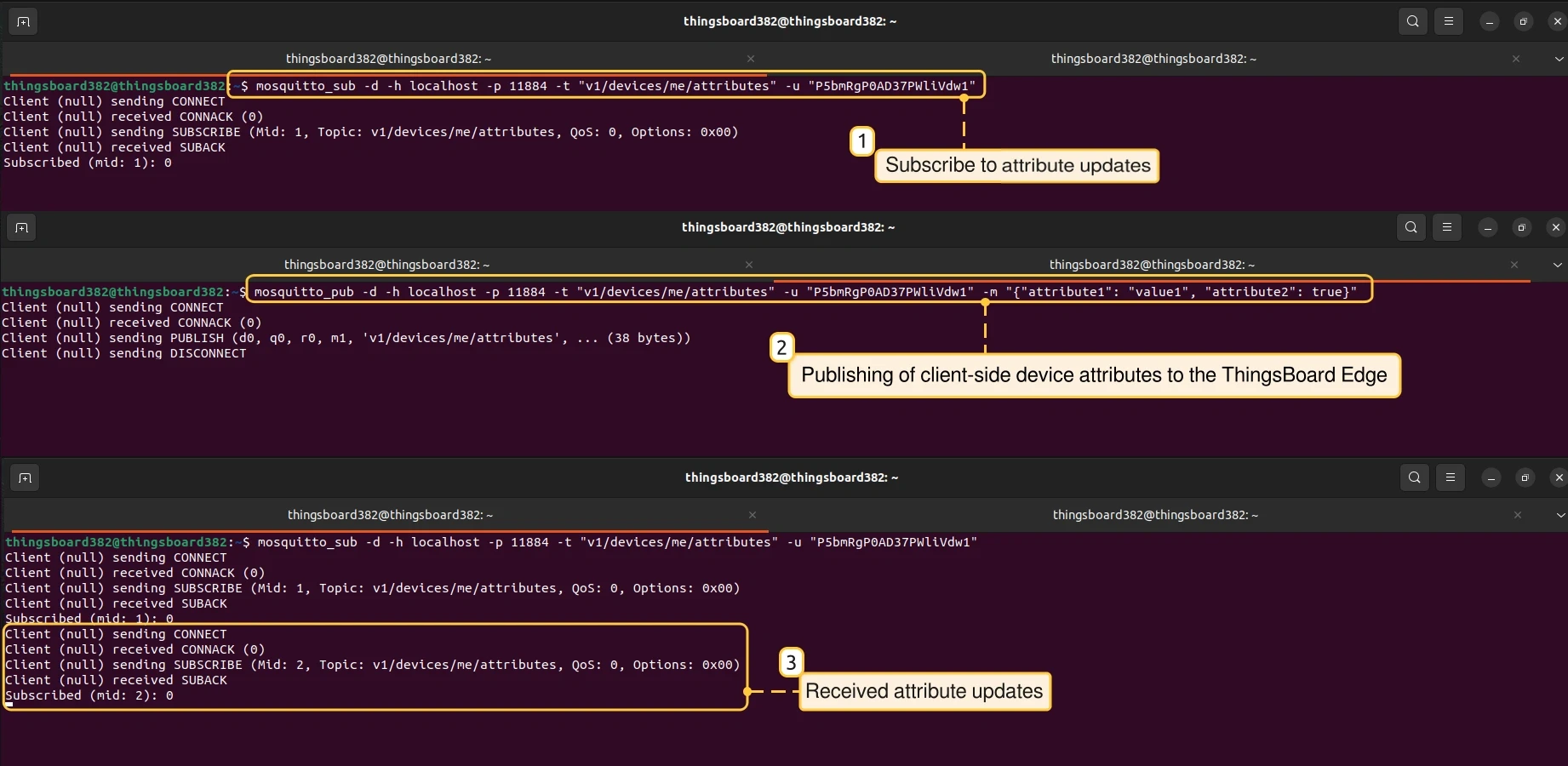
On the device — the terminal shows the shared attribute update received after publishing:
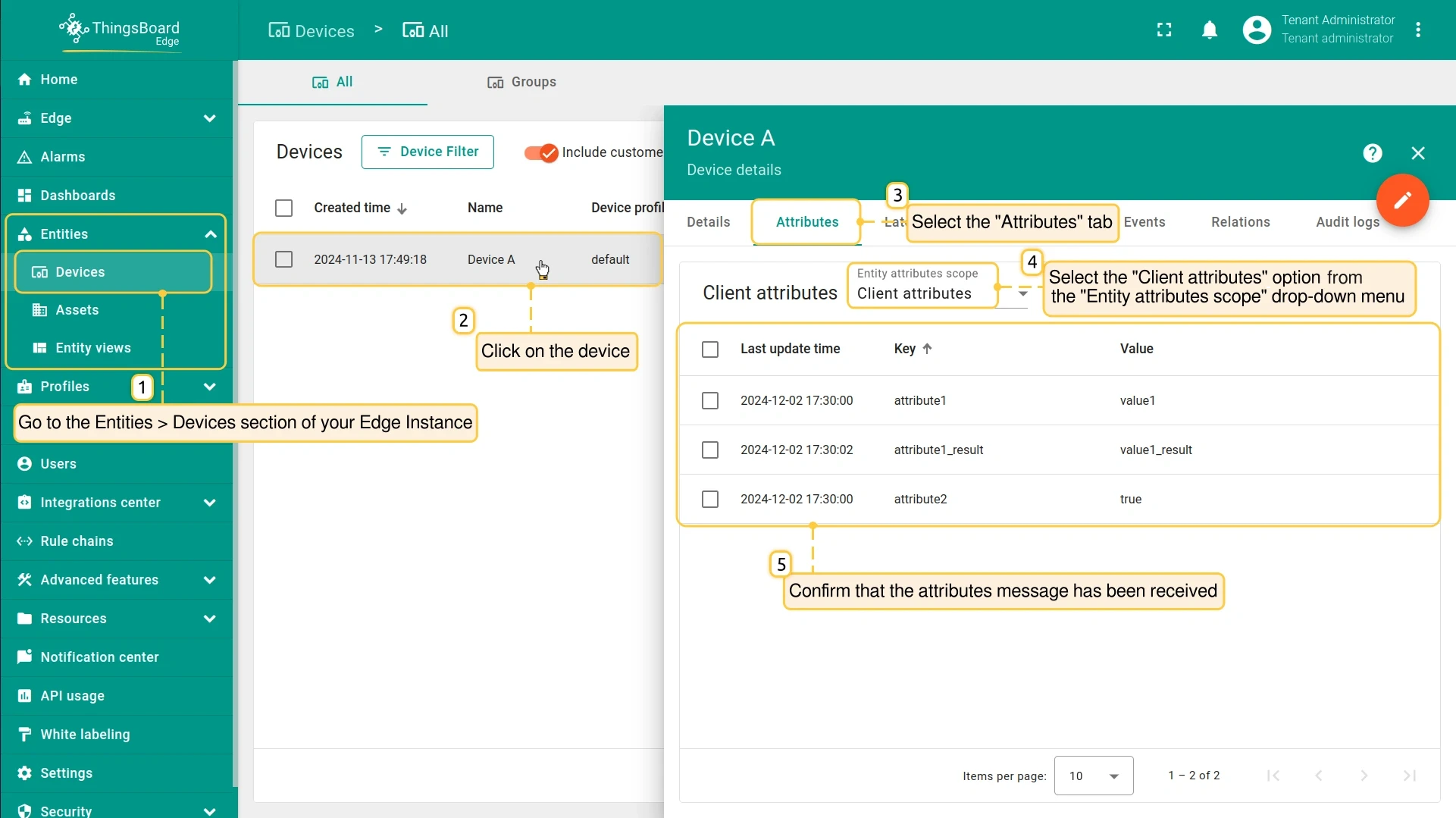
Client attributes on Edge — go to Entities → Devices, open the device, select the Attributes tab, and choose Client attributes in the scope dropdown. The published attributes appear in the list.
On the Edge rule chain — open the push to cloud node and select the Events tab. With debug mode enabled, you see IN (attributes received from the device) and OUT (attributes pushed to the server) records.
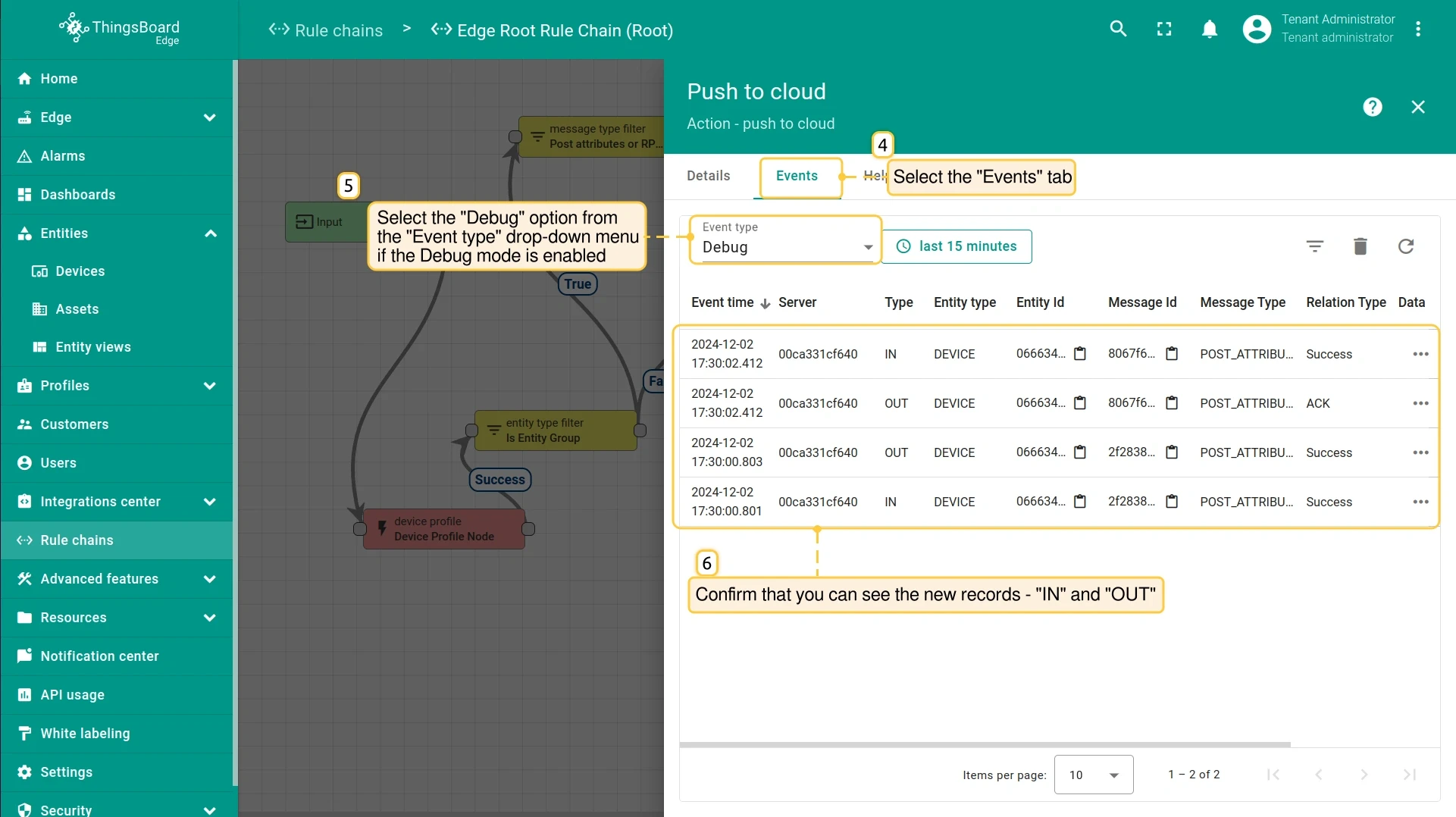
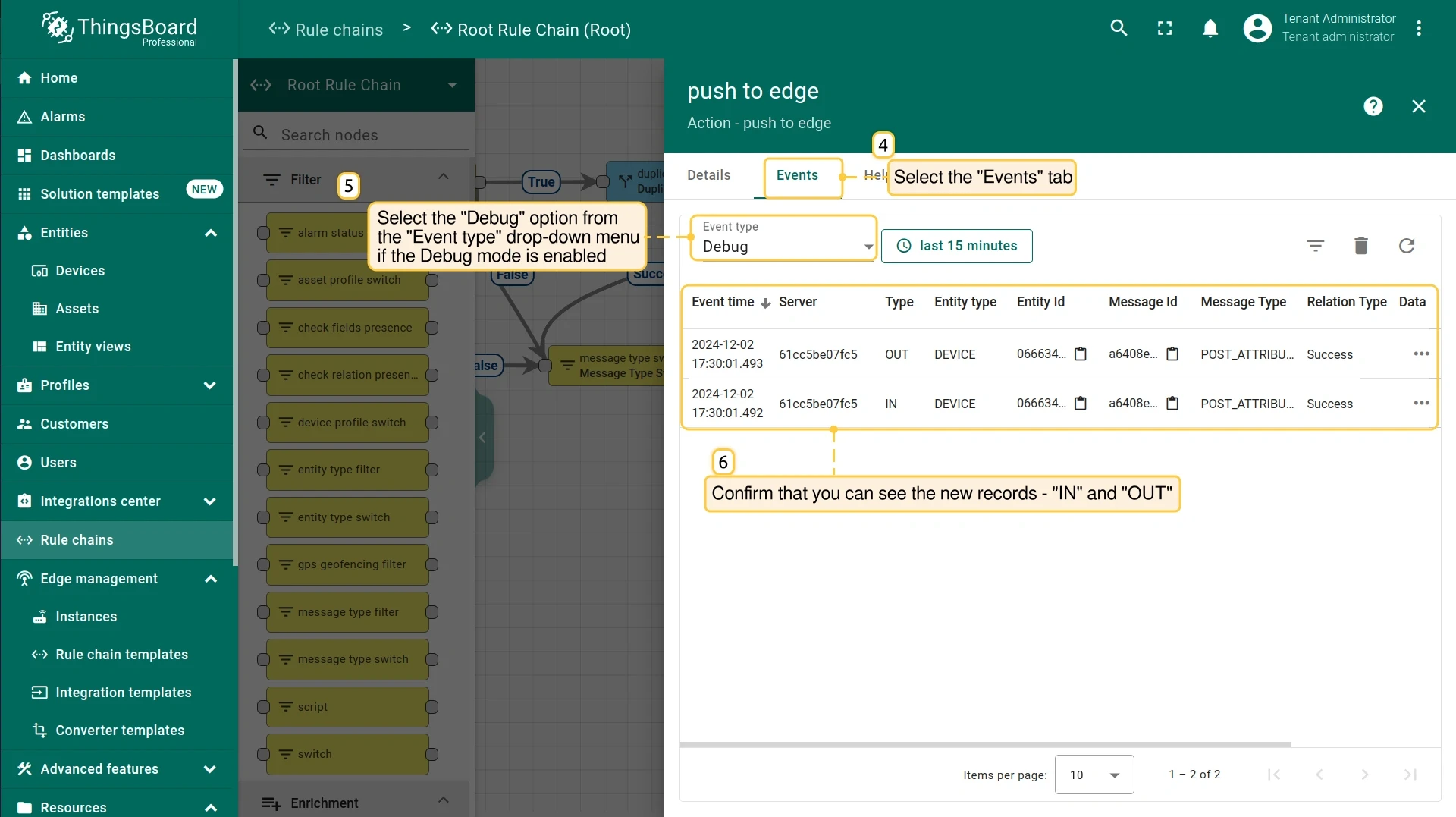
On the server rule chain — open the push to edge node and select the Events tab. With debug mode enabled, you see IN (attributes received from Edge) and OUT (processed attributes pushed back to Edge) records.
Was this helpful?