Slack Settings
Integrating Slack with ThingsBoard lets users receive notifications in Slack channels or direct messages based on notification rules — for example, device status changes or detected issues.
Create a Slack App and Get the API Token
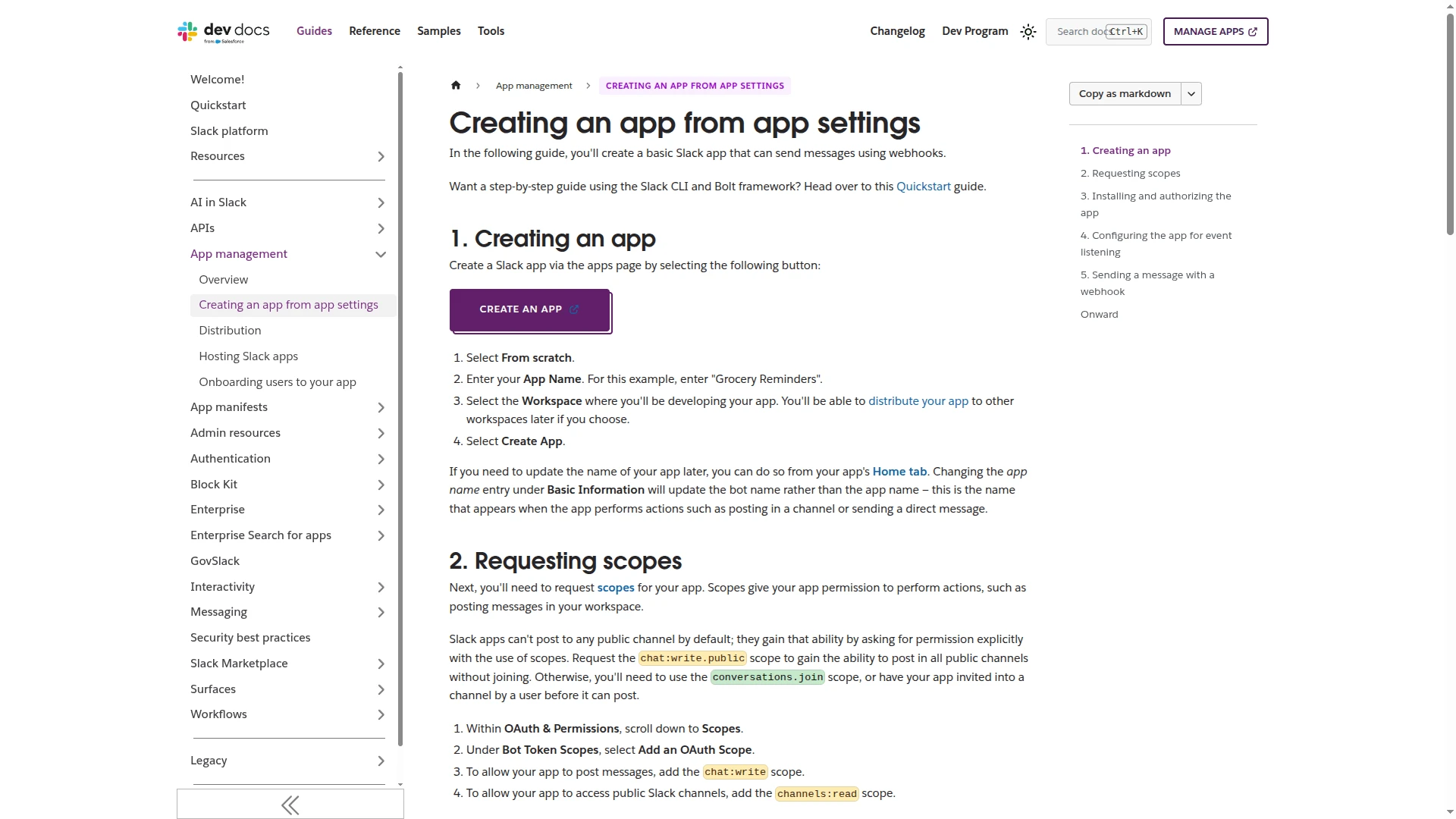
Section titled “Create a Slack App and Get the API Token”You can follow the official Slack guide or complete the steps below.
- Go to api.slack.com/apps and click Create an App.
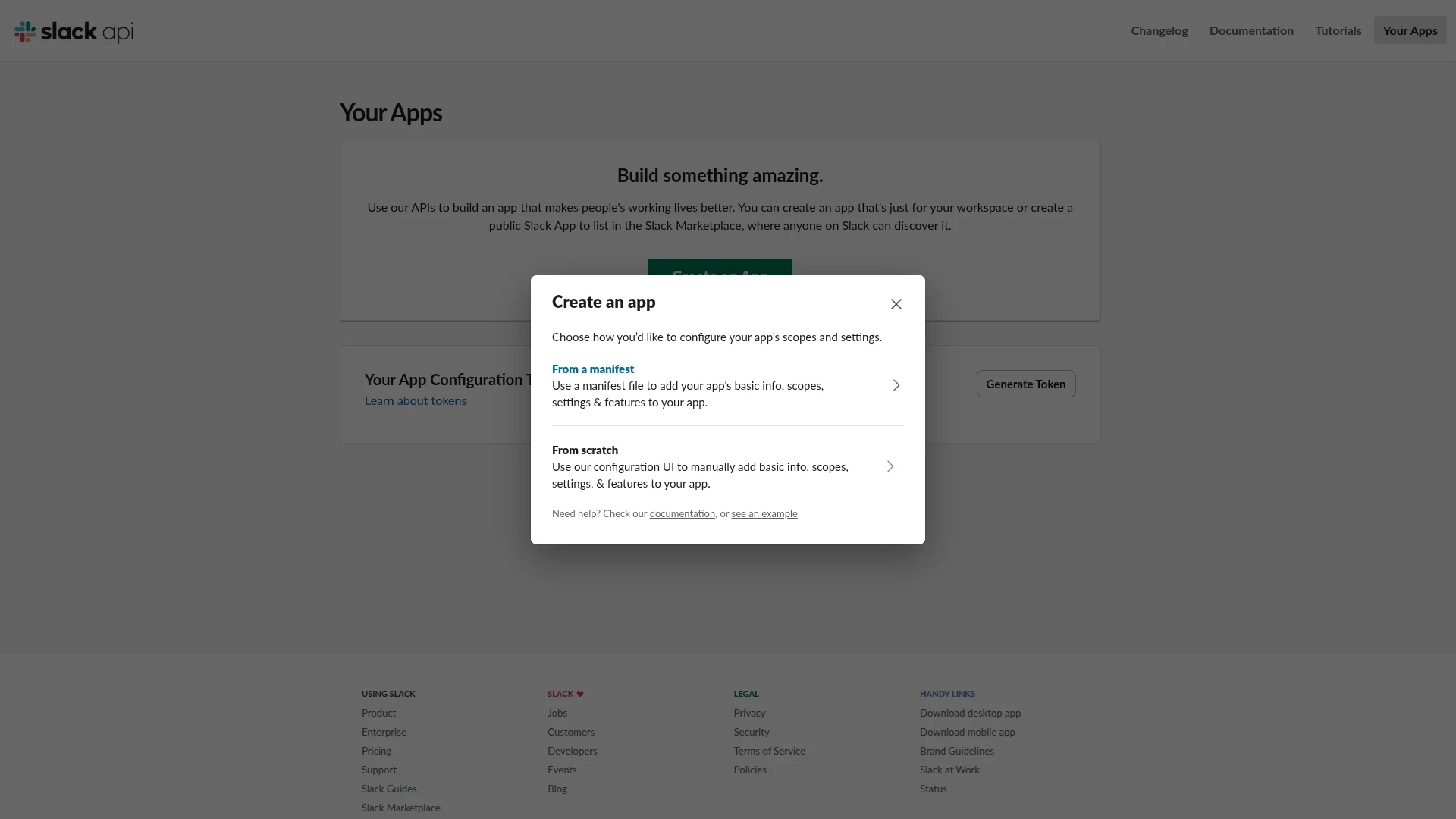
- In the Create an app dialog, select From a manifest.
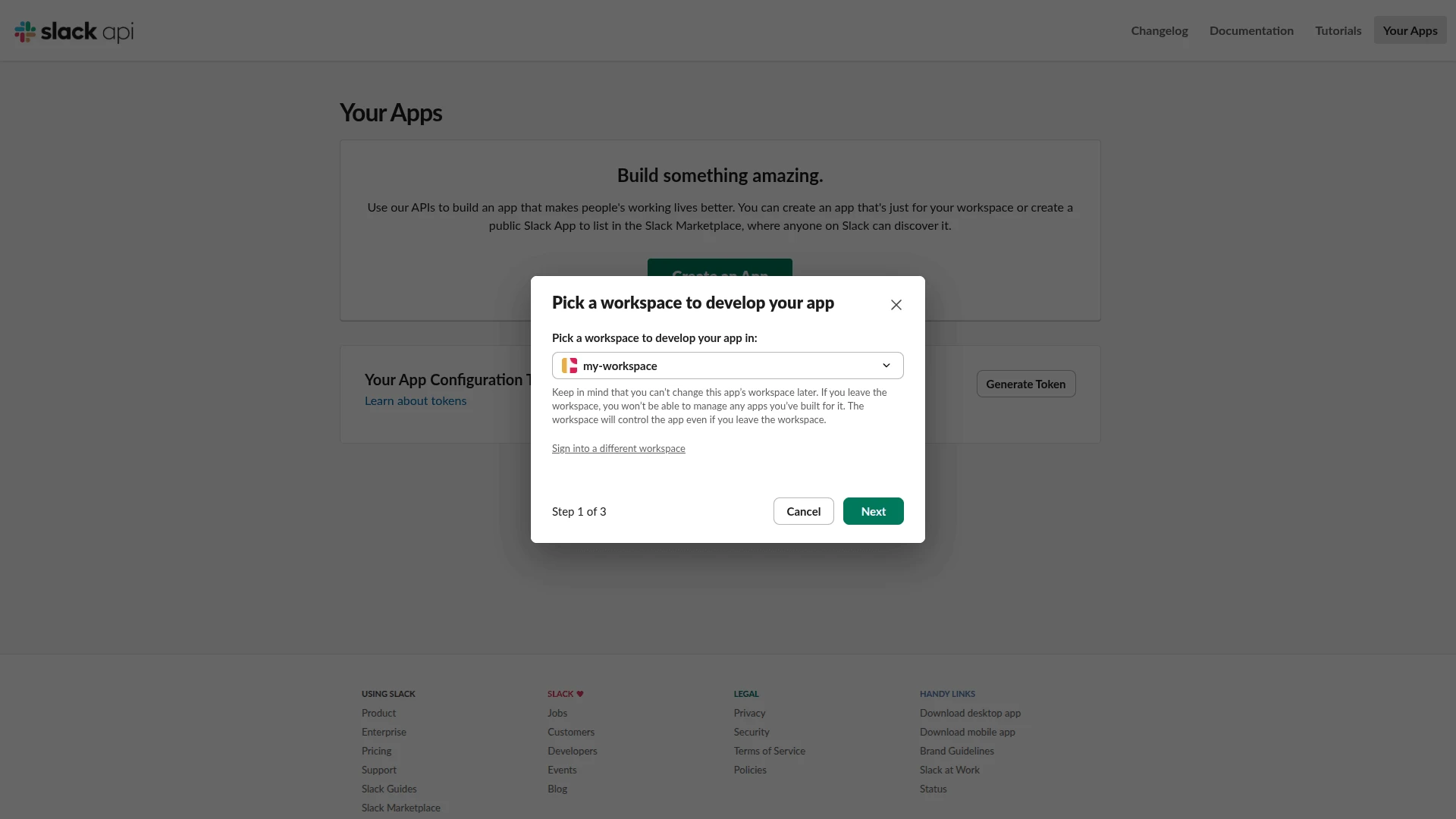
- Select your workspace from the dropdown and click Next.
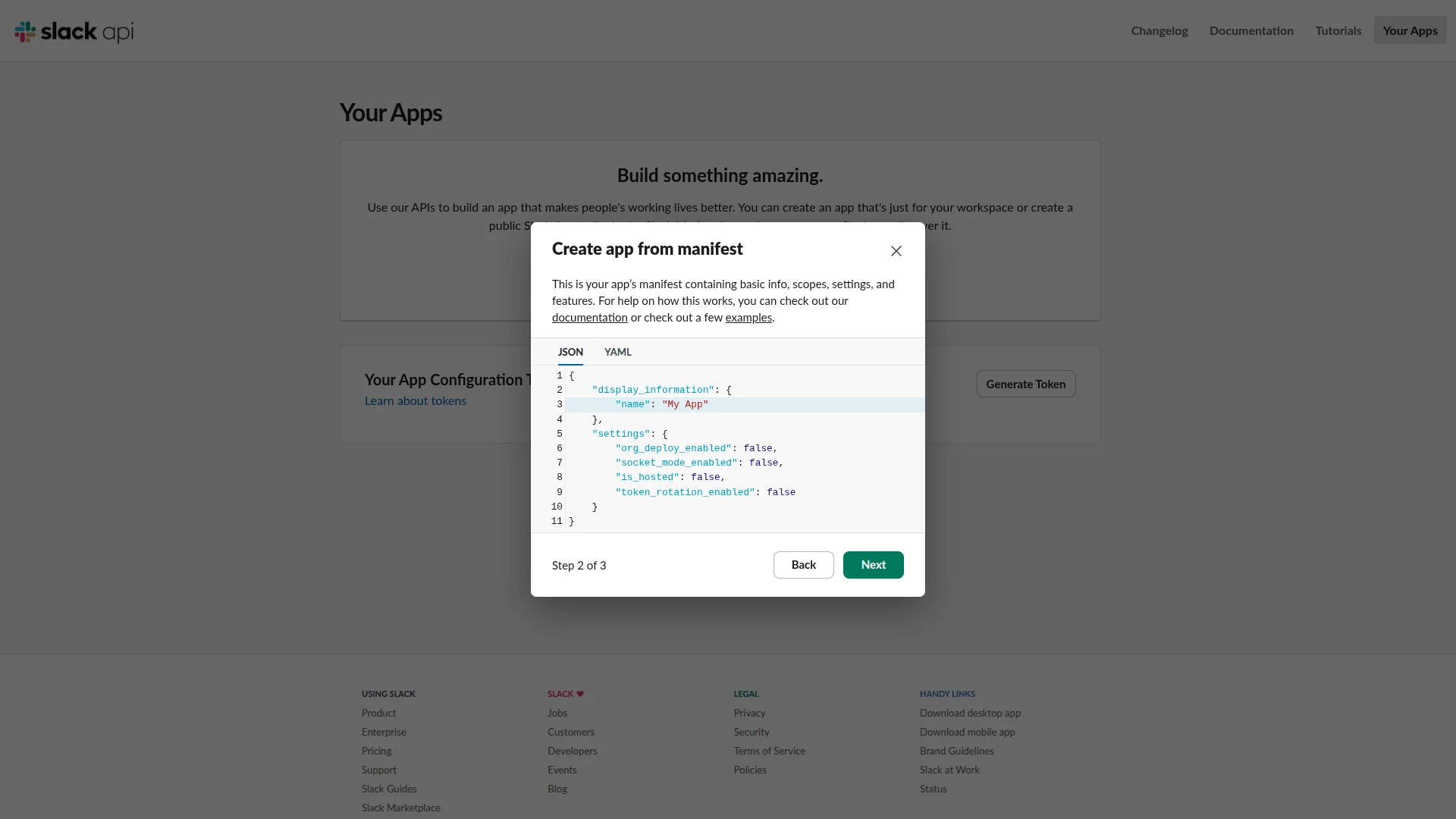
- Review the manifest and click Next.
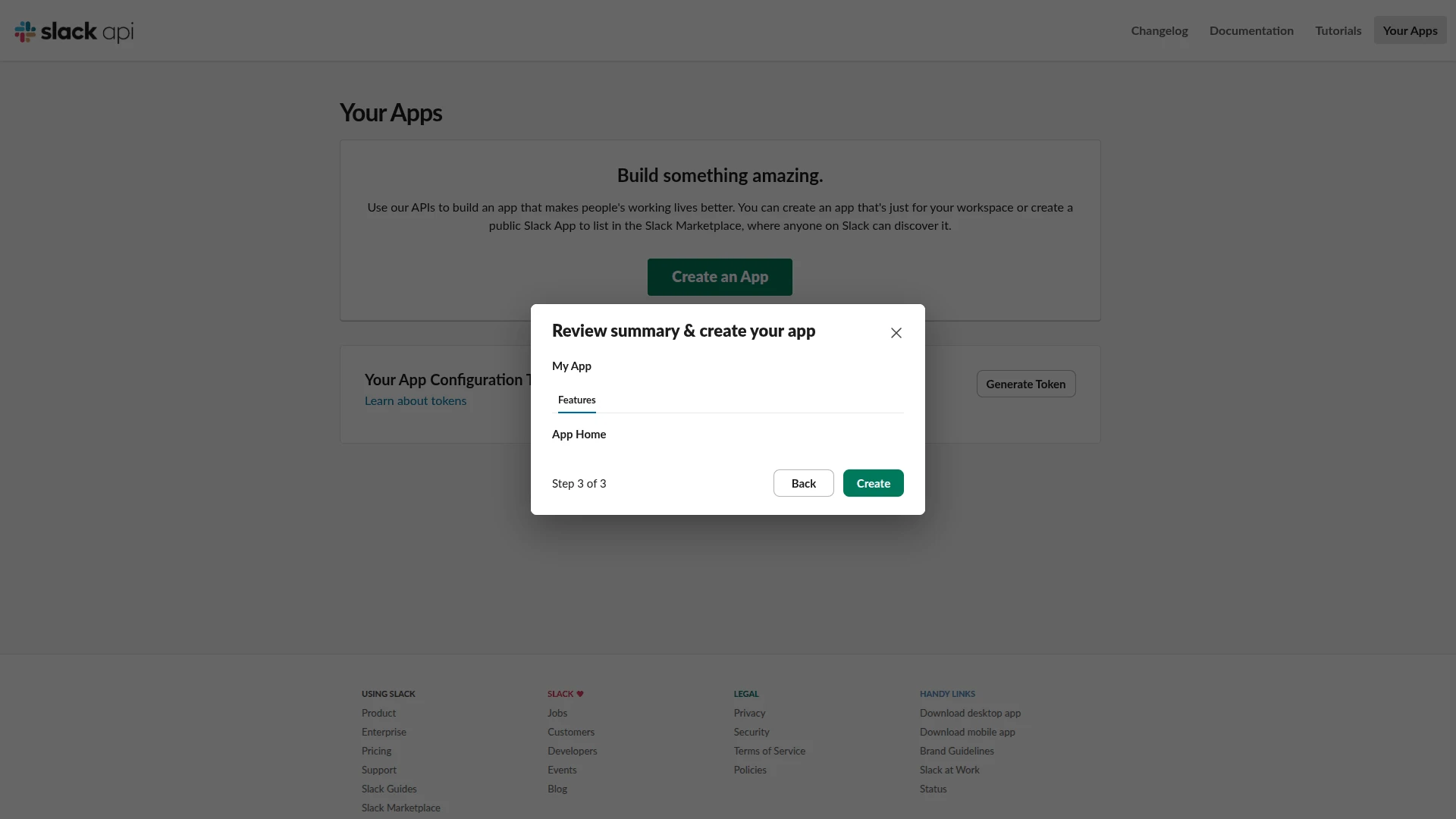
- Review the app summary and click Create.
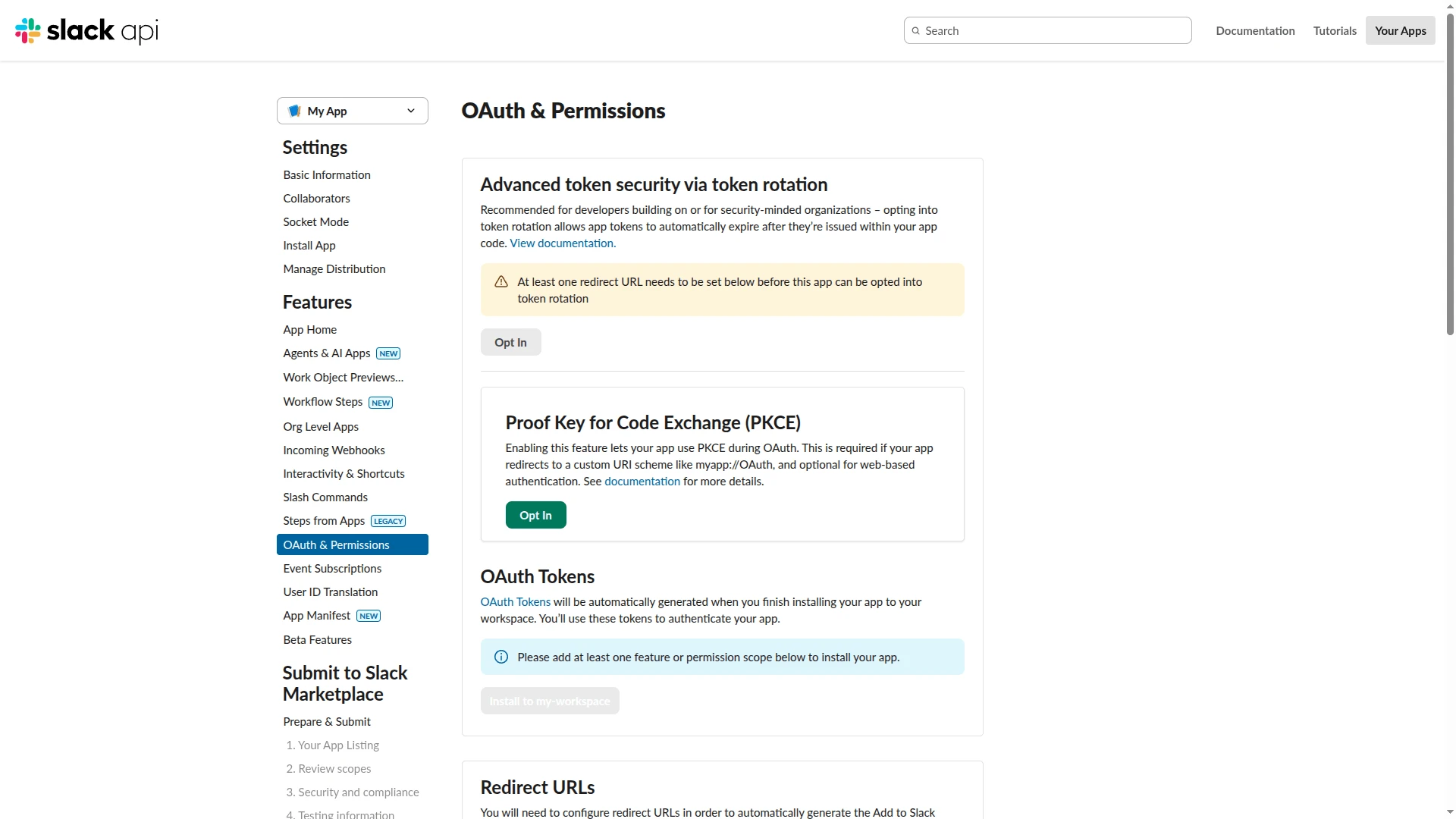
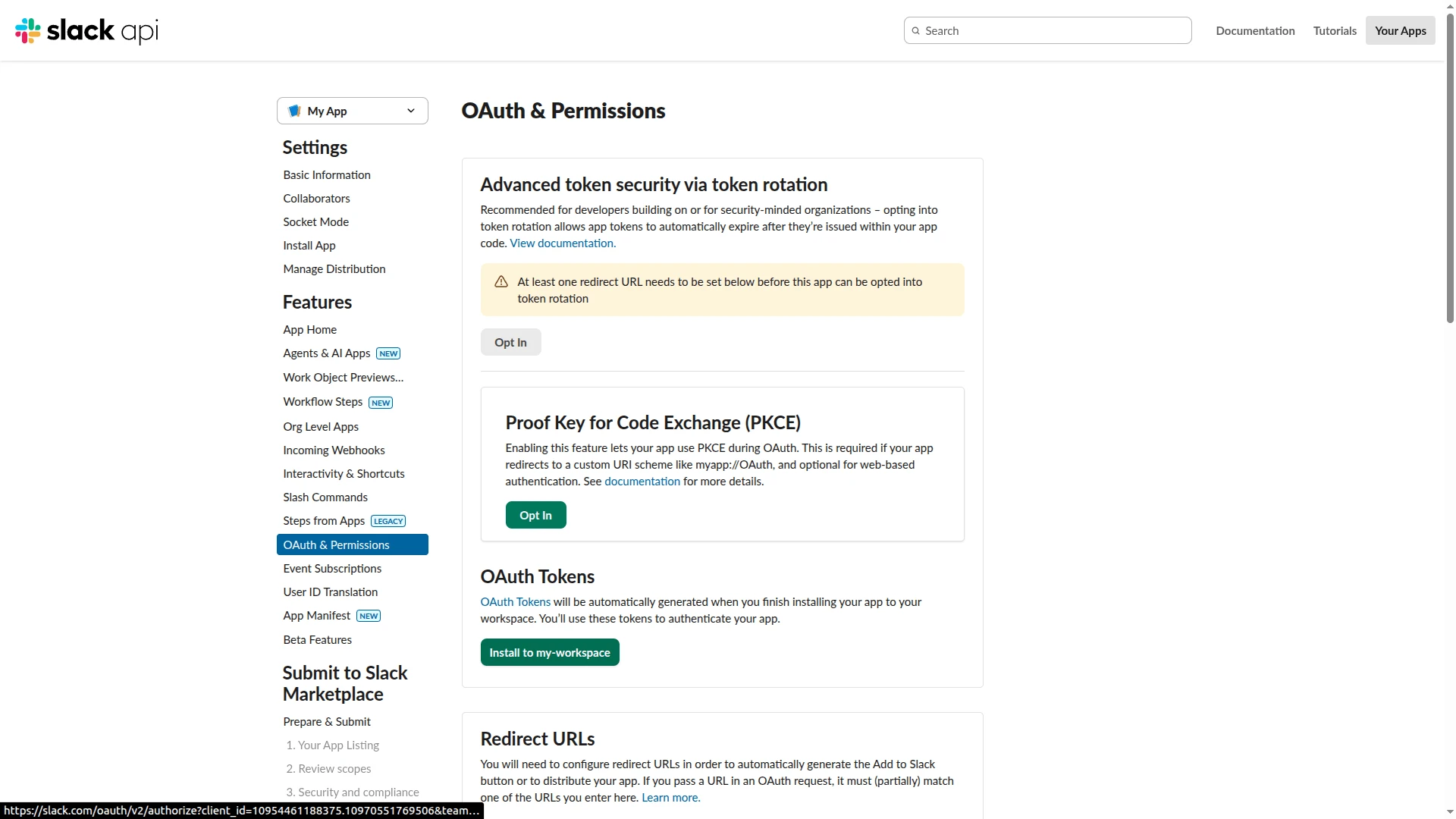
- On the app configuration page, navigate to OAuth & Permissions in the left sidebar.
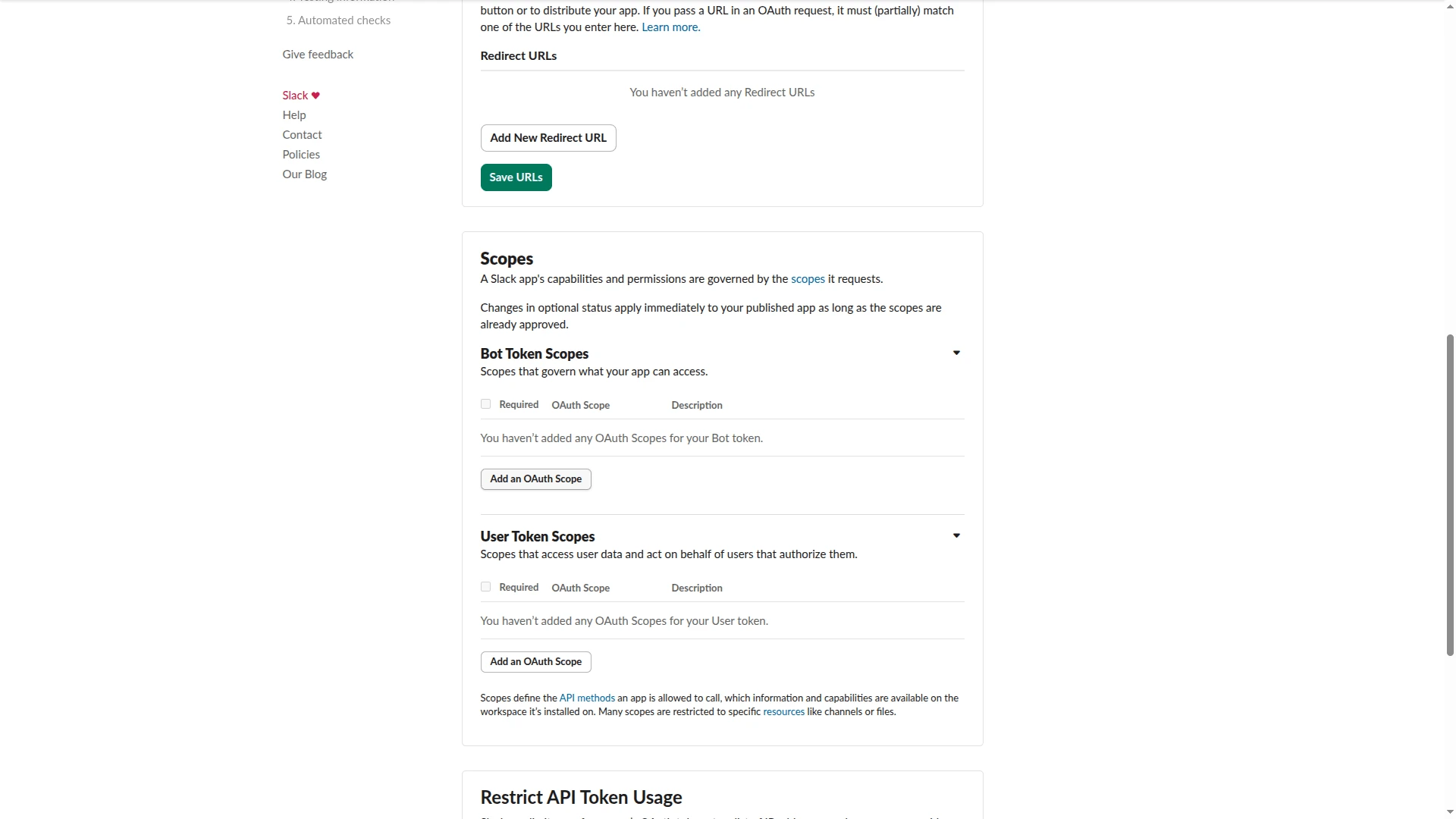
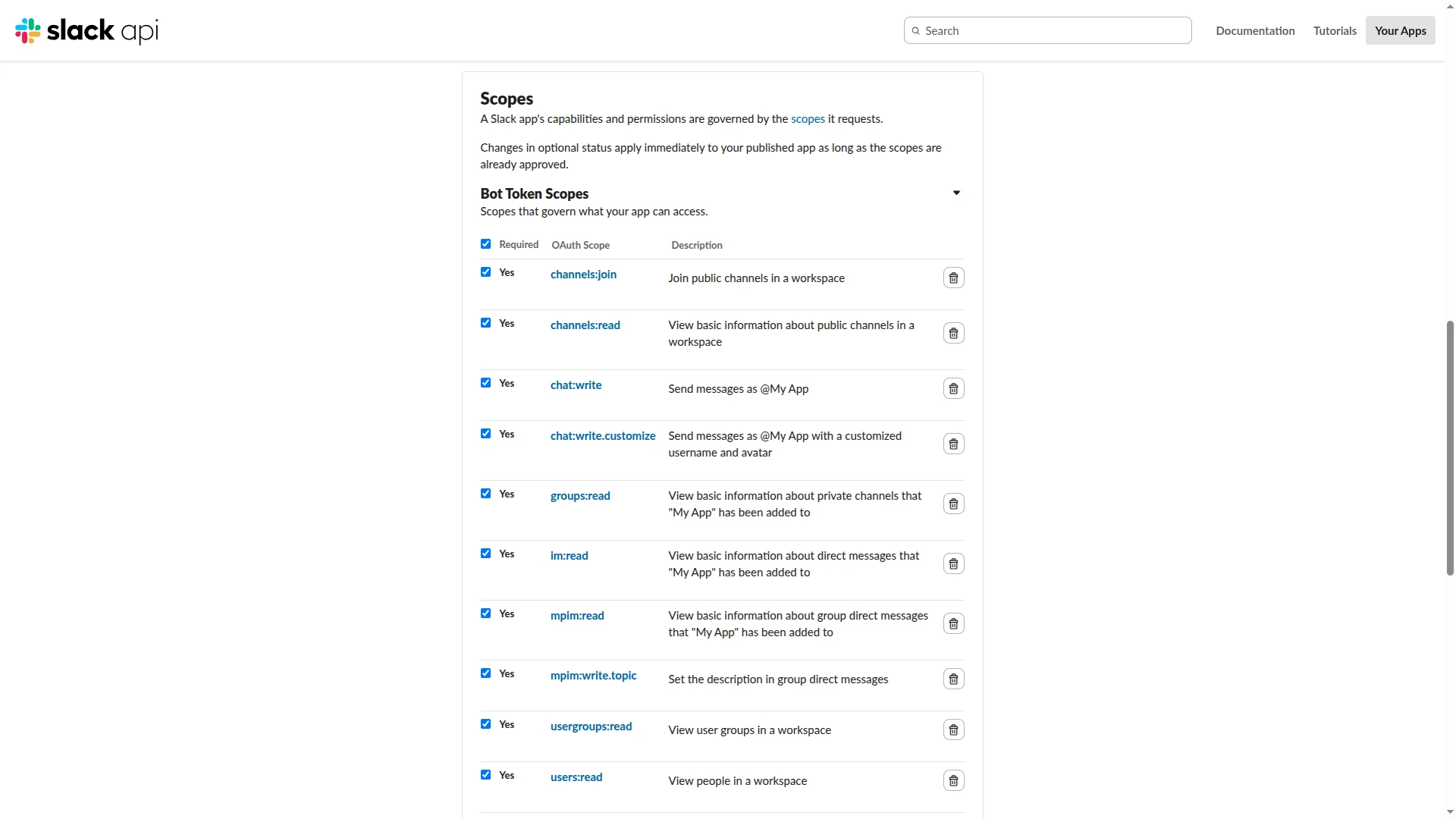
- Scroll to the Scopes section. Under Bot Token Scopes, click Add an OAuth Scope and add all scopes listed in the table below.
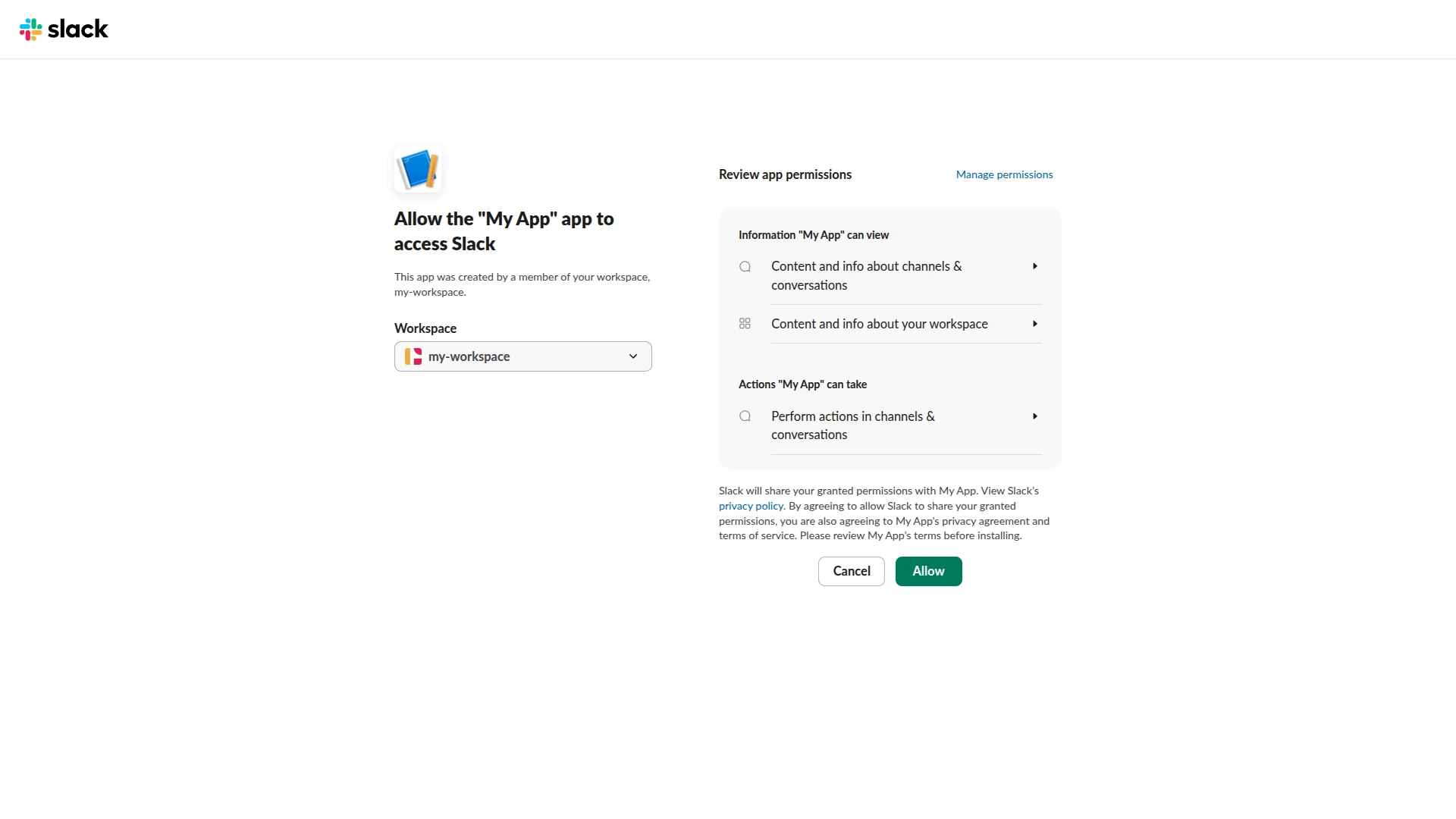
- Scroll to the top of the OAuth & Permissions page and click Install to my workspace.
- Review the requested permissions and click Allow.
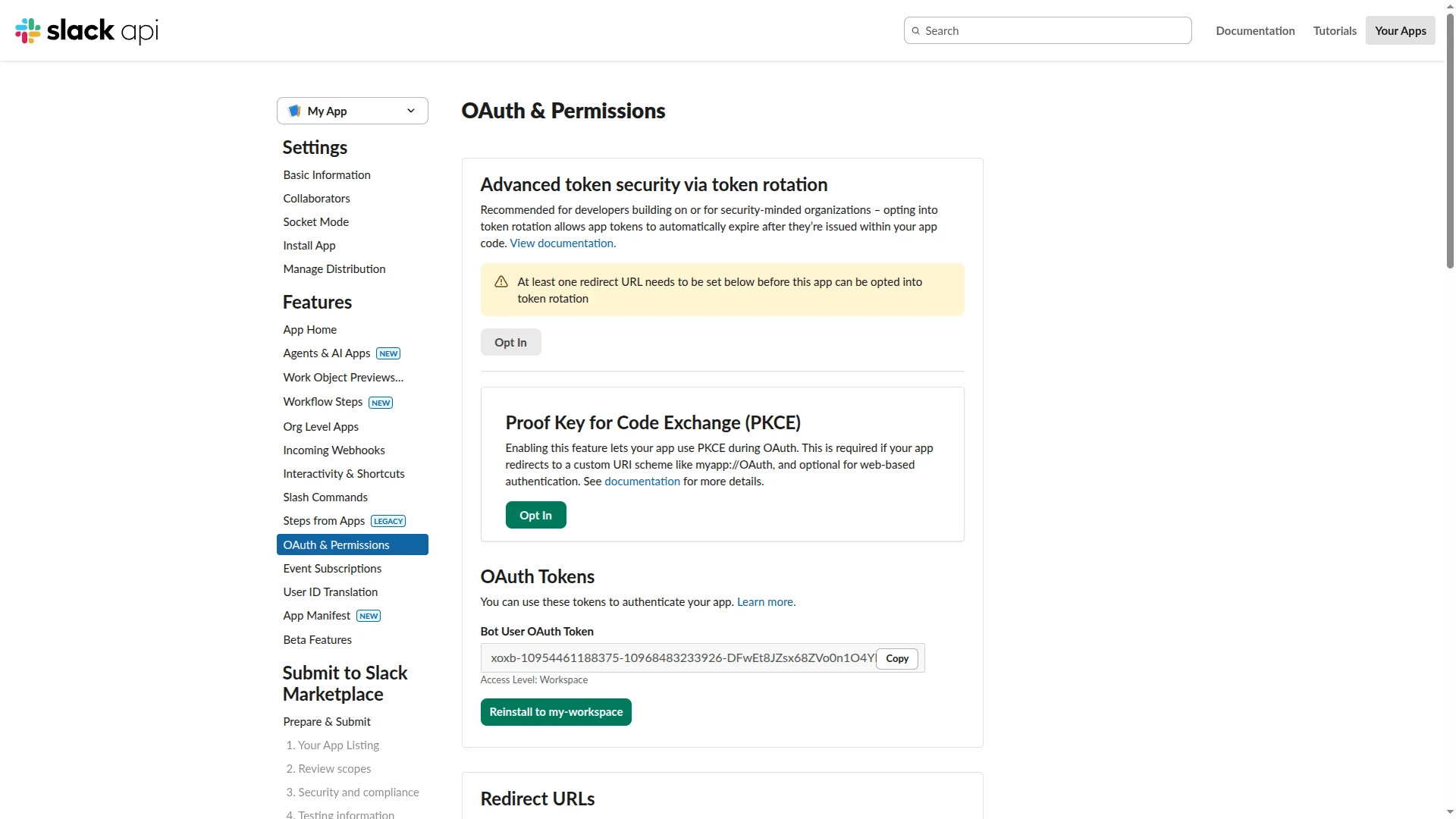
- Copy the Bot User OAuth Token under OAuth Tokens. This is the Slack API token you will use in ThingsBoard.
Required OAuth Scopes
Section titled “Required OAuth Scopes”| Scope | Description |
|---|---|
channels:join |
Join public channels in a workspace |
channels:read |
View basic information about public channels in a workspace |
chat:write |
Send messages as the app |
chat:write.customize |
Send messages as the app with a customized username and avatar |
groups:read |
View basic information about private channels the app has been added to |
im:read |
View basic information about direct messages the app has been added to |
mpim:read |
View basic information about group direct messages the app has been added to |
mpim:write.topic |
Set the description in group direct messages |
usergroups:read |
View user groups in a workspace |
users:read |
View people in a workspace |
Configure Slack Settings in ThingsBoard
Section titled “Configure Slack Settings in ThingsBoard”Both system administrators and tenant administrators can configure Slack settings. Tenant-level settings override the system defaults.
- Navigate to Platform ⇾ Settings and open the Notifications tab.
- Paste the Bot User OAuth Token into the Slack api token field and click Save.
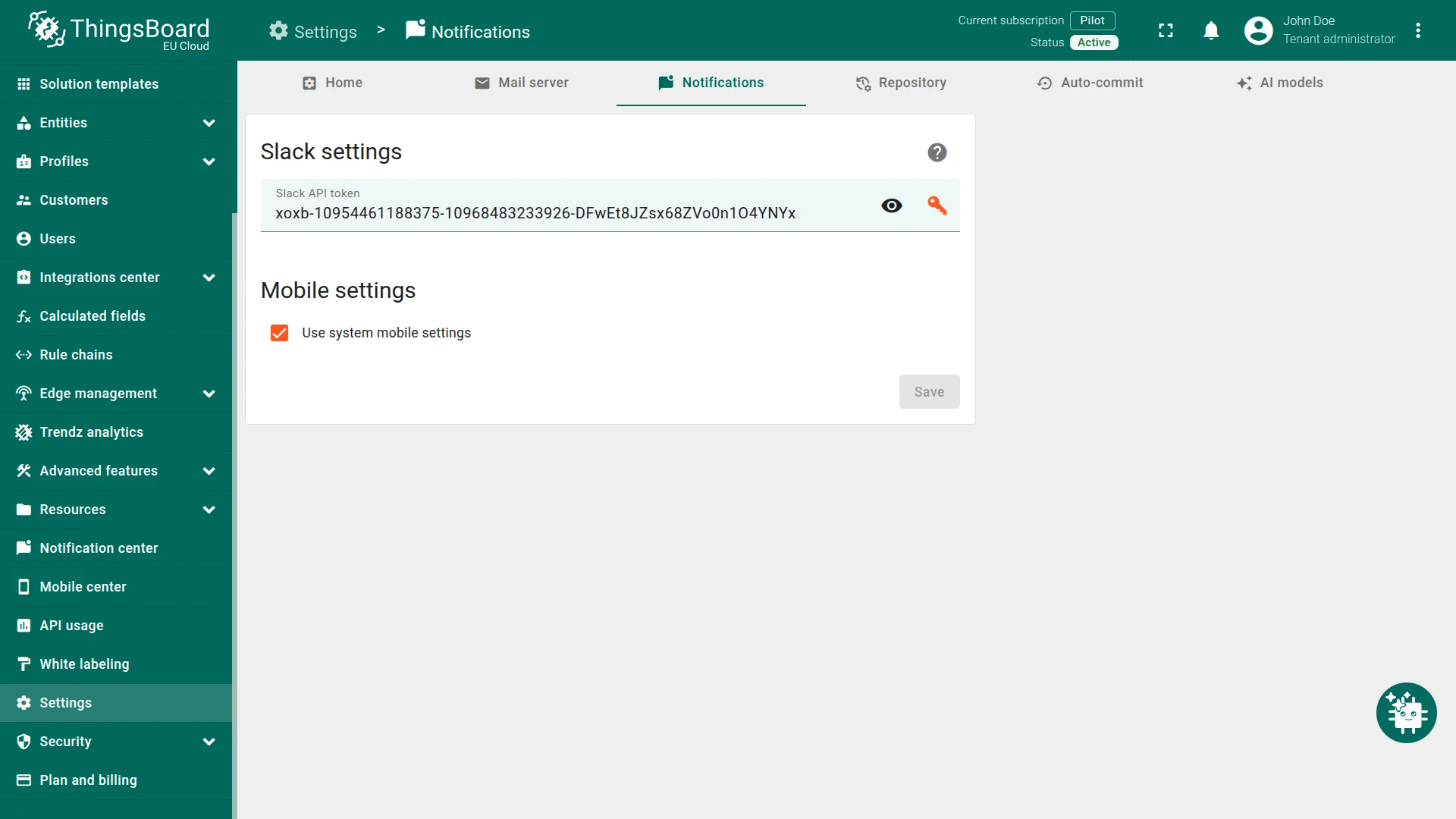
Once configured, ThingsBoard will deliver Slack notifications according to your notification rules.
Troubleshooting
Section titled “Troubleshooting”Token Expired or Revoked
Section titled “Token Expired or Revoked”If the Slack API token expires or is revoked, notification deliveries will fail. You can see delivery failures in the Sent tab of the Monitor ⇾ Notifications. To resolve, generate a new token from the Slack app’s OAuth & Permissions page and update the settings in ThingsBoard.
Invalid Token
Section titled “Invalid Token”Error: Slack API error: {"ok":false,"warning":null,"error":"invalid_auth","needed":null,...}
ThingsBoard cannot authenticate to the Slack API. The problem is with the token, not the channel or bot configuration.
Common causes:
- Token copied with extra spaces or characters
- Token expired or revoked
- User token (
xoxp-) used instead of a Bot token (xoxb-)
- Go to api.slack.com/apps, open your app, and navigate to OAuth & Permissions.
- Copy the Bot User OAuth Token. It starts with
xoxb-. - Paste the token into ThingsBoard with no leading or trailing spaces and no quotes.
- If you recently added or changed scopes, click Reinstall to Workspace first to generate a fresh token.
App Not Added to the Channel
Section titled “App Not Added to the Channel”Error: Slack API error: app needs to be added to the channel
ThingsBoard is trying to send a message to a Slack channel, but the bot does not have access to that channel.
To add the bot to the channel:
- In Slack, open the channel you want the bot to post to.
- Type
/invite @<bot_name>in the message box and press Enter, or go to Channel > Settings > Integrations > Add apps and select your app.
Also verify:
- The channel ID or name configured in ThingsBoard is correct.
- The bot has the required scopes (
chat:write,channels:join, etc.) — see Required OAuth scopes. - The app is installed in the workspace.
Example
Section titled “Example”The Send Slack Message on Alarm recipe walks through the full setup: configuring a Slack recipient, creating an alarm notification template, and setting up a rule that sends a message when an alarm is created.
Was this helpful?