HTTP Integration
HTTP Integration is an entry point for data from any HTTP-capable source — devices, cloud services, custom backends, or third-party services — via standard HTTP POST requests. Use it to bring data from any system that can issue an HTTP request into ThingsBoard for monitoring and rule-based automation — including returning commands as the response to a device’s next request.
When to use HTTP Integration:
- Device or gateway supports HTTP/HTTPS but not MQTT or CoAP.
- Third-party service sends a webhook (payment systems, monitoring, CRM).
- Custom backend needs a simple REST interface to push data into ThingsBoard.
- A quick prototype without an MQTT broker is needed.
Architecture
Section titled “Architecture”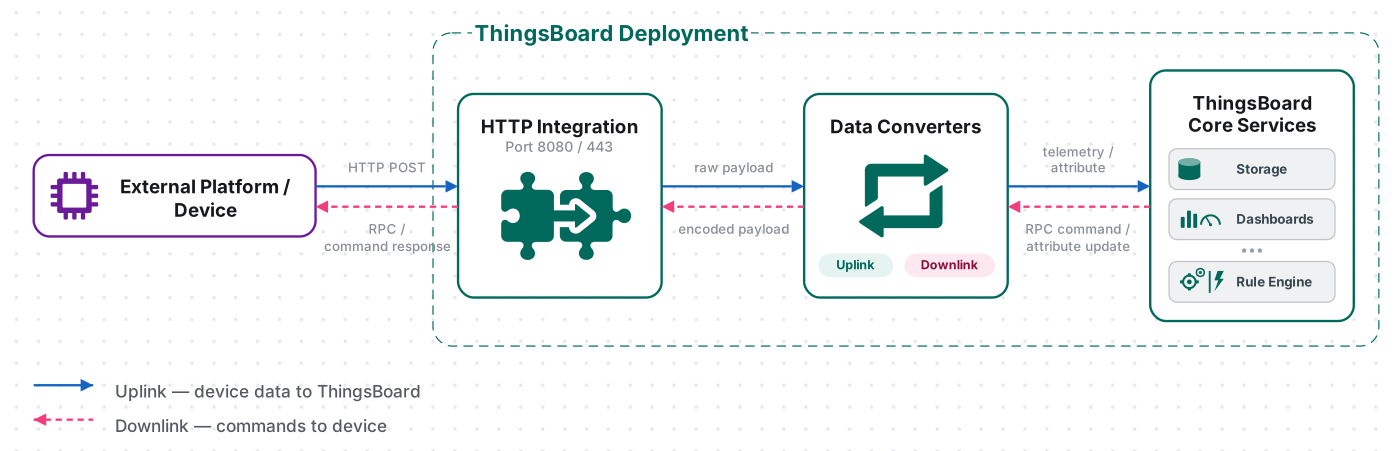
A device or service sends an HTTP POST request to the ThingsBoard HTTP endpoint. The uplink converter decodes the payload into telemetry and attributes, and the ThingsBoard Core Service stores the data, creating the device automatically on first contact when Allow create devices or assets is enabled. Downlink is not pushed separately: when a downlink is queued, the downlink converter encodes the Rule Engine message, and ThingsBoard returns it as the response body to the device’s next uplink request.
Prerequisites
Section titled “Prerequisites”Before creating the integration, ensure:
- You have access to ThingsBoard or ThingsBoard Cloud with integration functionality enabled for your tenant.
- You have permissions to create integrations and data converters.
- You know the structure of the incoming HTTP payload.
Set Up the HTTP Integration
Section titled “Set Up the HTTP Integration”To set up the HTTP integration, first create an uplink data converter to process incoming messages, then create and configure the integration.
Create the Uplink Data Converter
Section titled “Create the Uplink Data Converter”The uplink converter decodes the HTTP request payload — received as an array of bytes — and maps it to ThingsBoard’s data model: it resolves the target device and extracts fields into telemetry and attributes.
You can write your own decoder or pick a ready-made template from the Converters library.
For the full decoder function reference — all input parameters and output fields — see Uplink data converter.
- Go to Integrations ⇾ Data converters.
- Click + Add data converter ⇾ Create new converter.
In the Add data converter dialog:
- Converter type — leave Uplink (selected by default).
- Integration type — in the search field, enter
HTTPand select HTTP from the list. - Name — enter a converter name, for example
HTTP Uplink Converter. Main decoding configuration — a code editor with the function signature
function decoder(payload, metadata) {.
By default it opens in TBEL; use the TBEL / JS toggle (upper right) to switch languages.Basic converter template: a full working template for JSON payloads. Adapt field names to match your device.
// Decode an uplink message from a buffer// payload - array of bytes// metadata - key/value object/** Decoder **/// decode payload to JSONvar data = decodeToJson(payload);// --- Device name and type ---var deviceName = data.deviceName != null ? data.deviceName : 'Unknown Device';var deviceType = data.deviceType != null ? data.deviceType : 'default';// var customerName = 'Customer C';// var groupName = 'thermostat devices';// use assetName and assetType instead of deviceName and deviceType// to automatically create assets instead of devices.// var assetName = 'Asset A';// var assetType = 'building';// --- Timestamp parsing ---var timestamp = -1;if (data.ts != null) {timestamp = data.ts;} else if (data.timestamp != null) {timestamp = new Date(data.timestamp).getTime();}if (timestamp == -1) {timestamp = Date.now();}// --- Telemetry and attributes ---var telemetry = {};var attributes = {model: 'Model A',serialNumber: 'SN111',integrationName: metadata['integrationName'],};// Keys to exclude from telemetry (already used or non-telemetry fields)var excludeFromTelemetryList = ["deviceName", "deviceType", "ts", "timestamp"];// Parse all remaining JSON fields as telemetrytelemetry.putAll(toFlatMap(data, excludeFromTelemetryList, true));// Result object with device attributes/telemetry datavar result = {deviceName: deviceName,deviceType: deviceType,// customerName: customerName,// groupName: groupName,// assetName: assetName,// assetType: assetType,attributes: attributes,telemetry: {ts: timestamp,values: telemetry}};/** Helper functions 'decodeToString', 'decodeToJson' and 'toFlatMap' are already built-in **/return result;// Decode an uplink message from a buffer// payload - array of bytes// metadata - key/value object/** Decoder **/// decode payload to JSONvar data = decodeToJson(payload);// --- Device name and type ---var deviceName = data.deviceName != null ? data.deviceName : 'Unknown Device';var deviceType = data.deviceType != null ? data.deviceType : 'default';// var customerName = 'Customer C';// var groupName = 'thermostat devices';// use assetName and assetType instead of deviceName and deviceType// to automatically create assets instead of devices.// var assetName = 'Asset A';// var assetType = 'building';// --- Timestamp parsing ---var timestamp = -1;if (data.ts != null) {timestamp = data.ts;} else if (data.timestamp != null) {timestamp = new Date(data.timestamp).getTime();}if (timestamp == -1) {timestamp = Date.now();}// --- Telemetry and attributes ---var telemetry = {};var attributes = {model: 'Model A',serialNumber: 'SN111',integrationName: metadata['integrationName'],};// Keys to exclude from telemetry (already used or non-telemetry fields)var excludeFromTelemetryList = ["deviceName", "deviceType", "ts", "timestamp"];// Parse all remaining JSON fields as telemetrytoFlatMap(data, telemetry, excludeFromTelemetryList);// Result object with device attributes/telemetry datavar result = {deviceName: deviceName,deviceType: deviceType,// customerName: customerName,// groupName: groupName,// assetName: assetName,// assetType: assetType,attributes: attributes,telemetry: {ts: timestamp,values: telemetry}};/** Helper functions **/function decodeToString(payload) {return String.fromCharCode.apply(String, payload);}function decodeToJson(payload) {var str = decodeToString(payload);return JSON.parse(str);}function toFlatMap(obj, result, excludeList, prefix) {prefix = prefix || '';for (var key in obj) {if (excludeList.indexOf(key) !== -1) continue;var value = obj[key];var fullKey = prefix ? prefix + '.' + key : key;if (typeof value === 'object' && value !== null && !Array.isArray(value)) {toFlatMap(value, result, excludeList, fullKey);} else {result[fullKey] = value;}}}return result;- Click Add.
Converter Input Variables
ThingsBoard passes two variables to the decoder. Function signature: function decoder(payload, metadata): object | object[]
| Variable | Type | Description |
|---|---|---|
payload |
byte array | The body of the HTTP request. HTTP Integration determines the content type based on request headers — JSON, TEXT, or BINARY depending on Content-Type. The type is a hint for debug events and does not affect function execution. |
metadata |
{[key: string]: string} |
Key/value map with integration-specific fields: integrationName, includeGatewayInfo, etc. Additional fields can be configured in the integration details. |
To work with the payload, use the built-in helper functions:
| Function | Result |
|---|---|
decodeToJson(payload) |
Parse bytes as JSON ⇾ return a JS object |
decodeToString(payload) |
Convert bytes to a string (UTF-8) |
toFlatMap(obj, excludeKeys, flatNested) |
TBEL built-in. Flatten obj into a flat key/value map; keys in excludeKeys are skipped; when flatNested is true, nested objects produce dot-separated keys. Returns the flat map — assign with result.putAll(...). The JS tab defines its own toFlatMap(obj, result, excludeList) helper with a different signature — it writes directly into the result map passed as the second argument. |
For common scripting patterns — renaming fields, extracting nested values, normalizing data, and handling non-JSON payloads — see Uplink data converter: Common scripting patterns.
Testing the Converter in the Editor
Click the Test decoder function button below the editor — the Test decoder function (TBEL) dialog opens with four panels:
Fill in the fields:
Payload content type: Json
Payload content:
{ "deviceName": "Thermometer", "deviceType": "thermostat", "humidity": 50, "temperature": 21}Metadata — two rows (key / value):
| Key | Value |
|---|---|
integrationName |
HTTP integration |
includeGatewayInfo |
false |
Click Test — in the Output panel you should see:
{ "deviceName": "Thermometer", "deviceType": "thermostat", "attributes": { "model": "Model A", "serialNumber": "SN111", "integrationName": "HTTP integration" }, "telemetry": { "ts": 1780055515934, "values": { "humidity": 50, "temperature": 21 } }}Make sure deviceName is not empty and telemetry.values contains the expected keys. If Output is empty or shows an error, check the converter code in the Decoder panel.
After a successful test, click Add to save the converter.
Create the HTTP Integration
Section titled “Create the HTTP Integration”- Go to Integrations ⇾ Integrations and click + Add integration.
- Basic settings:
- Set integration type to HTTP.
- Enter a Name for the integration, or keep the default
HTTP integration. - Leave Enable integration and Allow create devices or assets on so the device is created automatically on first data.
- Click Next.
- Uplink data converter:
- Click Select existing and choose the HTTP Uplink Converter created in the previous step.
- Alternatively, click Create new to define the decoder inline, or use Library to load a vendor-provided preset.
- Click Next.
- Downlink data converter:
- Click Skip — a downlink converter is only needed when ThingsBoard must send data back to the device (e.g., RPC commands or shared attribute updates). It can be configured later.
- Connection:
- Copy the auto-generated HTTP endpoint URL — you will use it to send uplink messages.
- In Advanced settings, enable Replace response status from “No-Content” to “OK” if your device or client requires a
200 OKresponse — by default the integration returns204 No Content.
- Click Add to complete the integration setup.
Connection Settings
Section titled “Connection Settings”Base URL
The base address of the ThingsBoard server, used to construct the HTTP endpoint URL.
Example: https://thingsboard.cloud
HTTP Endpoint URL
Auto-generated endpoint for this integration. Accepted methods:
POST/PUT— submit an uplink messageGET— status check; returns200 OKwhen the integration is reachable
Format: {baseUrl}/api/v1/integrations/http/{integrationKey}
The integrationKey is a UUID assigned at creation time, visible in the Connection step of the wizard.
Enable Security (Headers Filter)
When enabled, ThingsBoard validates each incoming request against a list of required HTTP header name/value pairs. Requests missing any configured header are rejected.
| Field | Description |
|---|---|
| Header | Name of the required HTTP header (e.g. Authorization, X-API-Key) |
| Value | Required value for that header (e.g. Bearer my-token) |
Multiple header filters can be added. All configured headers must be present in every request.
Execute Remotely
When enabled, ThingsBoard generates an Integration key and Integration secret. These credentials allow the integration to run as a separate process outside the ThingsBoard cluster — useful when the integration must reach services not accessible from the ThingsBoard server (e.g., in a DMZ or on-premises environment).
Advanced Settings
| Parameter | Default | Description |
|---|---|---|
| Replace response status from “No-Content” to “OK” | off | Controls the response code when an uplink produces data and no downlink is queued: 204 No Content (off) or 200 OK (on). Two cases override this setting: if the converter returns an empty result ({} or []), the integration always responds with 204 regardless; if a downlink is queued, the integration always responds with 200 OK and the downlink payload regardless. |
Metadata
Optional key–value pairs attached to the integration. These values are injected into every message processed by the integration and are accessible in converter scripts via the metadata object.
Test Uplink
Section titled “Test Uplink”After the integration is created, send a test uplink and confirm that ThingsBoard received the message, decoded it correctly, and provisioned the device.
Send Test Uplink
Section titled “Send Test Uplink”Test the integration using curl or any HTTP client by sending a test message. Replace $YOUR_HTTP_ENDPOINT_URL with the HTTP endpoint URL you copied during setup.
curl -v -X POST -d '{"deviceName":"Thermometer A","deviceType":"thermostat","temperature":33}' $YOUR_HTTP_ENDPOINT_URL -H "Content-Type:application/json"Expected response depends on the Replace response status setting in Advanced settings:
| Setting | Response |
|---|---|
| Off (default) | HTTP/2 204 |
| On | HTTP/2 200 |
Verify Integration Events
Section titled “Verify Integration Events”Go to Integrations ⇾ Integrations, open HTTP integration, and click the Events tab. Each successfully processed uplink appears as a row with status OK.
Verify Converter Events
Section titled “Verify Converter Events”To inspect converter processing, go to Integrations ⇾ Data converters, click HTTP Uplink Converter, and open its Events tab:
- In shows the raw payload passed to the converter
- Out shows the decoded result (
deviceName,deviceType,attributes,telemetry) - Metadata contains the HTTP request headers and integration name
Verify Device Provisioning
Section titled “Verify Device Provisioning”Go to Devices & assets ⇾ Devices — device Thermometer A is provisioned automatically by the integration. Click it and open the Latest telemetry tab to confirm temperature = 33.
Secure HTTP Integration with Header Filters
Section titled “Secure HTTP Integration with Header Filters”A header filter protects the integration endpoint by requiring every incoming HTTP request to include one or more specific headers with exact values. Requests missing a required header or sending the wrong value are rejected with 403 Unauthorized before reaching the converter.
Use this to prevent unauthorized systems from pushing arbitrary data to your ThingsBoard endpoint.
- Open the HTTP integration and click Toggle edit mode (pencil icon, top right).
- Enable Enable security (Headers filter).
- Click Add to add a row. Enter the Header name and its expected Value, then click Add to confirm.
- Repeat to add more headers if needed — all configured headers must be present in every request.
- Click Apply changes.
Header filter fields:
| Field | Description |
|---|---|
| Header | HTTP header name ThingsBoard checks on each incoming request |
| Value | Exact value required in that header |
Example: Authorization header
A common pattern is to protect the endpoint with a bearer token. Set Header to Authorization and Value to Bearer my-secret-token, then include the header in every uplink request. Replace $YOUR_HTTP_ENDPOINT_URL with the HTTP endpoint URL copied during setup:
curl -v -X POST \ -d '{"deviceName":"Thermometer A","deviceType":"thermostat","temperature":33,"model":"SN-001"}' \ $YOUR_HTTP_ENDPOINT_URL \ -H "Content-Type: application/json" \ -H "Authorization: Bearer my-secret-token"Any request without the correct Authorization header is rejected.
Configure Downlink
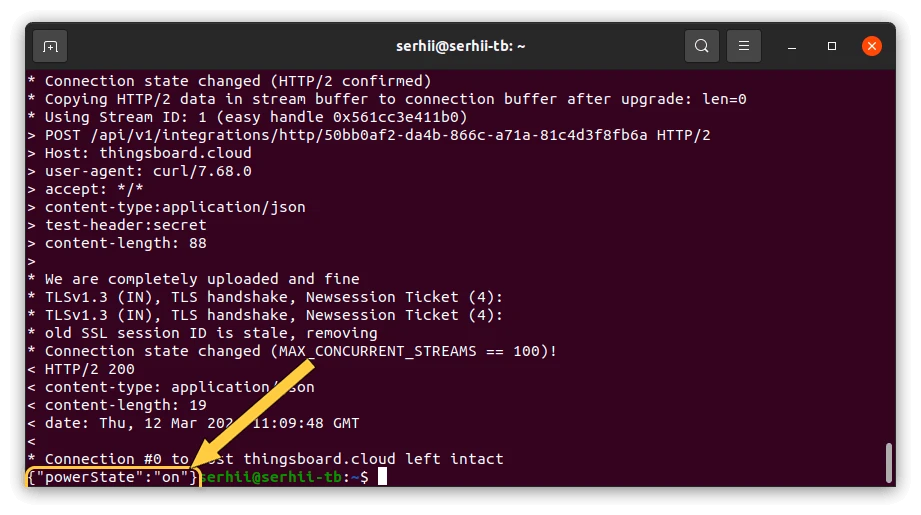
Section titled “Configure Downlink”Downlink allows ThingsBoard to send commands back to the device in response to a request or trigger. HTTP downlinks are not pushed to the device — they are delivered as the response body to the device’s next uplink request. When a downlink is queued, the integration returns 200 OK with the encoded payload instead of 204 No Content.
The downlink converter transforms a Rule Engine message into the HTTP response body. For the full encoder function reference, see Downlink data converter.
When Downlink Is Needed
- The device polls — it sends a POST and expects a command in the response.
- You need to confirm receipt of data with a configuration payload.
Create and Assign the Downlink Converter
Section titled “Create and Assign the Downlink Converter”- Go to Integrations ⇾ Integrations and open the HTTP integration.
- Click the pencil icon (Toggle edit mode, top right).
- In the Downlink data converter field, click Create new.
- In the Add data converter dialog, the Downlink converter type and HTTP integration type are preselected:
- Enter a name for the converter, for example,
HTTP Downlink Converter. - The Main encoding configuration editor opens pre-filled with the default encoder script shown below. Use it as-is for this tutorial, or replace it with your own implementation.
- To record downlink events for testing, click the debug icon next to the name field, enable All messages, and click Apply.
- Click Add.
- Enter a name for the converter, for example,
- Click Apply changes to save the integration.
The encoder function used in this tutorial:
/** Encoder **/
// Encode downlink data from the incoming Rule Engine message.// msg: JSON message payload.// msgType: message type, e.g. 'ATTRIBUTES_UPDATED', 'POST_TELEMETRY_REQUEST', etc.// metadata: key-value pairs containing additional message data.// integrationMetadata: key-value pairs configured in the integration.
var result = {    // Specify the HTTP response body format: JSON, TEXT, or BINARY.    contentType: "JSON",
    // Serialize the incoming message and use it as the HTTP response body.    data: JSON.stringify(msg),
    // Add optional metadata when required by the integration.    metadata: {}};
return result;
Configure the Root Rule Chain
Section titled “Configure the Root Rule Chain”To send downlinks through the integration, modify the Root Rule Chain:
- Go to Data processing ⇾ Rule chains and open the Root Rule Chain.
- Find the integration downlink node in the node library panel on the left. Drag it onto the canvas.
- In the node configuration dialog, enter a name (e.g.
Downlink to HTTP integration) and select your HTTP integration. Click Add. - Connect the message type switch node to the newly created integration downlink node using the Post attributes and Attributes Updated relation types to trigger downlinks whenever shared attributes are created or updated.
- Apply the changes.
Test Downlink
Section titled “Test Downlink”When a shared attribute is created or updated, the Rule Engine routes the event to the integration, which queues the encoded payload as the response to the device’s next uplink.
Trigger a Downlink
Section titled “Trigger a Downlink”- Go to Devices & assets ⇾ Devices, select your device, and navigate to the Attributes tab.
- Select Shared attributes from the Entity attributes scope dropdown, then click + to add a new attribute.
- In the Add attribute dialog, set the Key (e.g.
powerState), choose a Type (e.g.String), and enter a Value (e.g.on). - Click Add.
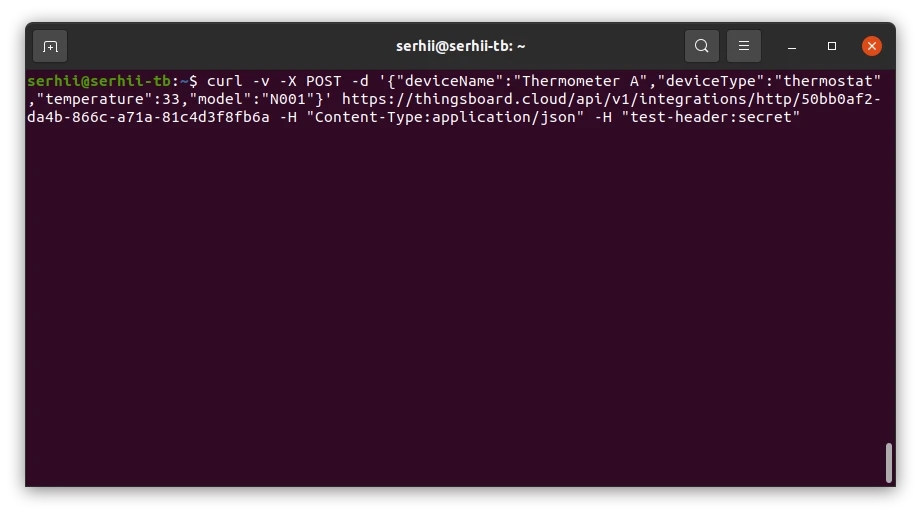
Send the uplink message again. ThingsBoard returns the downlink payload in the HTTP response:
Verify the Downlink
Section titled “Verify the Downlink”To inspect the exchange, open the downlink converter’s Events tab — In shows the Rule Engine message, Out shows the encoded response, Metadata shows the request headers.
Converter Examples by Payload Type
Section titled “Converter Examples by Payload Type”Scenario A: Simple JSON — Explicit Telemetry Fields
Use when the payload structure is well known and has few fields — each telemetry field is mapped explicitly.
Input payload:
{ "deviceName": "Thermometer A", "deviceType": "thermostat", "model": "SN-001", "param2": "SN-12345", "temperature": 25.0}Converter:
/** Decoder **/
// Decode JSON bodyvar data = decodeToJson(payload);
var deviceName = data.deviceName;var deviceType = data.deviceType;
// Result object with device attributes/telemetry datavar result = {   deviceName: deviceName,   deviceType: deviceType,   attributes: {       model: data.model,       serialNumber: data.param2,  // renamed: param2 → serialNumber   },   telemetry: {       temperature: data.temperature   }};
/** Helper functions 'decodeToString' and 'decodeToJson' are already built-in **/
return result;
Field mapping:
| JSON field | Output field | Type | Notes |
|---|---|---|---|
deviceName |
deviceName |
— | Device identifier; auto-creates the device on first uplink |
deviceType |
deviceType |
— | Device profile name |
model |
model |
attribute | |
param2 |
serialNumber |
attribute | Field is renamed in the output |
temperature |
temperature |
telemetry |
For request body {"deviceName":"Thermometer A","deviceType":"thermostat","model":"SN-001","param2":"SN-12345","temperature":25.0} the decoder produces:
{ "deviceName": "Thermometer A", "deviceType": "thermostat", "attributes": { "model": "SN-001", "serialNumber": "SN-12345" }, "telemetry": { "temperature": 25.0 }}To adapt this converter to your device:
- Device name from a different field — replace
data.deviceNamewith the field that carries the device identifier in your payload. - Hardcoded device type — replace
data.deviceTypewith a string literal (e.g.'thermostat') if all devices share the same profile. - Rename a field — use
outputName: data.sourceFieldto store the value under a different key in ThingsBoard (as shown withserialNumber: data.param2). - Different telemetry or attribute fields — add, remove, or rename entries in the
telemetryandattributesblocks. - Non-JSON payload — replace
decodeToJson(payload)withdecodeToString(payload)and parse the string manually.
Scenario B: Array of Readings in One Request (Multiple Devices)
Use when a gateway or aggregator collects data from multiple nodes and sends them in a single HTTP request. The converter iterates over the array and returns one result object per device. ThingsBoard processes each element independently — creating or updating each device separately.
Input payload:
{ "gateway": "gw-01", "readings": [ { "device": "node-1", "temp": 21.0, "ts": 1700000001000 }, { "device": "node-2", "temp": 19.5, "ts": 1700000001000 } ]}Converter:
/** Decoder **/
var data   = decodeToJson(payload);var result = [];
for (var i = 0; i < data.readings.length; i++) {    var r = data.readings[i];    result.push({        deviceName: r.device,        deviceType: 'node-sensor',        attributes: {            gateway:         data.gateway,            integrationName: metadata['integrationName']        },        telemetry: {            ts:     r.ts,            values: { temperature: r.temp }        }    });}
/** Helper functions 'decodeToString', 'decodeToJson' and 'toFlatMap' are already built-in **/
return result;
Field mapping:
| JSON field | Output field | Type | Notes |
|---|---|---|---|
readings[i].device |
deviceName |
— | Each array element creates or updates a separate device |
'node-sensor' |
deviceType |
— | Hardcoded device profile shared by all nodes |
gateway |
gateway |
attribute | Top-level field applied to every device in the array |
readings[i].ts |
ts |
— | Per-reading timestamp in milliseconds |
readings[i].temp |
temperature |
telemetry | Field is renamed in the output |
For the payload above the decoder produces:
[ { "deviceName": "node-1", "deviceType": "node-sensor", "attributes": { "gateway": "gw-01", "integrationName": "Test HTTP" }, "telemetry": { "ts": 1700000001000, "values": { "temperature": 21.0 } } }, { "deviceName": "node-2", "deviceType": "node-sensor", "attributes": { "gateway": "gw-01", "integrationName": "Test HTTP" }, "telemetry": { "ts": 1700000001000, "values": { "temperature": 19.5 } } }]To adapt this converter to your device:
- Different array field name — replace
data.readingswith the name of the array in your payload (e.g.data.messages,data.sensors). - Device name from a different field — replace
r.devicewith the field inside each array element that carries the device identifier (e.g.r.id,r.serialNumber). - Multiple telemetry fields per reading — extend the
valuesobject with additional fields from each element (e.g.humidity: r.hum,battery: r.bat). - Timestamp in seconds — convert to milliseconds:
ts: r.ts * 1000. - No timestamp in readings — replace
ts: r.tswithts: Date.now()to use server time. - Per-device type — replace the hardcoded
'node-sensor'withr.typeif each reading carries its own device profile.
Scenario C: Nested JSON + toFlatMap for Automatic Flattening
Use when the payload has a deeply nested structure and you want to automatically map all remaining fields to telemetry without listing each one explicitly. toFlatMap traverses the object recursively and produces dot-separated keys for nested fields (sensors.co2, sensors.pm25). Fields listed in excludeKeys are skipped — use this to separate device identity and metadata from measurements.
Input payload:
{ "deviceName": "air-monitor-X", "deviceType": "air-quality", "meta": { "source": "cloud", "version": "2.0" }, "sensors": { "co2": 412, "pm25": 8.2, "voc": 0.3 }, "location": { "lat": 50.45, "lon": 30.52 }, "ts": 1700000000000}Converter:
/** Decoder **/
var data = decodeToJson(payload);
// Fields to exclude from telemetry — used as device identity, attributes, or timestampvar excludeKeys = ['deviceName', 'deviceType', 'ts', 'meta', 'location'];
// Flatten all remaining fields into telemetry (nested objects become dot-separated keys)var telemetry = {};telemetry.putAll(toFlatMap(data, excludeKeys, true));
var result = {    deviceName: data.deviceName,    deviceType: data.deviceType,    attributes: {        latitude:        data.location.lat,        longitude:       data.location.lon,        source:          data.meta.source,        integrationName: metadata['integrationName']    },    telemetry: {        ts:     data.ts != null ? data.ts : Date.now(),        values: telemetry    }};
/** Helper functions 'decodeToString', 'decodeToJson' and 'toFlatMap' are already built-in **/
return result;
Field mapping:
| JSON field | Output field | Type | Notes |
|---|---|---|---|
deviceName |
deviceName |
— | Device identifier; excluded from telemetry via excludeKeys |
deviceType |
deviceType |
— | Device profile name; excluded from telemetry via excludeKeys |
location.lat |
latitude |
attribute | Extracted manually before flattening |
location.lon |
longitude |
attribute | Extracted manually before flattening |
meta.source |
source |
attribute | Extracted manually before flattening |
sensors.co2 |
sensors.co2 |
telemetry | Auto-mapped by toFlatMap |
sensors.pm25 |
sensors.pm25 |
telemetry | Auto-mapped by toFlatMap |
sensors.voc |
sensors.voc |
telemetry | Auto-mapped by toFlatMap |
ts |
ts |
— | Timestamp in milliseconds; excluded from telemetry via excludeKeys |
For the payload above the decoder produces:
{ "deviceName": "air-monitor-X", "deviceType": "air-quality", "attributes": { "latitude": 50.45, "longitude": 30.52, "source": "cloud", "integrationName": "Test HTTP" }, "telemetry": { "ts": 1700000000000, "values": { "sensors.co2": 412, "sensors.pm25": 8.2, "sensors.voc": 0.3 } }}To adapt this converter to your device:
- Different nested structure — update
excludeKeysto include any top-level fields you do not want in telemetry (identity fields, metadata objects, timestamp keys). - Rename auto-mapped keys —
toFlatMapuses dot-separated paths as-is; to rename a key, extract it manually before callingtoFlatMapand add it toexcludeKeysso it is not duplicated. - Extract more attributes — pull additional fields from nested objects explicitly (e.g.
firmwareVersion: data.meta.version) and add the parent key toexcludeKeys. - No timestamp in payload — remove the
data.ts != nullcheck and usets: Date.now()directly. - Timestamp in seconds — convert before assigning:
ts: data.ts * 1000.
Scenario D: String Payload (Not JSON)
Use when the device sends raw text instead of JSON — for example a semicolon-delimited string or a custom binary-encoded message. decodeToString converts the byte array to a UTF-8 string; the converter then parses it manually using split or any other string method.
Input payload (text/plain):
sensor-001;23.5;60;87Converter:
/** Decoder **/
// Decode bytes to a UTF-8 string and split by delimitervar raw   = decodeToString(payload);var parts = raw.trim().split(';');
// parts[0] = device name// parts[1] = temperature// parts[2] = humidity// parts[3] = battery
var result = {    deviceName: parts[0],    deviceType: 'csv-sensor',    attributes: {        integrationName: metadata['integrationName']    },    telemetry: {        ts: Date.now(),        values: {            temperature: parseFloat(parts[1]),            humidity:    parseFloat(parts[2]),            battery:     parseInt(parts[3])        }    }};
/** Helper functions 'decodeToString', 'decodeToJson' and 'toFlatMap' are already built-in **/
return result;
Field mapping:
| Position | Output field | Type | Notes |
|---|---|---|---|
parts[0] |
deviceName |
— | First segment used as the device identifier |
'csv-sensor' |
deviceType |
— | Hardcoded device profile |
parts[1] |
temperature |
telemetry | Parsed as float |
parts[2] |
humidity |
telemetry | Parsed as float |
parts[3] |
battery |
telemetry | Parsed as integer |
For the payload sensor-001;23.5;60;87 the decoder produces:
{ "deviceName": "sensor-001", "deviceType": "csv-sensor", "attributes": { "integrationName": "Test HTTP" }, "telemetry": { "ts": 1780299924174, "values": { "temperature": 23.5, "humidity": 60.0, "battery": 87 } }}To adapt this converter to your device:
- Different delimiter — replace
';'insplit(';')with the delimiter your device uses (e.g.',','|',' '). - Device name not in the payload — replace
parts[0]with a hardcoded string ormetadata['deviceName']if the device identifier is passed via integration metadata. - Different field order — update the index for each field to match the position in your string (e.g. if temperature is the second segment, use
parts[1]). - Timestamp in the string — parse it from the appropriate position and assign to
ts(e.g.ts: parseInt(parts[4])); convert to milliseconds if the device sends seconds. - Fewer or more fields — add or remove entries in the
valuesobject and update the comments to document the position of each field.
Troubleshooting
Section titled “Troubleshooting”| Symptom | Cause | Fix |
|---|---|---|
400 Bad Request |
Invalid JSON in body | Check payload syntax |
403 Unauthorized |
Request is missing a required security header or the value is wrong | Verify the header name and value match the Headers filter configuration in the integration settings |
404 Not Found |
Wrong routing key in URL | Copy the URL from the integration settings |
| Device not created | deviceName is empty or undefined |
Check in Debug Events → Out what the converter returns; make sure the field exists in the payload |
| Telemetry not saved | Converter returns {} or [] |
Make sure values contains at least one field |
Error in converter |
JavaScript exception | Open Events → Error and inspect the stack trace |
| Data present but timestamp is wrong | Device sends ts in seconds |
Convert: ts: data.ts * 1000 |
How to Read Debug Events
- Go to Integrations ⇾ Integrations, open your integration, and click the Events tab. Filter by Uplink.
- Click on an event to inspect:
- In — what the integration received (headers, body)
- Out — what the converter returned
- Error — error text, if any
See Also
Section titled “See Also”- Integrations Overview — how ThingsBoard connects to external platforms and how uplink/downlink flow works
- Uplink Data Converter — full decoder function reference: input parameters, output fields, and scripting patterns
- Downlink Data Converter — full encoder function reference for sending commands to devices
- Remote Integration — run the integration outside the ThingsBoard server to reach endpoints in a private network
- TBEL scripting reference — built-in functions and operators for writing converter scripts
- Rule Engine — how uplink messages are processed after the converter
Was this helpful?