Date Picker
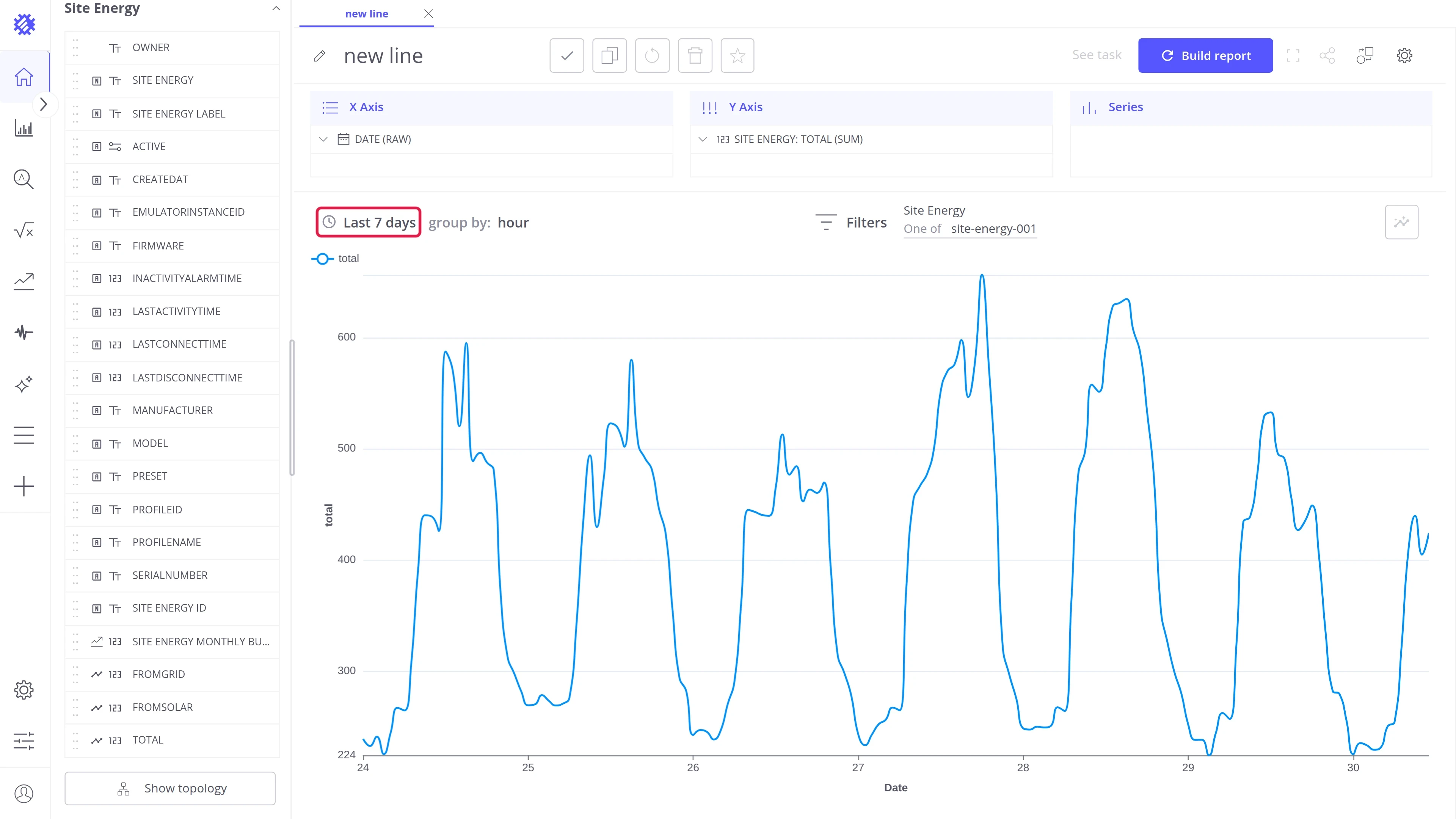
The date picker sets the time range of a view. Trendz loads and analyzes only the data inside this range. The picker sits in the toolbar of every view, and the same picker appears wherever Trendz asks for a period.
A new view starts with This Week, in your browser’s time zone.
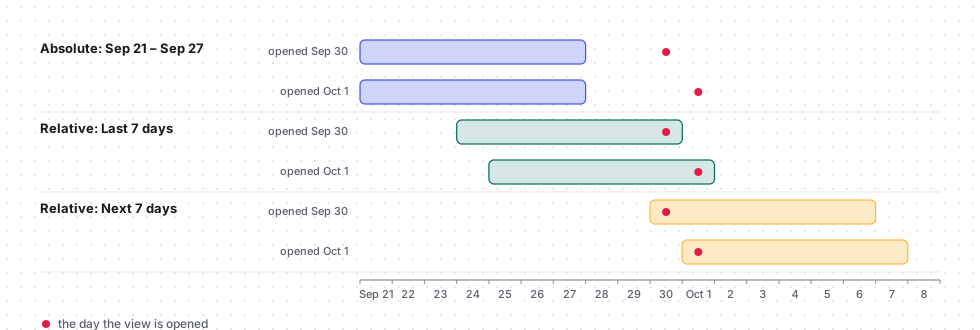
Absolute and relative ranges
Section titled “Absolute and relative ranges”A time range is either absolute or relative.
| Range | Defined by | Example | Use it for |
|---|---|---|---|
| Absolute | Fixed start and end dates | Sep 21 – Sep 27, 2026 | A specific period, like an incident or a billing month |
| Relative | An offset from the current moment | Last 7 days, This Month | Views you open regularly to see recent data |
An absolute range shows the same period whenever you open the view. A relative range moves with time, and it can also point to the future, which suits views with forecasts or planned values.
Layout
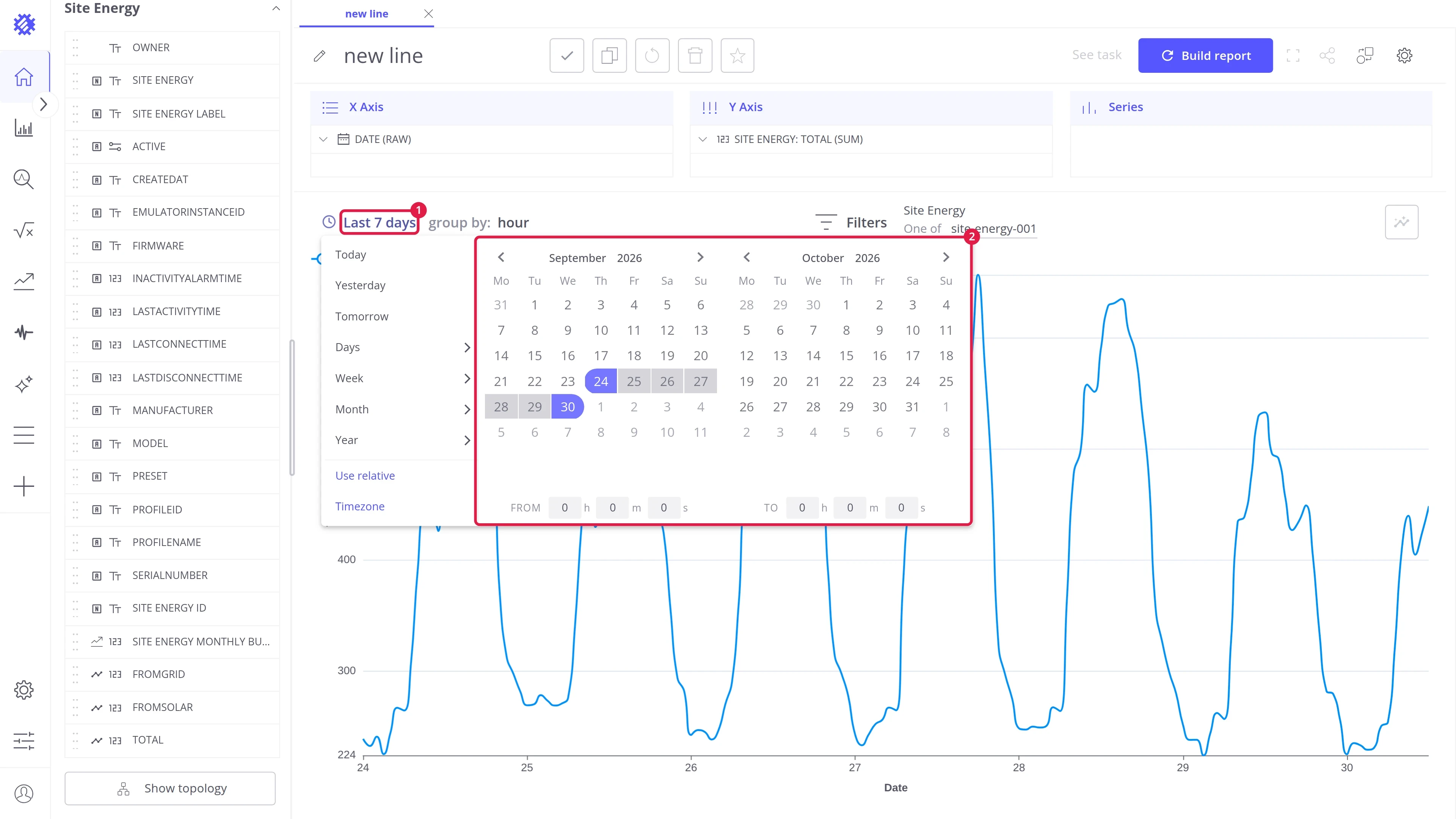
Section titled “Layout”Click the date picker in the view toolbar to open it.
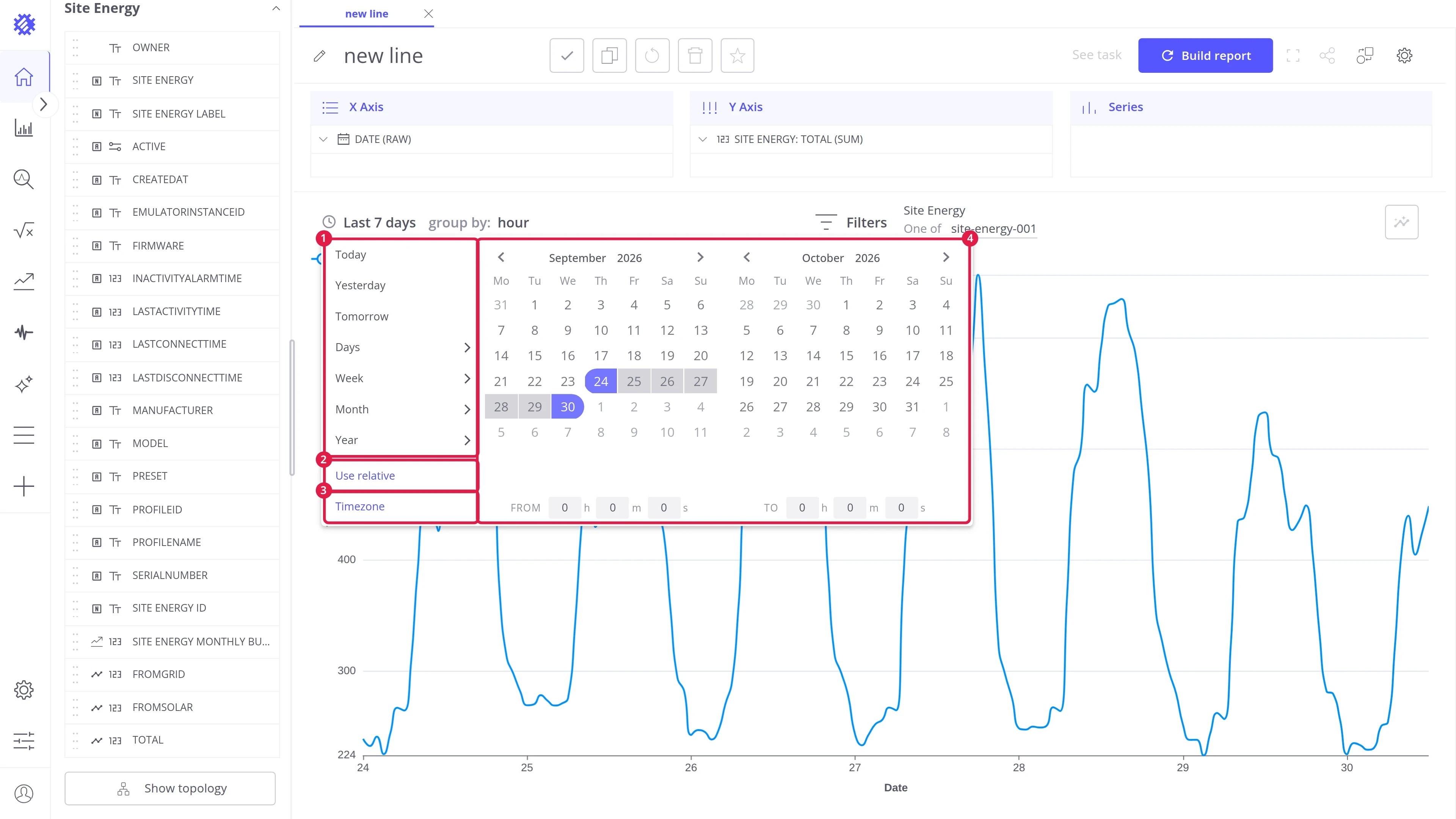
| # | Area | Contents |
|---|---|---|
| 1 | Presets | Ready-made ranges like Today or Last 30 days |
| 2 | Use relative | Switches the calendars to the relative range builder, and back with Use absolute |
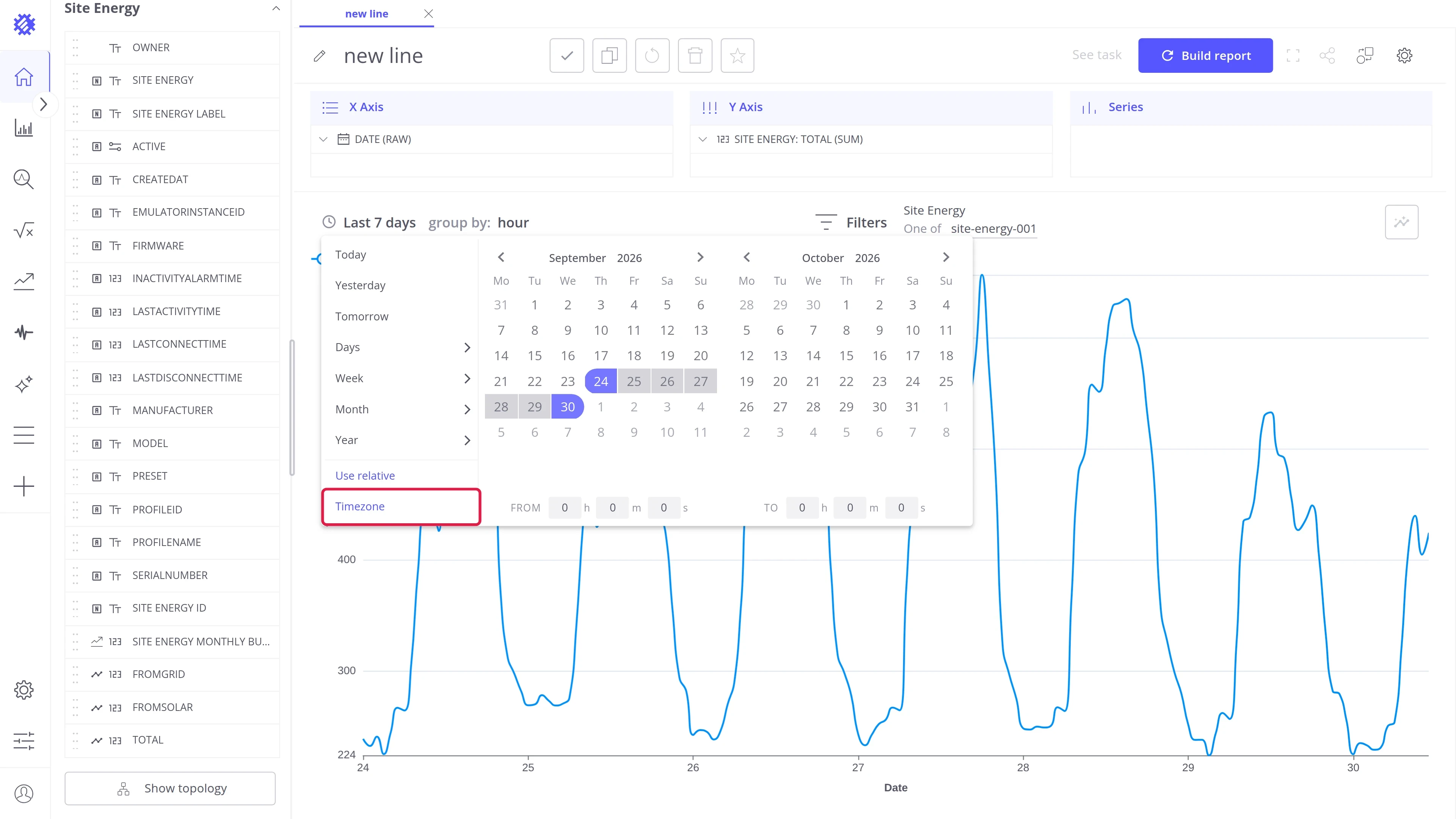
| 3 | Timezone | Opens the time zone settings |
| 4 | Calendars | Two months side by side, with the exact From and To times below |
Every change applies at once; there is no Apply button. The picker closes when you pick a preset, press Esc, or click outside it.
Presets
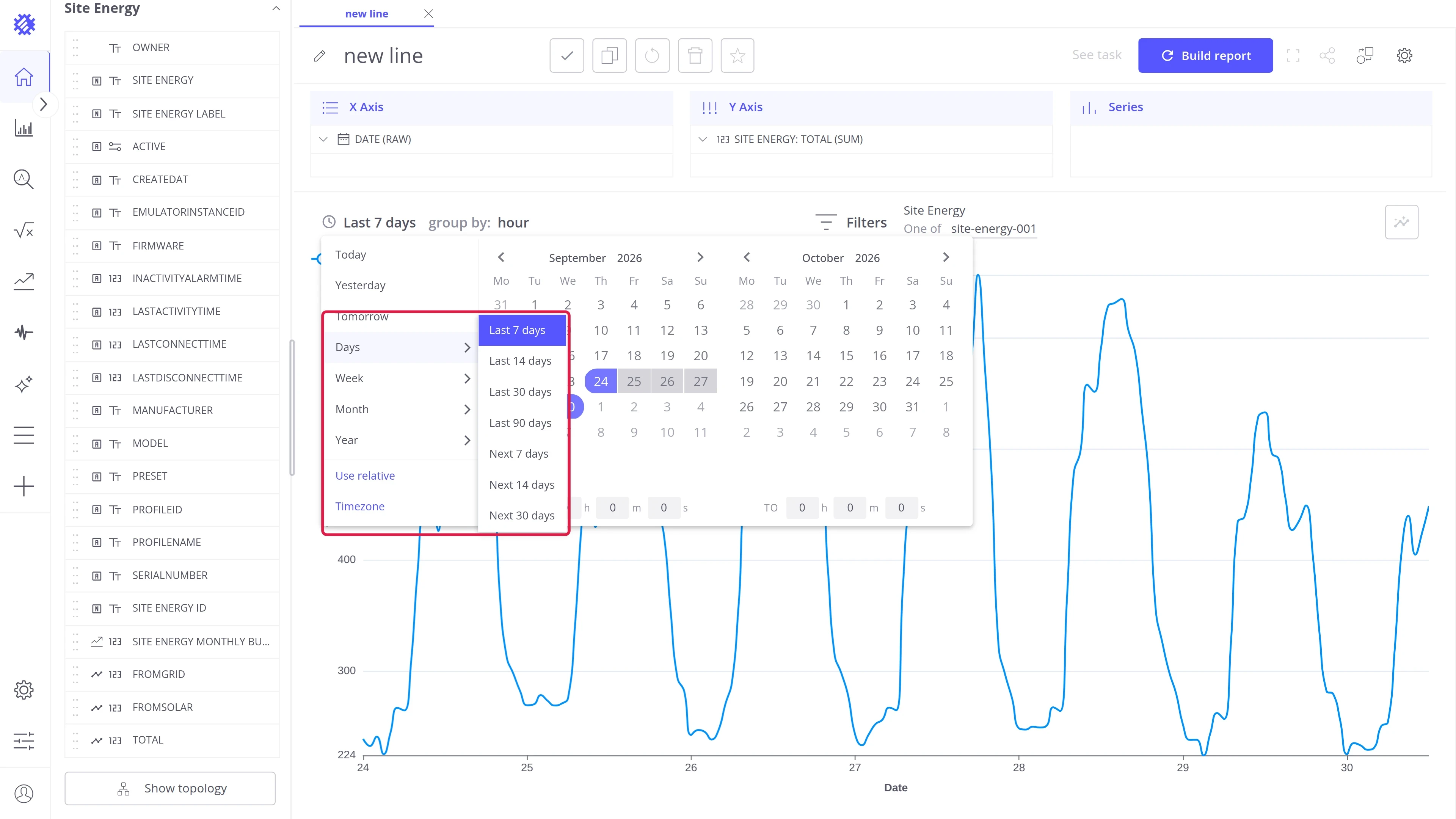
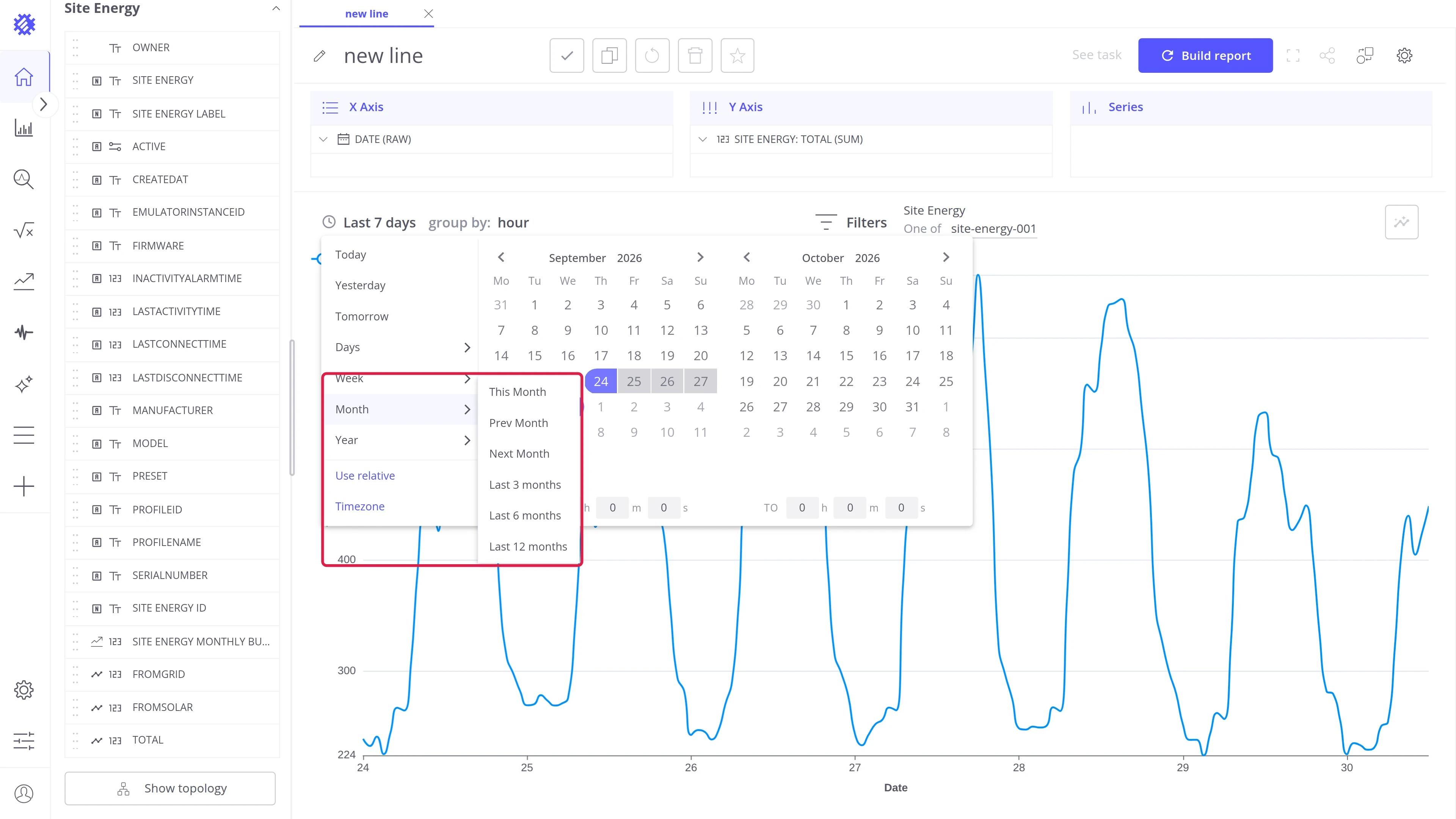
Section titled “Presets”Presets are grouped by unit. Hover over a group to open it. The preset that matches the current range is highlighted. All presets are relative ranges.
| Group | Presets |
|---|---|
| — | Today, Yesterday, Tomorrow |
| Days | Last 7, 14, 30, 90 days; Next 7, 14, 30 days |
| Week | This Week, Prev Week, Next Week; Last 2, 3, 4 weeks |
| Month | This Month, Prev Month, Next Month; Last 3, 6, 12 months |
| Year | This Year, Last year, Prev Year, Next Year, Last 3 years |
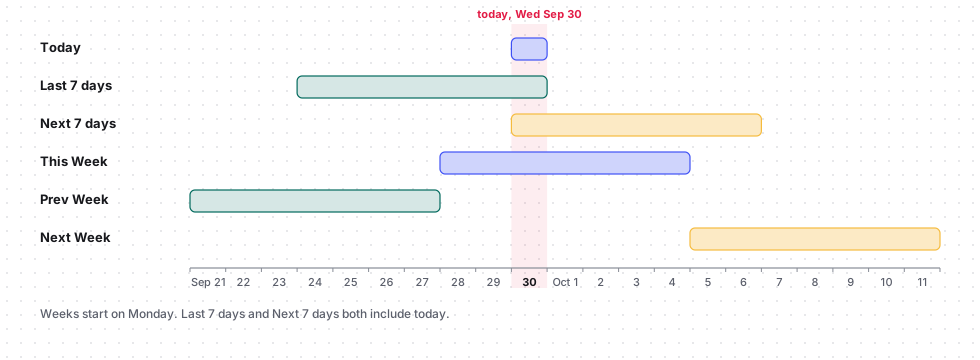
How the presets count time:
| Preset | Covers |
|---|---|
| Last N | The current period and the N − 1 before it. Last 7 days is today and the 6 days before |
| Next N | The current period and the N − 1 after it. Next 7 days is today and the 6 days after |
| This, Prev, Next | One whole calendar unit: the current, the previous, or the following one |
| Last year | The last 365 days up to today. Prev Year is the previous calendar year |
Set an absolute range
Section titled “Set an absolute range”-
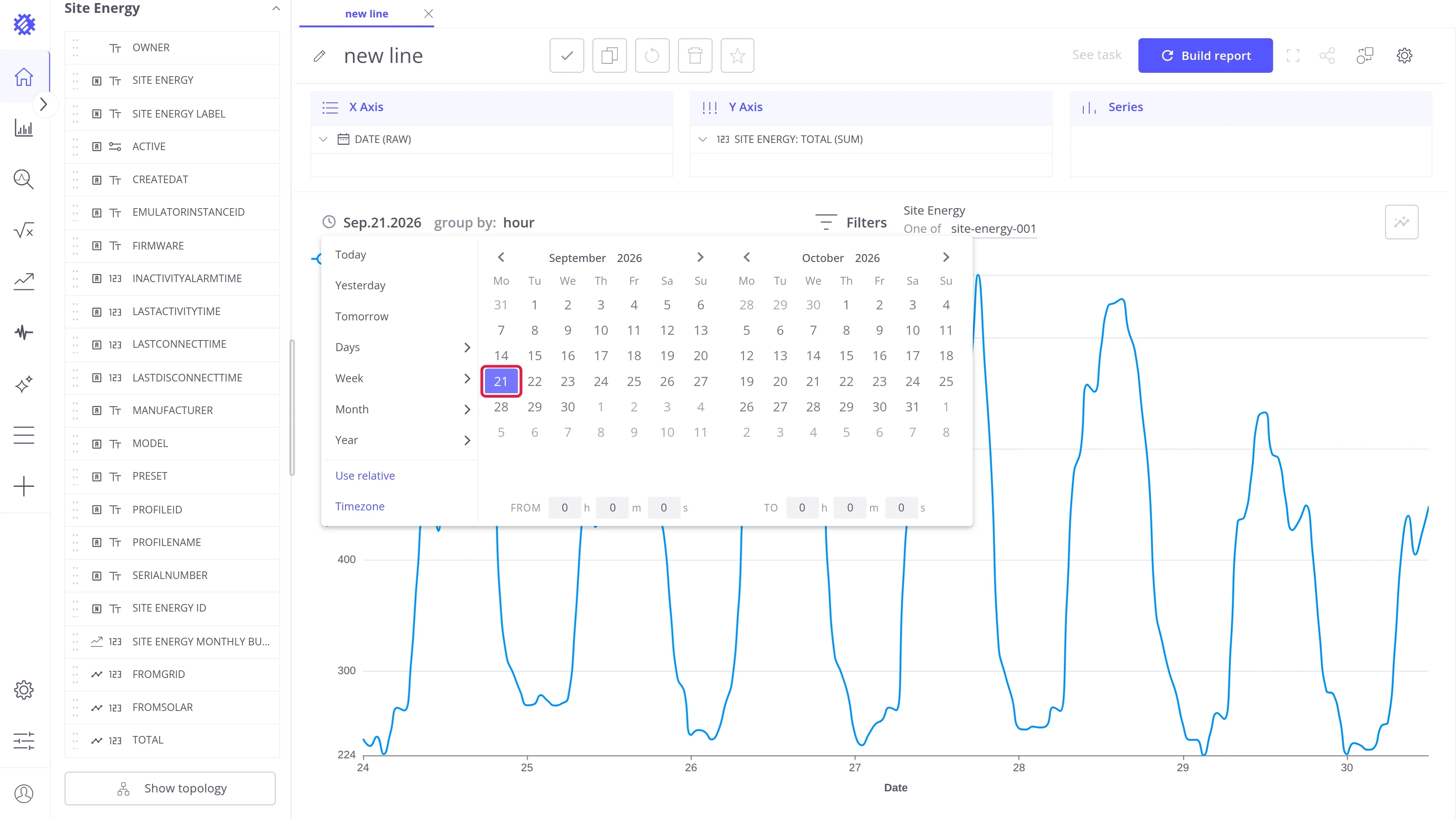
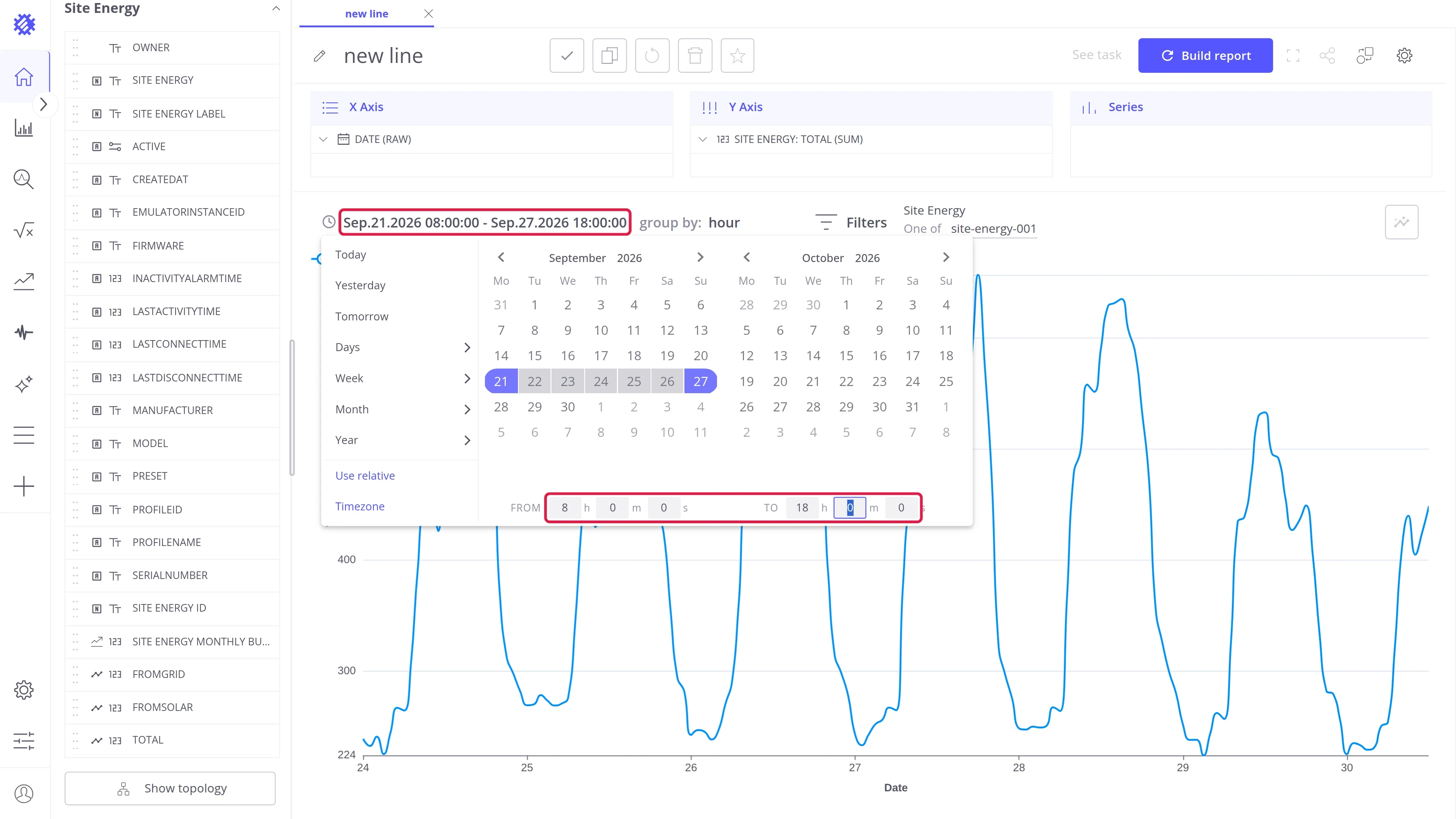
Open the date picker. Use the arrows or the month and year dropdowns to reach the right month.
-
Click the first day of the range.
-
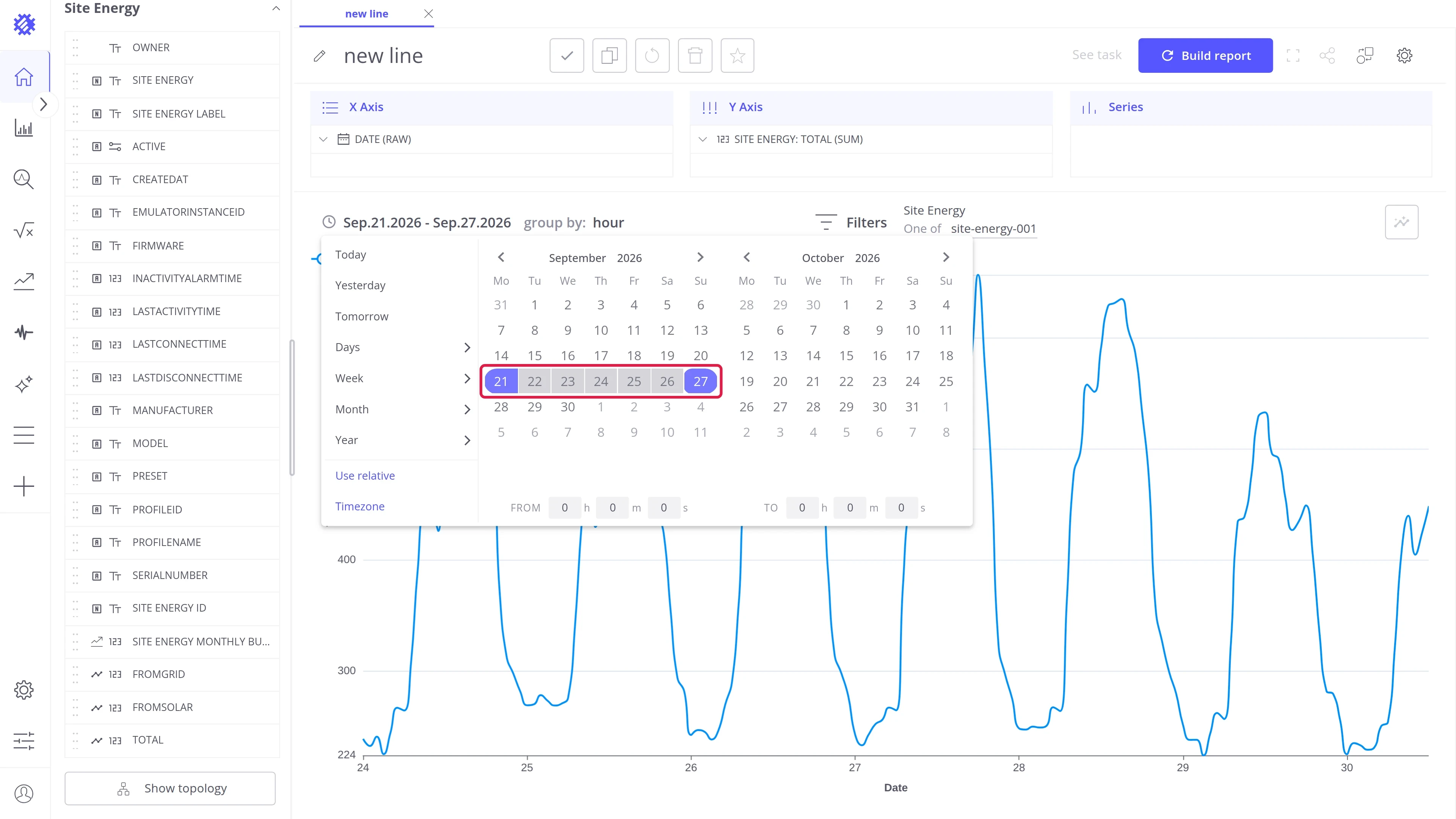
Click the last day of the range. Both days are included.
-
Optionally, set the exact time in the From and To fields under the calendars.
Set a custom relative range
Section titled “Set a custom relative range”When no preset fits, build your own relative range.
-
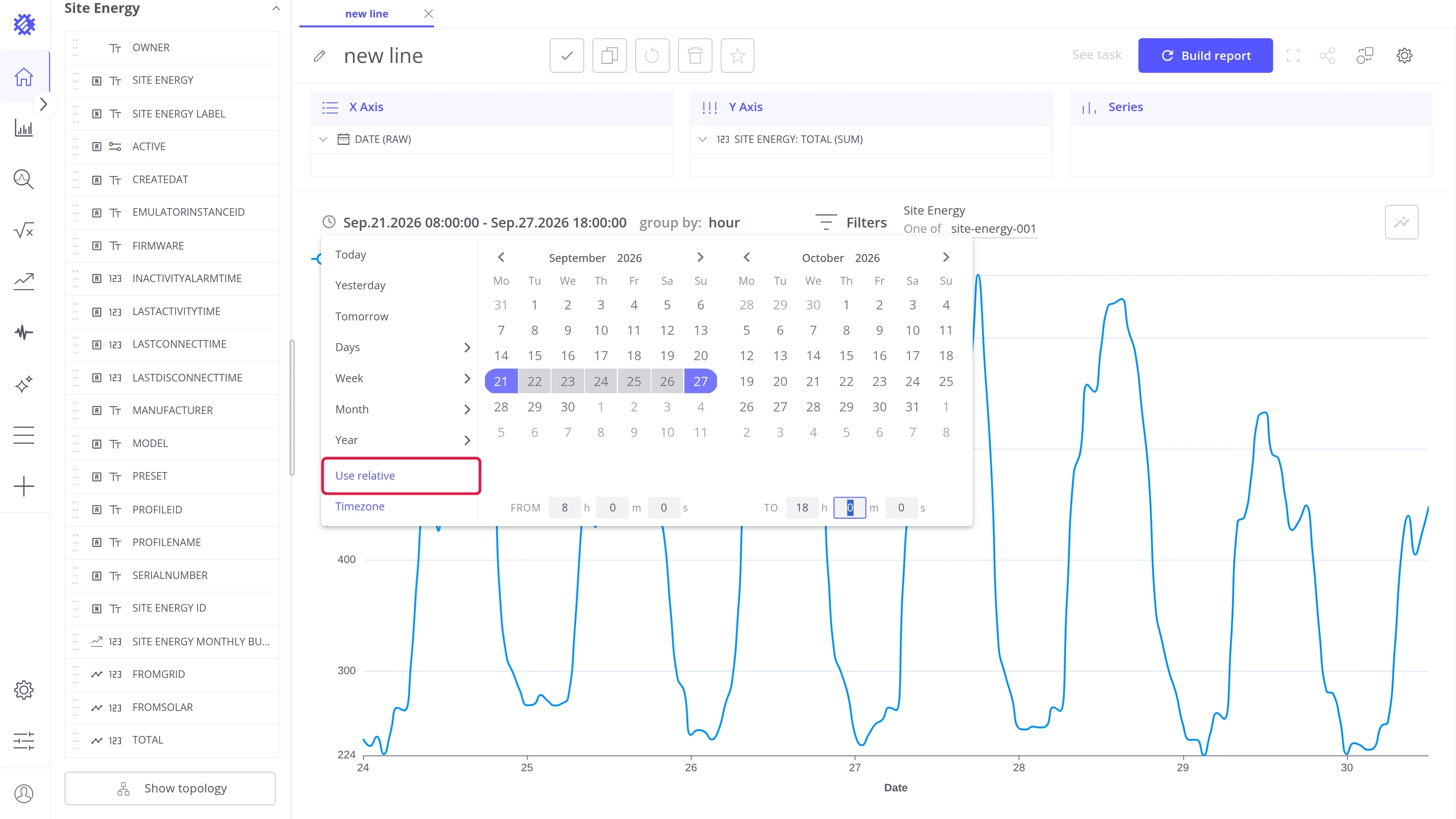
Open the date picker and click Use relative. The Custom relative range builder replaces the calendars.
-
In the From row, set the start of the range.
-
In the To row, set its end. The Resolves to line shows the exact range.
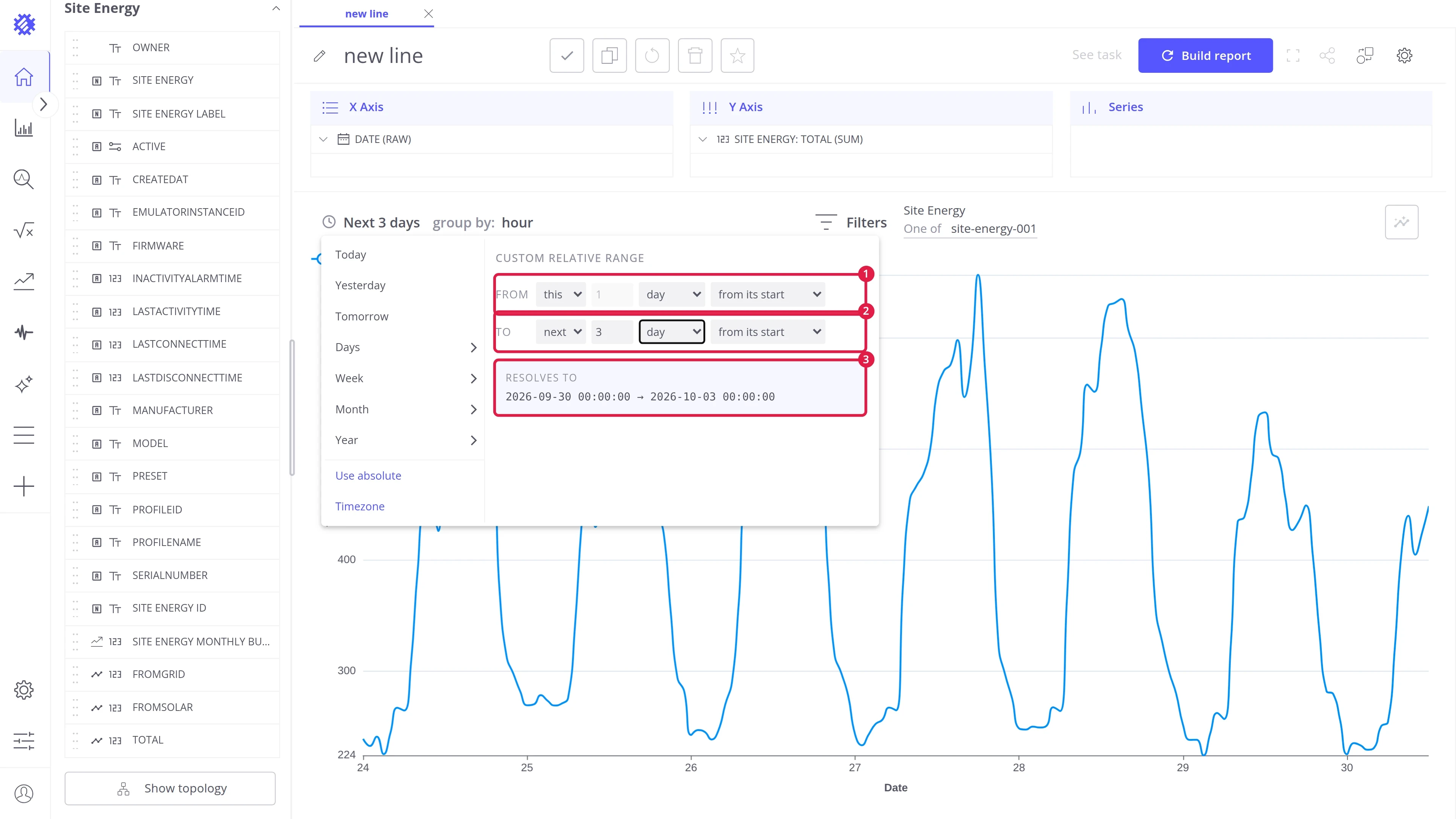
Each row has four fields:
| Field | Values |
|---|---|
| Direction | last (in the past), this (the current period), next (in the future) |
| Amount | How many units. Not used with this |
| Unit | minute, hour, day, week, month, quarter, year |
| Alignment | from its start rounds to the start of the unit, like midnight for a day; at this exact time keeps the current time |
Examples:
| From | To | Result |
|---|---|---|
| last 3 days, from its start | this day, from its start | The 3 days before today, without today |
| this day, from its start | next 3 days, from its start | Today and the next 2 days |
| last 6 hours, at this exact time | this hour, at this exact time | The 6 hours up to now |
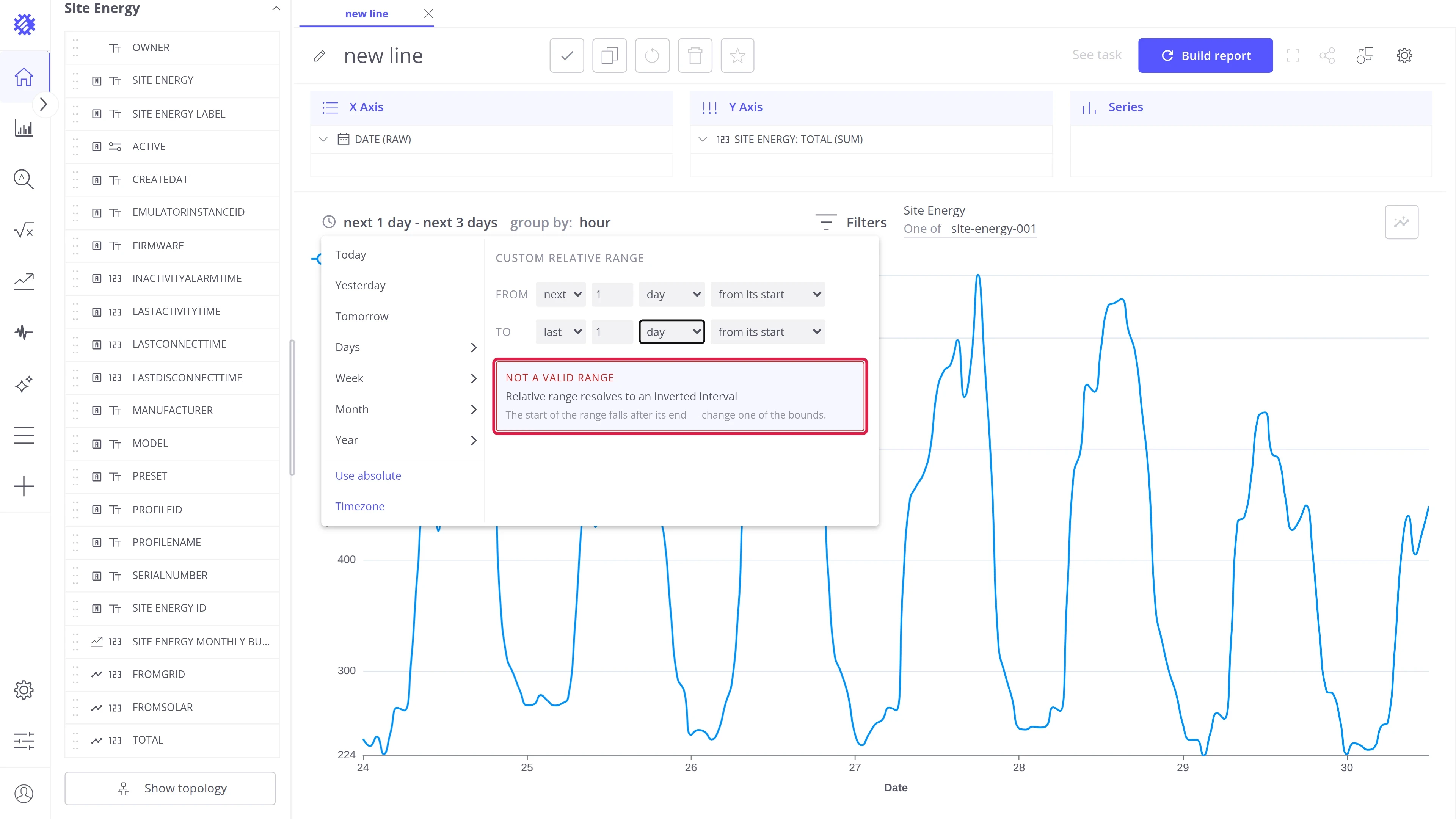
If the start falls after the end, the builder shows Not a valid range, and the range is not applied until you fix one of the rows.
See the exact time range
Section titled “See the exact time range”For a relative range, the toolbar shows its name, like Last 7 days, not dates. To see what it covers right now:
- Open the picker: the calendars highlight the days the range covers.
- Click Use relative: the Resolves to line shows the start and end to the second, in the selected time zone.
For an absolute range, the toolbar shows the dates, like Sep.21.2026 - Sep.27.2026, with times when they are set.
Change the time zone
Section titled “Change the time zone”The date picker uses your browser’s time zone by default. Change it when the data belongs to a site in another time zone, to see “today” as it is there.
-
Open the date picker and click Timezone.
-
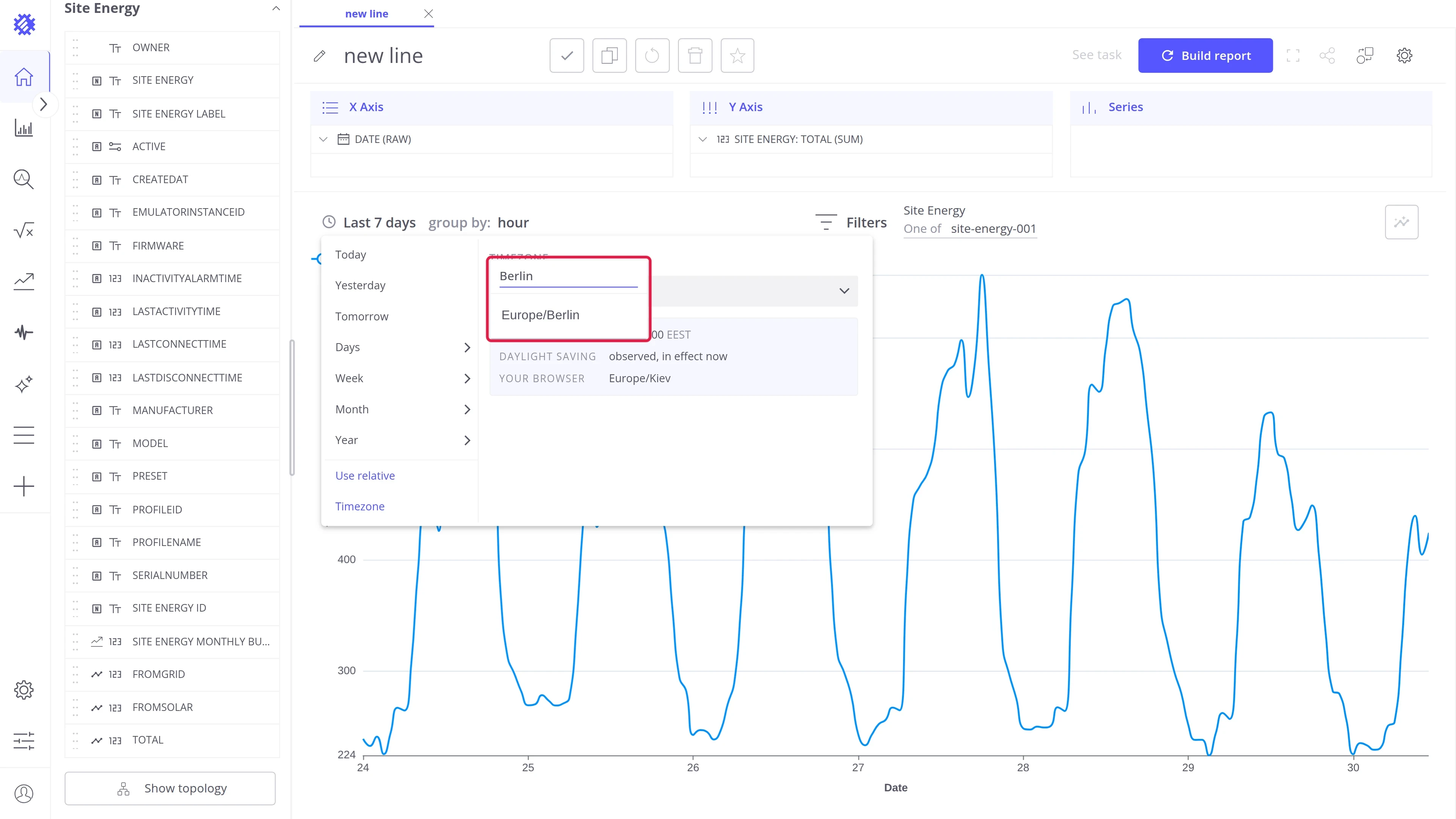
Open the time zone dropdown and type a city or region, like
BerlinorAmerica. -
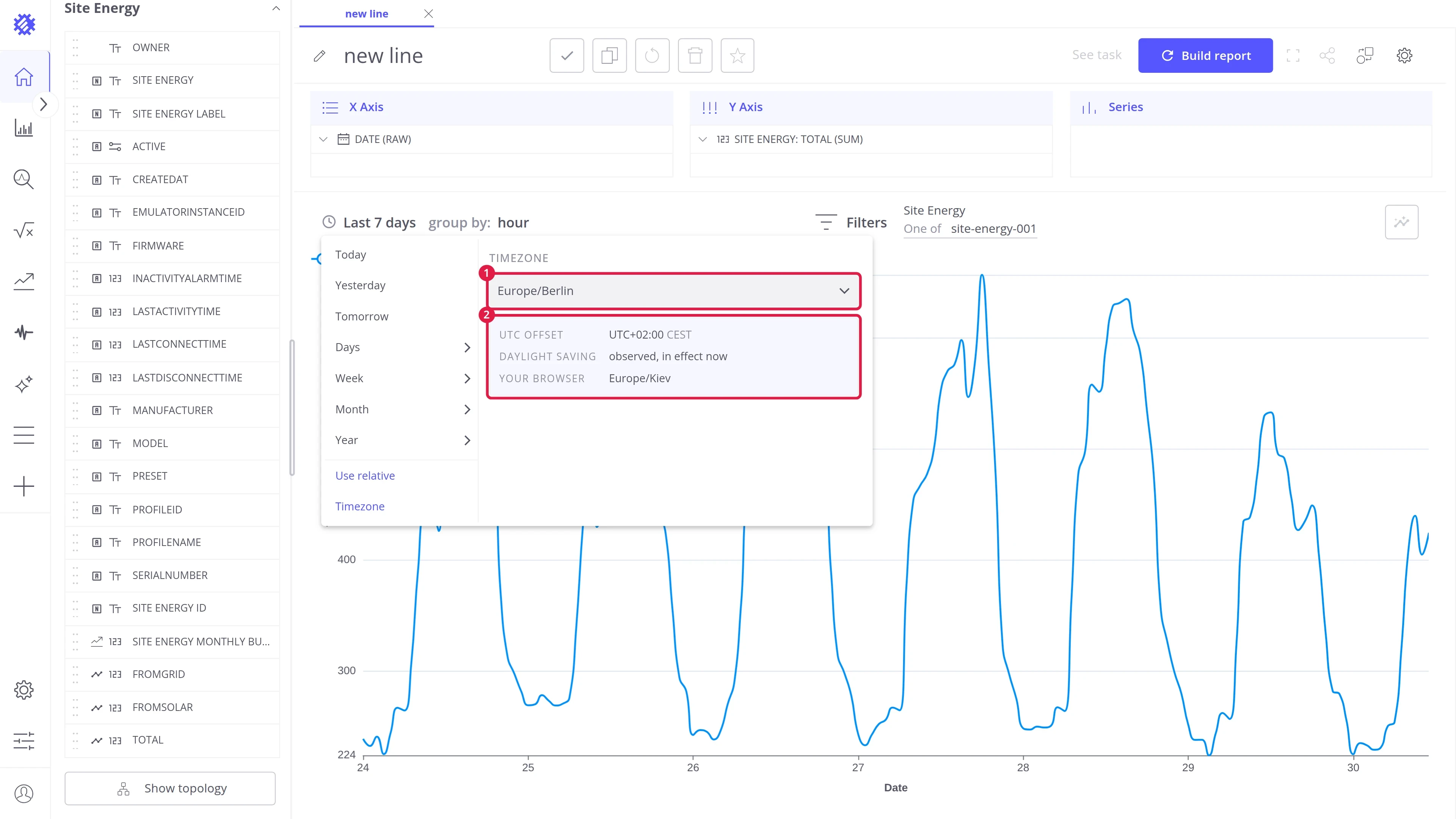
Select the time zone. The view reloads with it.
-
Click Timezone again to return to the range settings.
When you change the time zone of an absolute range, the selected days stay the same: the range now means those days in the new time zone.
Was this helpful?