Build Your First IoT Forecast Model
This guide builds your first prediction model: a forecast of the energy each site will use over the next 7 days. It takes a few minutes and no code. Trendz learns from the readings your devices already sent to ThingsBoard.
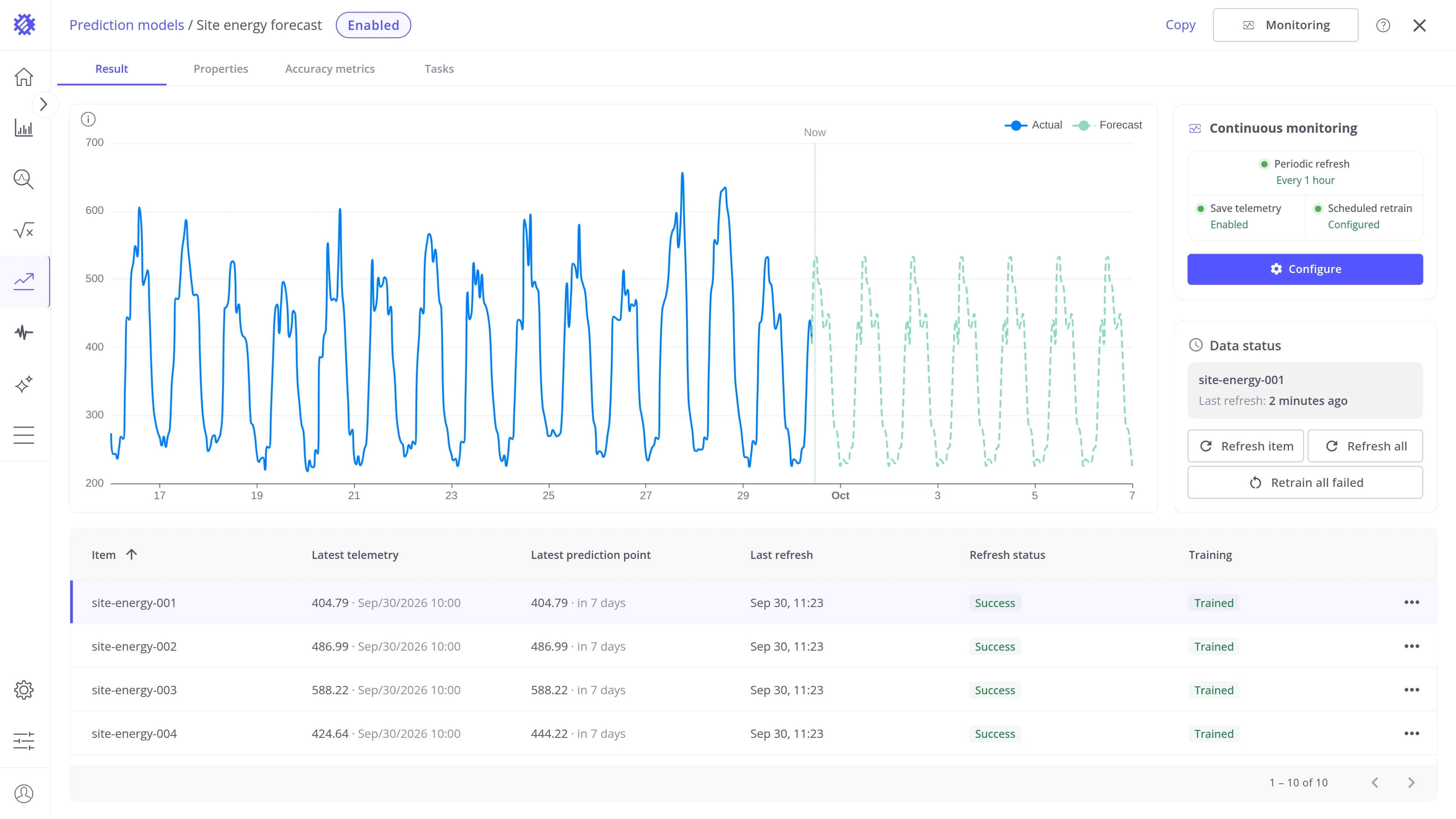
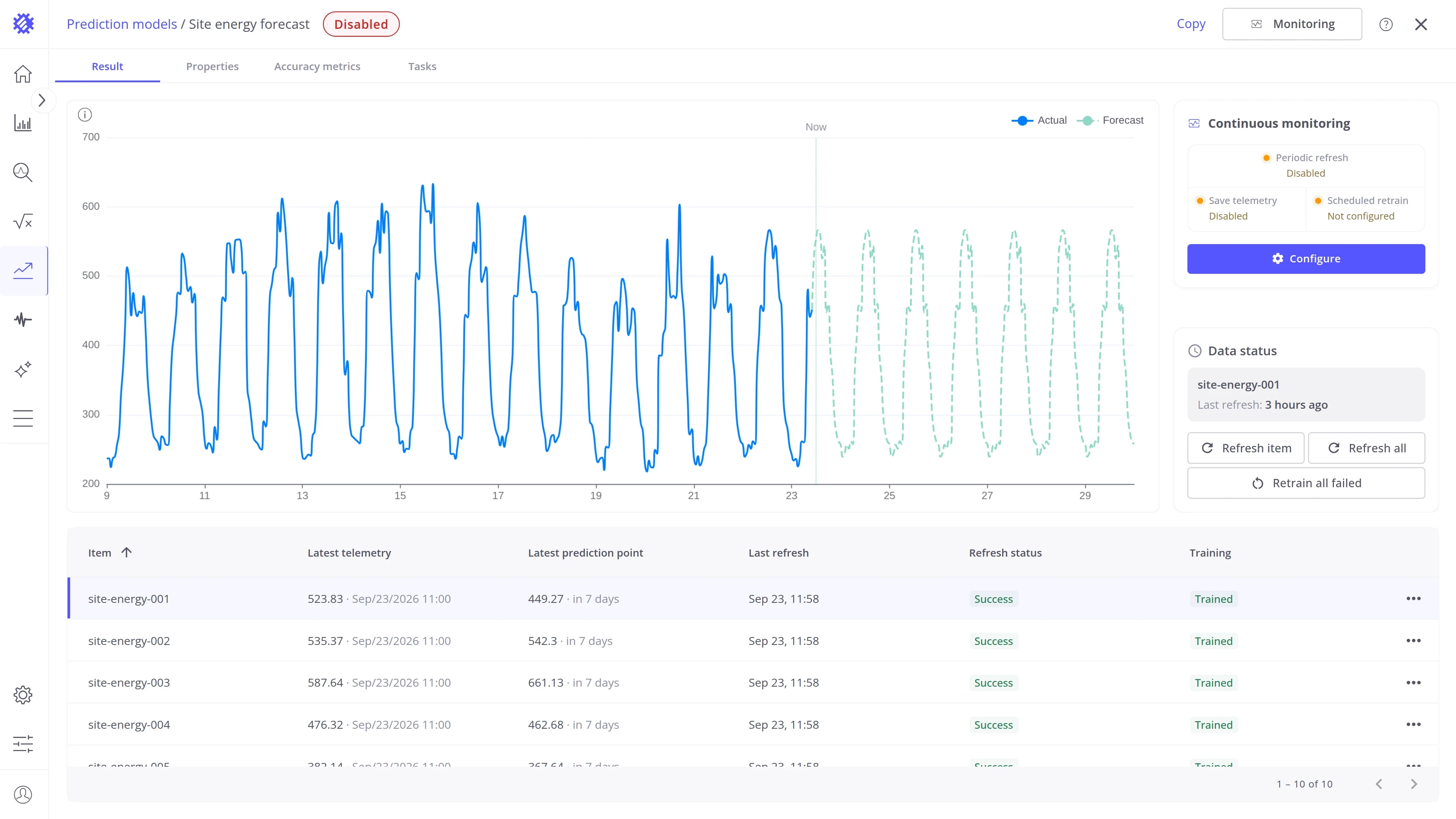
By the end of this guide, you will have this model:
Before you start: you need devices of one profile in ThingsBoard that send a number regularly, for example hourly energy, with a few weeks of history.
Create your first model
Section titled “Create your first model”Step 1. Open the wizard
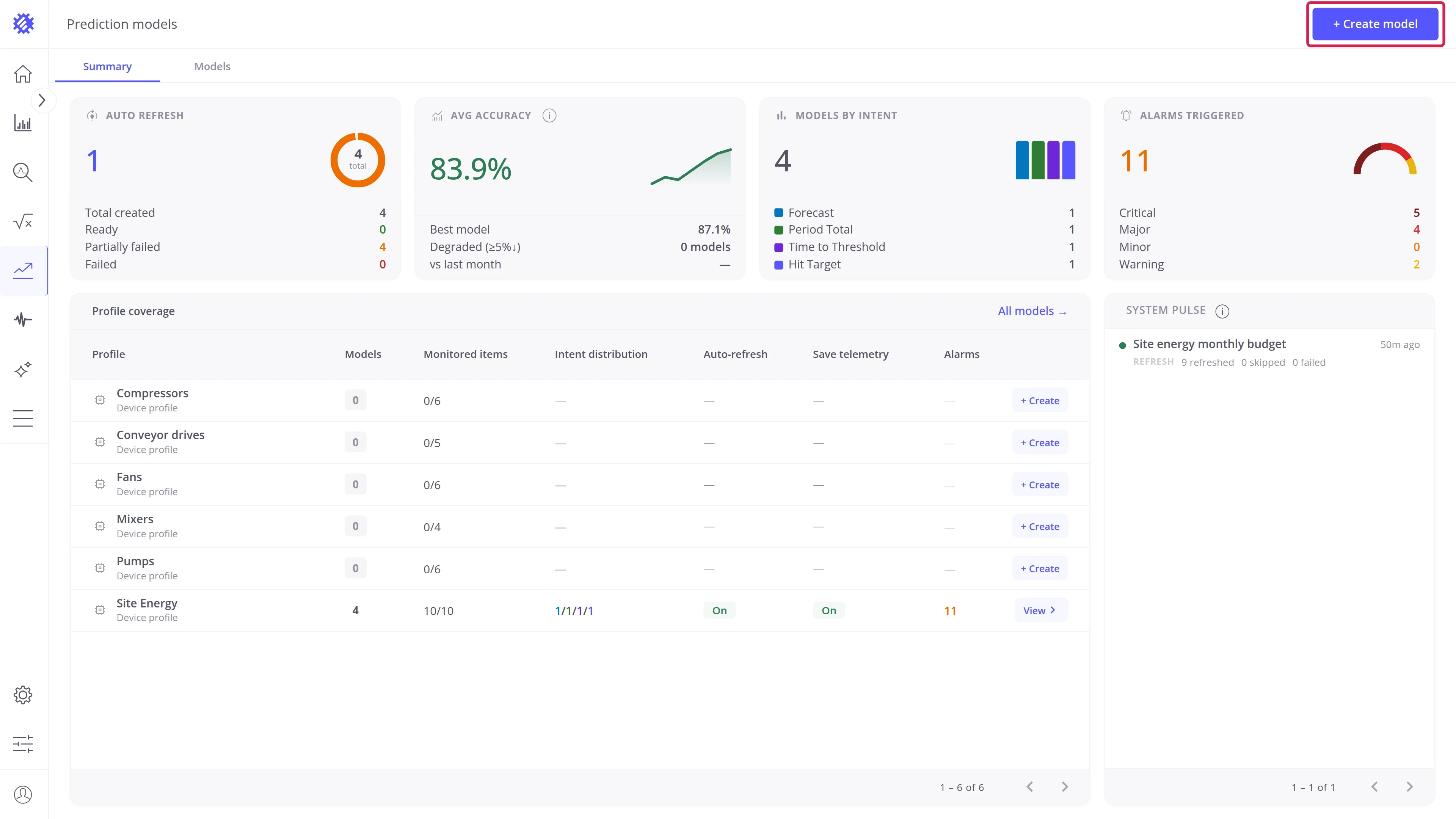
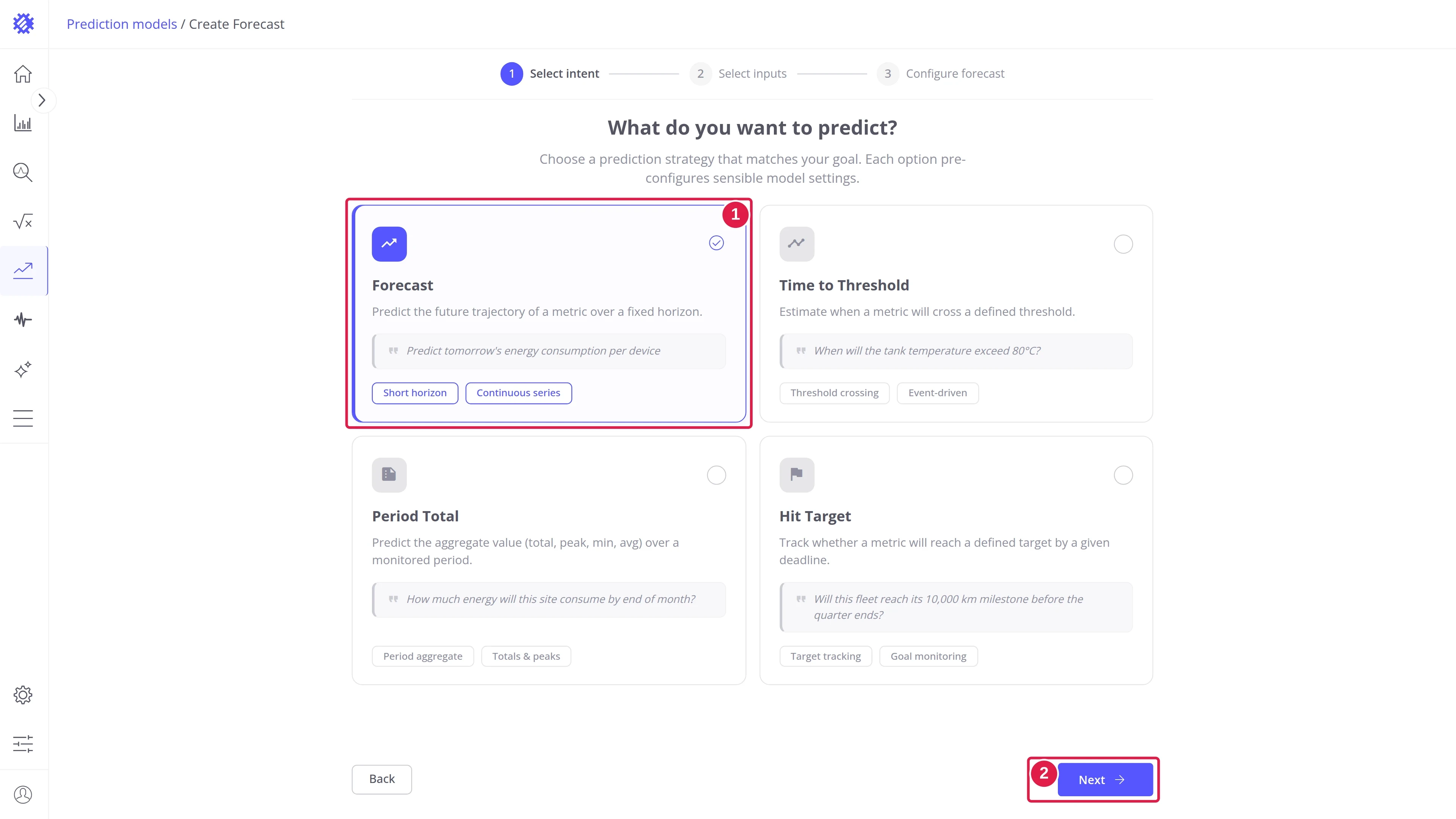
Section titled “Step 1. Open the wizard”Go to Prediction models in the left menu and click Create model. Then pick what you want to predict. For a first model, choose Forecast and click Next.
Step 2. Choose the data
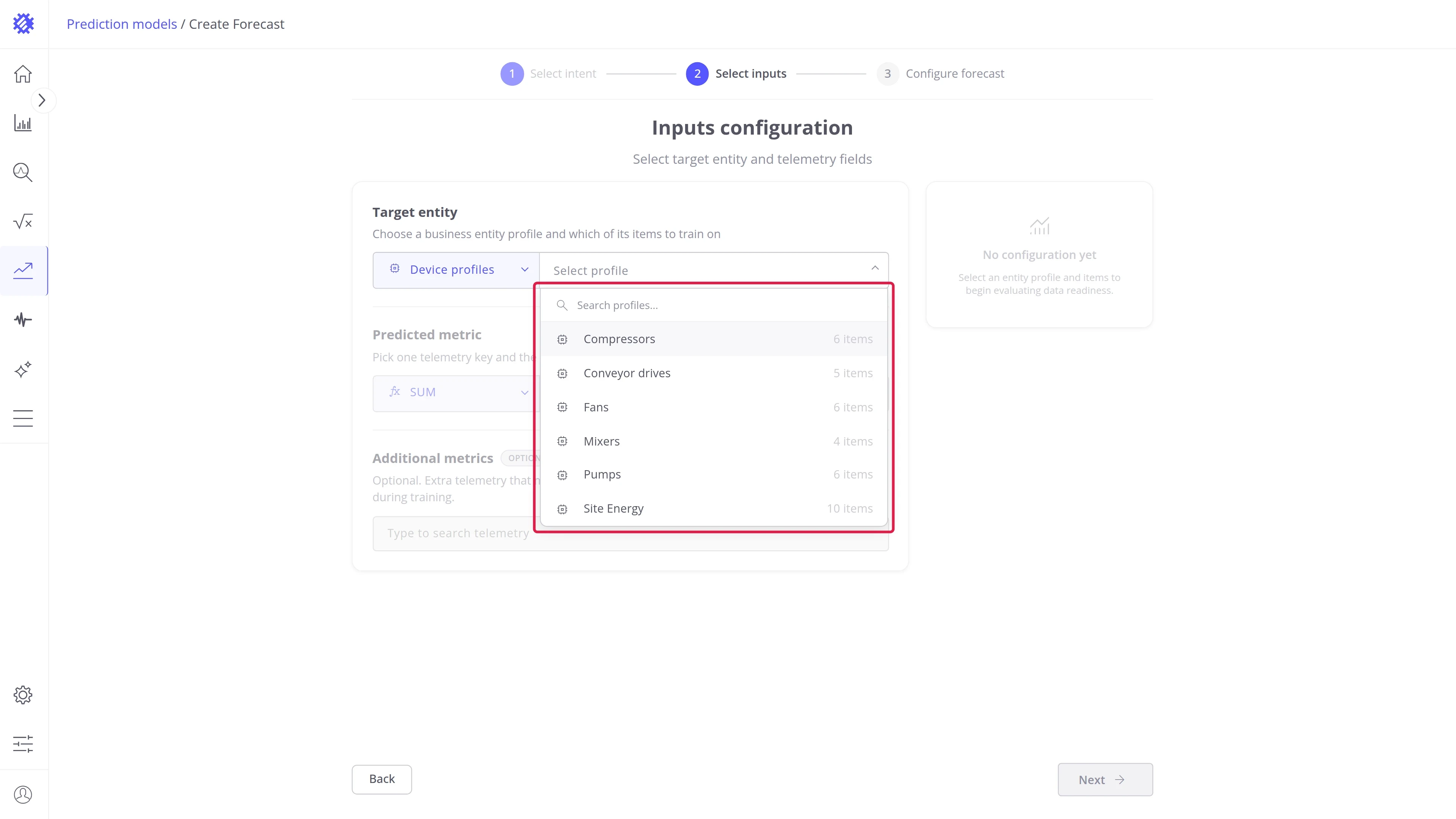
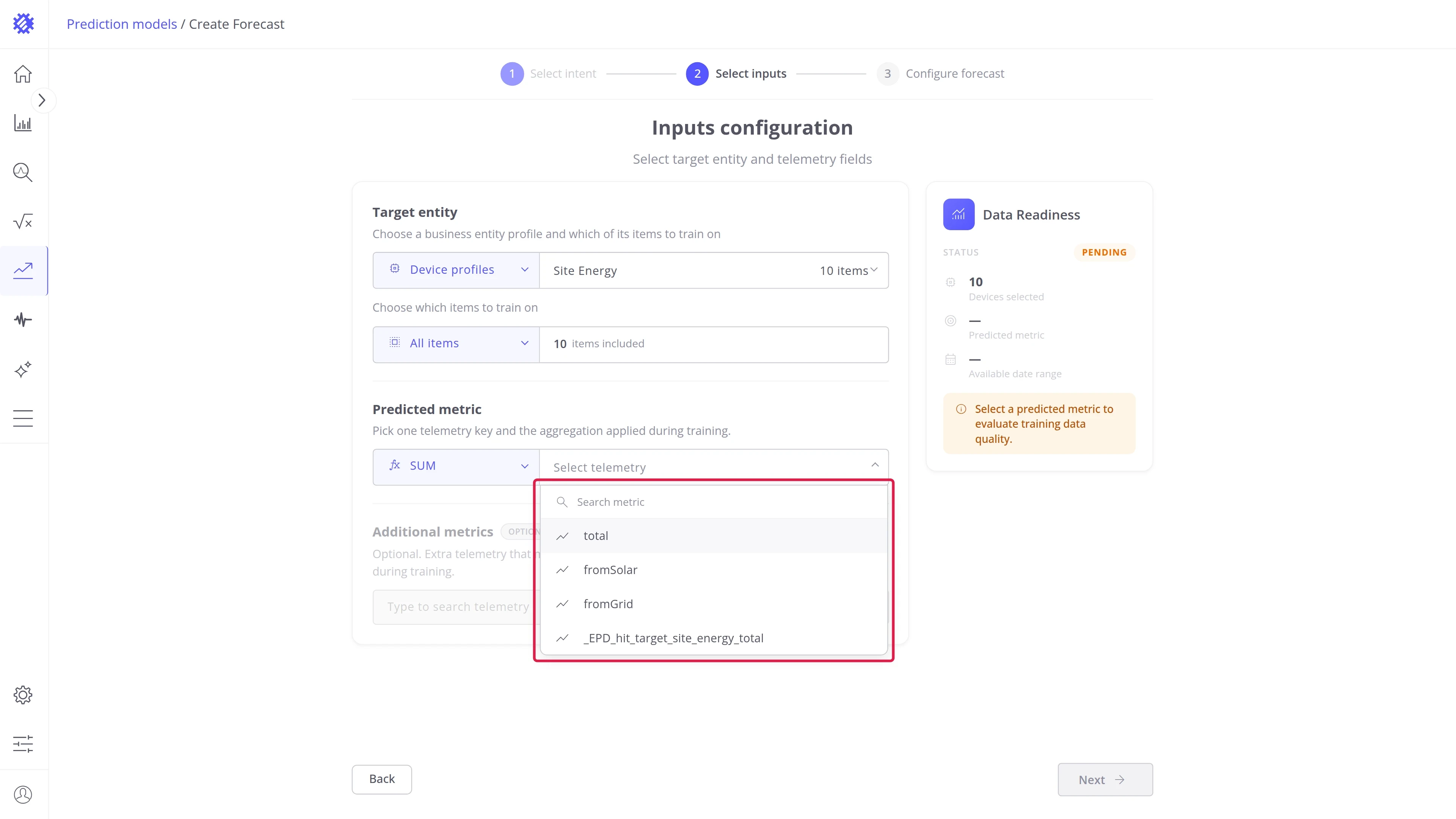
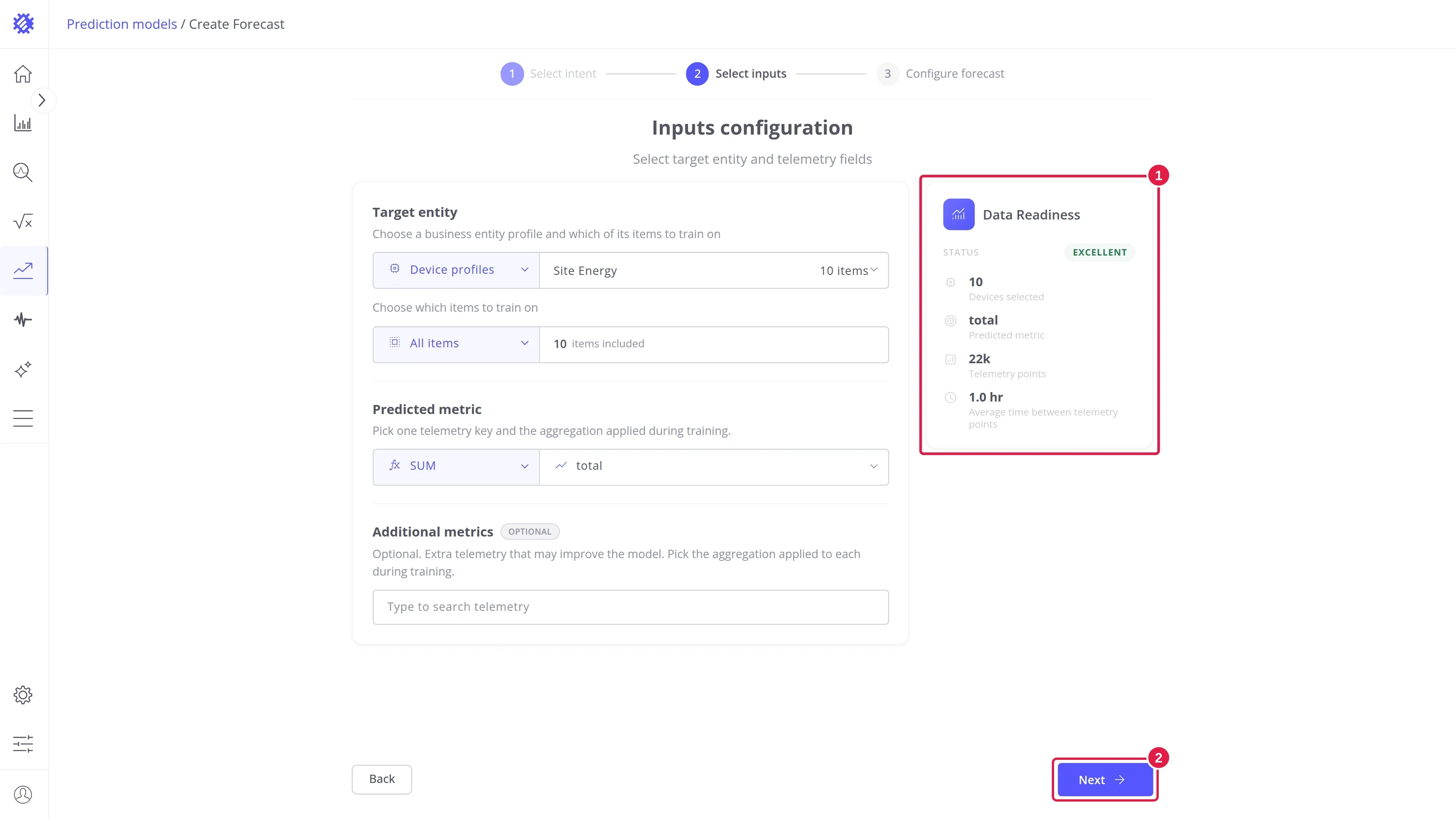
Section titled “Step 2. Choose the data”Tell Trendz which devices to learn from and which reading to predict:
- Pick the device profile, here Site Energy.
- Pick the reading to predict, here total, the energy used.
- Check the Data Readiness panel on the right. Good or Excellent means there is enough history.
Click Next.
Step 3. Choose how far ahead, and build
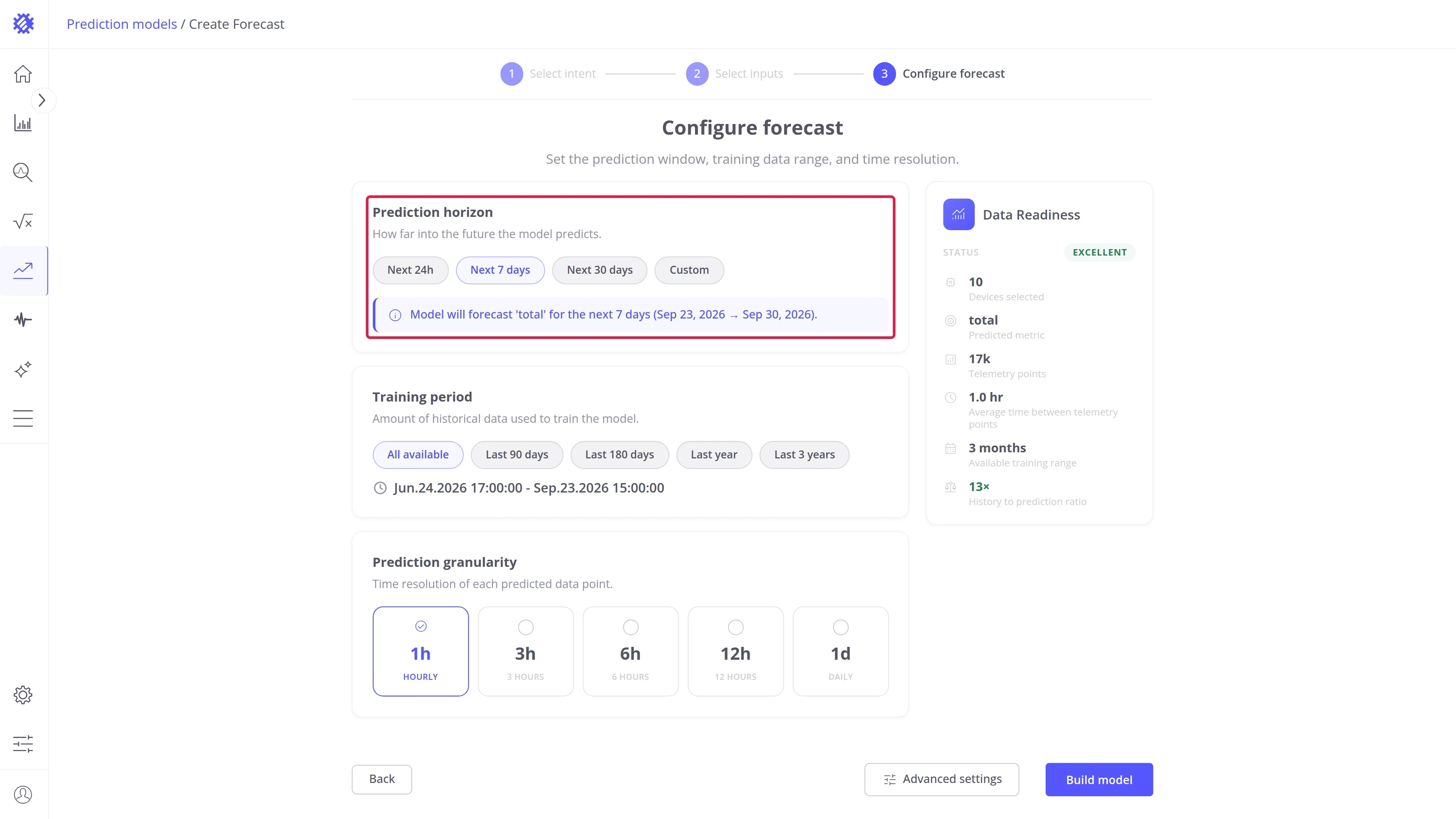
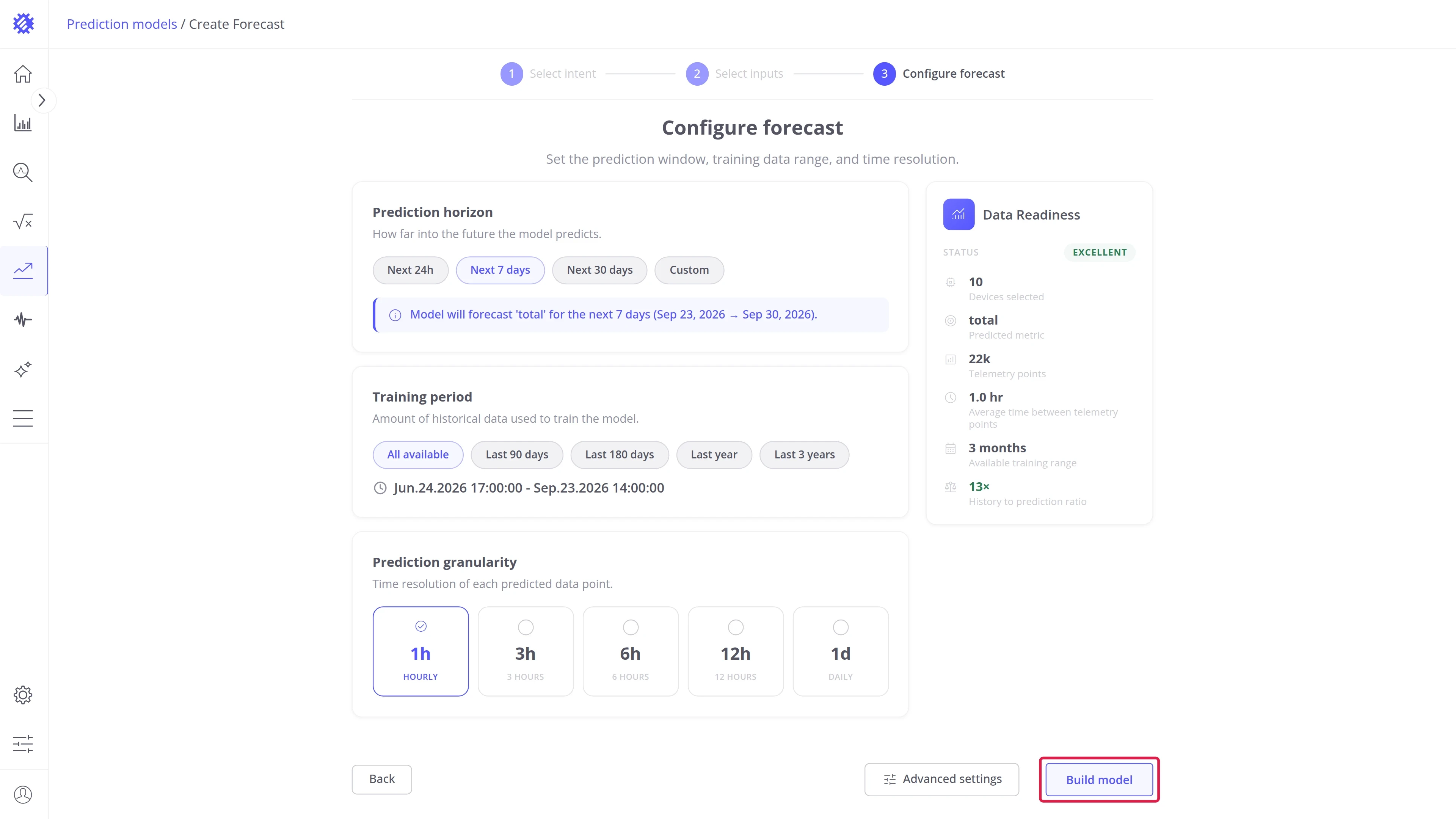
Section titled “Step 3. Choose how far ahead, and build”Pick how far into the future to predict, for example Next 7 days. Leave everything else as it is, and click Build model. Trendz trains the model, which takes from a few seconds to a few minutes.
The other options are already set to the values Trendz recommends, so you get the best forecast possible from the data you selected without changing anything.
Step 4. See the forecast
Section titled “Step 4. See the forecast”The model page opens when training is done. The chart shows the measured readings as a solid line and the forecast as a dashed line after Now. The table below lists every device with its latest reading and its next predicted value.
Step 5. Keep it up to date
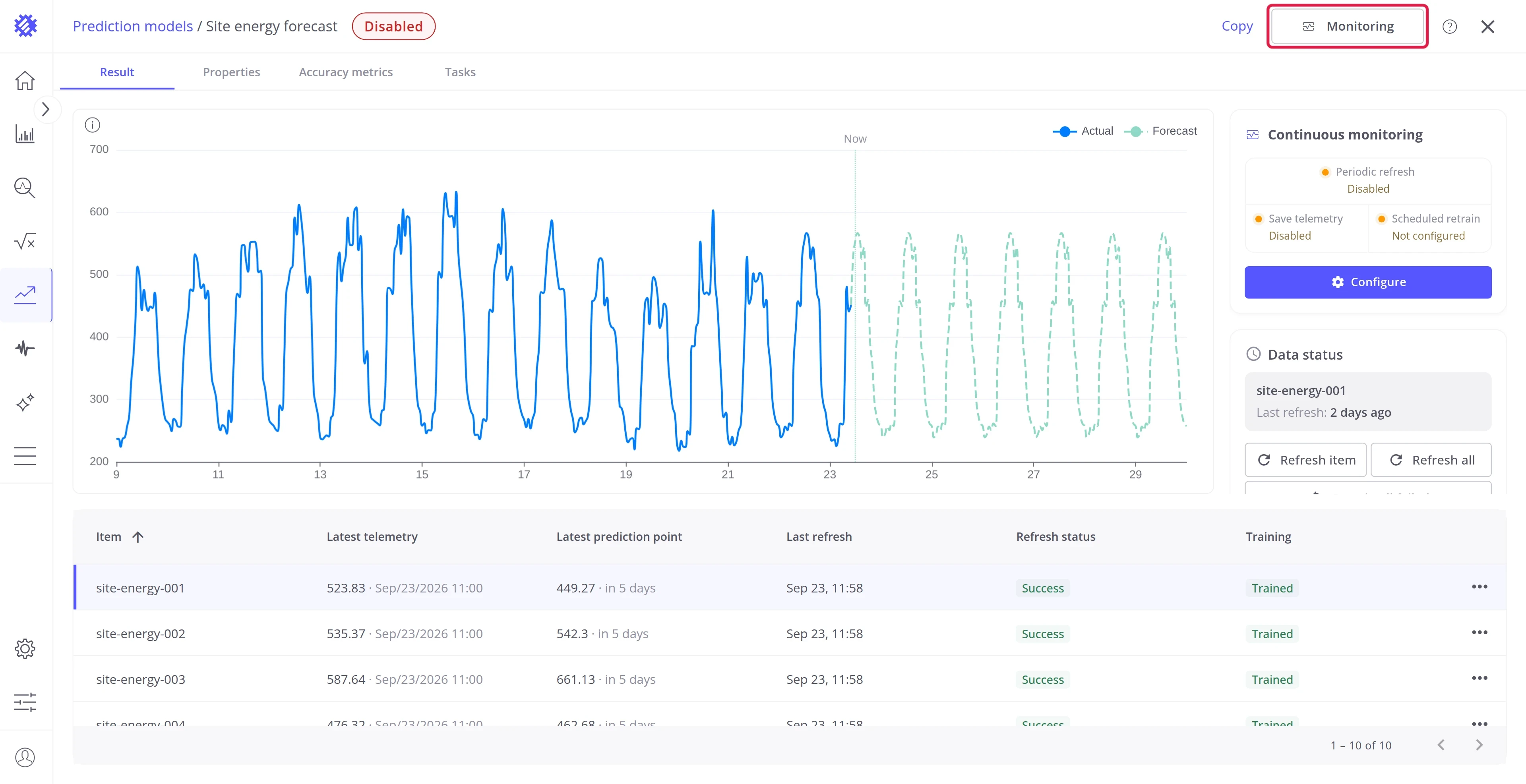
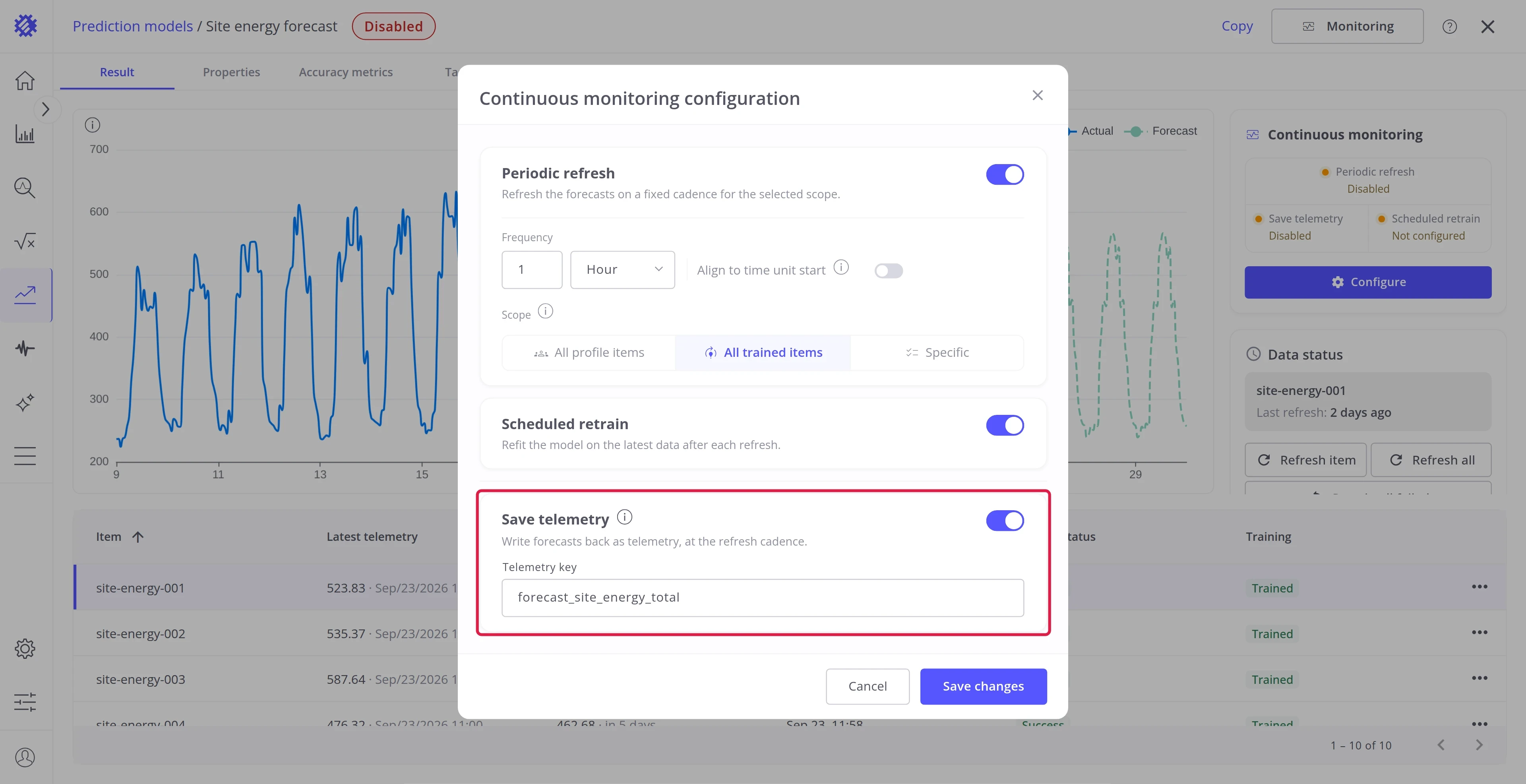
Section titled “Step 5. Keep it up to date”A new model predicts once. To refresh the forecast as new readings arrive, click Monitoring in the page header:
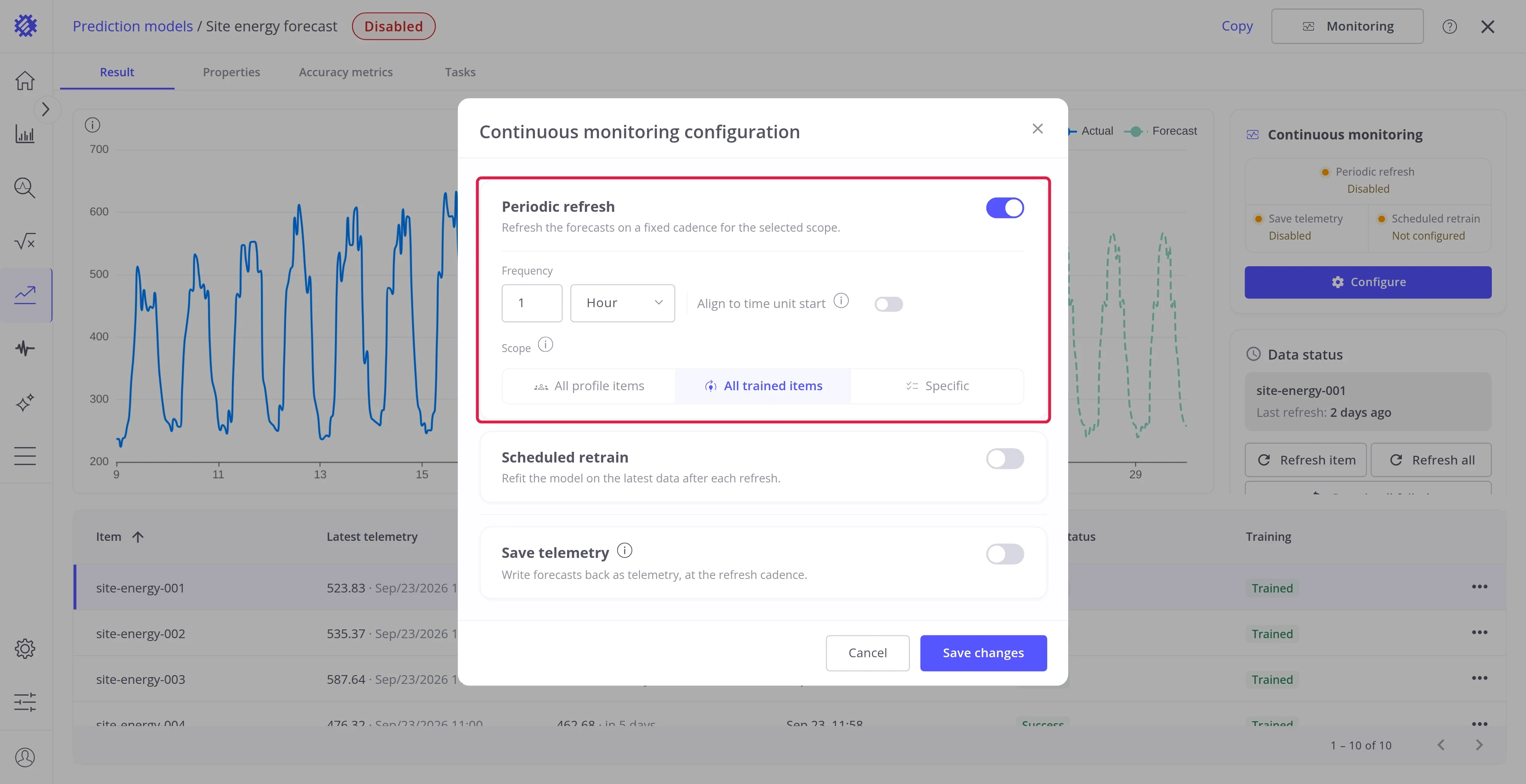
- Switch Periodic refresh on and choose how often, for example every hour.
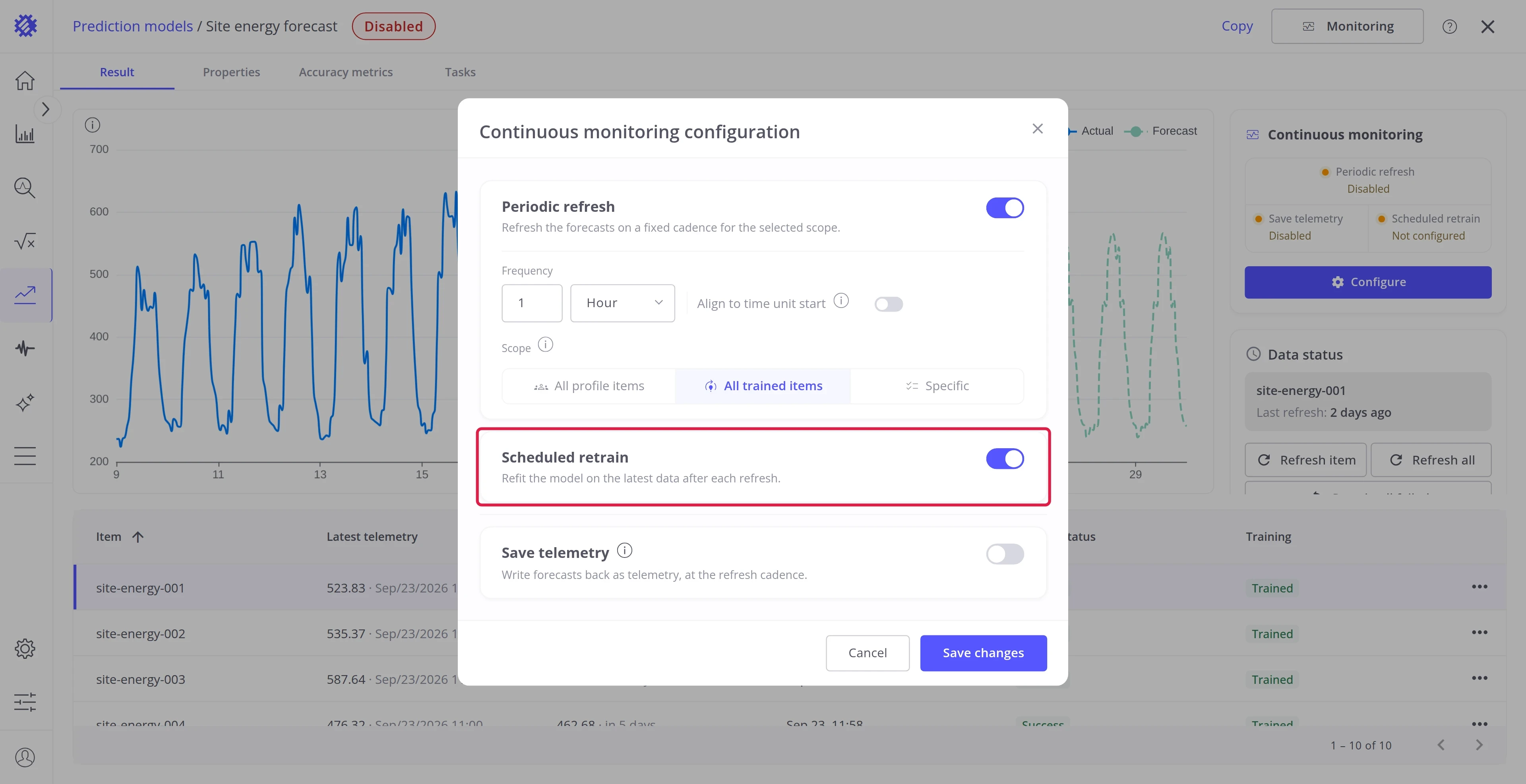
- Switch Scheduled retrain on. The model then relearns from the newest readings before each forecast, so it follows changes in how your devices behave.
- Optionally switch Save telemetry on and enter a Telemetry key, so the forecast is also saved in ThingsBoard for your dashboards.
- Click Save changes.
That’s it: the model now keeps its forecast current on its own.
Where to go next
Section titled “Where to go next”Choose what to predict
Section titled “Choose what to predict”-
Forecast
Predict the next values of a metric, like the energy of the next 7 days.
-
Time to Threshold
Predict when a metric crosses a limit, and raise an alarm before it happens.
-
Period Total
Predict the total, peak, or average of a period, such as the energy of this month.
-
Hit Target
Predict whether a goal is reached by the end of a period, and how far off it is.
Go further
Section titled “Go further”Was this helpful?