Connect a device and check connectivity
In this step, you will create a device on Edge and activate it.
Add a device on Edge
Section titled “Add a device on Edge”Edge synchronizes devices to your ThingsBoard account automatically.
-
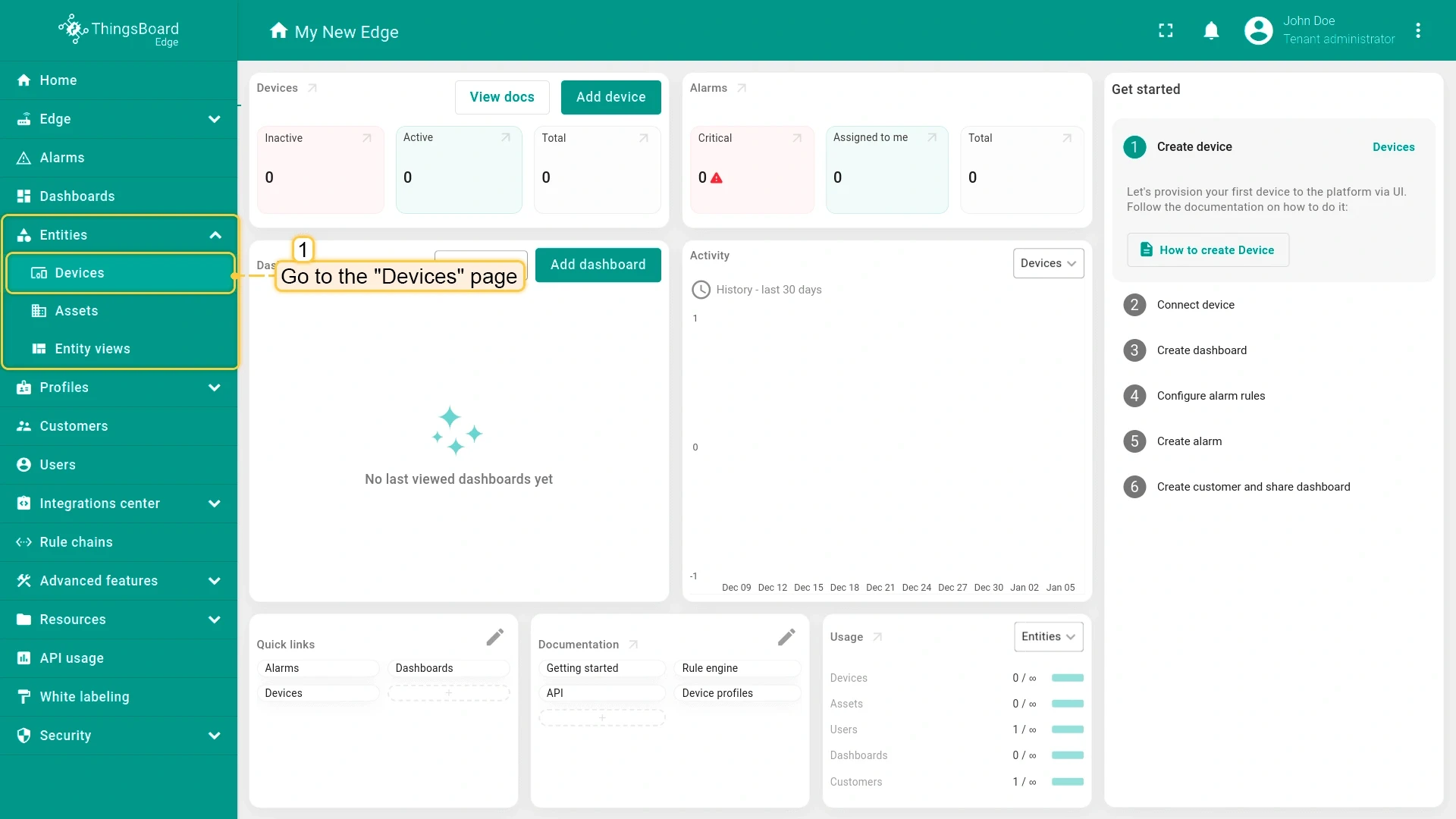
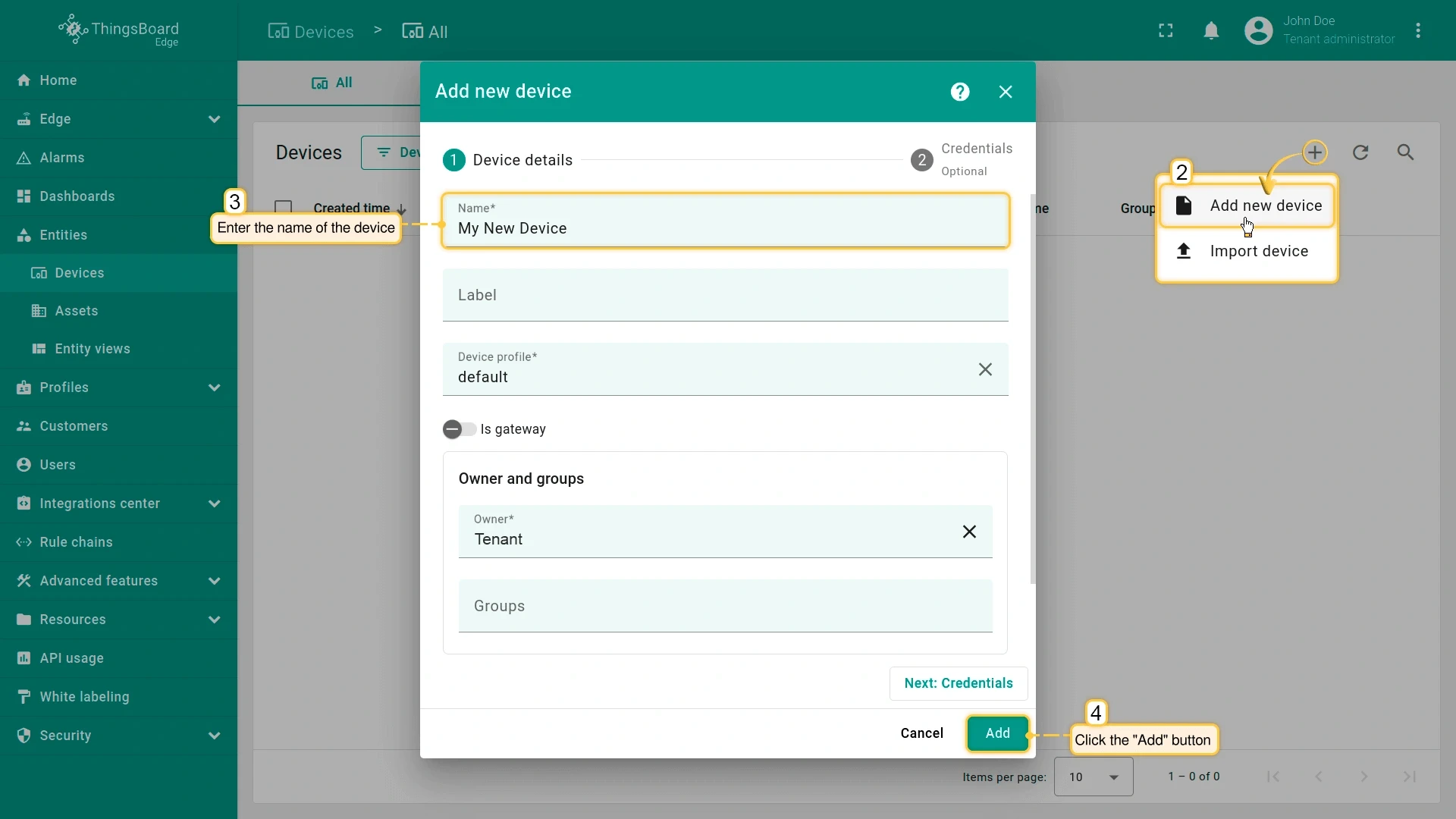
In the Edge UI (http://localhost:8080), go to Entities → Devices and click Add device (+).
-
Enter a name and click Add.
Activate the device
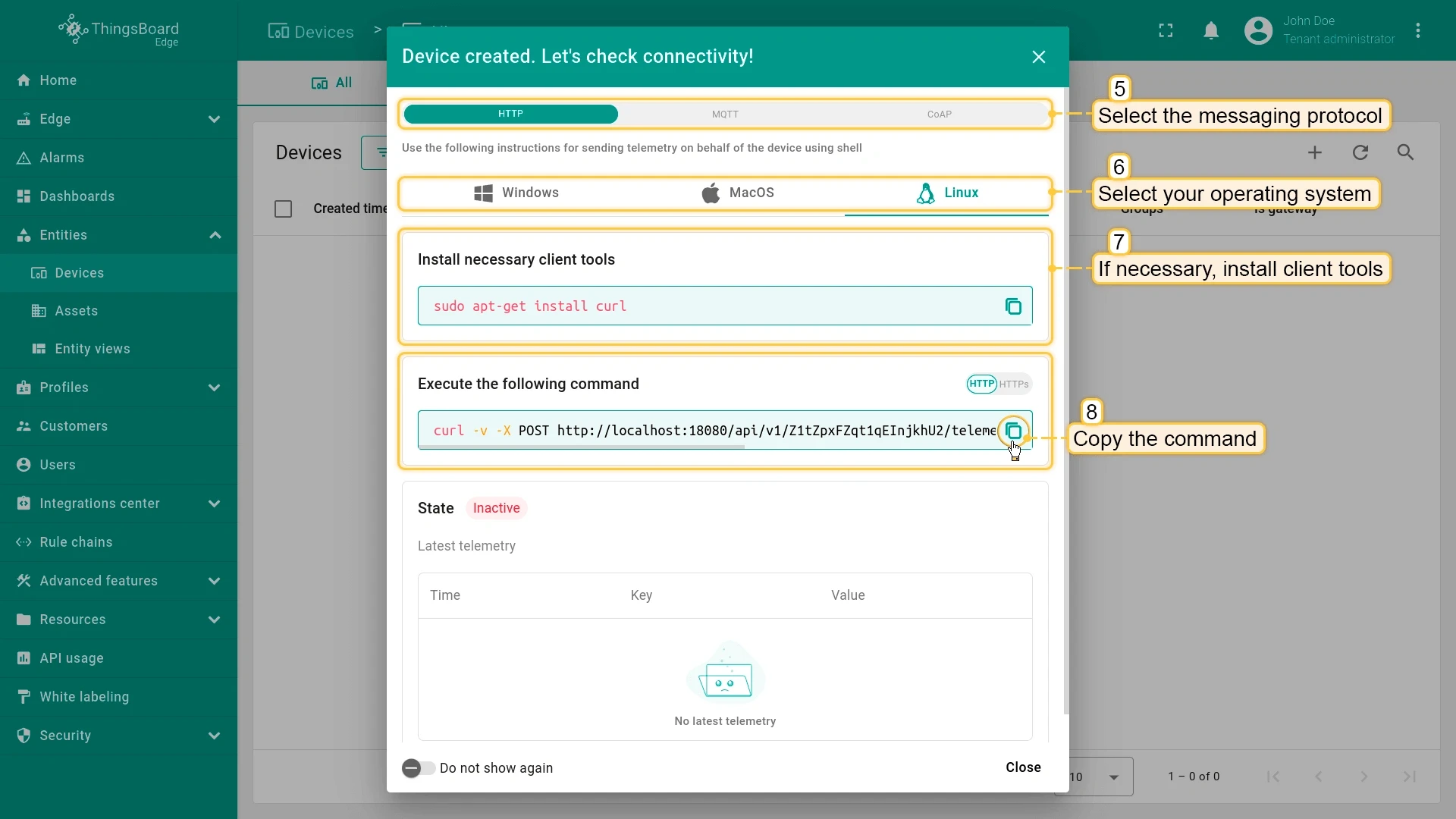
Section titled “Activate the device”After you create the device, a Check connectivity dialog appears with a pre-configured command for your selected protocol and operating system.
-
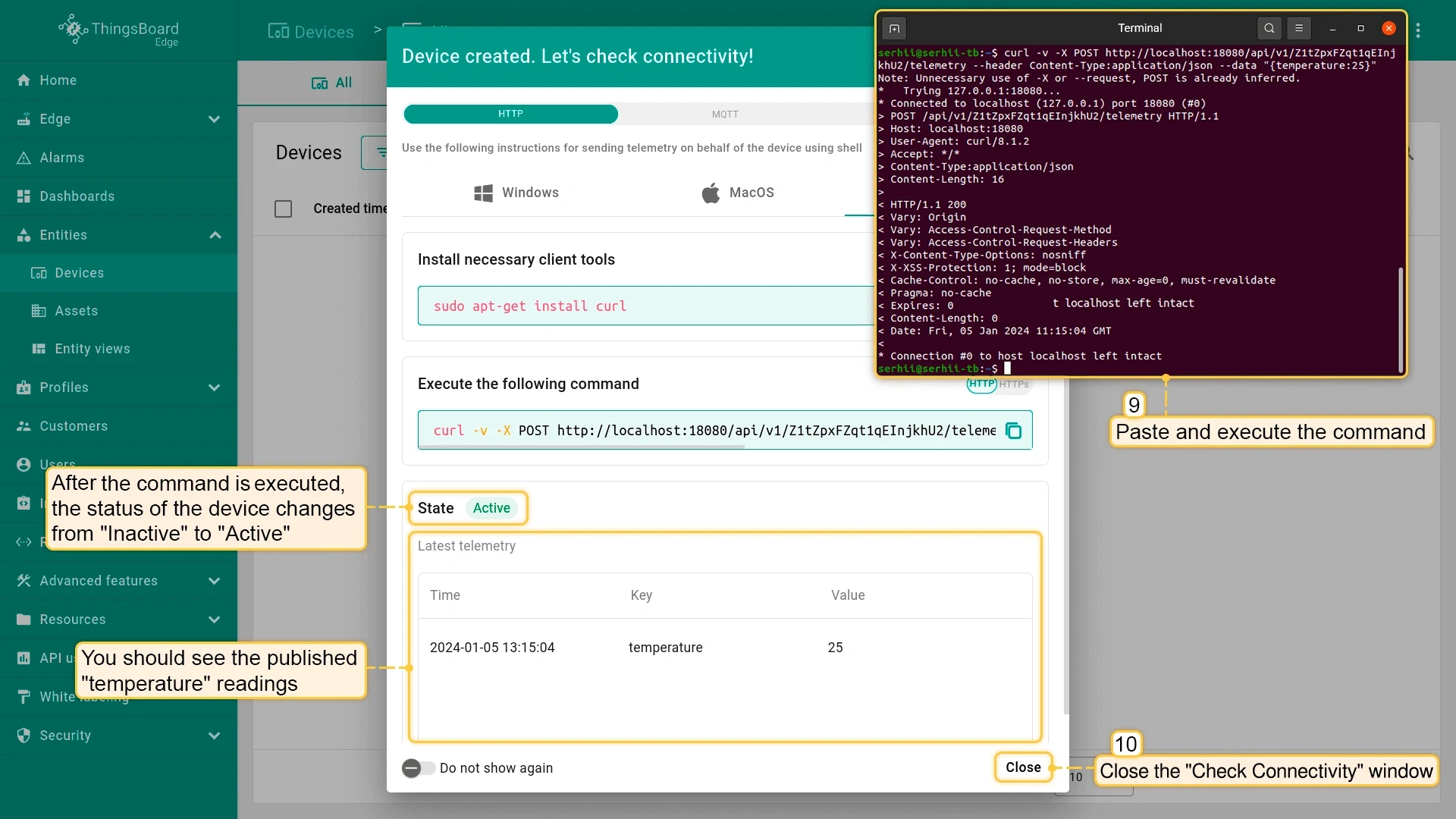
In the Check connectivity dialog, select your preferred protocol and run the displayed command. A
200 OKresponse confirms Edge received the data. The device status changes to Active. -
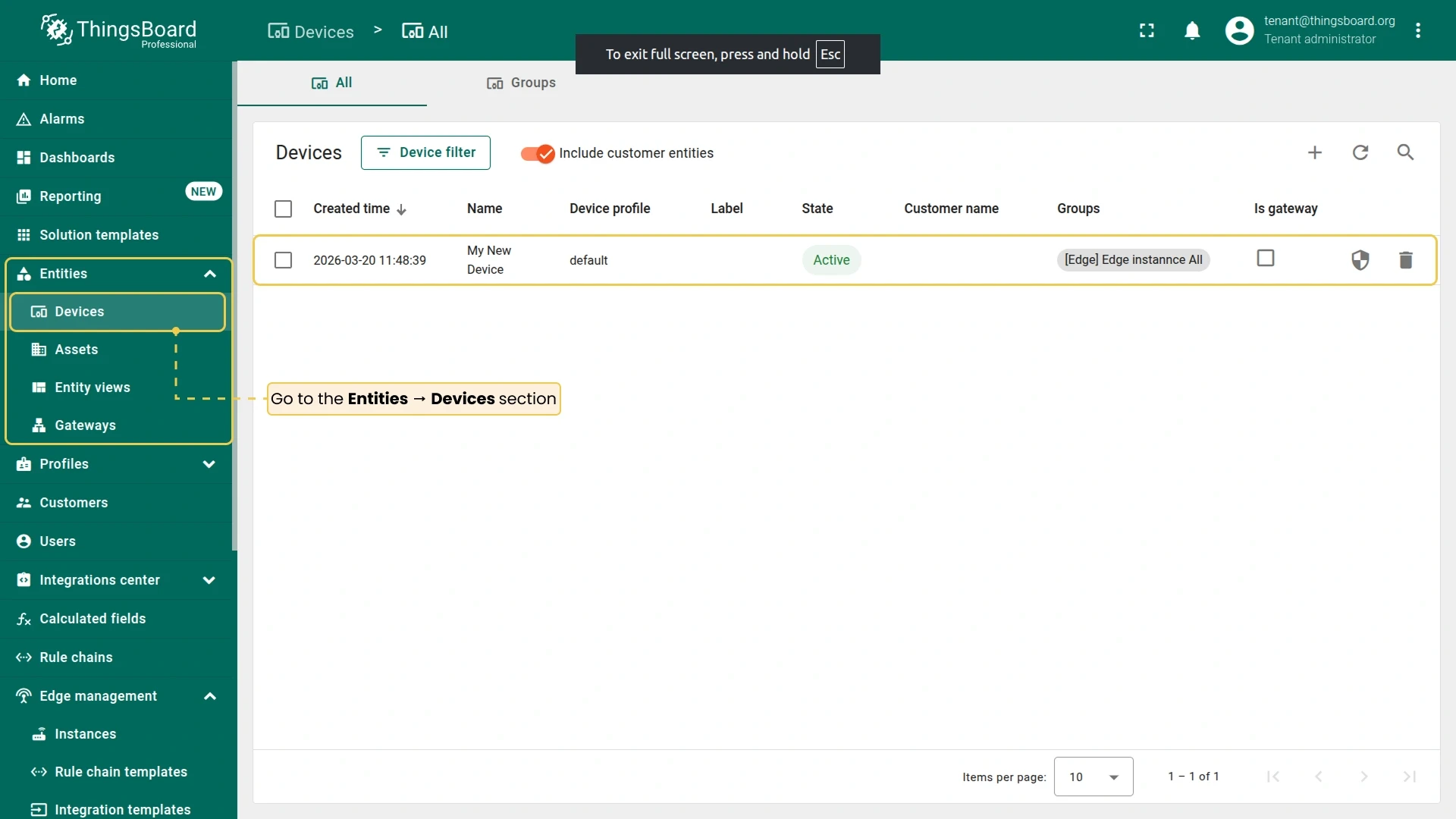
Optional: In your ThingsBoard account, go to Entities → Devices to confirm the device appears there.
Checklist for moving on
Section titled “Checklist for moving on”Was this helpful?
Thank you for your feedback!