Entity Count
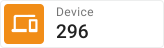
The Entity count widget displays the total number of entities — devices, assets, customers, or any other entity type — that match specific filter criteria. Use it for KPI dashboards, system overviews, or monitoring entity groups: total connected devices, assets in a region, or active gateways.
Key Capabilities
Section titled “Key Capabilities”- Counts any entity type (Device, Asset, Customer, etc.) in real time.
- Works with an entity alias and supports additional key filters to narrow the dataset.
- Automatically updates as entities are created, removed, or change attribute values.
- Two layout options: vertical (Column) or horizontal (Row).
- Configurable icon, label, color, and chevron indicator.
- Supports an On card click action to navigate to a details view on click.
Adding the Widget
Section titled “Adding the Widget”- Open the dashboard in edit mode. Click Add widget in the top toolbar, or click the Add new widget icon in the center of an empty dashboard.
- In the widget bundle selection dialog, find and click Count widgets.
- Select the Entity count widget.
- Configure the datasource, filters, and appearance, then click Add.
Configuration
Section titled “Configuration”All settings in this section use Basic mode — a quick-start configuration covering the essentials. For finer widget controls like title font, card style, and tooltip, switch to the Advanced tab.
Datasource
Section titled “Datasource”Select the entity alias that defines which entities are counted. Use an entity alias to group entities by type, profile, relation, or any other criteria.
Add filters to narrow the counted set — for example, only devices where the active attribute equals true.
Appearance
Section titled “Appearance”Controls the widget layout, label, icon, and value display.
| Setting | Description |
|---|---|
| Layout | Column — stacks icon, value, and label vertically. Row — places icon and value side by side. |
| Auto scale | Automatically adjusts font sizes to fit the widget area when resized. |
| Label | Descriptive text shown on the card, like Active, Total, or Online. |
| Icon | Optional icon representing the entity category. Configure size and color. |
| Icon background | Background color behind the icon. Use to communicate category at a glance, like green for active or red for offline. |
| Value | Font and color for the displayed count number. |
| Chevron | Adds a chevron (›) next to the value to indicate the card is clickable. Pair with an On card click action. |
Card Appearance
Section titled “Card Appearance”| Setting | Description |
|---|---|
| Background | Card background color, gradient, or transparency. |
| Show card buttons | Toggle the Fullscreen button in the widget header. |
| Card border radius | Roundness of card corners. |
Actions
Section titled “Actions”The Entity count widget supports the following action sources:
- On card click — triggered when the user clicks anywhere on the widget card. Enable Chevron in appearance settings to provide a visual click indicator.
- Widget header button — adds a custom button to the widget header bar.
Example
Section titled “Example”Total Active Devices Counter
Section titled “Total Active Devices Counter”Goal: Display the number of currently active devices in the system. Clicking the card navigates to a dashboard state that shows a full list of active devices.
Prerequisites: A dashboard with two states — a default state for the counter card and a second state containing a widget that lists active devices, like an Entities table.
Step 1. Add the widget. Open the dashboard in edit mode, click Add widget, select Count widgets, then choose Entity count.
Step 2. Configure the datasource. Set Datasource type to Entity alias. Create or select an alias:
- Alias name:
All devices - Filter type: Entity type → Device
Step 3. Add a filter. In the Filters section, click Add key filter and configure:
| Field | Value |
|---|---|
| Key type | Attribute |
| Key name | active |
| Value type | Boolean |
| Operation | equal |
| Value | True |
This restricts the count to devices where active = true.
Step 4. Configure appearance. Set Label to Active devices and enable Chevron.
Step 5. Configure action. In the Actions section, add an On card click action configured to navigate to the dashboard state that contains the active devices list.
Step 6. Save. Click Add, resize and reposition as needed, then click Save on the dashboard toolbar.
Result: The card displays the live count of active devices and updates automatically as device states change. Clicking the card navigates to the active devices list.
Troubleshooting
Section titled “Troubleshooting”Widget Shows Zero or No Count
| Cause | Solution |
|---|---|
| Entity alias resolves to no entities | Open Entity aliases in the dashboard and verify the alias returns results. |
| Filter excludes all entities | Check all key filters — if active = true is set but no device has this attribute, the count is zero. Remove or adjust filters to confirm entities exist. |
| Attribute name mismatch | Verify the filter key name matches the exact attribute name on the device. Attribute names are case-sensitive. |
Count Does Not Update Automatically
| Cause | Solution |
|---|---|
| Dashboard not in Realtime mode | Ensure the dashboard time window is set to Realtime so the widget receives live updates. |
| Devices not sending attribute updates | Confirm devices are actively reporting the tracked attribute (like active) to ThingsBoard. |
Chevron Is Not Visible
| Cause | Solution |
|---|---|
| Chevron not enabled | Open widget configuration ⇾ Appearance and enable Chevron. |
Click Action Does Not Navigate
| Cause | Solution |
|---|---|
| No action configured | Open widget configuration ⇾ Actions and add an On card click action. |
| Target state does not exist | Verify the destination dashboard state exists and its name matches exactly what is configured in the action. |
Was this helpful?