HTML Value Card
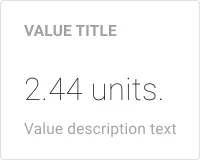
The HTML Value Card widget displays telemetry or attribute data using a custom HTML template. Unlike the standard Value card, it gives you full control over layout, styling, and multi-key data presentation — use it for KPI dashboards, status indicators, or any card where you need formatting beyond a single number.
Key Capabilities
Section titled “Key Capabilities”- Display latest telemetry or attribute values from any entity.
- Insert live values using
${key}placeholders directly in HTML. - Combine multiple data keys in a single card.
- Style the card with custom CSS scoped to the widget.
- Use any datasource type: Device, Entity alias, Entities count, Alarms count, or Function.
- Apply key filters to count or display only entities matching specific conditions.
Adding the Widget
Section titled “Adding the Widget”- Open the dashboard in edit mode. Click Add widget in the top toolbar, or click the Add new widget icon in the center of an empty dashboard.
- In the widget bundle selection dialog, find and click Cards.
- Select the HTML Value Card widget.
- Configure the datasource and appearance, then click Add.
Configuration
Section titled “Configuration”Datasource
Section titled “Datasource”On the Data tab, configure what the widget displays:
- Datasource type: Device, Entity alias, Entities count, Alarms count, or Function.
- Target: the device or entity alias to read from.
- Data keys: one or more telemetry keys or attributes. Each key becomes available as a
${key}placeholder in the HTML template using its label. - Filters: optionally restrict the dataset using key filters, like
active = trueorbattery < 20.
HTML Template
Section titled “HTML Template”On the Appearance tab, write your card layout in the HTML field. Use ${key} placeholders to insert live values:
| Placeholder | Output |
|---|---|
${key} |
Raw value with no formatting. |
${key:0} |
Value rounded to zero decimal places. |
${key:2} |
Value with two decimal places. |
${entityName} |
Name of the current entity. |
${entityLabel} |
Label of the current entity. |
Example — display a temperature reading from a device named Smart Device:
Datasource: Device → Smart Device, data key: temperature
<div style="padding: 2px 0 2px 10px; text-align: center;"> <h3>${entityName}</h3> <p style="font-size: 36px;">Temperature: ${temperature:1} °C</p></div>Content Styling (CSS)
Section titled “Content Styling (CSS)”Add custom CSS in the CSS field on the Appearance tab. Styles are scoped to the widget container and do not affect other widgets on the dashboard.
Example — styled temperature card with a dark background:
<div class="temperature-card"> <h3>${entityName}</h3> <p class="temperature-value">Temperature: ${temperature} °C</p></div>.temperature-card { background-color: #20232a; color: #61dafb; border: 6px solid #2196F3; border-radius: 12px; text-align: center;}
.temperature-value { font-size: 36px;}When using a CSS-defined background, set Background color to #FFFFFF00 (transparent) on the Widget card tab so the card CSS background shows through.
Widget Card
Section titled “Widget Card”On the Widget card tab:
| Setting | Description |
|---|---|
| Title | Text shown in the widget header. |
| Card icon | Icon displayed next to the title. |
| Background color | Card background. Set to #FFFFFF00 when using a CSS-defined background. |
| Card border radius | Roundness of card corners. |
| Card padding | Spacing between card content and its border. |
| Show card buttons | Toggle Data export and Fullscreen buttons in the widget header. |
Actions
Section titled “Actions”The HTML Value Card supports the Widget header button action — adds a button to the widget header that triggers a configured action when clicked.
Examples
Section titled “Examples”Active Devices Counter
Section titled “Active Devices Counter”Goal: Display the number of currently active devices in a ThingsBoard instance.
Step 1. Add the widget. Open your dashboard in edit mode, click Add widget, select Cards, then choose HTML Value Card.
Step 2. Configure the datasource.
On the Data tab:
- Datasource type: Entities count
- Entity alias: All Sensors — Filter type: Entity type → Device
- Data key:
count, labelactiveDevicesNumber
Add a key filter to count only active devices:
- Filter name: ActiveDevicesFilter
- Key type: Attribute, Key name:
active, Value type: Boolean - Operation: equal, Value: True
Step 3. Configure appearance.
HTML:
<div class='card' id="activeDevices"> <div class='content'> <div class='value'> ${activeDevicesNumber:0} </div> <div class='description'> Active devices </div> </div></div>CSS:
.card {  width: 100%;  height: 100%;  border: 1px solid #E0E0E0;  border-radius: 16px;  box-sizing: border-box;  background: #ffffff;}
.card .content {  padding: 24px 32px;  display: flex;  flex-direction: column;  align-items: center;  justify-content: center;  height: 100%;  box-sizing: border-box;}
.card .value {  font-size: 1.5em;  font-weight: 700;  line-height: 1.5;  color: #0D47A1;  text-align: center;}
.card .description {  font-size: 1em;  font-weight: 500;  line-height: 1.5;  color: #333333;  text-align: center;  letter-spacing: 0.5px;  text-transform: uppercase;}
@media (min-width: 960px) and (max-width: 1200px) {  .card .value { font-size: 2.2em; line-height: 1.2; }  .card .description { font-size: 0.9em; line-height: 1.2; }}
Step 4. Configure the widget card. Set Background color to #FFFFFF00 (transparent).
Step 5. Save. Click Add, resize or reposition the widget as needed, then click Save on the dashboard toolbar.
Result: A compact card showing the active device count, updated automatically as device activity changes.
Inactive Devices Counter
Section titled “Inactive Devices Counter”Goal: Display the number of inactive devices.
Follow the same steps as the Active devices counter, with these differences:
Datasource:
- Data key:
count, labelinactiveDevicesNumber - Filter name: InactiveDeviceFilter — Key type: Attribute, Key name:
active, Value type: Boolean, Operation: equal, Value: False
HTML: replace activeDevicesNumber with inactiveDevicesNumber and the label text with Inactive devices.
CSS: same structure; change .card .value color to #e53935 (red).
Result: A compact card showing the inactive device count, updated dynamically as device activity changes.
Low Battery Devices Counter
Section titled “Low Battery Devices Counter”Goal: Display the number of devices with a battery level below 20.
Follow the same steps as the Active devices counter, with these differences:
Datasource:
- Data key:
count, labellowBatteryDevicesNumber - Filter name: LowBatteryFilter — Key type: Time series, Key name:
battery, Value type: Numeric, Operation: less than, Value: 20
HTML: replace the data key placeholder with lowBatteryDevicesNumber and the label text with Low battery devices.
CSS: same structure; change .card .value color to #F2994A (orange).
Result: A compact card showing the number of devices with battery telemetry below 20, updated automatically.
Troubleshooting
Section titled “Troubleshooting”Card Shows No Data
| Cause | Solution |
|---|---|
| Invalid data key | Confirm the key name matches the telemetry or attribute key on the device exactly. Key names are case-sensitive. |
| Placeholder not recognized | The ${key} placeholder uses the data key label, not the raw key name. Check the label set in the Data tab. |
| Entity alias resolves to no entities | Open Entity aliases in the dashboard and verify the alias returns results. |
| Filter too restrictive | Review key filters — an incorrect operation or value may exclude all entities. |
Placeholder Shows Empty or NaN
| Cause | Solution |
|---|---|
| Device has not sent data yet | Open Devices → Latest telemetry and confirm the key has a recent value. |
| Decimal format on non-numeric value | Using ${key:N} on a string key. Remove the format specifier for string values. |
Was this helpful?