QR Code Widget
The QR code feature on the ThingsBoard Home page lets users scan the QR code to download the mobile app or log in instantly — without entering credentials manually. The widget is displayed on the Home page by default and can also be added to any dashboard.
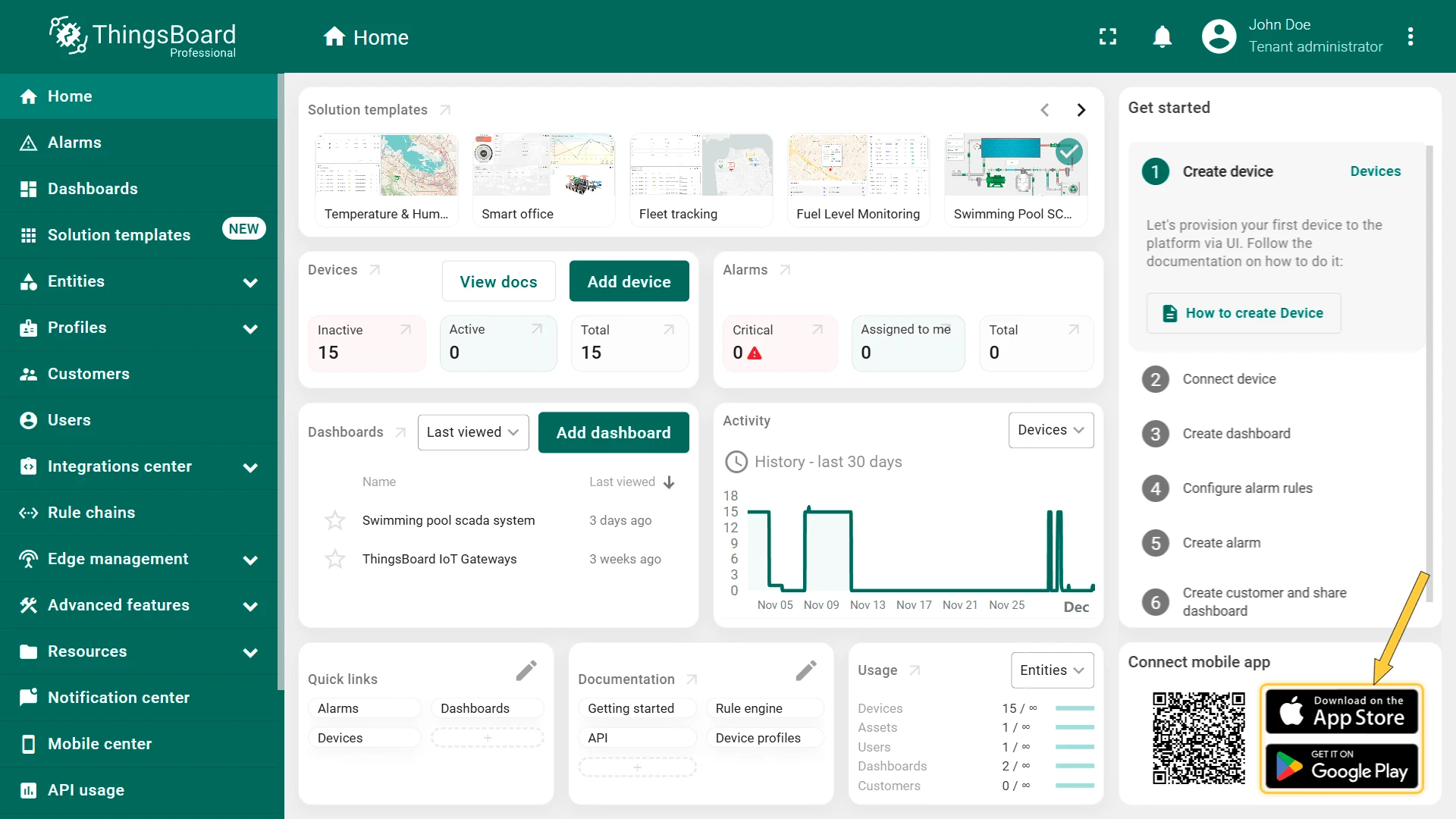
Scan to Download the Mobile App
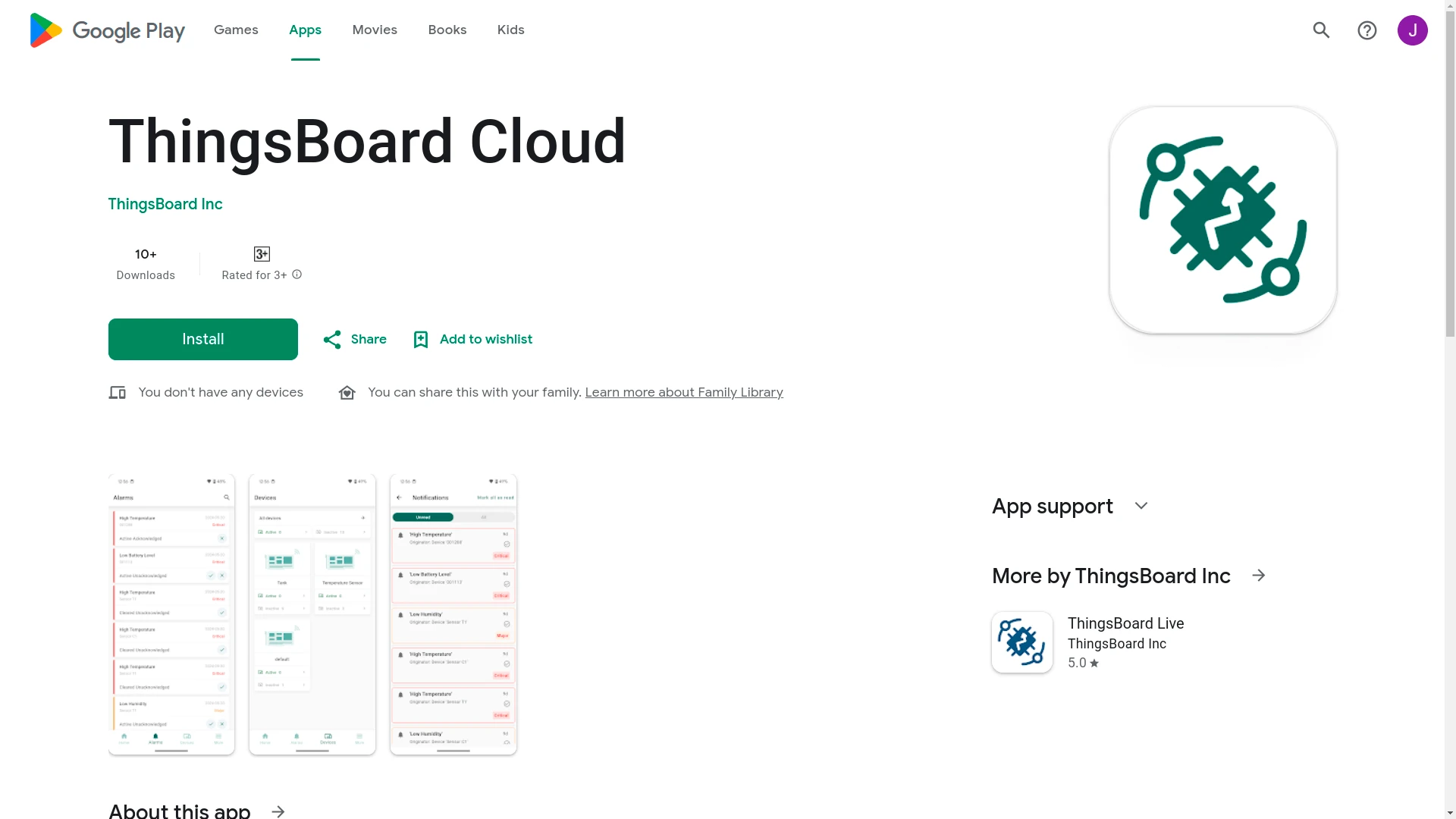
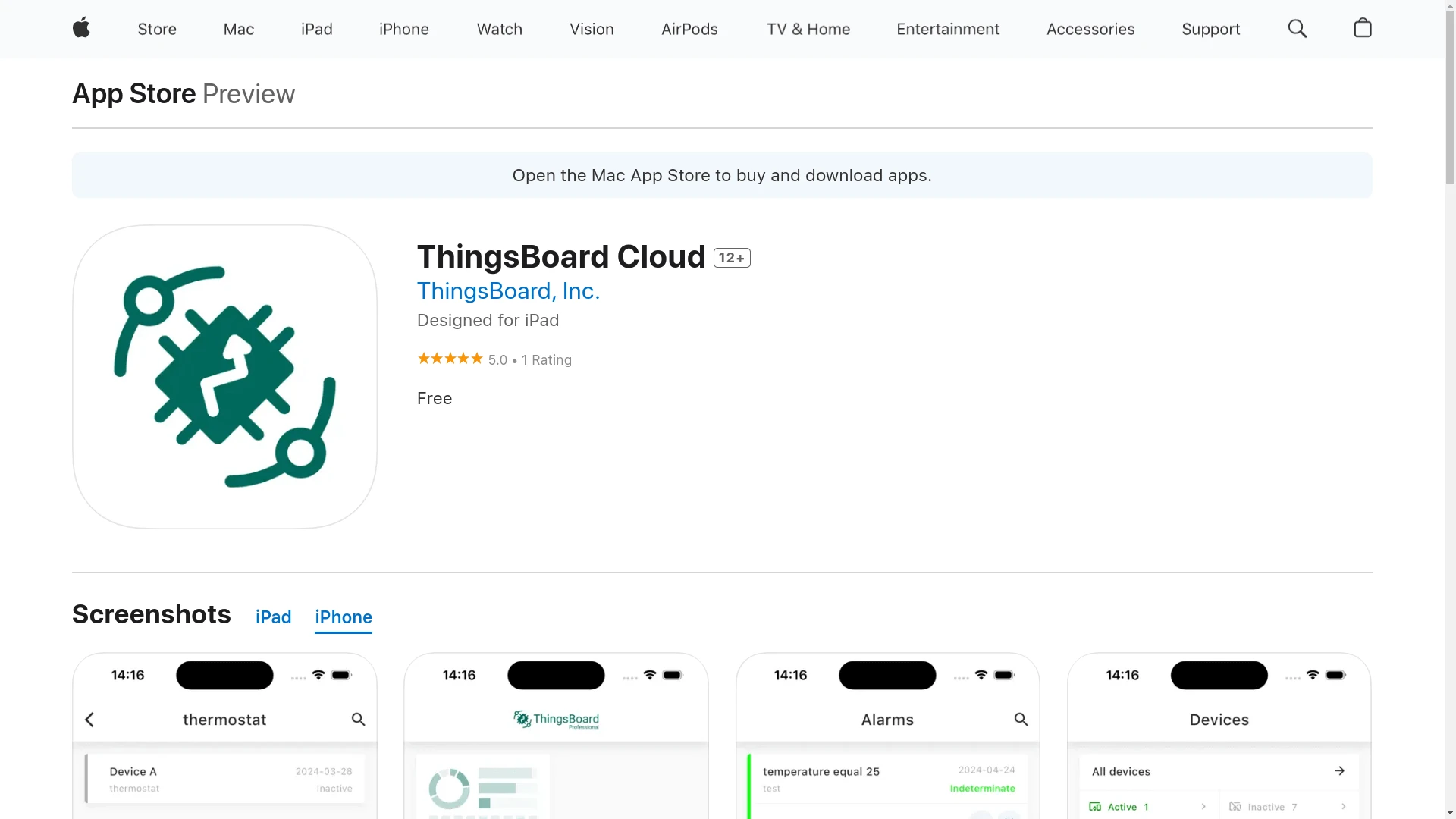
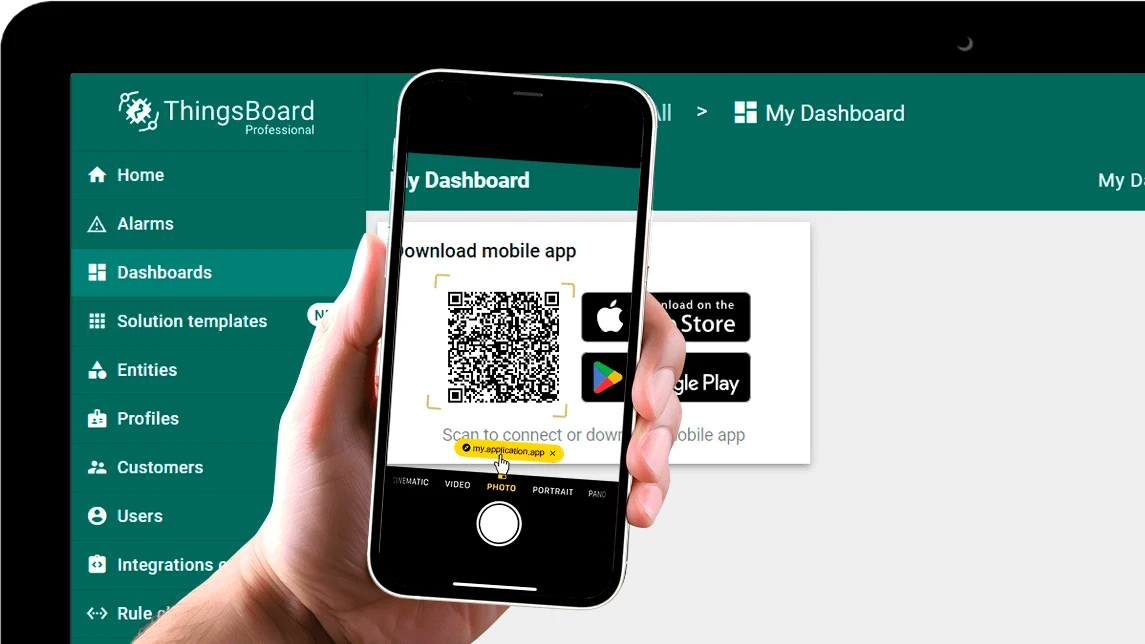
Section titled “Scan to Download the Mobile App”If the ThingsBoard mobile app is not yet installed, scanning the QR code redirects the user to the app marketplace (Google Play or App Store).
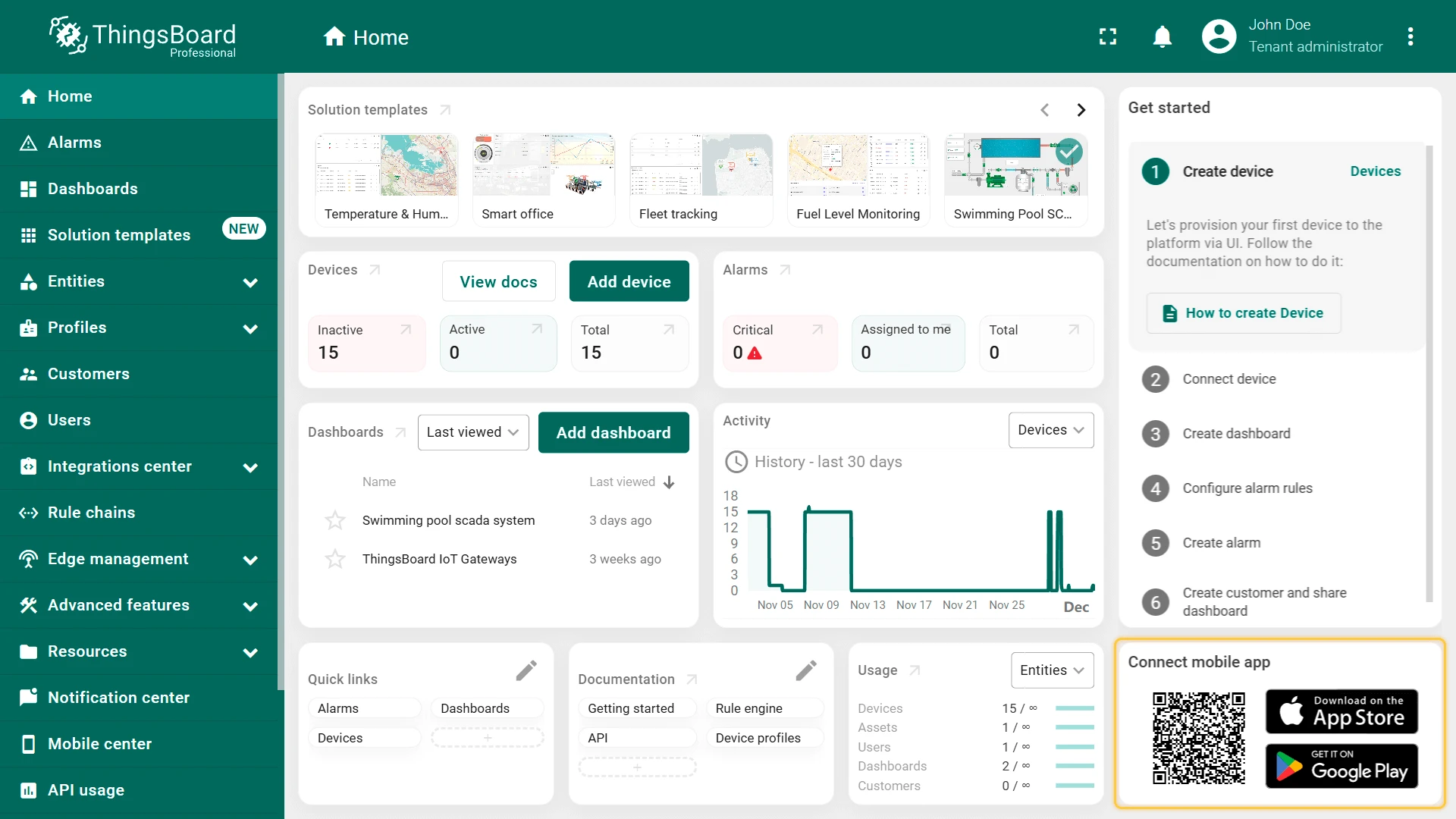
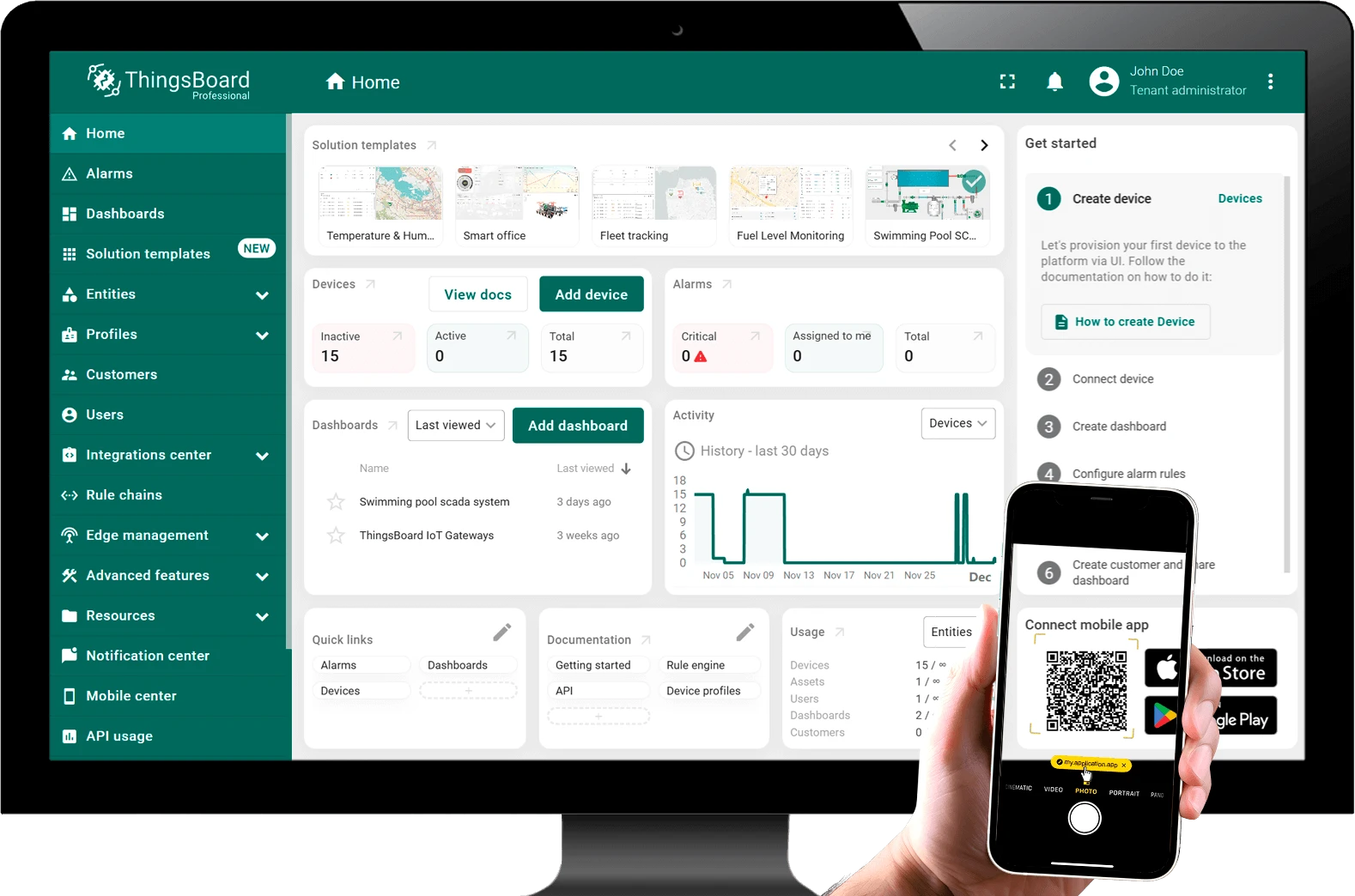
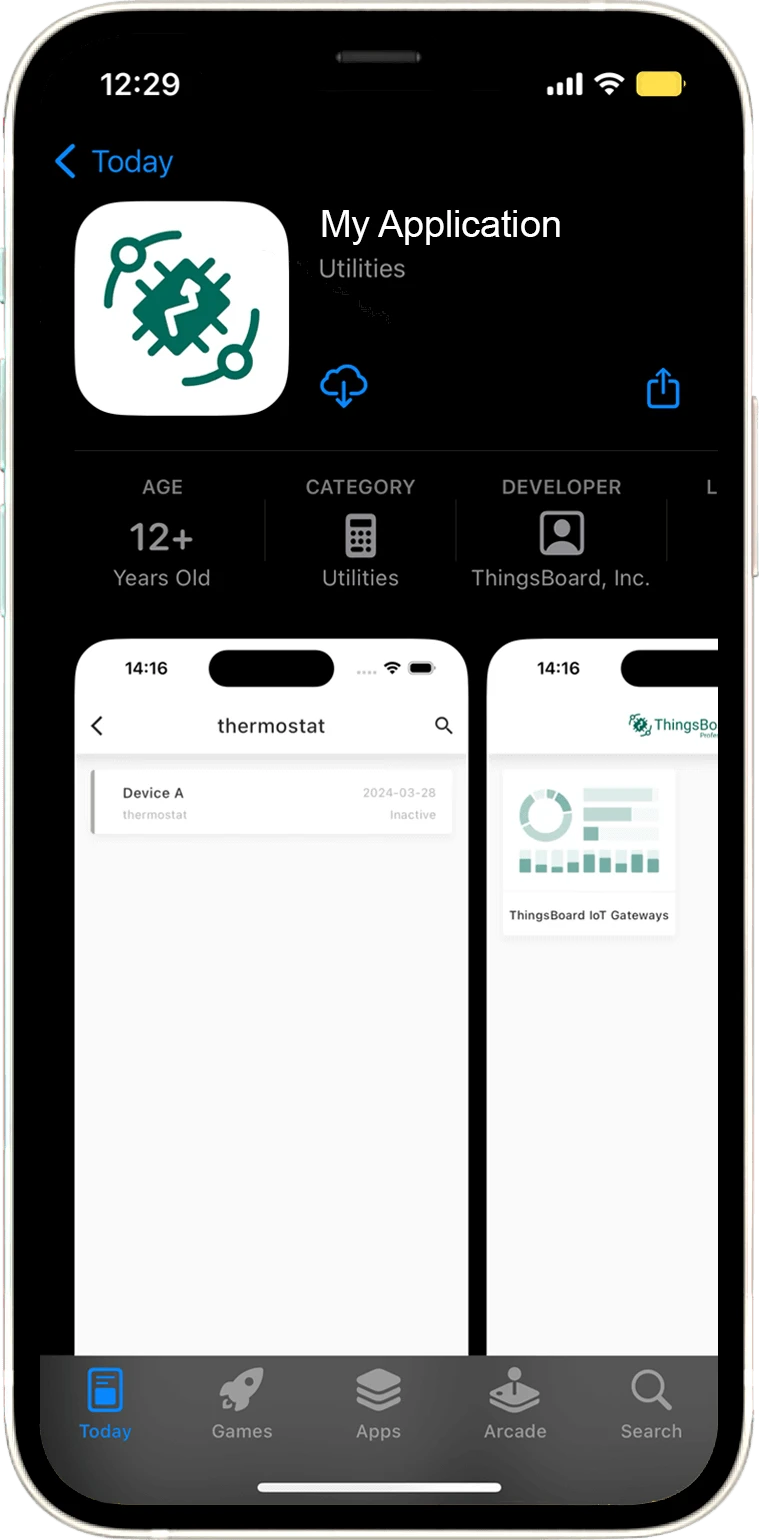
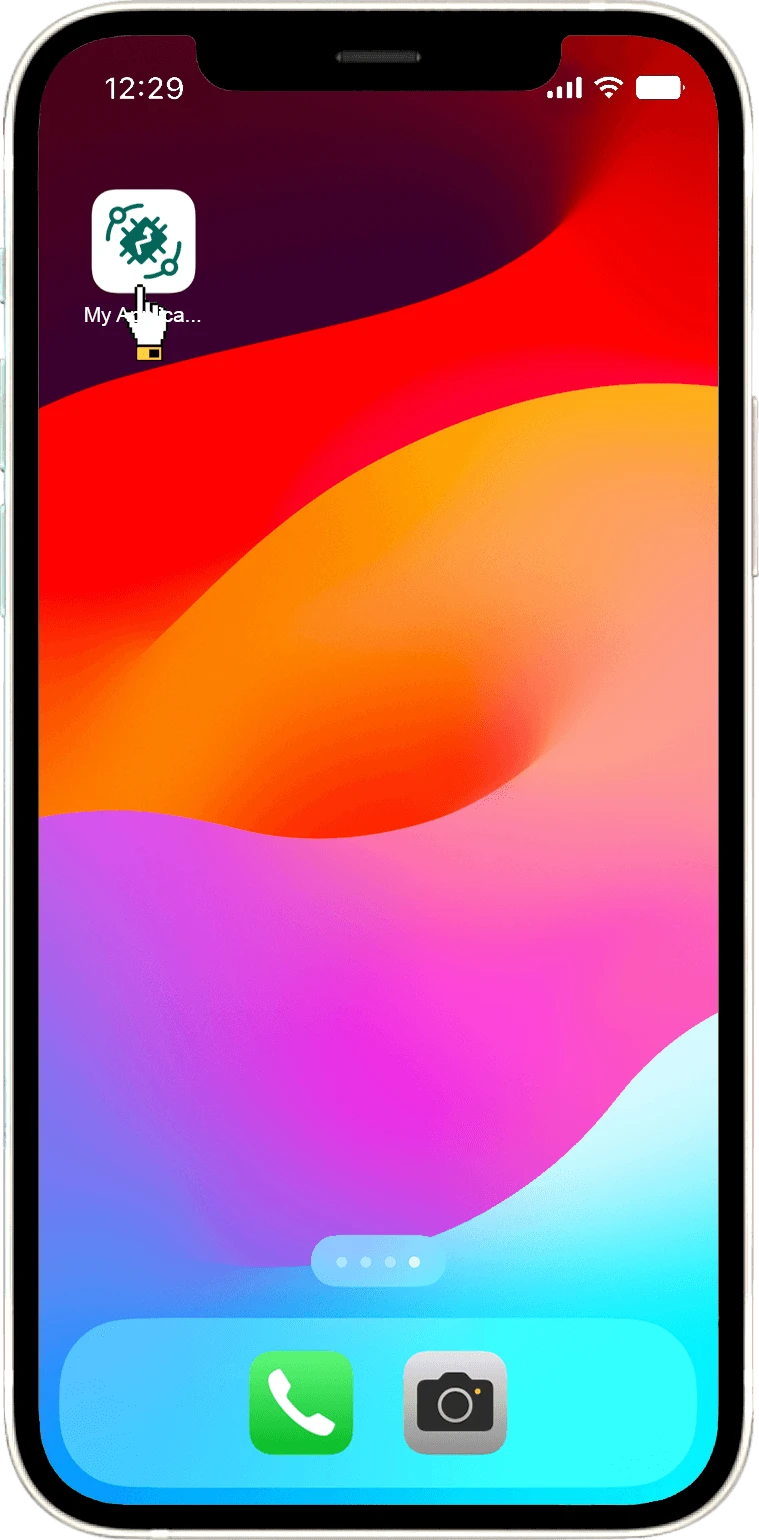
You can also tap the App Store or Google Play button directly in the widget to go to the corresponding store.
Log In with QR Code
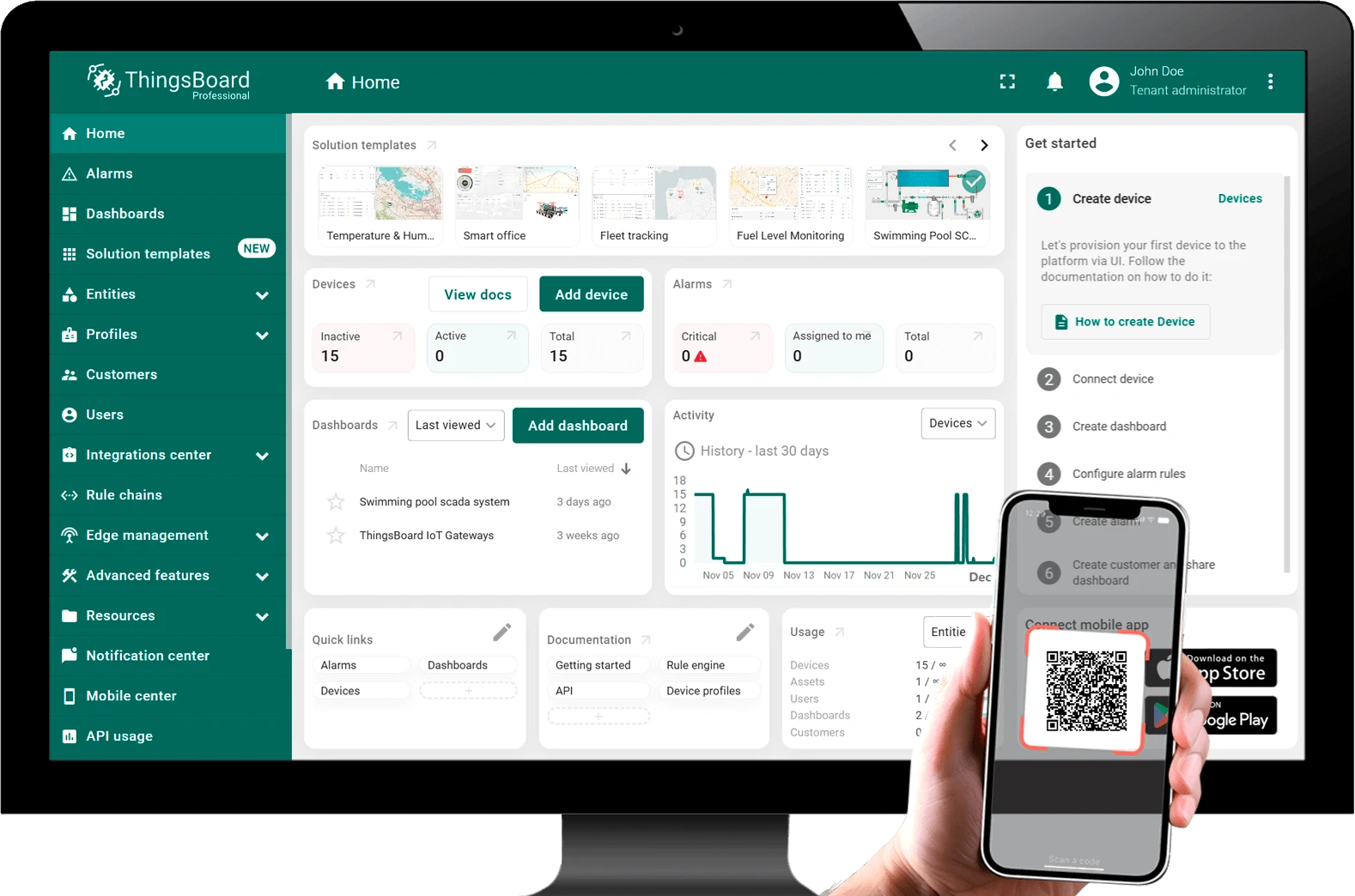
Section titled “Log In with QR Code”Once the app is installed, scan the QR code on the Home page to log in instantly. The app reads the session token embedded in the QR code and connects to your ThingsBoard instance automatically — no manual host or credential entry required.


Configure the QR Code Widget
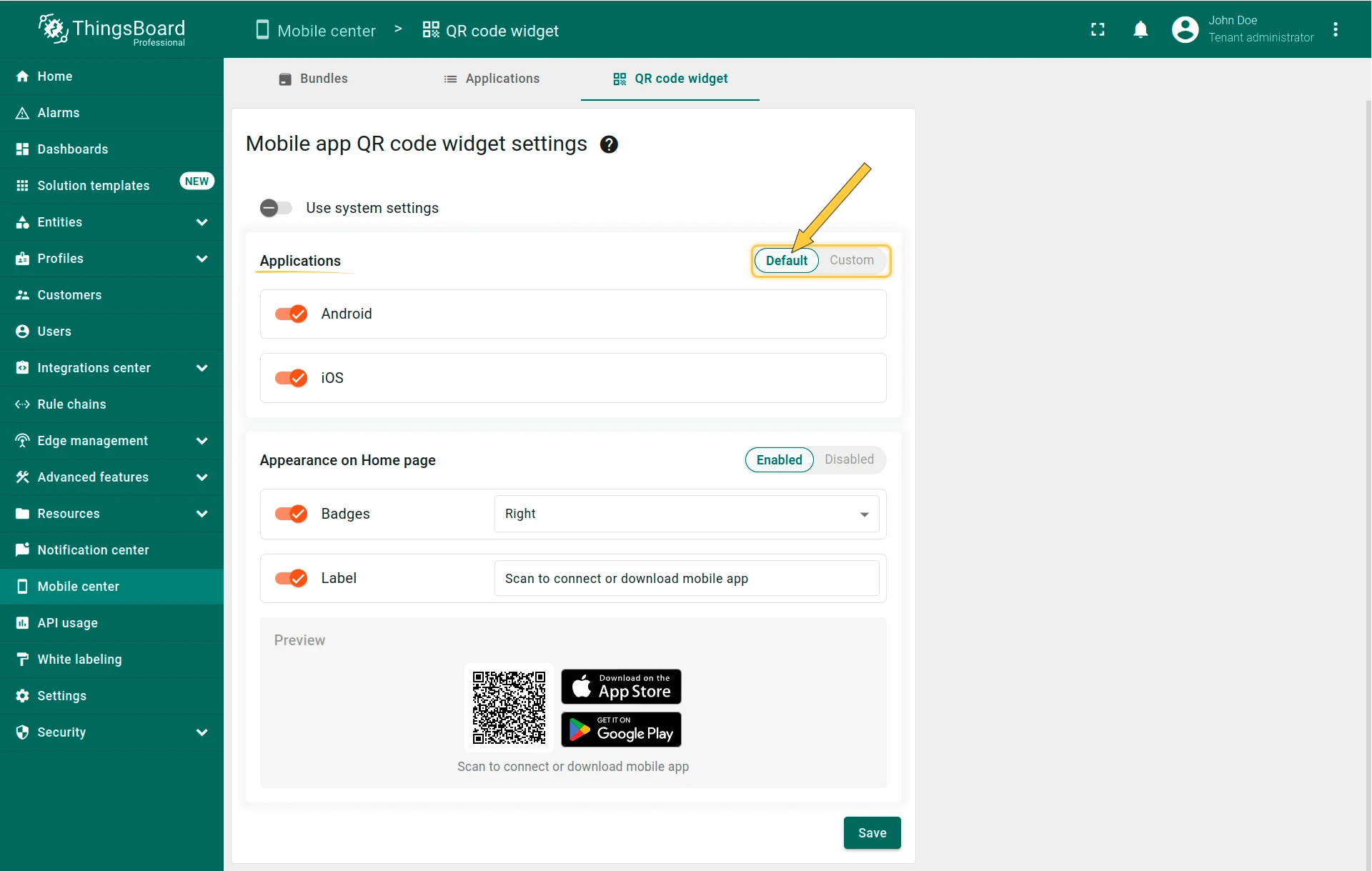
Section titled “Configure the QR Code Widget”QR code widget settings are inherited from the system level by default. Tenant administrators can override them. Navigate to Mobile apps → QR code widget and disable the Use system settings toggle.
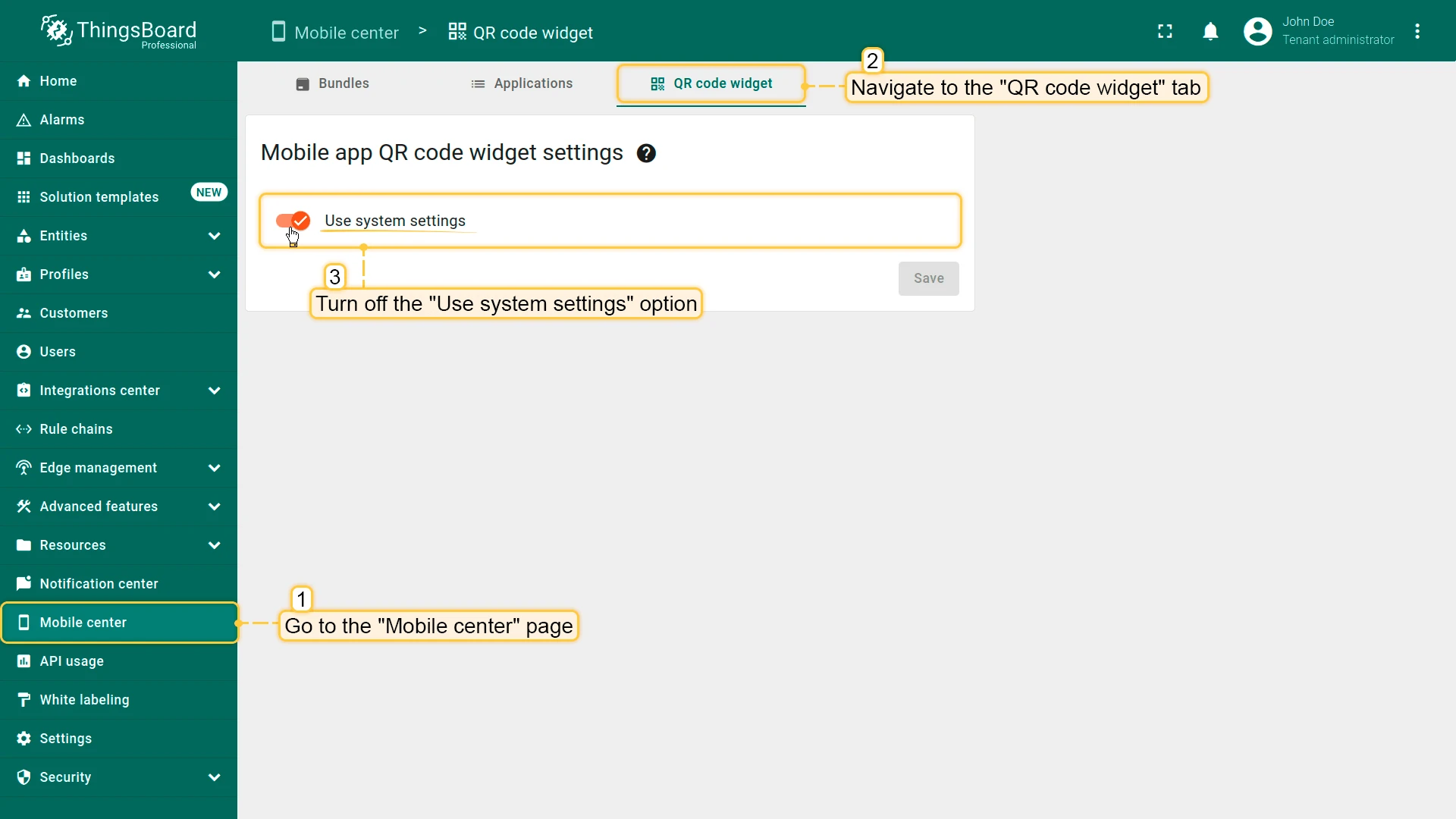
The settings page has two sections: Applications and Appearance on Home page.
Applications
Section titled “Applications”Choose which mobile application the QR code links to:
Default — links to the officially published ThingsBoard Cloud app (Google Play / App Store). This app can switch its server host automatically when the user scans the QR code, connecting to your ThingsBoard instance without any manual configuration.
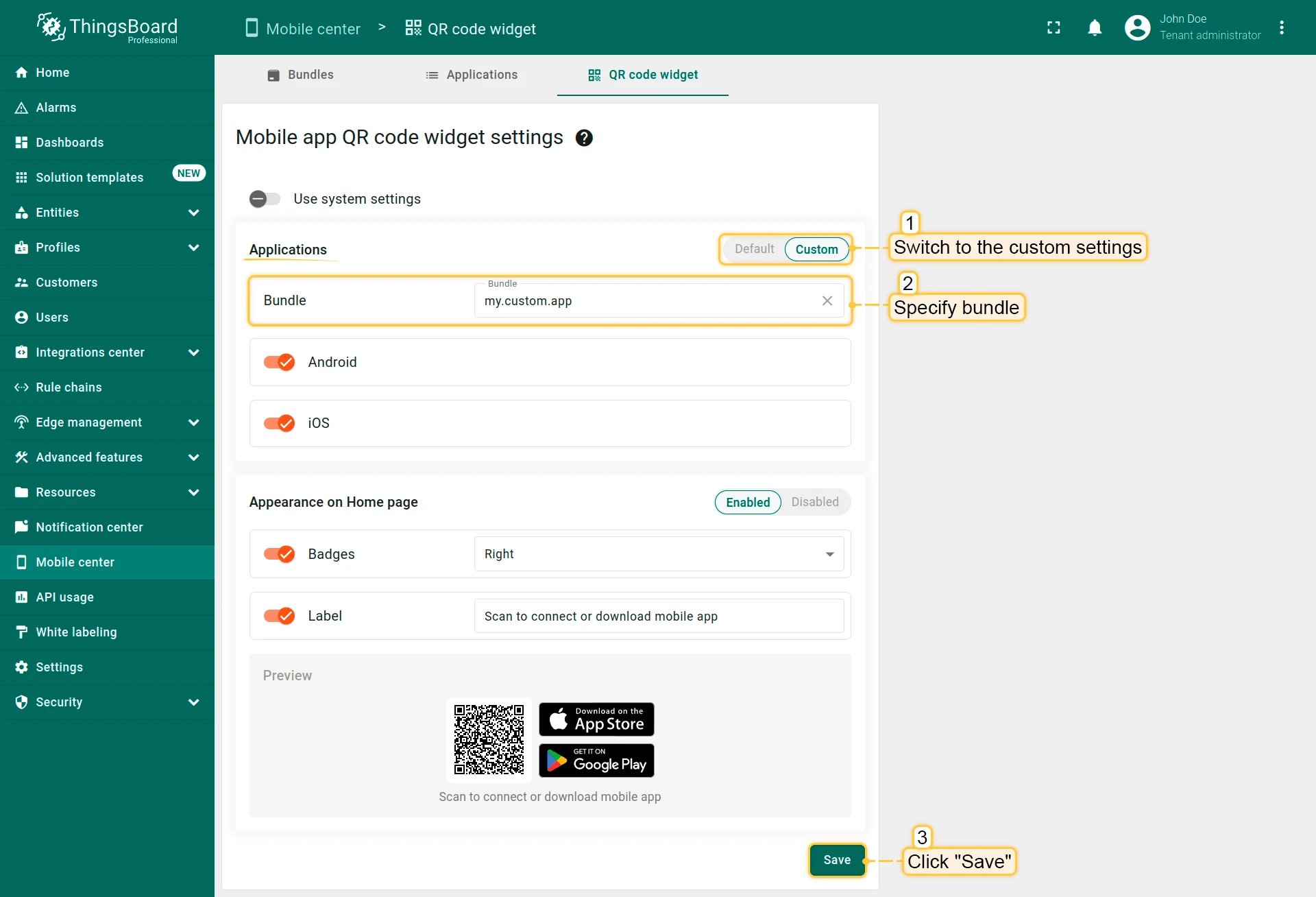
Custom — links to your own branded application. Select Custom, choose the bundle configured on the Bundle tab, and save.
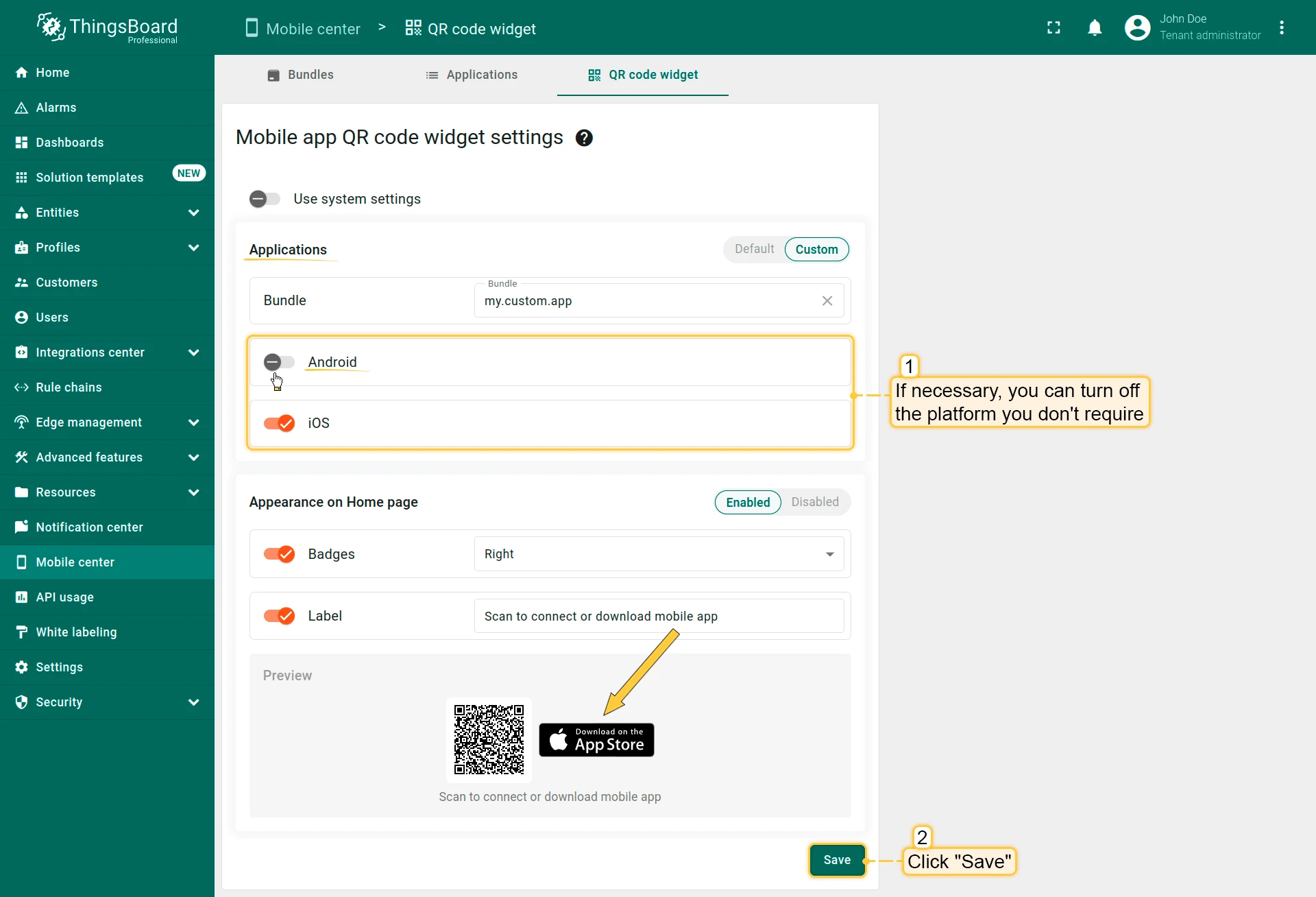
Appearance on Home Page
Section titled “Appearance on Home Page”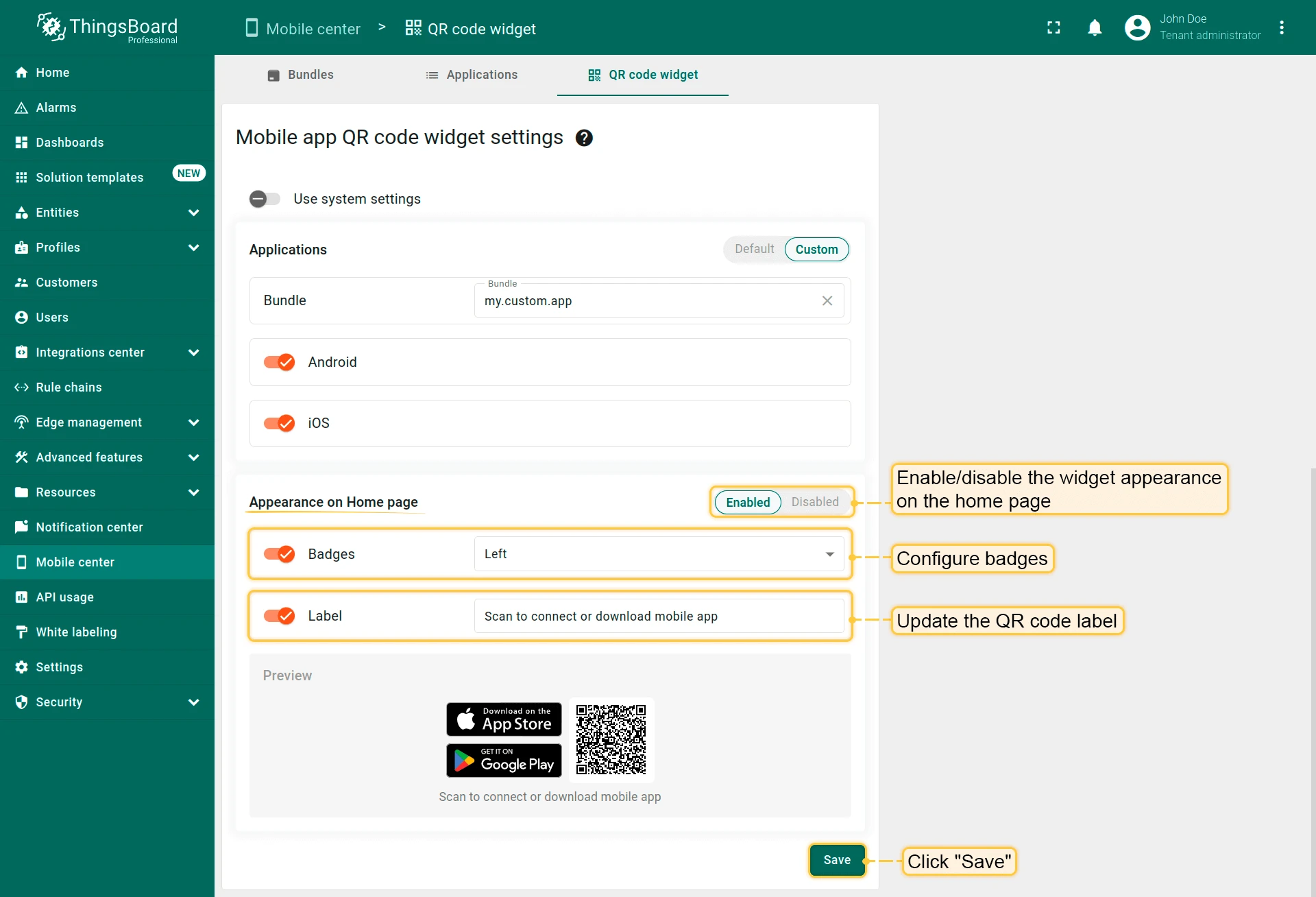
| Setting | Description |
|---|---|
| Enabled | Show or hide the QR code widget on the Home page. |
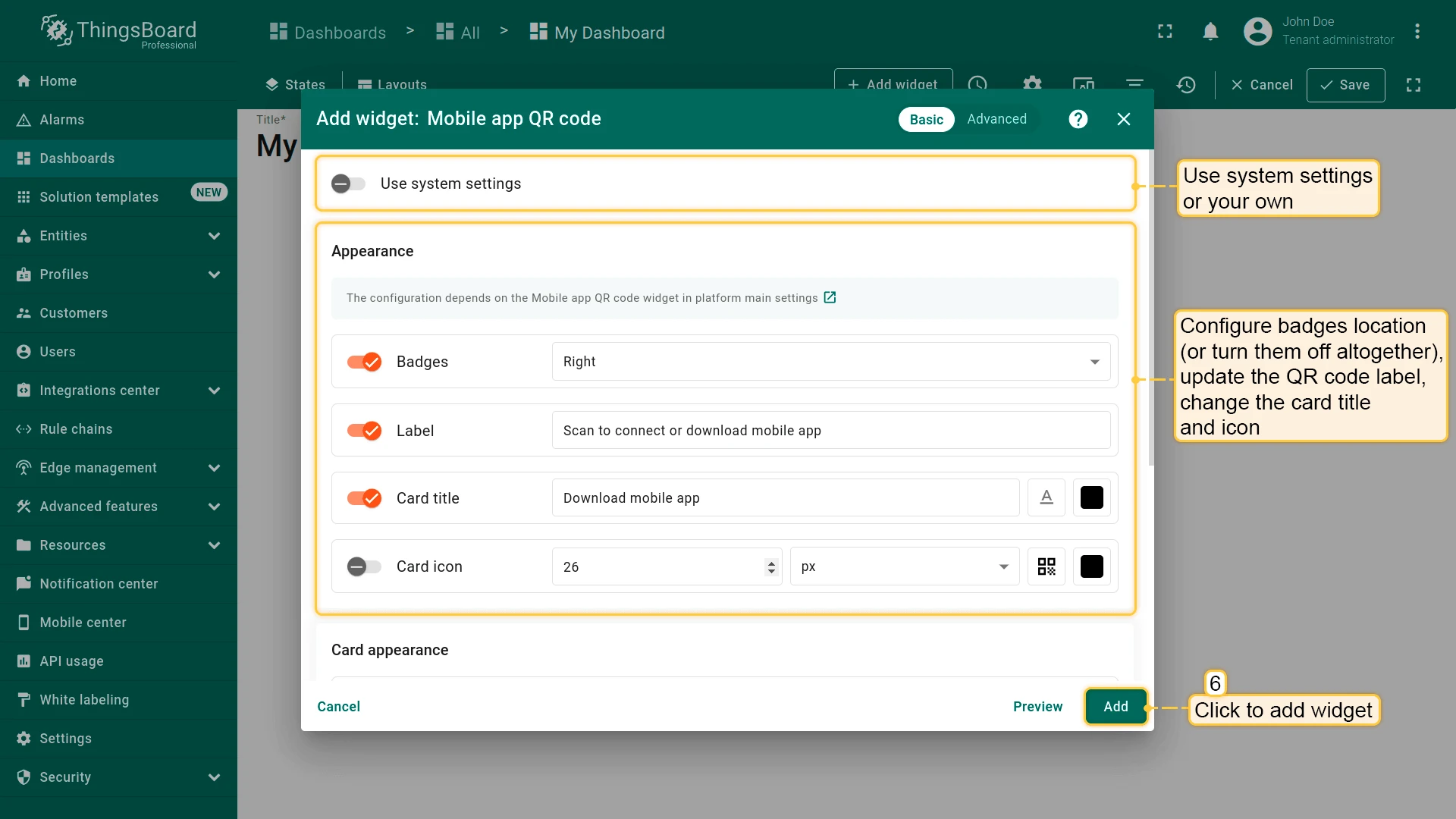
| Badges location | Position of the App Store / Google Play badges: Left, Right, or Bottom. |
| Label | Text displayed below the QR code (e.g. Scan to connect or download mobile app). |
Add QR Code Widget to a Dashboard
Section titled “Add QR Code Widget to a Dashboard”You can add the Mobile app QR code widget to any dashboard to give customers a convenient login entry point on their mobile devices.
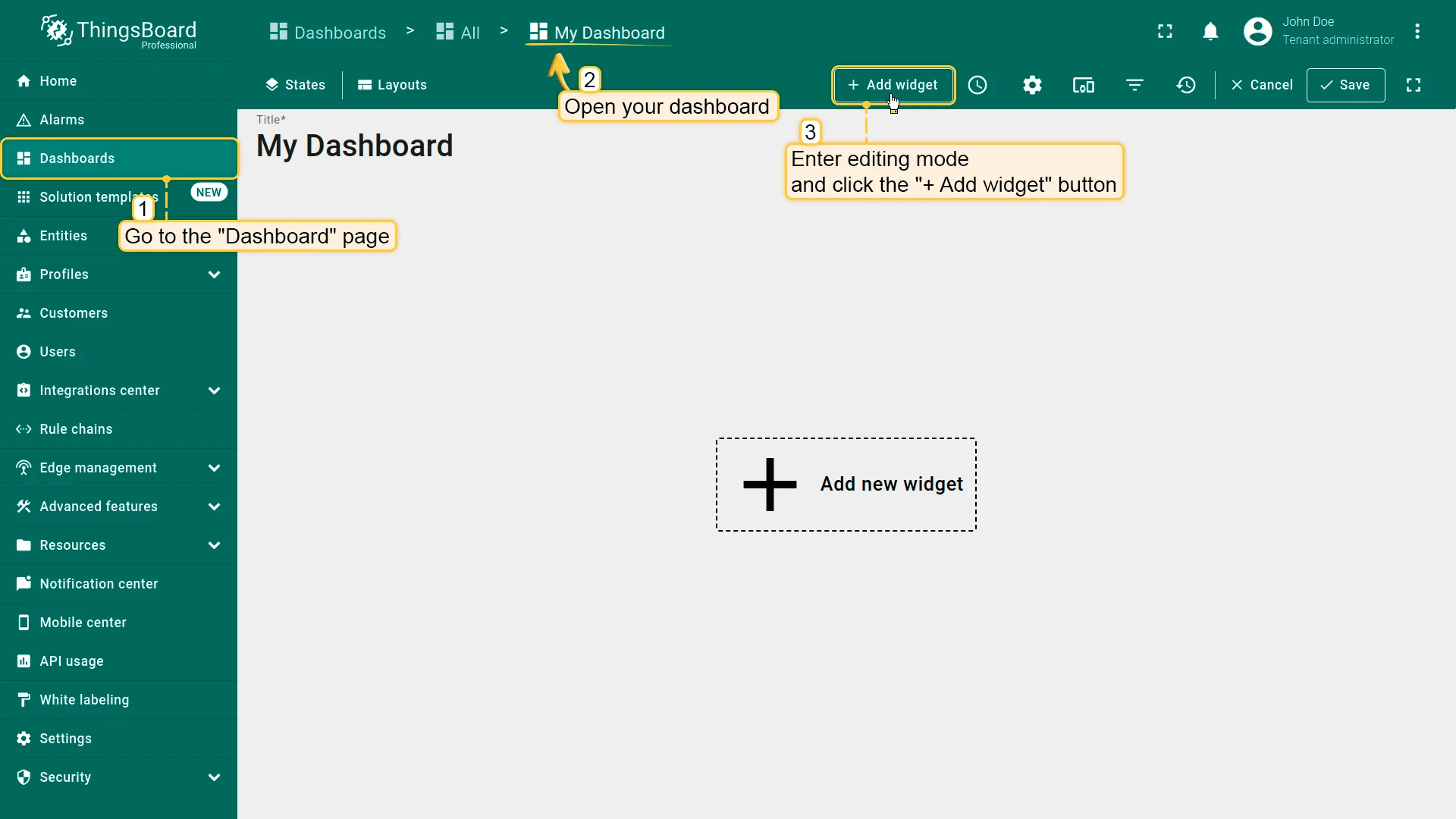
- Open the dashboard in Edit mode and click + Add widget.
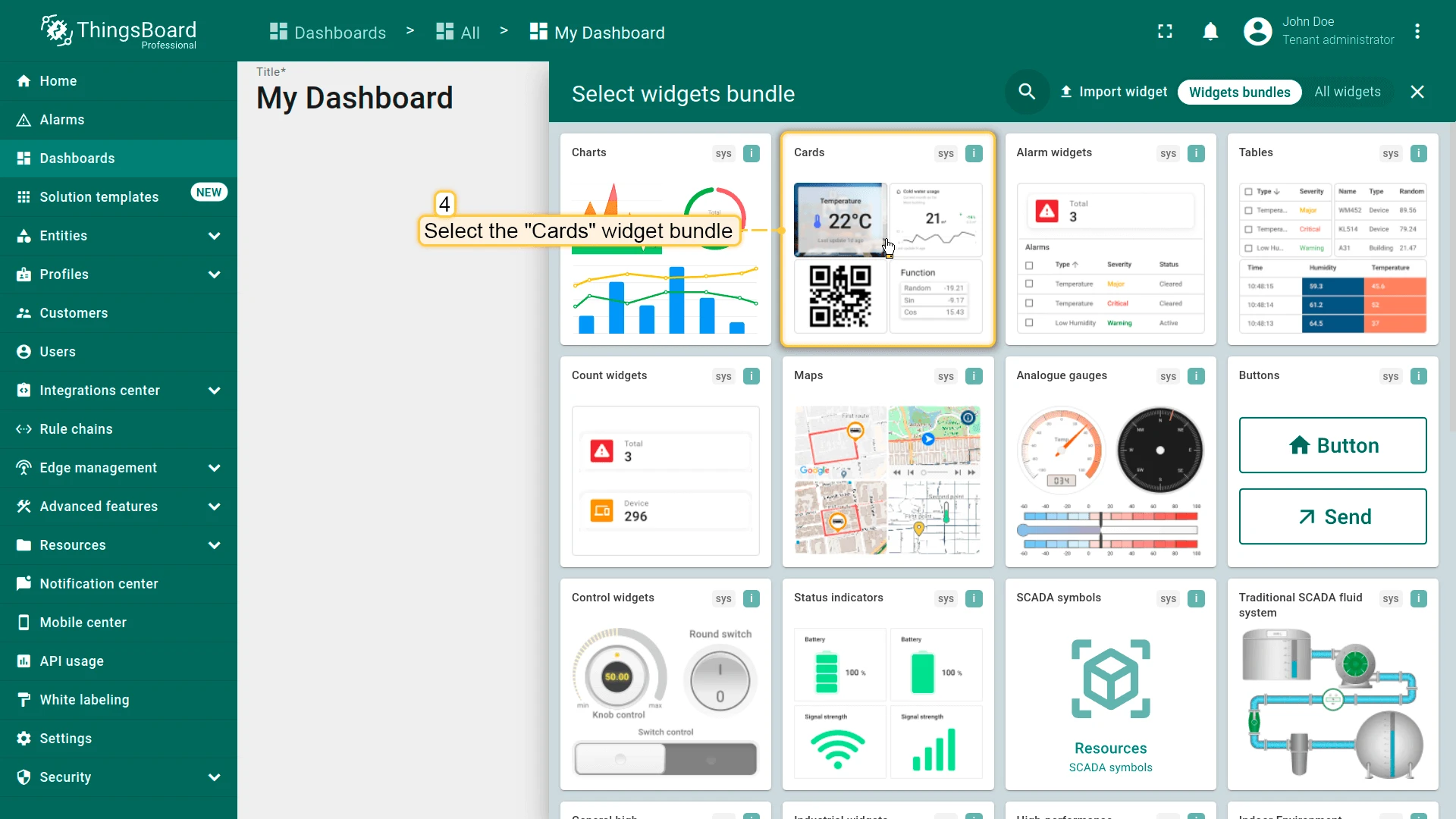
- Select the Cards widget bundle.
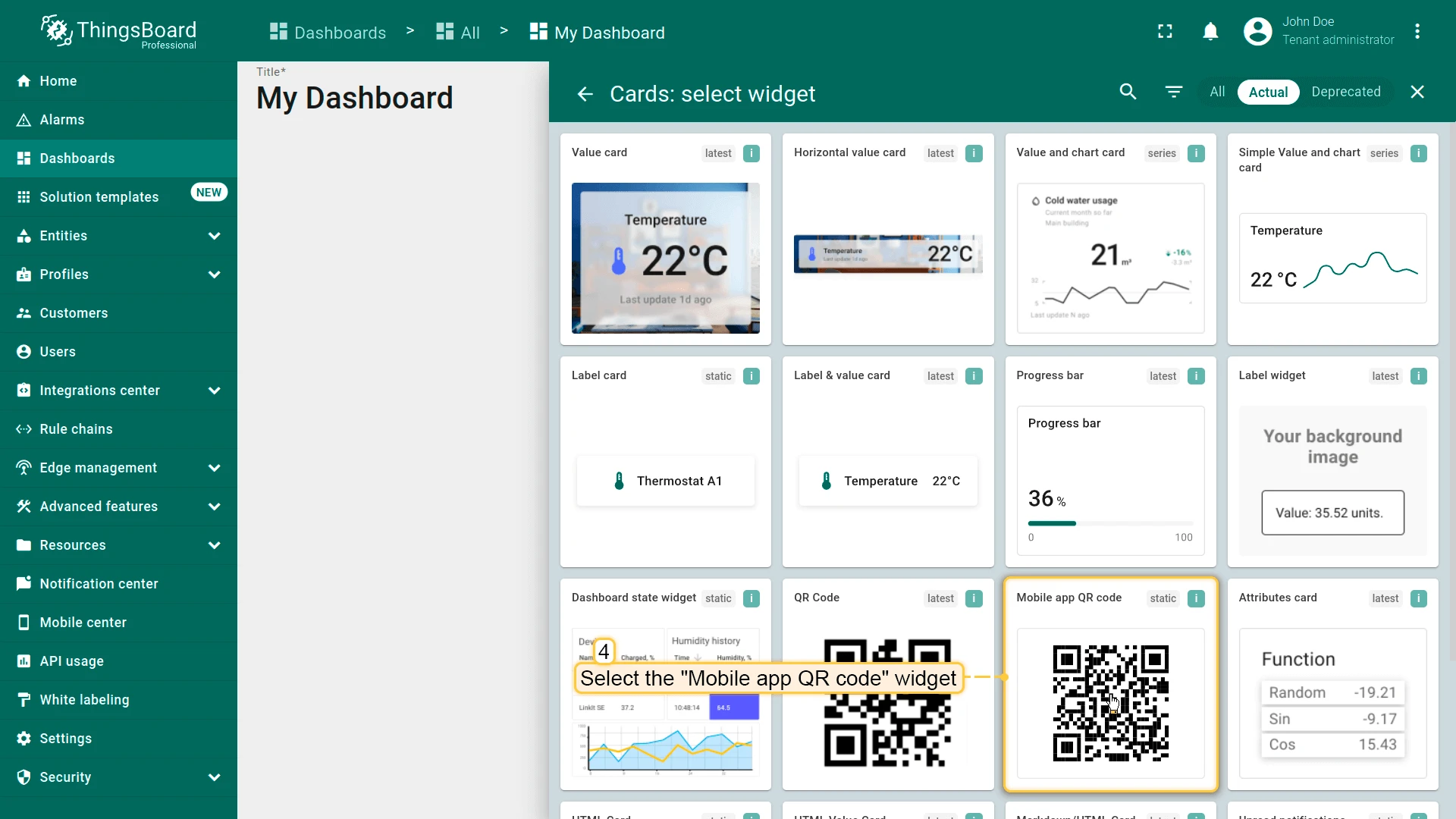
- Choose Mobile app QR code from the widget list.
- Configure the widget appearance — use system settings or override badge position and label.
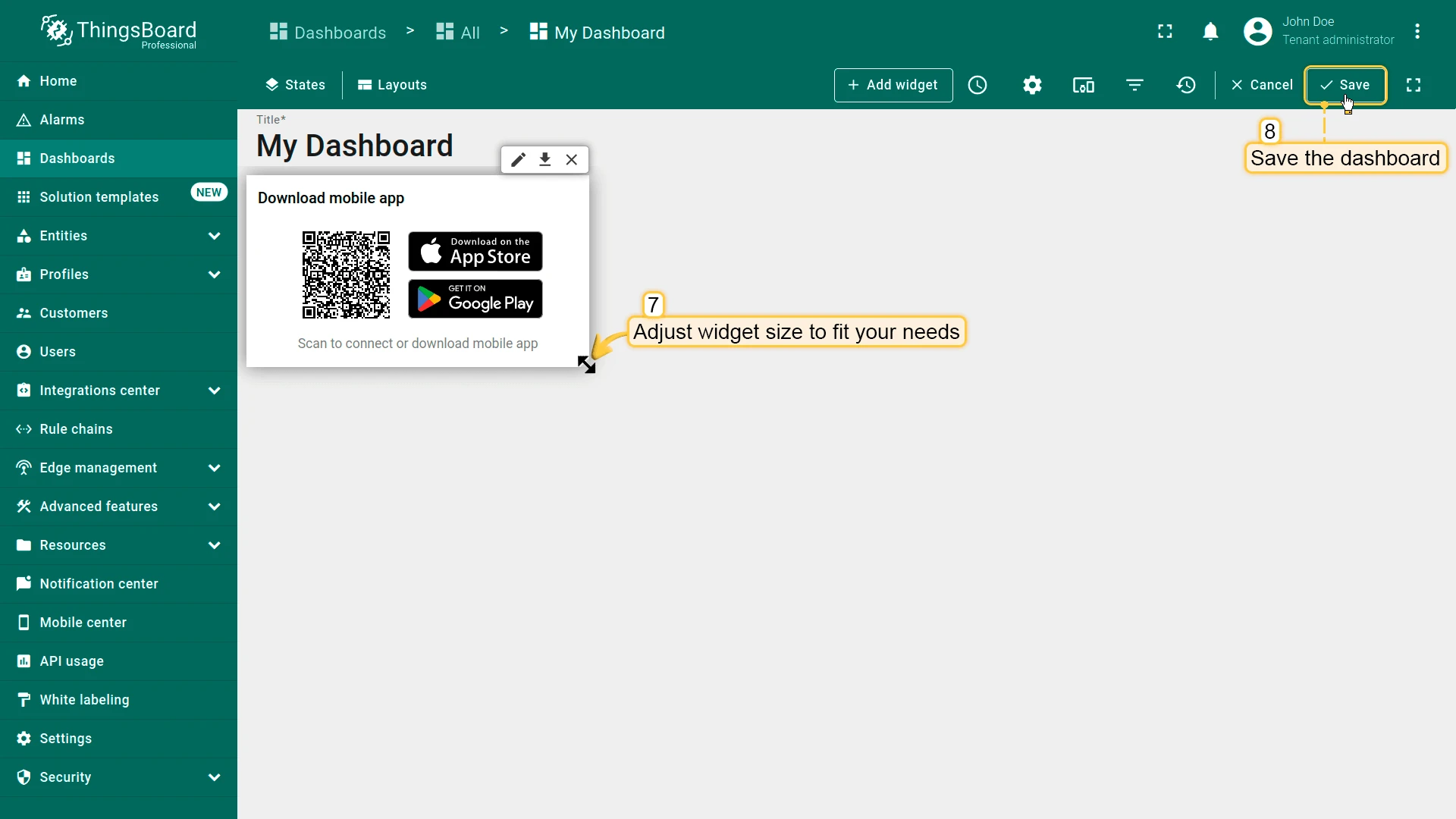
- Adjust the widget size as needed, then click Save.
Was this helpful?