Send RPC Request to a Related Device
This recipe shows how to send an RPC command to a device based on its telemetry and data fetched from a related sensor device.
Use Case
Section titled “Use Case”A Rotating System periodically reports its current turbineDirection.
ThingsBoard:
- fetches the latest
windDirectionfrom the related Wind Direction Sensor - calculates whether the turbine should spin left or right to align with the wind
- sends an RPC command (
spinLeftorspinRight) with the rotation angle to the Rotating System
Telemetry from both devices is also aggregated and stored on the parent Wind Turbine asset.
Architecture
Section titled “Architecture”Entities
- Asset Wind Turbine with type Wind Turbine
- Device Wind Direction Sensor with type Direction Sensor
- Device Rotating System with type Rotating System
Relations
- Wind Turbine -- Contains --> Wind Direction Sensor
- Wind Turbine -- Contains --> Rotating System
- Rotating System -- Uses --> Wind Direction Sensor
Rule chains
- modified Root Rule Chain
- new Rotating System Controller rule chain
Step 1. Create Entities
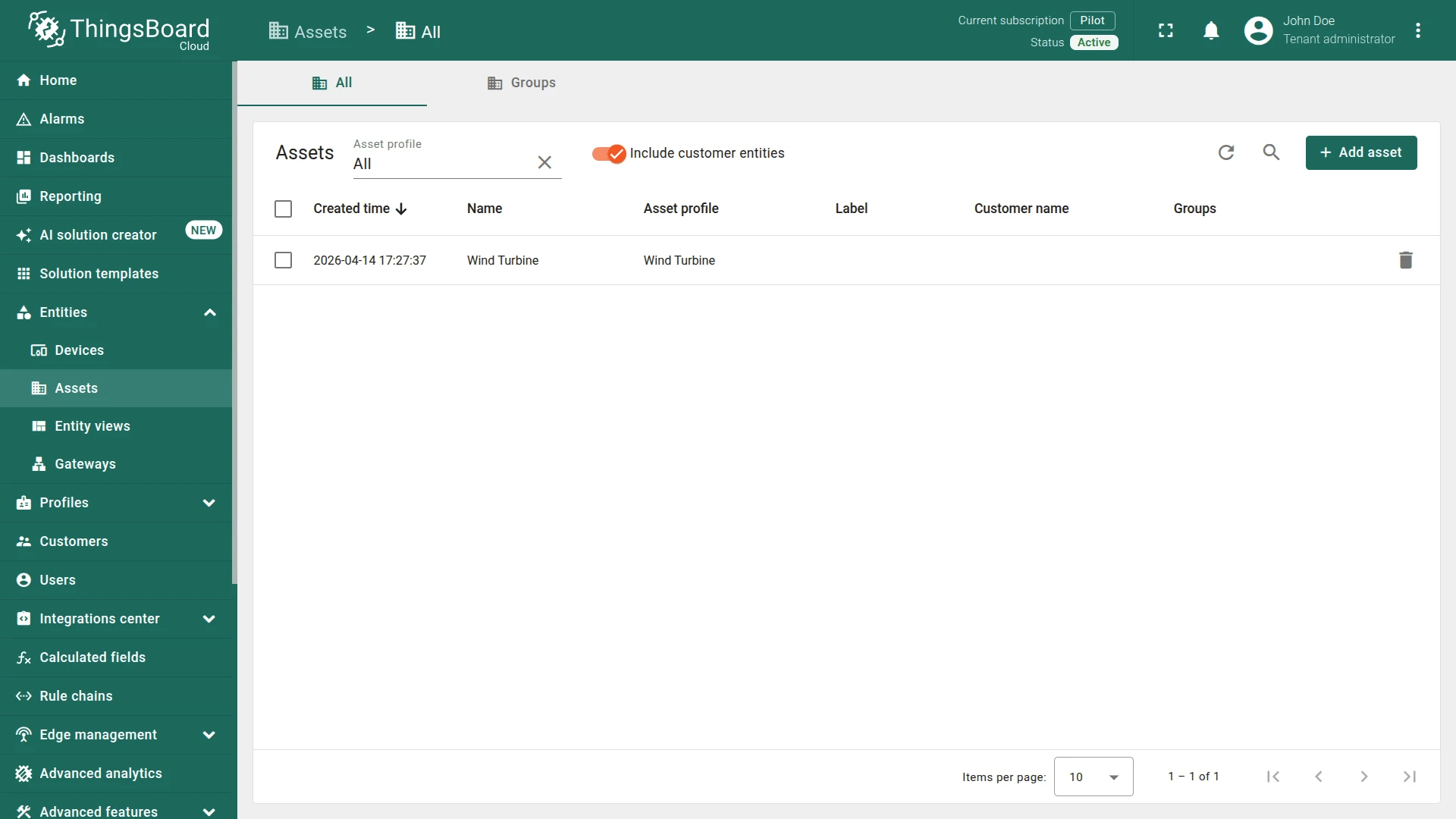
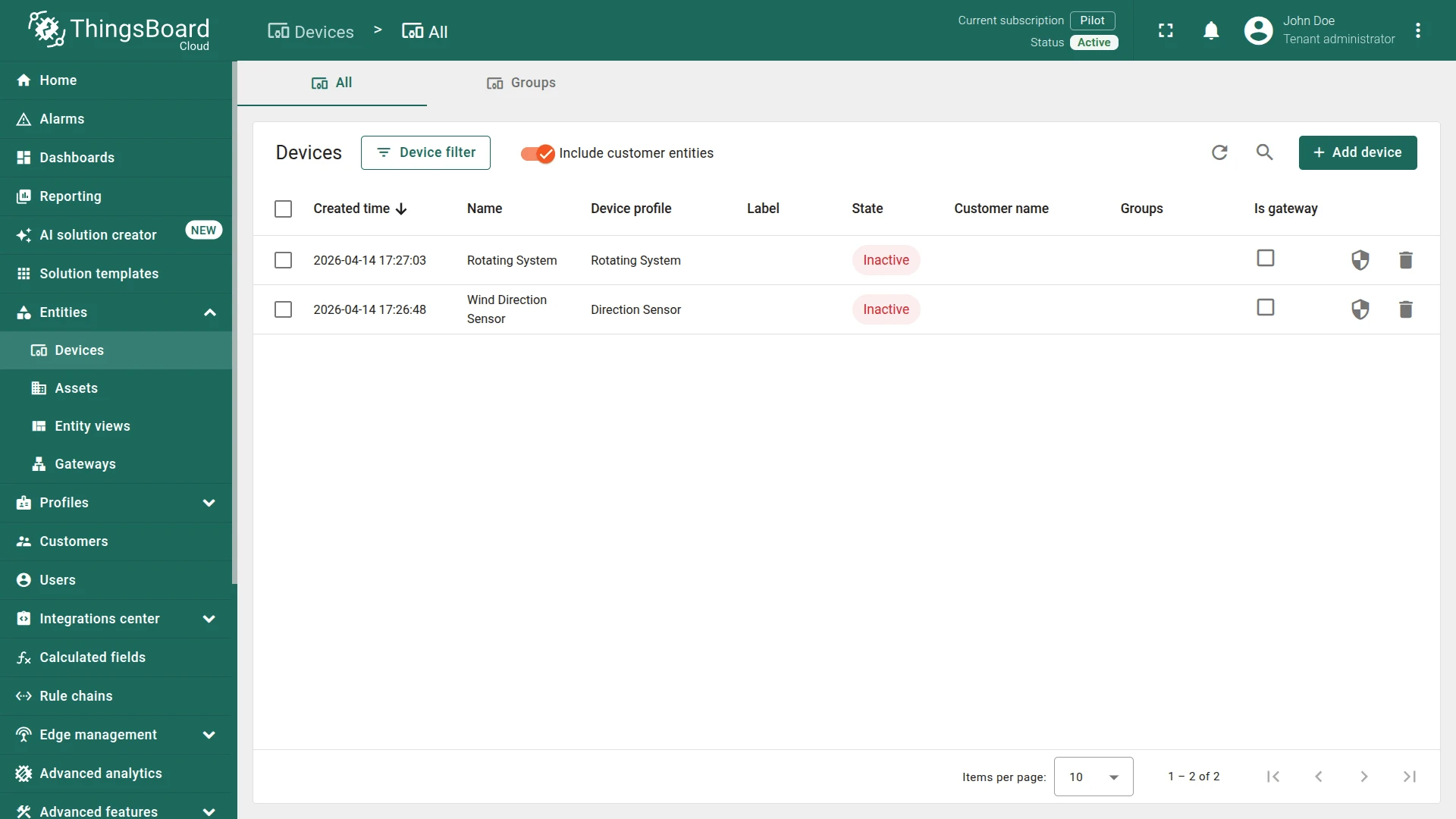
Section titled “Step 1. Create Entities”Create one asset and two devices:
Asset
- Name:
Wind Turbine - Type:
Wind Turbine
Device 1
- Name:
Wind Direction Sensor - Type:
Direction Sensor
Device 2
- Name:
Rotating System - Type:
Rotating System
Step 2. Create Relations
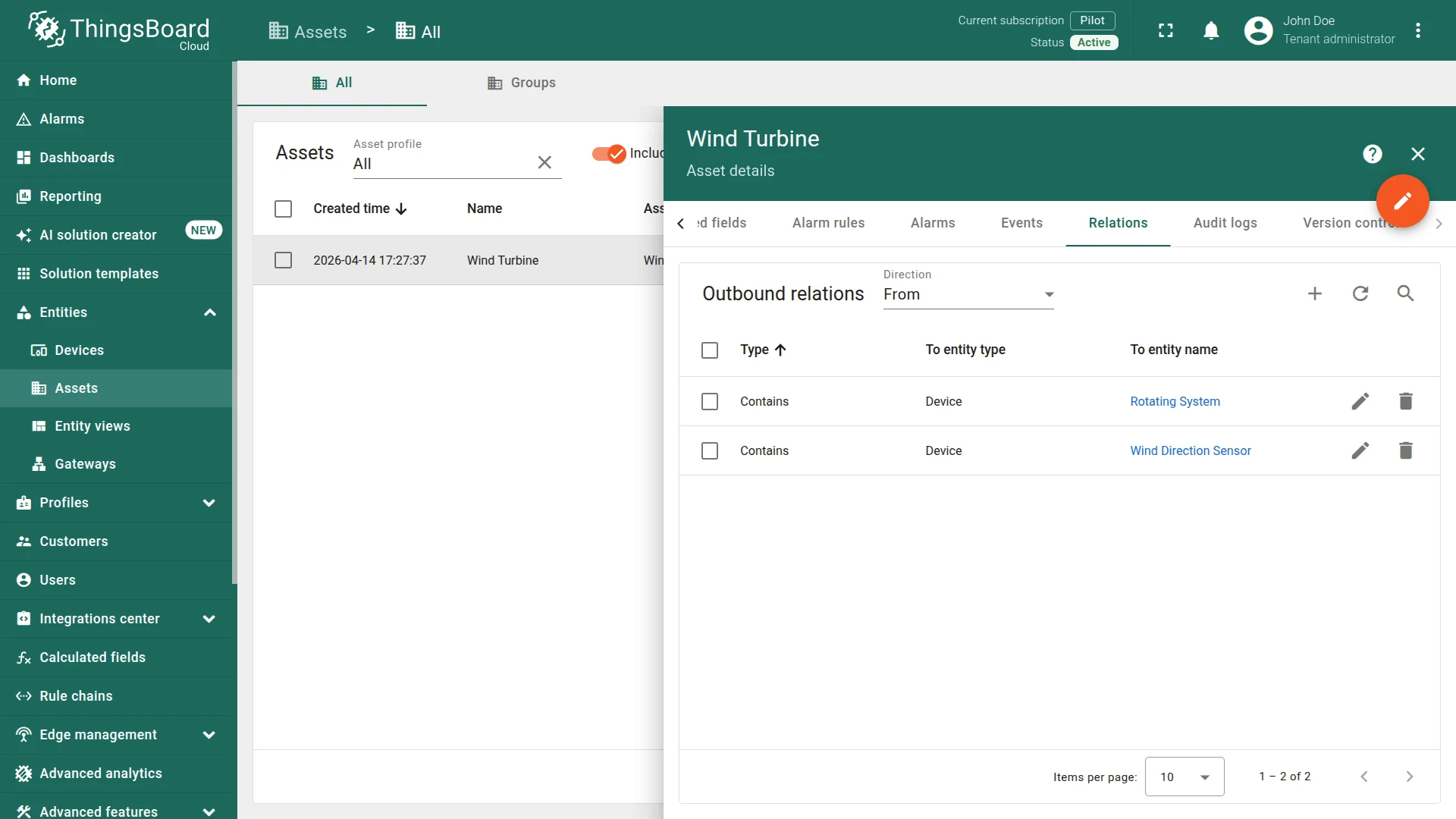
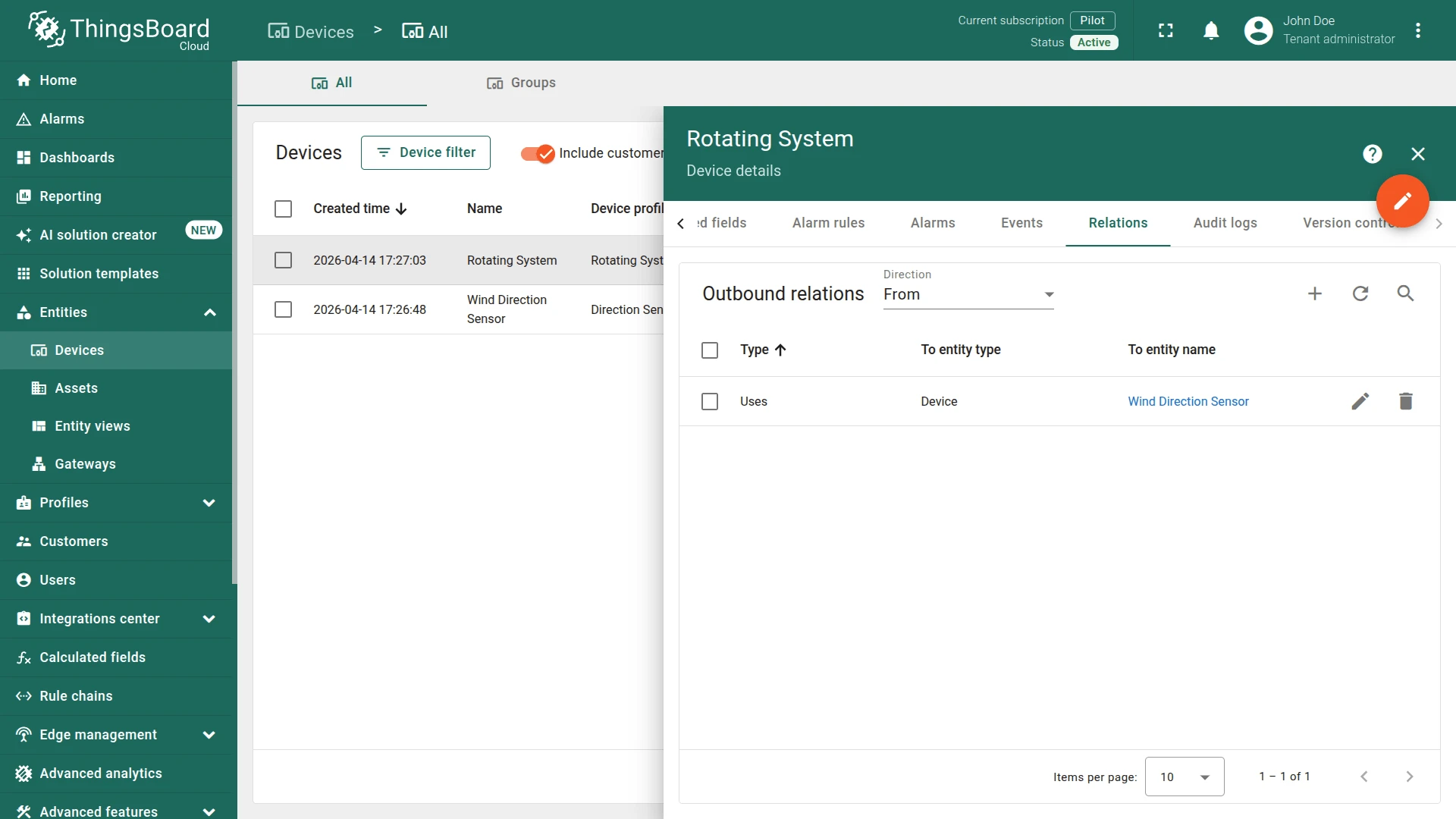
Section titled “Step 2. Create Relations”Create the following three relations:
Relation 1
- From:
Wind Turbine(Asset) - To:
Wind Direction Sensor(Device) - Relation type:
Contains
Relation 2
- From:
Wind Turbine(Asset) - To:
Rotating System(Device) - Relation type:
Contains
Relation 3
- From:
Rotating System(Device) - To:
Wind Direction Sensor(Device) - Relation type:
Uses
Step 3. Create Rule Chain
Section titled “Step 3. Create Rule Chain”You can import a ready-made rule chain or build it manually.
Option 1. Import rule chain
Option 2. Create manually
- Create a new rule chain named
Rotating System Controller, open it, and add the following nodes:
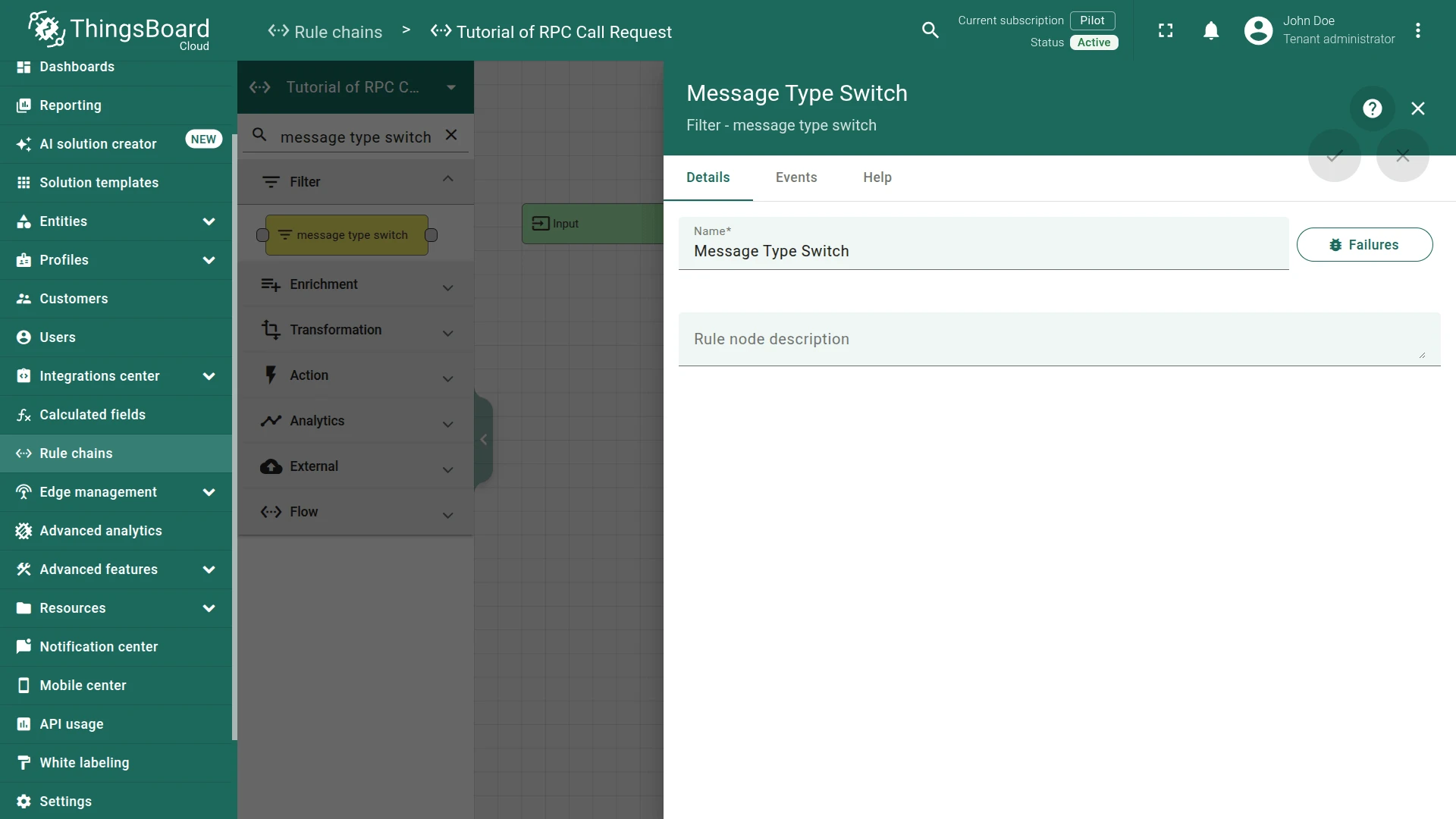
Step 3.1 Message Type Switch Node
Section titled “Step 3.1 Message Type Switch Node”Add the Message Type Switch node and connect it to the Input node.
Routes incoming messages by type. Only Post telemetry messages proceed to the next node.
- Name:
Message Type Switch
Step 3.2 Save TimeSeries Node
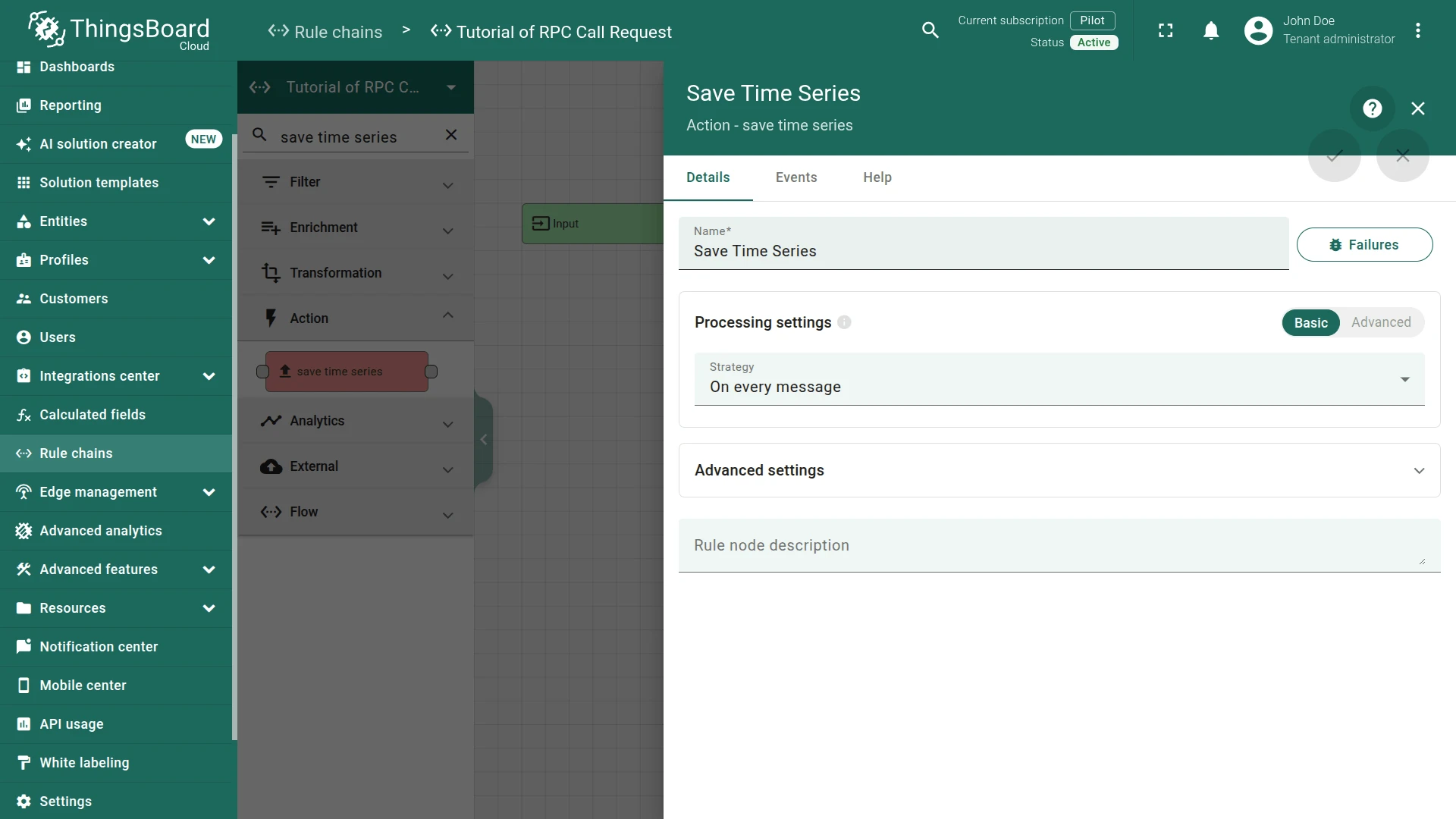
Section titled “Step 3.2 Save TimeSeries Node”Add the Save Time Series node and connect it to the Message Type Switch node with relation type Post telemetry.
Stores incoming telemetry from Wind Direction Sensor and Rotating System in the database.
- Name:
Save Time Series
Step 3.3 Related Entity Data Node
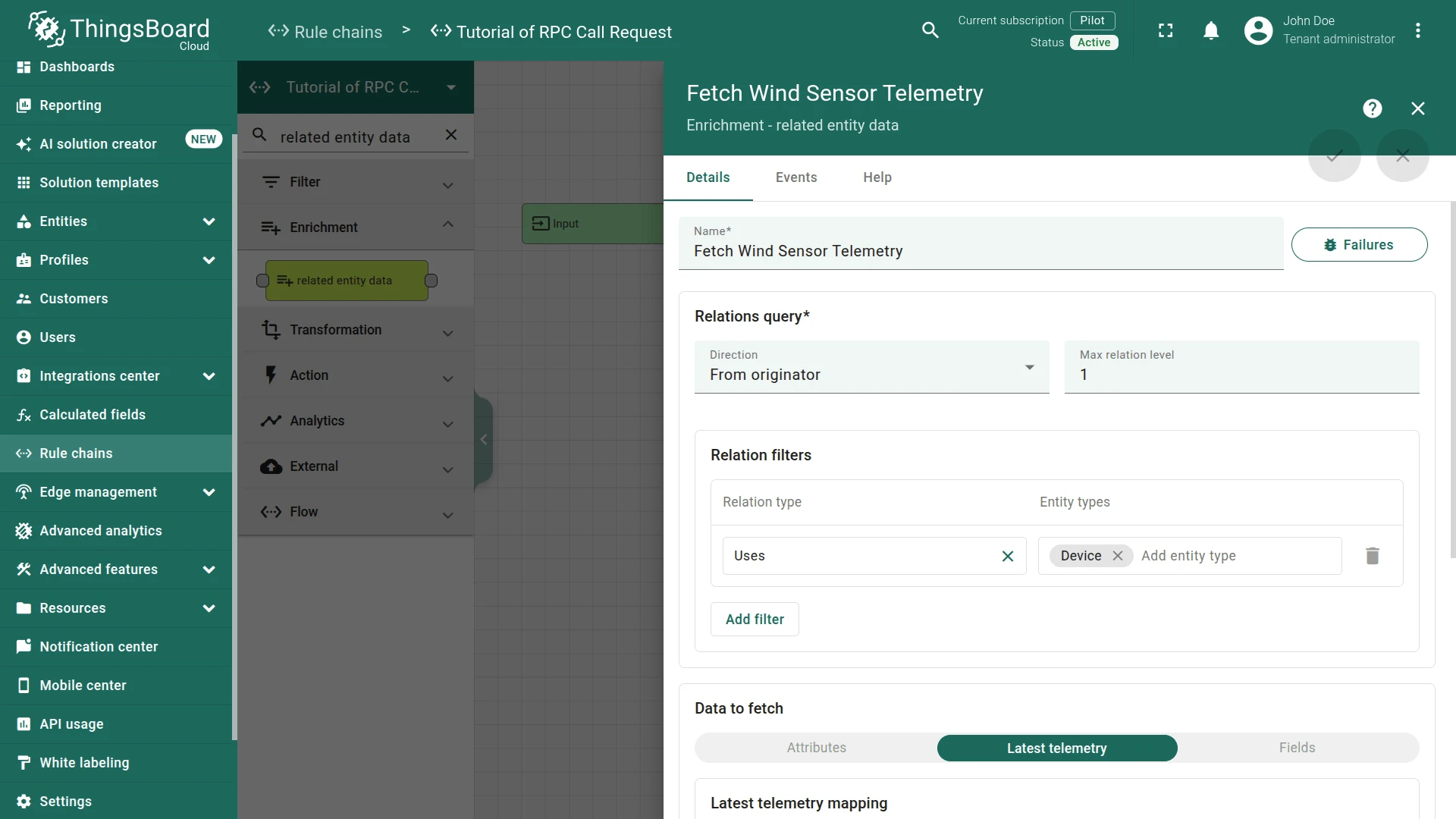
Section titled “Step 3.3 Related Entity Data Node”Add the Related Entity Data node and connect it to the Save Time Series node with relation type Success.
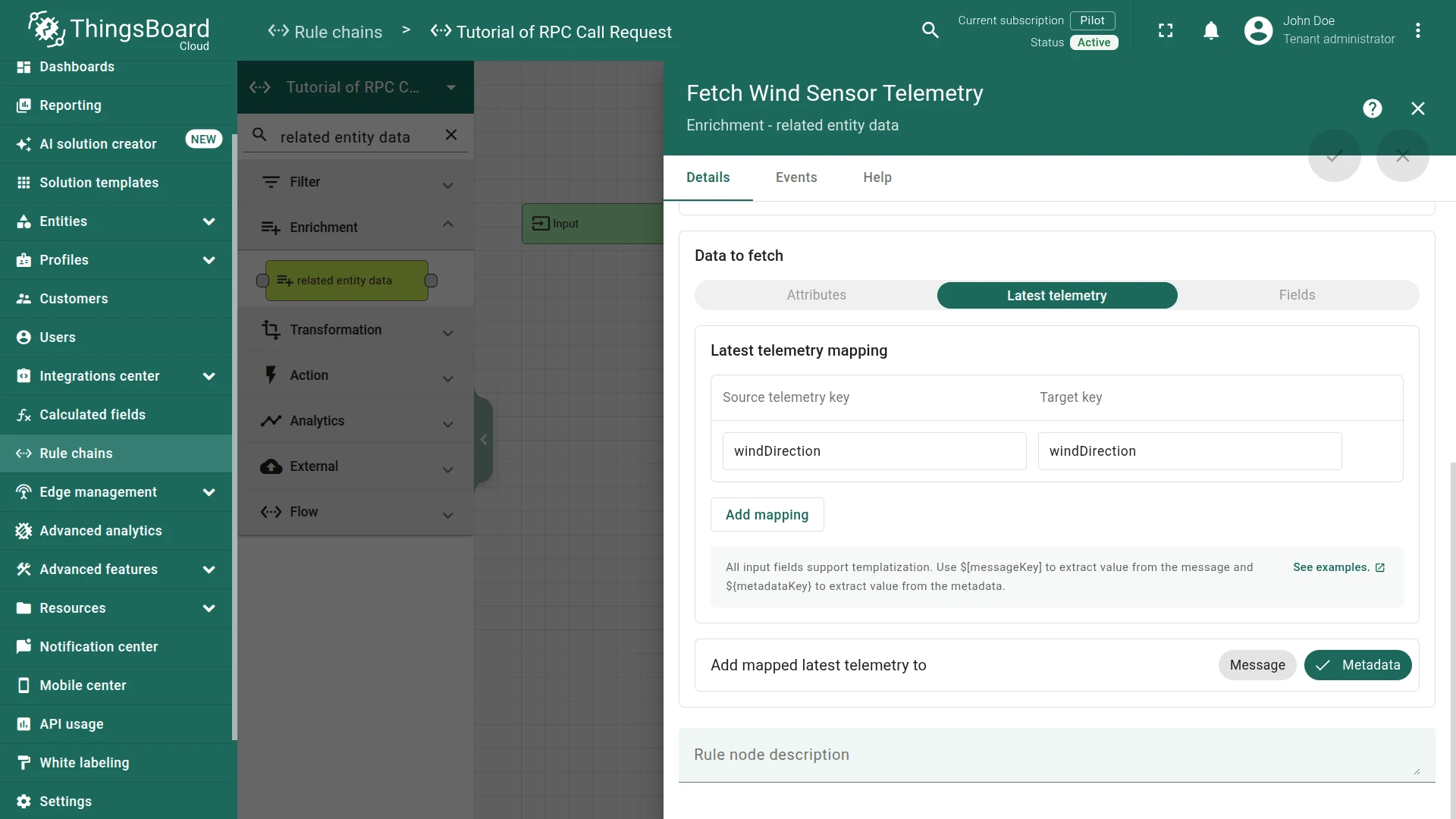
This node follows the Uses relation from the Rotating System to the Wind Direction Sensor and loads its latest windDirection telemetry into message metadata.
Fill in the fields:
- Name:
Fetch Wind Sensor Telemetry - Direction:
From originator - Max relation level:
1 - Relation filters:
- Relation type:
Uses - Entity type:
Device
- Relation type:
- Data to fetch:
Latest telemetry - Latest telemetry mapping:
- Source attribute key:
windDirection - Target key:
windDirection
- Source attribute key:
Step 3.4 Transformation Script Node
Section titled “Step 3.4 Transformation Script Node”Add the Transformation Script node and connect it to the Related Entity Data node with relation type Success.
This node computes the angular difference between turbineDirection (from the message) and windDirection (from metadata) to determine the optimal spin direction, then builds the RPC payload.
The RPC payload contains two properties: method (spinLeft or spinRight) and params (rotation angle in degrees, rounded to 2 decimal places).
Fill in the fields:
- Name:
New RPC Message
Script:
newMsg = {};
if (msg.containsKey("turbineDirection") && metadata.containsKey("windDirection")) {  value = msg.turbineDirection - metadata.windDirection;
  if (value < 0) {  value = -value;}
  if ((value < 180 && msg.turbineDirection < metadata.windDirection) ||  (value > 180 && msg.turbineDirection > metadata.windDirection)) {  newMsg.method = "spinLeft";}
  if ((value < 180 && msg.turbineDirection > metadata.windDirection) ||  (value > 180 && msg.turbineDirection < metadata.windDirection)) {  newMsg.method = "spinRight";}
  newMsg.params = value;}
return {msg: newMsg, metadata: metadata, msgType: msgType};var newMsg = {};var value = Math.abs(msg.turbineDirection - metadata.windDirection);if ((value < 180 && msg.turbineDirection < metadata.windDirection) || (value > 180 && msg.turbineDirection > metadata.windDirection)) { newMsg.method = 'spinLeft';}if ((value <= 180 && msg.turbineDirection > metadata.windDirection) || (value >= 180 && msg.turbineDirection < metadata.windDirection)) { newMsg.method = 'spinRight';}if (newMsg.method == 'spinLeft' || newMsg.method == 'spinRight') { msgType = 'RPC message';}newMsg.params = Math.round(value * 100) / 100;return {msg: newMsg, metadata: metadata, msgType: msgType};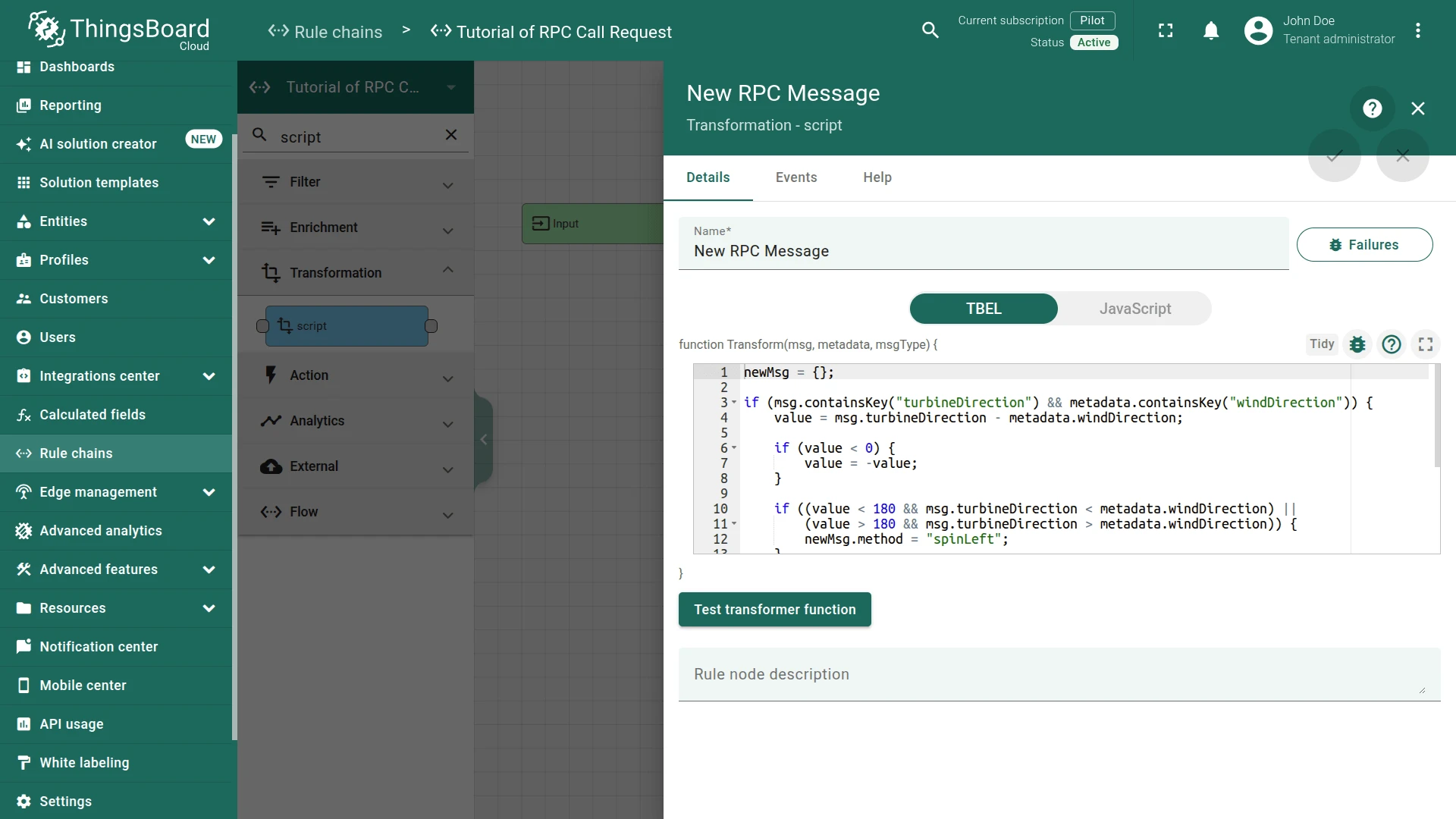
Step 3.5 Filter Script Node
Section titled “Step 3.5 Filter Script Node”Add the Filter Script node and connect it to the Transformation Script node with relation type Success.
This node passes the message only if the transformation produced a valid RPC payload.
Fill in the fields:
- Name:
Check RPC Message
Script:
return msg.containsKey("method") && msg.method != null;return typeof msg.method !== 'undefined';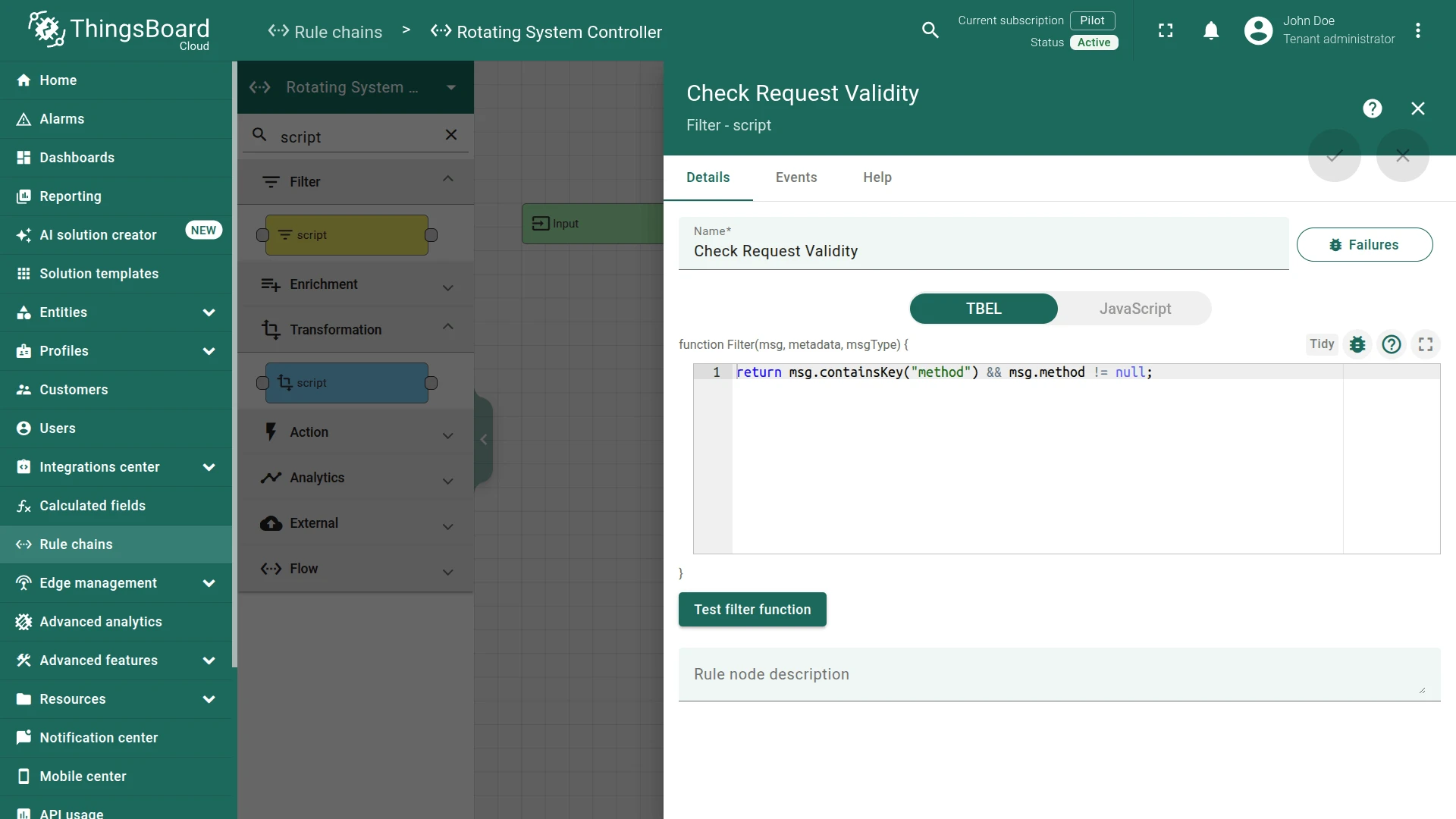
Step 3.6 RPC Call Request Node
Section titled “Step 3.6 RPC Call Request Node”Add the RPC call request node and connect it to the Filter Script node with relation type True.
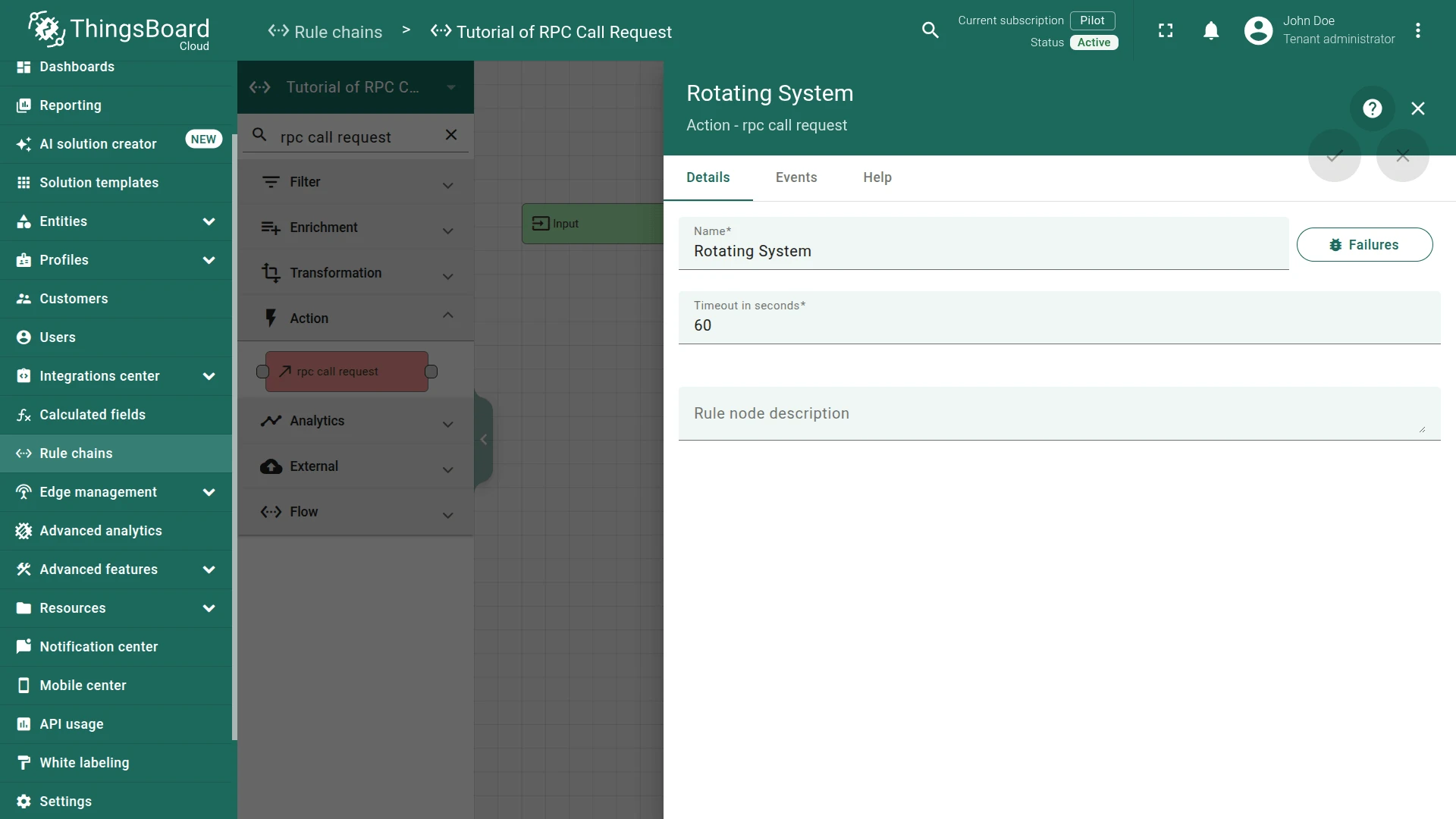
This node sends the computed spin command to the Rotating System device.
Fill in the fields:
- Name:
Rotating System - Timeout:
60
Step 3.7 Change Originator Node
Section titled “Step 3.7 Change Originator Node”Add the Change Originator node and connect it to the Save Timeseries node with relation type Success.
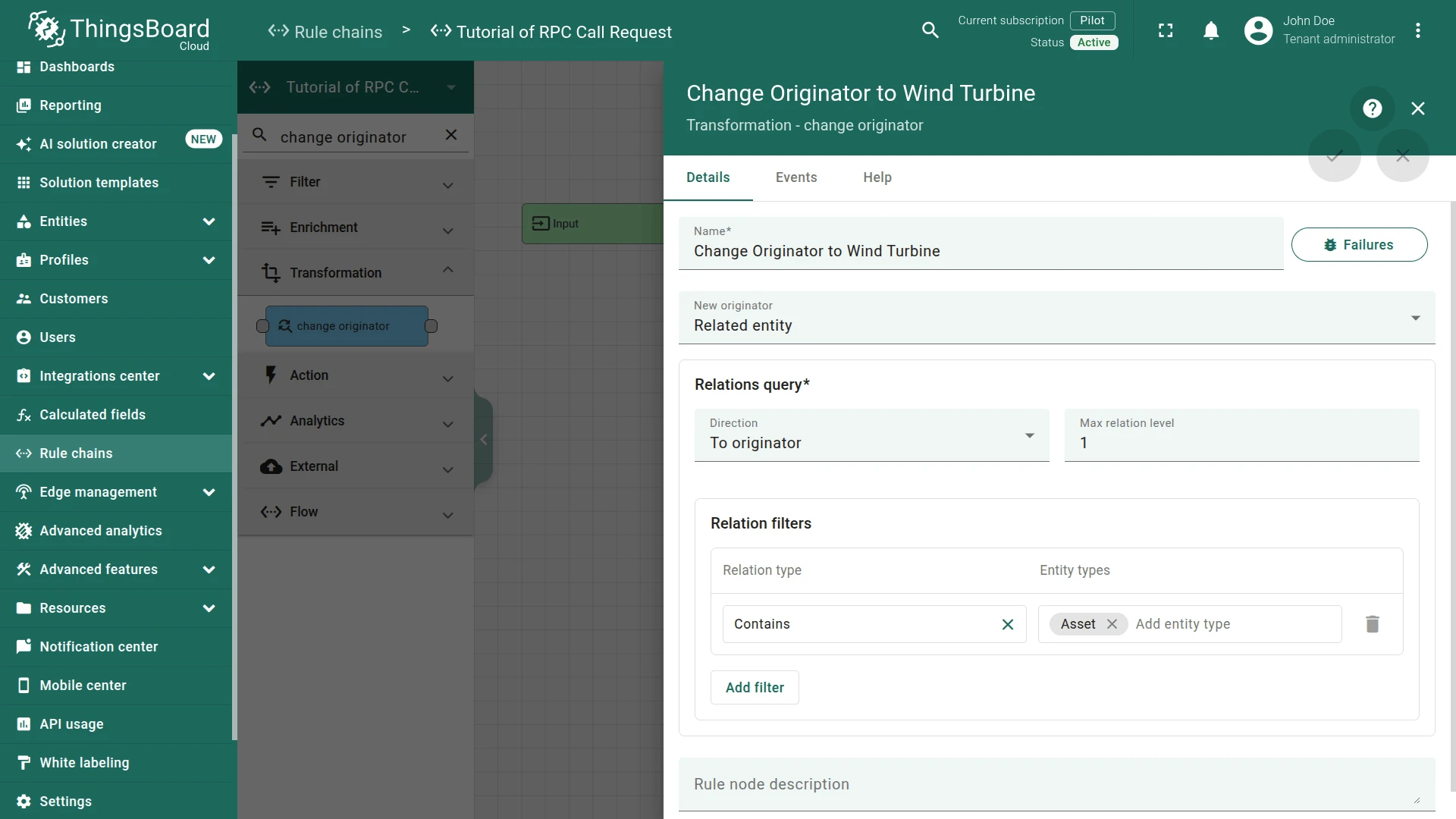
This node changes the originator from the source device (Wind Direction Sensor or Rotating System) to the parent Wind Turbine asset, so telemetry is stored on the asset level.
Fill in the fields:
- Name:
Change Originator to Wind Turbine - Originator source:
Related entity - Direction:
To originator - Max relation level:
1 - Relation type:
Contains - Entity type:
Asset
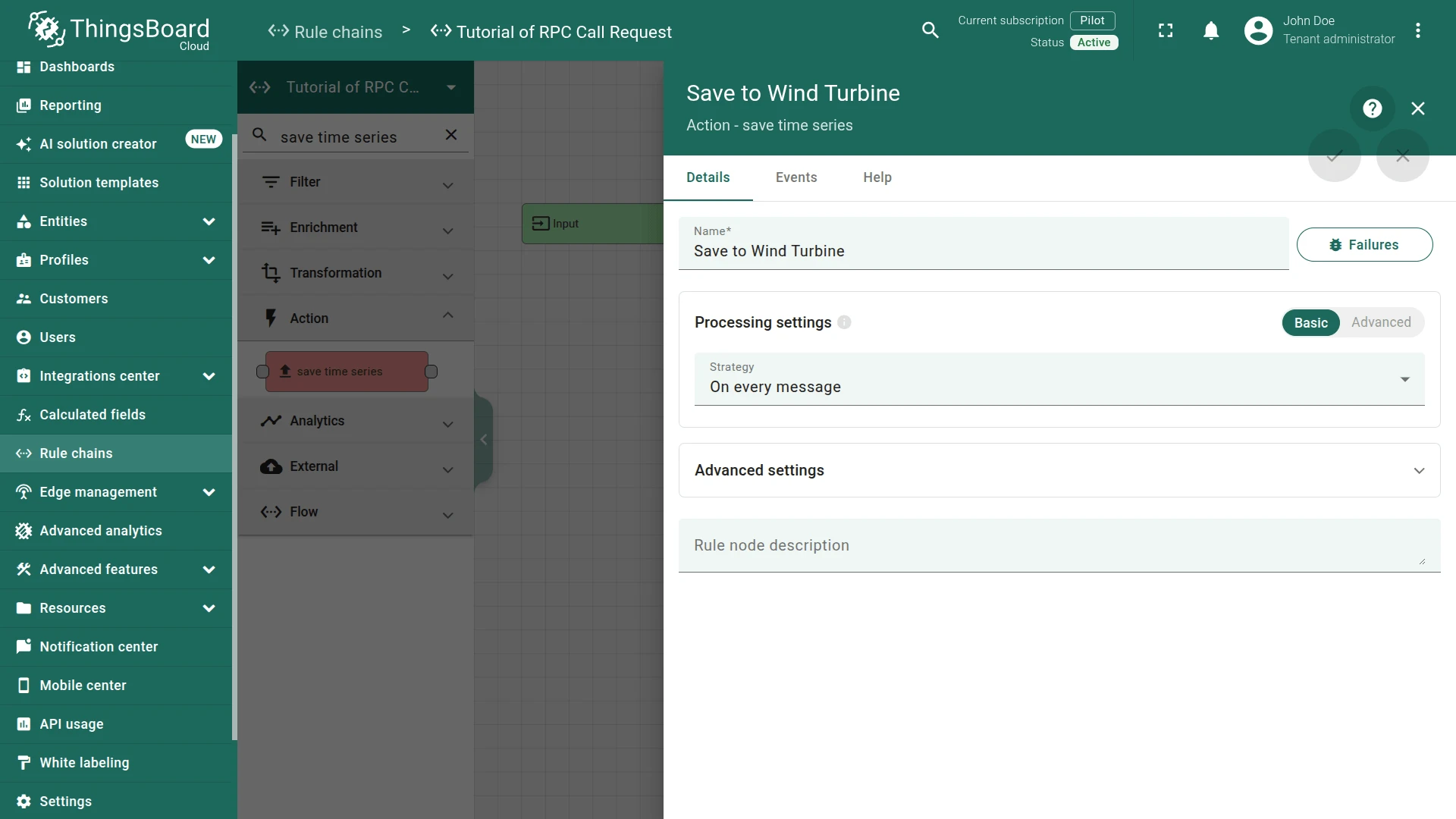
Step 3.8 Save Timeseries Node (Wind Turbine)
Section titled “Step 3.8 Save Timeseries Node (Wind Turbine)”Add a second Save Timeseries node and connect it to the Change Originator node with relation type Success.
This node stores the device telemetry under the Wind Turbine asset.
Fill in the fields:
- Name:
Save to Wind Turbine
Step 3.9 Check the Node Connections
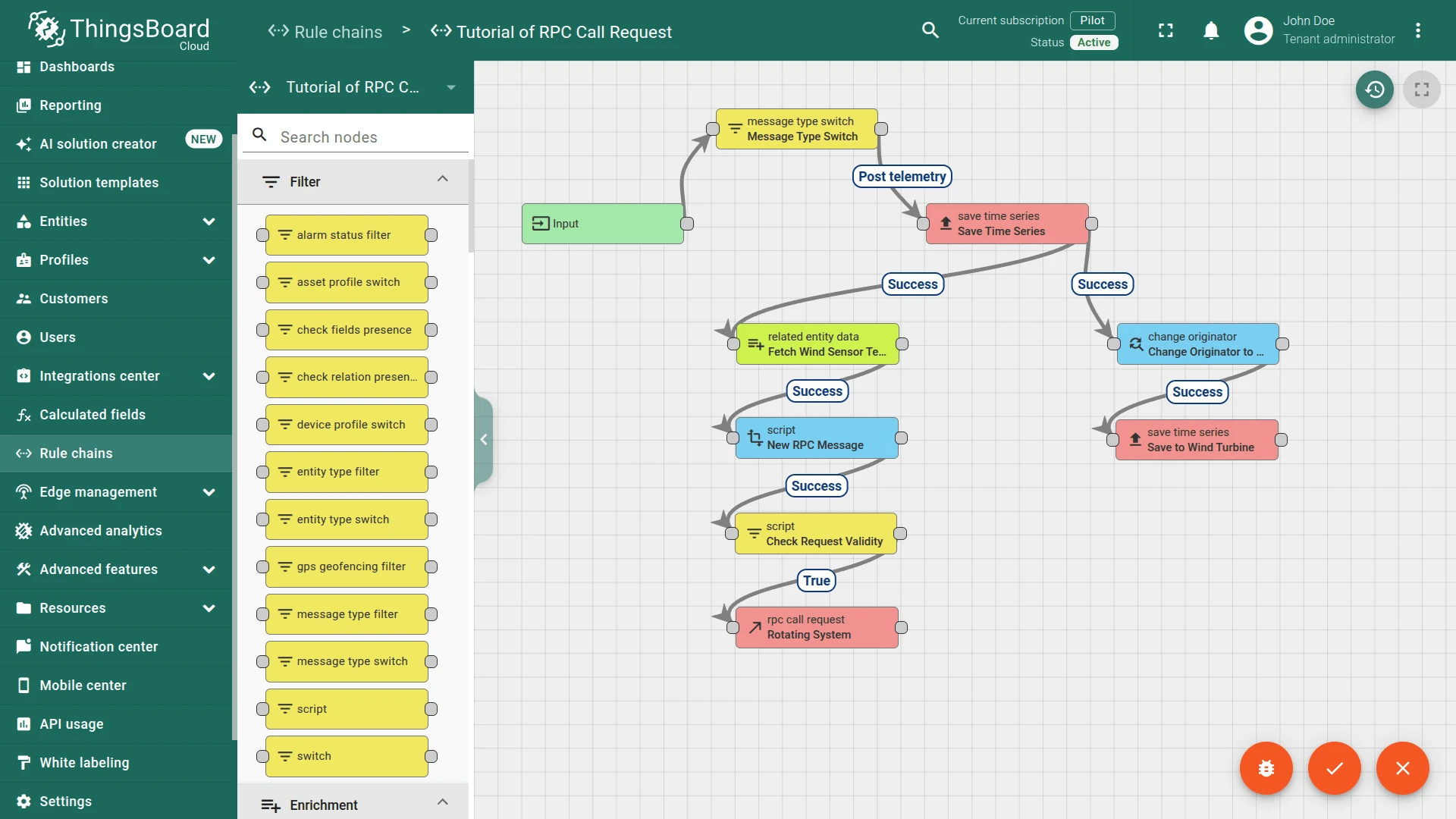
Section titled “Step 3.9 Check the Node Connections”- Input ⇾ Message Type Switch
- Message Type Switch ⇾
Post telemetry⇾ Save Time Series - Save Time Series ⇾
Success⇾ Fetch Wind Sensor Telemetry - Save Time Series ⇾
Success⇾ Change Originator to Wind Turbine - Fetch Wind Sensor Telemetry ⇾
Success⇾ New RPC Message - New RPC Message ⇾
Success⇾ Check RPC Message - Check RPC Message ⇾
True⇾ Rotating System - Change Originator to Wind Turbine ⇾
Success⇾ Save to Wind Turbine
Save the rule chain.
Step 3.10 Mark the New Rule Chain as “Root”
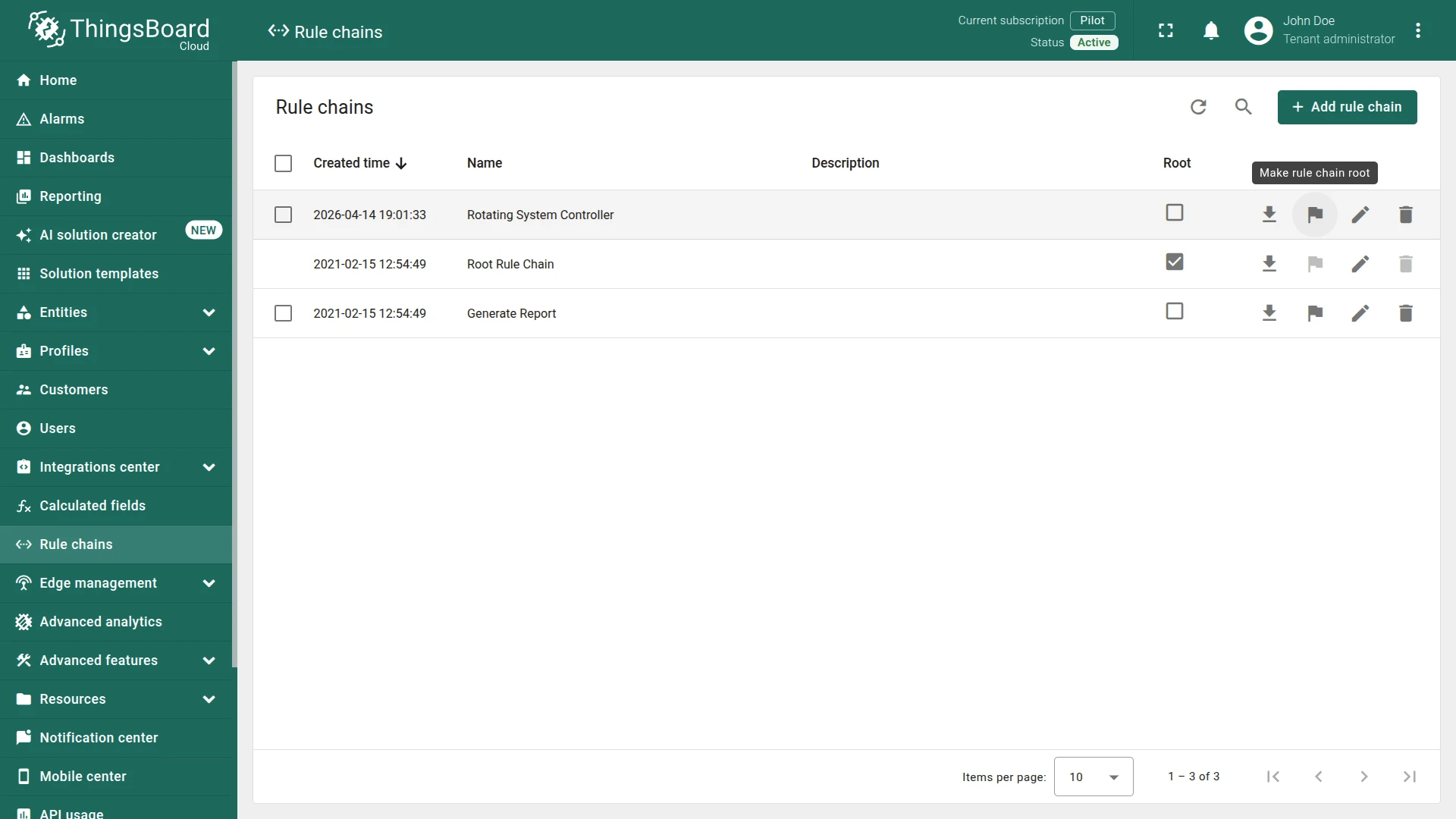
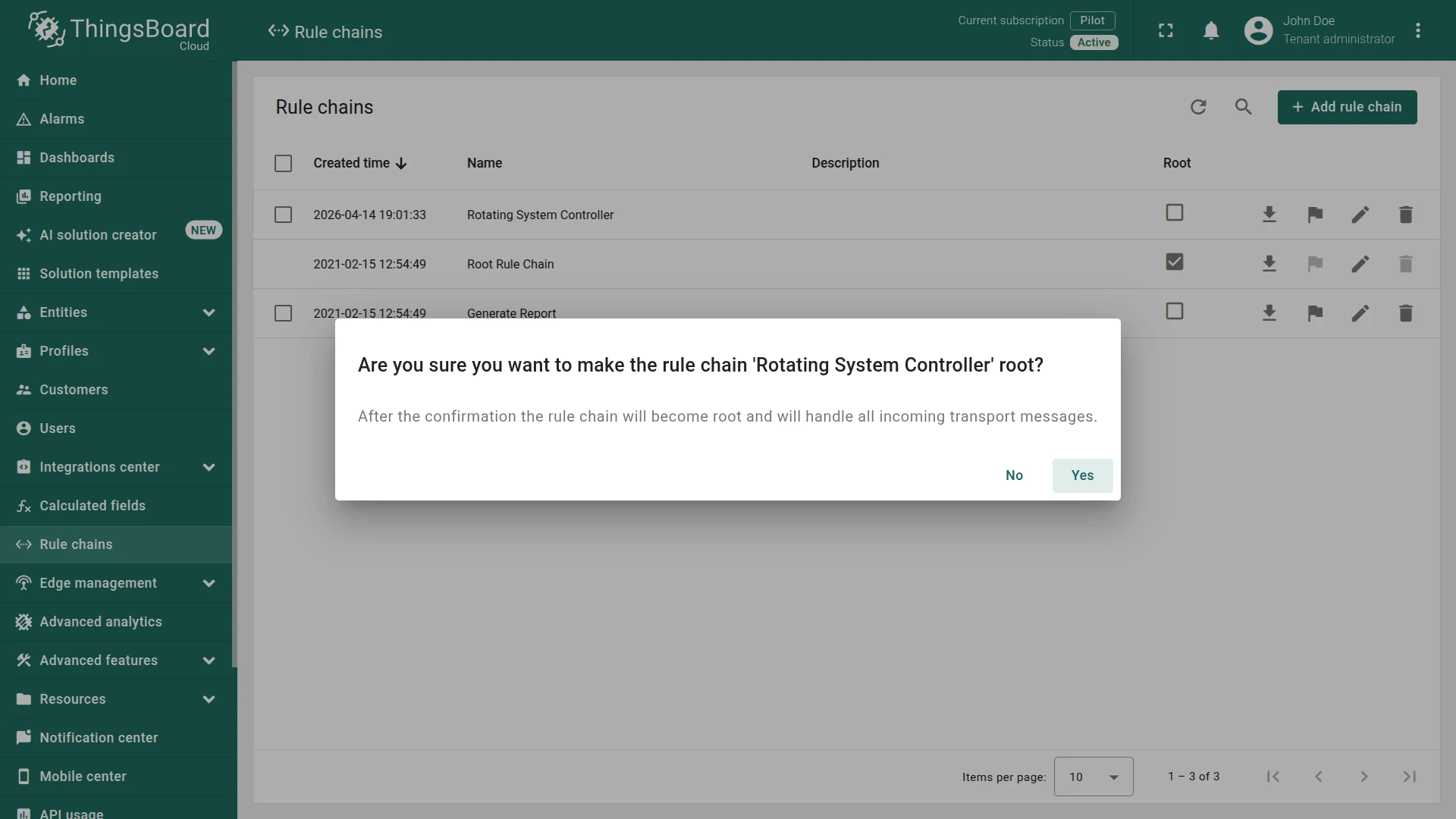
Section titled “Step 3.10 Mark the New Rule Chain as “Root””In the Rotating System Controller line, click Make rule chain root and confirm.
How It Works
Section titled “How It Works”For example, the Rotating System sends turbineDirection = 135 and the related Wind Direction Sensor has windDirection = 100:
value = |135 - 100| = 35value < 180 AND turbineDirection (135) < windDirection (100) → spinRightThe rule engine sends an RPC command to the Rotating System:
{"method": "spinRight", "params": 35}To trace execution, enable debug mode on the Rotating System Controller rule chain.
Test the Setup
Section titled “Test the Setup”Run both device emulators to publish live telemetry, then import the dashboard to observe the RPC commands triggered by the rule engine.
Run Device Emulators
Section titled “Run Device Emulators”-
Download WindDirectionEmulator.js and run it:
Terminal window ACCESS_TOKEN=$ACCESS_TOKEN node WindDirectionEmulator.jsReplace
$ACCESS_TOKENwith the access token of the Wind Direction Sensor device.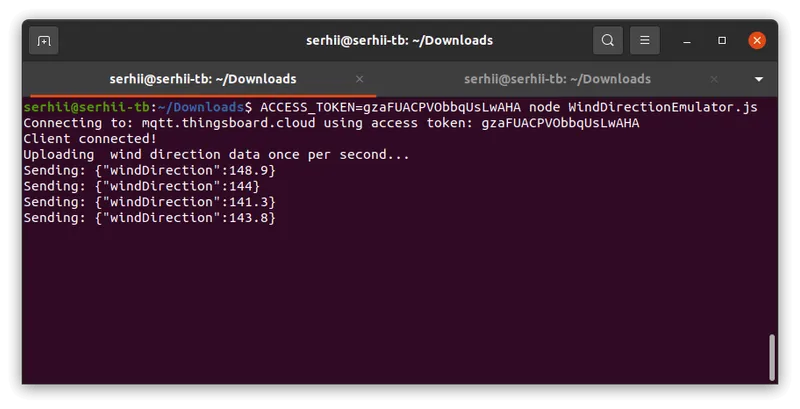
-
Download RotatingSystemEmulator.js and run it:
Terminal window ACCESS_TOKEN=$ACCESS_TOKEN node RotatingSystemEmulator.jsReplace
$ACCESS_TOKENwith the access token of the Rotating System device.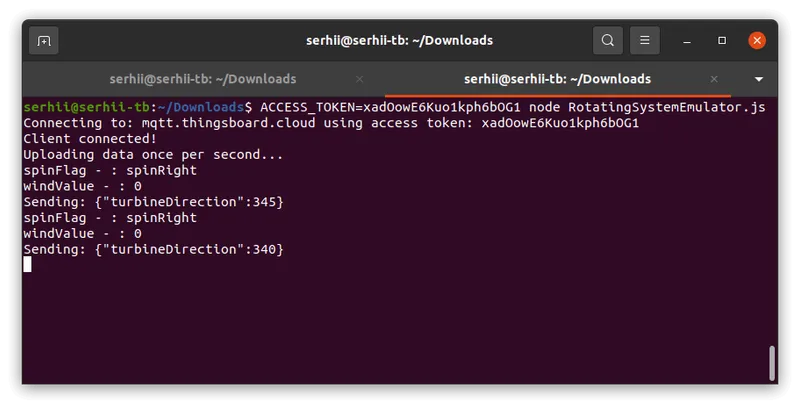
Configure Dashboard
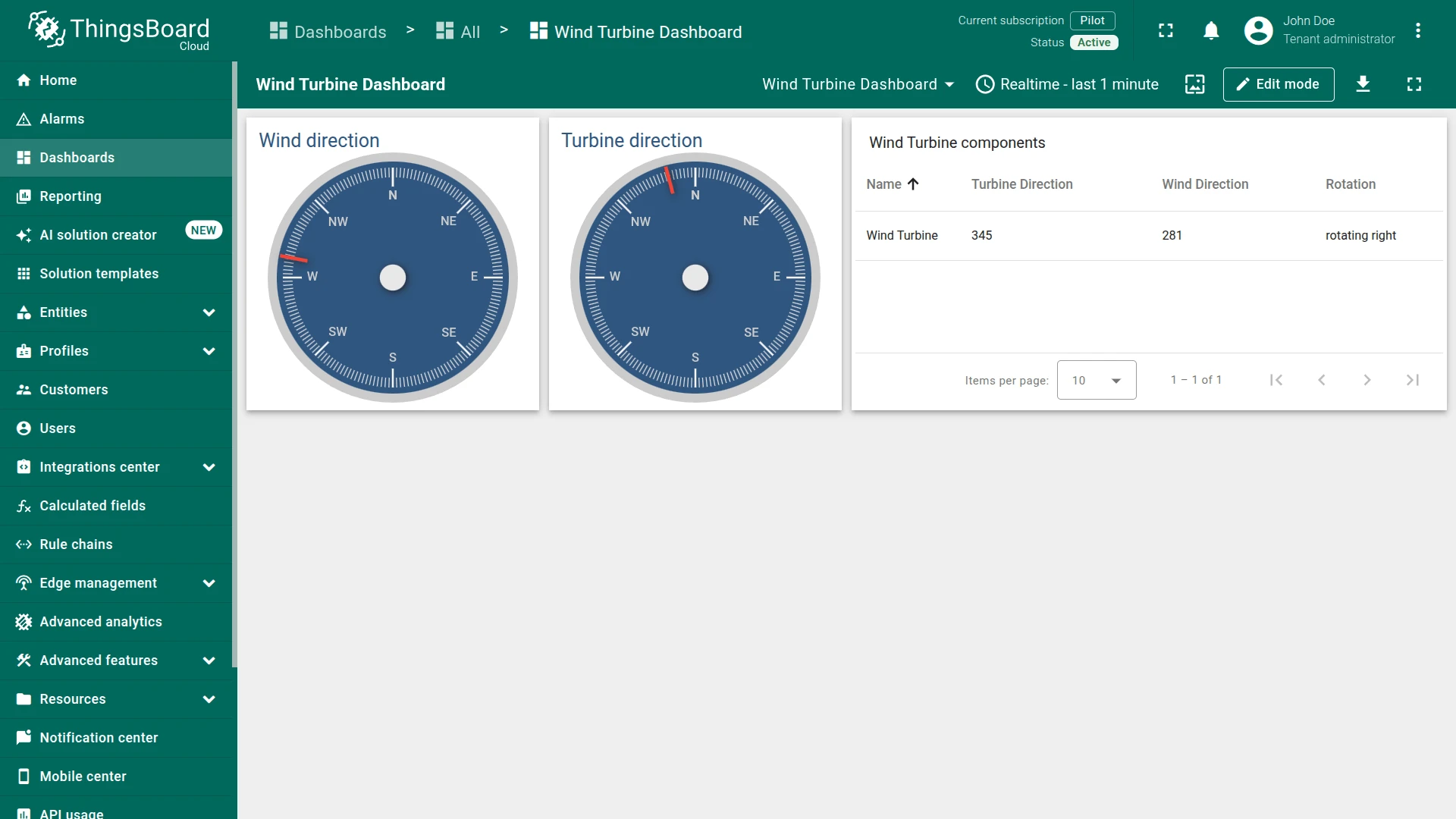
Section titled “Configure Dashboard”Download the pre-built dashboard as a JSON file and import it. Once open, you should see live wind direction, turbine direction, and the rotation command (spinLeft / spinRight) sent by the rule engine.
See Also
Section titled “See Also”- RPC capabilities — for more information about how server-side RPC works in ThingsBoard.
- Reply to RPC call with related device telemetry — a related recipe for handling client-side RPC calls.
- Trigger related entities via relation — a related recipe for triggering actions on related devices.
Was this helpful?