Application actions
Remote Agent executes every application action remotely: restart, update, upgrade, and delete. Each action runs on a single application or fleet-wide as a bulk action. Actions that change an application follow the step sequence defined by the application template, support volume backups, and roll back automatically when a step fails.
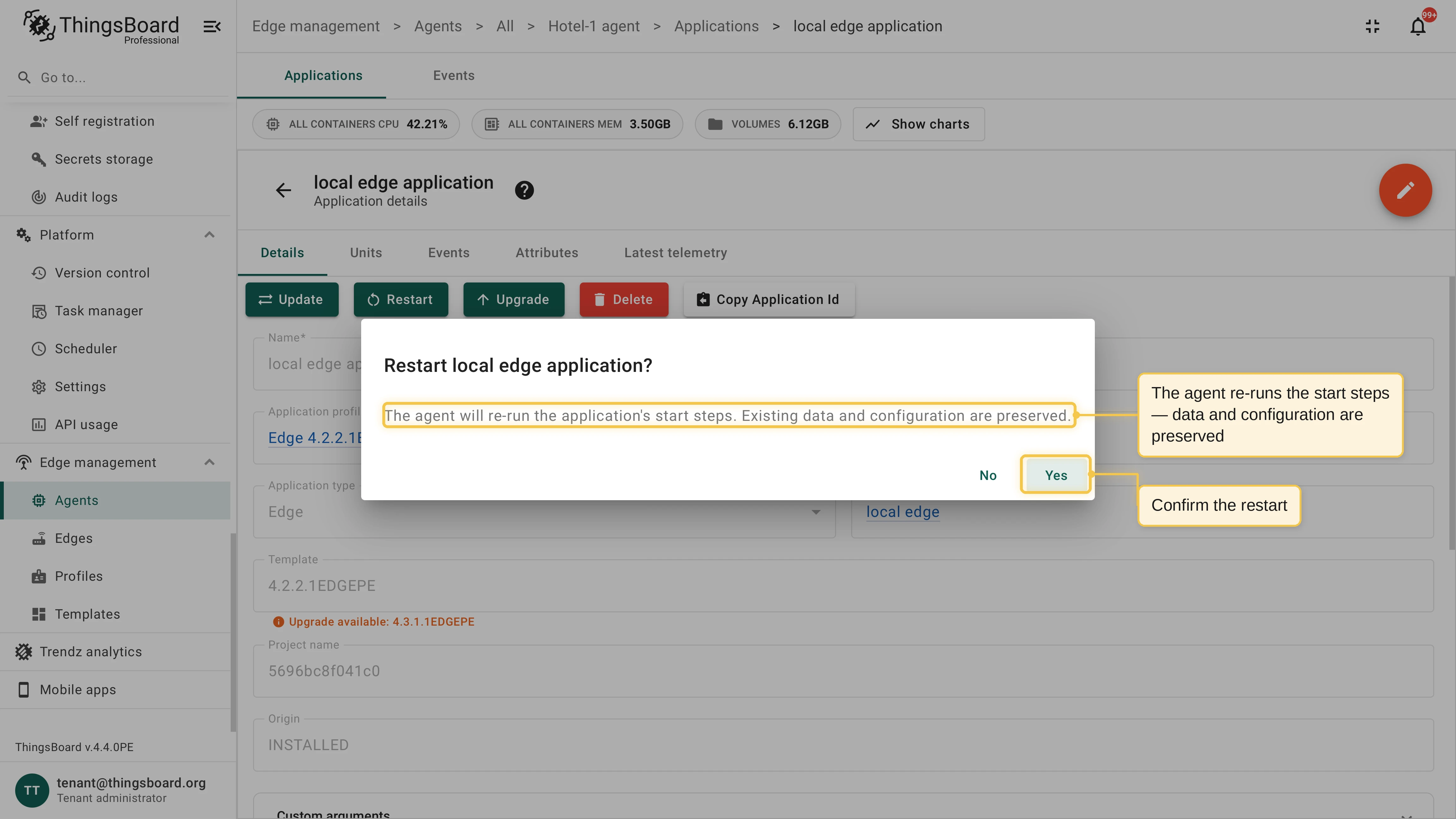
Restart an application
Section titled “Restart an application”A restart re-runs the application’s start steps, restarting the containers in dependency order; the existing data and configuration are preserved. Run it with the Restart action on the application, or fleet-wide with a bulk restart.
Update an application
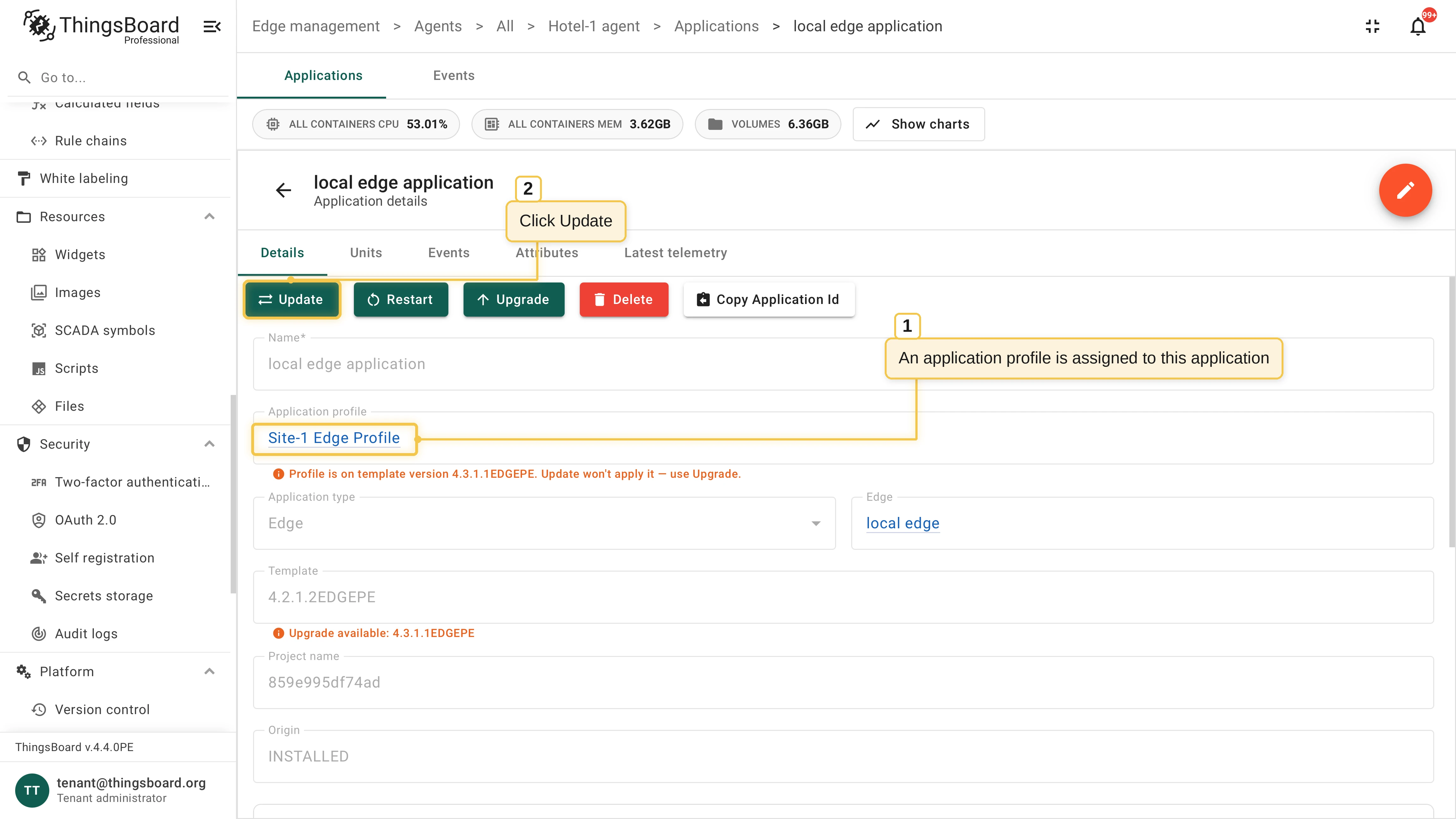
Section titled “Update an application”An update applies a changed Docker Compose configuration without moving the application to a new version: the agent recreates the project’s containers with the new definition. An update never runs the ThingsBoard database upgrade scripts — the schema migration that carries Edge or Gateway data to a new product version — so to move the application to a new Edge or Gateway version, use an upgrade. That is unrelated to the PostgreSQL major version migration, which the agent still performs automatically during an update. Run it with the Update action on the application, or fleet-wide with a bulk update.
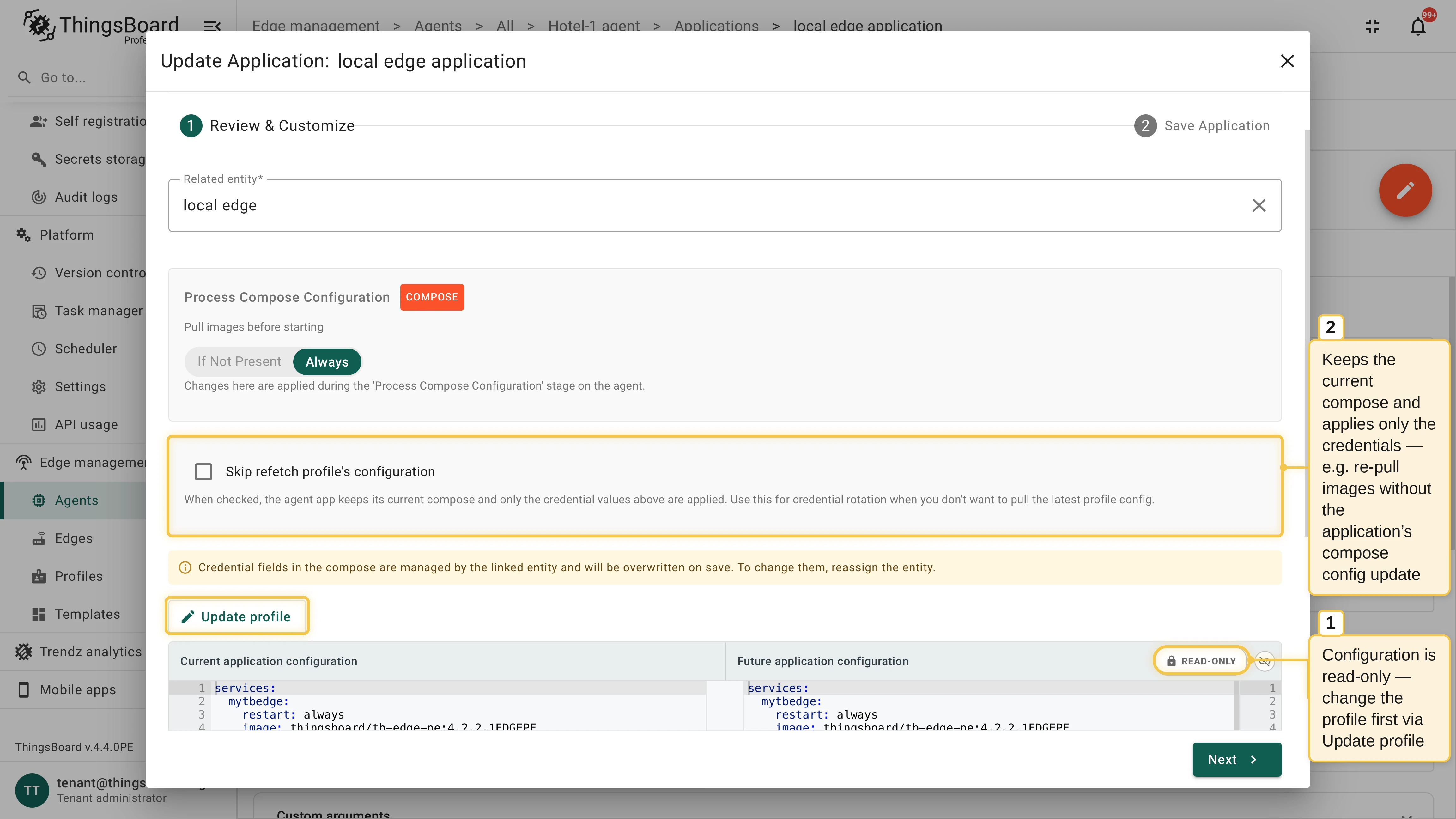
For an application with an assigned profile, the Compose configuration is managed by the profile and is read-only in the update dialog: to change it, edit the profile itself with the Update profile shortcut. By default, the update re-fetches the profile’s configuration for the application’s current template version and re-applies the credential values managed by the related entity; a profile that moved to a newer template version is never applied — that requires an upgrade. Select Skip refetch profile’s configuration to keep the current Compose untouched and apply only the credentials: use it for credential rotation or a plain image re-pull.
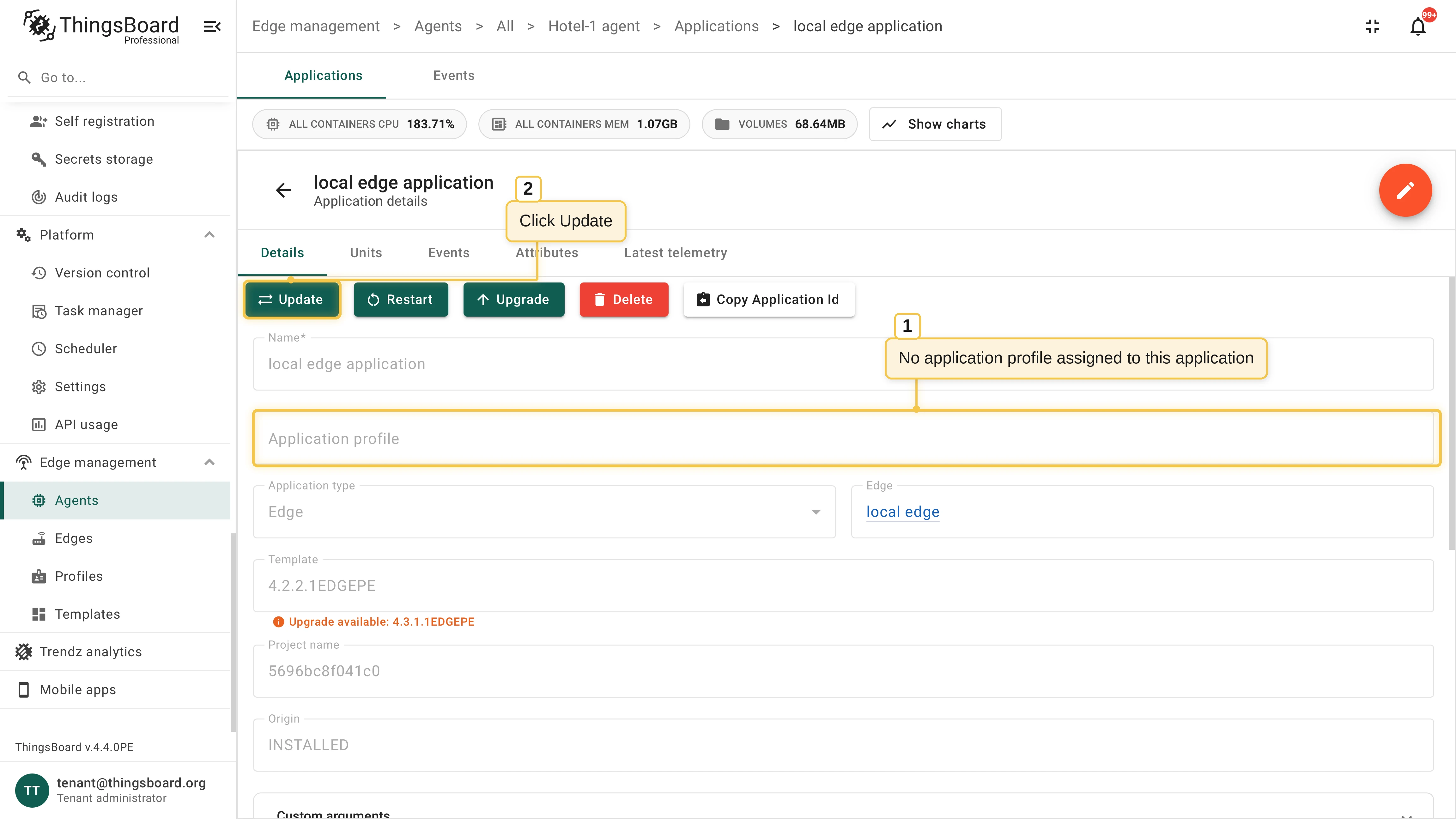
Update without a profile
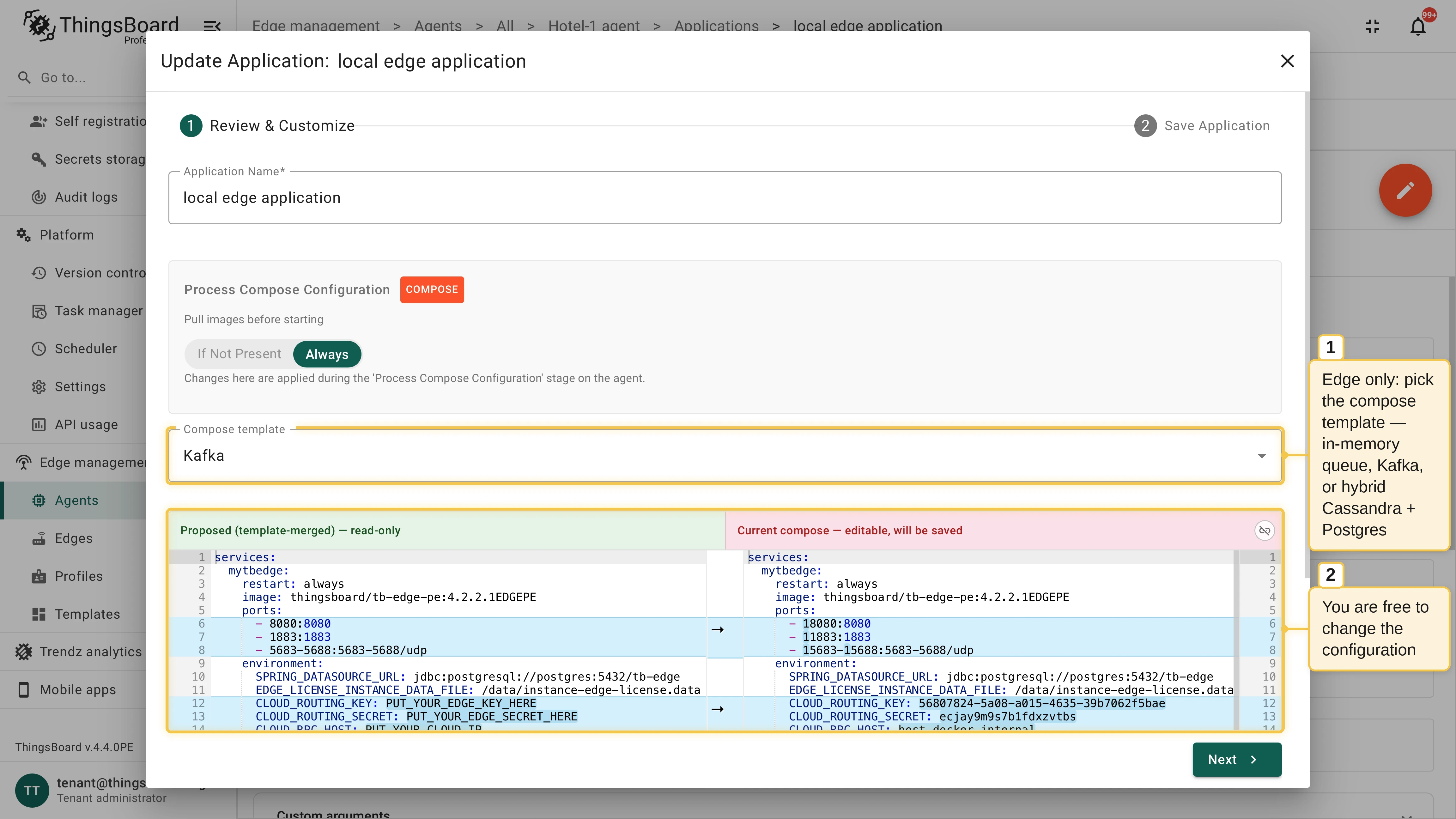
Section titled “Update without a profile”Without a profile, the Compose configuration is edited directly in the update dialog and saved with the update. For Edge applications, the Compose template selector offers the queue variants — in-memory, Kafka, or hybrid Cassandra + PostgreSQL — and shows the template-merged proposal side by side with your editable configuration.
Upgrade an application
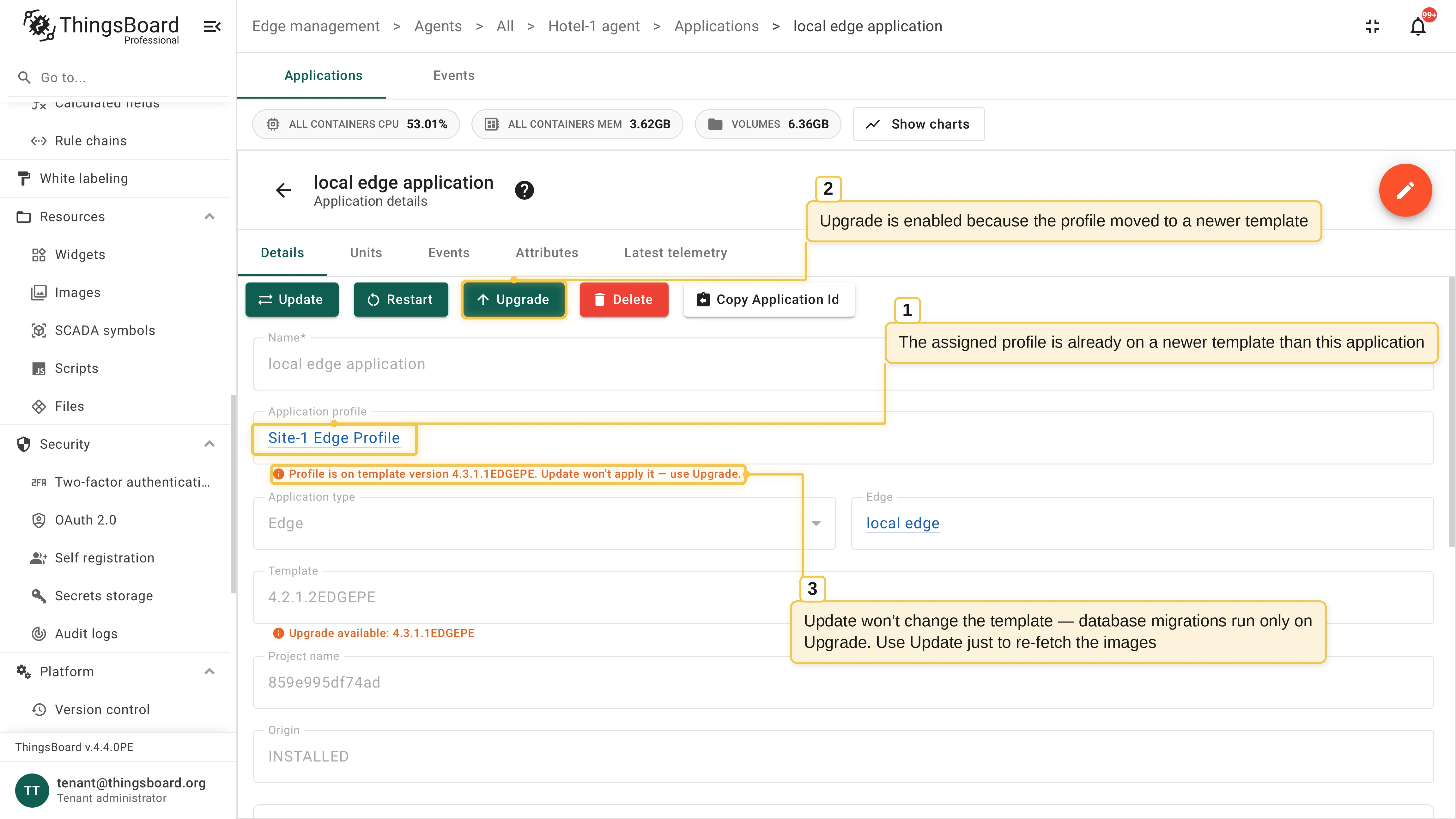
Section titled “Upgrade an application”An upgrade moves the application to a new template version, like Edge 4.2 to Edge 4.3: it is the only action that runs the ThingsBoard database upgrade scripts and advances the application’s template version. When ThingsBoard finds a newer version of the application’s template, it marks the application with Upgrade available and enables the Upgrade action. This happens whether or not the application has an assigned application profile.
Open the application and click Upgrade, on the details page or with the row action in the Applications table. The Upgrade Application wizard opens. If the assigned profile is still on the application’s current template version, the wizard opens on the Upgrade Profile step, and you can’t continue until the profile is upgraded. To skip this step, upgrade the profile on its own page first.
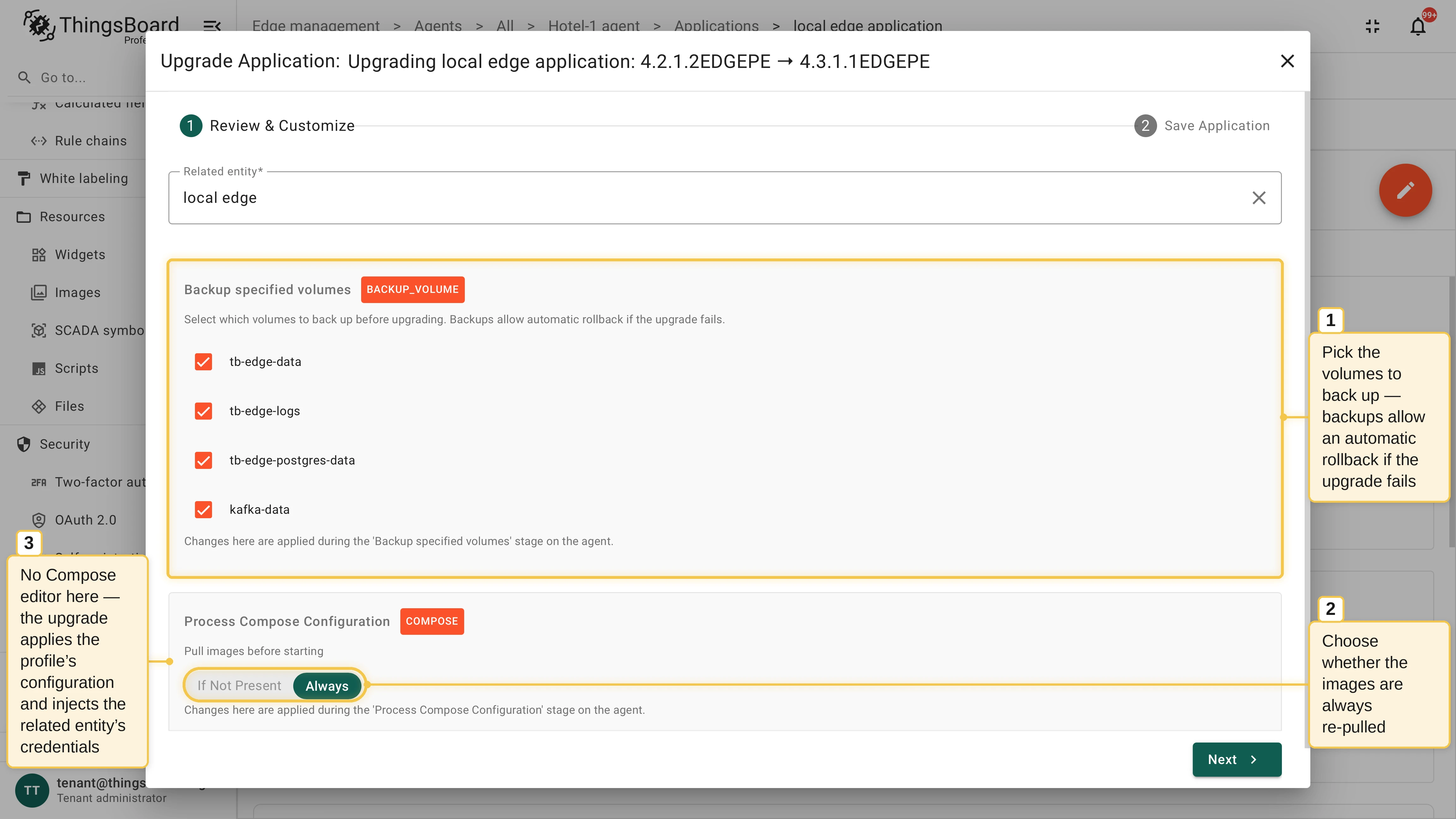
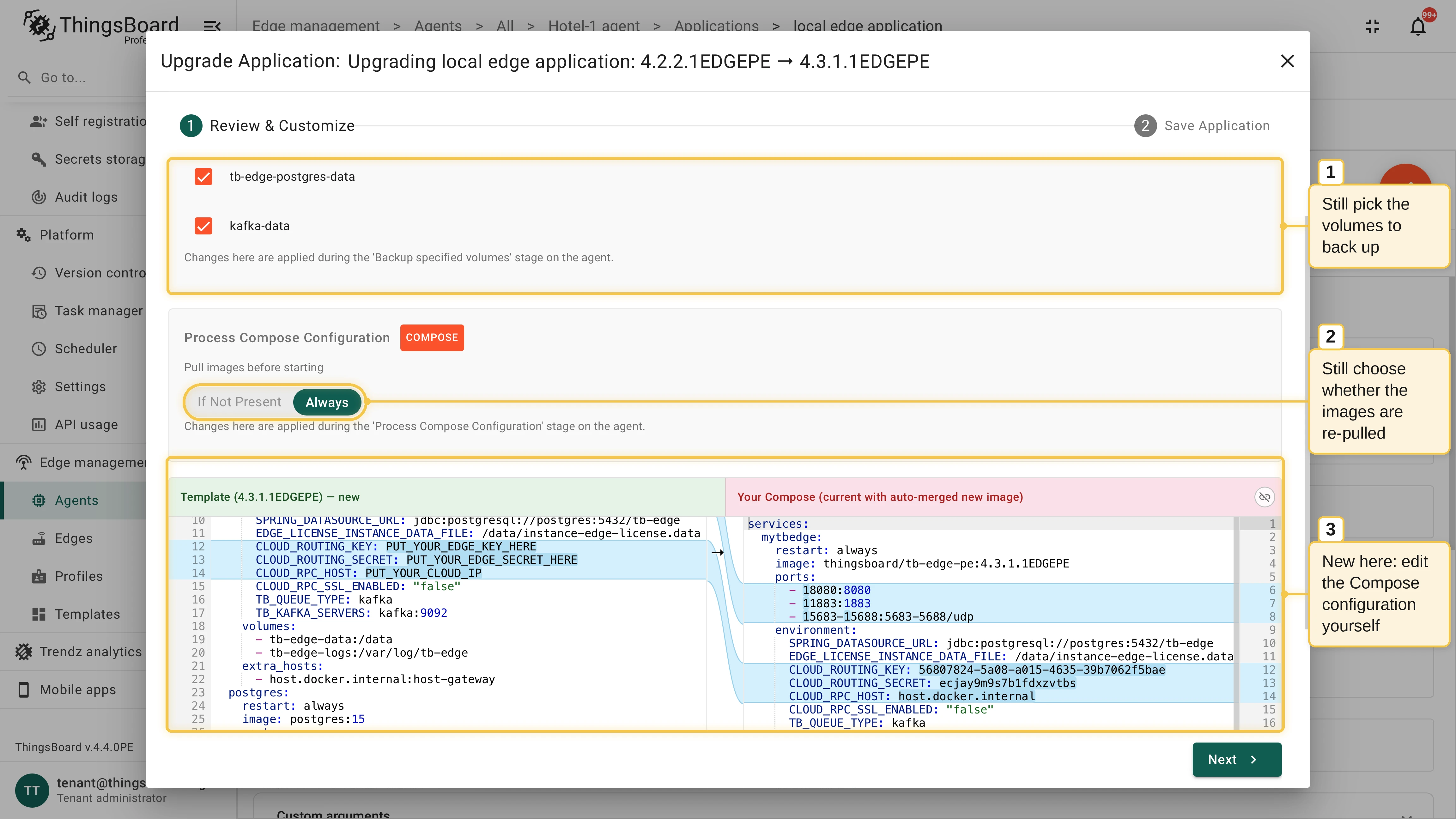
On the Review & Customize step, select the volumes to back up before the upgrade and choose whether the images are re-pulled. There is no Docker Compose editor here: the upgrade applies the profile’s configuration and injects the credentials of the related entity.
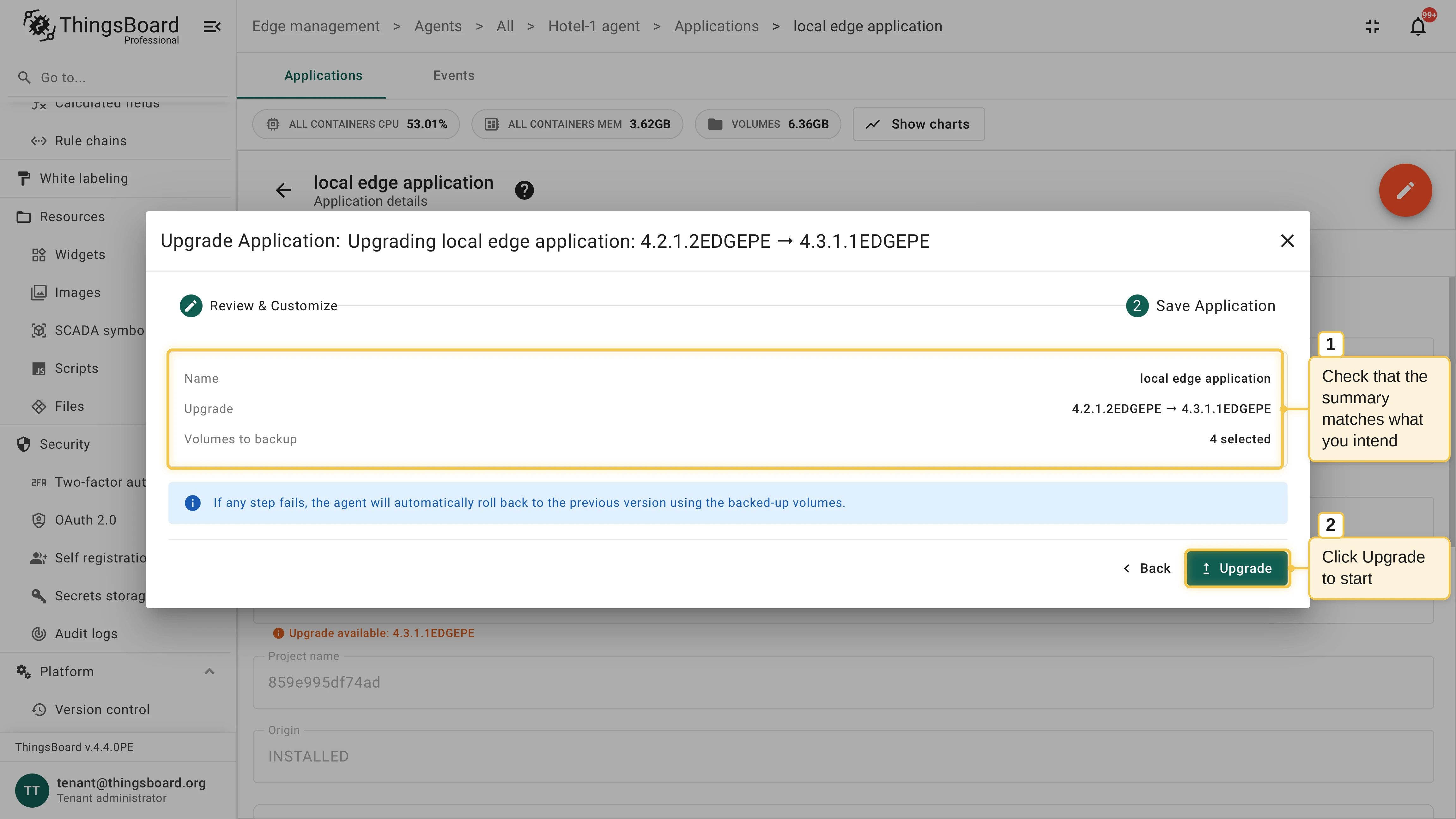
On the Save Application step, check that the summary matches what you intend and click Upgrade.
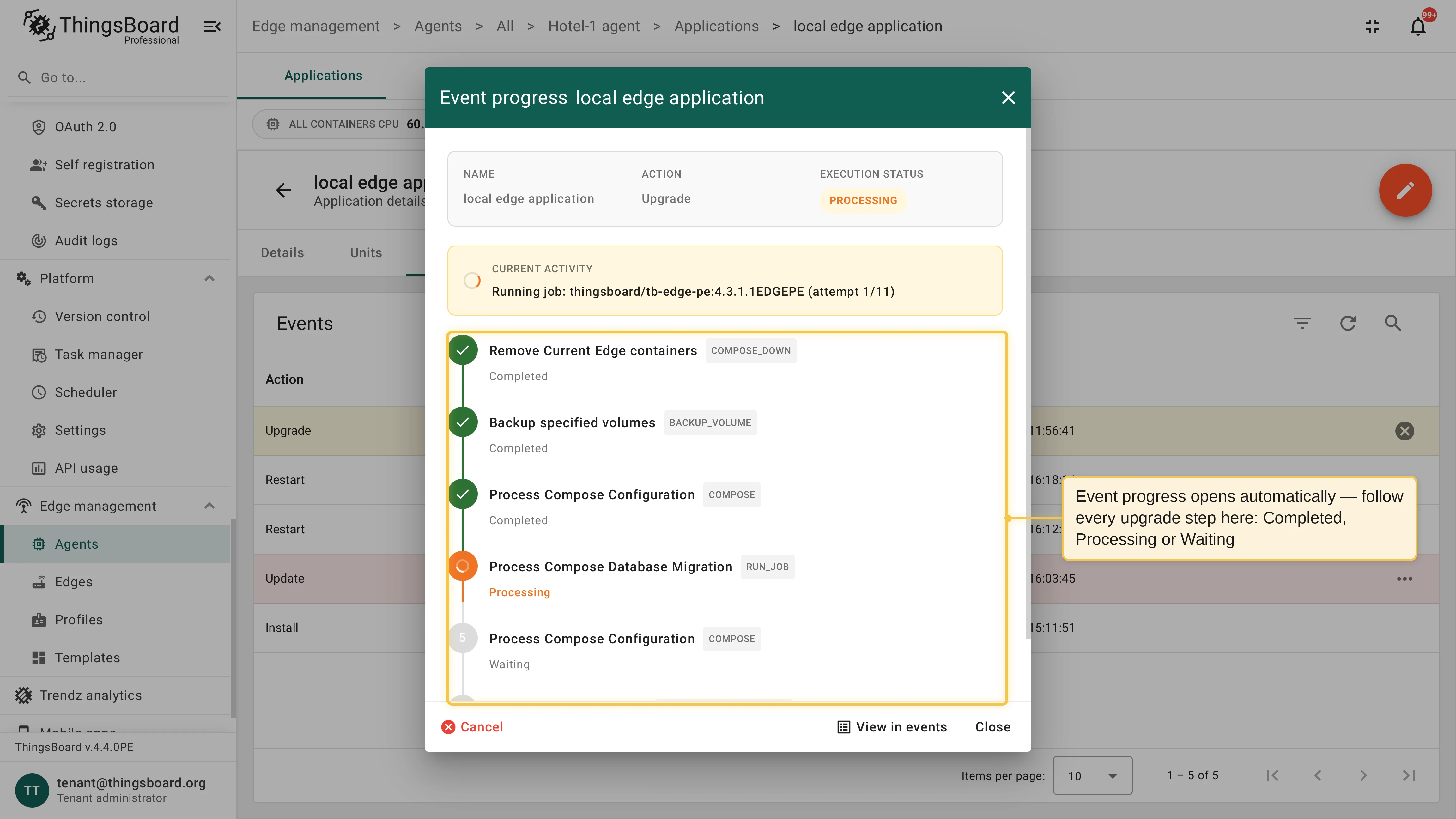
Follow every upgrade step in the Event progress dialog: it opens automatically, and you can reopen it later from the Events tab.
Upgrade without a profile
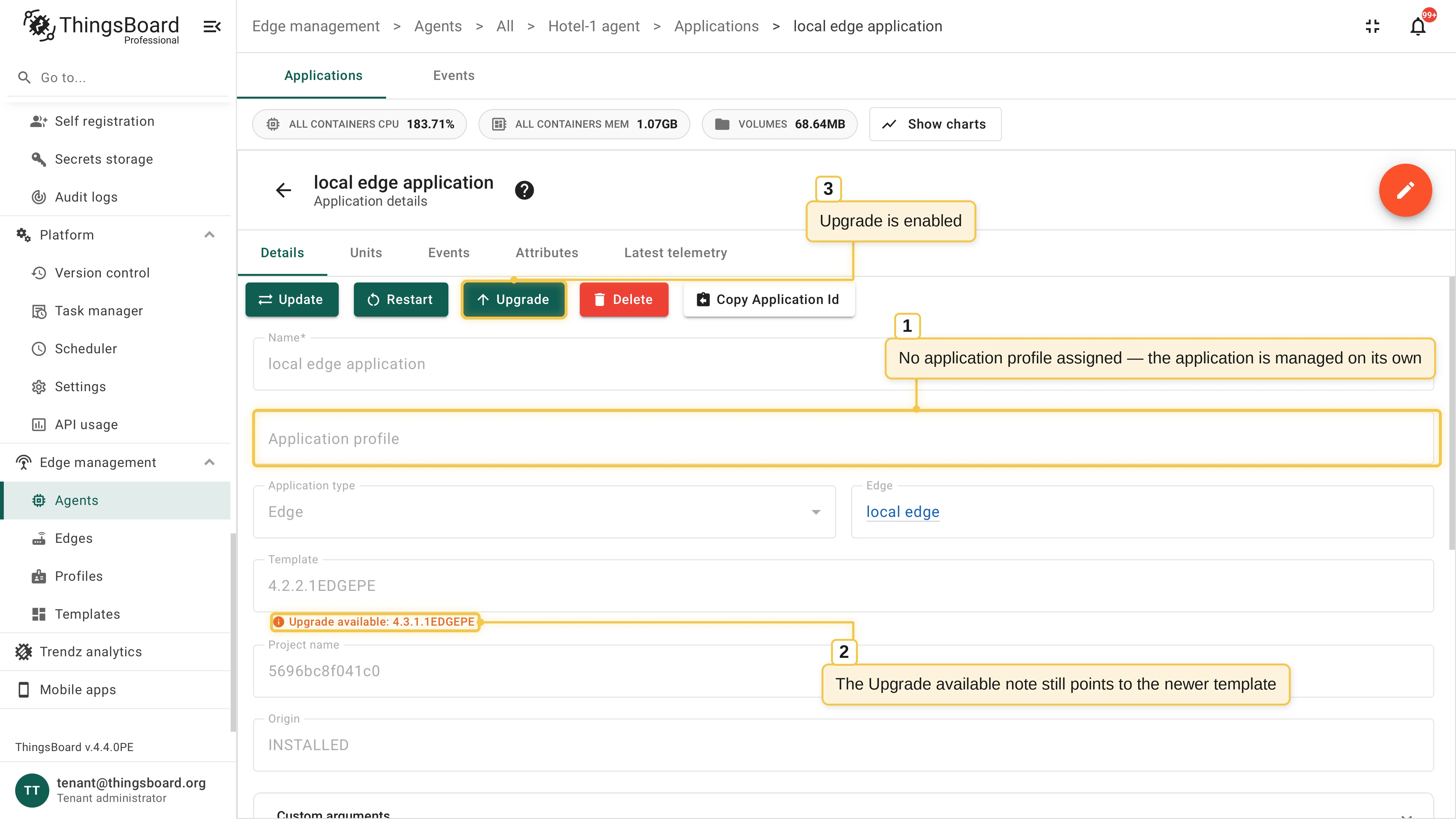
Section titled “Upgrade without a profile”An application with no application profile upgrades the same way: keep this setup only when you don’t need bulk operations. The Upgrade available note still points at the newer template version, and Upgrade stays enabled. The difference is the Review & Customize step: alongside the volume backup and image re-pull options, it shows the Docker Compose configuration — the new template side by side with your current Compose, auto-merged with the new images — and lets you edit the result before the upgrade.
From here, both flows are the same: check that the summary matches what you intend, click Upgrade, and follow every step in the Event progress dialog.
Delete an application
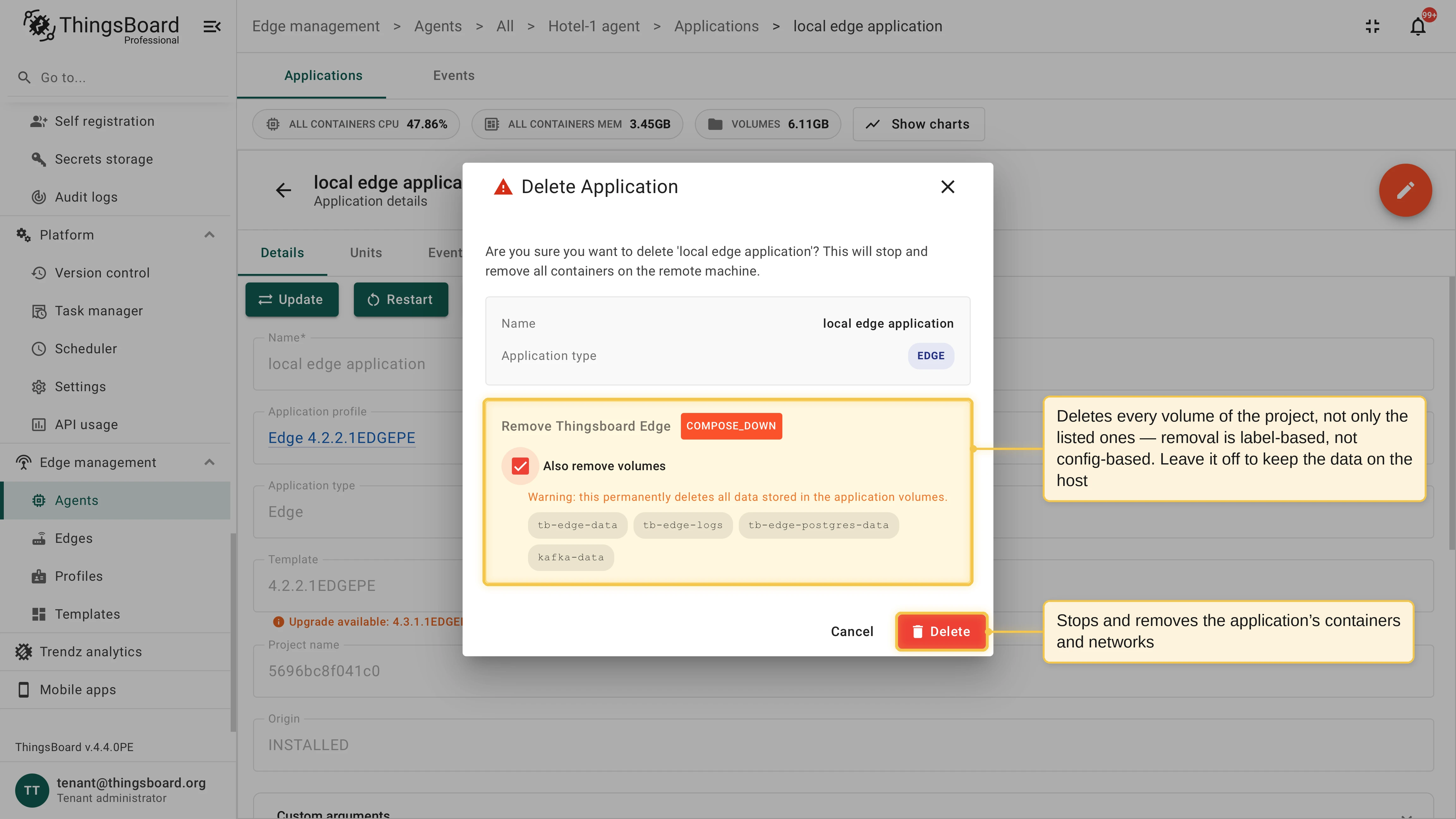
Section titled “Delete an application”Delete stops and removes the application’s containers and networks from the host. The confirmation dialog lists the application volumes: they stay on the host with all their data unless you select Also remove volumes. Run it with the Delete action on the application, or fleet-wide with a bulk delete.
Automatic rollback
Section titled “Automatic rollback”Before an upgrade or update starts, the agent snapshots the current state of the application. If any step fails:
- The agent restores the backed-up volumes.
- The agent recreates the containers from the snapshot, returning the application to its previous version.
- The event is marked as failed with the error reported by the failing step.
Rollback is idempotent: if the agent restarts mid-rollback, it resumes without repeating completed work.
PostgreSQL major version migration
Section titled “PostgreSQL major version migration”A PostgreSQL data directory is incompatible across major versions. When an update or upgrade moves a PostgreSQL service of any application to a new major version, the agent migrates the database automatically: it detects the version change from the data volume, backs the volume up, dumps the database with the old version’s image, and restores it with the new one. The migration is crash-resumable and rolls back with the rest of the operation on failure. It covers services that run the official postgres images.
The agent refuses to migrate and fails the operation with an actionable error when the change is a downgrade or when the database data directory is bind-mounted from the host instead of a named volume.
Fleet-wide actions
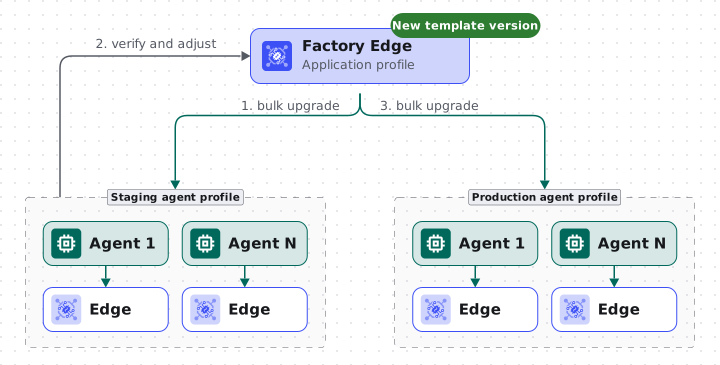
Section titled “Fleet-wide actions”Every action runs fleet-wide as a bulk action: one bulk restart, update, upgrade, or delete targets every application that shares an application profile across many agents. Assign the application profile to several agent profiles to stage an upgrade rollout: upgrade the staging fleet first, verify the result and adjust the configuration, then upgrade production.
Was this helpful?