Bulk actions
Bulk actions apply one operation to every application that matches an application profile across a fleet of agents. Use them to restart, update, upgrade, or delete hundreds of deployments with one command, like pushing a new ThingsBoard Edge version to all customer sites at once.
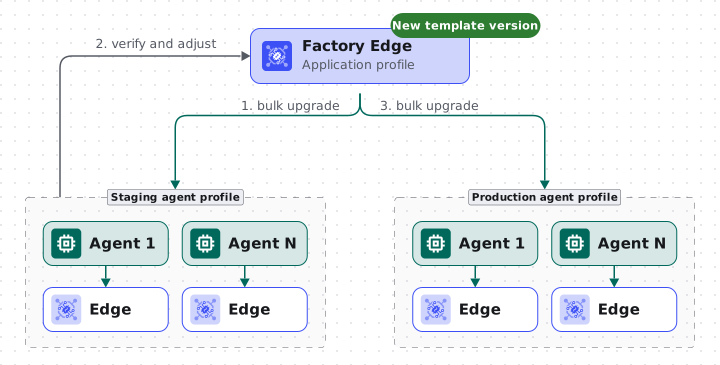
A bulk action targets all applications that match a selected application profile and whose agent uses the selected agent profile. Because an application profile can be assigned to several agent profiles, bulk actions support staged rollouts: bulk upgrade the staging fleet first, verify the result and adjust the configuration, then bulk upgrade production.
Bulk upgrade prerequisites
Section titled “Bulk upgrade prerequisites”The examples below run on the smallest possible fleet, wired through profiles:
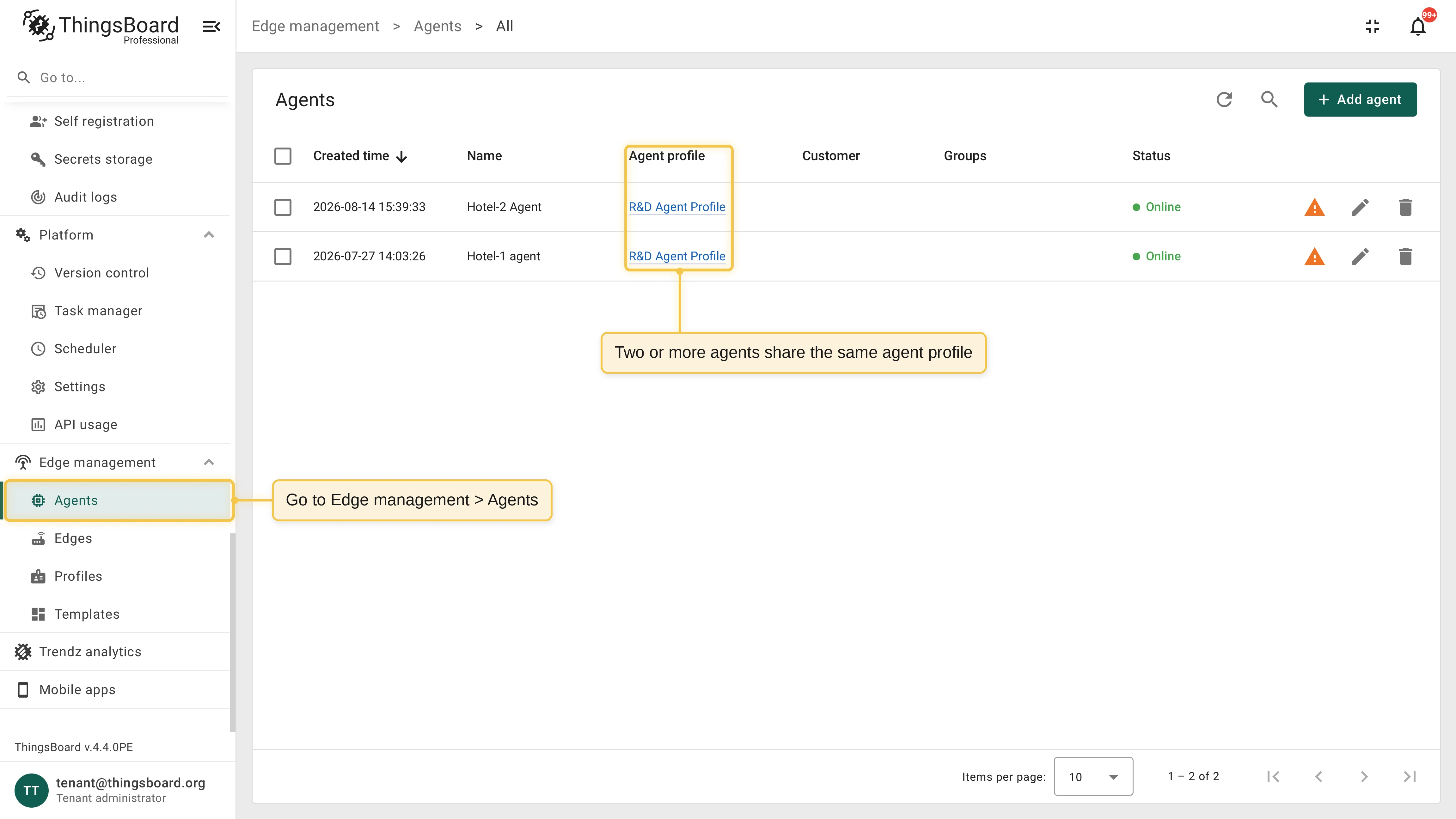
- Two or more agents share the same agent profile.
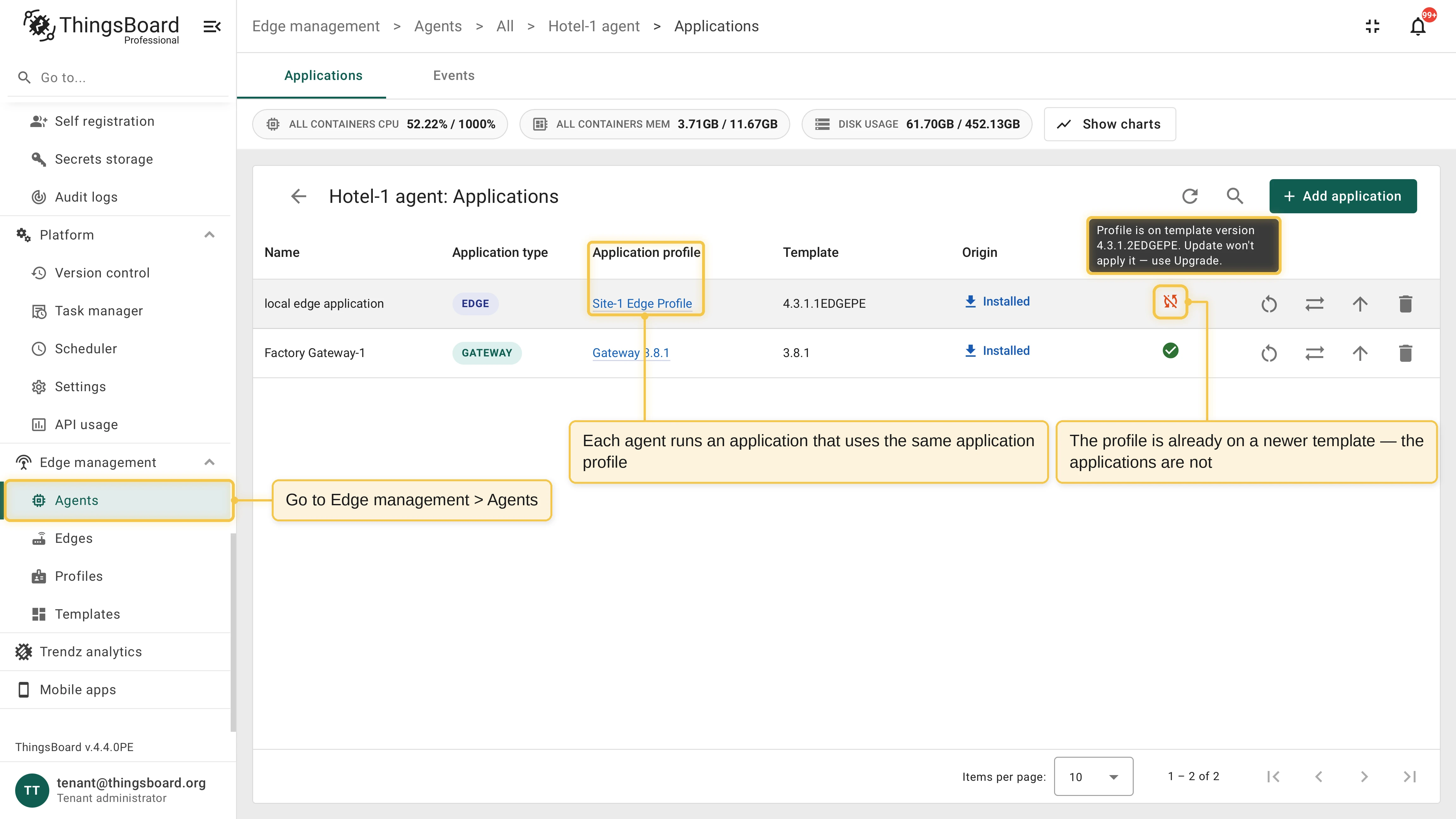
- Each agent runs an application deployed from the same application profile.
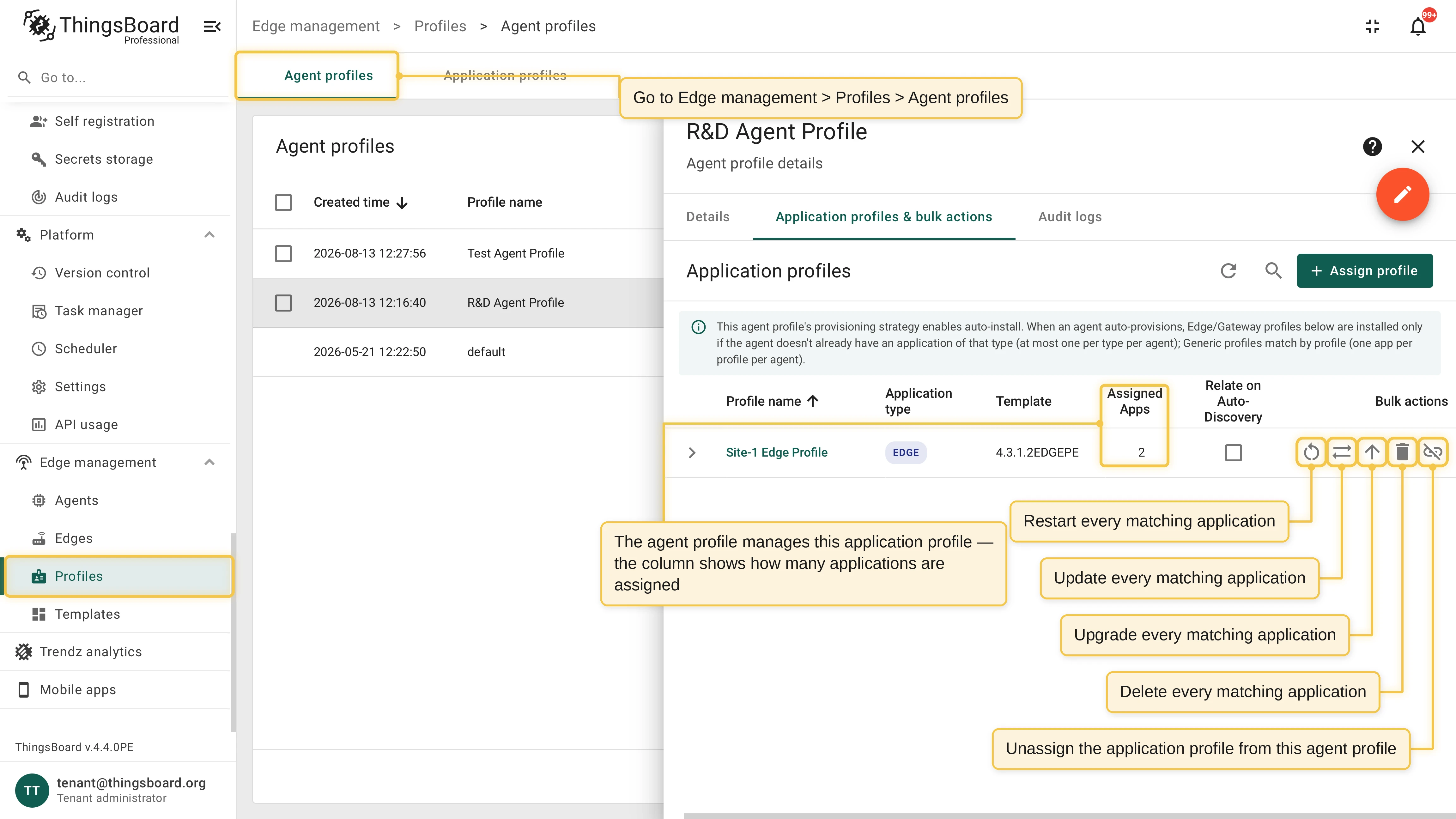
- The application profile is assigned to the agent profile: the Application profiles & bulk actions tab of the agent profile lists it with the number of matching applications and the bulk action buttons.
For the bulk upgrade example, the application profile has already been upgraded to a newer template version, while both deployed applications are still behind.
Bulk upgrade
Section titled “Bulk upgrade”Go to Edge management > Profiles > Agent profiles, open the agent profile, and switch to the Application profiles & bulk actions tab.
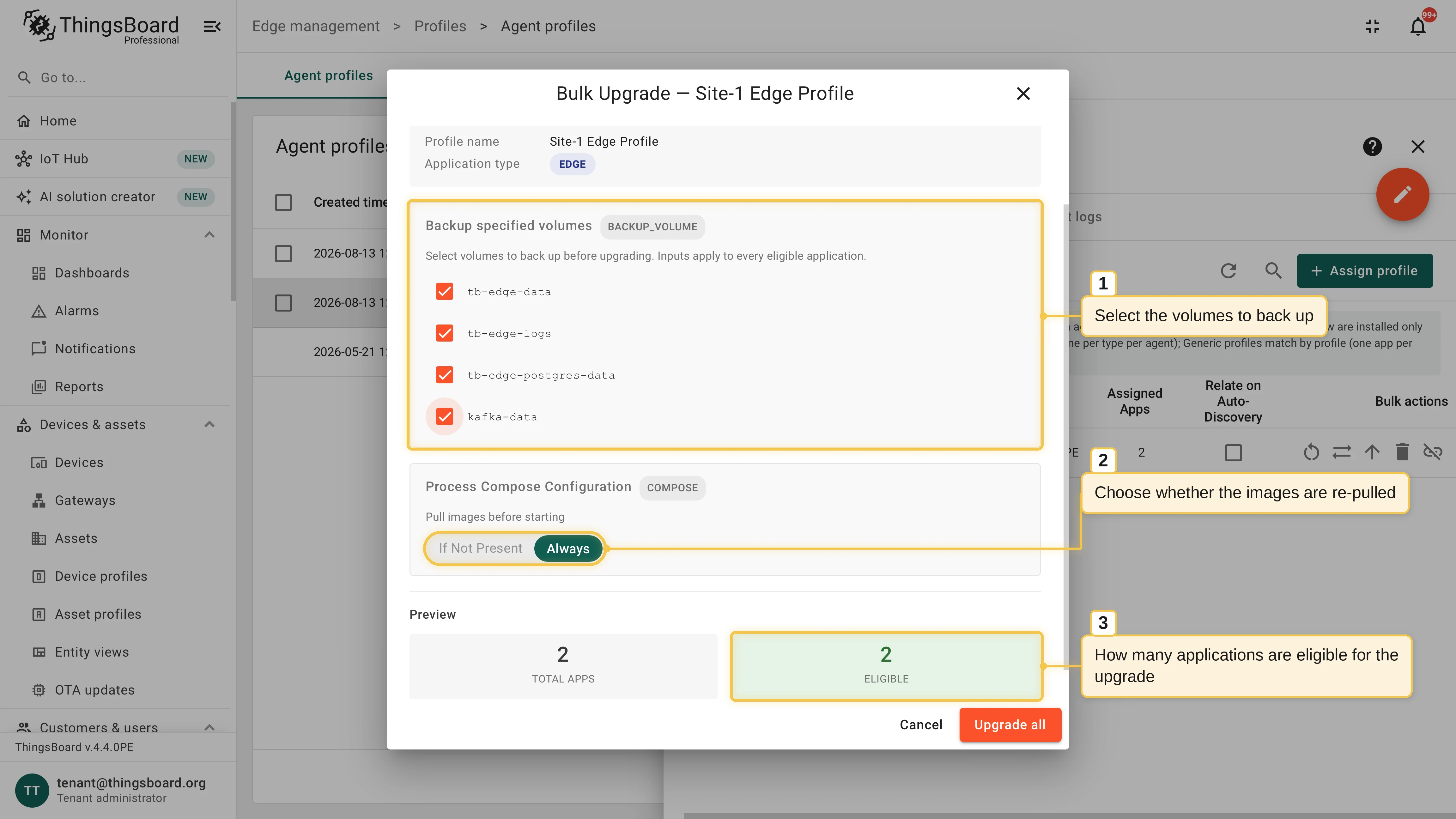
On the application profile row, click the bulk Upgrade button. The Bulk Upgrade dialog opens.
Select the volumes to back up and choose whether the images are re-pulled: the inputs apply to every eligible application. The preview shows how many of the matching applications are eligible; click Upgrade all.
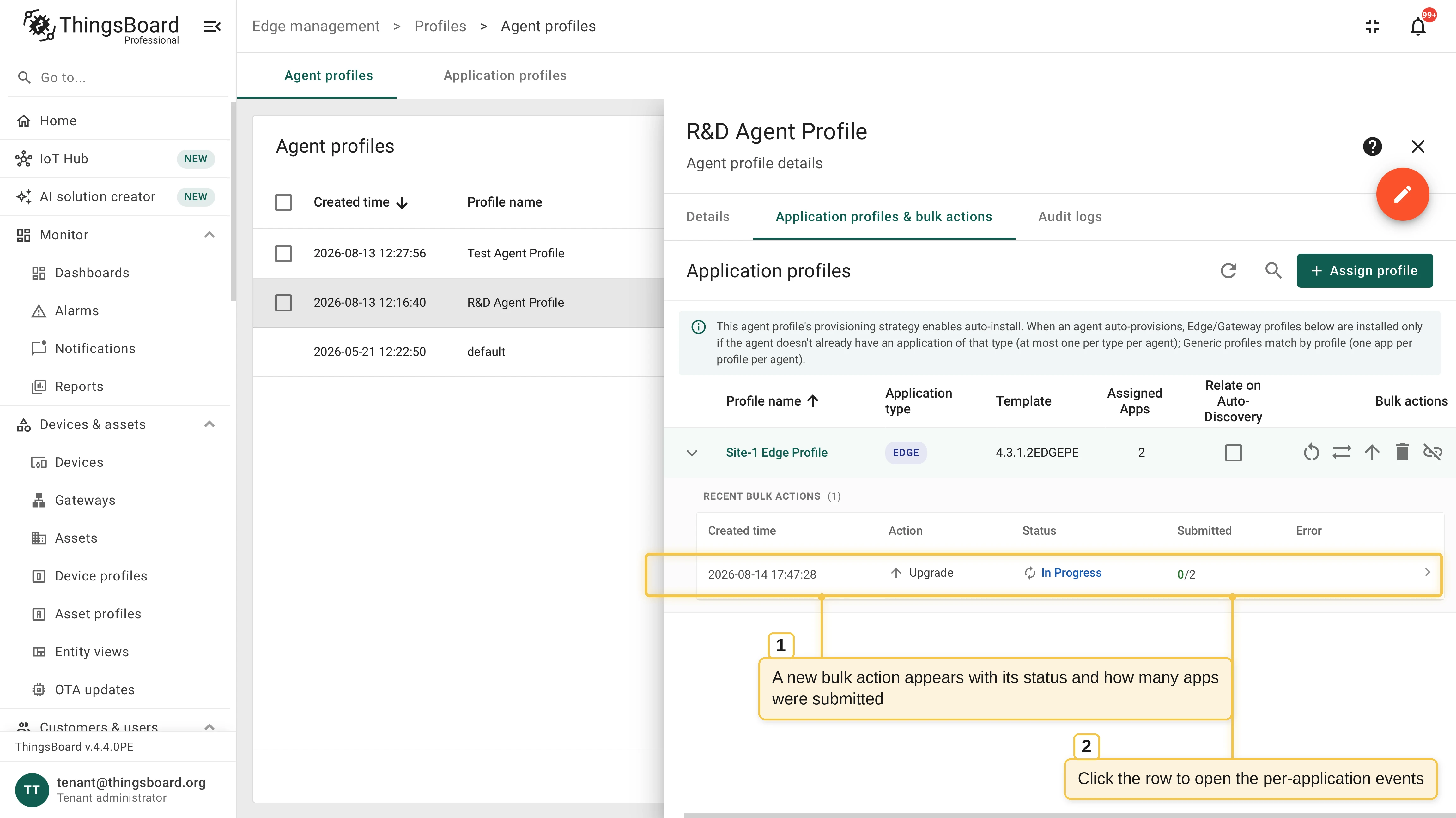
The run appears in the Recent bulk actions panel under the profile row, with its status — Queued, In Progress, Started, or Start Failed — and the number of submitted applications.
Monitor the executions
Section titled “Monitor the executions”Each targeted application gets its own event, executed and rolled back independently: a failure on one host never affects the others.
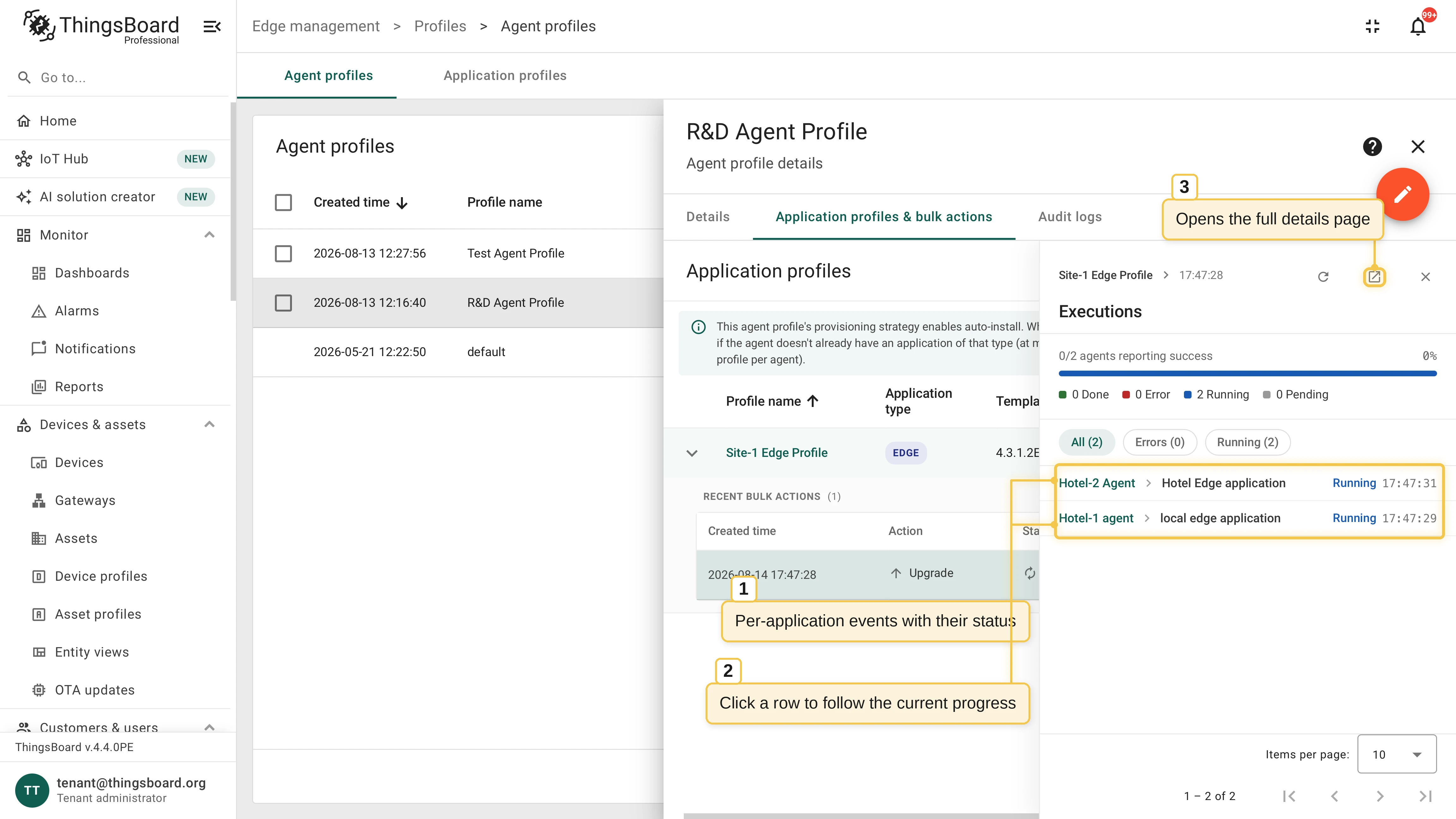
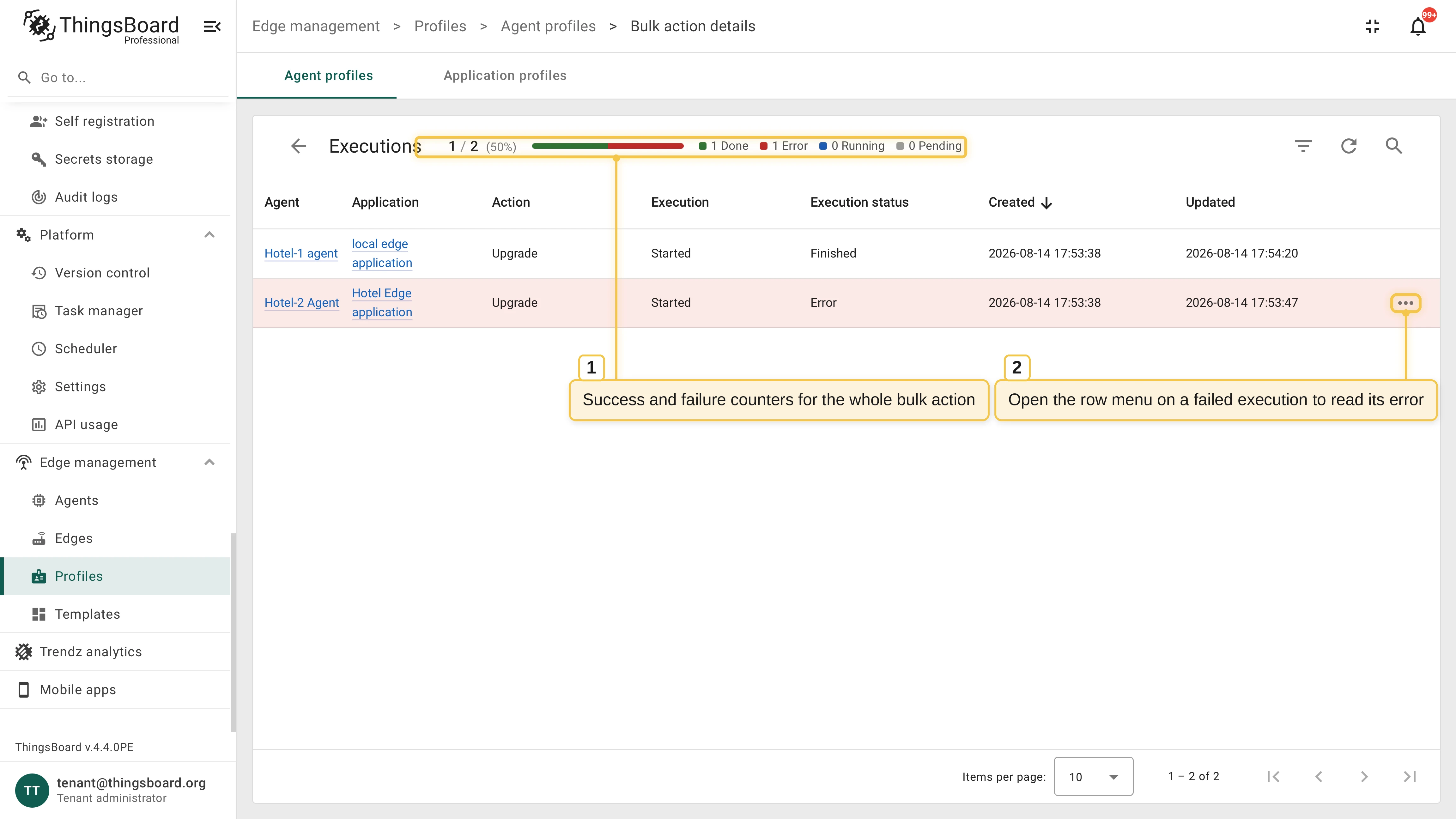
- Click the bulk action row to open the Executions panel: it summarizes progress as the number of agents reporting success, with the Done, Error, Running, and Pending counters and the per-application events.
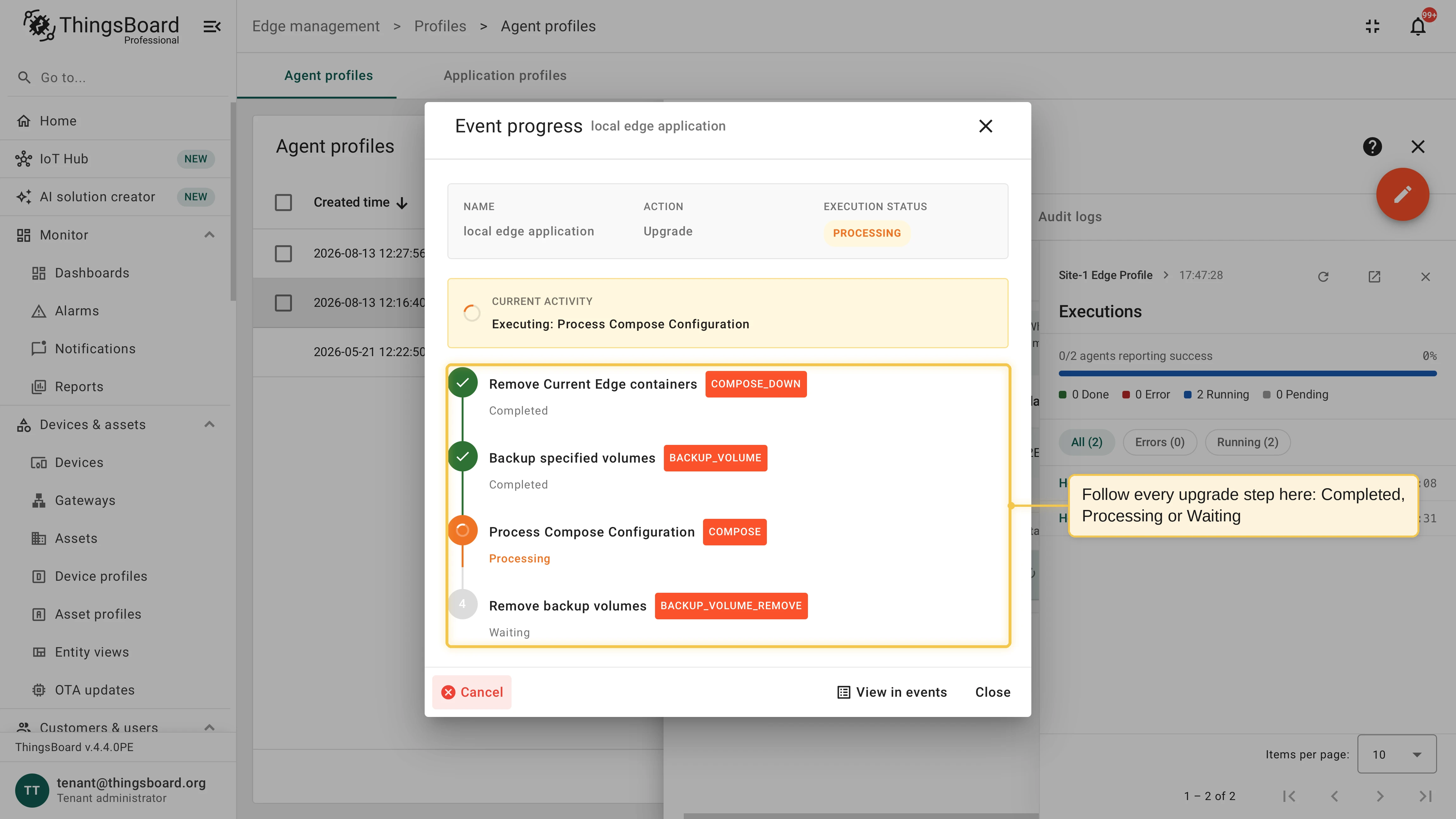
- Click an event to follow the live Event progress dialog of that application: the same per-step view as a single upgrade.
- The open-in-new icon leads to the Bulk action details page with the complete list of per-application executions: open the row menu on a failed execution to read its error.
Bulk update
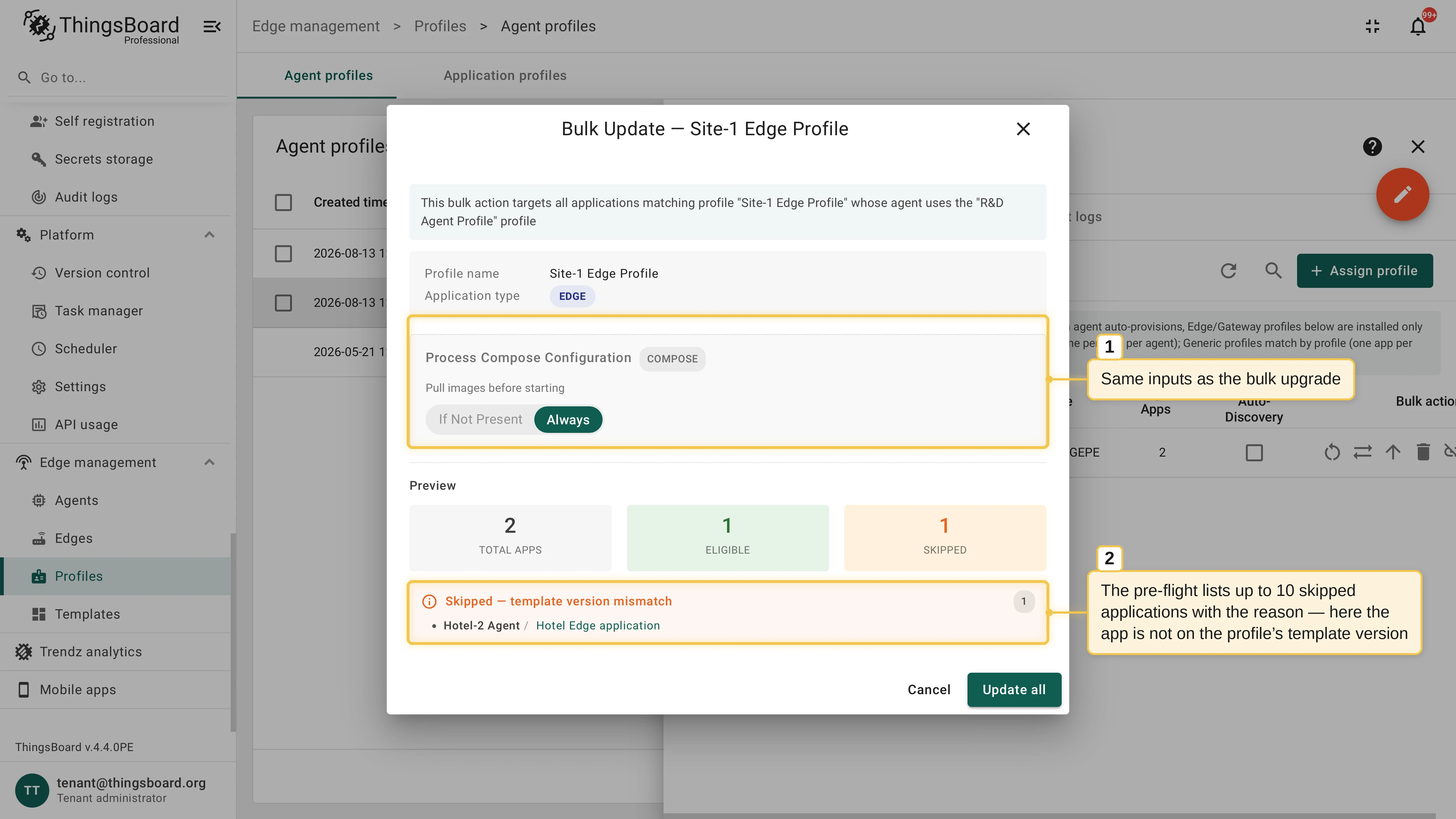
Section titled “Bulk update”A bulk update re-applies the profile’s configuration and the credential values without moving versions: use it to bring the fleet back in sync after editing the profile. The dialog takes the same inputs as the bulk upgrade.
The pre-flight preview is where the bulk update differs. Before submission, ThingsBoard evaluates every candidate application and shows the totals — Total apps, Eligible, and Skipped — and lists up to 10 skipped applications with the reason:
- Template version mismatch: The application is not on the profile’s template version, so the profile’s configuration does not apply to it. Upgrade it first.
- Another operation already running: The application has an event in progress.
- Event rate limit exceeded: The tenant’s agent event rate limit blocks new events. Retry later.
- Error while evaluating app: The application could not be evaluated.
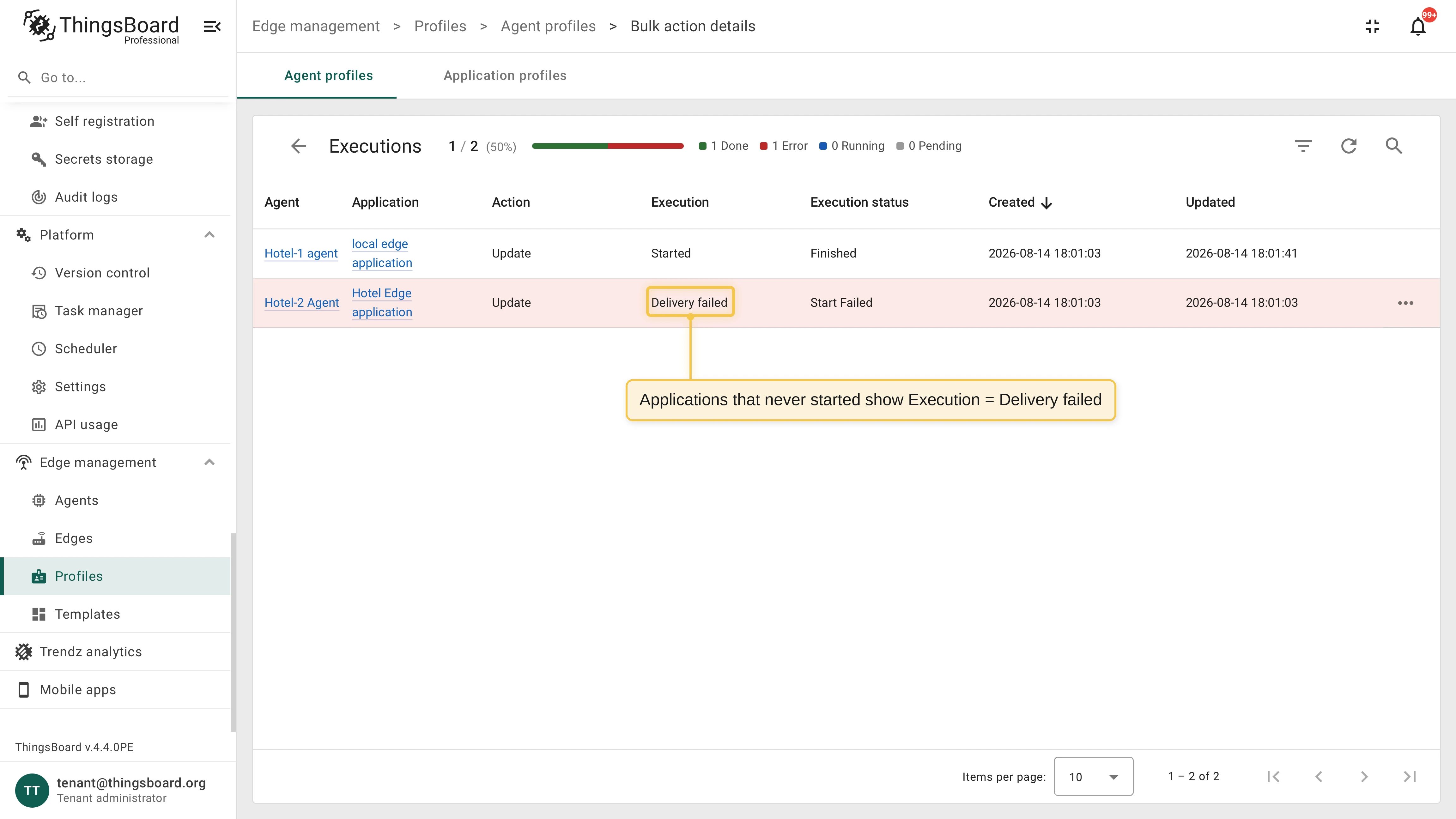
Only eligible applications receive the operation; skipped ones are left untouched. On the Bulk action details page, executions that never started show Delivery failed.
Bulk restart and delete
Section titled “Bulk restart and delete”A bulk restart and a bulk delete run through the same flow, with the same pre-flight preview and the same per-application executions. The bulk delete additionally asks whether to remove the application volumes on every targeted host.
Rate limits
Section titled “Rate limits”Agent events are rate-limited per tenant and per agent. Large fleets are processed within these limits; applications skipped due to rate limiting can be retried once the limit window passes. A tenant administrator can review the limits in the tenant profile configuration.
Was this helpful?