Build a public stream URL
This page walks you through building a public, browser-reachable HTTPS stream URL for an IP camera on your LAN. The recipe is two open-source components — MediaMTX (republishes your camera’s RTSP stream as HLS or WebRTC) and Caddy (terminates TLS and obtains the certificate from Let’s Encrypt) — running together on a single host on the same LAN as the camera.
If you already have a public, browser-reachable HTTPS stream URL and landed here by accident, skip this page and go straight to Configure the widget.
Architecture
Section titled “Architecture”One host on your LAN runs both MediaMTX (which pulls the camera’s RTSP stream and republishes it as HLS or WebRTC) and Caddy (which terminates TLS and proxies HTTP requests to MediaMTX). The browser running the dashboard connects directly to that host’s public endpoints — no other tiers, no intermediate hops.
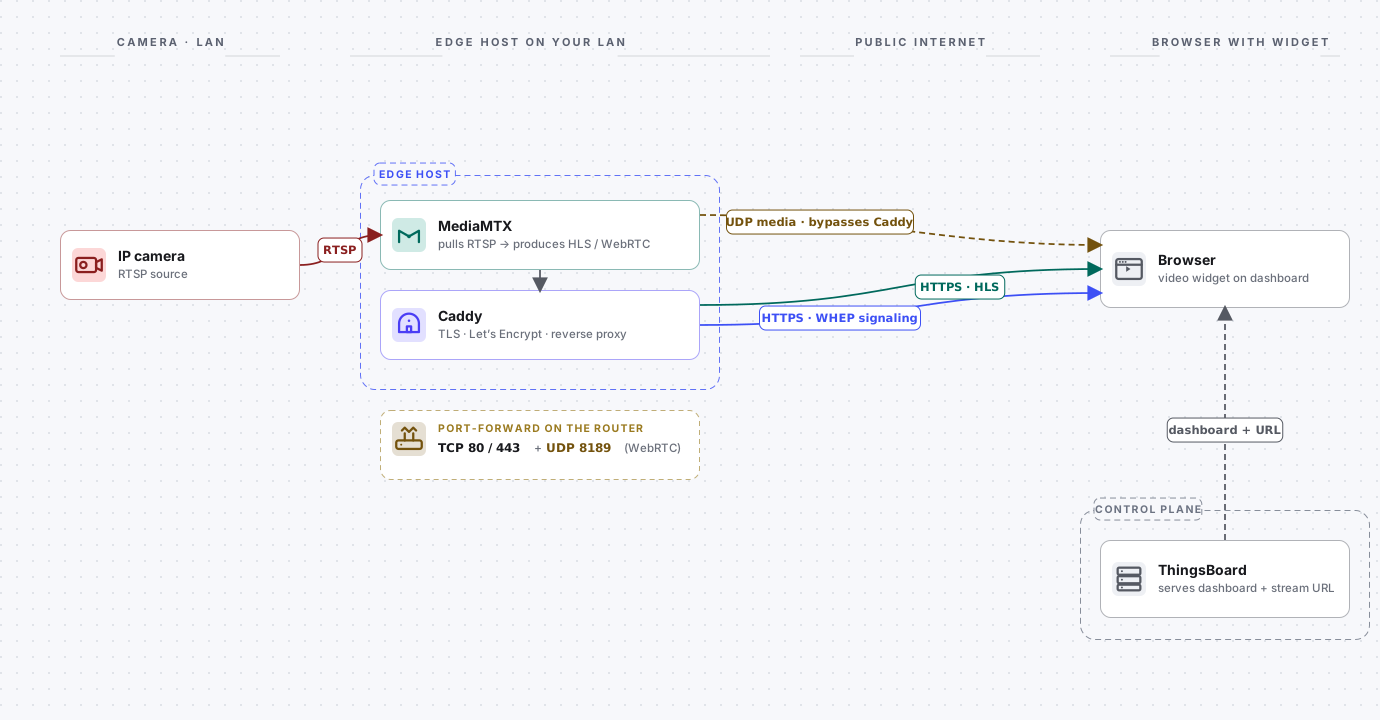
The same MediaMTX instance can serve both HLS and WebRTC for the same camera. This guide deploys one or the other depending on which widget you want to use; once each protocol works on its own, you can combine both into a single deployment.
Concepts
Section titled “Concepts”New to video streaming? Open this primer for the protocol and component names used throughout the rest of the guide.
The protocol IP cameras speak natively. RTSP itself is a TCP control protocol (typically port 554) that negotiates separate RTP streams — typically UDP, but TCP-interleaved is also common — which carry the video and audio bytes. RTSP is rarely exposed directly to the public internet; operators front it with a media server that republishes the stream over HLS or WebRTC. In this guide RTSP only travels between the camera and the MediaMTX host, both on your LAN.
HTTP Live Streaming. A protocol that breaks a stream into a playlist of short .ts or .mp4 segments served over plain HTTP(S). Browsers fetch the playlist (index.m3u8), then fetch each segment in turn. HLS is firewall-friendly because it looks like ordinary HTTP traffic, but the segmentation introduces noticeable end-to-end latency — typically several seconds, depending on segment count and duration.
WebRTC
Section titled “WebRTC”A real-time peer-to-peer media protocol with sub-second latency. The browser establishes one peer connection with MediaMTX, and media flows over UDP. Because UDP cannot be reverse-proxied like HTTP, WebRTC requires you to expose a UDP port directly on the edge host.
WebRTC-HTTP Egress Protocol. The signaling layer that gets a WebRTC session started. The browser POSTs an SDP offer to a WHEP URL, the server returns an SDP answer, and the two negotiate ICE candidates. WHEP itself is a short HTTP exchange — Caddy can proxy it like any other HTTP request. The media that follows is what travels over UDP.
MediaMTX
Section titled “MediaMTX”An open-source media server that ingests streams in many formats (RTSP, RTMP, SRT, …) and republishes them in many other formats (HLS, WebRTC/WHEP, RTSP, …). In this guide MediaMTX pulls one RTSP stream from your camera and serves the same stream out as HLS or WebRTC for the browser. This guide uses the stock bluenviron/mediamtx:latest-ffmpeg Docker image — no custom build is needed.
An open-source HTTPS server with built-in automatic TLS via Let’s Encrypt. Caddy reads its configuration from a Caddyfile, obtains a certificate the first time it starts, and renews it before expiry without operator intervention. In this guide Caddy is the only component on the edge host that listens for public traffic — it terminates TLS and forwards requests to MediaMTX over the internal Docker network.
Common Prerequisites
Section titled “Common Prerequisites”Both the HLS and WebRTC paths need the same baseline. Confirm each item before continuing.
- A running ThingsBoard instance you can log into.
- An IP camera on your LAN reachable over RTSP, plus the camera’s URL and credentials. This guide assumes the stream is encoded as H.264 — it’s the safest default for browser playback over both WebRTC and HLS. H.265 (HEVC) works in some browser/OS combinations but support is fragmented; transcoding is out of scope here. If your camera defaults to H.265 (common on recent Hikvision/Dahua models), switch the main stream to H.264 in the camera’s web UI before continuing.
- A Linux host on the same LAN as the camera, with Docker and the Docker Compose plugin installed. A small VM, an Intel NUC, or a Raspberry Pi-class device is sufficient.
- A public IPv4 address on your internet connection. If your router’s WAN address is in the range
100.64.0.0–100.127.255.255, you are behind Carrier-Grade NAT, and the public-facing parts of this guide will not work. Talk to your ISP about a real public IP. - A domain name under your control, with DNS administration access. The DNS hostname you point at the edge host is the one Caddy will obtain a Let’s Encrypt certificate for.
- Router administration access to configure inbound port forwarding to the edge host.
- Awareness that exposing a media server to the public internet without authentication is unsafe. Read Security before publishing the URL.
The HLS path needs TCP 80 and TCP 443 open inbound. The WebRTC path needs those plus UDP 8189 for the media plane. The exact port numbers come from the configurations later in this guide.
Stream with HLS
Section titled “Stream with HLS”HLS is the path of least resistance: a single TCP port for everything (443 outbound from the viewer, 443 inbound on your router), no UDP, no NAT traversal surprises. The tradeoff is latency — typically several seconds from camera lens to browser, depending on segment size and count.
When to Choose HLS
Section titled “When to Choose HLS”- You can tolerate a few seconds of latency.
- Some viewers are on networks that block UDP (corporate firewalls, restrictive guest Wi-Fi).
- You need to serve a recorded HLS playlist as well as live streams.
- You want broad compatibility with older browsers and devices.
docker-compose.yml (HLS)
Section titled “docker-compose.yml (HLS)”The HLS deployment runs two containers — mediamtx and caddy — on the same Docker network. Only Caddy publishes ports to the host; MediaMTX’s HLS port is reachable only over the Docker network, so the public attack surface is exactly what Caddy serves.
services:  mediamtx:    image: bluenviron/mediamtx:latest-ffmpeg    restart: unless-stopped    expose:      - "8888"    environment:      MTX_LOGLEVEL: info
      # HLS output      MTX_HLS: "yes"      MTX_HLSADDRESS: ":8888"      MTX_HLSVARIANT: mpegts      MTX_HLSSEGMENTCOUNT: "3"      MTX_HLSSEGMENTDURATION: "1s"      MTX_HLSALWAYSREMUX: "yes"      MTX_HLSALLOWORIGINS: "*"
      MTX_RTSP: "yes"
      # Unused protocols — disabled to minimise attack surface.      MTX_WEBRTC: "no"      MTX_SRT: "no"      MTX_RTMP: "no"
      # --- Camera source ---      MTX_PATHS_CAMERA1_SOURCE: rtsp://admin:PASSWORD@192.168.1.64:554/Streaming/Channels/101      MTX_PATHS_CAMERA1_SOURCEONDEMAND: "no"
  caddy:    image: caddy:2    restart: unless-stopped    ports:      - "80:80"      - "443:443"    volumes:      - ./Caddyfile:/etc/caddy/Caddyfile:ro      - caddy_data:/data      - caddy_config:/config    depends_on:      - mediamtx
volumes: caddy_data: caddy_config:Every key explained
| Key | What it does |
|---|---|
image: bluenviron/mediamtx:latest-ffmpeg |
The official MediaMTX image with ffmpeg and BusyBox utilities bundled. The -ffmpeg variant is needed if you ever enable on-the-fly transcoding, and BusyBox provides the wget binary used by the docker compose exec mediamtx wget … smoke test in the next section — the slimmer :latest tag is FROM scratch and contains only the mediamtx binary, with no wget. |
restart: unless-stopped |
Restart automatically if the container exits, except when you stop it manually. |
expose: ["8888"] |
Documents that MediaMTX listens on 8888 inside the container. The port is not published to the host, so MediaMTX is reachable only from other containers on the same Compose network — there is no direct path from the public internet. (expose itself is purely documentation in modern Compose; the actual reachability comes from being on the shared Compose network with no host-side publish.) |
MTX_LOGLEVEL: info |
MediaMTX log verbosity. debug is useful while diagnosing camera connection issues; revert to info once stable. |
MTX_HLS: "yes" |
Enables the HLS server. |
MTX_HLSADDRESS: ":8888" |
Port the HLS server listens on inside the container. The colon prefix means “all interfaces”; because no host port is published, MediaMTX is reachable only over the Compose network. |
MTX_HLSVARIANT: mpegts |
The HLS segment format. We use mpegts (the .ts flavor) because it has the broadest browser/player support for H.264 + AAC. MediaMTX also accepts fmp4 and lowLatency, which the widget can play but exercise narrower paths in hls.js. |
MTX_HLSSEGMENTCOUNT: "3" |
Number of segments kept in the live playlist. Three keeps the playlist short for low latency while leaving headroom for one slow segment fetch. |
MTX_HLSSEGMENTDURATION: "1s" |
Length of each segment. Shorter segments lower latency; longer segments are more tolerant of network jitter. |
MTX_HLSALWAYSREMUX: "yes" |
Keep generating HLS segments even when no viewer is connected. Without this, MediaMTX would only start producing segments on the first request, adding extra startup delay every time a dashboard reloads. |
MTX_HLSALLOWORIGINS: "*" |
Send Access-Control-Allow-Origin: * on HLS responses so a dashboard served from https://thingsboard.example.com can fetch playlists and segments from https://cameras.yourdomain.com. |
MTX_RTSP: "yes" |
Enable the RTSP server (the MediaMTX default). Independent of the HLS pipeline; included for symmetry with the explicit "no" toggles below. |
MTX_WEBRTC / MTX_SRT / MTX_RTMP: "no" |
Disable unused protocol servers in this deployment. Reduces the public attack surface to HLS only. |
MTX_PATHS_CAMERA1_SOURCE |
The camera’s RTSP URL. The path-name segment (CAMERA1) is what becomes the URL slug — https://cameras.yourdomain.com/camera1/index.m3u8. Replace the example with your camera’s RTSP URL. Hikvision main-stream pattern shown; Axis would be rtsp://root:PASSWORD@<ip>:554/axis-media/media.amp. |
MTX_PATHS_CAMERA1_SOURCEONDEMAND: "no" |
Pull the camera continuously, not just when a viewer requests it. With yes, MediaMTX closes the camera connection during idle periods and reopens it on demand, which adds noticeable startup delay when the dashboard reloads and stresses cameras that dislike frequent reconnects. |
caddy.ports: ["80:80", "443:443"] |
Caddy binds host ports 80 (Let’s Encrypt HTTP-01 challenge + redirect) and 443 (public HTTPS). |
caddy.volumes: ./Caddyfile:/etc/caddy/Caddyfile:ro |
Mount the local Caddyfile into the container as read-only configuration. |
caddy_data / caddy_config named volumes |
Persist Let’s Encrypt certificates and Caddy state across container restarts. Without these volumes Caddy would re-issue certificates on every restart and quickly hit Let’s Encrypt’s rate limits. |
depends_on: [mediamtx] |
Start MediaMTX before Caddy. Caddy will still retry the upstream if MediaMTX is slow to come up. |
Save this file as docker-compose.yml in a new directory. Before starting the stack, replace the placeholder:
MTX_PATHS_CAMERA1_SOURCE: rtsp://admin:PASSWORD@192.168.1.64:554/...— set this to your camera’s RTSP URL and credentials.
Caddyfile (HLS)
Section titled “Caddyfile (HLS)”The Caddyfile is small because Caddy handles everything HTTPS-related automatically.
cameras.yourdomain.com {    encode gzip
    reverse_proxy mediamtx:8888
    log {        output stdout        format console        level INFO    }}
Every directive explained:
| Directive | What it does |
|---|---|
cameras.yourdomain.com { ... } |
The site address. Caddy listens on ports 80 and 443 for this hostname, automatically redirects HTTP to HTTPS, and obtains a Let’s Encrypt certificate the first time it starts. Replace with the hostname you control. |
encode gzip |
Gzip text responses (HLS playlists, WHEP SDPs) where the client supports it. |
reverse_proxy mediamtx:8888 |
Forward every request to the MediaMTX container’s HLS port over the Docker network. mediamtx resolves to the other container’s IP because they share a Compose network. Caddy’s reverse_proxy automatically adds X-Forwarded-For, X-Forwarded-Proto, and X-Forwarded-Host, and preserves the client’s original Host header for HTTP upstreams — no header_up lines needed. |
log { ... } |
Write structured logs to stdout. docker compose logs -f caddy then shows requests as they happen, including the certificate-issuance lines on first start. |
Save this as a file named Caddyfile (no extension, capital C) next to docker-compose.yml. Replace cameras.yourdomain.com with your hostname.
Verify Locally (HLS)
Section titled “Verify Locally (HLS)”Before opening the firewall, prove the LAN pipeline works end to end — camera → RTSP → MediaMTX → HLS. Caddy and Let’s Encrypt aren’t in the path yet, so any failure here points cleanly at the camera, the credentials, or MediaMTX itself.
-
From the directory containing
docker-compose.ymlandCaddyfile, start only MediaMTX so you can verify the pipeline without involving Caddy or Let’s Encrypt:Terminal window docker compose up -d mediamtx -
Wait 5–10 seconds for MediaMTX to connect to the camera. Watch the logs:
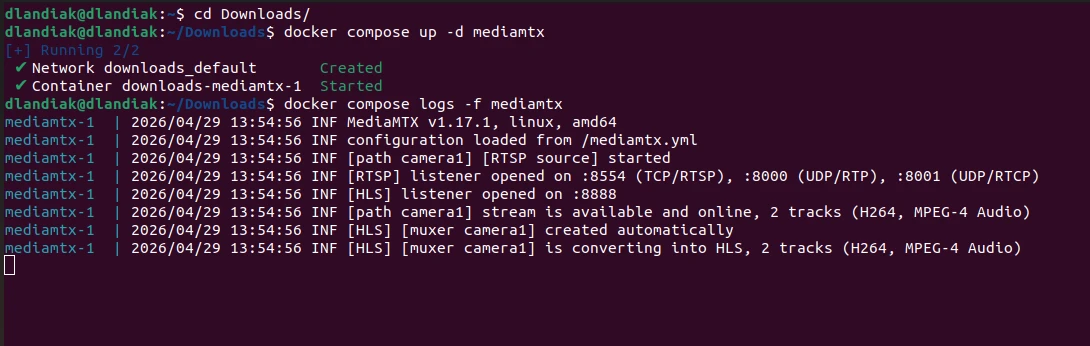
Terminal window docker compose logs -f mediamtxYou’re looking for a line that says the camera path is online — something like
[path camera1] stream is available and online, 2 tracks (H264, MPEG-4 Audio). The track list reflects what the camera publishes; with H.264 video and AAC audio (MPEG-4 Audio), the next line confirms the HLS muxer is converting both tracks.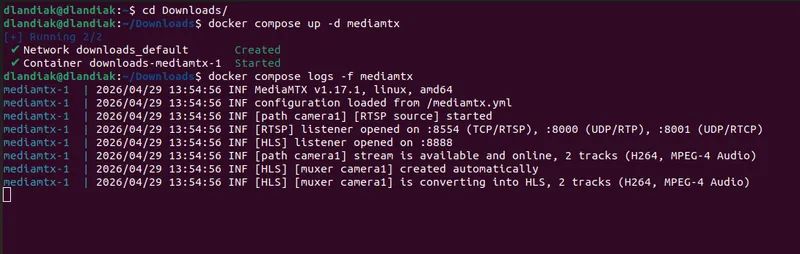
-
From the same machine, fetch the HLS playlist directly:
Terminal window docker compose exec mediamtx wget -qO- http://127.0.0.1:8888/camera1/index.m3u8 | head -3The first line should be
#EXTM3U. If it is, MediaMTX is producing HLS correctly.
If this step fails, fix it before continuing. Common causes are listed in Troubleshooting.
Publish to the Internet (HLS)
Section titled “Publish to the Internet (HLS)”Now expose the stack publicly.
-
Point a DNS record at your public IP. Find your public IPv4:
Terminal window curl ifconfig.meAt your DNS provider, create an
Arecord (e.g.,cameras.yourdomain.com) pointing at that IP with a 300-second TTL. Wait a couple of minutes and verify:Terminal window dig +short cameras.yourdomain.com -
Forward router ports to the edge host. For HLS only:
External (WAN) Protocol Internal host Internal port Purpose 80 TCP edge-host LAN IP 80 Let’s Encrypt HTTP-01 challenge 443 TCP edge-host LAN IP 443 Public HTTPS HLS -
Start the full stack:
Terminal window docker compose up -dFirst startup typically takes 30–60 seconds while Caddy obtains the certificate. Watch the logs:
Terminal window docker compose logs -f caddySuccess looks like a
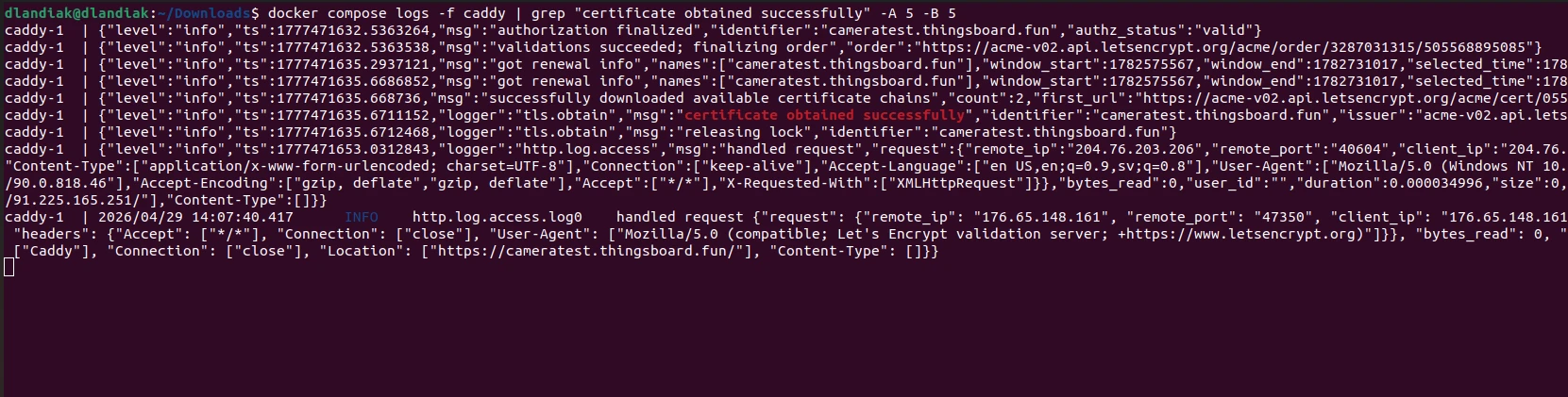
certificate obtained successfullylog entry, surrounded bytls.obtainlifecycle messages from the ACME order. If you seeacme: error: 400orconnection refused, the port-forward for TCP 80 is not reaching the edge host yet — see Troubleshooting.To pinpoint the line in a busy log, filter for it directly:
Terminal window docker compose logs caddy | grep "certificate obtained successfully" -A 5 -B 5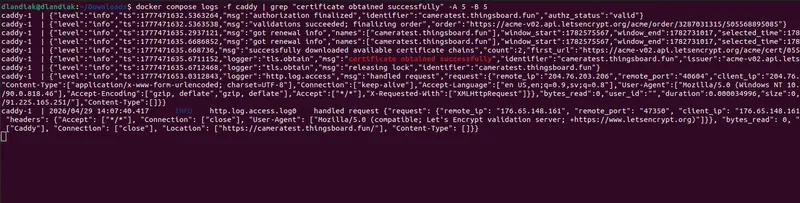
-
Verify from outside your LAN. From any internet-connected machine:
Terminal window curl -sS https://cameras.yourdomain.com/camera1/index.m3u8 | head -3#EXTM3Uas the first line means you have a working public HTTPS HLS URL. Note this URL — you will plug it into the widget.
Audio and Video Codec Notes (HLS)
Section titled “Audio and Video Codec Notes (HLS)”The widget plays HLS streams via hls.js (the open-source HLS player library) on Chromium and Firefox, and via the browser’s native HLS support on Safari.
- Video. Configure the camera for H.264. HEVC (H.265) support across browsers and players is fragmented, so H.264 is the only safe choice for the widget.
- Audio. With
MTX_HLSVARIANT: mpegts, AAC is the practical choice — most IP cameras default to AAC, and it’s reliably supported by hls.js and Safari’s native HLS player. If your camera only outputs G.711 and you want HLS audio, you would need to transcode it to AAC (out of scope for this guide).
If you also want WebRTC for the same camera, the audio matrix changes — see Audio and video codec notes (WebRTC).
With HLS reachable from outside your LAN, you’re ready to Configure the widget on a ThingsBoard dashboard.
Stream with WebRTC
Section titled “Stream with WebRTC”WebRTC is the path for live video where latency matters. Glass-to-glass is typically under one second once the connection is up. The cost is one extra port (UDP) on your router and a tighter codec matrix in the browser.
When to Choose WebRTC
Section titled “When to Choose WebRTC”- Operators need to react to live video (security, telepresence, drive-by-wire).
- You control the viewer network and can guarantee outbound UDP.
- You’re comfortable with the additional NAT-traversal moving parts.
docker-compose.yml (WebRTC)
Section titled “docker-compose.yml (WebRTC)”The WebRTC compose is similar to HLS, with one additional port published on the host (UDP 8189 for the media plane) and the protocol toggles flipped.
services:  mediamtx:    image: bluenviron/mediamtx:latest-ffmpeg    restart: unless-stopped    ports:      - "8189:8189/udp"    expose:      - "8889"    environment:      MTX_LOGLEVEL: info
      # WebRTC / WHEP output      MTX_WEBRTC: "yes"      MTX_WEBRTCADDRESS: ":8889"      MTX_WEBRTCENCRYPTION: "no"      MTX_WEBRTCALLOWORIGINS: "*"      MTX_WEBRTCLOCALUDPADDRESS: ":8189"      MTX_WEBRTCIPSFROMINTERFACES: "no"      MTX_WEBRTCADDITIONALHOSTS: "cameras.yourdomain.com"
      MTX_RTSP: "yes"
      # Unused protocols — disabled to minimise attack surface.      MTX_HLS: "no"      MTX_SRT: "no"      MTX_RTMP: "no"
      # --- Camera source ---      MTX_PATHS_CAMERA1_SOURCE: rtsp://admin:PASSWORD@192.168.1.64:554/Streaming/Channels/101      MTX_PATHS_CAMERA1_SOURCEONDEMAND: "no"
  caddy:    image: caddy:2    restart: unless-stopped    ports:      - "80:80"      - "443:443"    volumes:      - ./Caddyfile:/etc/caddy/Caddyfile:ro      - caddy_data:/data      - caddy_config:/config    depends_on:      - mediamtx
volumes: caddy_data: caddy_config:Keys that differ from the HLS file, or that are new
| Key | What it does |
|---|---|
ports: ["8189:8189/udp"] |
Publish MediaMTX’s WebRTC ICE UDP port to the host. The browser sends and receives media bytes on this port via your router’s UDP port-forward. Caddy is not in the media path — UDP can’t be reverse-proxied like HTTP. |
expose: ["8889"] |
Documents that MediaMTX listens on 8889 for WHEP signaling inside the container. Like HLS in the previous deployment, the port is not published to the host — Caddy reaches it over the Docker network as mediamtx:8889, so the public attack surface is exactly what Caddy serves. |
MTX_WEBRTC: "yes" |
Enable the WebRTC server. |
MTX_WEBRTCADDRESS: ":8889" |
The WHEP signaling endpoint port (HTTP) inside the container. Caddy reverse-proxies to this port. |
MTX_WEBRTCENCRYPTION: "no" |
Have MediaMTX serve WHEP signaling over plain HTTP. This setting governs only the signaling channel — WebRTC media is always encrypted via DTLS-SRTP regardless. Caddy terminates TLS one hop upstream and forwards plain HTTP to MediaMTX over the internal Docker network, so MediaMTX itself doesn’t need a certificate. |
MTX_WEBRTCALLOWORIGINS: "*" |
The CORS allow-origin header for WHEP responses. Same purpose as MTX_HLSALLOWORIGINS. |
MTX_WEBRTCLOCALUDPADDRESS: ":8189" |
The UDP port MediaMTX uses for ICE/RTP media. Must match the host port-forward. |
MTX_WEBRTCIPSFROMINTERFACES: "no" |
Tell MediaMTX not to advertise its container’s network interfaces in ICE candidates. Without this it would advertise Docker bridge IPs (like 172.x.x.x) which are unreachable from outside the container — the browser would fail to connect. |
MTX_WEBRTCADDITIONALHOSTS: "cameras.yourdomain.com" |
The host(s) MediaMTX advertises in ICE candidates instead of its own interfaces. The browser sends UDP media to this address — set it to the public hostname of your edge host (the same hostname Caddy serves). |
The remaining keys (MTX_LOGLEVEL, MTX_RTSP, the path-block, the Caddy service) work the same as in the HLS section.
Save this file as docker-compose.yml. Before starting the stack, replace the two placeholders:
MTX_WEBRTCADDITIONALHOSTS: "cameras.yourdomain.com"— set this to the public hostname your edge host will be reachable on (the same hostname you’ll point DNS at and that Caddy will obtain a certificate for).MTX_PATHS_CAMERA1_SOURCE: rtsp://admin:PASSWORD@192.168.1.64:554/...— set this to your camera’s RTSP URL and credentials.
Caddyfile (WebRTC)
Section titled “Caddyfile (WebRTC)”The Caddyfile is identical in shape to the HLS one, except that it proxies port 8889 (WHEP signaling) instead of 8888 (HLS). Caddy handles only the short HTTP signaling exchange — never the media bytes.
cameras.yourdomain.com {    encode gzip
    reverse_proxy mediamtx:8889
    log {        output stdout        format console        level INFO    }}
The directives have the same meaning as in the HLS Caddyfile. The only change is the upstream port (mediamtx:8889).
Save this as a file named Caddyfile (no extension, capital C) next to docker-compose.yml. Replace cameras.yourdomain.com with your hostname.
Verify Locally (WebRTC)
Section titled “Verify Locally (WebRTC)”Before opening the firewall, prove the LAN pipeline works end to end — camera → RTSP → MediaMTX → WHEP. Caddy and Let’s Encrypt aren’t in the path yet, so any failure here points cleanly at the camera, the credentials, or MediaMTX itself.
-
From the directory containing
docker-compose.ymlandCaddyfile, start only MediaMTX so you can verify the pipeline without involving Caddy or Let’s Encrypt:Terminal window docker compose up -d mediamtx -
Wait 5–10 seconds for MediaMTX to connect to the camera. Watch the logs:
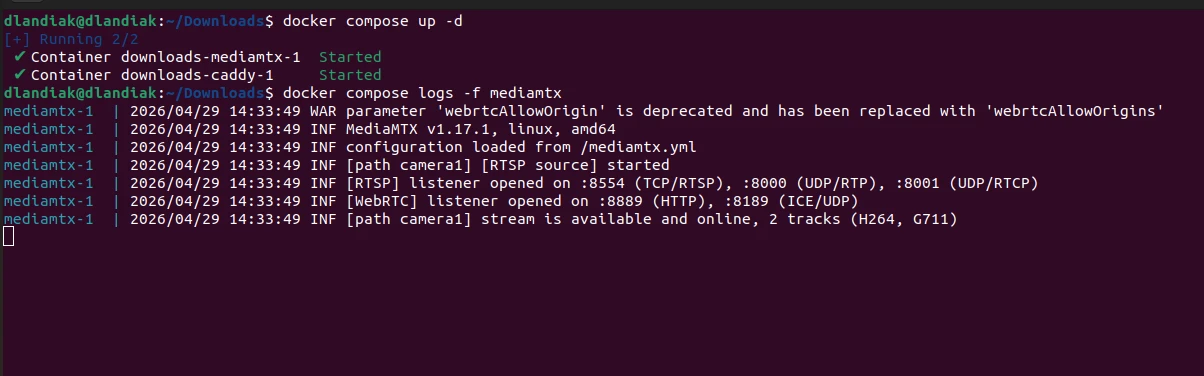
Terminal window docker compose logs -f mediamtxYou’re looking for a line that says the camera path is online — something like
[path camera1] stream is available and online, 2 tracks (H264, G711). With H.264 video and G.711 audio, the next lines confirm the WebRTC listeners are up on:8889(HTTP signaling) and:8189(ICE/UDP).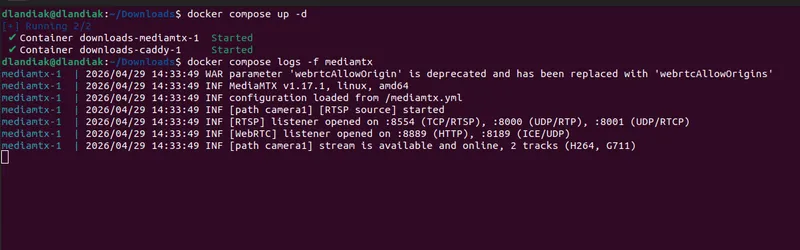
-
From the same machine, check that the WHEP signaling endpoint responds:
Terminal window docker compose exec mediamtx wget -q --post-data='ping' -S -O - http://127.0.0.1:8889/camera1/whep 2>&1 | head -5You should see headers including
HTTP/1.1 400 Bad Request. A400is the expected outcome — it confirms MediaMTX is listening and the WHEP route is registered. (WHEP needs a valid SDP offer in the body; the dummypingbody is rejected, but the response means the server is up.) Any 4xx response is fine for the purpose of this check.
If this step fails, fix it before continuing. Common causes are listed in Troubleshooting. The full media plane (UDP 8189) isn’t exercised yet — it’s verified the first time the widget connects after publishing.
Publish to the Internet (WebRTC)
Section titled “Publish to the Internet (WebRTC)”The DNS and Caddy steps are identical to the HLS publish step; the difference is one extra port-forward.
-
Point a DNS record at your public IP (same as for HLS).
-
Forward router ports to the edge host. WebRTC needs three:
External (WAN) Protocol Internal host Internal port Purpose 80 TCP edge-host LAN IP 80 Let’s Encrypt HTTP-01 challenge 443 TCP edge-host LAN IP 443 HTTPS WHEP signaling 8189 UDP edge-host LAN IP 8189 WebRTC media (ICE) — new vs HLS The UDP 8189 row is the only structural difference from the HLS port-forward. Without it, signaling completes but no video frames arrive — the media plane has no path through your NAT.
-
Start the full stack:
Terminal window docker compose up -dWatch Caddy obtain the certificate (same as the HLS step). Success looks like
certificate obtained successfully. -
Verify signaling end-to-end from outside your LAN:
Terminal window curl -sS -X POST https://cameras.yourdomain.com/camera1/whep -i | head -5A
400 Bad Requestmeans signaling is reachable: Caddy terminates TLS, forwards to MediaMTX, MediaMTX responds.502 Bad Gatewaymeans Caddy is up but MediaMTX is not reachable on:8889— verifyMTX_WEBRTC: "yes"and the upstream port in the Caddyfile.This
curlexercises only the signaling layer (Caddy → MediaMTX over HTTP). The UDP media plane is verified the first time the widget connects: live video means the full pipeline works; a black frame after a successful WHEP201 Createdalmost always points at the UDP 8189 port-forward — see WebRTC-specific Troubleshooting.
Audio and Video Codec Notes (WebRTC)
Section titled “Audio and Video Codec Notes (WebRTC)”WebRTC has a stricter codec matrix than HLS, both for video and audio.
- Video. Configure the camera for H.264. HEVC (H.265) over WebRTC depends on browser decoder support and is unreliable in practice; H.264 is the only safe choice for the widget.
- Audio. Browsers accept Opus and G.711 (µ-law / a-law) over WebRTC. IP cameras almost never publish Opus, so the practical choice is G.711. AAC — which most cameras output by default — is not a WebRTC audio codec; MediaMTX won’t include an AAC track in the WebRTC output and the widget’s mute button stays disabled.
To enable WebRTC audio:
-
Open the camera’s web UI and find Audio Encoding (location varies by vendor — for example, Hikvision: Configuration → Video/Audio → Audio).
-
Set the encoding to G.711ulaw or G.711alaw (either works; both are mandatory WebRTC codecs).
-
Restart the MediaMTX container so it re-pulls the stream with the new track layout:
Terminal window docker compose restart mediamtx
If you want both HLS and WebRTC for the same camera, the audio codecs collide: AAC plays reliably over mpegts HLS but is not a WebRTC audio codec, while G.711 works over WebRTC but is not supported by hls.js or Safari’s native HLS player. So G.711 gives you WebRTC audio but no HLS audio, and AAC gives you HLS audio but no WebRTC audio. Picking video-only on whichever protocol is the lower priority usually requires less work than transcoding.
With WebRTC reachable from outside your LAN, you’re ready to Configure the widget on a ThingsBoard dashboard.
Adding More Cameras
Section titled “Adding More Cameras”To stream a second camera, add another path block under environment: next to MTX_PATHS_CAMERA1_*:
MTX_PATHS_CAMERA2_SOURCE: rtsp://admin:PASSWORD@192.168.1.65:554/Streaming/Channels/101MTX_PATHS_CAMERA2_SOURCEONDEMAND: "no"Apply the change:
docker compose up -dCompose recreates the MediaMTX container because its environment changed; Caddy is left untouched.
The new camera is reachable at:
- HLS:
https://cameras.yourdomain.com/camera2/index.m3u8 - WebRTC:
https://cameras.yourdomain.com/camera2/whep
No Caddyfile changes are needed — Caddy reverse-proxies every path under your hostname to MediaMTX, which routes by path segment. The single UDP 8189 port-forward also covers all WebRTC cameras; MediaMTX multiplexes ICE sessions on the same port.
Security
Section titled “Security”The public stream URL is unauthenticated by default. Anyone who learns or guesses it can watch your camera. Pick at least one of the controls below before publishing the URL beyond a small trusted audience.
Use an Unguessable Path Name
Section titled “Use an Unguessable Path Name”MediaMTX path names are URL segments. Renaming the path moves the public URL.
# BeforeMTX_PATHS_CAMERA1_SOURCE: rtsp://...MTX_PATHS_CAMERA1_SOURCEONDEMAND: "no"
# After (32 random characters; treat as a shared secret)MTX_PATHS_K3R7S9XAQ2WP4MN8VLZ6BCDFHJTYU0E1_SOURCE: rtsp://...MTX_PATHS_K3R7S9XAQ2WP4MN8VLZ6BCDFHJTYU0E1_SOURCEONDEMAND: "no"
The HLS URL becomes https://cameras.yourdomain.com/k3r7s9xaq2wp4mn8vlz6bcdfhjtyu0e1/index.m3u8 and the WebRTC URL becomes .../whep. Rotate by changing the path.
Restrict by Source IP
Section titled “Restrict by Source IP”If your viewers come from known IPs (an office network, a fixed cellular APN), add a Caddy remote_ip matcher:
cameras.yourdomain.com {    encode gzip
    @allowed remote_ip 203.0.113.0/24 198.51.100.42    handle @allowed {        reverse_proxy mediamtx:8888    }    handle {        respond 403    }
    log {        output stdout        format console        level INFO    }}
Replace the example CIDRs with your own. For WebRTC, swap mediamtx:8888 for mediamtx:8889.
The remote_ip matcher reads the immediate TCP peer’s address. If Caddy ever sits behind another proxy or CDN, the matcher will see the upstream proxy’s IP, not the real client’s. In that case, switch to the client_ip matcher and configure the trusted_proxies global option so Caddy resolves the real client address from the forwarded headers.
What Not to Do
Section titled “What Not to Do”- Do not embed credentials in the URL (
https://user:pass@host/...). Modern browsers ignore these credentials on<video>element requests. - Do not rely on path obfuscation alone for sensitive cameras. Treat the URL as a shared secret and rotate it the same way you rotate any other secret.
Troubleshooting
Section titled “Troubleshooting”Walk the Pipeline Hop by Hop
Section titled “Walk the Pipeline Hop by Hop”If video does not appear, work through the steps below. Each one confirms a single segment of the path is healthy, so the first failure points at exactly where to look.
-
Camera → MediaMTX host. From the edge host, reach the camera’s RTSP endpoint:
Terminal window ffprobe -v error -show_streams \"rtsp://admin:PASSWORD@192.168.1.64:554/Streaming/Channels/101" | headffprobeships with FFmpeg and is not installed by default on most systems — install it (apt install ffmpegon Debian/Ubuntu,brew install ffmpegon macOS) if the command isn’t found. It should print stream information; errors here mean the camera is unreachable, the credentials are wrong, or the RTSP URL is incorrect. -
MediaMTX path active. Check the MediaMTX log:
Terminal window docker compose logs mediamtx | grep camera1Expect a line indicating the path is ready. If you see repeated reconnect attempts, the camera is rejecting MediaMTX’s connection — try the camera in VLC from the edge host to isolate.
-
MediaMTX serves the protocol. Run from the edge host, inside the MediaMTX container.
For HLS — should return
#EXTM3U:Terminal window docker compose exec mediamtx wget -qO- http://127.0.0.1:8888/camera1/index.m3u8 | head -3For WebRTC signaling — should return a
400with valid headers:Terminal window docker compose exec mediamtx wget -q --post-data='ping' -S -O - http://127.0.0.1:8889/camera1/whep 2>&1 | head -5 -
Caddy serves HTTPS with a valid Let’s Encrypt cert:
Terminal window curl -vI https://cameras.yourdomain.com 2>&1 | grep -i 'subject\|issuer'The issuer should be Let’s Encrypt. A self-signed cert means Caddy could not complete the ACME challenge — see Common to both protocols below.
-
Public endpoint reachable from outside your LAN. Use a phone on cellular (not Wi-Fi from the same network), or ask a colleague.
For HLS — should return
#EXTM3U:Terminal window curl https://cameras.yourdomain.com/camera1/index.m3u8 | head -3For WebRTC — should return
400:Terminal window curl -X POST https://cameras.yourdomain.com/camera1/whep -i | head -5 -
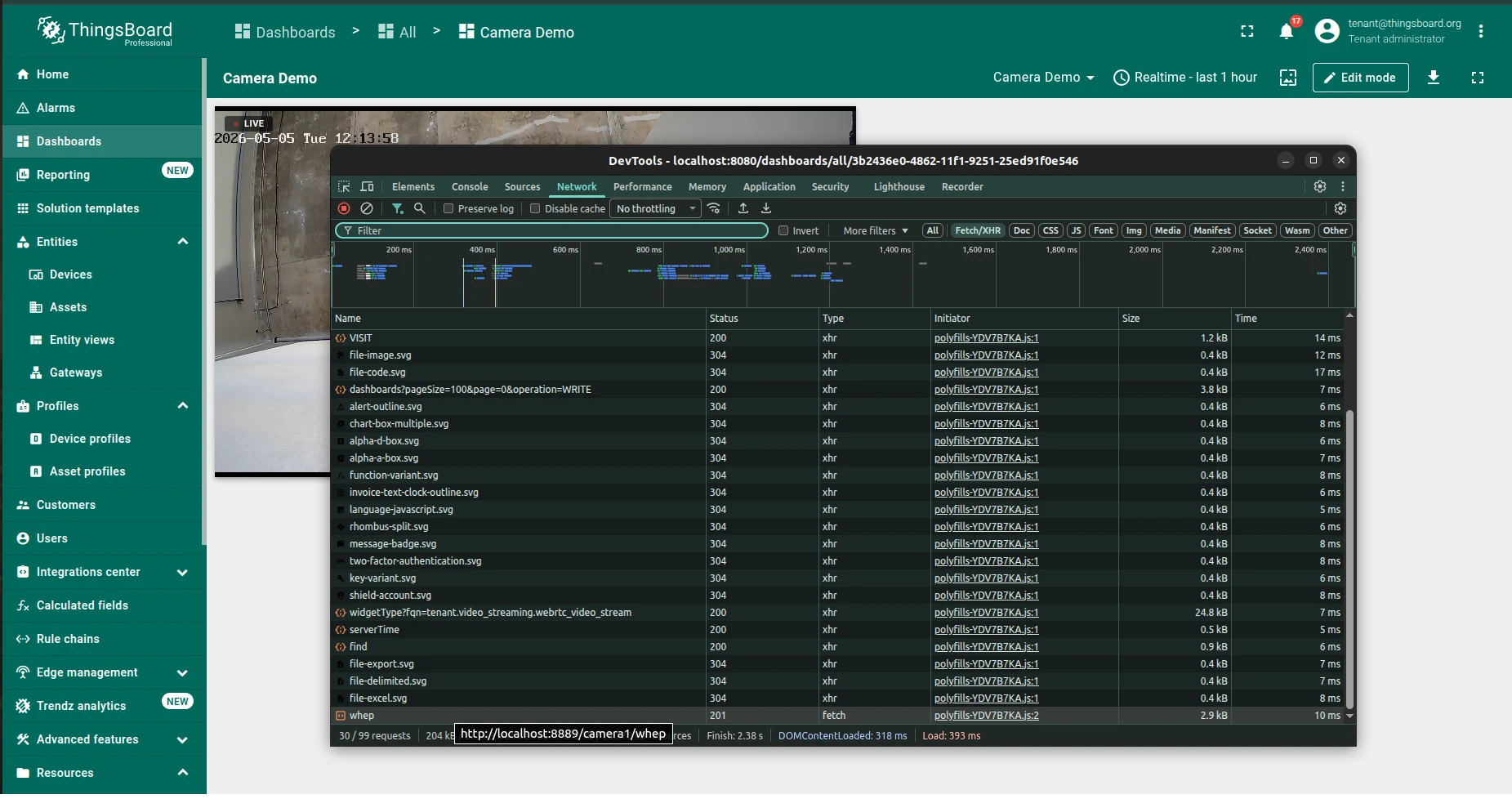
Widget receives the attribute update. Open browser DevTools → Network tab. Filter by
subscribeor watch the WebSocket frames. The attribute change should arrive as a telemetry update; the widget then opens the stream URL and you’ll see.m3u8/.tsrequests (HLS) or awhepPOST (WebRTC).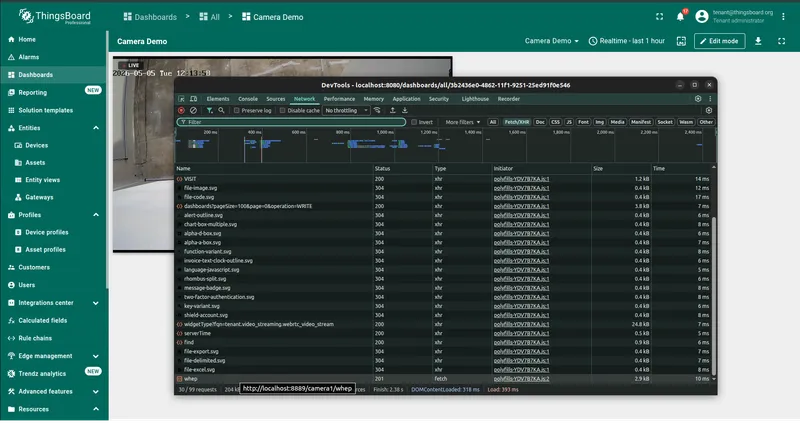
Common to Both Protocols
Section titled “Common to Both Protocols”Caddy logs show acme: error: 400 or a connection error during certificate issuance.
Let’s Encrypt tried to reach http://cameras.yourdomain.com/.well-known/acme-challenge/... and failed. Check, in order:
-
The DNS A record is set and propagated — should return your public IP:
Terminal window dig +short cameras.yourdomain.com -
Port 80 is forwarded on your router to port 80 on the edge host.
-
Nothing else is bound to port 80 on the edge host:
Terminal window sudo ss -tlnp | grep ':80 '
After fixing the underlying problem, Caddy retries automatically — no restart needed.
Widget displays “Can’t reach the stream. Check the URL and try again.” The widget’s loading watchdog fired after 10 seconds without a successful start. Open browser DevTools → Network tab, reload the dashboard, and look at the request the widget made:
- A failed CORS preflight or
Access-Control-Allow-Originmismatch means MediaMTX’sMTX_HLSALLOWORIGINSorMTX_WEBRTCALLOWORIGINSis not making it through; check that no upstream proxy is stripping the header. - A
404onindex.m3u8orwhepmeans the URL’s path segment doesn’t match anMTX_PATHS_*entry indocker-compose.yml.
Mixed-content blocking. If the dashboard is served over HTTPS but the stream URL is http://, the browser blocks the request silently. The widget then shows the “no stream” placeholder. Use an HTTPS URL.
HLS-Specific
Section titled “HLS-Specific”curl https://cameras.yourdomain.com/camera1/index.m3u8 returns 502 Bad Gateway.
Caddy is up but MediaMTX is not reachable on its HLS port. Check the MediaMTX logs:
docker compose logs mediamtxCommon causes are a wrong RTSP URL, the camera being offline, or MTX_HLS: "yes" accidentally set to "no".
Stream loads but stalls every few seconds.
Increase MTX_HLSSEGMENTDURATION to 2s or 3s. Short segments produce lower latency but are more sensitive to network jitter.
WebRTC-Specific
Section titled “WebRTC-Specific”Signaling succeeds (browser gets a 201 Created from the WHEP POST), but the video stays black or never starts.
Almost always a UDP/ICE problem.
- Confirm the router forwards UDP 8189 — make sure the protocol on the port-forward rule is set to UDP (or “TCP/UDP”), not TCP.
- Confirm
MTX_WEBRTCADDITIONALHOSTSis your public hostname (or public IP), not the edge host’s LAN IP. - Confirm the viewer network allows outbound UDP. Some corporate firewalls and restrictive guest networks block UDP entirely except for DNS — WebRTC will not work from those networks without TURN relaying (out of scope for this guide).
- In Chrome, open
chrome://webrtc-internalsto see the raw ICE candidate pairs and the reason for failure. In Firefox, useabout:webrtc.
Mute button disabled even though the camera has audio. The audio codec is not WebRTC-compatible. See Audio and video codec notes (WebRTC) — switch the camera to G.711 µ-law or a-law.
Video tag stays black despite a “connected” peer connection state.
Codec mismatch on the video track. Confirm with ffprobe:
ffprobe -v error -show_streams "rtsp://admin:PASSWORD@192.168.1.64:554/Streaming/Channels/101" | grep codec_namecodec_name=h264 is what you want. If you see hevc, change the camera encoder to H.264 — HEVC playback over WebRTC depends on browser decoder support and is unreliable in practice.
Once your stream URL is reachable from outside your LAN, head to Configure the widget to bind it to a dashboard widget.
Was this helpful?