Agent profiles and auto-provisioning
An agent profile defines how a fleet of agents is provisioned and what applications those agents run. Instead of creating each agent by hand, you create one profile, copy its provisioning command, and run that same command on every target machine. ThingsBoard registers each machine as a new agent and, depending on the provisioning strategy, installs applications on it automatically.
Agent profiles are also where you run bulk actions: fleet-wide restarts, updates, upgrades, and deletes of every application that matches an assigned application profile.
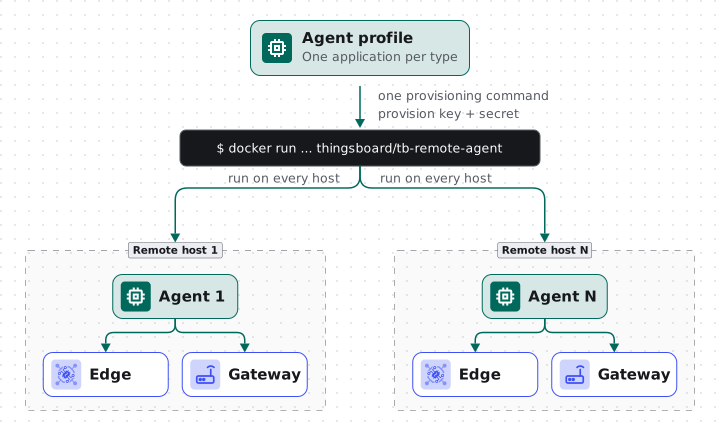
Provisioning strategies
Section titled “Provisioning strategies”Each agent profile has a provisioning strategy that controls what happens when a new agent registers with the profile’s credentials:
| Strategy | Behavior |
|---|---|
| Disabled | The profile rejects provisioning requests. Agents can only be created manually. |
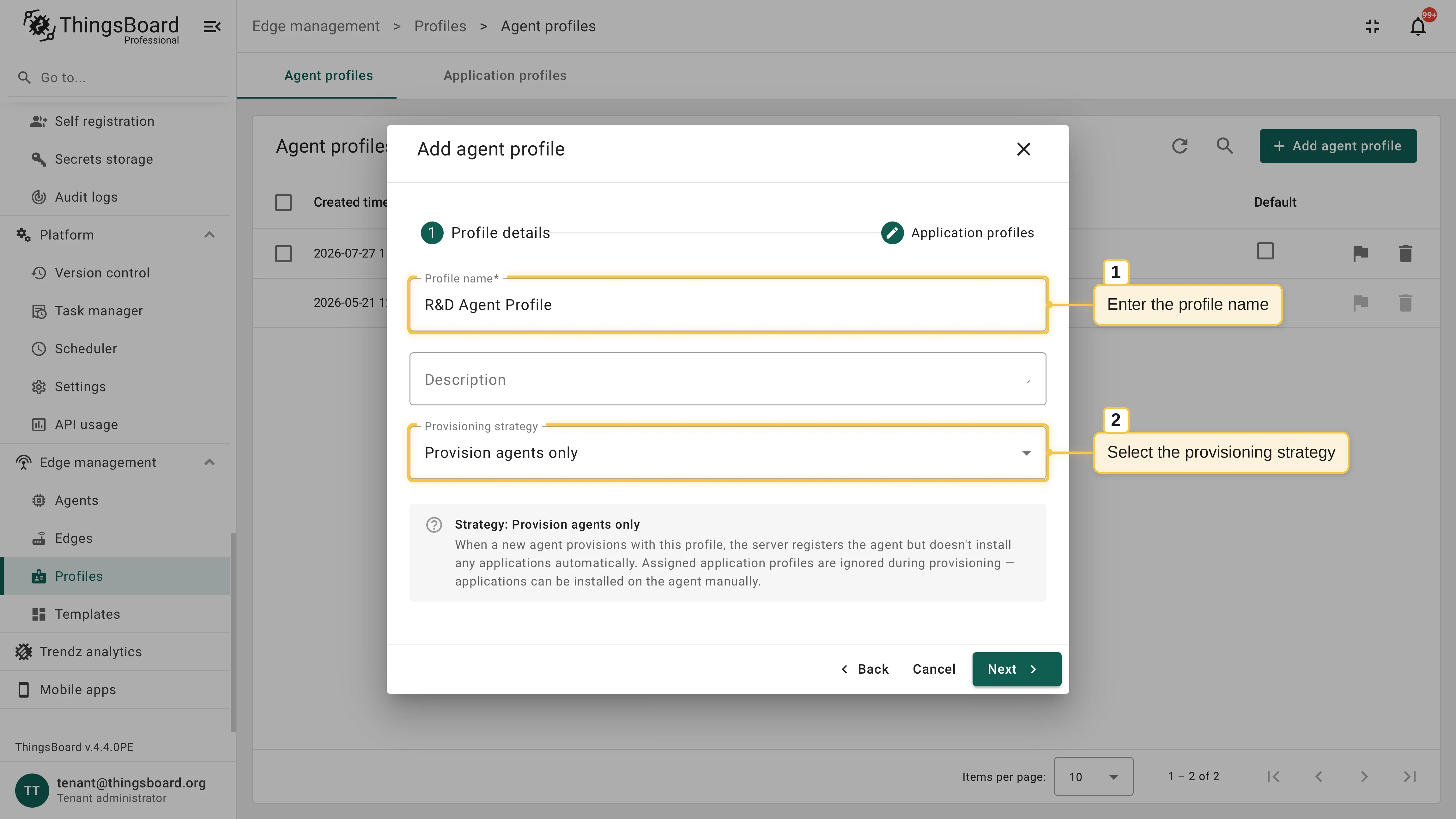
| Provision agents only | New agents are registered, but no applications are installed. |
| One application per type (default) | New agents are registered, and at most one application of each type (Edge, Gateway) is installed from the assigned application profiles. |
| One application per assigned profile | New agents are registered, and one application is installed for every assigned application profile. |
Create an agent profile
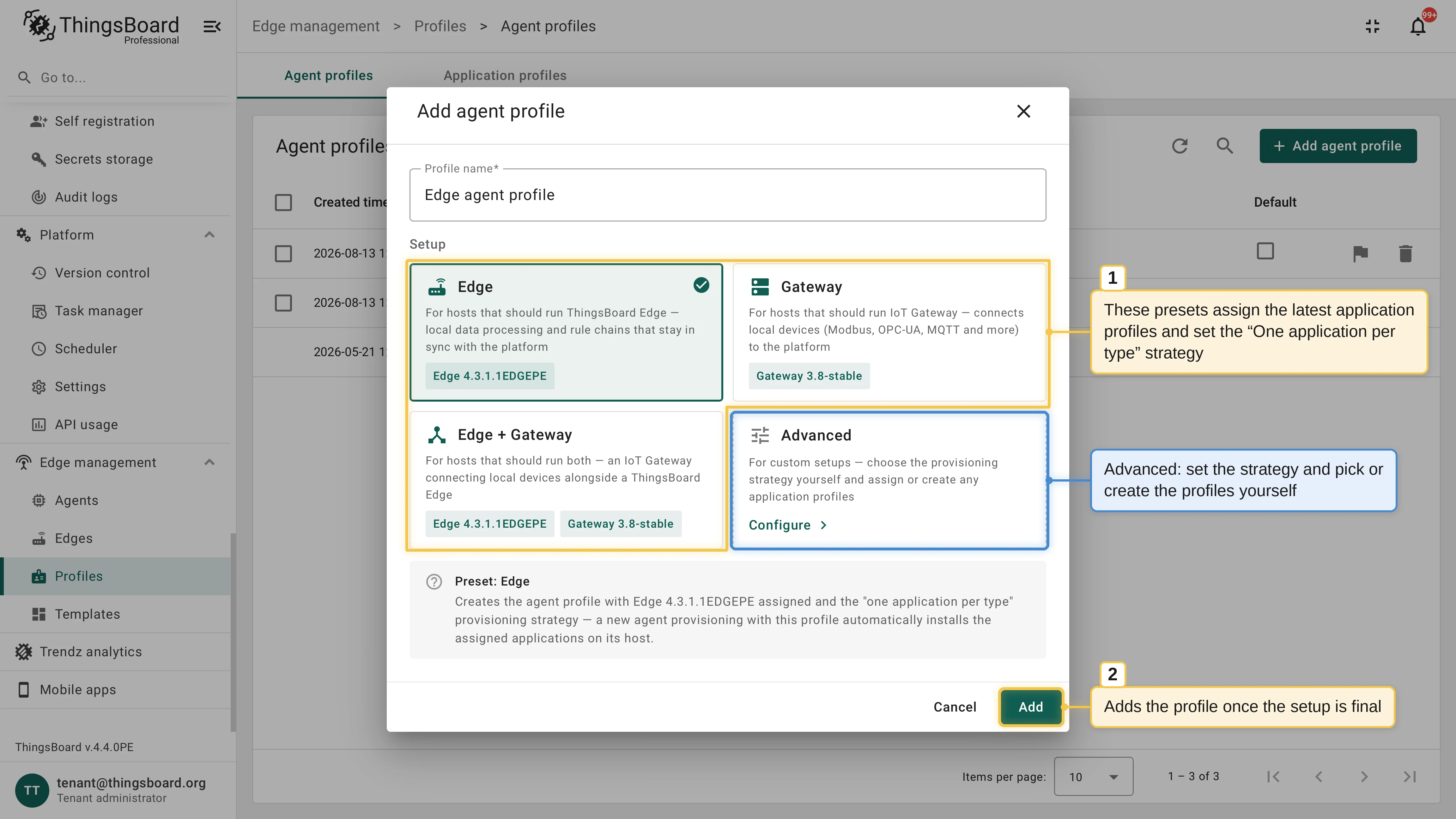
Section titled “Create an agent profile”Creating an agent profile is one dialog: enter the name and pick a setup. The setup determines the provisioning strategy and the assigned application profiles: reusable configurations that define what actually runs on a host, like a specific ThingsBoard Edge or IoT Gateway version. Pick a preset for the common cases, or Advanced for full control:
| Setup | Use for |
|---|---|
| Edge | Hosts that run ThingsBoard Edge: local data processing and rule chains that stay in sync with the platform. |
| Gateway | Hosts that run IoT Gateway: connects local devices (Modbus, OPC-UA, MQTT, etc.) to the platform. |
| Edge + Gateway | Hosts that run both: an IoT Gateway connecting local devices alongside a ThingsBoard Edge. |
| Advanced | Custom setups: choose the provisioning strategy yourself and assign or create any application profiles. |
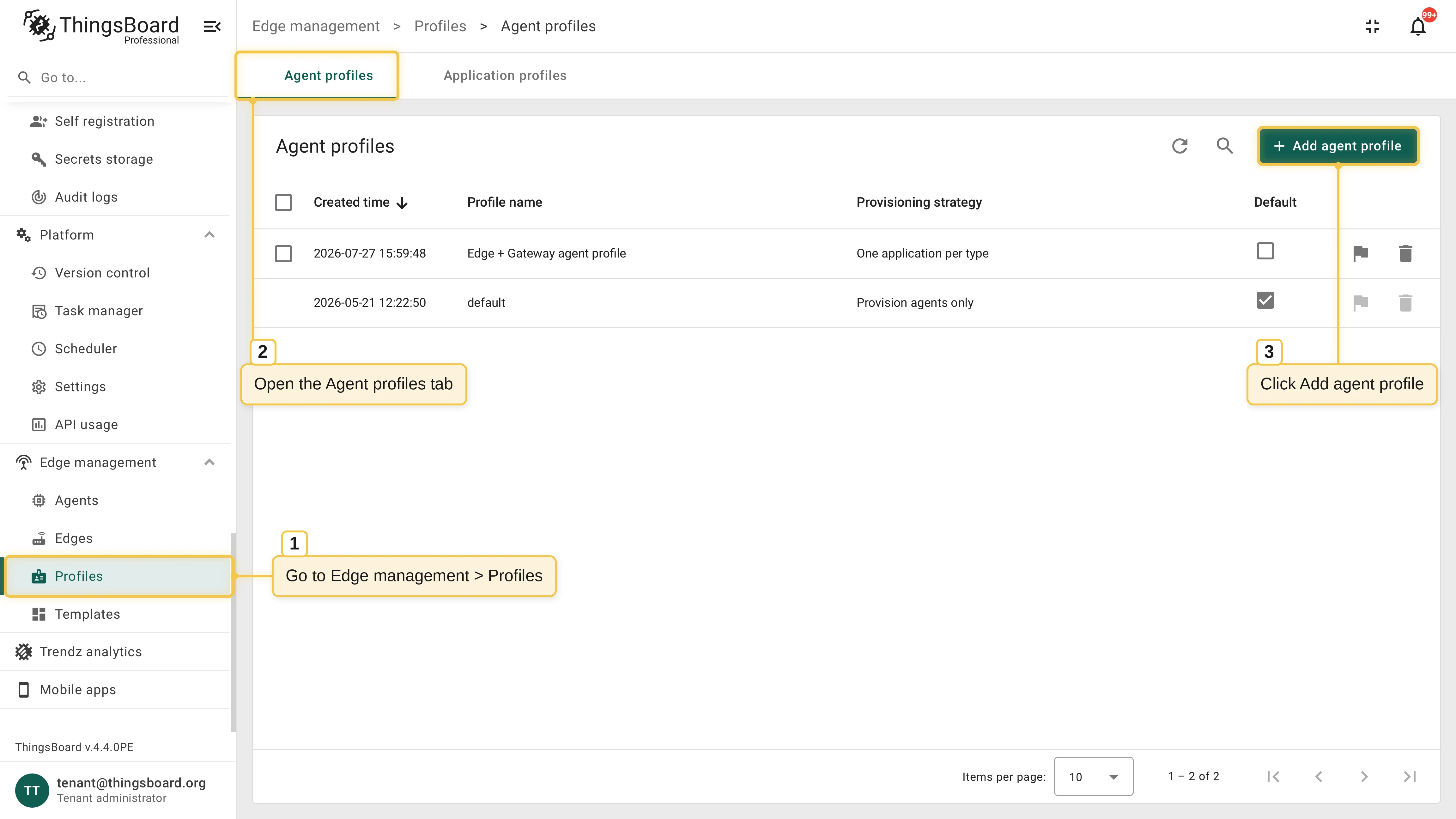
Go to Edge management > Profiles > Agent profiles and click Add agent profile.
Enter the profile name and pick a setup: an Edge, Gateway, or Edge + Gateway preset, or Advanced.
Presets
Section titled “Presets”The Edge, Gateway, and Edge + Gateway presets need no configuration. Each assigns the latest predefined application profiles for the selected types and sets the One application per type provisioning strategy: a new agent provisioned with this profile installs the assigned applications on its host automatically, unless an application with a matching image name already runs there; the name is compared without the tag, like thingsboard/thingsboard-edge. The dialog summarizes what the selected preset creates. Click Add. ThingsBoard creates the profile right away.
Advanced setup
Section titled “Advanced setup”Advanced lets you configure the profile yourself. Click Configure and complete two steps:
Enter the profile name and select the provisioning strategy.
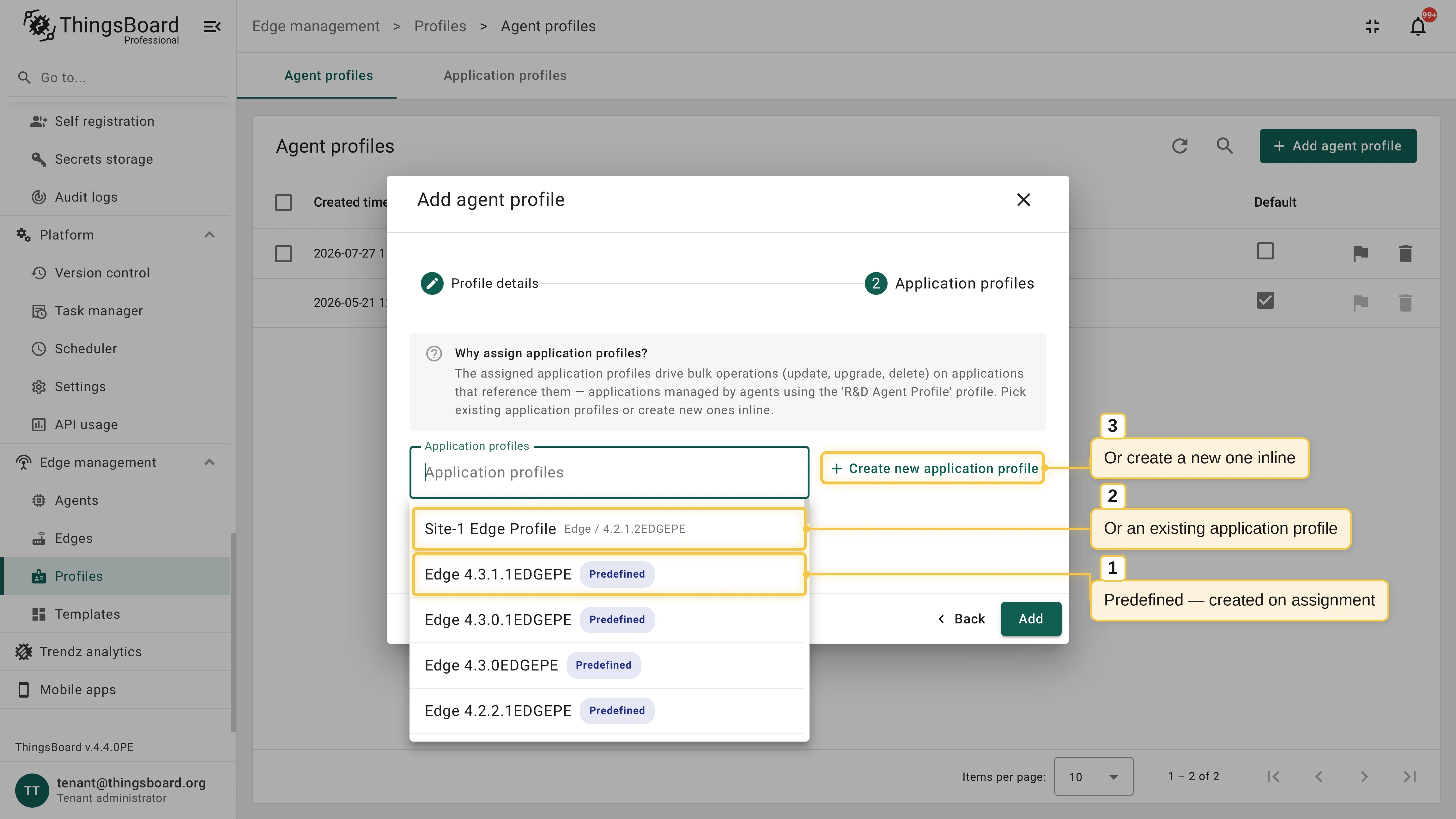
Assign application profiles and click Add. Pick predefined or existing profiles, or create a new one inline.
Provisioning command and profile details
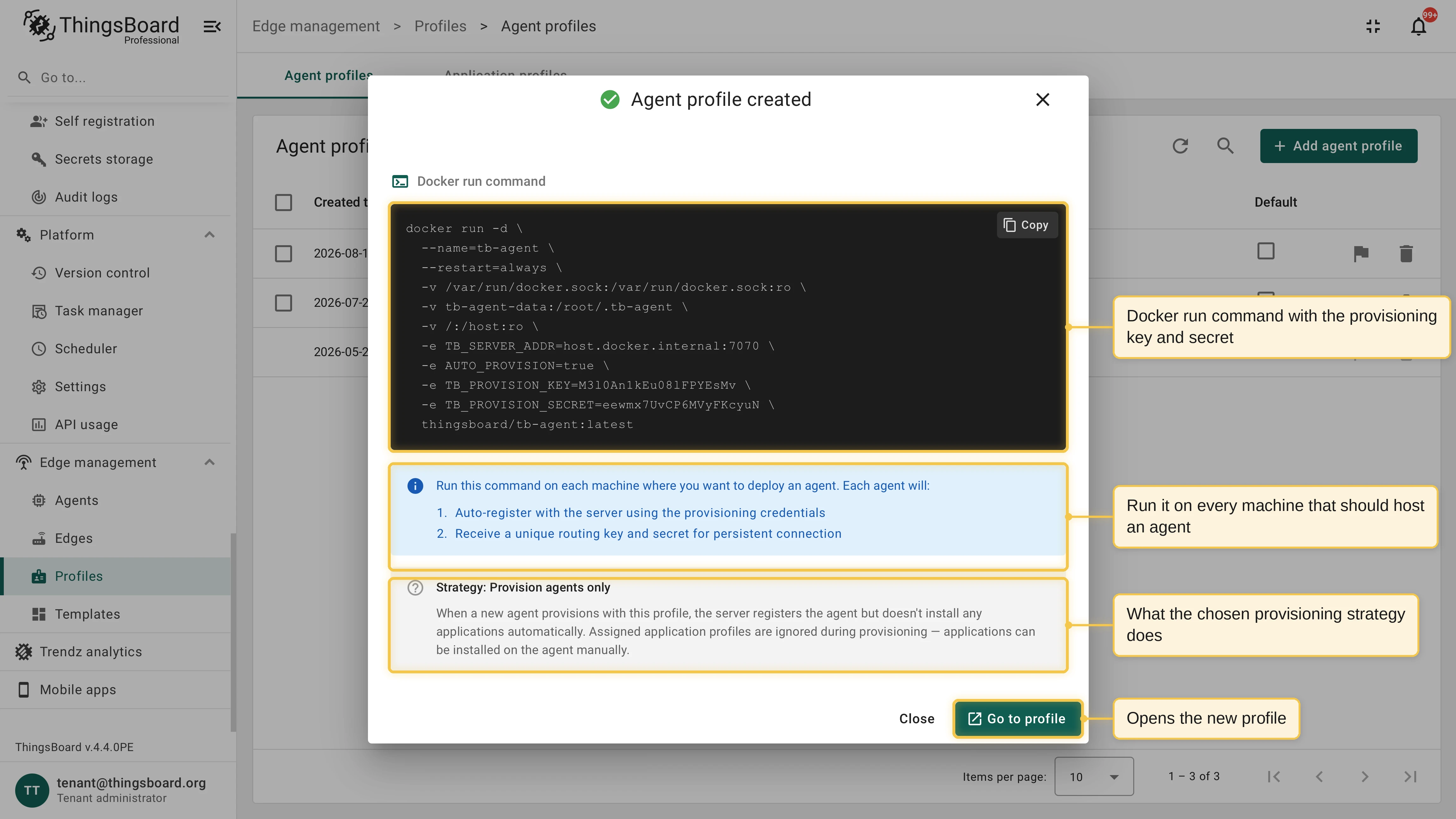
Section titled “Provisioning command and profile details”Both setups end with the Agent profile created dialog, which shows the provisioning command for this profile: a docker run command with the provision key and secret already filled in.
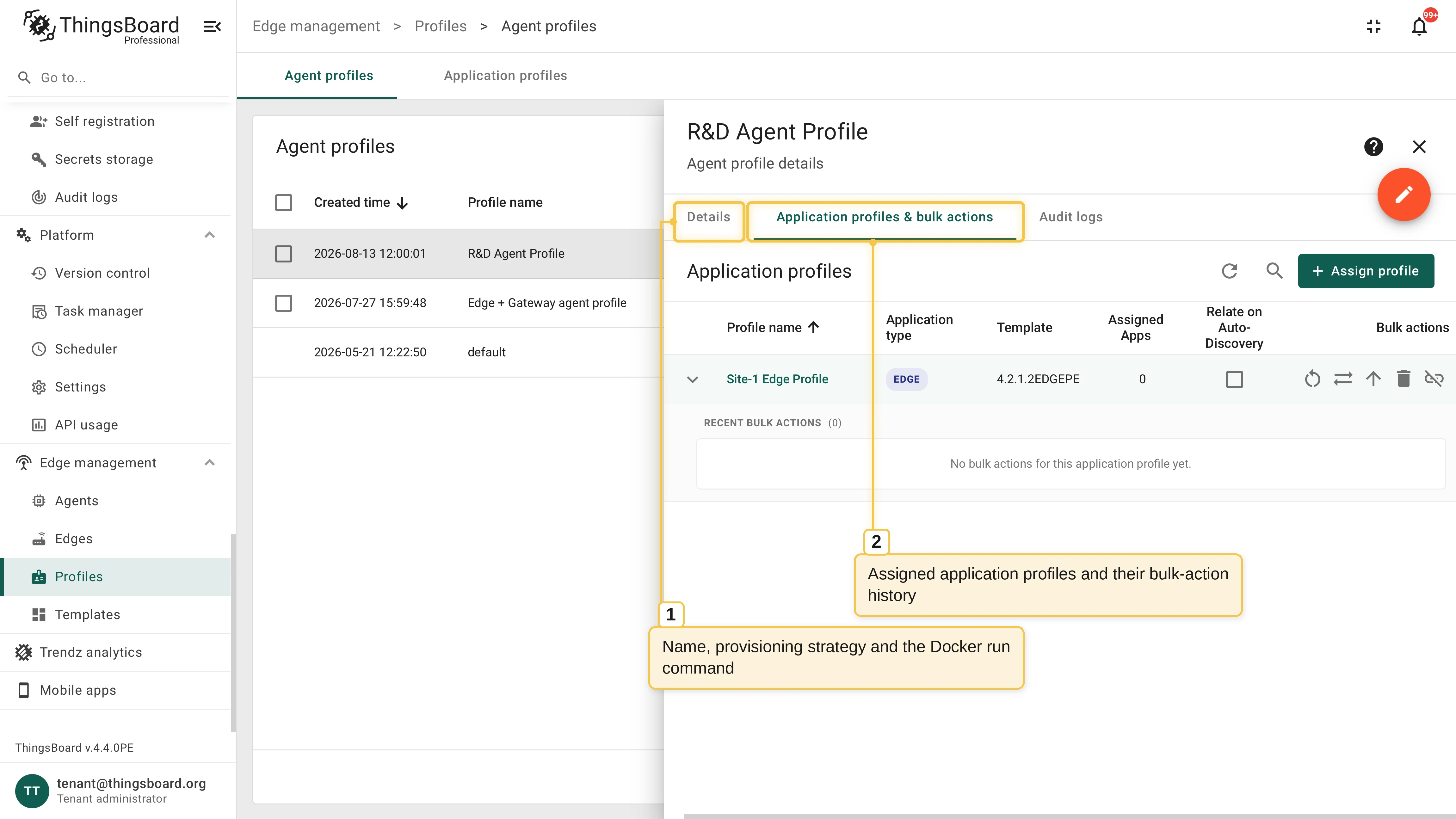
The profile details page shows the provisioning strategy, the generated Docker run command, and the assigned application profiles. Its Application profiles & bulk actions tab is also where you run bulk actions on the fleet. You can mark one profile as the default for the tenant.
Auto-provision an agent
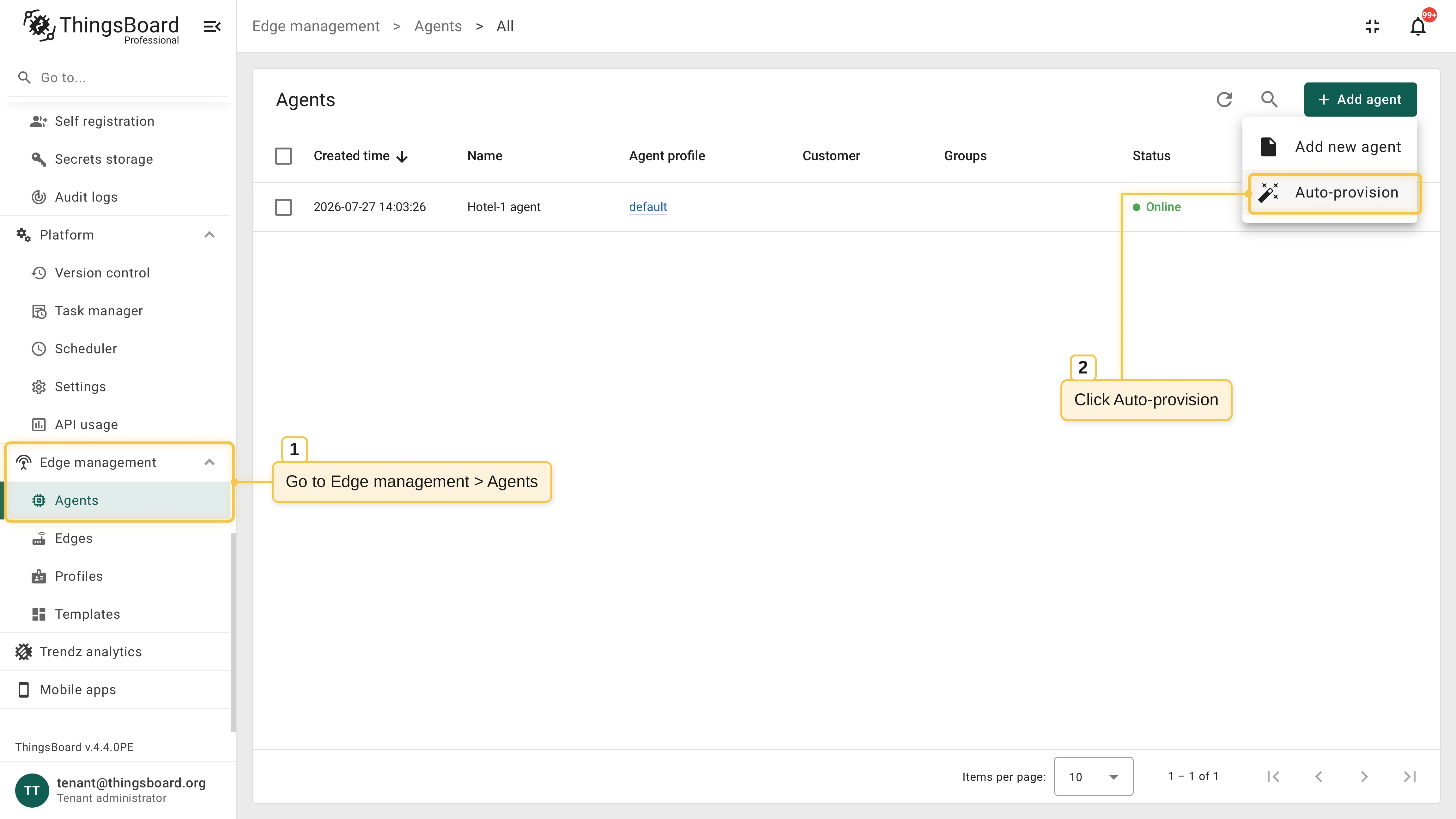
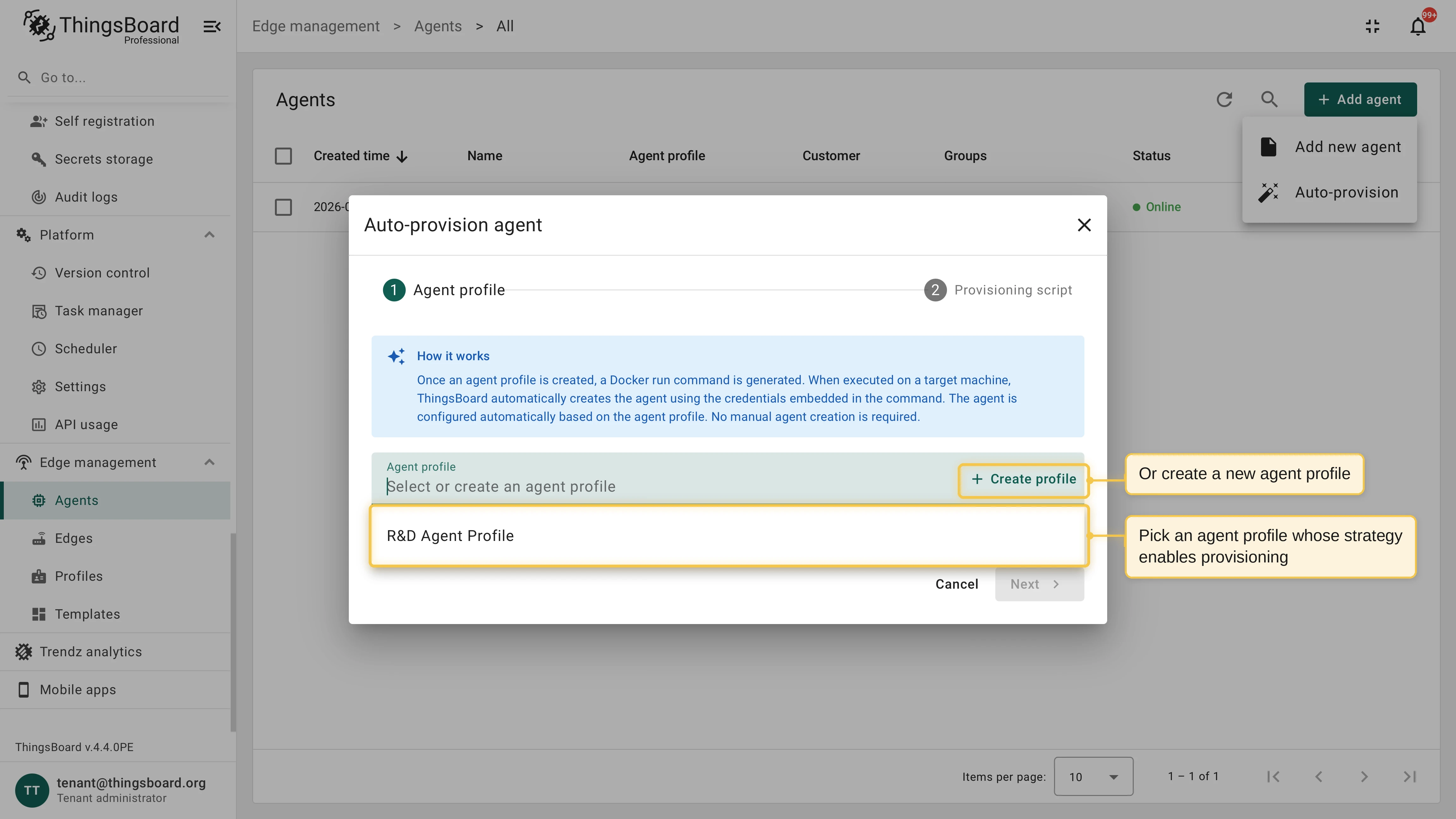
Section titled “Auto-provision an agent”Go to Edge management > Agents and click Auto-provision.
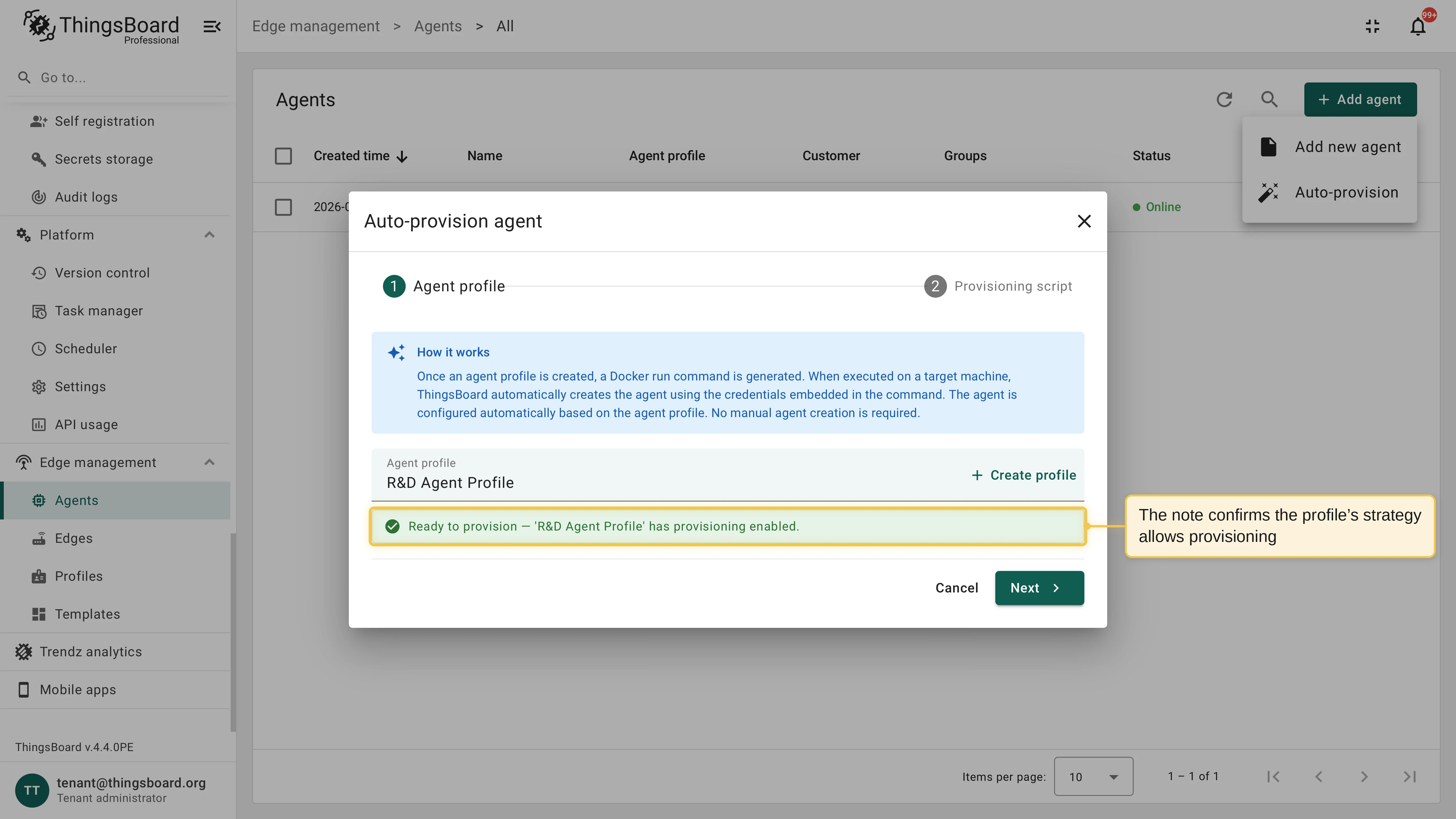
Select an existing agent profile or create a new one, then go to the Provisioning script step.
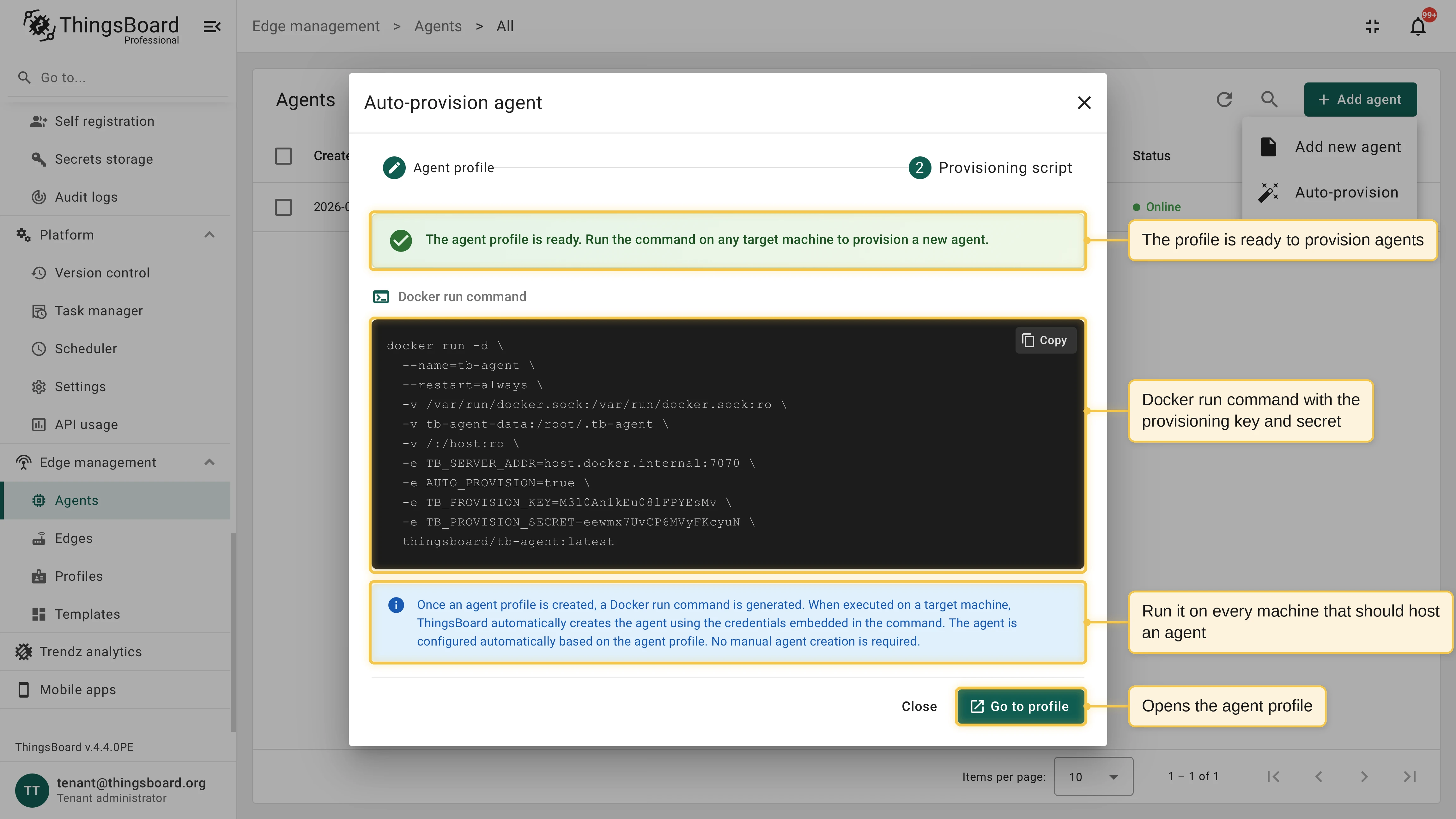
Copy the generated command and run it on the target machine:
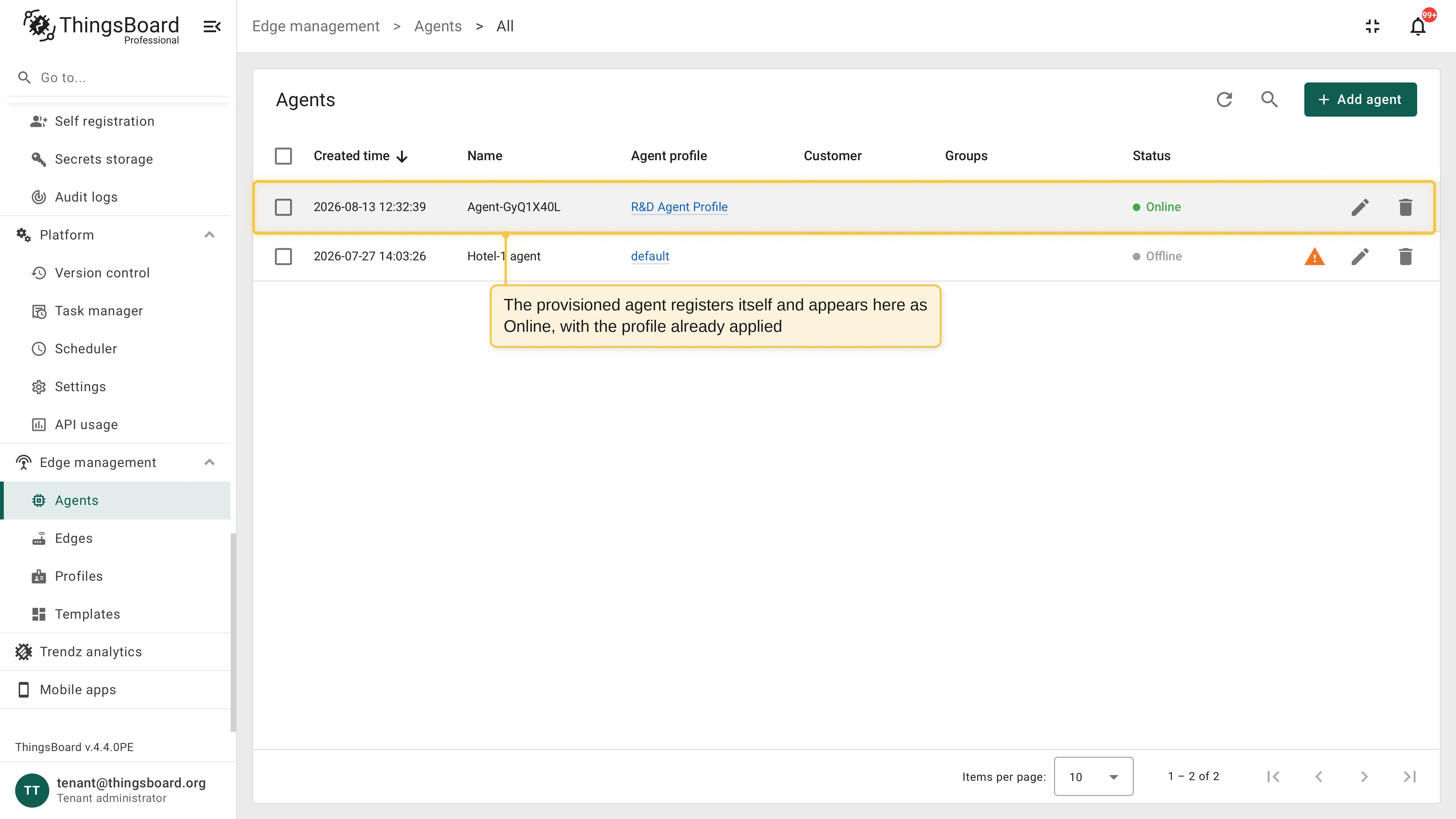
Terminal window docker run -d \--name=tb-agent \--restart=always \-v /var/run/docker.sock:/var/run/docker.sock:ro \-v tb-agent-data:/root/.tb-agent \-v /:/host:ro \-e TB_SERVER_ADDR=<thingsboard-host>:7070 \-e AUTO_PROVISION=true \-e TB_PROVISION_KEY=<provision-key> \-e TB_PROVISION_SECRET=<provision-secret> \-e TB_RPC_SSL_ENABLED=false \thingsboard/tb-remote-agent:1.0.0Verify the result. A new agent named
Agent-<first 8 characters of the routing key>appears in the Agents list, and the applications defined by the provisioning strategy start installing.
The same command works on every machine in the fleet: the provision key and secret identify the profile, not an individual agent.
How provisioning works
Section titled “How provisioning works”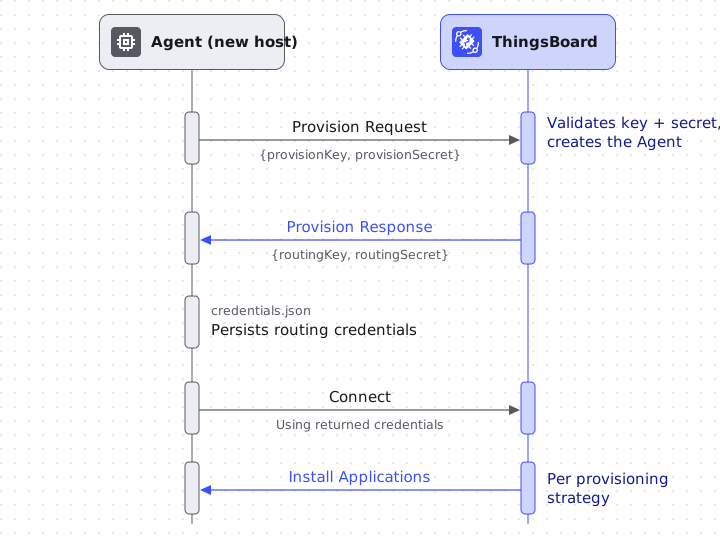
The agent stores the received credentials in its data volume (credentials.json, file mode 0600) and uses them directly on every subsequent start; no provisioning request is repeated. To force re-provisioning, delete the file from the tb-agent-data volume or recreate the volume.
Assign application profiles
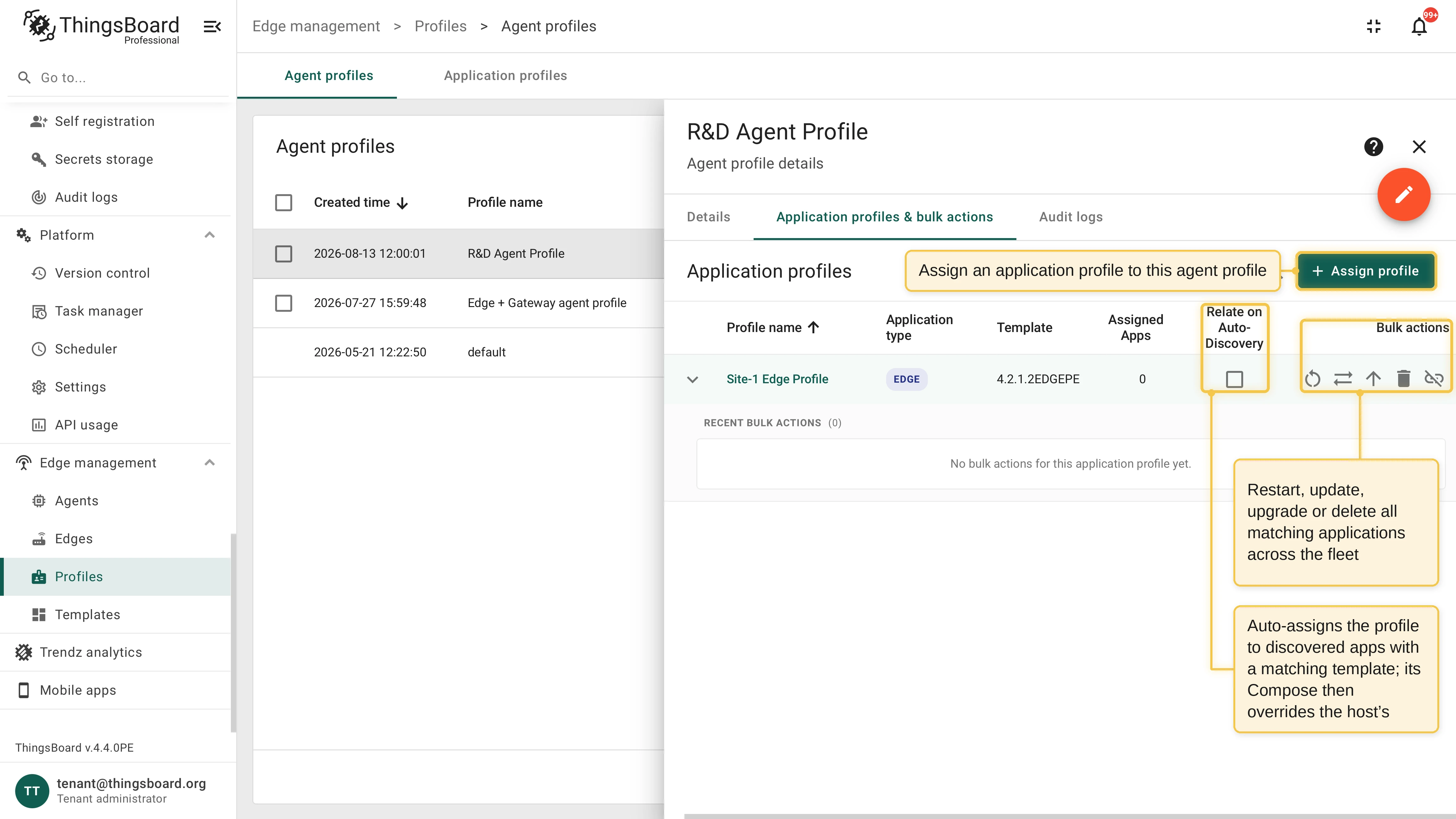
Section titled “Assign application profiles”The Application profiles & bulk actions tab of the agent profile lists the assigned application profiles. For each assignment you can:
- Relate on Auto-Discovery: Automatically assigns this application profile to applications that agents discover on their hosts, when the application’s Edge or Gateway image matches the profile’s template. Use it to bring an existing fleet under profile management. See Application profiles and templates for the matching rules and cautions.
- Run bulk actions: Restart, update, upgrade, or delete every matching application across the fleet. See Bulk actions.
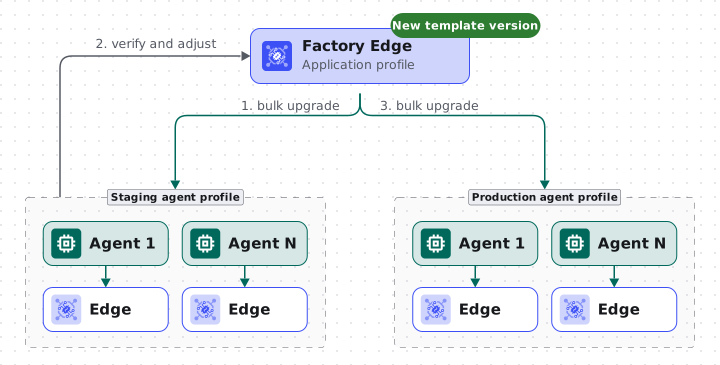
An application profile can be assigned to several agent profiles. This supports staged rollouts: assign one Edge application profile to a staging and a production agent profile, bulk upgrade the staging fleet first, verify the result and adjust the configuration, then bulk upgrade production.
Was this helpful?