Send Microsoft Teams Notification on Alarm
Configure ThingsBoard to automatically send notifications to Microsoft Teams when an alarm is created. This guide extends the Create and Clear Alarms recipe by using the Notification Center to deliver alarm-based messages to a Teams channel via a webhook.
Use Case
Section titled “Use Case”Assume your refrigeration equipment has a temperature sensor that periodically publishes telemetry to ThingsBoard. The normal operating range is 2 °C – 5 °C. When a reading goes outside this range:
- An alarm is created by the alarm rules.
- A message is sent to the configured Microsoft Teams channel.
Prerequisites
Section titled “Prerequisites”Before proceeding:
- Complete the Create and Clear Alarms recipe — the alarm rules configured there are required for this guide.
- Create a webhook workflow in Microsoft Teams and obtain the webhook URL — see Microsoft Teams settings.
Review the following documentation for background:
- Notification Center — how recipients, templates, and rules work together.
- Alarm rules — how alarms are created and cleared.
Configure Notification Center
Section titled “Configure Notification Center”The Notification Center delivers notifications to users. It consists of three components:
- Recipients — define who receives notifications.
- Templates — define the notification content and delivery method.
- Rules — define the conditions under which notifications are sent.
Step 1. Configure Notification Recipients
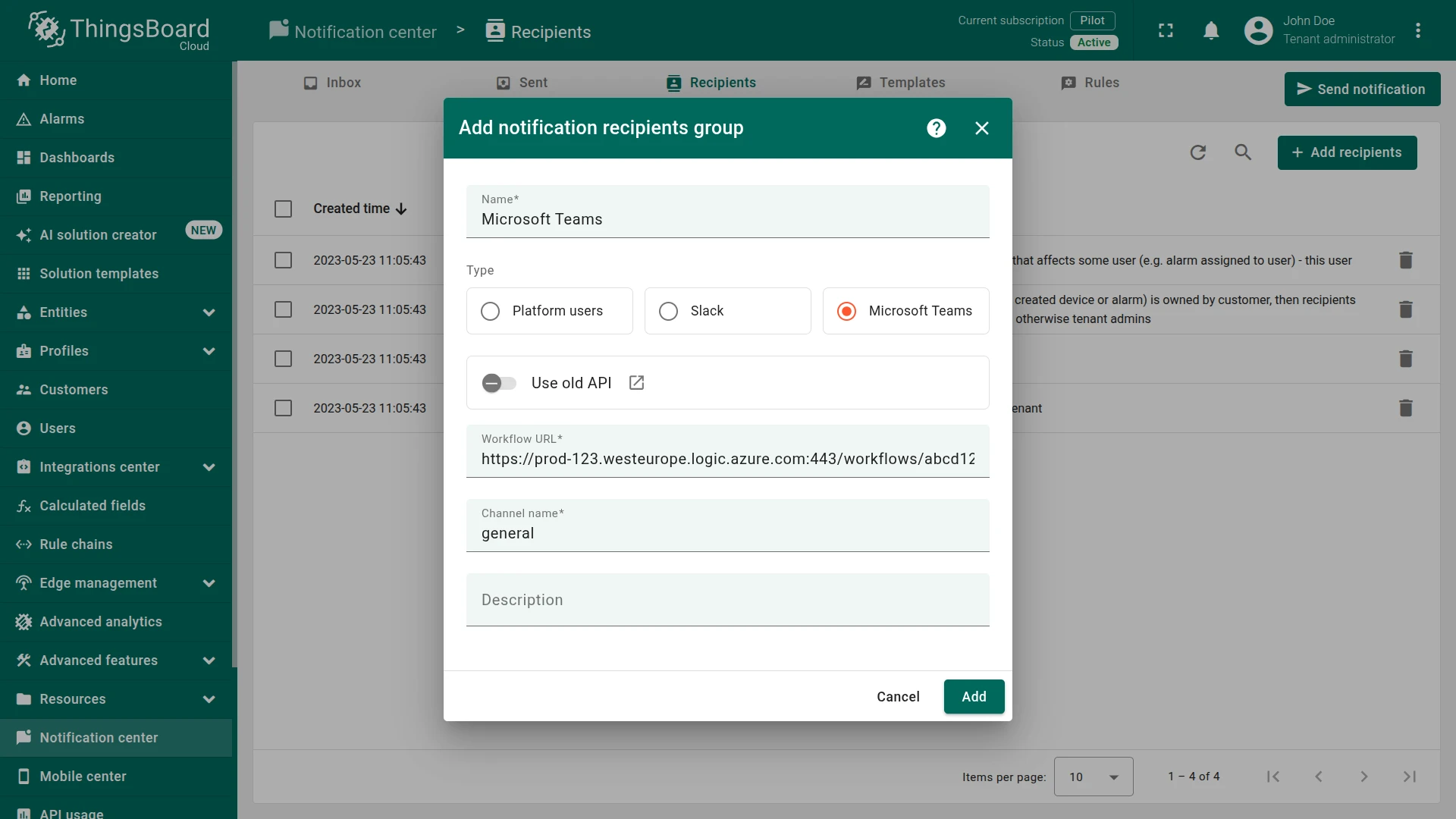
Section titled “Step 1. Configure Notification Recipients”Create a recipient that posts to the Microsoft Teams channel via the webhook URL.
- Navigate to Monitor ⇾ Notifications ⇾ Recipients.
- Click + Add recipients in the top-right corner.
- Configure the recipient:
- Name:
Microsoft Teams - Type: Microsoft Teams
- Webhook URL: paste the webhook URL copied from Teams
- Channel type: specify Microsoft Teams channel
- Name:
- Click Add.
Step 2. Create Notification Template
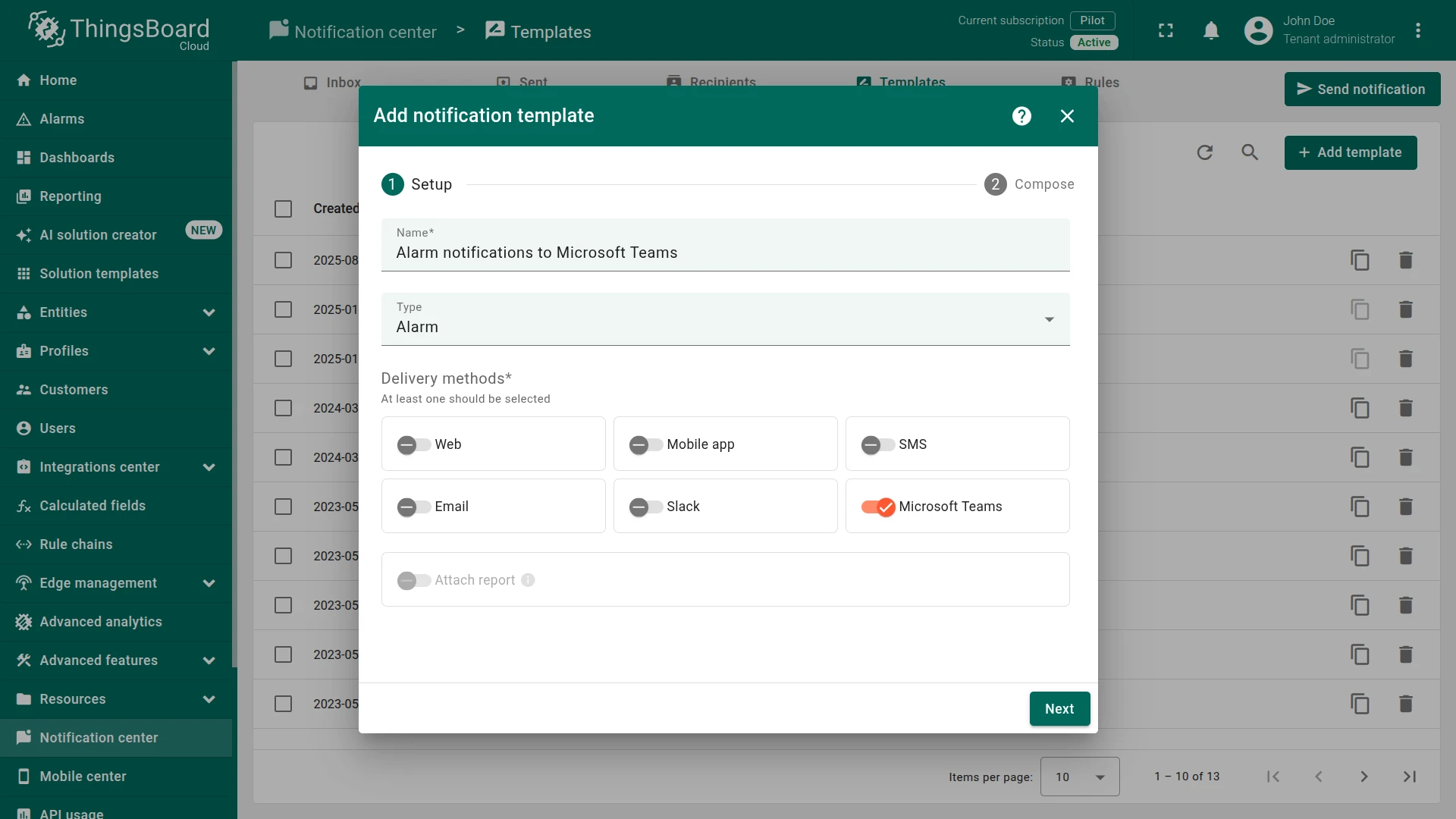
Section titled “Step 2. Create Notification Template”Create a template that defines the Teams message subject and body using alarm variables.
- Navigate to Monitor ⇾ Notifications ⇾ Templates.
- Click + Add template in the top-right corner.
- Setup — configure the template:
- Name:
Alarm notifications to Microsoft Teams - Type: Alarm
- Delivery methods: toggle Microsoft Teams on
- Name:
- Click Next.
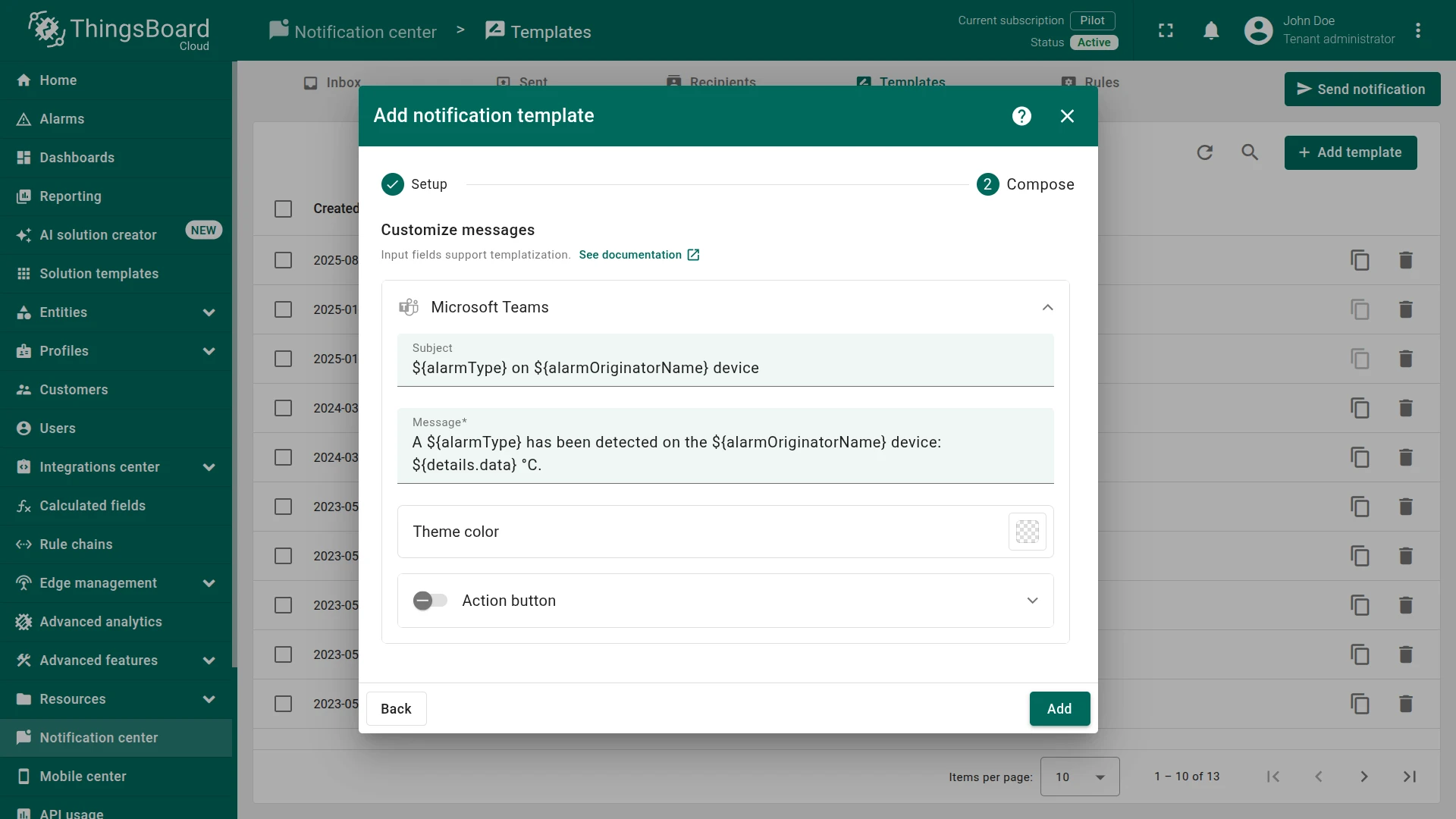
- Compose — expand the Microsoft Teams section and set:
- Subject:
${alarmType} on ${alarmOriginatorName} device
- Message:
A ${alarmType} has been detected on the ${alarmOriginatorName} device: ${details.data} °C.
- Subject:
- Click Add.
Template variables used:
${alarmType}— the alarm type name (e.g. High temperature).${alarmOriginatorName}— the name of the device that triggered the alarm.${details.data}— the reported telemetry value, populated by the alarm rule.
Step 3. Create Notification Rule
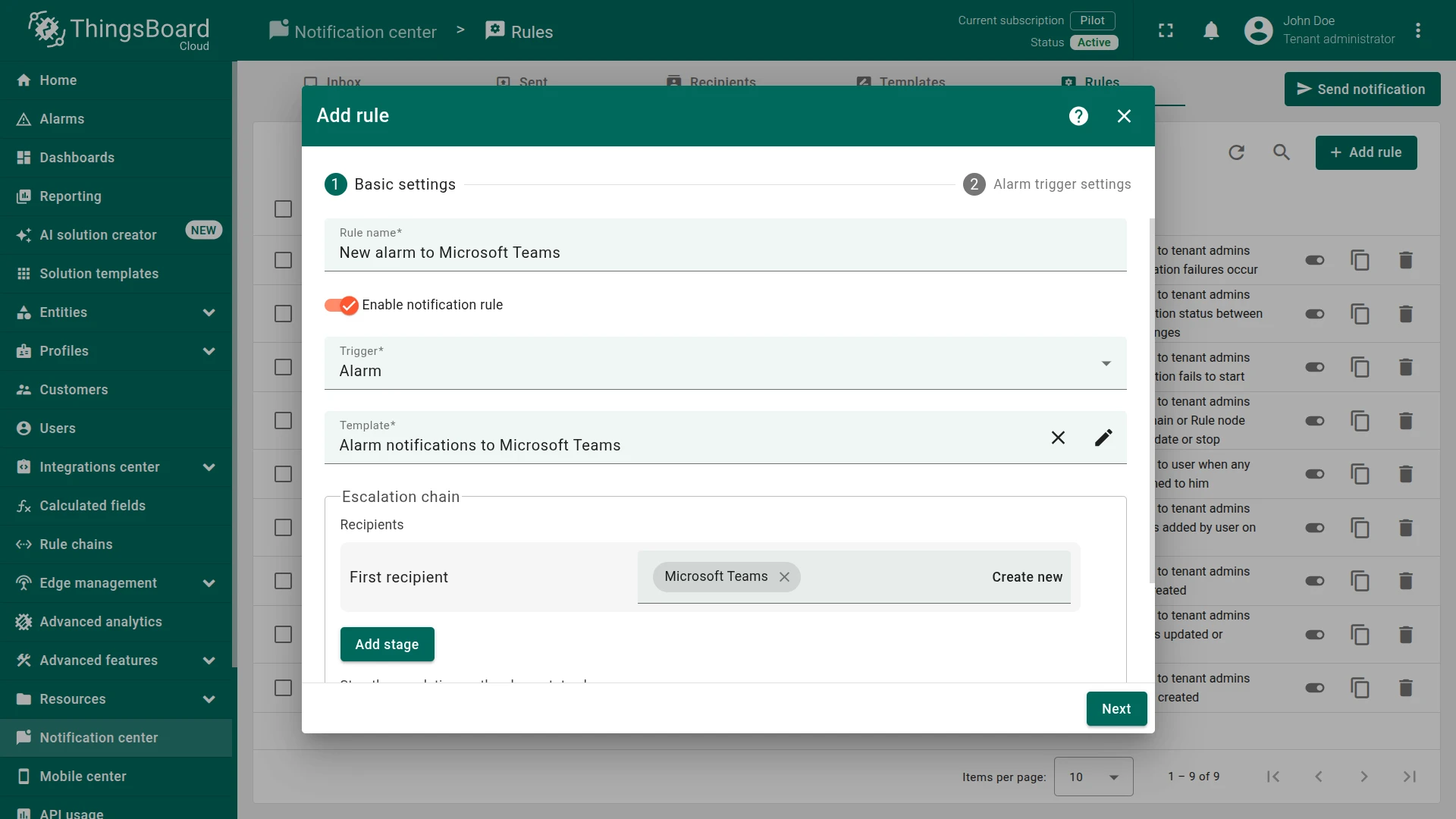
Section titled “Step 3. Create Notification Rule”Create a rule that links the alarm trigger to the template and recipient.
- Navigate to Monitor ⇾ Notifications ⇾ Rules.
- Click + Add rule in the top-right corner.
- Basic settings — configure the rule:
- Rule name:
New alarm to Microsoft Teams - Trigger: Alarm
- Template: Alarm notifications to Microsoft Teams
- Escalation chain ⇾ First recipient: Microsoft Teams
- Rule name:
- Click Next.
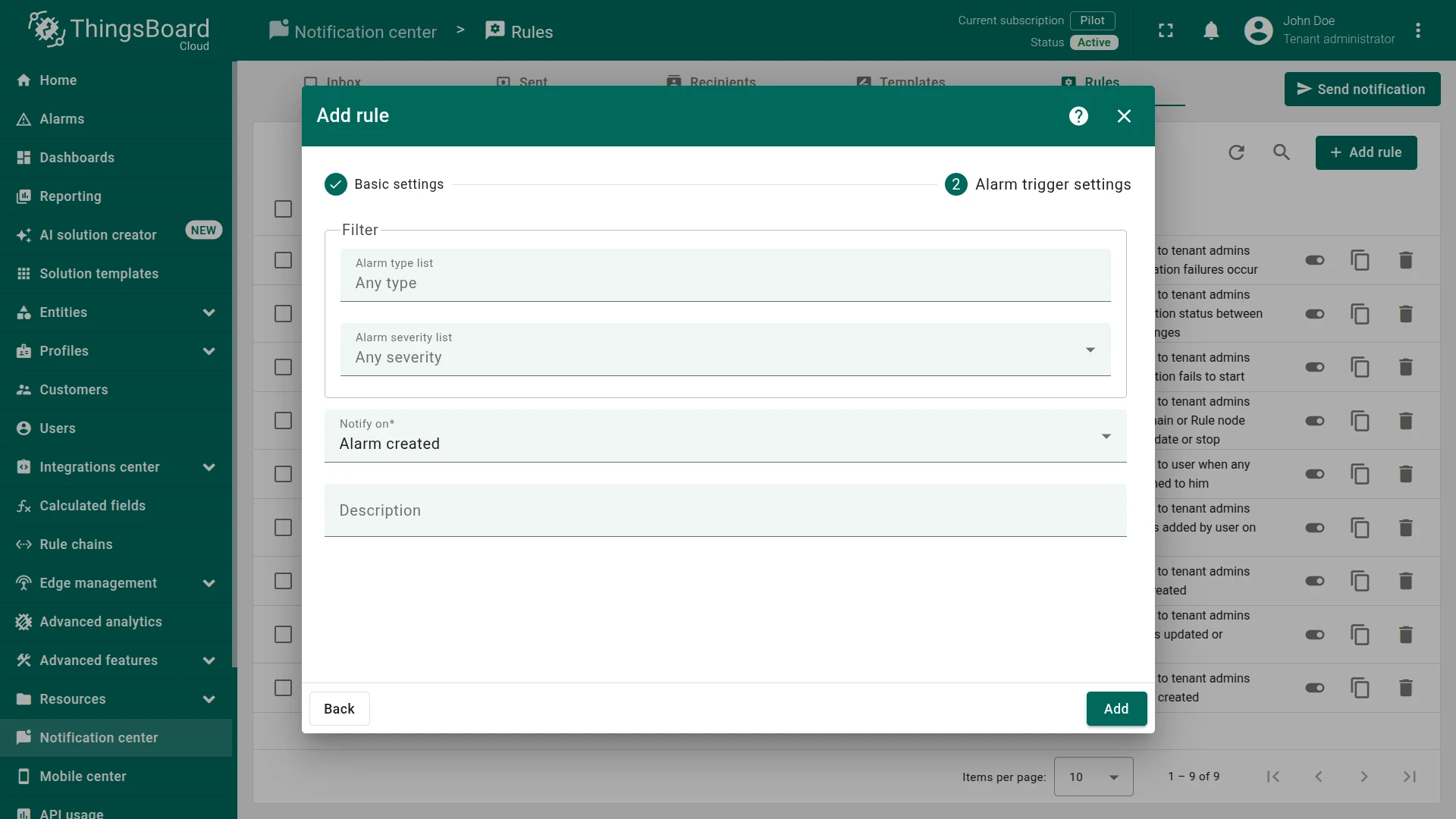
- Alarm trigger settings — configure the filter:
- Alarm type list: Any type
- Alarm severity list: Any severity
- Notify on: Alarm created
- Click Add.
Verification
Section titled “Verification”Publish a temperature value that triggers the alarm (above 5 °C).
Use the Check Connectivity feature or the command below:
curl -v -X POST \--header "Content-Type: application/json" \--data '{"temperature": 25}' \http://eu.thingsboard.cloud/api/v1/$ACCESS_TOKEN/telemetryA new alarm is created and a message is posted to the configured Teams channel. The subject and body are populated from the template variables — for example: “A High temperature has been detected on the Thermostat device: 25 °C.”
See Also
Section titled “See Also”- Notification Center — full configuration reference for recipients, templates, and rules
- Microsoft Teams settings — how to create the webhook workflow in Teams
- Create and Clear Alarms — alarm rules this recipe builds upon
- Alarm rules — full alarm rule configuration reference
Was this helpful?