Persistent RPC Table
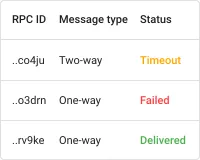
The Persistent RPC table widget displays a list of persistent Remote Procedure Calls (RPCs) sent to devices in ThingsBoard. It provides a structured view of RPC requests, their status, response times, and other details — allowing you to monitor, track, and manage RPC commands directly from the dashboard.
Persistent RPCs remain pending until the target device connects and responds, ensuring reliable communication even for offline devices.
Key Capabilities
Section titled “Key Capabilities”- Displays all persistent RPCs in a sortable, paginated table.
- Shows key details per request: RPC ID, message type, status, method, created time, and expiration time.
- Real-time updates as new RPCs are sent or their status changes.
- Filterable by RPC status.
- Built-in controls to send new RPC requests and delete existing ones directly from the widget.
- Configurable columns, pagination, and sticky header and actions column during scroll.
Adding the Widget
Section titled “Adding the Widget”- Open the dashboard in edit mode. Click Add widget in the top toolbar, or click the Add new widget icon in the center of an empty dashboard.
- In the widget bundle selection dialog, find and click Tables.
- Select the Persistent RPC table widget.
- Configure the datasource and appearance, then click Add.
Configuration
Section titled “Configuration”All settings in this section use Basic mode — a quick-start configuration covering the essentials. For finer widget controls like title font, card style, and tooltip, switch to the Advanced tab.
Datasource
Section titled “Datasource”Select the device or group of devices whose RPC requests will be displayed:
- Device — a specific device; shows only RPC requests sent to this device.
- Entity alias — a set of entities matched by an entity alias; use this to monitor RPC requests across multiple devices at once.
Appearance
Section titled “Appearance”Data Settings
Section titled “Data Settings”| Setting | Description |
|---|---|
| “No data to display” message | Custom text shown when no RPC records exist for the selected device. Like No RPC requests found for this device. |
General Settings
Section titled “General Settings”| Setting | Description |
|---|---|
| Enable filter | Adds a status filter at the top of the table, letting users narrow down the list by RPC status. |
| Display header while scrolling | Keeps column headers fixed at the top when scrolling through large tables. |
| Display actions column while scrolling | Keeps the Actions column pinned on the right when scrolling horizontally. |
| Display request details | Adds a button per row that opens a pop-up with full RPC request details: creation time, message type, status, parameters, and response. |
| Allow send RPC request | Adds a button to the widget header so users can create and send new RPC requests directly from the widget. |
| Allow delete request | Adds a delete button per row so users can remove existing RPC requests from the table. |
Pagination
Section titled “Pagination”| Setting | Description |
|---|---|
| Display pagination | Shows page navigation controls below the table. Enabled by default. |
| Page step settings | Available page sizes in the page-size dropdown, like 10, 25, 50. |
| Default page size | Number of rows shown per page on initial load. |
Columns
Section titled “Columns”The table displays the following columns by default. Columns can be reordered or hidden as needed.
| Column | Description |
|---|---|
| RPC ID | The unique identifier of the RPC request. |
| Message type | Indicates whether the RPC is one-way or two-way. |
| Status | Current RPC status: QUEUED, DELIVERED, SUCCESSFUL, EXPIRED, or FAILED. |
| Method | The RPC method name, like reboot, setConfig, or toggleRelay. |
| Created time | Timestamp when the RPC request was created. |
| Expiration time | Timestamp when the RPC request expires if no response is received. |
Card Appearance
Section titled “Card Appearance”| Setting | Description |
|---|---|
| Background | Solid color or image background for the card. |
| Show card buttons | Enable the Fullscreen toolbar button. |
| Card border radius | Corner rounding in pixels. |
| Card padding | Spacing between card content and its border. |
Actions
Section titled “Actions”The Persistent RPC table supports the Widget header button action — a button placed in the widget header that triggers a configured action when clicked.
Troubleshooting
Section titled “Troubleshooting”No RPC Requests Appear in the Table
| Cause | Solution |
|---|---|
| No persistent RPCs have been sent | Send at least one persistent RPC to the target device using the ThingsBoard API or another widget. |
| Wrong datasource | Verify the correct device or entity alias is selected. Open Entity aliases in the dashboard to confirm the alias resolves to the expected devices. |
| Status filter excludes all requests | Clear or adjust the status filter — all visible statuses must be enabled for all requests to appear. |
| RPC requests already expired | Expired RPCs may be filtered out. Adjust the filter or check the Expiration time column to confirm. |
RPC Status Does Not Update
| Cause | Solution |
|---|---|
| Device not connected | Persistent RPCs remain in QUEUED state until the device connects. Verify device connectivity in Devices → Active. |
| Rule chain not processing responses | Check that the Rule Chain properly routes RPC responses back to ThingsBoard. |
“Send RPC Request” Button Is Not Visible
| Cause | Solution |
|---|---|
| Option not enabled | Open widget configuration → Appearance and enable Allow send RPC request. |
“Delete Request” Button Is Not Visible
| Cause | Solution |
|---|---|
| Option not enabled | Open widget configuration → Appearance and enable Allow delete request. |
Was this helpful?