Battery Level
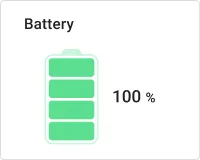
The Battery level widget displays the current charge level of a device as a battery icon that fills proportionally from 0 to 100%. Use it on device monitoring dashboards where a visual indicator communicates battery health more intuitively than a raw number — especially in grids where many devices are tracked at once.
Key Capabilities
Section titled “Key Capabilities”- Four visual layouts: vertical and horizontal, each in Solid and Divided icon styles.
- Battery fill color with four modes — constant, gradient, value range segments, or a JavaScript function — for threshold-based coloring without custom code.
- Independently configurable battery shape (outline) color, separate from the fill.
- Optional title with
entityName/entityLabeldynamic substitution. - On card click and Widget header button actions.
Adding the Widget
Section titled “Adding the Widget”- Open the dashboard in edit mode. Click Add widget in the top toolbar, or click the Add new widget icon in the center of an empty dashboard.
- In the widget bundle selection dialog, find and click Status indicators.
- Select the Battery level widget.
- Configure the datasource and appearance, then click Add.
Configuration
Section titled “Configuration”All settings are on the Basic tab. Switch to Advanced for card-level controls — title font, tooltip, border radius, and CSS overrides.
Datasource
Section titled “Datasource”Select the source of the battery level value:
- Device — a specific device; the widget reads the latest value from this device.
- Entity alias — a set of entities matched by an entity alias; use when the target device is selected dynamically at runtime.
Add exactly one data key — a telemetry key or attribute — whose numeric value (0–100) represents the battery charge level.
Appearance
Section titled “Appearance”Layout
Section titled “Layout”Four visual styles are available:
| Layout | Description |
|---|---|
| Vertical. Solid | Battery icon oriented vertically with a solid fill. Default. |
| Horizontal. Solid | Battery icon oriented horizontally with a solid fill. |
| Vertical. Divided | Vertical battery icon with a segmented (divided) fill visualization. |
| Horizontal. Divided | Horizontal battery icon with a segmented fill visualization. |
| Setting | Description |
|---|---|
| Title | Label shown on the card. Enabled by default, value Battery level. Supports {x} dynamic placeholders: entityName and entityLabel. Configure font and color independently. |
An optional icon placed on the card. Disabled by default. Configure size (px) and color when enabled.
| Setting | Description |
|---|---|
| Value | Displays the resolved numeric value. Enabled by default. Configure font and color. |
| Auto scale | Automatically adjusts the value text size to fit the widget area when resized. |
Battery Colors
Section titled “Battery Colors”| Setting | Description |
|---|---|
| Battery level color | Fill color of the battery indicator. Defaults to a green-to-red gradient. Supports four color modes — see below. |
| Battery shape color | Color of the battery outline and terminal. Transparent by default. |
| Background | Card background color. Empty by default. |
Battery Level Color Modes
Section titled “Battery Level Color Modes”| Mode | Description |
|---|---|
| Constant | Single fixed color for the entire fill. |
| Gradient | Color transitions smoothly across the value range. Configure start and end values and color stops. Default: green at 0, red at 100. |
| Range | Assigns a specific color to each value segment. Add multiple From / To rows to create threshold-based color bands — for example, green for 0–25, yellow for 25–90, red for 90–100. |
| Function | A JavaScript function f(value) that returns a CSS color string. Use for custom or non-linear coloring logic. |
Card Appearance
Section titled “Card Appearance”| Setting | Default | Description |
|---|---|---|
| Show card buttons | — | Toggle Data export and Fullscreen buttons in the widget header. |
| Card border radius | 0px |
Corner rounding. |
| Card padding | 12px |
Spacing between card content and its border. |
Actions
Section titled “Actions”| Source | Description |
|---|---|
| On card click | Triggers a configured action when the user clicks anywhere on the widget card. |
| Widget header button | Adds a custom button to the widget header that triggers a configured action when clicked. |
Example
Section titled “Example”Fleet Battery Status Panel
Section titled “Fleet Battery Status Panel”Goal: Track the battery level of field devices in a dashboard grid so operators immediately see which units need recharging.
Prerequisites: Devices sending batteryLevel (0–100) as a telemetry key.
Step 1. Add the widget. Open your dashboard in edit mode, click Add widget, select Status indicators, then choose Battery level.
Step 2. Configure the datasource. Set Datasource type to Entity alias, select an alias that resolves to your fleet devices, and add batteryLevel as the data key.
Step 3. Set the layout. Set Layout to Horizontal. Divided for a compact card that works well in a multi-device grid.
Step 4. Configure threshold colors. Click Battery level color, select Range mode, then add three segments:
| From | To | Color |
|---|---|---|
| 0 | 20 | Red |
| 20 | 60 | Yellow |
| 60 | 100 | Green |
Step 5. Save. Click Add, arrange the widget, then save the dashboard.
Result: Each device card shows a battery icon that fills and changes color based on the live charge level — red when critical, yellow when moderate, green when healthy.
Troubleshooting
Section titled “Troubleshooting”Battery Icon Shows No Fill
| Cause | Solution |
|---|---|
| No data received | Open Devices → Latest telemetry and verify the device reports the configured data key. Key names are case-sensitive. |
Value is null or non-numeric |
Ensure the device sends a number between 0 and 100 for the configured key. |
| Entity alias resolves to no entities | Open Entity aliases in the dashboard and verify the alias returns results. |
Battery Fill Color Does Not Change with Value
| Cause | Solution |
|---|---|
| Battery level color set to Constant | Switch to Gradient, Range, or Function mode for value-dependent coloring. |
| Range segments have gaps or don’t cover all values | In Range mode, ensure segments together span the full expected range with no gaps between rows. |
Title Shows Entity Name Instead of Custom Text
| Cause | Solution |
|---|---|
| Dynamic placeholder in use | The Title field supports {x} placeholders (entityName, entityLabel). Replace with static text if dynamic substitution is not needed. |
Was this helpful?