Kafka Integration
Kafka Integration connects ThingsBoard to an Apache Kafka cluster. ThingsBoard joins a consumer group, subscribes to the topics you configure, and polls them for new records. An uplink data converter transforms each record value into device or asset data, including telemetry and attributes.
Use Kafka Integration when:
- Devices, network servers, or your applications already publish data to Kafka topics.
- You want that data in ThingsBoard dashboards and the Rule Engine without a separate bridge service.
The integration is uplink-only. To publish data from ThingsBoard to Kafka, use the kafka rule node (see Send Data to Kafka).
Architecture
Section titled “Architecture”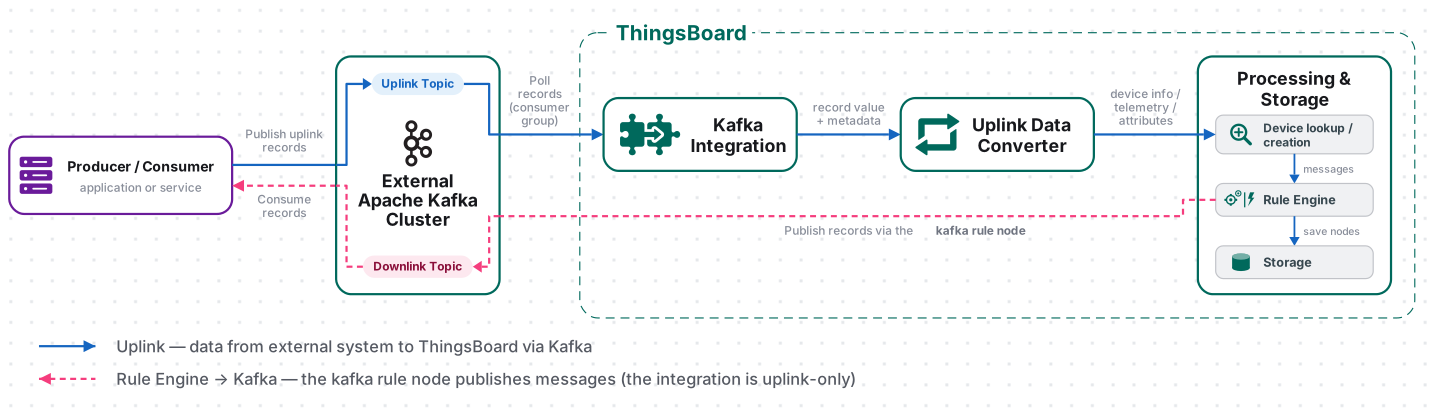
- Receive data. A producer publishes a record to a Kafka topic. The integration polls the topic as a member of its consumer group and receives the record.
- Decode the payload. The uplink converter decodes the record value and returns the device name, telemetry, and attributes.
- Process the message. ThingsBoard processes the converted data through the Rule Engine. If Allow create devices or assets is enabled, ThingsBoard creates the device on its first record.
- Publish data to Kafka (optional). The Rule Engine passes a message to a kafka rule node, which publishes it to a Kafka topic for external consumers.
Prerequisites
Section titled “Prerequisites”- Access to ThingsBoard Cloud with integrations enabled for your tenant.
- Permission to create integrations and data converters, and to edit rule chains to publish data to Kafka.
- An Apache Kafka broker that ThingsBoard can reach: a self-hosted broker or a managed cluster such as Confluent Cloud or Amazon MSK. To start a local test broker, see Set Up Kafka.
Set Up Kafka
Section titled “Set Up Kafka”Start a broker, create the uplink topic, and collect the connection details. With a managed cluster, skip to Collect Connection Details and take the values from your provider.
Start a Single-Node Broker
Section titled “Start a Single-Node Broker”Kafka 4.x runs in KRaft mode: one process acts as both controller and broker, without ZooKeeper. The broker needs Java 17 or later. The commands below were verified on Ubuntu with Kafka 4.3.1. For another release, replace the version in the download URL and paths; the Kafka downloads page lists the current ones.
-
Install Java and download Kafka:
Terminal window sudo apt updatesudo apt install -y openjdk-17-jre-headless curljava -versioncd /tmpcurl -fLO https://downloads.apache.org/kafka/4.3.1/kafka_2.13-4.3.1.tgzsudo tar -xzf kafka_2.13-4.3.1.tgz -C /optsudo ln -s /opt/kafka_2.13-4.3.1 /opt/kafkasudo chown -R "$USER":"$USER" /opt/kafka_2.13-4.3.1cd /opt/kafka -
Format the storage. Run this once per broker, before the first start:
Terminal window KAFKA_CLUSTER_ID="$(bin/kafka-storage.sh random-uuid)"bin/kafka-storage.sh format \--standalone \--cluster-id "$KAFKA_CLUSTER_ID" \--config config/server.properties -
Start the broker:
Terminal window bin/kafka-server-start.sh config/server.properties
Run the commands in the next sections from /opt/kafka, in a second terminal.
Create the Uplink Topic
Section titled “Create the Uplink Topic”bin/kafka-topics.sh --create \ --topic my-topic \ --bootstrap-server localhost:9092 \ --partitions 1 \ --replication-factor 1Verify it exists (optional):
bin/kafka-topics.sh --bootstrap-server localhost:9092 --listTo skip this step, turn on Auto create topics in the integration.
Collect Connection Details
Section titled “Collect Connection Details”| Value | Example | Integration field |
|---|---|---|
| Broker address | localhost:9092 |
Bootstrap servers |
| Topic | my-topic |
Topics |
| Consumer group | thingsboard-kafka-group |
Group ID |
| Client name | thingsboard-kafka-client-01 |
Client ID |
| Credentials (secured brokers only) | API key and secret | Other properties |
Broker Address
Section titled “Broker Address”ThingsBoard must reach every broker of the cluster. localhost:9092 works only when ThingsBoard runs on the broker host. Otherwise:
- Set Bootstrap servers to the broker’s reachable host name or IP.
- Set the broker’s
advertised.listenersto the same address. The integration connects to the bootstrap address, then fetches records from the advertised address. If the two differ, the connection succeeds, but no records arrive. - On ThingsBoard Cloud, use a public address, or run the integration next to the broker as a Remote Integration.
Secured Brokers
Section titled “Secured Brokers”Managed clusters usually require SASL over TLS. Add the Kafka client properties under Advanced settings ⇾ Other properties. For SASL/PLAIN with an API key, as on Confluent Cloud:
| Key | Value |
|---|---|
security.protocol |
SASL_SSL |
sasl.mechanism |
PLAIN |
sasl.jaas.config |
org.apache.kafka.common.security.plain.PlainLoginModule required username="API_KEY" password="API_SECRET"; |
Other mechanisms, such as SCRAM or mutual TLS, use other keys. Take them from your provider’s client configuration.
Set Up Kafka Integration
Section titled “Set Up Kafka Integration”Create the uplink converter, assign it to a new Kafka integration, and publish a test record.
Create the Uplink Data Converter
Section titled “Create the Uplink Data Converter”The uplink converter receives each record value as a byte array, resolves the target device, and returns its telemetry and attributes. Kafka Integration uses the Generic converter: you write the decoder in TBEL or JavaScript. For converter types and the full decoder reference, see Uplink data converter.
Kafka does not define a record format. This guide uses a LoRaWAN-style record from a network server: the device EUI, the frame port, frequency, RSSI, and four sensor readings packed as hex bytes in data:
{ "EUI": "43T1YH-REE", "ts": 1638876127000, "data": "3d1f0059", "port": 10, "freq": 24300, "rssi": -130, "serial": "230165HRT"}Bytes of data |
Hex | Telemetry key | Value |
|---|---|---|---|
| 1 | 3d |
Temperature |
61 |
| 2 | 1f |
Humidity |
31 |
| 3 | 00 |
Fan |
0 |
| 4 | 59 |
Pressure |
89 |
-
Go to Integrations ⇾ Data converters and click + Add data converter ⇾ Create new converter.
-
Converter type — keep Uplink.
-
Integration type — select Kafka.
-
Name — enter a name, for example
Kafka Uplink Converter. -
Main decoding configuration — the editor opens with the generic default decoder, which expects
deviceNamein the payload. Replace it with the decoder below. It usesEUIas the device name, reads one byte ofdataper reading, and copies the radio fields to telemetry. The editor opens in TBEL; use the TBEL / JS toggle to switch to JavaScript./** Decoder **/// Decode the Kafka message payload into a JSON object.var payloadJson = decodeToJson(payload);// Use the EUI value as the ThingsBoard device name.var deviceName = payloadJson.EUI;// Assign the same device type to all devices created by this integration.var deviceType = 'Monitoring sensor';// Build the object expected by the ThingsBoard integration.var result = {deviceName: deviceName,deviceType: deviceType,// No device attributes are extracted from the incoming message.attributes: {},// Create a timestamped telemetry entry.telemetry: {// Use the timestamp provided in the Kafka message.ts: payloadJson.ts,values: {// Read the first byte from the hexadecimal data field.Temperature: hexToInt(payloadJson.data.substring(0, 2)),// Read the second byte from the hexadecimal data field.Humidity: hexToInt(payloadJson.data.substring(2, 4)),// Read the third byte from the hexadecimal data field.Fan: hexToInt(payloadJson.data.substring(4, 6)),// Copy message metadata directly to telemetry.Port: payloadJson.port,Freq: payloadJson.freq,// Read the fourth byte from the hexadecimal data field.Pressure: hexToInt(payloadJson.data.substring(6, 8)),// Copy signal strength and serial number to telemetry.rssi: payloadJson.rssi,serial: payloadJson.serial}}};// Converts a hexadecimal string into an integer.function hexToInt(hex) {return parseInt(hex, 16);}/** Helper function 'decodeToJson' is already built-in **/return result;/** Decoder **/// Decode the Kafka message payload into a JSON object.var payloadJson = decodeToJson(payload);// Use the EUI value as the ThingsBoard device name.var deviceName = payloadJson.EUI;// Assign the same device type to all devices created by this integration.var deviceType = 'Monitoring sensor';// Build the object expected by the ThingsBoard integration.var result = {deviceName: deviceName,deviceType: deviceType,// No device attributes are extracted from the incoming message.attributes: {},// Create a timestamped telemetry entry.telemetry: {// Use the timestamp provided in the Kafka message.ts: payloadJson.ts,values: {// Read the first byte from the hexadecimal data field.Temperature: hexToInt(payloadJson.data.substring(0, 2)),// Read the second byte from the hexadecimal data field.Humidity: hexToInt(payloadJson.data.substring(2, 4)),// Read the third byte from the hexadecimal data field.Fan: hexToInt(payloadJson.data.substring(4, 6)),// Copy message metadata directly to telemetry.Port: payloadJson.port,Freq: payloadJson.freq,// Read the fourth byte from the hexadecimal data field.Pressure: hexToInt(payloadJson.data.substring(6, 8)),// Copy signal strength and serial number to telemetry.rssi: payloadJson.rssi,serial: payloadJson.serial}}};/** Helper functions **/// Converts the incoming byte array into a UTF-8-compatible string.function decodeToString(payload) {return String.fromCharCode.apply(String, payload);}// Converts the incoming byte array into a string and parses it as a JSON object.function decodeToJson(payload) {var str = decodeToString(payload);return JSON.parse(str);}// Converts a hexadecimal string into an integer. Matches the TBEL tab —// both read a single byte (2 hex characters) at a time, so no byte-order// reversal is needed. If you extend this to multi-byte fields, decide on// endianness explicitly and keep both tabs consistent.function hexToInt(hex) {return parseInt(hex, 16);}return result;To adapt:
- Other byte layout — change the
substringpositions. For a multi-byte value, read four or more hex characters, for examplehexToInt(payloadJson.data.substring(0, 4))for a big-endian 16-bit value. - Scaling — divide or multiply a reading, for example
hexToInt(payloadJson.data.substring(0, 2)) / 10. - Device properties — move fields such as
serialfromtelemetrytoattributes. - Server time — remove
tsto store records with the time ThingsBoard receives them. - Other payload — for a flat JSON record with
deviceNameanddeviceType, keep the generic default decoder.
- Other byte layout — change the
-
Click Test decoder function and check the result (see Test the Decoder).
-
Click Add.
Decoder Inputs
The decoder signature is function decoder(payload, metadata): object | object[].
| Variable | Type | Content |
|---|---|---|
payload |
byte array | The record value. |
metadata |
{[key: string]: string} |
integrationName and the key–value pairs from the integration’s Metadata field. |
The integration does not pass the record key, headers, topic, partition, or offset to the decoder. To tell sources apart, put the information into the record value, or create one integration per topic with its own Metadata.
The integration reads the record value as UTF-8 text. JSON and plain text arrive intact; binary formats such as Avro or Protobuf do not. Encode binary data as hex or Base64 inside a JSON record, as data does in this guide.
Test the Decoder
Click Test decoder function below the editor. Set Payload content type to JSON, replace the payload with the sample record, and click Test. The Output panel shows:
{ "deviceName": "43T1YH-REE", "deviceType": "Monitoring sensor", "attributes": {}, "telemetry": { "ts": 1638876127000, "values": { "Temperature": 61, "Humidity": 31, "Fan": 0, "Pressure": 89, "Port": 10, "Freq": 24300, "rssi": -130, "serial": "230165HRT" } }}Check that deviceName equals EUI and that the four readings match the table above.
Create the Integration
Section titled “Create the Integration”- Go to Integrations ⇾ Integrations and click + Add integration.
- Basic settings:
- Integration type — select Kafka.
- Name — enter a name, for example
Kafka integration. - Enable integration and Allow create devices or assets — keep both on, so the device is created on its first record.
- Click Next.
- Uplink data converter:
- Click Select existing and choose
Kafka Uplink Converter. - Alternatively, click Create new to write a decoder here.
- Click Next.
- Click Select existing and choose
- Connection:
- Group ID and Client ID — enter
thingsboard-kafka-groupandthingsboard-kafka-client-01. - Bootstrap servers — replace
YOUR_KAFKA_DOMAIN:9092withlocalhost:9092. - Topics — replace
my-topic-outputwithmy-topic. - For a secured broker, expand Advanced settings and add the security properties under Other properties.
- Leave the other parameters at their defaults. See Connection Settings for details.
- Group ID and Client ID — enter
- Click Add.
Connection Settings
Section titled “Connection Settings”| Parameter | Description |
|---|---|
| Group ID | Kafka consumer group. Consumers in the same group share the topic partitions, so each record reaches only one of them. Required. |
| Client ID | Name of the consumer in broker logs and metrics. Required. |
| Bootstrap servers | Comma-separated broker addresses, host:port. The integration uses them for the first connection, then discovers the rest of the cluster. Required. |
| Poll interval | Maximum time one poll waits for new records, in milliseconds. Default: 5000. After an error, the integration also waits this long before the next poll. |
| Topics | Comma-separated topics to subscribe to. Required. |
| Auto create topics | Creates a subscribed topic that does not exist, if the broker allows automatic topic creation. Off by default. |
| Execute remotely | Runs the integration as a separate process outside the ThingsBoard cluster. ThingsBoard generates an Integration key and Integration secret for it. See Remote Integration. |
Advanced settings
| Parameter | Description |
|---|---|
| Other properties | Kafka consumer properties as key–value pairs, for example the security properties or auto.offset.reset. They override the integration’s own settings. |
| Description | Free-text description. |
| Metadata | Key–value pairs added to the metadata of every message from this integration. |
Test Uplink
Section titled “Test Uplink”Publish a record to my-topic, then confirm that ThingsBoard decoded it and created the device.
Send a Test Uplink
Section titled “Send a Test Uplink”Create the integration first. A new consumer group starts from the end of the topic, so it skips records published before its first connection. To read them, add auto.offset.reset = earliest to Other properties and use a new Group ID.
Publish the sample record with the console producer:
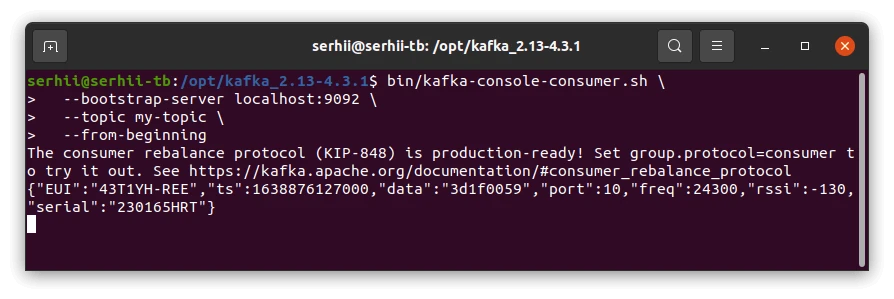
echo '{"EUI":"43T1YH-REE","ts":1638876127000,"data":"3d1f0059","port":10,"freq":24300,"rssi":-130,"serial":"230165HRT"}' | \ bin/kafka-console-producer.sh \ --bootstrap-server localhost:9092 \ --topic my-topic > /dev/nullTo check that the record reached the topic, read it back:
bin/kafka-console-consumer.sh \ --bootstrap-server localhost:9092 \ --topic my-topic \ --from-beginning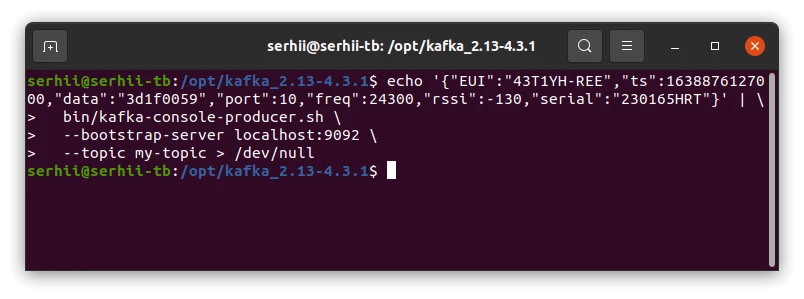
Verify the Result
Section titled “Verify the Result”- Integration events — go to Integrations ⇾ Integrations, open the integration, and click the Events tab. The uplink appears with status OK. Click
⋅⋅⋅in the Message column to see the record. - Converter events — open
Kafka Uplink Converterin Integrations ⇾ Data converters and click the Events tab. In shows the record, Out shows the decoded result, and Metadata shows the integration name. - Device — go to Devices & assets ⇾ Devices. The integration has created 43T1YH-REE with type Monitoring sensor. Open it and check the eight keys on the Latest telemetry tab:
Temperature,Humidity,Fan,Pressure,Port,Freq,rssi, andserial.
Send Data to Kafka
Section titled “Send Data to Kafka”Kafka Integration has no downlink. To publish data from ThingsBoard to Kafka, add a kafka rule node to a rule chain. The node publishes the message data as the record value. On success, it adds offset, partition, and topic to the message metadata. For all node settings, see the kafka node reference.
This section publishes shared attribute updates of the device to a separate topic, my-topic-downlink.
Prepare the Topic
Section titled “Prepare the Topic”-
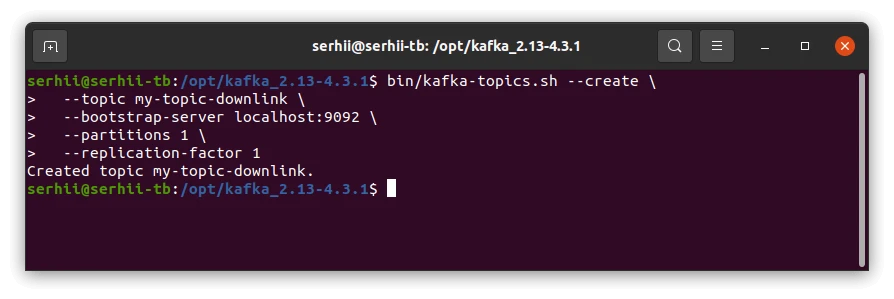
Create the topic:
Terminal window bin/kafka-topics.sh --create \--topic my-topic-downlink \--bootstrap-server localhost:9092 \--partitions 1 \--replication-factor 1 -
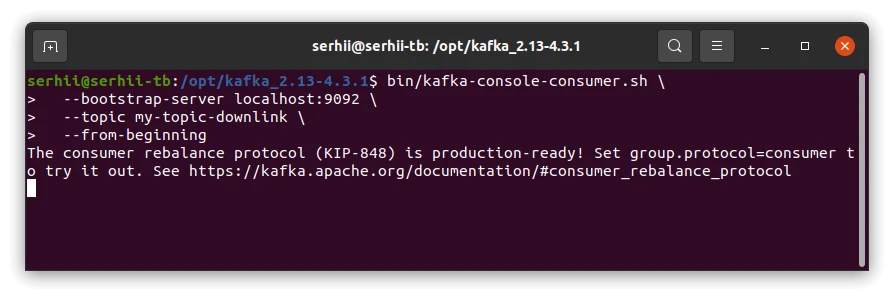
In another terminal, start a consumer and leave it running:
Terminal window bin/kafka-console-consumer.sh \--bootstrap-server localhost:9092 \--topic my-topic-downlink
Configure the Root Rule Chain
Section titled “Configure the Root Rule Chain”- Go to Data processing ⇾ Rule chains and open the Root Rule Chain.
- From the External section, drag a kafka node onto the canvas.
- Set:
- Name —
Publish to Kafka. - Topic pattern —
my-topic-downlink. The pattern also accepts${key}placeholders, replaced with values from the message metadata. - Bootstrap servers —
localhost:9092. - Keep the other fields at their defaults. For a secured broker, add the same security properties to Other properties.
- Name —
- Click Add.
- Connect the message type switch node to the kafka node with the Attributes Updated relation.
- Click Apply changes.
Test Data Publishing
Section titled “Test Data Publishing”- Go to Devices & assets ⇾ Devices, select
43T1YH-REE, and open the Attributes tab. - Select Shared attributes and click +.
- Set Key to
temperatureUploadFrequency, Type to Integer, Value to60, and click Add.
Verify Publishing
Section titled “Verify Publishing”-
Kafka — the consumer on
my-topic-downlinkprints the record:{"temperatureUploadFrequency":60} -
Rule node events — turn on Debug mode for the kafka node before the test. Its Events tab then shows an IN event with the Attributes Updated relation and an OUT event with the Success relation. The OUT metadata holds
offset,partition, andtopic.
Troubleshooting
Section titled “Troubleshooting”| Symptom | Cause | Fix |
|---|---|---|
| “Host must be in the public network.” under Bootstrap servers | The server does not allow integrations to connect to private addresses, for example on ThingsBoard Cloud. | Use a public broker address, or a Remote Integration. |
| Integration does not start: “Connection to node could not be established. Broker may not be available.” | Wrong Bootstrap servers, the broker is down, or a firewall blocks the port. | Check the address and that the broker runs and accepts connections from the ThingsBoard host. |
| Integration does not start: “No topics specified for the Kafka integration.” | Topics is empty. | Enter at least one topic. |
| Integration connects, but no records arrive | advertised.listeners points to an address ThingsBoard cannot reach. |
Set advertised.listeners to the address in Bootstrap servers. See Broker Address. |
| Same, with a reachable broker | The producer writes to another topic, or the records were published before the consumer group first connected. | Check the topic name. Publish a new record, or use auto.offset.reset = earliest with a new Group ID. |
| Same, on a secured broker | Missing or wrong SASL/SSL properties. | Check Other properties against your provider’s client configuration. |
| Records are shared with another application | It uses the same Group ID. | Give the integration its own Group ID. |
| Device not created | Allow create devices or assets is off, or deviceName is empty. |
Turn the option on. Check Out in the converter events for deviceName. |
| Decoder error | The record value is not JSON, or a field is missing. | Open the converter’s Events tab and read the Error column. |
| Wrong values from binary data | The record value is binary, not text. | Encode binary data as hex or Base64 inside a JSON record. |
| Nothing on the Kafka topic after an attribute update | The rule chain does not reach the kafka node, or the node cannot reach the broker. | Check the Attributes Updated relation. The node’s Failure output adds an error metadata key with the reason. |
To read debug events, open the integration or converter, click Events, and select an event: In is the received data, Out is the converter result, and Error holds the error text.
See Also
Section titled “See Also”- Integrations overview — how integrations, converters, uplinks, and downlinks fit together.
- Uplink data converter — decoder inputs, output format, and scripting patterns.
- kafka node — publish Rule Engine messages to Kafka.
- Remote Integration — run the integration outside the ThingsBoard cluster.
- TBEL — built-in functions and syntax for converter scripts.
- Kafka consumer configuration — properties you can add to Other properties.
Was this helpful?