Reports Schedule
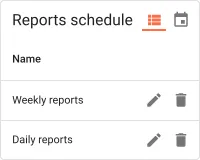
The Reports schedule widget is a dashboard-embedded panel for managing scheduled report deliveries, pre-scoped to Generate Report events so users can create, edit, and delete report schedules without an event-type selection step. Use it on reporting dashboards or self-service portals where users manage their own recurring report deliveries without accessing the Scheduler administration page.
Adding the Widget
Section titled “Adding the Widget”- Open the dashboard in edit mode. Click Add widget in the top toolbar, or click the Add new widget icon in the center of an empty dashboard.
- In the widget bundle selection dialog, find and click Scheduling.
- Select the Reports schedule widget.
- Configure the appearance and click Add.
Configuration
Section titled “Configuration”The Reports schedule widget reads directly from the scheduler service and requires no datasource. All configuration lives in four tabs: Appearance, Widget card, Actions, and Layout.
Appearance
Section titled “Appearance”Controls which columns appear in the table, pagination behavior, available view modes, and optional custom event type definitions.
Display Columns
Section titled “Display Columns”Select which additional columns are visible in the list view alongside the always-present Name column:
| Column | Description |
|---|---|
| Created time | Timestamp when the report schedule was created |
| Type | The scheduler event type (shows generateReport for all entries in the default configuration) |
| Created by customer | The customer who created the schedule |
| Schedule | The configured timing — start time, recurrence, and timezone |
Pagination
Section titled “Pagination”Toggle Display pagination to enable paged navigation when the schedule list is longer than the page size.
When pagination is enabled:
| Setting | Description |
|---|---|
| Step increment | Number of rows added per step when the user changes the page size |
| Number of steps | How many page-size options appear in the selector |
| Default page size | Initial number of rows per page (default: 10) |
Sort and View Options
Section titled “Sort and View Options”| Setting | Description |
|---|---|
| Default sort order | The field used to sort the list on first load (default: name) |
| Enabled scheduler events views | Which view modes the widget offers: Both (list and calendar toggles visible), List View Only, or Calendar View Only |
| “No data to display” alternative message | A custom message shown inside the widget when there are no report schedules |
| Force default event type | Pre-selects the event type used when creating a new schedule (default: generateReport). Changing this overrides the report-scheduling focus of the widget — leave as generateReport unless you intentionally want to surface other event types |
Custom Event Types
Section titled “Custom Event Types”Extend the widget with additional event type forms beyond the built-in generateReport. Each custom event type appears in the type selector when creating a new schedule.
Click Add custom event type to configure a new type:
| Field | Description |
|---|---|
| Display name | Human-readable label shown in the event type selector |
| Type name | Internal identifier used as the Rule Engine message type |
| Display originator entity select | When enabled, shows a field for selecting the message originator (device, asset, etc.) |
| Display message type select | When enabled, shows a field for setting the Rule Engine message type |
| Display message metadata table | When enabled, shows a key-value editor for message metadata |
| Configuration HTML template | An HTML form template rendered inside the creation and edit dialog for capturing event-specific parameters |
Widget Card
Section titled “Widget Card”Standard card settings shared across all ThingsBoard widgets.
Card Title
Section titled “Card Title”| Setting | Description |
|---|---|
| Display widget title | Toggle to show or hide the widget title bar |
| Title | Widget title text (default: Reports schedule) |
| Title Tooltip | Optional tooltip shown on title hover |
| Display title icon | Toggle to show an icon next to the title; configure the icon and its size |
| Advanced title style | JSON object for fine-grained title CSS (font size, weight, padding, etc.) |
Card Style
Section titled “Card Style”| Setting | Description |
|---|---|
| Text color | Default text color across the card |
| Background color | Card background fill |
| Padding | Inner spacing between card edge and content (default: 4px) |
| Margin | Outer spacing around the card |
| Border radius | Corner rounding in pixels |
| Drop shadow | Card elevation shadow (enabled by default) |
| Advanced widget style | JSON object for custom CSS applied to the widget container |
| Widget CSS | Raw CSS injected into the widget scope for full visual customization |
Card Buttons
Section titled “Card Buttons”| Setting | Description |
|---|---|
| Enable fullscreen | Adds a fullscreen toggle button in the widget header |
Actions
Section titled “Actions”The Reports schedule widget supports the Widget header button action — a custom button placed in the widget header that triggers a configured action when clicked.
Layout
Section titled “Layout”| Setting | Description |
|---|---|
| Resizable | Allow the widget to be resized on the dashboard grid (enabled by default) |
| Preserve aspect ratio | Maintain the width-to-height ratio when resizing |
| Hide widget in mobile mode | Hides the widget when the dashboard is displayed in mobile layout |
| Hide widget in desktop mode | Hides the widget when the dashboard is displayed in desktop layout |
| Order | Position in the mobile layout stacking order |
| Height | Fixed height in rows for mobile layout |
Troubleshooting
Section titled “Troubleshooting”Widget Shows No Schedules
| Cause | Solution |
|---|---|
| No report schedules have been created yet | Click the + button inside the widget to create a new schedule, or add one from the Scheduler administration page. |
| The current user has no permission to view scheduler events | Verify the user’s role and customer permissions in Roles. |
| Force default event type was changed to a non-report type | Restore the value to generateReport to show report schedules again. |
Calendar View Is Not Available
| Cause | Solution |
|---|---|
| Enabled scheduler events views is set to List View Only | Open the widget configuration → Appearance and change the setting to Both or Calendar View Only. |
The Creation Form Shows Event Type Selection Instead of Opening Generate Report Directly
| Cause | Solution |
|---|---|
| Force default event type field was cleared or changed | Set Force default event type back to generateReport in the Appearance tab. |
Was this helpful?