Application profiles and templates
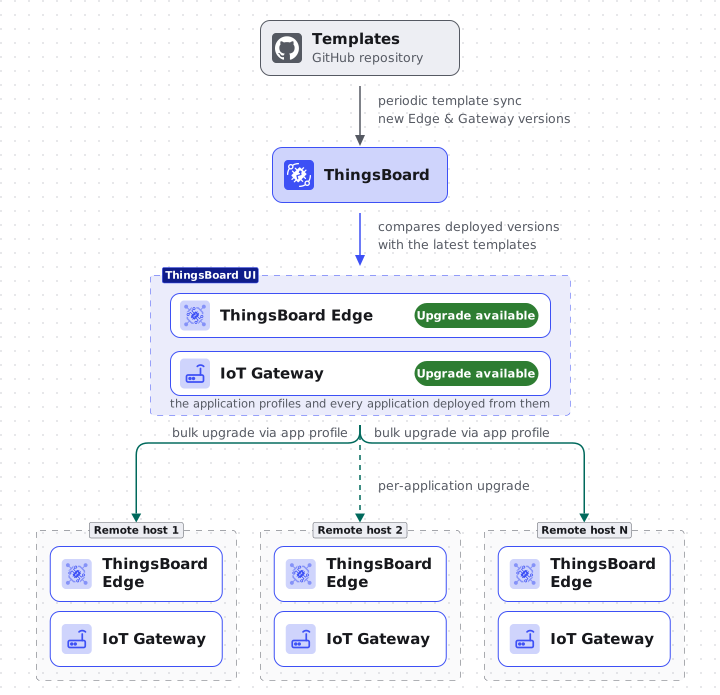
An application profile is a reusable application configuration: the application type, a template version, the Docker Compose configuration, and custom arguments. Profiles keep fleets consistent. Applications deployed from the same profile share one configuration and can be operated on with bulk actions. Upgrading the profile does not upgrade its applications automatically: move them to the new version with a per-application or bulk upgrade.
Templates
Section titled “Templates”Application profiles are built on templates: versioned application definitions maintained for the ThingsBoard Edge and IoT Gateway application types. A template provides the Docker Compose configuration for each supported product version and defines the step sequences the agent executes for install, upgrade, restart, rollback, and delete operations.
ThingsBoard syncs templates from a public repository periodically, so new product versions become available for deployment and upgrade without a platform update. Browse them under Edge management > Templates.
Create an application profile
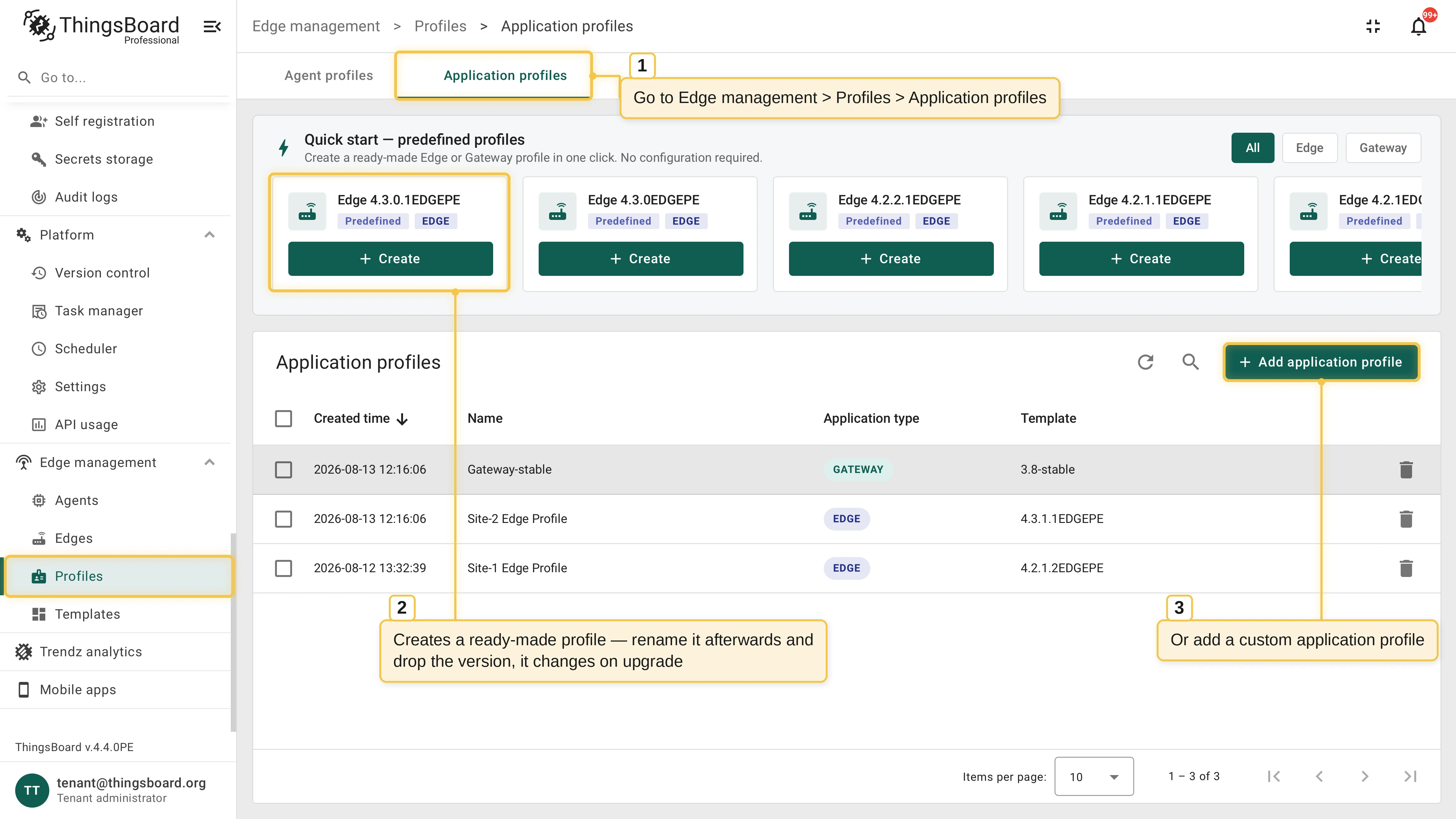
Section titled “Create an application profile”Go to Edge management > Profiles > Application profiles. There are two ways to create a profile: pick a ready-made card from the Quick start panel, or configure a custom profile with Add application profile.
Quick start
Section titled “Quick start”To deploy ThingsBoard Edge or IoT Gateway with the default configuration, pick a card from the Quick start panel and click Create. It creates a ready-made profile from the latest template version, with no configuration required.
After creation, rename the profile to something meaningful for your use case, like Factory Edge. Leave the version out of the name: the profile moves to newer template versions over time, and a versioned name becomes misleading.
Advanced setup
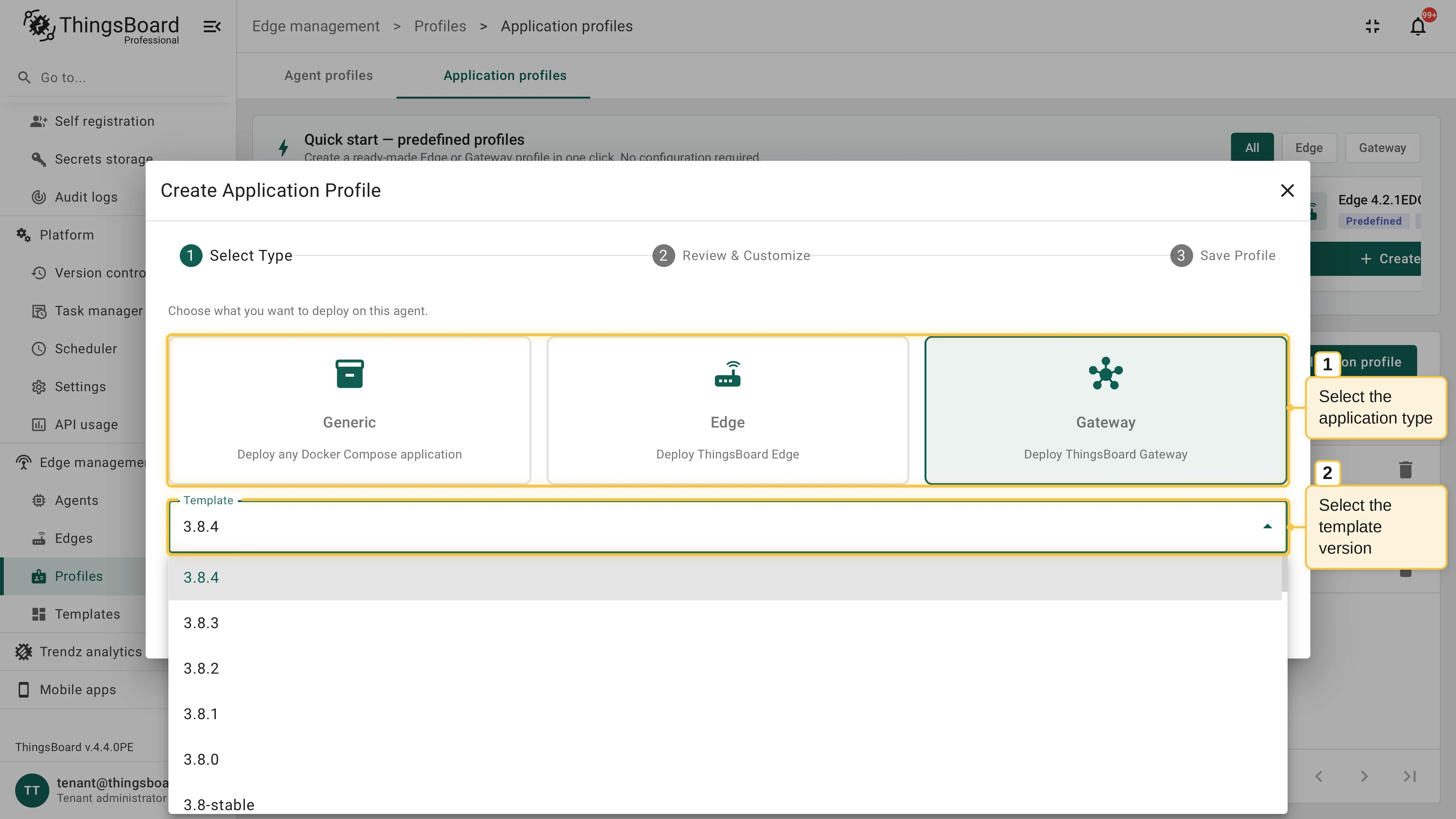
Section titled “Advanced setup”Click Add application profile, select the application type (Generic, Edge, or Gateway) and the template version, and click Next.
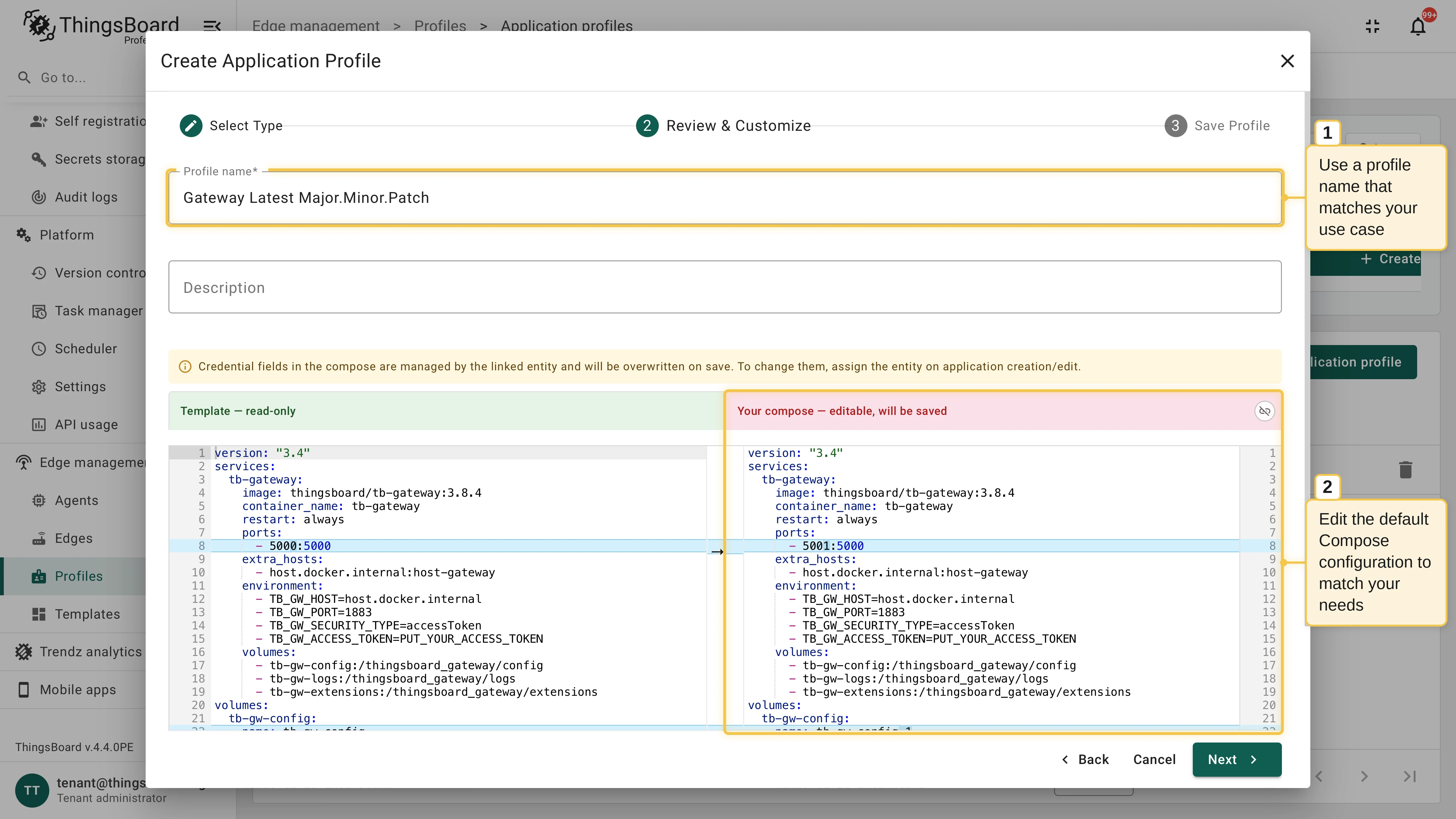
On the Review & Customize step, enter the profile name and edit your Docker Compose configuration next to the read-only template. Add custom arguments to parameterize the configuration per deployment, and click Next.
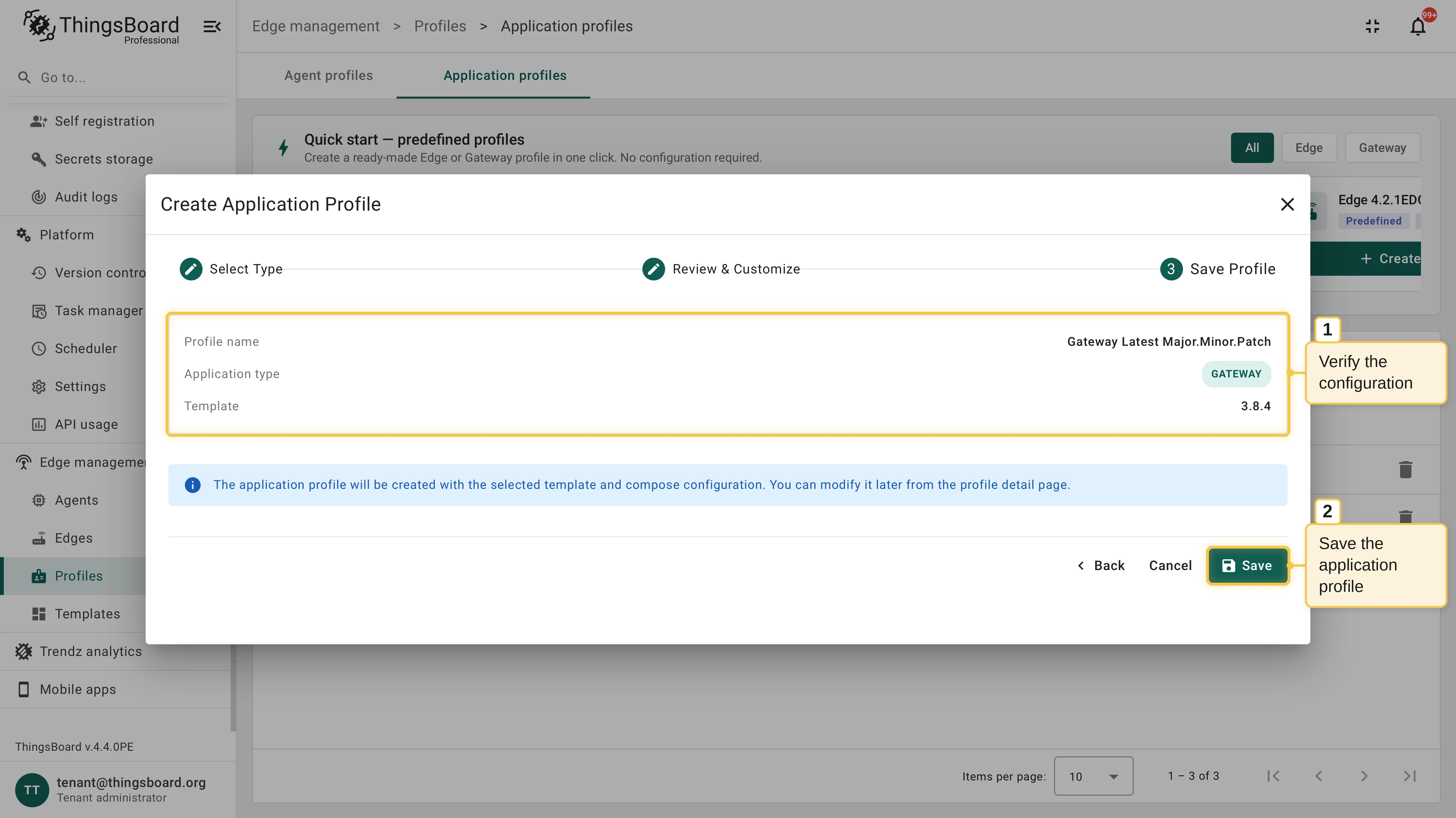
Verify the configuration and click Save.
Use a profile
Section titled “Use a profile”- Deploy applications: Select the profile in the application install wizard.
- Auto-install on new hosts: Assign the profile to an agent profile with an auto-install provisioning strategy.
- Attach discovered applications: Enable Relate on Auto-Discovery on the agent profile assignment. Auto-discovered applications whose Edge or Gateway image matches the profile’s template are assigned this application profile automatically. This is built for environments that already run many applications, like an existing Edge fleet: attached applications become eligible for managed upgrades and bulk actions.
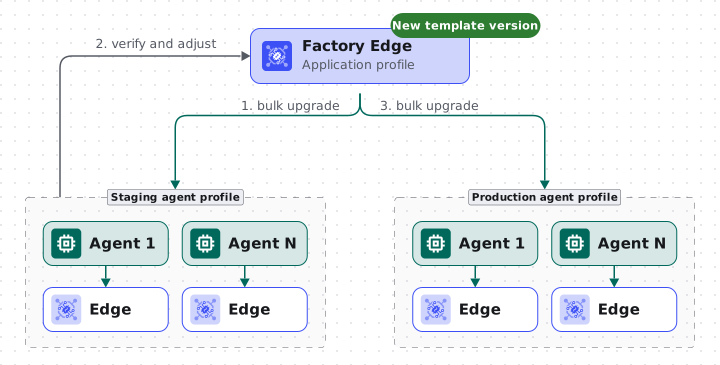
One profile can serve several agent profiles at once, which supports staged rollouts: upgrade the staging fleet first, verify the result, then upgrade production.
Edit a profile
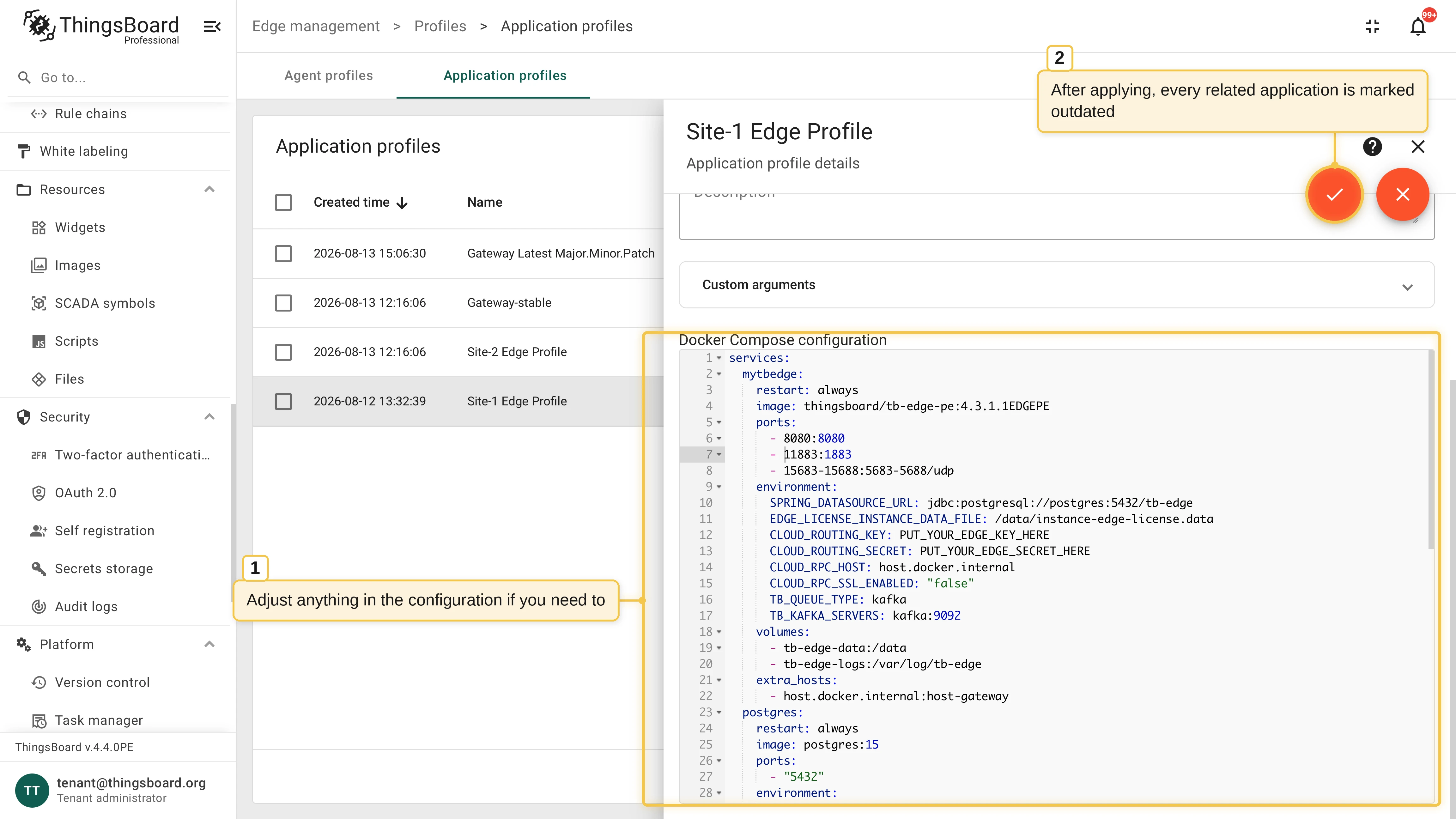
Section titled “Edit a profile”Open the profile from the list to edit its Docker Compose configuration, custom arguments, and description in place, then apply the changes.
Editing does not touch running applications: once the profile is saved, every application assigned to it is marked out of sync. Apply the new configuration with an application update or a bulk update.
Profile versions and upgrades
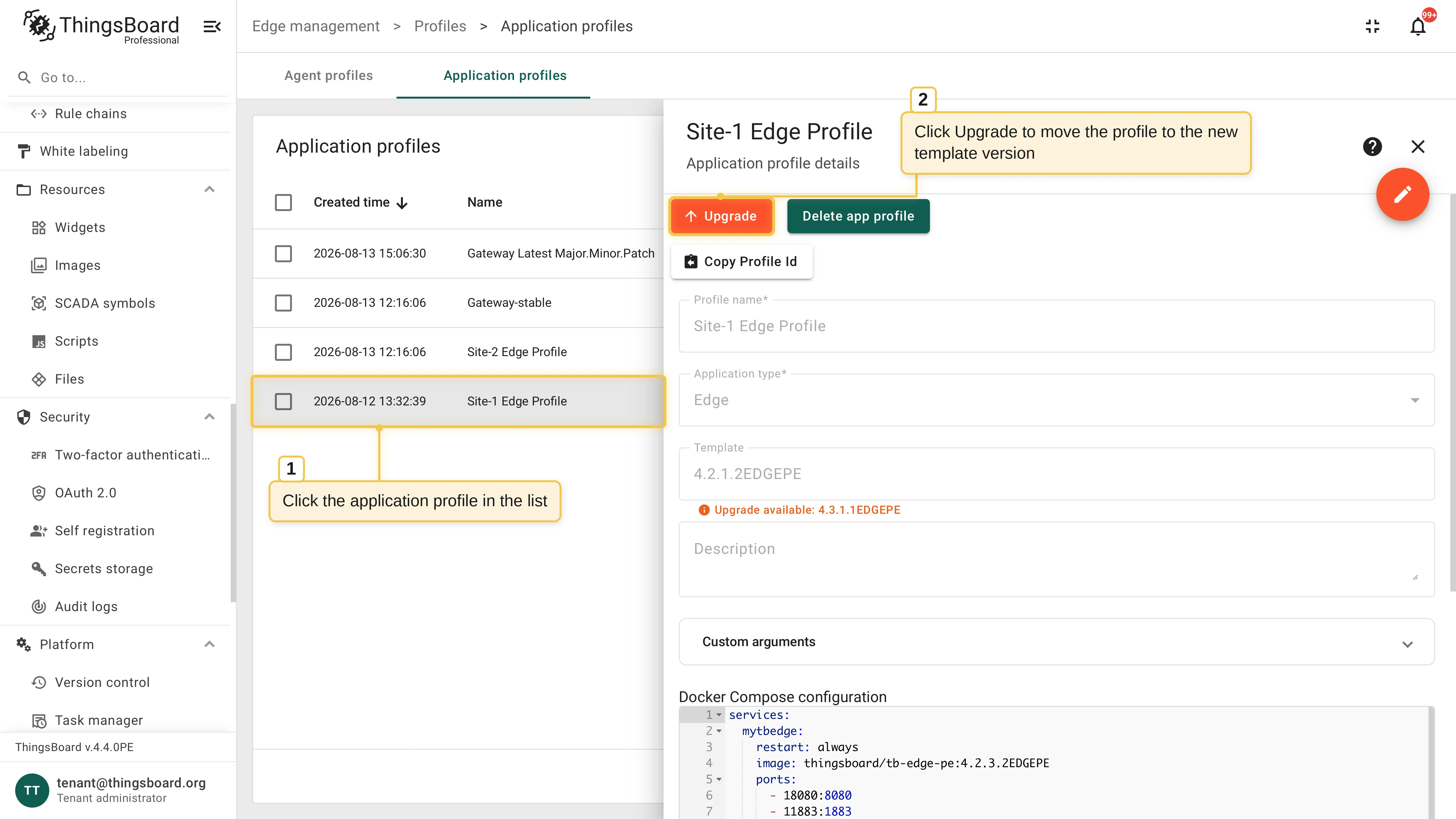
Section titled “Profile versions and upgrades”Each profile points at a specific template version. When a newer template version is available, the profile shows an Upgrade action:
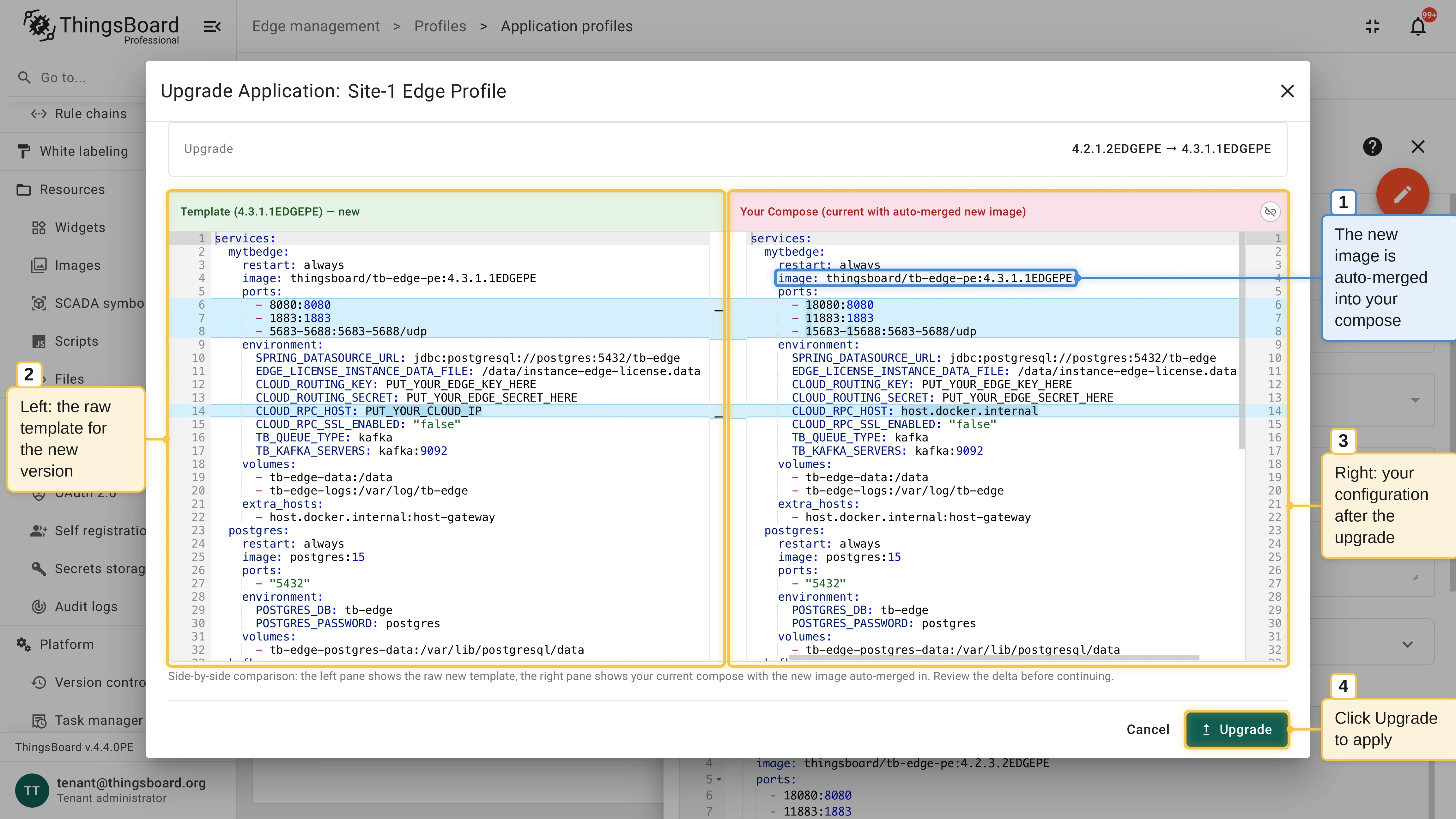
Open the application profile and click Upgrade.
Review the merge preview. ThingsBoard merges the new template version into your Docker Compose configuration and shows the resulting changes side by side.
Confirm the upgrade. The profile now points at the new template version.
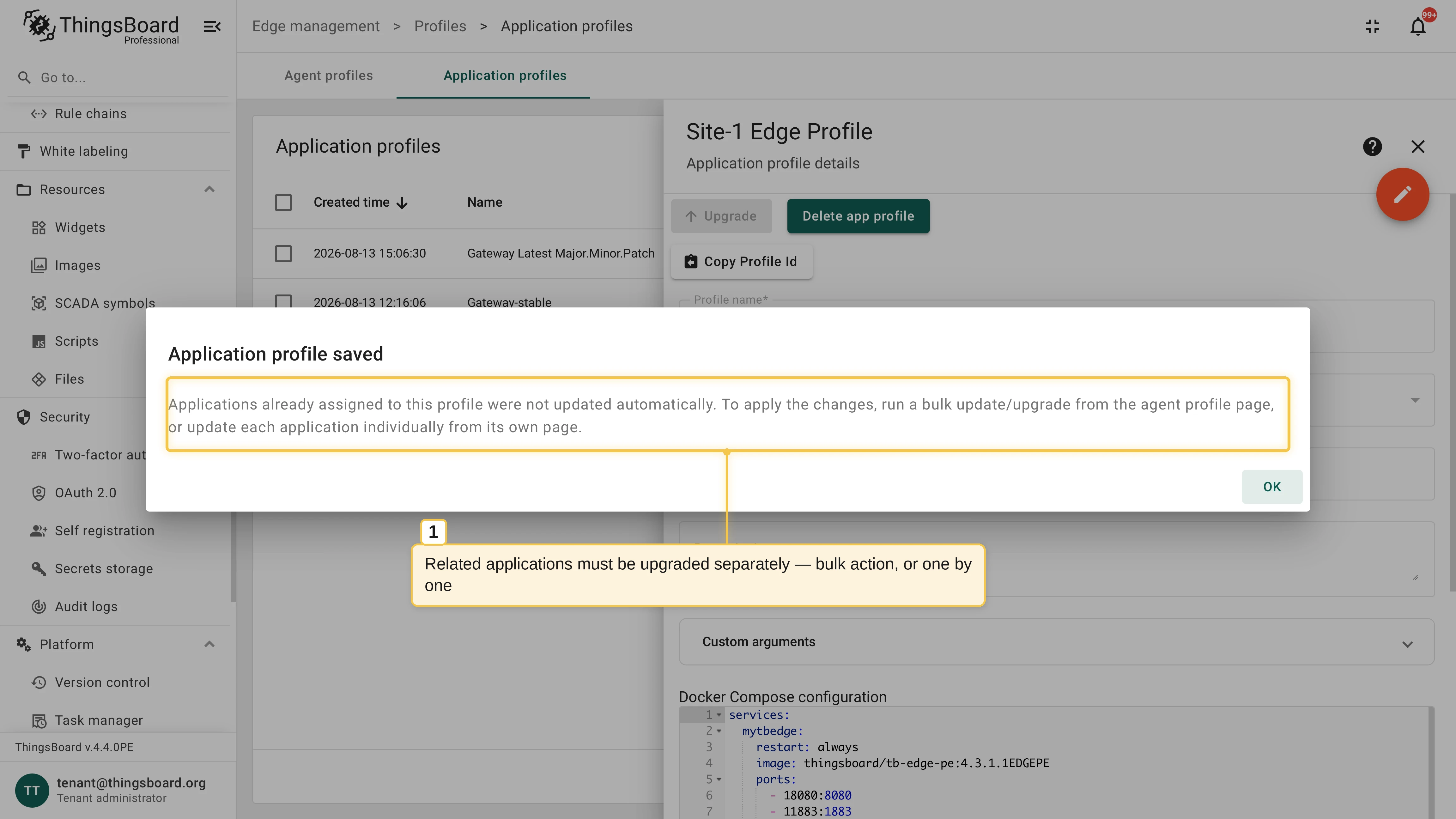
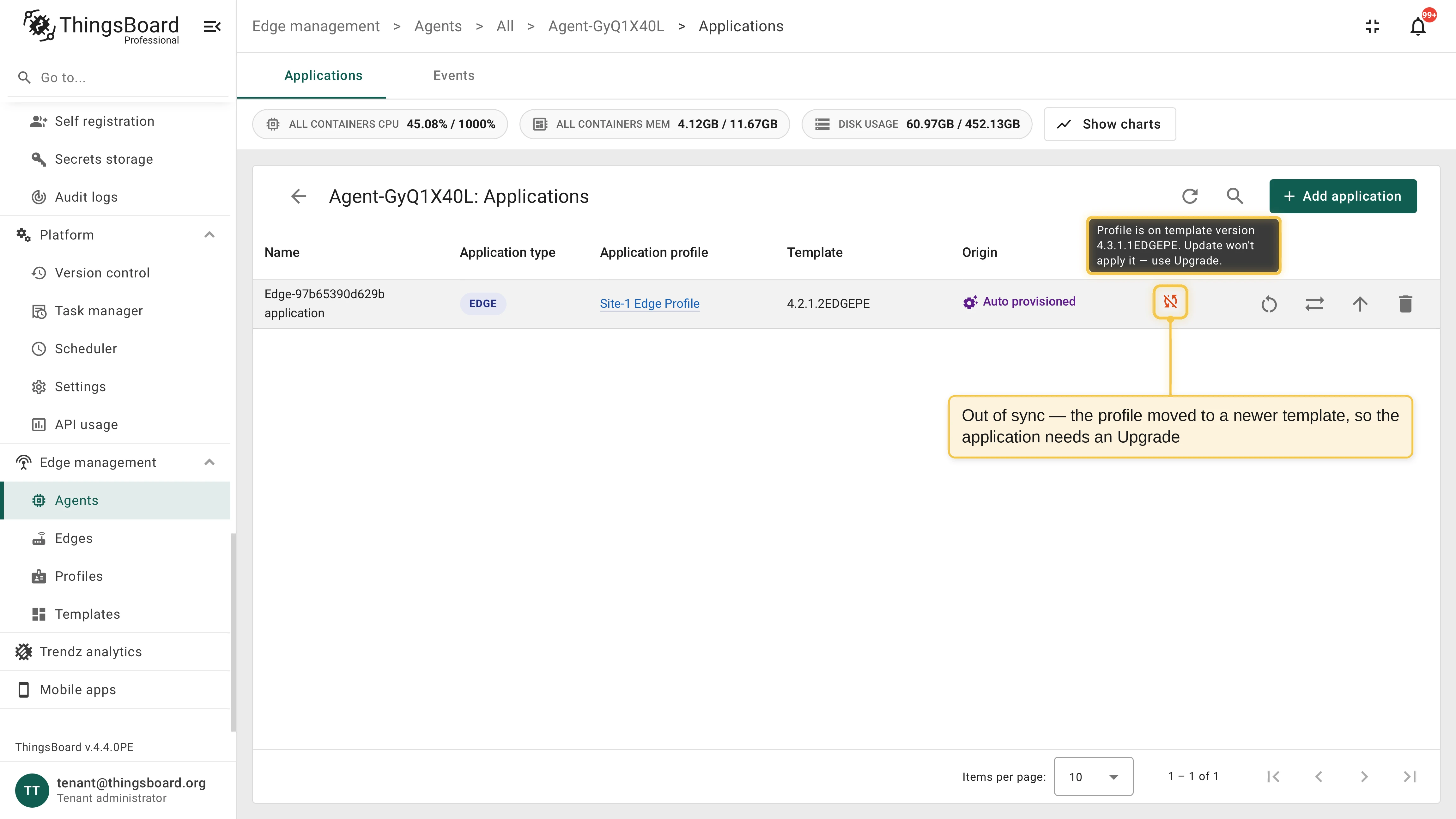
Upgrading a profile does not touch running applications: they keep their current version and are no longer in sync with the profile. Upgrade applications individually from the applications table or all at once with a bulk upgrade.
Was this helpful?