
Files
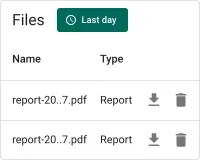
The Files widget displays a filterable table of files stored in ThingsBoard’s file storage directly on a dashboard, with per-row Download and Delete actions. Use it on dashboards where non-admin users need self-service access to download or manage generated files without leaving the dashboard context.
Adding the widget
Section titled “Adding the widget”- Open the dashboard in edit mode. Click Add widget in the top toolbar, or click the Add new widget icon in the center of an empty dashboard.
- In the widget bundle selection dialog, find and click Files.
- Select the Files widget.
- Configure the appearance and click Add.
Configuration
Section titled “Configuration”The Files widget reads directly from the file storage service and requires no datasource. All configuration lives in four tabs: Appearance, Widget card, Actions, and Layout.
Appearance
Section titled “Appearance”Controls the table header, visible columns, pagination, and an optional blob entity type filter.
Table title
Section titled “Table title”| Setting | Description |
|---|---|
| Blob entities table title | Text shown above the file list inside the widget (default: Files) |
Display columns
Section titled “Display columns”Toggle individual columns on or off in the list view. The Name column is always visible.
| Toggle | Description |
|---|---|
| Display created time column | Shows the timestamp when the file was stored (enabled by default) |
| Display type column | Shows the blob entity type, such as Report (enabled by default) |
| Display customer column | Shows the customer the file belongs to (enabled by default) |
Pagination
Section titled “Pagination”Toggle Display pagination to enable paged navigation when the file list grows long.
When enabled:
| Setting | Description |
|---|---|
| Step increment | Number of rows added per step when the user changes the page size (default: 10) |
| Number of steps | How many page-size options appear in the selector (default: 3) |
| Default page size | Initial number of rows per page (default: 10) |
Sort and filter options
Section titled “Sort and filter options”| Setting | Description |
|---|---|
| Default sort order | The field used to sort the list on first load (default: name) |
| “No data to display” alternative message | A custom message shown inside the widget when no files match the current time range |
| Force default blob entity type | When set, filters the file list to show only entries of the specified blob entity type (for example, Report). Leave blank to show all file types |
Widget card
Section titled “Widget card”Standard card settings shared across all ThingsBoard widgets.
Card title
Section titled “Card title”| Setting | Description |
|---|---|
| Display widget title | Toggle to show or hide the widget title bar |
| Title | Widget title text (default: Files) |
| Title Tooltip | Optional tooltip shown on title hover |
| Display title icon | Toggle to show an icon next to the title; configure the icon and its size |
| Advanced title style | JSON object for fine-grained title CSS (font size, weight, padding, etc.) |
Card style
Section titled “Card style”| Setting | Description |
|---|---|
| Text color | Default text color across the card |
| Background color | Card background fill |
| Padding | Inner spacing between card edge and content (default: 4px) |
| Margin | Outer spacing around the card |
| Border radius | Corner rounding in pixels |
| Drop shadow | Card elevation shadow (enabled by default) |
| Advanced widget style | JSON object for custom CSS applied to the widget container |
| Widget CSS | Raw CSS injected into the widget scope for full visual customization |
Card buttons
Section titled “Card buttons”| Setting | Description |
|---|---|
| Enable fullscreen | Adds a fullscreen toggle button in the widget header |
Actions
Section titled “Actions”The Files widget supports the Widget header button action — a custom button placed in the widget header that triggers a configured action when clicked.
Layout
Section titled “Layout”| Setting | Description |
|---|---|
| Resizable | Allow the widget to be resized on the dashboard grid (enabled by default) |
| Preserve aspect ratio | Maintain the width-to-height ratio when resizing |
| Hide widget in mobile mode | Hides the widget when the dashboard is displayed in mobile layout |
| Hide widget in desktop mode | Hides the widget when the dashboard is displayed in desktop layout |
| Order | Position in the mobile layout stacking order |
| Height | Fixed height in rows for mobile layout |
Troubleshooting
Section titled “Troubleshooting”Widget shows no files
| Cause | Solution |
|---|---|
| The current time range filter excludes all stored files | Expand the time range using the filter button in the widget header, or switch to All time. |
| No files have been stored yet | Files are created automatically when the Reporting feature generates a report. Verify that report generation has run successfully. |
| Force default blob entity type is set to a type with no files | Clear the field or correct the type name to match an existing blob entity type. |
| The current user has no permission to view file storage | Verify the user’s role and customer permissions in Roles. |
Download button does nothing
| Cause | Solution |
|---|---|
| Browser pop-up blocker is preventing the download | Allow pop-ups from the ThingsBoard domain in the browser settings, then try again. |
Type column shows unexpected values
| Cause | Solution |
|---|---|
| Multiple blob entity types are stored | Set Force default blob entity type to restrict the list to a single type, or disable Display type column if the type is always the same. |
Was this helpful?