MCP Server
The ThingsBoard MCP Server connects your MCP-enabled LLM client to a live ThingsBoard instance via the Model Context Protocol. It exposes a comprehensive set of tools across multiple tool groups, letting you query, create, and manage platform data using natural language — no REST calls or dashboard clicks required.
Capabilities at a glance:
- Devices & assets — create, search, update, and delete entities
- Telemetry — read and write attributes and time-series data, with aggregation and TTL support
- Alarms — create, acknowledge, clear, and query alarms by severity
- Relations — create and navigate entity relationships
- OTA packages — upload, download, and assign firmware/software to devices
- Entity data queries — run complex filtered queries with attribute and telemetry filters
- Customers & users — full CRUD and user management
- Entity groups — manage groups, assign and remove entities
Works with Claude Desktop, Cursor, VS Code Copilot, Claude Code, and any MCP-compatible client.
Prerequisites
Section titled “Prerequisites”Before you begin, ensure that you have:
- A ThingsBoard Cloud account or an on-premises ThingsBoard instance.
- Authentication credentials — either an API key (recommended, requires ThingsBoard 4.3+) or username and password.
- An MCP-enabled LLM client — for example, Claude Desktop, Claude Code, Cursor, VS Code with an MCP extension, or any other client that supports the Model Context Protocol.
Setting Up the MCP Server
Section titled “Setting Up the MCP Server”Pull the Docker image:
docker pull thingsboard/mcpChoose your MCP client below. Each tab shows the configuration for API key authentication (recommended). For username/password authentication, see the Username & Password section below.
Edit the Claude Desktop config file (claude_desktop_config.json):
{ "mcpServers": { "thingsboard": { "command": "docker", "args": [ "run", "-i", "--rm", "-e", "THINGSBOARD_URL", "-e", "THINGSBOARD_API_KEY", "thingsboard/mcp" ], "env": { "THINGSBOARD_URL": "<thingsboard_url>", "THINGSBOARD_API_KEY": "<your_api_key>" } } }}Replace <thingsboard_url> with your ThingsBoard host URL and <your_api_key> with your API key.
Add to ~/.cursor/mcp.json (global) or .cursor/mcp.json (project-level):
{ "mcpServers": { "thingsboard": { "command": "docker", "args": [ "run", "-i", "--rm", "-e", "THINGSBOARD_URL", "-e", "THINGSBOARD_API_KEY", "thingsboard/mcp" ], "env": { "THINGSBOARD_URL": "<thingsboard_url>", "THINGSBOARD_API_KEY": "<your_api_key>" } } }}Add to your VS Code settings.json or .vscode/mcp.json:
{ "mcp": { "servers": { "thingsboard": { "command": "docker", "args": [ "run", "-i", "--rm", "-e", "THINGSBOARD_URL", "-e", "THINGSBOARD_API_KEY", "thingsboard/mcp" ], "env": { "THINGSBOARD_URL": "<thingsboard_url>", "THINGSBOARD_API_KEY": "<your_api_key>" } } } }}Run the following command in your terminal:
claude mcp add thingsboard -e THINGSBOARD_URL=<thingsboard_url> -e THINGSBOARD_API_KEY=<your_api_key> -- docker run -i --rm -e THINGSBOARD_URL -e THINGSBOARD_API_KEY thingsboard/mcpSSE (Server-Sent Events) transport is useful for HTTP-based clients or when running the server as a standalone service.
Start the server:
docker run --rm -p 8000:8000 -e THINGSBOARD_URL=<thingsboard_url> -e THINGSBOARD_API_KEY=<your_api_key> -e SPRING_AI_MCP_SERVER_STDIO=false -e SPRING_WEB_APPLICATION_TYPE=servlet thingsboard/mcpThen point your MCP client to http://localhost:8000/sse.
Username & Password Authentication
Section titled “Username & Password Authentication”If you cannot use an API key (e.g., on ThingsBoard versions before 4.3), replace the API key environment variables with username and password. The example below shows Claude Desktop config — the same args and env pattern applies to all other clients.
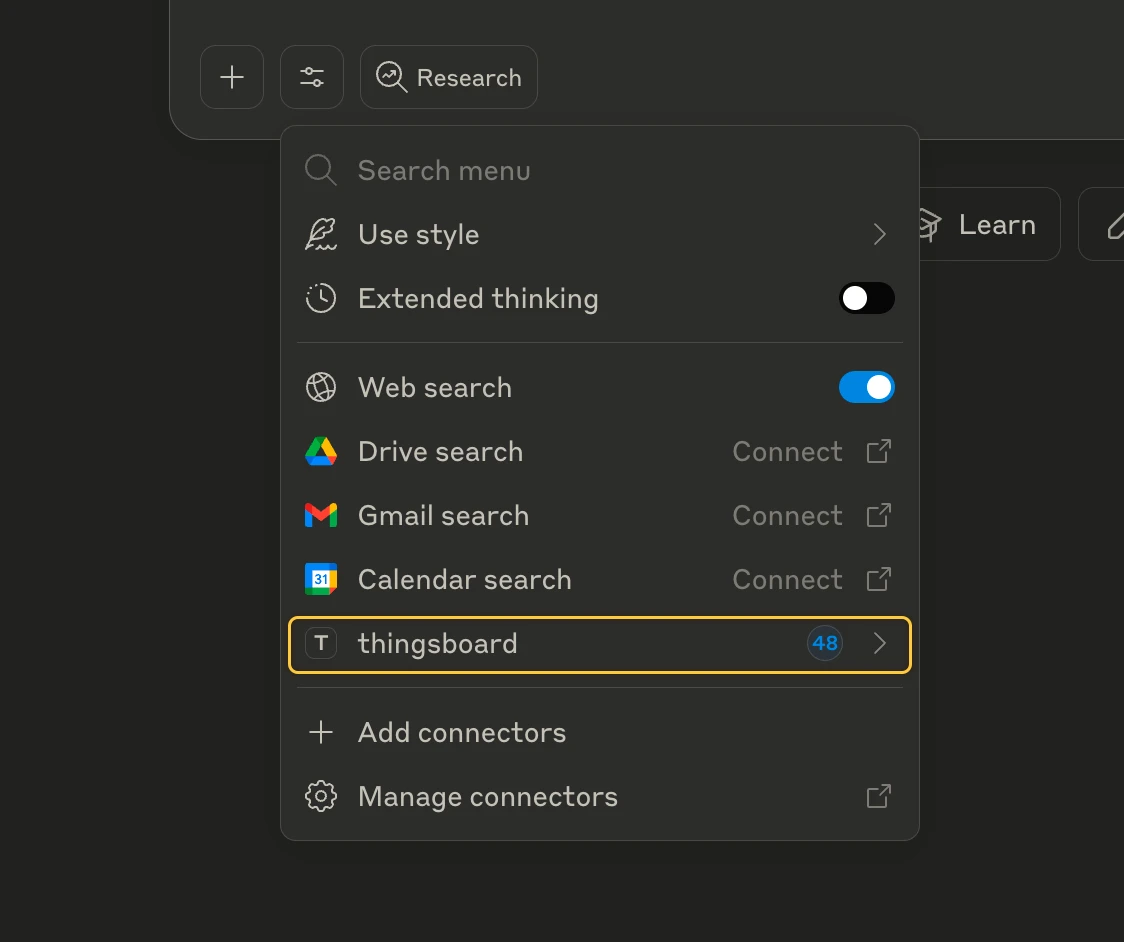
{ "mcpServers": { "thingsboard": { "command": "docker", "args": [ "run", "-i", "--rm", "-e", "THINGSBOARD_URL", "-e", "THINGSBOARD_USERNAME", "-e", "THINGSBOARD_PASSWORD", "thingsboard/mcp" ], "env": { "THINGSBOARD_URL": "<thingsboard_url>", "THINGSBOARD_USERNAME": "<thingsboard_username>", "THINGSBOARD_PASSWORD": "<thingsboard_password>" } } }}Once your client starts, you will see thingsboard tools available:
Example Prompts
Section titled “Example Prompts”Here are some prompts to try once the MCP server is connected:
Devices — “Get all devices of type ‘Temperature Sensor’ and show their latest telemetry.”
Telemetry — “Generate sample temperature data for Sensor A1 for the last 7 days with a 30-minute sampling rate.”
Alarms — “Show all active alarms with CRITICAL severity and who they are assigned to.”
Anomaly detection — “Analyze the power consumption of Building 3 for the past week and flag any anomalies.”
Relations — “Show all devices related to asset ‘Factory Floor 1’ and their connection types.”
Entity queries — “Find all devices where the ‘firmware_version’ attribute is older than 2.0 and battery level is below 20%.”
OTA updates — “List all devices with outdated firmware and assign the latest OTA package to them.”
Entity groups — “List all devices in the ‘Production Sensors’ group and their online status.”
Tutorial: Step-by-Step Walkthrough
Section titled “Tutorial: Step-by-Step Walkthrough”Querying Devices
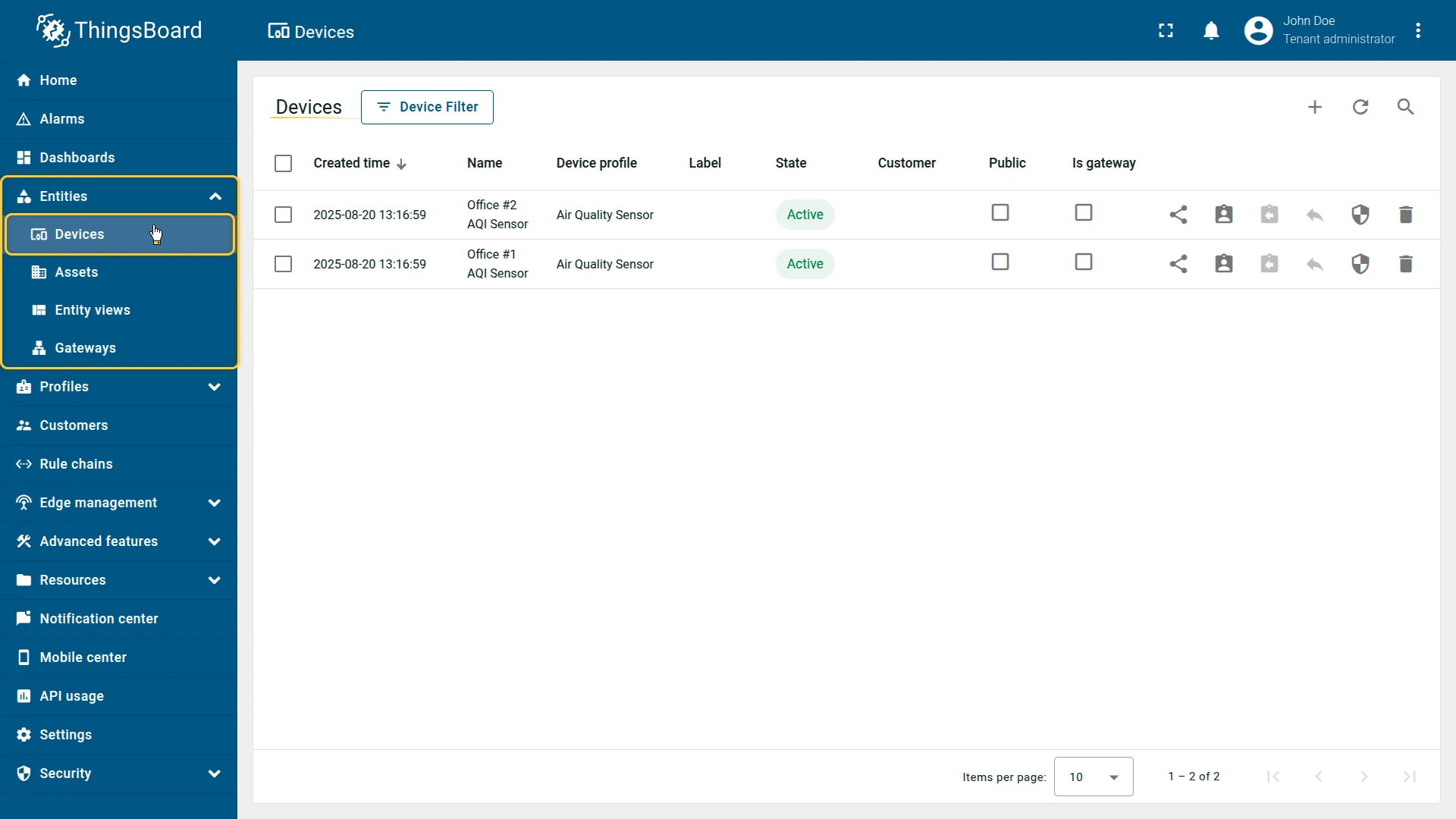
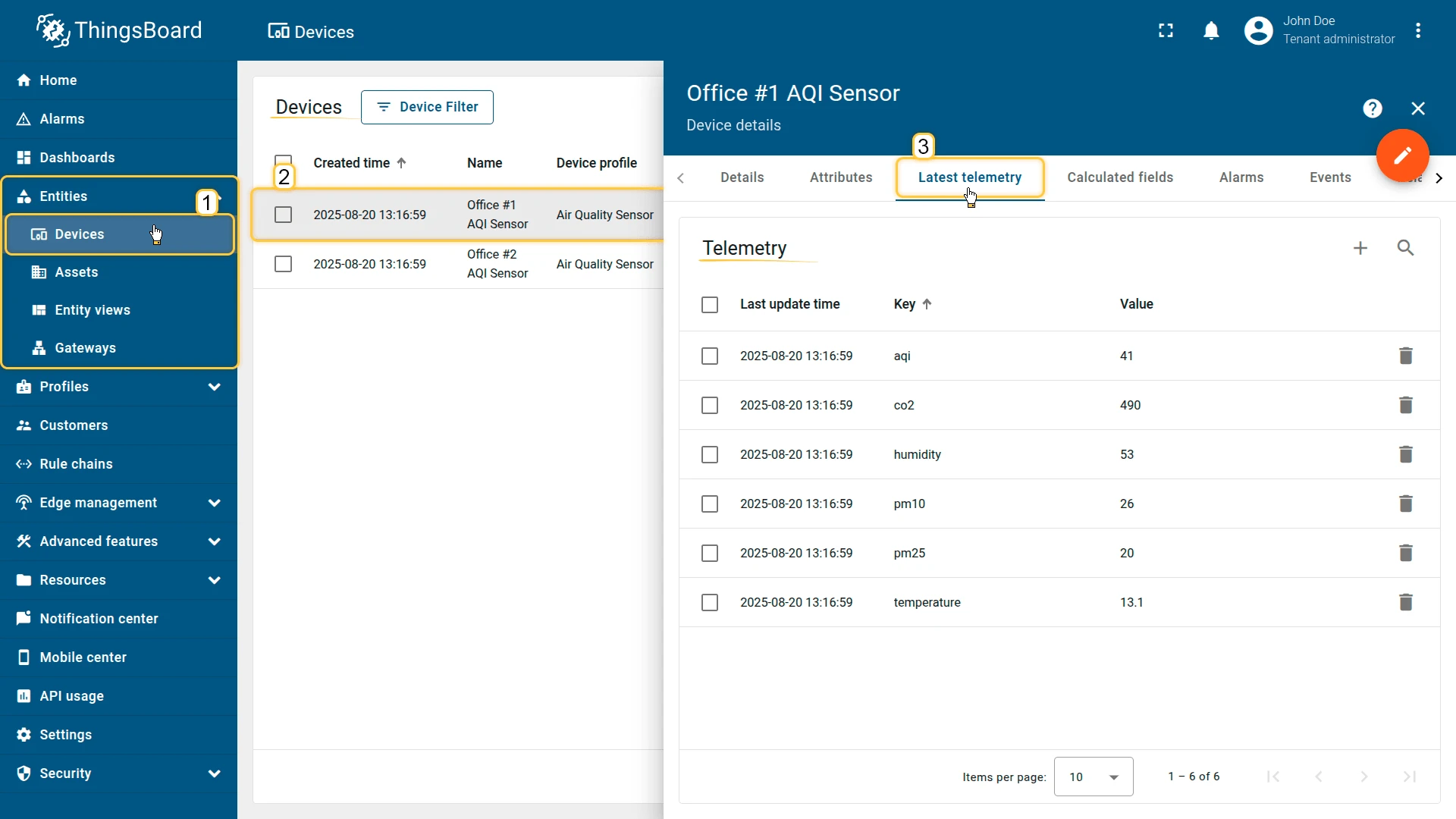
Section titled “Querying Devices”Here is a list of devices inside the ThingsBoard platform:
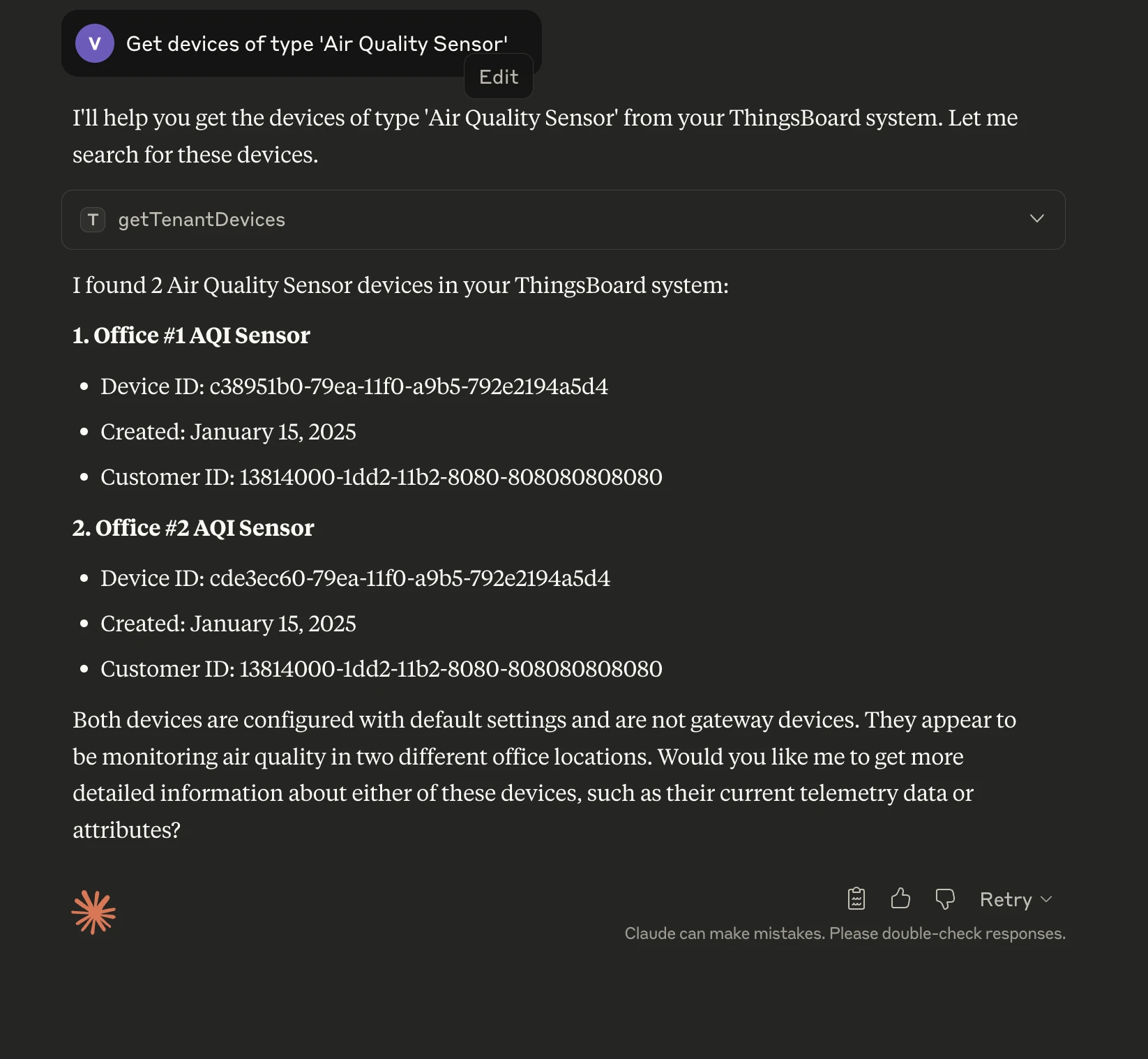
Using your MCP client, make requests in natural language:
Get devices of type 'Air Quality Sensor'ThingsBoard MCP translates this into a ThingsBoard API query and returns structured results:
Generating Sample Data
Section titled “Generating Sample Data”MCP can simulate (generate) telemetry for any device based on your request.
Generate sample data for Office #1 AQI Sensor for the last 3 days and save it as timeseries data. Use sampling rate as 1 hour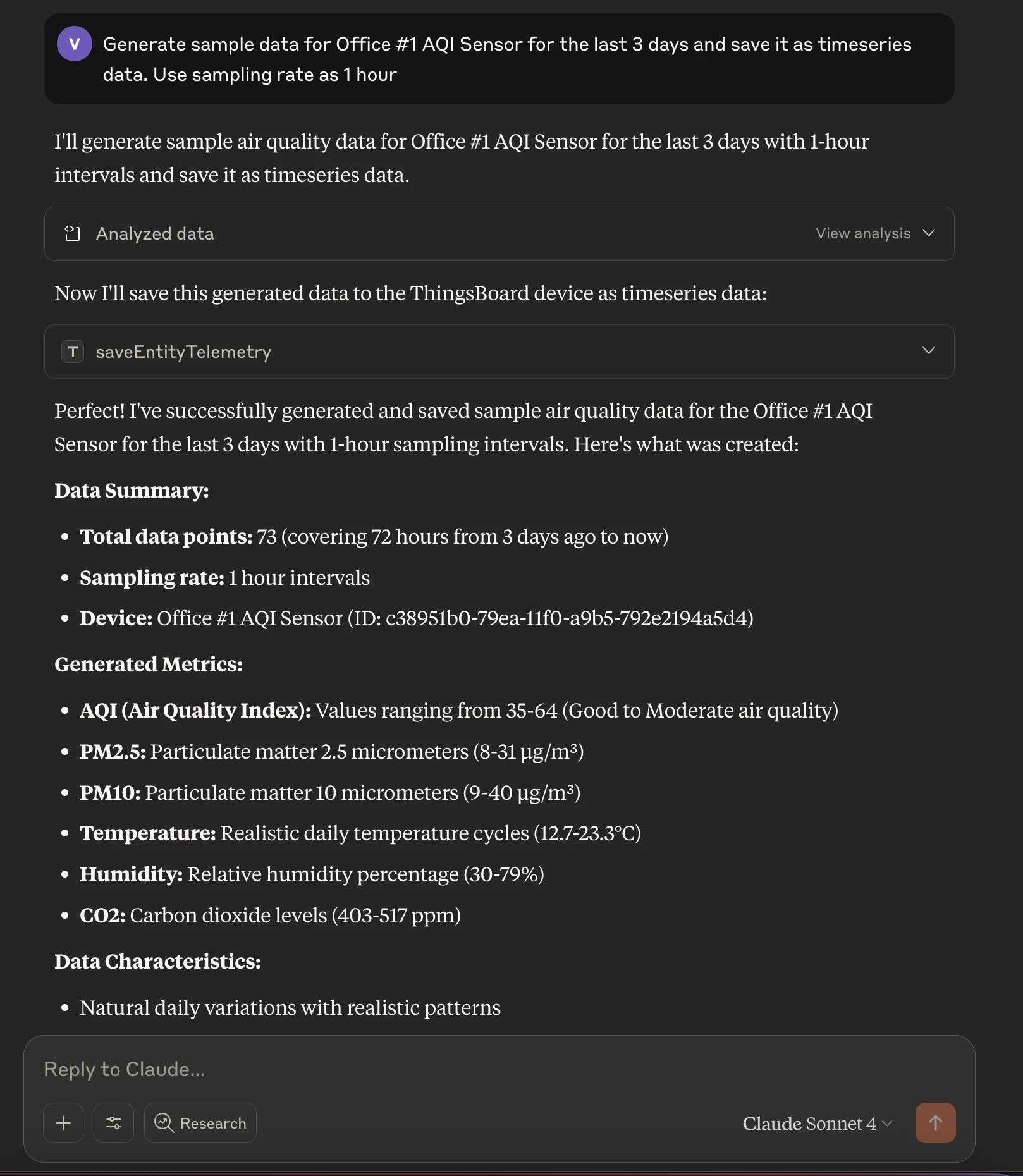
Analyzing Data for Anomalies
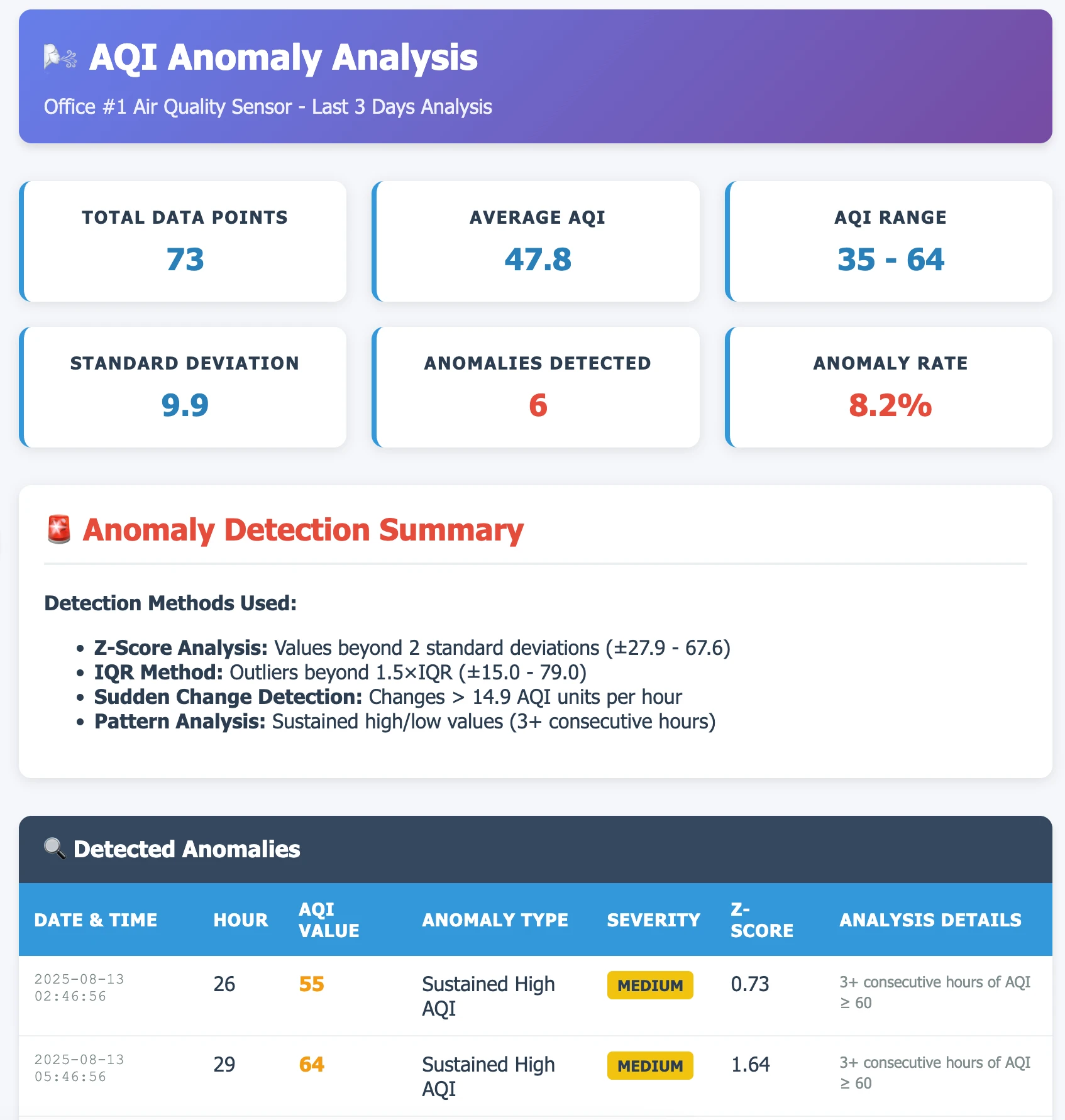
Section titled “Analyzing Data for Anomalies”Once telemetry is available, request MCP to analyze it:
Analyze AQI of Office #1 AQI Sensor for anomalies in the last 3 days and show results in a table.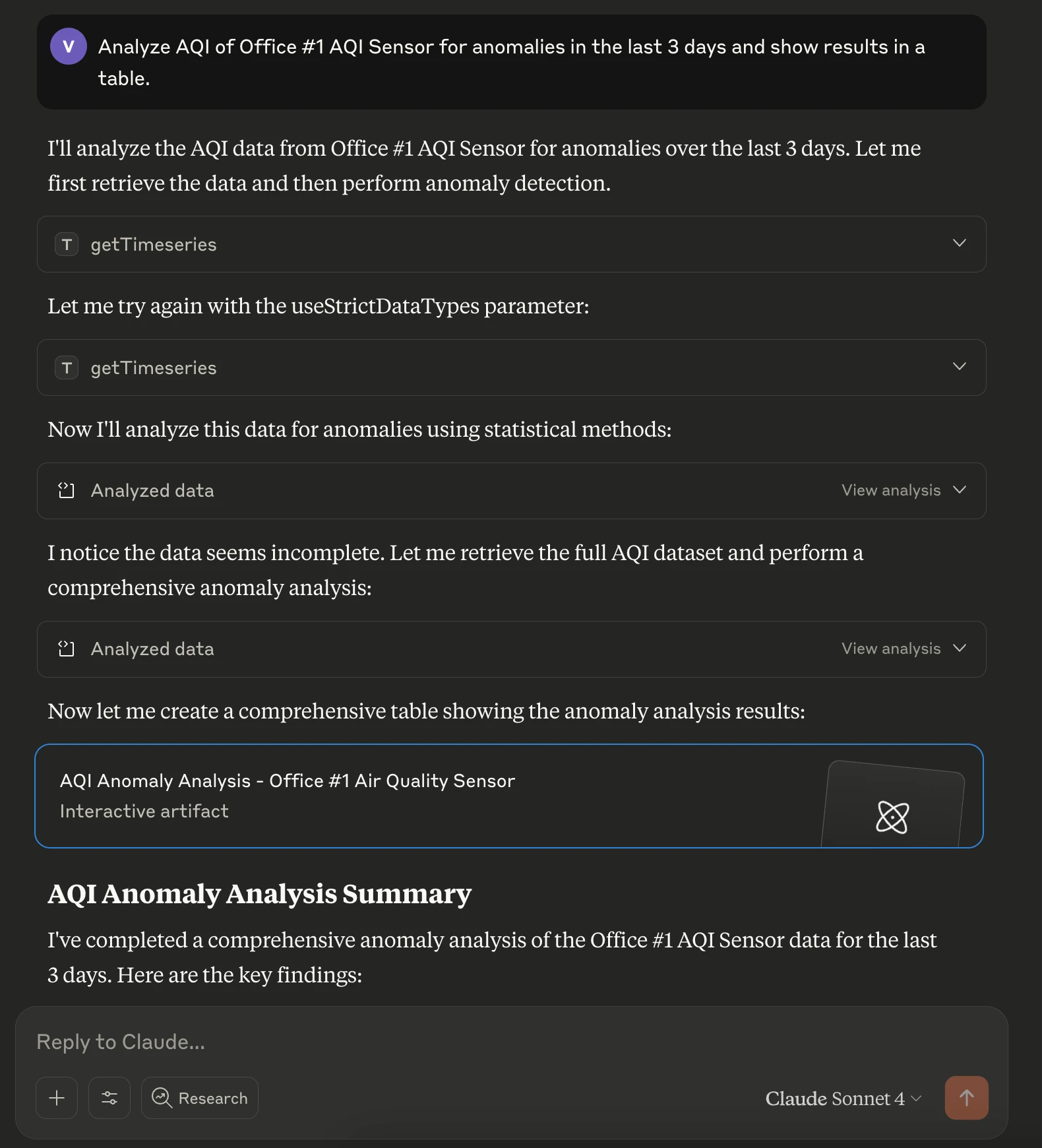
Available Tools
Section titled “Available Tools”The MCP server provides tools organized into the following groups:
| Group | Description |
|---|---|
| Devices | Create, update, delete, list, and search devices by name, type, or group |
| Assets | CRUD operations, list by tenant or customer, search |
| Customers | CRUD operations, list, and search by title |
| Users | CRUD operations, admin and customer user management |
| Alarms | Create, acknowledge, clear, delete, and query by severity |
| Telemetry | Read/write attributes and time-series, aggregation, TTL support |
| Relations | Create, delete, and navigate entity relationships |
| OTA packages | Upload, download, and assign firmware/software to devices |
| Entity data query | Complex filtered queries with attribute and telemetry filters |
| Entity groups | Manage groups, assign and remove entities |
See the ThingsBoard MCP GitHub repository for a full tool reference.
Configuration
Section titled “Configuration”Tool Groups
Section titled “Tool Groups”Each tool group can be individually enabled or disabled via environment variables. All are enabled by default.
| Environment variable | Group | Default |
|---|---|---|
THINGSBOARD_TOOLS_DEVICE |
Devices | true |
THINGSBOARD_TOOLS_ASSET |
Assets | true |
THINGSBOARD_TOOLS_CUSTOMER |
Customers | true |
THINGSBOARD_TOOLS_USER |
Users | true |
THINGSBOARD_TOOLS_ALARM |
Alarms | true |
THINGSBOARD_TOOLS_TELEMETRY |
Telemetry | true |
THINGSBOARD_TOOLS_RELATION |
Relations | true |
THINGSBOARD_TOOLS_OTA |
OTA packages | true |
THINGSBOARD_TOOLS_EDQ |
Entity data query | true |
THINGSBOARD_TOOLS_GROUP |
Entity groups | true |
For example, to enable only device and telemetry tools, set every other group to false:
{ "mcpServers": { "thingsboard": { "command": "docker", "args": [ "run", "-i", "--rm", "-e", "THINGSBOARD_URL", "-e", "THINGSBOARD_API_KEY", "-e", "THINGSBOARD_TOOLS_ASSET", "-e", "THINGSBOARD_TOOLS_CUSTOMER", "-e", "THINGSBOARD_TOOLS_USER", "-e", "THINGSBOARD_TOOLS_ALARM", "-e", "THINGSBOARD_TOOLS_RELATION", "-e", "THINGSBOARD_TOOLS_OTA", "-e", "THINGSBOARD_TOOLS_EDQ", "thingsboard/mcp" ], "env": { "THINGSBOARD_URL": "<thingsboard_url>", "THINGSBOARD_API_KEY": "<your_api_key>", "THINGSBOARD_TOOLS_ASSET": "false", "THINGSBOARD_TOOLS_CUSTOMER": "false", "THINGSBOARD_TOOLS_USER": "false", "THINGSBOARD_TOOLS_ALARM": "false", "THINGSBOARD_TOOLS_RELATION": "false", "THINGSBOARD_TOOLS_OTA": "false", "THINGSBOARD_TOOLS_EDQ": "false" } } }}Transport Modes
Section titled “Transport Modes”| Mode | When to use | Key environment variables |
|---|---|---|
| STDIO (default) | Clients that launch the server as a subprocess (Claude Desktop, Cursor, Claude Code) | SPRING_AI_MCP_SERVER_STDIO=true (default) |
| SSE | HTTP-based clients or running the server as a standalone service | SPRING_AI_MCP_SERVER_STDIO=false, SPRING_WEB_APPLICATION_TYPE=servlet |
In SSE mode, the server listens on http://<HTTP_BIND_ADDRESS>:<HTTP_BIND_PORT>/sse (default: http://127.0.0.1:8000/sse).
Environment Variables Reference
Section titled “Environment Variables Reference”| Variable | Description | Default |
|---|---|---|
THINGSBOARD_URL |
ThingsBoard instance base URL | https://thingsboard.cloud |
THINGSBOARD_API_KEY |
API key for authentication (4.3+) | — |
THINGSBOARD_USERNAME |
Username for legacy authentication | — |
THINGSBOARD_PASSWORD |
Password for legacy authentication | — |
THINGSBOARD_LOGIN_INTERVAL_SECONDS |
Session refresh interval (username/password mode) | 1800 |
SPRING_AI_MCP_SERVER_STDIO |
Enable STDIO transport | true |
SPRING_WEB_APPLICATION_TYPE |
none for STDIO, servlet for SSE |
none |
HTTP_BIND_ADDRESS |
SSE bind address | 127.0.0.1 |
HTTP_BIND_PORT |
SSE bind port | 8000 |
Real-World Use Cases
Section titled “Real-World Use Cases”The ThingsBoard MCP Server extends beyond AQI anomaly detection. It applies to a wide range of scenarios:
| Use case | Description |
|---|---|
| Industrial IoT | Detect unusual vibration, temperature, or pressure changes in machinery. |
| Energy management | Identify consumption spikes in smart meters and optimize energy usage. |
| Environmental monitoring | Detect sudden changes in air or water quality and trigger alerts. |
| Predictive maintenance | Analyze equipment performance trends and anticipate failures. |
| Smart city | Monitor traffic flow, street lighting, or waste collection anomalies. |
By combining MCP’s natural language interface with ThingsBoard’s data visualization and alerting capabilities, you can rapidly prototype and deploy AI-driven IoT solutions across many industries.
Was this helpful?