Secrets Storage
Secrets storage is a secure vault for sensitive data such as API keys, tokens, passwords, and certificates. All values are encrypted at rest using the AES-256 algorithm and are never exposed in plaintext to end users.
Instead of hard-coding credentials into integrations or rule chains, you reference a named secret. If the credential changes, you update it once in Secrets storage and all references update automatically — no need to edit each integration individually.
Create a Secret
Section titled “Create a Secret”ThingsBoard supports two secret types:
| Type | Use case |
|---|---|
| Text | Passwords, API keys, tokens — any text value |
| File | Certificates and other binary or multi-line file content |
Procedure
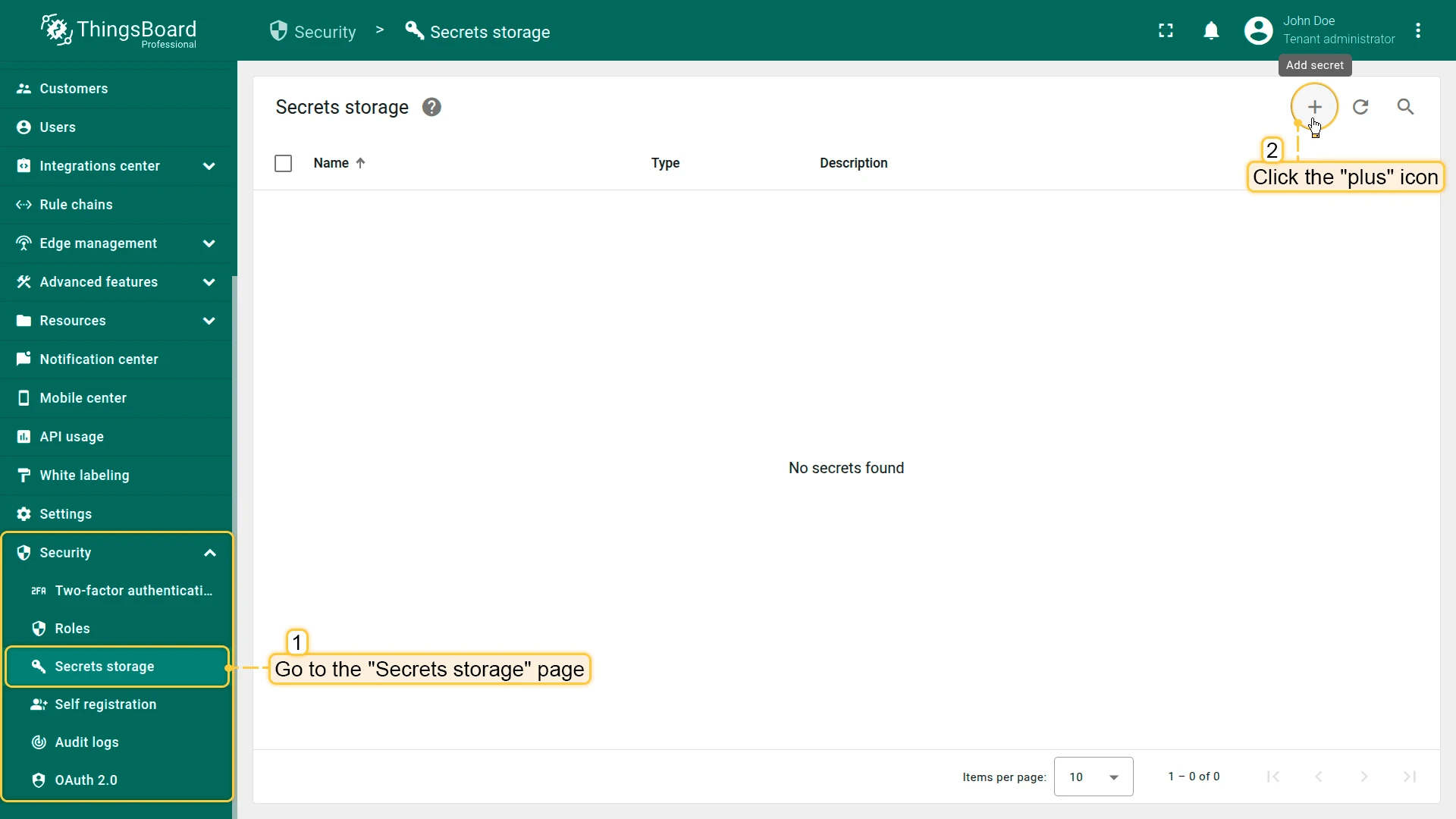
- Navigate to Security ⇾ Secrets storage.
- Click the + Add secret in the top-right corner to open the Add secret dialog.
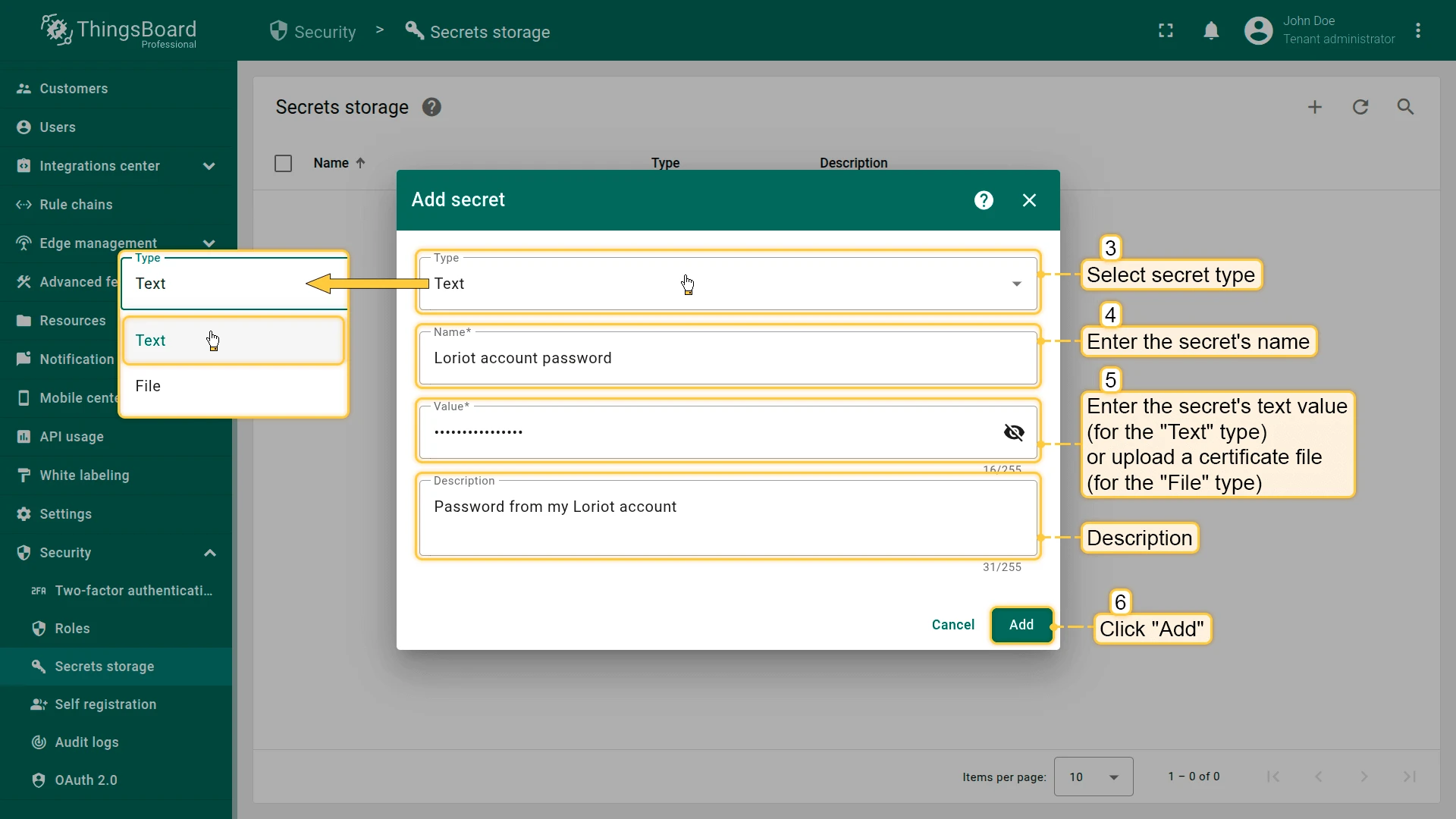
- Select the type: Text or File.
- Enter a name for the secret (e.g., Loriot account password).
- Enter the value (for Text type) or upload a file (for File type).
- Optionally add a description.
- Click Add.
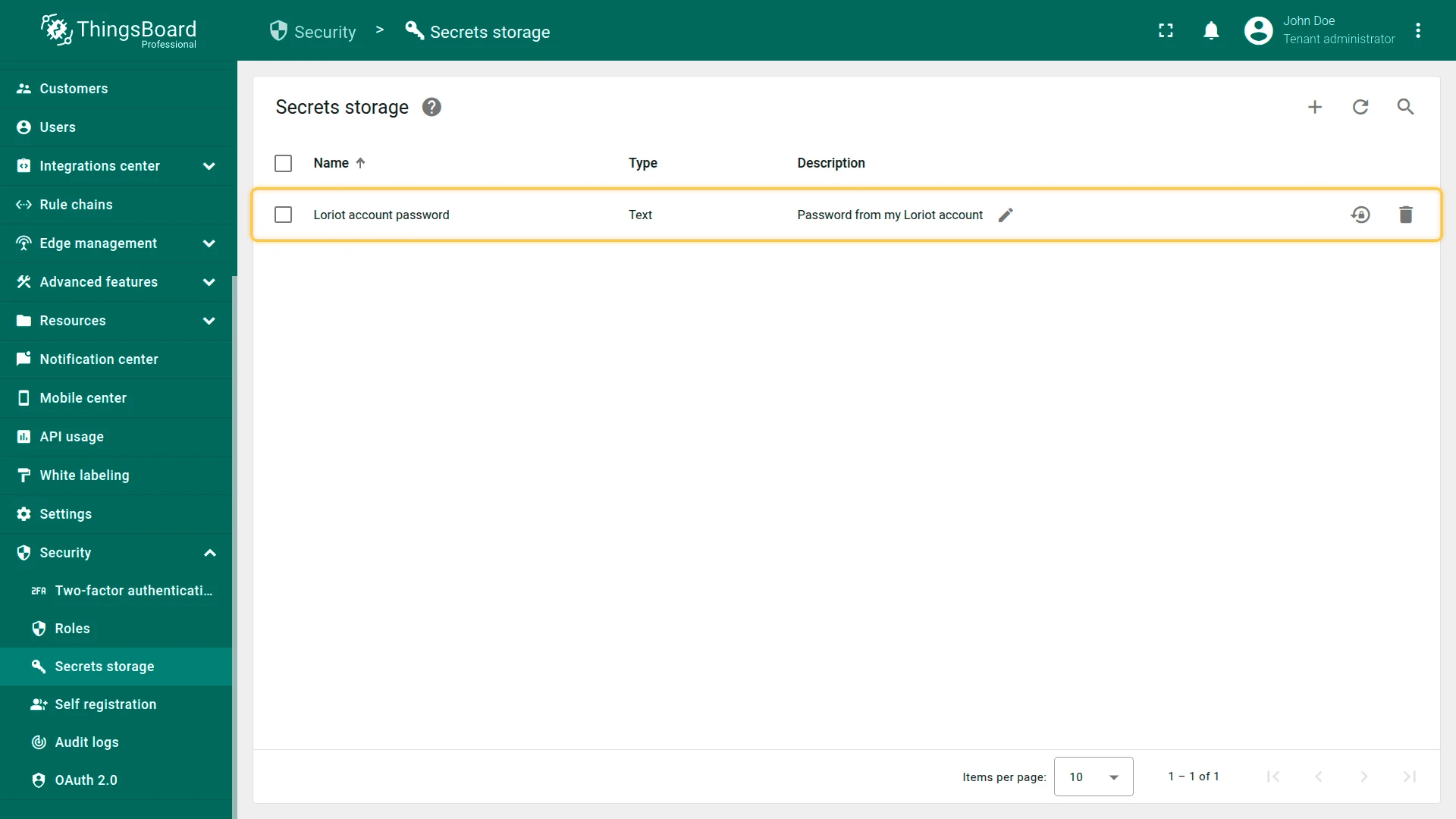
ThingsBoard encrypts the value immediately on save. The raw value is never stored or displayed again.
Update a Secret Value
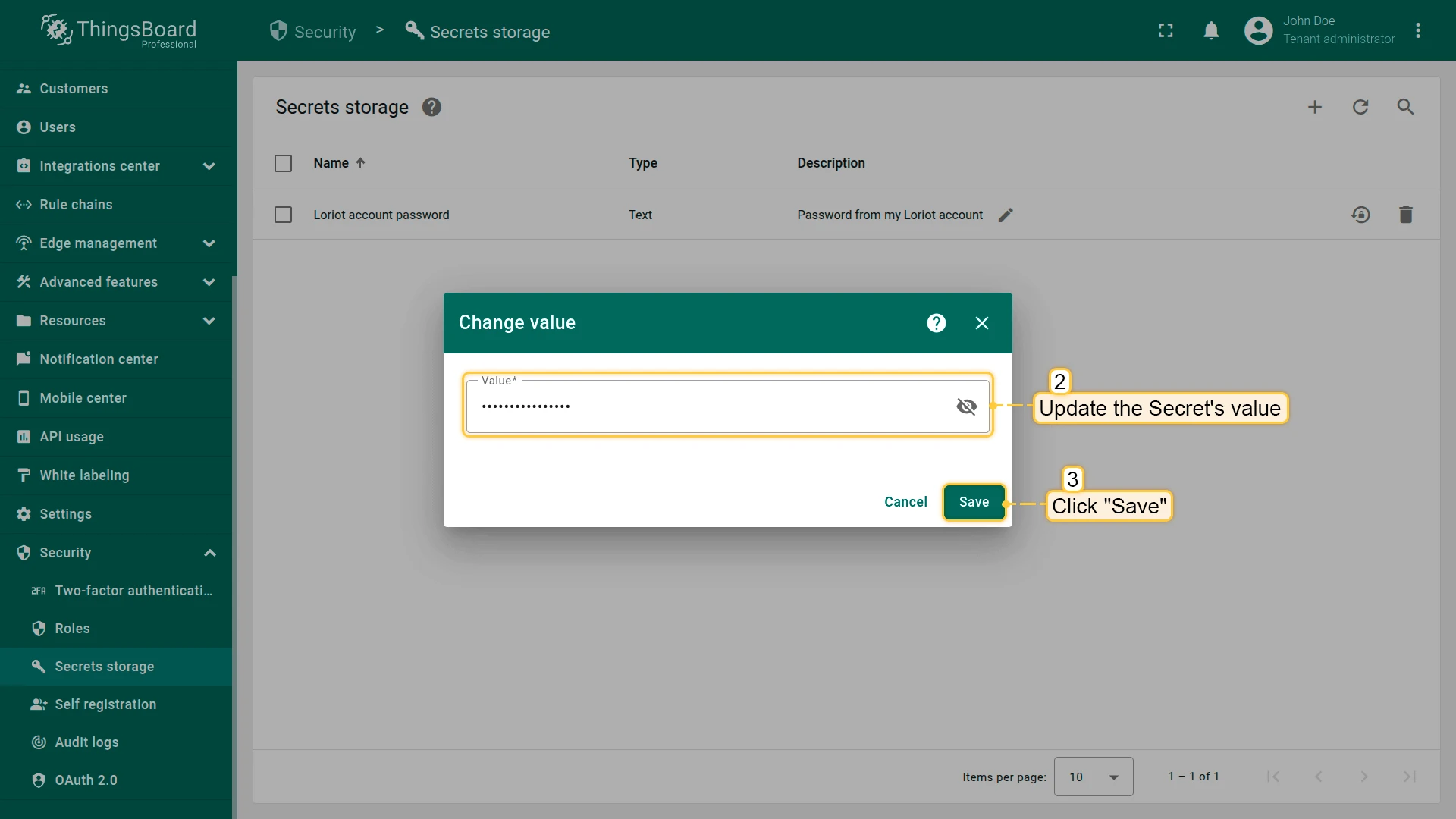
Section titled “Update a Secret Value”You can update the value of any existing secret at any time. The secret name and type cannot be changed after creation — only the value.
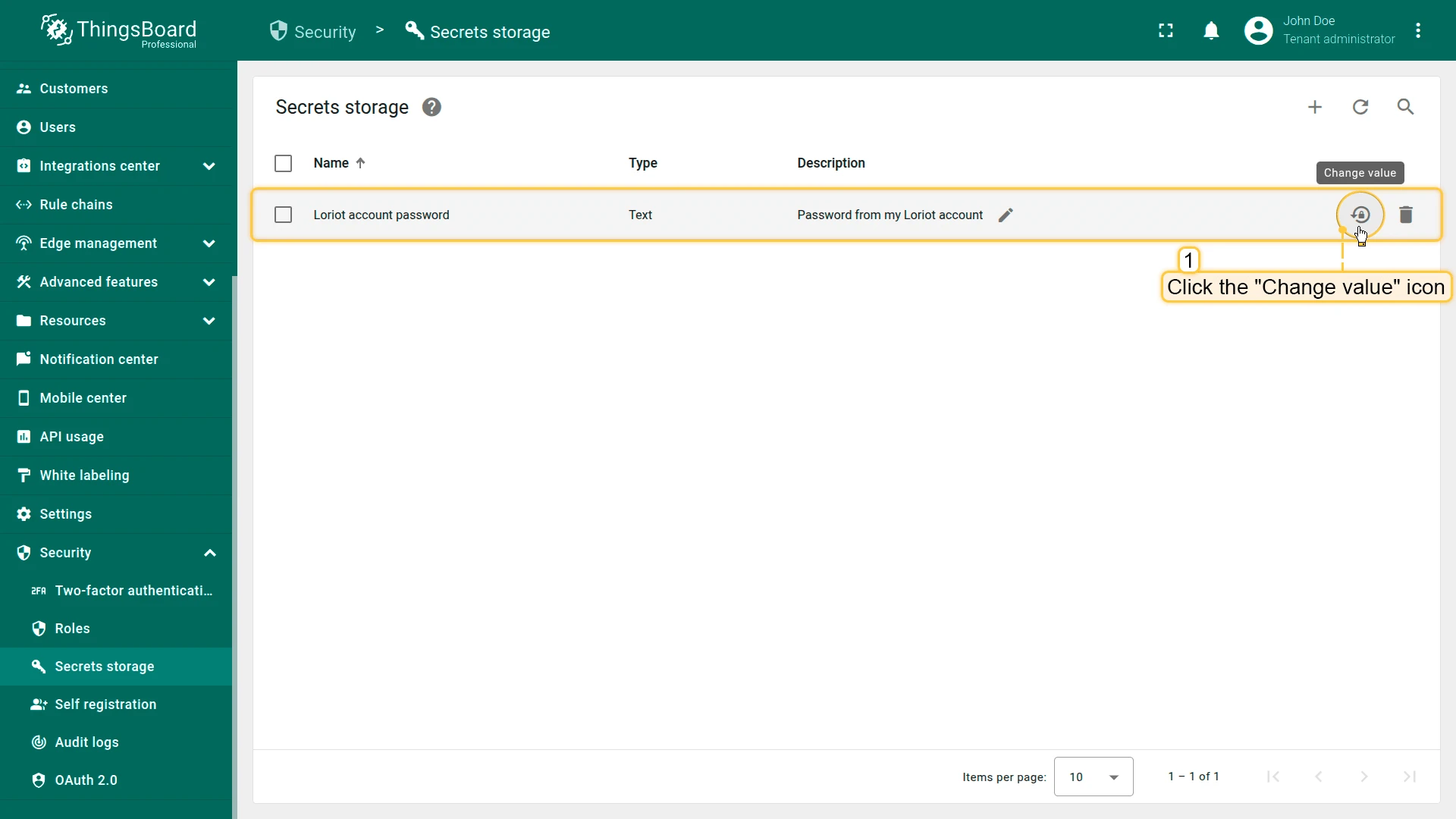
- On the Secrets storage page, locate the secret in the list.
- Click the Change value icon (circular arrow) at the end of the row.
- Enter the new value.
- Click Save.
All integrations and rule chains referencing this secret will automatically use the updated value.
Use Secrets in ThingsBoard
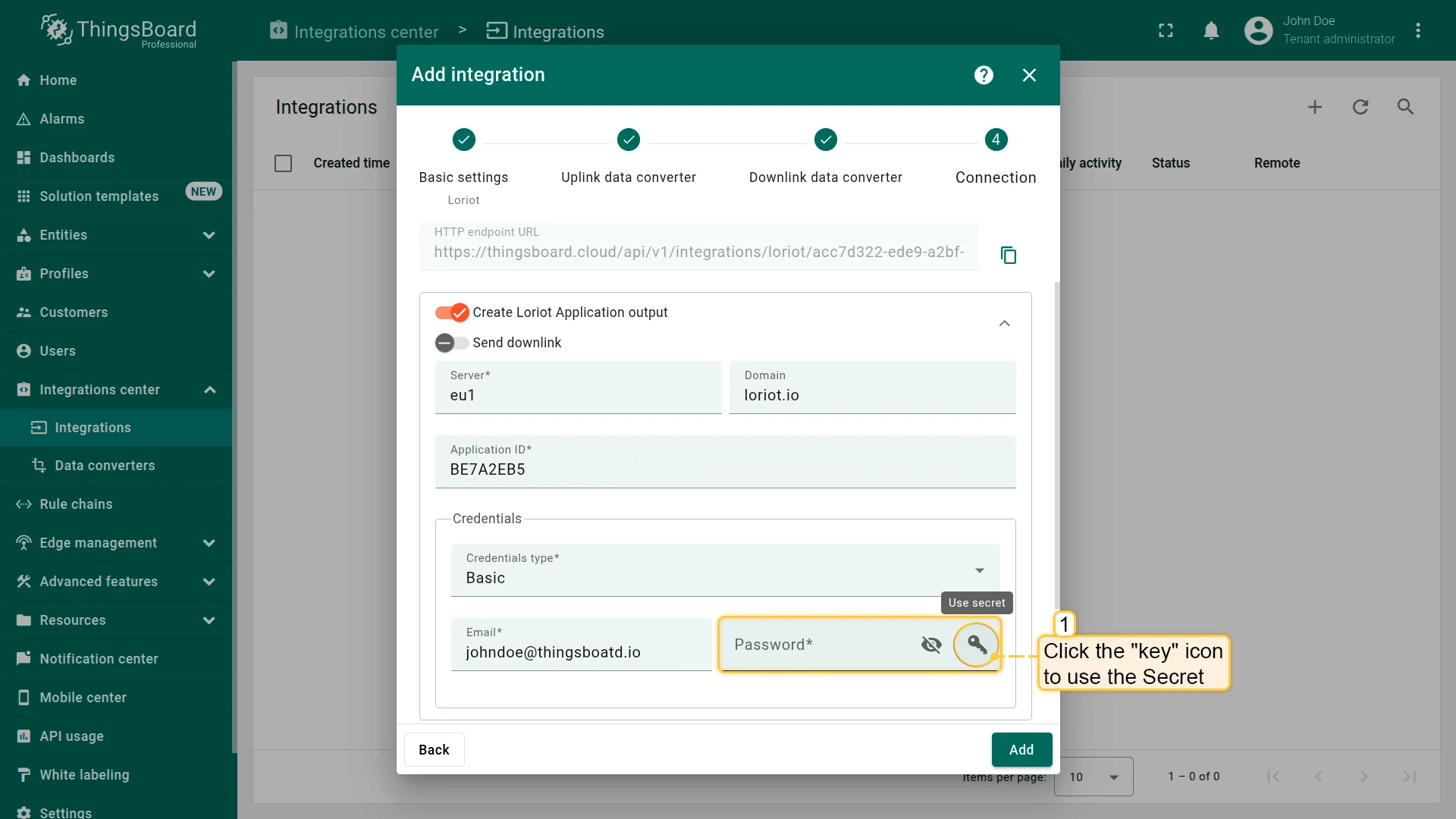
Section titled “Use Secrets in ThingsBoard”Secrets can be used in any place that displays a key icon next to an input field — typically credential fields in integrations and rule node configurations.
- In a credential field that supports secrets, click the key icon (Use secret).
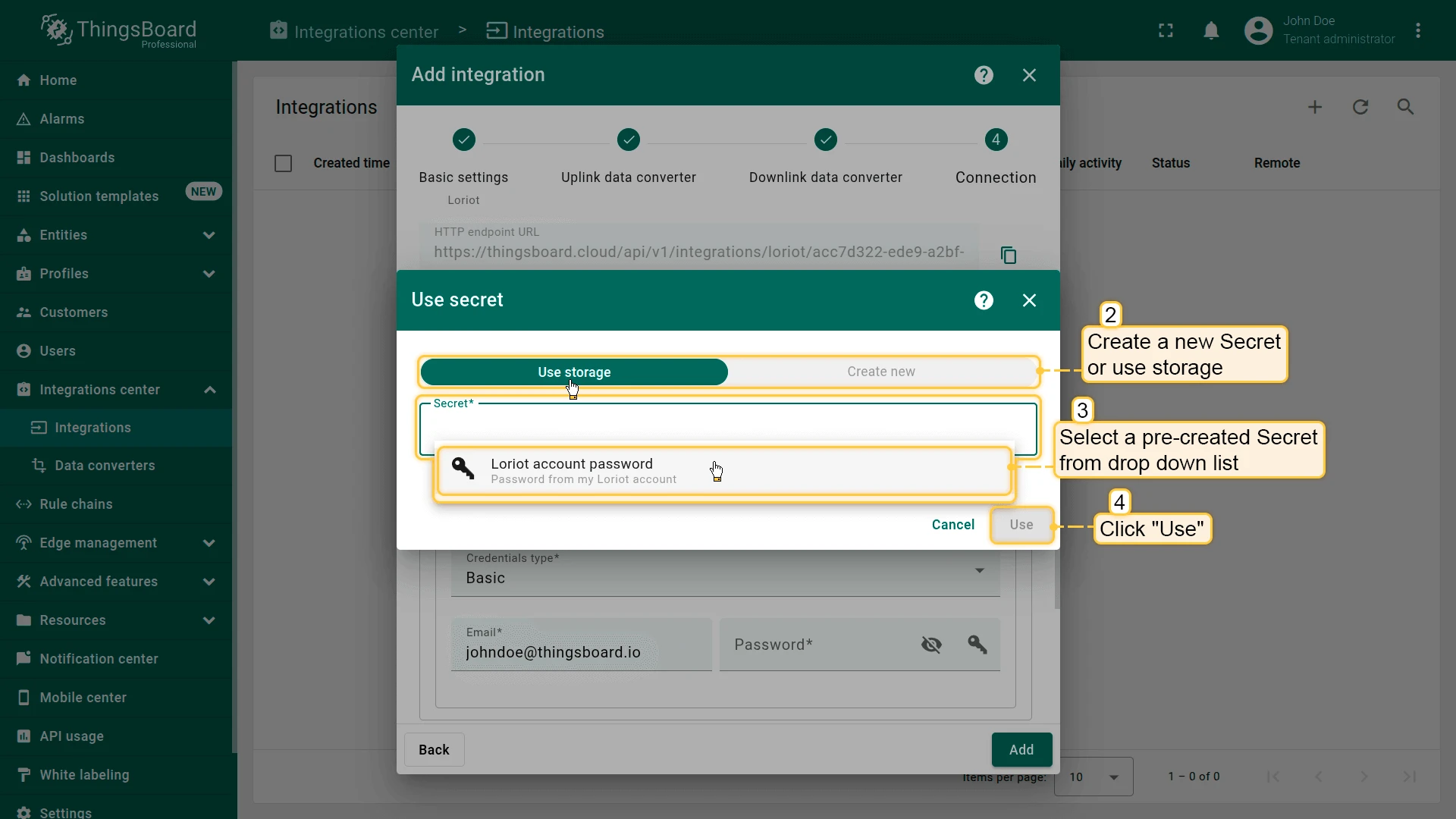
- In the Use secret dialog, select Use storage to reference an existing secret, or Create new to define one inline.
- Select the desired secret from the dropdown list.
- Click Use.
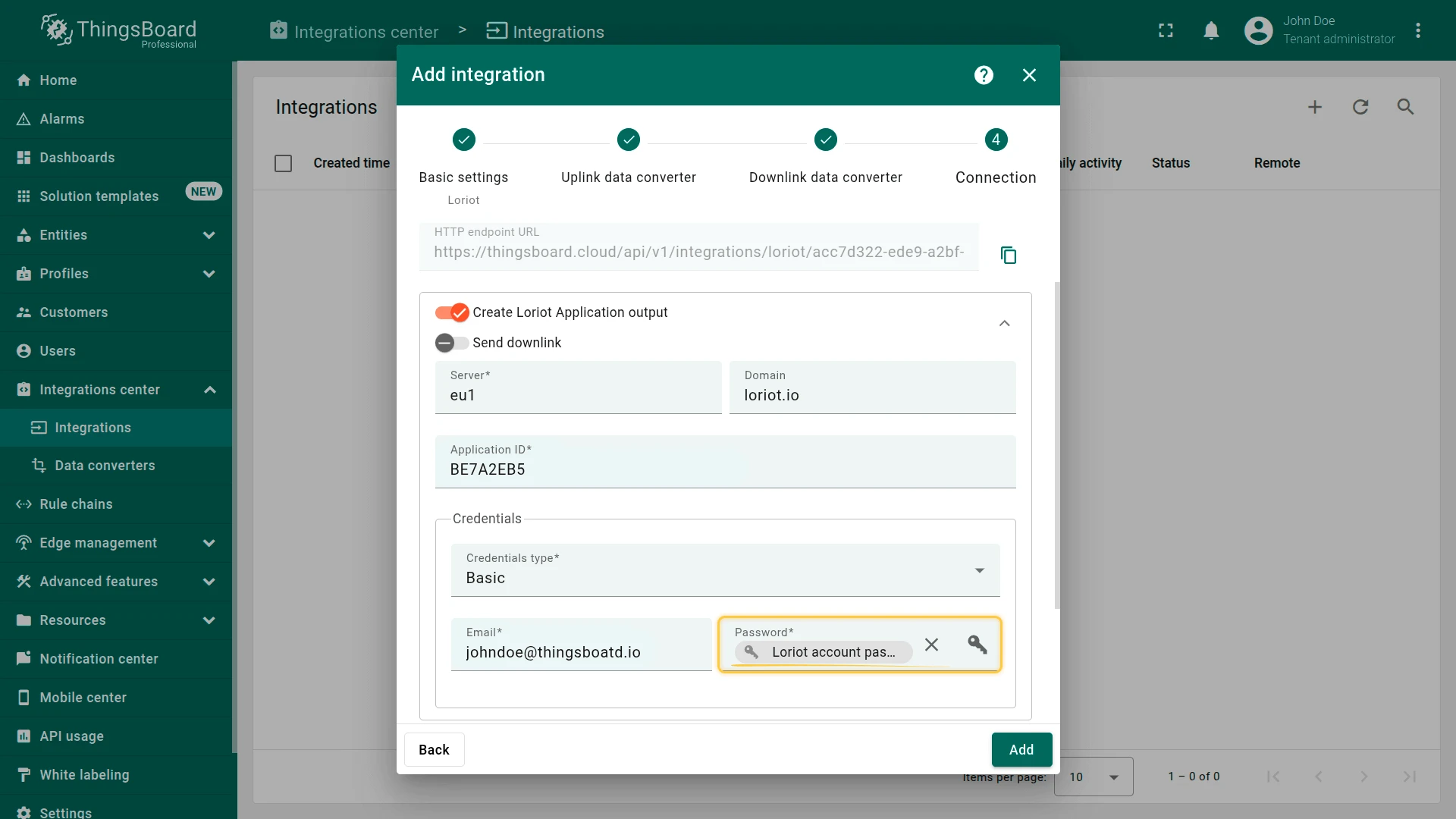
The field now displays the secret name (not its value). The actual value is resolved by ThingsBoard at runtime and is never sent to the browser.
Manage Access to Secrets Storage
Section titled “Manage Access to Secrets Storage”Access to Secrets storage is controlled via ThingsBoard’s Role-Based Access Control (RBAC).
You can grant or restrict the following operations independently:
- Read — view the list of secrets (names and descriptions, not values)
- Write — create new secrets and update existing values
- Delete — remove secrets from storage
Assign these permissions to custom roles and attach those roles to user groups to implement a least-privilege access model.
Delete a Secret
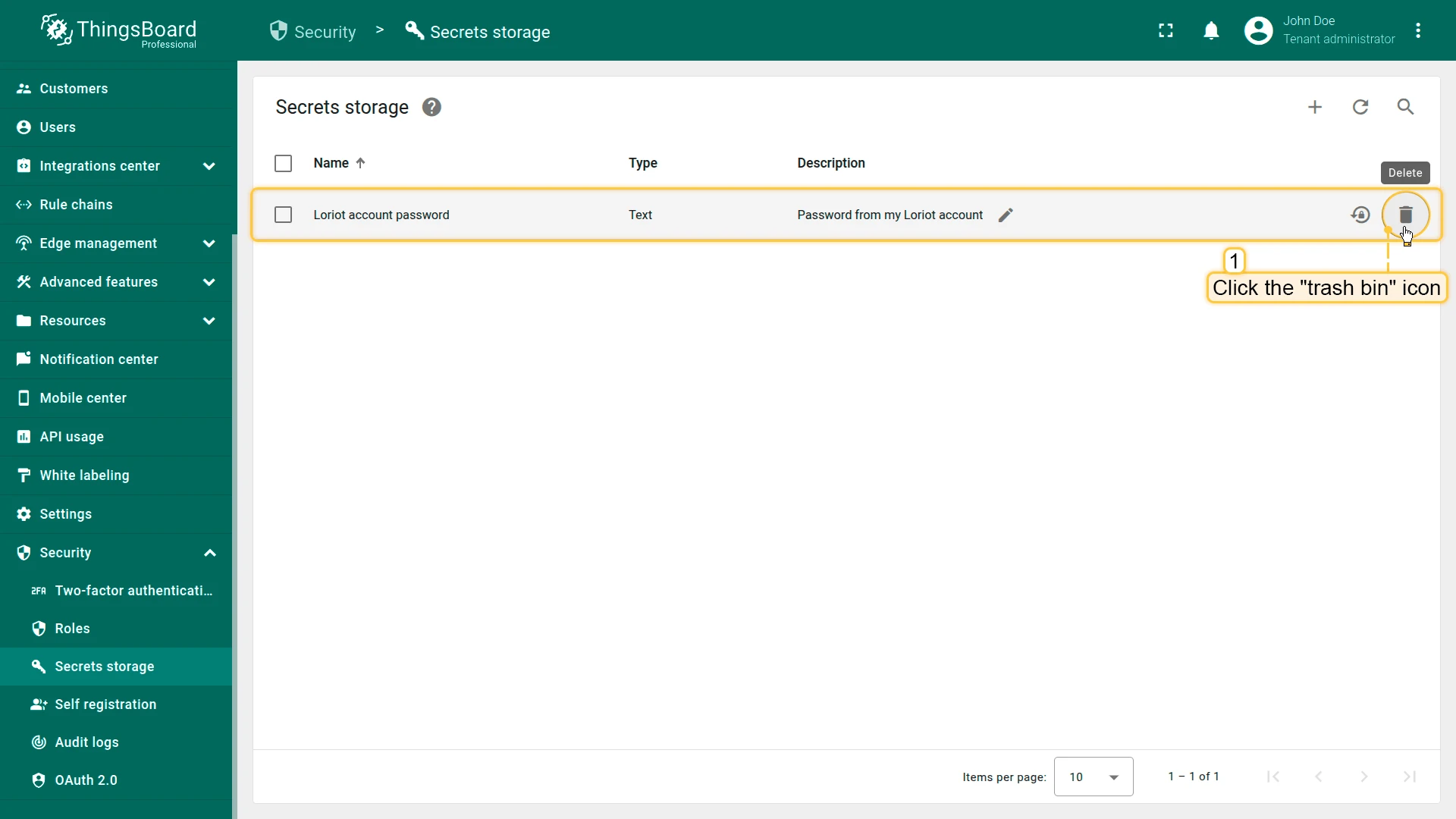
Section titled “Delete a Secret”- On the Secrets storage page, click the trash bin icon at the end of the row.
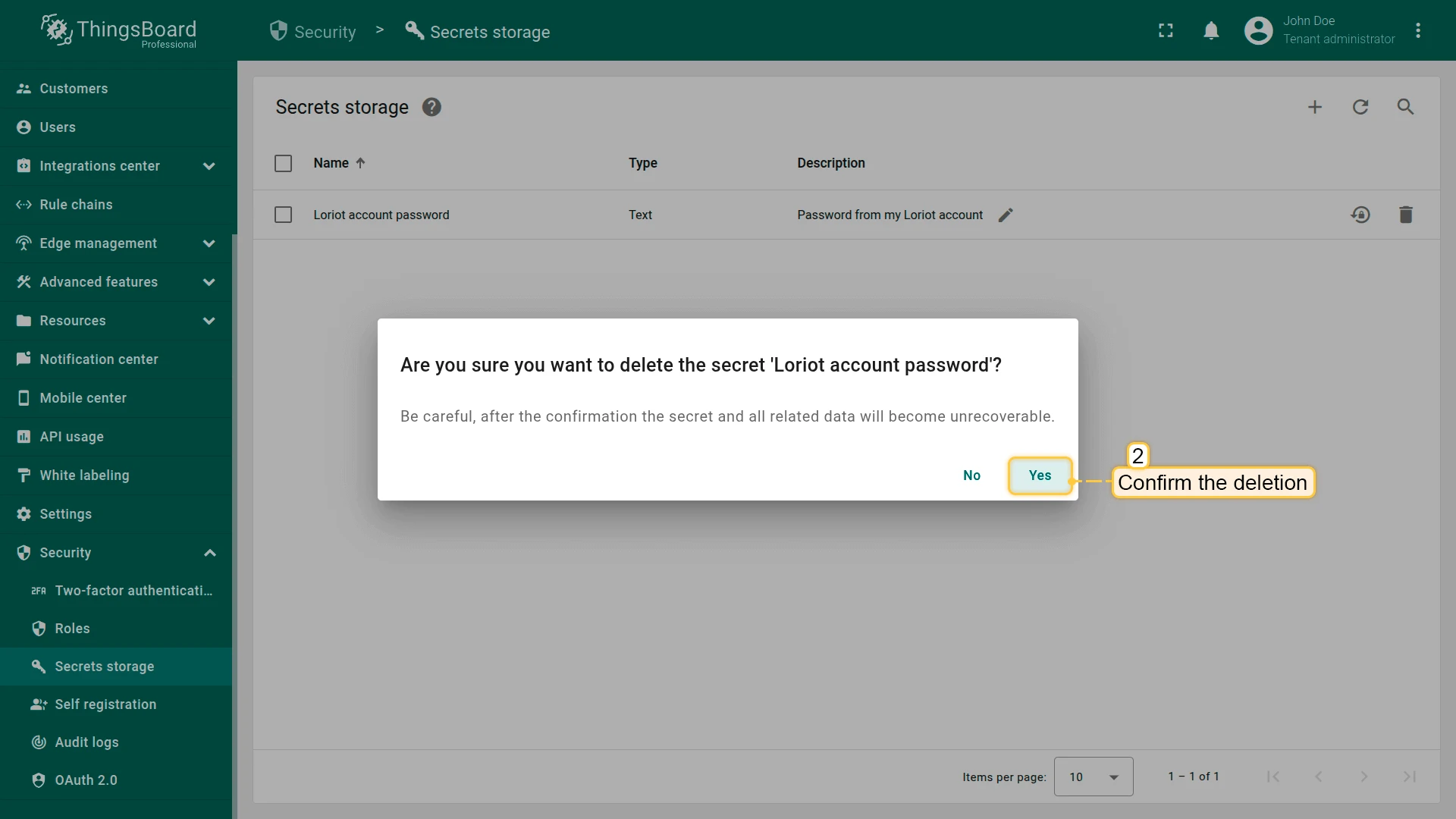
- Confirm the deletion by clicking Yes in the confirmation dialog.
Deletion is permanent and unrecoverable. All references to the deleted secret in integrations or rule chains will break and must be updated manually.
Best Practices
Section titled “Best Practices”- Always use Secrets storage instead of hard-coding sensitive values in integration configuration forms.
- Apply the principle of least privilege: grant Write and Delete permissions only to users who need them.
- Use descriptive names (e.g., Production MQTT broker password) to make secrets easy to identify.
- Rotate secrets regularly and update their values in Secrets storage — all references update automatically.
- Before deleting a secret, search for all integrations and rule chains that reference it to avoid broken configurations.
Was this helpful?