Getting Started with Reporting
Reporting allows you to generate PDF or CSV reports from live platform data and deliver them automatically — on a schedule or in response to system events (e.g., alarms).
Reporting consists of a report template, which defines the structure, content, and format of the report, and scheduling, which defines when and how the report is generated and delivered (recurring schedule or event-based trigger).
In this step-by-step guide, you will create a daily device alarm report — a PDF file containing a device table, an alarm table, and two line charts — and then schedule its automatic delivery to different customer groups.
Prerequisites
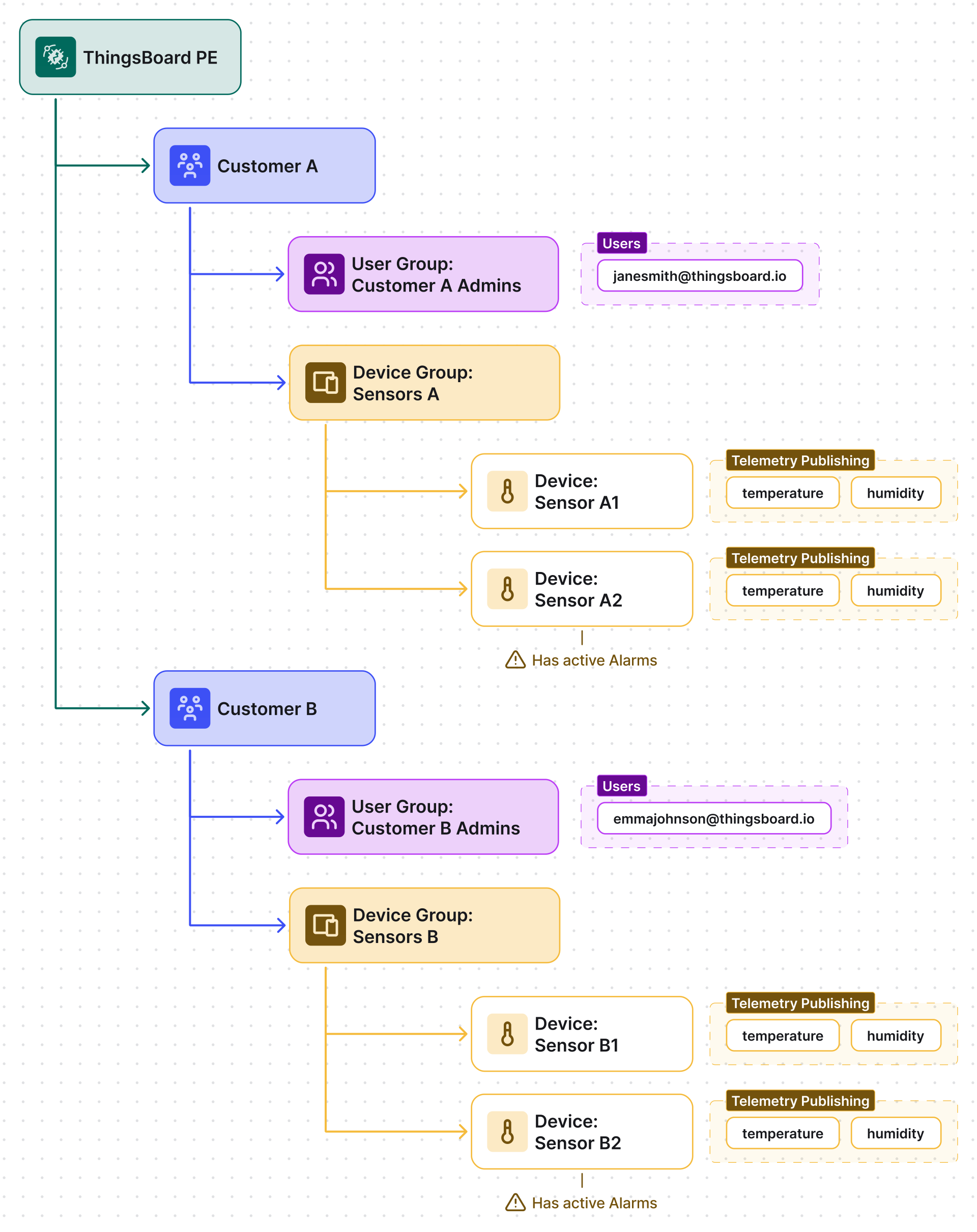
Section titled “Prerequisites”You need access to a ThingsBoard tenant with at least two customers, each owning several devices. The devices must publish temperature and humidity telemetry, and some must have active alarms.
Step 1. Create the Report Template
Section titled “Step 1. Create the Report Template”- Navigate to Monitor ⇾ Reports ⇾ Templates.
- Click + Add report template ⇾ Create new report template.
- Configure:
- Name: Daily Device Alarms Report
- Format: PDF
- Type: Report
- Click Add.
The template opens in the Report Builder.
Step 2. Build the Template
Section titled “Step 2. Build the Template”The Report Builder lets you define the report structure and layout by dragging components from the component library into the content area.
2.1 Add a Heading
Section titled “2.1 Add a Heading”Drag a Heading component into the header content area and set the text to:
Daily Device Alarms ReportClick Apply.
2.2 Add Introductory Text
Section titled “2.2 Add Introductory Text”Drag a Rich text component below the heading and enter a short description, for example:
This report includes the current device list, active alarms from the last 24 hours, and telemetry charts.Click Apply.
2.3 Add a Device Table
Section titled “2.3 Add a Device Table”Drag an Entity table component into the content area.
Data tab:
- In the Datasource section, click Create new and configure a new entity alias that returns the target devices:
- Alias name: All devices
- Filter type: Entity type
- Type: Device
- In the Columns section:
- Add a column with telemetry key
temperature - Add a column with telemetry key
humidity - Add a column with attribute
active - (The Name column is included by default)
- Add a column with telemetry key
Click Save.
2.4 Add an Alarm Table
Section titled “2.4 Add an Alarm Table”Drag an Alarm table component into the content area.
Data tab:
- Time window: last day
- Alarm source: All devices entity alias
- Alarm filter: Active alarms
- Enable table heading and set it, for example, to:
Active Alarms — Last 24 Hours.
- Optionally adjust horizontal alignment and font size.
- Keep the default table columns unchanged.
Click Save.
2.5 Add a Temperature Line Chart
Section titled “2.5 Add a Temperature Line Chart”Drag a Line chart component into the content area.
Data tab:
- Time window: last day, aggregation 1 hour.
- Title: Temperature history
- Datasource: All devices entity alias
- Series:
- Telemetry key:
temperature - Label:
${entityName} temperature
- Telemetry key:
- Configure Y axis:
- Id: default
- Label: Temperature
- Min: 15
- Max: 35
- Units: °C.
- Set thresholds:
- 30 °C (line color red)
- 18 °C (line color blue)
- Legend: position Bottom.
Click Save.
2.6 Add a Humidity Line Chart
Section titled “2.6 Add a Humidity Line Chart”Drag another Line chart component below the previous one.
- Time window: last day, aggregation 1 hour.
- Title: Humidity history
- Datasource: All devices entity alias
- Series:
- Telemetry key:
humidity - Label:
${entityName} humidity
- Telemetry key:
- Configure Y axis:
- Id: default
- Label: Humidity
- Min: Auto
- Max: Auto
- Units: °%.
- Legend: position Bottom.
Click Save.
2.7 Set the File Name Pattern and Save
Section titled “2.7 Set the File Name Pattern and Save”Before saving, set a descriptive file name pattern, for example:
daily-device-alarm-report-%d{yyyy-MM-dd_HH:mm:ss}Click Save in the top-right corner of the Report Builder.
Step 3. Schedule the Report
Section titled “Step 3. Schedule the Report”Now configure automatic delivery of the Daily Device Alarms Report for each customer using the scheduler.
3.1 Schedule for Customer A
Section titled “3.1 Schedule for Customer A”- Navigate to Monitor ⇾ Reports ⇾ Scheduling.
- Click + Scheduled report.
In the Create scheduler event dialog, configure the following:
Configuration tab
- Name:
Daily Alarm Report — Customer A - Event type:
Generate report(default) - Enable scheduler: enabled
- Report template:
Daily Device Alarms Report - User: janesmith@thingsboard.io (Customer A administrator)
- Time zone: Select the customer’s local time zone (e.g.,
Europe/Kiev (UTC+02:00)).
Recipients
- In the Recipients field, click Create new.
- Configure the notification recipients group:
- Name: Customer A users
- Type: Platform users
- User filter: Customer users
- Customer: Customer A
- Click Add.
Notification template
- In the Template field, click Create new.
- Name: Report generated notification
- Enable delivery method: Web, Email
(To send an email, a mail server must be configured.) - Click Next.
- Configure the Web notification subject and body (for example):
- Subject:
Report generated - Message:
Report '${reportName}' is ready.
- Subject:
- Configure the Email subject and body (for example):
- Subject:
Report '${reportName}' is ready. - Message:
Hello, ${recipientFirstName}. This email contains the daily device alarms report for your devices. Please review it.
- Subject:
- Click Add.
Schedule tab
- Navigate to the Schedule tab.
- Set: Time zone Start time
- Enable Repeat.
- Set: Repeats: Daily End date: Set a specific date or leave empty for continuous delivery.
- Click Create.
The report will now be generated daily on behalf of Customer A and delivered via Email and Web notifications.
3.2 Schedule for Customer B
Section titled “3.2 Schedule for Customer B”Repeat Step 3.1 for Customer B.
Create another scheduled report and set Customer B users as recipients. Reuse the same Report template and Notification template — no duplication is required.
Result
Section titled “Result”Both schedules use the same template — Daily Device Alarms Report.
At the configured time, the system automatically generates and delivers reports to Customer A and Customer B users. Each recipient receives a report containing only the data accessible to the selected User in the scheduler.
Delivery channels
- Web UI: Users can view the reports owned by their tenant or customer on the Monitor ⇾ Reports ⇾ Reports tab. The reports in this example are owned by the tenant, so to give customer recipients a download link, enable Public access in the scheduler event.
- Email: A message with the PDF report attached is delivered to each recipient.
Reports are generated and delivered daily without manual intervention.
Import the Example Template
Section titled “Import the Example Template”You can skip building manually by importing a pre-built template:
- Download the daily_device_alarms_report.json template file.
- Navigate to Monitor ⇾ Reports ⇾ Templates.
- Click + Add report template ⇾ Import report template.
- Upload the
.jsonfile and click Import.
Edit the imported template’s entity aliases to match your own devices before scheduling.
What You Can Do with Reporting
Section titled “What You Can Do with Reporting”| Task | Guide |
|---|---|
| Automate delivery on a schedule | Scheduling Reports |
| Attach a report to an alarm notification | Reports in Notifications |
| Add charts to a report | Embedding Charts |
| Embed a live dashboard snapshot | Embedding Dashboards |
| Reuse report sections across templates | Subreports |
Recipes
Section titled “Recipes”| Task | Recipe |
|---|---|
| Compare temperature across devices with a line chart | Temperature comparison report |
| Snapshot a dashboard into a PDF | Embed a dashboard in a report |
| Generate per-device alarm sections using subreports | Daily alarms subreport |
| Send a PDF alarm report with a notification | Attach a report to a notification |
Was this helpful?