Role-Based Access Control
A Role in ThingsBoard defines a set of permissions — which resources a user can access and which operations they can perform. Roles are never assigned directly to users; they flow through three building blocks:
| Object | What it is |
|---|---|
| Role | Defines what is allowed: resource type + operations |
| User Group | Defines who receives the permissions |
| Group Permission Entity (GPE) | The link between a User Group and a Role — ThingsBoard creates it automatically when you assign a role to a user group |
Access Control Model
Section titled “Access Control Model”Users do not receive permissions directly. Instead:
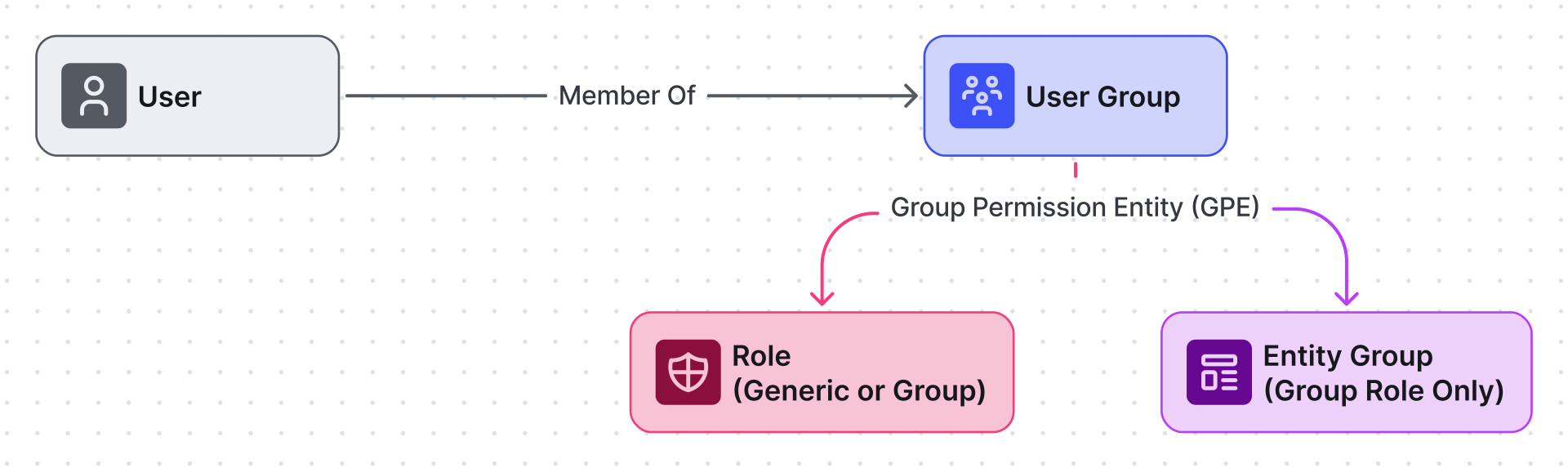
Depending on the role type:
- Generic role — applies recursively to all entities within a Tenant or Customer scope.
- Group role — applies strictly to a specific Entity Group.
Access is denied by default. A user can only do what an explicitly assigned role permits. There are no deny rules — permissions are purely additive. If a user belongs to multiple user groups, all permissions are combined.
Authority
Section titled “Authority”Authority defines a user’s position in the system hierarchy and determines the maximum capabilities available to that user.
Levels
Section titled “Levels”The platform supports three authority levels:
| Authority level | Description |
|---|---|
| SYS_ADMIN | Assigned to System Administrator users |
| TENANT_ADMIN | Assigned to users on the Tenant level |
| CUSTOMER_USER | Assigned to users on the Customer level |
General Behavior
Section titled “General Behavior”- A user’s authority level is determined at creation time based on where in the hierarchy the user is created.
- This authority level can be changed by changing Customer level on the Tenant’s one and vice versa.
- You cannot change the authority level for the sysadmin user and neither tenant nor customer user can be elevated to the level of SYS_ADMIN authority.
Role Types
Section titled “Role Types”ThingsBoard supports two role types:
| Role type | Scope model | Use case |
|---|---|---|
| Generic | Recursive within Tenant/Customer scope | Broad administrative access |
| Group | Specific entity group only | Segmented and isolated access |
Generic Role
Section titled “Generic Role”A Generic role defines a set of permissions that applies recursively to all entities within a selected scope: Tenant, Customer, or Sub-customer (including all descendants).
The scope is not a property of the role itself — it is determined by where the role is assigned. The same role assigned to a user group at Tenant level grants tenant-wide access; assigned at Customer level it grants access only within that customer and its sub-customers.
A Generic role is assigned to a user group via a Group Permission Entity (GPE), which records the user group, the role, and the scope level.
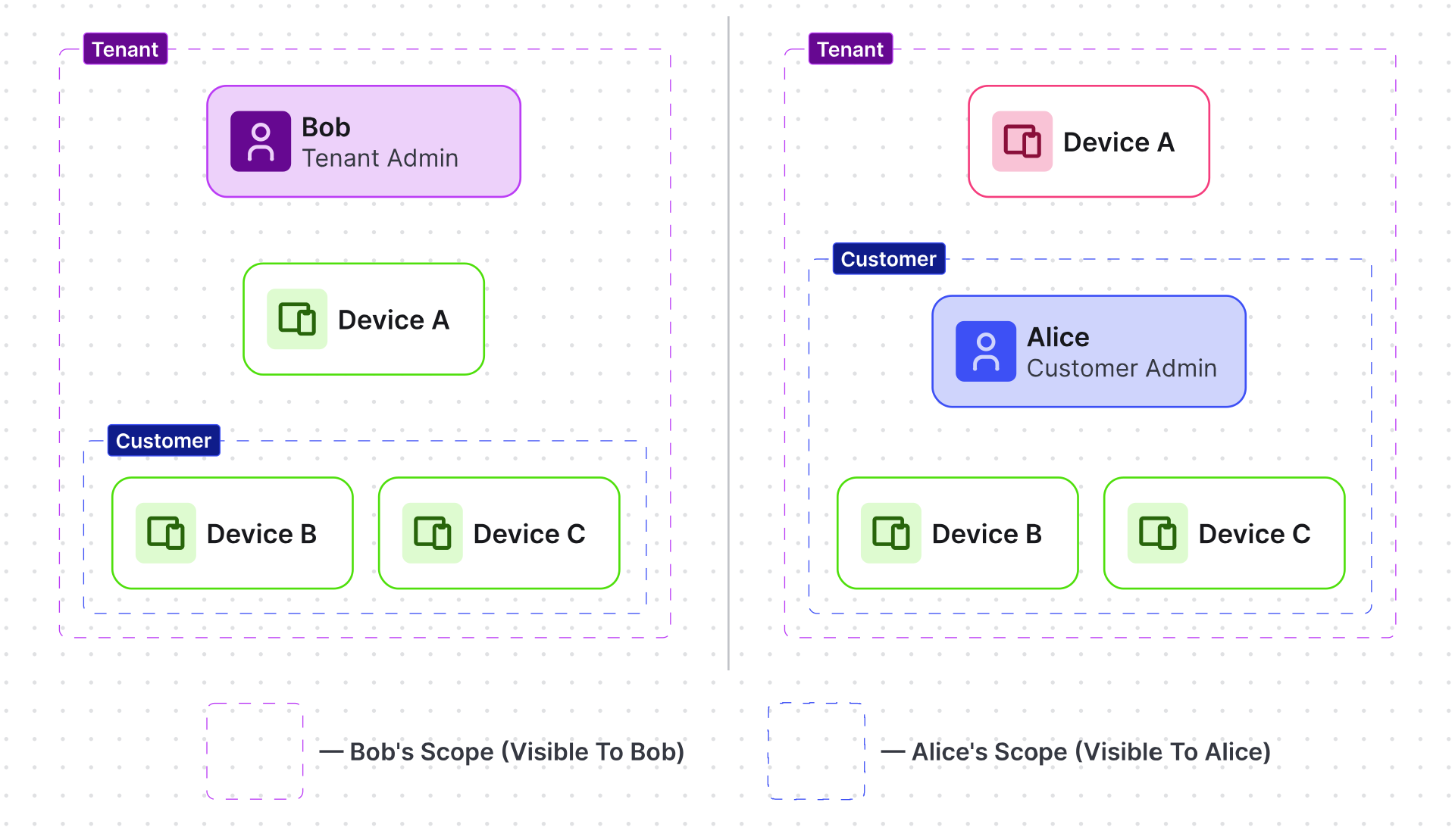
Key characteristics
- Scope depends on the assignment level (Tenant or Customer).
- Does not require entity groups.
- Applies to all entities within the defined scope.
- Supports hierarchical customer structures.
Create Generic Role
Section titled “Create Generic Role”- Navigate to Customers & users ⇾ Roles.
- Click + Add role.
- Fill in the Name — unique role name
- Role type — select Generic
- Configure Permissions: Resource and Operations
(At least one permission entry must be specified). - Click Add.
You can find a description of all available resource types in the permissions table.
Assignee Generic Role
Section titled “Assignee Generic Role”To apply a Generic role:
- Tenant level: Open Customers & users ⇾ Users ⇾ Groups
or
Customer level: Open Customers & users ⇾ Customers ⇾ Manage customer users item for the desired customer ⇾ Groups. - Open group details.
- Navigate to Roles tab.
- Click Add.
- Select:
• Role type: Generic
• Choose the created role - Click Add.
The role now applies recursively within the group’s scope.
Group Role
Section titled “Group Role”A Group role defines permissions for a specific user group over a specific entity group.
Unlike Generic roles, which apply recursively within a scope, Group roles restrict access strictly to explicitly selected entity groups.
Assignment is implemented via a Group Permission Entity (GPE) that links:
- User Group
- Entity Group
- Group Role (permissions)
This model enables precise, group-level access control without extending permissions beyond the targeted entities.
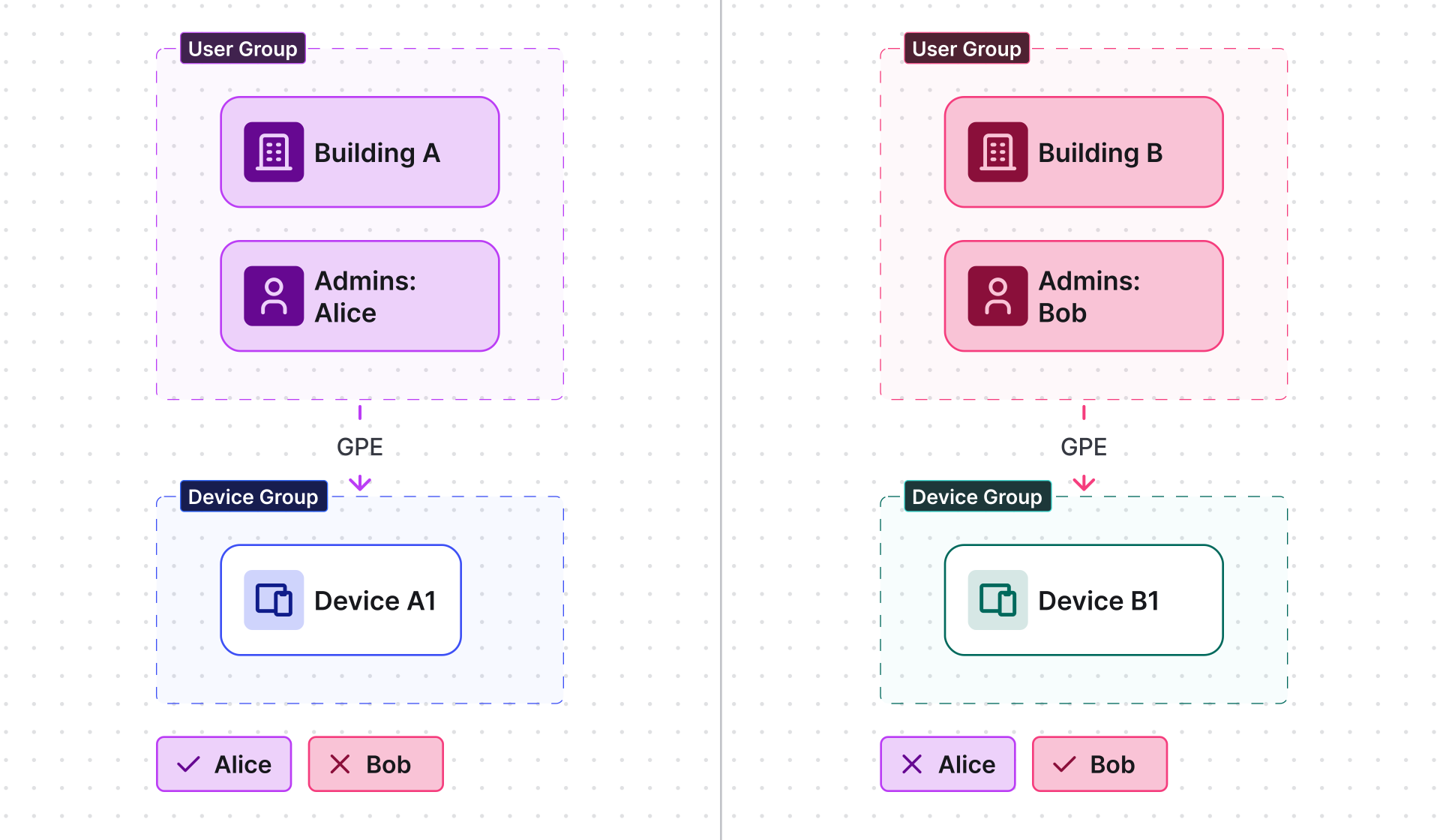
Key characteristics
- Requires an entity group.
- Applies only to selected entities.
- Enables strong segmentation and isolation.
- Suitable for controlled access within the same tenant.
Quick Share
Section titled “Quick Share”Every entity group list (Devices, Dashboards, Assets, etc.) has a Share icon on each row that opens a one-step sharing dialog — no separate role creation needed for common permission levels:
- Navigate to the entity group list (e.g., Monitor ⇾ Dashboards ⇾ Groups).
- Click the Share icon on the desired group row.
- Select the Customer to share with.
- Either enable All users or select a specific user group within that customer.
- Select the Permission level:
• Read — read-only access (no pre-created role required)
• Write — read and write access (no pre-created role required)
• Other — select one or more named Group roles you have already created - Click Share.
ThingsBoard creates the GPE automatically. The shared group becomes visible to the selected users with the specified permission level.
| Approach | When to use |
|---|---|
| Quick share (Read / Write) | Sharing a group in one step with no pre-created role |
| Quick share (Other) | Applying a named Group role via the share dialog |
| Full role assignment (via Permissions tab) | Reusable roles shared across multiple groups or complex multi-group setups |
Create Group Role
Section titled “Create Group Role”- Navigate to Customers & users ⇾ Roles.
- Click + Add role.
- Fill in the Name — unique role name
- Role type — select Group
- Under Permissions, specify required operations. (At least one permission entry must be specified).
- Click Add.
The Group role is now available for assignment to entity groups.
Assignee Group Role
Section titled “Assignee Group Role”- Navigate to the relevant entity type (e.g., Devices & assets ⇾ Devices ⇾ Groups).
- Open the target entity group details.
- Go to the Permissions tab.
- Click Add.
- Select:
• The created Group role
• Owner
• Target user group - Click Add.
The role now applies only to that entity group.
Default User Groups and Roles
Section titled “Default User Groups and Roles”ThingsBoard automatically creates two user groups with associated Generic roles when a Tenant or Customer is created. These defaults give you a working permission structure out of the box.
Tenant Defaults
Section titled “Tenant Defaults”| User group | Associated role | Default permissions |
|---|---|---|
| Tenant Administrators | Tenant Administrator (Generic) | All resources — All operations |
| Tenant Users | Tenant User (Generic) | Profile — All operations; All resources — Read, RPC Call, Read Credentials, Read Attributes, Read Telemetry, Read Calculated Field and Alarm Rules |
Customer Defaults
Section titled “Customer Defaults”| User group | Associated role | Default permissions |
|---|---|---|
| Customer Administrators | Customer Administrator (Generic) | All resources — All operations |
| Customer Users | Customer User (Generic) | Profile — All operations; All resources — Read, RPC Call, Read Credentials, Read Attributes, Read Telemetry |
You can modify these default roles or use them as a starting point when building custom permission structures.
Examples
Section titled “Examples”| Recipe | Role types | What it demonstrates |
|---|---|---|
| Read-only analyst | Generic | Read-only access to all tenant entities and telemetry |
| Customer scoped access | Generic | Restrict users to their own customer’s data without entity groups |
| Generic role scope | Generic | How the same role grants different access at Tenant vs. Customer level |
| Isolated device groups | Group | Per-group device access with no cross-access between user groups |
| Multi-facility access control | Generic + Group | Supervisors, facility managers, and end users across multiple buildings |
Operations Reference
Section titled “Operations Reference”Each permission entry in a role specifies a resource type and one or more operations:
| Operation | What it allows |
|---|---|
| All | Every operation available for the resource |
| Create | Create new entities of this resource type |
| Read | View entity details, configuration, and settings |
| Write | Modify entities and their configuration |
| Delete | Delete entities of this resource type |
| RPC Call | Send RPC commands to devices |
| Read Credentials | View device credentials, such as access tokens and keys |
| Write Credentials | Create or update device credentials |
| Read Attributes | Read client, shared, and server-side attributes |
| Write Attributes | Create or update attributes |
| Read Telemetry | Read time-series telemetry data |
| Write Telemetry | Write time-series telemetry data |
| Claim Devices | Claim an unassigned device under the current tenant or customer |
| Impersonate | Log in as another user (applies to the User resource) |
| Change Owner | Transfer an entity’s ownership between the tenant and its customers |
| Add to Group | Add entities to an entity group |
| Remove from Group | Remove entities from an entity group |
| Share Group | Share an entity group with another customer or user group |
| Assign to Tenant | Assign a device to another tenant (applies to the Device resource) |
| Read Calculated Field and Alarm Rules | View calculated fields and alarm rules defined on the entity |
| Write Calculated Field and Alarm Rules | Create or modify calculated fields and alarm rules on the entity |
Permissions are evaluated per resource type — you can grant Read on Device and Write on Dashboard as separate entries within the same role.
Permissions Reference
Section titled “Permissions Reference”The table below lists all available resource types that can be secured using RBAC in ThingsBoard.
Each resource represents a platform entity or system component that supports permission-based access control. Permissions are configured within roles and determine what operations users are allowed to perform on these resources.
Some actions require permission on more than one resource before they succeed — see Cross-resource dependencies below.
| Resource | Description |
|---|---|
| AI | Use configured AI models in platform features, such as the AI rule node. |
| AI Model | Configure connections to AI providers and their models. |
| All | Grants selected operations across all resources within the assigned scope. |
| API Key | Create and manage personal access tokens for the REST API. Also needs User (Write) — each key is stored on a user account. |
| API Usage State | Access API usage statistics and telemetry metrics. |
| Alarm | View and manage platform alarms. Creating an alarm needs Read on its originator entity; setting an assignee needs Read on User. |
| Asset | Manage logical IoT entities such as facilities, vehicles, or fields. |
| Asset Group | Manage groups of assets for structured access control. |
| Asset Profile | Configure shared settings for multiple assets. |
| Audit Log | View system activity and user action history. Viewing the log of a specific entity, customer, or user also needs Read on that target. |
| Blob Entity | Manage stored binary objects used for reporting and dashboard snapshots. |
| Converter | Manage uplink and downlink data converters in integrations. |
| Customer | Manage customer entities within the tenant hierarchy. Customer-level white labeling also needs Read on the Customer. |
| Customer Group | Manage logical groupings of customers. |
| Dashboard | Create and manage dashboards and visualizations. |
| Dashboard Group | Manage dashboard collections. |
| Device | Manage IoT devices, telemetry, attributes, credentials, and RPC interactions. |
| Device Group | Manage groups of devices for structured segmentation. |
| Device Profile | Configure shared device behavior and settings. |
| Domain | Manage the domains used for OAuth 2.0 logins and mobile apps. Linking OAuth 2.0 clients also needs Read on each client. |
| Edge | Manage ThingsBoard Edge instances. Assigning a rule chain, integration, scheduler event, or entity group to an edge needs Edge (Write) plus Read on the assigned resource. |
| Edge Group | Manage groups of Edge instances. |
| Entity View | Provide limited exposure of device or asset data to customers. |
| Entity View Group | Manage grouped entity views. |
| Group Permission | Manage RBAC mappings between user groups, roles, and entity groups. Also needs Read on the Role and Write on the user group (and entity group, for group roles). |
| Integration | Manage external system integrations. |
| Mobile App | Manage mobile application configurations. |
| Mobile Bundle | Manage bundles of mobile applications. Linking OAuth 2.0 clients also needs Read on each client. |
| Notification | Manage platform notifications and delivery channels. Targeting specific users or groups also needs Read on User (and the target customer, group, or role). |
| OAuth 2.0 Client | Manage OAuth 2.0 client registrations used for login. |
| OTA Package | Manage firmware and software update packages for devices. |
| Profile | Manage personal user profile settings. |
| QR Code Widget Setting | Configure the mobile QR code shown by the related widget. Pointing it at a bundle also needs Read on the Mobile Bundle. |
| Queue | Manage rule engine processing queues. |
| Queue Stats | View rule engine queue statistics. |
| Report | Generate and manage scheduled reports. Generating a report needs Read on its source dashboard; output is stored as Blob Entities. |
| Report Template | Manage reusable report configurations. |
| Resource | Manage shared resource library files. |
| Role | Manage RBAC roles and permission definitions. A role takes effect once assigned through Group Permission. |
| Rule Chain | Configure data processing and automation logic. |
| Scheduler Event | Manage scheduled automation events. |
| Secret | Manage stored secrets — credentials and tokens referenced by other configurations. |
| Task | View and manage long-running background jobs and bulk operations. |
| Tenant | Manage tenant-level configuration and hierarchy. |
| User | Manage user accounts and access settings. |
| User Group | Manage user groups for RBAC assignments. |
| Version Control | Export and restore ThingsBoard entities using Git-based version control. Acting on the entities also needs their own resource permissions (Read to export, Create/Write to import). |
| White Labeling | Configure platform branding and UI customization. Customer-level branding needs Read on the Customer; login branding for a domain needs Read on the Domain. |
| Widget Type | Manage individual widget definitions in the UI library. |
| Widget Bundle | Manage collections of widget types. |
Cross-resource dependencies
Section titled “Cross-resource dependencies”A single action often touches more than one resource, so a restricted role usually needs more than the one permission it appears to require.
A few recurring patterns explain most of them:
- Entity groups — to add or remove entities in a group you need the group permission (Add to Group / Remove from Group) and Read on each entity.
- Ownership — changing an entity’s owner needs the Change Owner operation on that entity.
- Referenced entities — when one object points at another, the role also needs Read on what it points to.
- Group-based access — linking a user group to a role (Group Permission) also needs Read on the Role and Write on the user group.
- Account-attached objects — objects stored on a user account, such as API keys, also need Write on the User.
The table below lists some example actions where ThingsBoard checks a second permission before it will succeed.
| To perform this action | You also need |
|---|---|
| Create or manage a user’s API Key | Write on User |
| Create or assign an Alarm | Read on the alarm’s originator entity; Read on User when setting an assignee |
| Create a relation between two entities | Write on both entities |
| Create a calculated field or alarm rule | Read on every Customer, Asset, or Device it references |
| Generate or download a dashboard Report | Read on the source Dashboard |
| Set a tenant or customer home dashboard | Read on that Dashboard |
| Send a Notification to specific users or groups | Read on User, plus the target Customer, User Group, or Role depending on the recipient type |
| Create a Notification request | Read on each Notification target it uses |
| Configure a Domain with OAuth 2.0 Clients | Read on each OAuth 2.0 Client |
| Configure a Mobile Bundle with OAuth 2.0 Clients | Read on each OAuth 2.0 Client |
| Configure login white labeling for a Domain | Read on the Domain |
| Configure the QR code widget for a Mobile Bundle | Read on the Mobile Bundle |
| Generate an AI device dashboard | Read, Read Attributes, and Read Telemetry on the Device, plus Create on Dashboard |
| Assign a Role to a User Group (Group Permission) | Read on the Role and Write on the User Group (and Entity Group, for group roles) |
| Share an Entity Group | Write on the Entity Group, Write on the target User Group, and Read on the Role |
| Add or remove entities in an Entity Group | Add to Group / Remove from Group on the Entity Group, and Read on each entity |
| Create a Device, Asset, Entity View, Customer, User, or Edge directly into an Entity Group | Read on that Entity Group |
| Change an entity’s owner | Change Owner on the entity; assigning it into target groups also needs Add to Group |
| Assign a Rule Chain, Integration, Scheduler Event, or Entity Group to an Edge | Write on the Edge and Read on the assigned resource |
| View an Audit Log for a specific entity, Customer, or User | Read on that entity, Customer, or User |
| Manage White Labeling at the customer level | Read on the Customer |
| Configure self-registration with a notification recipient | Read on the Notification target |
| Export or import entities through Version Control | Read (export) or Create / Write (import) on each entity’s own resource |
Was this helpful?