AI Models
AI models are machine learning or large language models that process data, generate predictions, detect anomalies, or produce human-like responses. By integrating external AI providers (OpenAI, Google Gemini, Azure OpenAI, Amazon Bedrock, and others), you can:
- Predict future values (e.g., energy consumption or equipment temperature).
- Detect anomalies in real-time telemetry streams.
- Classify device states (e.g., OK, Warning, Fault).
- Generate responses or natural-language insights for operators and end-users.
Once configured, AI models are available for use in the AI request rule node.
Adding AI Models to ThingsBoard
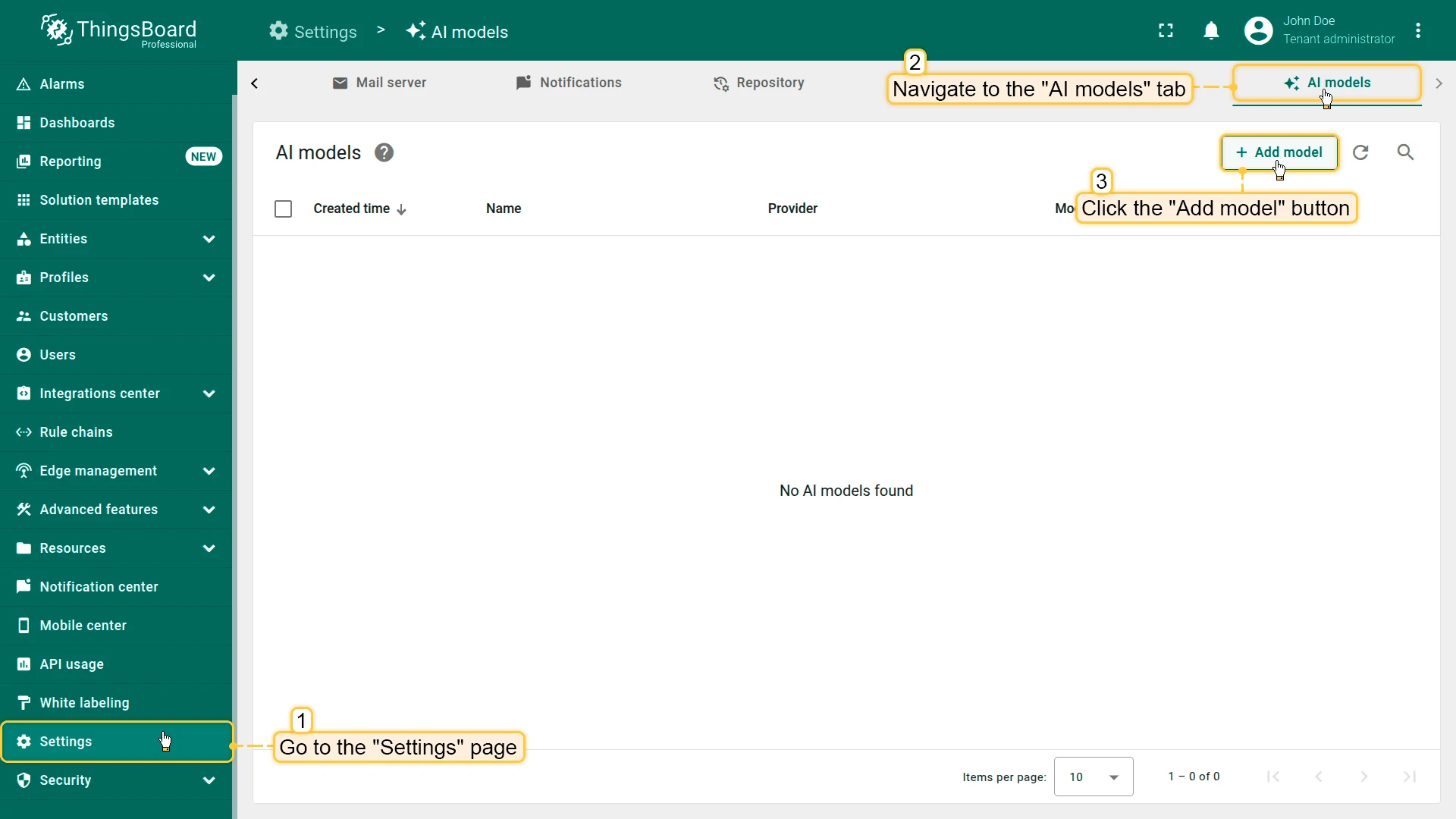
Section titled “Adding AI Models to ThingsBoard”- Go to the AI models tab on the Platform ⇾ Settings page.
- Click Add model (top-right corner).
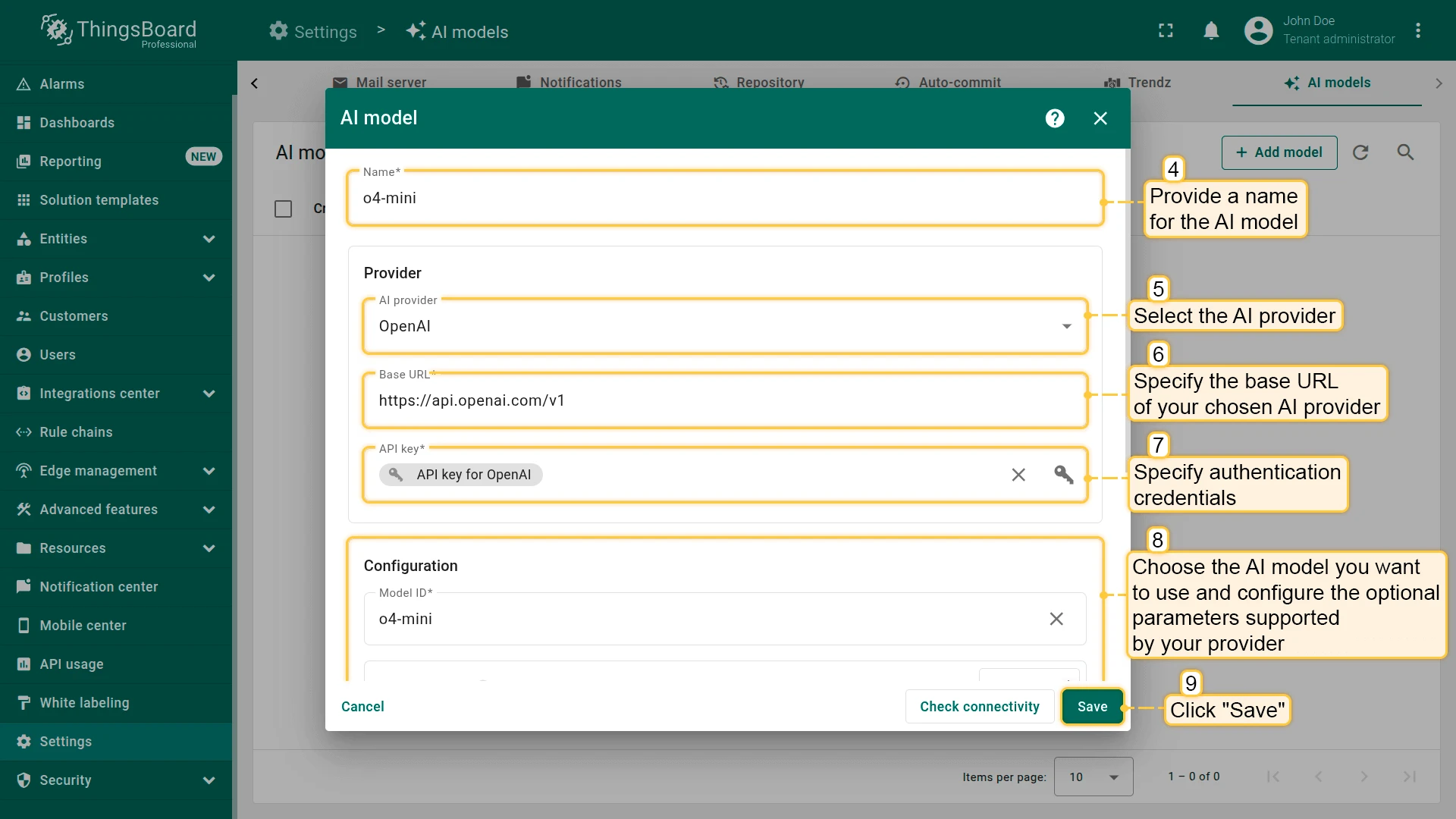
- Fill in the configuration form:
- Name — a meaningful name for the model.
- Provider — select the AI provider, specify the base URL (required only for OpenAI and Ollama), and enter authentication credentials.
- Model ID — choose which model to use (or deployment name for Azure OpenAI).
- Advanced settings — optional parameters such as temperature, top P, max tokens (if supported by the provider).
- Click Save.
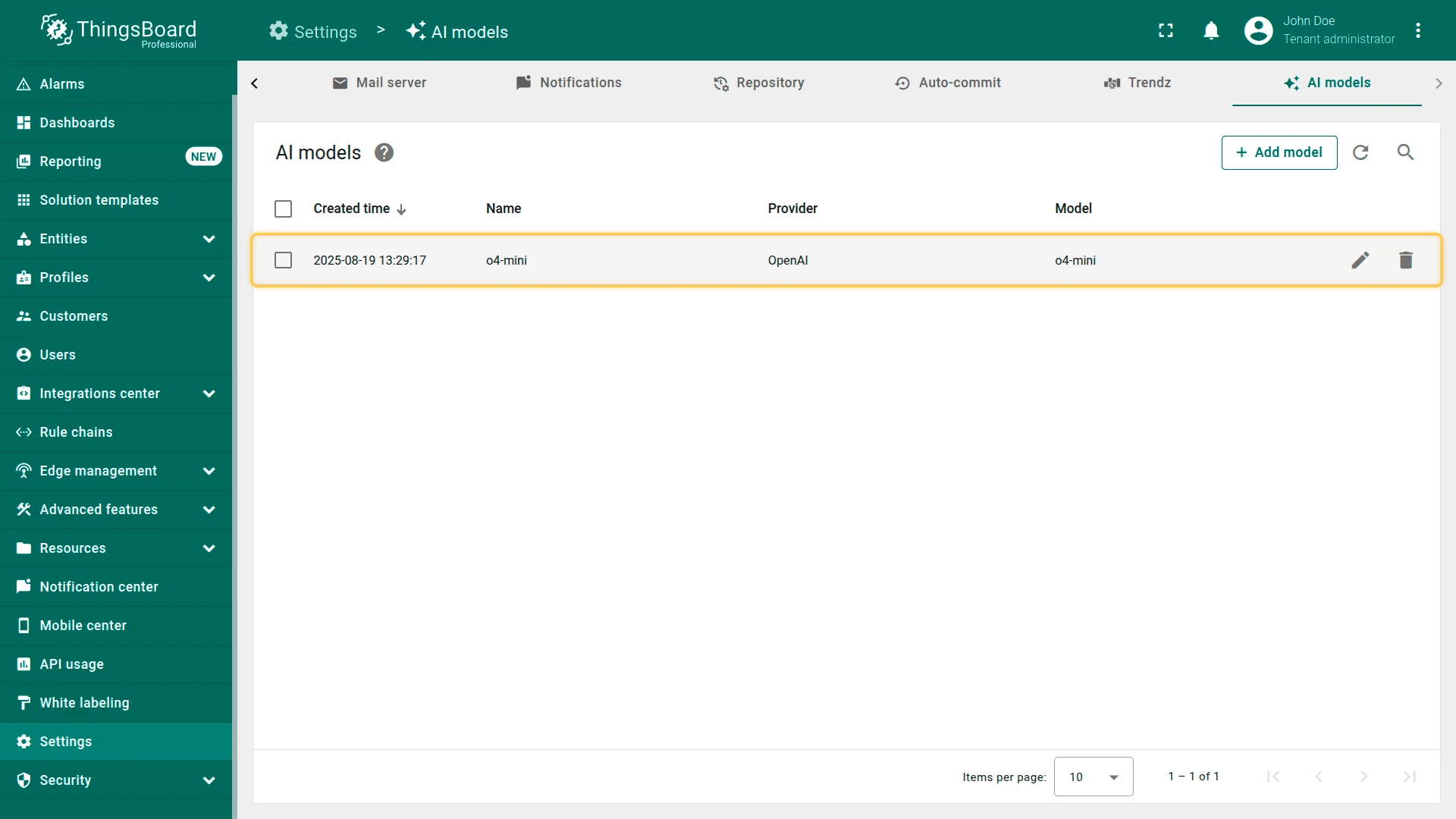
Provider Configuration
Section titled “Provider Configuration”In the Provider section, select the AI provider, specify the base URL (required only for OpenAI and Ollama), and enter authentication credentials (API key, key file, etc.).
Supported AI Providers
Section titled “Supported AI Providers”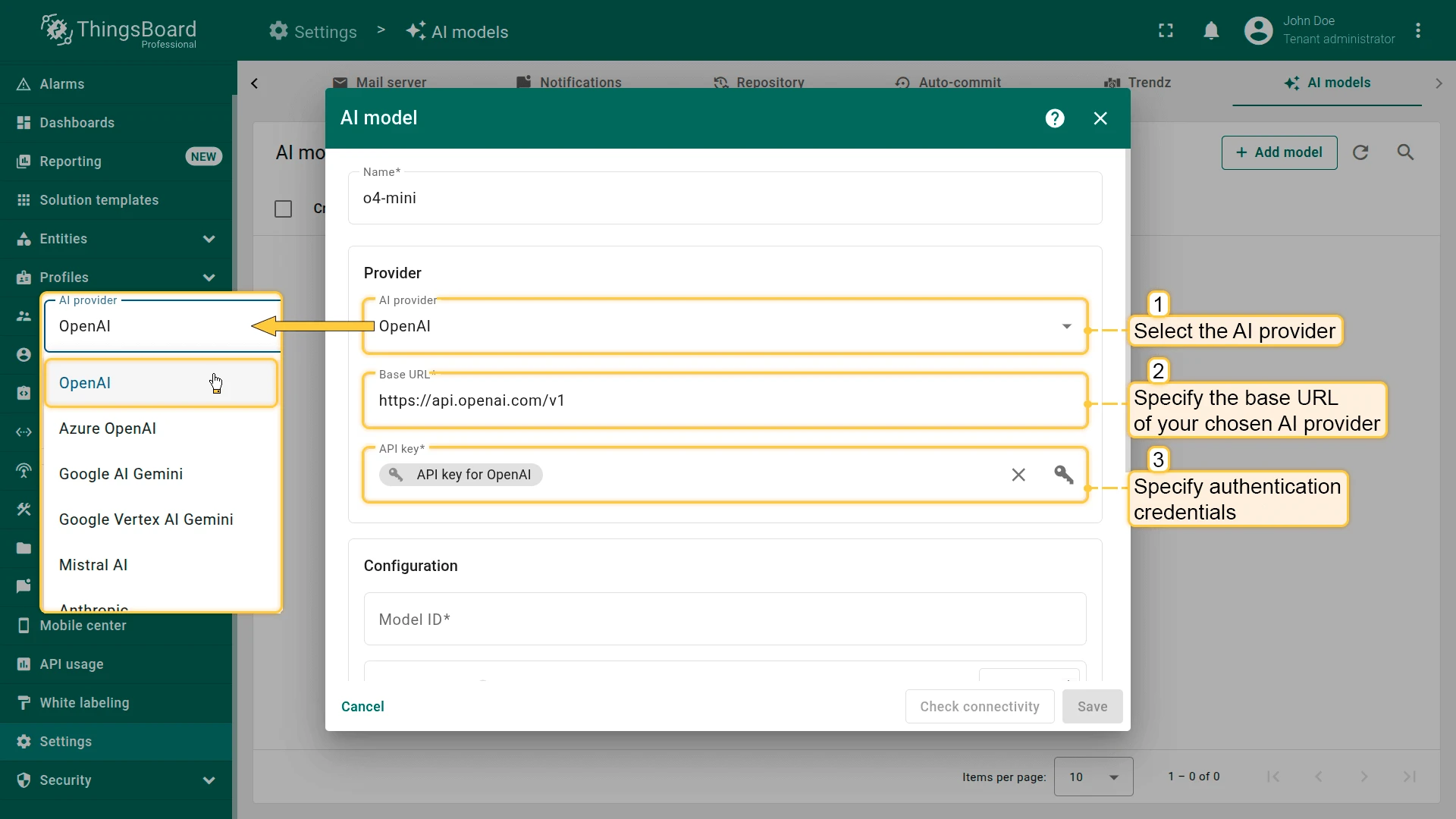
OpenAI
Section titled “OpenAI”- Base URL: Address for accessing the OpenAI API.
- Authentication: API key.
- Obtain your API key from the OpenAI dashboard.
Using OpenAI-Compatible Models
Section titled “Using OpenAI-Compatible Models”When working with models compatible with the OpenAI API, an important parameter is the base URL, which defines the address used to send requests to the API.
Official Base URL — the standard OpenAI API endpoint, preconfigured in ThingsBoard. Use this to access models hosted by OpenAI.
Custom Base URL — an alternative endpoint for providers that implement the OpenAI-compatible API protocol. Use this when there is no dedicated integration for your provider and they offer an OpenAI-compatible API (e.g., DeepSeek, Qwen, self-hosted Ollama).
Example base URLs:
| Provider | Base URL |
|---|---|
| DeepSeek | https://api.deepseek.com |
| Alibaba Qwen (Singapore) | https://dashscope-intl.aliyuncs.com/compatible-mode/v1 |
| Ollama (local) | http://localhost:11434/v1 |
Azure OpenAI
Section titled “Azure OpenAI”- Authentication: API key and endpoint.
- Create a deployment of the desired model in Azure AI Studio.
- Obtain the API key and endpoint URL from the deployment page.
- Optionally set the service version.
Google Gemini (Gemini API)
Section titled “Google Gemini (Gemini API)”Connects to Gemini models through Google’s Gemini API.
- Authentication: API key.
- Obtain the API key from Google AI Studio.
Google Gemini (Agent Platform - Vertex AI)
Section titled “Google Gemini (Agent Platform - Vertex AI)”Connects to the same Gemini models through Google Cloud’s Gemini Enterprise Agent Platform (formerly Vertex AI).
- Authentication: Service account key file.
- Required parameters:
- Google Cloud Project ID.
- Location of the target model (region).
- Service account key file with permission to interact with Vertex AI.
Mistral AI
Section titled “Mistral AI”- Authentication: API key.
- Obtain your API key from the Mistral AI portal.
Anthropic
Section titled “Anthropic”- Authentication: API key.
- Obtain your API key from the Anthropic console.
Amazon Bedrock
Section titled “Amazon Bedrock”- Authentication: AWS IAM credentials.
- Required parameters:
- Access key ID.
- Secret access key.
- AWS region (where inference will run).
GitHub Models
Section titled “GitHub Models”- Authentication: Personal access token.
- Token must have the
models:readpermission. - Create a token following the GitHub guide.
Ollama
Section titled “Ollama”Ollama allows you to run open large language models (Llama 3, Mistral, and others) directly on your own machine — enabling local experimentation, offline usage, and full control over your data.
To connect to your Ollama server, provide its base URL (e.g., http://localhost:11434) and an authentication method:
| Method | When to use |
|---|---|
| None | Default for a standard Ollama installation. No credentials required. |
| Basic | Ollama is behind a reverse proxy requiring HTTP Basic Authentication. Sends Authorization: Basic <encoded_credentials>. |
| Token | Ollama is behind a reverse proxy requiring Bearer Token Authentication. Sends Authorization: Bearer <token>. |
For a detailed deployment and authentication setup guide, see Local AI with Ollama.
Model Configuration
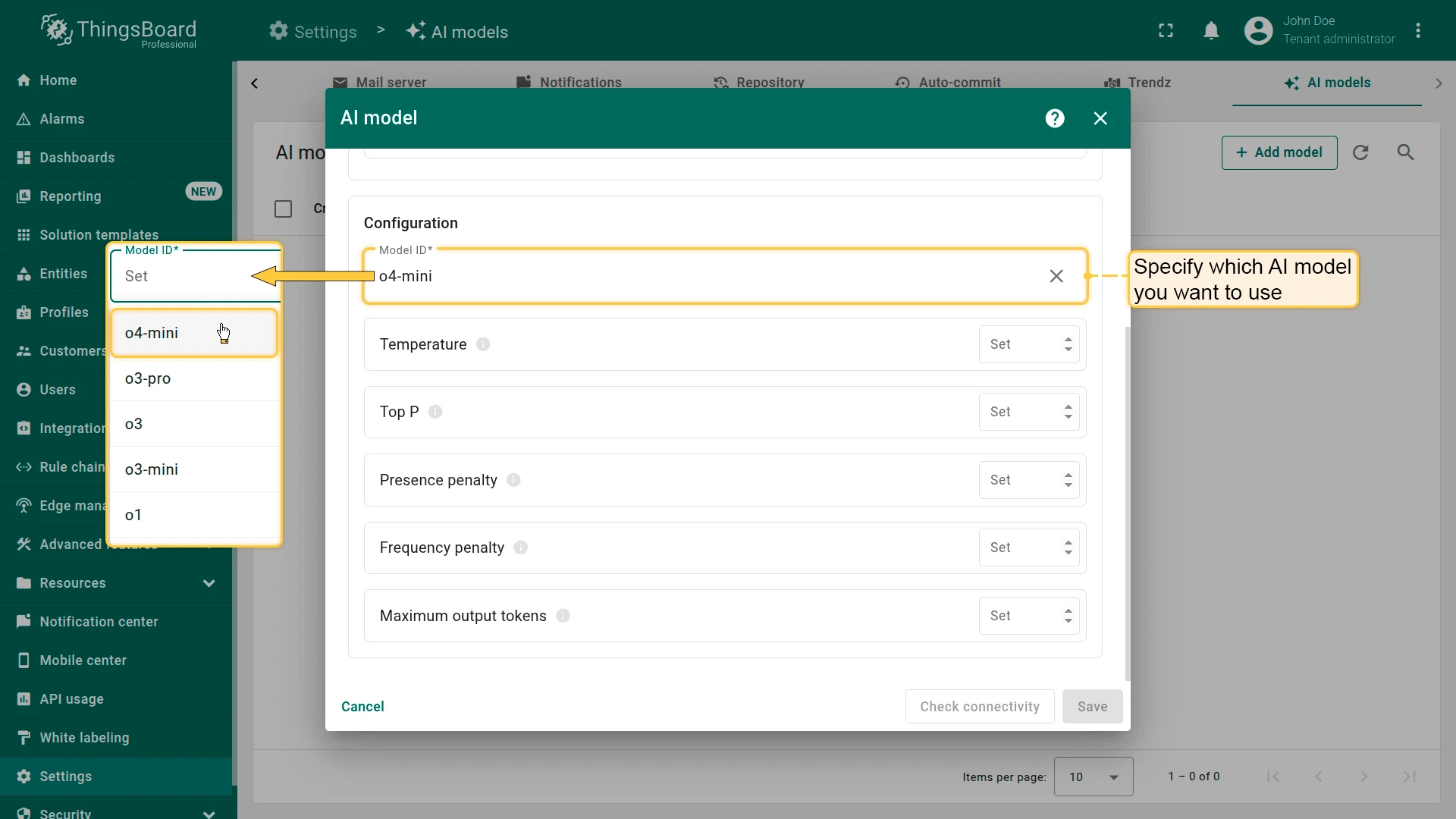
Section titled “Model Configuration”After selecting and authenticating your AI provider, specify which AI model to use (or deployment name for Azure OpenAI).
For some providers (like OpenAI), ThingsBoard offers autocomplete with popular models. You are not limited to this list — specify any model ID supported by the provider, including model aliases or snapshots.
Advanced Model Settings
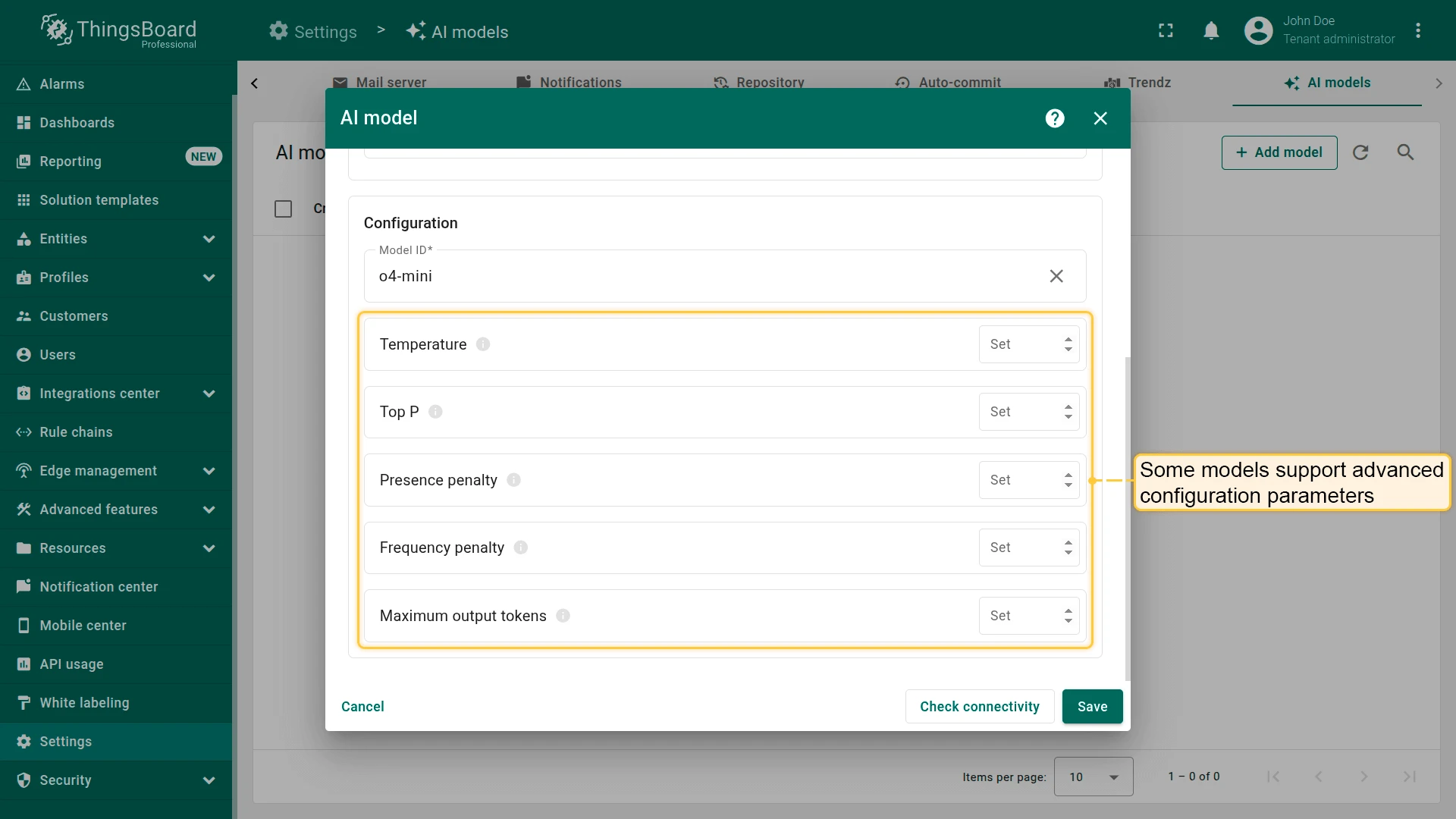
Section titled “Advanced Model Settings”Some models support additional configuration parameters (depending on the provider):
| Parameter | Description |
|---|---|
| Temperature | Controls randomness. Higher values increase randomness; lower values make output more deterministic. |
| Top P | Creates a pool of the most probable tokens. Higher values create a larger, more diverse pool. |
| Top K | Restricts choices to the K most likely tokens. |
| Presence penalty | Fixed penalty for tokens that have already appeared in the text. |
| Frequency penalty | Penalty that increases based on a token’s frequency in the text. |
| Maximum output tokens | Maximum number of tokens the model can generate in a single response. |
| Context length | Total context window size in tokens — includes both input and generated response. |
Connectivity Test
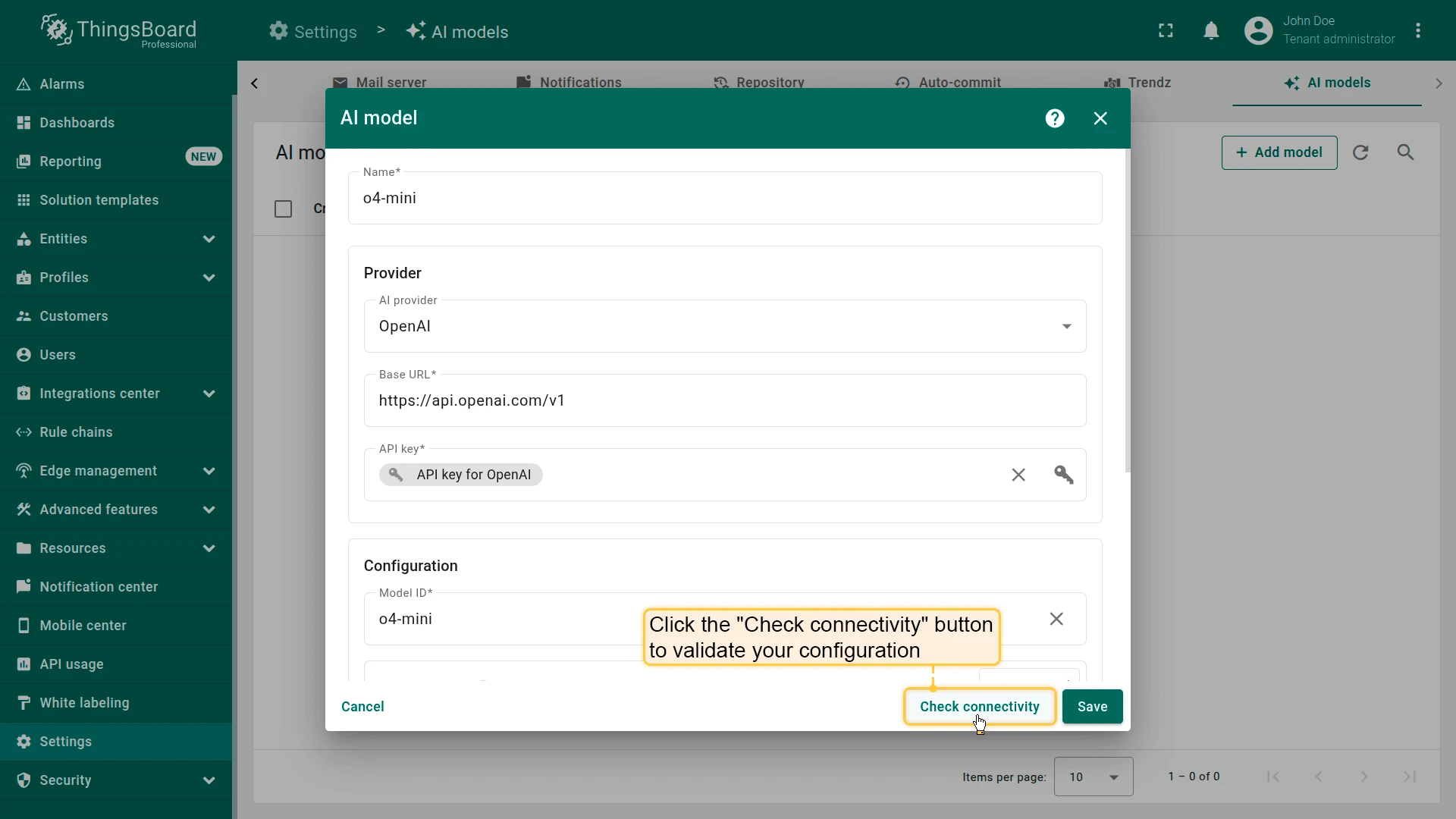
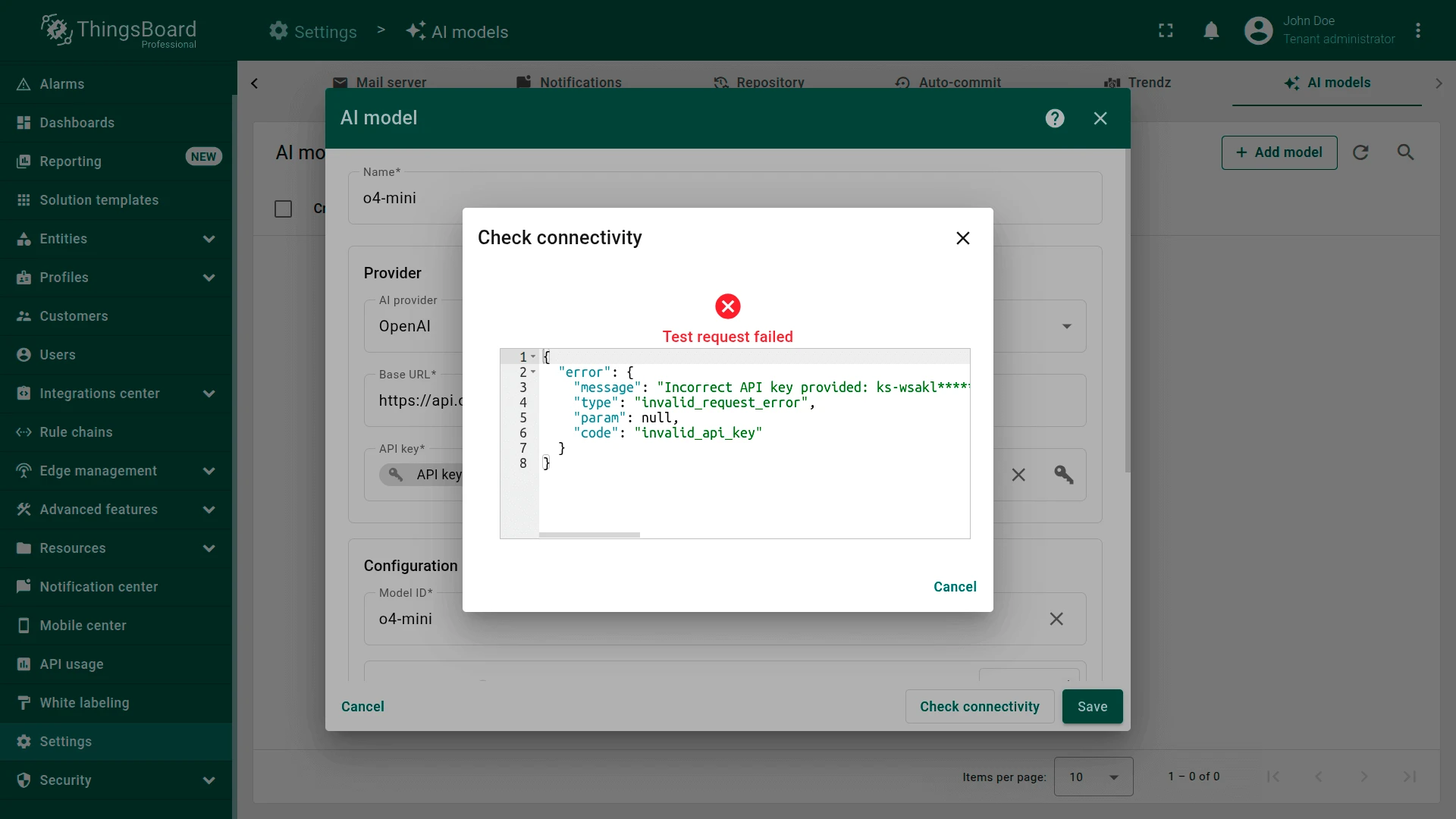
Section titled “Connectivity Test”Click Check connectivity to validate your configuration. A test request is sent to the provider API using the supplied credentials and model settings.
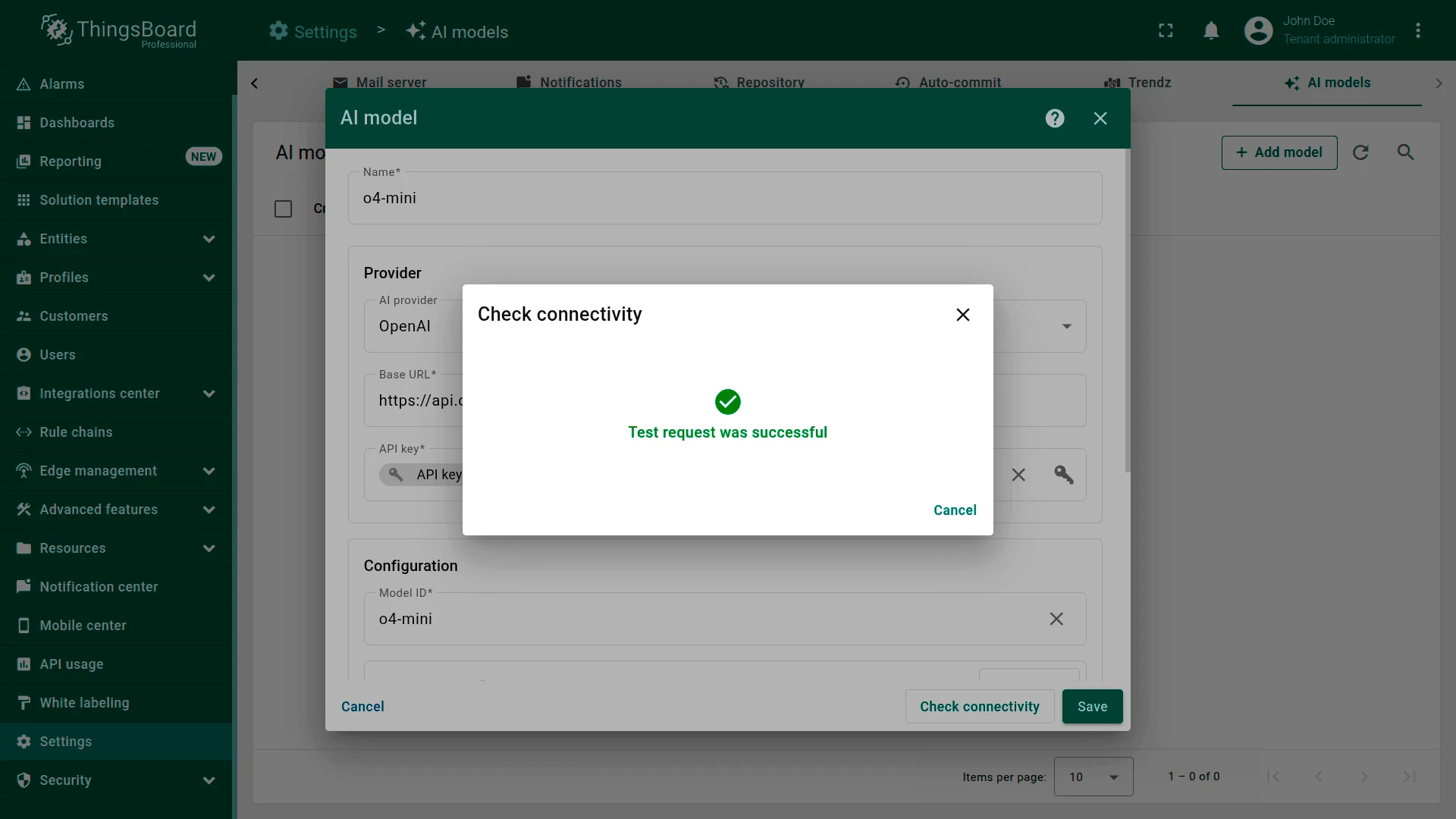
A successful test shows a green checkmark. If an error occurs (invalid API key, non-existing model, etc.), an error message with details is displayed.
Usage and Cost Controls
Section titled “Usage and Cost Controls”ThingsBoard does not track AI provider usage or enforce rate limits internally — costs are controlled by the provider’s API key and billing dashboard.
To reduce the number of AI requests and manage costs:
- Use the deduplication node before the AI request node to batch incoming messages (e.g., one AI call per 5-second window instead of per message).
- Add a script filter node to skip AI calls when telemetry values are within normal ranges.
- Choose smaller, cheaper models (e.g.,
gpt-4o-mini) for classification tasks where full-size models are not necessary.
For a complete end-to-end example, see the AI Predictive Maintenance guide.
Was this helpful?