Value Stepper
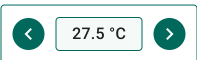
The Value stepper widget places a numeric input control on any dashboard with dedicated decrease and increase buttons. It reads the current value from a device attribute, telemetry, or RPC call, and writes each step back as an RPC command, attribute update, or time series record. Use it wherever operators need to adjust a device parameter in fixed steps: fan speed, temperature setpoint, motor RPM, lighting level, or valve position.
Key Capabilities
Section titled “Key Capabilities”- Increment and decrement a numeric value with two dedicated buttons.
- Reads the current value on load from an attribute, telemetry value, or RPC call.
- Sends RPC commands, attribute updates, or telemetry writes independently for each button.
- Configurable min/max range, step size, and decimal places.
- Can be disabled automatically based on device data, alarms, or dashboard state.
Adding the Widget
Section titled “Adding the Widget”- Open the dashboard in edit mode. Click Add widget in the top toolbar, or click the Add new widget icon in the center of an empty dashboard.
- In the widget bundle selection dialog, find and click Buttons.
- Select the Value stepper widget.
- Configure the datasource, behavior, and appearance, then click Add.
Configuration
Section titled “Configuration”All settings in this section use Basic mode — a quick-start configuration covering the essentials. For finer widget controls like card style, card buttons, title, and tooltip, switch to the Advanced tab.
Target Device
Section titled “Target Device”Select the datasource for the widget:
- Device — a specific device; the widget reads attribute and telemetry data from this device to determine the initial value.
- Entity alias — a set of entities matched by an entity alias; use this when the target device is selected dynamically at runtime.
Behavior
Section titled “Behavior”The Behavior section defines how the widget reads the initial numeric value, what action fires on the left button click, what action fires on the right button click, and when the buttons disable. Configure each sub-section as needed; Disabled state is optional.
Initial State
Section titled “Initial State”Determines the numeric value displayed when the dashboard loads. Select one action type from the list below.
-
Do nothing
The value is set manually. No live data needed.
Parameter Description Value The static number to display. -
Execute RPC
Calls a device RPC method to read the current value.
Parameter Description Method The RPC method name to call, like getLevel.Condition (None) Value is used as-is from the RPC result. Condition (Function) Transform the result with a f(data)function that returns a number.RPC request timeout (ms) How long to wait for a device response before timing out. RPC request persistent When enabled, the RPC command is stored and retried until the device comes online. -
Get attribute
Reads a device or entity attribute to determine the current value.
Parameter Description Attribute scope Where the attribute is stored: Any, Client, Server, or Shared. Attribute key The attribute name to read, like speedortargetTemperature.Condition (None) Value is used as-is from the attribute. Condition (Function) Transform the result with a f(data)function that returns a number. -
Get time series
Reads the latest telemetry value to determine the current value.
Parameter Description Time series key The telemetry key to monitor, like temperatureSetpoint.Condition (None) Value is used as-is from the telemetry record. Condition (Function) Transform the result with a f(data)function that returns a number. -
Get alarm status
Sets the displayed value based on active alarms on the entity.
Parameter Description Alarm severity Which severity levels to check: Critical, Major, Minor, Warning, or Indeterminate. Alarm types Any alarm, or a specific alarm type. Condition (Function) Transform the result with a f(data)function that returns a number. -
Get dashboard state id
Sets the value based on the currently open dashboard state.
Parameter Description Condition (None) Value is derived from the current state name. Condition (Function) Transform the result with a f(data)function that returns a number. -
Get dashboard state object
Sets the value using the full dashboard state context; use this when you need to check multiple state parameters at once.
Parameter Description Condition (Function only) Write a f(data)function that returns the numeric value to display.
Left Button Click (Decrement)
Section titled “Left Button Click (Decrement)”Defines the action executed when the user clicks the left button, sending the decremented value to the device. Select one action type from the list below.
-
Execute RPC
Sends an RPC command to the device with the decremented value.
Parameter Description Method The RPC method name, like setState.Parameters Value — passes the current stepper value; Function f(value)— transforms the value before sending; None — no parameters sent.RPC request timeout (ms) How long to wait for a device response before timing out. RPC request persistent When enabled, the RPC command is stored and retried until the device comes online. -
Set attribute
Updates a device attribute with the decremented value.
Parameter Description Attribute scope Server or Shared. Attribute key The attribute to update, like speedortargetTemperature.Value Value — passes the current stepper value; Function f(value)— transforms the value before writing. -
Add time series
Writes a time-series record with the decremented value.
Parameter Description Time series key The telemetry key to write to, like temperatureSetpoint.Value Value — passes the current stepper value; Function f(value)— transforms the value before writing.
Right Button Click (Increment)
Section titled “Right Button Click (Increment)”Defines the action executed when the user clicks the right button, sending the incremented value to the device. Configure this as the counterpart of the left button click. Select one action type from the list below.
-
Execute RPC
Sends an RPC command to the device with the incremented value.
Parameter Description Method The RPC method name, like setState.Parameters Value — passes the current stepper value; Function f(value)— transforms the value before sending; None — no parameters sent.RPC request timeout (ms) How long to wait for a device response before timing out. RPC request persistent When enabled, the RPC command is stored and retried until the device comes online. -
Set attribute
Updates a device attribute with the incremented value.
Parameter Description Attribute scope Server or Shared. Attribute key The attribute to update, like speedortargetTemperature.Value Value — passes the current stepper value; Function f(value)— transforms the value before writing. -
Add time series
Writes a time-series record with the incremented value.
Parameter Description Time series key The telemetry key to write to, like temperatureSetpoint.Value Value — passes the current stepper value; Function f(value)— transforms the value before writing.
Disabled State
Section titled “Disabled State”The Disabled state makes both buttons non-interactive when a configured condition is met, preventing adjustments in unsafe or invalid situations.
-
Do nothing
Set the disabled state manually. No live data needed.
Parameter Description Value Set to True to always disable the buttons, or False to always keep them enabled. -
Execute RPC
Disable the buttons based on a device RPC response, like checking availability before allowing control.
Parameter Description Method The RPC method to call, like getAvailability.Condition (None) Disabled when the RPC result equals the value you specify. Condition (Function) Disabled when your f(data)function returnstrue. -
Get attribute
Disable the buttons based on a device attribute, like a
lockedflag oronlinestatus.Parameter Description Attribute scope Where the attribute is stored: Any, Client, Server, or Shared. Attribute key The attribute name to read, like lockedoronline.Condition (None) Disabled when the attribute equals the value you specify (String, Integer, Double, Boolean, or JSON). Condition (Function) Disabled when your f(data)function returnstrue. -
Get time series
Disable the buttons based on the latest telemetry value, like an operational mode or availability reading.
Parameter Description Time series key The telemetry key to monitor, like availabilityormode.Condition (None) Disabled when the telemetry value equals the value you specify. Condition (Function) Disabled when your f(data)function returnstrue. -
Get alarm status
Disable the buttons while a specific alarm is active, like blocking adjustments during a Critical alarm.
Parameter Description Alarm severity Critical, Major, Minor, Warning, or Indeterminate. Alarm types Any alarm, or a specific alarm type. -
Get dashboard state id
Disable the buttons based on the currently open dashboard state; use this to prevent adjustments in read-only or restricted views.
Parameter Description Condition (None) Disabled when the current state name matches the text you enter. Condition (Function) Disabled when your f(data)function returnstrue. -
Get dashboard state object
Disable the buttons using the full dashboard state context; use this when you need to check multiple state parameters at once.
Parameter Description Condition (Function only) Write a f(data)function that returnstrueto disable the buttons.
Appearance
Section titled “Appearance”Controls the value display and overall widget layout.
| Setting | Description |
|---|---|
| Layout | Button design variant: Simplified — minimal style; Filled — filled background; Volume — raised effect. |
| Auto scale | Automatically adjusts font size and element scaling when the widget is resized. |
| Range | Allowed numeric limits: Min and Max values. |
| Value increment/decrement step | Step size applied on each button click, like 1, 5, or 0.5. |
| Value | Font settings (typeface, size, weight), color, and number of decimal places for the displayed value. |
| Value box background | Background color behind the numeric display area. |
| Border | Border width and color for the value container. |
Button Appearance
Section titled “Button Appearance”Controls each button’s icon and colors independently. The section has Left and Right tabs.
| Setting | Description |
|---|---|
| Left / Right button | Toggle to show or hide the button. |
| Icon | Icon displayed on the button (size in px + icon picker). |
| Power ‘On’ colors | Main — button fill color in the active state; Background — surrounding area color. |
| Disabled colors | Main — button fill color when disabled; Background — surrounding area color. |
Card Appearance
Section titled “Card Appearance”| Setting | Description |
|---|---|
| Background | Card background color or image. |
| Show card buttons | Fullscreen — expand the widget to fullscreen mode. |
| Card border radius | Roundness of card corners. |
| Card padding | Spacing between the widget content and the card border. |
Actions
Section titled “Actions”The Value stepper widget supports the Widget header button action — adds a button to the widget header that triggers a configured action when clicked.
Example
Section titled “Example”Temperature Setpoint Control
Section titled “Temperature Setpoint Control”Scenario: A Heating Controller device controls room temperature. It reads its setpoint from the shared attribute targetTemperature and adjusts the heater when the value changes. A second shared attribute, locked (Boolean), prevents adjustment when set to true.
Prerequisites:
- Create a device named Heating Controller in ThingsBoard.
- Add a shared attribute: Key —
targetTemperature, Data type — Double, Value —24.5. - Add a shared attribute: Key —
locked, Data type — Boolean, Value —false.
Step 1. Add the widget. Open your dashboard in edit mode, click Add widget, select the Buttons bundle, then choose Value stepper.
Step 2. Configure the datasource. Set Target device to Heating Controller.
Step 3. Configure behavior.
Initial state: Get attribute — Scope: Shared, Key: targetTemperature, Condition: None.
Left button click: Set attribute — Scope: Shared, Key: targetTemperature, Value: Value.
Right button click: Set attribute — Scope: Shared, Key: targetTemperature, Value: Value.
Disabled state: Get attribute — Scope: Shared, Key: locked, Condition: None — disabled when result is true (Boolean).
Step 4. Configure appearance.
- Layout: Filled
- Range: Min
16, Max28 - Value increment/decrement step:
0.5 - Value: Unit
°C, Decimals1
Step 5. Configure button appearance.
Left button: Power ‘On’ colors — Main #048AD3, Background #FFFFFF.
Right button: Power ‘On’ colors — Main #F44336, Background #FFFFFF.
Step 6. Save. Click Add, resize and reposition as needed, then click Save on the dashboard toolbar.
Result: The widget reads targetTemperature from Heating Controller and displays it as the initial value. Clicking the left button (blue) decreases the setpoint by 0.5 °C; clicking the right button (red) increases it by 0.5 °C. When locked = true, both buttons become inactive.
Troubleshooting
Section titled “Troubleshooting”Widget Does Not Show the Correct Initial Value
| Cause | Solution |
|---|---|
| Wrong attribute key | Verify the key matches the device attribute exactly. Key names are case-sensitive. |
| Wrong attribute scope | Match the scope to the actual attribute type (Client / Server / Shared). |
| No attribute on device | Open Devices → Attributes and confirm the key exists with a value. |
| RPC call fails | Check device connectivity and verify the RPC handler on the device firmware. |
Button Click Has No Effect
| Cause | Solution |
|---|---|
| Device offline | Verify device connectivity and transport configuration. |
| Wrong RPC method name | Confirm the method name matches the handler implemented on the device firmware. |
| Value out of range | Check that the new value falls within the configured Min / Max range. |
| RPC timeout | Increase RPC request timeout in the behavior settings. |
Widget Is Stuck in Disabled State
| Cause | Solution |
|---|---|
| Disabled condition always evaluates to true | Review the Disabled state configuration — check the action type and result converter. |
| Unexpected attribute value | Open Devices → Attributes or Latest telemetry to inspect the actual value. |
Was this helpful?