Geofencing Calculated Field
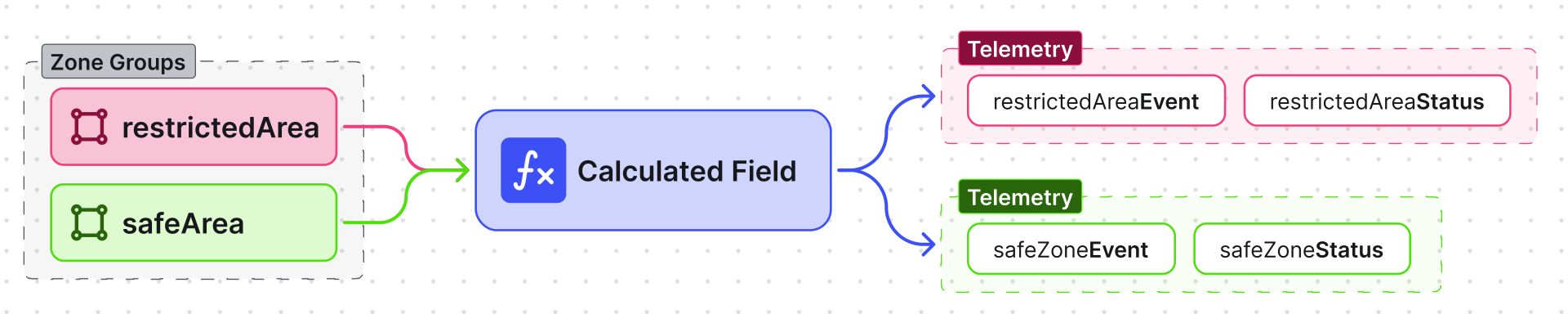
The Geofencing calculated field monitors entity movement in real time by evaluating incoming GPS coordinates against configured geofence zones. It generates two output keys per zone group:
<groupName>Status—INSIDEorOUTSIDE<groupName>Event—ENTEREDorLEFT
For example, a truck tracker with a warehouseArea zone group produces warehouseAreaStatus and
warehouseAreaEvent telemetry automatically as the truck moves.
Use Geofencing when you need to:
- Track presence in operational zones (is the truck inside the warehouse perimeter?)
- Detect entry/exit transitions for alarms and notifications
- Monitor multiple independent zones simultaneously (service area + restricted area)
- Handle dynamic zone assignment — zones can be added or removed via relations without per-device reconfiguration
- Avoid false transitions when a logical area spans multiple adjacent polygons
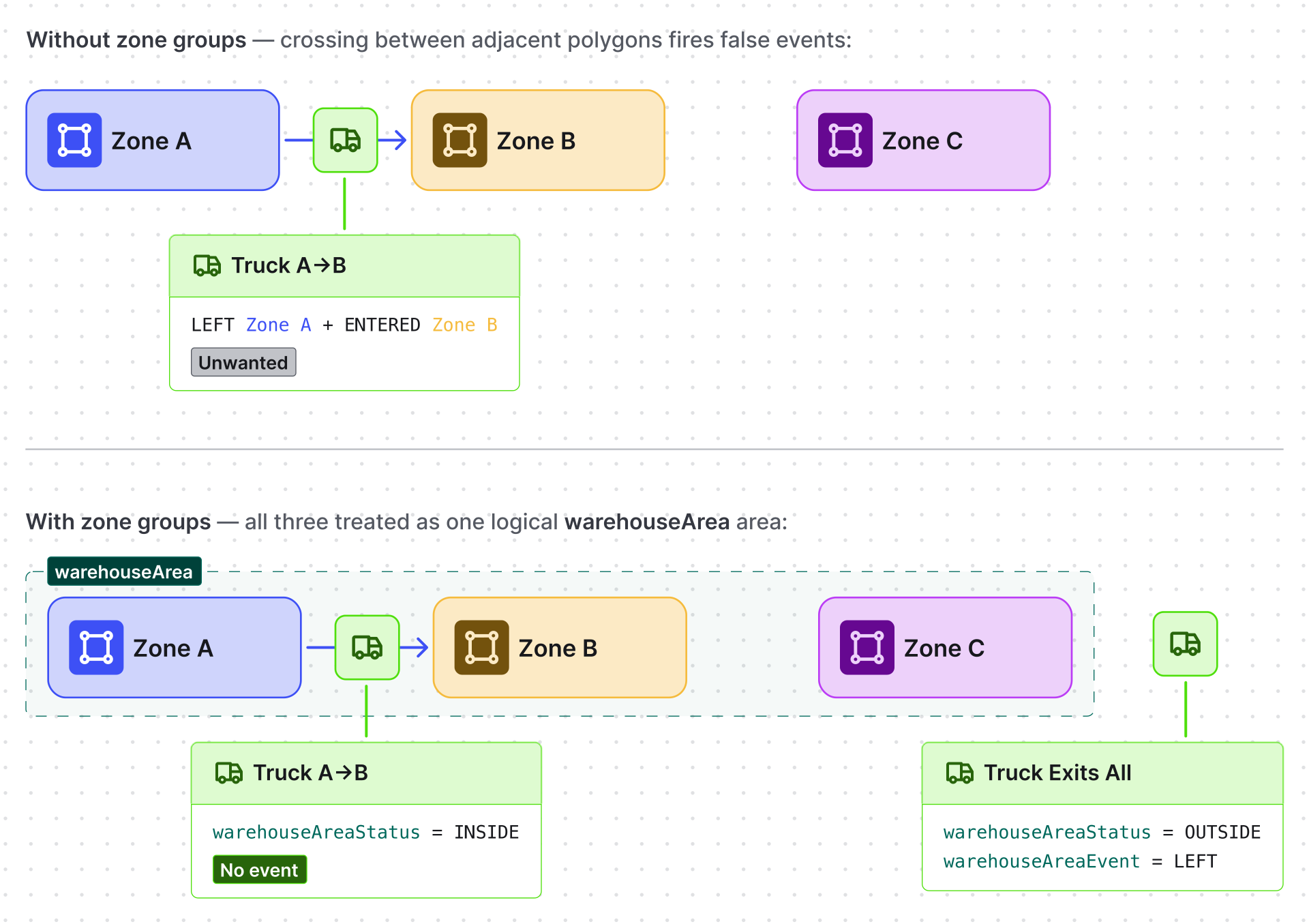
Zone groups — the key concept — bundle one or more physical polygons/circles into a single
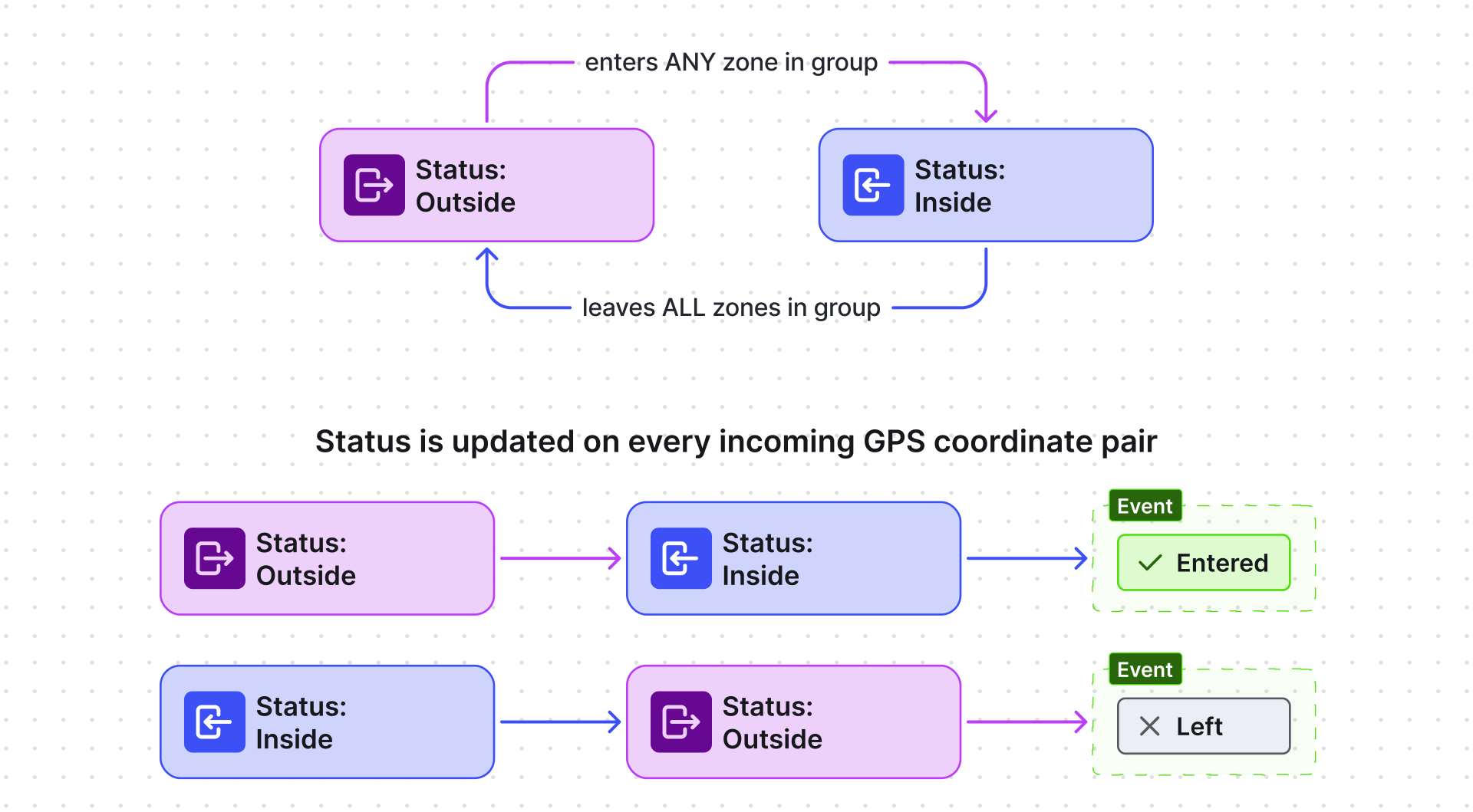
logical evaluation. An entity is INSIDE if it is inside at least one zone in the group.
This prevents false ENTERED/LEFT events when an entity moves between adjacent zones within the
same group.
Configuration
Section titled “Configuration”- Open the Data processing ⇾ Calculated fields page.
- Click the + Add calculated field ⇾ Create new calculated field in the top-right corner.
- In General, enter a title, specify the entity the field applies to, and select the Geofencing type.
- Map Entity coordinates (latitude/longitude telemetry keys).
- Add one or more Zone groups.
- Configure Output.
- Click Add to save.
Entity Coordinates
Section titled “Entity Coordinates”Map the telemetry keys that carry the entity’s GPS position:
| Field | Example |
|---|---|
| Latitude time series key | latitude or lat |
| Longitude time series key | longitude or lng |
Geofencing Zone Groups
Section titled “Geofencing Zone Groups”Click Add zone group to configure a new group. Each group has independent state tracking.
Used as the prefix for output telemetry keys. Use camelCase for consistent key names:
Entity Type (Zone Source)
Section titled “Entity Type (Zone Source)”Specifies where the zone geometry (polygon or circle) is stored:
| Entity type | When to use |
|---|---|
| Current entity | Each tracked entity has its own unique zone (e.g., a dog’s personal home zone) |
| Device / Asset | Zone geometry is stored on a specific shared entity |
| Customer / Current tenant / Current owner | Organization-level zone inherited by all entities |
| Related entities | Zones discovered dynamically via relation traversal — best for scalable, dynamic zone management |
Path from Entity to Zones
Section titled “Path from Entity to Zones”Only for Related entities entity type.
Defines the multi-step relation path from the source entity to the zone assets:
| Field | Description |
|---|---|
| Level | Sequence number (starting at 1) |
| Direction | Up (to parent) or Down (to child) |
| Relation type | The named relation to follow at this step |
Example — vehicle in a fleet with separate zone types:
| Level | Direction | Relation type |
|---|---|---|
| 1 | Up | Contains (Vehicle → Fleet) |
| 2 | Down | FleetToRestrictedZone (Fleet → Zone) |
Perimeter Attribute Key
Section titled “Perimeter Attribute Key”The server-side attribute key on zone entities that stores the geometry. Supports polygons and circles overlays as defined in the map widget format.
Report Strategy
Section titled “Report Strategy”Controls which telemetry keys are generated for the zone group:
| Strategy | Generated keys | Use when |
|---|---|---|
| Transition events only | <name>Event (ENTERED / LEFT) |
You only need boundary-crossing events |
| Presence status only | <name>Status (INSIDE / OUTSIDE) |
You only need current state |
| Presence status and transition events | Both | Full monitoring — dashboards and alarms |
Create Relations with Matched Zones
Section titled “Create Relations with Matched Zones”Only for Related entities entity type.
When enabled, ThingsBoard automatically creates and removes relations between the tracked entity and the zones it is currently inside:
- On enter: relation is created
- On leave: relation is removed
Configure:
- Relation direction: From zone to entity or From entity to zone
- Relation type: The relation type name (e.g.,
currentlyInside)
Zone Groups Refresh Interval
Section titled “Zone Groups Refresh Interval”Available when at least one group uses Related entities.
Controls how often the cached list of discovered zones is refreshed:
| Setting | Behavior |
|---|---|
| Disabled | Zones fetched once, never refreshed (use only for static infrastructure) |
| Enabled (e.g., 60s) | Zones refreshed periodically — lower interval for frequently changing relations |
Output
Section titled “Output”In the Output section, map each zone group’s generated variables to output keys and select the storage type:
| Variable | Values |
|---|---|
<groupName>Status |
INSIDE or OUTSIDE |
<groupName>Event |
ENTERED or LEFT |
For output strategy options, see Calculated Fields — Output Strategy.
Example 1: Pet Tracker (Self-Geofencing)
Section titled “Example 1: Pet Tracker (Self-Geofencing)”Each dog collar tracker publishes latitude/longitude as telemetry and has its own safeZone
circle stored as a server-side attribute (each dog has a unique home zone).
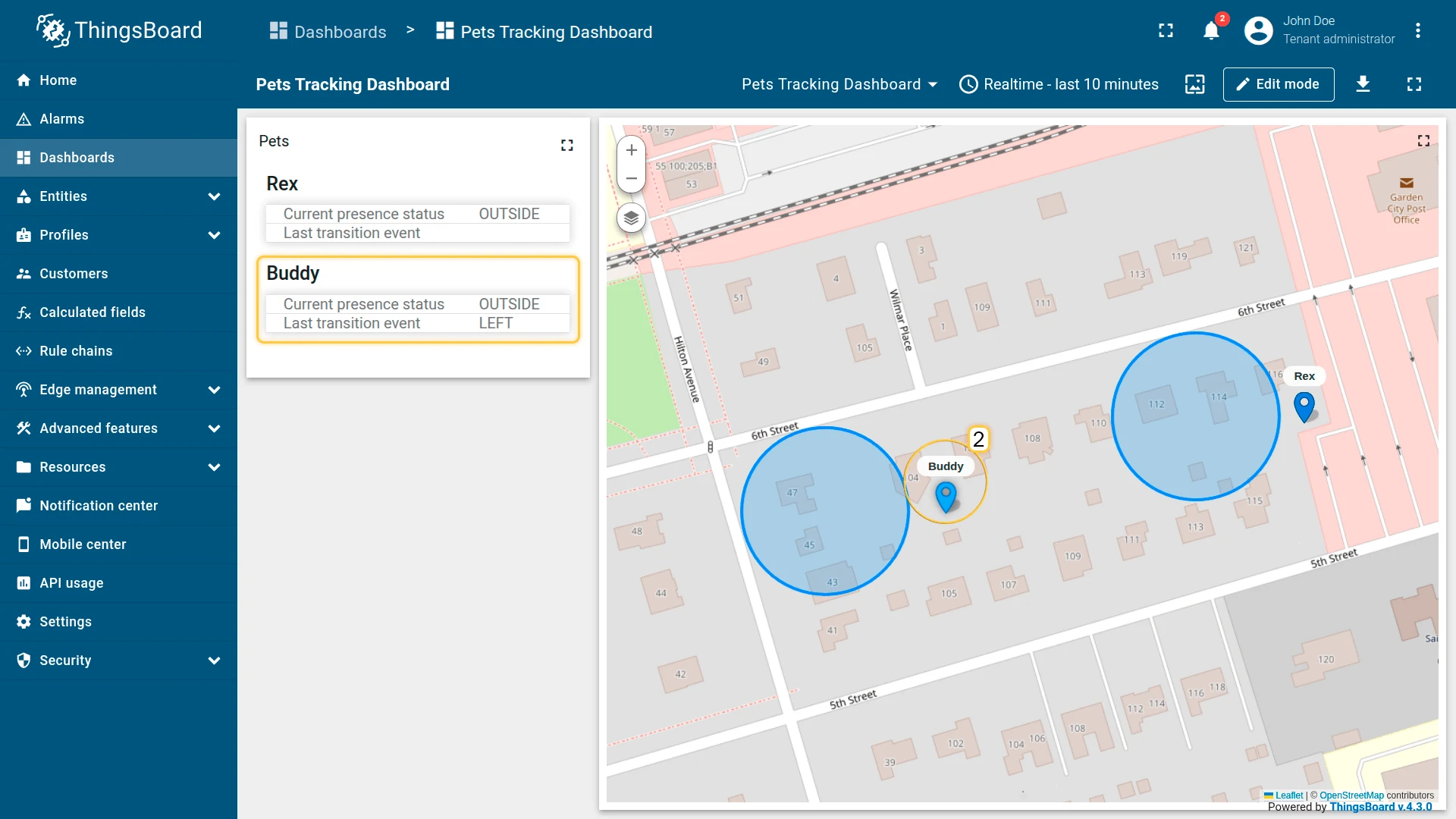
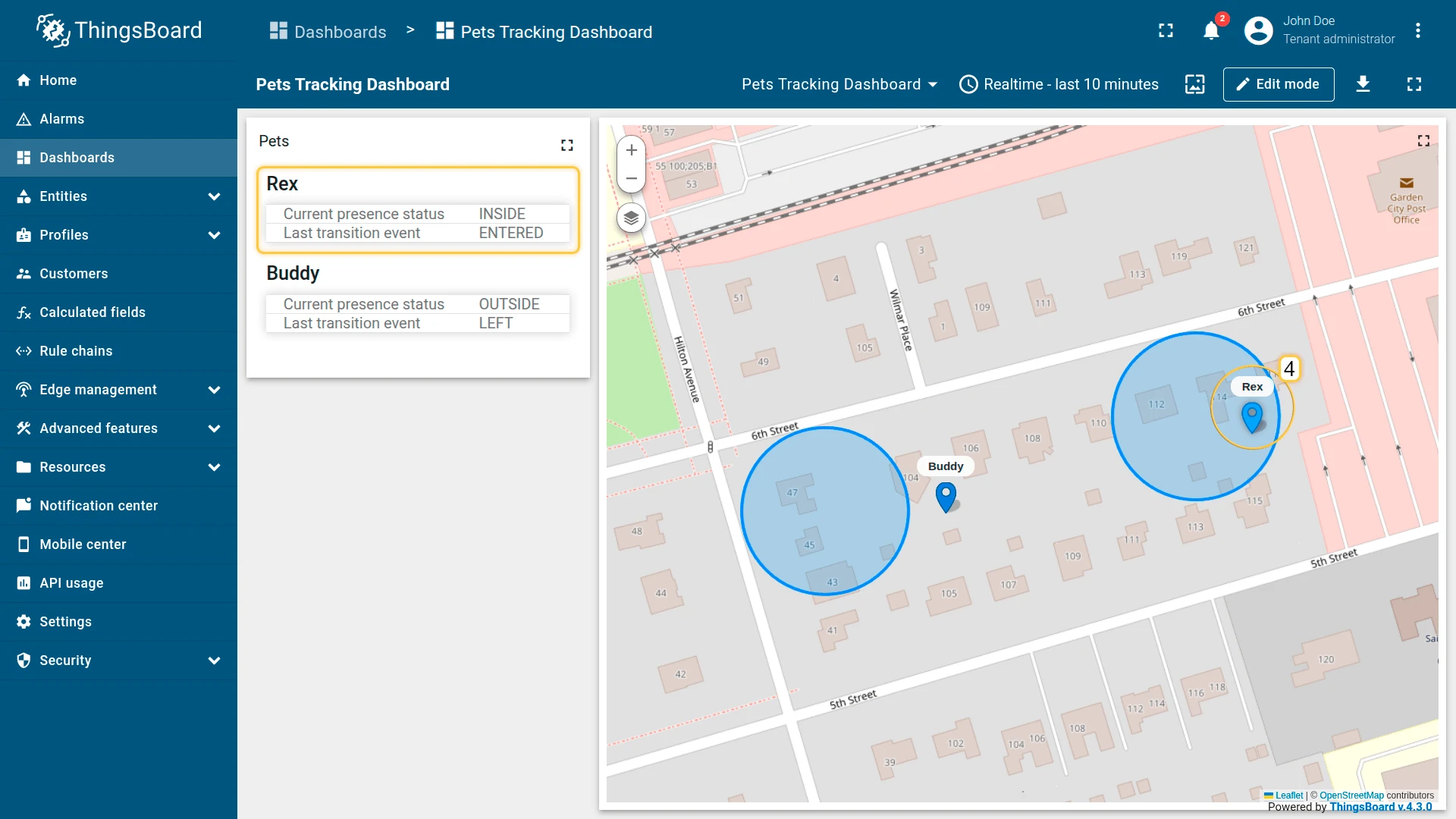
Goal: detect when the dog enters/leaves its safe zone and generate safeZoneStatus and safeZoneEvent.
Preparation
Section titled “Preparation”Import the two demo devices used in this example:
- Download pets-tracking-device-data.csv.
- Go to Devices & assets ⇾ Devices and import device.
- Upload the file with the delimiter set to
; - Set
latitudeandlongitudeas time series keys - Set
safeZoneas server-side attribute.
- Upload the file with the delimiter set to
The import creates Buddy and Rex under the pet-tracking profile. Each device has latitude/longitude telemetry keys and a safeZone server-side attribute containing the zone geometry.
Configuration
Section titled “Configuration”- Apply the calculated field to the pet-tracking device profile.
- Entity coordinates:
latitude,longitude. - Add zone group safeZone:
- Name:
safeZone - Entity type: Current entity
- Perimeter attribute key:
safeZone - Report strategy: Presence status and transition events
- Name:
- Output type: Time series.
- Click Add.
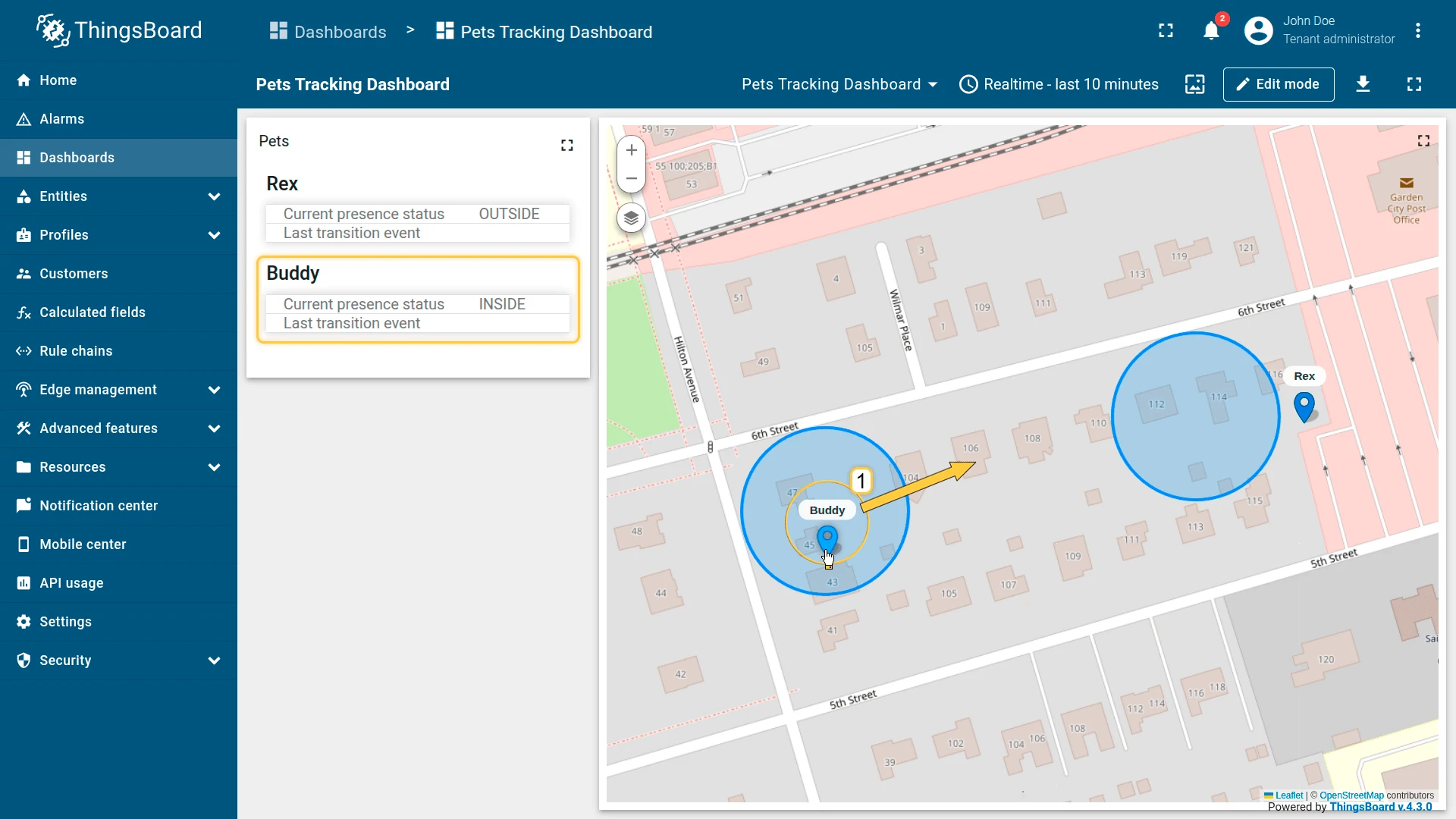
Result: Each tracker independently evaluates its own safeZone. Moving the device outside
the home zone sets safeZoneStatus = OUTSIDE and generates a safeZoneEvent = LEFT.

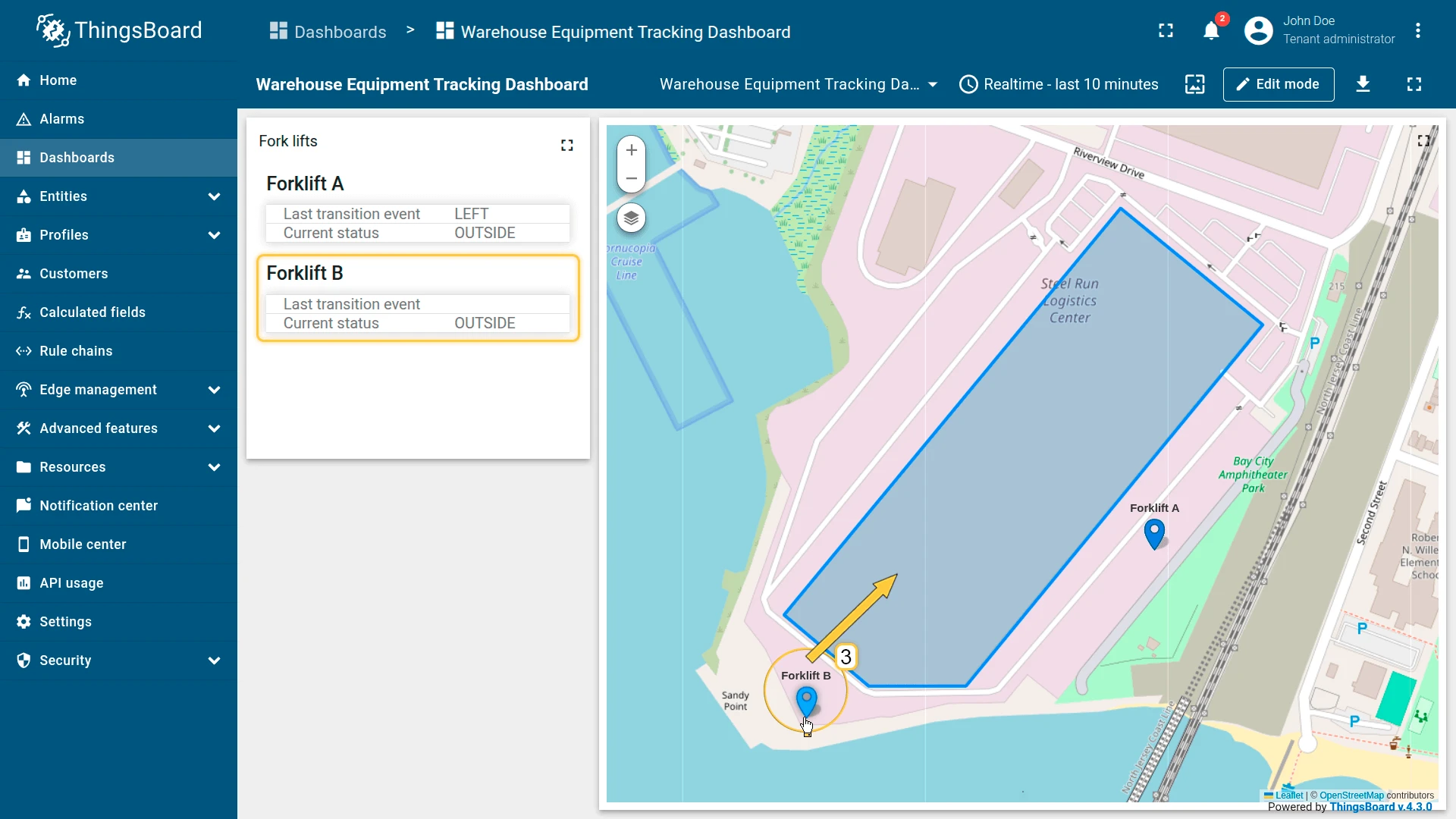
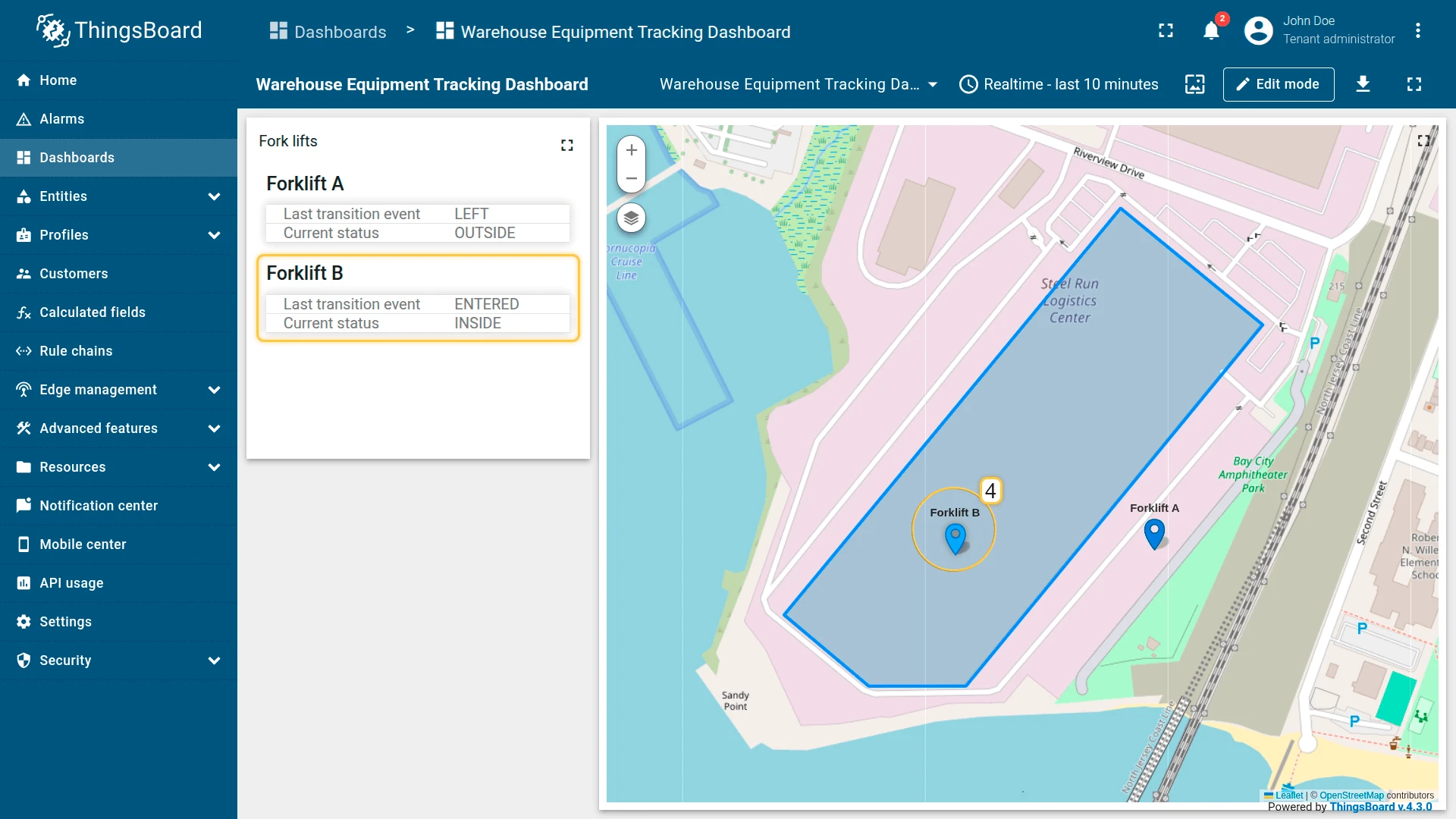
Example 2: Warehouse Equipment (Direct Association)
Section titled “Example 2: Warehouse Equipment (Direct Association)”Two forklifts publish GPS telemetry. The Warehouse A asset stores a perimeter polygon attribute.
Each forklift is linked to Warehouse A via a Contains relation.
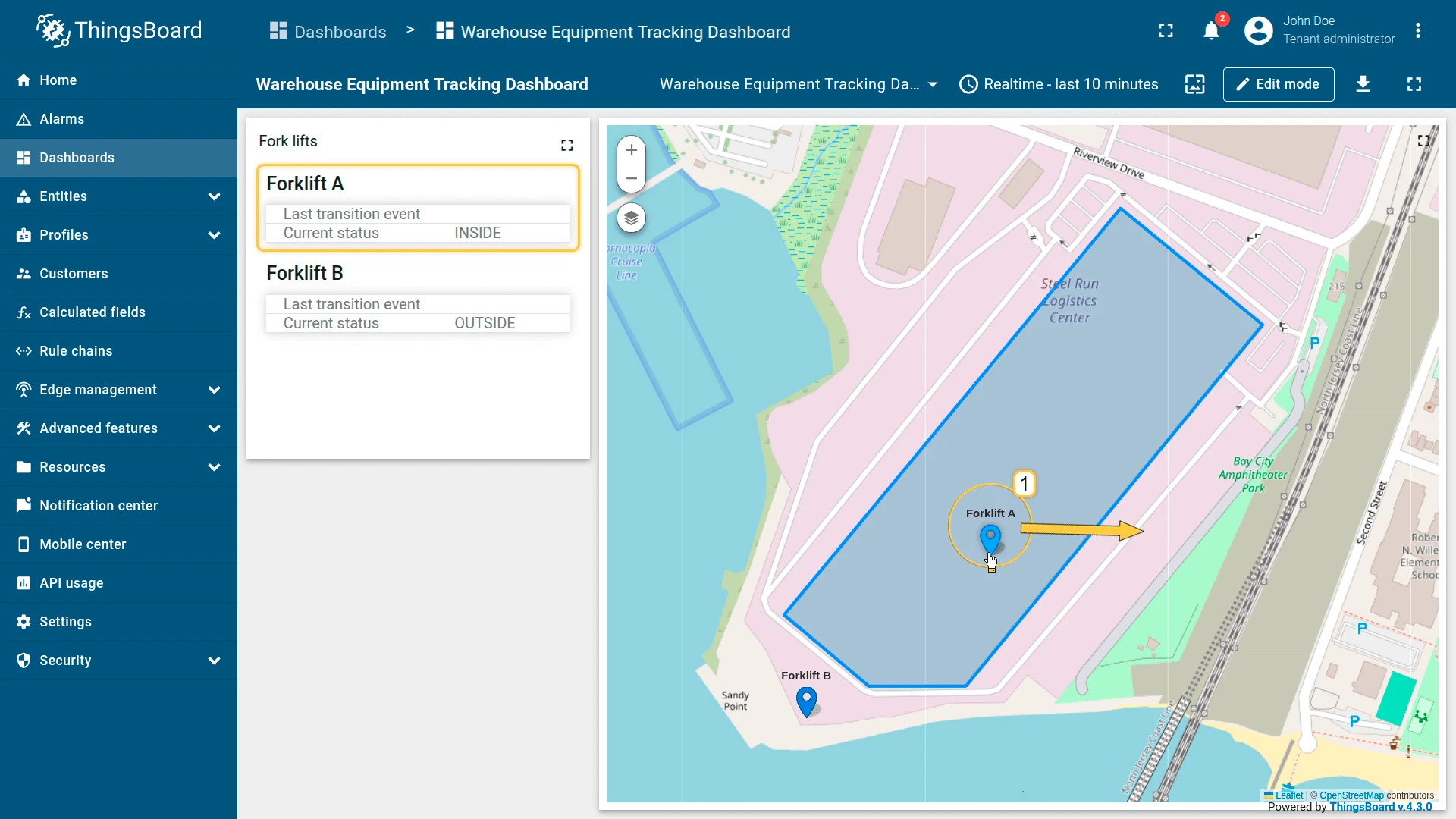
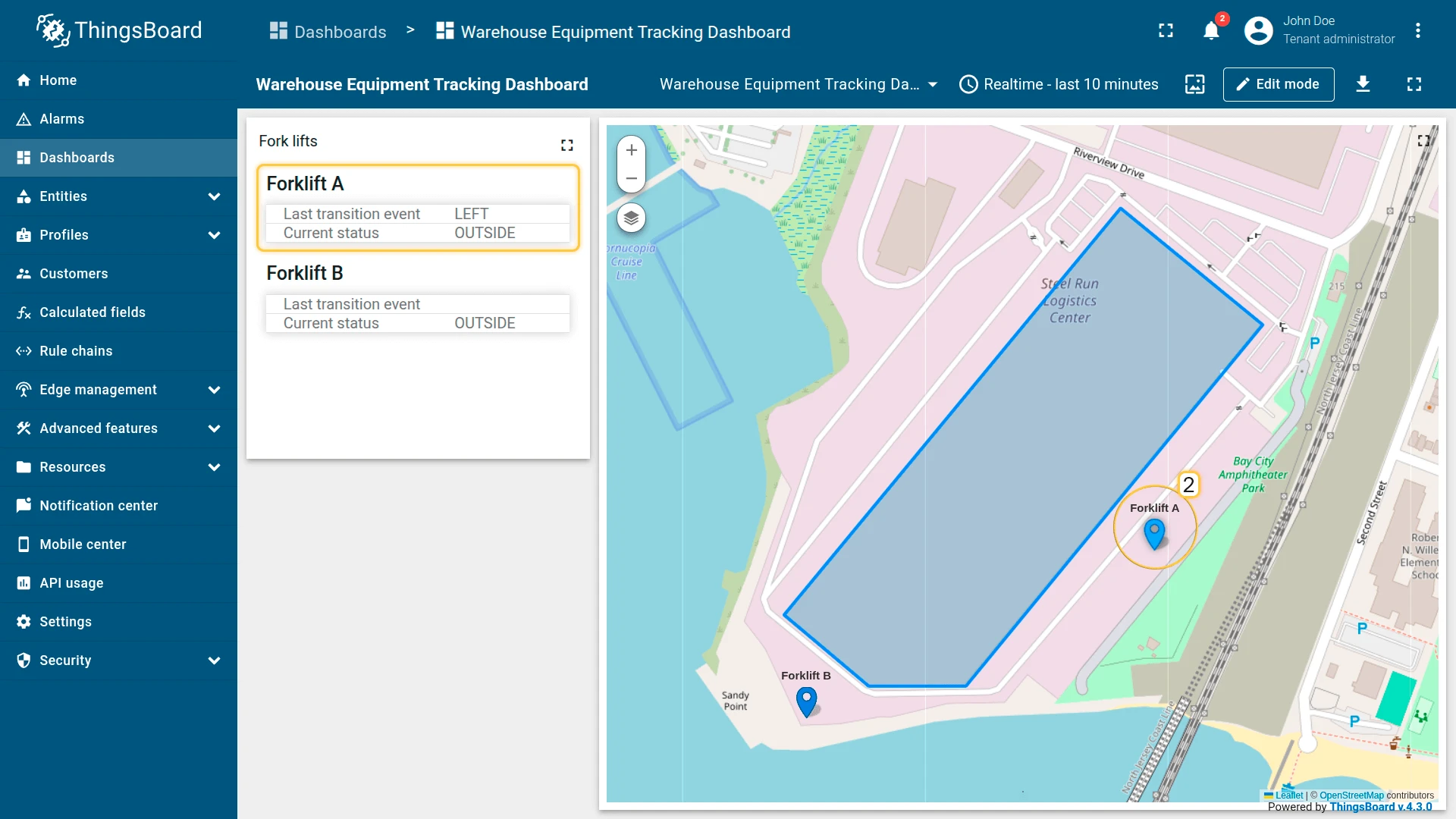
Goal: detect when a forklift leaves the warehouse perimeter.
Preparation
Section titled “Preparation”Import the demo devices and asset, then connect them:
- Download warehouse-equipment-device-data-example.csv and import it as devices with delimiter
;. Creates Forklift A and Forklift B (profile:forklift) withlatitude/longitudetelemetry. - Download warehouse-equipment-asset-data-example.csv and import it as asset with delimiter
;. Creates Warehouse A (type:warehouse) with aperimeterserver-side attribute. - Open Warehouse A, go to the Relations tab, and add a Contains relation to both Forklift A and Forklift B.
Configuration
Section titled “Configuration”- Apply the calculated field to the forklift device profile.
- Entity coordinates:
latitude,longitude. - Add zone group warehouseArea:
- Entity type: Related entities
- Path: Level 1, Direction Up, Relation type Contains
- Perimeter attribute key:
perimeter - Report strategy: Presence status and transition events
- Output type: Time series.
- Click Add.
Result: Both forklifts share the same zone logic via their relation to Warehouse A.
Moving a forklift outside the perimeter generates warehouseAreaStatus = OUTSIDE and
warehouseAreaEvent = LEFT.
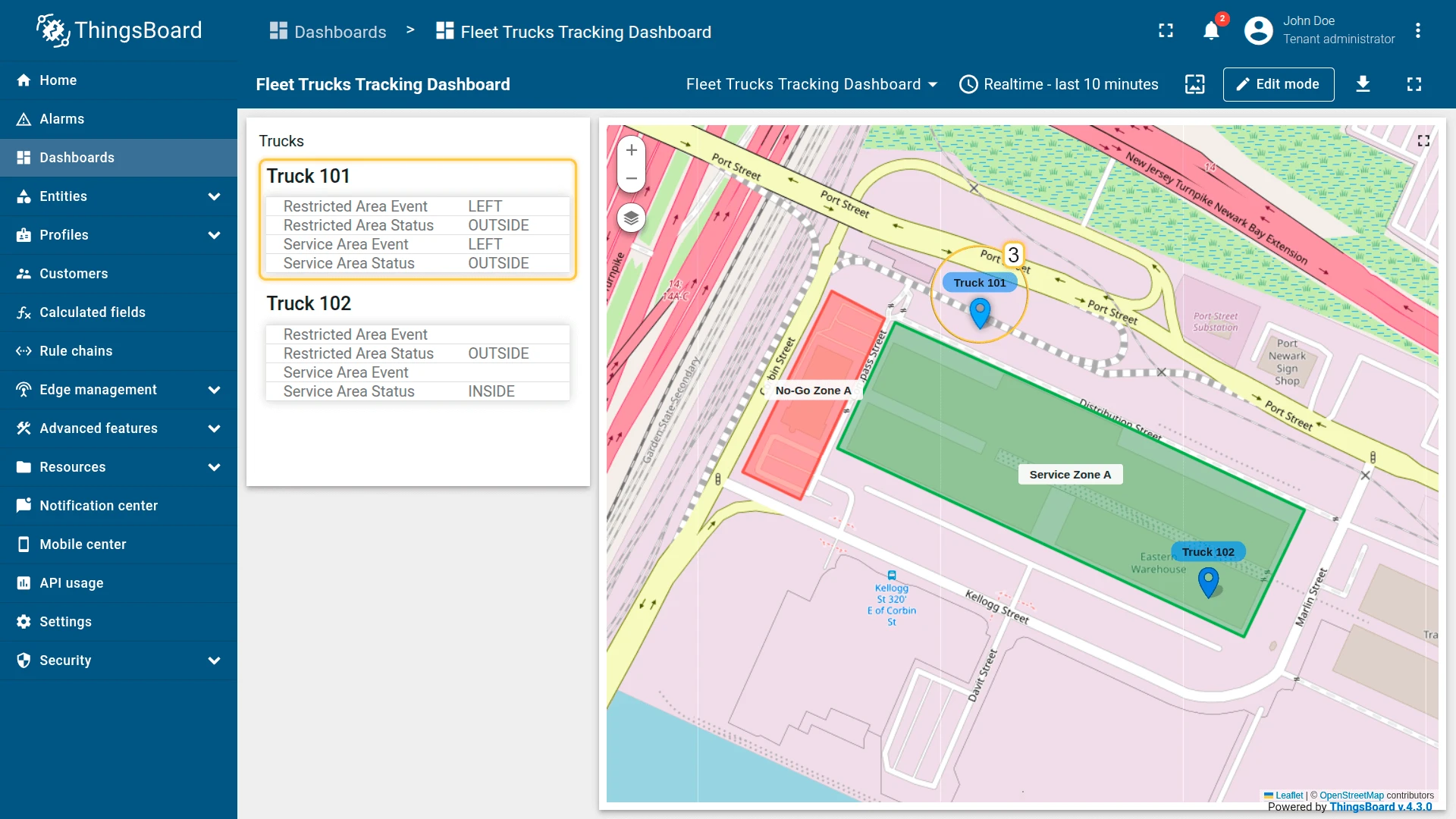
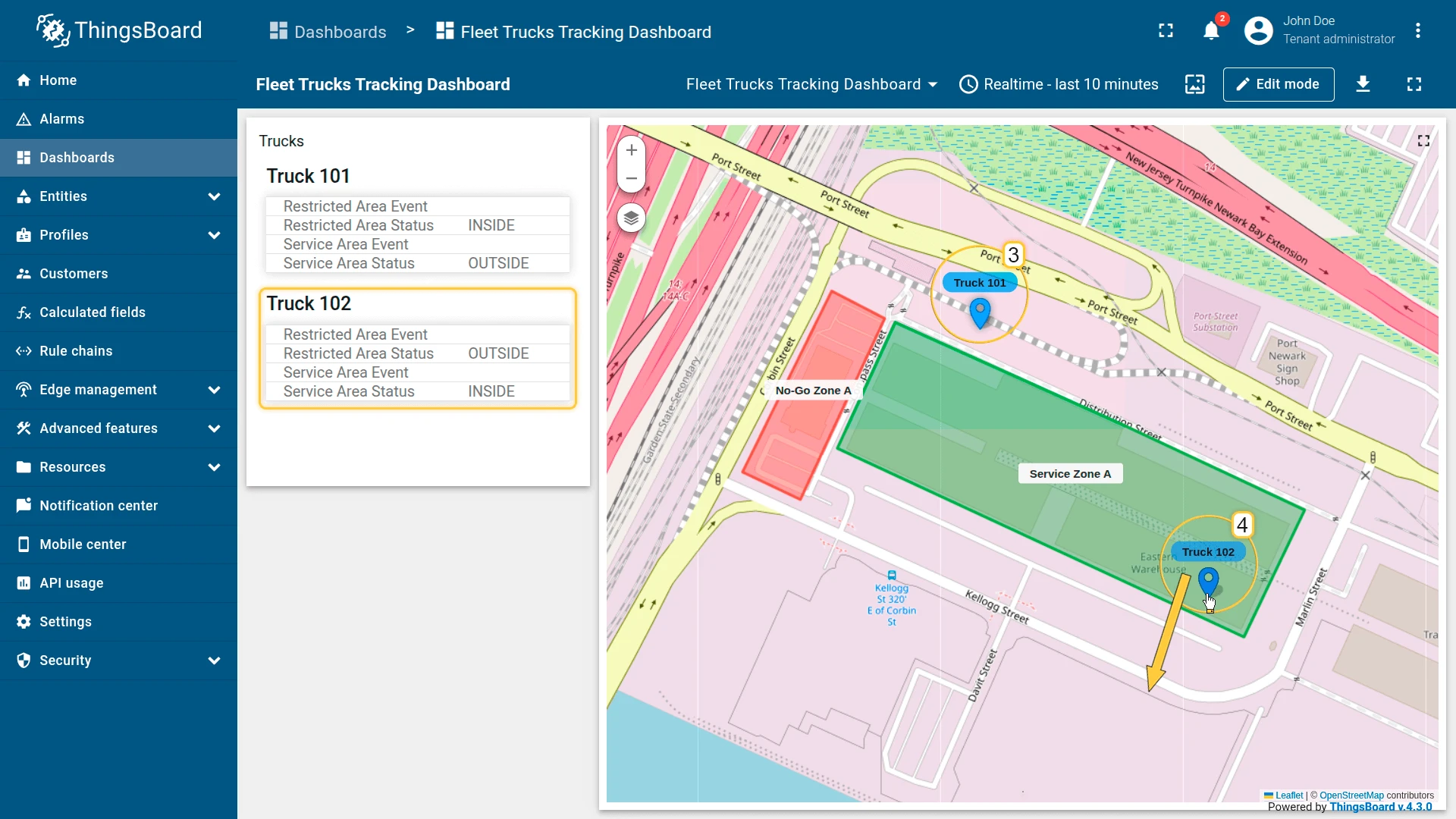
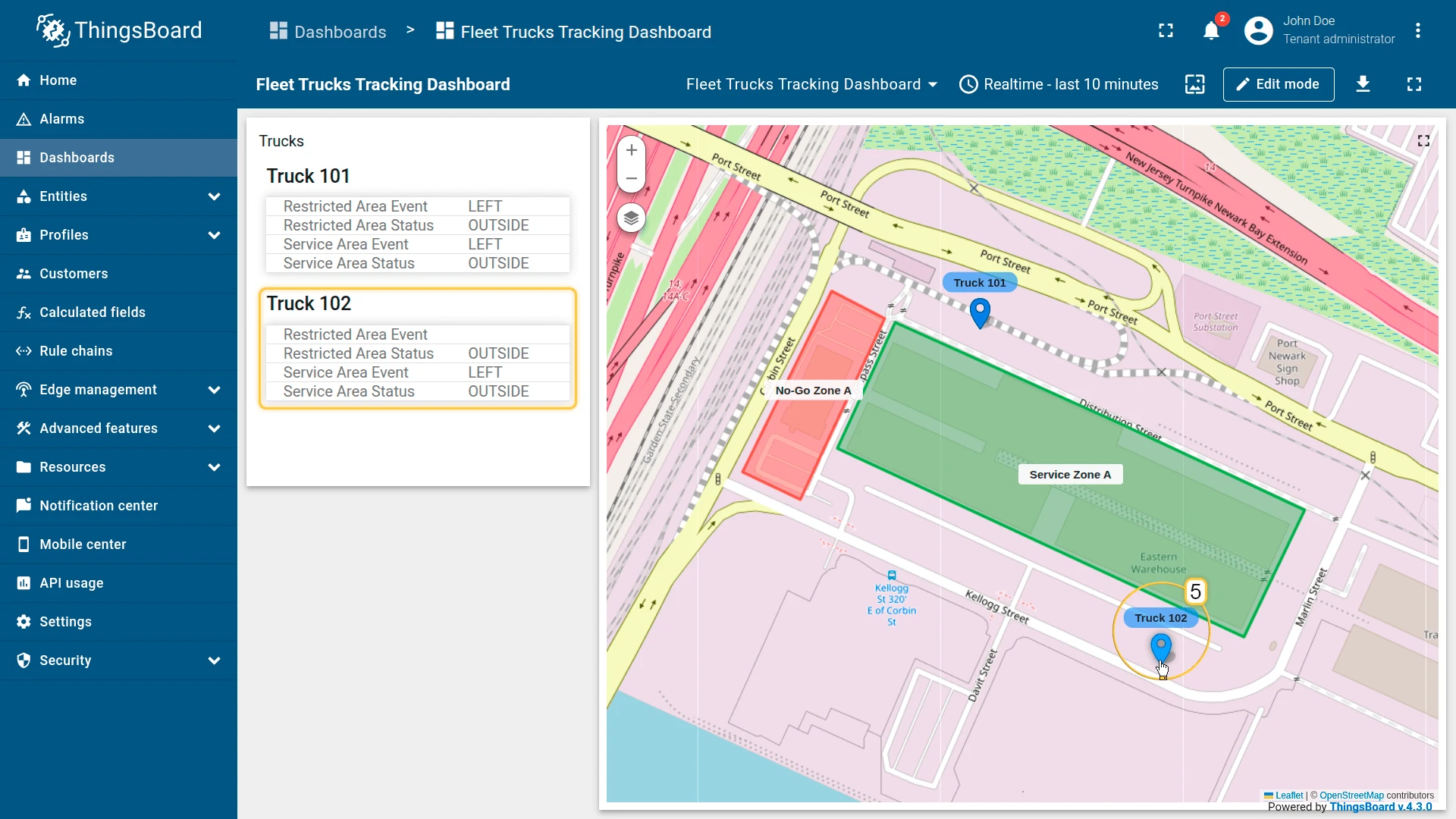
Example 3: Fleet Management (Multiple Zone Types)
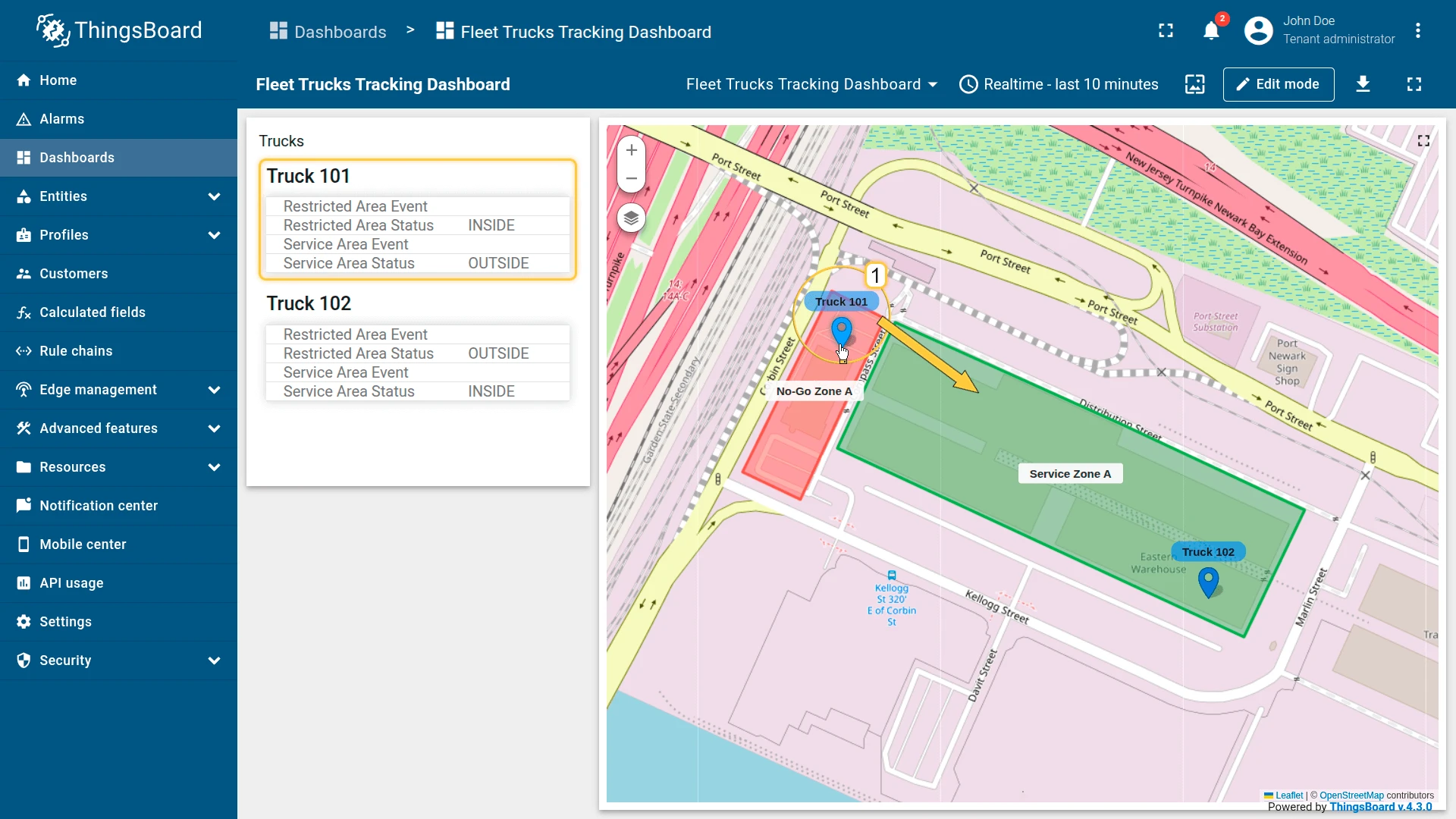
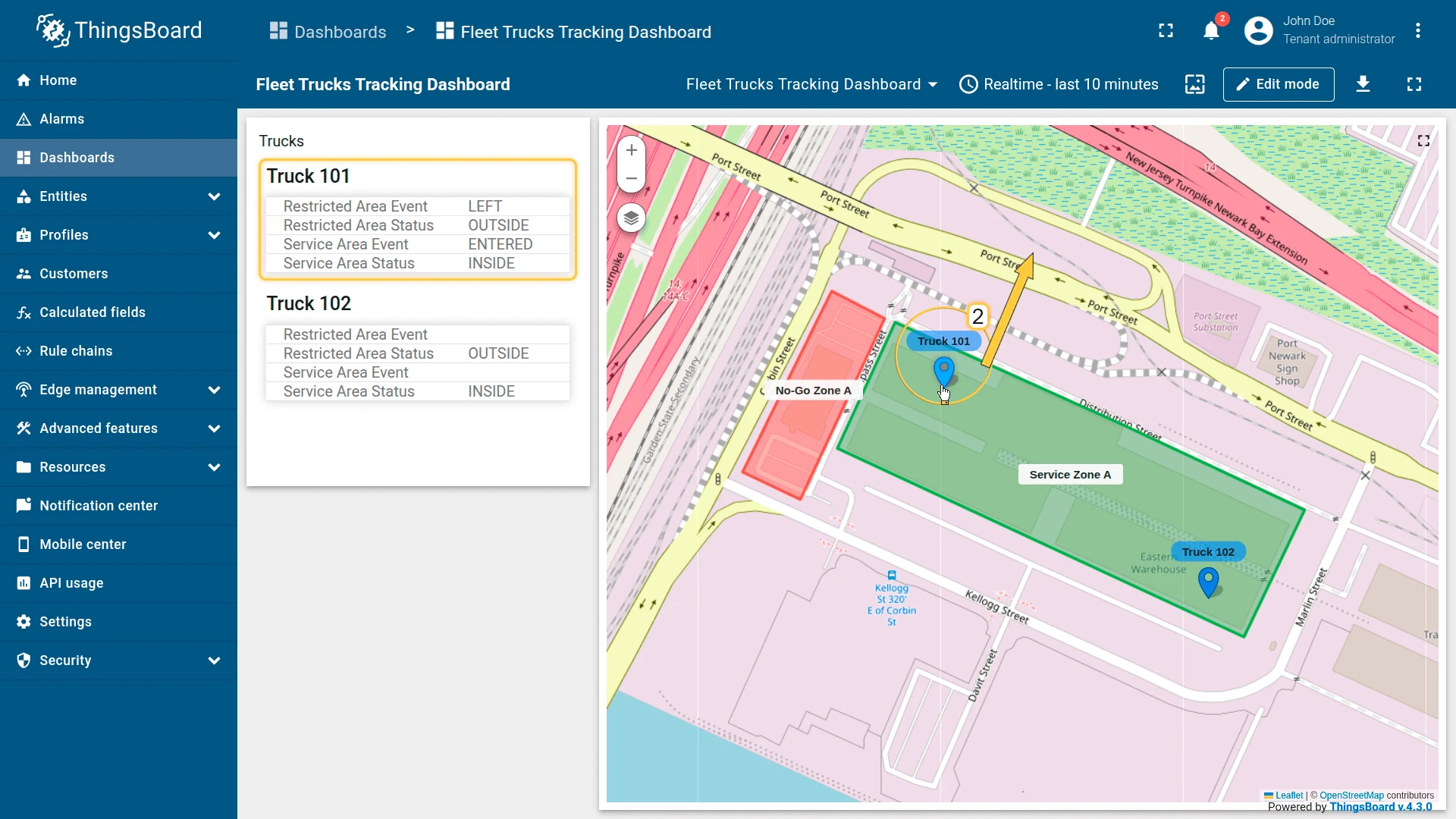
Section titled “Example 3: Fleet Management (Multiple Zone Types)”A fleet of trucks must be monitored against two zone categories simultaneously:
- Service area — allowed operational zone
- Restricted area — no-go zone
Two zone groups with different relation types separate the logic:
| Zone group | Relation path | Relation to zone |
|---|---|---|
serviceArea |
UP via Contains | DOWN via FleetToAllowedZone |
restrictedArea |
UP via Contains | DOWN via FleetToRestrictedZone |
Preparation
Section titled “Preparation”Import the demo devices and assets, then connect them:
- Download complex-fleet-management-example-devices-data.csv and import it as devices with delimiter
;. Creates Truck 101 and Truck 102 (profile:truck) withlatitude/longitudetelemetry. - Download complex-fleet-management-example-assets-data.csv and import it as asset with delimiter
;. Creates No-Go Zone A and Service Zone A (type:zone, withperimeterandzoneTypeattributes) and North East Fleet (type:fleet). - Open North East Fleet, go to the Relations tab, and add:
- North East Fleet ⇾ Truck 101 and Truck 102
- Relation direction: From
- Relation type:
Contains
- North East Fleet ⇾ Service Zone A
- Relation direction: From
- Relation type:
FleetToAllowedZone
- North East Fleet ⇾ No-Go Zone A
- Relation direction: From
- Relation type:
FleetToRestrictedZone
- North East Fleet ⇾ Truck 101 and Truck 102
Configuration
Section titled “Configuration”- Apply the calculated field to the truck device profile.
- Entity coordinates:
latitude,longitude. - Add zone group serviceArea:
- Entity type: Related entities
- Path:
- Level 1 UP Contains
- Level 2 DOWN FleetToAllowedZone
- Perimeter attribute key:
perimeter - Report strategy: Presence status and transition events
- Enable Create relations for source entity with matched zones
- Add zone group restrictedArea:
- Entity type: Related entities
- Path:
- Level 1 UP Contains
- Level 2 DOWN FleetToRestrictedZone
- Perimeter attribute key:
perimeter - Report strategy: Presence status and transition events
- Enable Create relations for source entity with matched zones
- Output type: Time series.
- Click Add.
Result: serviceAreaStatus tracks current presence; restrictedAreaEvent fires on boundary
crossings — both tracked independently for the same truck with no state conflicts.
Was this helpful?