Two-Factor Authentication
Two-factor authentication (2FA) adds an extra layer of security to the sign-in process. After entering valid credentials, users must complete a second verification step before gaining access to the platform. This protects accounts even if a password is compromised.
Supported Verification Methods
Section titled “Supported Verification Methods”ThingsBoard supports four verification methods. Each can be enabled or disabled independently by administrators:
| Method | Description |
|---|---|
| Authenticator app (TOTP) | A time-based one-time password (TOTP) generated by an external app such as Google Authenticator, Authy, or Duo Mobile. No network access required to generate codes. |
| A one-time verification code is sent to the user’s registered email address after entering valid credentials. Requires a configured mail server. | |
| SMS | A one-time verification code is sent to the user’s phone number via SMS. Requires an SMS provider integration. |
| Backup codes | Single-use 8-character codes generated by the user and stored offline (downloaded or printed). Can only be used alongside at least one other enabled 2FA method. |
Administrative Configuration
Section titled “Administrative Configuration”System administrators configure 2FA settings through Security ⇾ Two-factor authentication.
Enabling Verification Methods
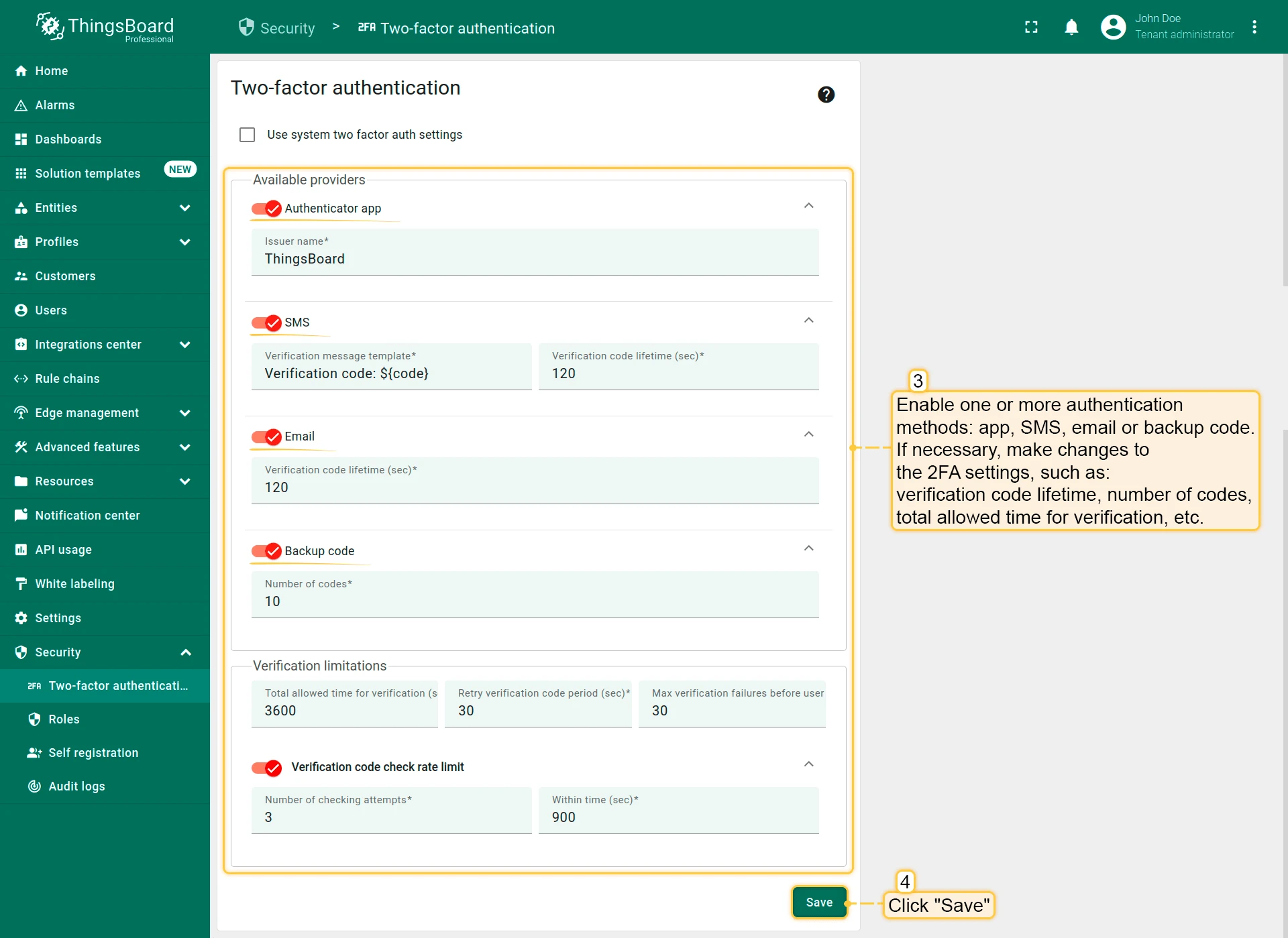
Section titled “Enabling Verification Methods”Enable the methods you want to make available to users. For each enabled method you can configure:
- Verification code lifetime — how long a generated code remains valid before it expires (configurable in seconds, minutes, or hours).
- Total allowed time for verification — the maximum time window within which a user must complete 2FA verification after entering their password.
- Retry verification code period — the minimum delay between code resend attempts.
- Max verification failures before user lockout — how many failed code attempts are allowed before the user is temporarily locked out.
- Verification code check rate limit — limits the number of code verification attempts within a given time window to prevent brute-force attacks.
For Email and SMS methods, you can also customize the verification message template used to deliver codes.
After configuring the settings, click Save to apply.
Tenant-Level Override
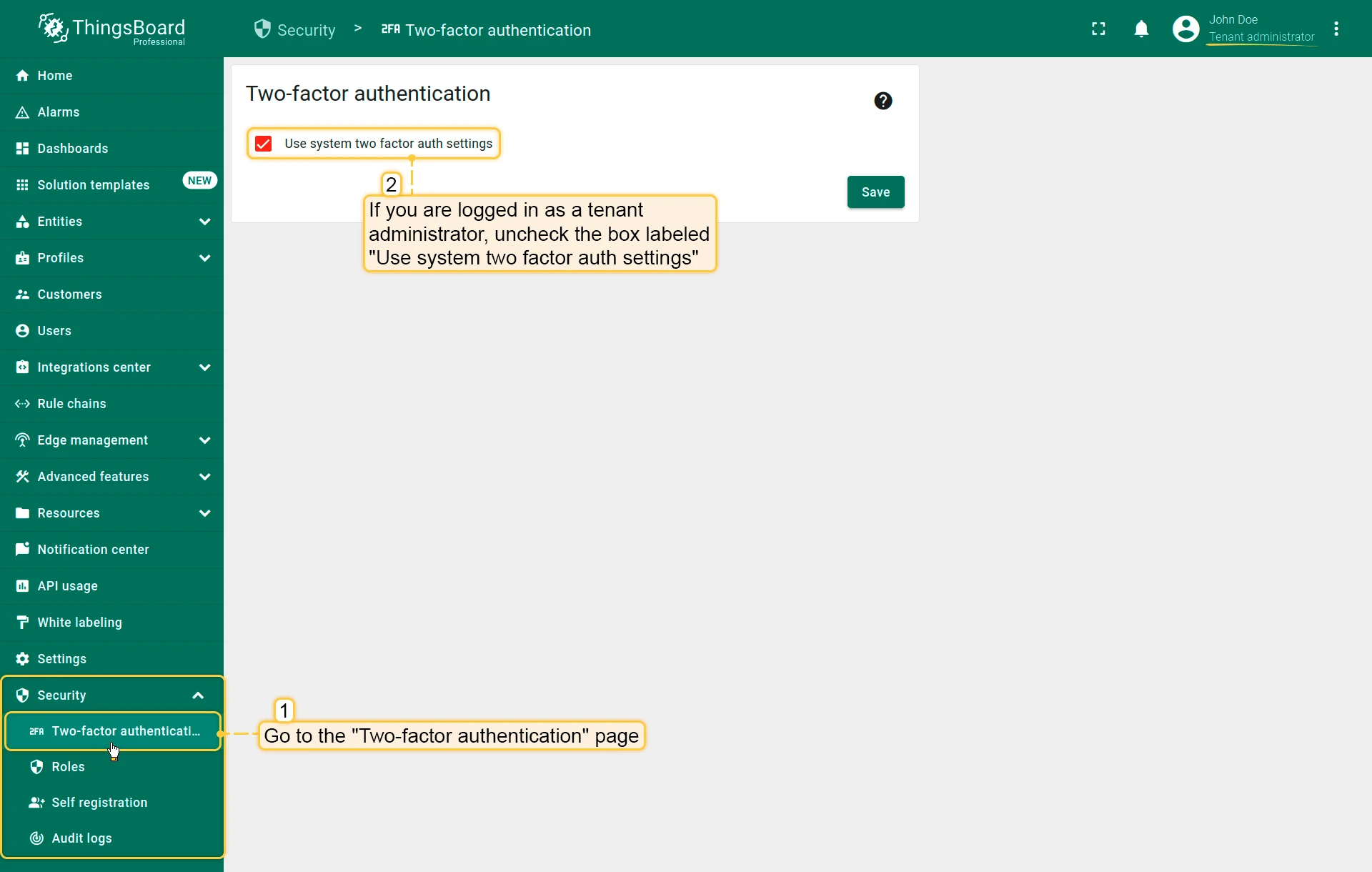
Section titled Tenant-Level OverrideBy default, tenant administrators inherit the system-wide 2FA settings. To configure custom settings for a specific tenant:
- As a tenant administrator, open Security ⇾ Two-factor authentication in the left sidebar.
- Uncheck Use system two factor auth settings.
- Configure the desired methods and parameters.
- Click Save.
Enforced 2FA Policy
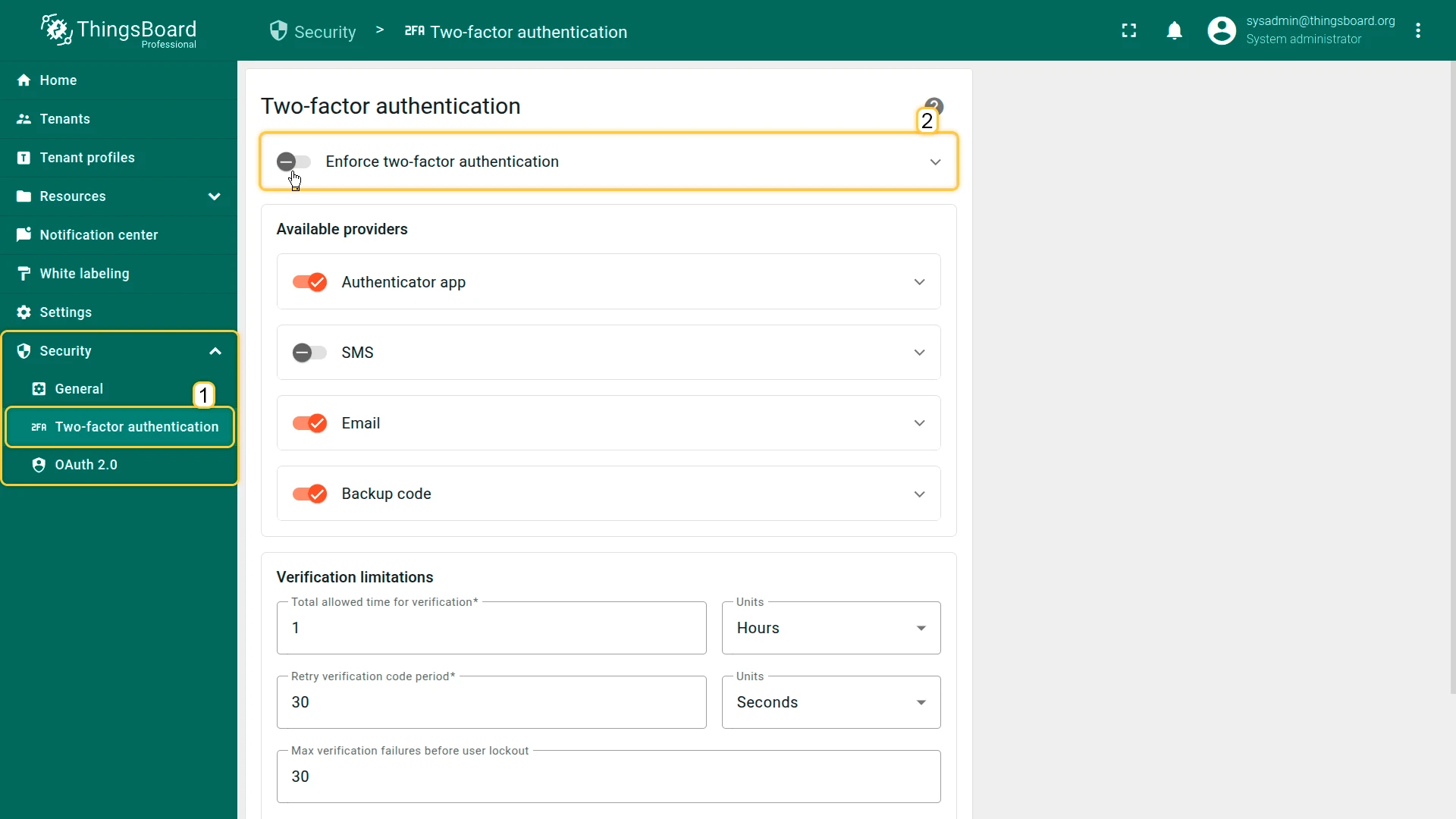
Section titled Enforced 2FA PolicyStarting from ThingsBoard v4.3, a system administrator can mandate 2FA for specific user groups. When enforcement is active, affected users must configure at least one available 2FA method before they can continue using the platform.
Configuring Enforcement
Section titled Configuring EnforcementClick your profile name in the bottom-left corner and select Account. Navigate to Security ⇾ Two-factor authentication and expand the Enforce two-factor authentication section at the top of the page. Select the scope of enforcement:
| Scope | Description |
|---|---|
| All users | Every user on the platform, including customers, must use 2FA. |
| System administrators | Only system-level admin accounts are required to use 2FA. |
| Tenant administrators | Tenant admin accounts are required to use 2FA. Can be scoped to specific tenants or tenant profiles. |
When scoping enforcement to tenant administrators, leave the tenant/profile selection empty to apply the requirement to all tenants.
User Configuration
Section titled “User Configuration”Users enable and manage their 2FA methods through Account ⇾ Security.
Setting Up an Authenticator App
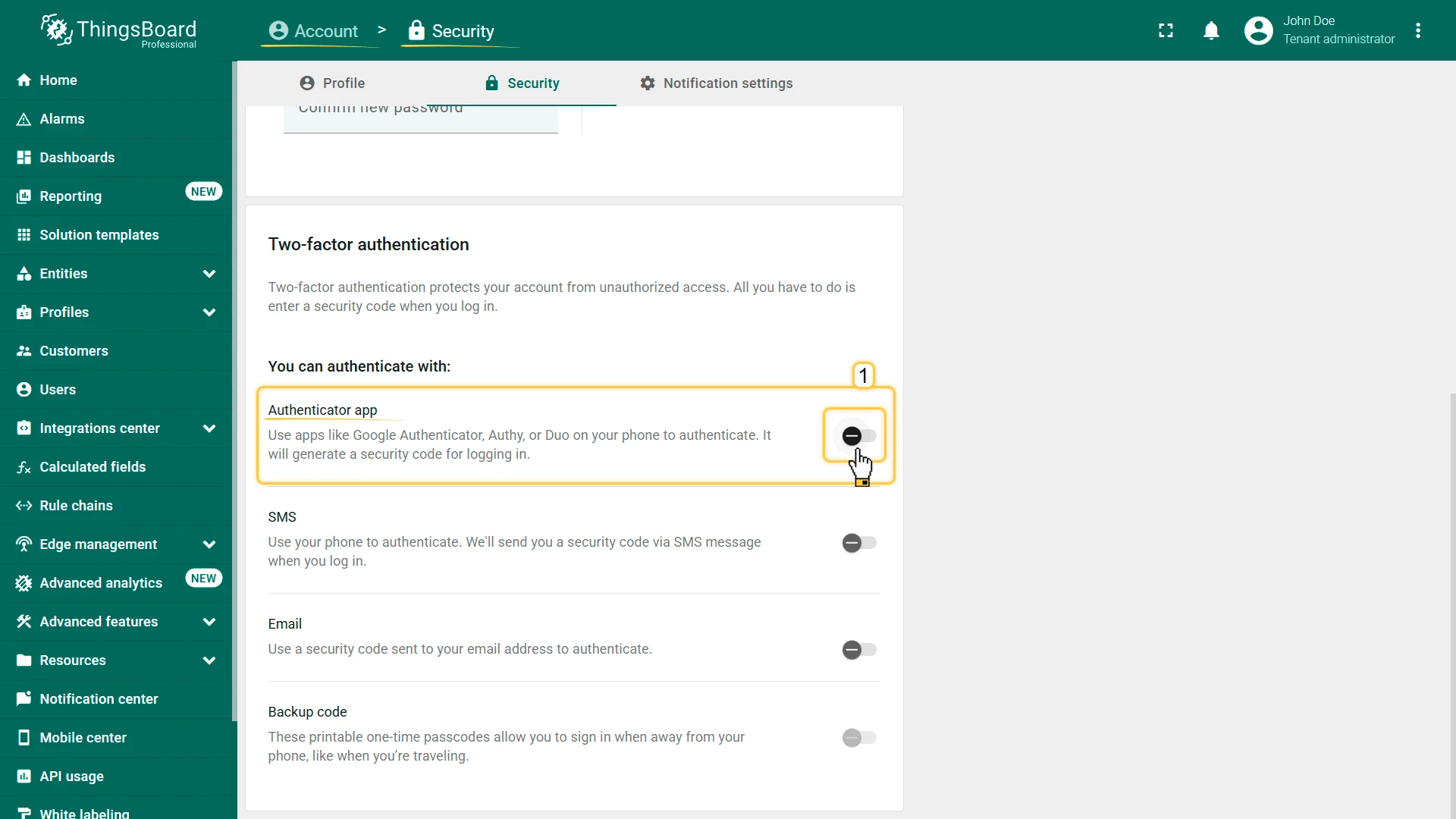
Section titled “Setting Up an Authenticator App”- Click your profile name in the bottom-left corner and select Account.
- Navigate to Security and find the Two-factor authentication section.
- Toggle the Authenticator app switch to open the setup dialog.
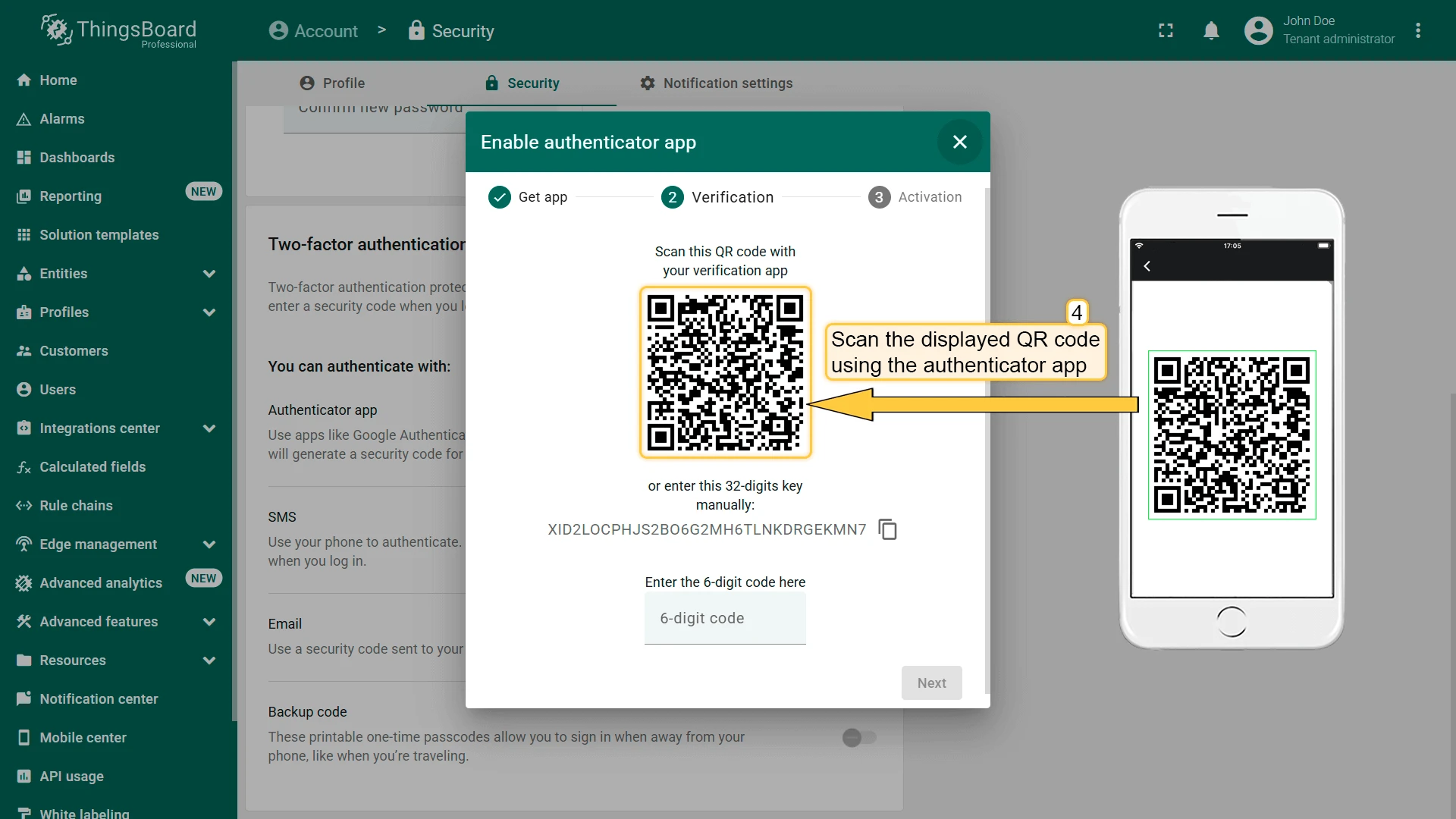
- In the Verification step, scan the displayed QR code with your authenticator app (Google Authenticator, Authy, Duo Mobile, etc.), or enter the 32-digit key manually.
- Enter the 6-digit code generated by your app in the field provided.
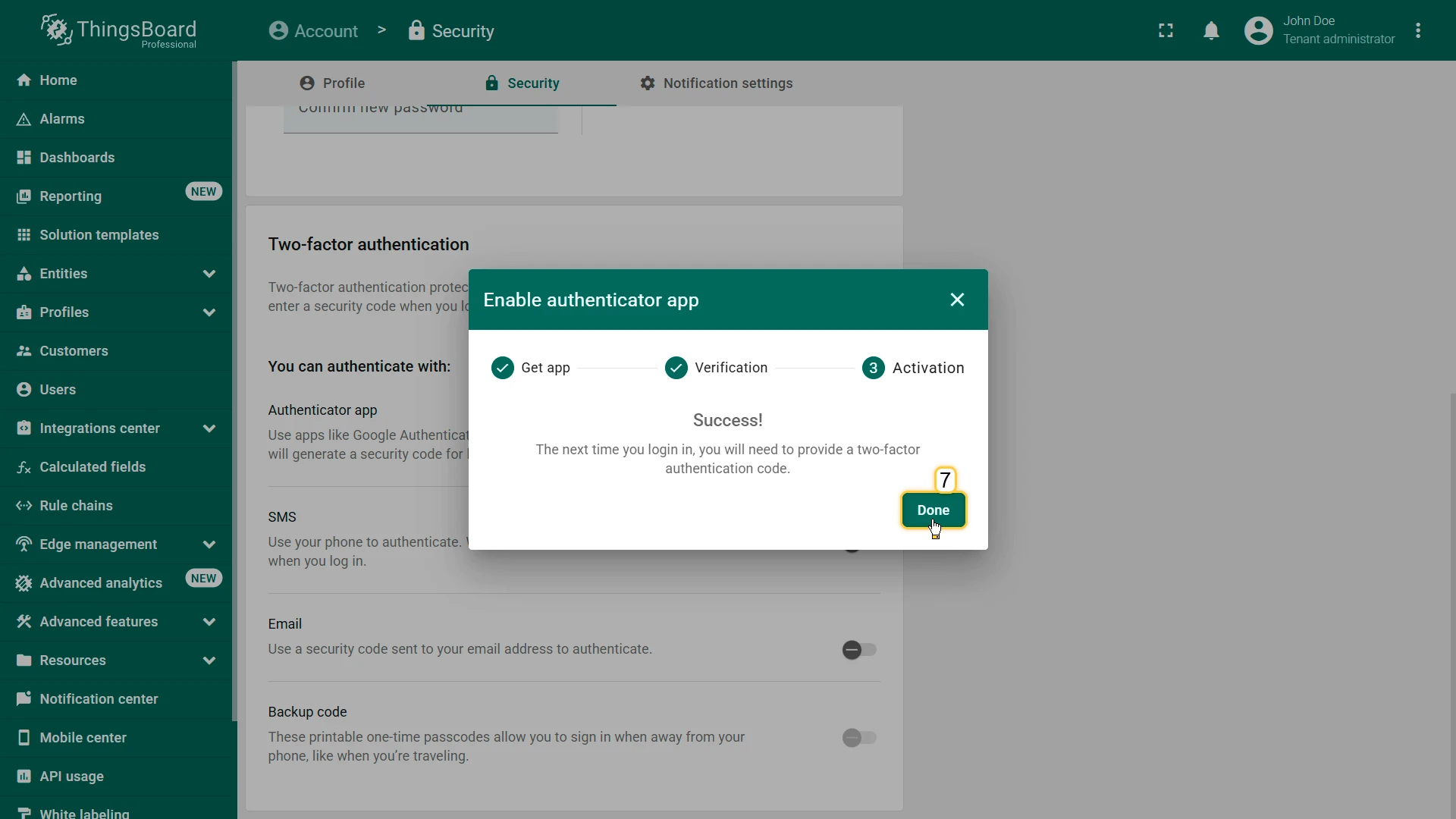
- Click Next to confirm, then click Done on the success screen.
Setting Up Email Verification
Section titled “Setting Up Email Verification”- Navigate to Account ⇾ Security.
- Toggle the Email switch to open the setup dialog.
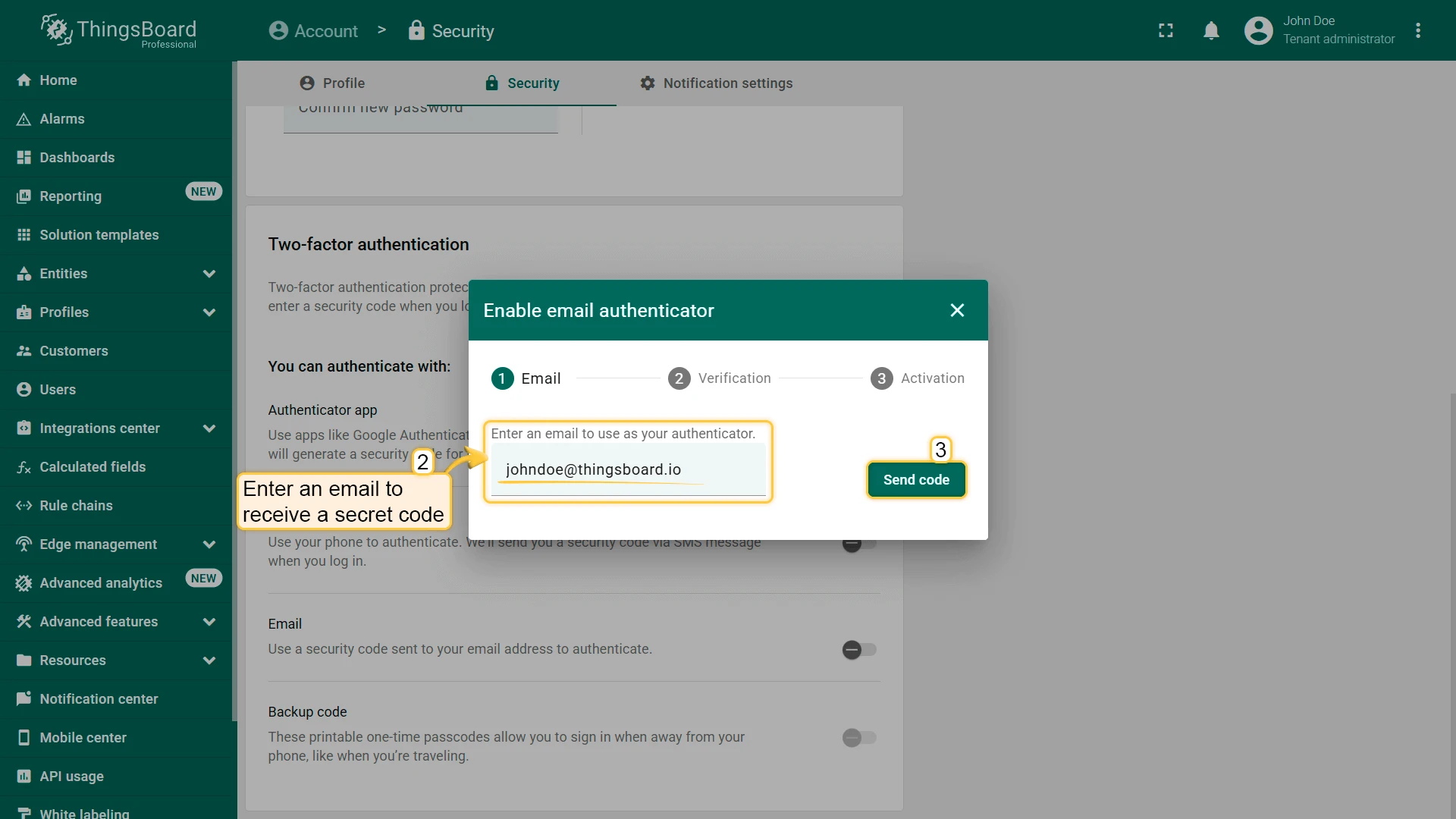
- Enter or confirm the email address where codes will be sent.
- Click Send code.
- Enter the 6-digit code received in your email.
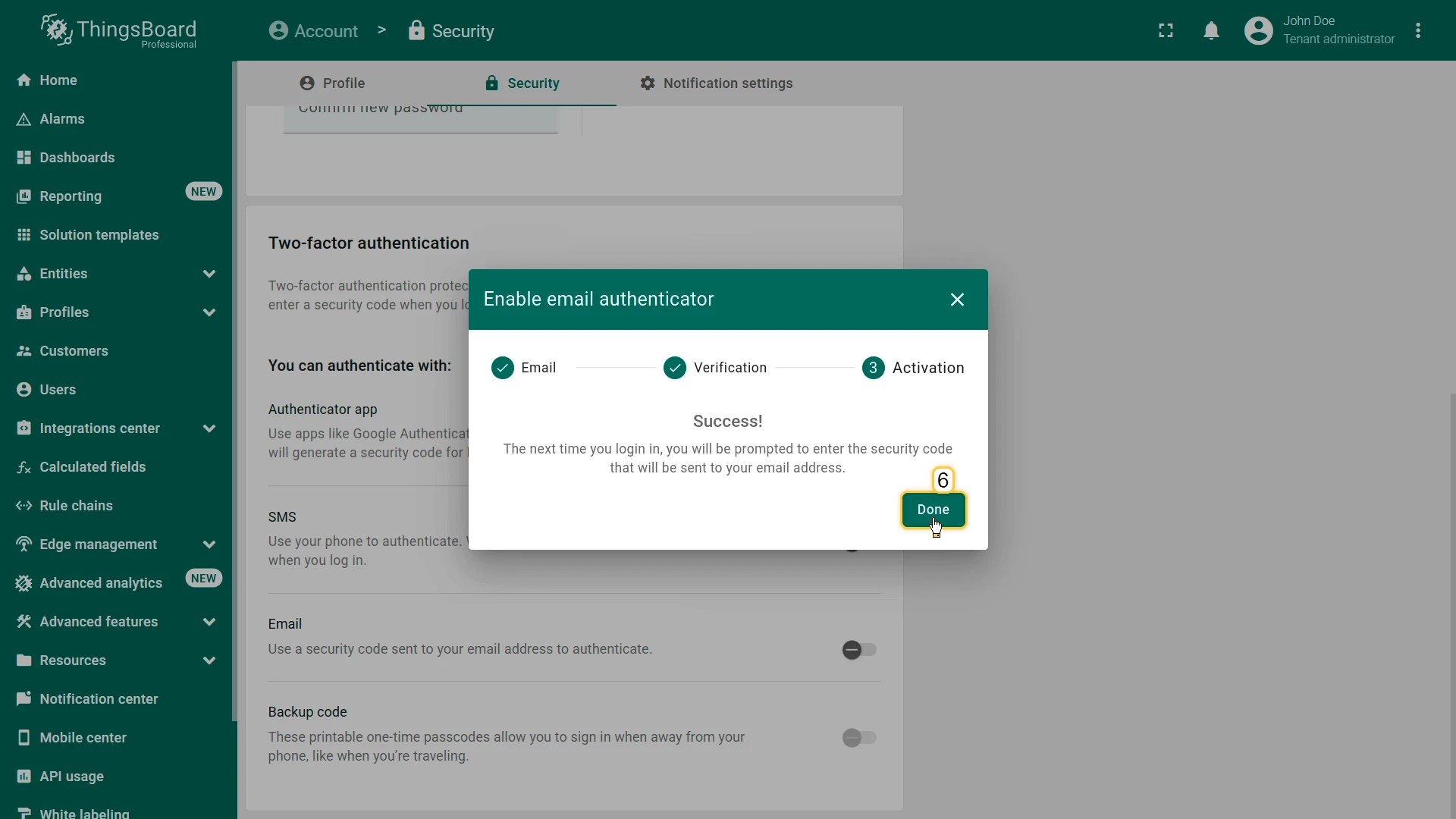
- Click Next to confirm, then click Done on the success screen.
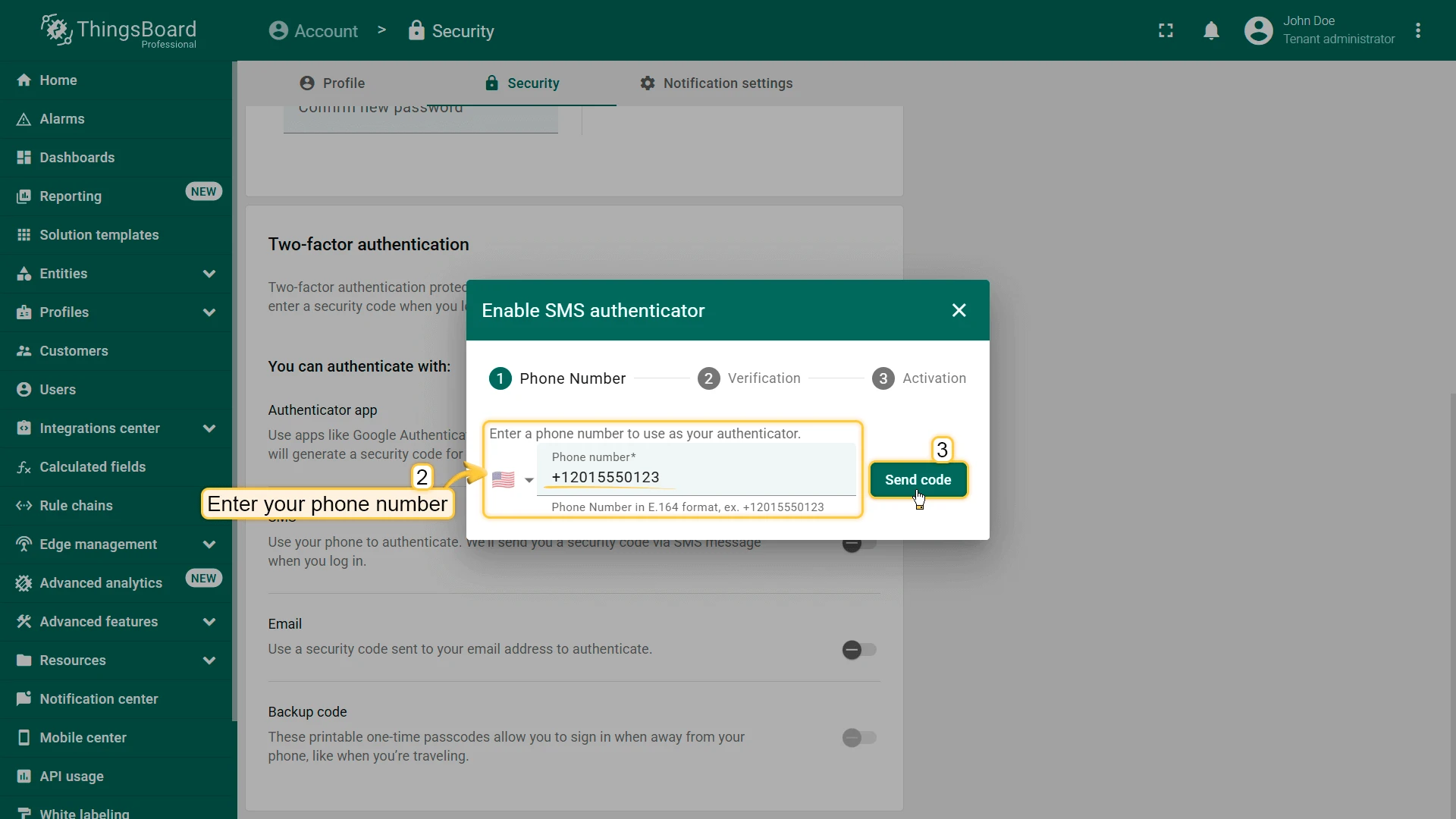
Setting Up SMS Verification
Section titled “Setting Up SMS Verification”- Navigate to Account ⇾ Security.
- Toggle the SMS switch to open the setup dialog.
- Enter your phone number in E.164 format (e.g., +12015550123).
- Click Send code.
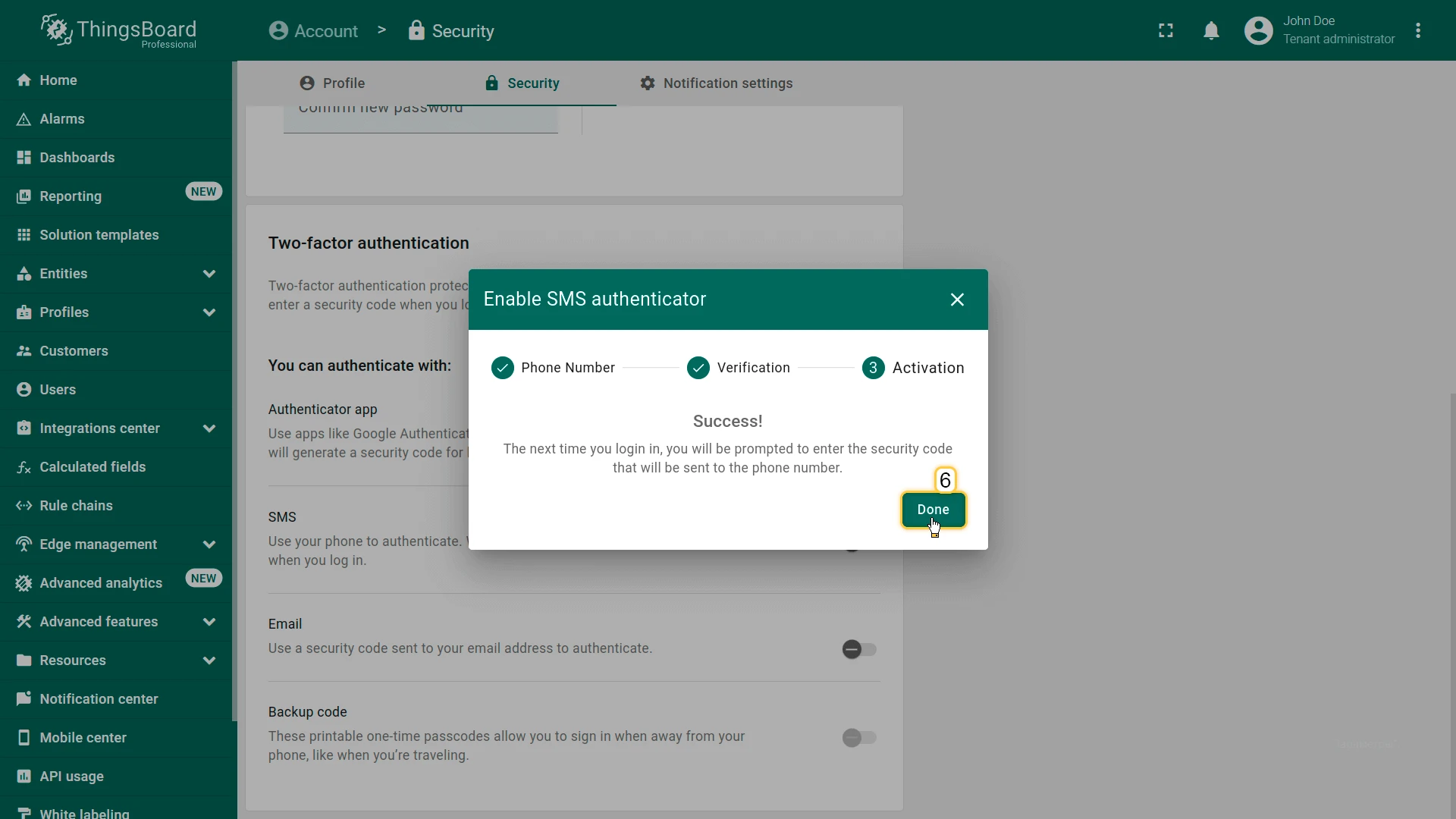
- Enter the 6-digit code received via SMS.
- Click Next to confirm, then click Done on the success screen.
Setting Up Backup Codes
Section titled “Setting Up Backup Codes”- Navigate to Account ⇾ Security.
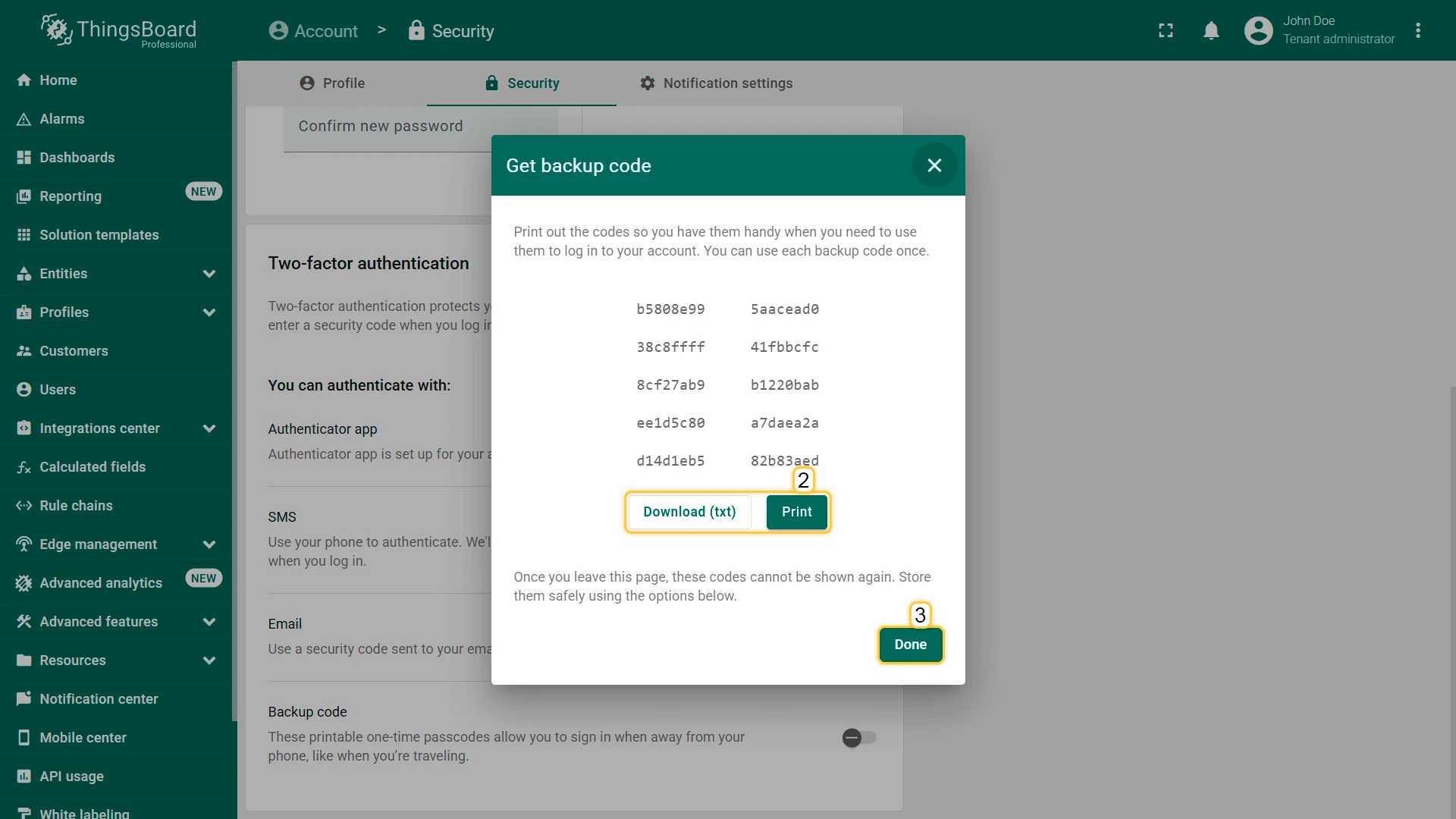
- Toggle the Backup code switch to open the dialog.
- Review the generated backup codes.
- Click Download (txt) or Print to save the codes securely.
- Click Done to finish.
Sign-In with 2FA
Section titled “Sign-In with 2FA”After entering a valid username and password, users with 2FA configured are prompted for a verification code:
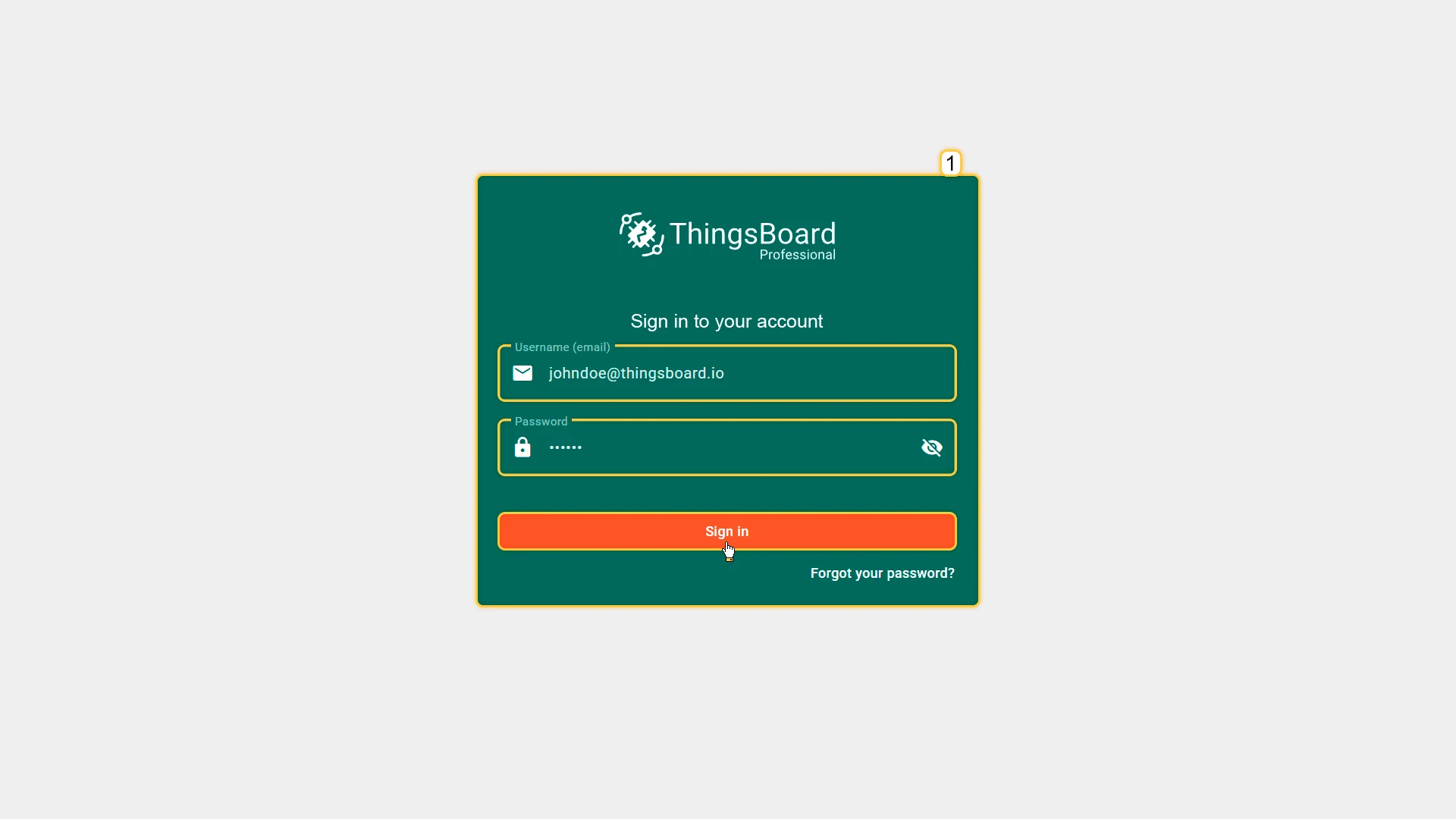
- Enter your username and password on the login page, then click Sign in.
- On the Verification screen, enter the code from your configured method. If multiple methods are set up, you can switch between them.
- Click Verify to complete sign-in.
To use backup codes instead, click Try another way on the verification screen and enter an 8-character backup code.
Related Topics
Section titled “Related Topics”Was this helpful?