Small Left Meter
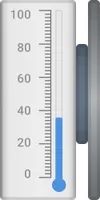
The Small left meter widget renders a compact vertical scale gauge with the scale markings and value box aligned to the left side of the symbol. Use it when the gauge needs to be placed to the left of adjacent elements in the diagram.
Key Capabilities
Section titled “Key Capabilities”- Display a numeric value on a vertical scale gauge with configurable min and max range.
- Color-code the scale ticks and progress bar to reflect normal, warning, and critical states.
- Animate a blinking effect when the device is in critical state.
- Trigger a dashboard action when the widget symbol is clicked.
- Receive state data from device attributes, time series, alarm status, or dashboard state.
Add the Widget
Section titled “Add the Widget”- Open the dashboard and switch to edit mode.
- Click Add widget at the top, or the Add new widget icon in the center of the screen.
- Open the Traditional SCADA fluid system widget bundle.
- Select the meter widget for your use case.
- Configure the widget settings, then click Add.
Target Device
Section titled “Target Device”The widget connects to a single data source: either a Device or an Entity alias that resolves to a device. This device provides the telemetry or attribute values used to drive the widget’s visual state.
SCADA Symbol
Section titled “SCADA Symbol”The SCADA symbol defines the visual shape of the widget. Each meter widget has a pre-selected symbol from the Traditional SCADA fluid system bundle. To use a different symbol, click Browse SCADA symbol from gallery and choose one from the library, or upload your own.
Behavior
Section titled “Behavior”Behavior parameters define what the widget displays and how it responds to user interaction, driven by real-time data from the connected device.
| Parameter | Default | Description |
|---|---|---|
| Value | Use time series 'waterLevel' |
The numeric value mapped to the gauge scale. See Data source configuration. |
| Warning state | Use alarm status |
Whether the component is in warning state. See Data source configuration. |
| Critical state | Use alarm status |
Whether the component is in critical state. See Data source configuration. |
| Critical state animation | False |
Whether to enable blinking animation when the component is in critical state. See Data source configuration. |
| On click | Do nothing |
Action triggered when the user clicks the widget symbol. See Click action configuration. |
Click Action Configuration
Section titled “Click Action Configuration”Applies to On click. Select one action type from the list below.
-
Do nothing
The symbol is clickable but performs no action. Use while testing styles or as a placeholder.
-
Navigate to new dashboard state
Switches to a different view within the same dashboard, like opening a meter details screen.
Parameter Description Target dashboard state The state to open (required). Open right dashboard layout (mobile view) Opens a side panel instead of replacing the view (mobile only). Set entity from widget Passes the current entity to the target state. State entity parameter name The key the entity is passed under. Dashboard state display option Normal (same view), In separate dialog (popup), or In popover (inline overlay). -
Update current dashboard state
Updates the context of the current view, like switching the selected device, without navigating away.
Parameter Description Target dashboard state The state to switch to (optional). Open right dashboard layout (mobile view) Opens a side panel on mobile. Set entity from widget Passes the current entity to the updated state. State entity parameter name The key the entity is passed under. -
Navigate to other dashboard
Opens a completely different dashboard, like jumping from a fluid system overview to a meter performance dashboard.
Parameter Description Target dashboard The dashboard to open (required). Target dashboard state The specific view to open within that dashboard. Open in a new browser tab Opens the dashboard without leaving the current page. Set entity from widget Passes the current entity to the other dashboard. State entity parameter name The key the entity is passed under. -
Custom action
Runs custom JavaScript on click to implement any behavior not covered by the built-in options. Use it to make HTTP requests, open custom dialogs, call other widget APIs, or interact with external services. The function receives:
$event,widgetContext,entityId,entityName,additionalParams,entityLabel. -
Custom action (with HTML template)
Same as Custom action, but also renders a custom HTML panel or dialog when the symbol is clicked. The function receives an additional
htmlTemplateparameter:$event,widgetContext,entityId,entityName,htmlTemplate,additionalParams,entityLabel.Parameter Description Resources External scripts and styles loaded before the action runs. CSS Styling for the HTML template. HTML Layout of the rendered dialog or panel. JS Action logic. -
Mobile action
Triggers a native device feature inside a ThingsBoard mobile app, like the camera or QR scanner.
Parameter Description Mobile action type Take picture from gallery, Take photo, Open map directions, Open map location, Scan QR Code, Make phone call, Get phone location, Take screenshot, or Device provision. -
Open URL
Opens a website or external link when clicked.
Parameter Description URL The address to open (required). Open in a new browser tab Keeps the current dashboard open while opening the link.
Data Source Configuration
Section titled “Data Source Configuration”Applies to Value, Warning state, Critical state, and Critical state animation. Click the edit icon next to a parameter to open its configuration dialog. When Action is set to Do nothing, the Value options depend on which parameter you are configuring:
| Parameter | Value |
|---|---|
| Value | Any number — displayed on the scale until the device sends data. |
| Warning state | True or False |
| Critical state | True or False |
| Critical state animation | True or False |
For all other actions, the configuration dialog works the same way regardless of which parameter you are editing:
-
Execute RPC
Read the parameter value from an RPC response.
Parameter Description Method RPC method to call, like getStateorgetLevel.Action result converter None — parameter is activated when the result matches the value you specify; Function — parameter is activated when your f(data)returnstrue.‘[parameter]’ when result is The value or condition that activates this parameter (not shown for Value, which uses the raw numeric result). RPC request timeout (ms) How long to wait for a device response before timing out (Advanced settings). RPC request persistent Stores and retries the command until the device comes online (Advanced settings). -
Get attribute
Read the parameter value from a device attribute.
Parameter Description Attribute scope Where the attribute is stored: Any, Client, Server, or Shared. Attribute key Attribute name to read, like stateorlevel.Action result converter None — parameter is activated when the attribute equals the value you specify; Function — parameter is activated when your f(data)returnstrue.‘[parameter]’ when result is The value or condition that activates this parameter (not shown for Value, which uses the raw numeric result). -
Get time series
Read the parameter value from the latest telemetry reading.
Parameter Description Time series key Telemetry key to monitor, like waterLevelorpressure.Action result converter None — parameter is activated when the telemetry value equals what you specify; Function — parameter is activated when your f(data)returnstrue.‘[parameter]’ when result is The value or condition that activates this parameter (not shown for Value, which uses the raw numeric result). -
Get alarm status
Activate the parameter when a specific alarm is active on the device.
Parameter Description Alarm severity Which severity levels trigger the active state: Critical, Major, Minor, Warning, or Indeterminate. Alarm types Any alarm, or a specific alarm type. -
Get dashboard state id
Activate the parameter based on which dashboard state is currently open.
Parameter Description Action result converter None — parameter is activated when the state name matches the text you enter; Function — parameter is activated when your f(data)returnstrue.‘[parameter]’ when result is The state name or condition that activates this parameter. -
Get dashboard state object
Activate the parameter using the full dashboard state context; use this when you need to evaluate multiple state parameters at once.
Parameter Description Parse value function A f(data)function that receives the current dashboard state object. Usedata.idto read the active state name, ordata.paramsto inspect state parameters.‘[parameter]’ when result is The expected type and value that activates the parameter. Choose String, Integer, Double, Boolean (then select True or False), or JSON.
Appearance
Section titled “Appearance”The Appearance section controls the gauge scale, visual elements, and color states.
| Setting | Default | Description |
|---|---|---|
| Title | Widget name | Widget title displayed in the header. Supports entityName and entityLabel variables. |
| Card icon | — | Icon shown in the widget header. Configure its size and color. |
| Min and max value | Min: 0, Max: 100 |
The numeric range of the gauge scale. The current Value is mapped within this range. |
| Background color | Transparent | Background color of the gauge area. |
| Progress bar | Enabled (blue) | Filled bar that grows from the minimum toward the current value. Toggle on/off and configure color. |
| Progress arrow | Disabled | Arrow marker that points to the current value on the scale. Toggle on/off and configure color. |
| Value box | Enabled | Box displaying the raw numeric value. Toggle on/off and configure color. |
| Value text | Units: % |
Text label shown alongside the value. Configure units, font, and color. |
| Enable units on scale | Disabled | When enabled, shows the unit label on the scale ticks. |
| Major ticks | Intervals: 10 |
Number of intervals between major tick marks. Configure font and color for Normal, Warning, and Critical states. |
| Major ticks color | Normal: gray, Warning: orange, Critical: red | Tick color changes automatically based on the active state. |
| Minor ticks | Intervals: 10 |
Number of intervals between minor tick marks. Configure color for Normal, Warning, and Critical states. |
| Minor ticks color | Normal: gray, Warning: orange, Critical: red | Tick color changes automatically based on the active state. |
Card Appearance
Section titled “Card Appearance”The Card appearance section controls the widget container style.
| Setting | Default | Description |
|---|---|---|
| Background | Transparent | Card background color. |
| Show card buttons | Fullscreen | Buttons shown on the card when hovered. |
| Card border radius | 0px |
Rounding of card corners. |
| Card padding | 12px |
Inner spacing between the card edge and widget content. |
Troubleshooting
Section titled “Troubleshooting”Gauge shows no value or value stays at minimum
| Cause | Solution |
|---|---|
| Value action is set to Do nothing | Open the Value edit dialog, set the correct Action, and specify the telemetry or attribute key. |
| Telemetry key mismatch | Verify that the key name in the behavior configuration matches exactly what the device reports. |
| Target device is not connected | Confirm that the selected device is online and actively sending data. |
Warning or critical colors do not appear on the scale
| Cause | Solution |
|---|---|
Warning state or Critical state action is Do nothing and value is False |
Configure the state parameter to read from an alarm status or a device attribute. |
| Alarm is not active on the device | Confirm that the device has an active alarm of the expected severity. |
Solution Templates
Section titled “Solution Templates”These widgets are used in the following ready-made solution templates built on the Traditional SCADA fluid system bundle:
- SCADA Swimming pool — a complete swimming pool monitoring dashboard built with pipe, pump, valve, and gauge widgets from the Traditional SCADA fluid system bundle.
Was this helpful?