IoT Creators Integration
The iotcreators.com (T-Mobile – IoT CDP) integration connects ThingsBoard to the IoT Creators platform — the NB-IoT and LTE-M connectivity platform operated by T-Mobile / Deutsche Telekom. Use it to bring telemetry from cellular IoT devices already provisioned in IoT Creators into ThingsBoard for monitoring and rule-based automation.
Architecture
Section titled “Architecture”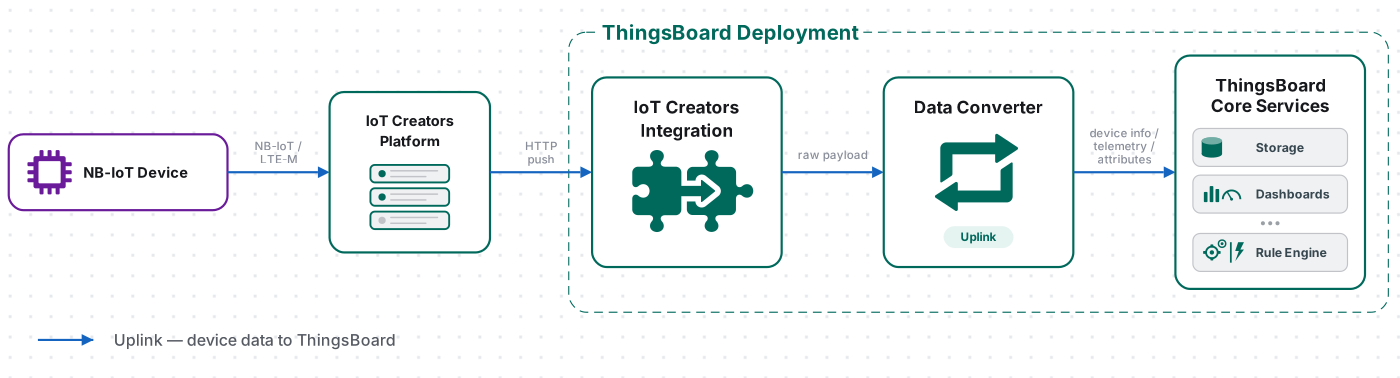
An NB-IoT / LTE-M device sends an uplink over UDP or CoAP to the IoT Creators platform, which forwards it over HTTP (a JSON body containing a reports array) to the integration’s endpoint. The uplink converter decodes each report’s payload into telemetry and attributes, and the ThingsBoard Core Service stores the data, creating the device automatically on first contact. Downlink to cellular devices is handled by the IoT Creators platform itself — see Downlink to Devices.
Prerequisites
Section titled “Prerequisites”Before creating the integration, ensure:
- You have access to ThingsBoard or ThingsBoard Cloud with integration functionality enabled for your tenant.
- You have permissions to create integrations and data converters.
- You have an IoT Creators account with at least one project and a Starterkit / SIM card.
- You have at least one NB-IoT or LTE-M device that sends its payload to the IoT Creators UDP/CoAP server, with its IMEI on hand.
Set Up the IoT Creators Integration
Section titled “Set Up the IoT Creators Integration”To set up the IoT Creators integration, first create an uplink data converter to process incoming messages, then create and configure the integration.
Create the Uplink Data Converter
Section titled “Create the Uplink Data Converter”The uplink converter decodes the incoming IoT Creators message (JSON containing a reports array) and maps it to the ThingsBoard data model — it resolves the target device from the report serialNumber (IMEI) and extracts fields into telemetry and attributes. For the full decoder function reference, see Uplink data converter.
As an example, this integration uses a real IMBUILDINGS Comfort Sensor, officially listed in the IoT Creators documentation. It measures temperature, humidity, CO₂, battery voltage, and presence. IoT Creators forwards the sensor payload as a hex string in the reports[0].value field.
Sample payload:
{ "reports": [ { "serialNumber": "IMEI:866425033313638", "timestamp": 1600439712734, "subscriptionId": "fa37d89c-a7e2-4f3d-b12f-6002a3642b4c", "resourcePath": "uplinkMsg/0/data", "value": "0101d880396f026e000158a50a4b121503d301" } ], "registrations": [], "deregistrations": [], "updates": [], "expirations": [], "responses": []}This is a real subscription callback payload from the IoT Creators documentation. The reports[0].value hex string decodes to:
{ "status": 0, "batteryVoltage": 3.44, "temperature": 26.35, "humidity": 46.29, "co2": 979, "presence": true}The byte layout and decoding logic are described in the official IMBUILDINGS Comfort Sensor documentation.
- Go to Integrations ⇾ Data converters.
- Click + Add data converter ⇾ Create new converter.
- Converter type — leave Uplink (selected by default).
- Integration type — in the search field, enter
iotcreatorsand select iotcreators.com (T-Mobile – IoT CDP) from the list. - Name — enter a converter name, for example
IoT Creators Uplink Converter. - In Main decoding configuration:
- The default decoder is pre-filled. Leave it unchanged for this guide, or paste the decoder function below.
- Because a single message may contain reports for several devices, the device name is set inside the decoder from each report’s
serialNumber, rather than by a global device name pattern.
- Enable Debug mode so you can inspect incoming and decoded messages on the Events tab while setting up.
- Click Add.
The decoder below parses the forwarded JSON, uses the report’s serialNumber (with the IMEI: prefix stripped) as the device name, and decodes the hex value field byte-by-byte into telemetry according to the IMBUILDINGS Comfort Sensor payload specification. Adapt the hex field offsets to match your device protocol.
The decoder function used in this tutorial:
// Decode an IoT Creators subscription notification// payload - array of bytes (the HTTP POST body)// metadata - key/value object
/** Decoder **/
var data = decodeToJson(payload);
// The example notification contains one sensor report.var report = data.reports[0];
// IoT Creators identifies the device using a serial number// with the "IMEI:" prefix.var serialNumber = "" + report.serialNumber;var imei = serialNumber.replace("IMEI:", "");
// The Comfort Sensor payload is provided as a hex string.var bytes = hexToBytes(report.value);
// Decode the measurement values according to the// Comfort Sensor payload specification.var status = bytes[8] & 0xFF;
var batteryVoltage = (((bytes[9] & 0xFF) << 8) | (bytes[10] & 0xFF)) / 100.0;
var temperature = (((bytes[12] & 0xFF) << 8) | (bytes[13] & 0xFF)) / 100.0;
var humidity = (((bytes[14] & 0xFF) << 8) | (bytes[15] & 0xFF)) / 100.0;
var co2 = ((bytes[16] & 0xFF) << 8) | (bytes[17] & 0xFF);
var presence = (bytes[18] & 0xFF) == 1;
// Result object with the decoded device data.var result = {  deviceName: "NB-IoT-" + imei,  deviceType: "NB-IoT sensor",
  attributes: {    serialNumber: serialNumber,    subscriptionId: report.subscriptionId,    resourcePath: report.resourcePath,    model: "Comfort Sensor"  },
  telemetry: {    ts: report.timestamp,    values: {      status: status,      batteryVoltage: batteryVoltage,      temperature: temperature,      humidity: humidity,      co2: co2,      presence: presence    }  }};
/** Helper functions 'decodeToString', 'decodeToJson' and 'hexToBytes' are already built-in **/
return result;// Decode an IoT Creators subscription notification// payload - array of bytes (the HTTP POST body)// metadata - key/value object
/** Decoder **/
var data = decodeToJson(payload);
// The example notification contains one sensor report.var report = data.reports[0];
// IoT Creators identifies the device using a serial number// with the "IMEI:" prefix.var serialNumber = String(report.serialNumber);var imei = serialNumber.replace("IMEI:", "");
// The Comfort Sensor payload is provided as a hex string.var bytes = hexToBytes(report.value);
// Decode the measurement values according to the// Comfort Sensor payload specification.var status = bytes[8] & 0xFF;
var batteryVoltage = (((bytes[9] & 0xFF) << 8) | (bytes[10] & 0xFF)) / 100;
var temperature = (((bytes[12] & 0xFF) << 8) | (bytes[13] & 0xFF)) / 100;
var humidity = (((bytes[14] & 0xFF) << 8) | (bytes[15] & 0xFF)) / 100;
var co2 = ((bytes[16] & 0xFF) << 8) | (bytes[17] & 0xFF);
var presence = (bytes[18] & 0xFF) === 1;
// Result object with the decoded device data.var result = { deviceName: "NB-IoT-" + imei, deviceType: "NB-IoT sensor",
attributes: { serialNumber: serialNumber, subscriptionId: report.subscriptionId, resourcePath: report.resourcePath, model: "Comfort Sensor" },
telemetry: { ts: report.timestamp, values: { status: status, batteryVoltage: batteryVoltage, temperature: temperature, humidity: humidity, co2: co2, presence: presence } }};
/** Helper functions 'decodeToJson' and 'hexToBytes' are already built-in **/
return result;To adapt this converter to your device:
- Device name — replace
"NB-IoT-" + imeiwith any identifier present in your payload (e.g. a device label sent by the application layer). - Multiple reports per message — a single IoT Creators notification can contain more than one entry in
reports. Loop overdata.reportsand return an array of result objects if your subscription forwards several devices per callback. - Byte offsets and scaling — the offsets into
bytes(8,9–10,12–13, and so on) and the/ 100scaling factors are specific to the IMBUILDINGS Comfort Sensor. Adjust them to match your device’s payload specification. - Timestamp — the decoder uses
report.timestampas Unix milliseconds. If the timestamp is an ISO 8601 string, usenew Date(report.timestamp).getTime()instead. - Base64 payload — if your device sends raw bytes as base64 (instead of hex), decode with
base64ToBytes(report.value)instead ofhexToBytes. - Attributes — add or remove fields from
attributesas required. Store frequently changing values as telemetry, and static device properties as attributes.
Create the IoT Creators Integration
Section titled “Create the IoT Creators Integration”The IoT Creators integration wizard creates the uplink converter inline — you write the decoder function in step 2 of the wizard without leaving the dialog.
- Go to Integrations ⇾ Integrations and click + Add integration.
- Basic settings:
- Set Integration type to iotcreators.com (T-Mobile – IoT CDP).
- Enter a Name, or keep the default
iotcreators.com (T-Mobile – IoT CDP) integration. - Leave Enable integration and Allow create devices or assets enabled so that devices are created automatically when data is received for the first time.
- Click Next.
- Uplink data converter:
- Click Select existing and choose the IoT Creators Uplink Converter created above, or click Create new to define the decoder inline.
- Click Next.
- Connection:
- Base URL — pre-filled with your ThingsBoard instance URL (for example,
https://thingsboard.cloud). - Copy the HTTP endpoint URL — you will paste this into the IoT Creators portal as the callback address so the platform forwards uplinks to ThingsBoard.
- Base URL — pre-filled with your ThingsBoard instance URL (for example,
- Click Add to finish creating the integration.
Connection Settings
Section titled “Connection Settings”Base URL
Your ThingsBoard instance base URL (e.g. https://thingsboard.cloud). This is pre-filled automatically and is used to construct the HTTP endpoint URL.
HTTP Endpoint URL
The auto-generated webhook address for this integration, in the form:
https://{base-url}/api/v1/integrations/tmobile_iot_cdp/{integration-id}Paste this URL into the IoT Creators portal as the callback address so the platform forwards device uplink messages to ThingsBoard.
Execute Remotely
When enabled, ThingsBoard generates an Integration key and Integration secret for running the integration outside the ThingsBoard cluster — useful when ThingsBoard is not publicly reachable from the IoT Creators platform. See Remote Integration.
Advanced Settings
- Replace response status from ‘No-Content’ to ‘OK’ — makes ThingsBoard answer with HTTP
200 OKinstead of204 No Content. Enable this: the IoT Creators portal sends an empty test request when you save the callback URL and refuses to save it unless the endpoint returns200. - Description — optional free-text description for this integration.
- Metadata — key-value pairs injected into every uplink message as
integrationMetadatain converter scripts; click Add to define entries.
Configure IoT Creators
Section titled “Configure IoT Creators”Configure your IoT Creators project to forward uplink messages to the ThingsBoard HTTP endpoint URL copied in Create the IoT Creators Integration.
- Sign in to the IoT Creators portal.
- Open Projects, select your project, and switch to the Your application server tab.
- Paste the ThingsBoard HTTP endpoint URL into the Callback URL field.
- Make sure the endpoint toggle is ON, then click Save.
Register a Device in the IoT Creators Portal
Section titled “Register a Device in the IoT Creators Portal”- Log in to the IoT Creators portal.
- Open your project (e.g. Starterkit) from PROJECTS.
- On the project page, the Devices tab is selected by default. Click REGISTER DEVICE above the devices table.
- In the Register device dialog, enter the device’s IMEI.
- Click REGISTER DEVICE to confirm.
The device now appears in the devices table with IMEI, IMSI, Last message, and Payload columns — the last two stay empty until the device sends its first uplink.
Test Uplink
Section titled “Test Uplink”After the integration and converter are configured, and the device is transmitting through IoT Creators, confirm that ThingsBoard receives, decodes, and stores the data correctly.
Send Test Uplink
Section titled “Send Test Uplink”Wait for your NB-IoT or LTE-M device to transmit an uplink through IoT Creators, or emulate one by sending an HTTP request directly to the ThingsBoard endpoint with curl — bypassing IoT Creators entirely. This is useful to verify the integration and converter before connecting real hardware.
Replace $HTTP_ENDPOINT_URL with the HTTP endpoint URL copied in Create the IoT Creators Integration:
curl -v \ -H "Content-Type: application/json" \ -d '{"reports":[{"serialNumber":"IMEI:866425033313638","timestamp":1600439712734,"subscriptionId":"fa37d89c-a7e2-4f3d-b12f-6002a3642b4c","resourcePath":"uplinkMsg/0/data","value":"0101d880396f026e000158a50a4b121503d301"}],"registrations":[],"deregistrations":[],"updates":[],"expirations":[],"responses":[]}' \ "$HTTP_ENDPOINT_URL"The value matches the byte layout from the uplink converter and decodes to status = 0, batteryVoltage = 3.44, temperature = 26.35, humidity = 46.29, co2 = 979, presence = true.
Verify Integration Events
Section titled “Verify Integration Events”Go to Integrations ⇾ Integrations, open iotcreators.com (T-Mobile – IoT CDP) integration, and check the Events tab (Event type: Debug). An Uplink event with Status: OK confirms the message was processed. Click … in the Message column to open the raw payload received from IoT Creators.
Verify Converter Events
Section titled “Verify Converter Events”Go to Integrations ⇾ Data converters, open the uplink converter you configured for this integration, and click its Events tab.
Click … in each column to inspect:
- In — the raw
{ "reports": [ ... ] }JSON body received by the converter. - Out — the decoded result produced by the script:
telemetry.values(batteryVoltage,temperature,humidity,status) andattributes(serialNumber,subscriptionId,resourcePath,model). - Metadata — integration-level context, including
integrationName.
Verify Device Provisioning
Section titled “Verify Device Provisioning”Go to Devices & assets ⇾ Devices. A device named NB-IoT-<IMEI> is automatically provisioned on the first uplink, provided Allow create devices or assets is enabled. Open it and check:
- Latest telemetry —
status,batteryVoltage,temperature,humidity,co2, andpresenceshould reflect the values decoded from the uplink. - Attributes (Client attributes scope) —
serialNumber,subscriptionId,resourcePath, andmodelare set from the subscription notification.
Downlink to Devices
Section titled “Downlink to Devices”Unlike LoRaWAN network servers, the IoT Creators integration is uplink-oriented — the Connection step exposes no downlink URL, and the Add integration wizard has no downlink converter step. Downlink to NB-IoT / LTE-M devices is handled by the IoT Creators platform itself, through its own downlink API — a write to the device’s downlinkMsg/0/data resource.
To drive commands from ThingsBoard, add a Rule Engine flow that calls the IoT Creators downlink API (for example, a REST API Call node triggered by a shared-attribute update), passing the device IMEI and the encoded payload. Refer to the IoT Creators API documentation for the downlink request format.
Troubleshooting
Section titled “Troubleshooting”| Symptom | Likely Cause | Fix |
|---|---|---|
| Callback URL cannot be saved in the IoT Creators portal | The endpoint does not return HTTP 200 on the empty test request |
Enable Replace response status from ‘No-Content’ to ‘OK’ in the integration’s Advanced settings. |
| No uplinks received | Incorrect callback URL in IoT Creators | Re-copy the HTTP endpoint URL from the integration (toggle edit mode → Connection) and confirm it is set as the callback in the project’s Your application server tab. |
| No uplinks received | Integration disabled | Open the integration, click the edit icon, and confirm Enable integration is on. |
| Uplinks received but device not created | Allow create devices or assets is disabled | Open the integration, click the edit icon, and enable Allow create devices or assets in Basic settings. |
| Uplinks received but device not created | Converter returns empty output or the device name is not resolved | Go to Data converters, open the uplink converter, and inspect Events → Out; confirm deviceName is set from report.serialNumber. |
| Uplink received but telemetry is empty | The hex layout in the decoder does not match the actual value |
Inspect Events → In on the converter, read the actual value, then align the offsets in decodePayload. |
| Only the first message of a batch is decoded | The decoder reads reports[0] instead of iterating |
Loop over the entire body.reports array. |
| Device not registering / blacklisted | The device transmitted before being registered in IoT Creators | Contact IoT Creators support to remove it from the blacklist, then register before powering on. |
Error in converter |
TBEL or JavaScript exception | Open Events → Error on the uplink converter and inspect the stack trace. |
See Also
Section titled “See Also”- Integrations Overview — how ThingsBoard connects to external platforms and how uplink/downlink flow works
- Uplink Data Converter — full decoder function reference: input parameters, output fields, and scripting patterns
- Downlink Data Converter — full encoder function reference for sending commands to devices
- Remote Integration — run the integration outside the ThingsBoard server to reach IoT Creators from a private network
- TBEL scripting reference — built-in functions and operators for writing converter scripts
- Rule Engine — how uplink messages are processed after the converter
- SODAQ Universal Tracker — end-to-end IoT Creators example: an NB-IoT tracker sends hex-encoded GPS and sensor data over T-Mobile, the uplink converter decodes it into ThingsBoard telemetry, and a Tracker Alarms rule chain fires alerts based on configurable speed, voltage, and temperature thresholds
Was this helpful?