HP Control Panel
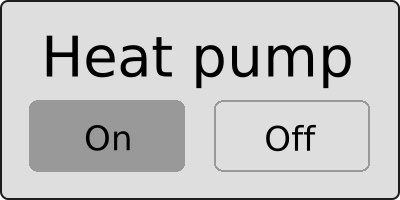
The HP Control panel widget renders a labeled control panel with two buttons — On and Off — that operators can click directly on the dashboard to turn a device or subsystem on or off. The panel reads the current state from the device and updates the button appearance accordingly, so the display always reflects reality. Use it to control pumps, fans, heaters, lighting circuits, or any binary-switched equipment in HVAC, water treatment, industrial automation, or building management systems where a clear, labeled toggle control fits the diagram layout.
Key Capabilities
Section titled “Key Capabilities”- Display the current on/off state of a device as a highlighted On or Off button.
- Turn a device on or off with a single click directly from the dashboard.
- Customize the panel label, button text, and button colors.
- Configure an optional background color for the panel body.
- Receive state data from device attributes, time series, alarm status, or dashboard state.
Add the Widget
Section titled “Add the Widget”- Open the dashboard and switch to edit mode.
- Click Add widget at the top, or the Add new widget icon in the center of the screen.
- Open the General high-performance SCADA symbols widget bundle.
- Select HP Control panel.
- Configure the widget settings, then click Add.
Target Device
Section titled “Target Device”The widget connects to a single data source: either a Device or an Entity alias that resolves to a device. This device provides the attribute or telemetry value used to reflect the current state, and receives the write commands when the operator clicks a button.
SCADA Symbol
Section titled “SCADA Symbol”The SCADA symbol defines the visual shape of the widget. The HP Control panel widget has a pre-selected symbol from the General high-performance SCADA symbols bundle. To use a different symbol, click Browse SCADA symbol from gallery and choose one from the library, or upload your own.
Behavior
Section titled “Behavior”Behavior parameters define what the widget displays and how it responds to user interaction, driven by real-time data from the connected device.
| Parameter | Default | Description |
|---|---|---|
| On/Off state | Use attribute 'value' |
Whether the device is currently on. When True, the widget highlights the On button; when False, it highlights the Off button. See Data source configuration. |
| On update state | Set 'value' attribute to: true |
Action triggered when the operator clicks the On button. See Update action configuration. |
| Off update state | Set 'value' attribute to: false |
Action triggered when the operator clicks the Off button. See Update action configuration. |
Update Action Configuration
Section titled “Update Action Configuration”Applies to On update state and Off update state. On update state fires when the operator clicks the On button; Off update state fires when the operator clicks the Off button. Select one action type from the list below.
-
Execute RPC
Sends the on or off command to the device as an RPC call.
Parameter Description Method RPC method to call, like setState.Parameters Value — sends true(On) orfalse(Off) as a boolean; Function — sends a value computed by yourf(value)function; None — sends no parameter.RPC request timeout (ms) How long to wait for a device response before timing out (Advanced settings). RPC request persistent Stores and retries the command until the device comes online (Advanced settings). -
Set attribute
Writes the on or off state to a device attribute.
Parameter Description Attribute scope Where to write: Server, Shared, or Client. Attribute key Attribute name to write to, like value.Value Constant — writes true(On) orfalse(Off) as a boolean; Function — writes a value computed by yourf(value)function. -
Add time series
Writes the on or off state as a new time series data point on the device.
Parameter Description Time series key The telemetry key to write, like value.Value Value — writes true(On) orfalse(Off) as a boolean; Function — writes a value computed by yourf(value)function.
Data Source Configuration
Section titled “Data Source Configuration”Applies to On/Off state. Click the edit icon next to the parameter to open its configuration dialog. When Action is set to Do nothing, the value options are:
| Parameter | Value |
|---|---|
| On/Off state | True or False |
For all other actions, the configuration dialog includes these options:
-
Execute RPC
Read the parameter value from an RPC response.
Parameter Description Method RPC method to call, like getState.Action result converter None — parameter is activated when the result matches the value you specify; Function — parameter is activated when your f(data)returnstrue.‘On’ when result is The value or condition that activates the On state. RPC request timeout (ms) How long to wait for a device response before timing out (Advanced settings). RPC request persistent Stores and retries the command until the device comes online (Advanced settings). -
Get attribute
Read the parameter value from a device attribute.
Parameter Description Attribute scope Where the attribute is stored: Any, Client, Server, or Shared. Attribute key Attribute name to read, like value.Action result converter None — parameter is activated when the attribute equals the value you specify; Function — parameter is activated when your f(data)returnstrue.‘On’ when result is The value or condition that activates the On state. -
Get time series
Read the parameter value from the latest telemetry reading.
Parameter Description Time series key Telemetry key to monitor, like value.Action result converter None — parameter is activated when the telemetry value equals what you specify; Function — parameter is activated when your f(data)returnstrue.‘On’ when result is The value or condition that activates the On state. -
Get alarm status
Activate the On state when a specific alarm is active on the device.
Parameter Description Alarm severity Which severity levels trigger the active state: Critical, Major, Minor, Warning, or Indeterminate. Alarm types Any alarm, or a specific alarm type. -
Get dashboard state id
Activate the On state based on which dashboard state is currently open.
Parameter Description Action result converter None — parameter is activated when the state name matches the text you enter; Function — parameter is activated when your f(data)returnstrue.‘On’ when result is The state name or condition that activates the On state. -
Get dashboard state object
Activate the On state using the full dashboard state context; use this when you need to evaluate multiple state parameters at once.
Parameter Description Parse value function A f(data)function that receives the current dashboard state object. Usedata.idto read the active state name, ordata.paramsto inspect state parameters.‘[parameter]’ when result is The expected type and value that activates the parameter. Choose String, Integer, Double, Boolean (then select True or False), or JSON.
Appearance
Section titled “Appearance”The Appearance section controls the widget title, the panel label, button text, and button colors.
| Setting | Default | Description |
|---|---|---|
| Title | HP Control panel |
Widget title displayed in the header. Supports entityName and entityLabel variables. |
| Card icon | — | Icon shown in the widget header. Configure its size and color. |
| Background color | Off | Optional background fill color for the control panel body. When disabled, the default panel style is used. |
| Label | Heat pump |
Text label displayed above the On/Off buttons. Configure its font and color. |
| ‘On’ label text | On |
Text shown on the On button. |
| ‘Off’ label text | Off |
Text shown on the Off button. |
| Button color | — | Colors for the buttons in three states: Active (the currently selected state), Default (the inactive state), and Border (button outline). |
Card Appearance
Section titled “Card Appearance”The Card appearance section controls the widget container style.
| Setting | Default | Description |
|---|---|---|
| Background | Transparent | Card background color. |
| Show card buttons | Fullscreen | Buttons shown on the card when hovered. |
| Card border radius | 0px |
Rounding of card corners. |
| Card padding | 12px |
Inner spacing between the card edge and widget content. |
Troubleshooting
Section titled “Troubleshooting”Button highlight does not reflect the actual device state
| Cause | Solution |
|---|---|
| On/Off state action is Do nothing and value is fixed | Open the On/Off state edit dialog and configure it to read from a device attribute or time series key. |
| Device is not sending data | Confirm the device is online and publishing the expected attribute or telemetry key. |
Clicking a button does not update the device
| Cause | Solution |
|---|---|
| On update state or Off update state is not configured | Open the respective edit dialog and select Execute RPC, Set attribute, or Add time series. |
| Target device is not connected | Confirm that the selected device is online and able to receive commands. |
Solution Templates
Section titled “Solution Templates”This widget is used in the following ready-made solution template built on the General high-performance SCADA symbols bundle:
- SCADA Swimming pool — a complete swimming pool monitoring dashboard that uses the HP Control panel to switch equipment on and off directly from the diagram.
Was this helpful?