Widgets Library
The Widgets Library contains all available widgets organized into bundles. Each bundle groups widgets by purpose — charts, cards, maps, gauges, control elements, and more.
-
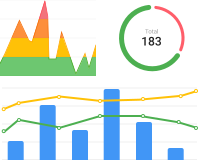 Charts
Displays time series data using line and bar charts, use various per chart options for advanced configuration.
-
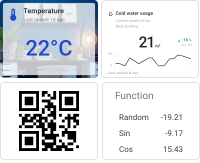 Cards
CardsIncludes cards that display data from your entities based on data from one or two latest or time series data, and also HTML cards.
-
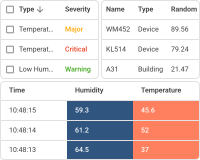 Tables
Contains tables to display alarms, entities, and their telemetry.
-
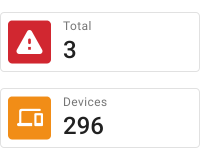 Count widgets
Displays the count of the number of alarms or entities based on the selected filter.
-
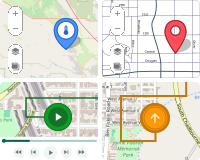 Maps
MapsVisualize the latest location or top of devices and entities with map widgets for enhanced spatial representation.
-
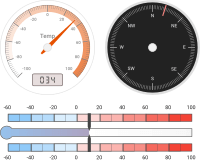 Analogue gauges
Display temperature, humidity, speed, pressure, and other values on analogy style gauges.
-
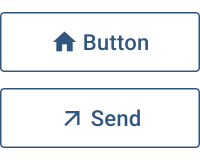 Buttons
Facilitates user interaction by enabling navigation between dashboard states, sending RPC commands to devices, and updating device attributes or time series data.
-
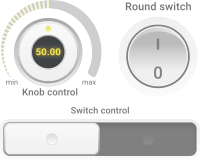 Control widgets
Various interactive widgets to control the behavior and state of the IoT devices.
-
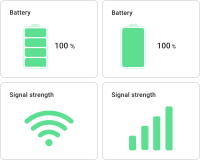 Status indicators
Contains widgets displaying battery level and signal strength.
-
 SCADA symbols
Bundle with SCADA symbols.
-
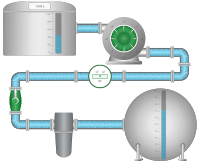 Traditional SCADA fluid system
Bundle with SCADA symbols for fluid system.
-
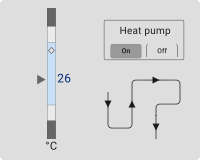 General high-performance SCADA symbols
Bundle with high-performance SCADA symbols.
-
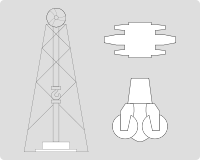 High-performance SCADA oil & gas
Bundle with high-performance SCADA symbols for oil and gas systems.
-
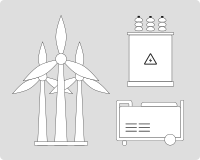 High-performance SCADA energy system
Bundle with high-performance SCADA symbols for energy systems.
-
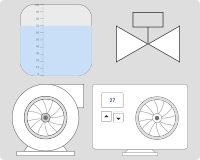 High-performance SCADA fluid system
Bundle with high-performance SCADA symbols for fluid system.
-
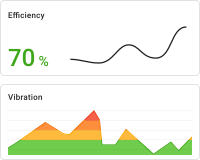 Industrial widgets
Contains widgets displaying industrial telemetry.
-
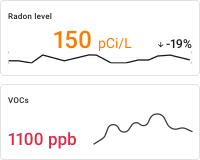 Indoor Environment
Contains widgets displaying indoor environment telemetry.
-
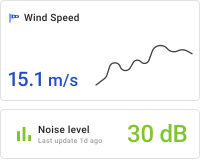 Outdoor Environment
Contains widgets displaying outdoor environment telemetry.
-
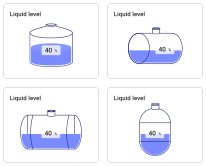 Liquid level
Visualize the level of liquid in various tank shapes with multiple tank shapes.
-
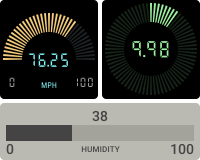 Digital gauges
Display temperature, speed, pressure, and other values on digital style gauges.
-
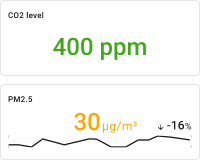 Air quality
Contains widgets displaying air quality telemetry.
-
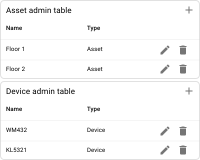 Entity admin widgets
Contains templates of complete tables for administering devices and assets.
-
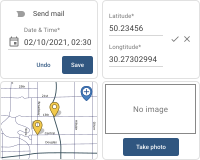 Input widgets
Various input widgets to set the location, time, and configuration parameters of the device, asset, or other entity.
-
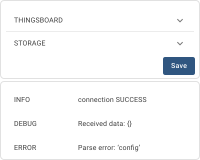 Gateway widgets
Widgets to manage ThingsBoard IoT Gateway instances.
-
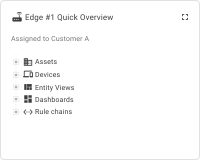 Edge widgets
Widgets to manage ThingsBoard Edge instances and navigate through their entities.
-
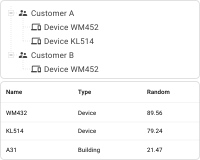 Entity widgets
Visualize entity properties and hierarchy using table and tree widgets.
-
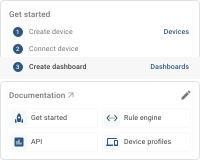 Home page widgets
Contains useful widgets to design the user's home page.
-
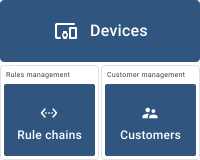 Navigation widgets
Contains widgets enabling navigation to other dashboards and menu items. Useful to define the home page or dashboard.
-
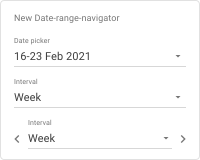 Date
DateContains widgets to change the date range for other widgets on the dashboard.
-
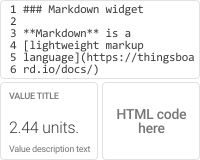 HTML widgets
Various HTML widgets commonly configured template in template or function with applied attributes or time series values.
-
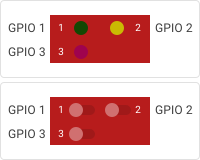 GPIO widgets
Visualization and control of the states of the GPIO devices.
Was this helpful?