Power Button

The Power button widget places a round ON/OFF control on any dashboard that always reflects the actual state of the connected device. It reads the current state on load and switches between visually distinct ON and OFF appearances, so operators instantly know whether a relay, motor, or actuator is active — without checking telemetry separately. Use it wherever a physical power button metaphor fits: machinery control panels, lighting systems, relay controllers, or any two-state device that needs to be switched with a single glance and one click.
Key Capabilities
Section titled “Key Capabilities”- Single-click ON/OFF control for any device or entity.
- Reads current device state on load from an attribute, telemetry value, or RPC call.
- Sends RPC commands, attribute updates, or telemetry writes independently for ON and OFF actions.
- Multiple layout variants: Default, Simplified, Outlined, and icon-only modes.
- Can be disabled automatically based on device data, alarms, or dashboard state.
Adding the Widget
Section titled “Adding the Widget”- Open the dashboard in edit mode. Click Add widget in the top toolbar, or click the Add new widget icon in the center of an empty dashboard.
- In the widget bundle selection dialog, find and click Buttons.
- Select the Power button widget.
- Configure the datasource, behavior, and appearance, then click Add.
Configuration
Section titled “Configuration”All settings in this section use Basic mode — a quick-start configuration covering the essentials. For finer widget controls like card style, card buttons, title, and tooltip, switch to the Advanced tab.
Target Device
Section titled “Target Device”Select the datasource for the widget:
- Device — a specific device; the button reads attribute and telemetry data from this device to determine its state.
- Entity alias — a set of entities matched by an entity alias; use this when the target device is selected dynamically at runtime.
Behavior
Section titled “Behavior”The Behavior section defines how the widget reads the device’s ON/OFF state on load, what action fires when the user presses ON, what action fires when the user presses OFF, and when the button disables. Configure each sub-section as needed; Disabled state is optional.
Initial State
Section titled “Initial State”Determines whether the button shows as ON or OFF when the dashboard loads. Select one action type from the list below.
-
Do nothing
The state is set manually. No live data needed.
Parameter Description Value Set to On to always show the button as on, or Off to always show it as off. -
Execute RPC
Calls a device RPC method to read the current state.
Parameter Description Method The RPC method name to call, like getState.Condition (None) ON when the RPC result equals the value you specify. Condition (Function) ON when your f(data)function returnstrue.RPC request timeout (ms) How long to wait for a device response before timing out. RPC request persistent When enabled, the RPC command is stored and retried until the device comes online. Persistent polling interval (ms) How often to re-poll the device for state updates. -
Get attribute
Reads a device or entity attribute to determine the current state.
Parameter Description Attribute scope Where the attribute is stored: Any, Client, Server, or Shared. Attribute key The attribute name to read, like powerState.Condition (None) ON when the attribute equals the value you specify. Condition (Function) ON when your f(data)function returnstrue. -
Get time series
Reads the latest telemetry value to determine the current state.
Parameter Description Time series key The telemetry key to monitor, like stateorpower.Condition (None) ON when the telemetry value equals the value you specify. Condition (Function) ON when your f(data)function returnstrue. -
Get alarm status
Sets the button to ON when a matching alarm is currently active on the entity.
Parameter Description Alarm severity Which severity levels trigger the ON state: Critical, Major, Minor, Warning, or Indeterminate. Alarm types Any alarm, or a specific alarm type. -
Get dashboard state id
Sets the button based on the currently open dashboard state; use this when button state should reflect navigation context.
Parameter Description Condition (None) ON when the current state name matches the text you enter. Condition (Function) ON when your f(data)function returnstrue. -
Get dashboard state object
Sets the button based on the full dashboard state context; use this when you need to check multiple state parameters at once.
Parameter Description Condition (Function only) Write a f(data)function that returnstrueto set the button to ON.
Power ‘On’ Action
Section titled “Power ‘On’ Action”Defines the action executed when the user presses the button to turn ON. Select one action type from the list below.
-
Execute RPC
Sends an RPC command to the device when turned on.
Parameter Description Method The RPC method name, like setState.Parameters Constant — a fixed value like true,"ON", or{"state": 1}; Function — a JS function that returns the payload; None — no parameters sent.RPC request timeout (ms) How long to wait for a device response before timing out. RPC request persistent When enabled, the RPC command is stored and retried until the device comes online. -
Set attribute
Updates a device attribute when turned on.
Parameter Description Attribute scope Server or Shared. Attribute key The attribute to update, like powerState.Value Constant — a fixed value like trueor"ON"; Function — a JS function that returns the value. -
Add time series
Writes a time-series record when turned on.
Parameter Description Time series key The telemetry key to write to, like state.Value Constant — a fixed value; Function — a JS function that returns the value.
Power ‘Off’ Action
Section titled “Power ‘Off’ Action”Defines the action executed when the user presses the button to turn OFF. Configure this as the reverse of Power ‘On’. Select one action type from the list below.
-
Execute RPC
Sends an RPC command to the device when turned off.
Parameter Description Method The RPC method name, like setState.Parameters Constant — a fixed value like false,"OFF", or{"state": 0}; Function — a JS function that returns the payload; None — no parameters sent.RPC request timeout (ms) How long to wait for a device response before timing out. RPC request persistent When enabled, the RPC command is stored and retried until the device comes online. -
Set attribute
Updates a device attribute when turned off.
Parameter Description Attribute scope Server or Shared. Attribute key The attribute to update, like powerState.Value Constant — a fixed value like falseor"OFF"; Function — a JS function that returns the value. -
Add time series
Writes a time-series record when turned off.
Parameter Description Time series key The telemetry key to write to, like state.Value Constant — a fixed value; Function — a JS function that returns the value.
Disabled State
Section titled “Disabled State”The Disabled state makes the button non-interactive when a configured condition is met, preventing clicks in unsafe or invalid situations.
-
Do nothing
Set the disabled state manually. No live data needed.
Parameter Description Value Set to True to always disable the button, or False to always keep it enabled. -
Execute RPC
Disable the button based on a device RPC response, like checking availability before allowing control.
Parameter Description Method The RPC method to call, like getAvailability.Condition (None) Disabled when the RPC result equals the value you specify. Condition (Function) Disabled when your f(data)function returnstrue. -
Get attribute
Disable the button based on a device attribute, like an
onlinestatus or alockedflag.Parameter Description Attribute scope Where the attribute is stored: Any, Client, Server, or Shared. Attribute key The attribute name to read, like onlineorlocked.Condition (None) Disabled when the attribute equals the value you specify (String, Integer, Double, Boolean, or JSON). Condition (Function) Disabled when your f(data)function returnstrue. -
Get time series
Disable the button based on the latest telemetry value, like an operational mode or availability reading.
Parameter Description Time series key The telemetry key to monitor, like availabilityorstate.Condition (None) Disabled when the telemetry value equals the value you specify. Condition (Function) Disabled when your f(data)function returnstrue. -
Get alarm status
Disable the button while a specific alarm is active, like blocking control while a Critical alarm is open.
Parameter Description Alarm severity Critical, Major, Minor, Warning, or Indeterminate. Alarm types Any alarm, or a specific alarm type. -
Get dashboard state id
Disable the button based on the currently open dashboard state; use this to prevent actions in read-only or restricted views.
Parameter Description Condition (None) Disabled when the current state name matches the text you enter. Condition (Function) Disabled when your f(data)function returnstrue. -
Get dashboard state object
Disable the button using the full dashboard state context; use this when you need to check multiple state parameters at once.
Parameter Description Condition (Function only) Write a f(data)function that returnstrueto disable the button.
Appearance
Section titled “Appearance”Controls the button’s visual style, label, and colors for each state.
| Setting | Description |
|---|---|
| Layout | Button design variant: Default, Simplified, Outlined — each also available as a Volume variant (raised effect) and an Icon variant (icon only, no text label). |
| Title | Text label displayed above the button. |
| Card icon | Icon shown next to the title. |
| Button icon ‘On’ | Icon shown on the button in ON state. |
| Button icon ‘Off’ | Icon shown on the button in OFF state. |
| Power ‘On’ colors | Main — button fill color in ON state; Background — surrounding area color. |
| Power ‘Off’ colors | Main — button fill color in OFF state; Background — surrounding area color. |
| Disabled colors | Main — button fill color when disabled; Background — surrounding area color. |
Card Appearance
Section titled “Card Appearance”| Setting | Description |
|---|---|
| Background | Card background color or image. |
| Show card buttons | Fullscreen — expand the widget to fullscreen mode. |
| Card border radius | Roundness of card corners. |
| Card padding | Spacing between the widget content and the card border. |
Actions
Section titled “Actions”The Power button widget supports the Widget header button action — adds a button to the widget header that triggers a configured action when clicked.
Example
Section titled “Example”Power Control for a Ventilation Relay
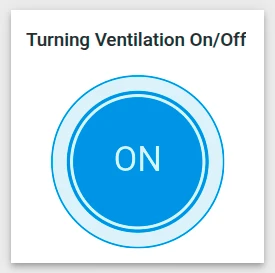
Section titled “Power Control for a Ventilation Relay”Scenario: A Ventilation Relay device subscribes to shared attribute updates from ThingsBoard. When the shared attribute value changes, the device automatically adjusts its physical relay state. The goal is a Power button that reads the current powerState value on load, displays ON or OFF accordingly, and updates the attribute when the user presses the button.
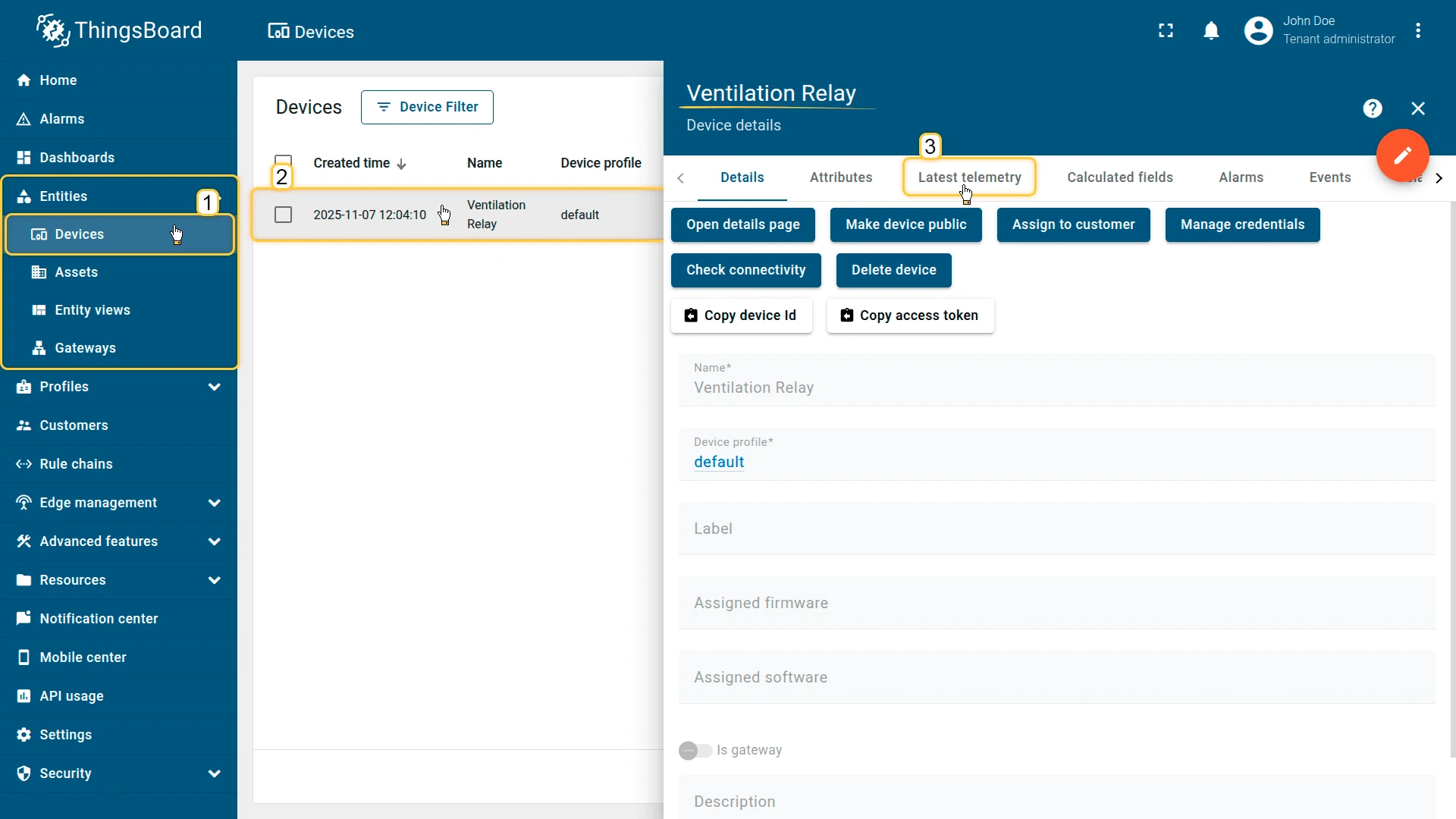
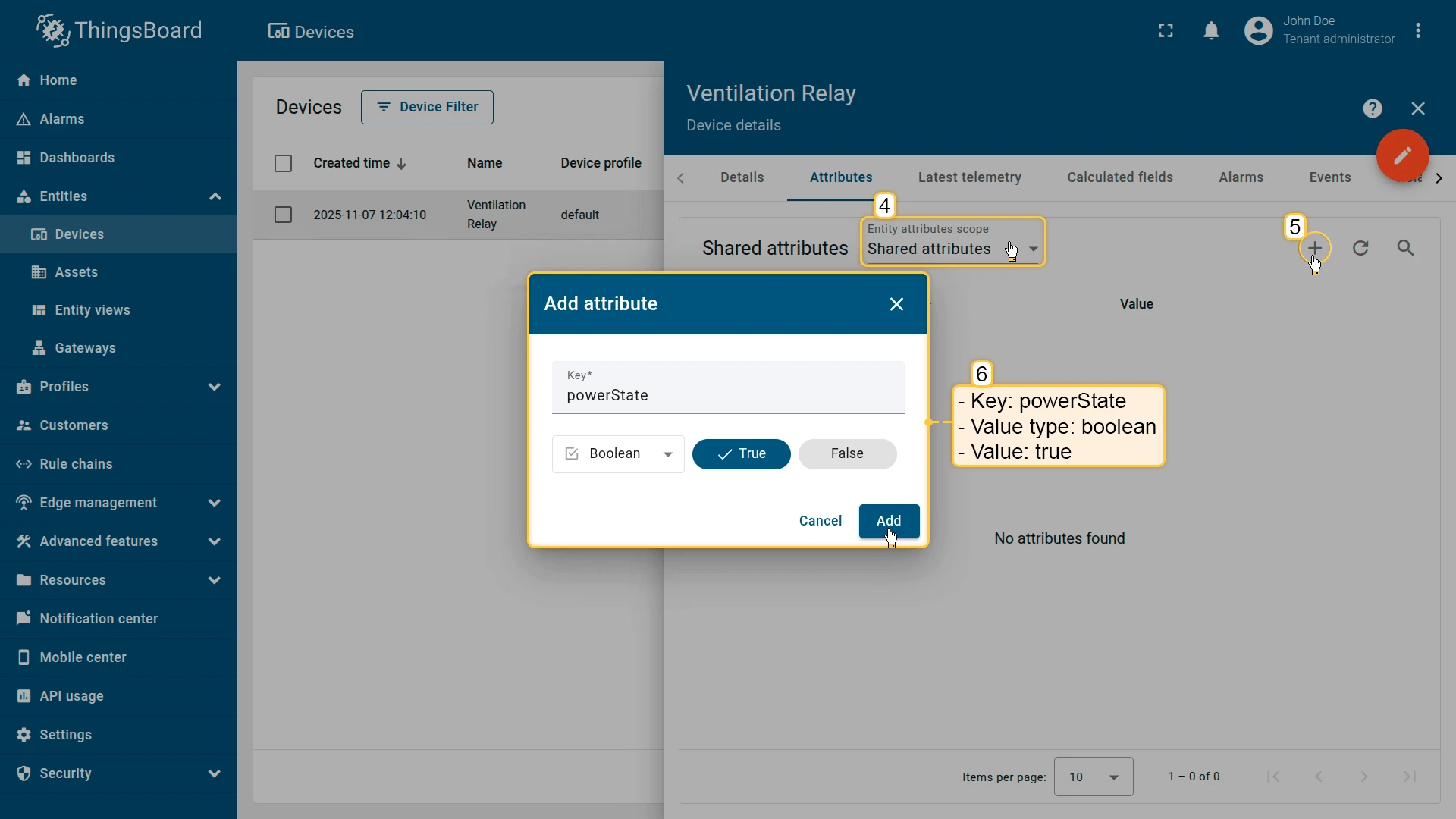
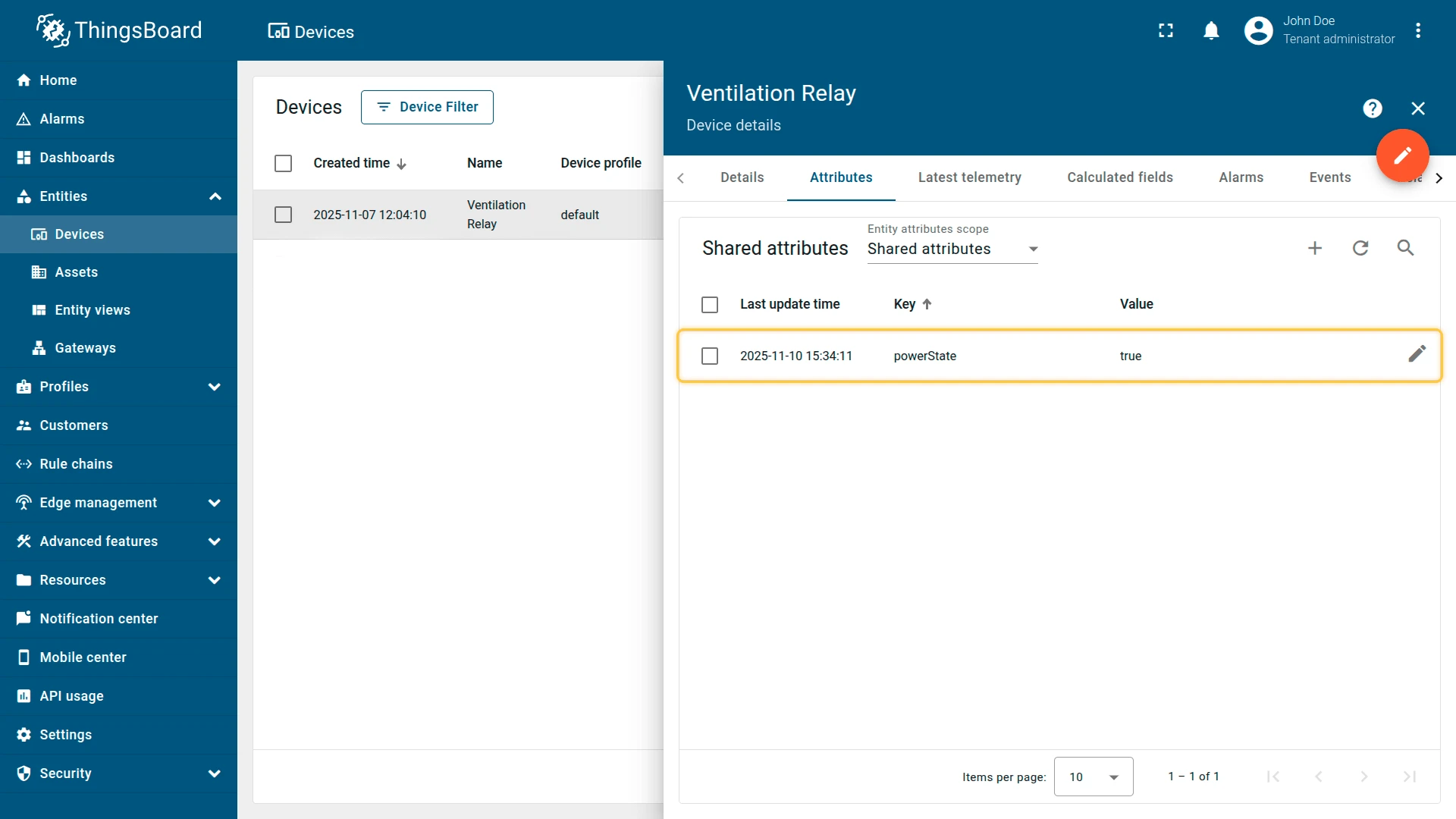
Prerequisites:
- Create a device named Ventilation Relay.
- Add a shared attribute: Key —
powerState, Data type — Boolean, Value —true.
Step 1. Add the widget. Open your dashboard in edit mode, click Add widget, select the Buttons bundle, then choose Power button.
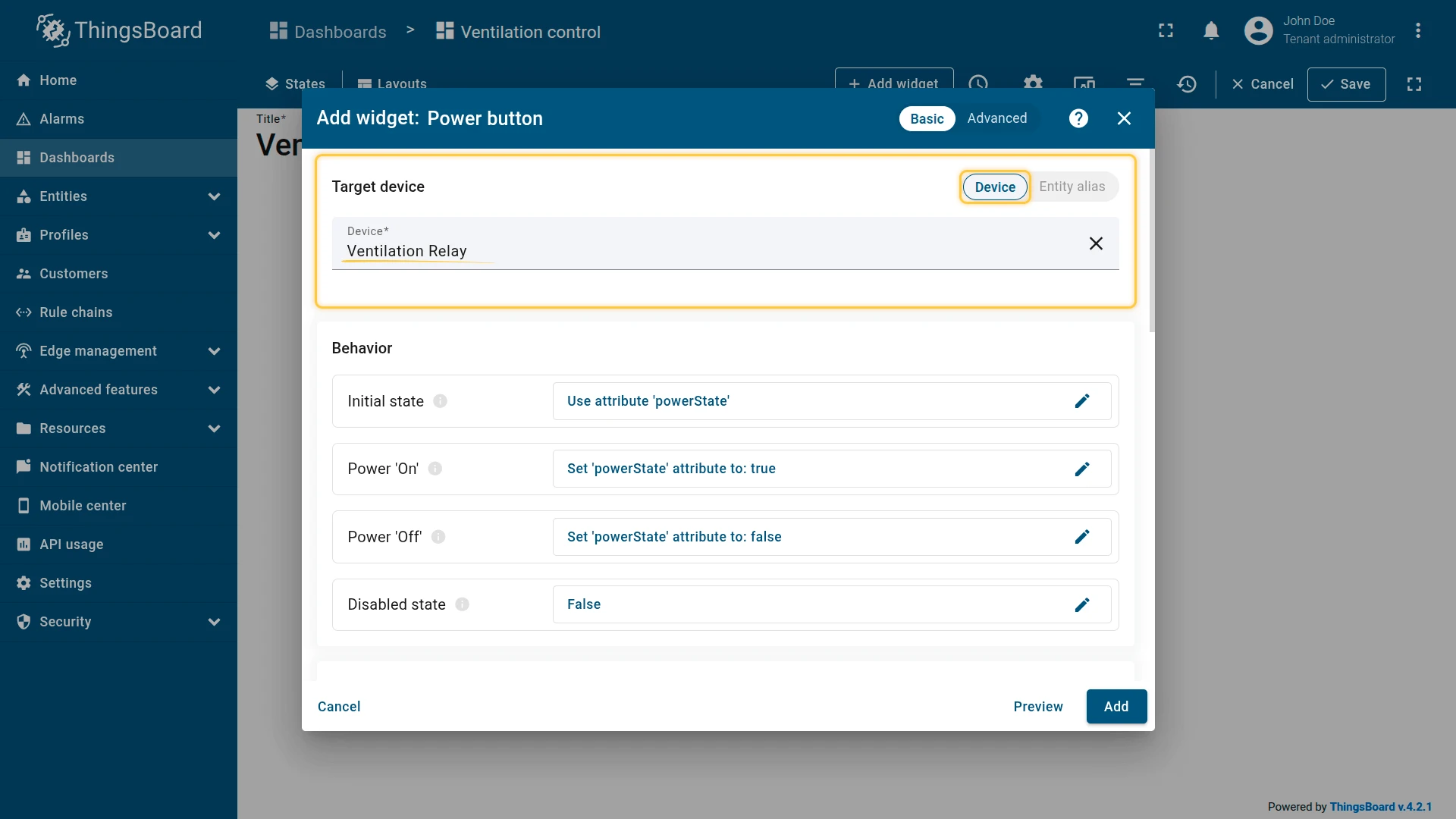
Step 2. Configure the datasource. Set Target device to Ventilation Relay.
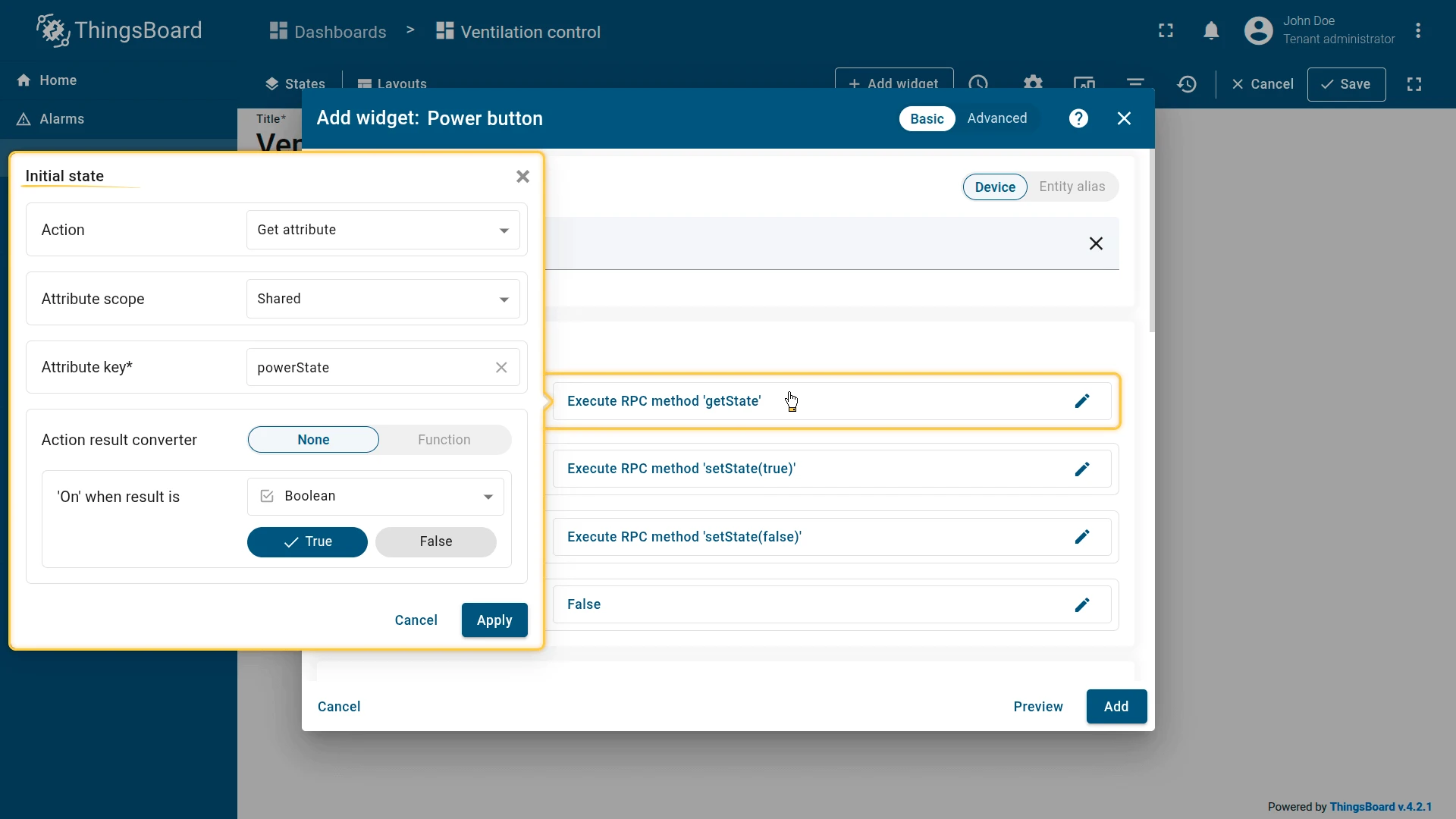
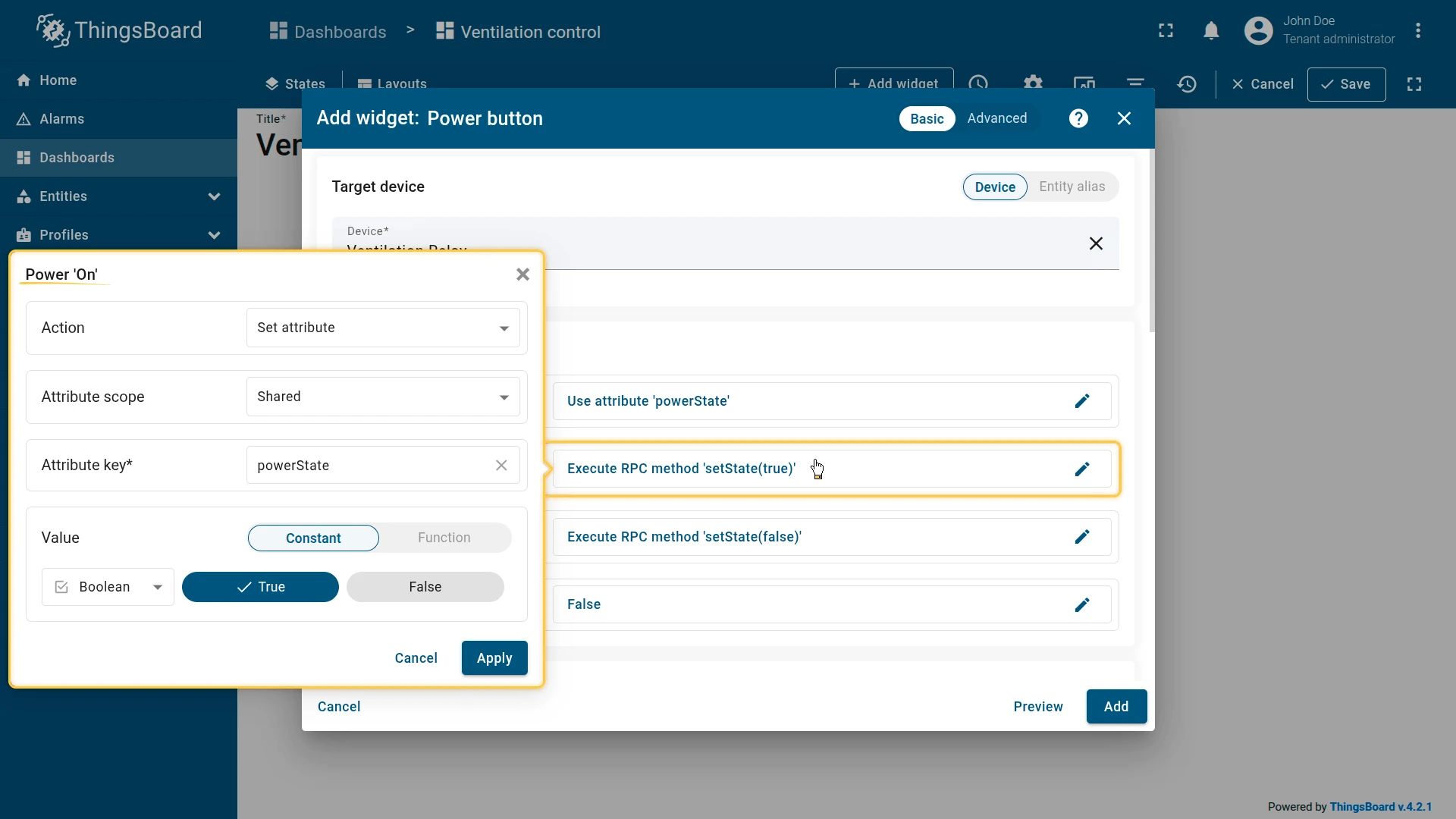
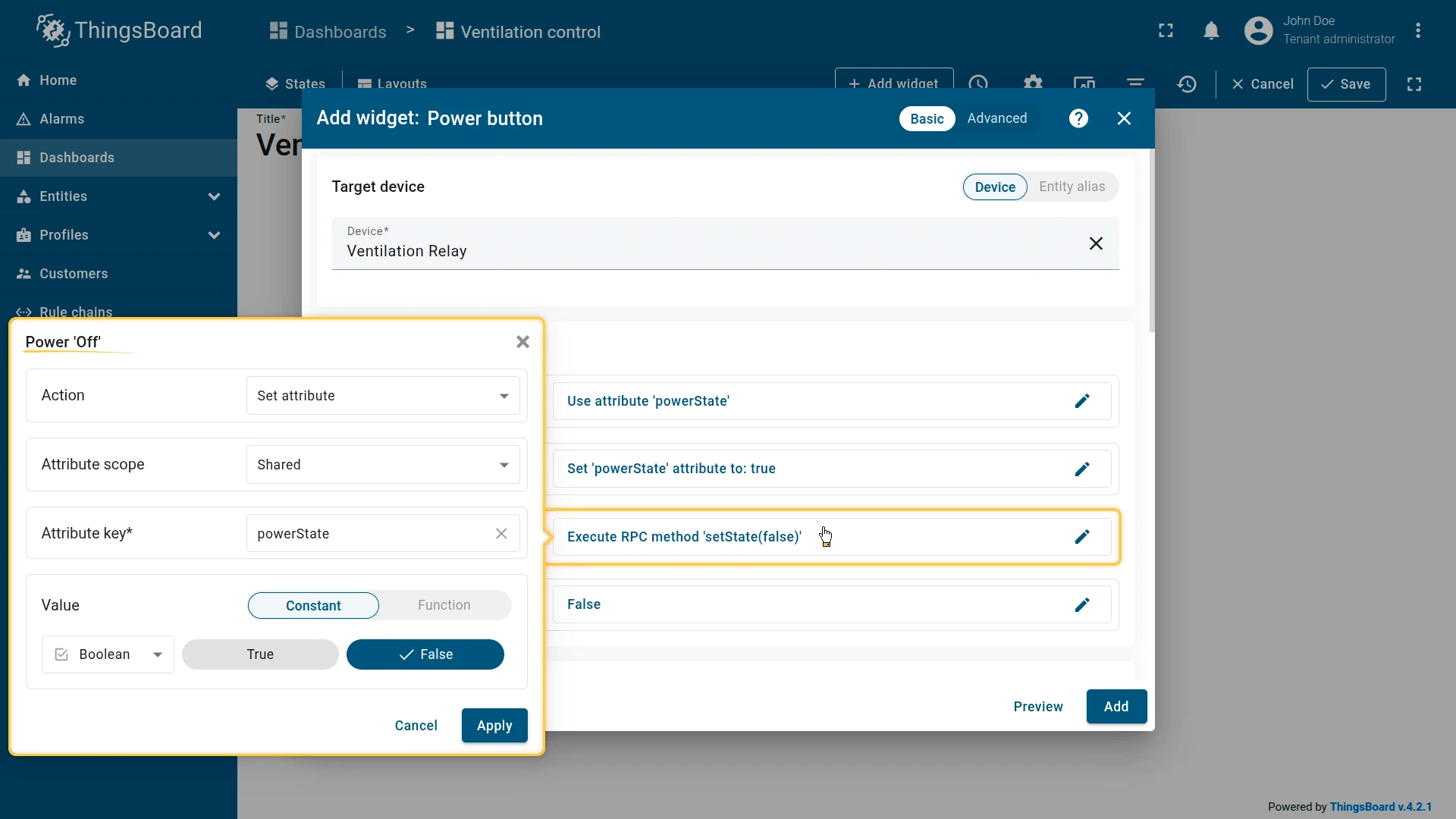
Step 3. Configure behavior.
Initial state: Get attribute — Scope: Shared, Key: powerState, Condition: None — ON when result is true (Boolean).
Power ‘On’ action: Set attribute — Scope: Shared, Key: powerState, Value: Constant — true (Boolean).
Power ‘Off’ action: Set attribute — Scope: Shared, Key: powerState, Value: Constant — false (Boolean).
Step 4. Configure appearance.
- Layout: Outlined
- Title:
Turning Ventilation On/Off - Power ‘On’ colors: Main
#2196F3, Background#E3F2FD - Power ‘Off’ colors: Main
#9E9E9E, Background#F5F5F5
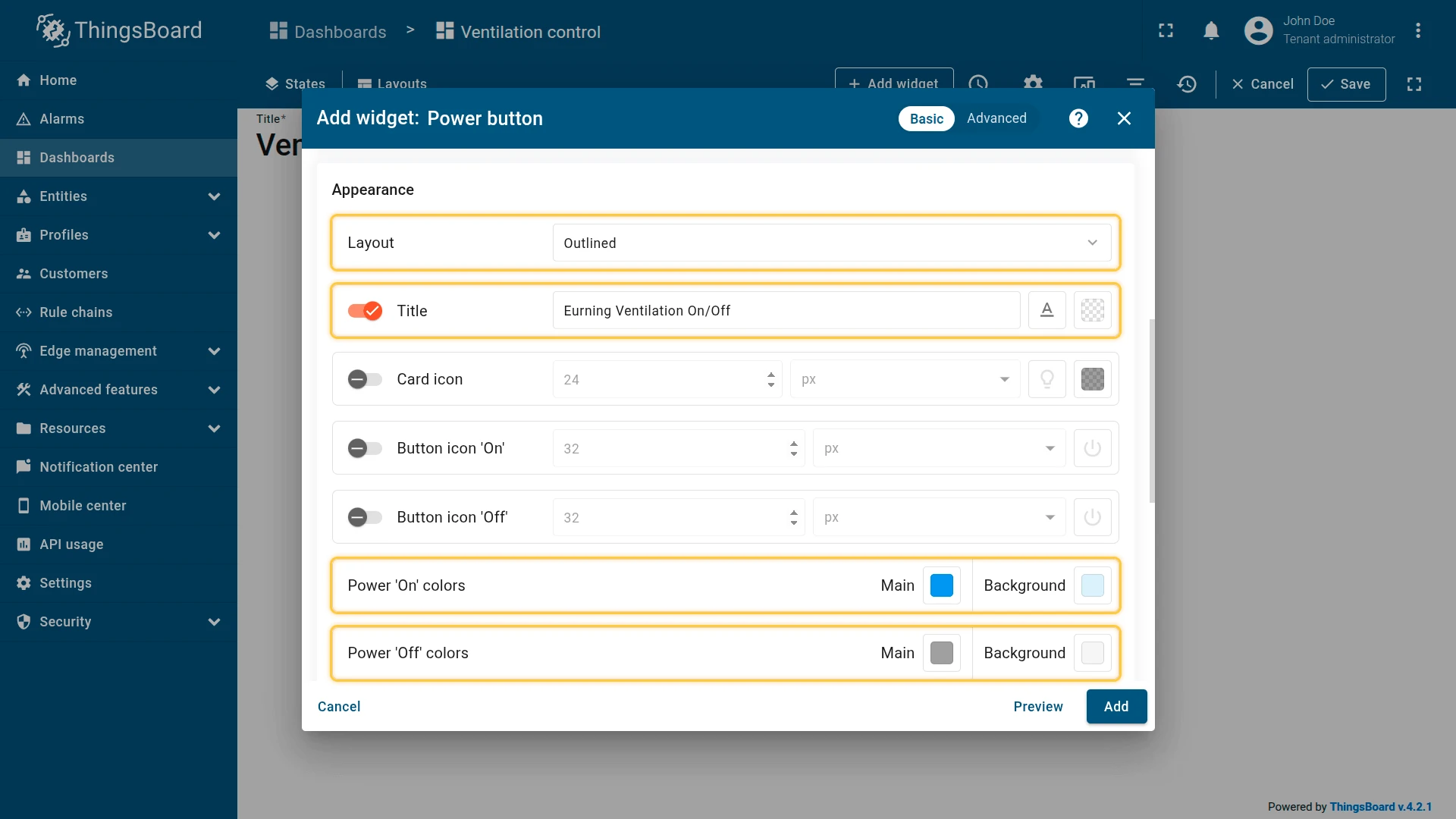
Step 5. Save. Click Add, resize and reposition as needed, then click Save on the dashboard toolbar.
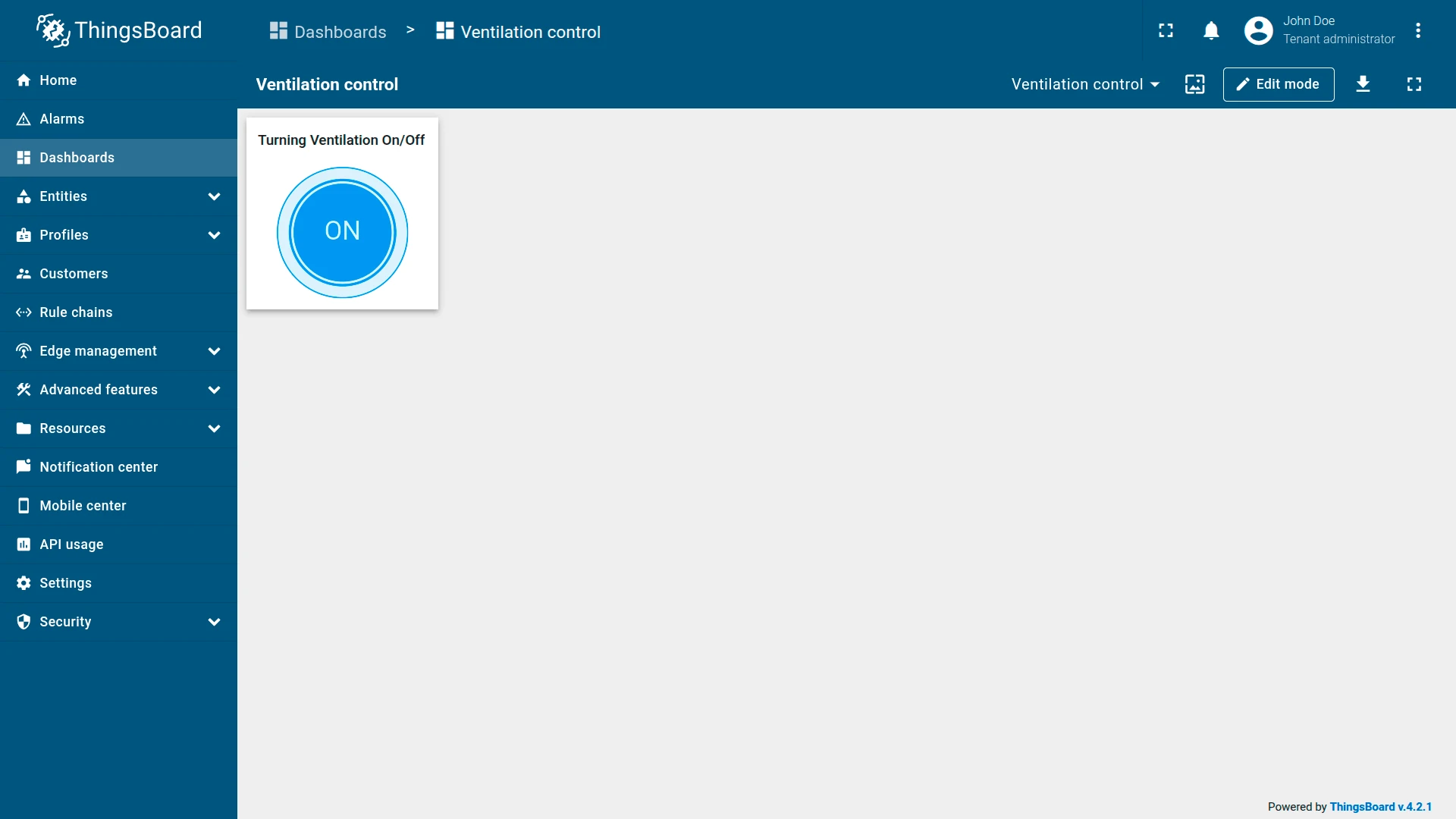
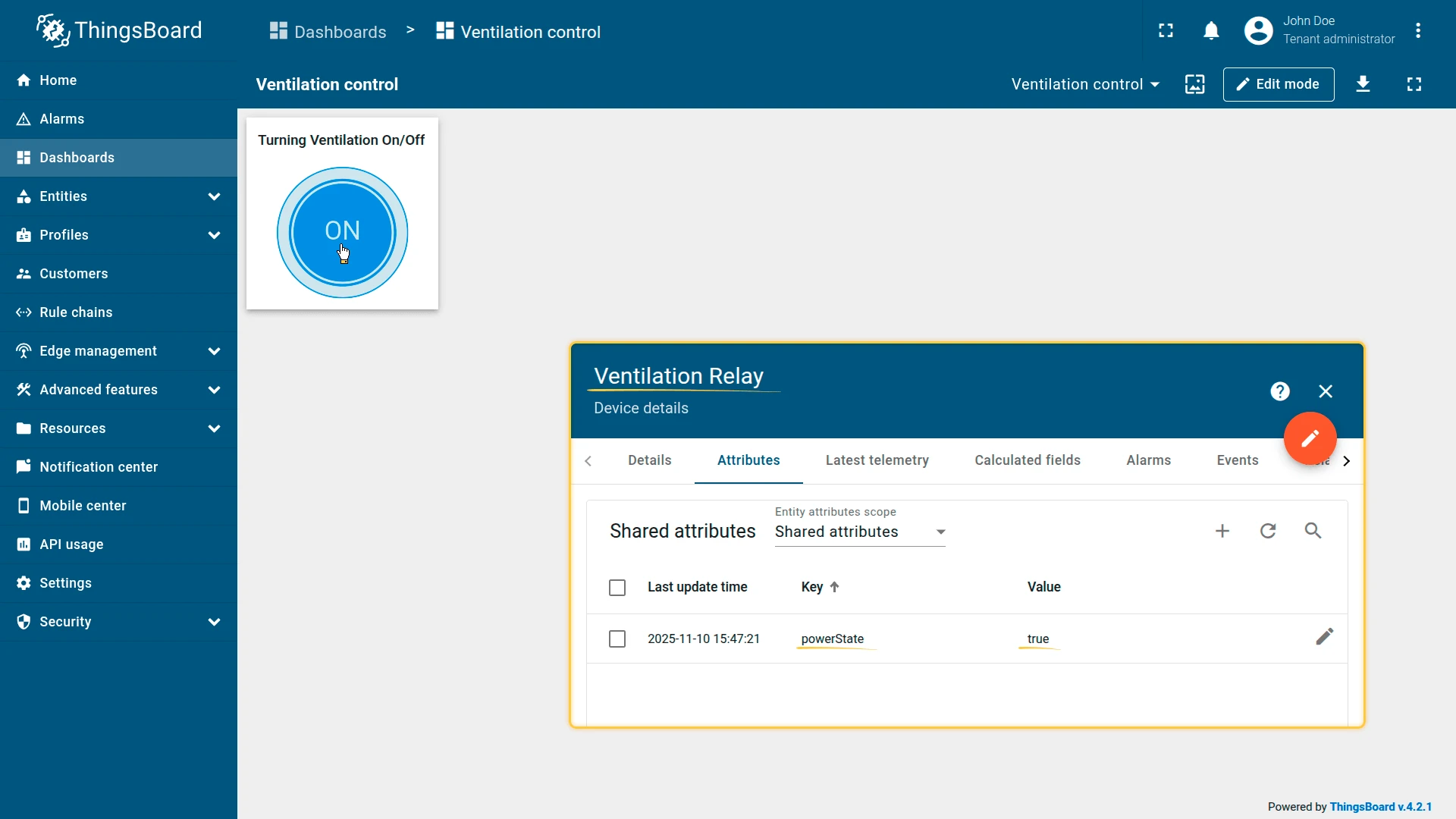
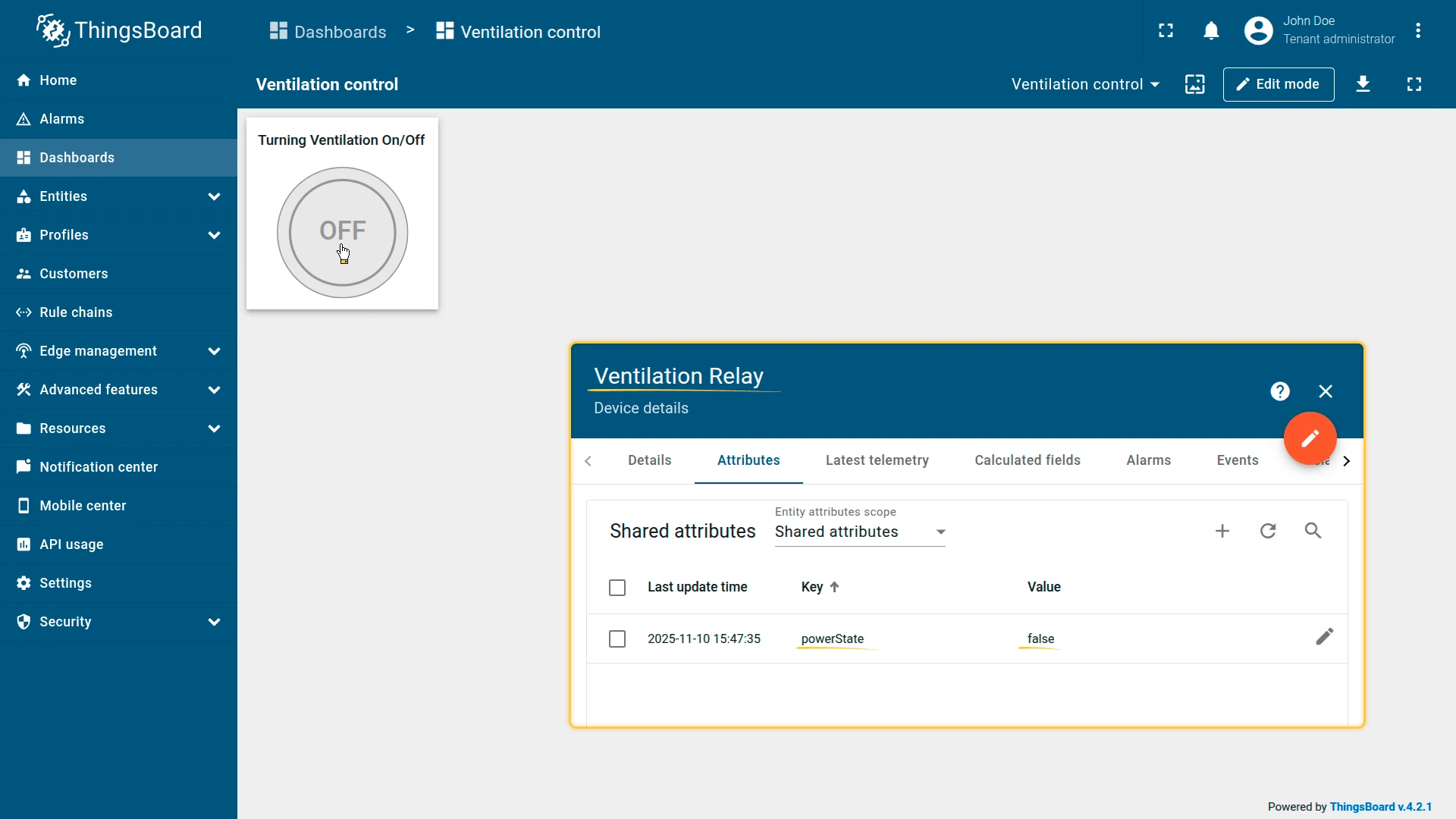
Result: The widget reads powerState from Ventilation Relay. powerState = true — button appears blue (ON); powerState = false — button appears gray (OFF). Pressing the button writes the new value to powerState, and the device adjusts its physical relay state.
Troubleshooting
Section titled “Troubleshooting”Button Does Not Reflect Device State
| Cause | Solution |
|---|---|
| Incorrect attribute key | Verify the key matches the device attribute exactly. Key names are case-sensitive. |
| Wrong attribute scope | Match the scope to the actual attribute type (Client / Server / Shared). |
| No attribute on device | Open Devices → Attributes and confirm the key exists with a value. |
| RPC call fails | Check device connectivity and verify the RPC handler on the device firmware. |
Button Click Has No Effect
| Cause | Solution |
|---|---|
| Device offline | Verify device connectivity and transport configuration. |
| Wrong action type | Confirm the ON/OFF action matches how the device receives commands (RPC vs. attribute vs. time series). |
| RPC timeout | Increase RPC request timeout in the behavior settings. |
Button Is Stuck in Disabled State
| Cause | Solution |
|---|---|
| Disabled condition always evaluates to true | Review the Disabled state configuration — check the action type and result converter logic. |
| Unexpected attribute or telemetry value | Open Devices → Attributes or Latest telemetry to inspect the actual value. |
Was this helpful?