Rule Engine Monitoring
Monitor Rule Engine health through the built-in Statistics dashboard and investigate individual node failures using Debug mode. These are the two primary tools for troubleshooting message processing issues in ThingsBoard.
Statistics
Section titled “Statistics”The Rule Engine statistics dashboard tracks message throughput and surfaces processing failures and exceptions across all queues and rule engine partitions.
To open the dashboard:
Go to API Usage in the top-right menu → click Rule Engine executions → click View statistics in the top-right corner of the chart.
The dashboard contains three panels:
Queue Stats
Section titled “Queue Stats”Realtime chart. Shows per-partition message counts broken down by outcome:
| Series | What it counts |
|---|---|
| Successful | Messages that completed processing without error |
| Permanent Failures | Messages that exhausted all retries and were discarded |
| Processing Failures | Messages that failed during rule chain execution |
Each queue partition is tracked independently
(e.g. Main_tb-rule-engine-0, SequentialByOriginator_tb-rule-engine-1), so you can
pinpoint which queue or partition is under load or accumulating errors.
Processing Failures and Timeouts
Section titled “Processing Failures and Timeouts”Realtime chart. Shows the same per-partition breakdown for timeout-related outcomes:
| Series | What it counts |
|---|---|
| Permanent Timeouts | Messages that timed out and exhausted all retries |
| Processing Timeouts | Messages that exceeded the processing timeout threshold |
| Permanent Failures | Cross-referenced with the Queue Stats panel |
A flat line across all partitions means no failures or timeouts — expected during normal operation.
Exceptions
Section titled “Exceptions”Table with a tab per queue partition. Each row is an exception logged during message processing:
| Column | Description |
|---|---|
| Timestamp | When the exception occurred |
| Rule Chain | The rule chain where the exception was raised |
| Rule Node | The specific node that threw the exception |
| Latest Error | The error message or stack trace |
| Queue name | The queue the message was in |
| Service Id | The ThingsBoard service instance that processed the message |
Use the Exceptions table to identify recurring node failures — the Rule Chain and Rule Node columns narrow the problem to an exact location in your processing graph.
Debug mode records incoming and outgoing messages at a specific rule node so you can inspect exactly what the node received, what it produced, and why it failed.
Enable Debug
Section titled “Enable Debug”Open a node’s configuration window and click Debug. The Debug configuration dialog offers two independent modes:
| Mode | Duration | What it records |
|---|---|---|
| Failures only | Always on (24/7) | Only messages that result in a Failure relation — low overhead, safe for production |
| All messages | 15 minutes, then auto-disables | Every incoming and outgoing message with its full payload, metadata, and relation type |
Configuration Parameters
Section titled “Configuration Parameters”The default values below apply unless overridden by the tenant profile.
DEBUG_SETTINGS_DEFAULT_DURATION_MINUTES(default:15) — How long All messages mode stays active before auto-disabling, in minutes.ACTORS_RULE_CHAIN_DEBUG_MODE_RATE_LIMITS_PER_TENANT_ENABLED(default:true) — Enables the per-tenant cap on recorded debug events.ACTORS_RULE_CHAIN_DEBUG_MODE_RATE_LIMITS_PER_TENANT_CONFIGURATION(default:50000:3600) — Maximum debug events per tenant per hour (count:secondsformat).SQL_TTL_EVENTS_DEBUG_EVENTS_TTL(default:604800) — How long debug events are retained in the database, in seconds (default = 1 week).
View Debug Events
Section titled “View Debug Events”In the node’s configuration window, click the Events tab and select event type Debug. Each row shows one message passing through the node:
| Column | Description |
|---|---|
| Event time | Timestamp of the processing event |
| Server | ThingsBoard service instance that processed the message |
| Type | IN (message entering the node) or OUT (message leaving the node) |
| Entity type | Originator entity type (e.g. DEVICE, ASSET) |
| Entity Id | Originator entity UUID |
| Message Id | Unique ID of the rule engine message |
| Message Type | Type string — see Message Types |
| Relation Type | Success, Failure, True, False, or custom — empty for IN events |
| Data | Full message payload JSON |
| Metadata | Message metadata key-value pairs |
| Error | Error details if the event resulted in a failure |
Alternatively, click See debug events in the Debug configuration dialog to jump directly to the Events tab.
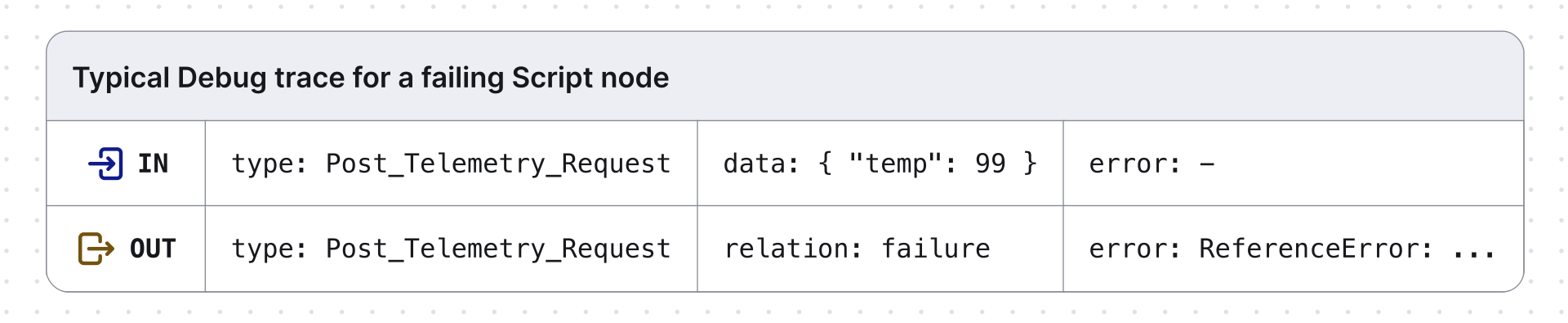
Workflow: Investigate a Processing Failure
Section titled “Workflow: Investigate a Processing Failure”- Open the Statistics dashboard and identify the Rule Chain and Rule Node in the Exceptions table.
- Open that rule chain, find the node, and open its configuration window.
- Enable Failures only debug mode and click Apply.
- Wait for the next failure or replay a test message.
- Click Events → Debug to inspect the
INandOUTrows — check Data, Metadata, and Error for the root cause. - Fix the node configuration or script, then disable All messages mode if it was enabled.
Was this helpful?