Unit Conversion
Widgets support automatic data conversion and unit switching based on the selected unit system. This is useful in global IoT solutions where users across different regions use different measurement standards — metric (°C, km, kg), imperial (°F, miles, lbs), or hybrid.
Key benefits:
- Automatic conversion of numerical values into the appropriate units directly within the widget — no additional data processing required.
- Flexible widget configuration that eliminates the need to duplicate widgets or create separate dashboards for users with different regional unit standards.
- Support for a wide range of measurement units, allowing users to view values in the units most familiar to them.
- Per-user setting — the same dashboard automatically displays the correct units for each user based on their profile setting.
All widgets designed to display telemetry data include a unit conversion option. Unit conversion is supported for telemetry data, Y-axis scales, and threshold settings.
Enable unit conversion
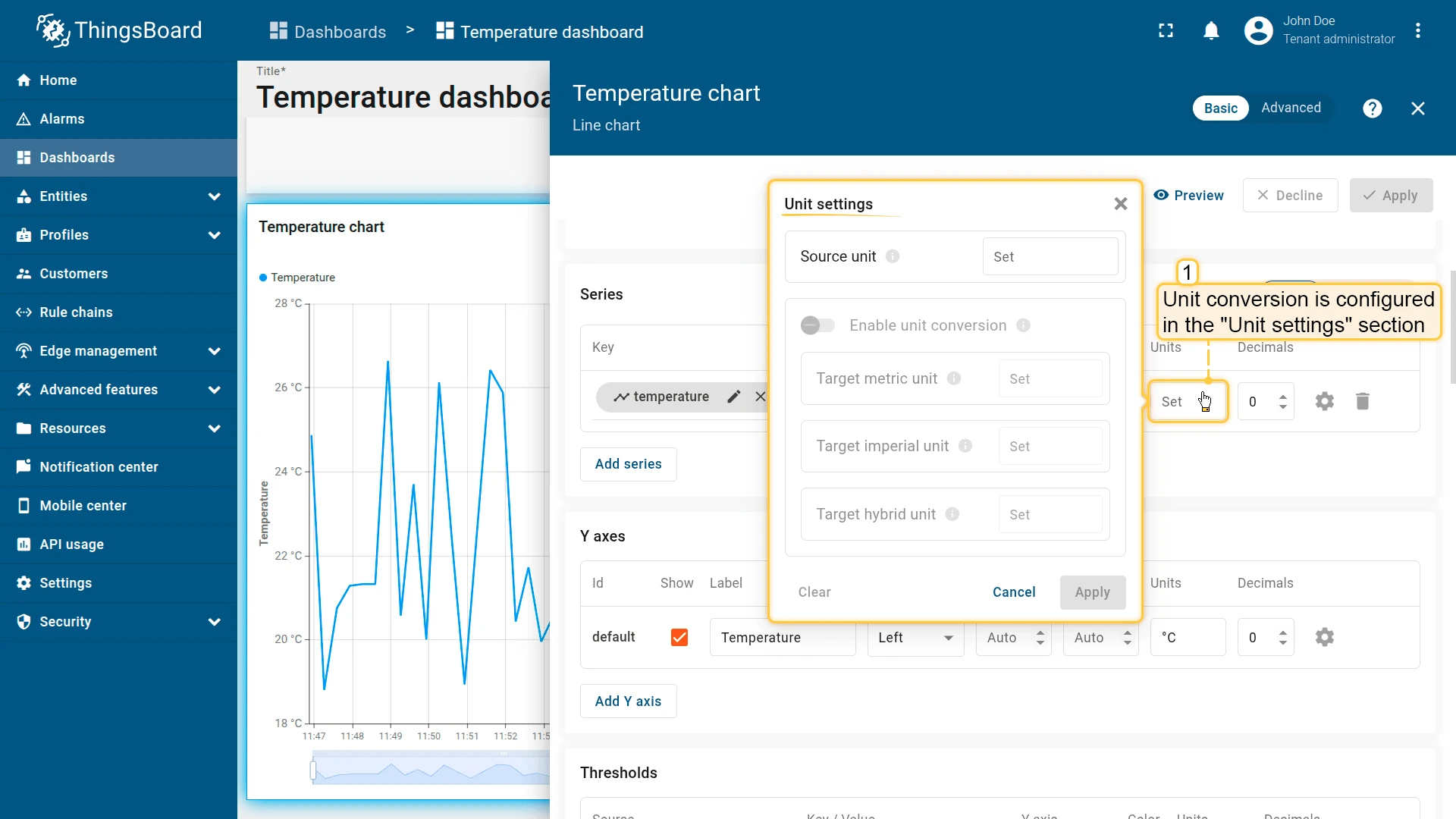
Section titled “Enable unit conversion”Unit conversion is configured in the Unit settings dialog, accessible by clicking the Units field for a telemetry key, Y-axis, or threshold in the widget settings.
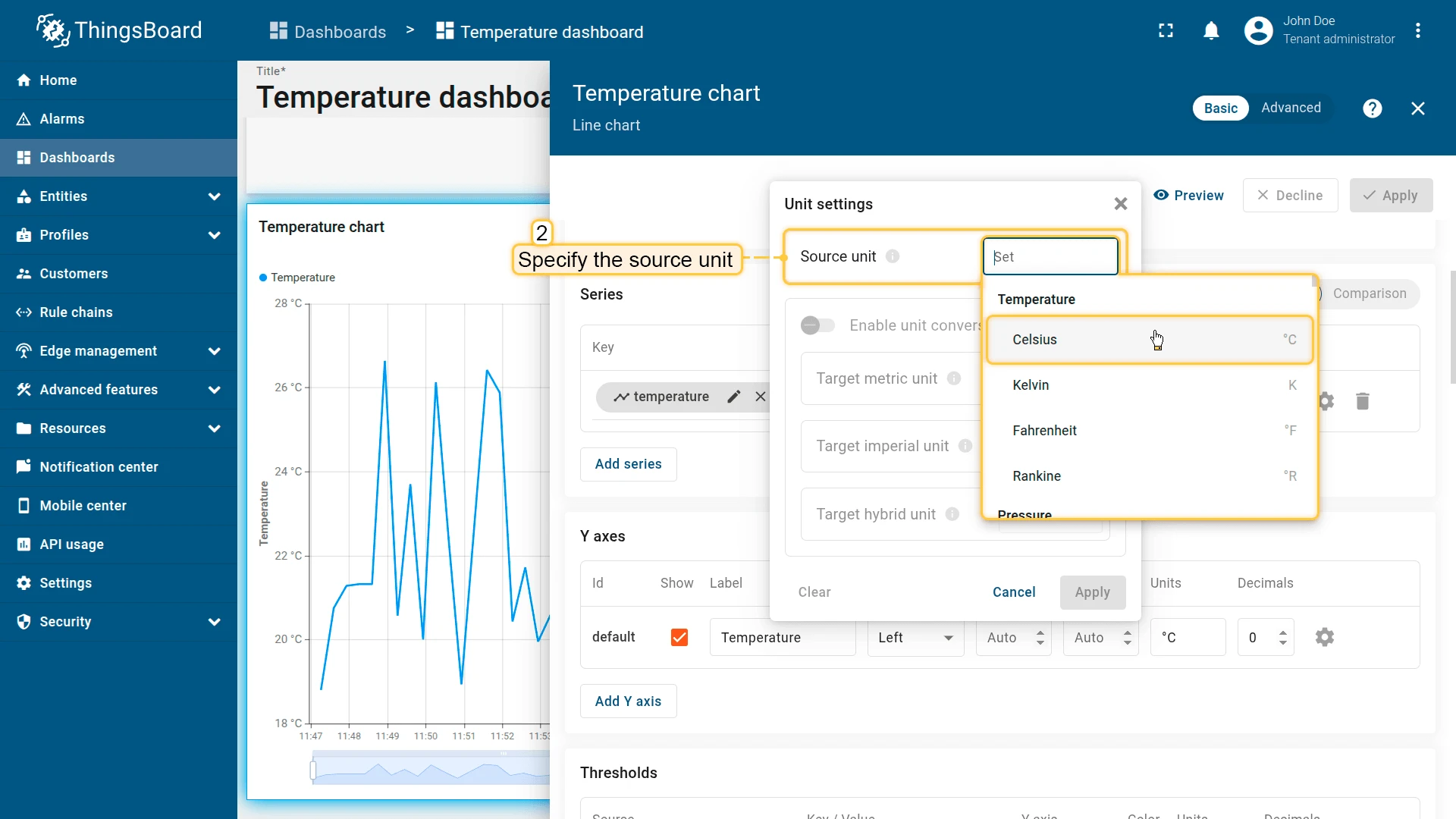
- Specify the source unit — the unit of the incoming telemetry value sent by the device. This must match the actual device data; an incorrect source unit will produce wrong converted values.
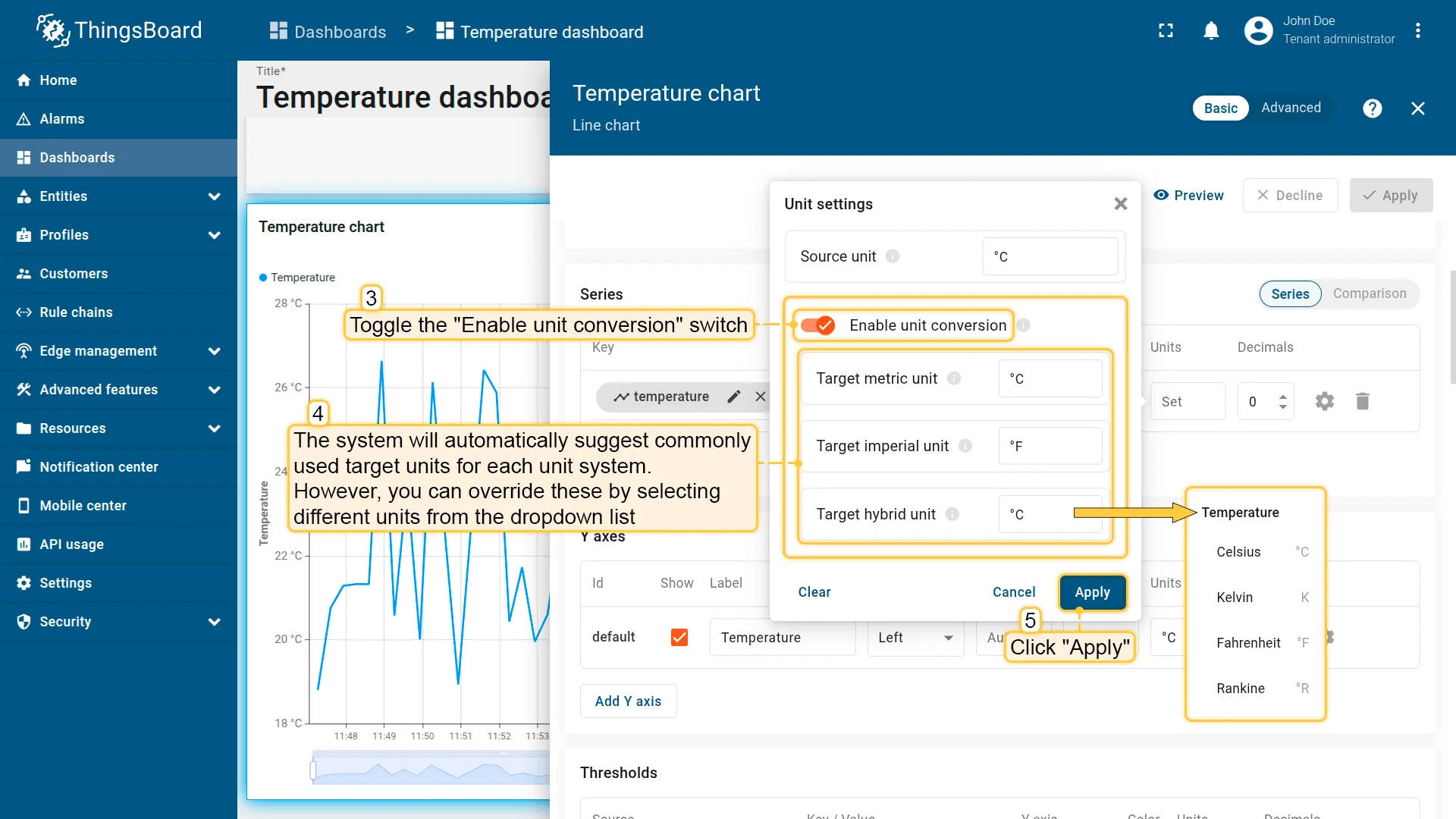
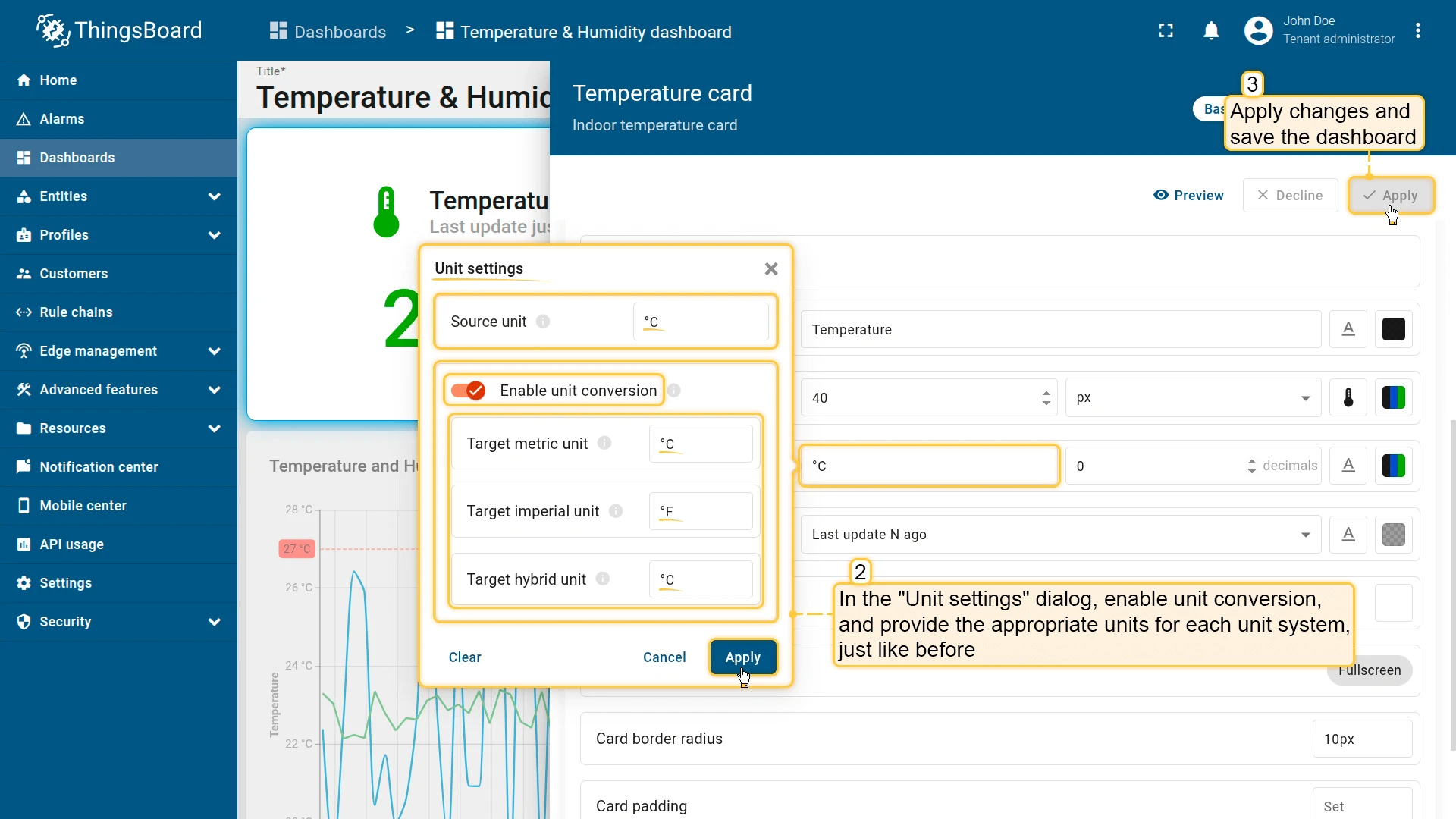
- Toggle the Enable unit conversion switch. The system automatically suggests commonly used target units for each unit system (e.g., °C for Metric, °F for Imperial, °C for Hybrid). You can override these by selecting different units from the dropdown.
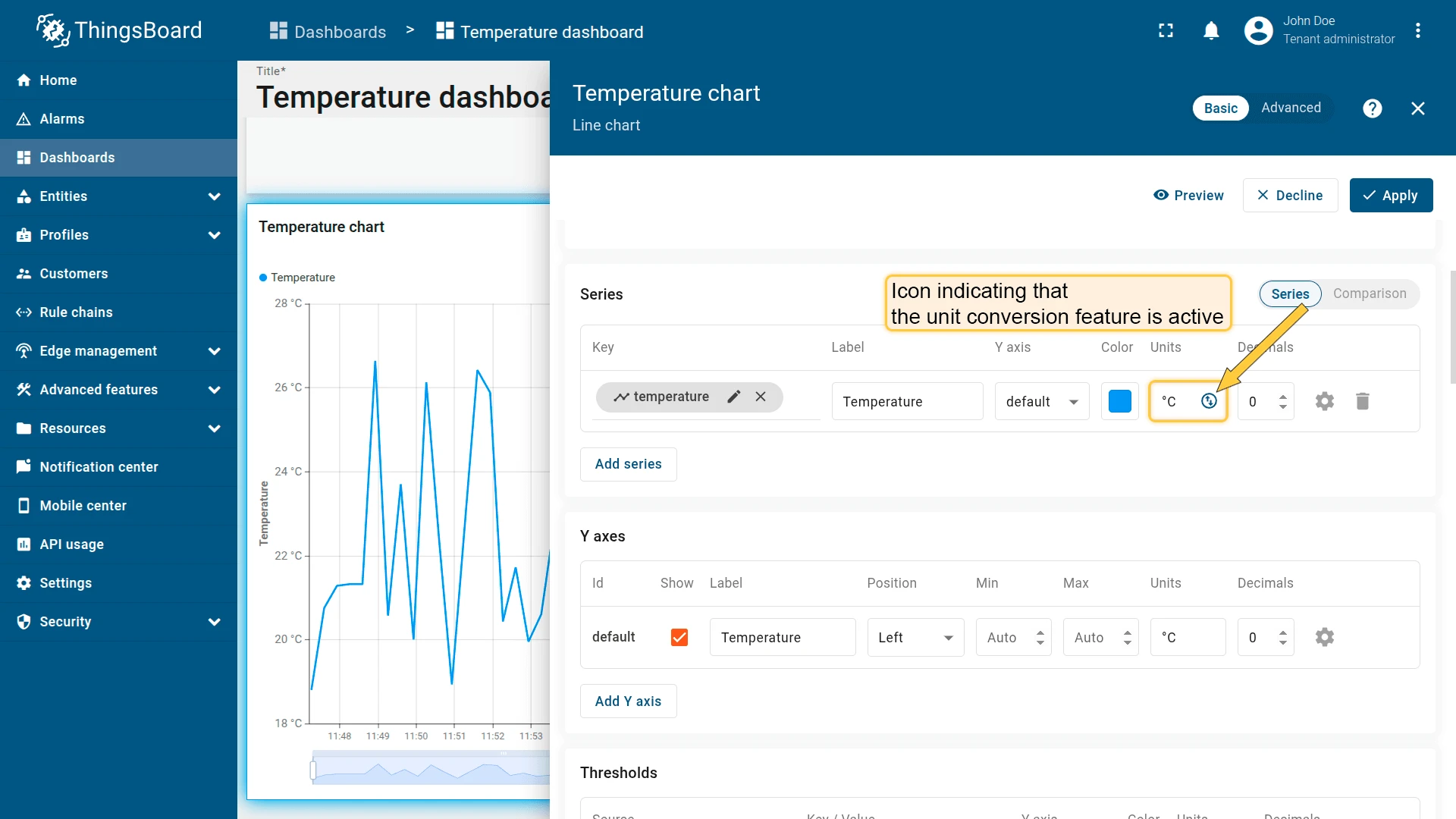
- Click Apply to save the changes.
Range color settings
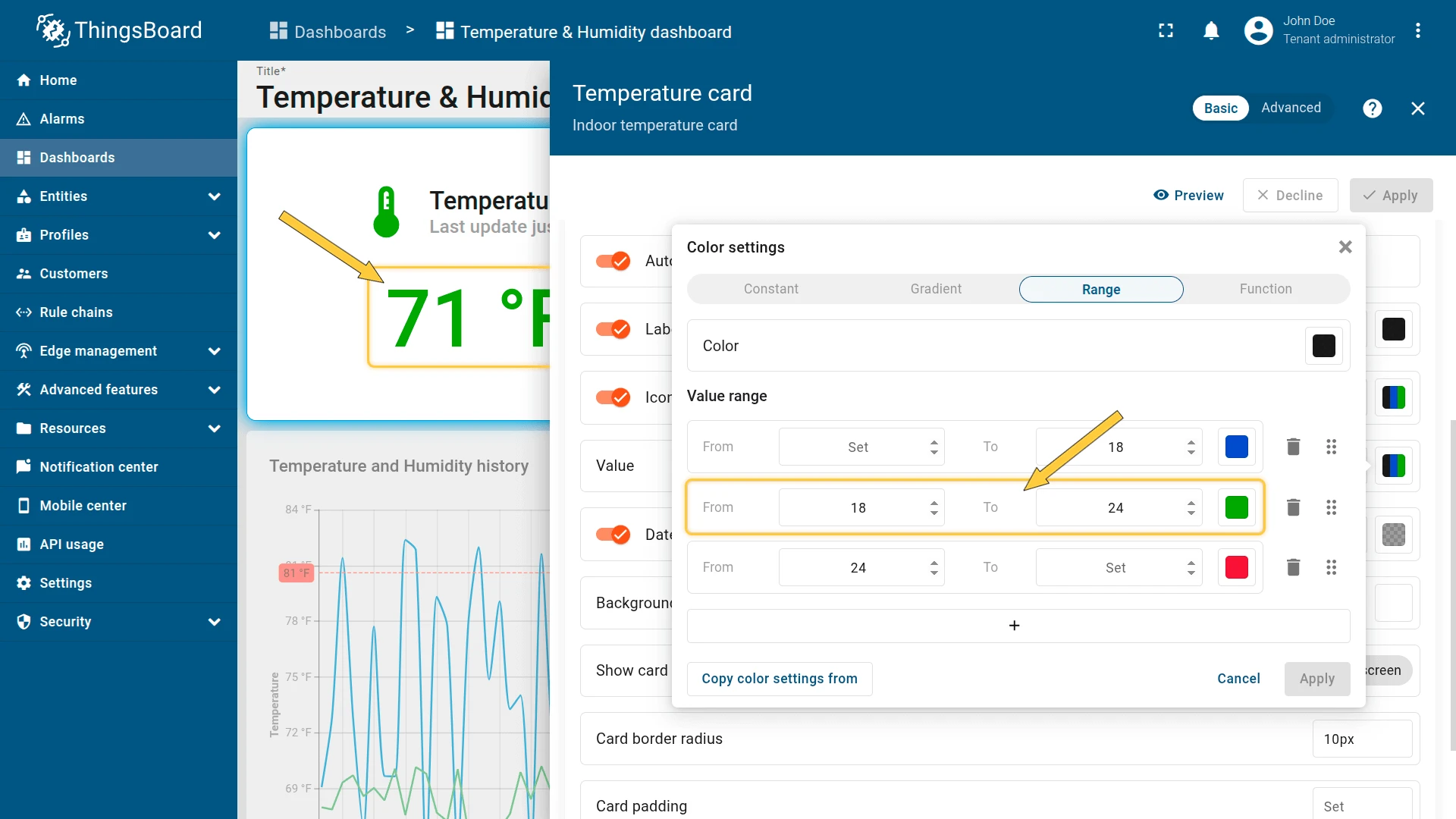
Section titled “Range color settings”Range color settings use the original telemetry value received from the server in its source units — before any unit conversion is applied.
For example, if your device sends a temperature of 22 °C and unit conversion is enabled, the widget may display 71 °F. However, the range logic still uses the original 22 °C to determine the color. A green range from 18 to 24 °C will show green regardless of whether the display reads 22 °C or 71 °F.
Changing the unit system
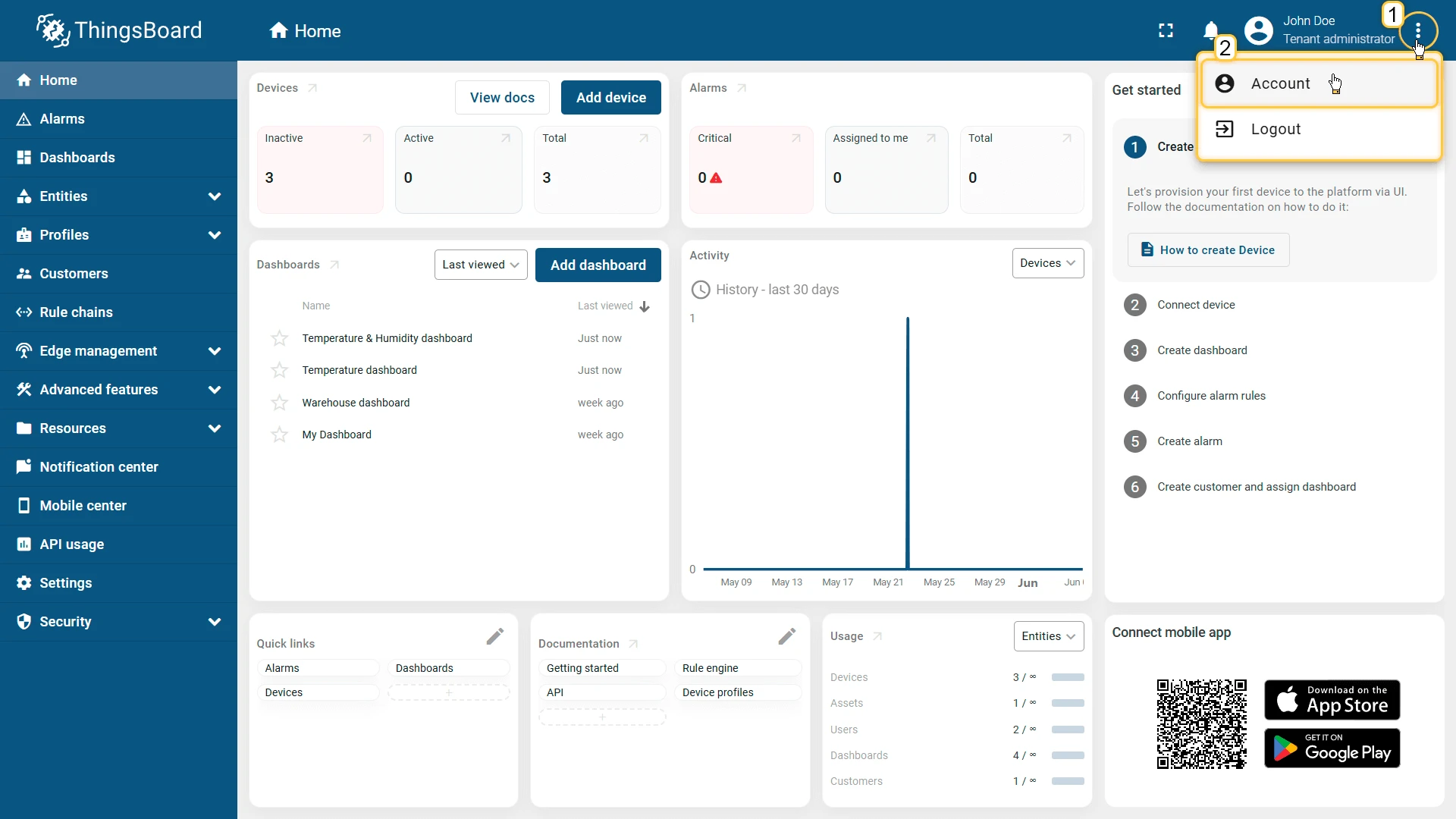
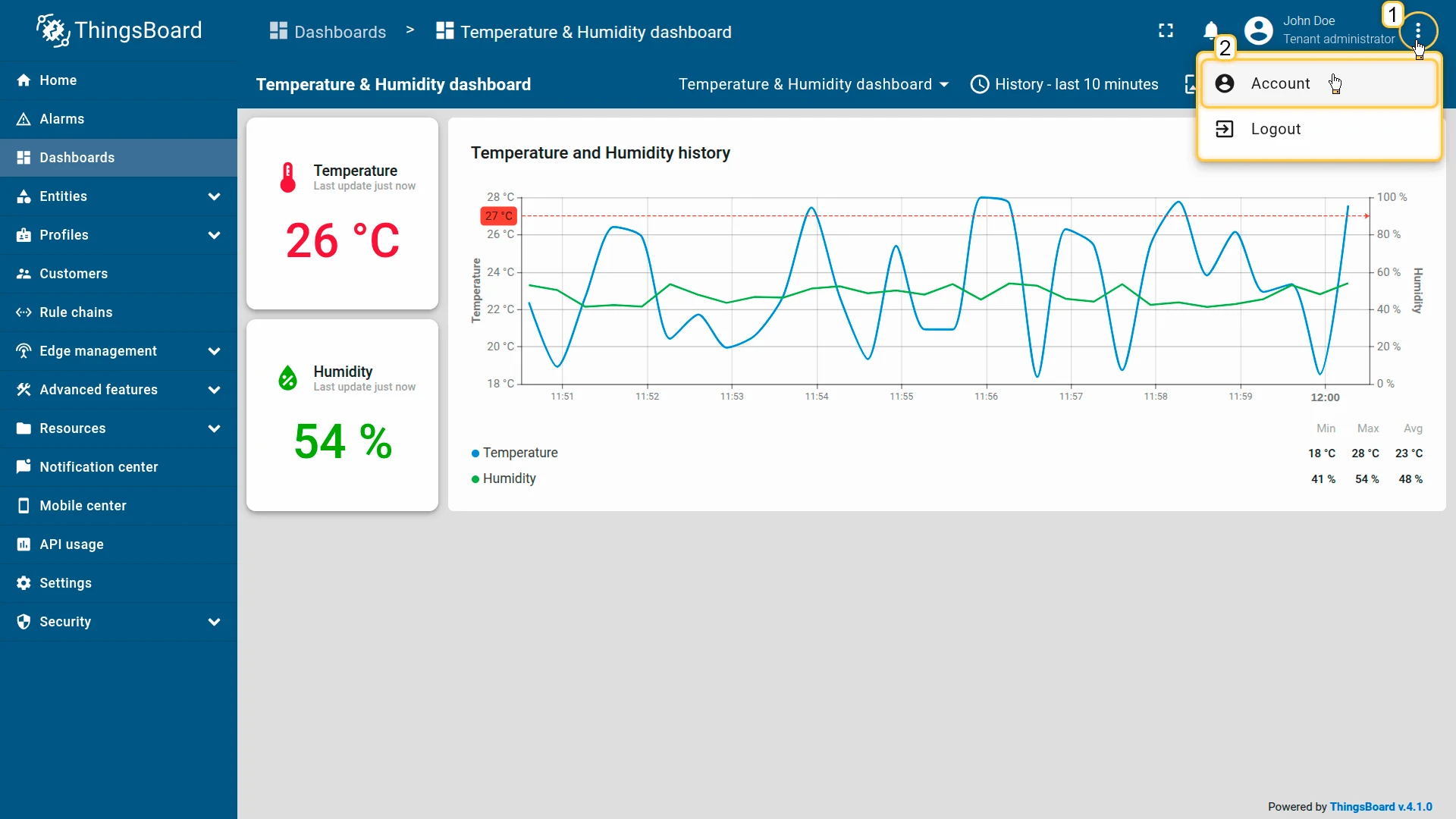
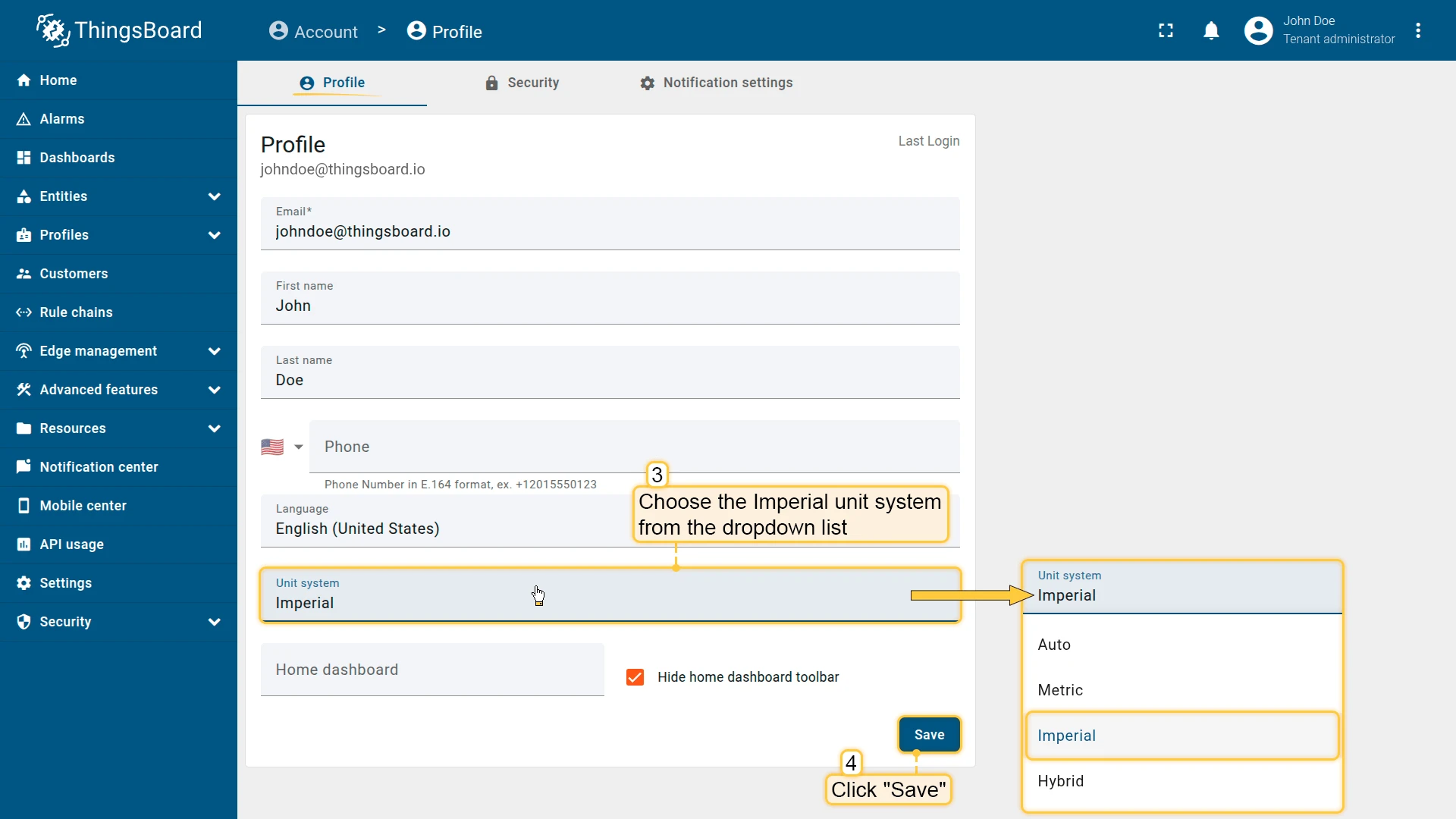
Section titled “Changing the unit system”- Click the three-dot icon in the top-right corner of the screen and select Account.
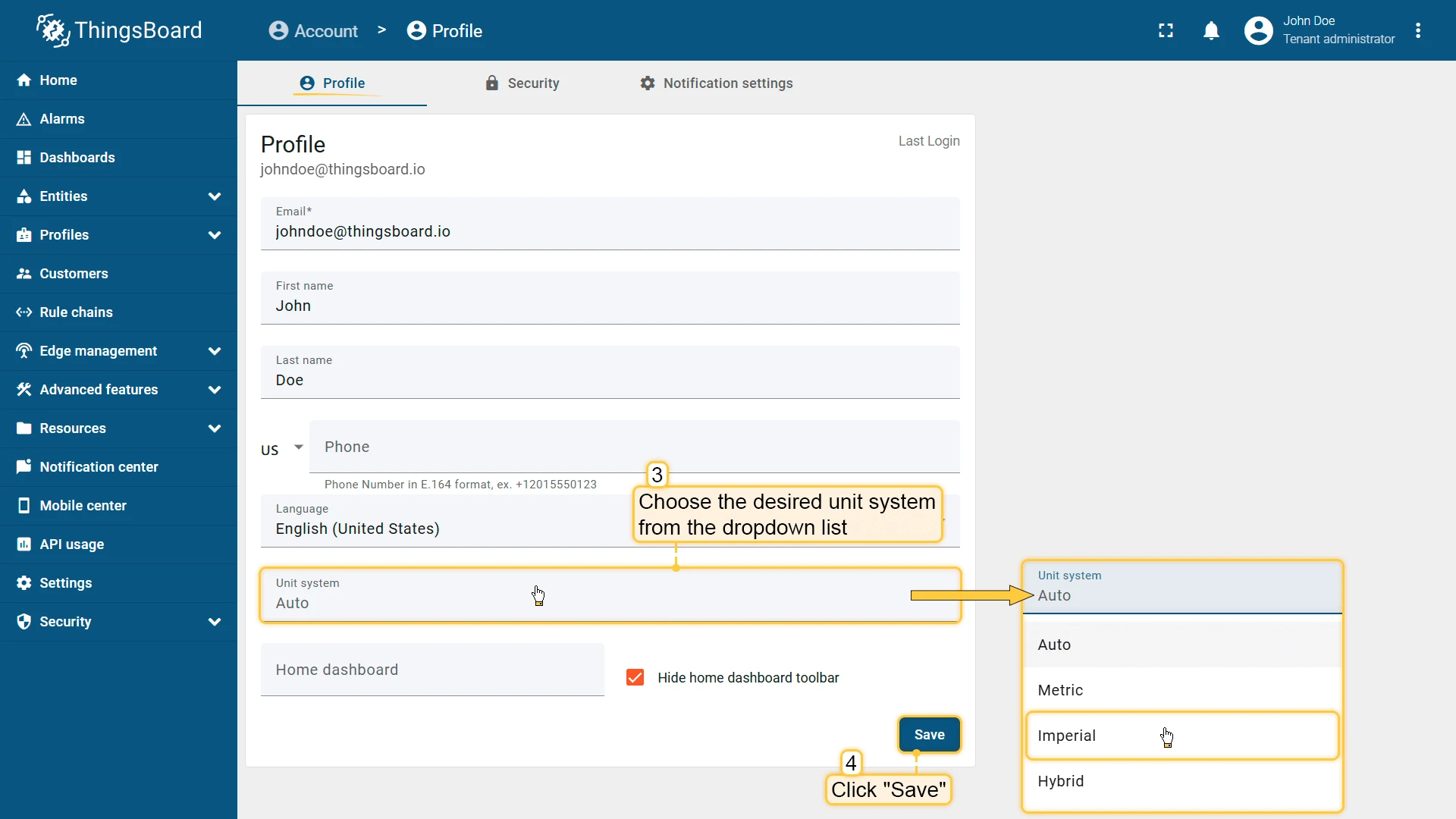
- In the Profile settings, choose the desired unit system from the dropdown list:
- Auto — automatically determines the unit system based on the browser locale or regional settings.
- Metric — the most widely used system globally, based on meter (m), kilogram (kg), second (s), etc.
- Imperial — commonly used in the USA, based on inches (in), feet (ft), miles (mi), pounds (lb), gallons (gal), etc.
- Hybrid — a mixed system typically used in the UK. Blends metric and imperial units depending on context — miles (mi) for distance, Celsius (°C) for temperature, kilograms (kg) or stones (st) for body weight.
- Click Save.
Example
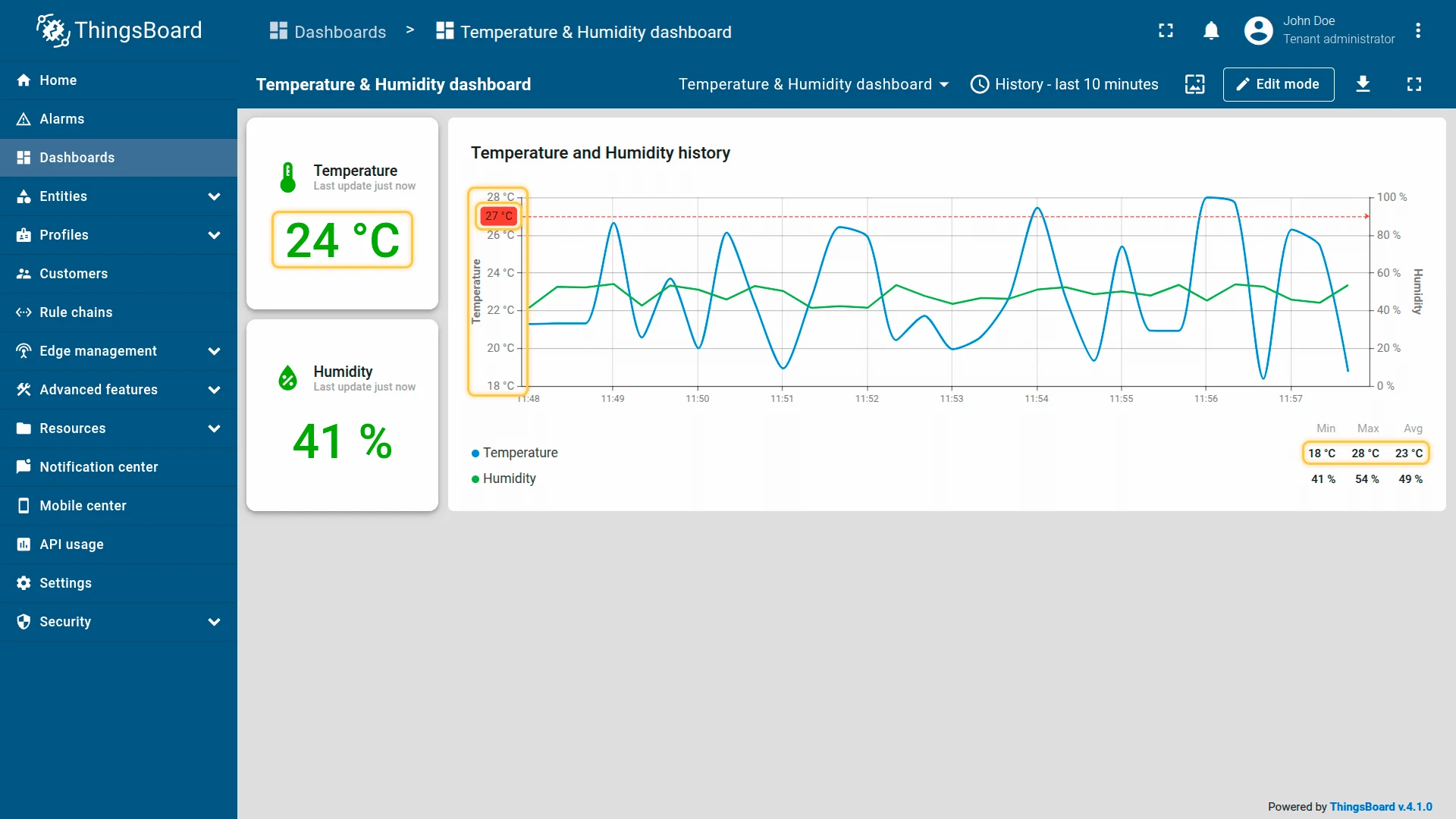
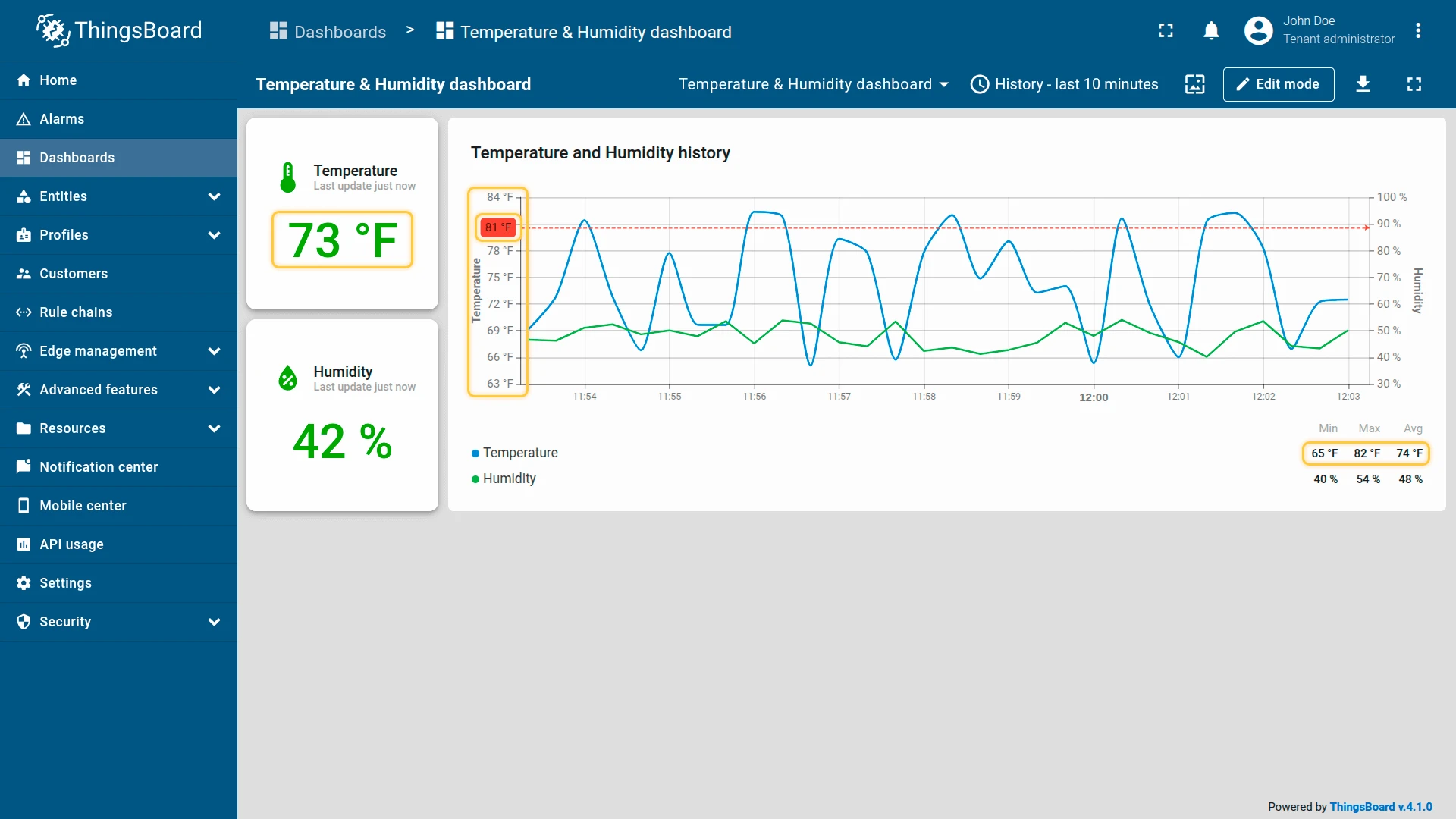
Section titled “Example”This walkthrough configures unit conversion on a Temperature & Humidity dashboard. The dashboard displays temperature in degrees Celsius (°C) and humidity in percentage (%). Unit conversion is applied to the temperature telemetry key, the Y-axis of the temperature chart, and the temperature threshold. Humidity remains unchanged since its unit (%) does not depend on the unit system.
Step 1: Edit the Chart widget
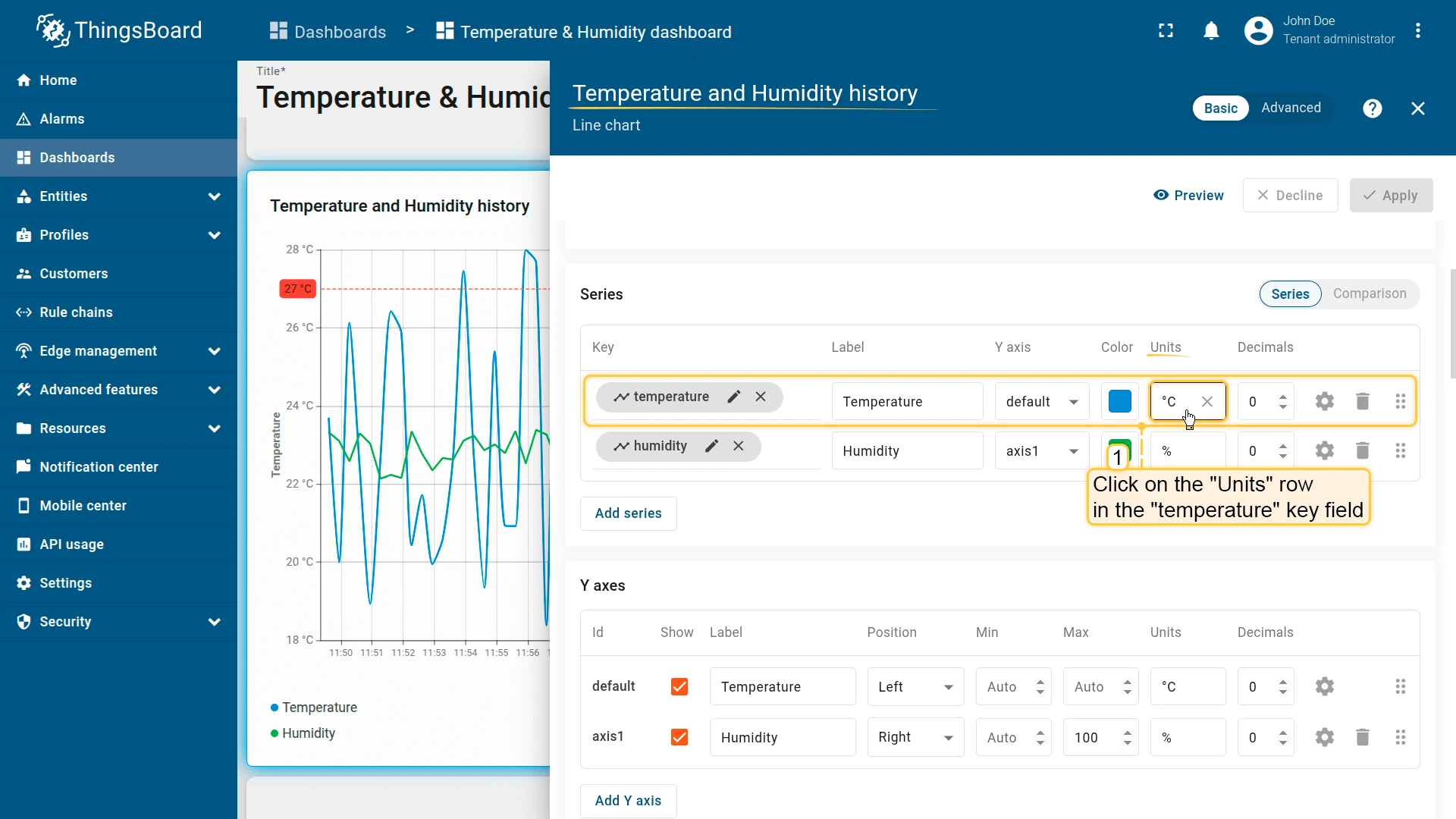
Switch to edit mode for the “Temperature and Humidity history” chart widget. Configure unit conversion for the “temperature” telemetry key, the Y-axis, and the threshold.
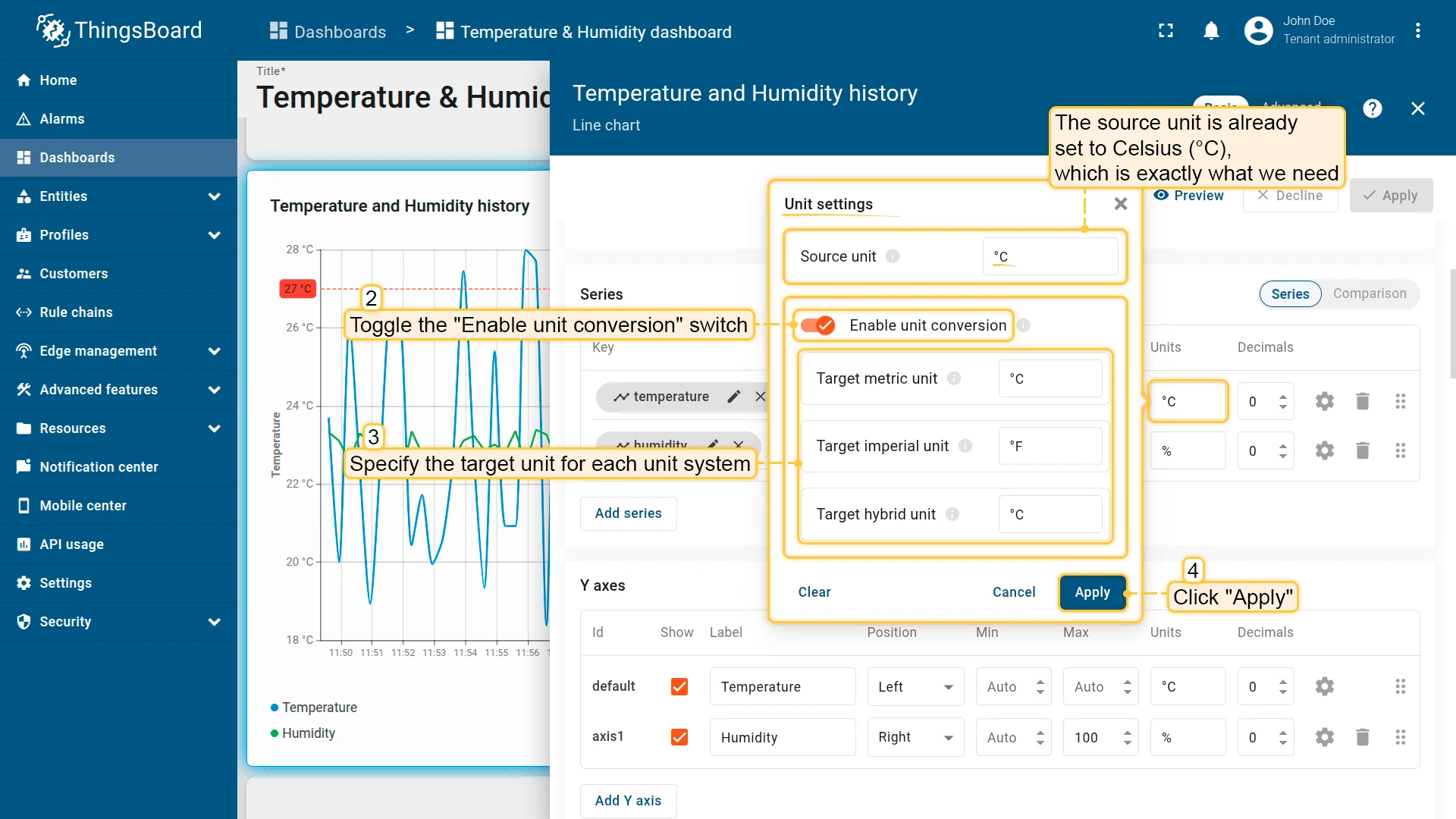
- Click on the Units row in the “temperature” key field. The source unit is already set to Celsius (°C).
- Toggle on Enable unit conversion and specify the target units for each unit system (e.g., °F for Imperial, °C for Metric and Hybrid). Click Apply.
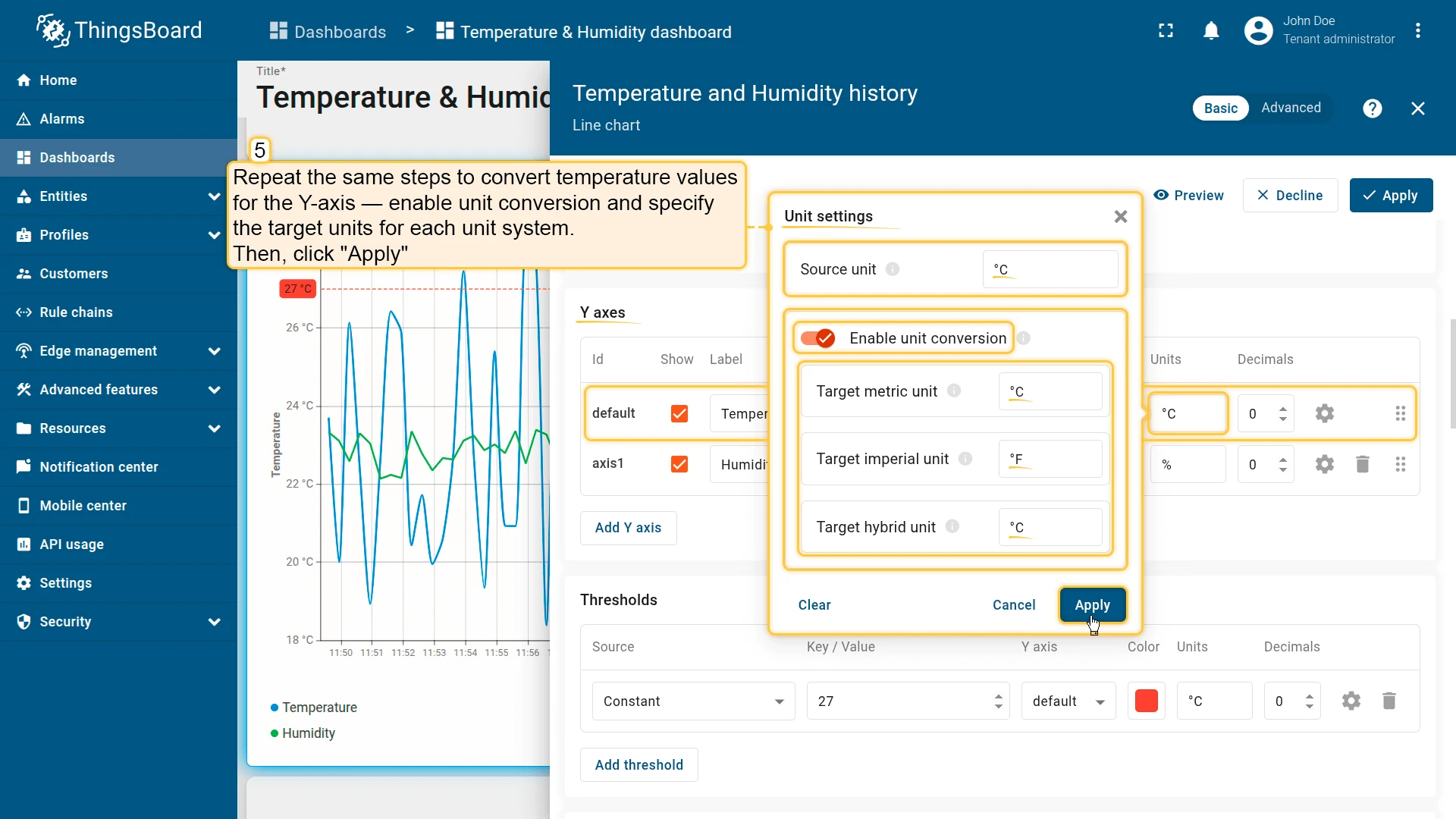
- Repeat the same steps for the Y-axis — enable unit conversion and specify target units. Click Apply.
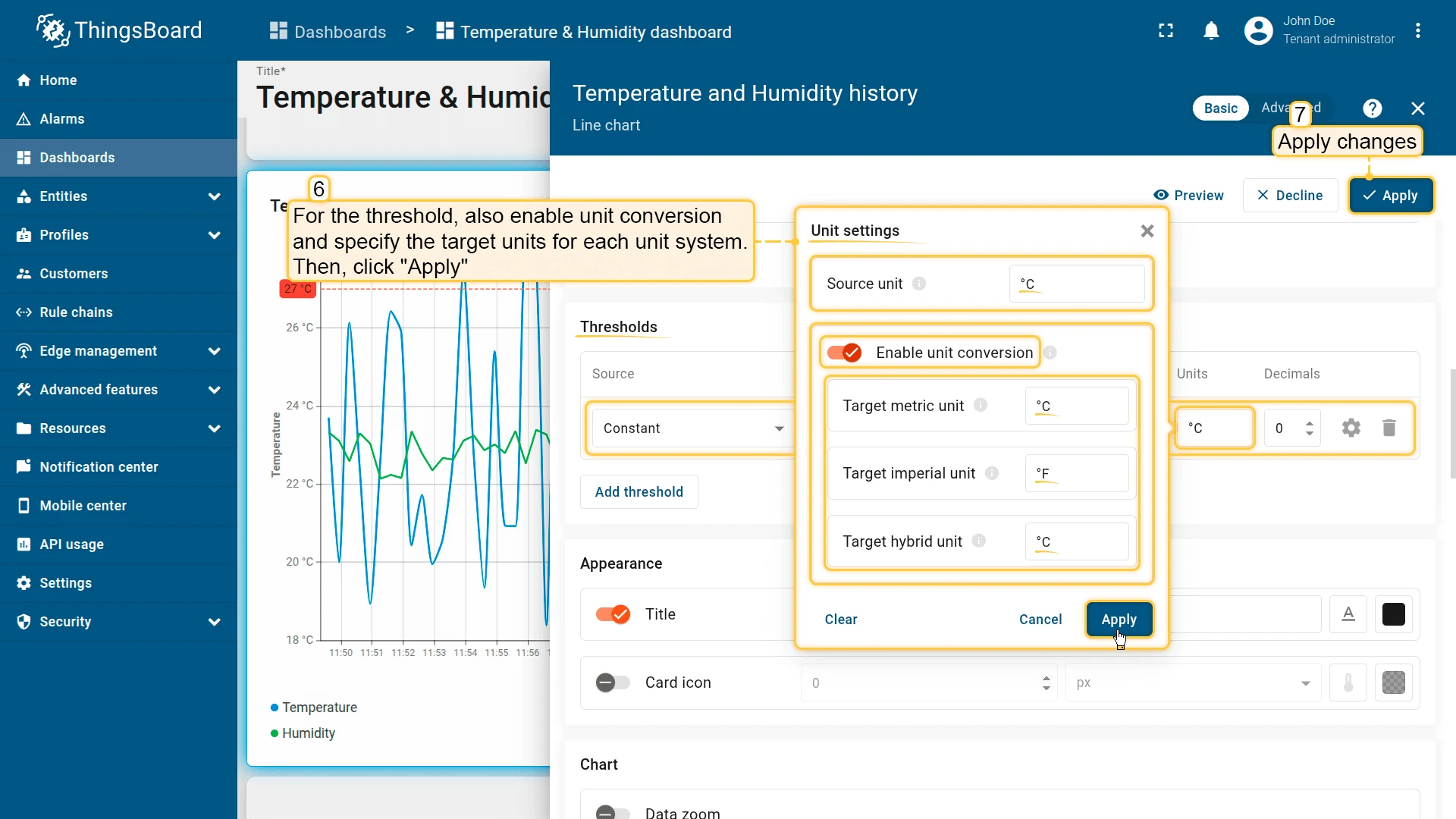
- For the threshold, also enable unit conversion and specify target units. Apply all changes.
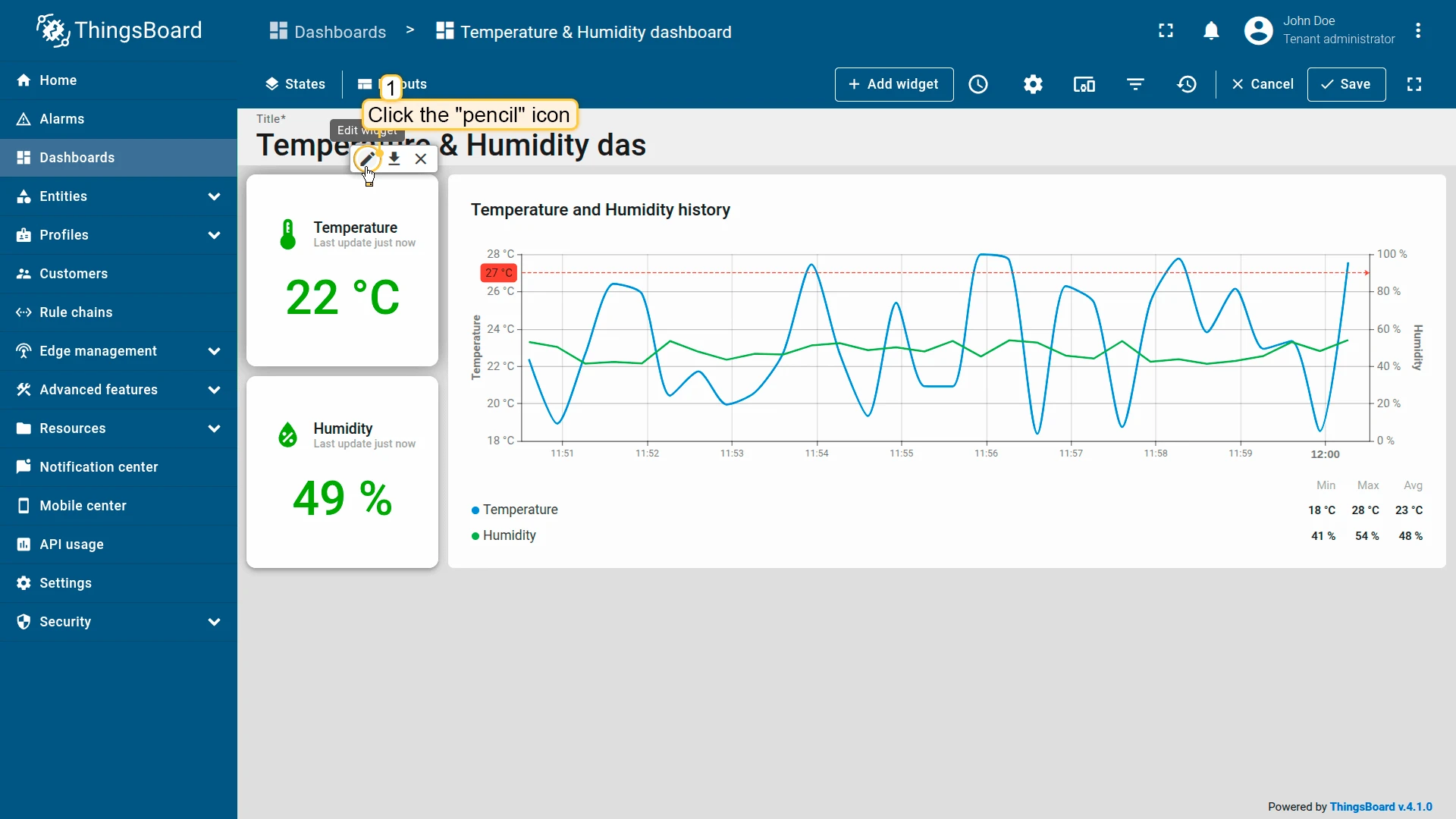
Step 2: Edit the Temperature Card widget
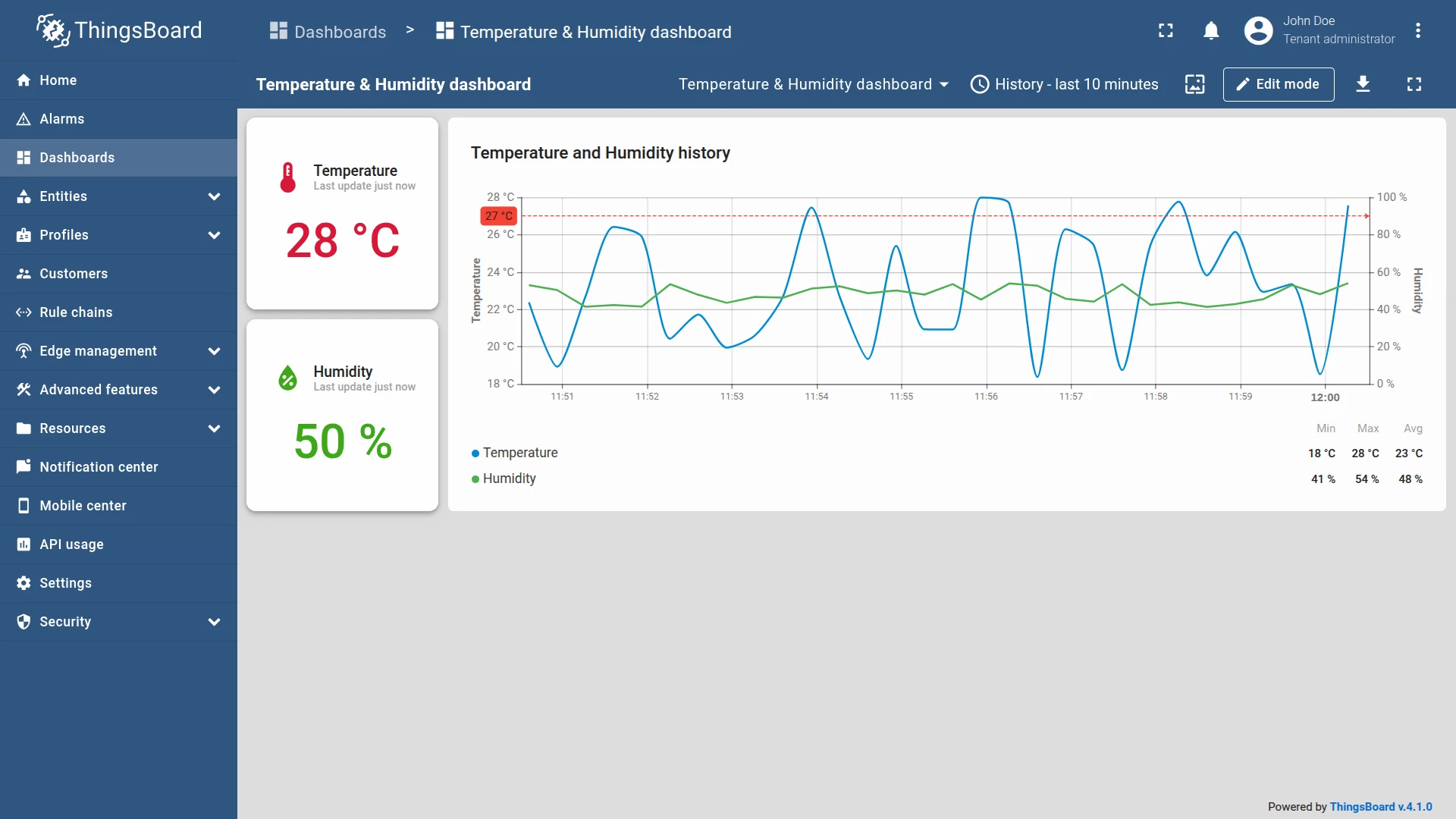
Switch to edit mode for the “Temperature” card widget. In the Unit settings dialog, enable unit conversion and specify the appropriate units for each unit system. Click Apply and save the dashboard.
Step 3: Change the unit system
To see the unit conversion in action, change your unit system to Imperial. Go to your Account settings, find the Unit system dropdown, and select Imperial.
Was this helpful?