Compass
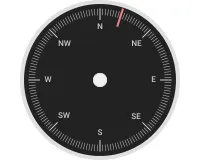
The Compass widget visualizes a numeric telemetry value as a compass bearing on a circular dial face. Use it to display directional data from a device — wind direction from a weather station, heading from a vehicle or drone, antenna orientation from a tracking system, or current flow direction from a sensor array.
Adding the Widget
Section titled “Adding the Widget”- Open the dashboard in edit mode. Click Add widget in the top toolbar, or click the Add new widget icon in the center of an empty dashboard.
- In the widget bundle selection dialog, find and click Analogue gauges.
- Select the Compass widget.
- Configure the datasource and appearance, then click Add.
Configuration
Section titled “Configuration”All settings in this section use Basic mode — a quick-start configuration covering the essentials. For finer widget controls like title font, card style, and tooltip, switch to the Advanced tab.
Datasource
Section titled “Datasource”Select the source of the value to display:
- Device — a specific device; the compass displays the latest telemetry value from this device.
- Entity alias — a set of entities matched by an entity alias; use this when the target device is selected dynamically at runtime.
Add exactly one data key — the telemetry key whose value the compass will display. The value must be in the range of 0 to 360 degrees.
Appearance
Section titled “Appearance”Controls the optional overlay elements on the widget card.
| Setting | Description |
|---|---|
| Title | Toggle to show or hide a text label on the widget. Default text is Compass. Set color and font. |
| Icon | Toggle to show or hide an icon on the widget. Set color and font. |
Compass Appearance
Section titled “Compass Appearance”Controls the visual elements of the compass face.
| Setting | Description |
|---|---|
| Labels | Direction labels placed around the compass face. Default labels: N, NE, E, SE, S, SW, W, NW. Each label can be customized or removed. |
| Label style | Font settings for the direction labels — size, font family, weight, and style. |
| Major ticks color | Color of the primary tick marks at cardinal and intercardinal positions. |
| Minor ticks color | Color of the secondary tick marks between major ticks. |
| Needle color | Color of the compass needle. Default is red. |
| Plate color | Background fill color of the compass face. Default is black. |
Card Appearance
Section titled “Card Appearance”| Setting | Description |
|---|---|
| Background color | Solid color background for the widget card. |
| Show card buttons | Toggle Data export and Fullscreen buttons in the widget header. |
| Card border radius | Corner rounding in pixels. |
Actions
Section titled “Actions”The Compass supports the Widget header button action — a button placed in the widget header that triggers a configured action when clicked.
Troubleshooting
Section titled “Troubleshooting”Compass Shows No Data
| Cause | Solution |
|---|---|
| Wrong data key name | Confirm the key name matches the telemetry key sent by the device. Key names are case-sensitive. |
| Device not sending data | Open Devices → Latest telemetry and check for recent values. If empty, verify the device transport configuration and access token. |
| Entity alias resolves to no entities | Open Entity aliases in the dashboard and verify the alias returns results. |
Needle Is Not Moving or Points to Wrong Direction
| Cause | Solution |
|---|---|
| Value outside 0–360 range | Ensure the telemetry value sent by the device is in the range of 0 to 360 degrees. |
| Wrong telemetry key selected | Confirm the data key matches the key your device actually reports. |
Value Shows as N/A or Stops Updating
| Cause | Solution |
|---|---|
| Device has stopped sending telemetry | Check device connectivity and the last activity timestamp in Devices → Latest telemetry. |
| Wrong datasource entity selected | Verify the correct device or alias is selected in the datasource configuration. |
Was this helpful?