Send Mobile App Notification on Alarm
Configure ThingsBoard to automatically send a mobile app push notification when an alarm is created. This guide extends the Create and Clear Alarms recipe by using the Notification Center to deliver alarm-based push notifications to the ThingsBoard Mobile App.
Use Case
Section titled “Use Case”Assume your refrigeration equipment has a temperature sensor that periodically publishes telemetry to ThingsBoard. The normal operating range is 2 °C – 5 °C. When a reading goes outside this range:
- An alarm is created by the alarm rules.
- A push notification is sent to the responsible users via the ThingsBoard Mobile App.
Prerequisites
Section titled “Prerequisites”Before proceeding:
- Complete the Create and Clear Alarms recipe — the alarm rules configured there are required for this guide.
- Install the ThingsBoard Mobile App on the target device and log in as a Tenant Administrator.
- Enable push notifications for the app in your device settings.
Review the following documentation for background:
- Notification Center — how recipients, templates, and rules work together.
- Alarm rules — how alarms are created and cleared.
Configure Notification Center
Section titled “Configure Notification Center”The Notification Center delivers notifications to users. It consists of three components:
- Recipients — define who receives notifications.
- Templates — define the notification content and delivery method.
- Rules — define the conditions under which notifications are sent.
Step 1. Configure Notification Recipients
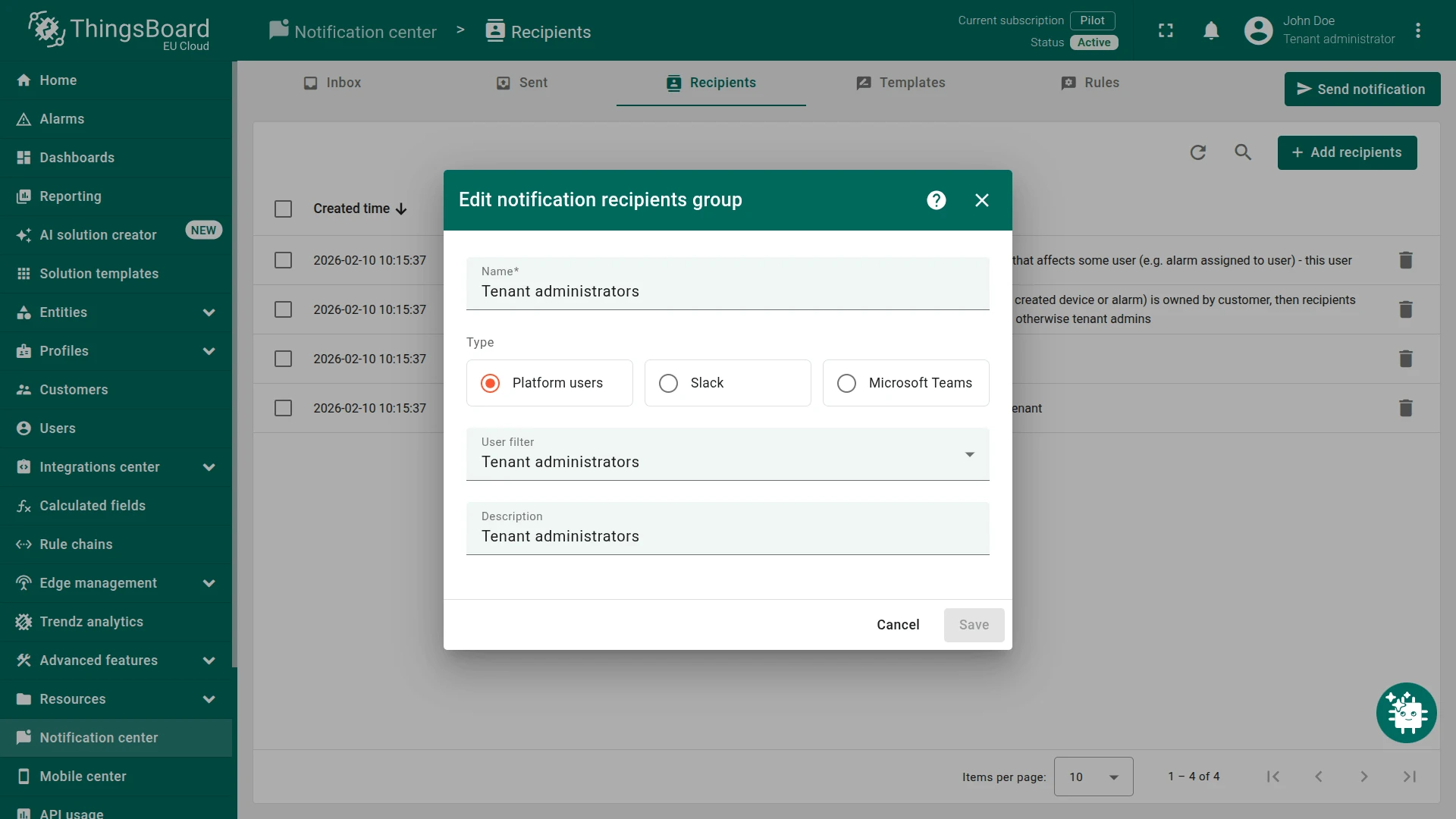
Section titled “Step 1. Configure Notification Recipients”Mobile app push notifications are delivered to Platform users who have the ThingsBoard Mobile App installed and logged in. The built-in Tenant administrators recipient group targets all tenant-level administrators and requires no additional configuration.
- Navigate to Monitor ⇾ Notifications ⇾ Recipients. For this example, use the built-in Tenant administrators recipient group, which includes all tenant-level administrators and requires no additional configuration.
- Confirm the Tenant administrators group exists. If you need a different audience, click + Add recipients and create a new Platform users group with the appropriate user filter.
Step 2. Create Notification Template
Section titled “Step 2. Create Notification Template”Create a template that defines the push notification subject and message using alarm variables.
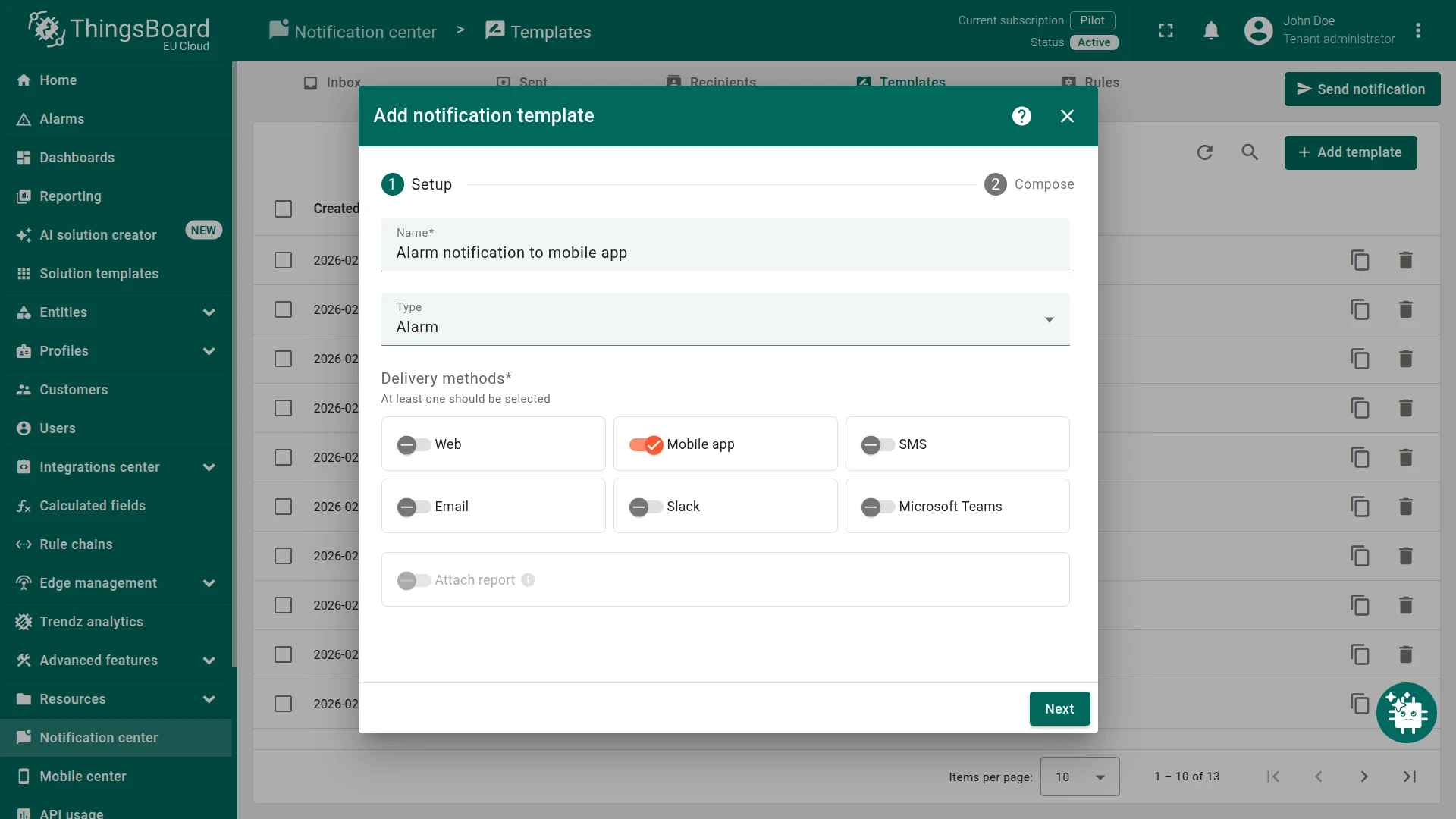
- Navigate to Monitor ⇾ Notifications ⇾ Templates.
- Click + Add template in the top-right corner.
- Setup — configure the template:
- Name:
Alarm notification to mobile app - Type: Alarm
- Delivery methods: toggle Mobile app on
- Name:
- Click Next.
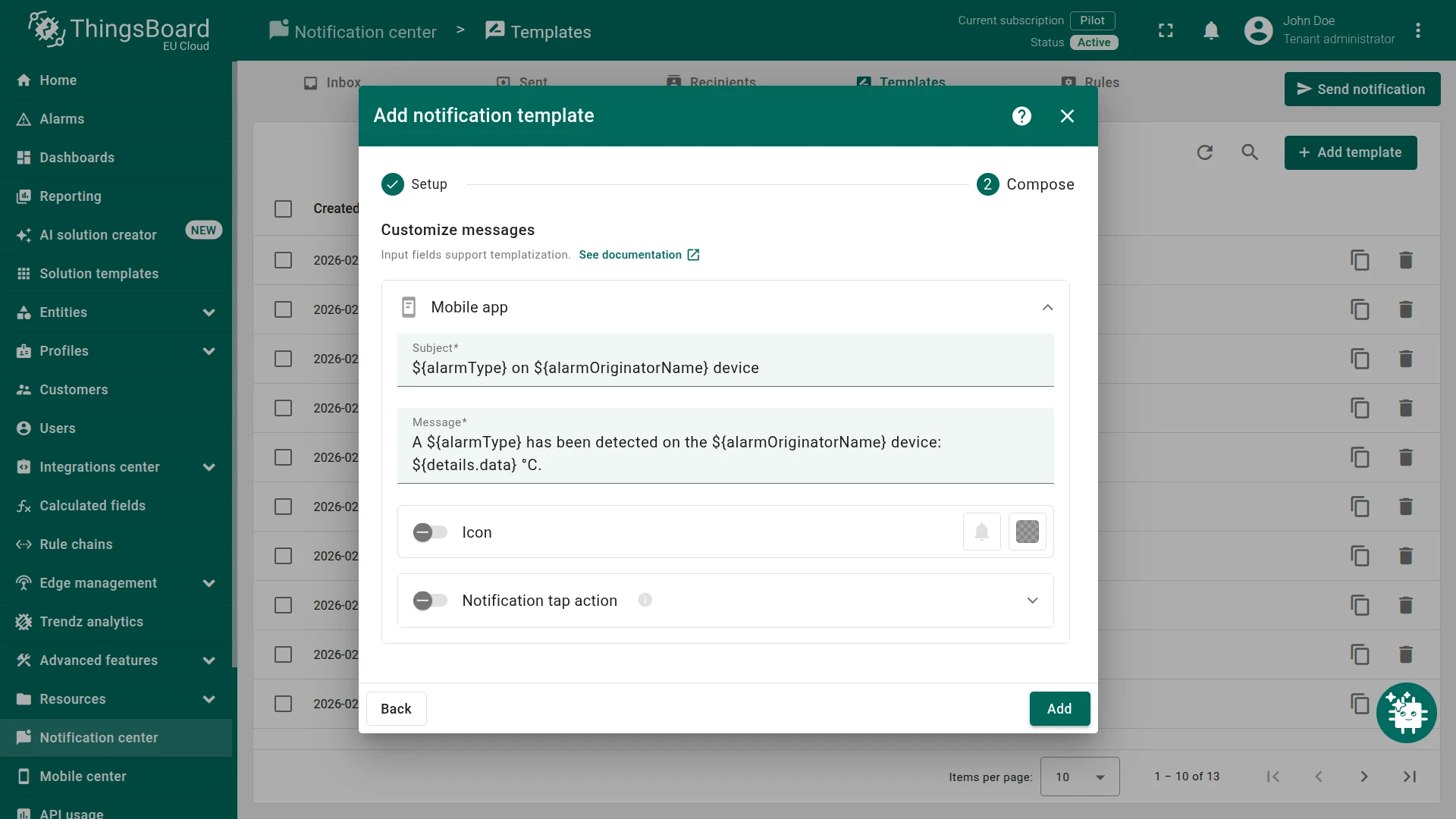
- Compose — expand the Mobile app section and set:
- Subject:
${alarmType} on ${alarmOriginatorName} device
- Message:
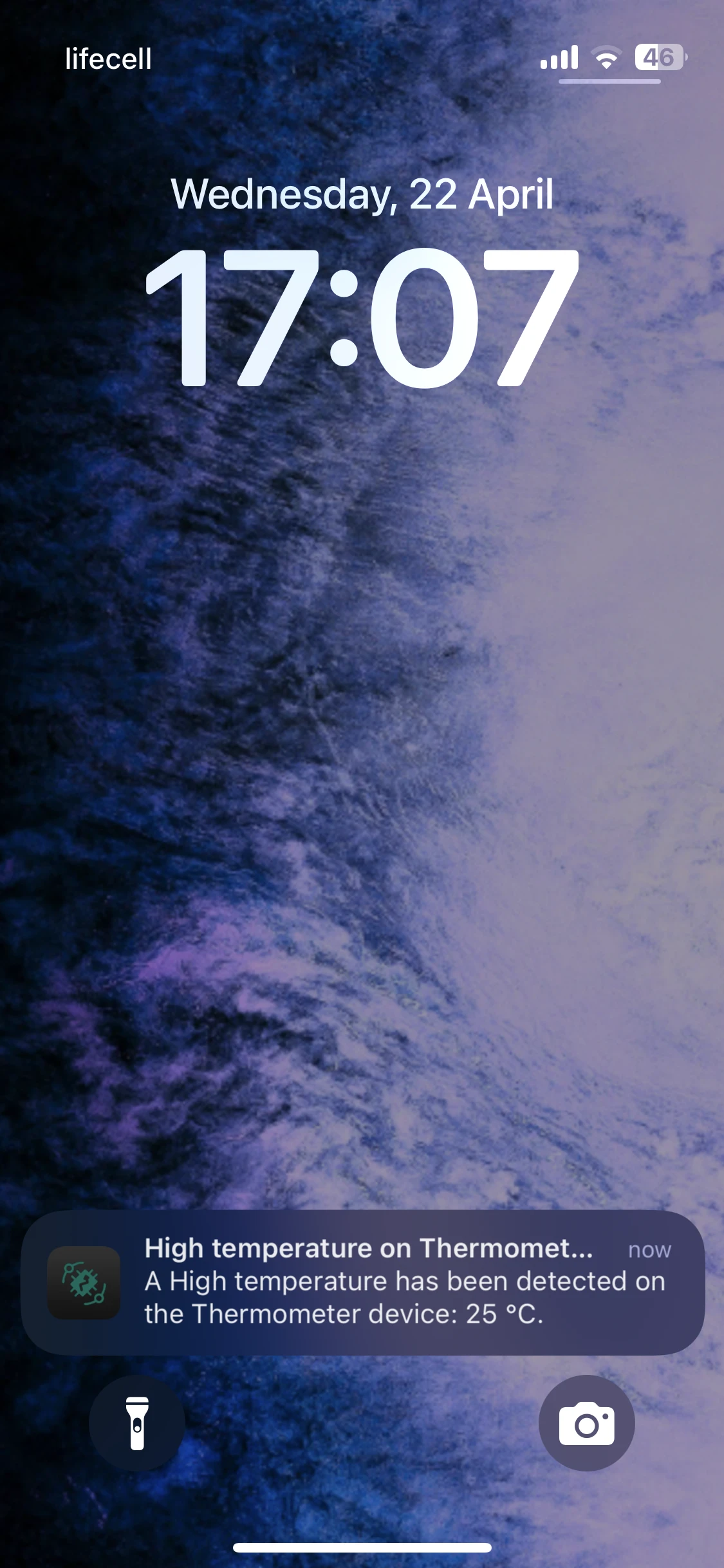
A ${alarmType} has been detected on the ${alarmOriginatorName} device: ${details.data} °C.
- Subject:
- Click Add.
Template variables used:
${alarmType}— the alarm type name (e.g. High temperature).${alarmOriginatorName}— the name of the device that triggered the alarm.${details.data}— the reported telemetry value, populated by the alarm rule.
Step 3. Create Notification Rule
Section titled “Step 3. Create Notification Rule”Create a rule that links the alarm trigger to the template and recipients.
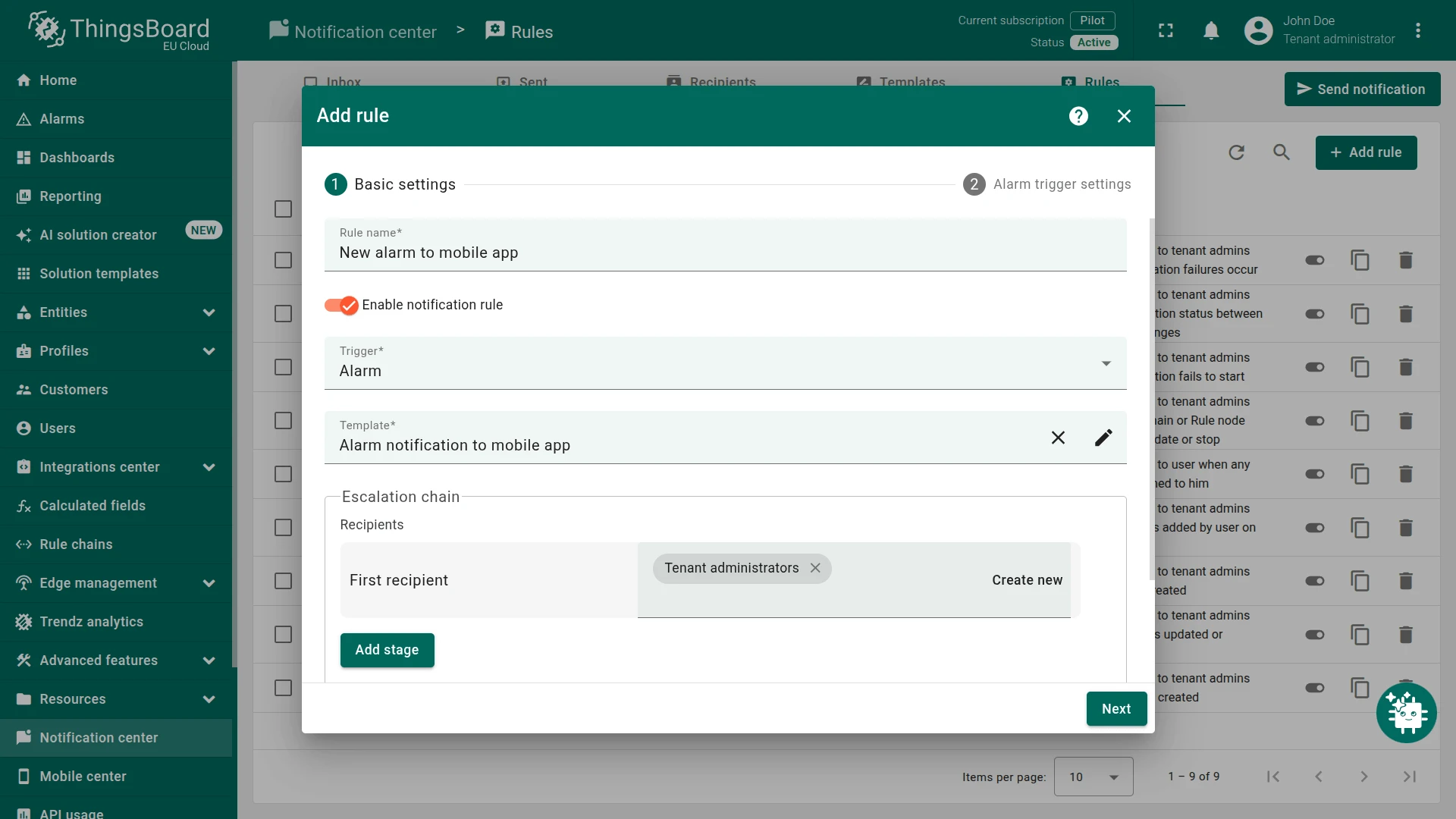
- Navigate to Monitor ⇾ Notifications ⇾ Rules.
- Click + Add rule in the top-right corner.
- Basic settings — configure the rule:
- Rule name:
New alarm to mobile app - Trigger: Alarm
- Template: Alarm notification to mobile app
- Escalation chain ⇾ First recipient: Tenant administrators
- Rule name:
- Click Next.
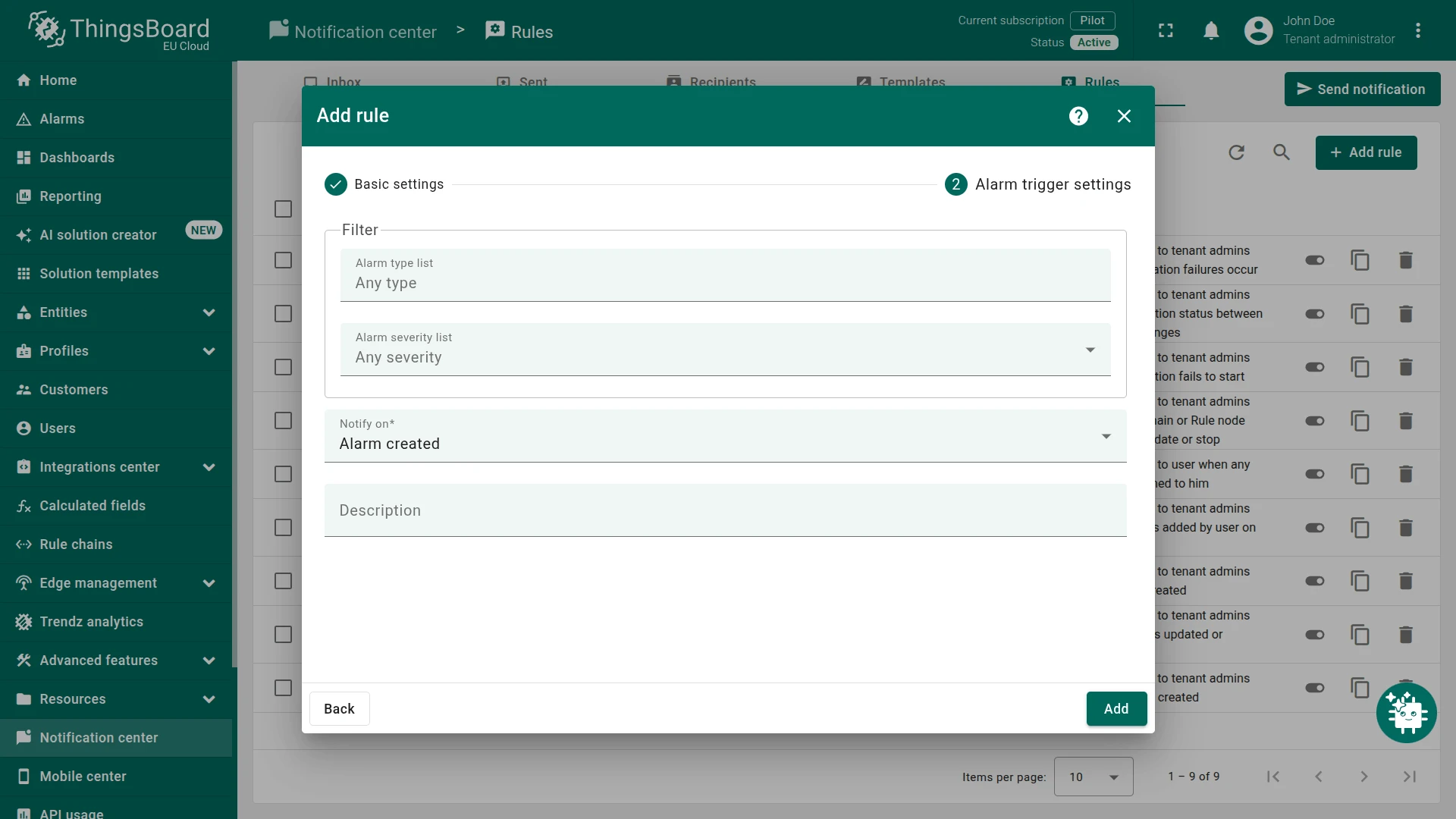
- Alarm trigger settings — configure the filter:
- Alarm type list: Any type
- Alarm severity list: Any severity
- Notify on: Alarm created
- Click Add.
Verification
Section titled “Verification”Publish a temperature value that triggers the alarm (above 5 °C).
Use the Check Connectivity feature or the command below:
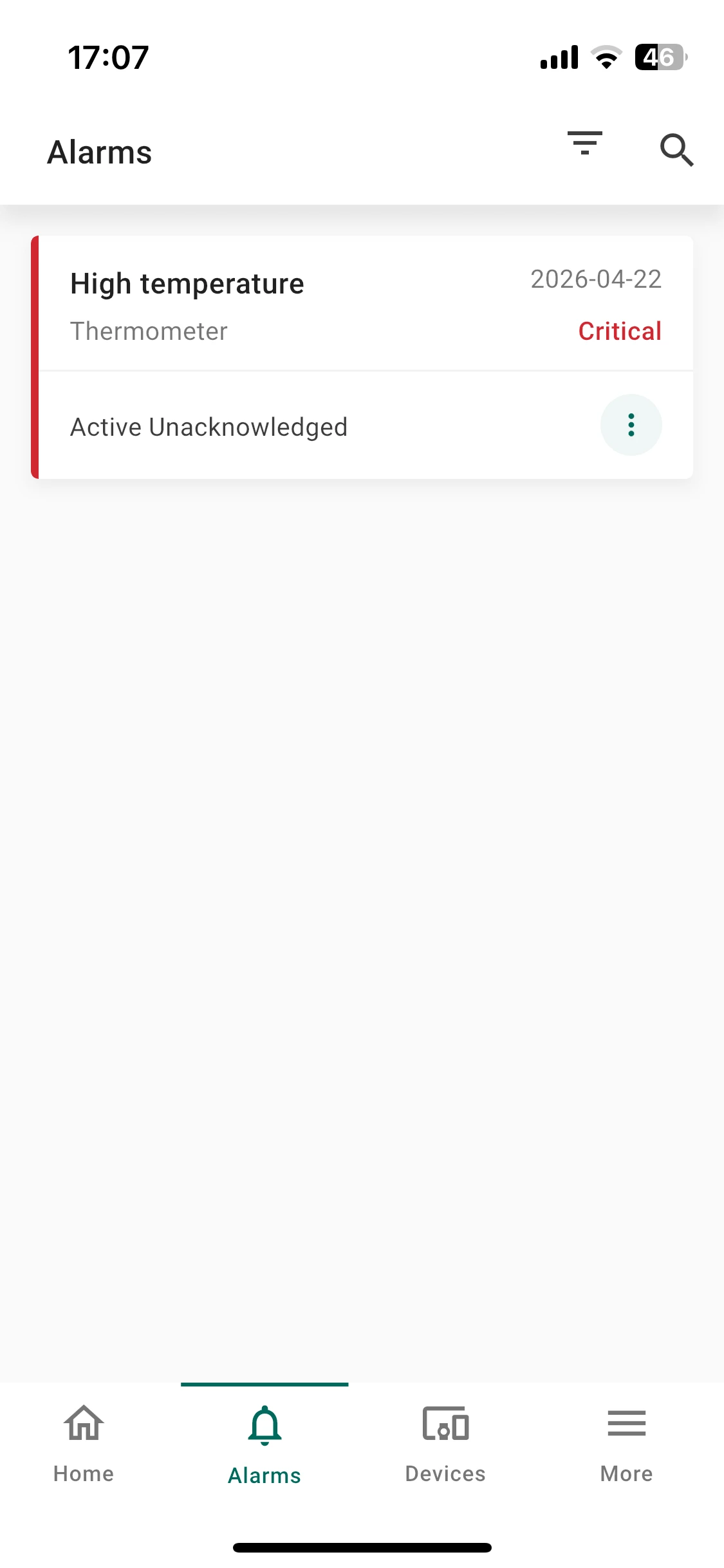
curl -v -X POST \--header "Content-Type: application/json" \--data '{"temperature": 25}' \http://thingsboard.cloud/api/v1/$ACCESS_TOKEN/telemetryA new alarm is created and the push notification is sent immediately to all Tenant administrators with the mobile app installed. The subject and message are populated from the template variables.
See Also
Section titled “See Also”- Notification Center — full configuration reference for recipients, templates, and rules
- Create and Clear Alarms — alarm rules this recipe builds upon
- Alarm rules — full alarm rule configuration reference
Was this helpful?