Translate Dashboard Elements
This recipe shows how to apply custom translations to a dashboard title, widget titles, telemetry key labels, and axis labels using i18n keys. As an example, we translate a “Weather” dashboard from English to German.
Prerequisites
Section titled “Prerequisites”- A ThingsBoard instance with custom translation configured
- German (or another target language) added to the custom translation list
Prepare the Dashboard
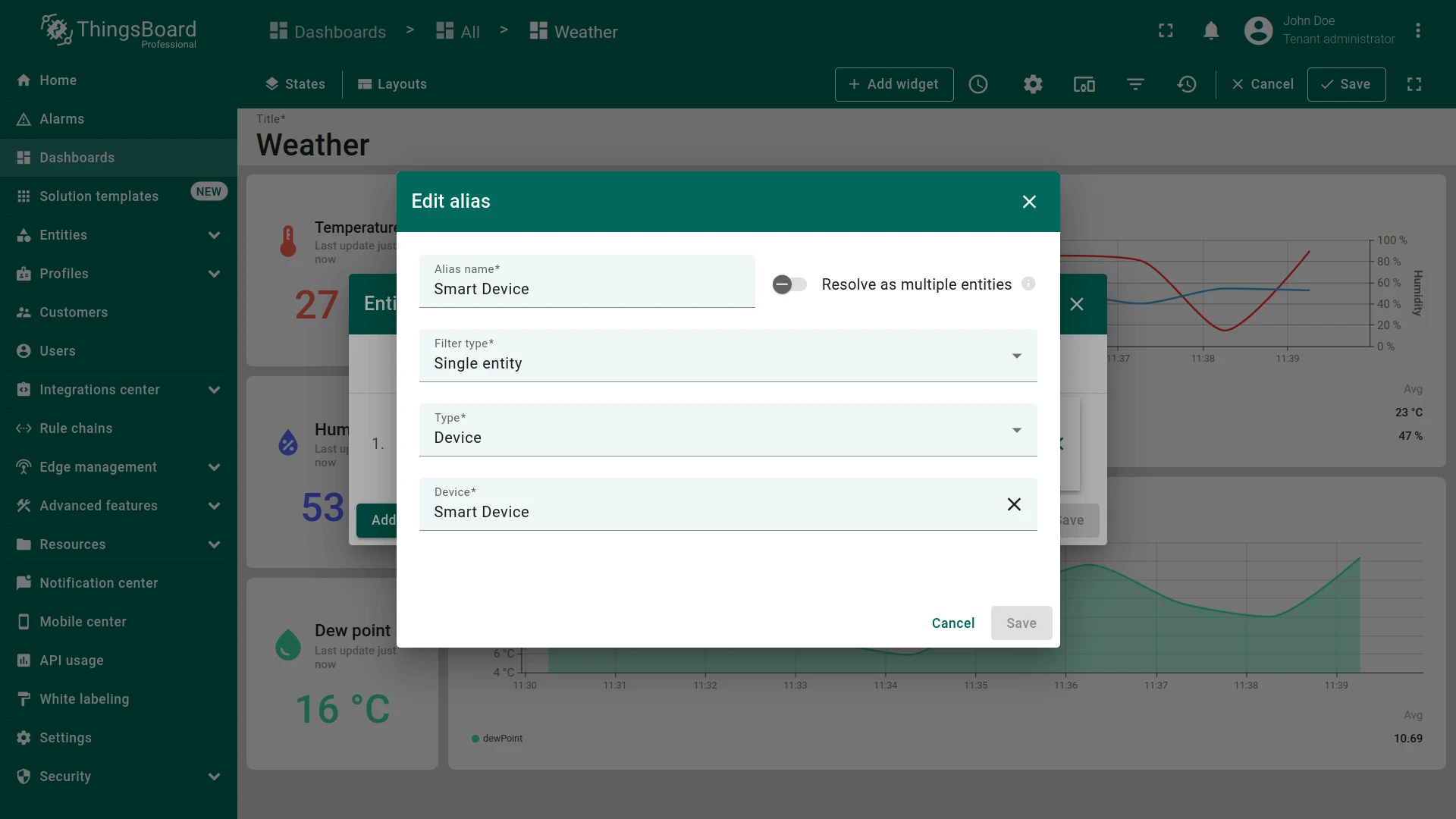
Section titled “Prepare the Dashboard”Download the Weather dashboard JSON and import it into your instance.
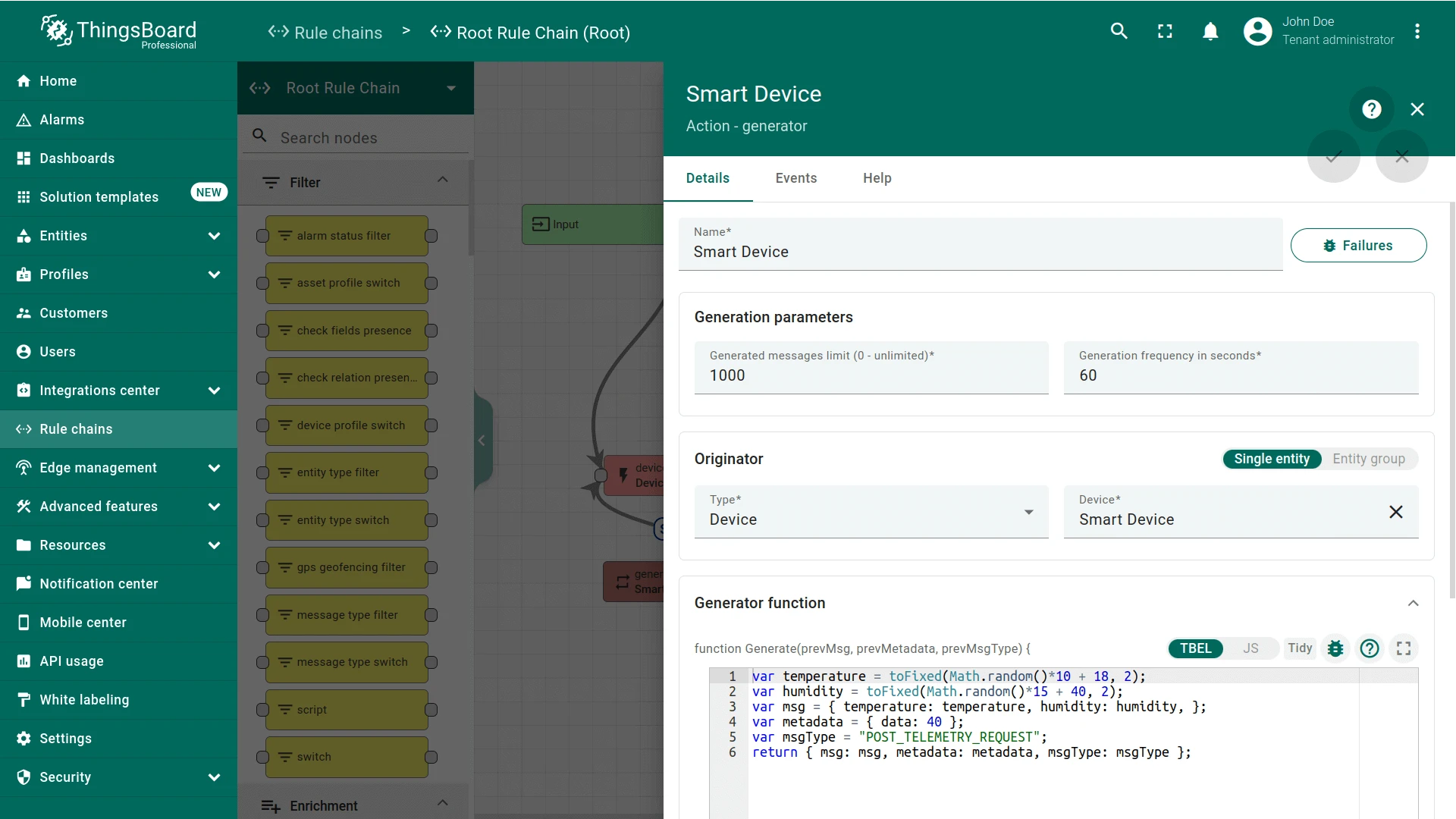
For this example, telemetry is emulated using a Generator rule node with the following function:
var temperature = toFixed(Math.random()*10 + 18, 2);var humidity = toFixed(Math.random()*15 + 40, 2);var msg = { temperature: temperature, humidity: humidity };var metadata = { data: 40 };var msgType = "POST_TELEMETRY_REQUEST";return { msg: msg, metadata: metadata, msgType: msgType };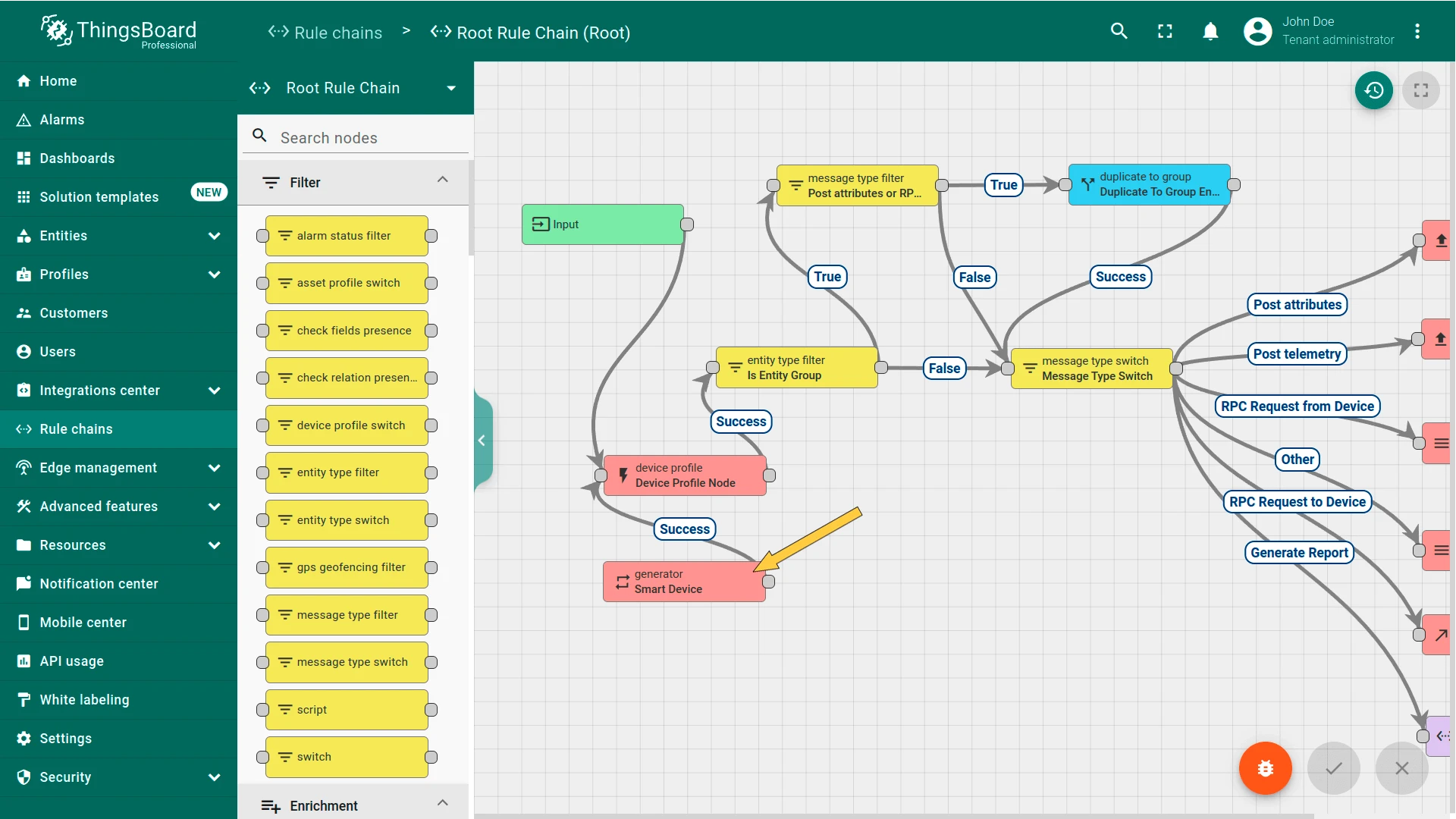
Translate the Dashboard Title
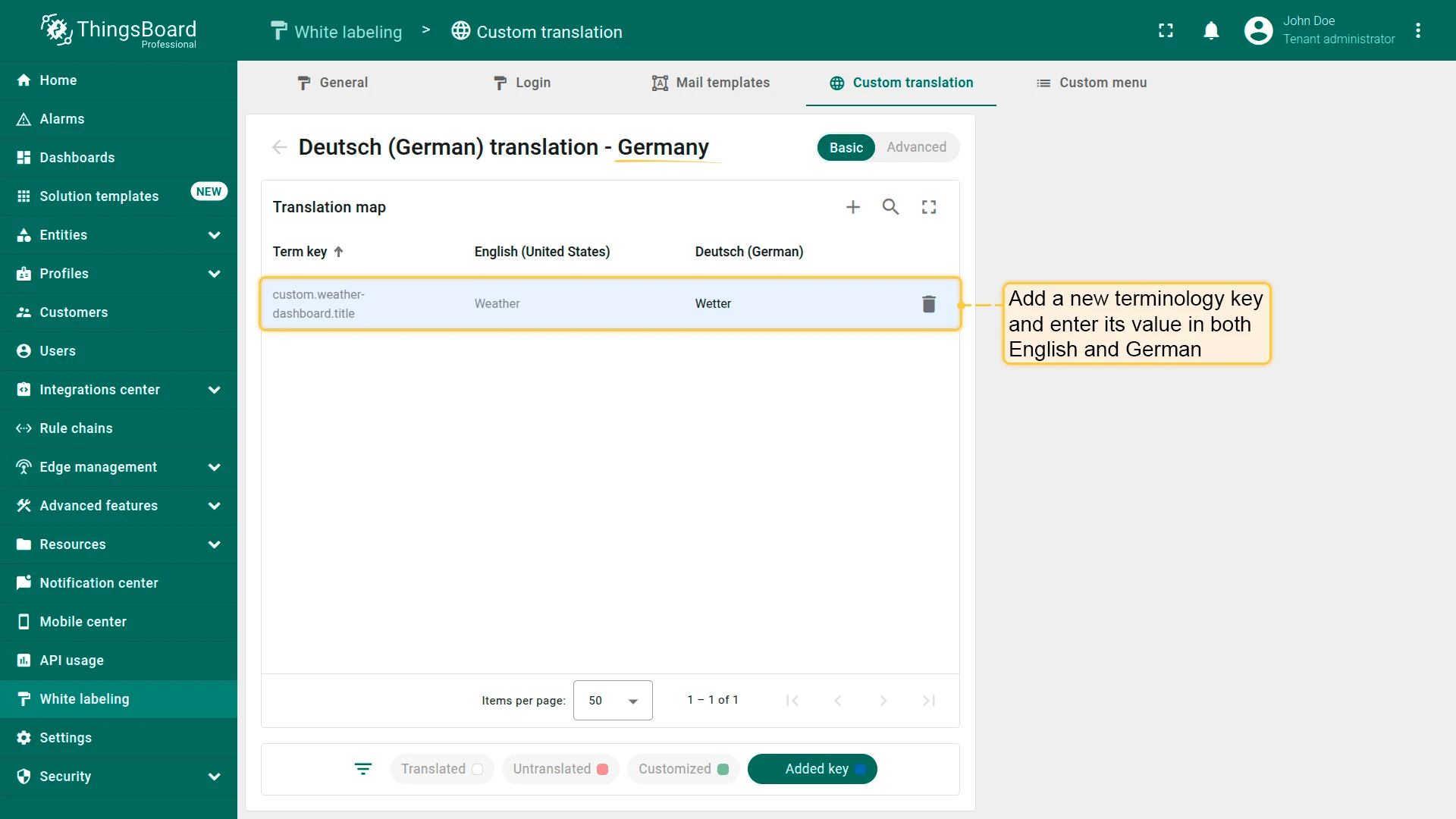
Section titled “Translate the Dashboard Title”- Navigate to White labeling ⇾ Custom translation tab. Open the translation map for the target language (e.g., German).
- Click the plus icon to add a new key. Enter:
Term key English German custom.weather-dashboard.titleWeather Wetter - Click outside the input field to save.
Now apply the key to the dashboard:
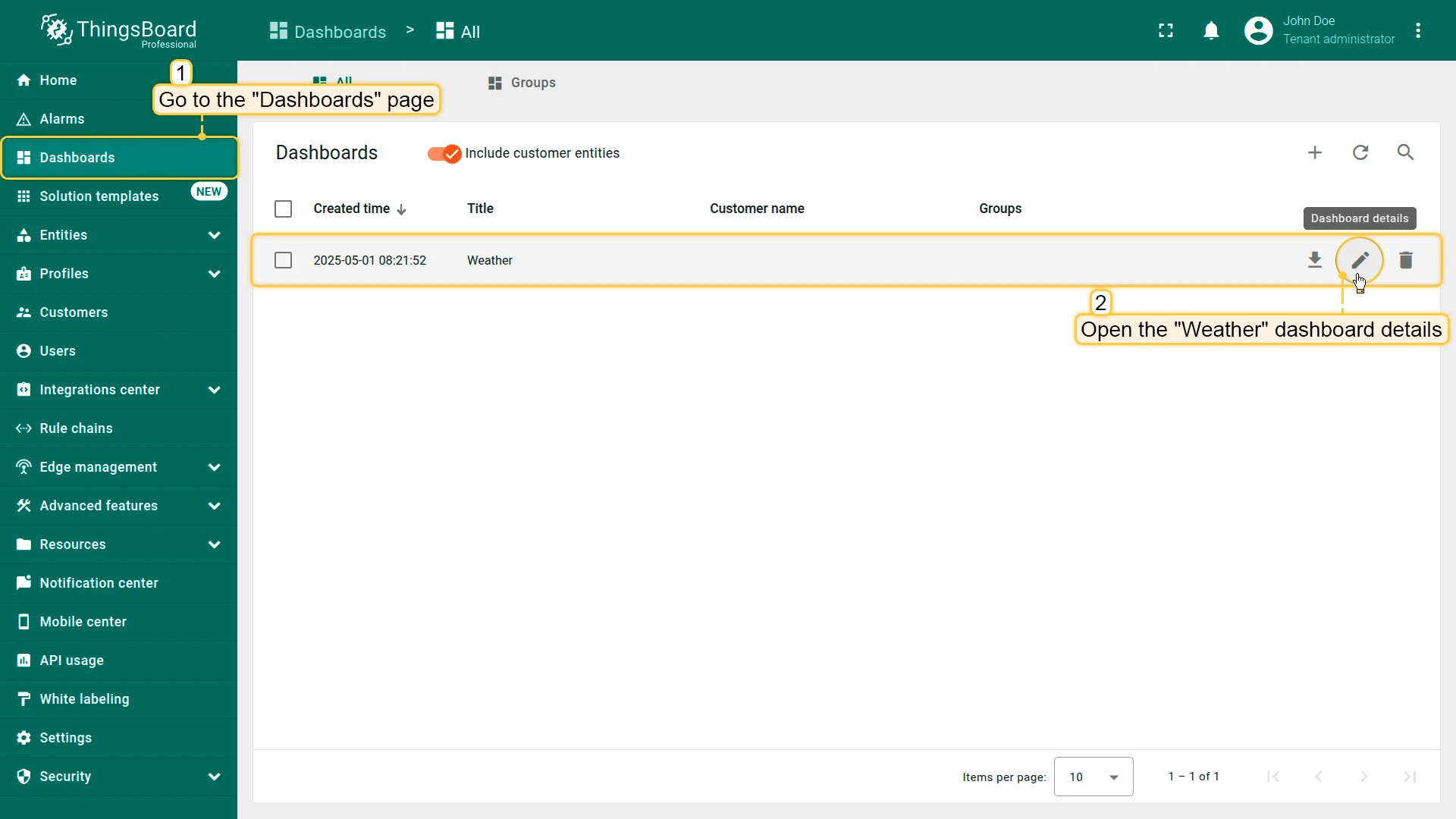
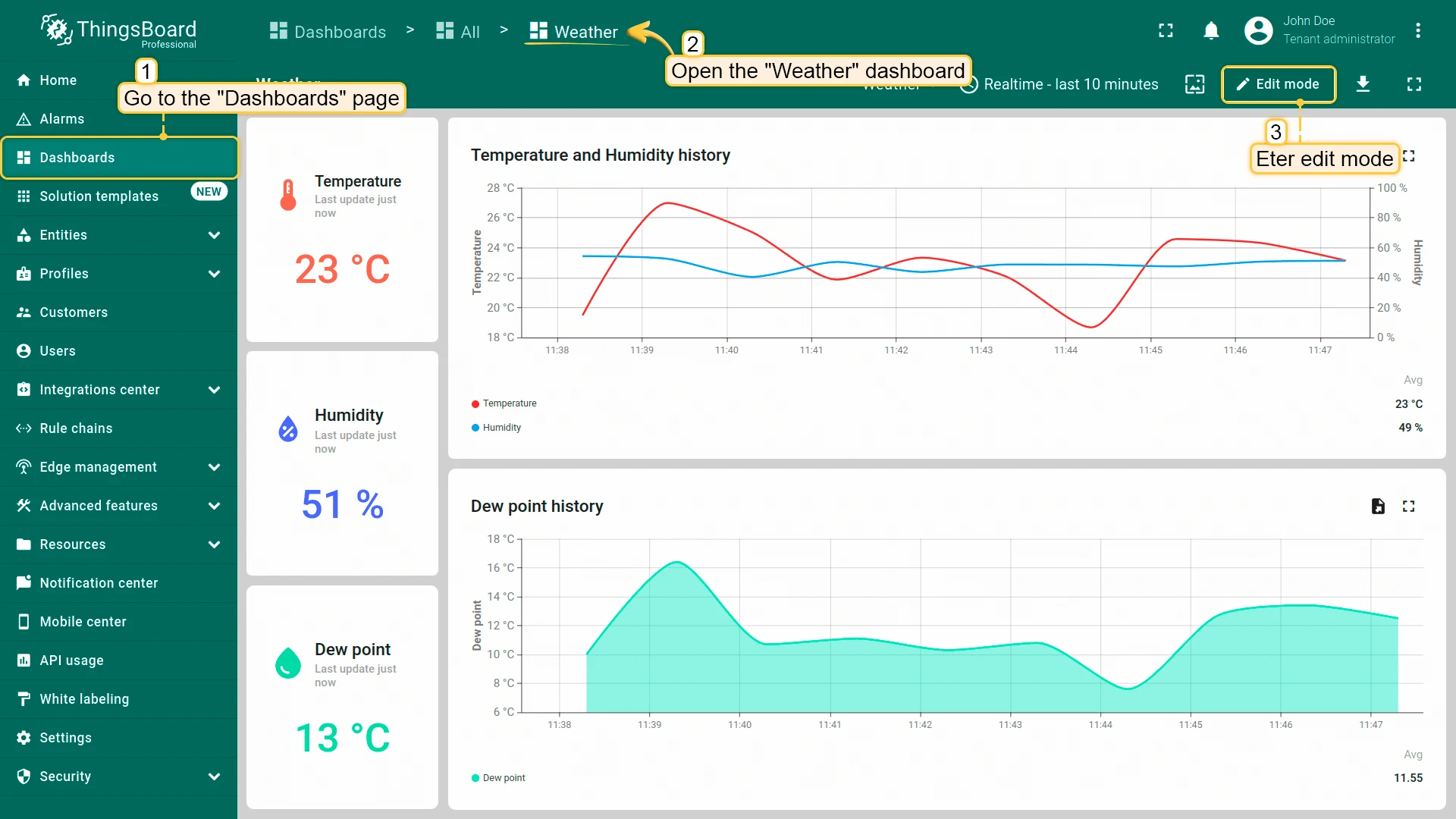
- Navigate to Monitor ⇾ Dashboards and open the “Weather” dashboard details.
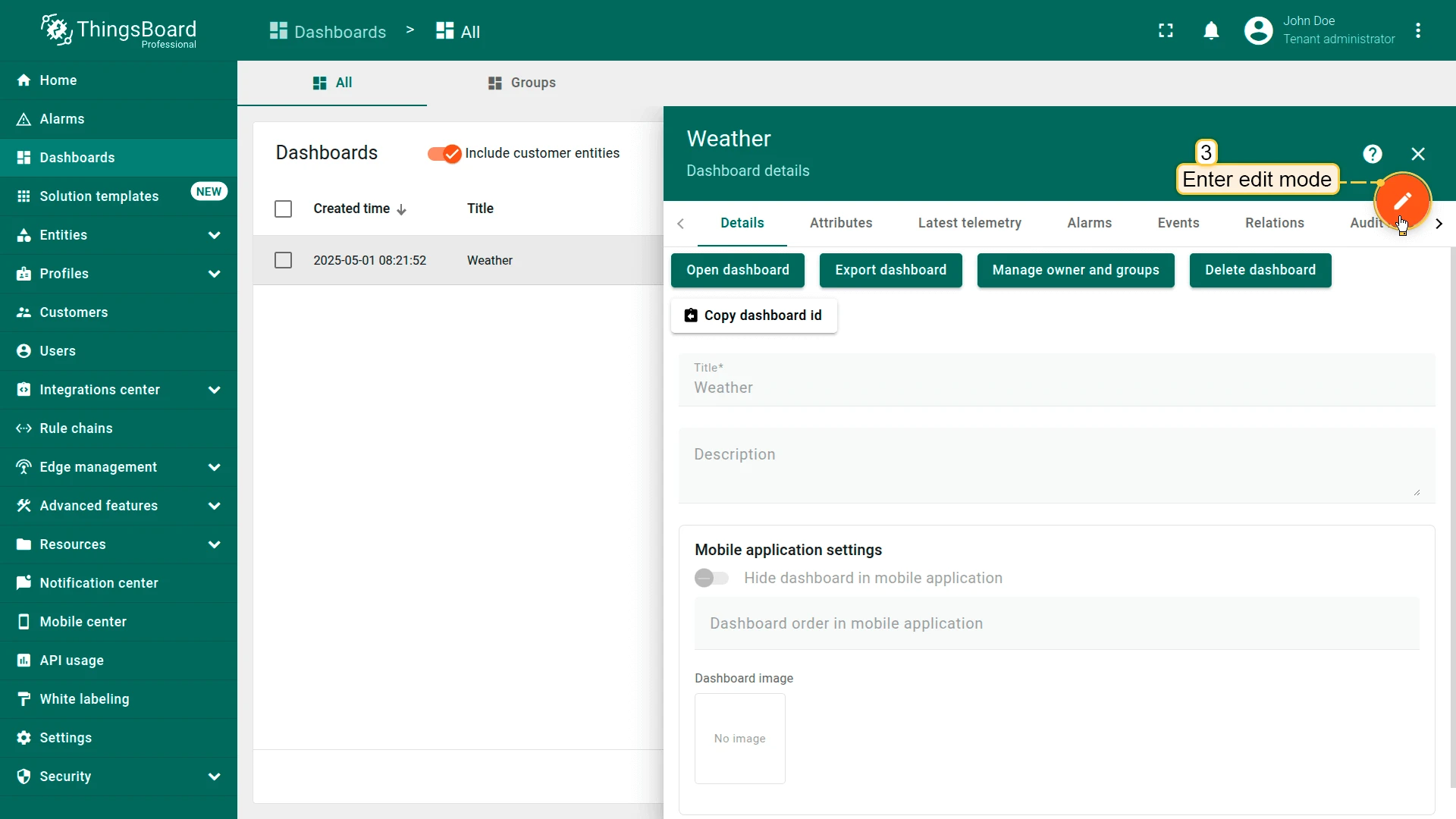
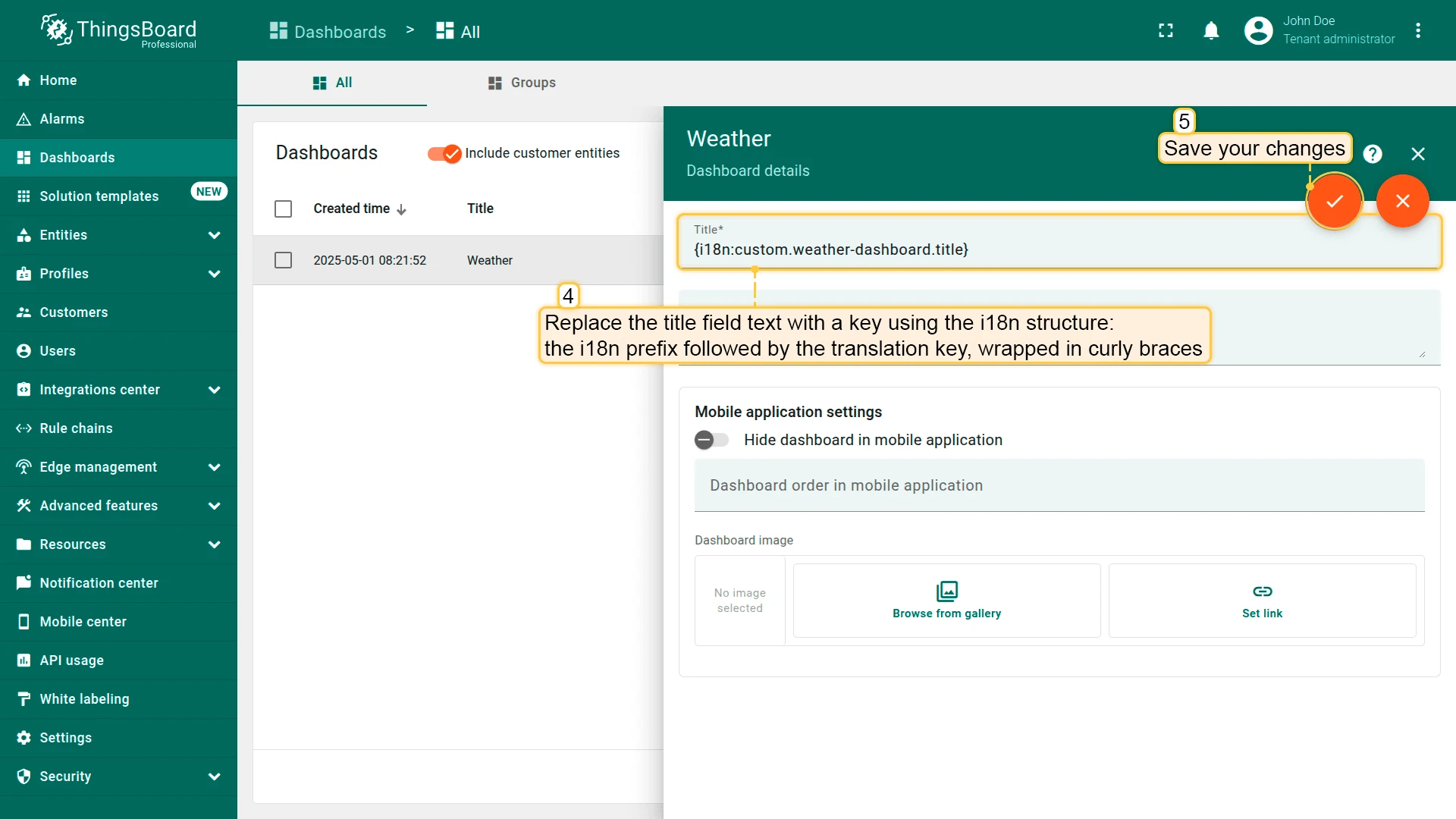
- Enter edit mode and replace the title with:
{i18n:custom.weather-dashboard.title}
- Save the changes.
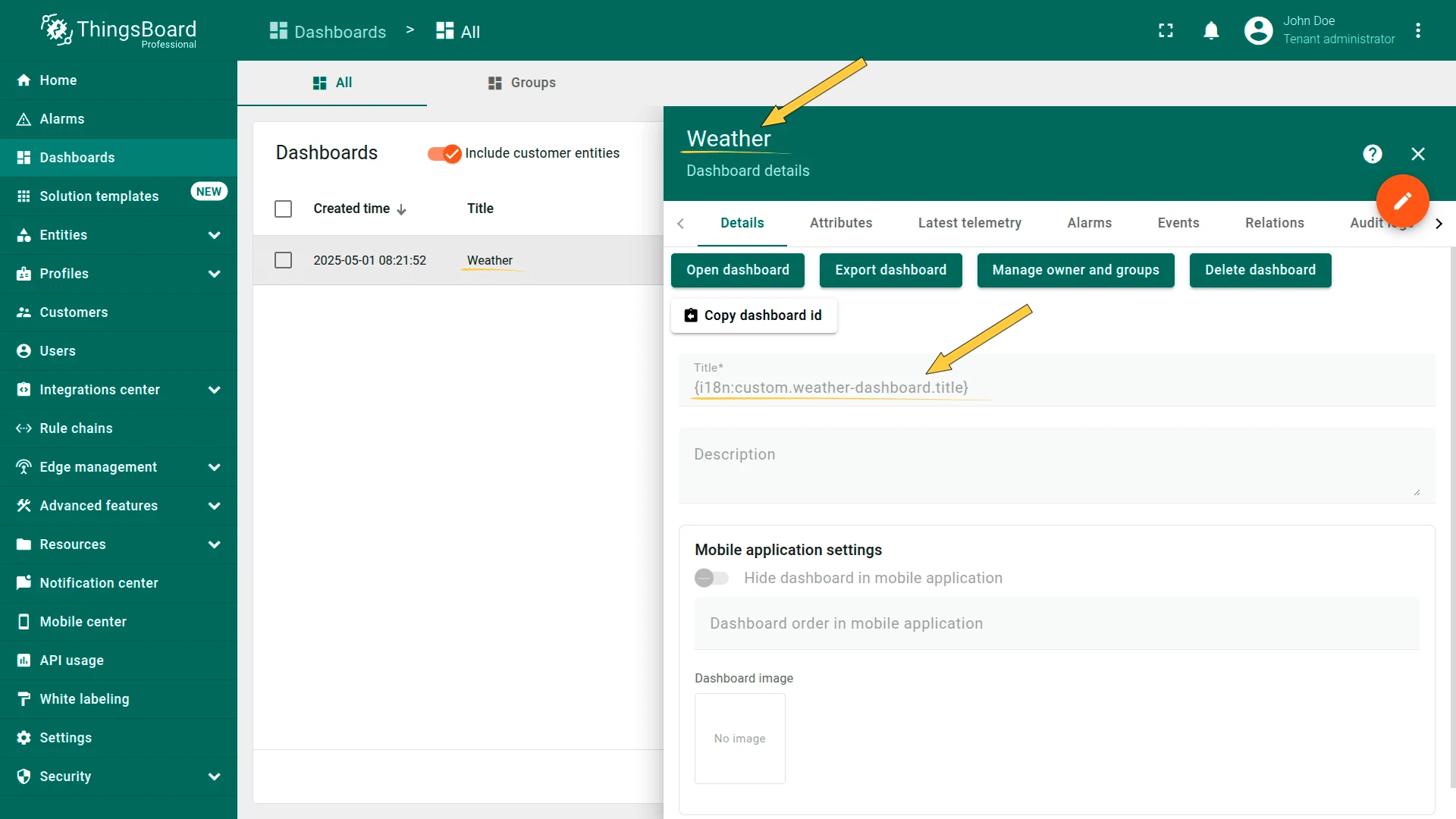
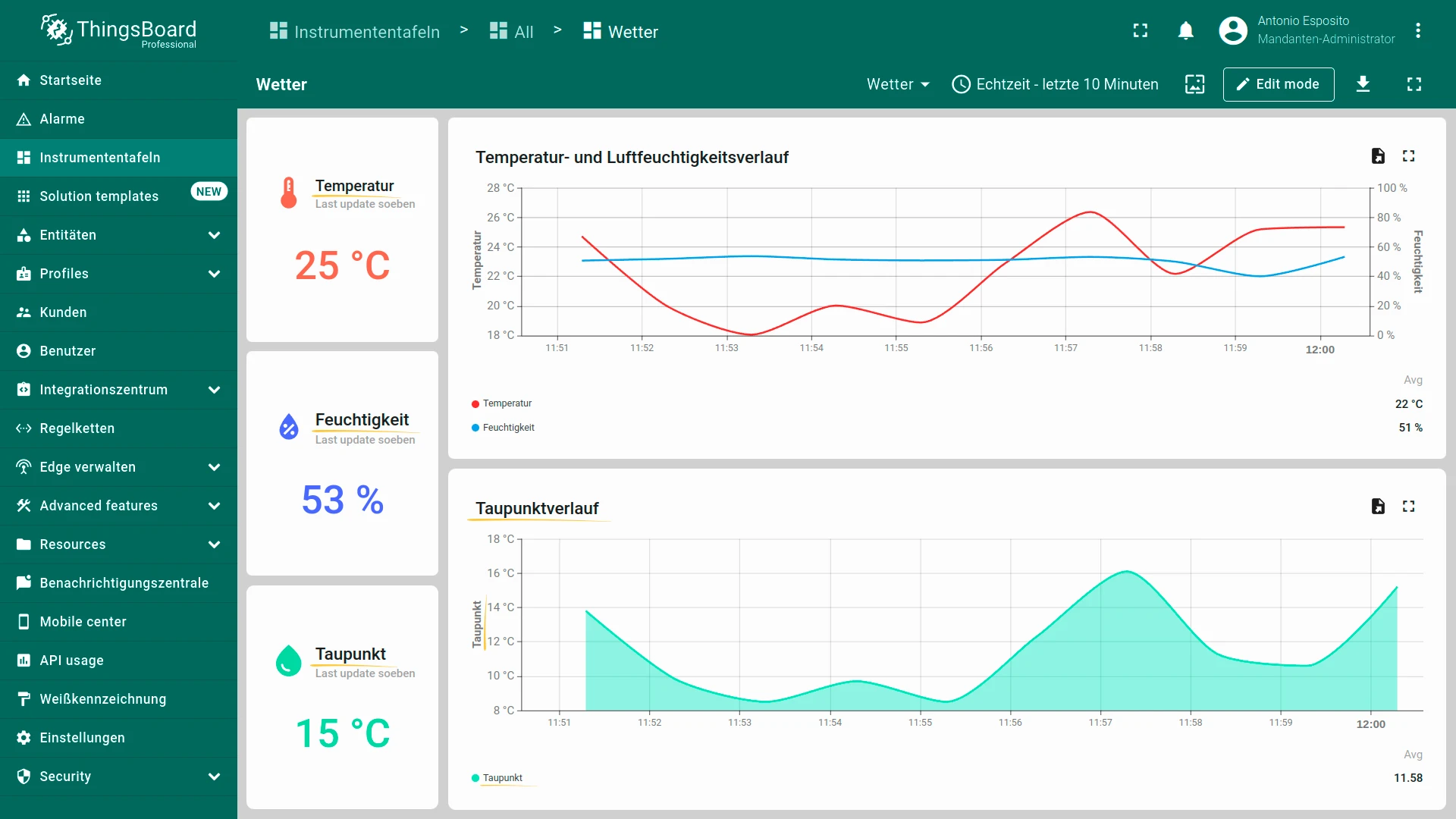
Switch to a user with German as their interface language to verify the translated title:
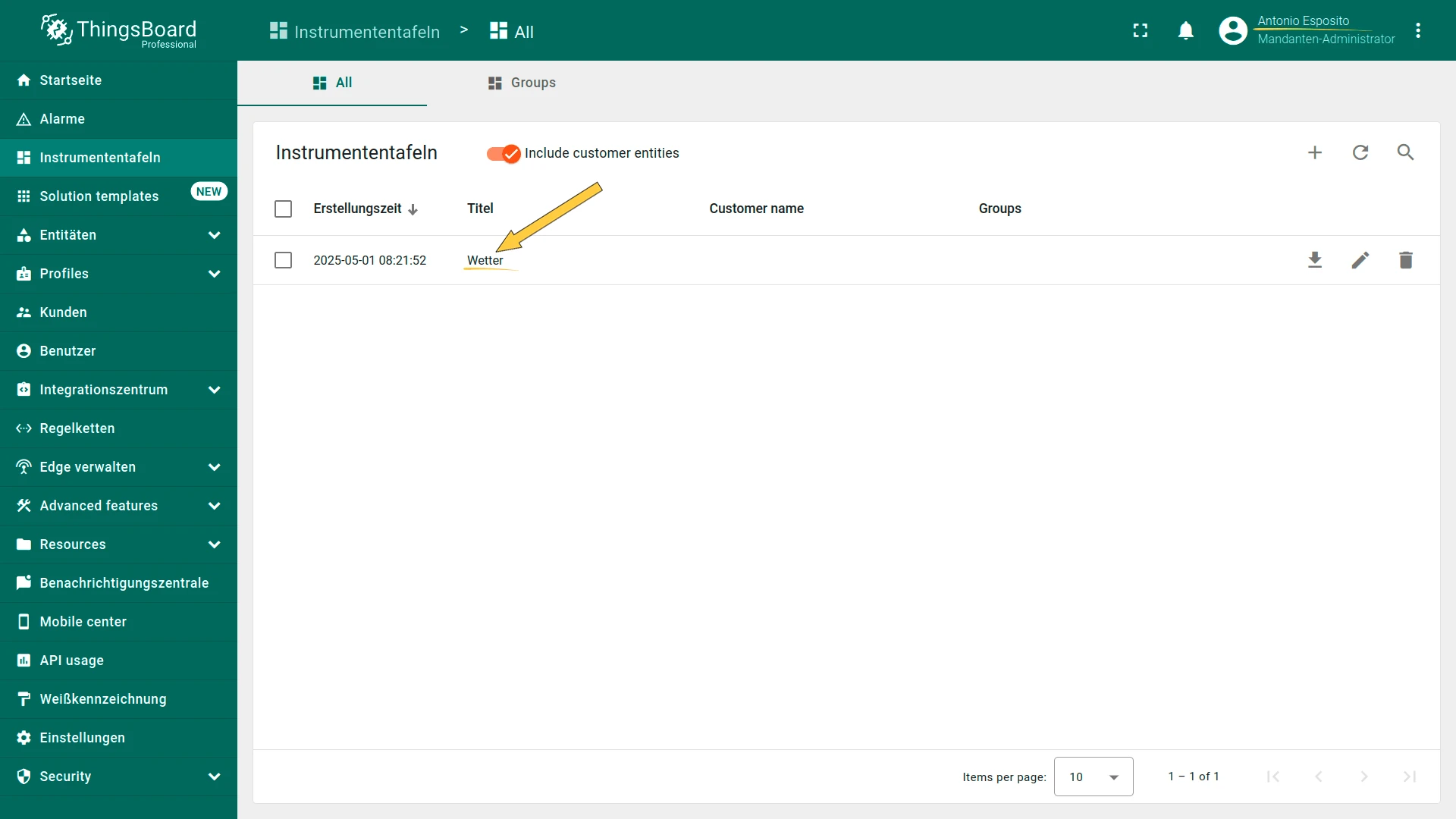
Translate Widget Elements
Section titled “Translate Widget Elements”Apply the same approach to widget titles, telemetry key labels, and axis labels. First, add the translation keys:
| Term key | English | German | Description |
|---|---|---|---|
custom.weather-dashboard.temperature-and-humidity-widget.title |
Temperature and Humidity history | Temperatur- und Luftfeuchtigkeitsverlauf | Widget title |
custom.weather-dashboard.temperature.telemetry-key |
Temperature | Temperatur | Temperature key label |
custom.weather-dashboard.humidity.telemetry-key |
Humidity | Feuchtigkeit | Humidity key label |
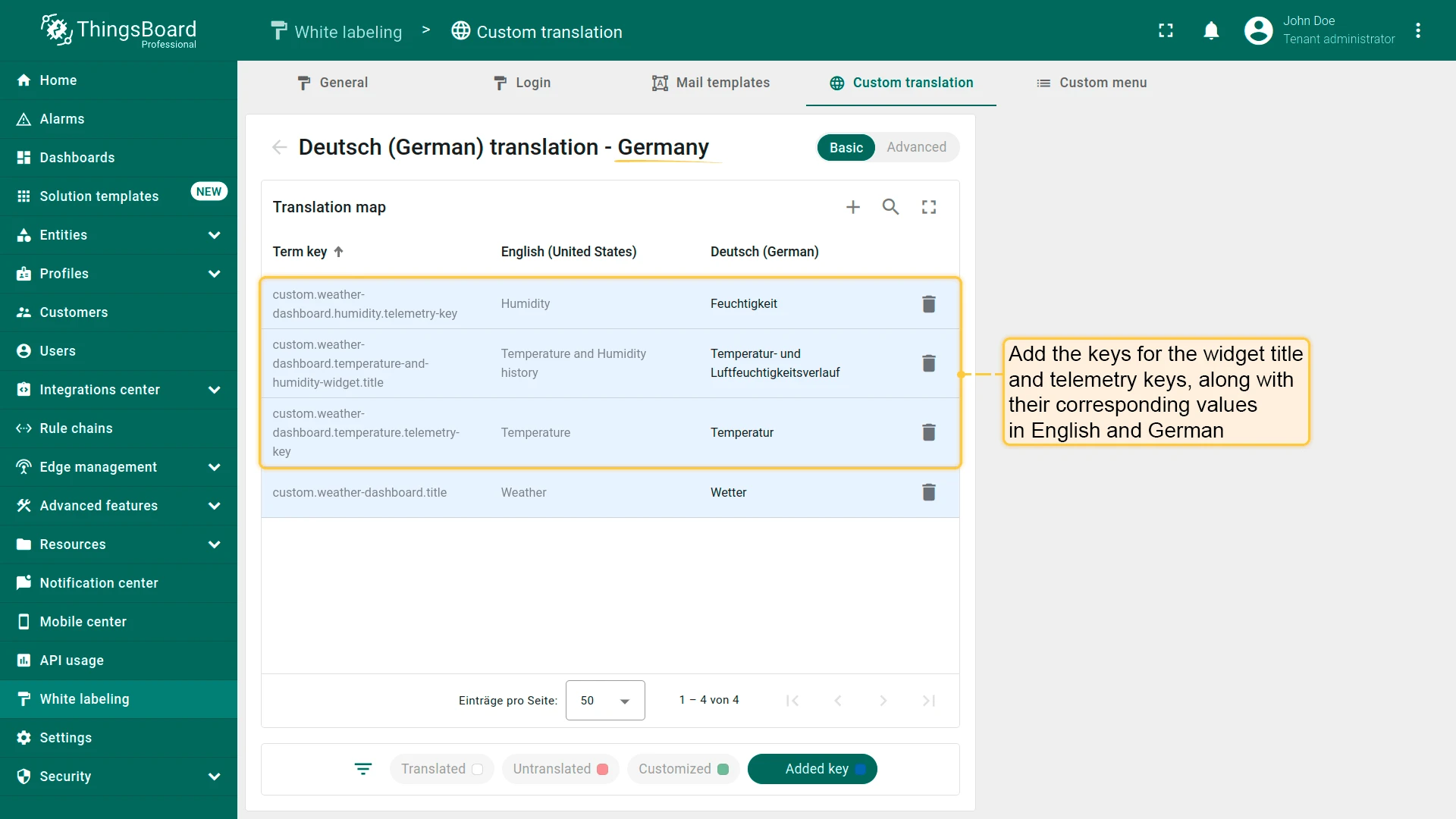
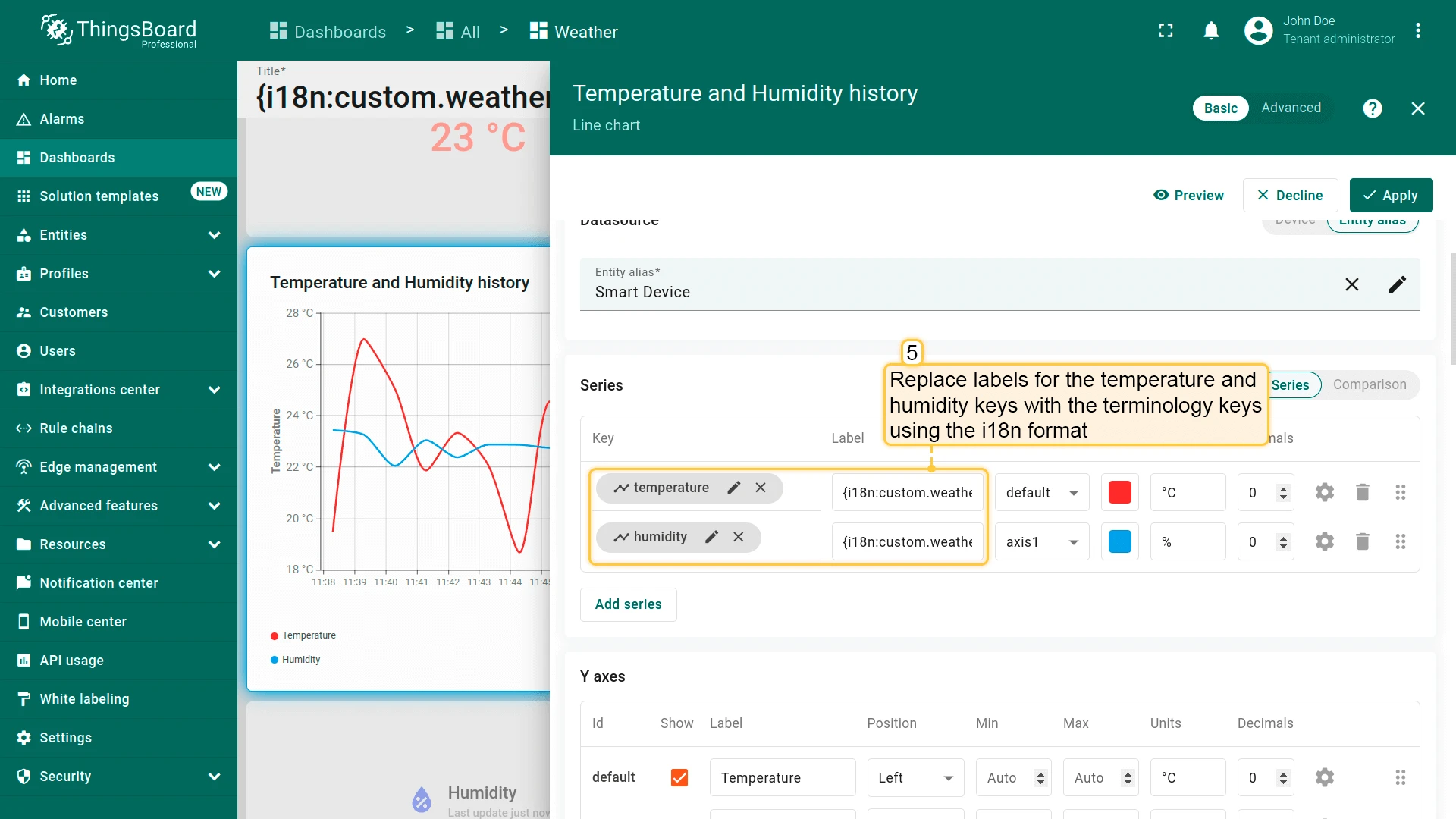
Then assign the i18n keys in the widget configuration:
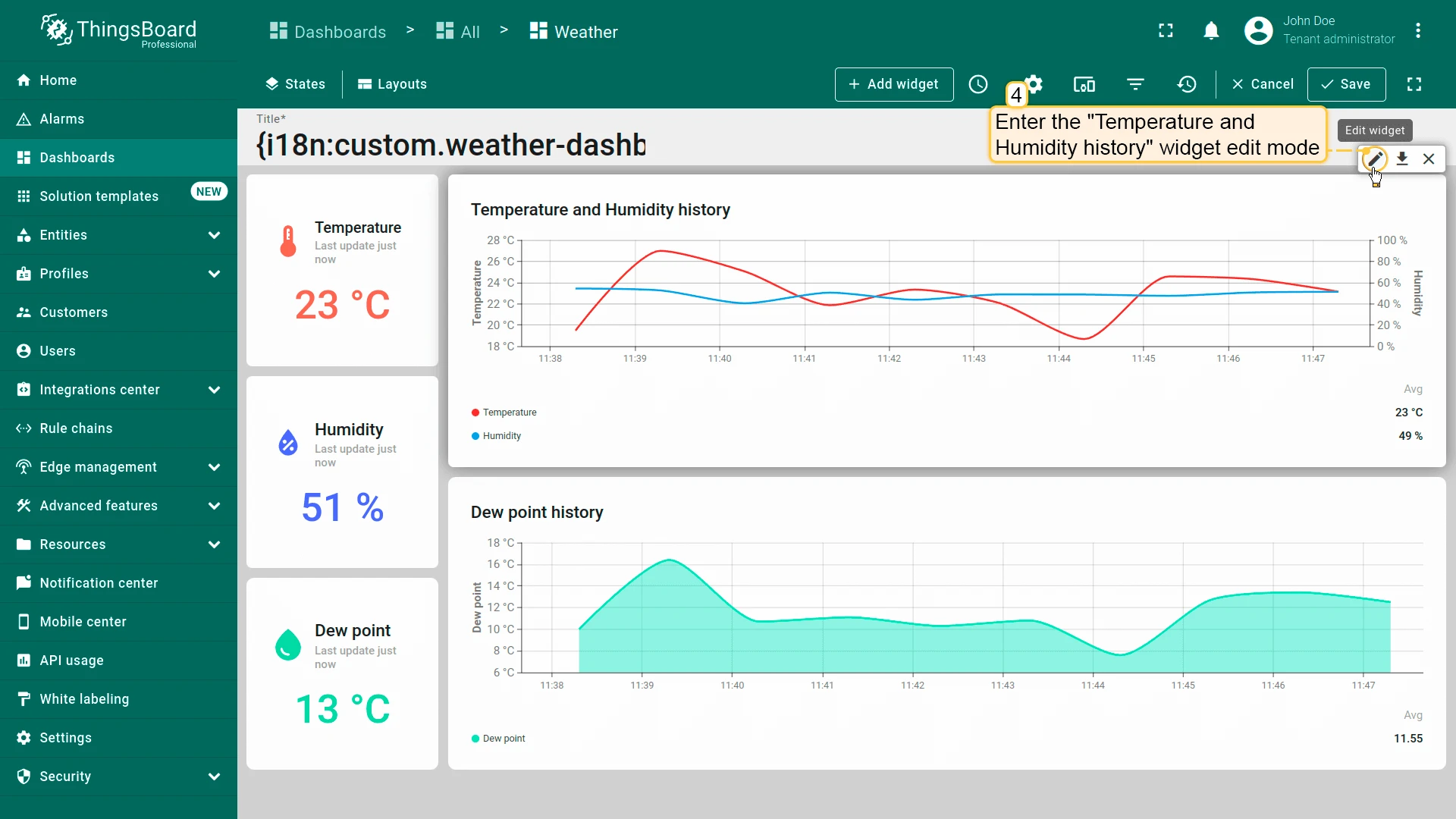
- Open the “Temperature and Humidity history” widget in edit mode.
- Set the telemetry key labels:
- temperature:
{i18n:custom.weather-dashboard.temperature.telemetry-key} - humidity:
{i18n:custom.weather-dashboard.humidity.telemetry-key}
- temperature:
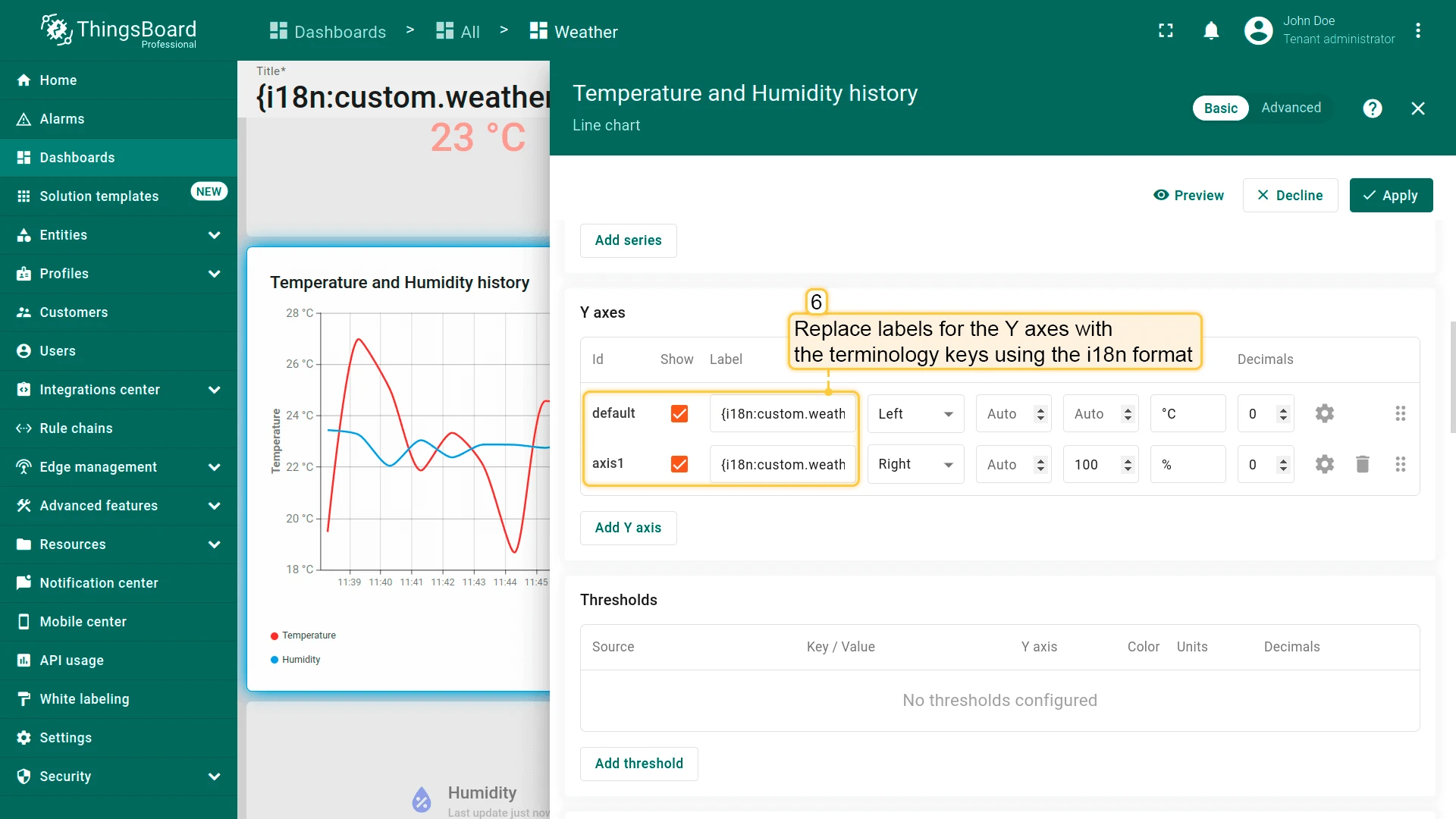
- Set the Y-axis labels to the same keys.
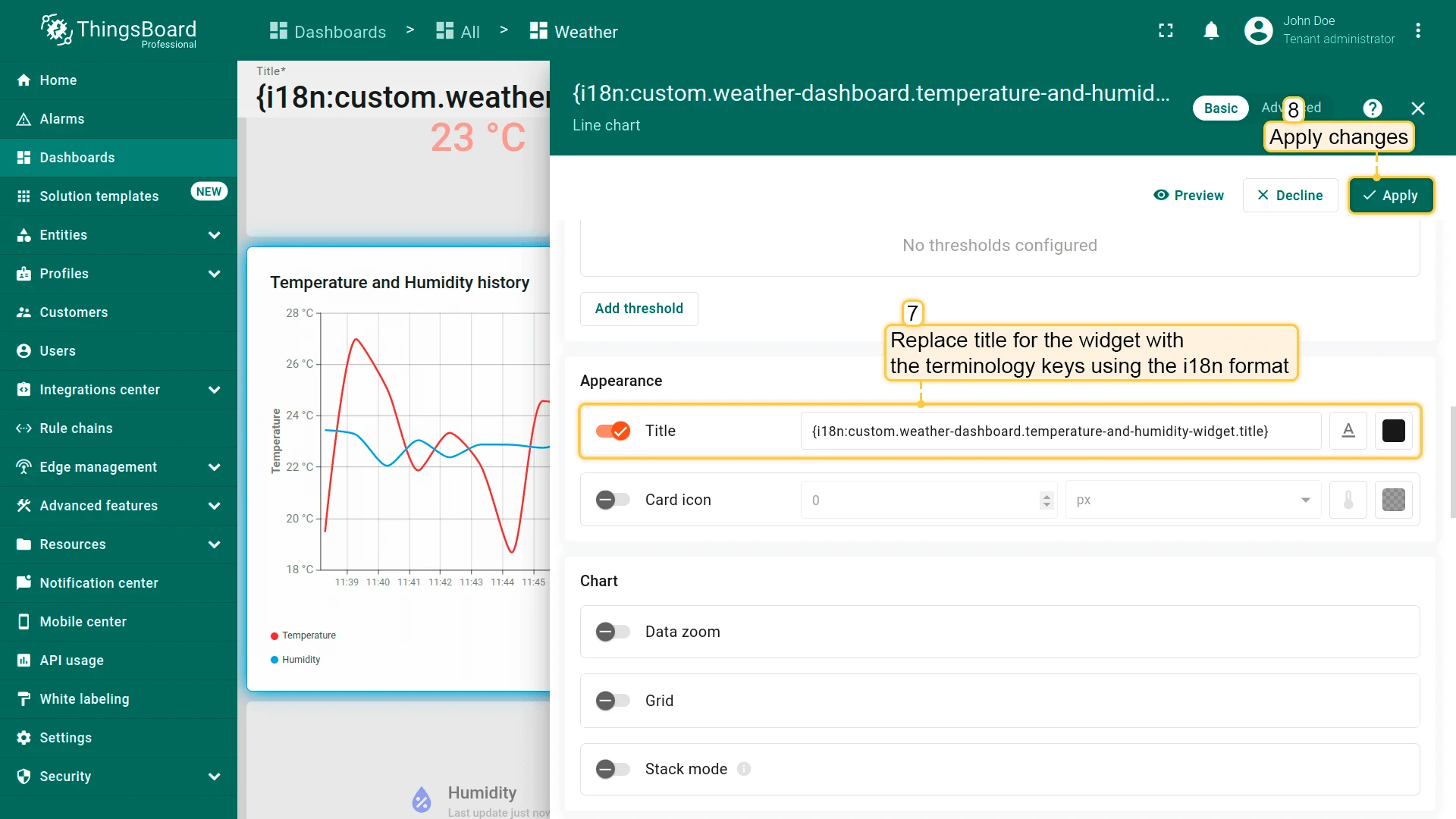
- Set the widget title to:
{i18n:custom.weather-dashboard.temperature-and-humidity-widget.title} - Save.
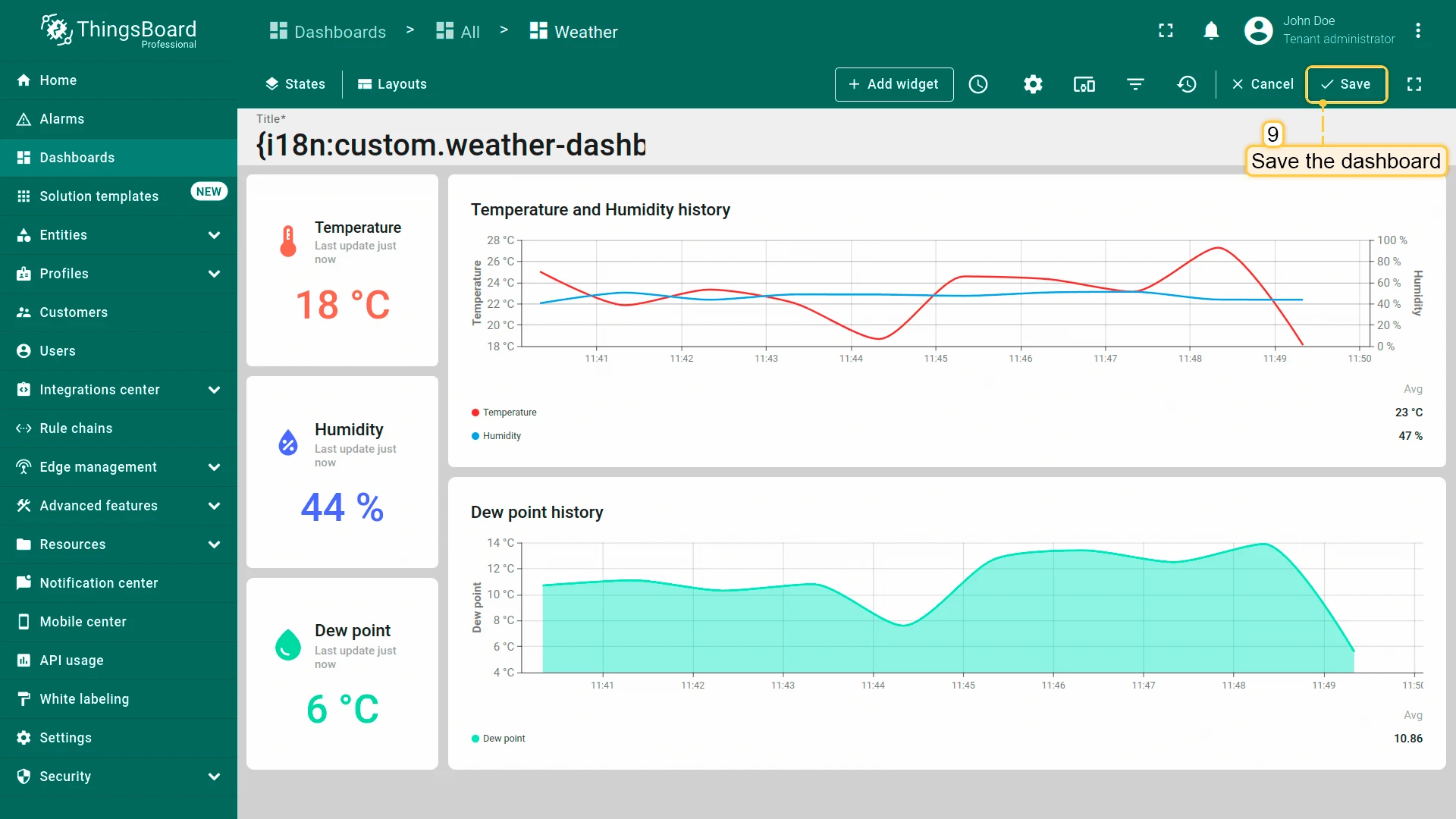
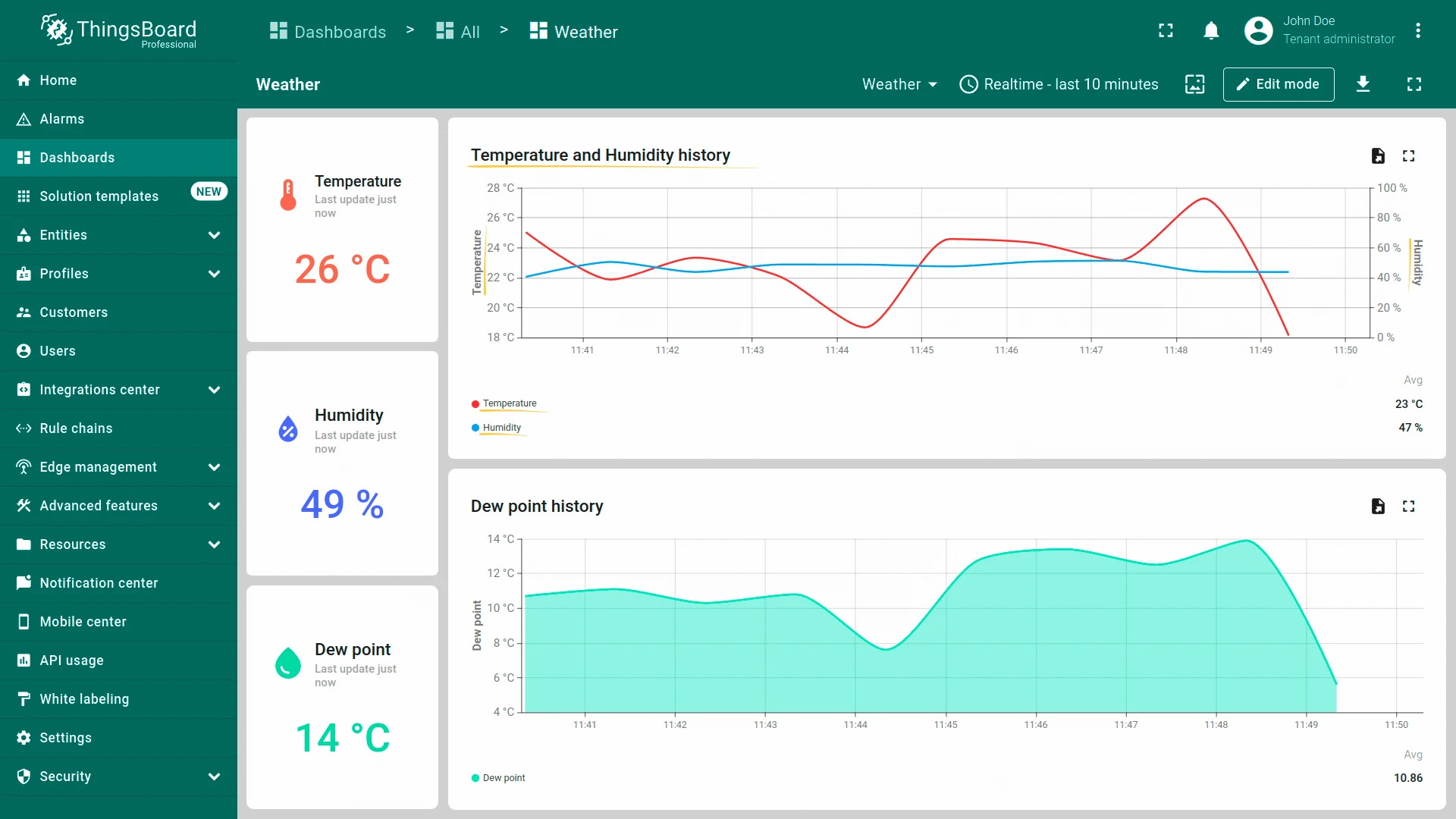
Verify by switching to a user with German interface language:
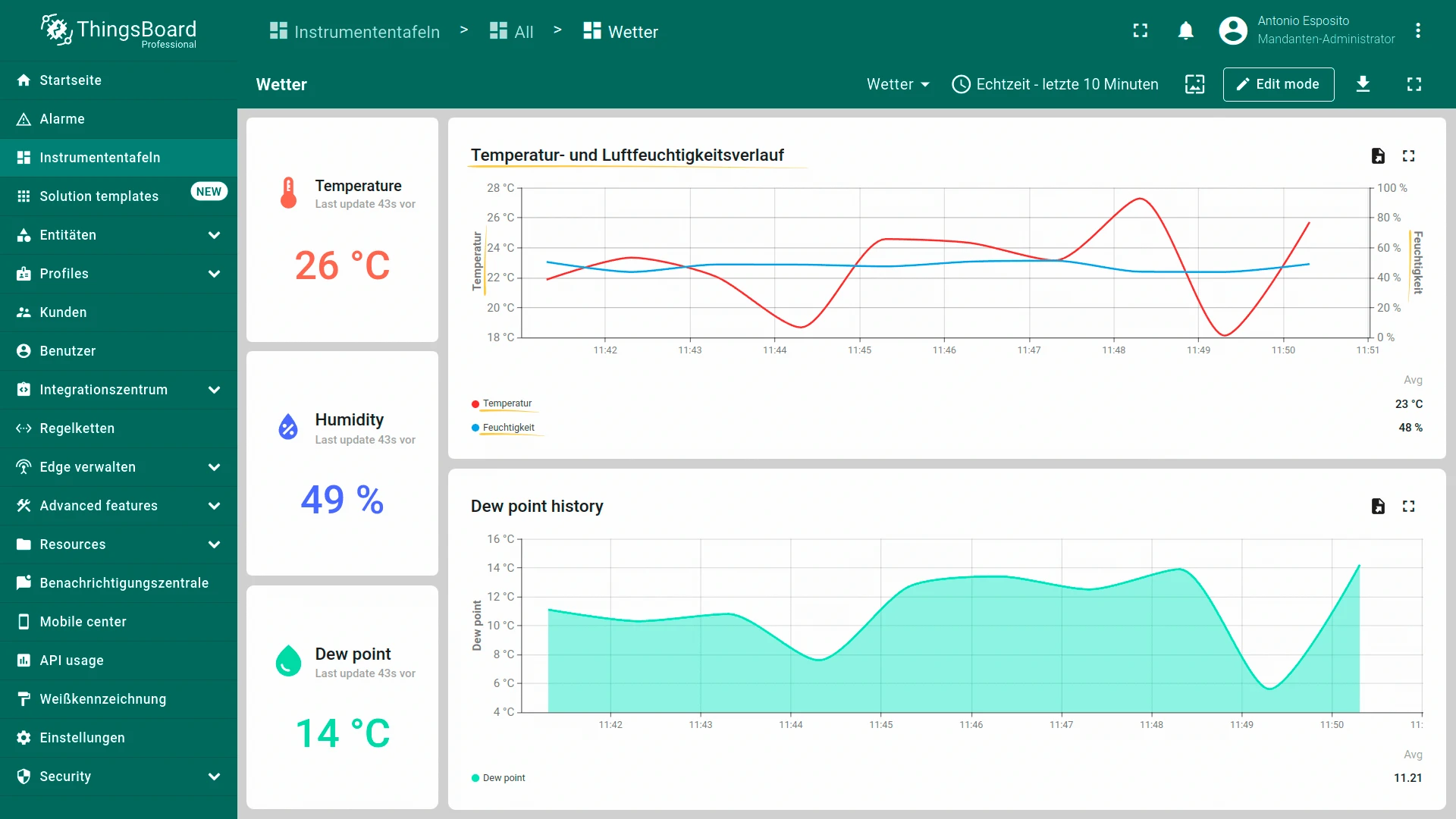
Translate Additional Widgets
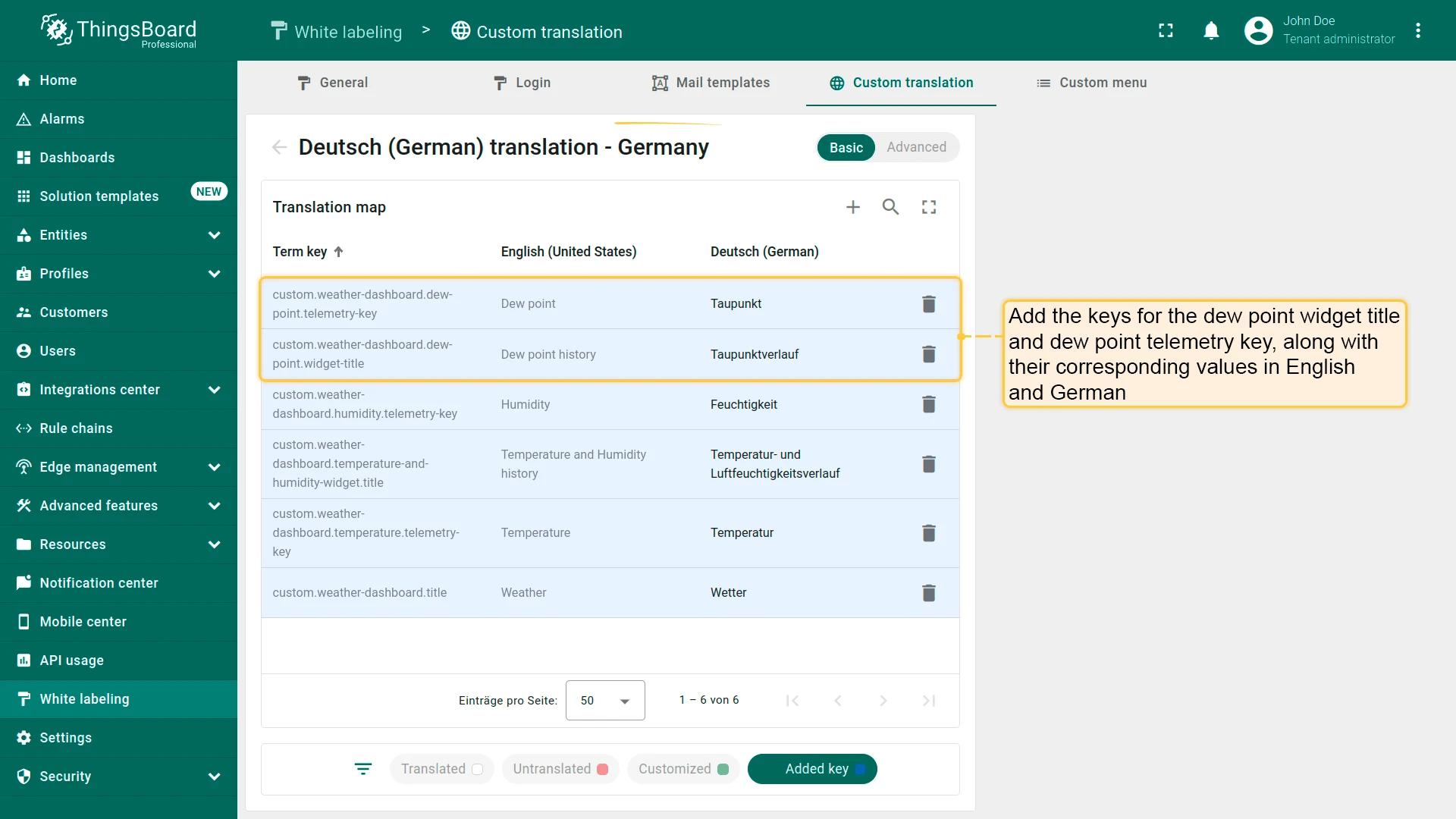
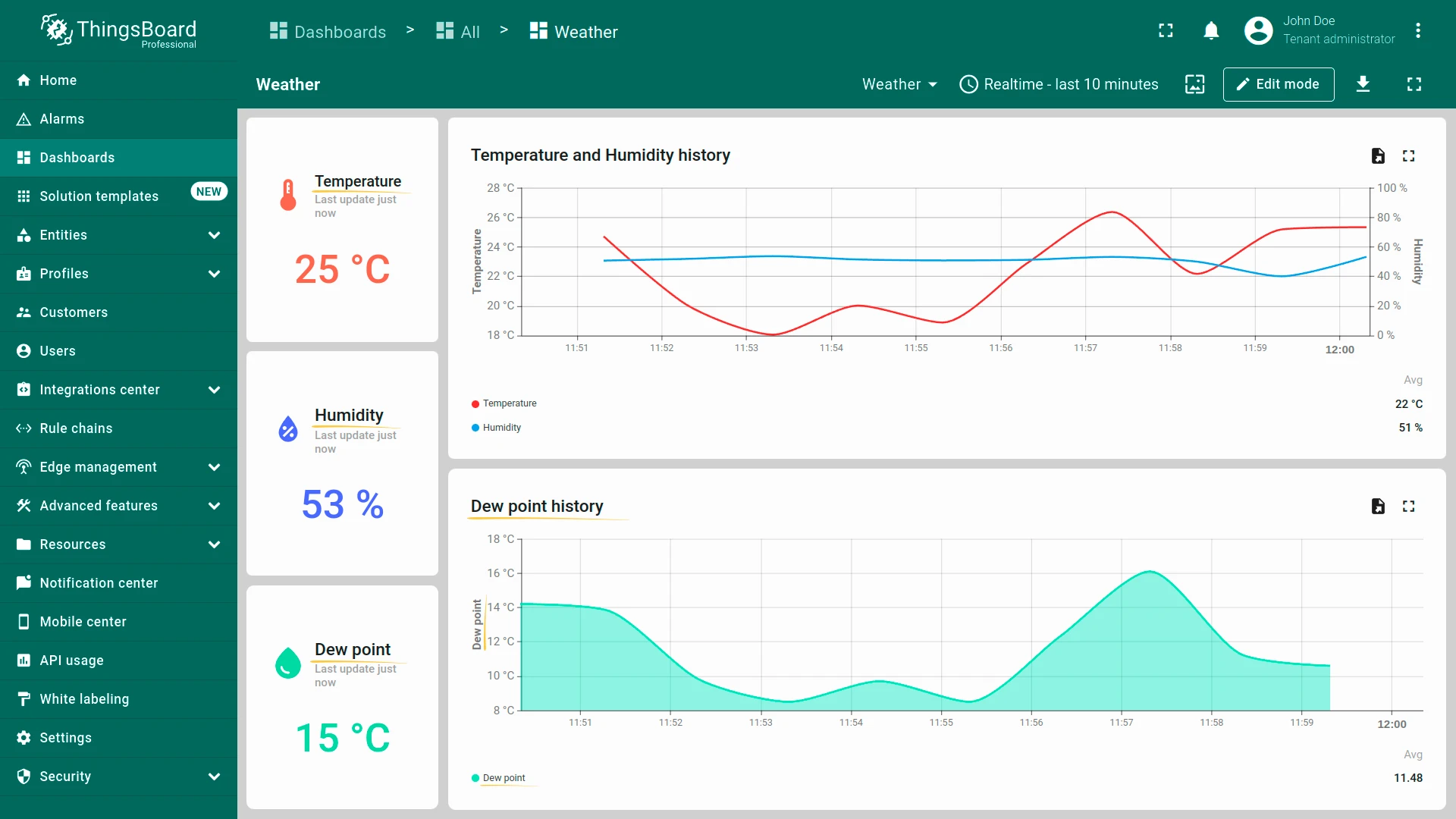
Section titled “Translate Additional Widgets”Apply the same technique to other widgets. For example, the “Dew point history” widget:
| Term key | English | German |
|---|---|---|
custom.weather-dashboard.dew-point.widget-title |
Dew point history | Taupunktverlauf |
custom.weather-dashboard.dew-point.telemetry-key |
Dew point | Taupunkt |
Was this helpful?