Applications
The Applications tab in the Mobile App Center manages the mobile application configurations registered with your ThingsBoard instance. Each application entry defines the package name, platform, authentication secret, version requirements, and store links used by the ThingsBoard mobile app.
Add Application
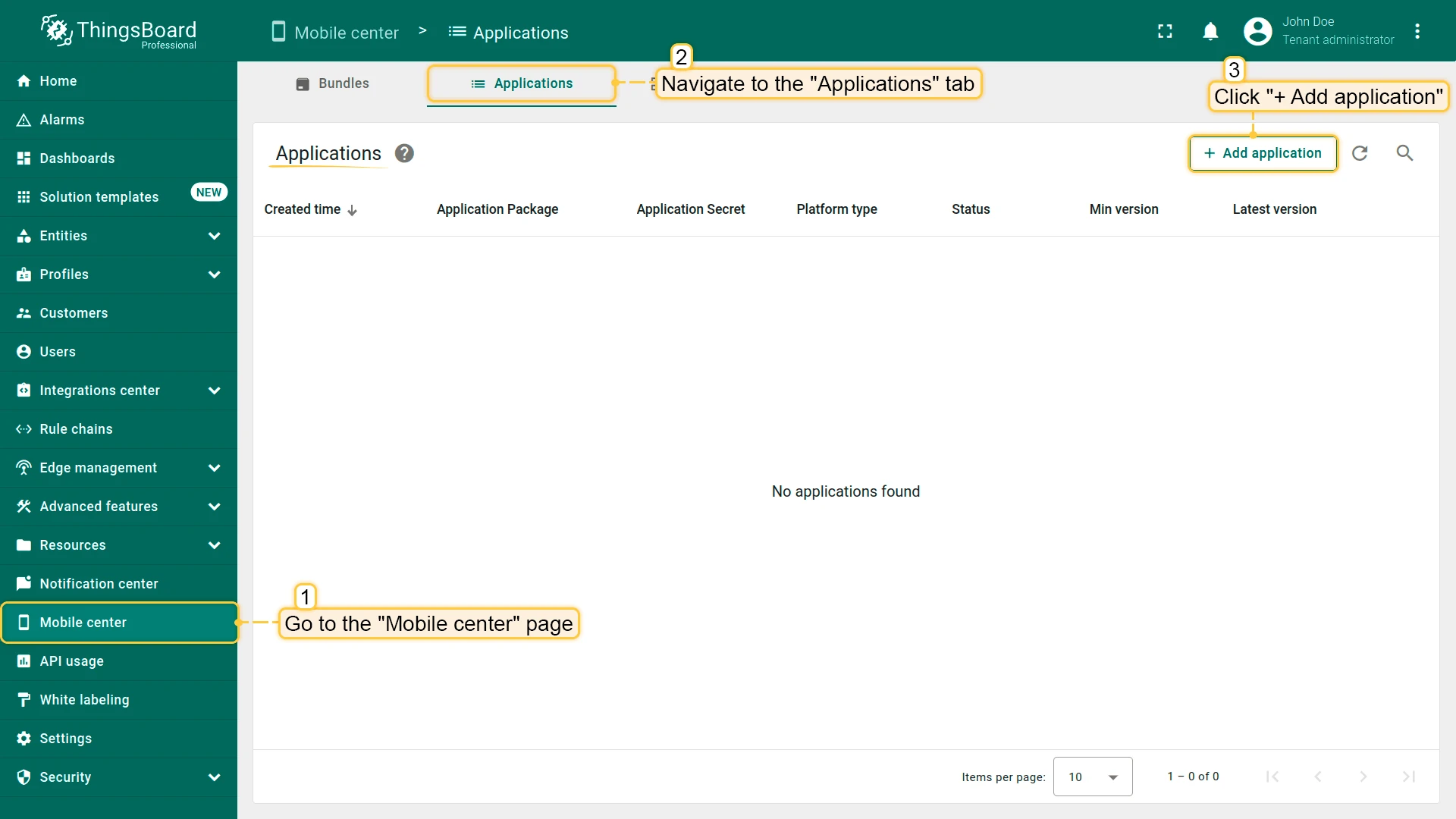
Section titled “Add Application”- Go to Mobile apps and open the Applications tab.
- Click + Add application in the upper-right corner.
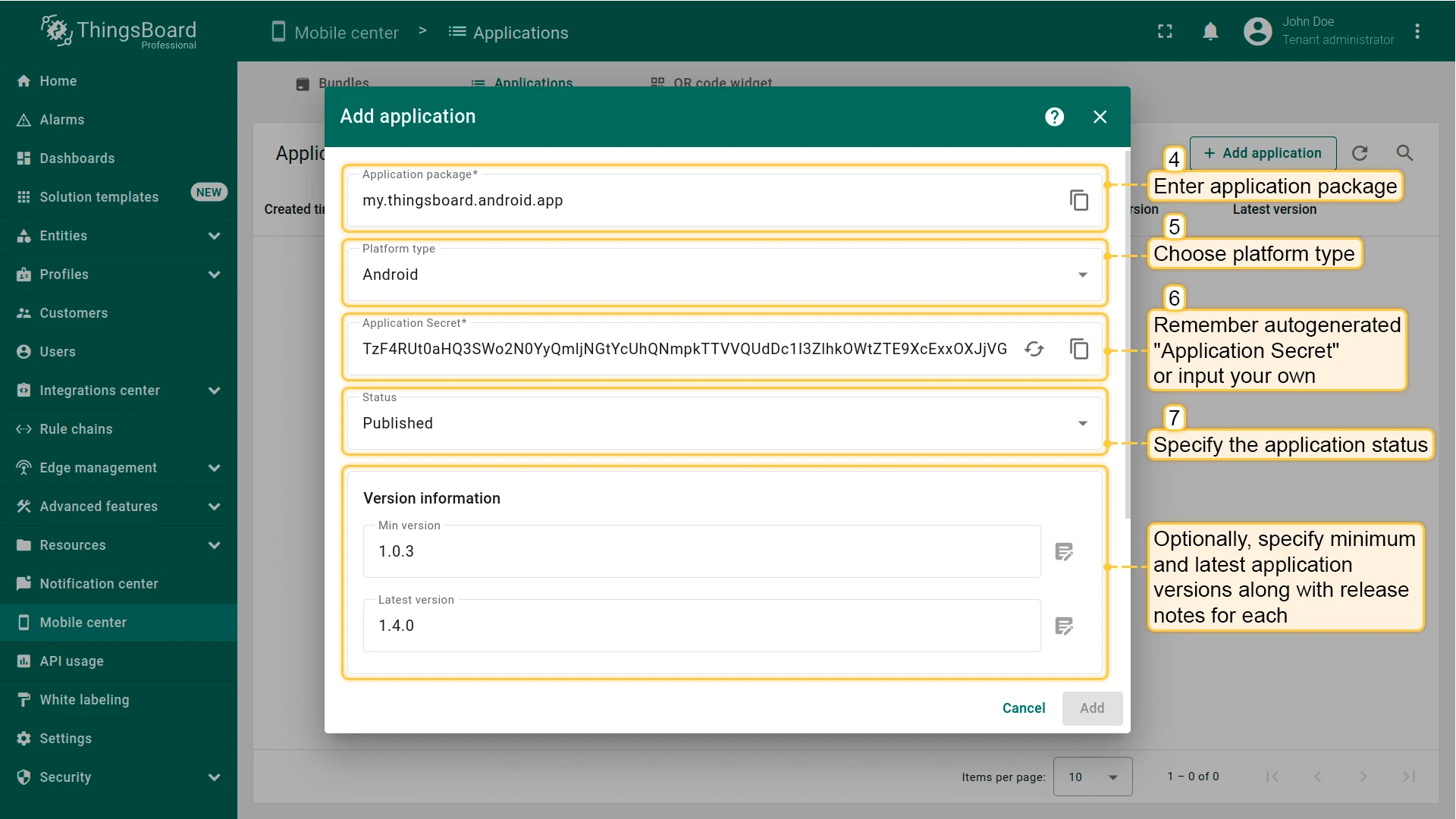
- Enter the application package name (e.g.
com.example.myapp). - Select the platform type: Android or iOS.
- An Application Secret is generated automatically. Copy and store it — your mobile application uses this secret to authenticate with the ThingsBoard API.
- Set the application status:
- Draft — application is in development; store information can be added later.
- Published — application is live and available to end users.
- Deprecated — application is no longer actively supported but still accessible.
- Suspended — application is temporarily disabled.
- (Optional) Specify Min version (minimum app version allowed to connect) and Latest version (current release), with optional release notes.
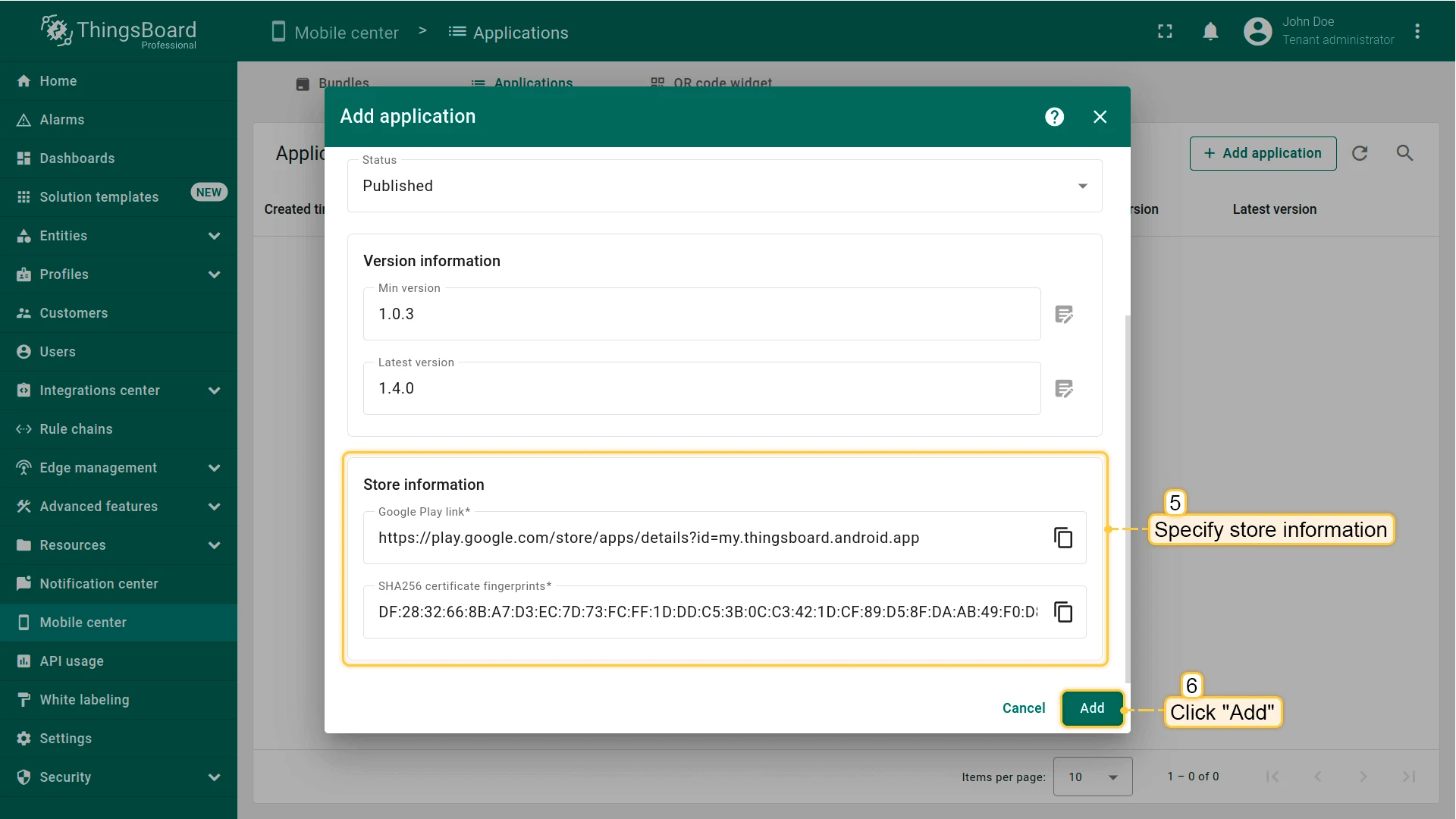
- Add store information:
- Android: Google Play Store URL and SHA256 certificate fingerprints.
- iOS: App Store URL and App ID.
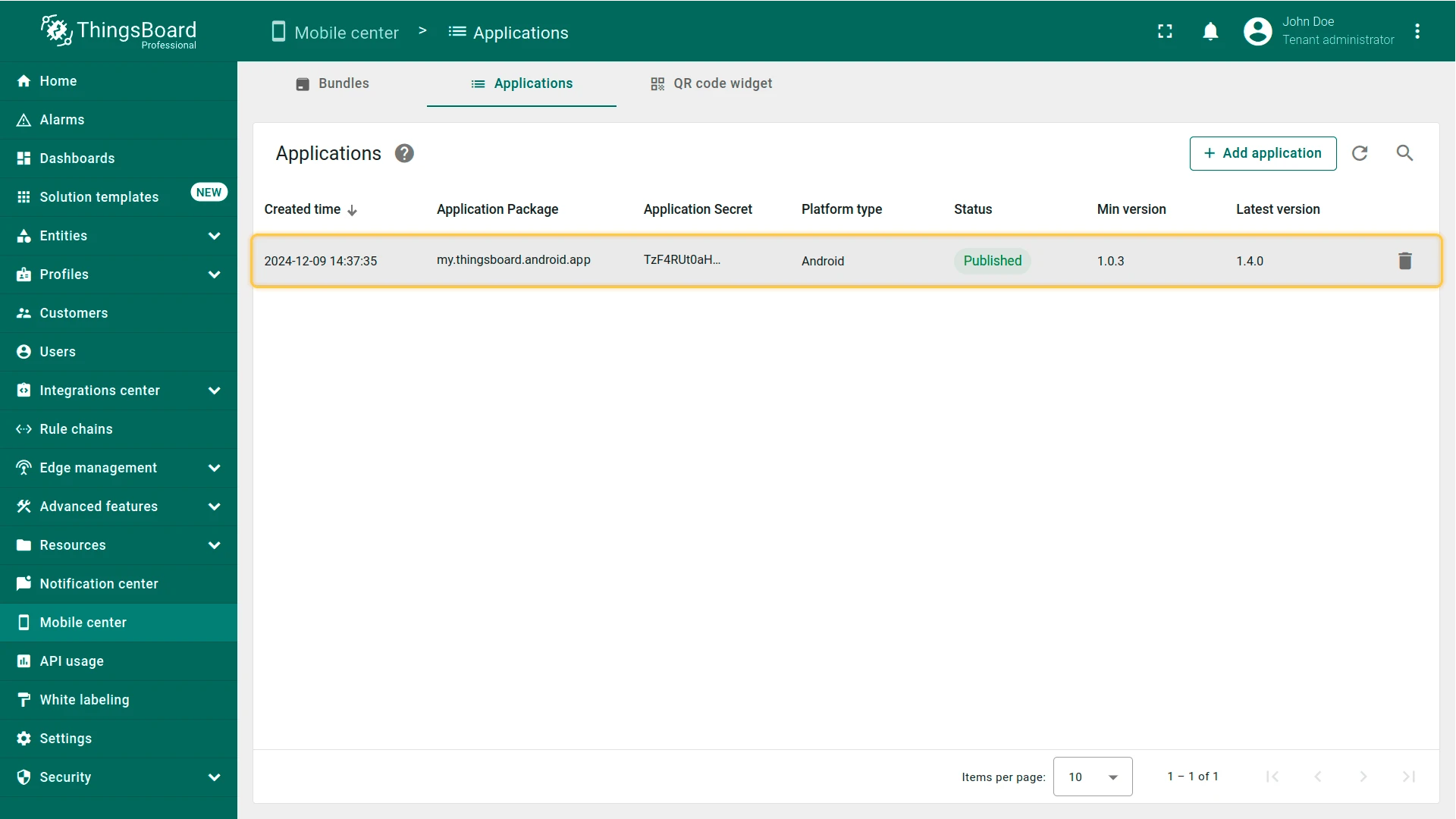
- Click Add to save.
Edit Application
Section titled “Edit Application”All fields except platform type can be edited after creation.
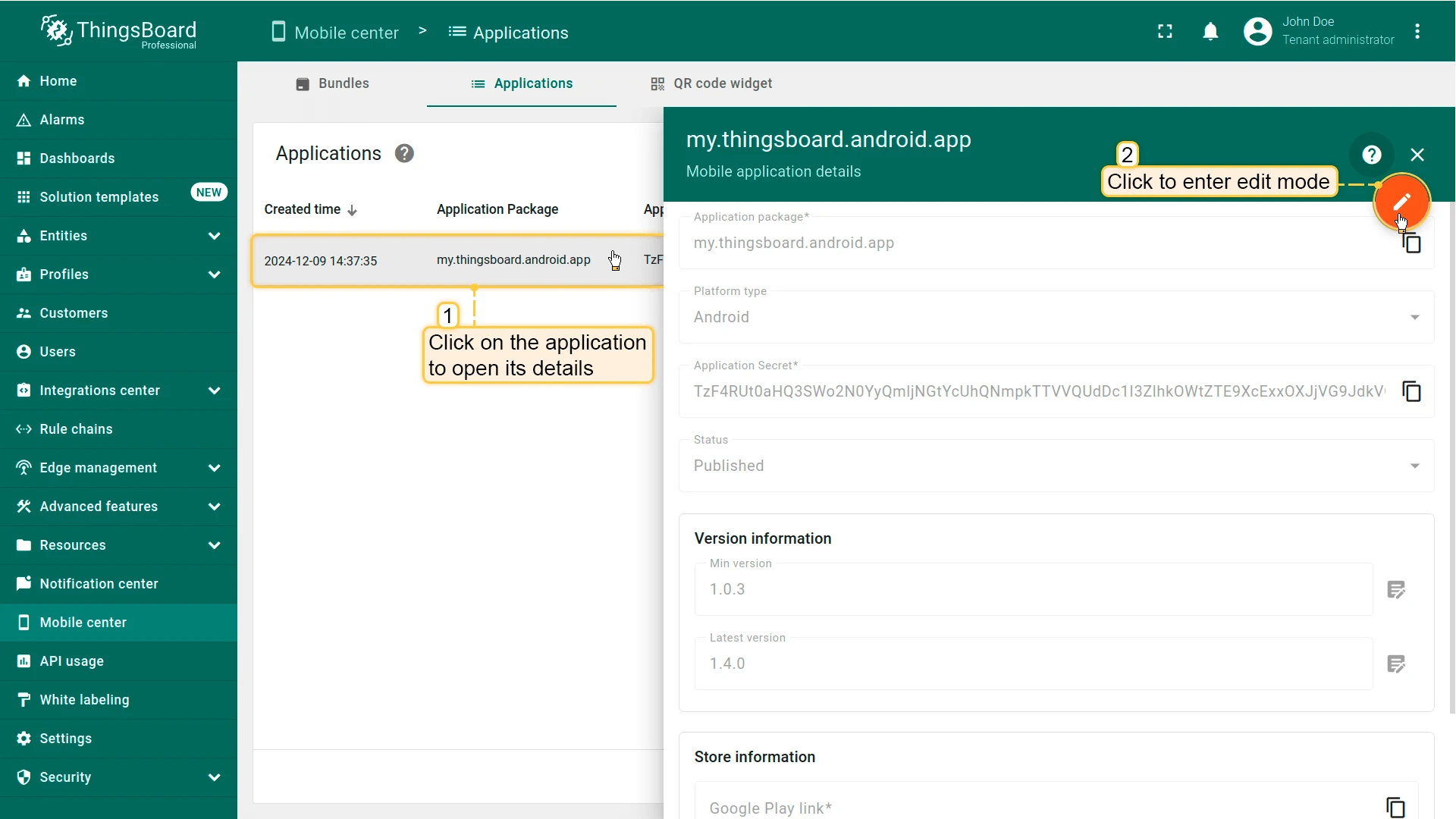
- Click the application row to open its details panel.
- Click the pencil (edit) icon to enter edit mode.
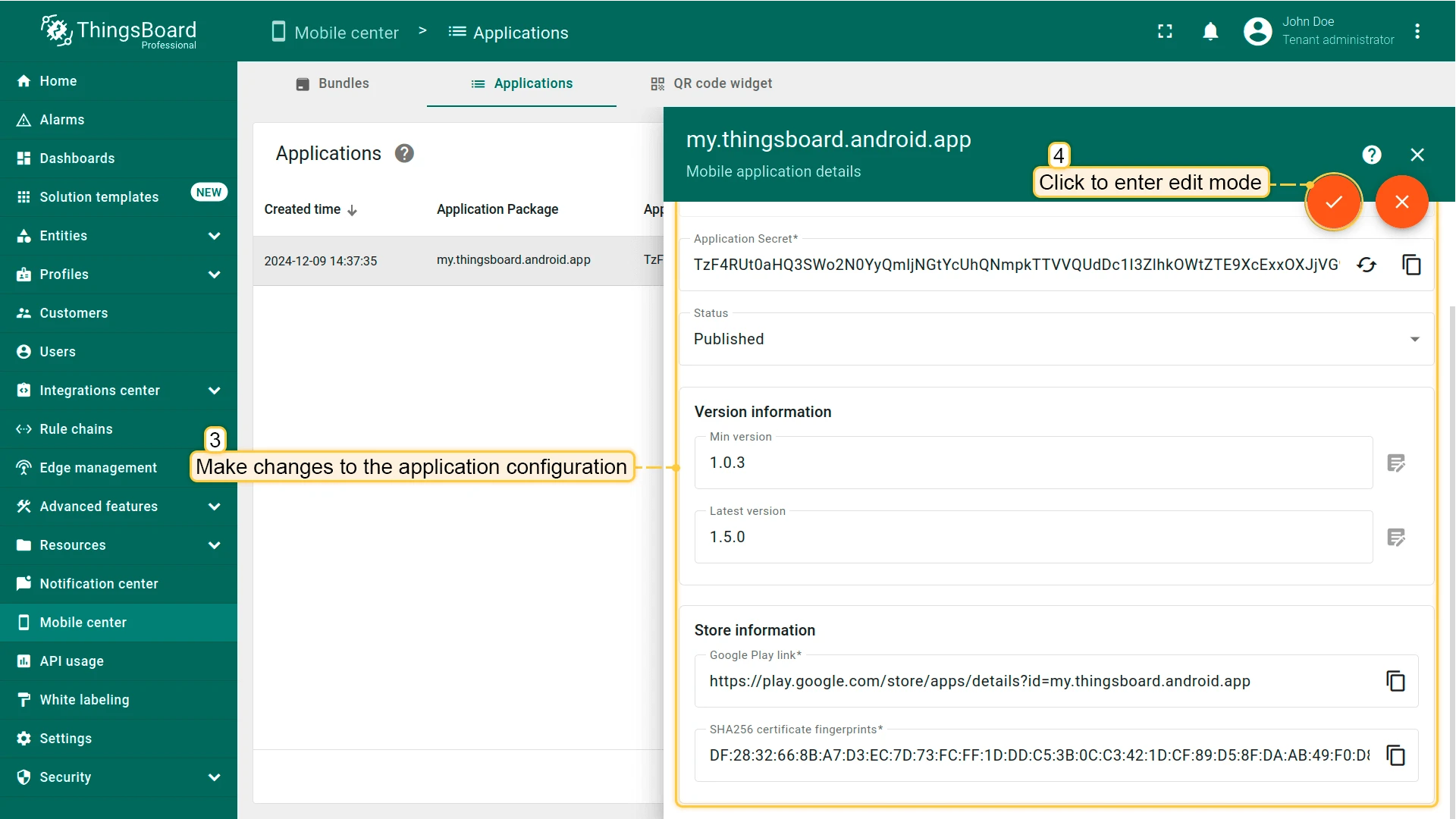
- Make the necessary changes.
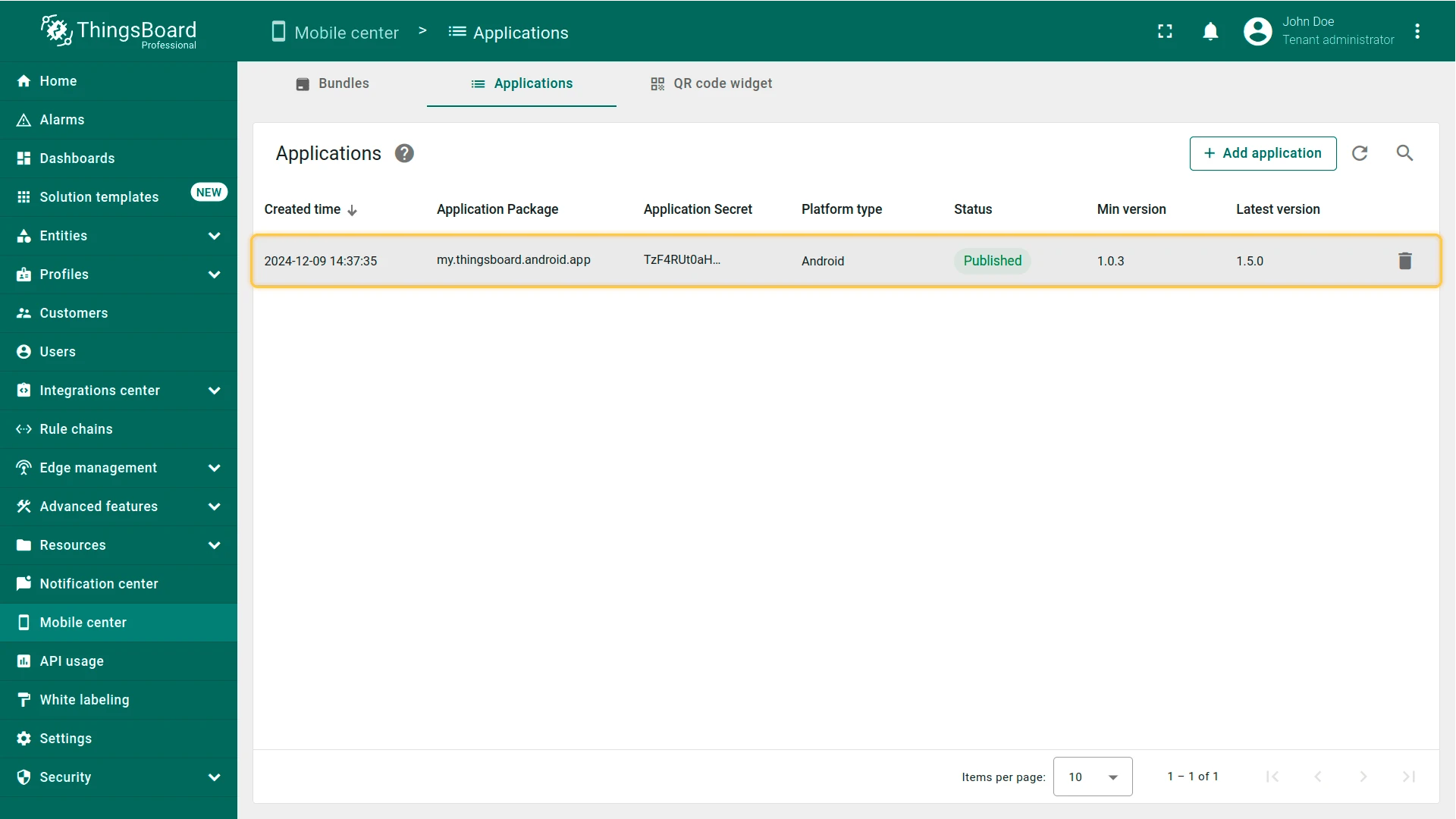
- Click Apply to save.
Delete Application
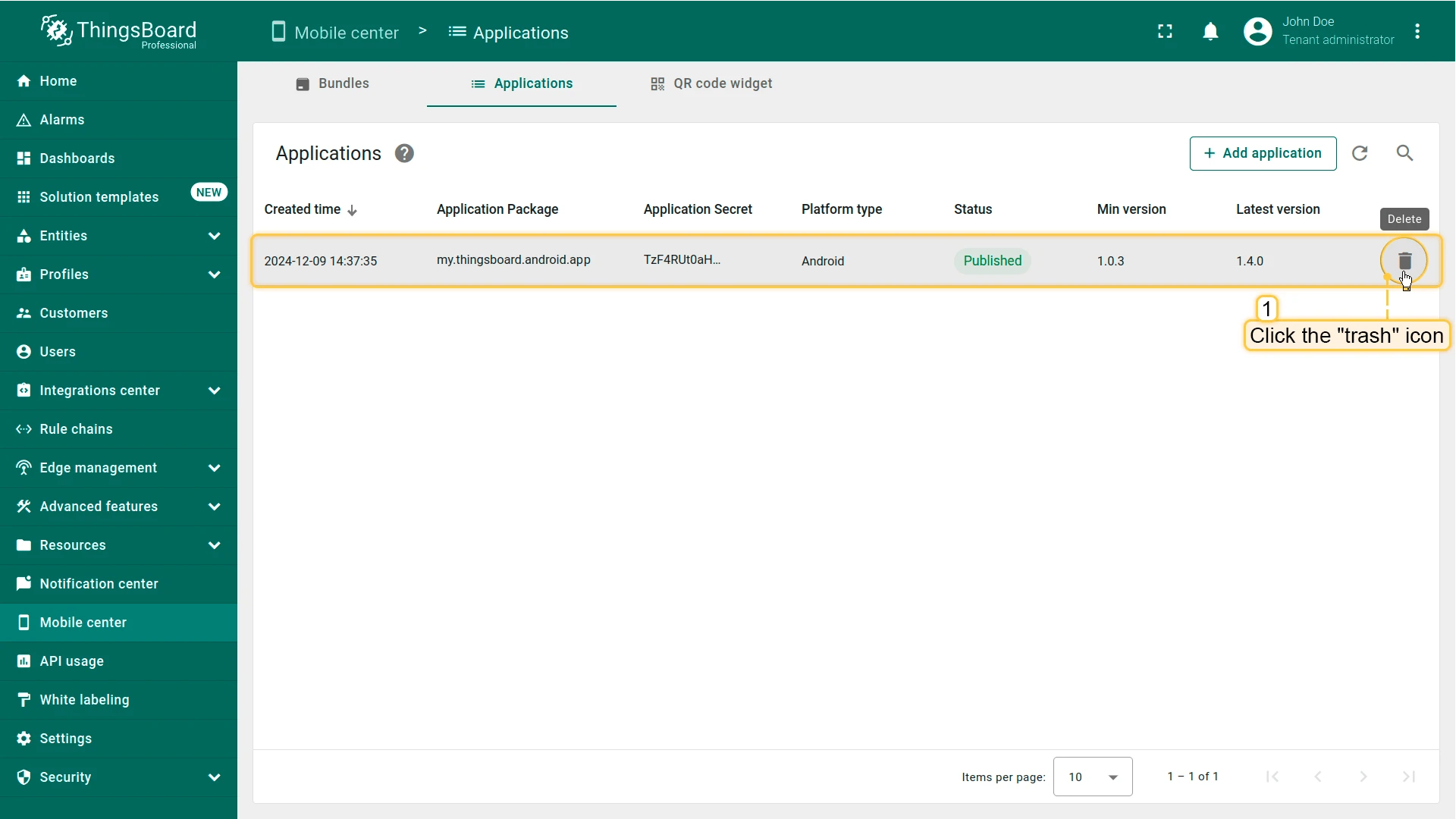
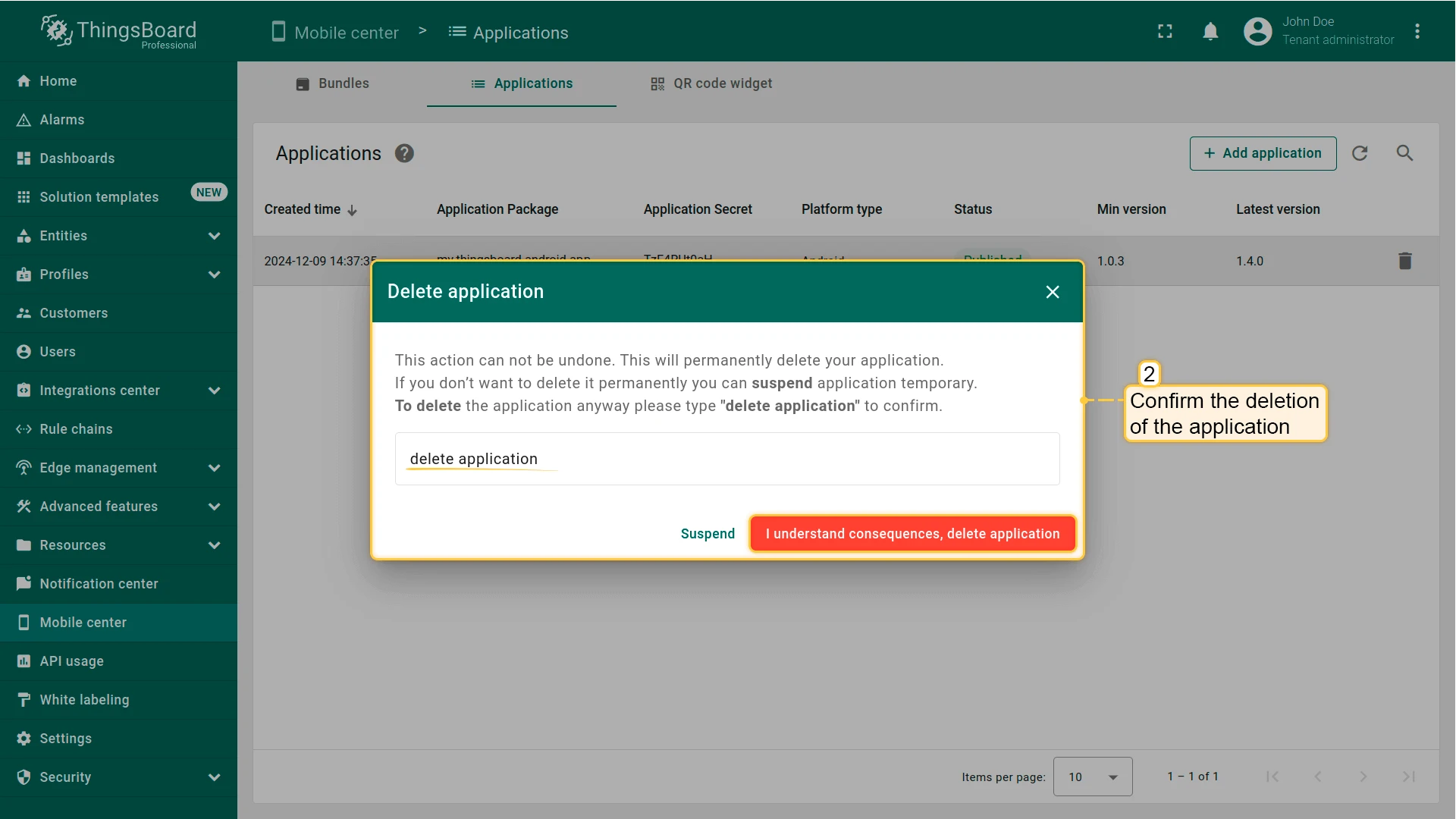
Section titled “Delete Application”- Click the trash icon on the application row.
- In the confirmation dialog, click Understand consequences, delete application.
Was this helpful?
Thank you for your feedback!