Actions
Widget actions run predefined operations when a user interacts with a widget — for example, clicks a header button or a table row. Use them to navigate between dashboards, interact with devices, update entity data, or run custom logic.
Actions are configured per widget. The interaction that triggers an action is its action source. Available sources depend on the widget type; action types are the same for all widgets.
Add Action
Section titled “Add Action”Widgets have two edit modes, and the steps differ slightly:
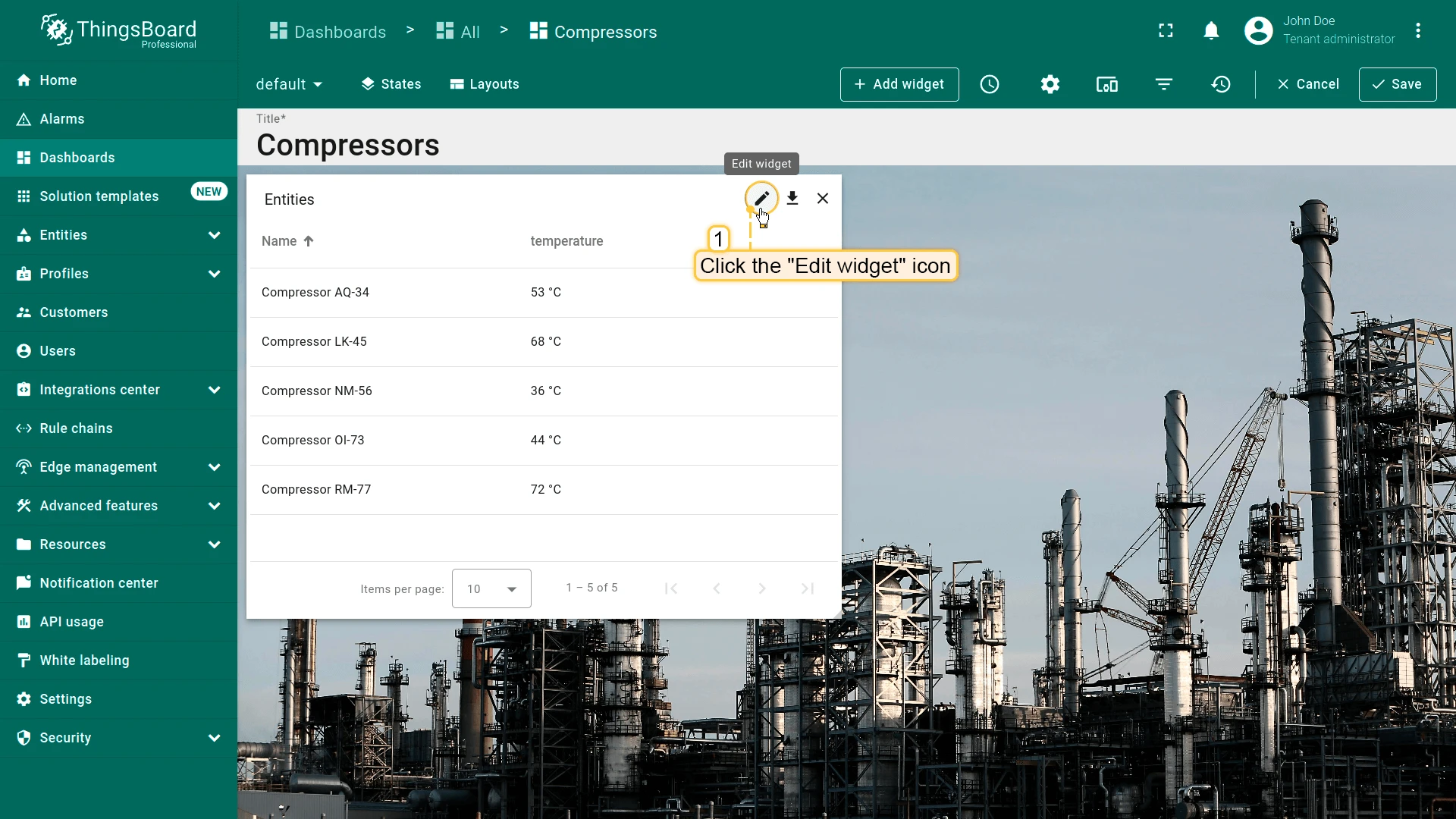
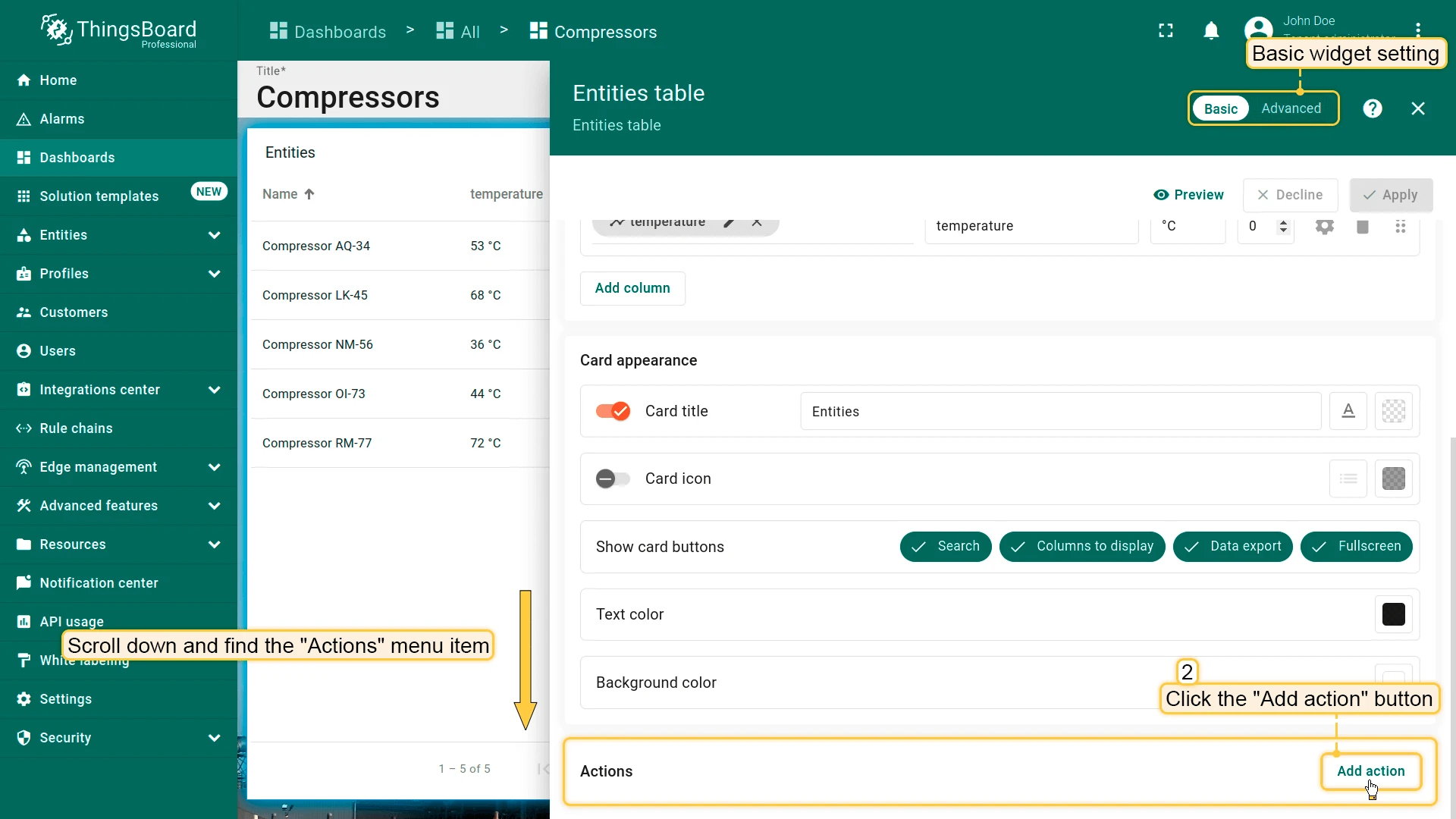
- Basic — a settings panel that opens when you click the pencil icon on the widget. Actions are managed in a modal list opened from the Actions section.
- Advanced — a full-screen tabbed editor opened from the basic panel. Actions are listed directly on the Actions tab.
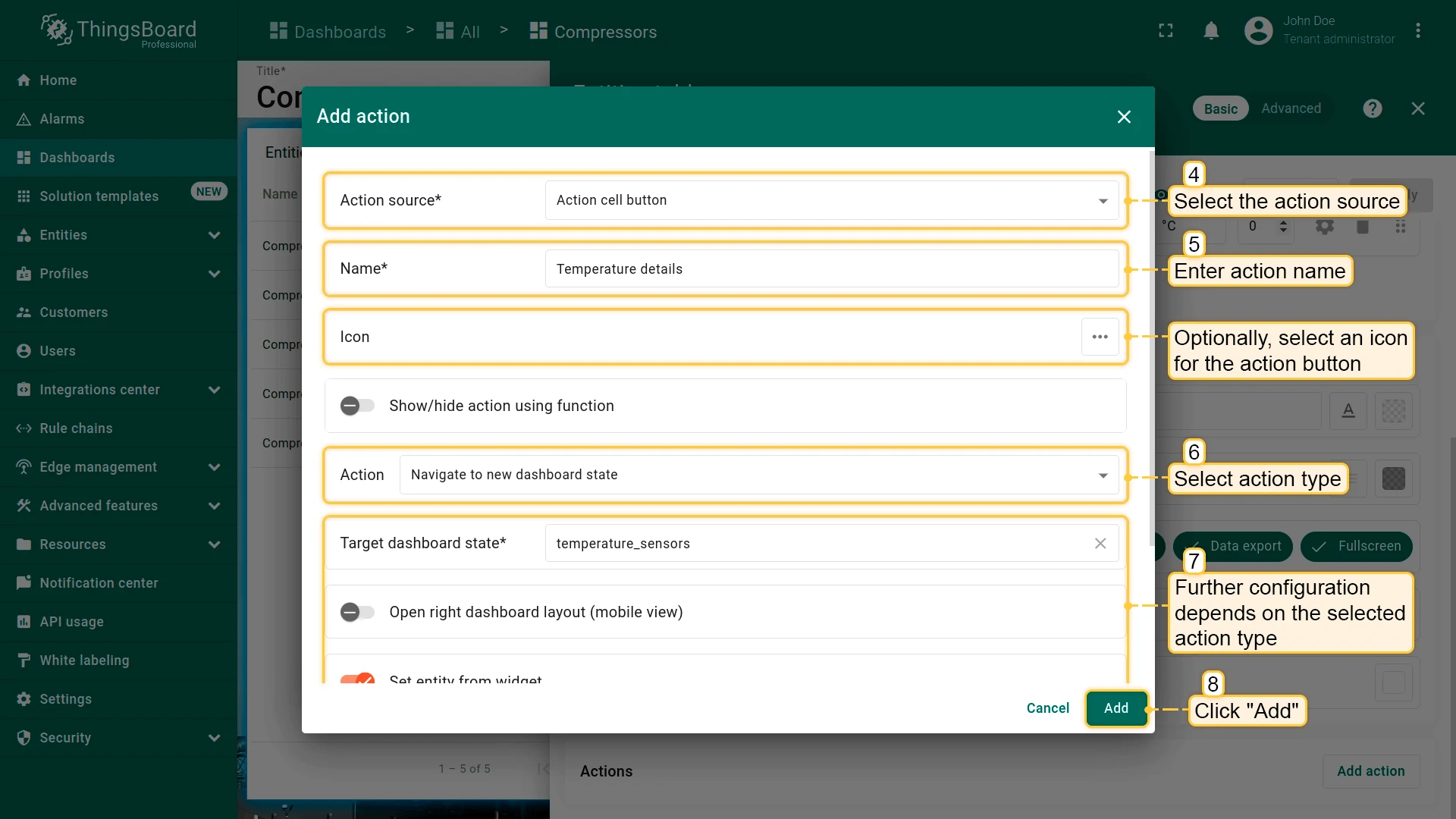
Both modes use the same Add action dialog to set the source, name, icon, and type.
Basic Widget Configuration
- Click the pencil icon on the widget to open its settings panel.
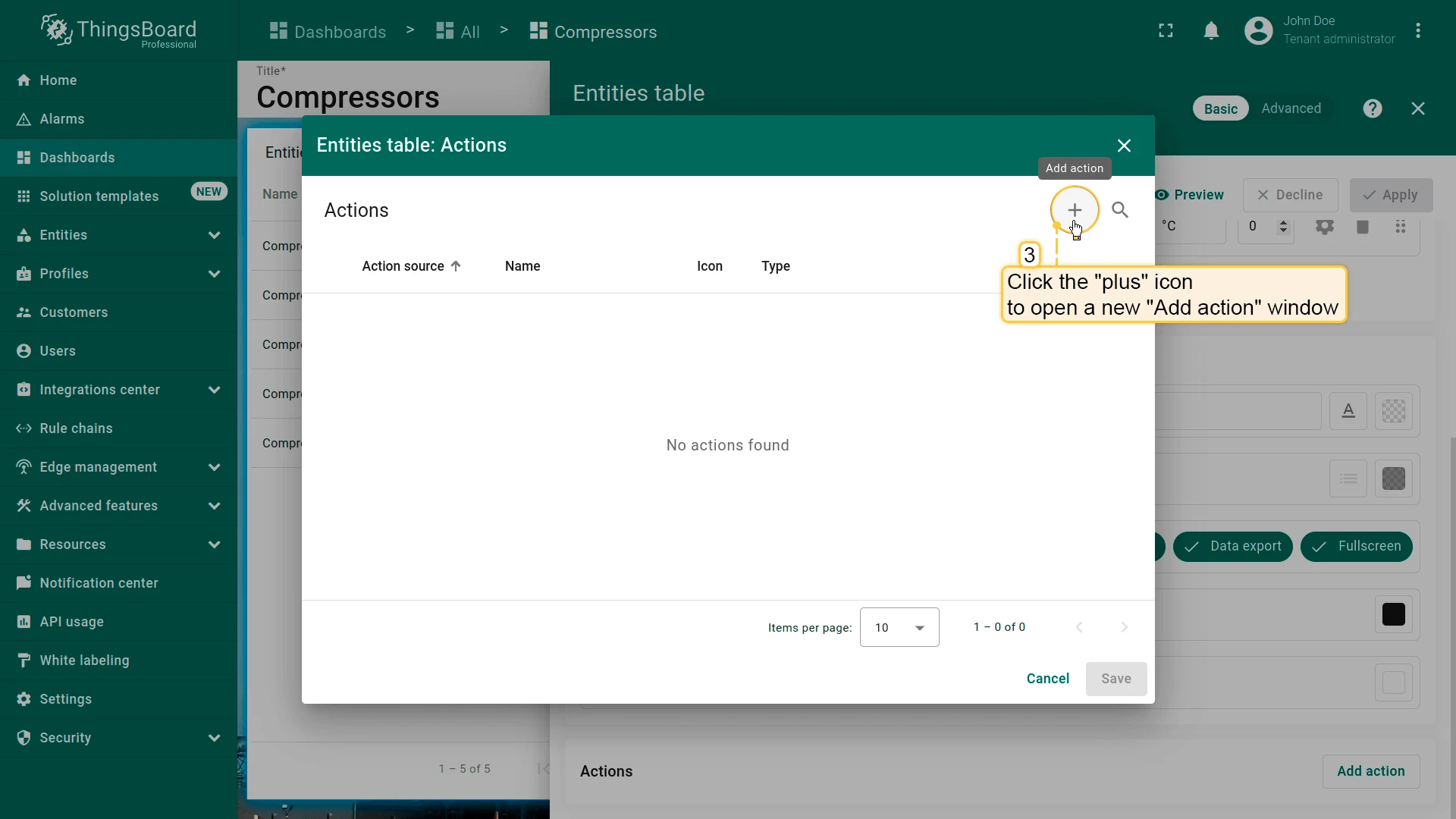
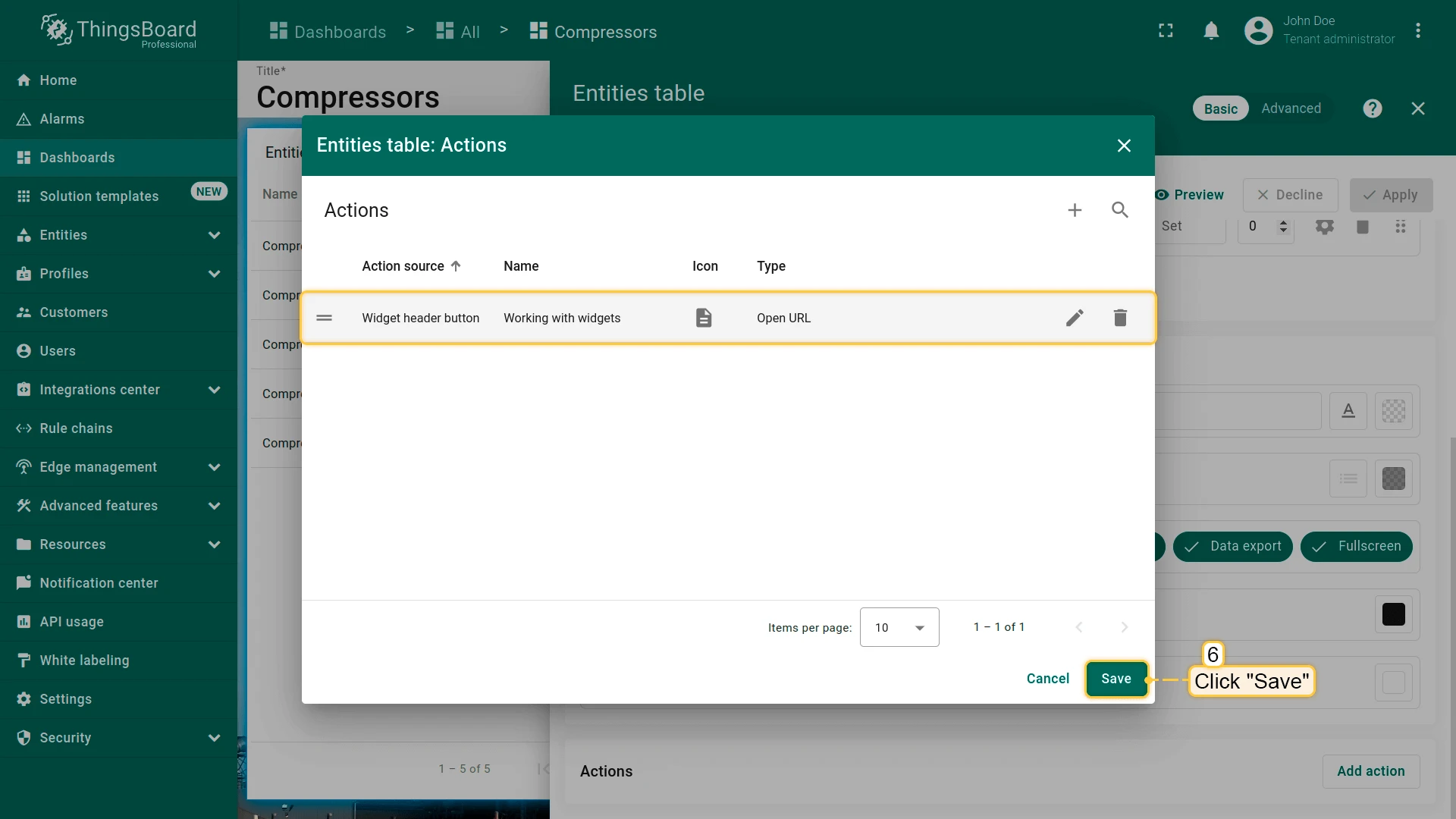
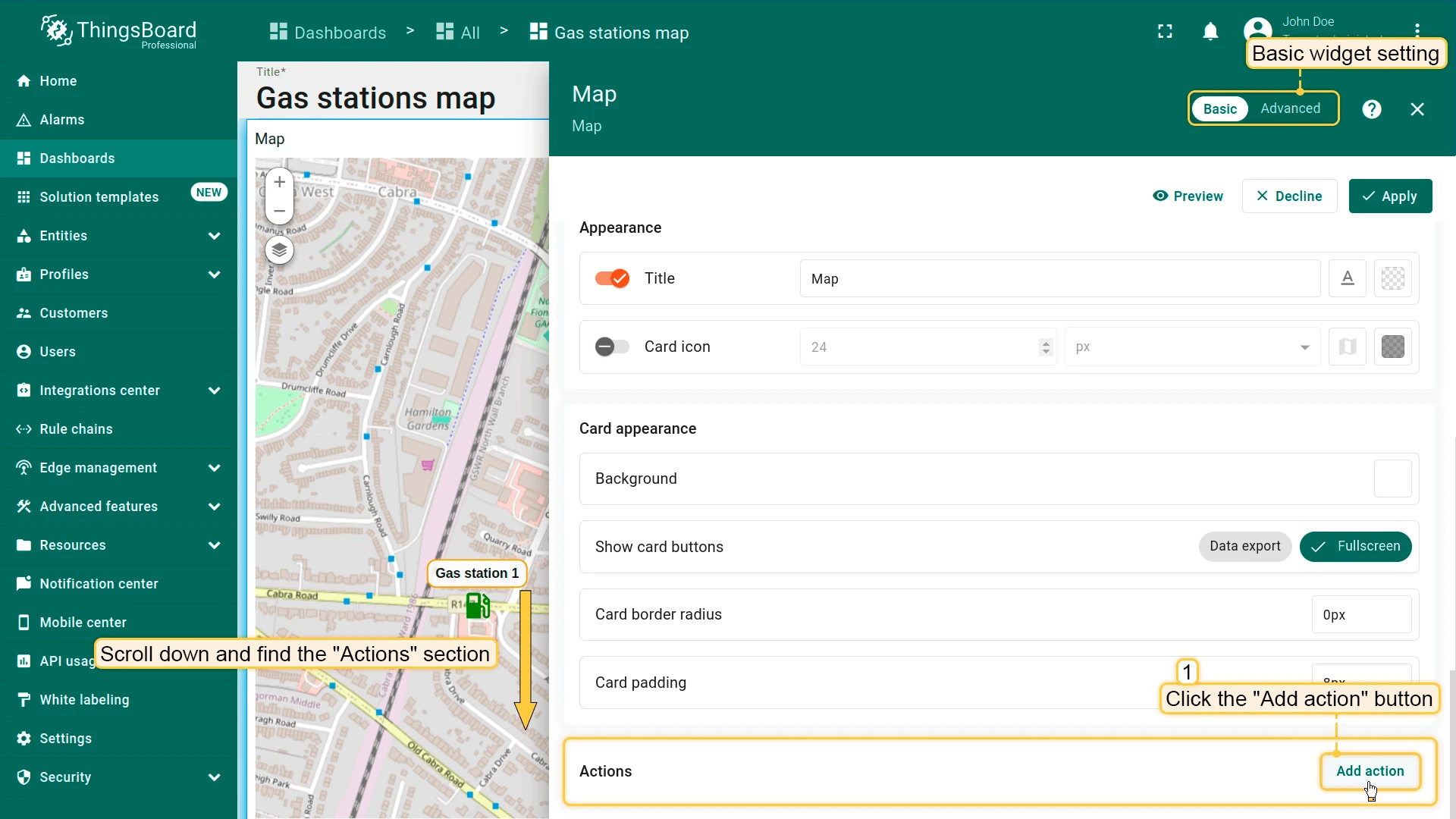
- Scroll to the Actions section and click Add action to open the Actions list. After the first action is saved, the button is replaced by a + icon.
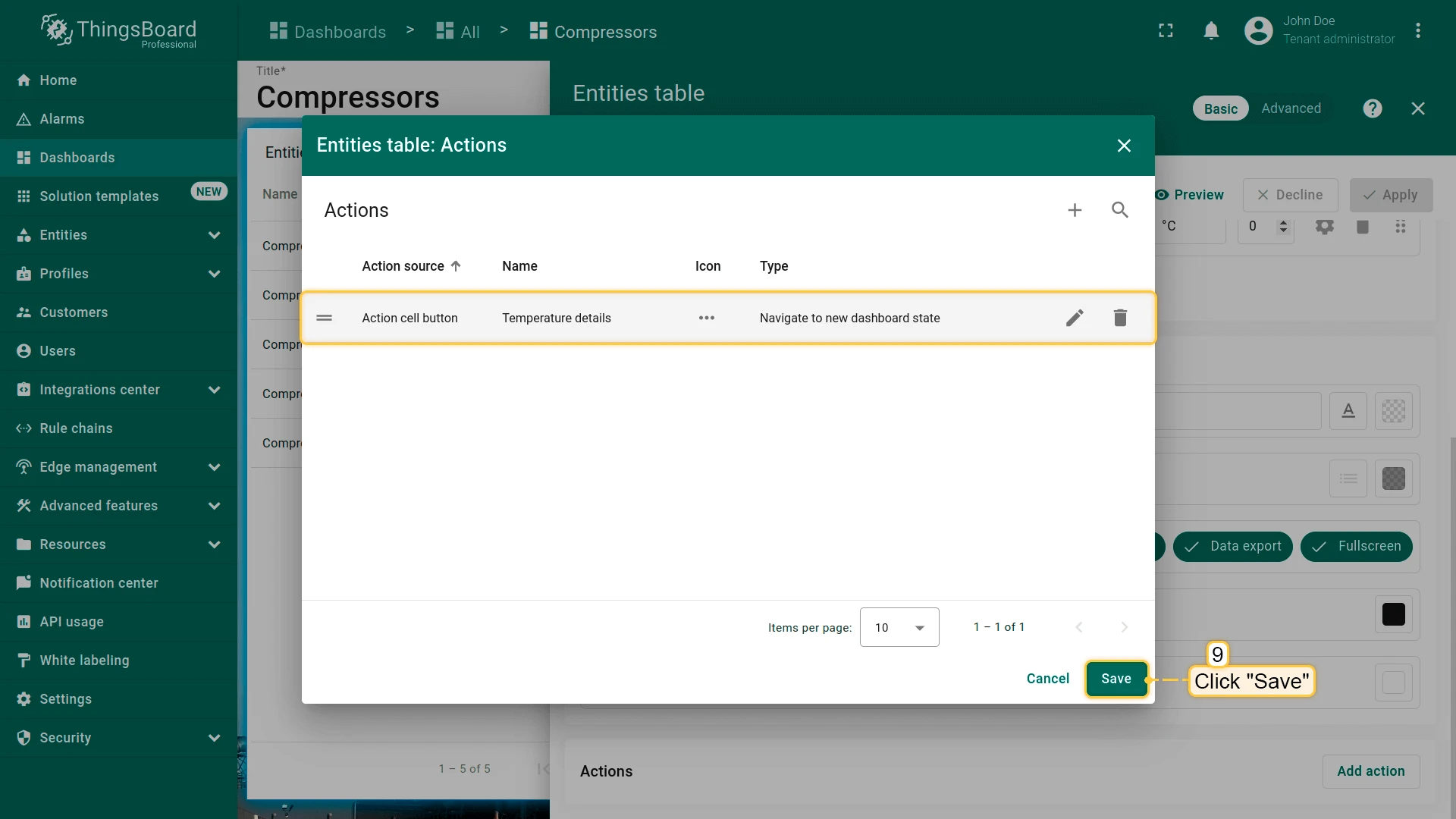
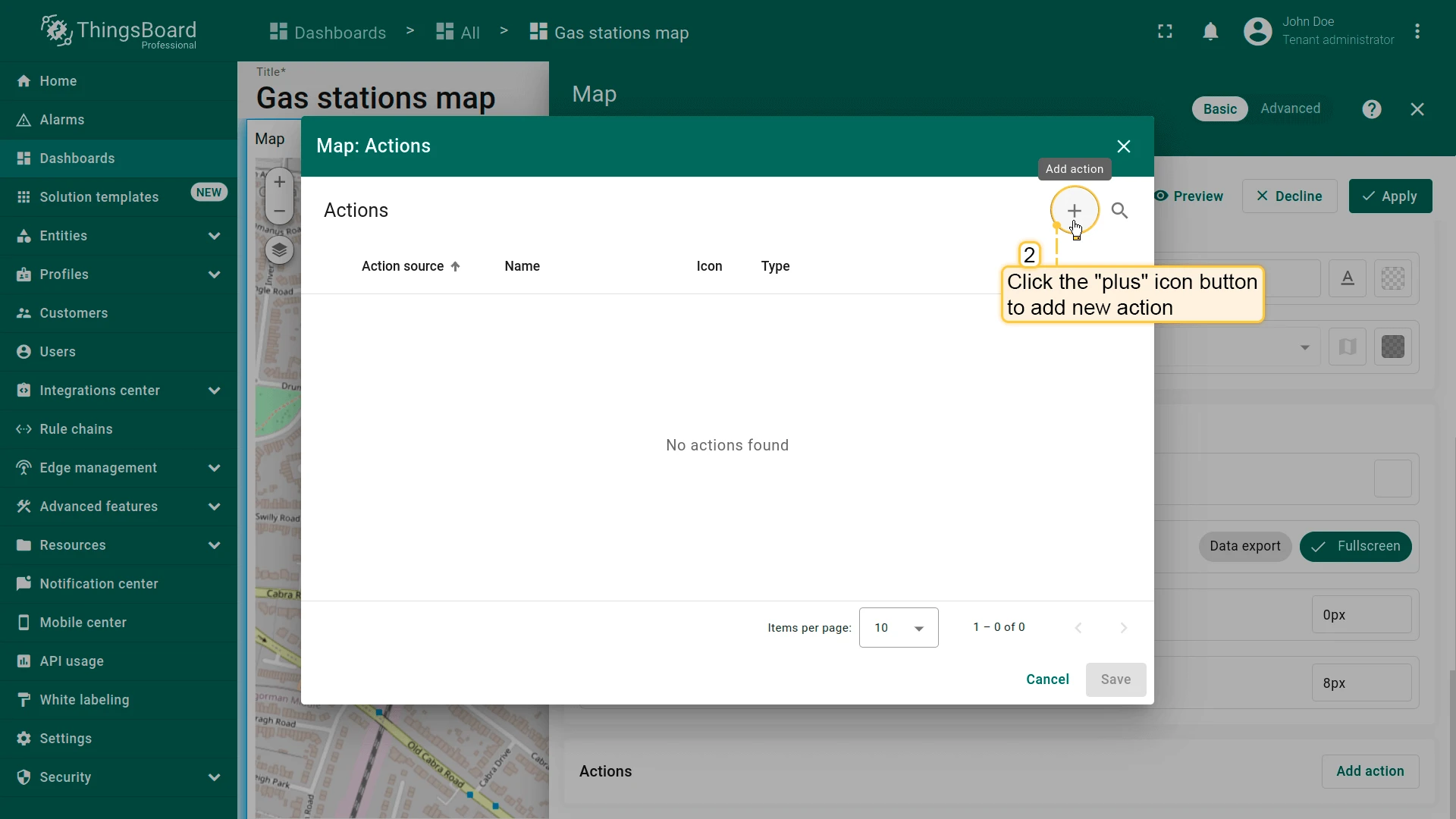
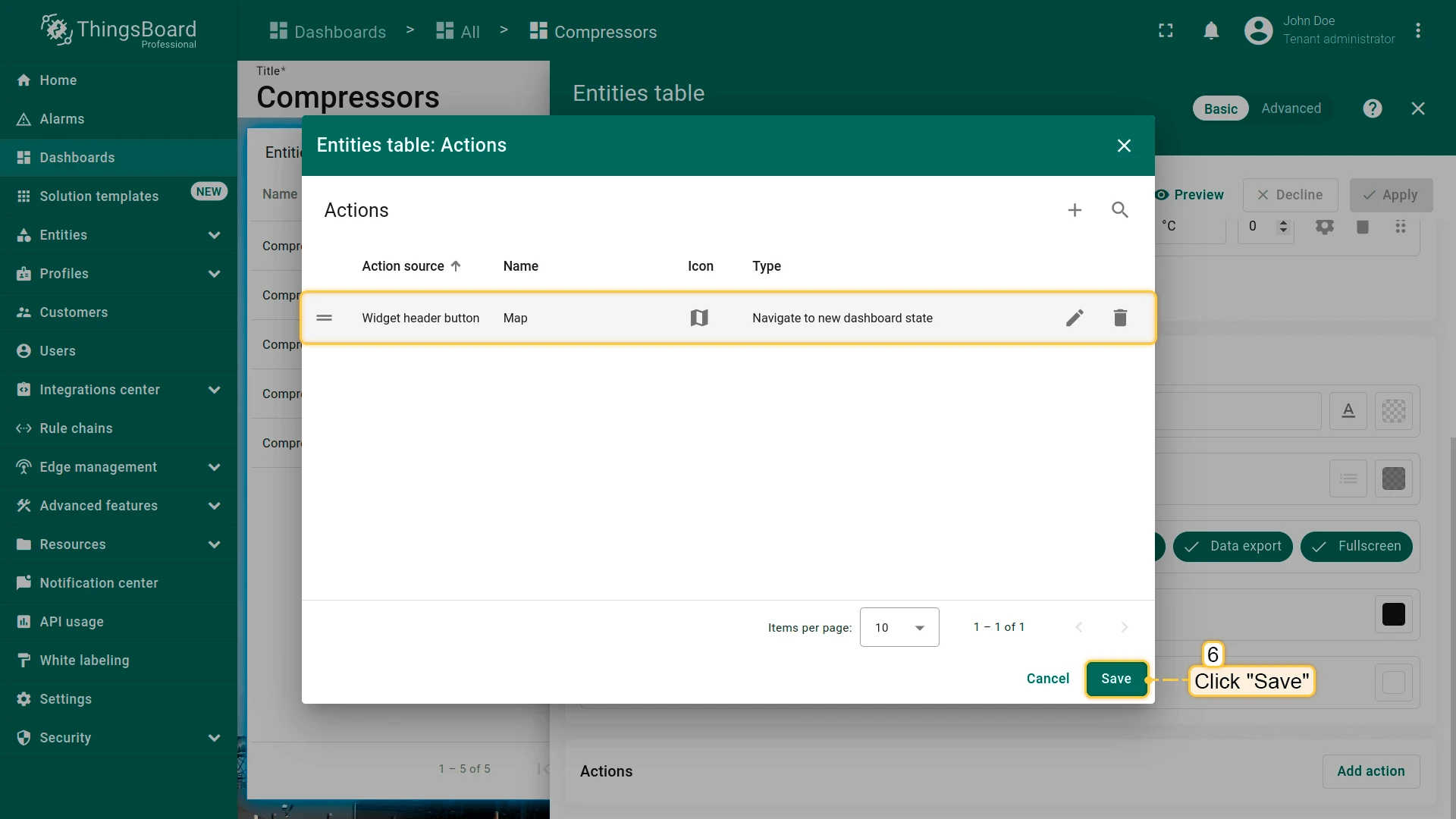
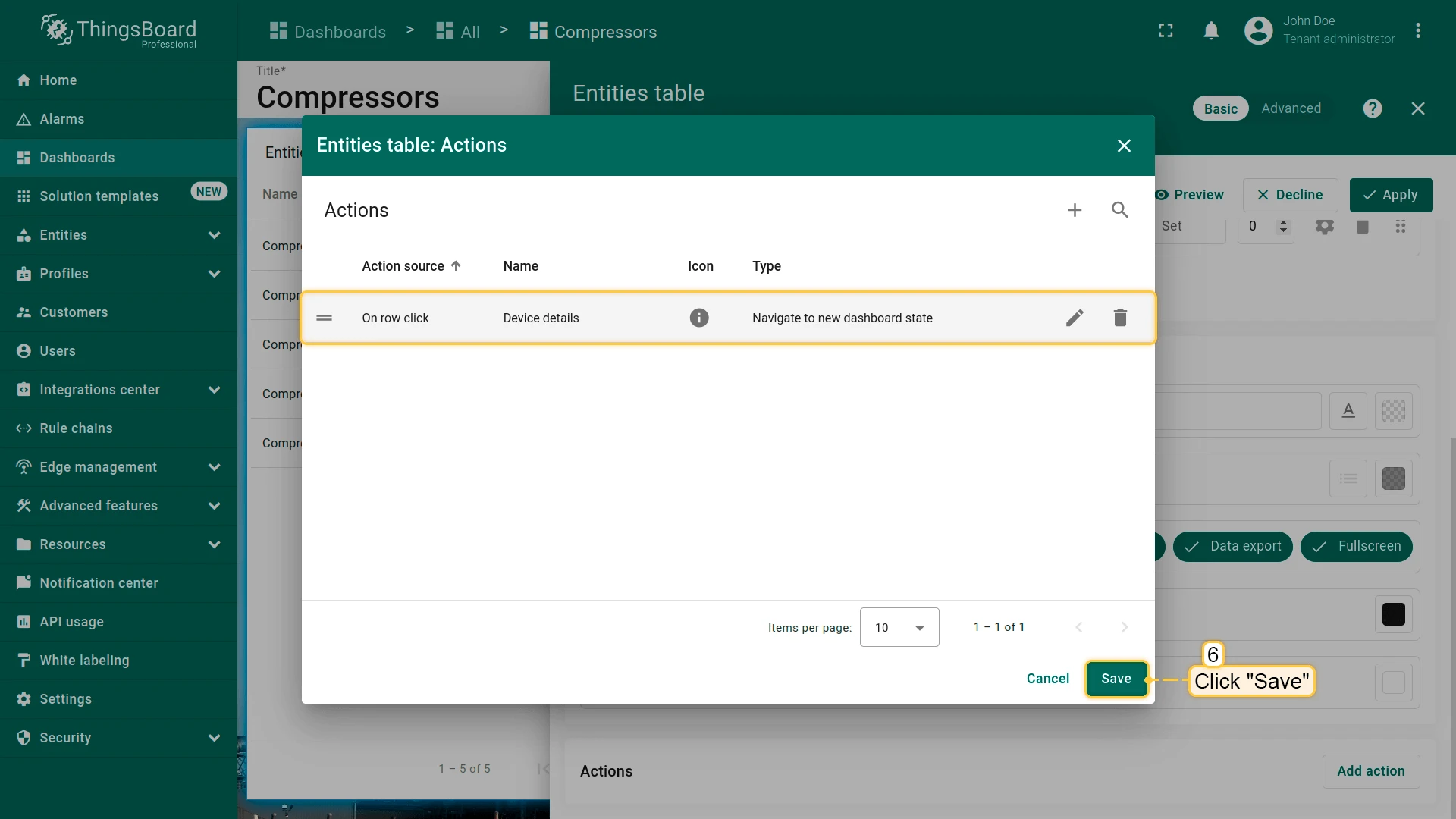
- Click + in the top-right corner of the Actions list to open the Add action dialog. Set the action source, name, icon, and type, then click Add.
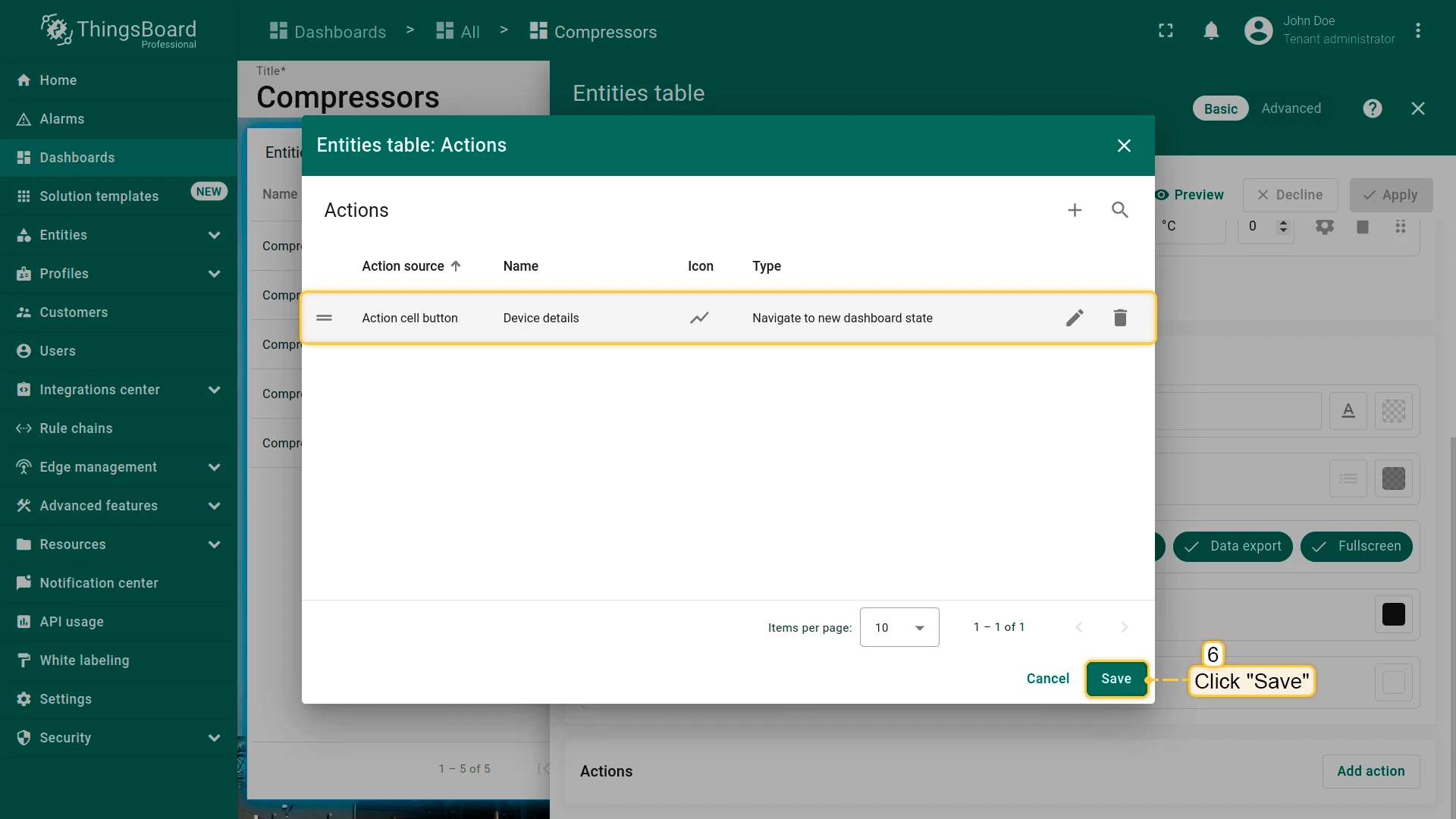
- Click Save to close the list.
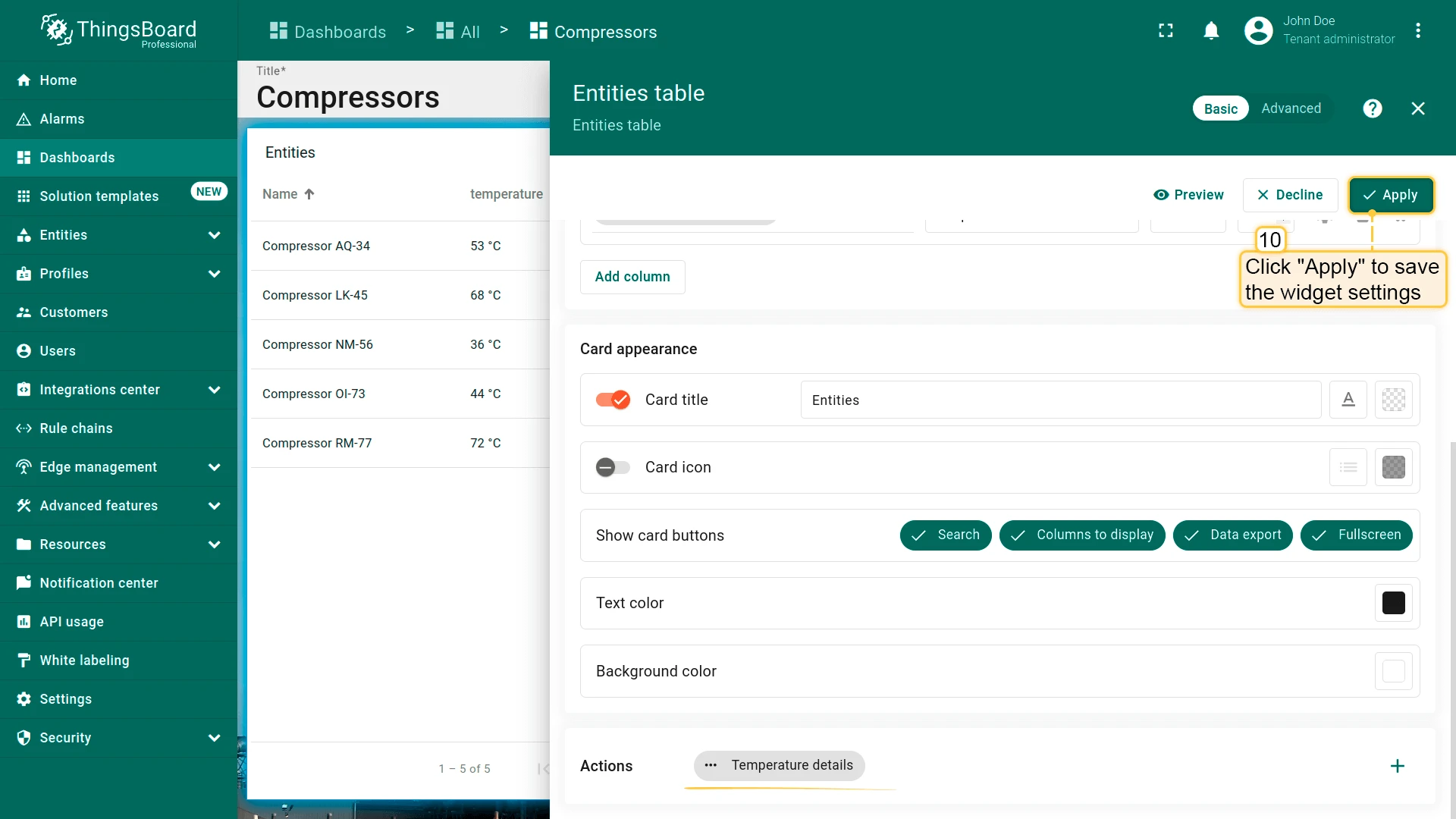
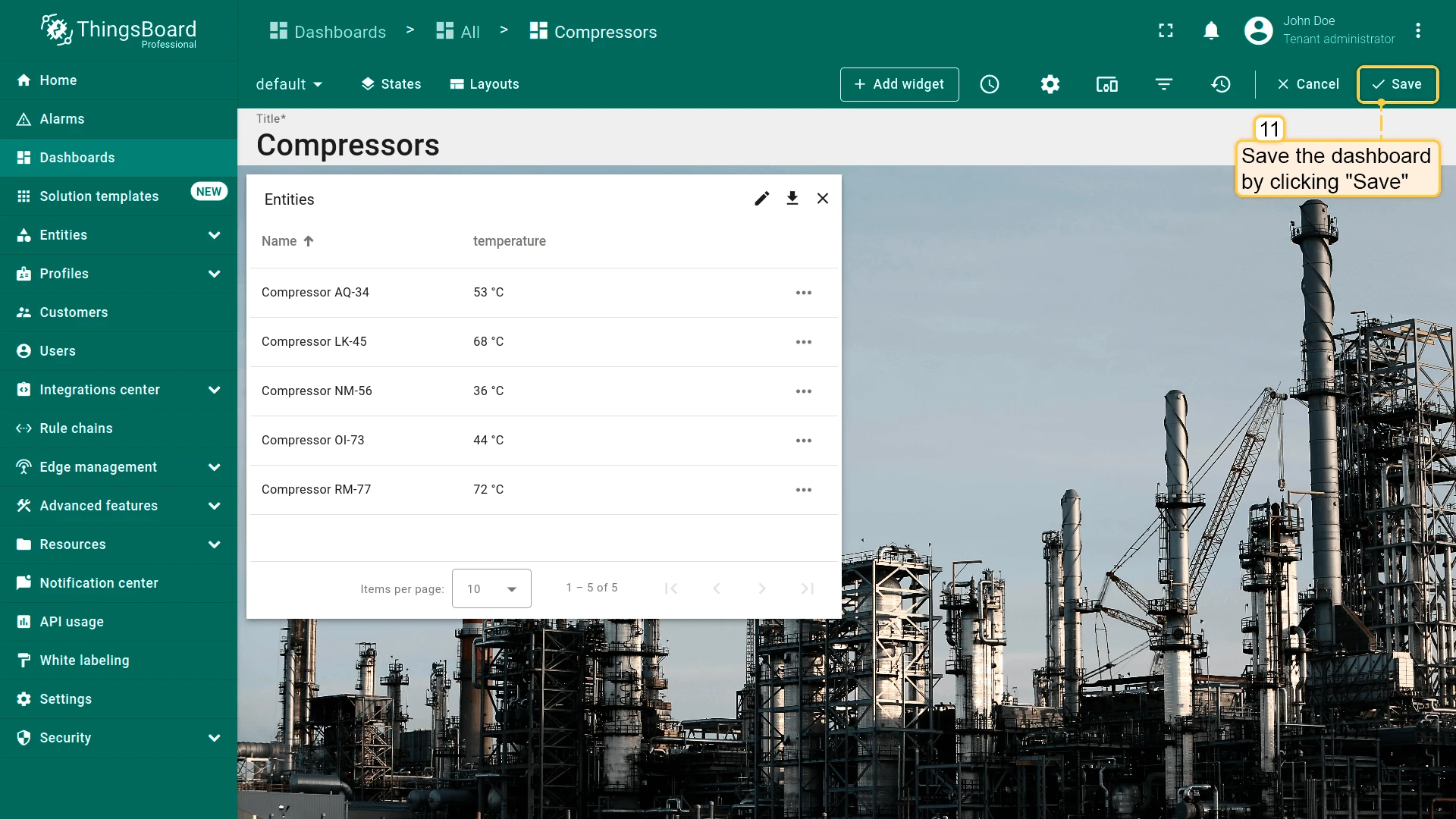
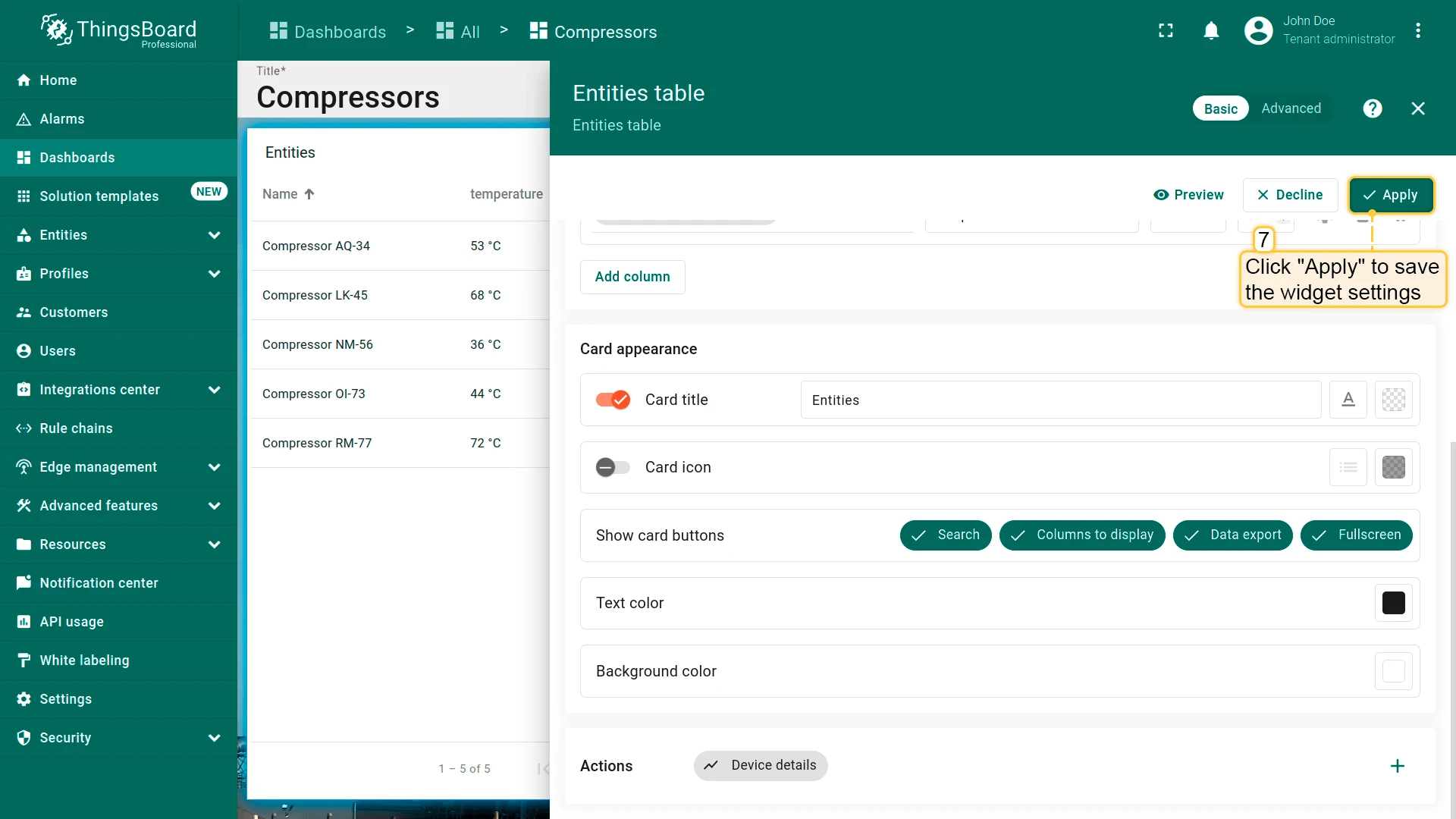
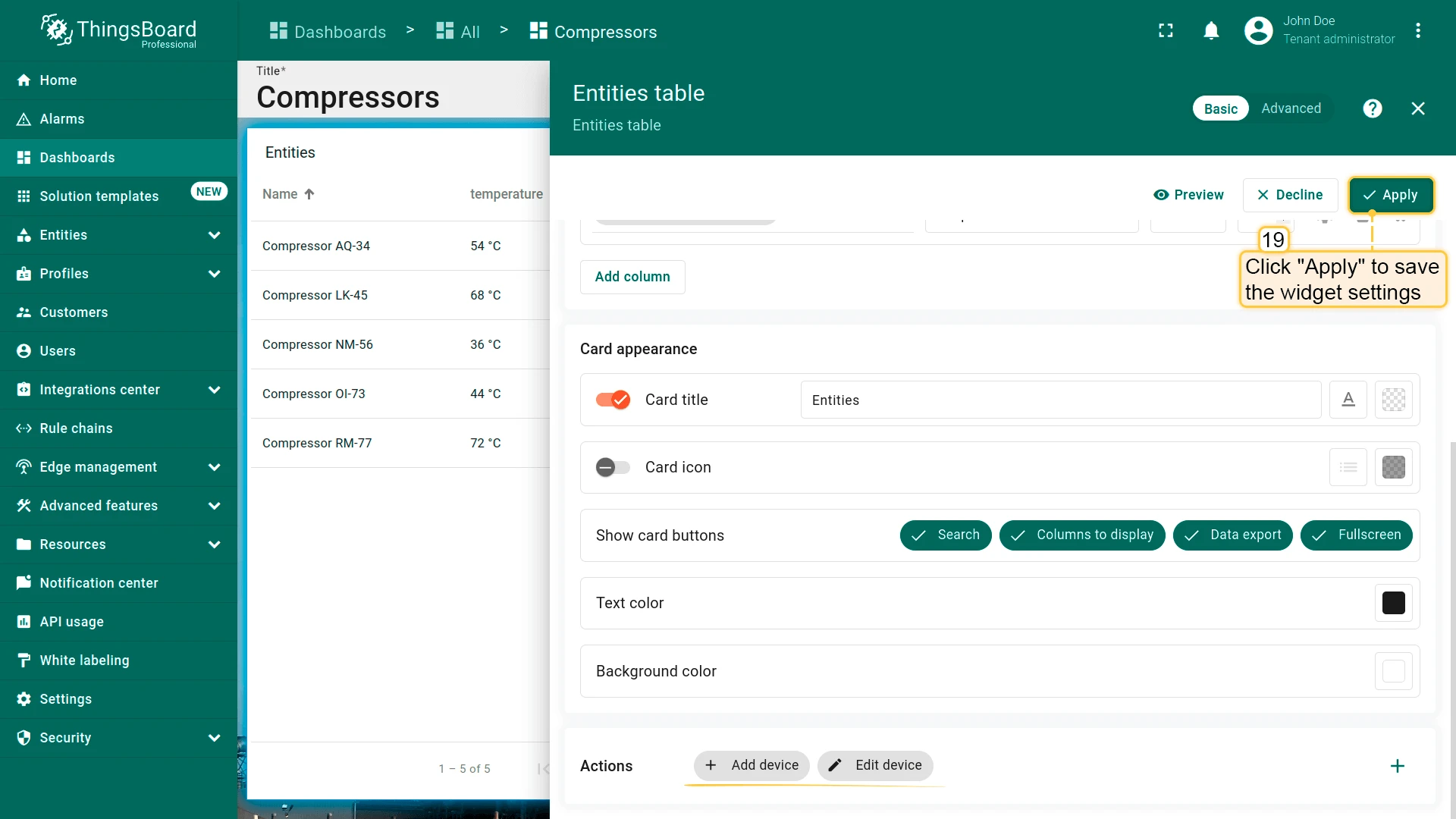
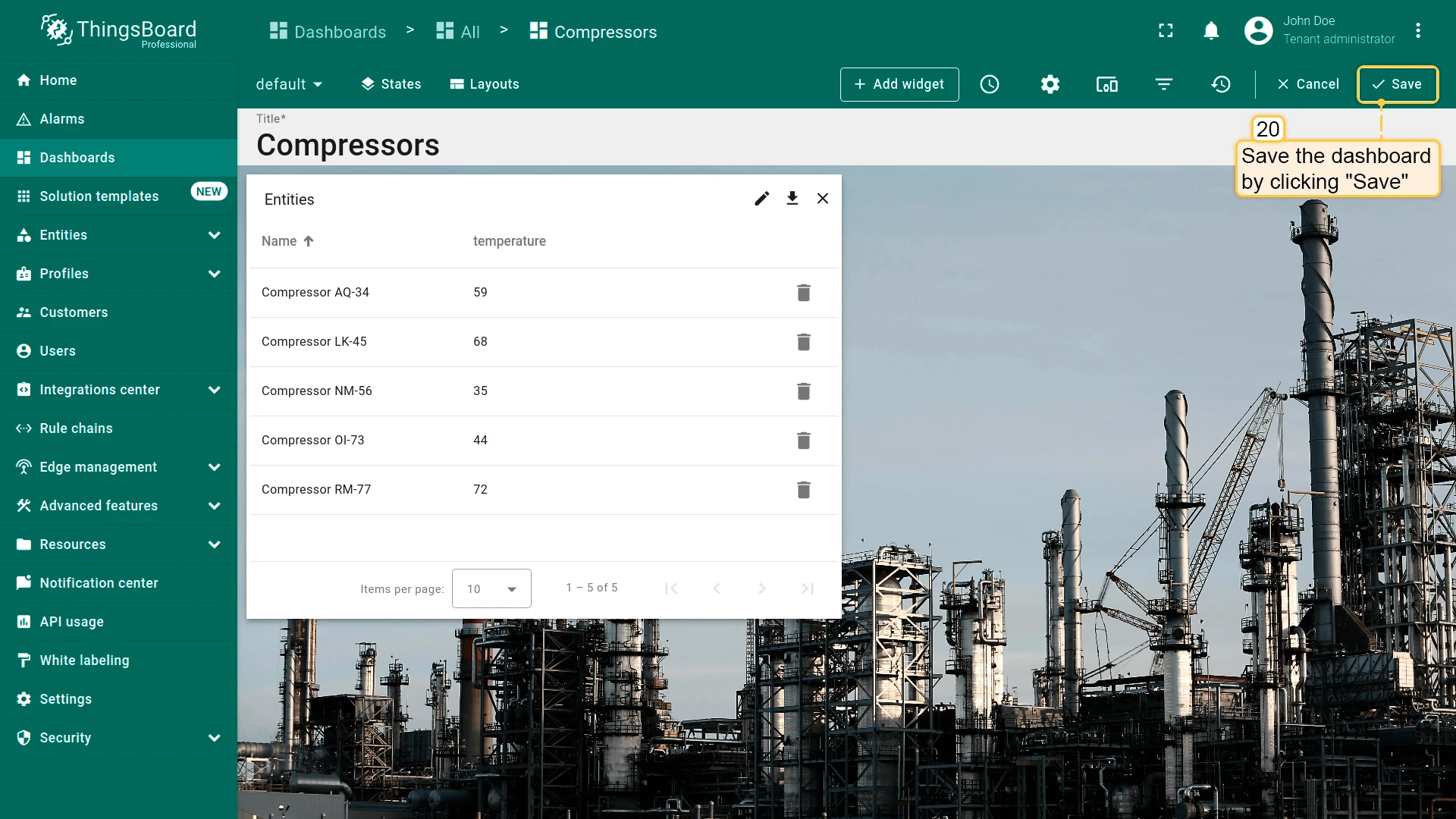
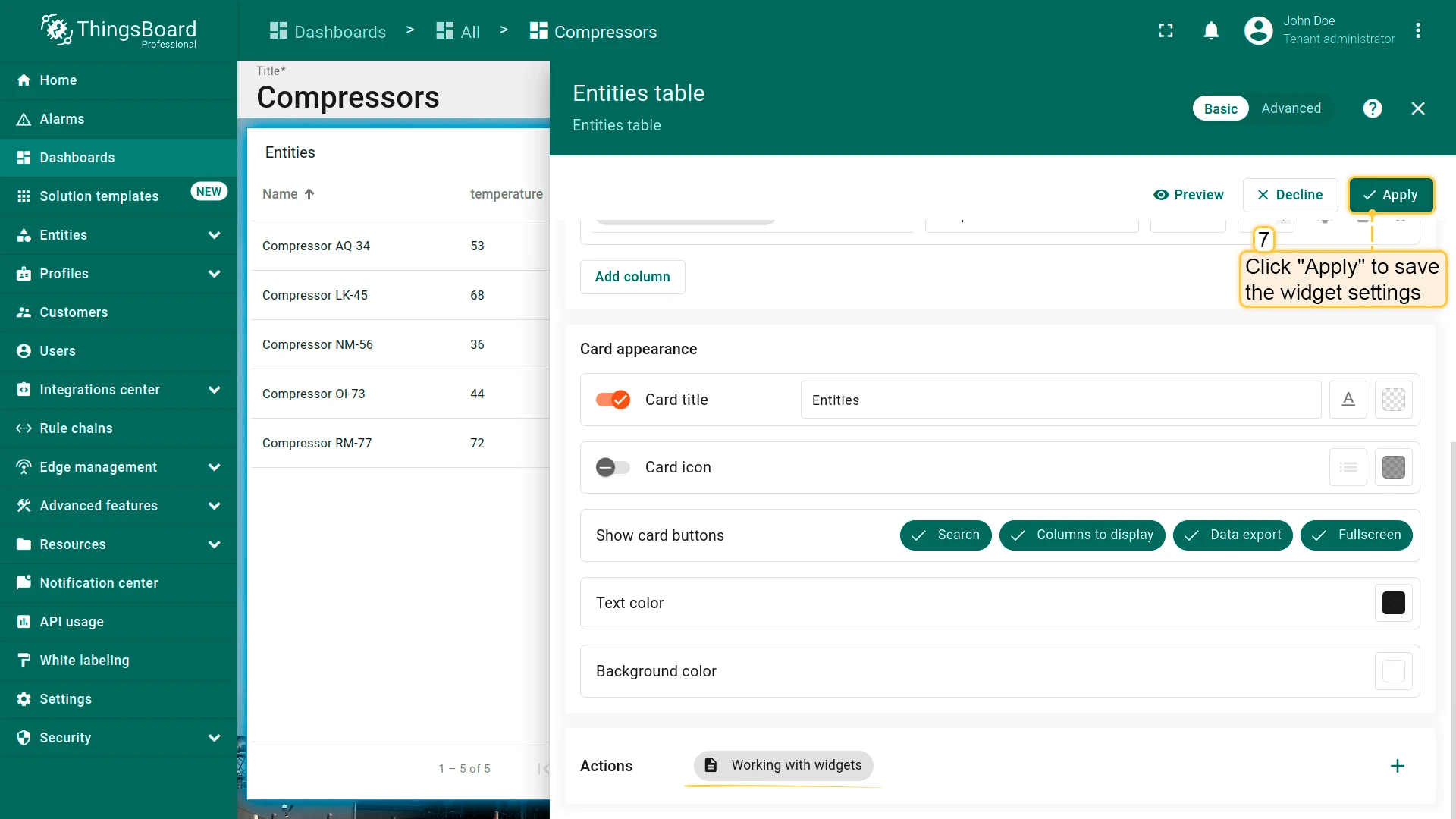
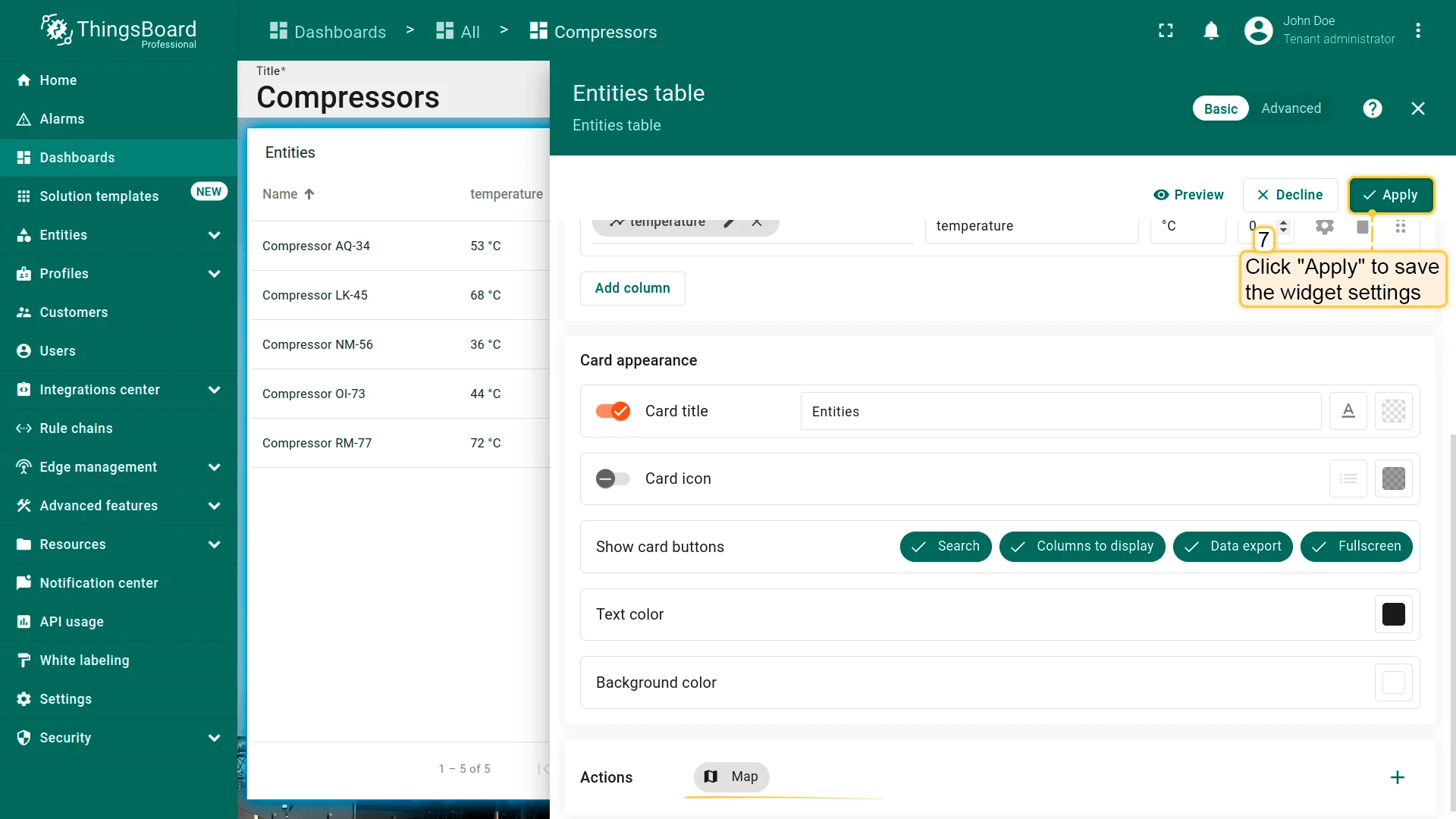
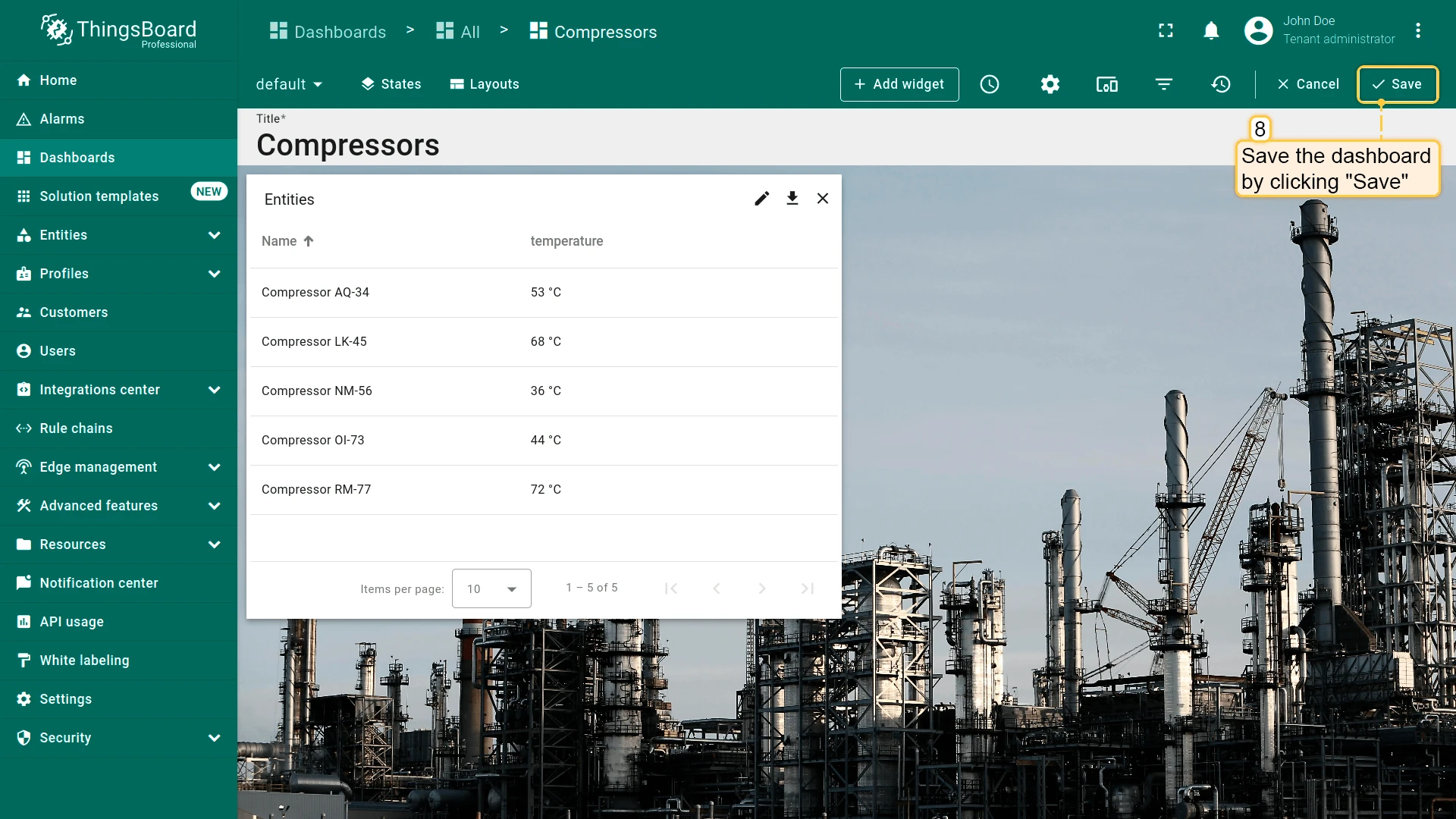
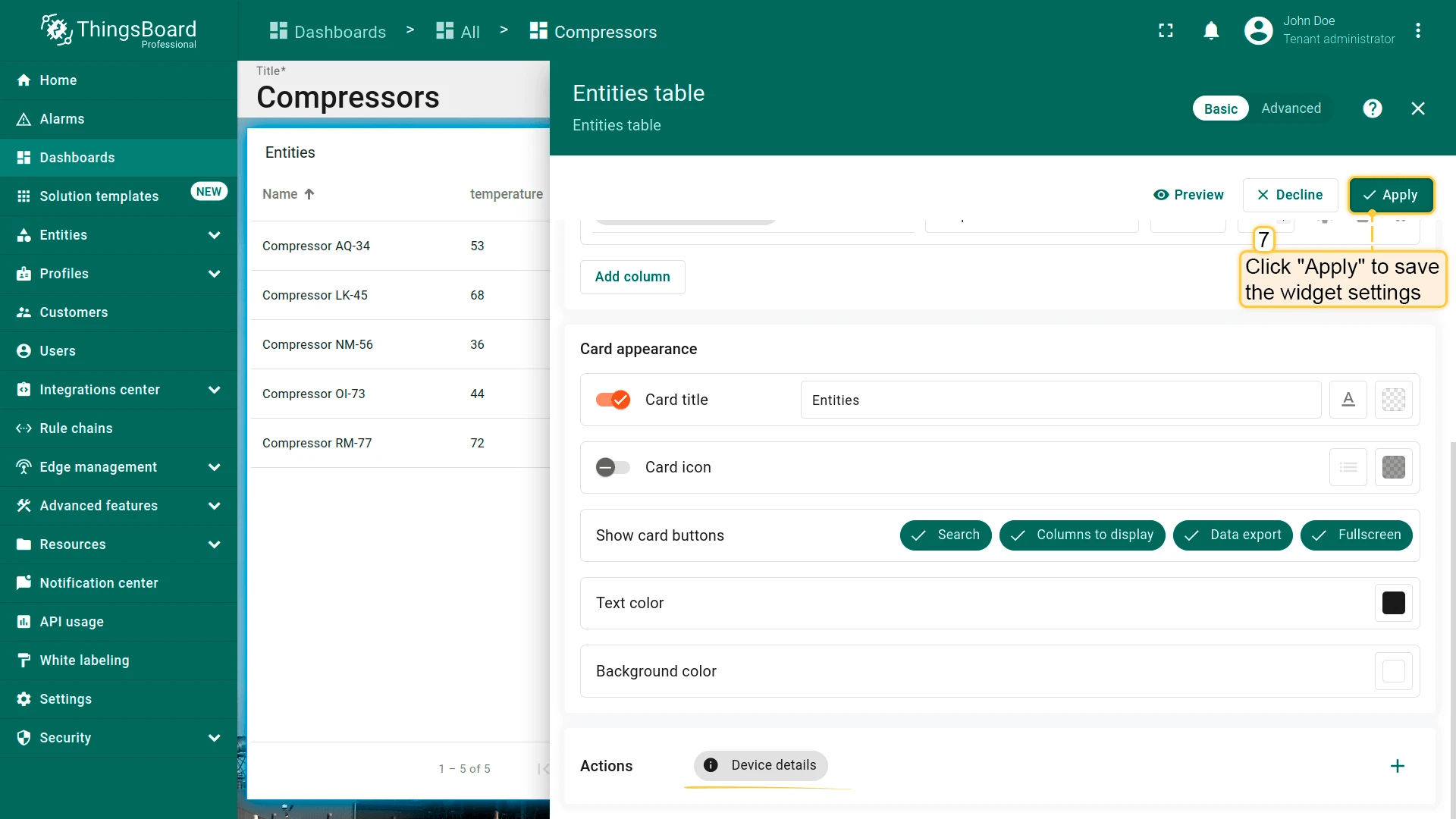
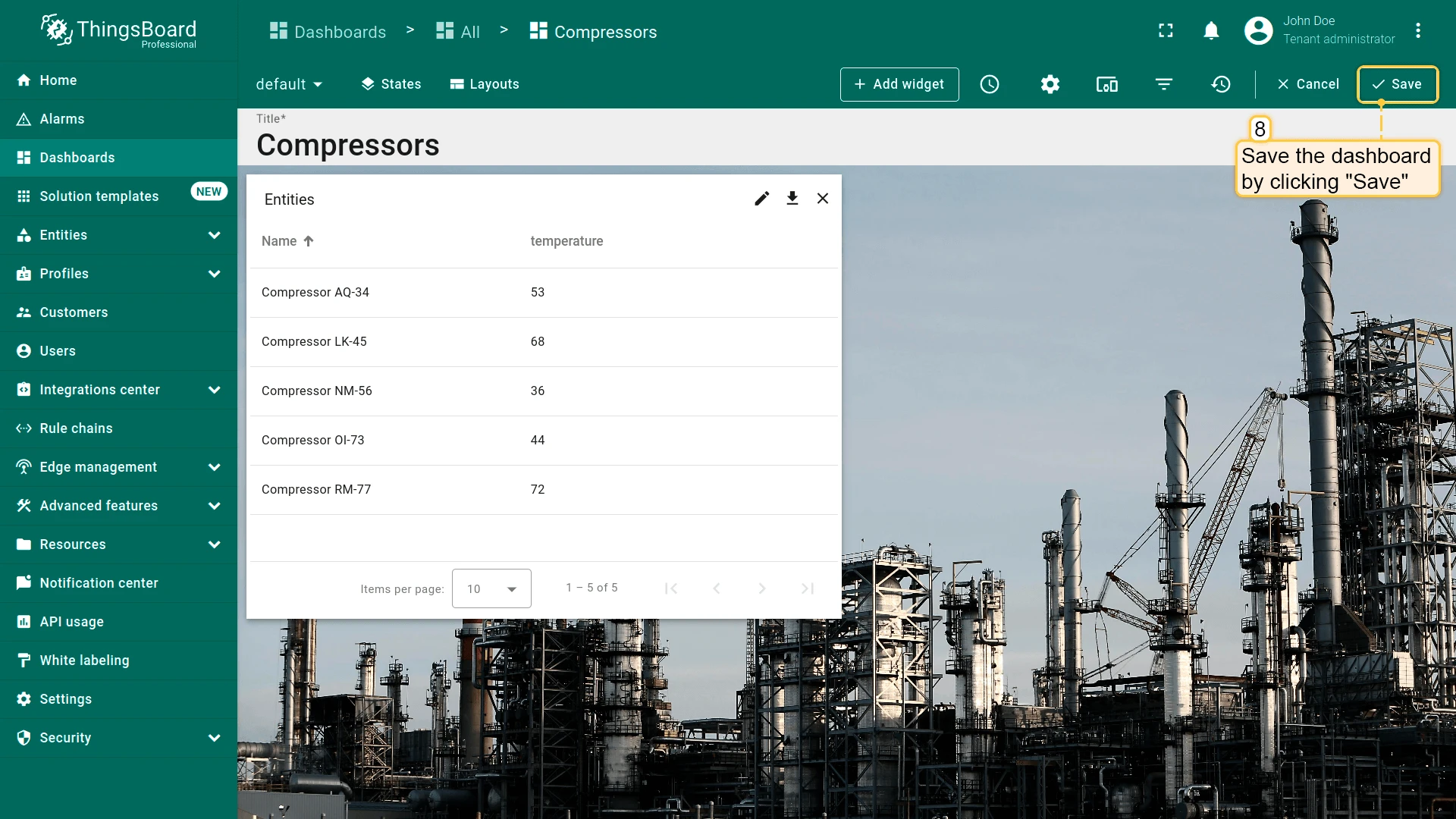
- Click Apply to save the widget settings, then click Save in the dashboard toolbar.
Advanced Widget Configuration
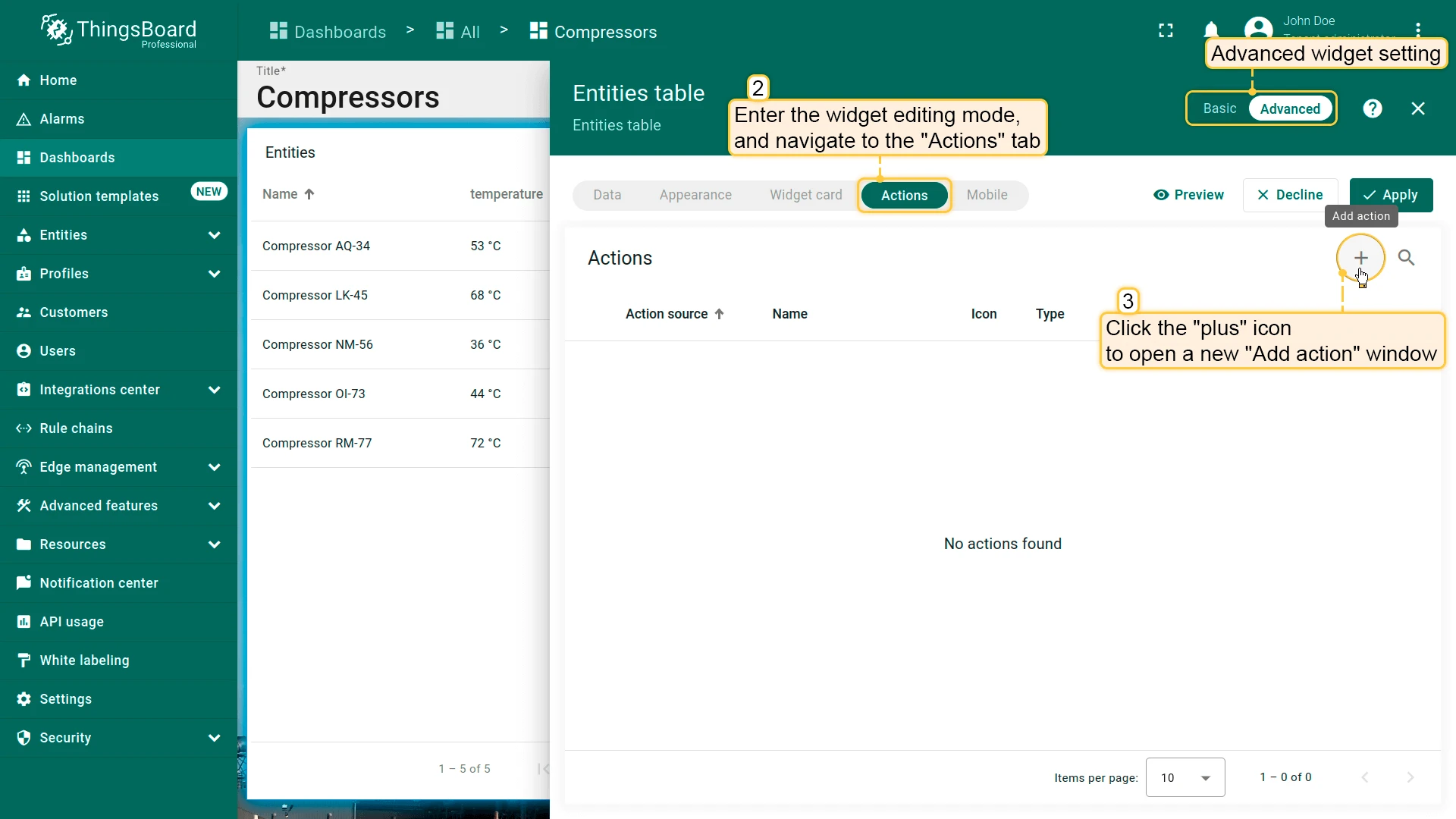
- Click the pencil icon on the widget to open its settings panel, then switch to advanced mode to open the full widget editor.
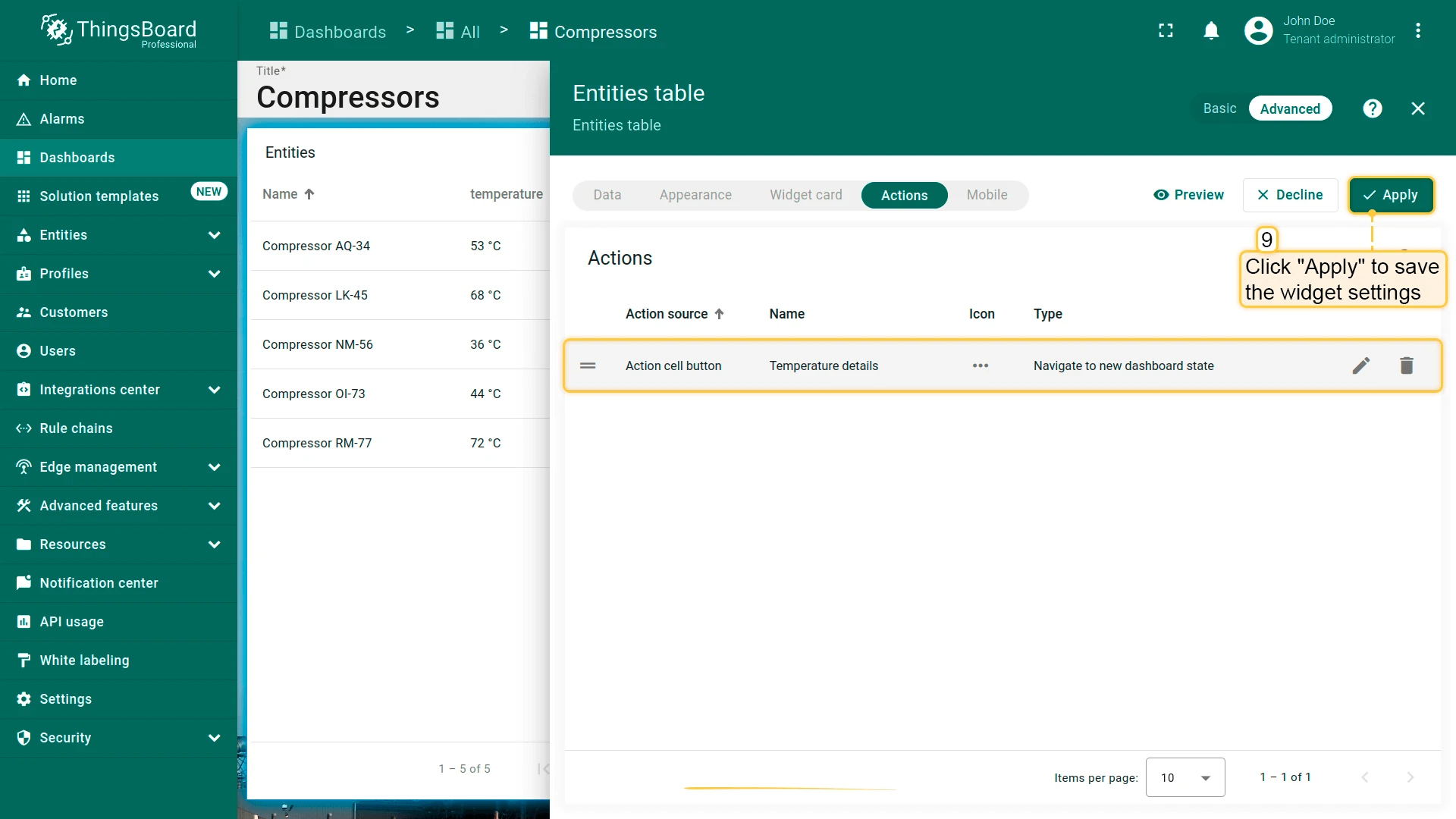
- Navigate to the Actions tab and click + to open the Add action dialog.
- Set the action source, name, icon, and type, then click Add.
- Click Apply to save the widget settings, then click Save in the dashboard toolbar.
Copy and Duplicate Actions
Section titled “Copy and Duplicate Actions”Copy actions to paste them into another widget without exporting a file, or duplicate an action within the same widget. The controls are available in the Actions list (basic mode) and on the Actions tab (advanced mode):
- Copy a single action — click the More (
⋮) icon in the action row and select Copy action. - Copy all actions — click the More (
⋮) icon in the list header and select Copy all actions. - Paste actions — open the target widget’s actions, click the More (
⋮) icon in the list header, and select Paste actions. The option is available after you copy at least one action. - Duplicate an action — click the More (
⋮) icon in the action row and select Duplicate action. The option is available only for action sources that support multiple actions.
Copied actions are stored in your browser, so you can paste them into a widget on any dashboard opened in the same browser.
Pasted and duplicated actions are added to the widget’s existing actions; existing actions are not replaced. ThingsBoard:
- skips actions whose source or type the widget does not support, and actions for a source that allows only one action and already has one;
- appends a number to the name of an action that duplicates an existing name for the same source, for example Edit machine (2);
- clears the column of an On cell click action if that column does not exist in the widget or already has an action. Edit the action to assign a column.
Click Apply to save the widget settings, then Save in the dashboard toolbar.
Export and Import Actions
Section titled “Export and Import Actions”Export widget actions to a JSON file to reuse them in another widget or dashboard. The controls are in the same More (⋮) menus:
- Export all actions — click the More (
⋮) icon in the list header and select Export actions. - Export a single action — click the More (
⋮) icon in the action row and select Export action. - Import actions — click the More (
⋮) icon in the list header, select Import actions, and upload the exported JSON file.
Imported actions are added to the existing actions according to the same rules as pasted actions.
Click Apply to save the widget settings, then Save in the dashboard toolbar.
Action Types
Section titled “Action Types”| Action type | Description |
|---|---|
| Navigate to new dashboard state | Navigates to a specified state within the current dashboard, adding a breadcrumb step. |
| Update current dashboard state | Updates the entity context of the current state, or switches to another state, without adding a breadcrumb step. |
| Navigate to other dashboard | Navigates to a different dashboard, optionally to a specific state within it. |
| Custom action | Executes a custom JavaScript function, for example, to delete a device or asset. |
| Custom action (with HTML template) | Executes a custom JavaScript function with an HTML template, for example, a create or edit dialog. |
| Mobile action | Uses phone features in the ThingsBoard mobile app: camera, QR code scanning, location, phone calls. |
| Open URL | Opens any URL, optionally in a new browser tab. |
| Place map item | Creates an entity and places it on the map. Available for map widgets only. |
Save browser location is also available. It reads the browser’s geolocation once and saves it to an entity without custom JavaScript. Its target-entity and data-key settings match the location mobile actions — see Location tracking.
Navigate to New Dashboard State
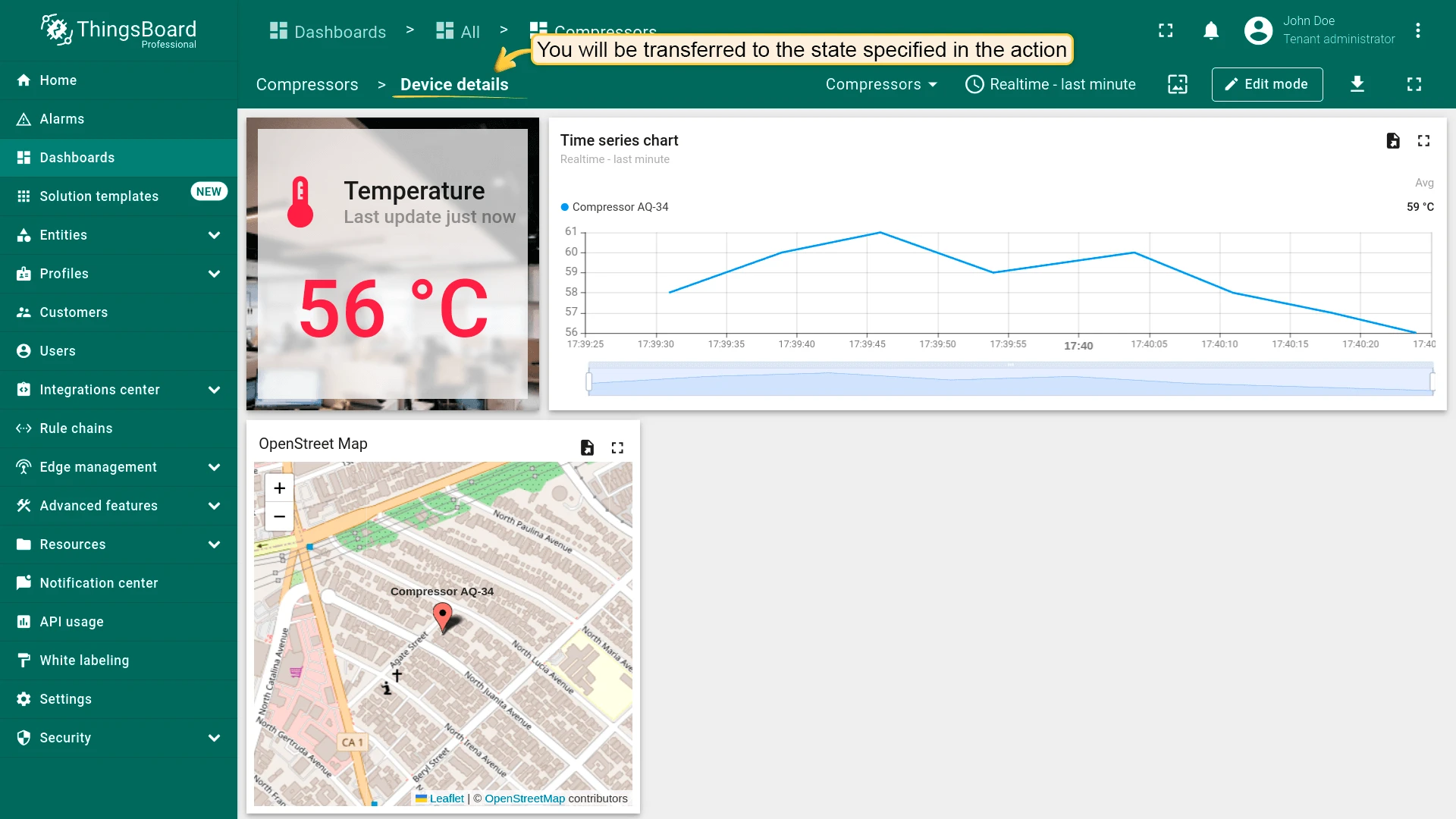
Section titled “Navigate to New Dashboard State”Opens the selected dashboard state in place of the current view, in a dialog, or in a popover.
Unless the state opens in a dialog or popover, each navigation adds a step to the breadcrumb in the dashboard toolbar, and the breadcrumb is stored in the page URL.
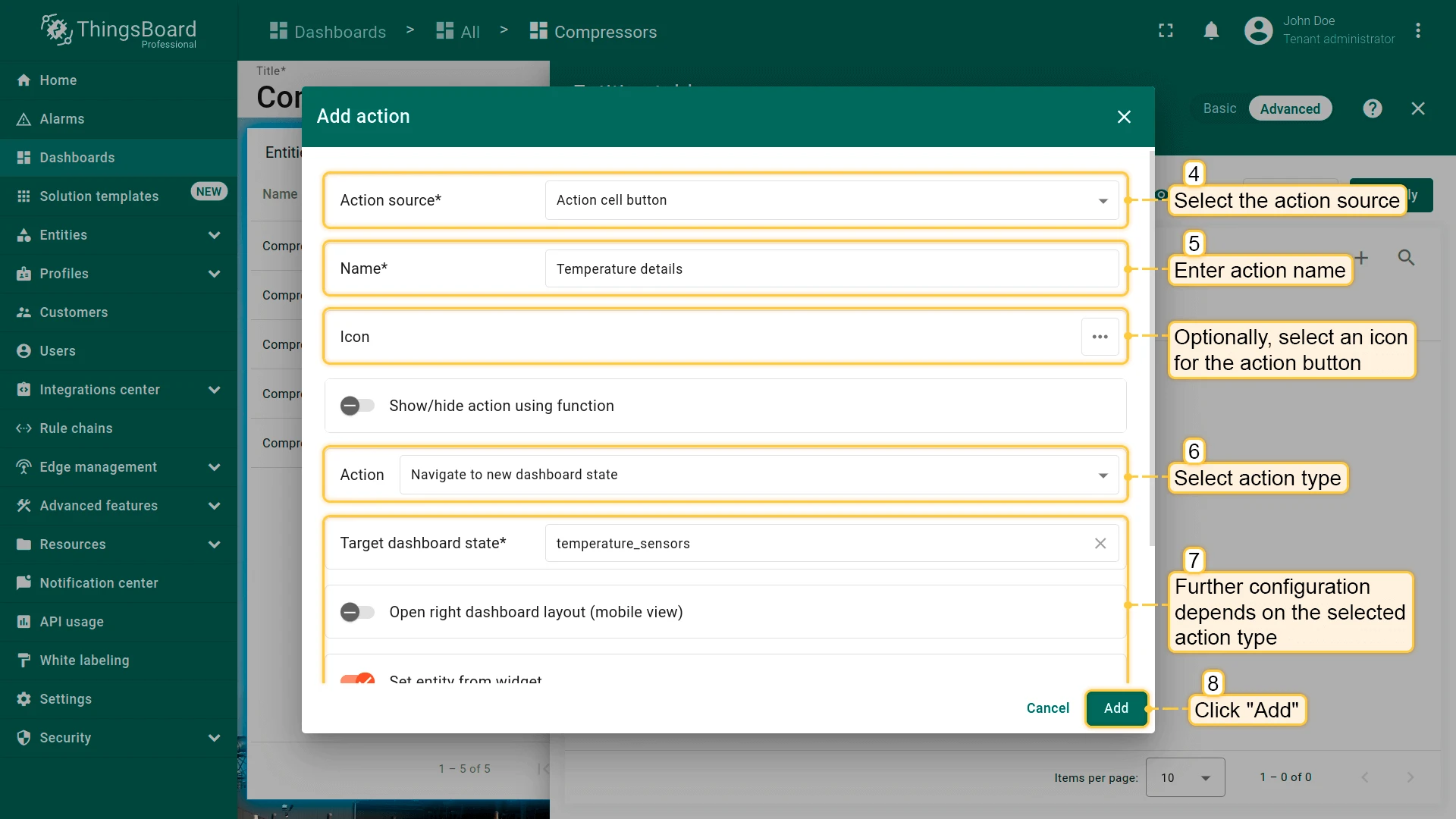
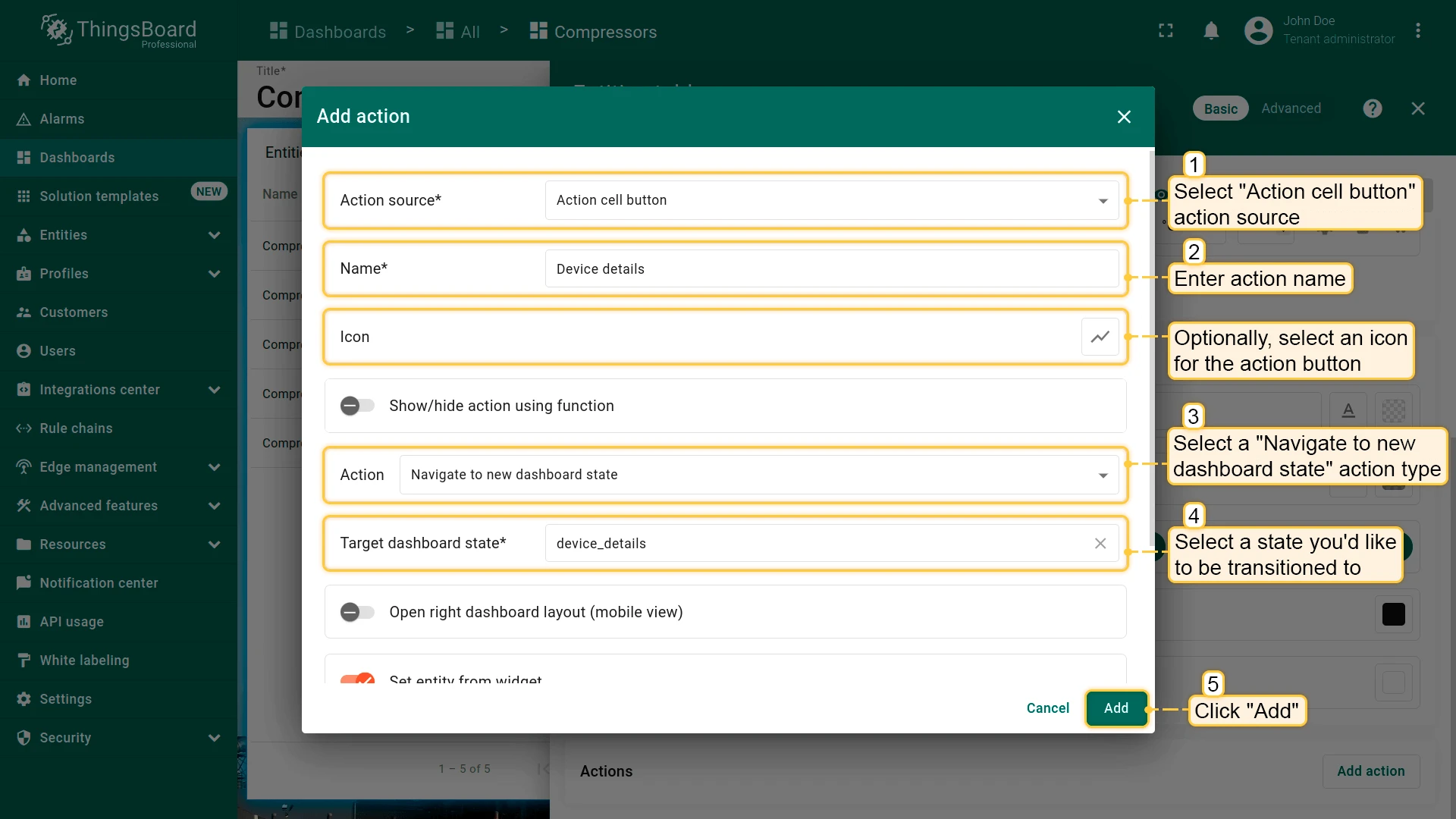
- Open the widget in edit mode, go to the Actions tab, and click +.
- Select an action source (for example, Action cell button).
- Enter an action name and choose an icon.
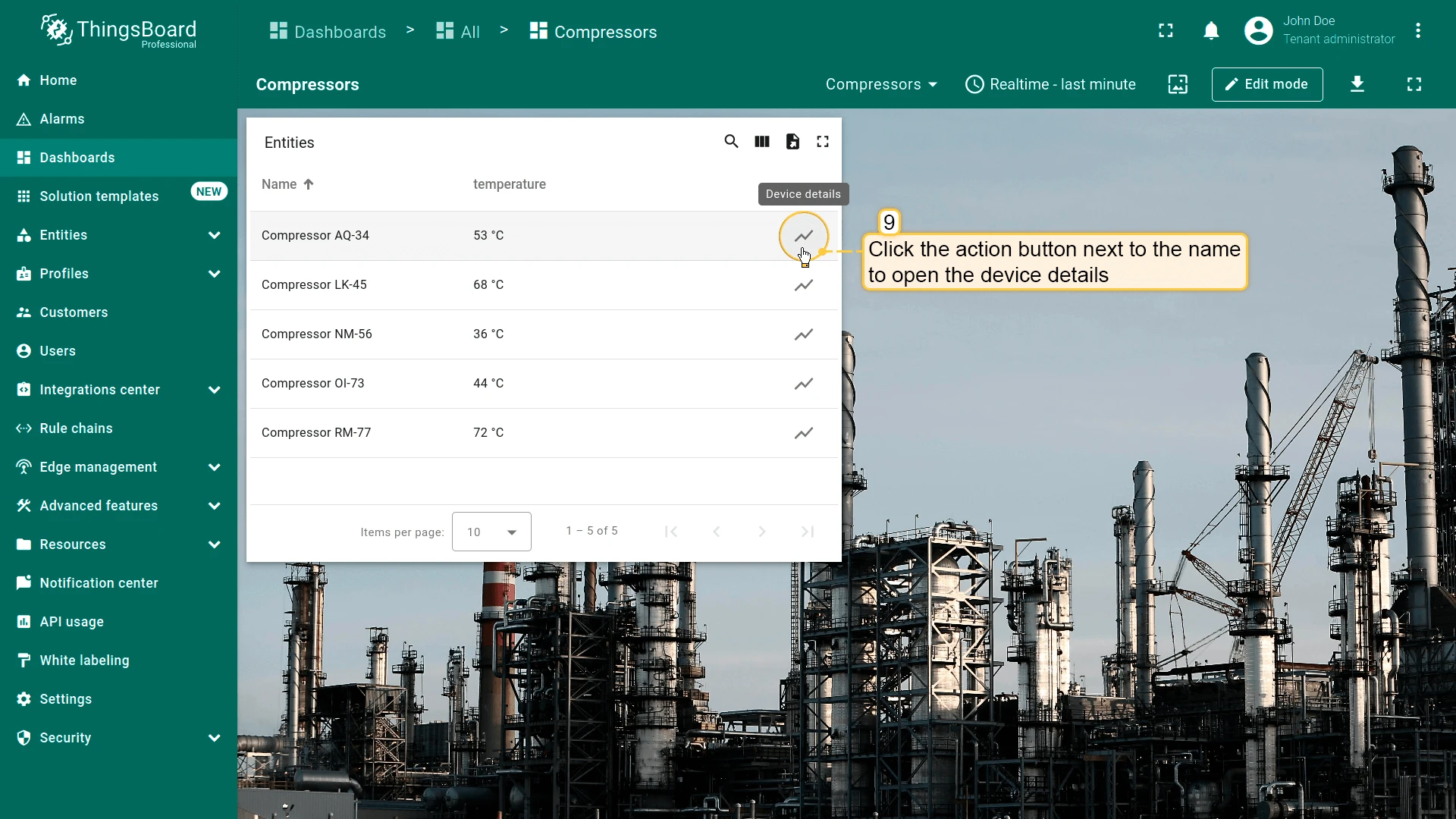
- Select Navigate to new dashboard state as the action type, then choose the target state.
- Click Add, then Save and Apply to save the widget settings.
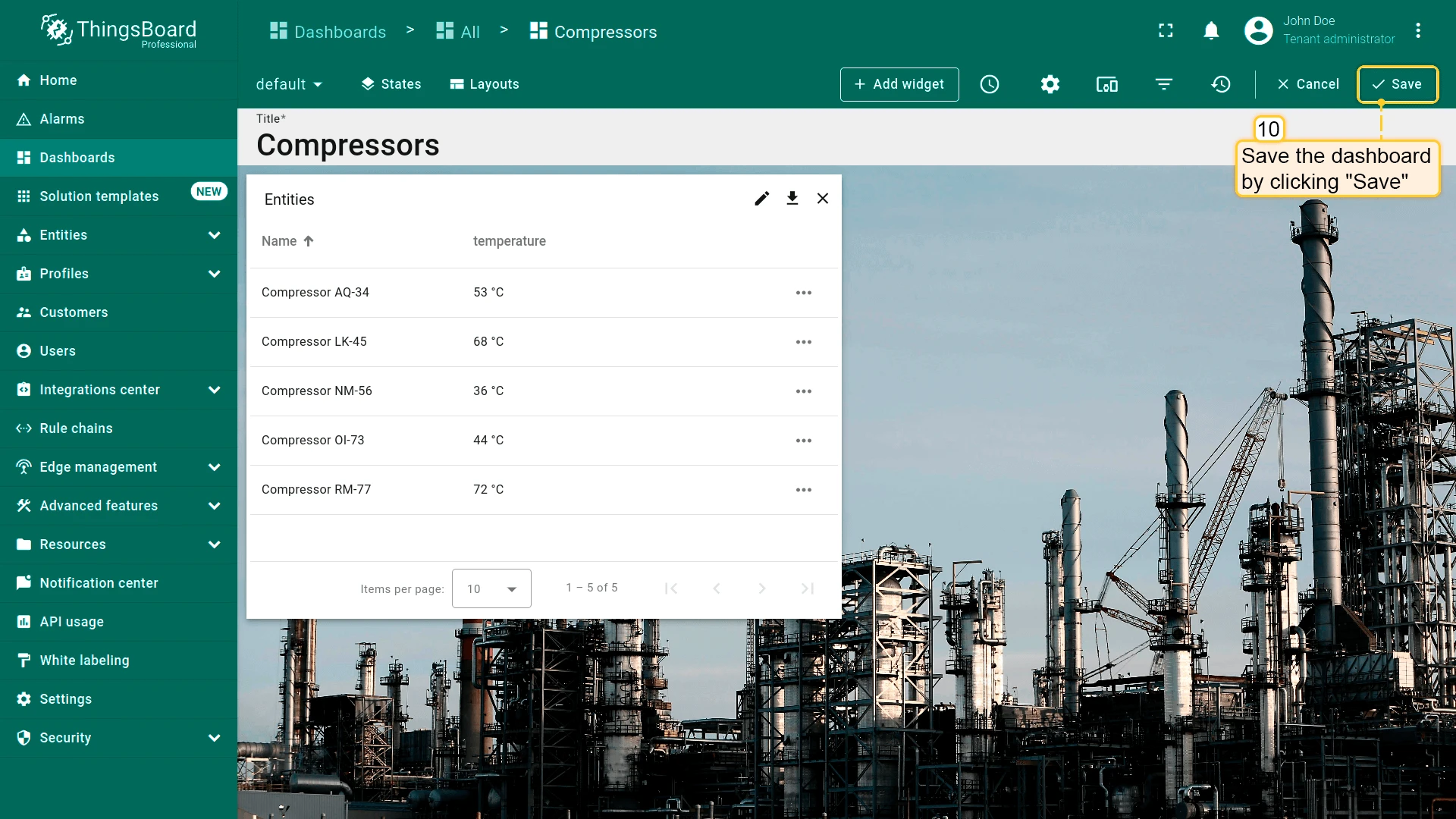
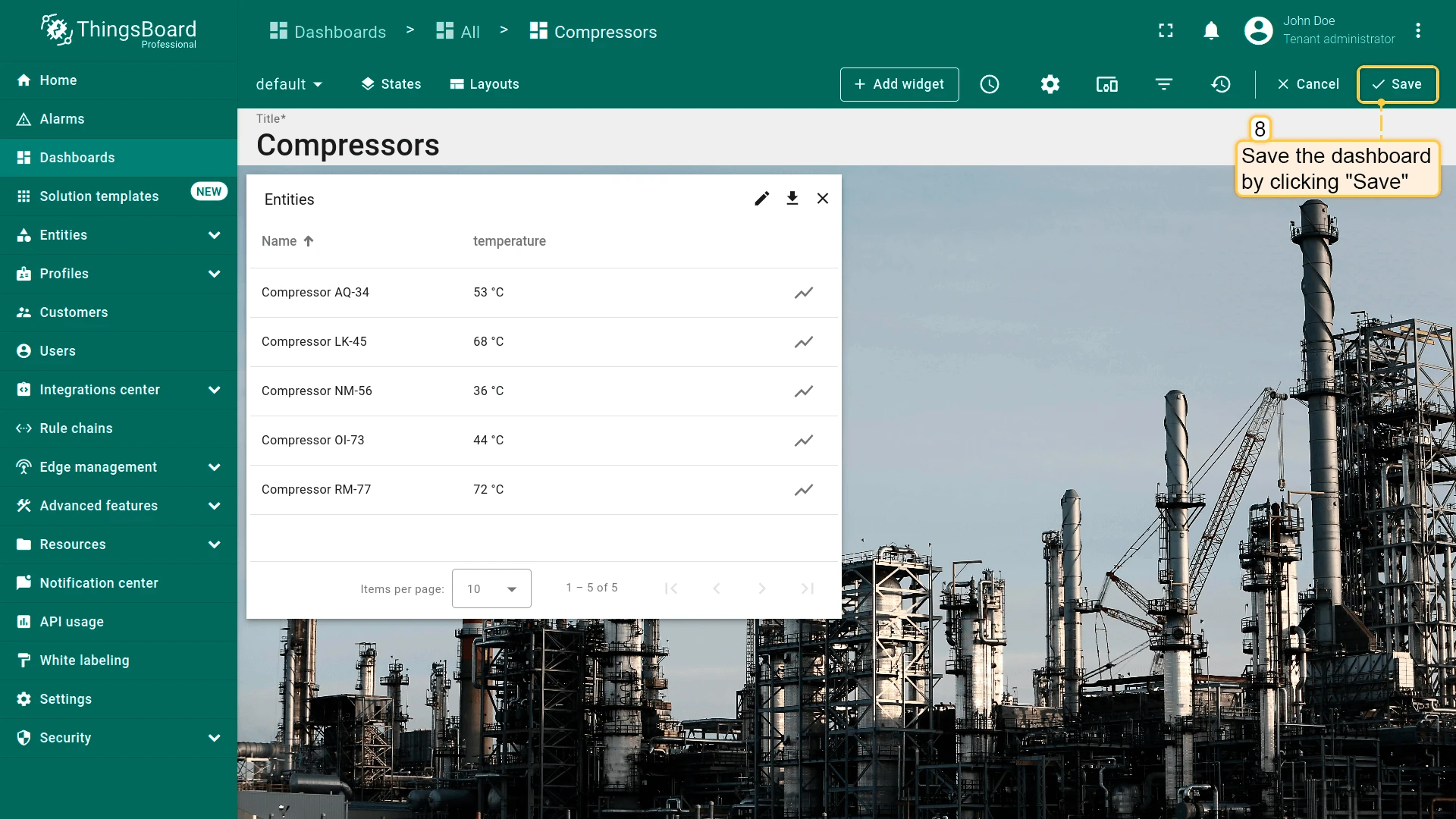
- Click Save in the dashboard toolbar to save the dashboard.
Open in a Separate Dialog or Popover
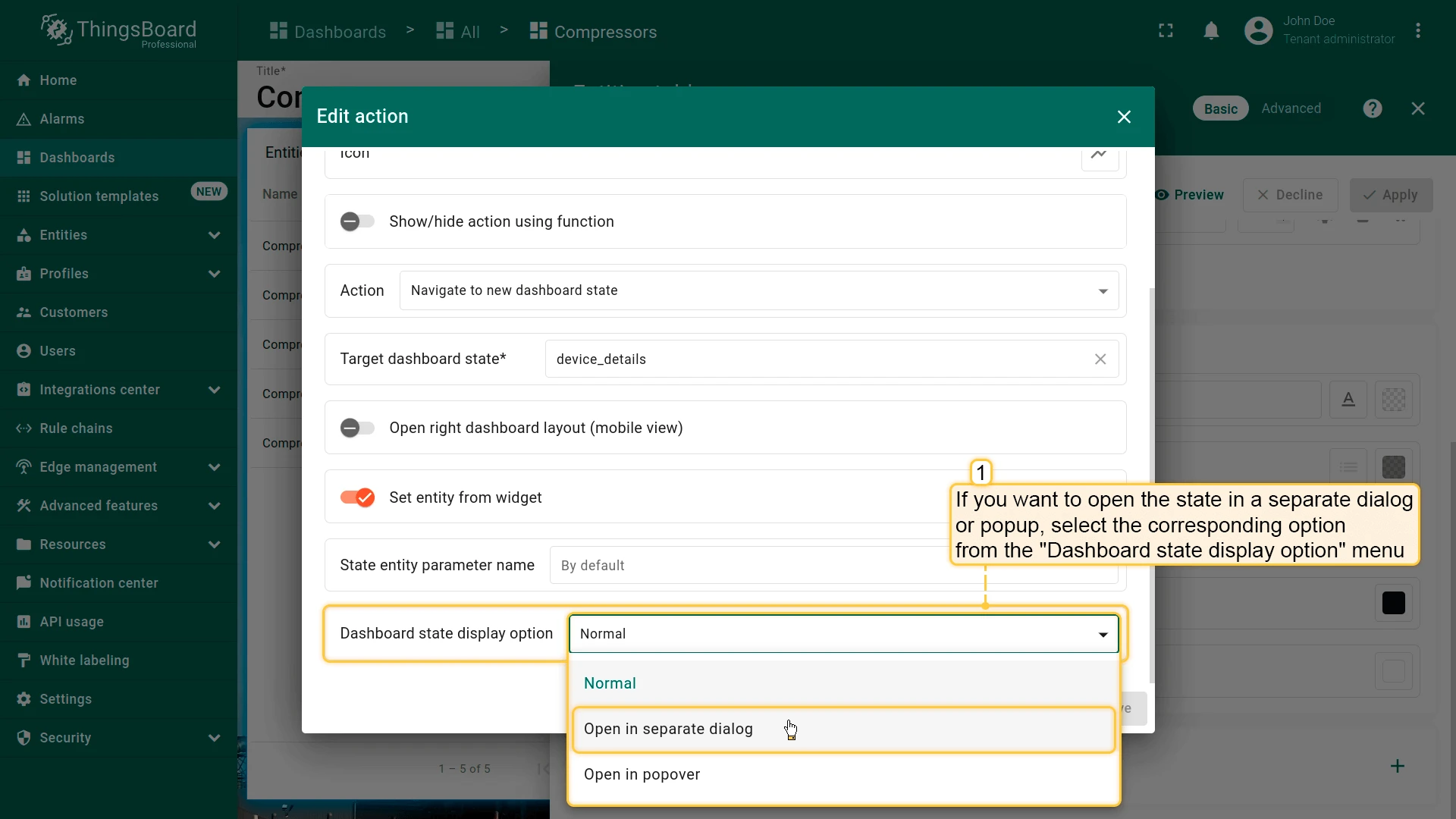
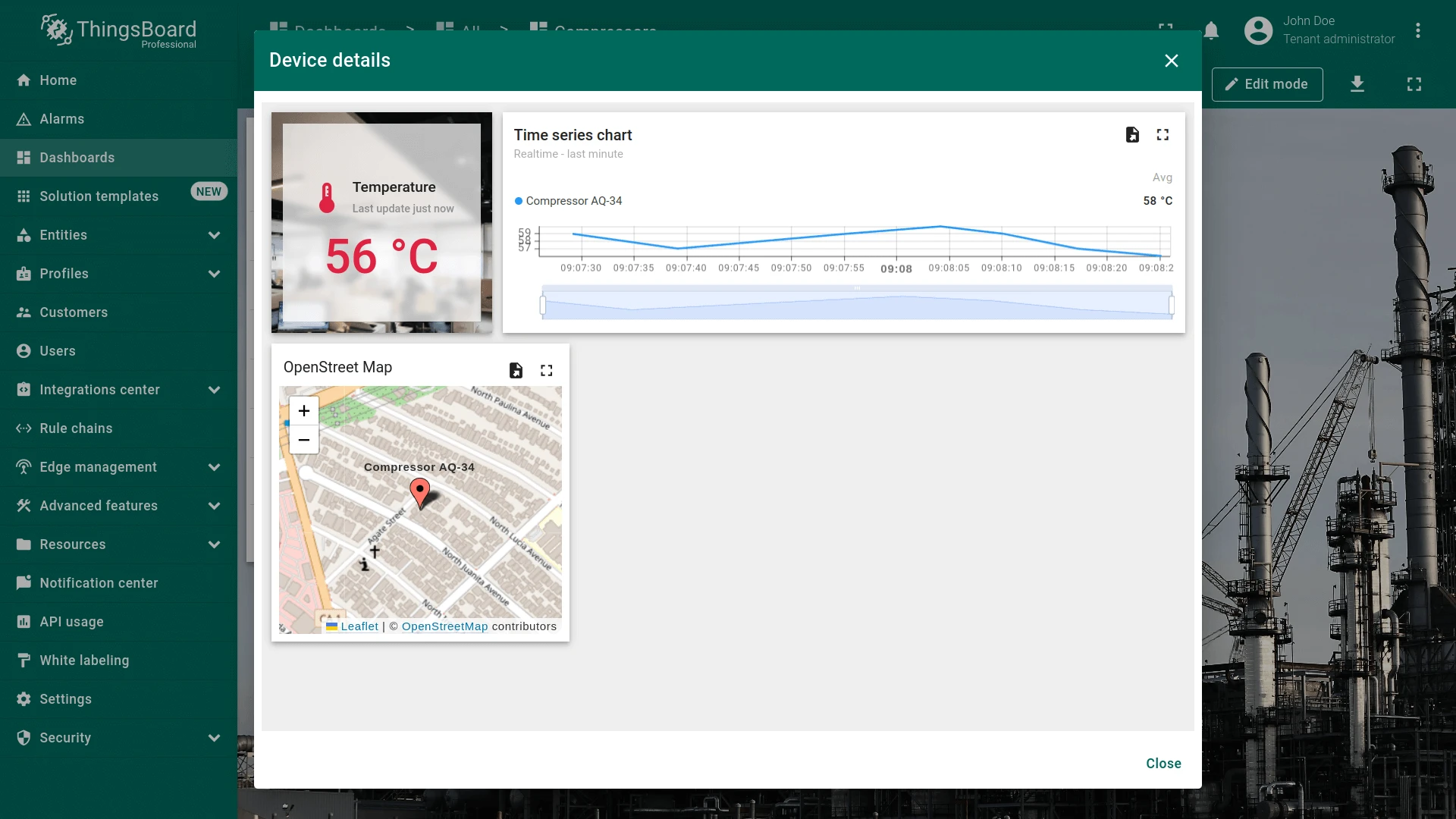
Use the Dashboard state display option field in the action settings to choose how the target state opens:
- Normal — navigates to the state, replacing the current view (default).
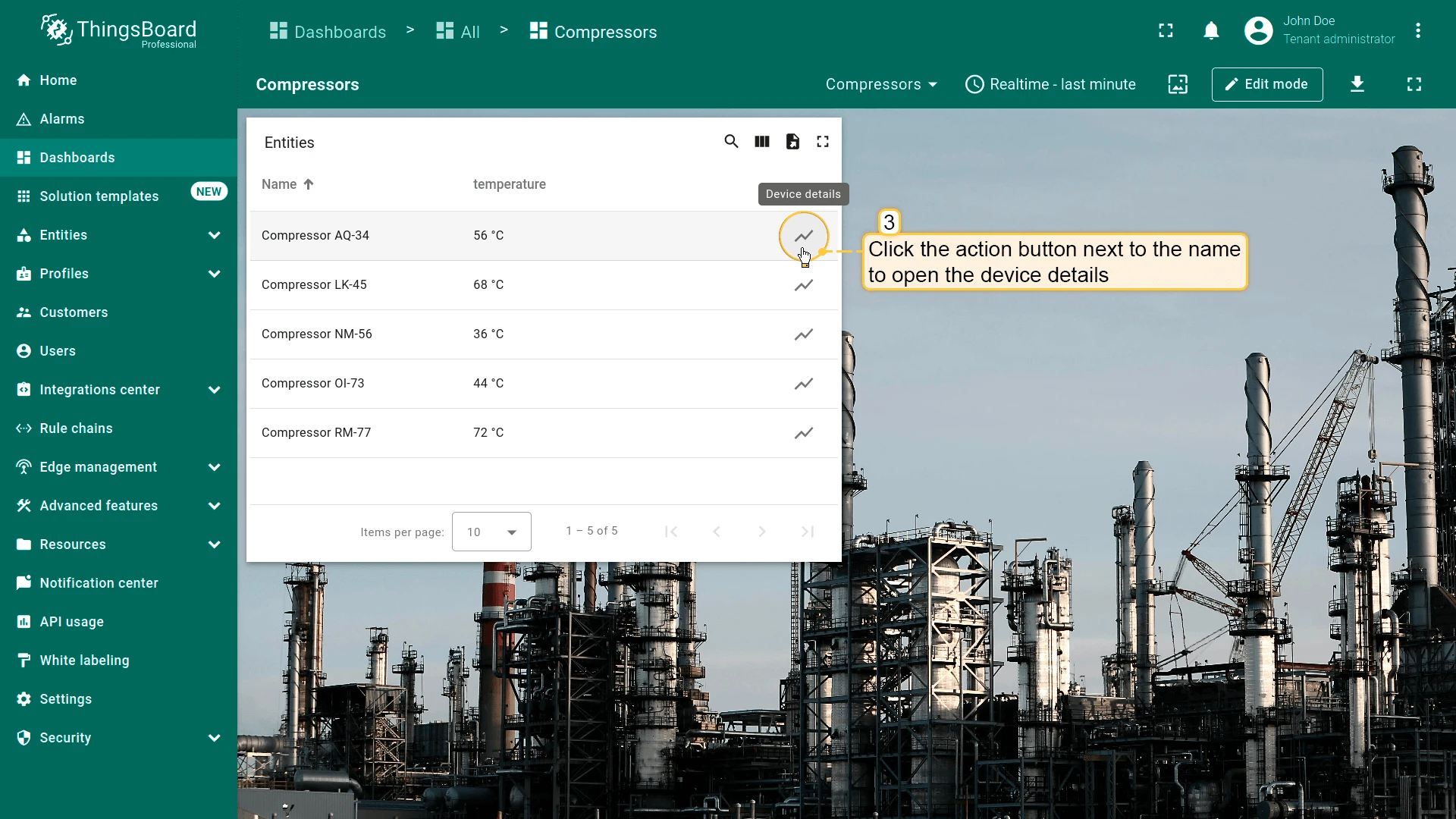
- Open in separate dialog — opens the state in a modal dialog with a configurable title, toolbar visibility, and size.
- Open in popover — opens the state in a popover next to the trigger element, with configurable placement, width, and height.
- In the action settings, open the Dashboard state display option dropdown and select Open in separate dialog.
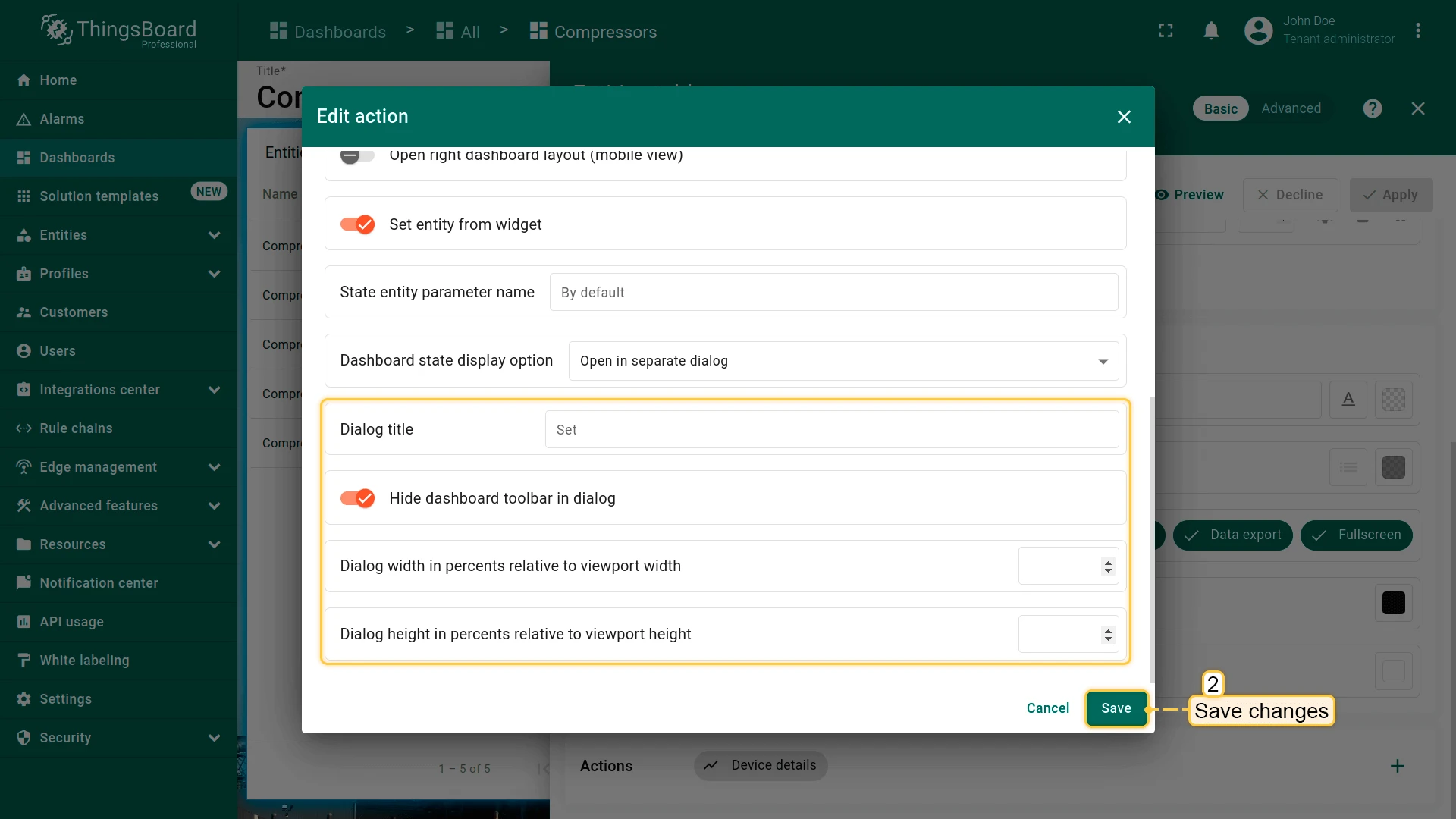
- Optionally, clear Hide dashboard toolbar in dialog to show the time window, export, and fullscreen controls in the dialog.
- Optionally, set the dialog width and height as a percentage of the viewport.
- Save all changes.
Update Current Dashboard State
Section titled “Update Current Dashboard State”Updates the entity context of the current dashboard state without navigating away — for example, to show the selected entity’s data in a chart or map on the same dashboard.
With a Target dashboard state selected, it switches to that state instead. Either way it adds no breadcrumb step, so the page URL does not grow — use it for tab bars and navigation menus.
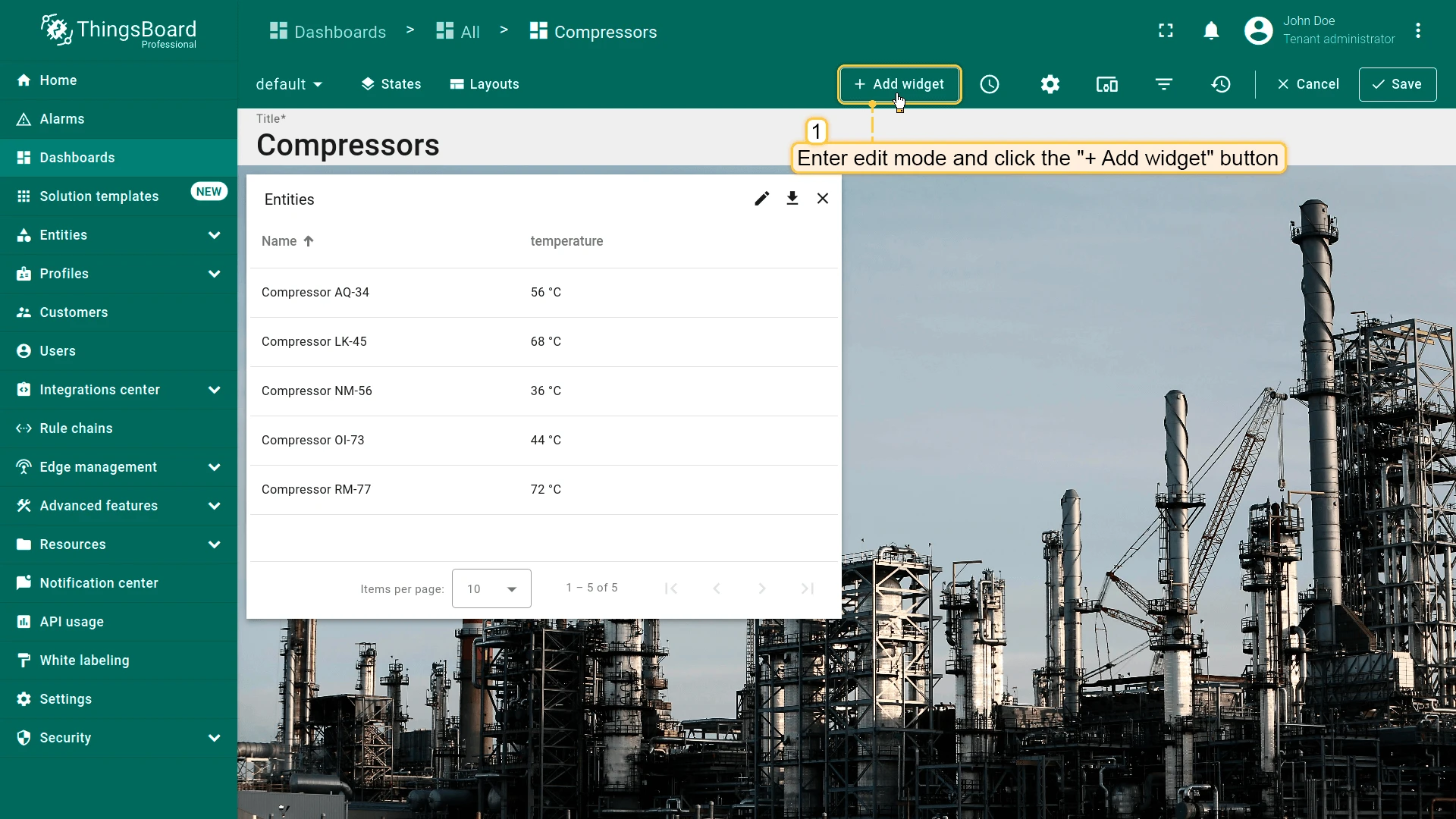
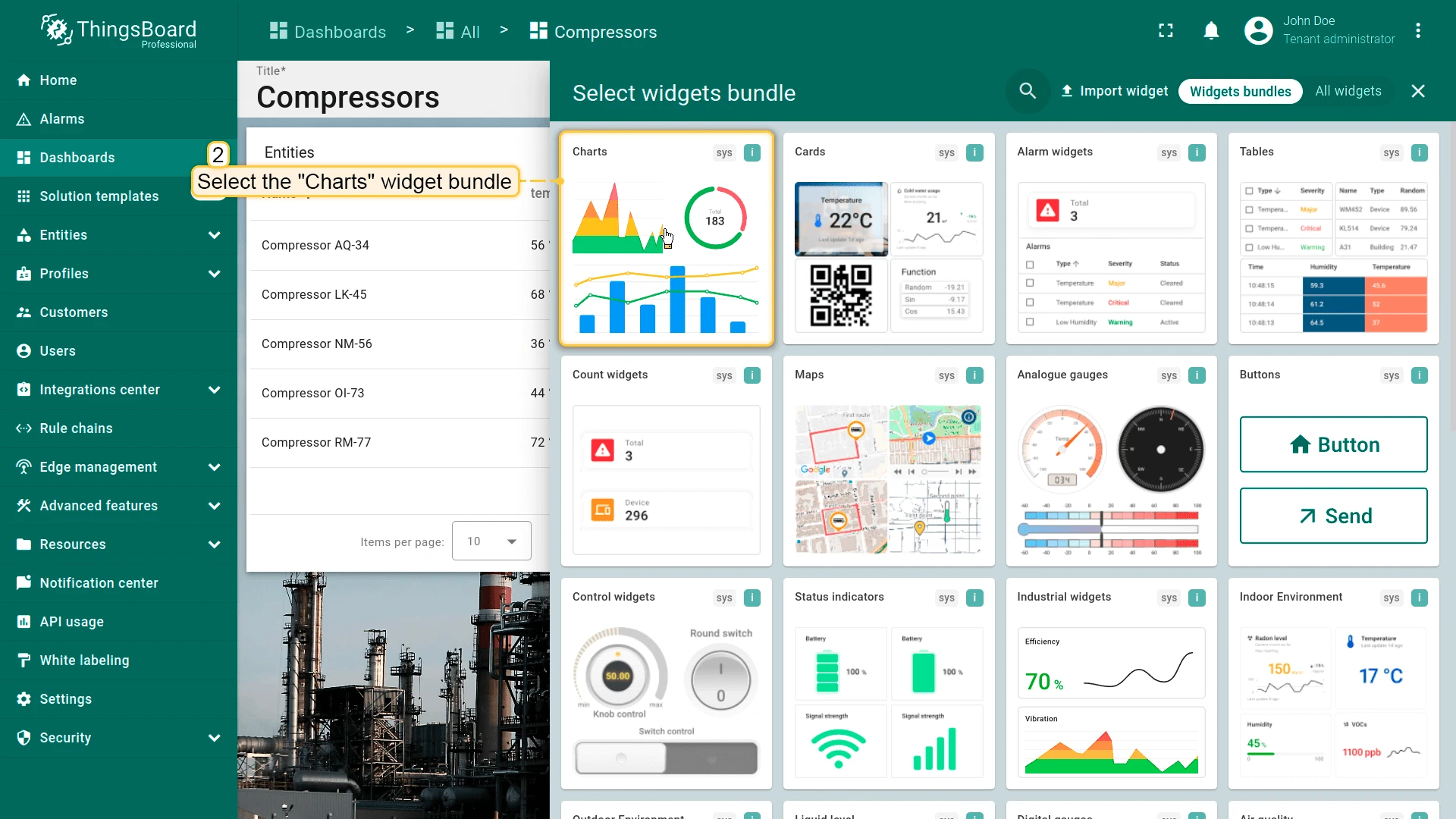
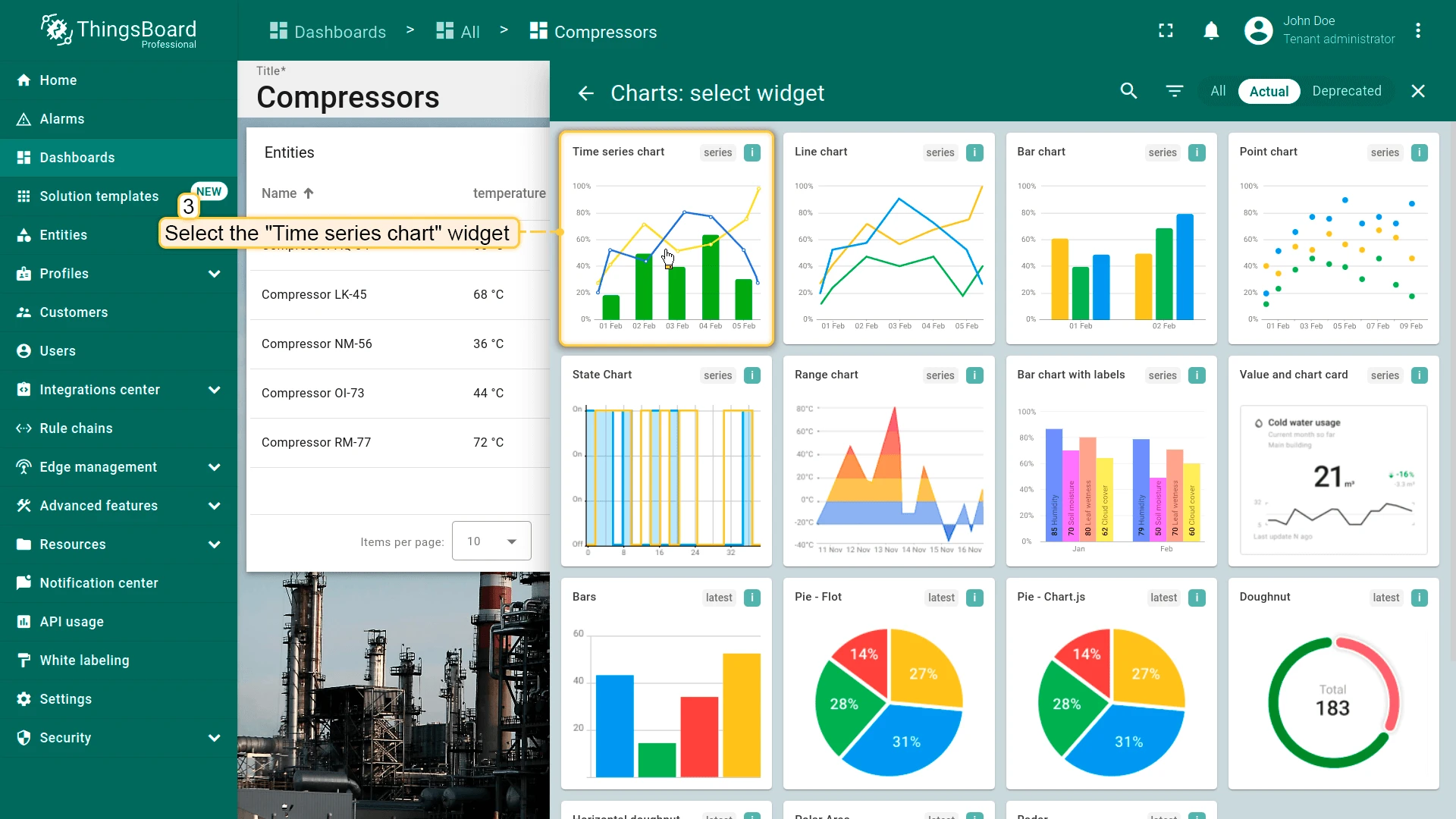
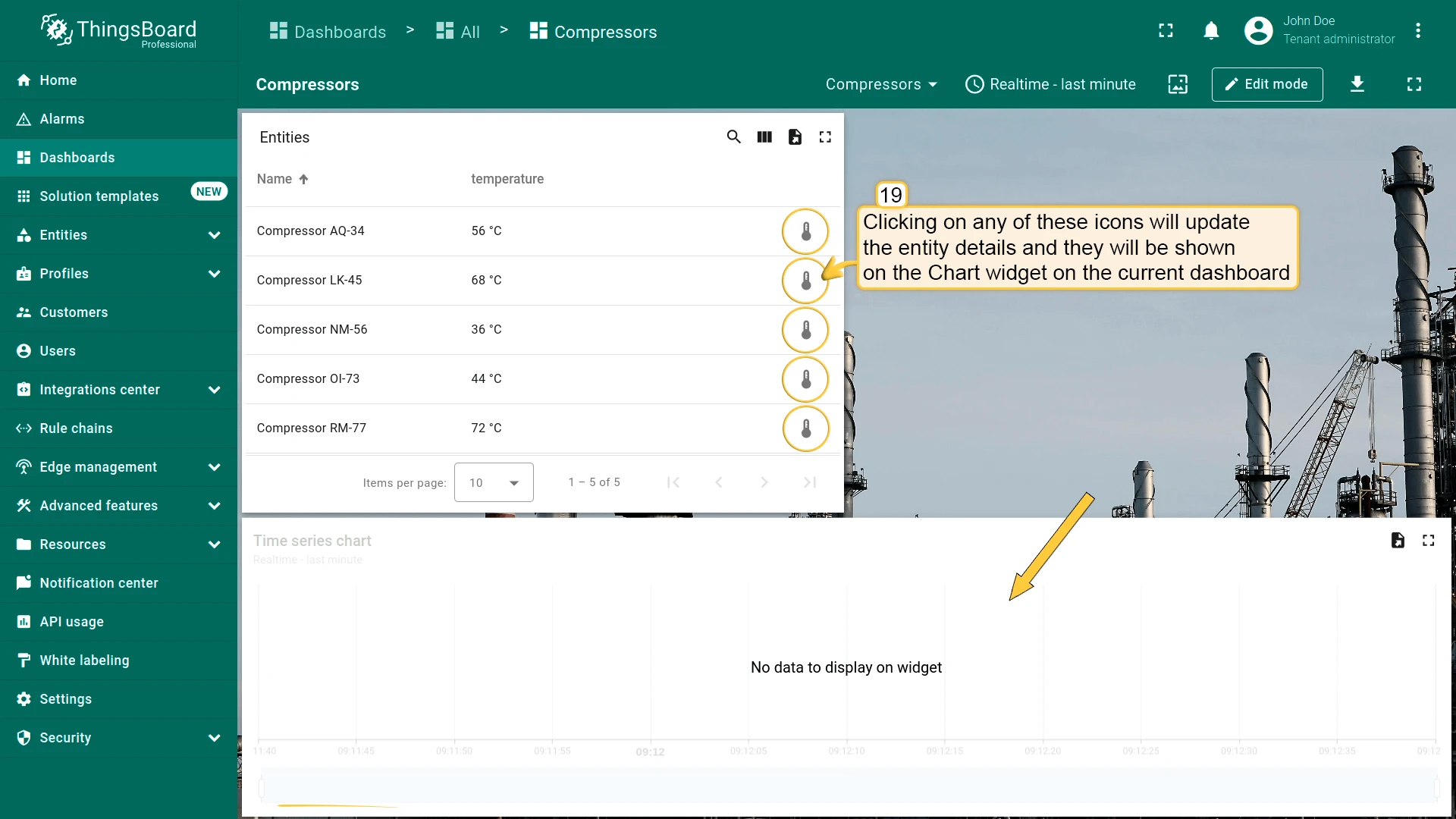
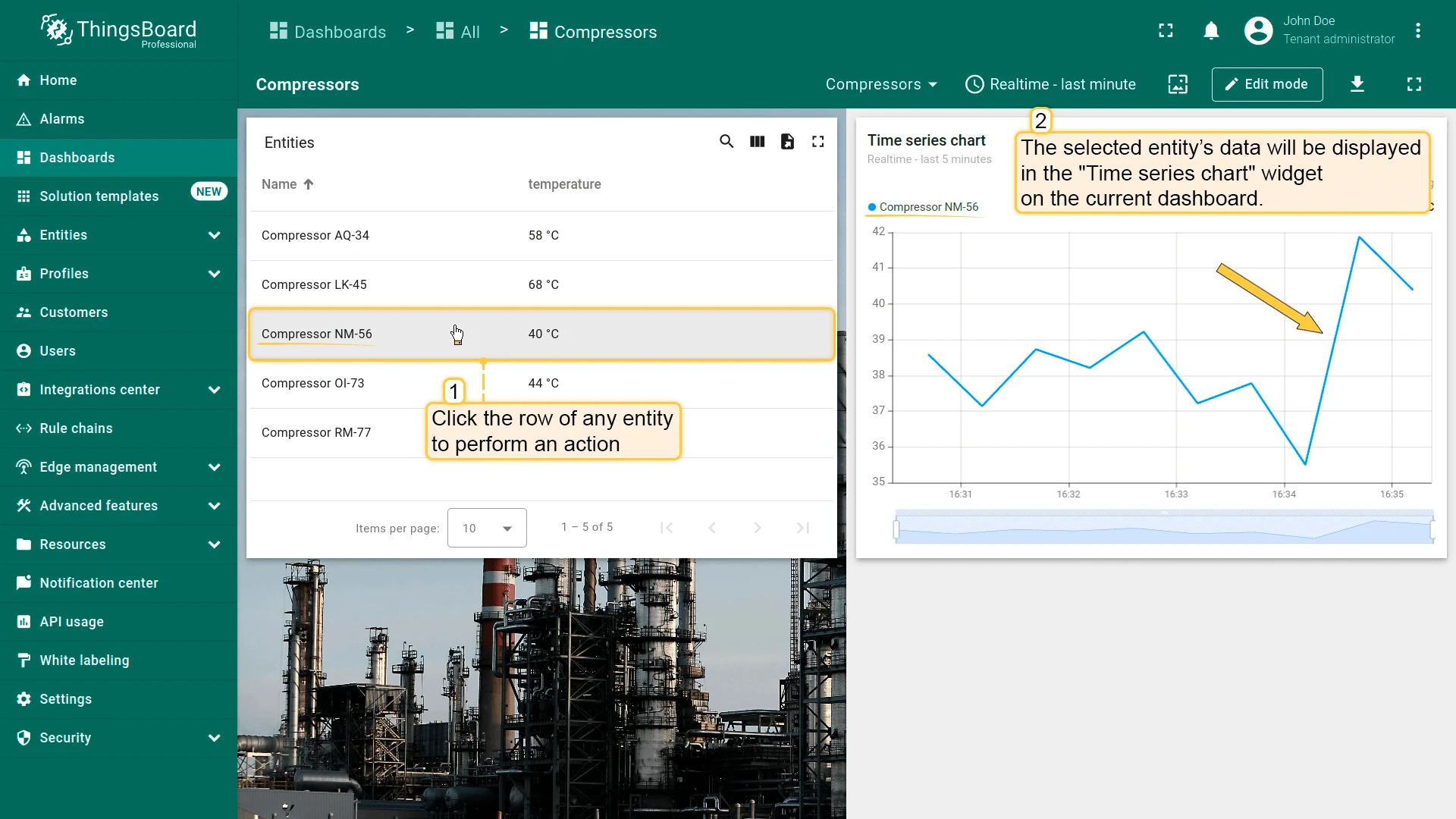
For this example, add a Time series chart widget whose datasource uses the “Entity from dashboard state” alias, so the chart shows the currently selected entity:
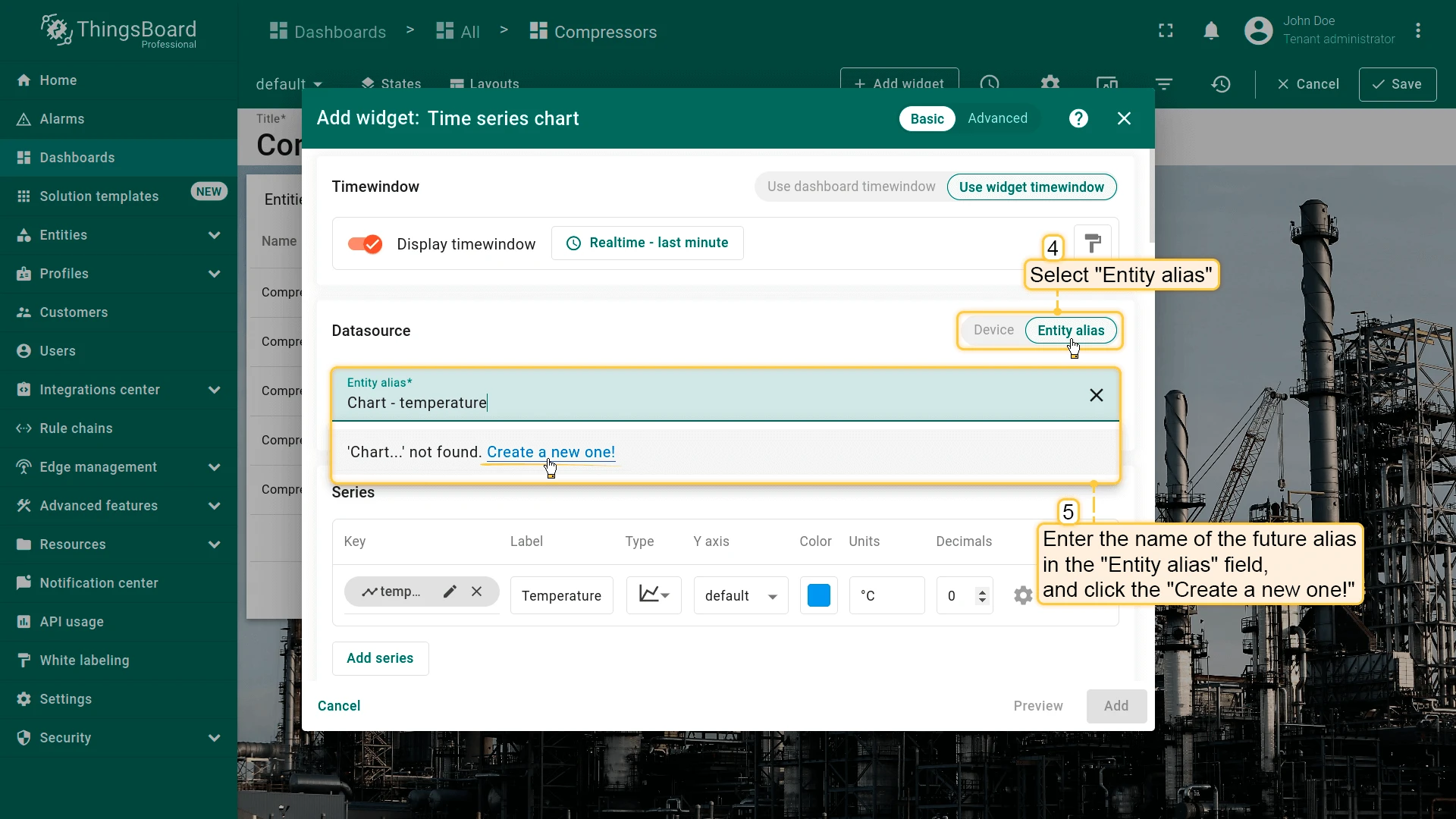
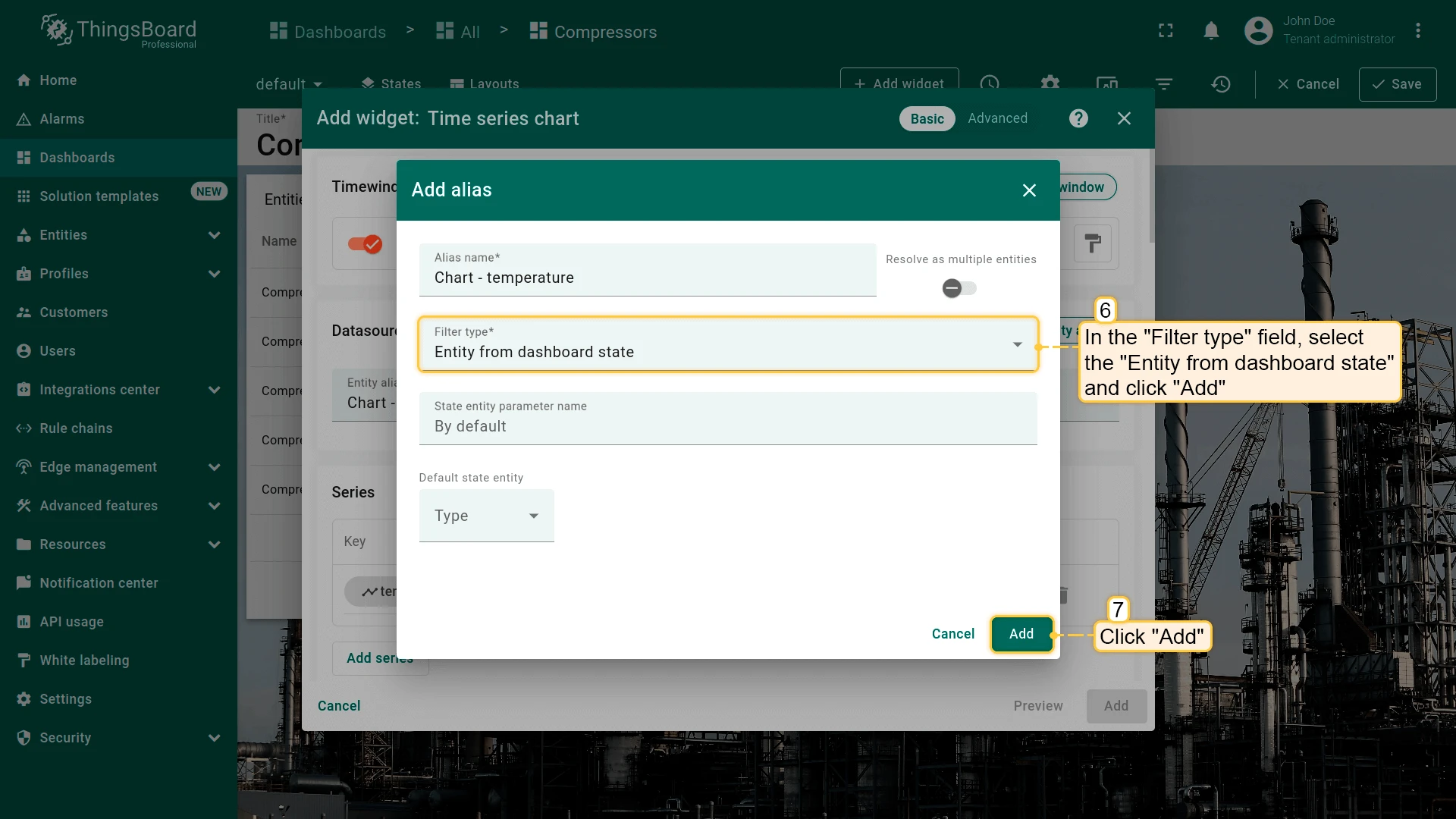
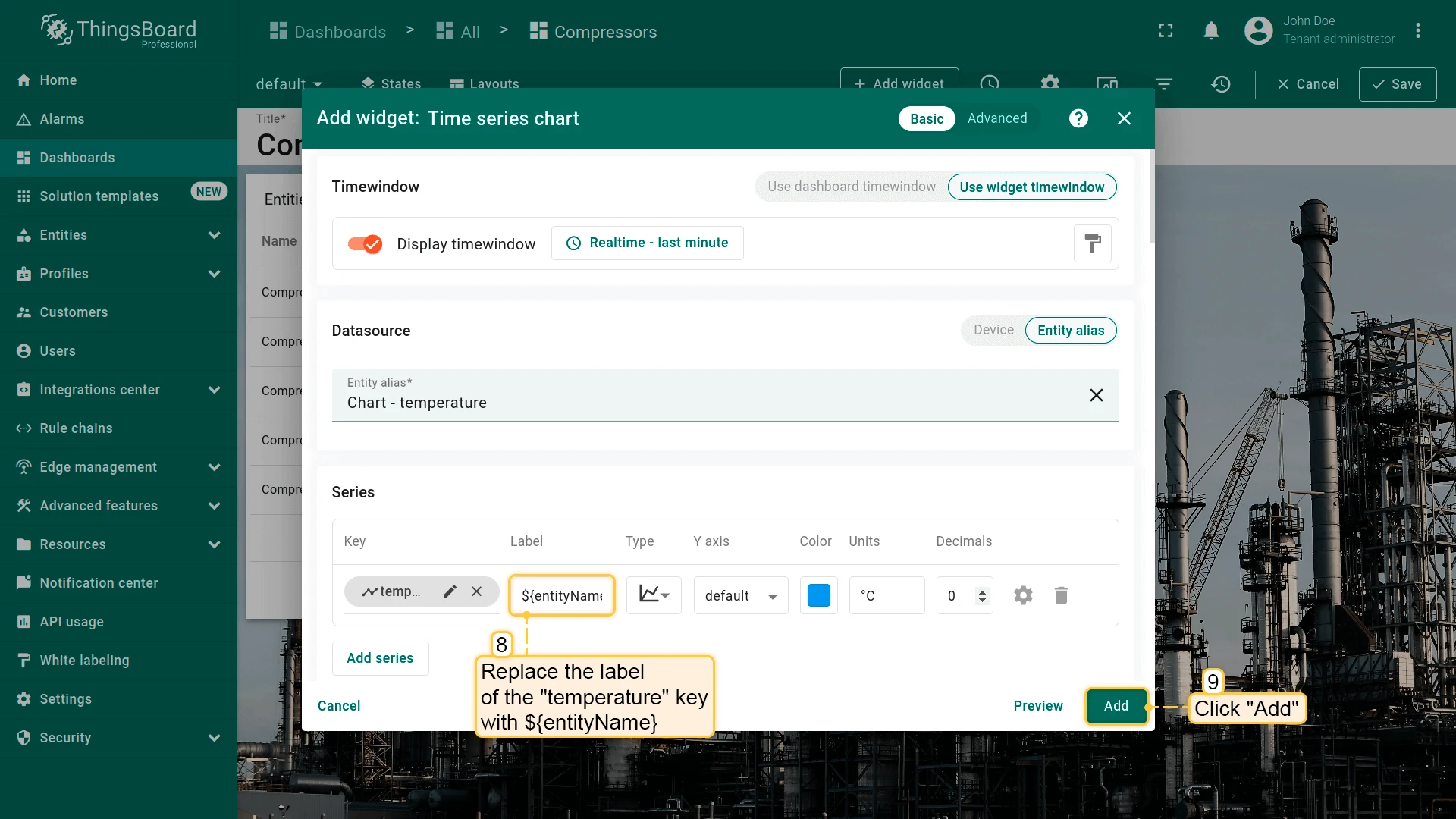
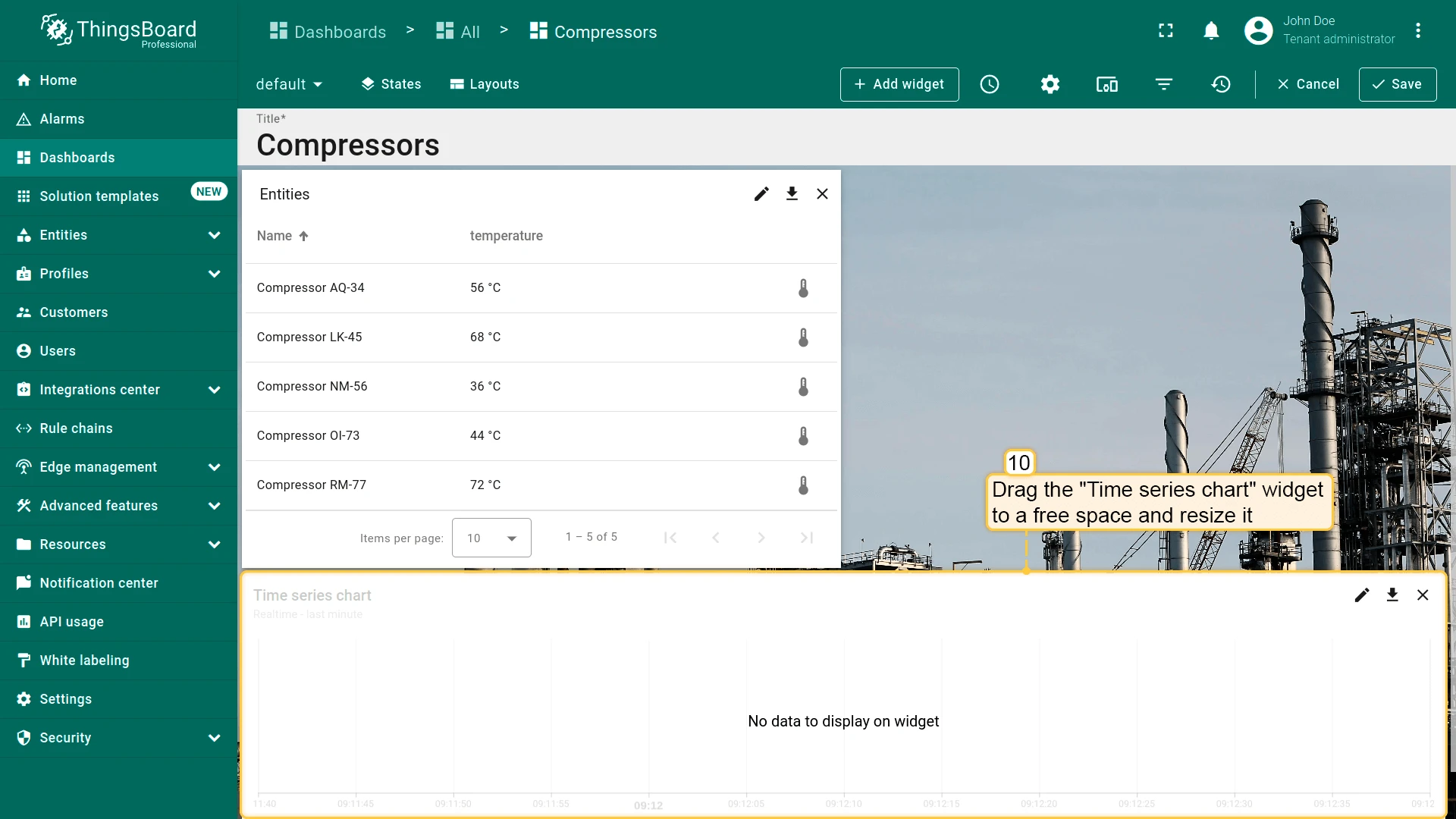
Now add an Update current dashboard state action to the Entities table widget:
- Open the widget in edit mode, go to the Actions tab, and click +.
- Select Action cell button as the action source, enter a name (for example, Chart temperature), and choose an icon.
- Select Update current dashboard state as the action type.
- Click Add, then Save and Apply to save the widget settings.
- Click Save in the dashboard toolbar.
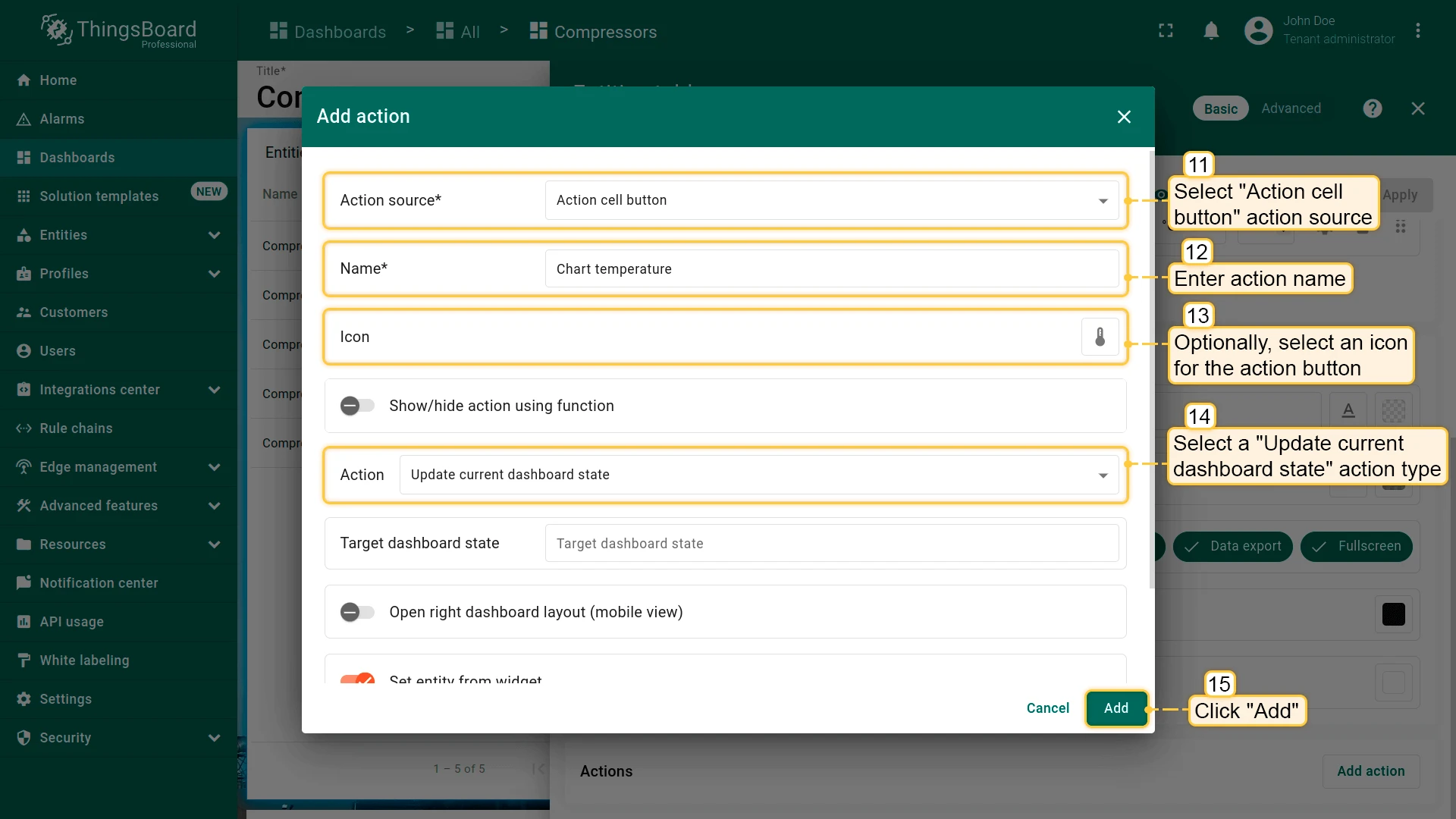
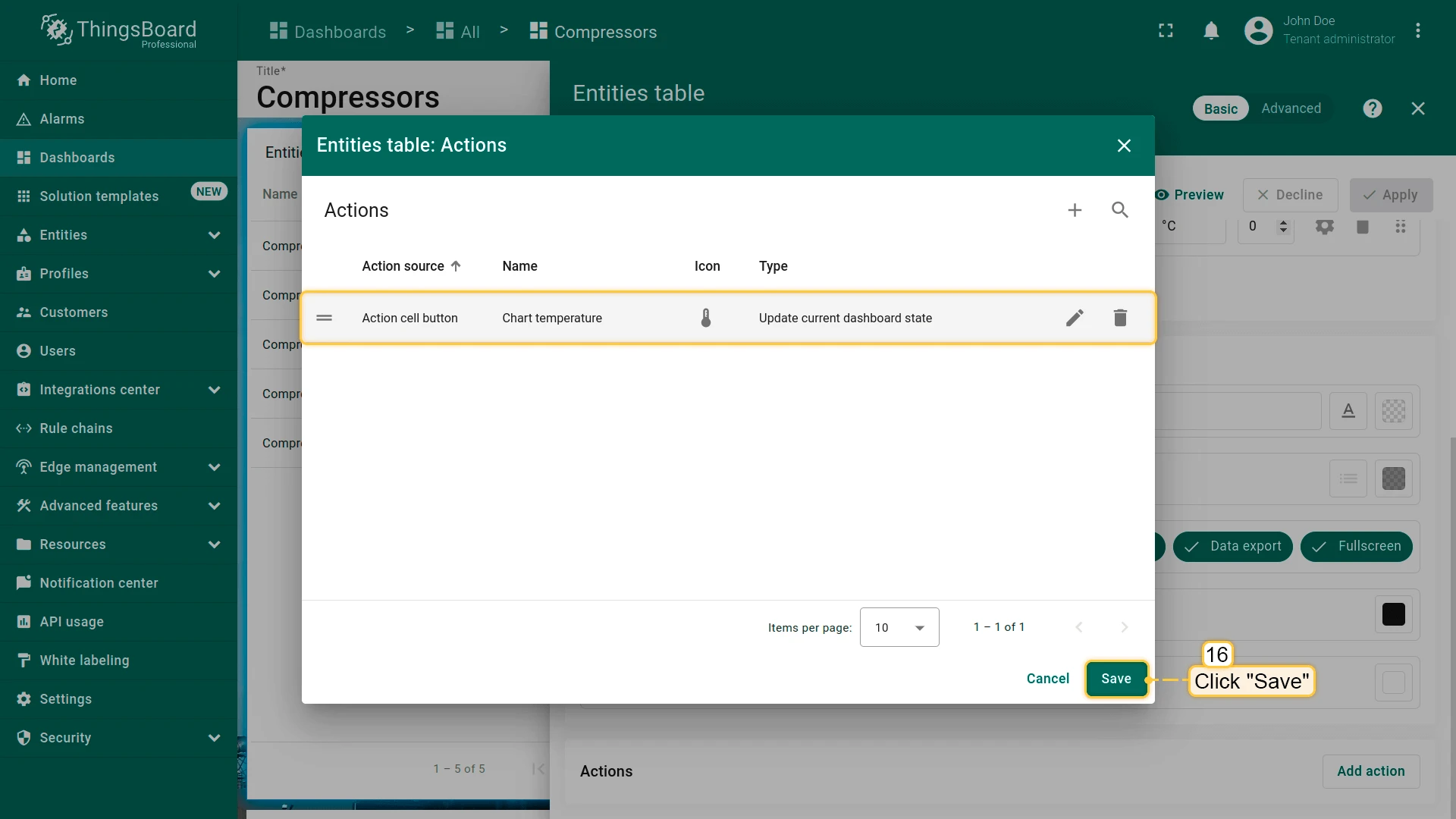
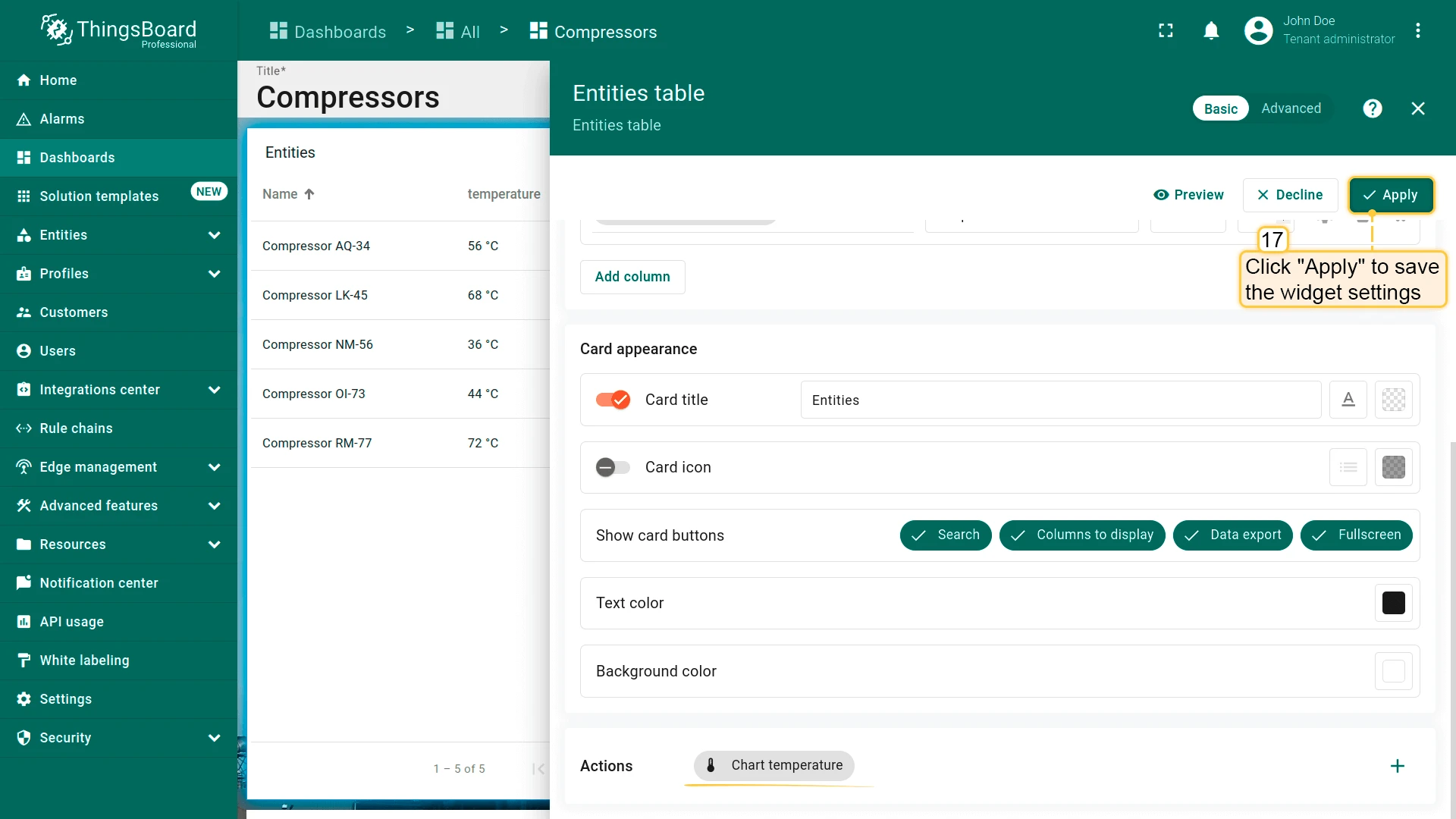
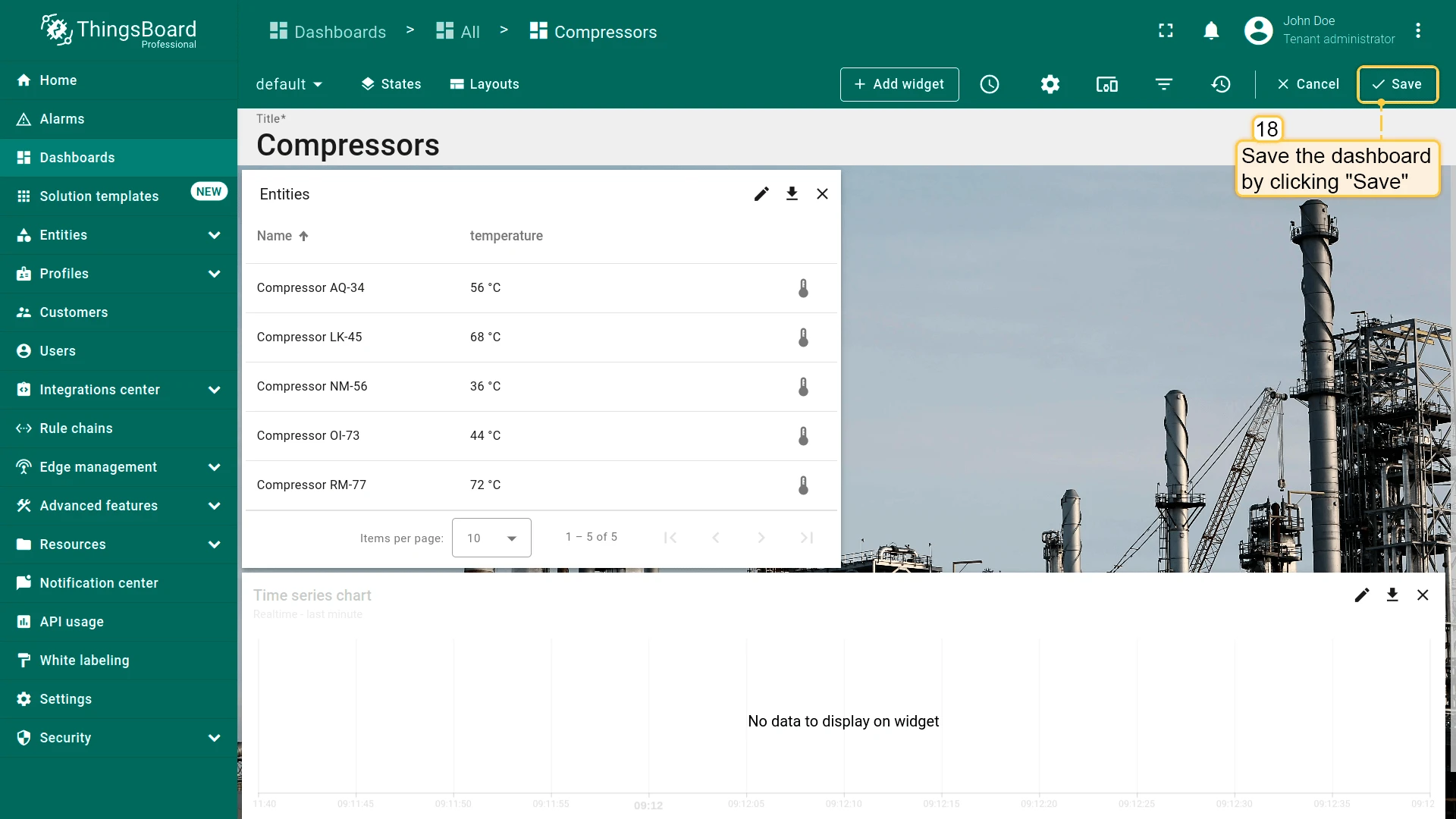
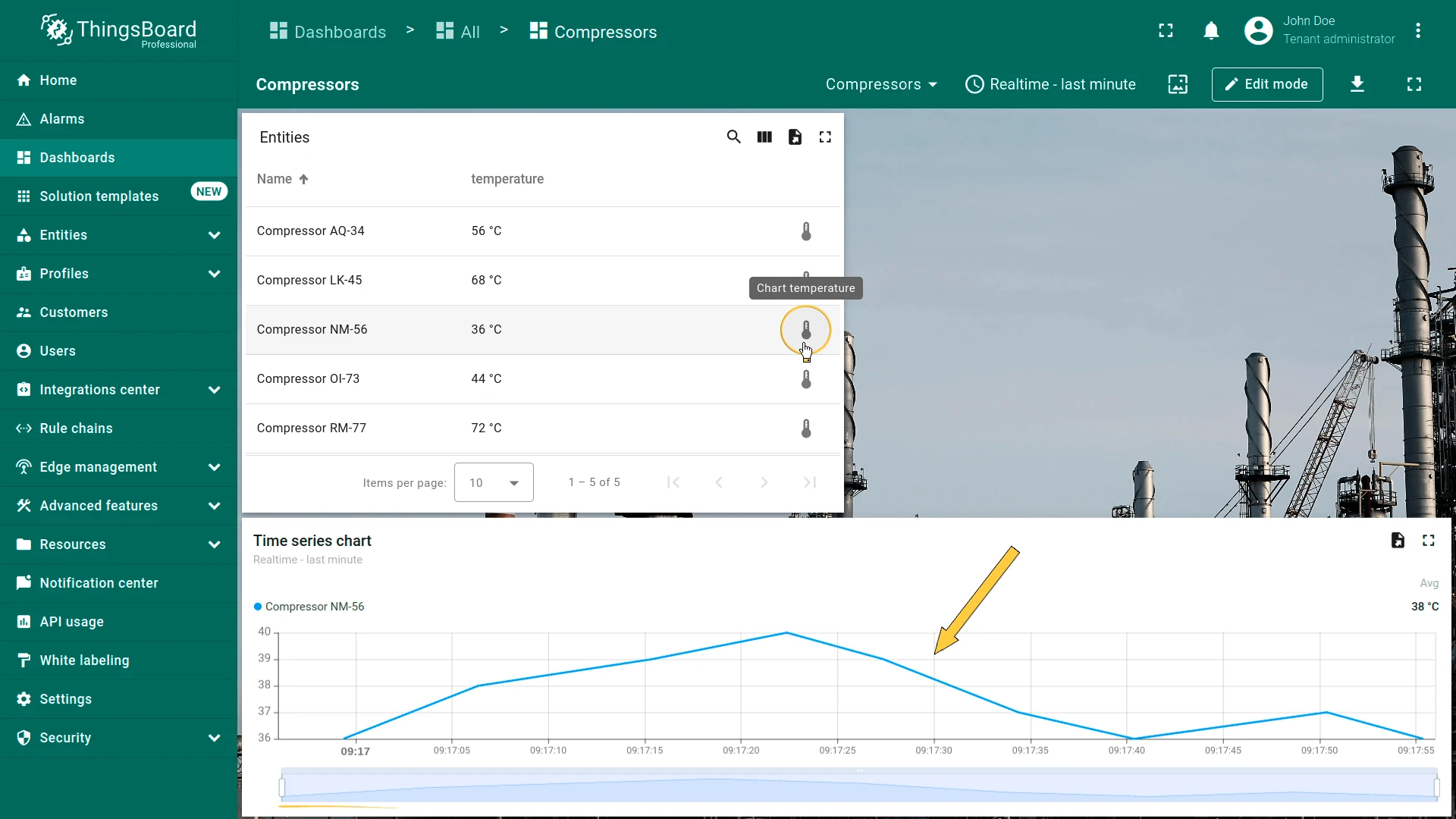
Click the action icon next to an entity to show its data in the chart.
Navigate to Other Dashboard
Section titled “Navigate to Other Dashboard”Opens another dashboard, optionally at a specific state.
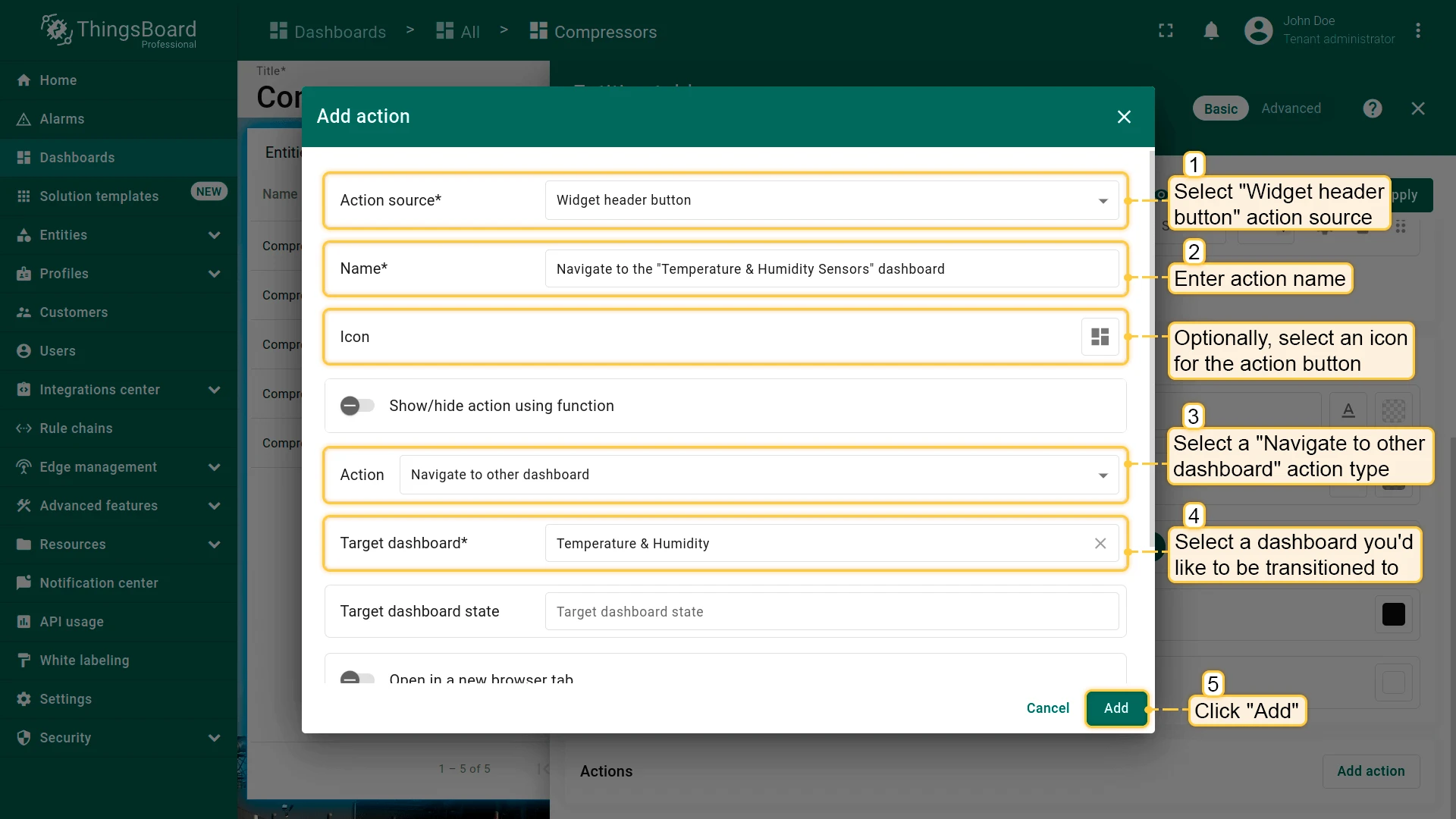
- Open the widget in edit mode, go to the Actions tab, and click +.
- Select the action source (for example, Widget header button), enter a name, and choose an icon.
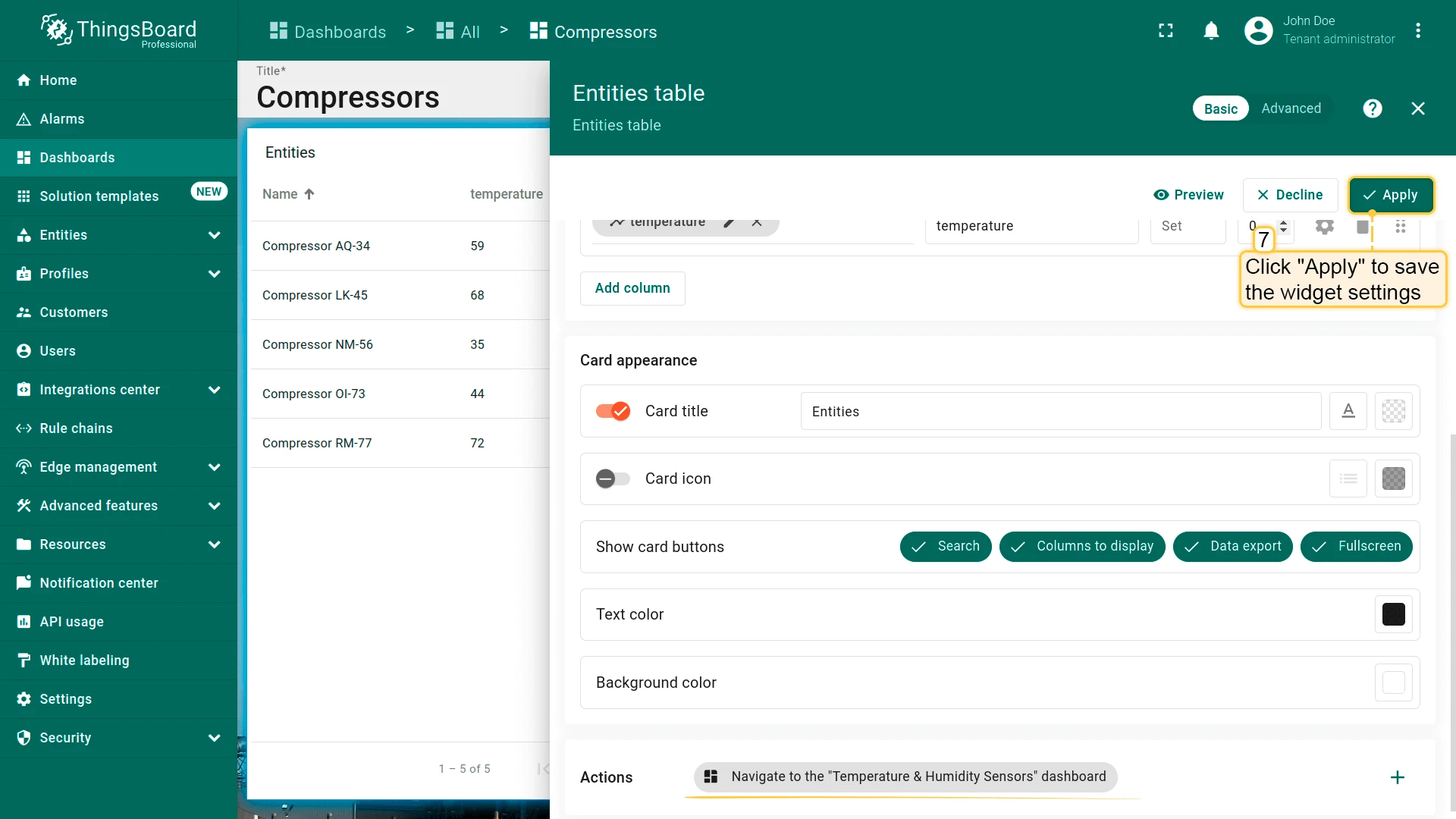
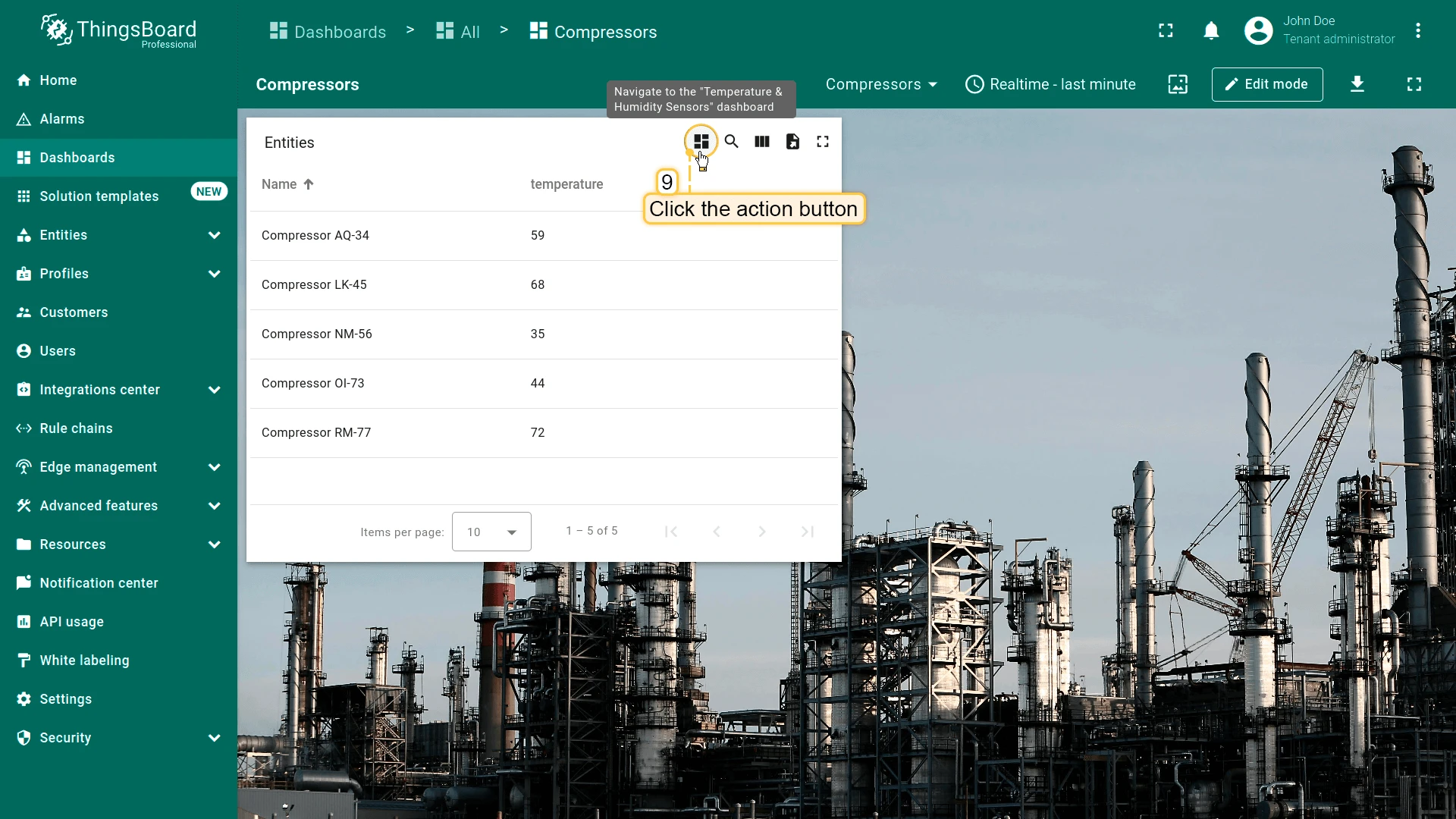
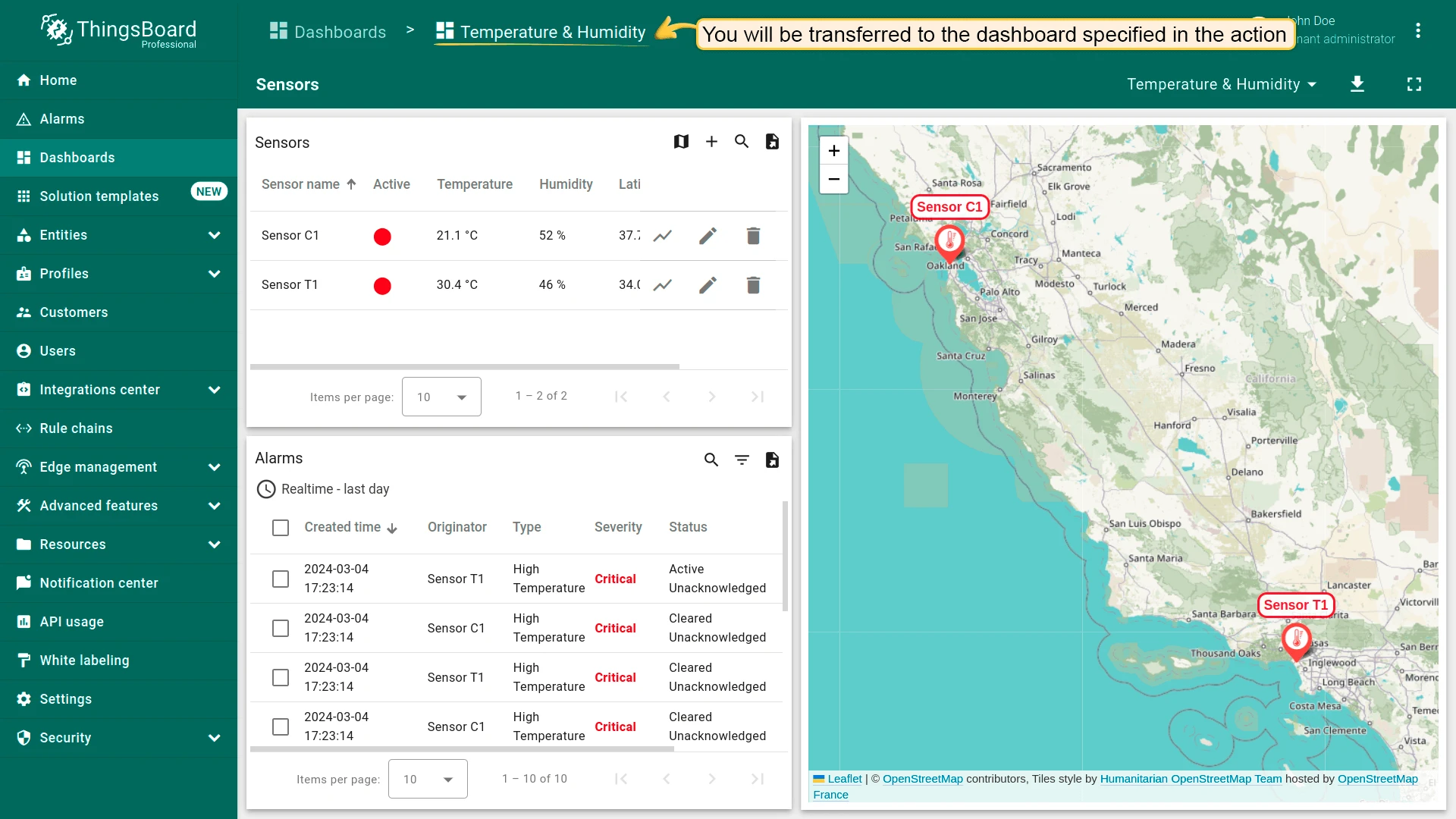
- Select Navigate to other dashboard as the action type, then choose the target dashboard and, optionally, its state.
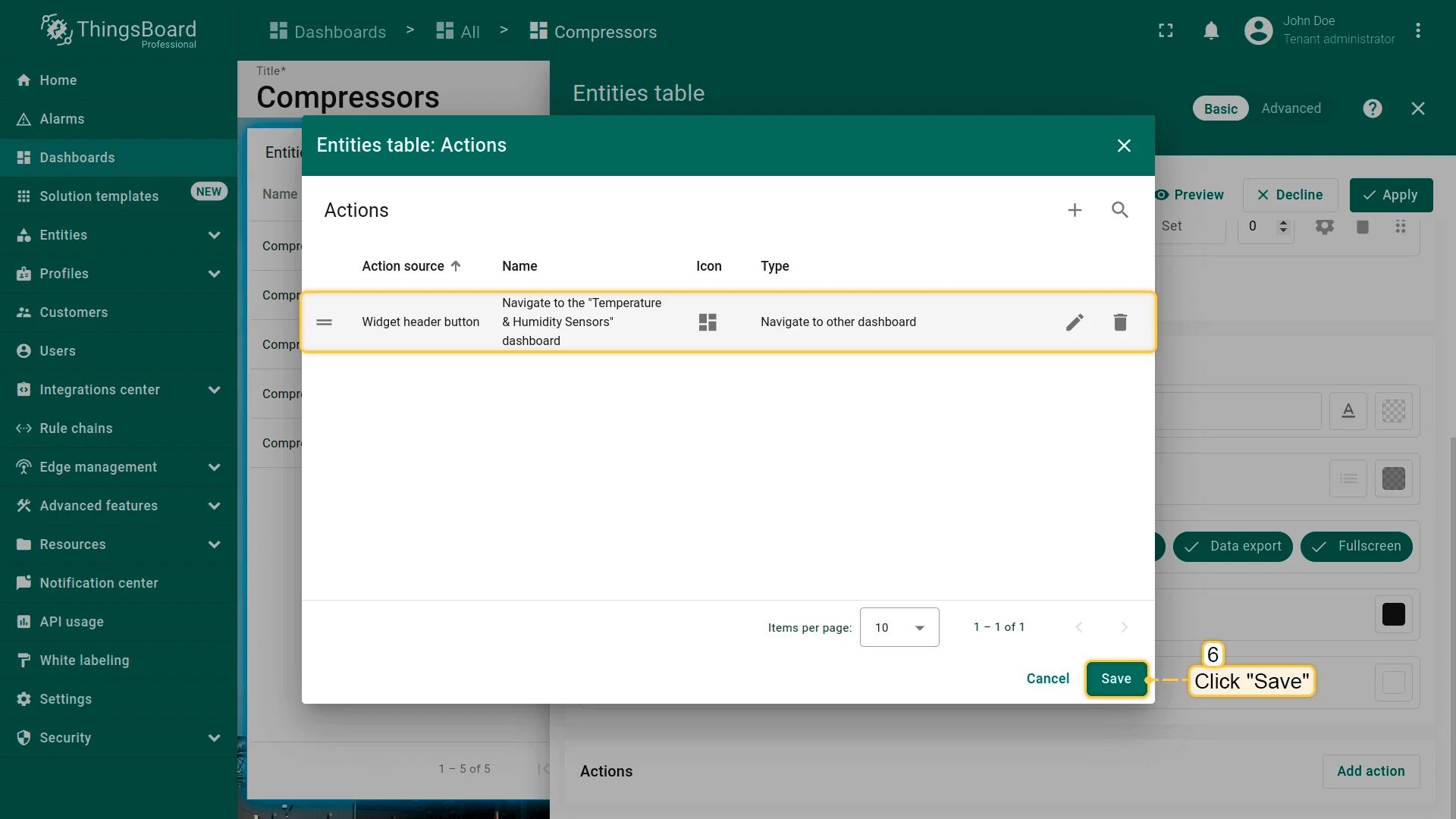
- Click Add, then Save and Apply to save the widget settings.
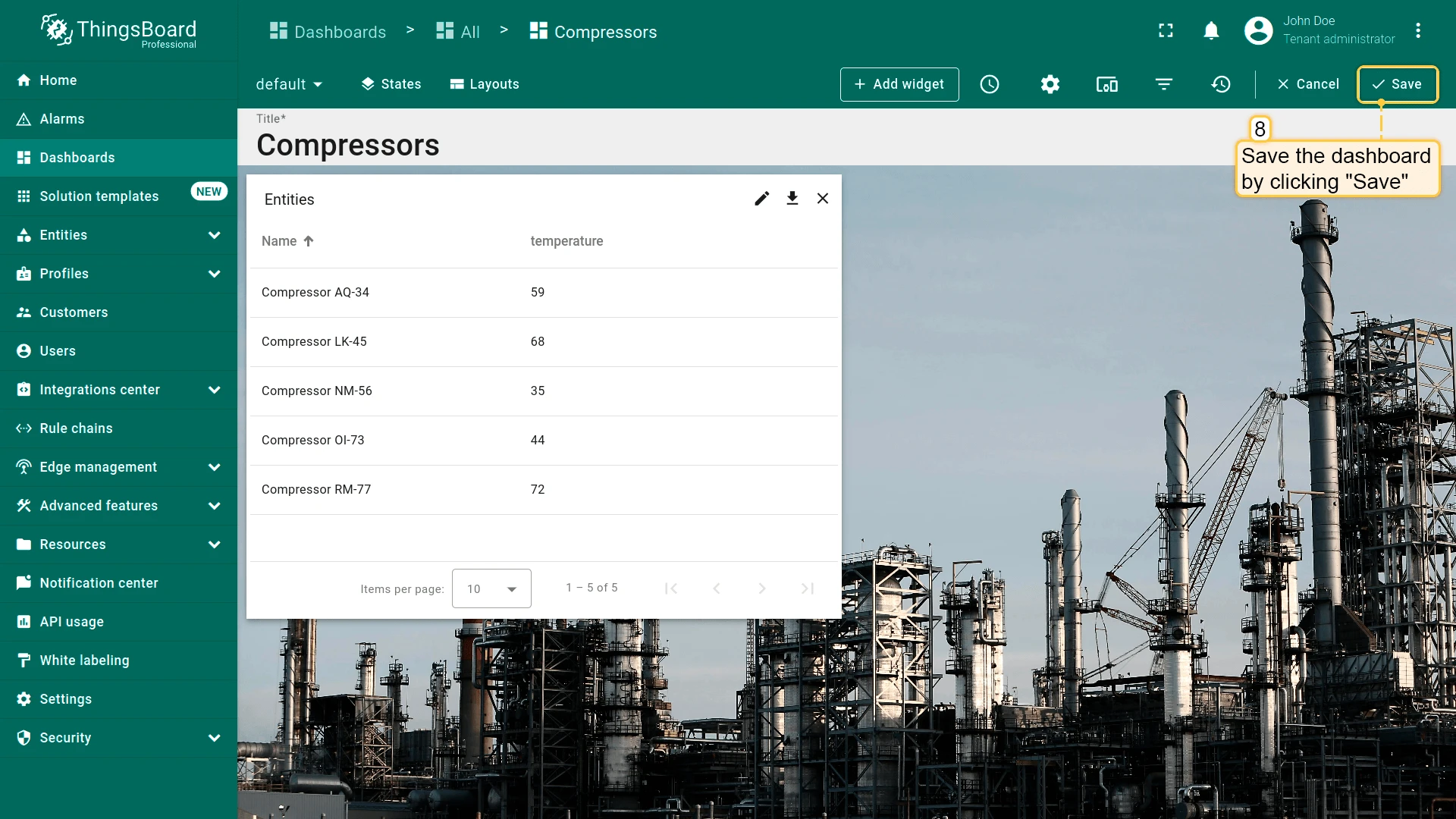
- Click Save in the dashboard toolbar.
Custom Action
Section titled “Custom Action”Runs a custom JavaScript function — for example, to delete a device or asset from a table widget. Example — delete a device:
- Open the widget in edit mode, go to the Actions tab, and click +.
- Select Action cell button as the action source, enter a name (for example, Delete device), and choose an icon.
- Select Custom action as the action type. A JavaScript function editor appears.
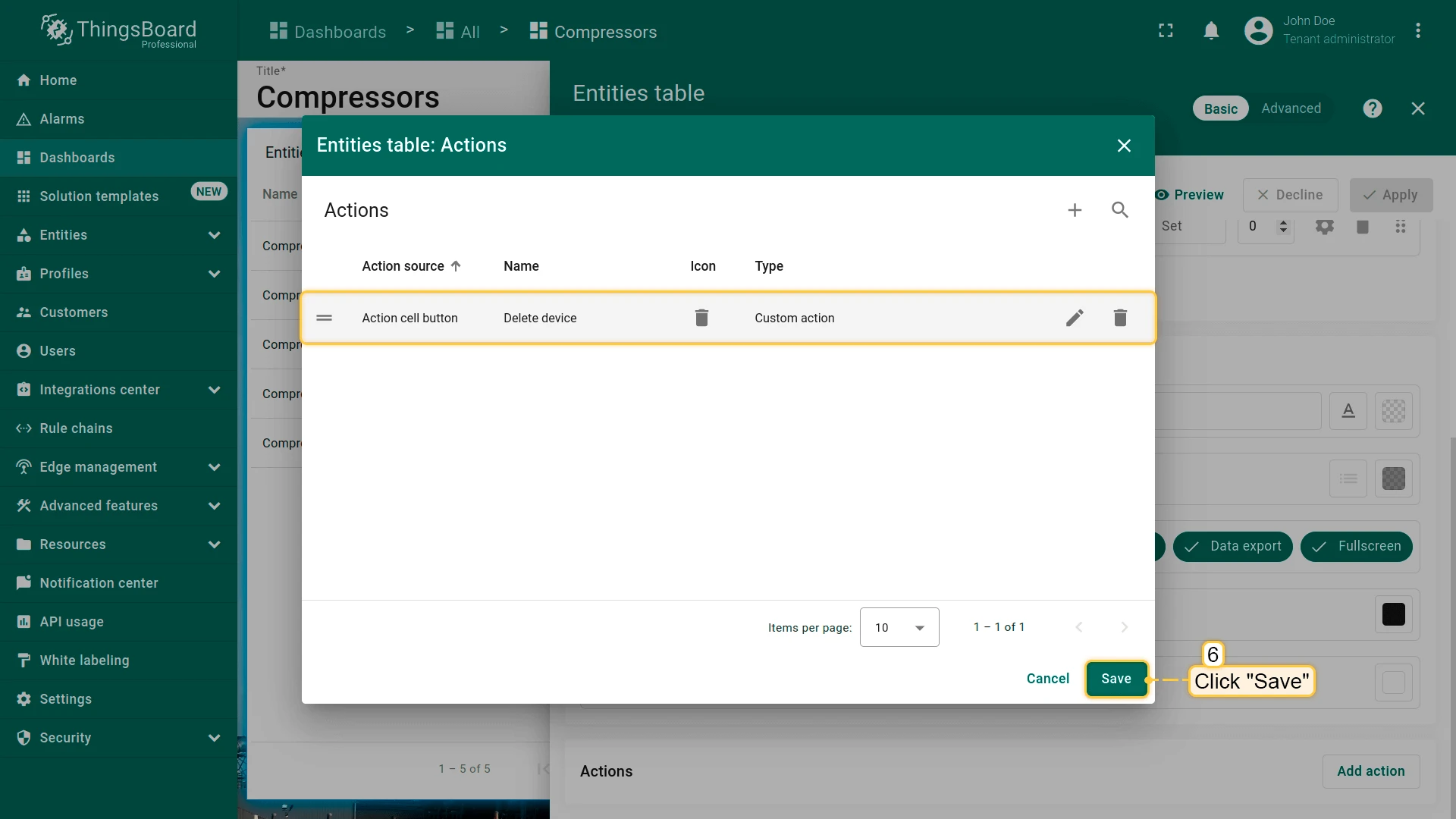
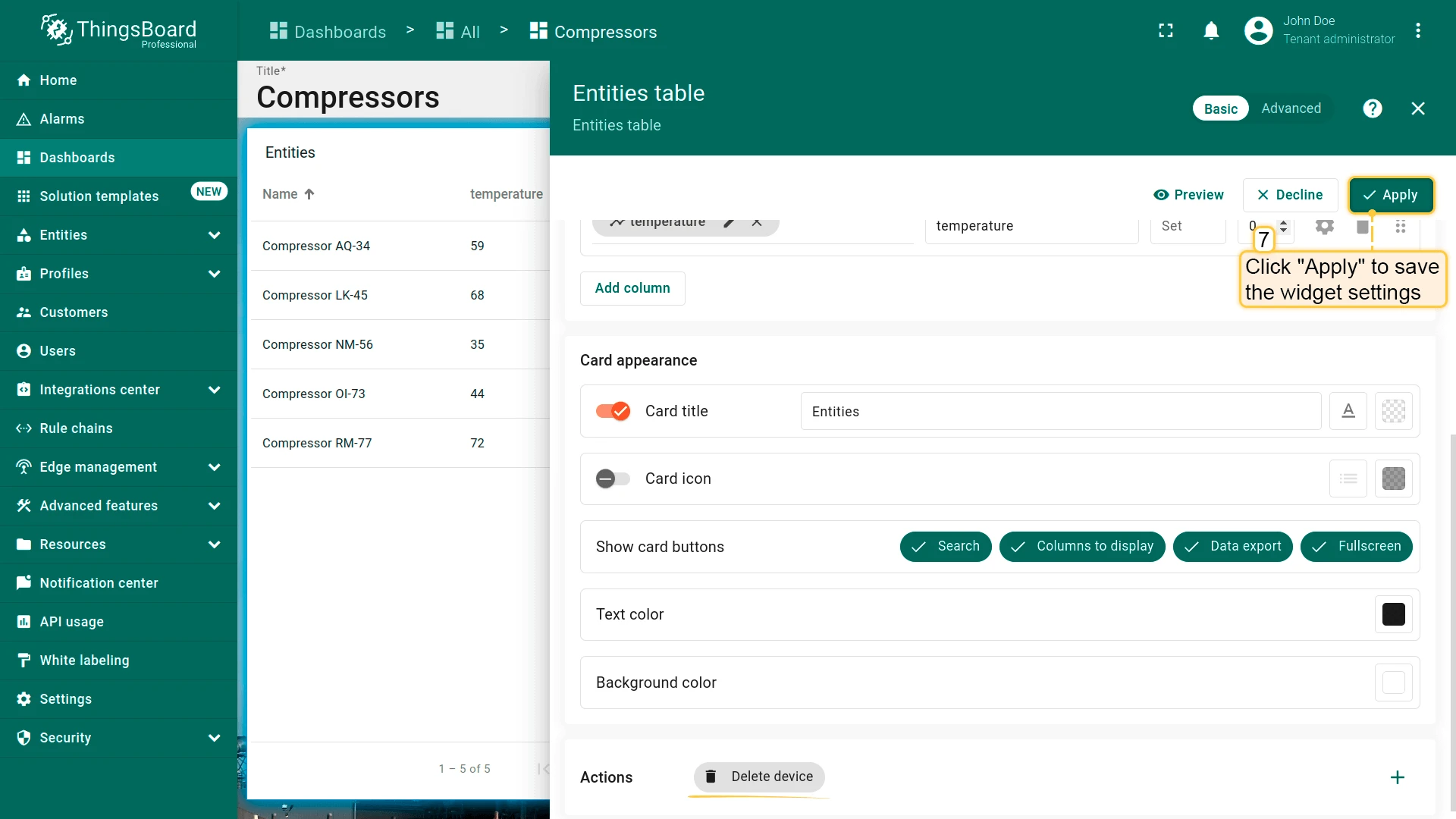
- Paste the function below, click Add, Save, and Apply, then save the dashboard.
Function for deleting a device:
let $injector = widgetContext.$scope.$injector;let dialogs = $injector.get(widgetContext.servicesMap.get('dialogs'));let deviceService = $injector.get(widgetContext.servicesMap.get('deviceService'));
openDeleteDeviceDialog();
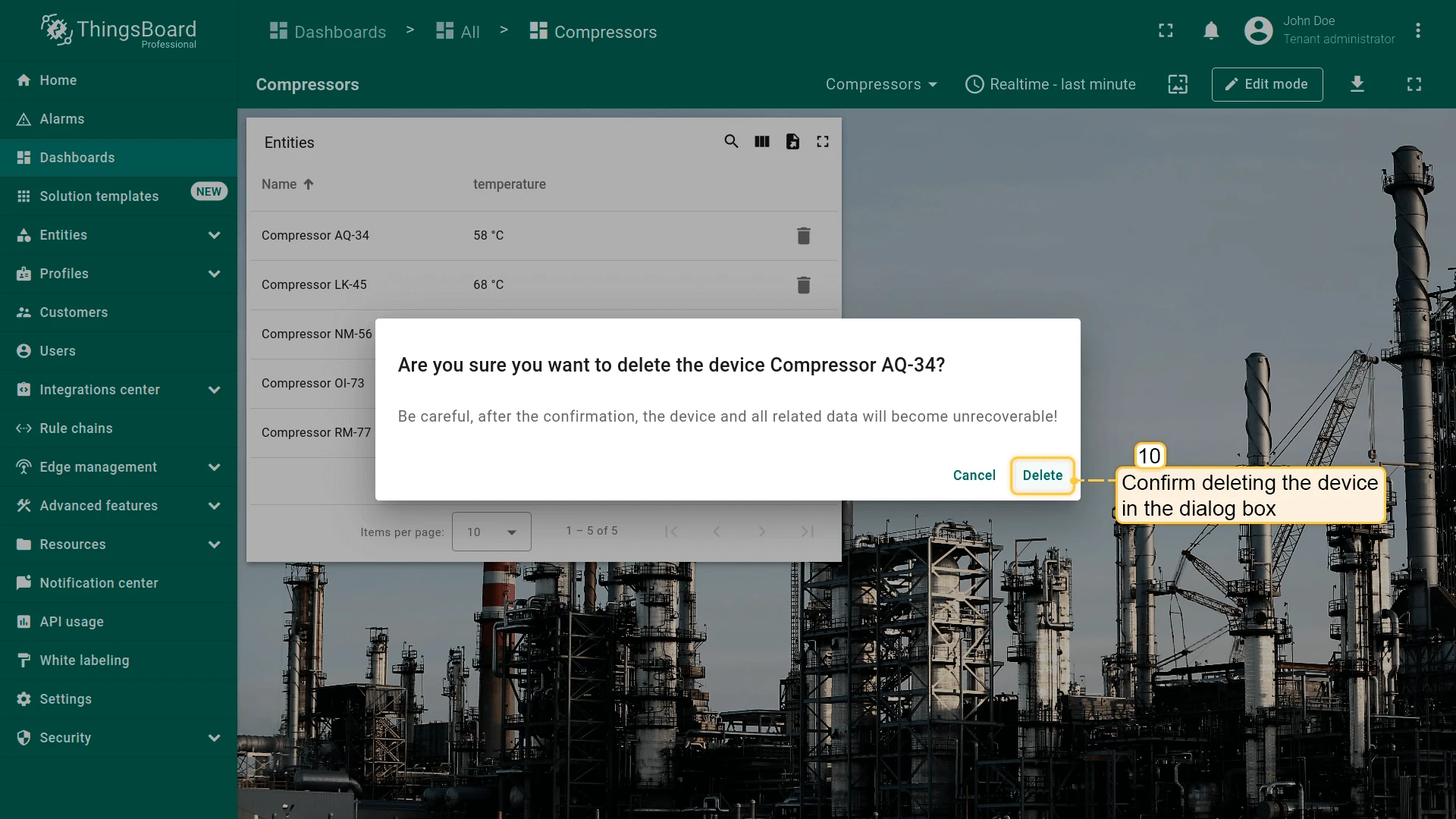
function openDeleteDeviceDialog() {    let title = "Are you sure you want to delete the device " + entityName + "?";    let content = "Be careful, after the confirmation, the device and all related data will become unrecoverable!";    dialogs.confirm(title, content, 'Cancel', 'Delete').subscribe(        function(result) {            if (result) {                deleteDevice();            }        }    );}
function deleteDevice() {    deviceService.deleteDevice(entityId.id).subscribe(        function() {            widgetContext.updateAliases();        }    );}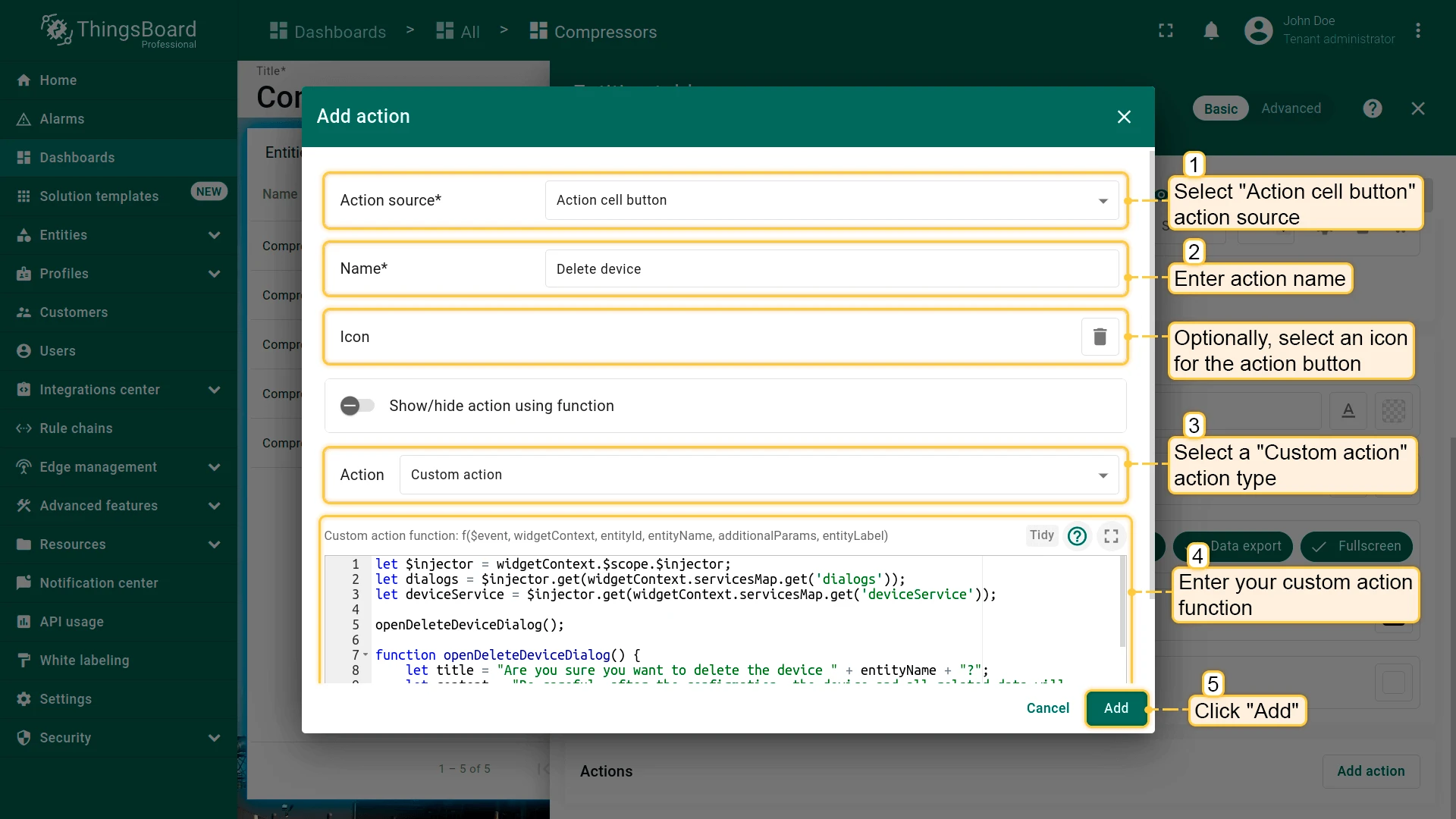
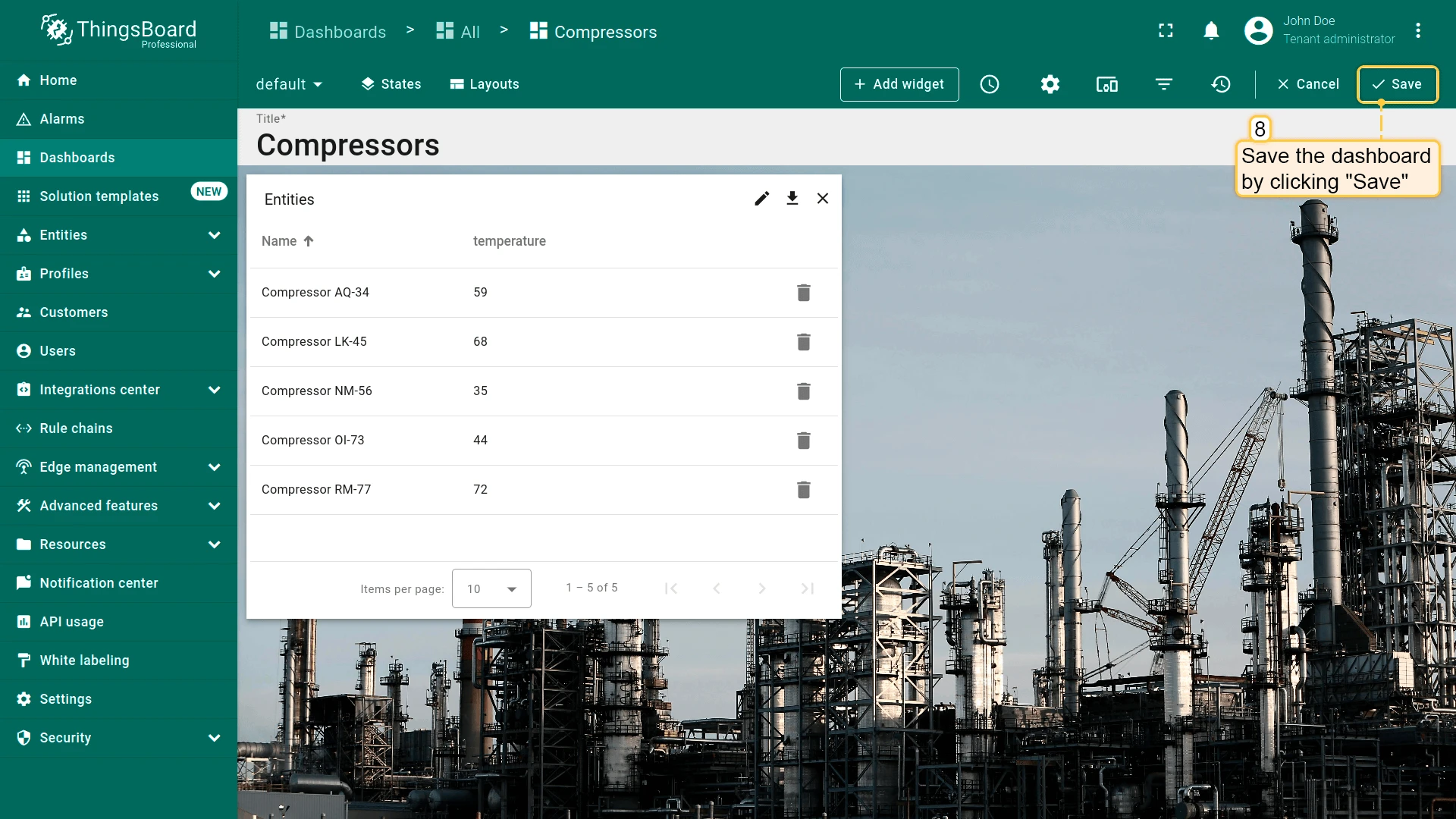
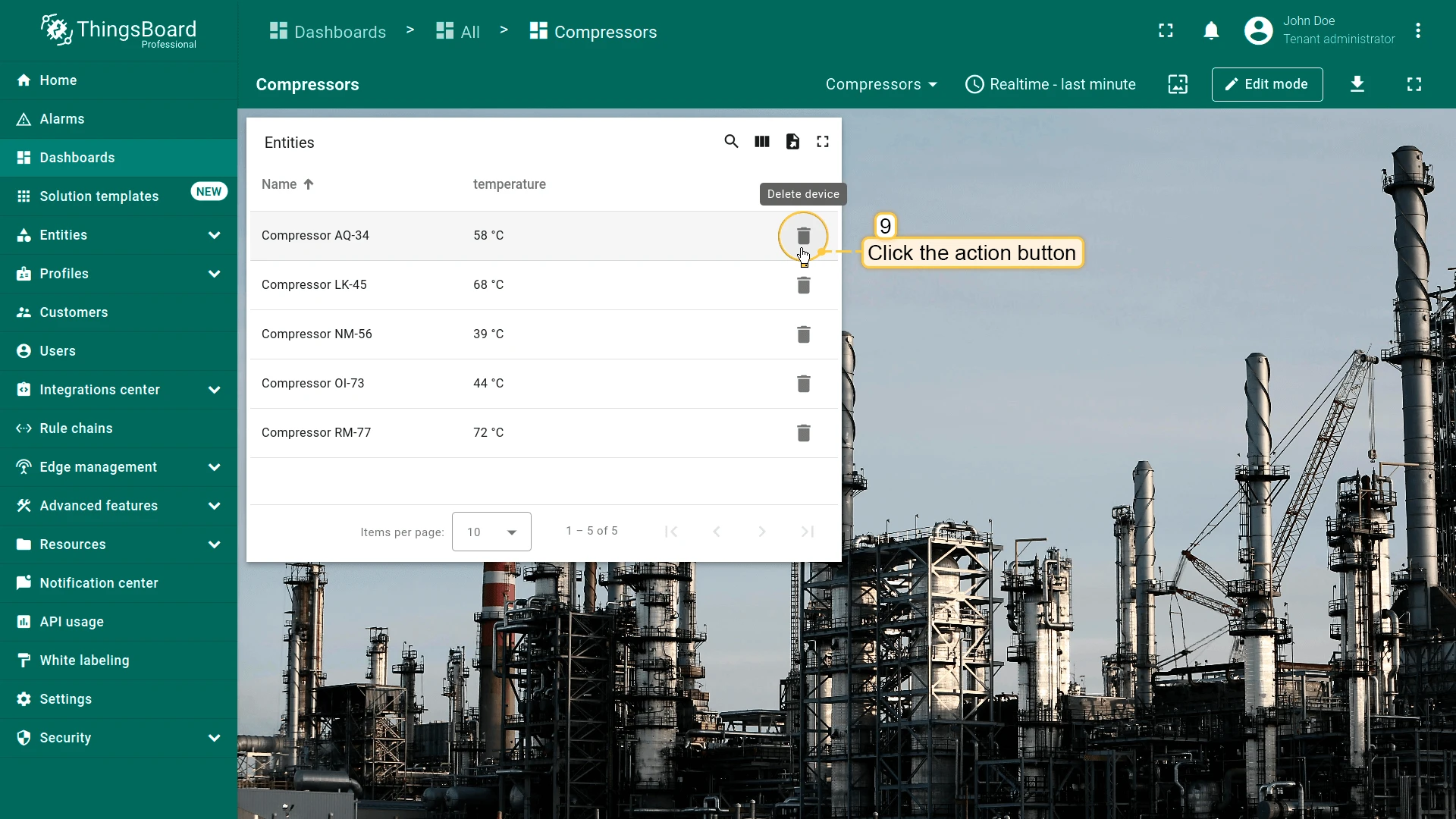
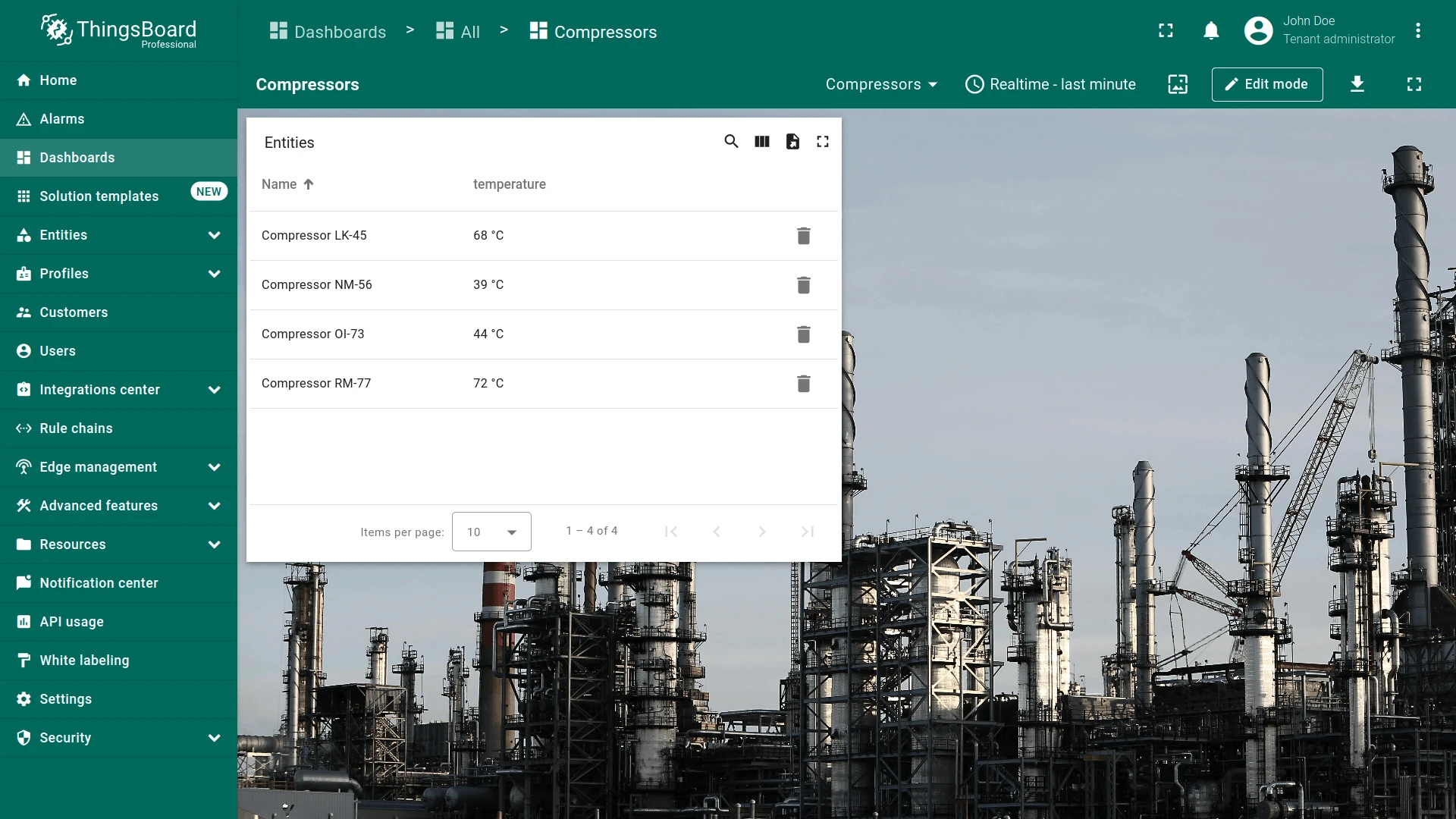
Clicking the trash icon next to an entity opens a confirmation dialog.
Custom Action (with HTML Template)
Section titled “Custom Action (with HTML Template)”Like Custom action, but adds an HTML template for a dialog — useful for entity create and edit forms. The editor has four tabs:
- Resources — external JavaScript and CSS resources
- CSS — custom styles
- HTML — dialog markup
- JavaScript — action logic
This example adds two buttons: one in the widget header to create entities and one per row to edit them. Start with the Add action:
- Open the widget in edit mode, go to the Actions tab, and click +.
- Select Widget header button as the action source, enter a name (for example, Add device), and choose an icon.
- Select Custom action (with HTML template) as the action type.
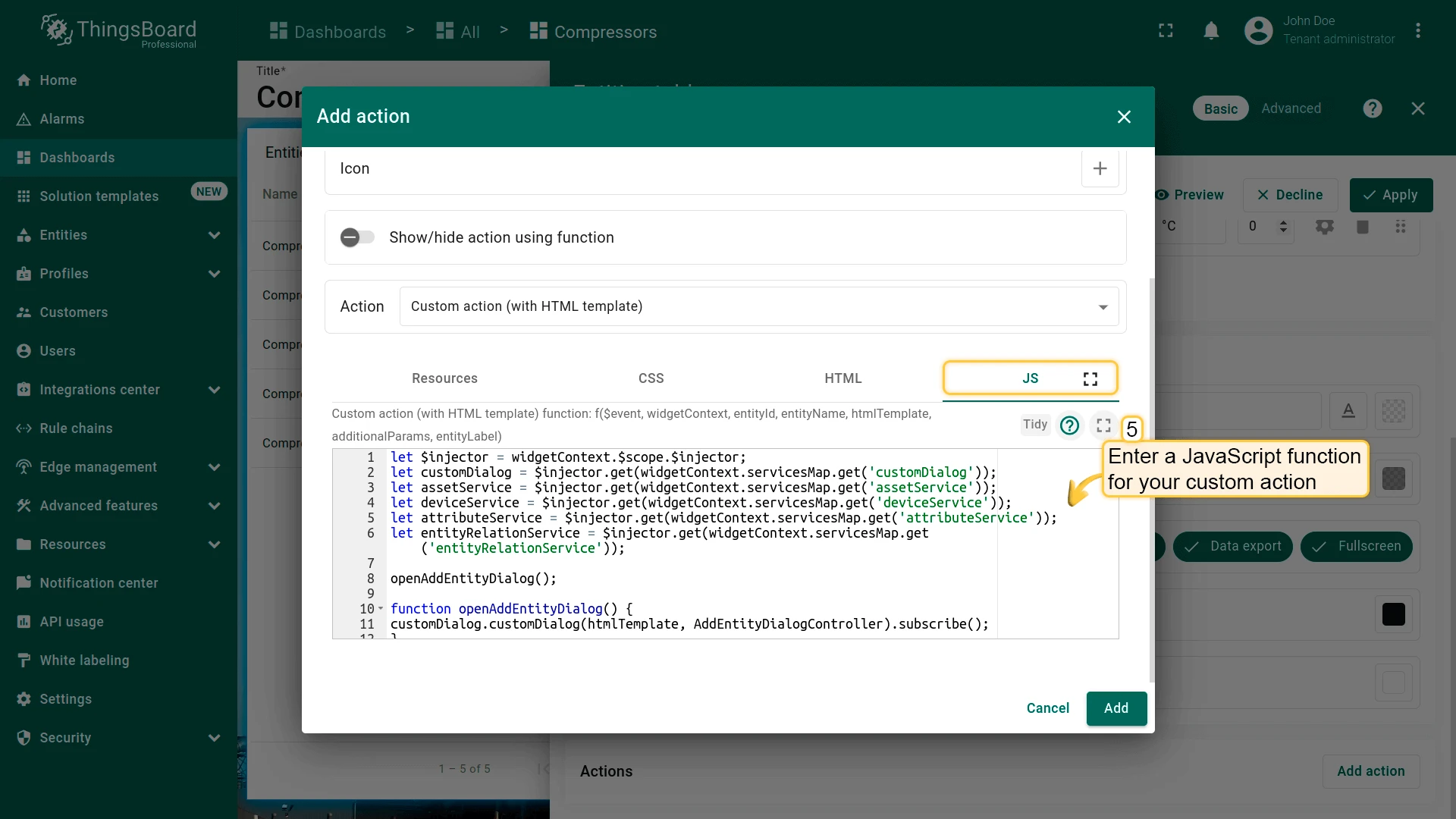
- In the JavaScript tab, paste the function for adding a new entity (example below).
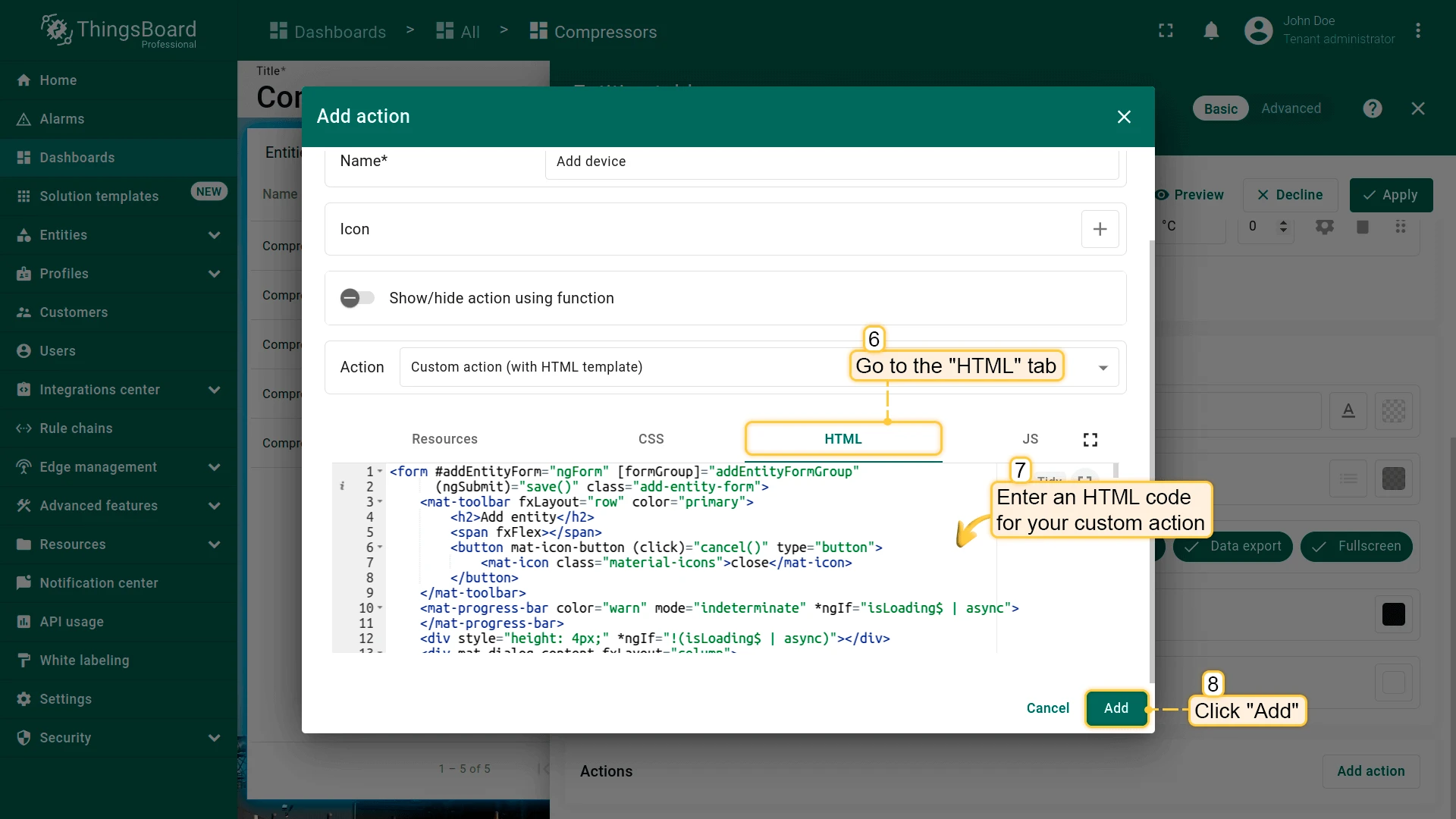
- In the HTML tab, paste the dialog markup (example below).
- Click Add, then Save and Apply to save the widget settings.
JavaScript function for adding a device or asset:
let $injector = widgetContext.$scope.$injector;let customDialog = $injector.get(widgetContext.servicesMap.get('customDialog'));let assetService = $injector.get(widgetContext.servicesMap.get('assetService'));let deviceService = $injector.get(widgetContext.servicesMap.get('deviceService'));let attributeService = $injector.get(widgetContext.servicesMap.get('attributeService'));let entityRelationService = $injector.get(widgetContext.servicesMap.get('entityRelationService'));
openAddEntityDialog();
function openAddEntityDialog() {customDialog.customDialog(htmlTemplate, AddEntityDialogController).subscribe();}
function AddEntityDialogController(instance) {let vm = instance;
    vm.allowedEntityTypes = ['ASSET', 'DEVICE'];    vm.entitySearchDirection = {        from: "FROM",        to: "TO"    }
    vm.addEntityFormGroup = vm.fb.group({     entityName: ['', [vm.validators.required]],     entityType: ['DEVICE'],     entityLabel: [null],     type: ['', [vm.validators.required]],     attributes: vm.fb.group({         latitude: [null],         longitude: [null],         address: [null],         owner: [null],         number: [null, [vm.validators.pattern(/^-?[0-9]+$/)]],         booleanValue: [null]     }),     relations: vm.fb.array([])    });
    vm.cancel = function() {        vm.dialogRef.close(null);    };
    vm.relations = function() {        return vm.addEntityFormGroup.get('relations');    };
    vm.addRelation = function() {        vm.relations().push(vm.fb.group({         relatedEntity: [null, [vm.validators.required]],         relationType: [null, [vm.validators.required]],         direction: [null, [vm.validators.required]]        }));    };
    vm.removeRelation = function(index) {        vm.relations().removeAt(index);        vm.relations().markAsDirty();    };
    vm.save = function() {        vm.addEntityFormGroup.markAsPristine();        saveEntityObservable().subscribe(            function (entity) {                widgetContext.rxjs.forkJoin([                    saveAttributes(entity.id),                    saveRelations(entity.id)                ]).subscribe(                    function () {                        widgetContext.updateAliases();                        vm.dialogRef.close(null);                    }                );            }        );    };
    function saveEntityObservable() {        const formValues = vm.addEntityFormGroup.value;        let entity = {            name: formValues.entityName,            type: formValues.type,            label: formValues.entityLabel        };        if (formValues.entityType == 'ASSET') {            return assetService.saveAsset(entity);        } else if (formValues.entityType == 'DEVICE') {            return deviceService.saveDevice(entity);        }    }
    function saveAttributes(entityId) {        let attributes = vm.addEntityFormGroup.get('attributes').value;        let attributesArray = [];        for (let key in attributes) {            if(attributes[key] !== null) {                attributesArray.push({key: key, value: attributes[key]});            }        }        if (attributesArray.length > 0) {            return attributeService.saveEntityAttributes(entityId, "SERVER_SCOPE", attributesArray);        }        return widgetContext.rxjs.of([]);    }
function saveRelations(entityId) { let relations = vm.addEntityFormGroup.get('relations').value; let tasks = []; for(let i=0; i < relations.length; i++) { let relation = { type: relations[i].relationType, typeGroup: 'COMMON' }; if (relations[i].direction == 'FROM') { relation.to = relations[i].relatedEntity; relation.from = entityId; } else { relation.to = entityId; relation.from = relations[i].relatedEntity; } tasks.push(entityRelationService.saveRelation(relation)); } if (tasks.length > 0) { return widgetContext.rxjs.forkJoin(tasks); } return widgetContext.rxjs.of([]); }}HTML template for the add-entity dialog (HTML tab):
<form #addEntityForm="ngForm" [formGroup]="addEntityFormGroup" (ngSubmit)="save()" class="add-entity-form"> <mat-toolbar fxLayout="row" color="primary"> <h2>Add entity</h2> <span fxFlex></span> <button mat-icon-button (click)="cancel()" type="button"> <mat-icon class="material-icons">close</mat-icon> </button> </mat-toolbar> <mat-progress-bar color="warn" mode="indeterminate" *ngIf="isLoading$ | async"> </mat-progress-bar> <div style="height: 4px;" *ngIf="!(isLoading$ | async)"></div> <div mat-dialog-content fxLayout="column"> <div fxLayout="row" fxLayoutGap="8px" fxLayout.xs="column" fxLayoutGap.xs="0"> <mat-form-field fxFlex class="mat-block"> <mat-label>Entity Name</mat-label> <input matInput formControlName="entityName" required> <mat-error *ngIf="addEntityFormGroup.get('entityName').hasError('required')"> Entity name is required. </mat-error> </mat-form-field> <mat-form-field fxFlex class="mat-block"> <mat-label>Entity Label</mat-label> <input matInput formControlName="entityLabel" > </mat-form-field> </div> <div fxLayout="row" fxLayoutGap="8px" fxLayout.xs="column" fxLayoutGap.xs="0"> <tb-entity-type-select class="mat-block" formControlName="entityType" [showLabel]="true" [allowedEntityTypes]="allowedEntityTypes" ></tb-entity-type-select> <tb-entity-subtype-autocomplete fxFlex *ngIf="addEntityFormGroup.get('entityType').value == 'ASSET'" class="mat-block" formControlName="type" [required]="true" [entityType]="'ASSET'" ></tb-entity-subtype-autocomplete> <tb-entity-subtype-autocomplete fxFlex *ngIf="addEntityFormGroup.get('entityType').value != 'ASSET'" class="mat-block" formControlName="type" [required]="true" [entityType]="'DEVICE'" ></tb-entity-subtype-autocomplete> </div> <div formGroupName="attributes" fxLayout="column"> <div fxLayout="row" fxLayoutGap="8px" fxLayout.xs="column" fxLayoutGap.xs="0"> <mat-form-field fxFlex class="mat-block"> <mat-label>Latitude</mat-label> <input type="number" step="any" matInput formControlName="latitude"> </mat-form-field> <mat-form-field fxFlex class="mat-block"> <mat-label>Longitude</mat-label> <input type="number" step="any" matInput formControlName="longitude"> </mat-form-field> </div> <div fxLayout="row" fxLayoutGap="8px" fxLayout.xs="column" fxLayoutGap.xs="0"> <mat-form-field fxFlex class="mat-block"> <mat-label>Address</mat-label> <input matInput formControlName="address"> </mat-form-field> <mat-form-field fxFlex class="mat-block"> <mat-label>Owner</mat-label> <input matInput formControlName="owner"> </mat-form-field> </div> <div fxLayout="row" fxLayoutGap="8px" fxLayout.xs="column" fxLayoutGap.xs="0"> <mat-form-field fxFlex class="mat-block"> <mat-label>Integer Value</mat-label> <input type="number" step="1" matInput formControlName="number"> <mat-error *ngIf="addEntityFormGroup.get('attributes.number').hasError('pattern')"> Invalid integer value. </mat-error> </mat-form-field> <div class="boolean-value-input" fxLayout="column" fxLayoutAlign="center start" fxFlex> <label class="checkbox-label">Boolean Value</label> <mat-checkbox formControlName="booleanValue" style="margin-bottom: 40px;"> {{ (addEntityFormGroup.get('attributes.booleanValue').value ? "value.true" : "value.false") | translate }} </mat-checkbox> </div> </div> </div> <div class="relations-list"> <div class="mat-body-1" style="padding-bottom: 10px; color: rgba(0,0,0,0.57);">Relations</div> <div class="body" [fxShow]="relations().length"> <div class="row" fxLayout="row" fxLayoutAlign="start center" formArrayName="relations" *ngFor="let relation of relations().controls; let i = index;"> <div [formGroupName]="i" class="mat-elevation-z2" fxFlex fxLayout="row" style="padding: 5px 0 5px 5px;"> <div fxFlex fxLayout="column"> <div fxLayout="row" fxLayoutGap="8px" fxLayout.xs="column" fxLayoutGap.xs="0"> <mat-form-field class="mat-block" style="min-width: 100px;"> <mat-label>Direction</mat-label> <mat-select formControlName="direction" name="direction"> <mat-option *ngFor="let direction of entitySearchDirection | keyvalue" [value]="direction.value"> {{ ("relation.search-direction." + direction.value) | translate}} </mat-option> </mat-select> <mat-error *ngIf="relation.get('direction').hasError('required')"> Relation direction is required. </mat-error> </mat-form-field> <tb-relation-type-autocomplete fxFlex class="mat-block" formControlName="relationType" [required]="true"> </tb-relation-type-autocomplete> </div> <div fxLayout="row" fxLayout.xs="column"> <tb-entity-select fxFlex class="mat-block" [required]="true" formControlName="relatedEntity"> </tb-entity-select> </div> </div> <div fxLayout="column" fxLayoutAlign="center center"> <button mat-icon-button color="primary" aria-label="Remove" type="button" (click)="removeRelation(i)" matTooltip="Remove relation" matTooltipPosition="above"> <mat-icon>close</mat-icon> </button> </div> </div> </div> </div> <div> <button mat-raised-button color="primary" type="button" (click)="addRelation()" matTooltip="Add Relation" matTooltipPosition="above"> Add </button> </div> </div> </div> <div mat-dialog-actions fxLayout="row" fxLayoutAlign="end center"> <button mat-button color="primary" type="button" [disabled]="(isLoading$ | async)" (click)="cancel()" cdkFocusInitial> Cancel </button> <button mat-button mat-raised-button color="primary" type="submit" [disabled]="(isLoading$ | async) || addEntityForm.invalid || !addEntityForm.dirty"> Create </button> </div></form>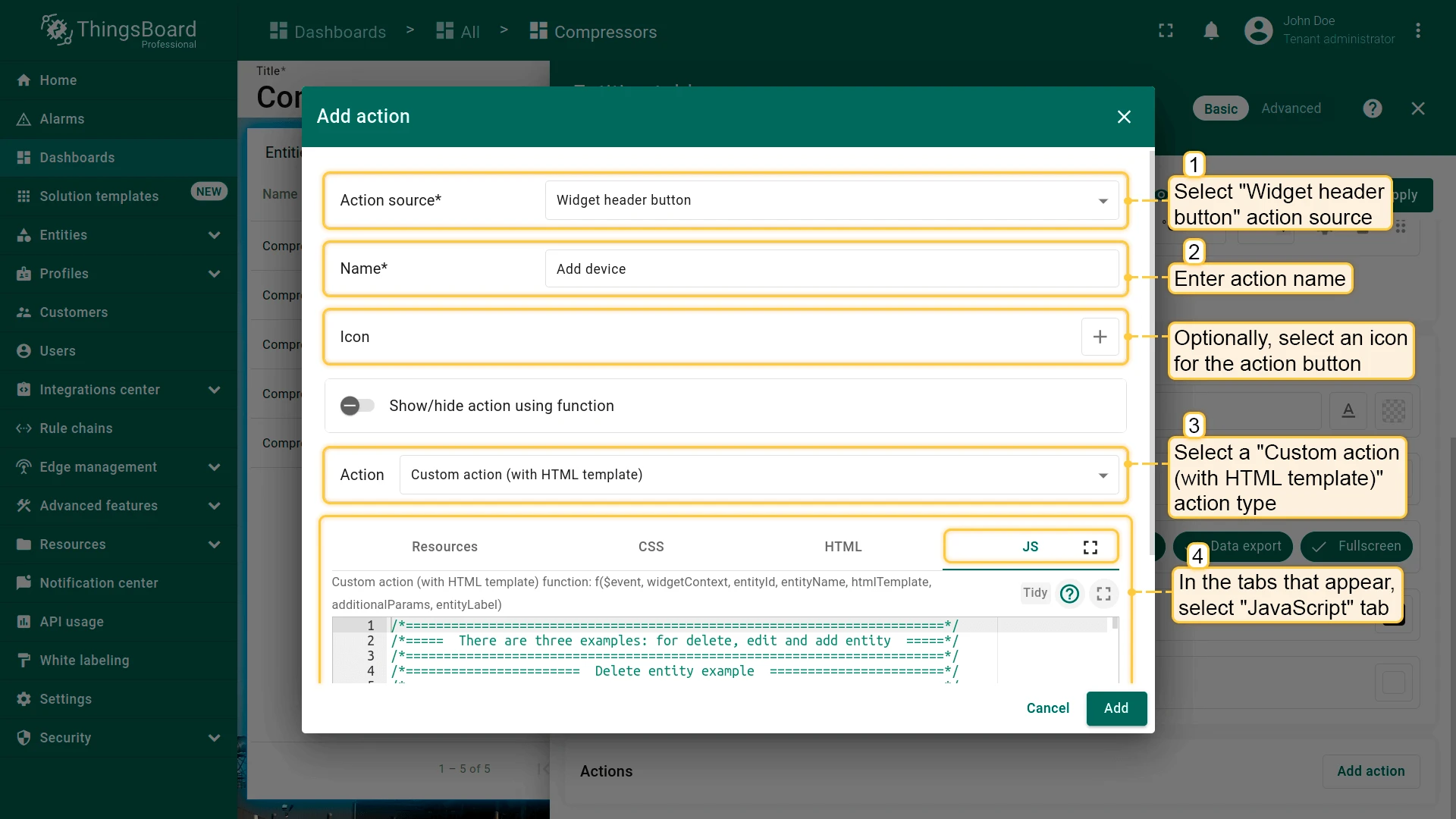
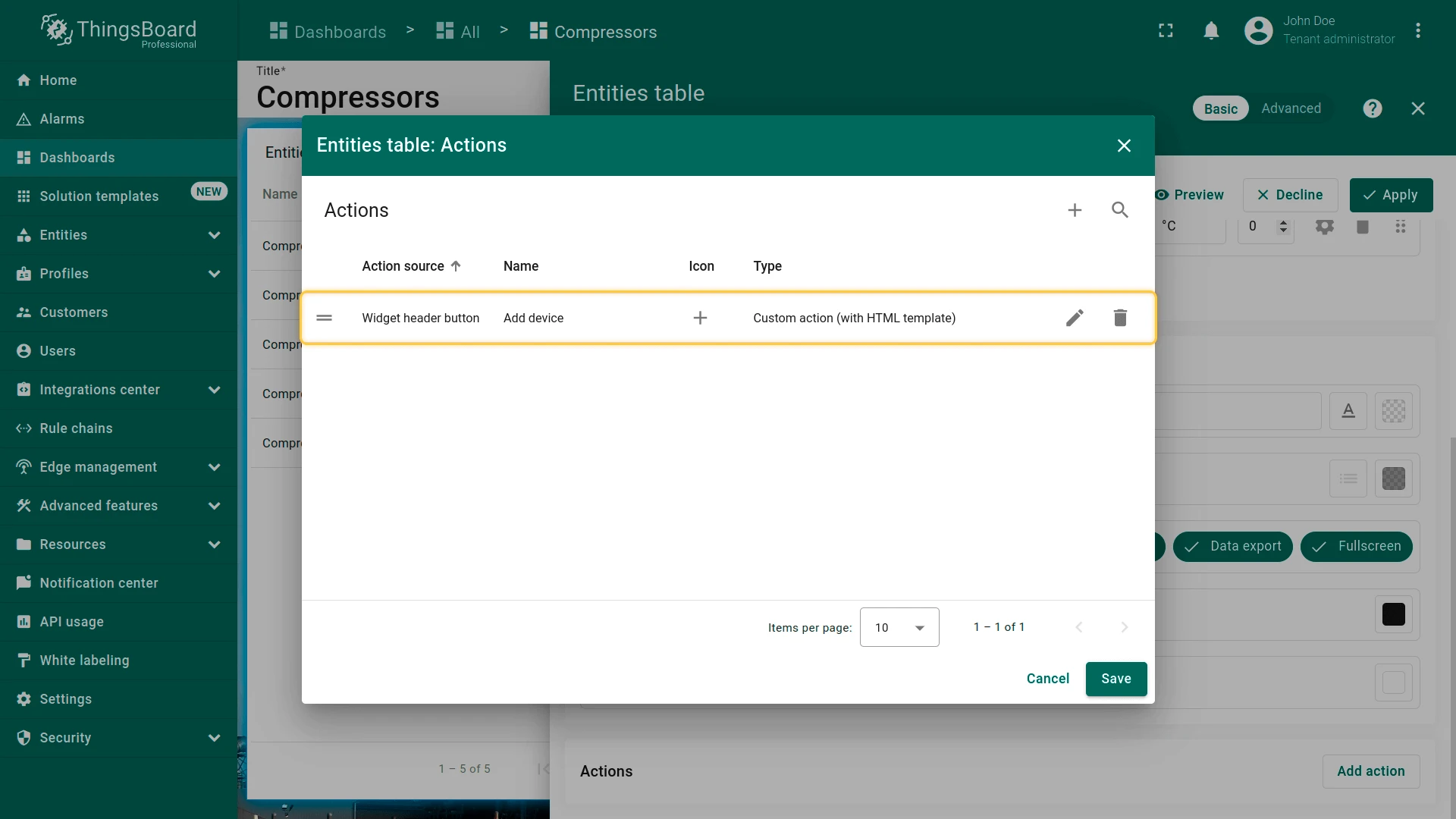
Next, add the per-row Edit action: click + in the Actions list, select Action cell button as the source, enter a name (for example, Edit device), select Custom action (with HTML template), and paste the JavaScript function and HTML template below.
JavaScript function for editing a device or asset:
let $injector = widgetContext.$scope.$injector;let customDialog = $injector.get(widgetContext.servicesMap.get('customDialog'));let entityService = $injector.get(widgetContext.servicesMap.get('entityService'));let assetService = $injector.get(widgetContext.servicesMap.get('assetService'));let deviceService = $injector.get(widgetContext.servicesMap.get('deviceService'));let attributeService = $injector.get(widgetContext.servicesMap.get('attributeService'));let entityRelationService = $injector.get(widgetContext.servicesMap.get('entityRelationService'));
openEditEntityDialog();
function openEditEntityDialog() {customDialog.customDialog(htmlTemplate, EditEntityDialogController).subscribe();}
function EditEntityDialogController(instance) {let vm = instance;
    vm.entityName = entityName;    vm.entityType = entityId.entityType;    vm.entitySearchDirection = {        from: "FROM",        to: "TO"    };    vm.attributes = {};    vm.oldRelationsData = [];    vm.relationsToDelete = [];    vm.entity = {};
    vm.editEntityFormGroup = vm.fb.group({        entityName: ['', [vm.validators.required]],        entityType: [null],        entityLabel: [null],        type: ['', [vm.validators.required]],        attributes: vm.fb.group({            latitude: [null],            longitude: [null],            address: [null],            owner: [null],            number: [null, [vm.validators.pattern(/^-?[0-9]+$/)]],            booleanValue: [false]        }),        oldRelations: vm.fb.array([]),        relations: vm.fb.array([])    });
    getEntityInfo();
    vm.cancel = function() {        vm.dialogRef.close(null);    };
    vm.relations = function() {        return vm.editEntityFormGroup.get('relations');    };
    vm.oldRelations = function() {        return vm.editEntityFormGroup.get('oldRelations');    };
    vm.addRelation = function() {        vm.relations().push(vm.fb.group({            relatedEntity: [null, [vm.validators.required]],            relationType: [null, [vm.validators.required]],            direction: [null, [vm.validators.required]]        }));    };
    function addOldRelation() {        vm.oldRelations().push(vm.fb.group({            relatedEntity: [{value: null, disabled: true}, [vm.validators.required]],            relationType: [{value: null, disabled: true}, [vm.validators.required]],            direction: [{value: null, disabled: true}, [vm.validators.required]]        }));    }
    vm.removeRelation = function(index) {        vm.relations().removeAt(index);        vm.relations().markAsDirty();    };
    vm.removeOldRelation = function(index) {        vm.oldRelations().removeAt(index);        vm.relationsToDelete.push(vm.oldRelationsData[index]);        vm.oldRelations().markAsDirty();    };
    vm.save = function() {        vm.editEntityFormGroup.markAsPristine();        widgetContext.rxjs.forkJoin([            saveAttributes(entityId),            saveRelations(entityId),            saveEntity()        ]).subscribe(            function () {                widgetContext.updateAliases();                vm.dialogRef.close(null);            }        );    };
    function getEntityAttributes(attributes) {        for (var i = 0; i < attributes.length; i++) {            vm.attributes[attributes[i].key] = attributes[i].value;        }    }
    function getEntityRelations(relations) {        let relationsFrom = relations[0];        let relationsTo = relations[1];        for (let i=0; i < relationsFrom.length; i++) {            let relation = {                direction: 'FROM',                relationType: relationsFrom[i].type,                relatedEntity: relationsFrom[i].to            };            vm.oldRelationsData.push(relation);            addOldRelation();        }        for (let i=0; i < relationsTo.length; i++) {            let relation = {                direction: 'TO',                relationType: relationsTo[i].type,                relatedEntity: relationsTo[i].from            };            vm.oldRelationsData.push(relation);            addOldRelation();        }    }
    function getEntityInfo() {        widgetContext.rxjs.forkJoin([            entityRelationService.findInfoByFrom(entityId),            entityRelationService.findInfoByTo(entityId),            attributeService.getEntityAttributes(entityId, 'SERVER_SCOPE'),            entityService.getEntity(entityId.entityType, entityId.id)        ]).subscribe(            function (data) {                getEntityRelations(data.slice(0,2));                getEntityAttributes(data[2]);                vm.entity = data[3];                vm.editEntityFormGroup.patchValue({                    entityName: vm.entity.name,                    entityType: vm.entityType,                    entityLabel: vm.entity.label,                    type: vm.entity.type,                    attributes: vm.attributes,                    oldRelations: vm.oldRelationsData                }, {emitEvent: false});            }        );    }
    function saveEntity() {        const formValues = vm.editEntityFormGroup.value;        if (vm.entity.label !== formValues.entityLabel){            vm.entity.label = formValues.entityLabel;            if (formValues.entityType == 'ASSET') {                return assetService.saveAsset(vm.entity);            } else if (formValues.entityType == 'DEVICE') {                return deviceService.saveDevice(vm.entity);            }        }        return widgetContext.rxjs.of([]);    }
    function saveAttributes(entityId) {        let attributes = vm.editEntityFormGroup.get('attributes').value;        let attributesArray = [];        for (let key in attributes) {            if (attributes[key] !== vm.attributes[key]) {                attributesArray.push({key: key, value: attributes[key]});            }        }        if (attributesArray.length > 0) {            return attributeService.saveEntityAttributes(entityId, "SERVER_SCOPE", attributesArray);        }        return widgetContext.rxjs.of([]);    }
function saveRelations(entityId) { let relations = vm.editEntityFormGroup.get('relations').value; let tasks = []; for(let i=0; i < relations.length; i++) { let relation = { type: relations[i].relationType, typeGroup: 'COMMON' }; if (relations[i].direction == 'FROM') { relation.to = relations[i].relatedEntity; relation.from = entityId; } else { relation.to = entityId; relation.from = relations[i].relatedEntity; } tasks.push(entityRelationService.saveRelation(relation)); } for (let i=0; i < vm.relationsToDelete.length; i++) { let relation = { type: vm.relationsToDelete[i].relationType }; if (vm.relationsToDelete[i].direction == 'FROM') { relation.to = vm.relationsToDelete[i].relatedEntity; relation.from = entityId; } else { relation.to = entityId; relation.from = vm.relationsToDelete[i].relatedEntity; } tasks.push(entityRelationService.deleteRelation(relation.from, relation.type, relation.to)); } if (tasks.length > 0) { return widgetContext.rxjs.forkJoin(tasks); } return widgetContext.rxjs.of([]); }}HTML template for the edit-entity dialog (HTML tab):
<form #editEntityForm="ngForm" [formGroup]="editEntityFormGroup" (ngSubmit)="save()" class="edit-entity-form"> <mat-toolbar fxLayout="row" color="primary"> <h2>Edit {{entityType.toLowerCase()}} {{entityName}}</h2> <span fxFlex></span> <button mat-icon-button (click)="cancel()" type="button"> <mat-icon class="material-icons">close</mat-icon> </button> </mat-toolbar> <mat-progress-bar color="warn" mode="indeterminate" *ngIf="isLoading$ | async"> </mat-progress-bar> <div style="height: 4px;" *ngIf="!(isLoading$ | async)"></div> <div mat-dialog-content fxLayout="column"> <div fxLayout="row" fxLayoutGap="8px" fxLayout.xs="column" fxLayoutGap.xs="0"> <mat-form-field fxFlex class="mat-block"> <mat-label>Entity Name</mat-label> <input matInput formControlName="entityName" required readonly=""> </mat-form-field> <mat-form-field fxFlex class="mat-block"> <mat-label>Entity Label</mat-label> <input matInput formControlName="entityLabel"> </mat-form-field> </div> <div fxLayout="row" fxLayoutGap="8px" fxLayout.xs="column" fxLayoutGap.xs="0"> <mat-form-field fxFlex class="mat-block"> <mat-label>Entity Type</mat-label> <input matInput formControlName="entityType" readonly> </mat-form-field> <mat-form-field fxFlex class="mat-block"> <mat-label>Type</mat-label> <input matInput formControlName="type" readonly> </mat-form-field> </div> <div formGroupName="attributes" fxLayout="column"> <div fxLayout="row" fxLayoutGap="8px" fxLayout.xs="column" fxLayoutGap.xs="0"> <mat-form-field fxFlex class="mat-block"> <mat-label>Latitude</mat-label> <input type="number" step="any" matInput formControlName="latitude"> </mat-form-field> <mat-form-field fxFlex class="mat-block"> <mat-label>Longitude</mat-label> <input type="number" step="any" matInput formControlName="longitude"> </mat-form-field> </div> <div fxLayout="row" fxLayoutGap="8px" fxLayout.xs="column" fxLayoutGap.xs="0"> <mat-form-field fxFlex class="mat-block"> <mat-label>Address</mat-label> <input matInput formControlName="address"> </mat-form-field> <mat-form-field fxFlex class="mat-block"> <mat-label>Owner</mat-label> <input matInput formControlName="owner"> </mat-form-field> </div> <div fxLayout="row" fxLayoutGap="8px" fxLayout.xs="column" fxLayoutGap.xs="0"> <mat-form-field fxFlex class="mat-block"> <mat-label>Integer Value</mat-label> <input type="number" step="1" matInput formControlName="number"> <mat-error *ngIf="editEntityFormGroup.get('attributes.number').hasError('pattern')"> Invalid integer value. </mat-error> </mat-form-field> <div class="boolean-value-input" fxLayout="column" fxLayoutAlign="center start" fxFlex> <label class="checkbox-label">Boolean Value</label> <mat-checkbox formControlName="booleanValue" style="margin-bottom: 40px;"> {{ (editEntityFormGroup.get('attributes.booleanValue').value ? "value.true" : "value.false") | translate }} </mat-checkbox> </div> </div> </div> <div class="relations-list old-relations"> <div class="mat-body-1" style="padding-bottom: 10px; color: rgba(0,0,0,0.57);">Relations</div> <div class="body" [fxShow]="oldRelations().length"> <div class="row" fxLayout="row" fxLayoutAlign="start center" formArrayName="oldRelations" *ngFor="let relation of oldRelations().controls; let i = index;"> <div [formGroupName]="i" class="mat-elevation-z2" fxFlex fxLayout="row" style="padding: 5px 0 5px 5px;"> <div fxFlex fxLayout="column"> <div fxLayout="row" fxLayoutGap="8px" fxLayout.xs="column" fxLayoutGap.xs="0"> <mat-form-field class="mat-block" style="min-width: 100px;"> <mat-label>Direction</mat-label> <mat-select formControlName="direction" name="direction"> <mat-option *ngFor="let direction of entitySearchDirection | keyvalue" [value]="direction.value"> {{ ("relation.search-direction." + direction.value) | translate}} </mat-option> </mat-select> <mat-error *ngIf="relation.get('direction').hasError('required')"> Relation direction is required. </mat-error> </mat-form-field> <tb-relation-type-autocomplete fxFlex class="mat-block" formControlName="relationType" required="true"> </tb-relation-type-autocomplete> </div> <div fxLayout="row" fxLayout.xs="column"> <tb-entity-select fxFlex class="mat-block" required="true" formControlName="relatedEntity"> </tb-entity-select> </div> </div> <div fxLayout="column" fxLayoutAlign="center center"> <button mat-icon-button color="primary" aria-label="Remove" type="button" (click)="removeOldRelation(i)" matTooltip="Remove relation" matTooltipPosition="above"> <mat-icon>close</mat-icon> </button> </div> </div> </div> </div> </div> <div class="relations-list"> <div class="mat-body-1" style="padding-bottom: 10px; color: rgba(0,0,0,0.57);">New Relations</div> <div class="body" [fxShow]="relations().length"> <div class="row" fxLayout="row" fxLayoutAlign="start center" formArrayName="relations" *ngFor="let relation of relations().controls; let i = index;"> <div [formGroupName]="i" class="mat-elevation-z2" fxFlex fxLayout="row" style="padding: 5px 0 5px 5px;"> <div fxFlex fxLayout="column"> <div fxLayout="row" fxLayoutGap="8px" fxLayout.xs="column" fxLayoutGap.xs="0"> <mat-form-field class="mat-block" style="min-width: 100px;"> <mat-label>Direction</mat-label> <mat-select formControlName="direction" name="direction"> <mat-option *ngFor="let direction of entitySearchDirection | keyvalue" [value]="direction.value"> {{ ("relation.search-direction." + direction.value) | translate}} </mat-option> </mat-select> <mat-error *ngIf="relation.get('direction').hasError('required')"> Relation direction is required. </mat-error> </mat-form-field> <tb-relation-type-autocomplete fxFlex class="mat-block" formControlName="relationType" [required]="true"> </tb-relation-type-autocomplete> </div> <div fxLayout="row" fxLayout.xs="column"> <tb-entity-select fxFlex class="mat-block" [required]="true" formControlName="relatedEntity"> </tb-entity-select> </div> </div> <div fxLayout="column" fxLayoutAlign="center center"> <button mat-icon-button color="primary" aria-label="Remove" type="button" (click)="removeRelation(i)" matTooltip="Remove relation" matTooltipPosition="above"> <mat-icon>close</mat-icon> </button> </div> </div> </div> </div> <div> <button mat-raised-button color="primary" type="button" (click)="addRelation()" matTooltip="Add Relation" matTooltipPosition="above"> Add </button> </div> </div> </div> <div mat-dialog-actions fxLayout="row" fxLayoutAlign="end center"> <button mat-button color="primary" type="button" [disabled]="(isLoading$ | async)" (click)="cancel()" cdkFocusInitial> Cancel </button> <button mat-button mat-raised-button color="primary" type="submit" [disabled]="(isLoading$ | async) || editEntityForm.invalid || !editEntityForm.dirty"> Save </button> </div></form>Click Add, Save, and Apply, then click Save in the dashboard toolbar.
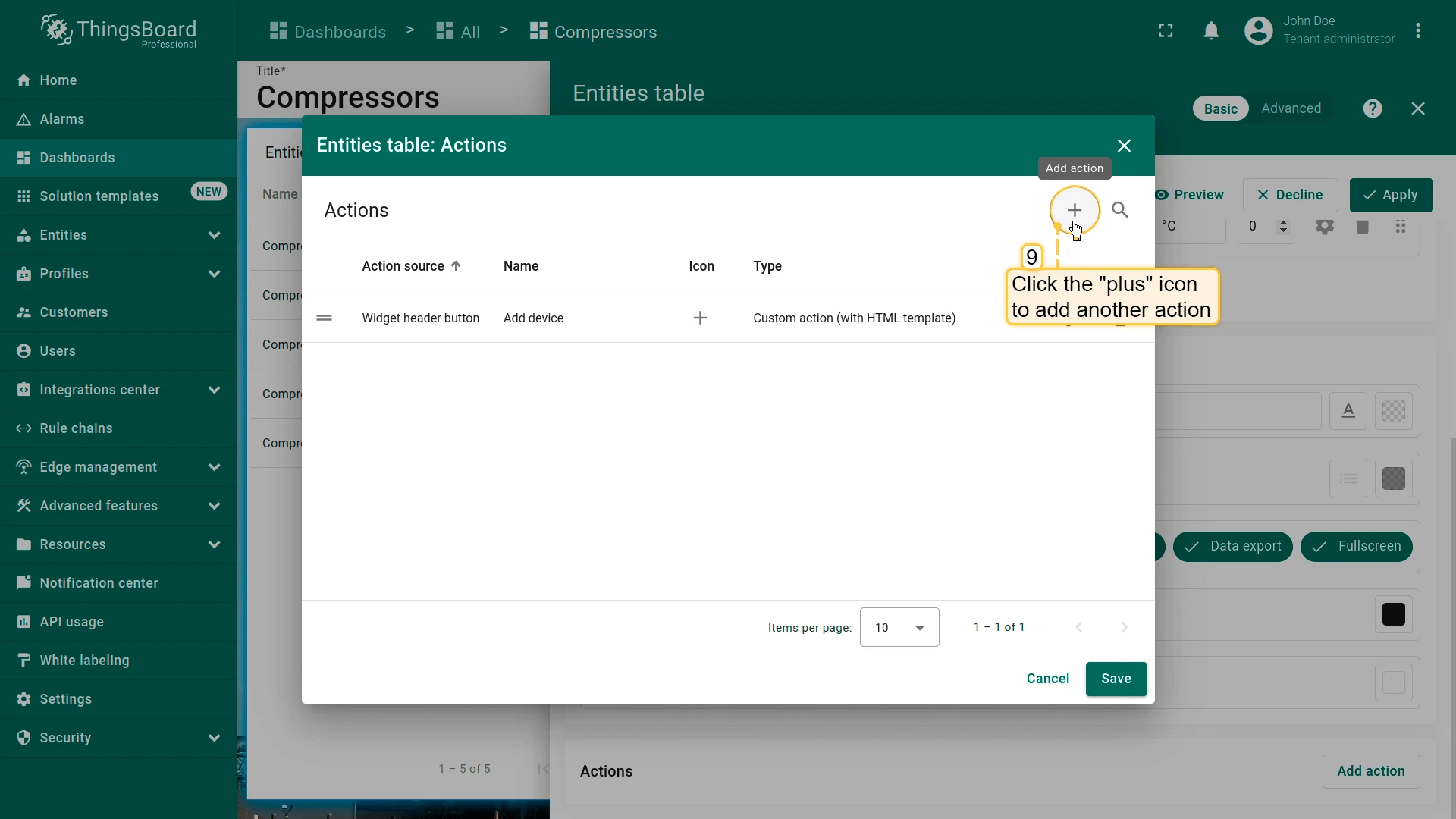
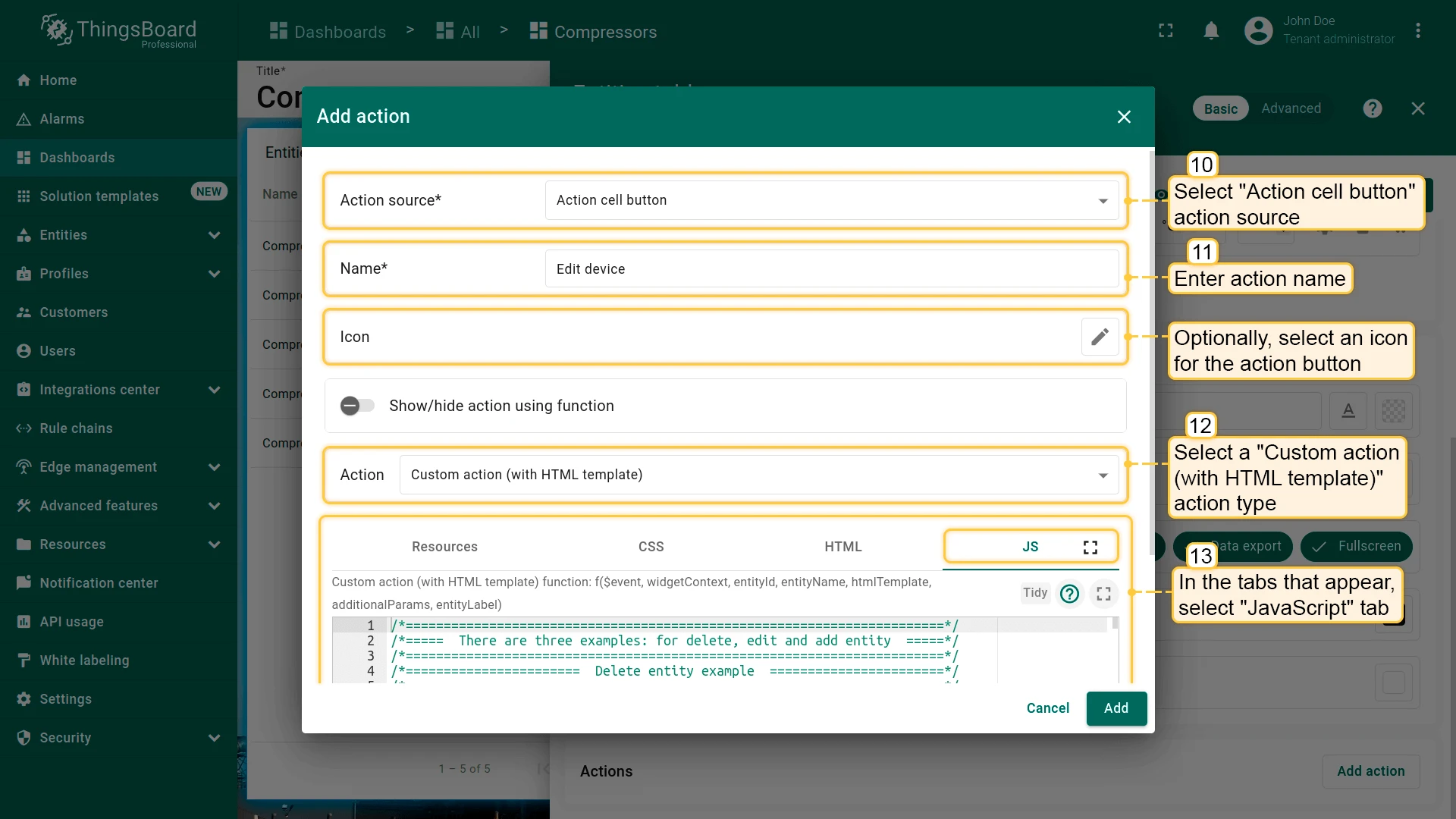
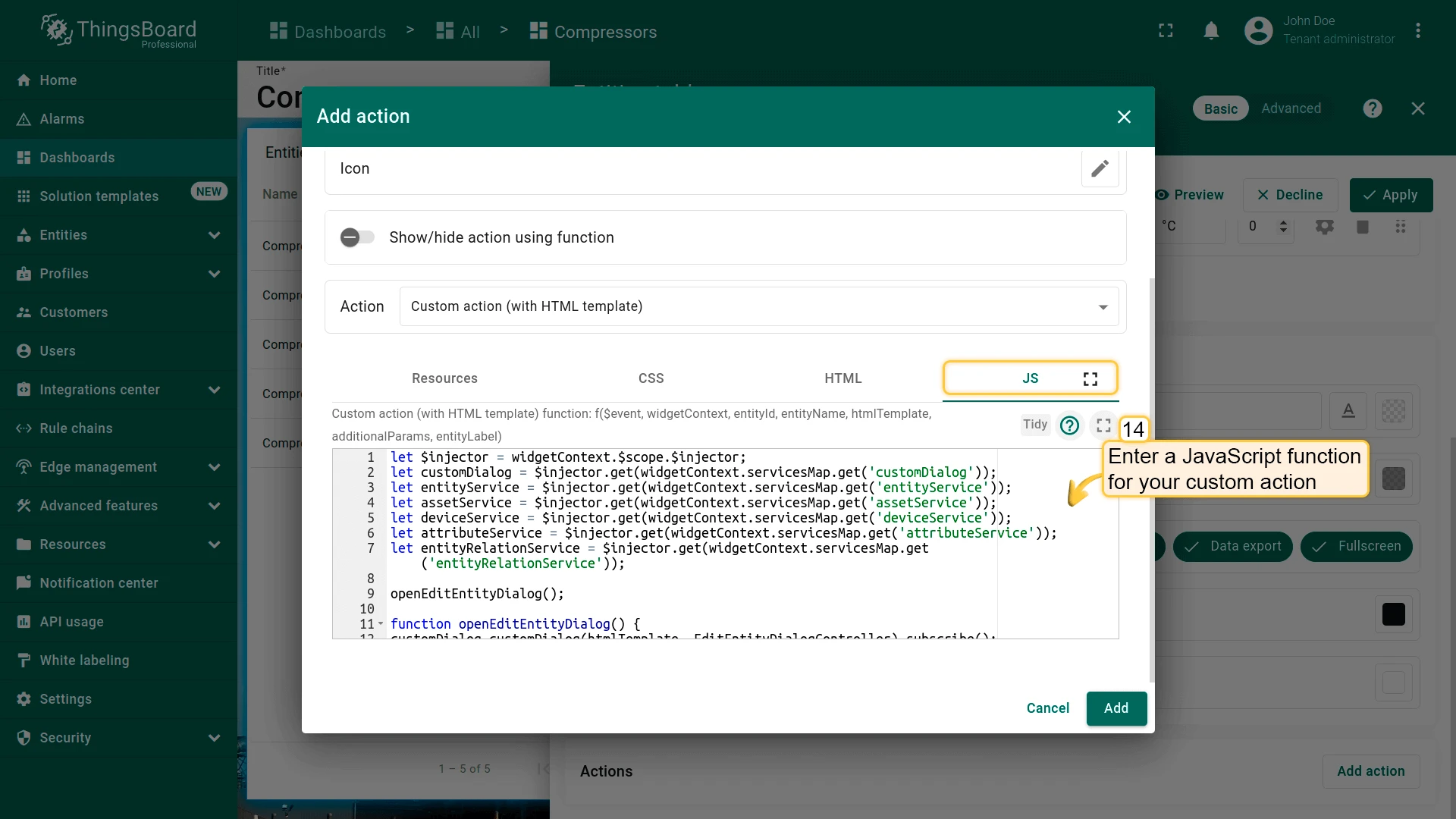
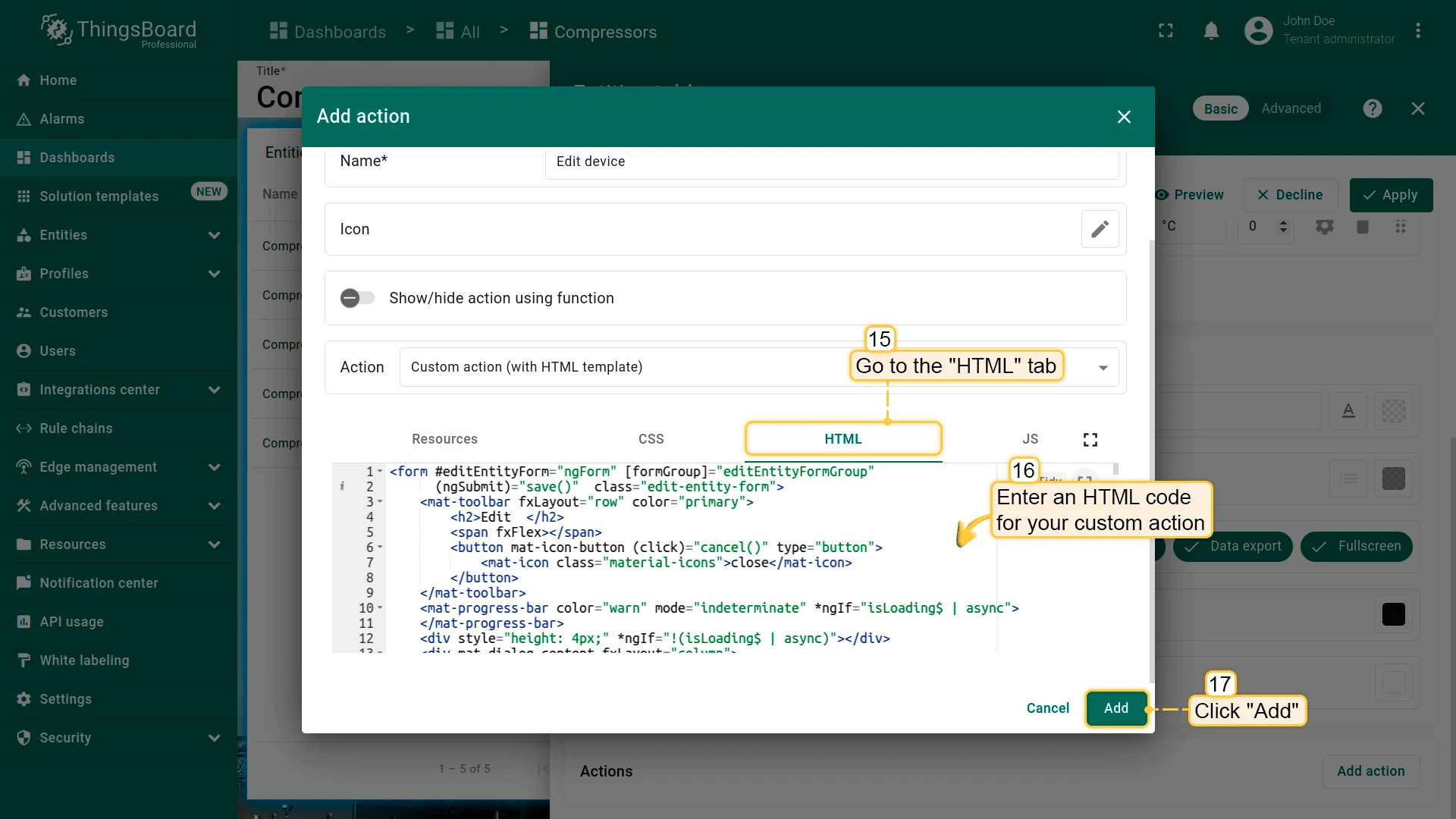
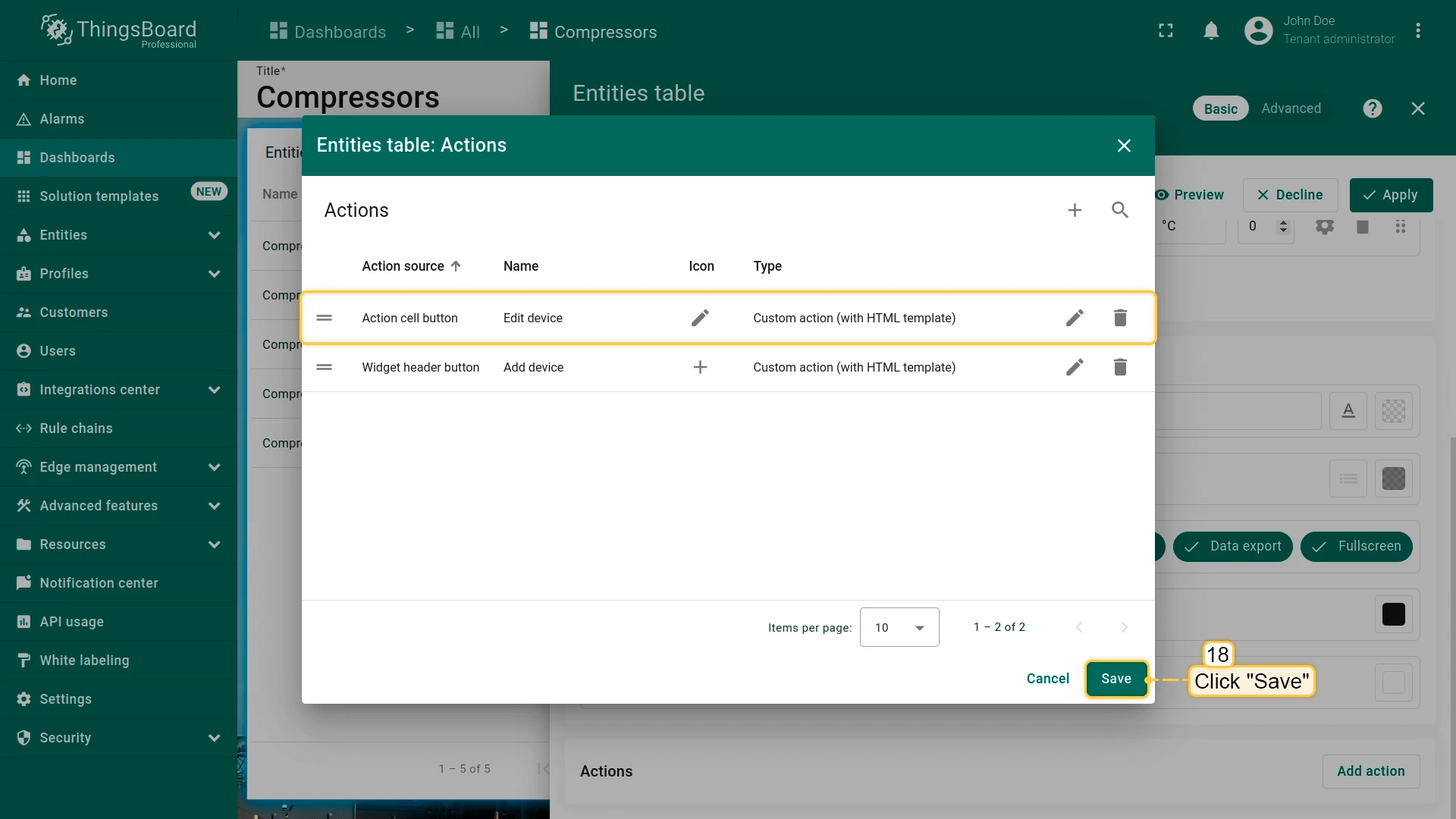
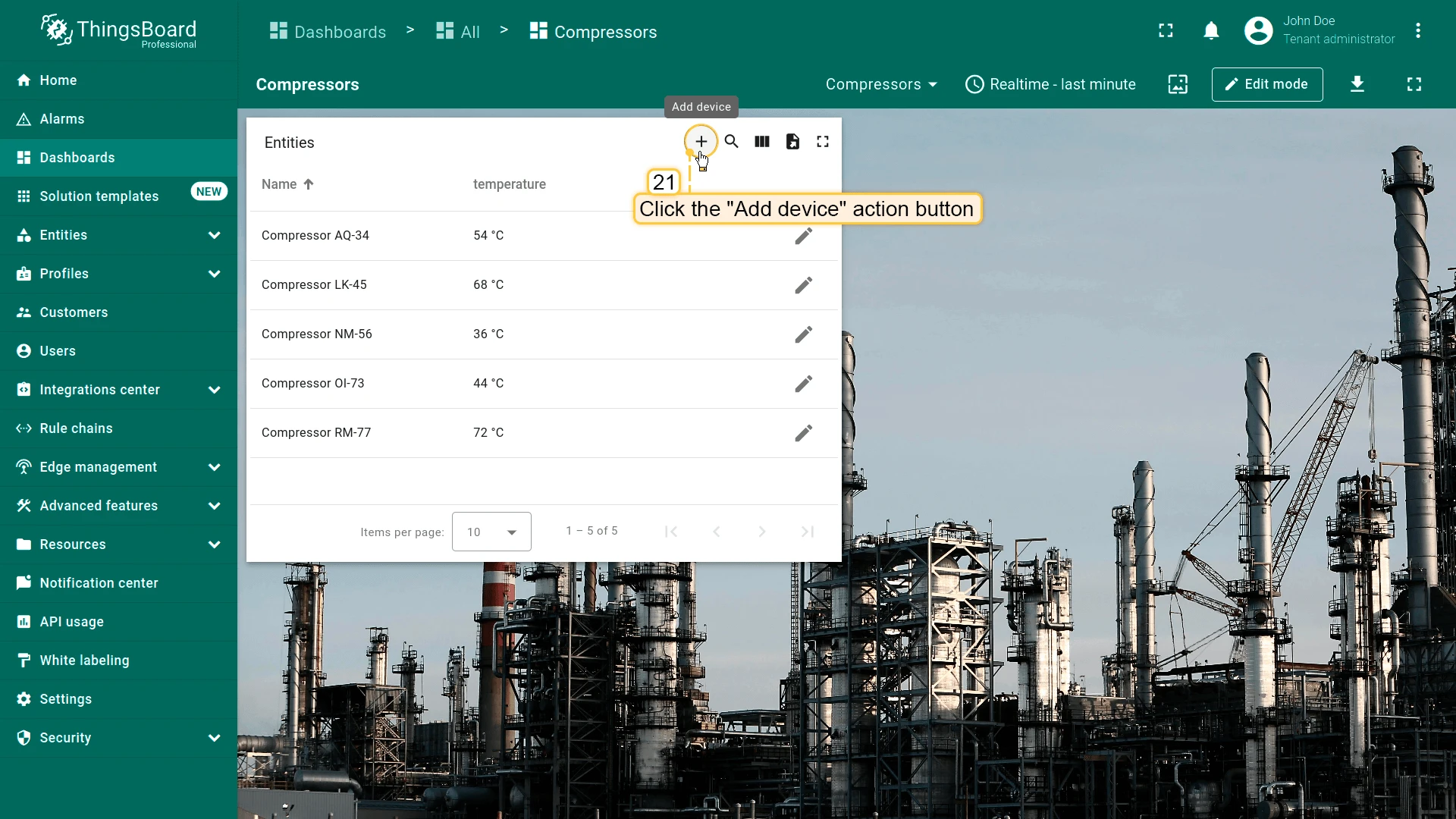
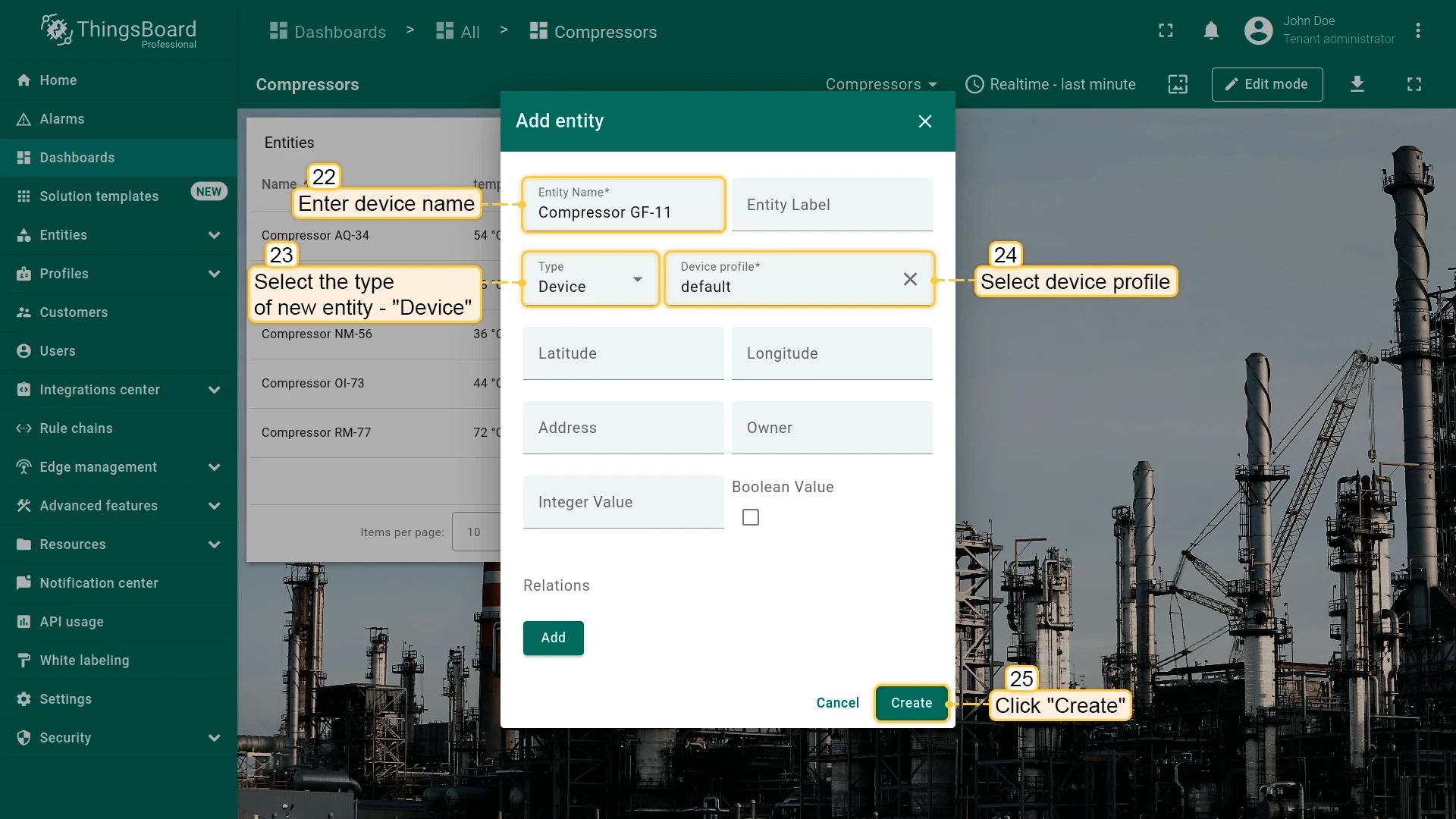
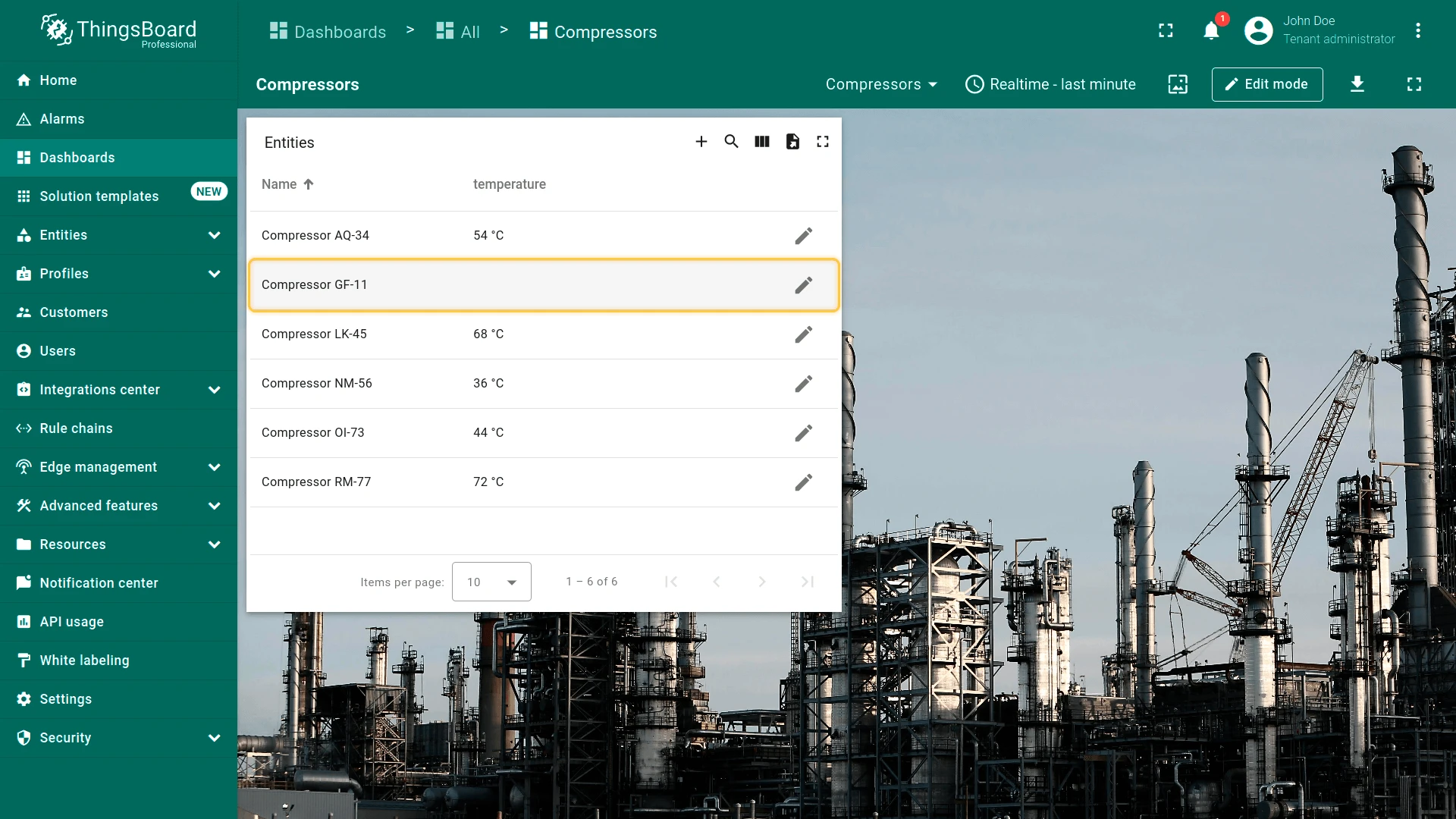
Click the Add device button in the widget header to open the create dialog. Select entity type “Device”, fill in the required fields, and click Create.
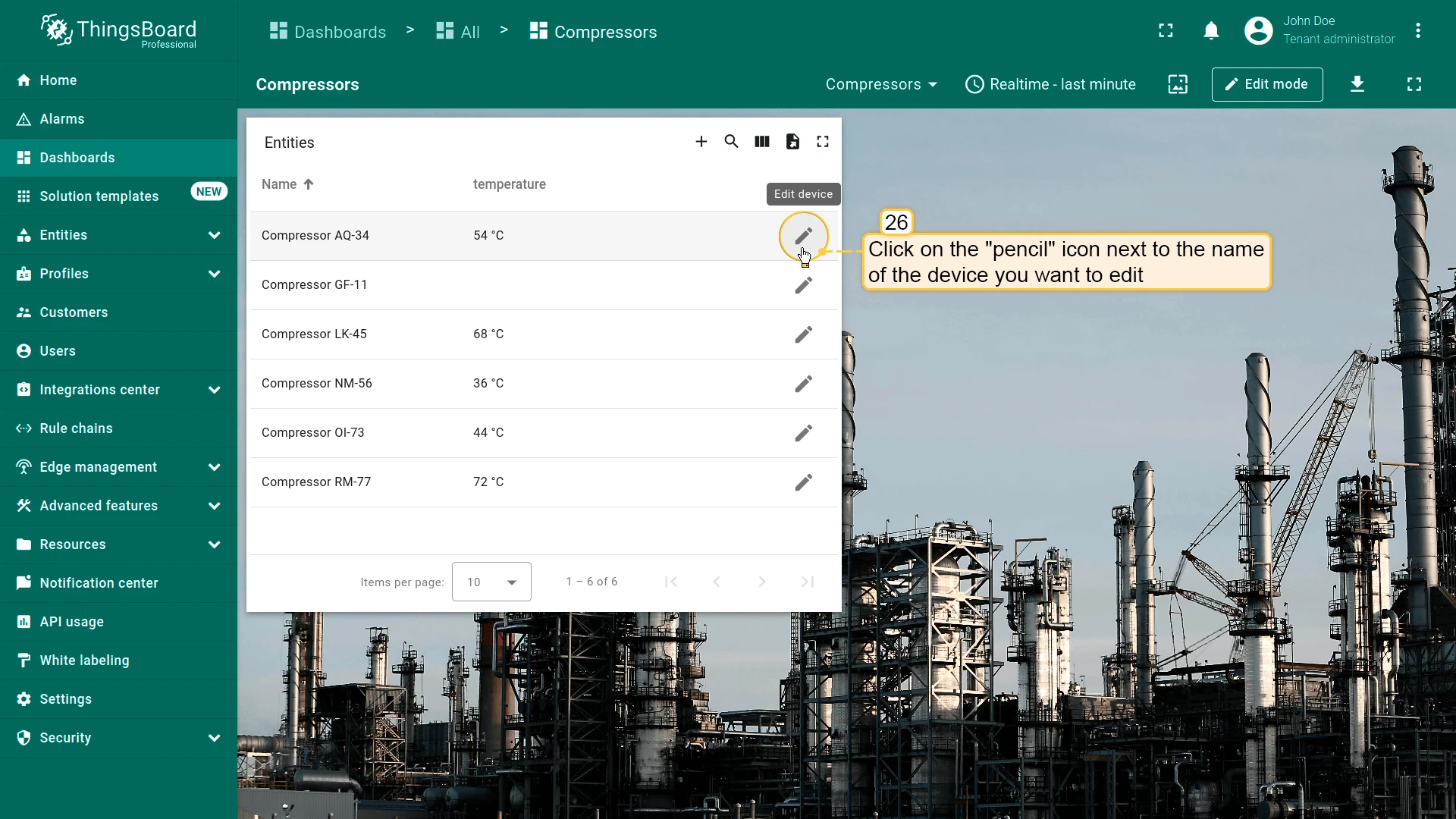
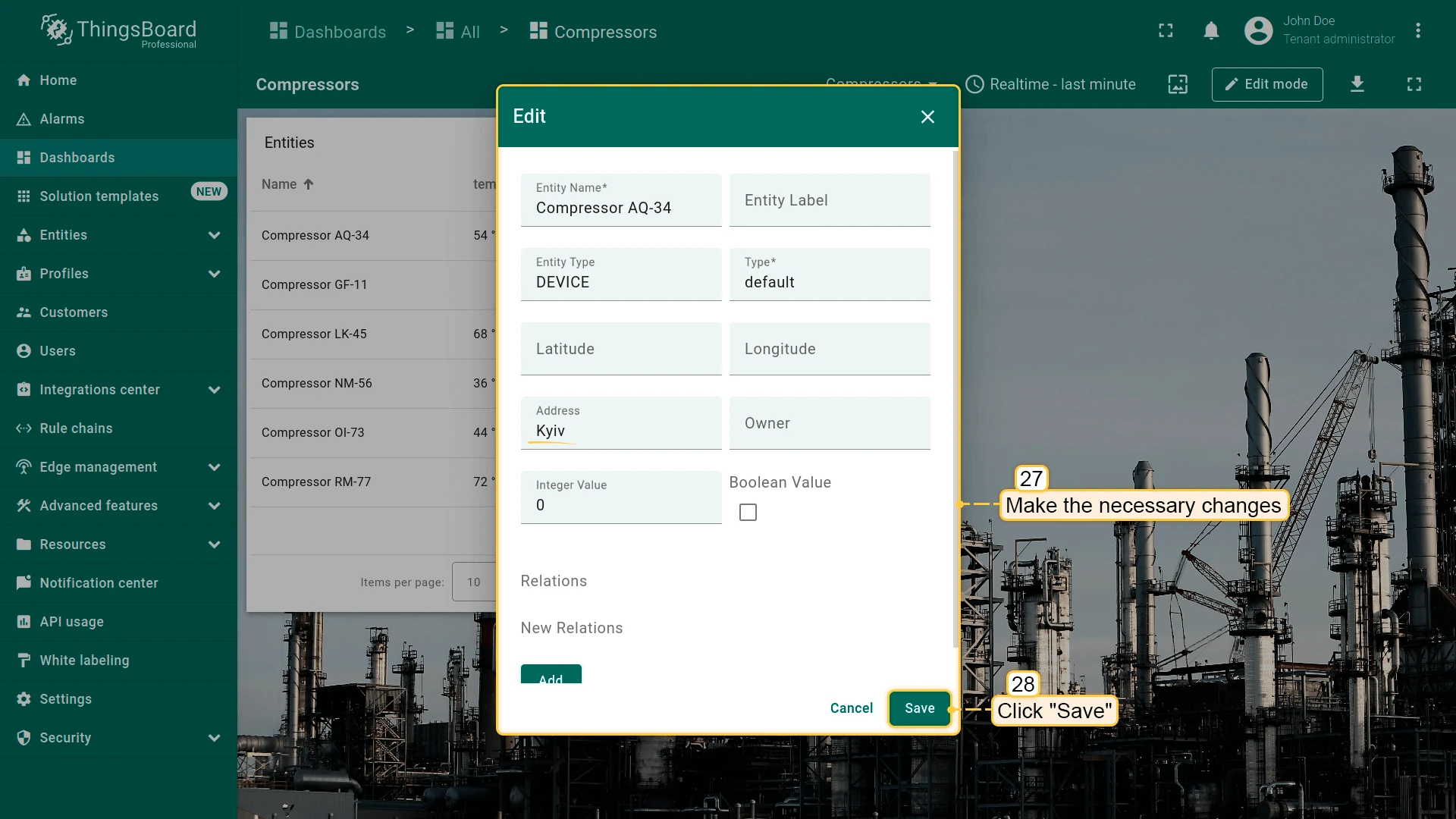
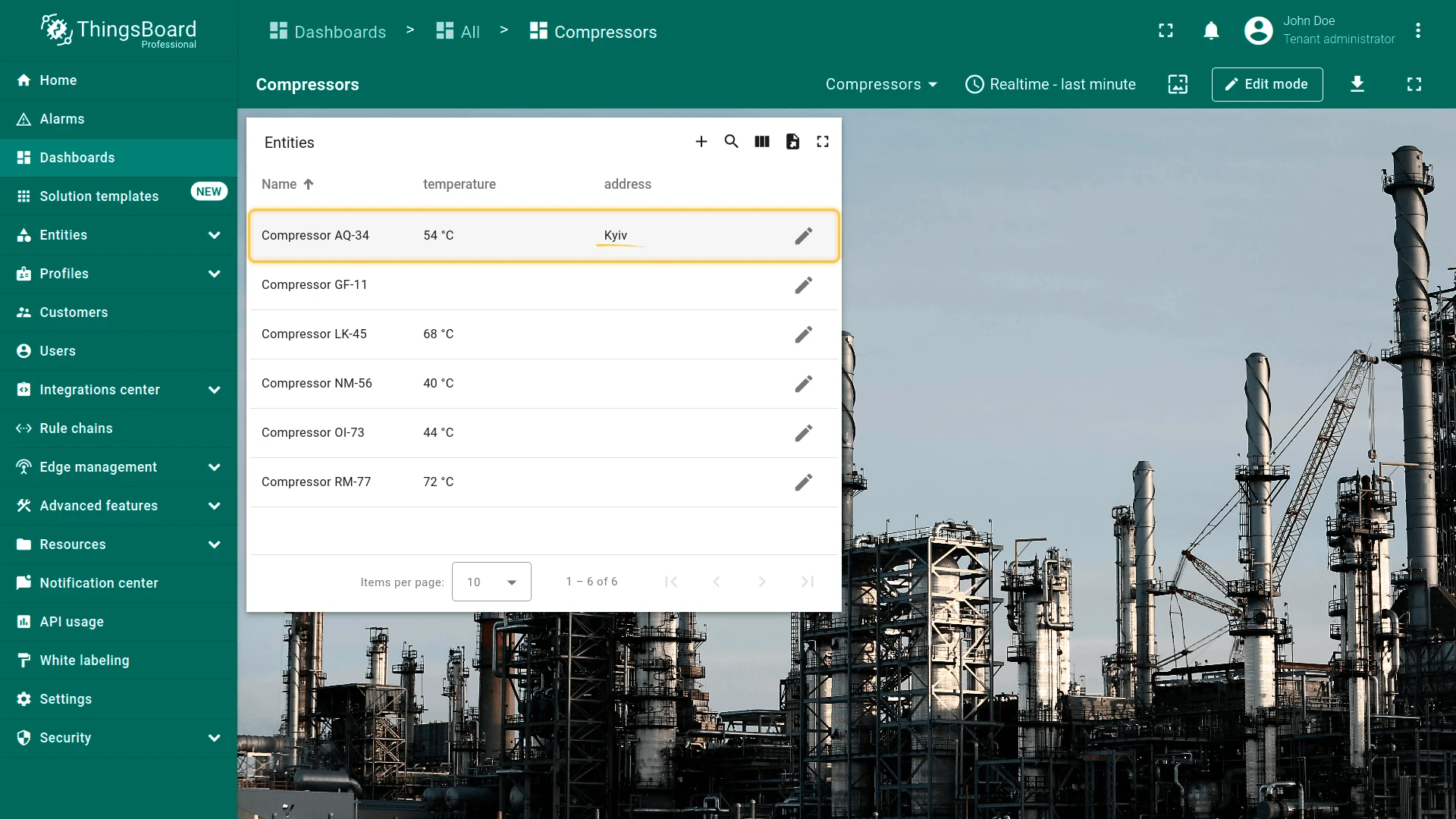
Click the pencil icon next to an entity to open the edit dialog. Edit the fields and click Save.
Mobile Action
Section titled “Mobile Action”Uses a native phone feature when the user taps the action in the ThingsBoard mobile app. Mobile action types:
- Scan QR code — opens the camera to scan a QR code and processes the result in a custom JavaScript function.
- Take photo — opens the camera to capture a photo, which is then handled by a custom function (for example, uploaded as an attribute).
- Get phone location — gets the phone’s current GPS coordinates and passes them to a custom function.
- Make phone call — dials a phone number provided by a custom function or taken from an entity attribute.
- Open URL — opens a URL in the mobile app’s in-app browser.
- Start live location tracking — starts a background GPS session that streams the phone’s position to an entity until the session ends.
- Stop live location tracking — ends the session that is currently running. It never starts one.
Get phone location can also save its result to an entity directly, without a custom function. See Location tracking for the target-entity and data-key configuration shared by all of these.
Mobile actions work only in the ThingsBoard mobile app, not on the web dashboard. See mobile actions for the full configuration guide.
Open URL
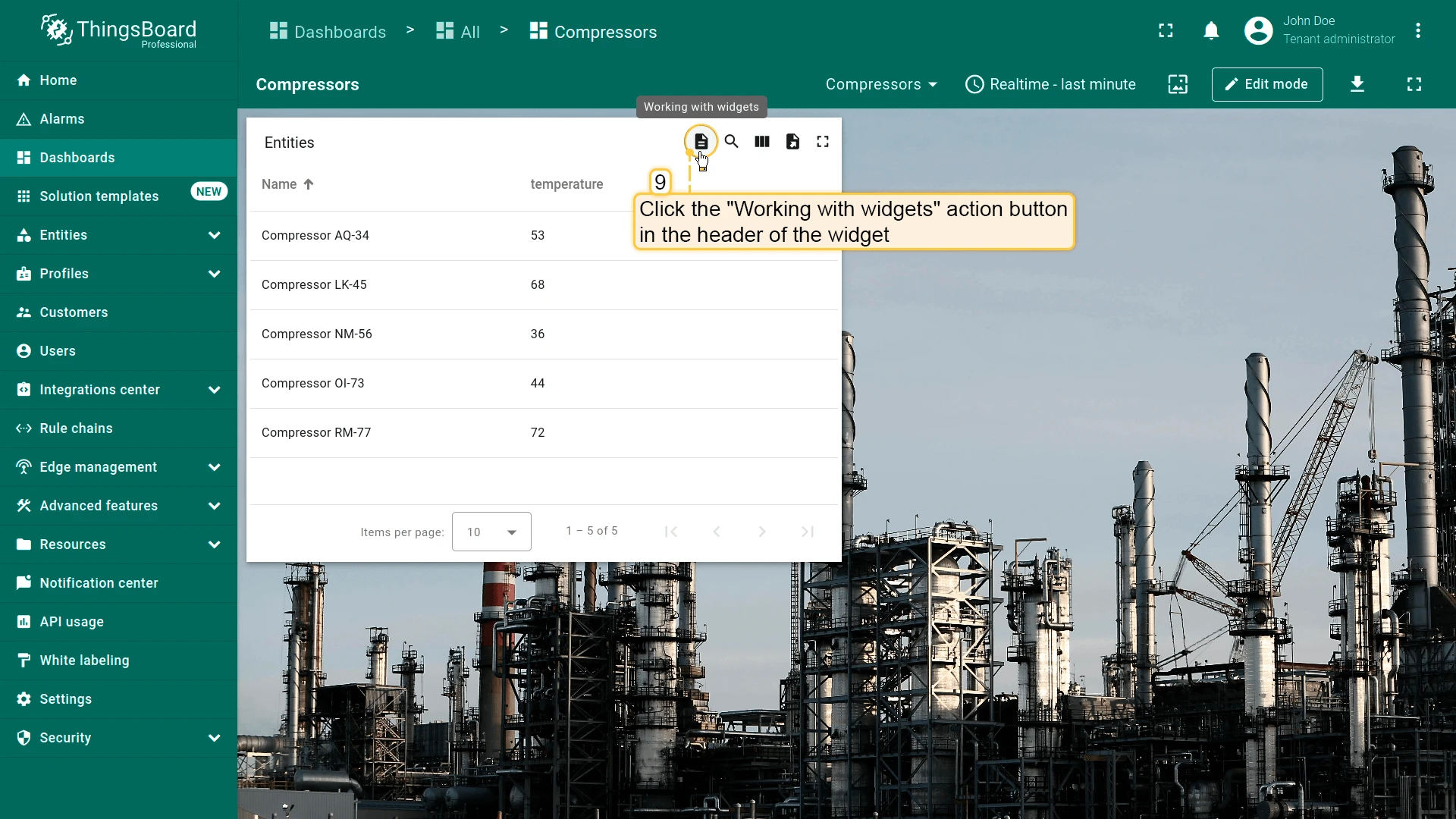
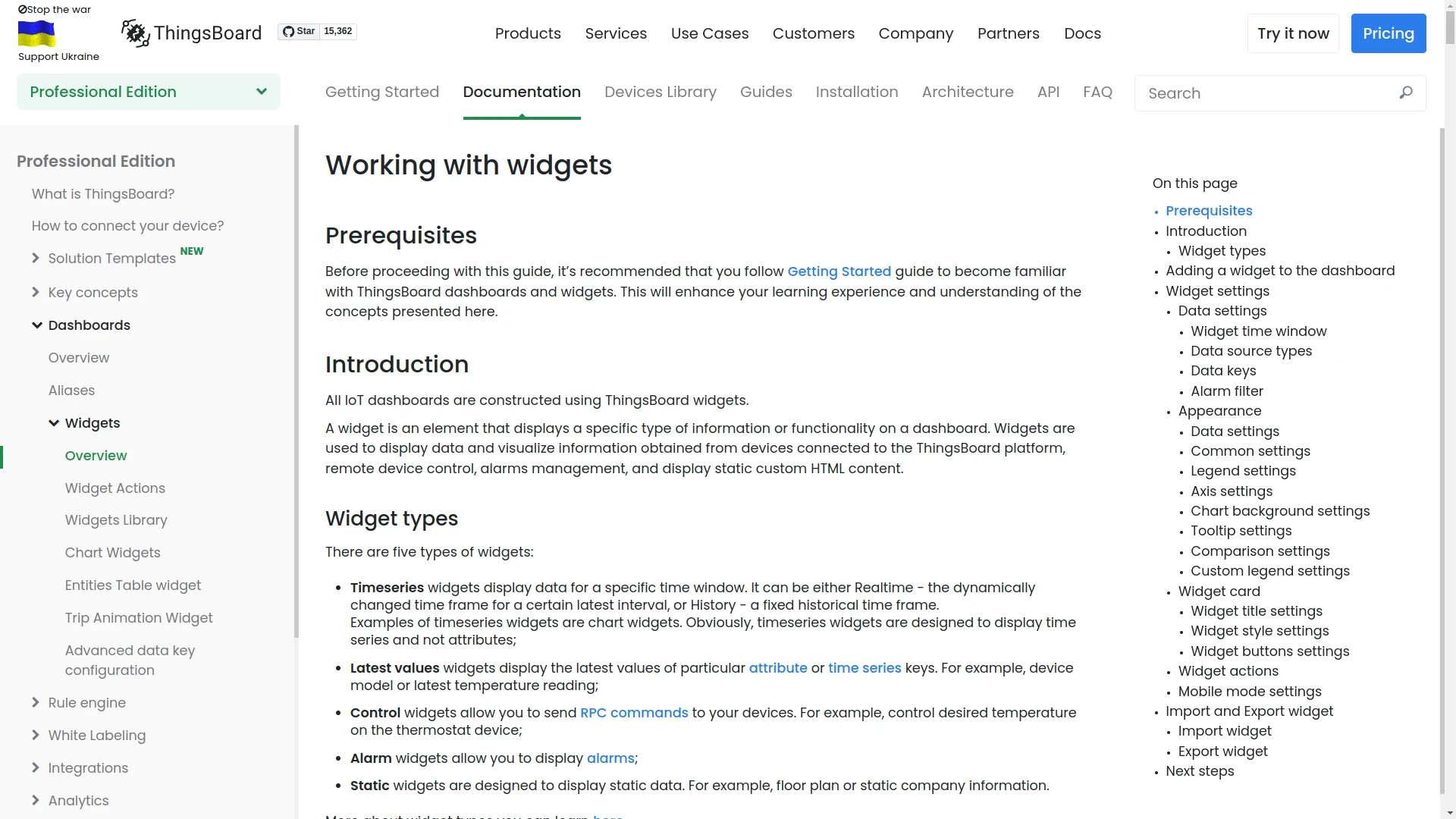
Section titled “Open URL”Opens a URL — a web page, document, image, or internal ThingsBoard page — optionally in a new browser tab. Use template variables such as ${entityName} and ${entityId} to build links from the entity context.
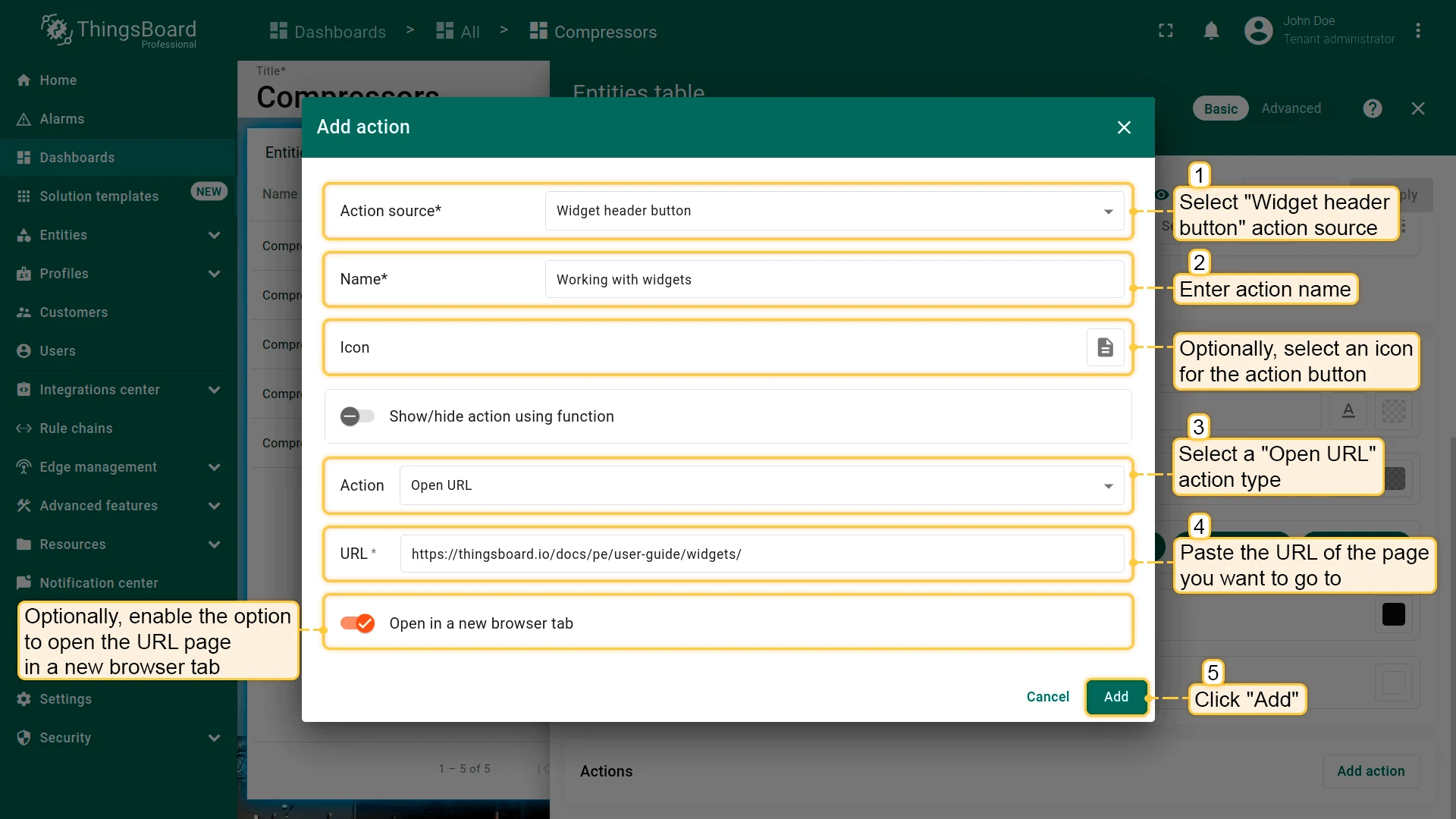
- Open the widget in edit mode, go to the Actions tab, and click +.
- Select the action source (for example, Widget header button), enter a name, and choose an icon.
- Select Open URL as the action type, enter the target URL, and optionally enable Open in a new browser tab.
- Click Add, then Save and Apply to save the widget settings.
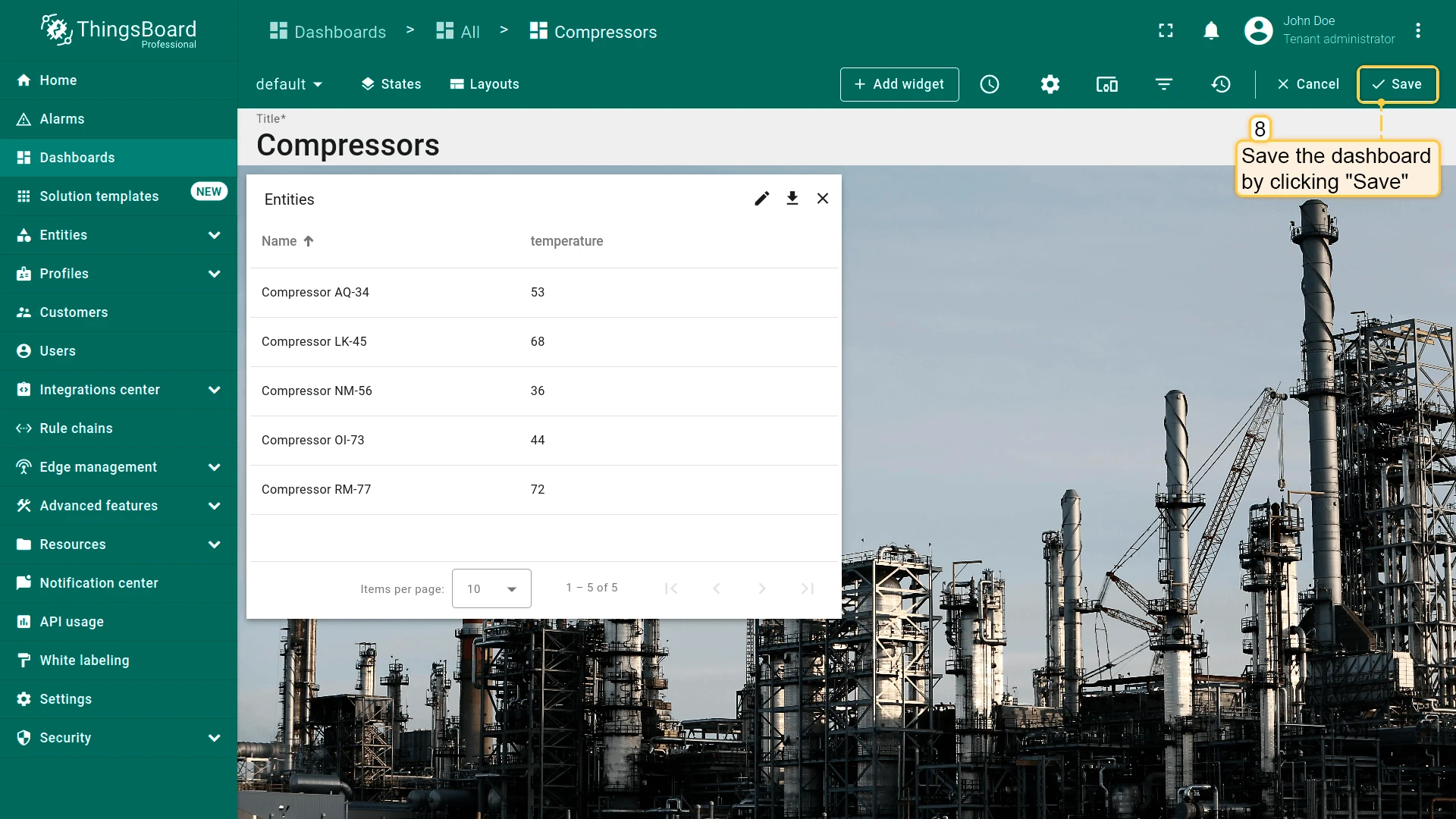
- Click Save in the dashboard toolbar.
Place Map Item
Section titled “Place Map Item”| Only for Map widgets |
Place map item adds a button to the map widget for creating an entity and placing it on the map. The user clicks the button, then the map; after the user confirms the create dialog, ThingsBoard saves the entity and shows the new item at the chosen location.
Four item types are supported:
| Item type | Description |
|---|---|
| Marker | A point marker placed at the clicked location. |
| Circle | A circle centered on the clicked point, with a configurable radius. |
| Polygon | A polygon drawn by clicking multiple vertices, closed on the final click. |
| Polyline | A line path drawn by clicking multiple points. |
The action includes a default JavaScript function that opens a standard create dialog. To control the dialog fields, replace it with a custom function and HTML template, as in Custom action (with HTML template).
Example: add an “Add EV station” button that places new charging station assets on the map.
Configure the Datasource
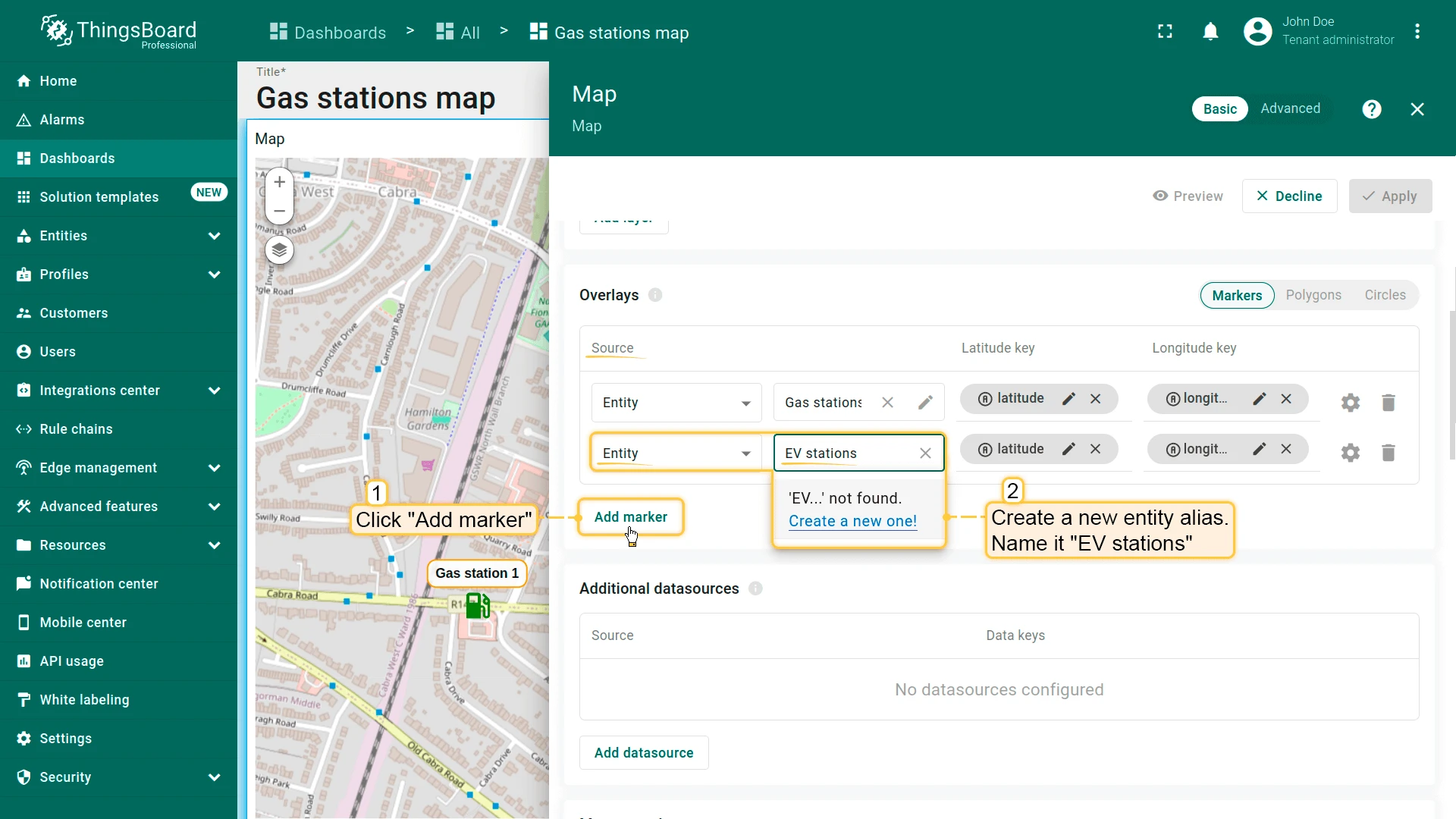
For new entities to appear on the map immediately, the widget’s datasource alias must resolve to the entity type you create. Configure it before adding the action:
- In the widget settings, open the Overlays section and select the Marker tab.
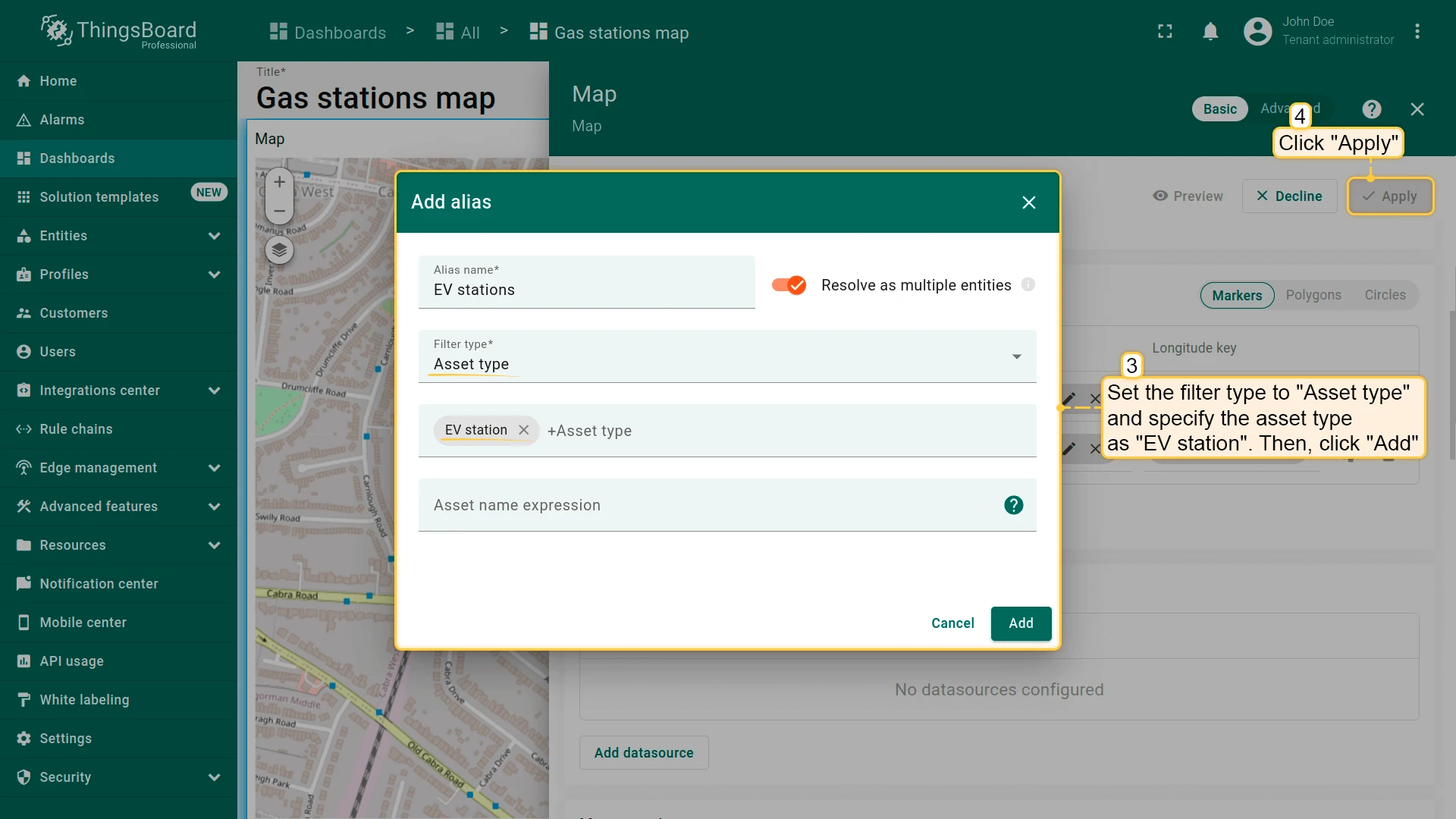
- Create a new entity alias — name it “EV stations”, set the filter type to Asset type, and specify the type as “EV station”.
- Click Apply.
Configure the Action
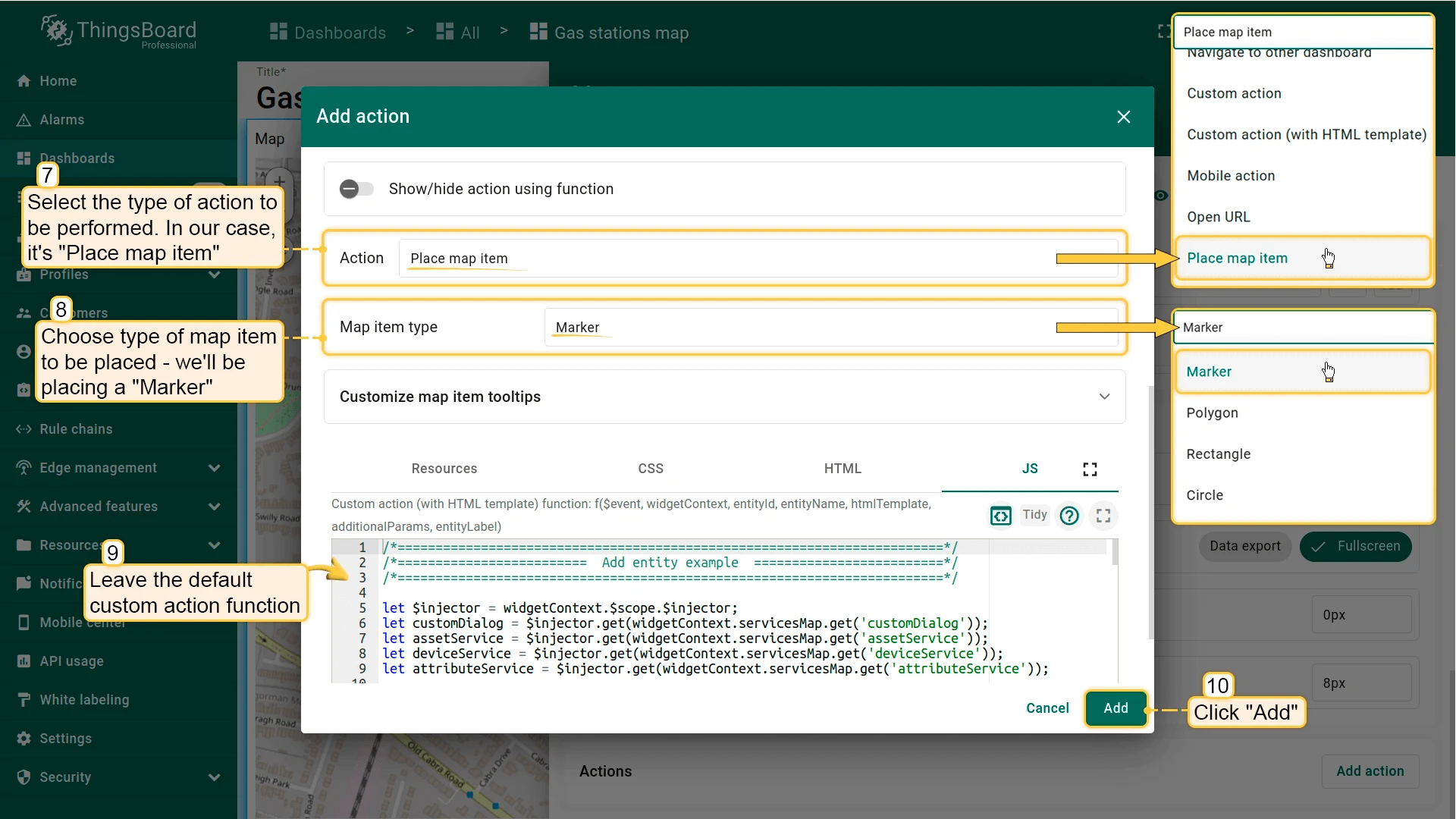
- Open the widget in edit mode, scroll to the Actions section, and click Add action, then click +.
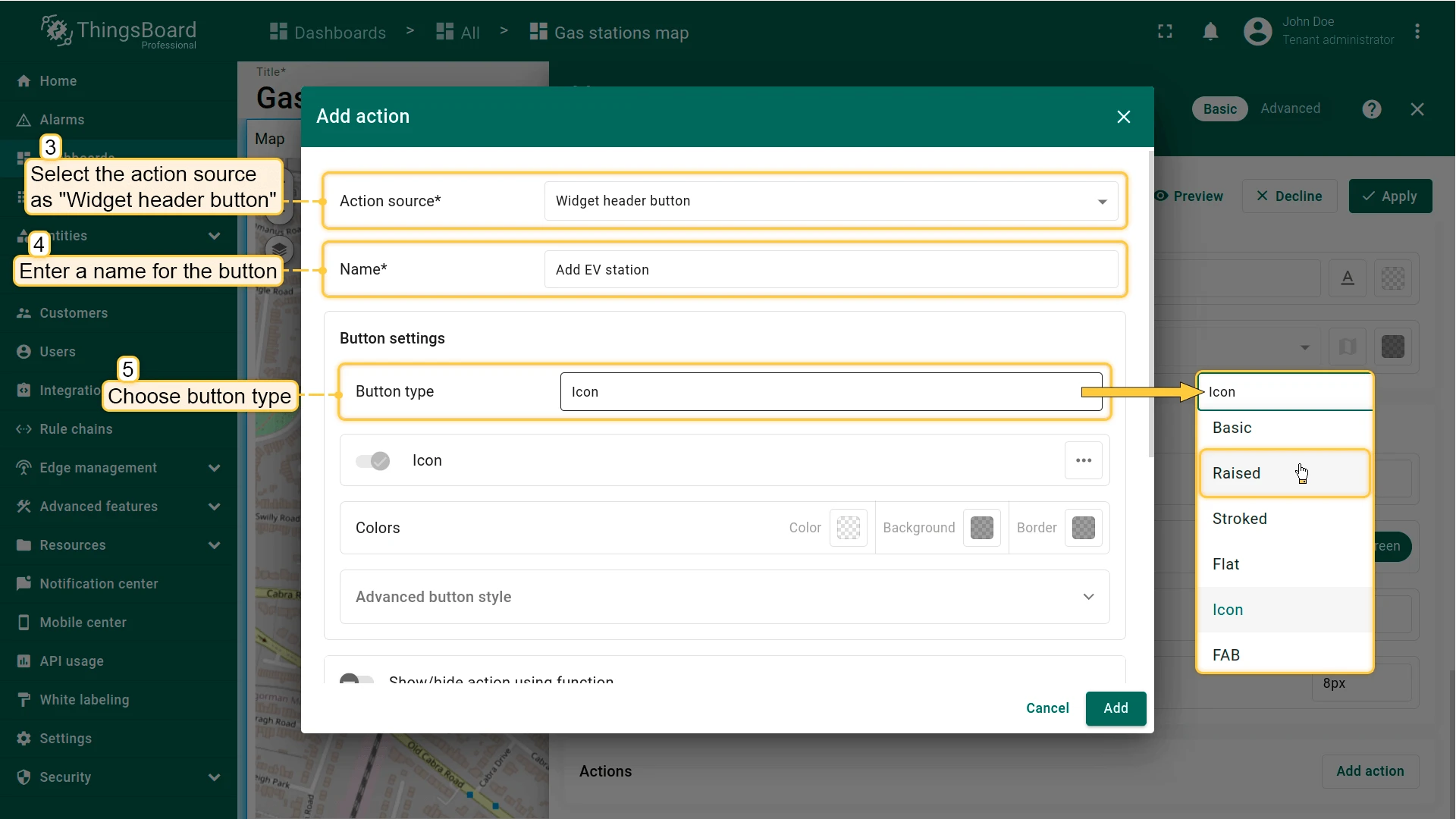
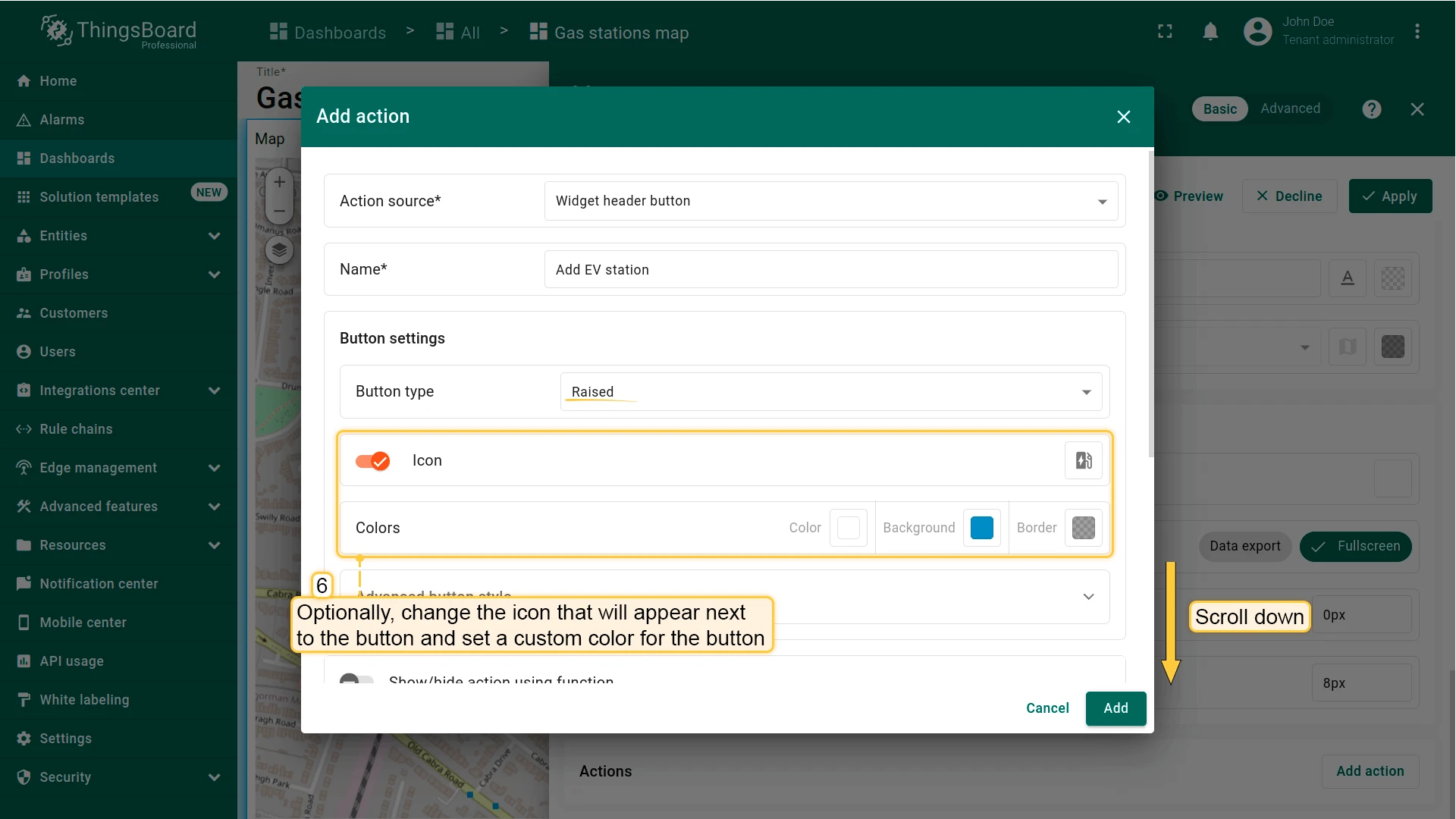
- Select Widget header button as the action source. Enter a name (for example, Add EV station), then configure the button appearance — type, icon, and optional background color.
- From the Action dropdown, select Place map item and choose the item type — in this example, Marker.
- Keep the default JavaScript function or replace it with a custom one.
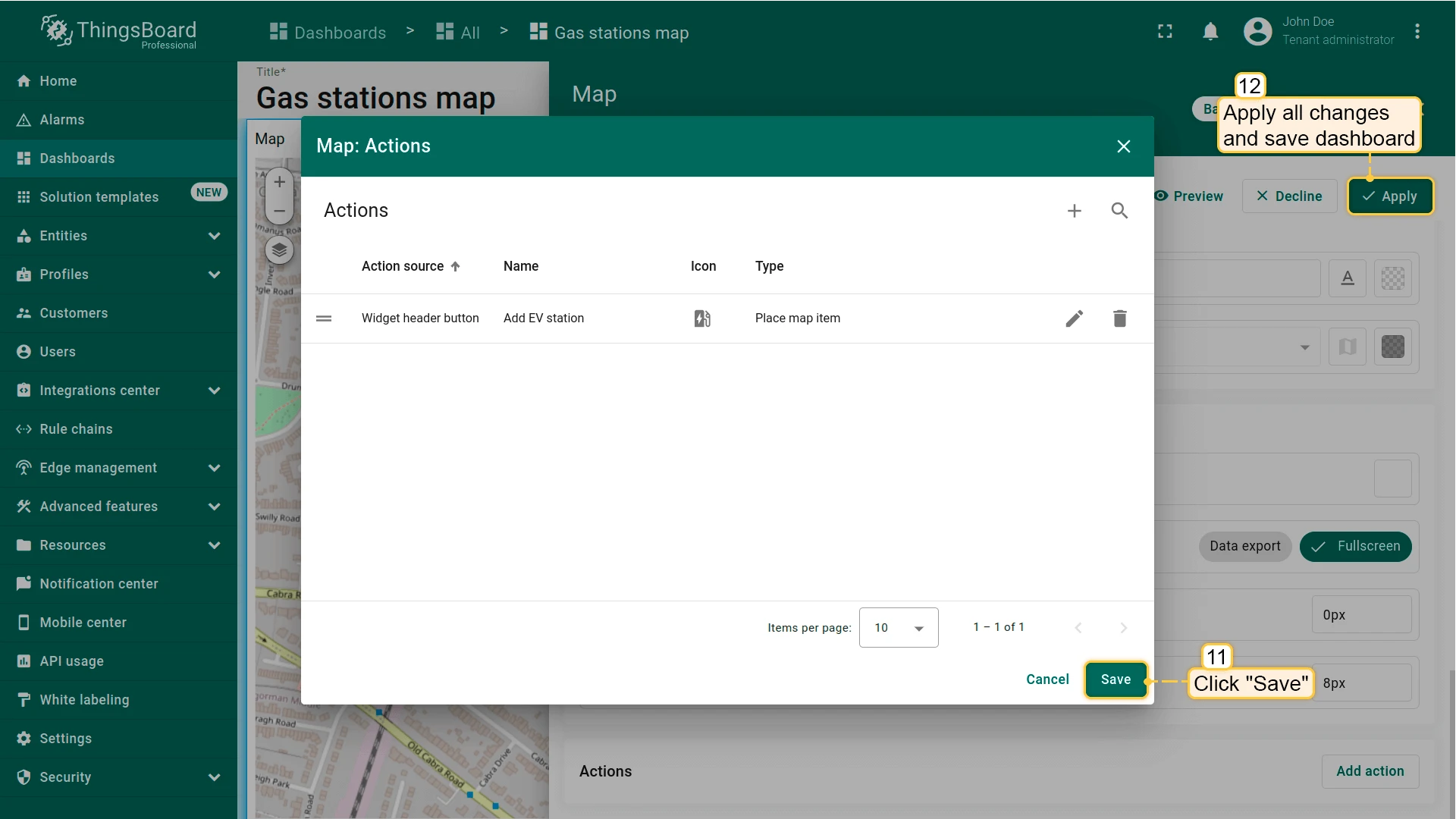
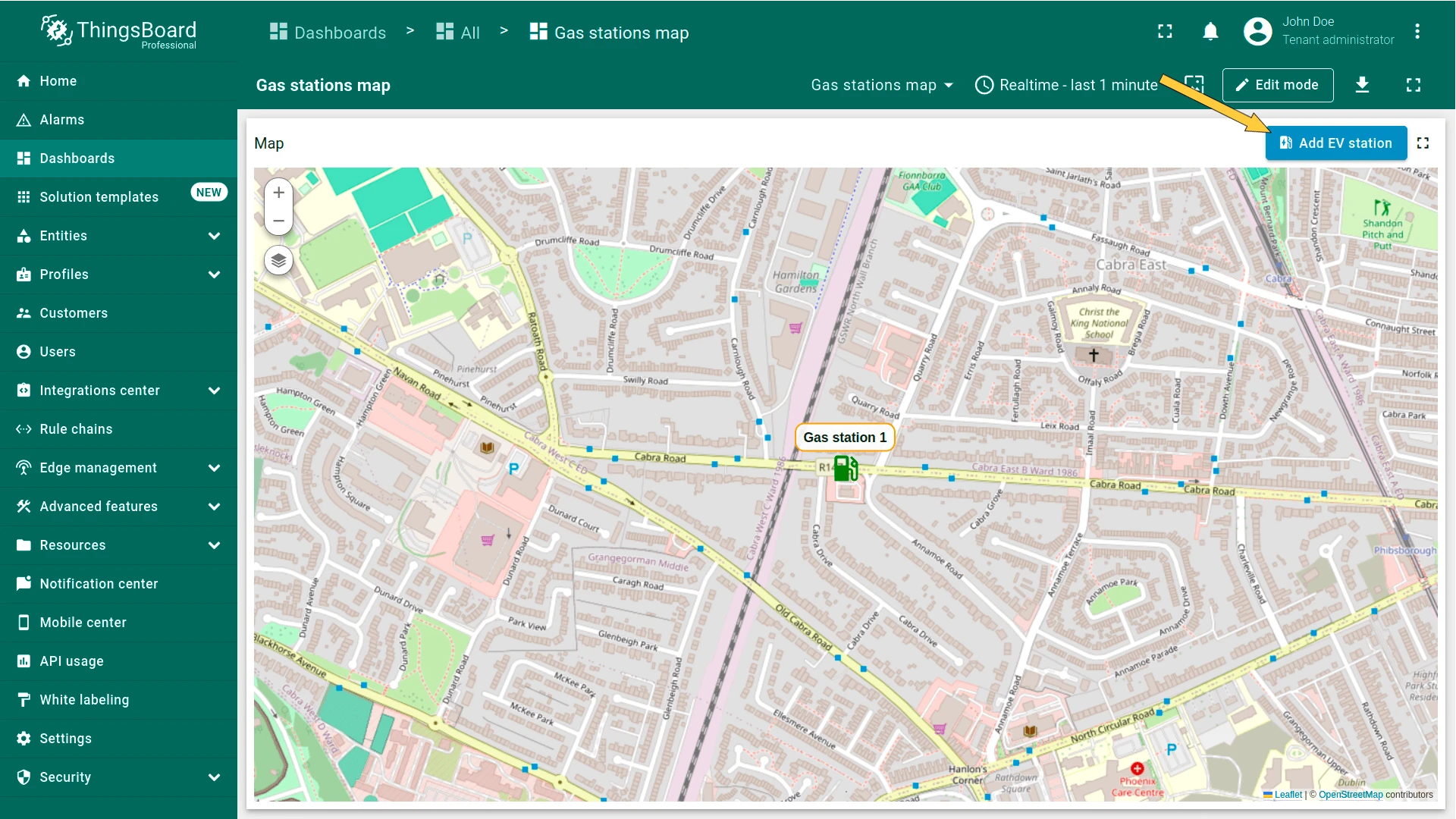
- Click Add, then Save, Apply, and Save the dashboard.
Place an Item
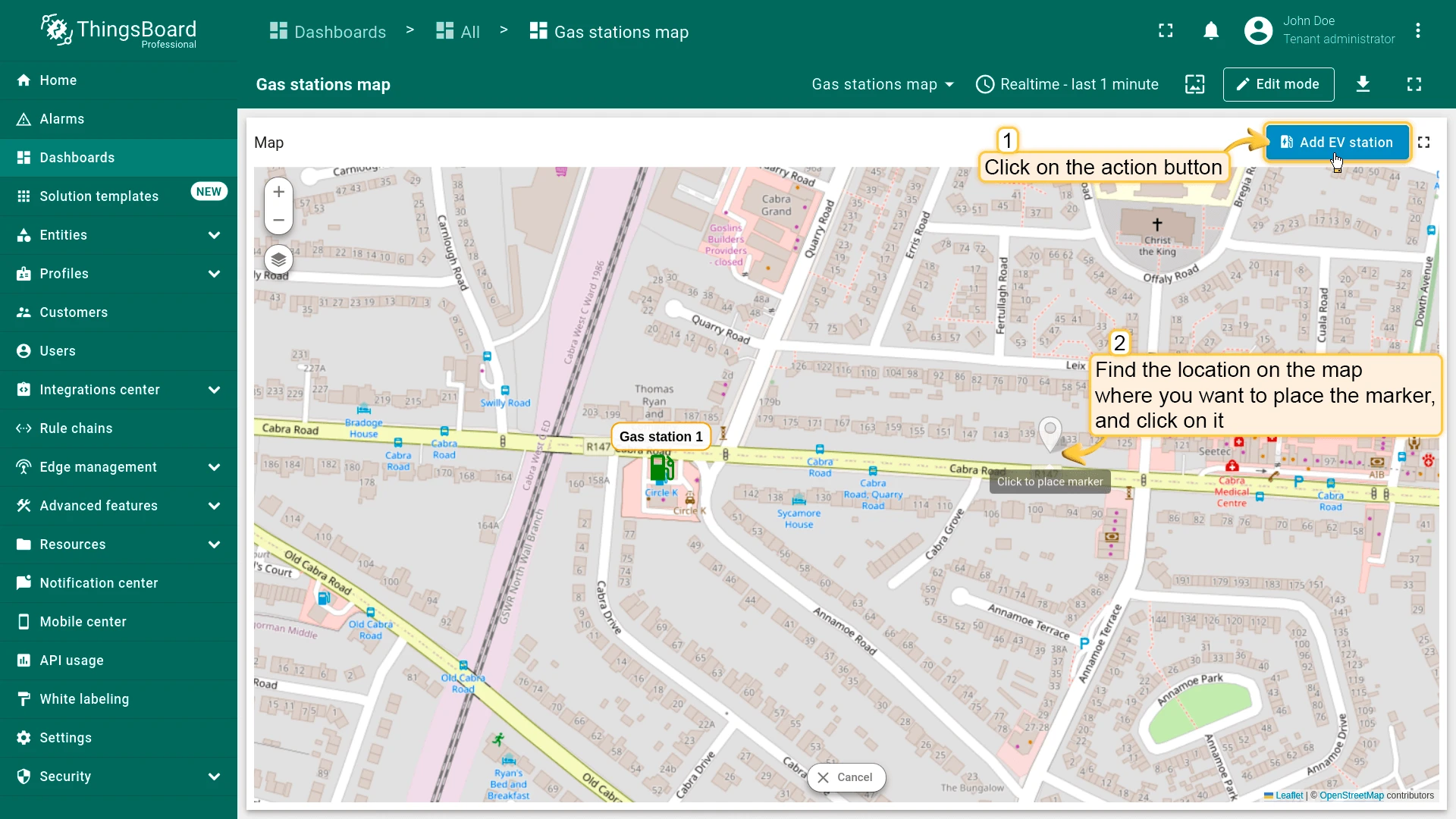
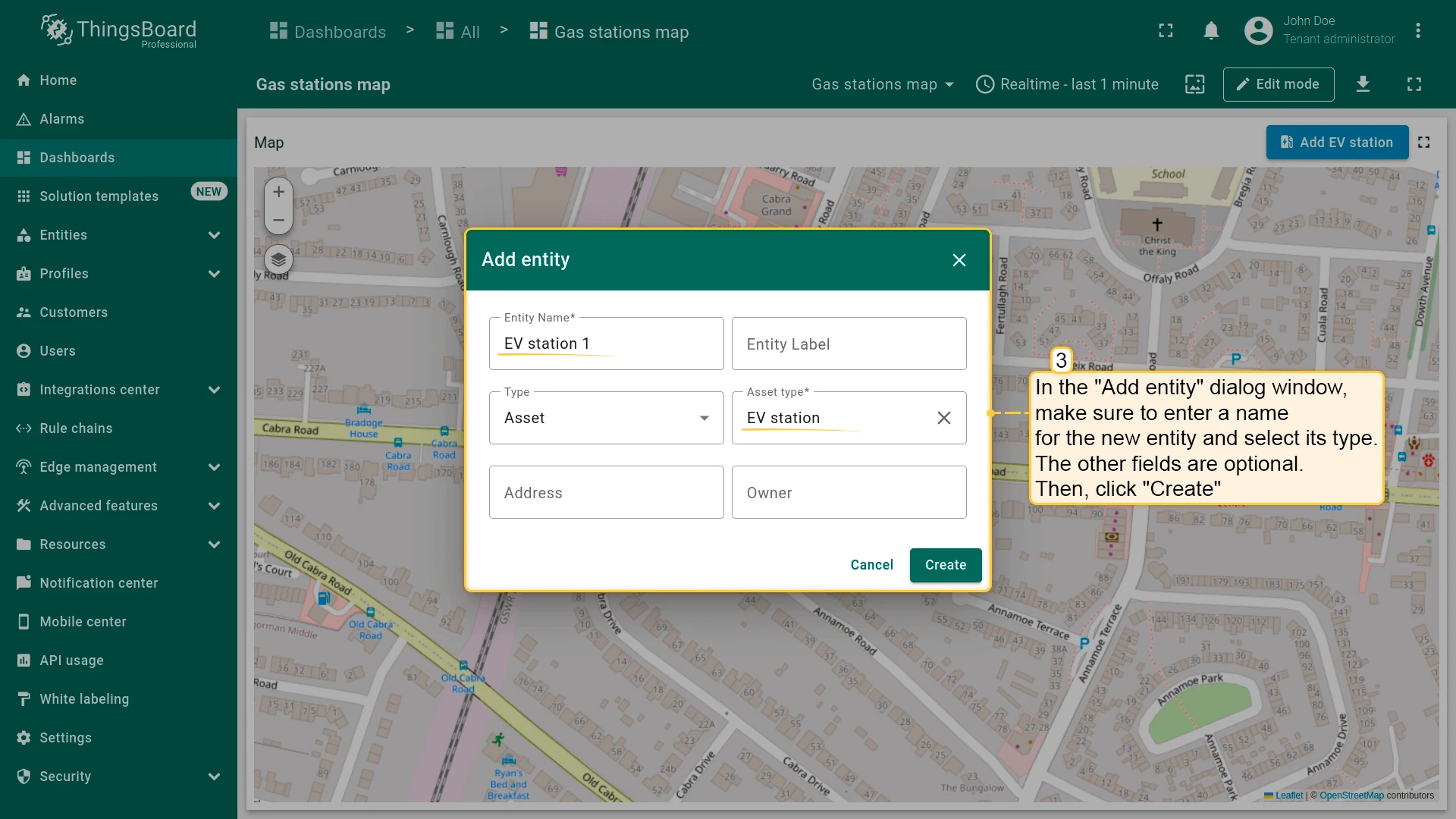
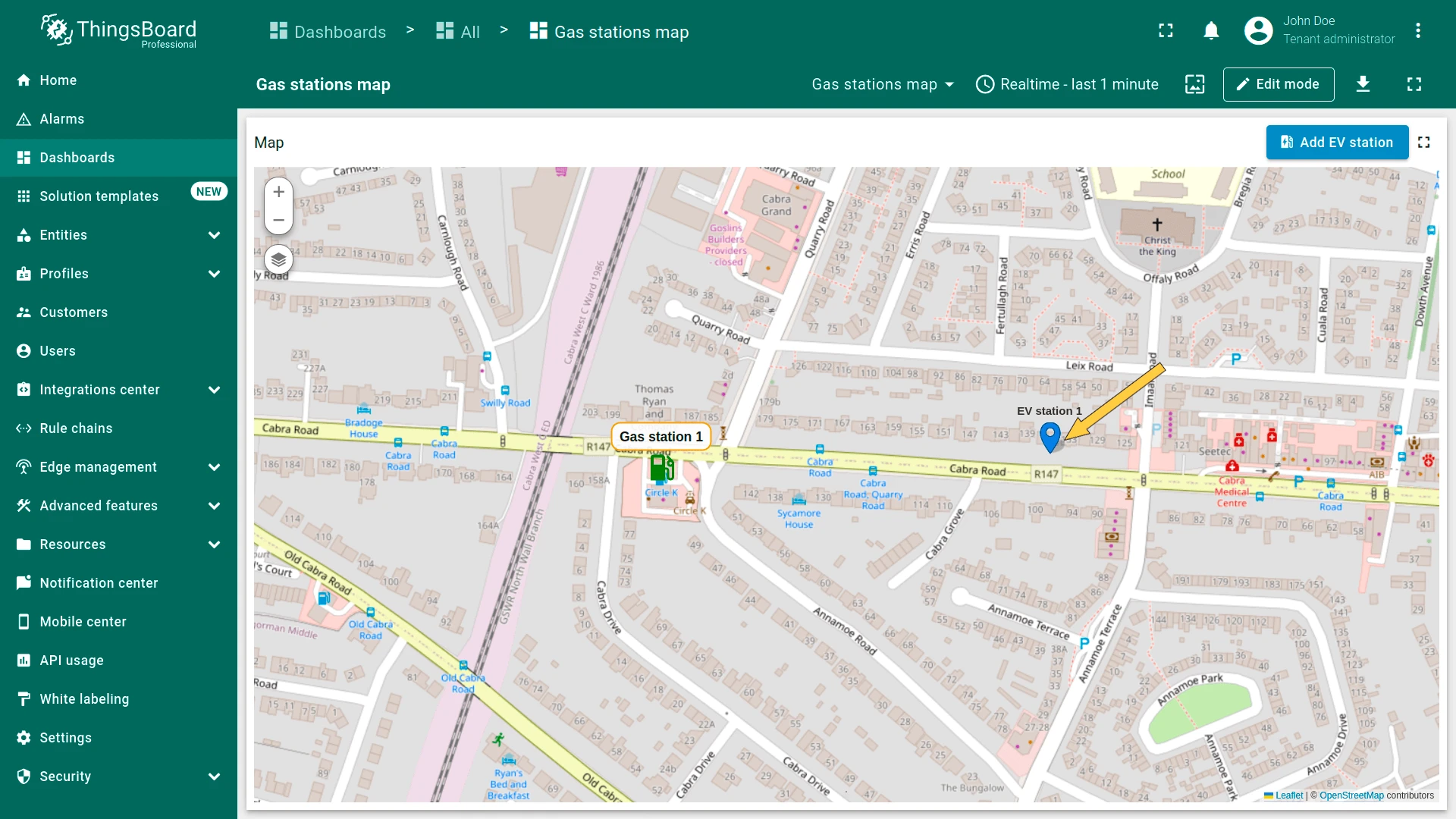
Click Add EV station in the widget header, then click a location on the map. In the Add entity dialog, enter a name, select the entity and asset type, and click Create. The marker appears on the map.
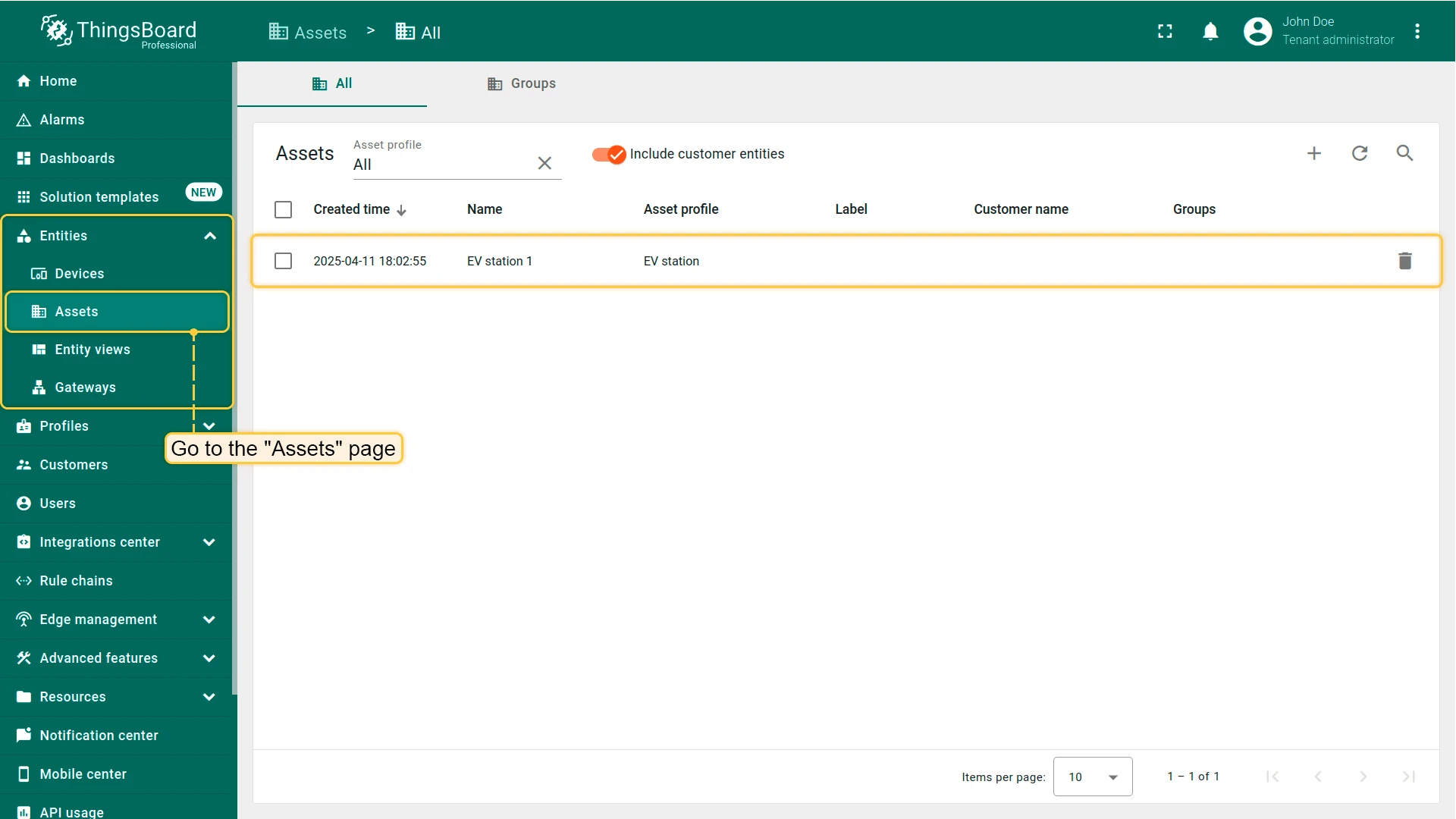
Navigate to Devices & assets ⇾ Assets to verify that the asset was created.
Action Sources
Section titled “Action Sources”An action source is the user interaction that triggers an action: clicking a button, a row, or a map marker, double-clicking a row, and so on. The examples below use the Entities table widget with the Navigate to new dashboard state action type.
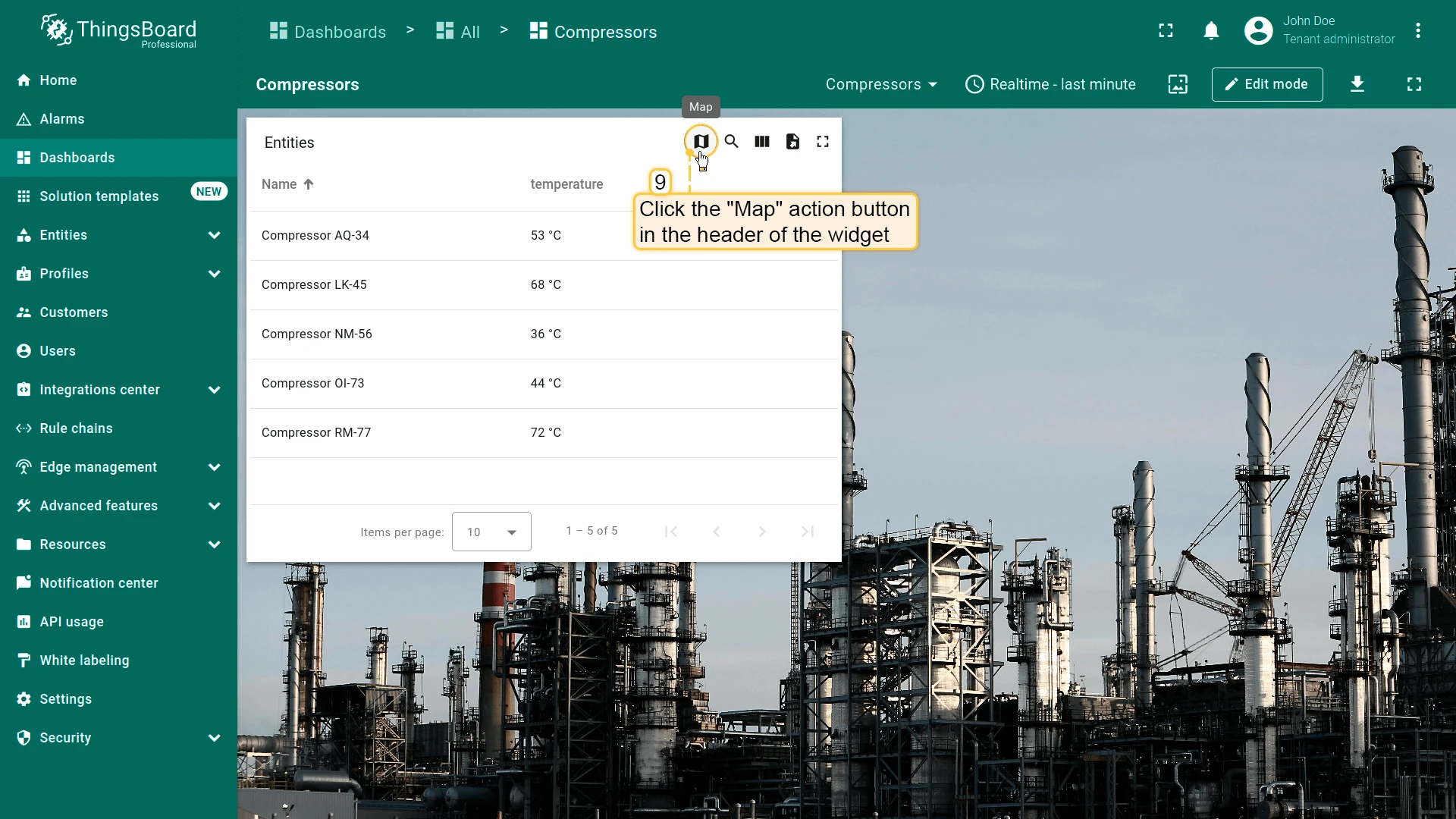
Widget Header Button
Section titled “Widget Header Button”Adds a button to the widget header. The action applies to the widget as a whole, not to an individual entity. Available in all widget types.
- Open the widget in edit mode, go to the Actions tab, and click +.
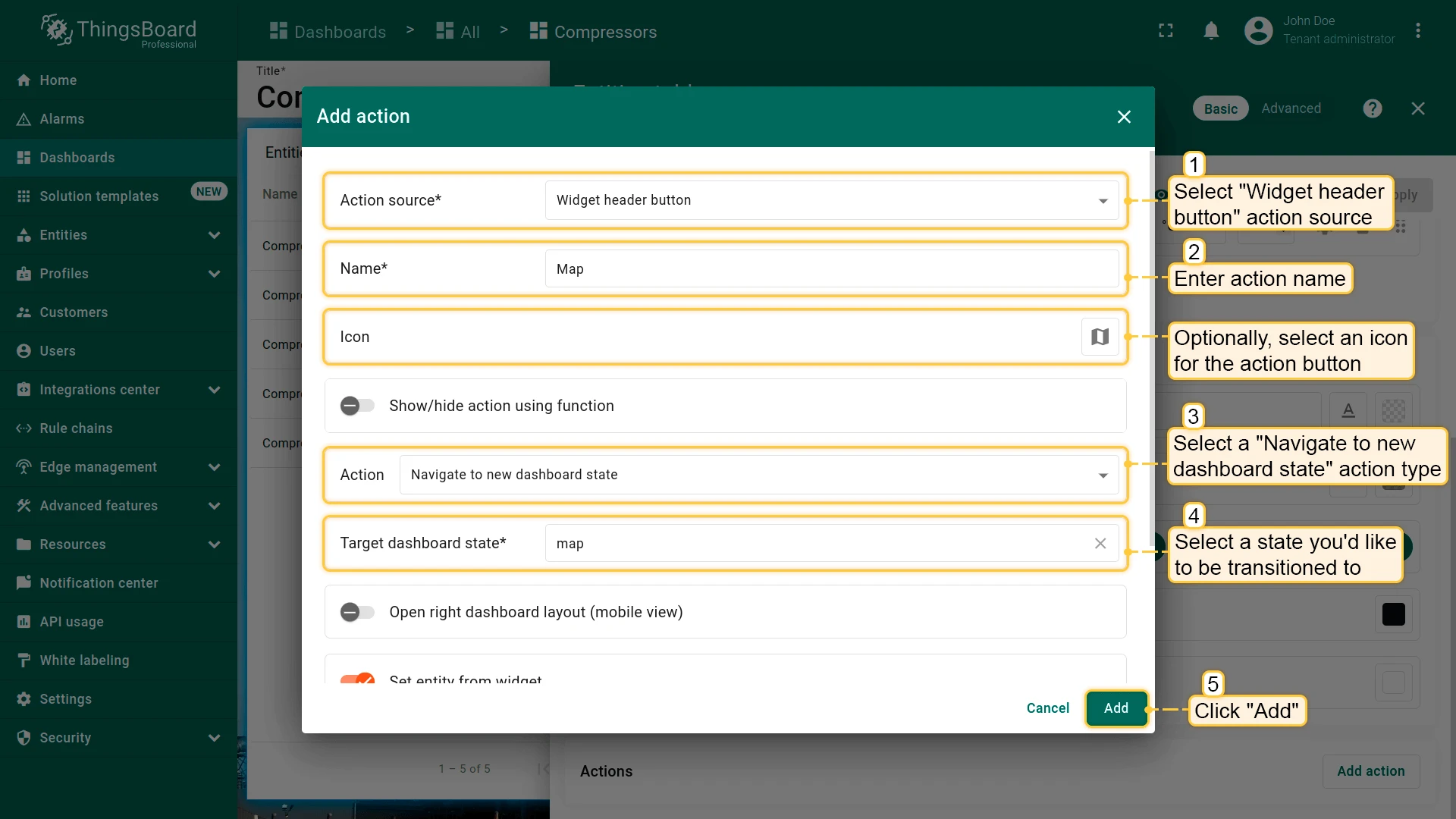
- Select Widget header button as the action source.
- Enter an action name and choose an icon for the button.
- Select Navigate to new dashboard state as the action type, then choose the target state.
- Click Add, then Save and Apply to save the widget settings.
- Click Save in the dashboard toolbar to save the dashboard.
Result
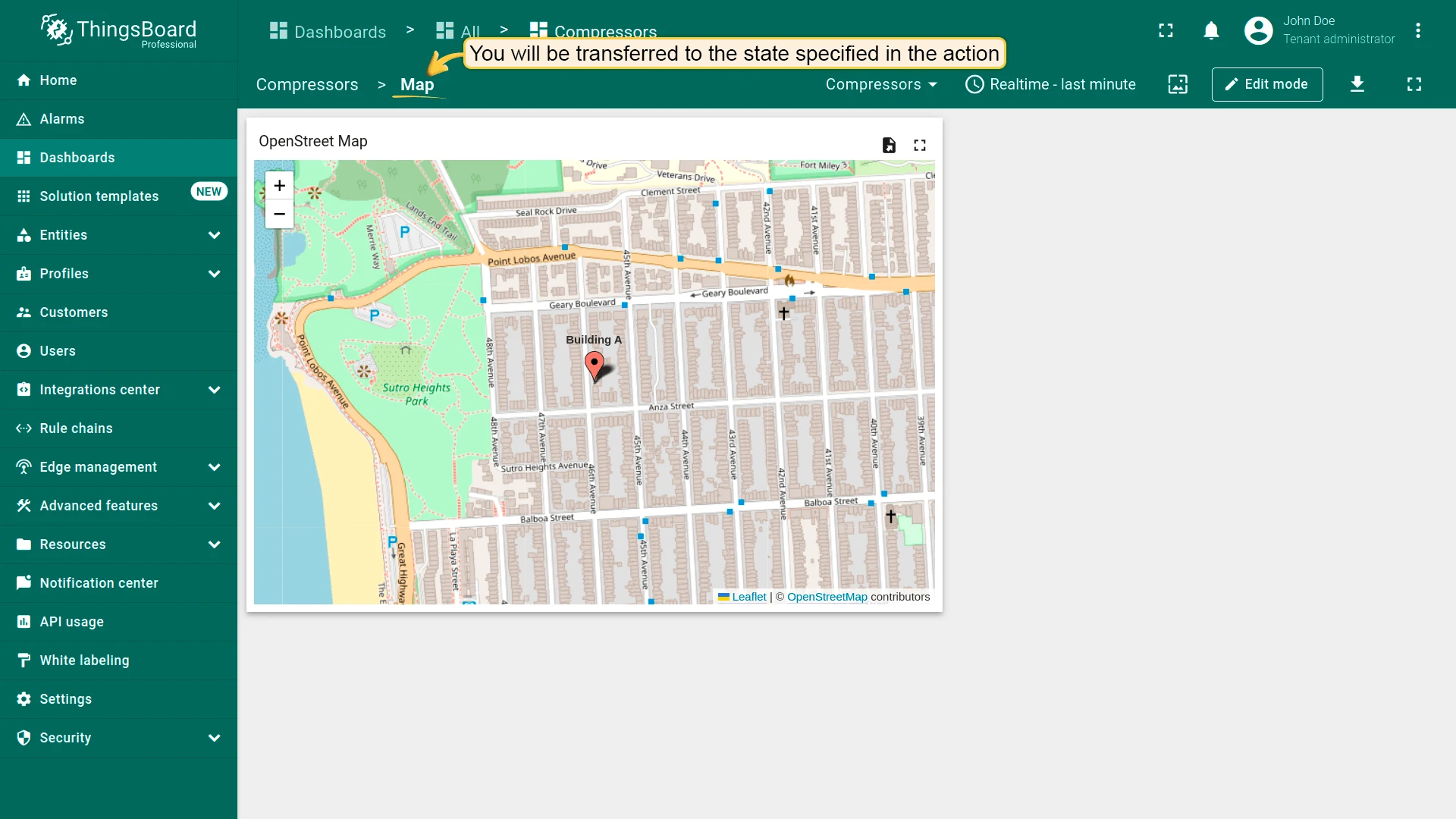
Action Cell Button
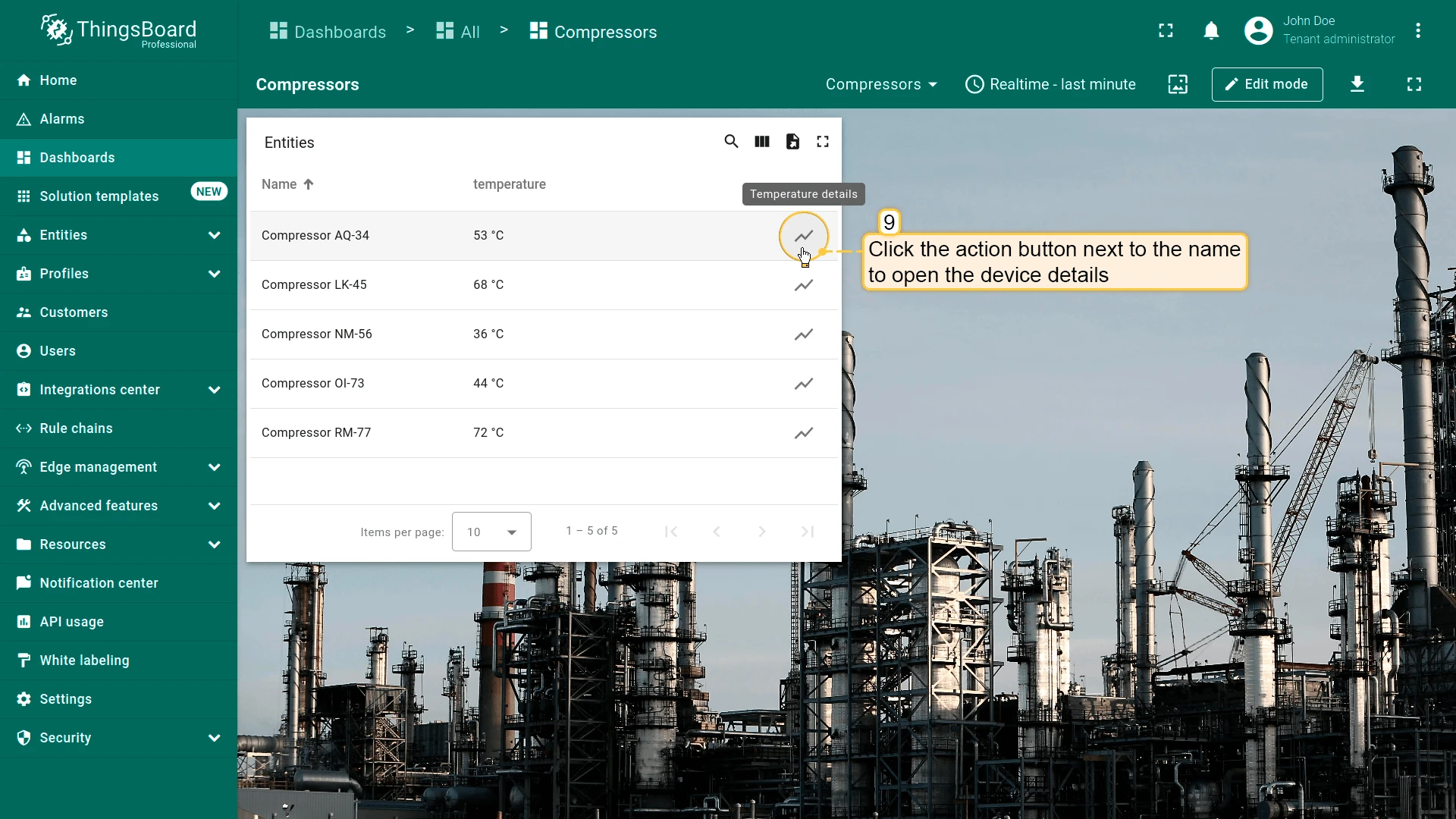
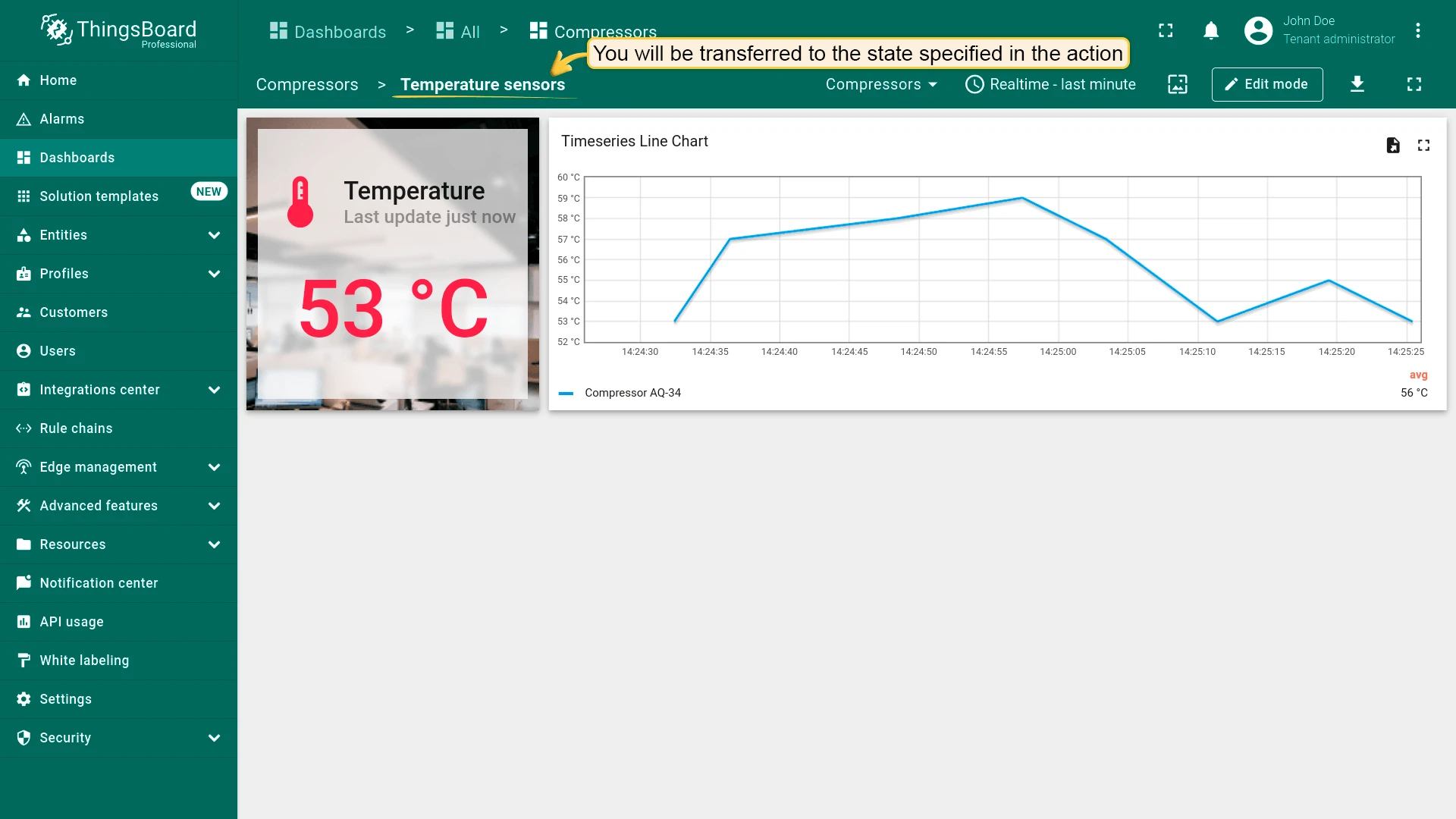
Section titled “Action Cell Button”Adds an icon button to each entity row. The action runs for that row’s entity — for example, to open its details, edit it, or delete it.
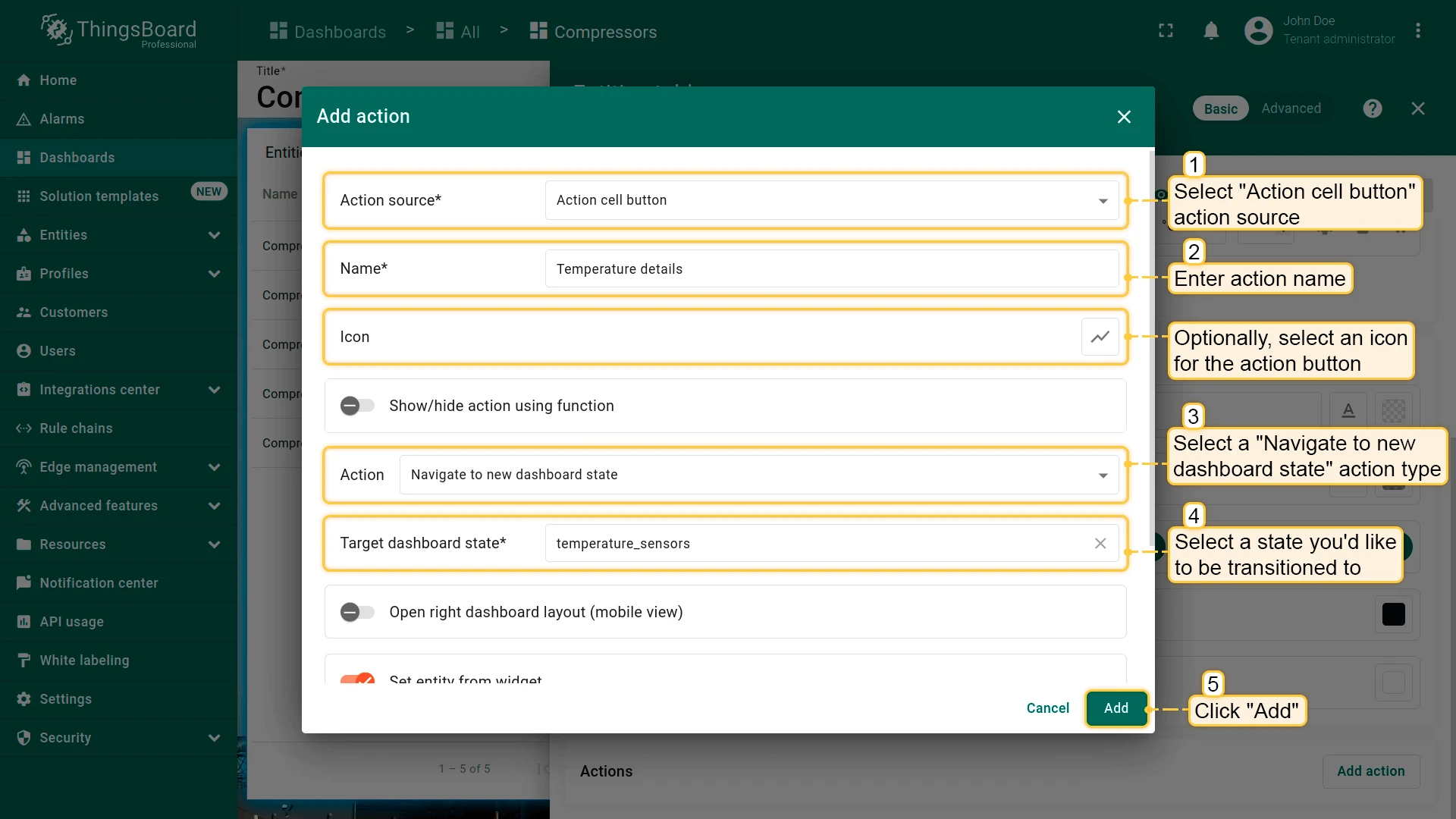
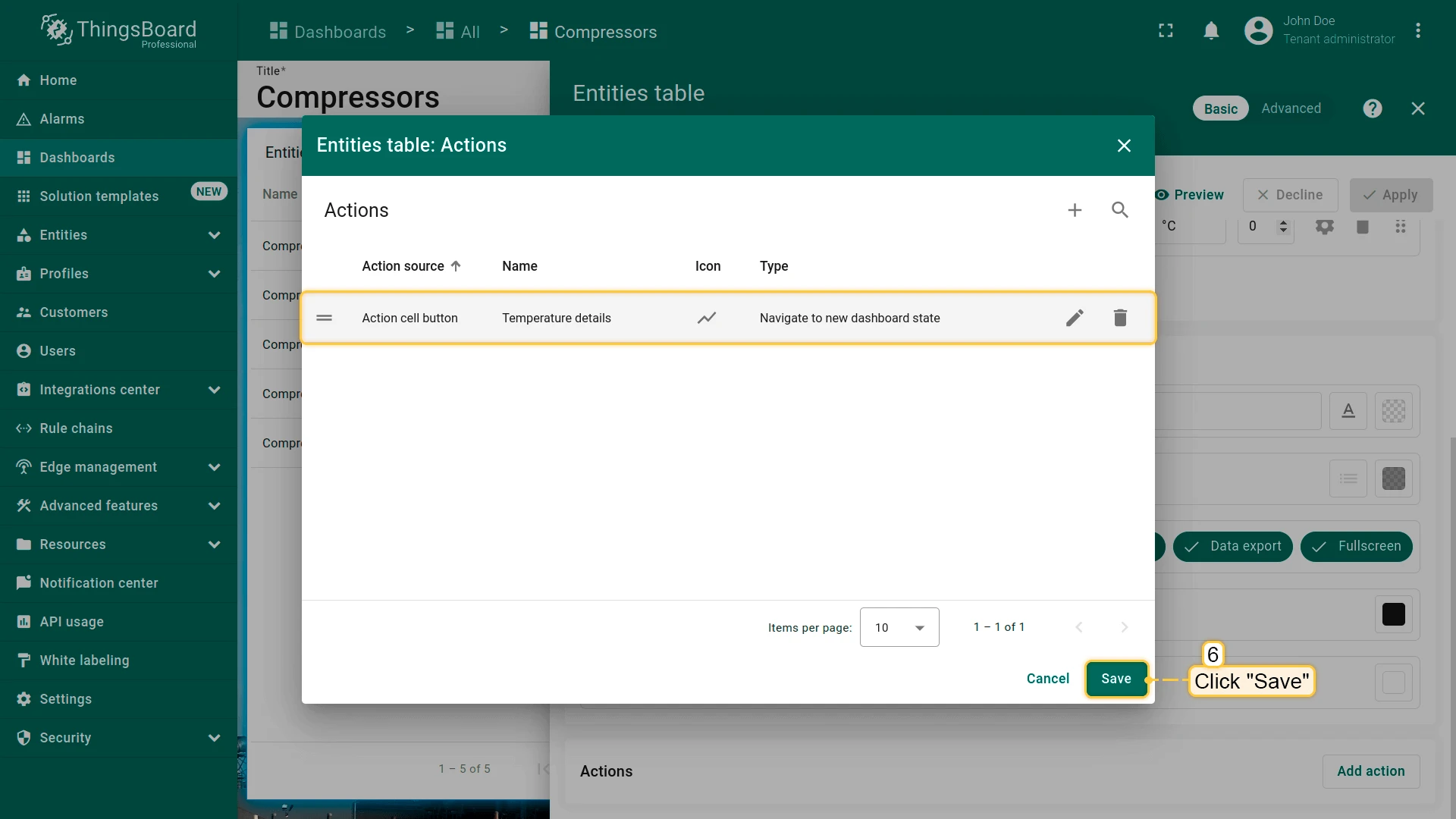
- Open the widget in edit mode, go to the Actions tab, and click +.
- Select Action cell button as the action source.
- Enter an action name and choose an icon for the button.
- Select Navigate to new dashboard state as the action type, then choose the target state.
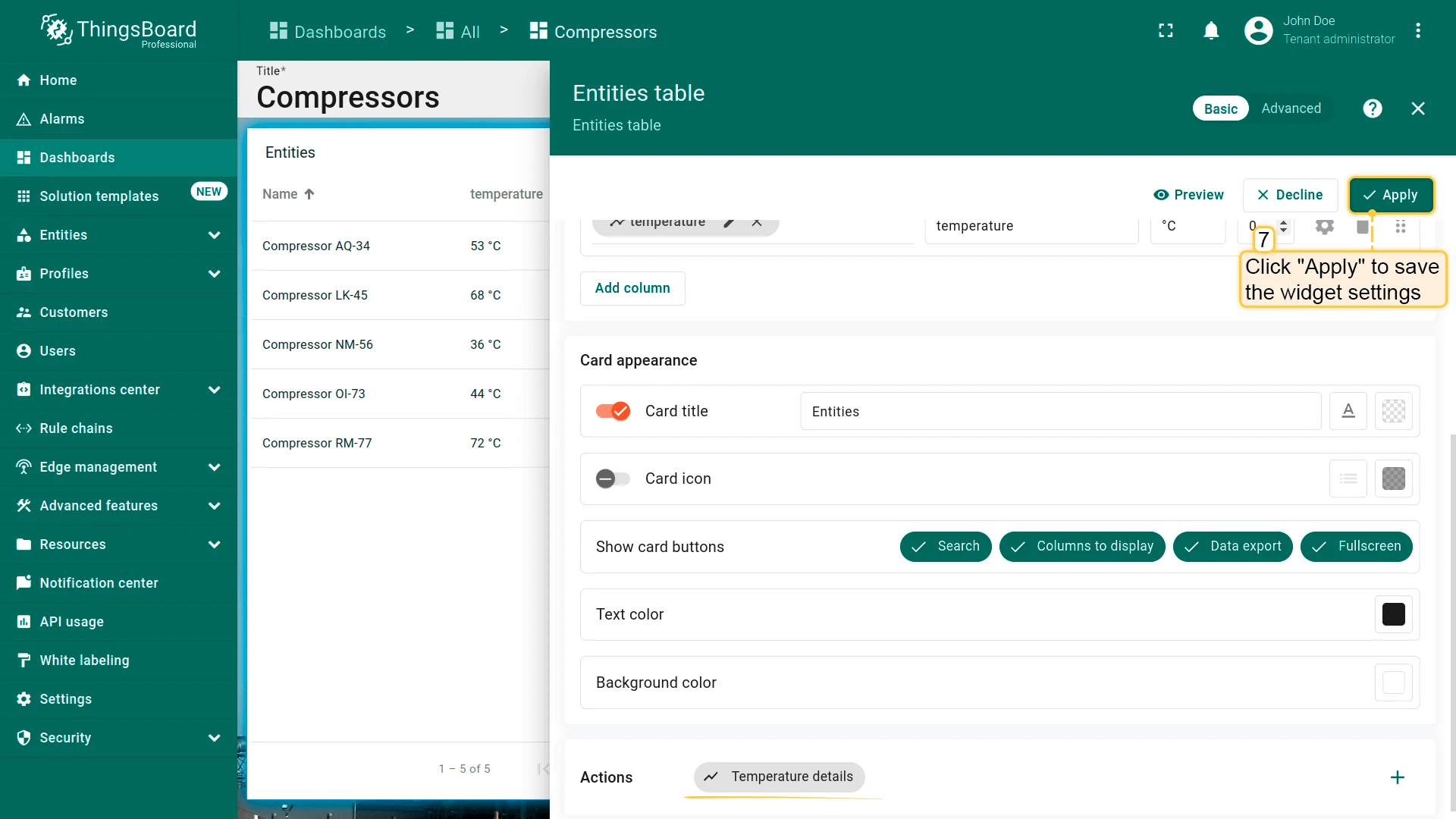
- Click Add, then Save and Apply to save the widget settings.
- Click Save in the dashboard toolbar to save the dashboard.
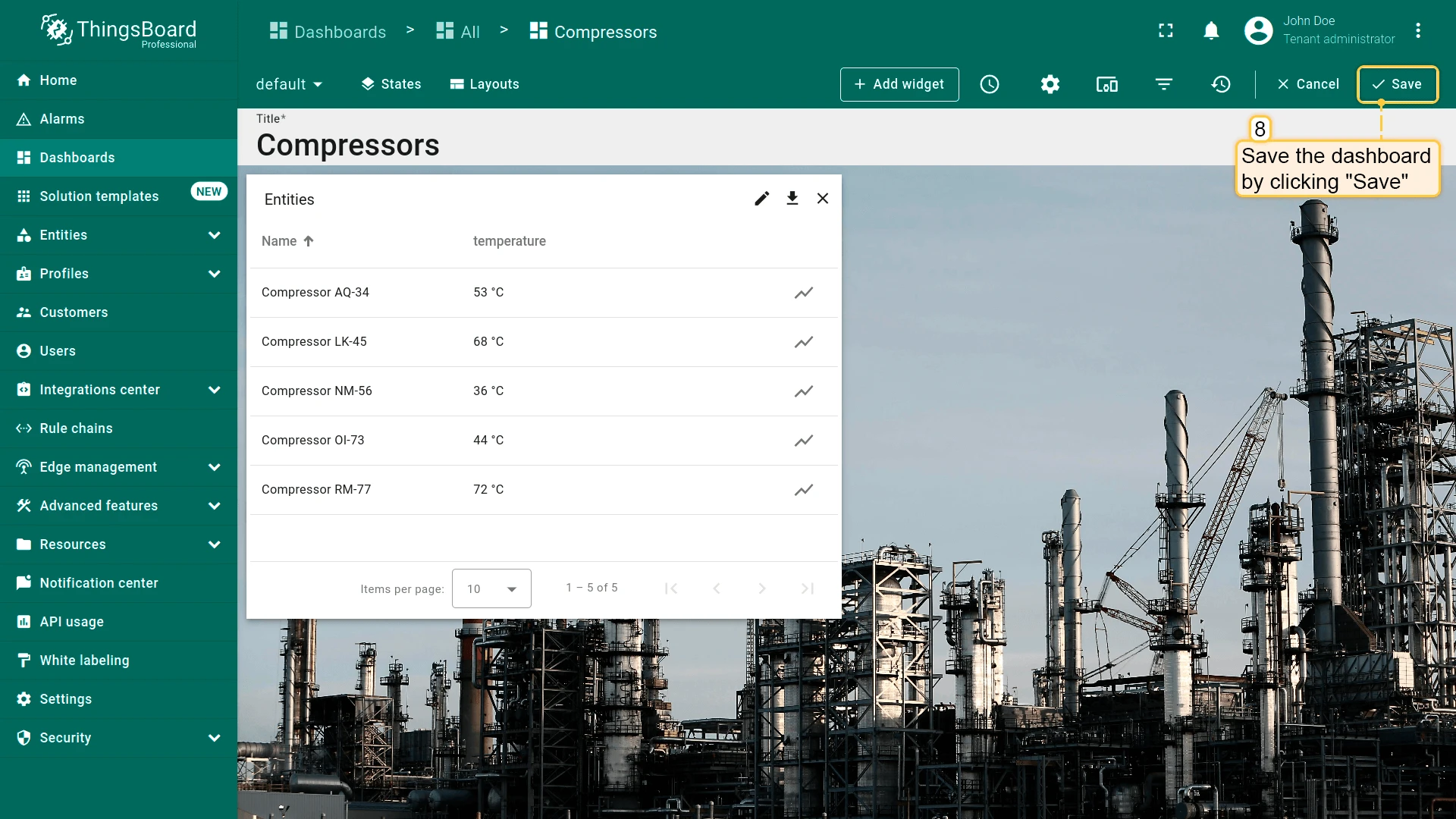
Result
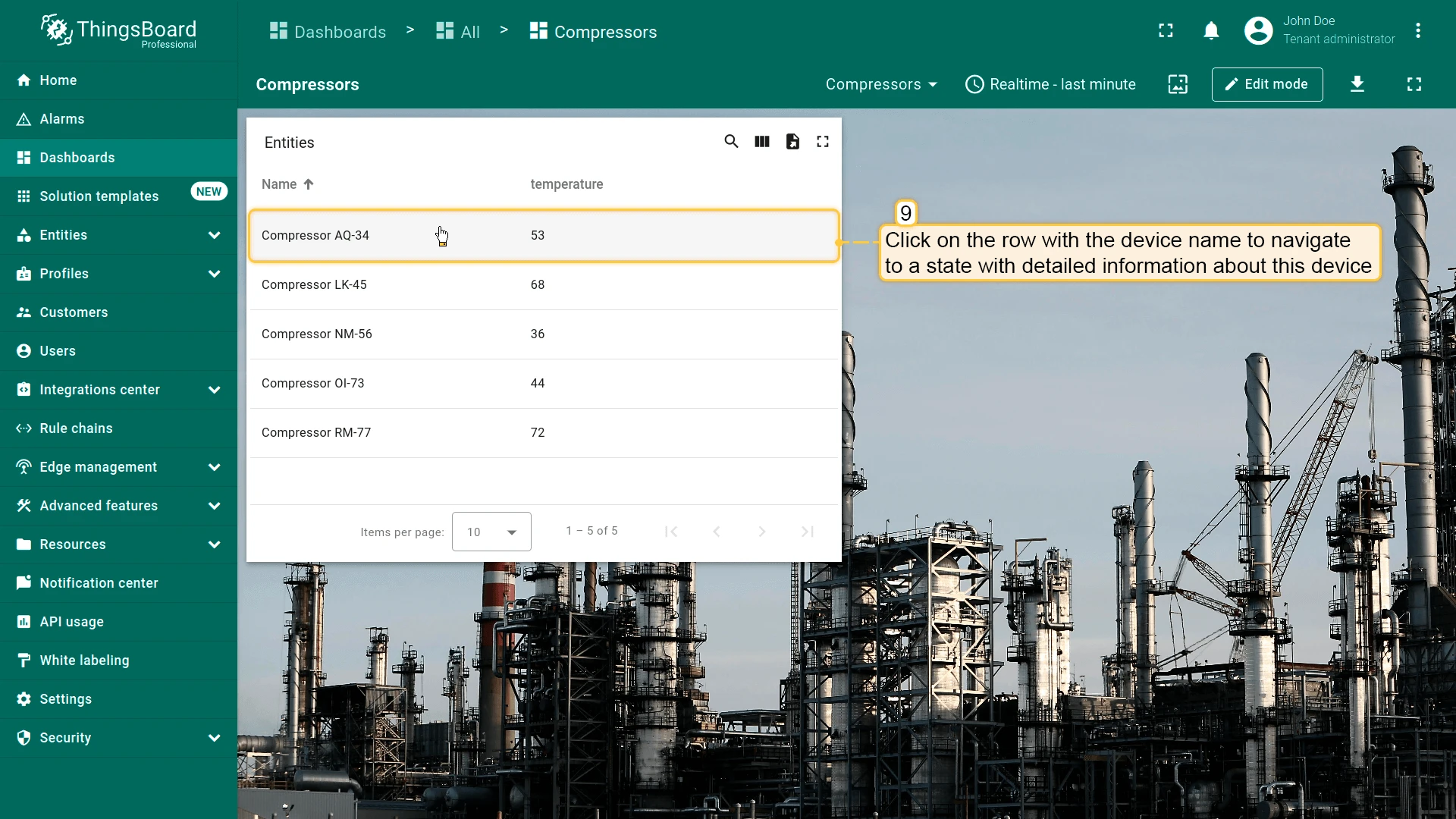
On Row Click
Section titled “On Row Click”Triggers when the user clicks anywhere on an entity row; no button is shown. Combine it with On row double click to assign different actions to single and double clicks.
- Open the widget in edit mode, go to the Actions tab, and click +.
- Select On row click as the action source.
- Enter an action name. Optionally, choose an icon.
- Select Navigate to new dashboard state as the action type, then choose the target state.
- Click Add, then Save and Apply to save the widget settings.
- Click Save in the dashboard toolbar to save the dashboard.
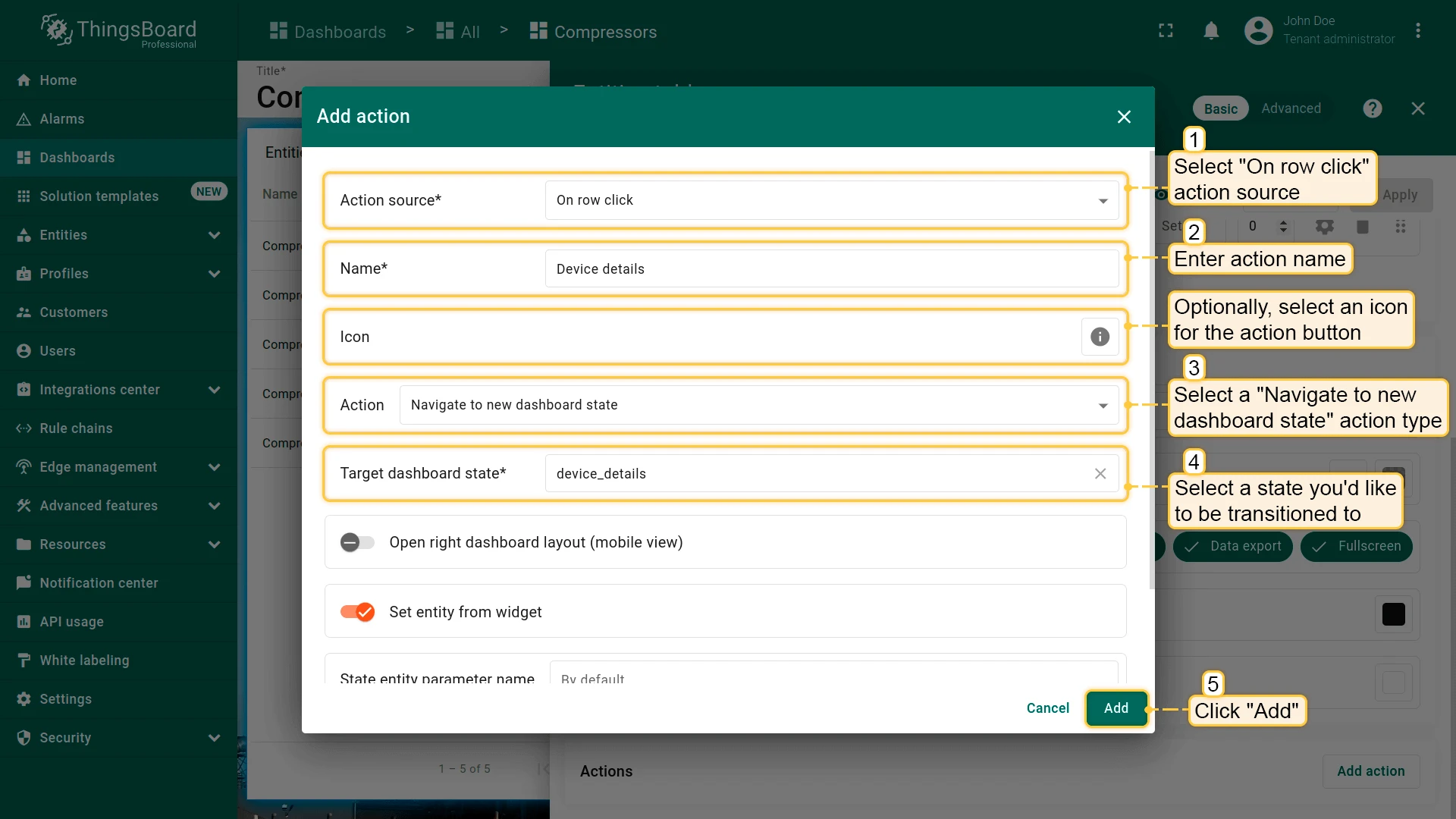
Result
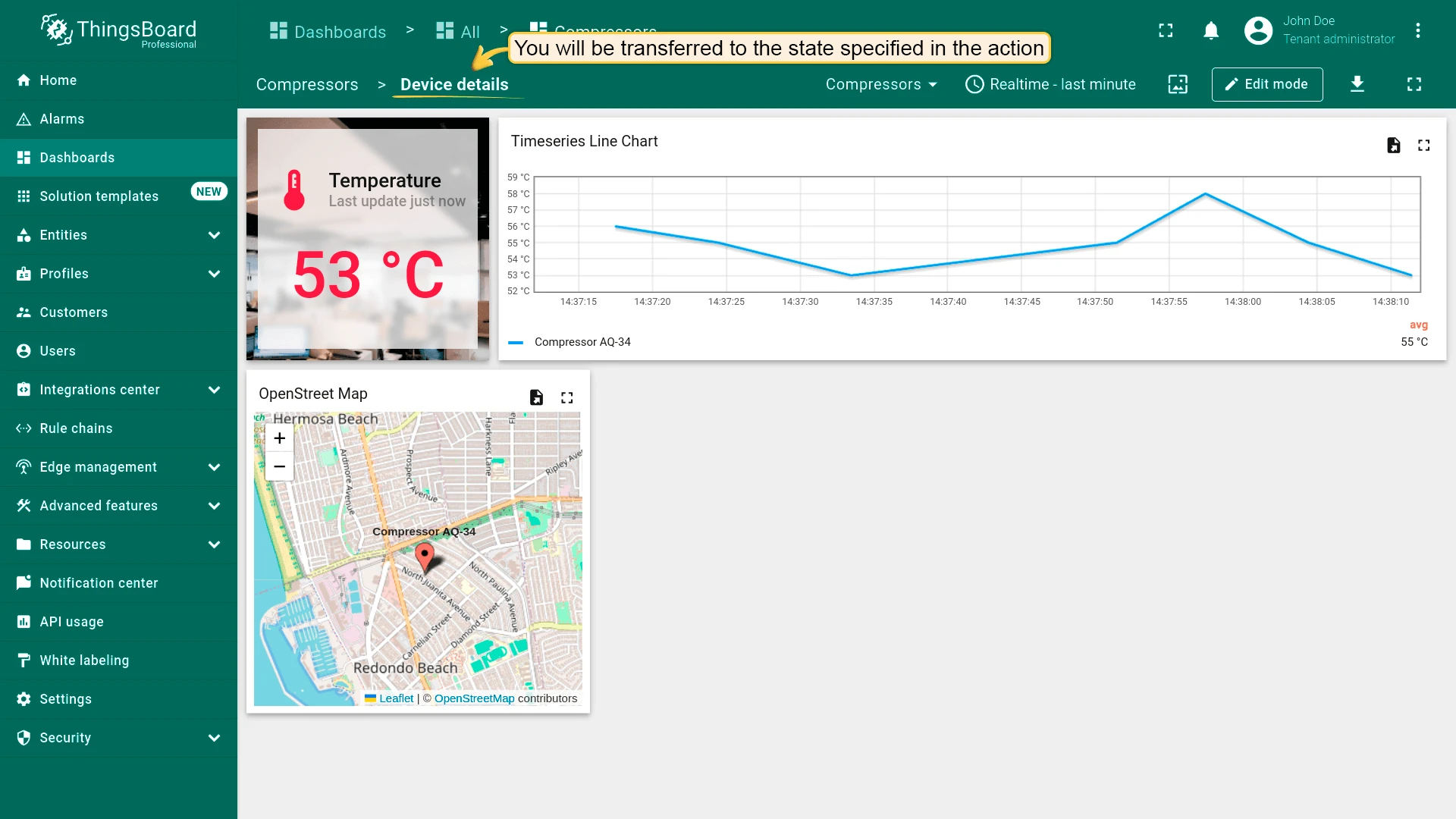
On Row Double Click
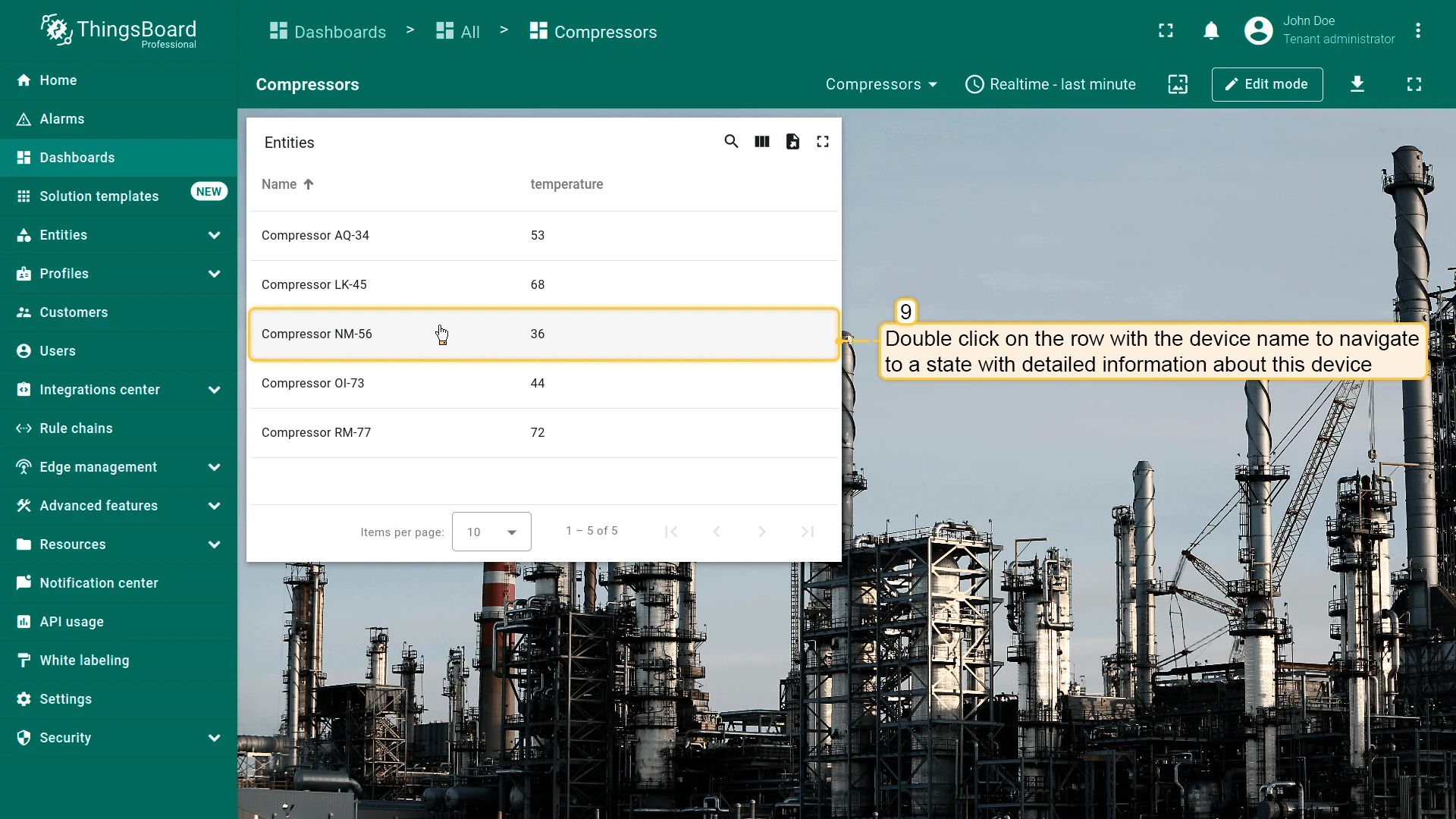
Section titled “On Row Double Click”Triggers when the user double-clicks an entity row. You can combine it with On row click.
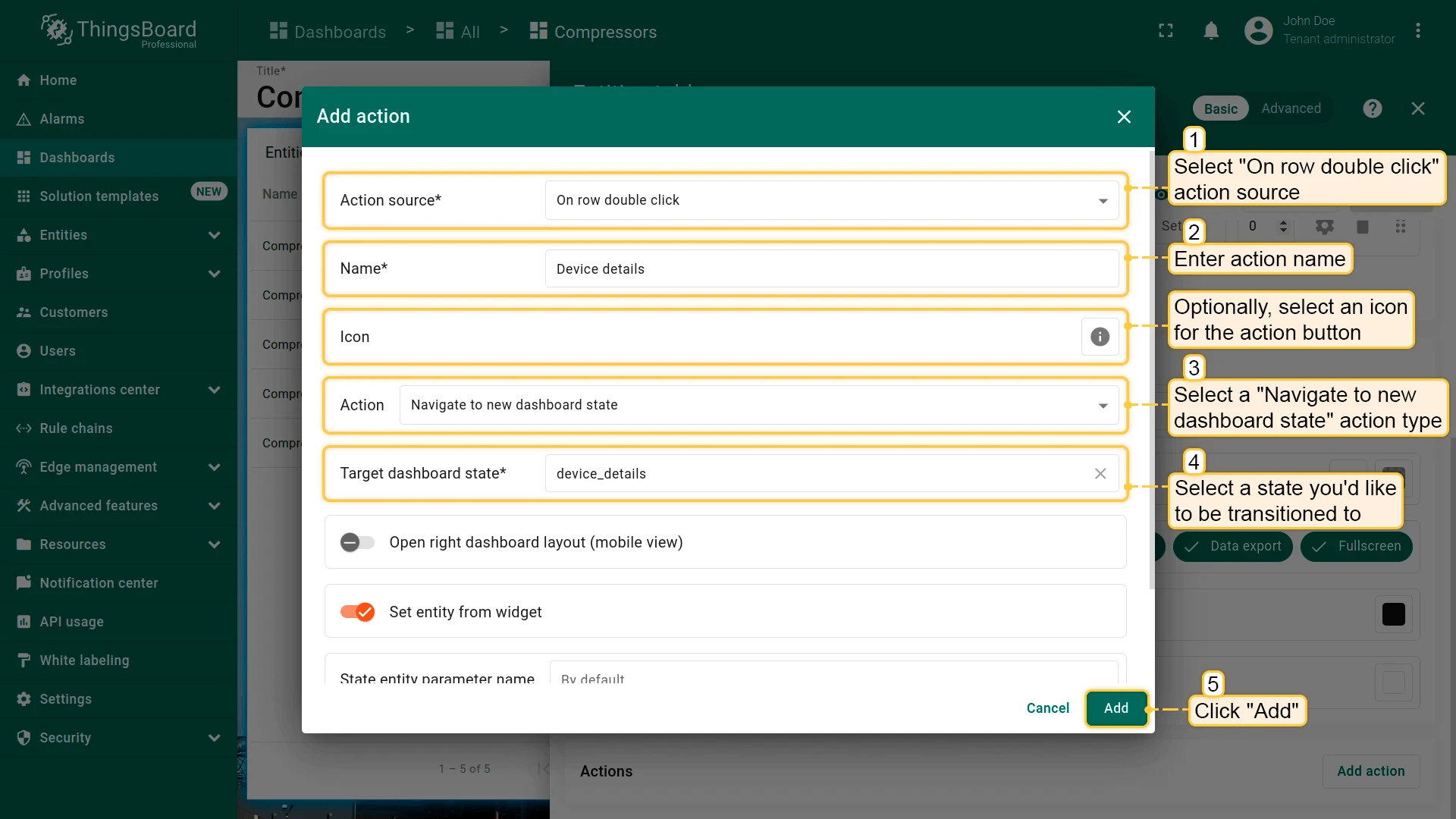
- Open the widget in edit mode, go to the Actions tab, and click +.
- Select On row double click as the action source.
- Enter an action name. Optionally, choose an icon.
- Select Navigate to new dashboard state as the action type, then choose the target state.
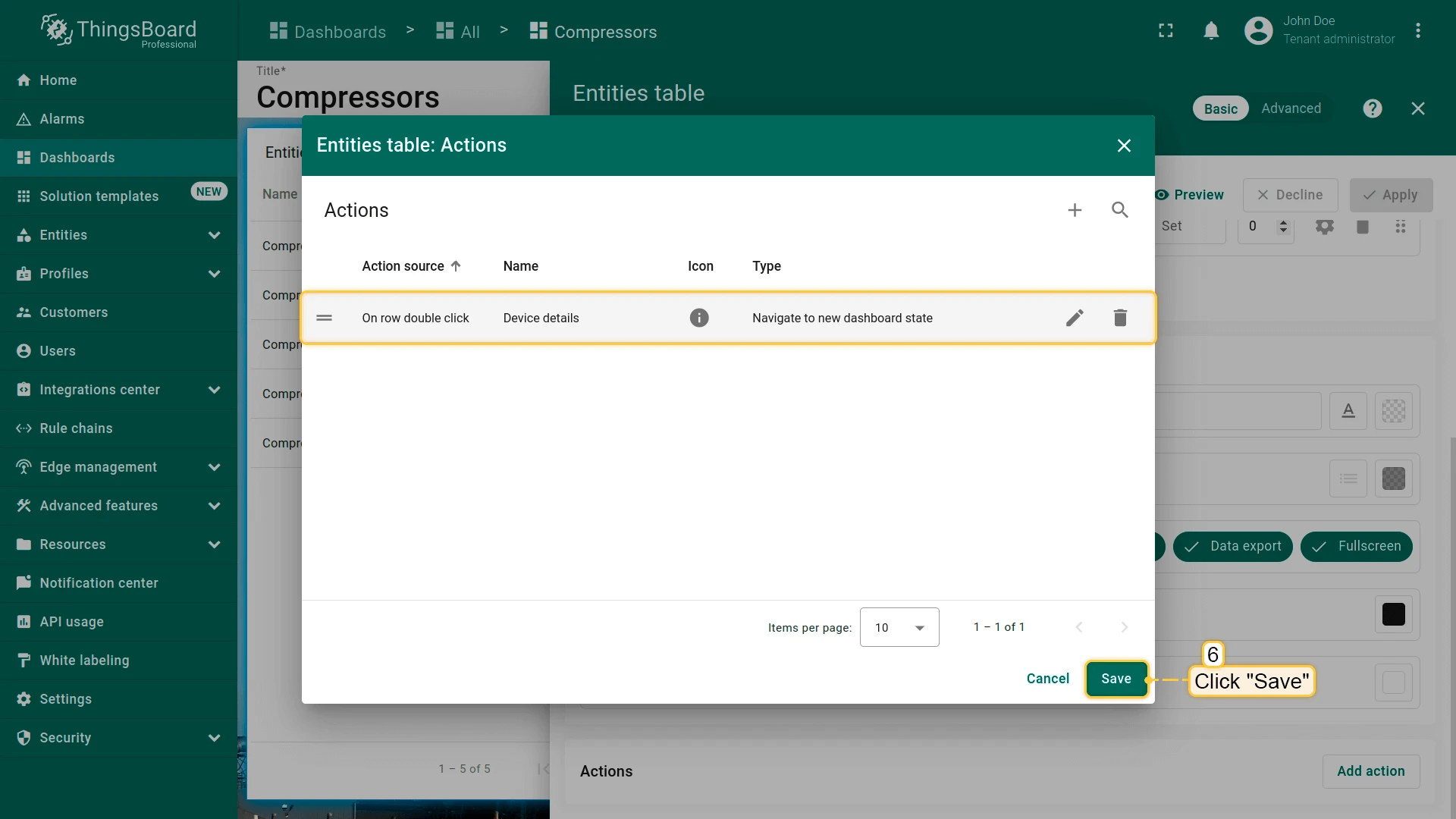
- Click Add, then Save and Apply to save the widget settings.
- Click Save in the dashboard toolbar to save the dashboard.
Result
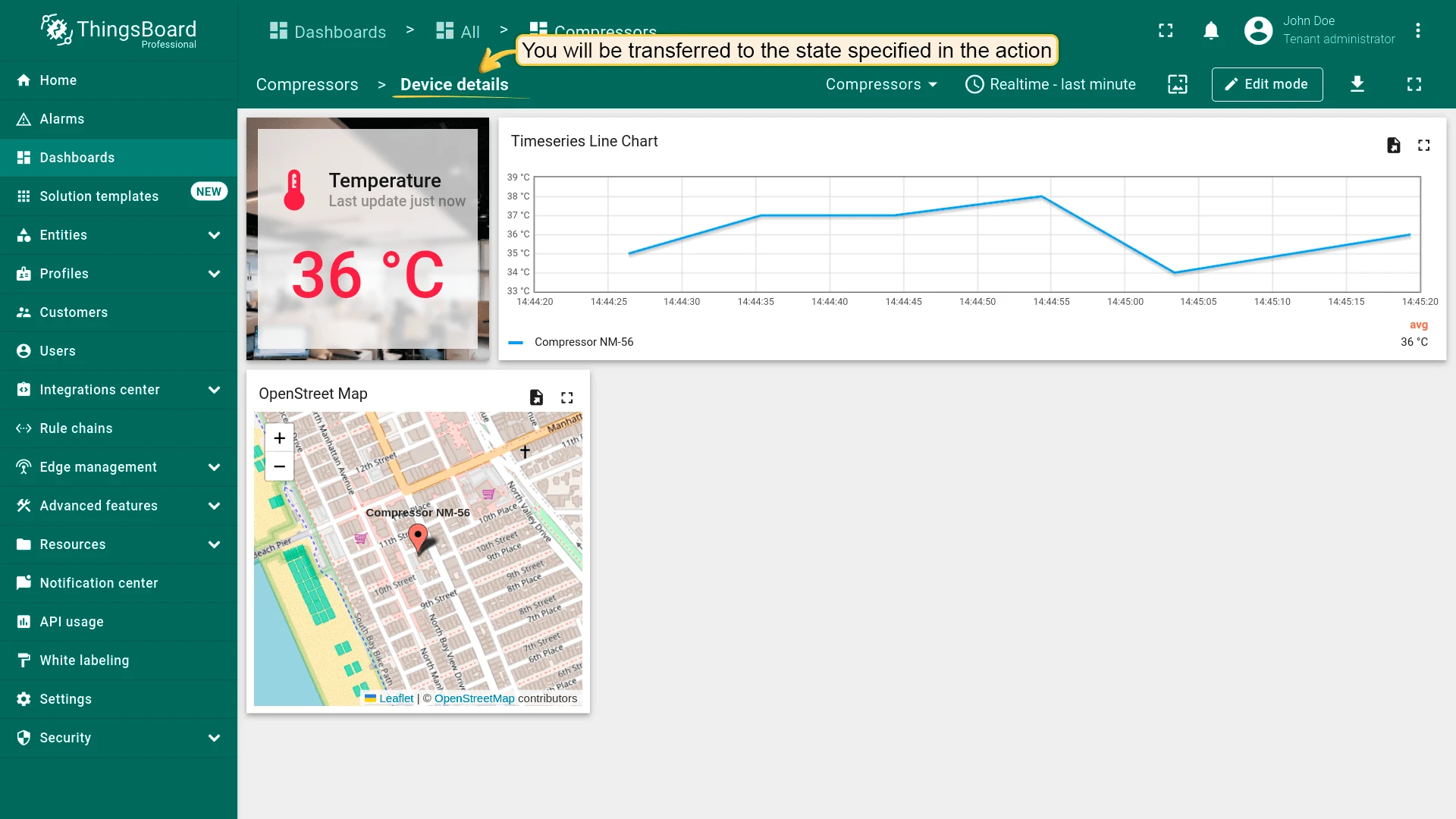
On Cell Click
Section titled “On Cell Click”| Only for Entities table, Alarms table, Device admin table, and Asset admin table widgets |
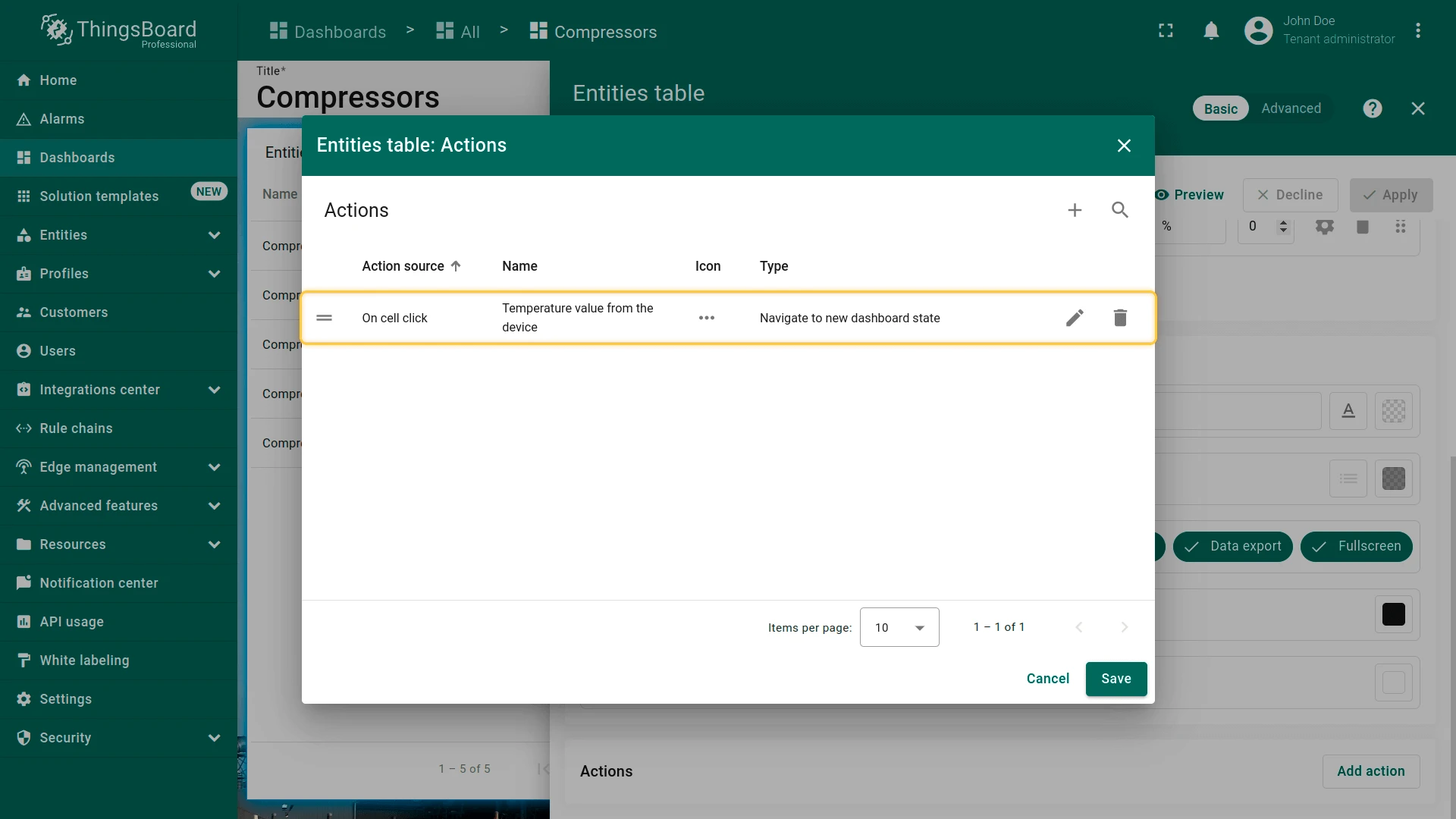
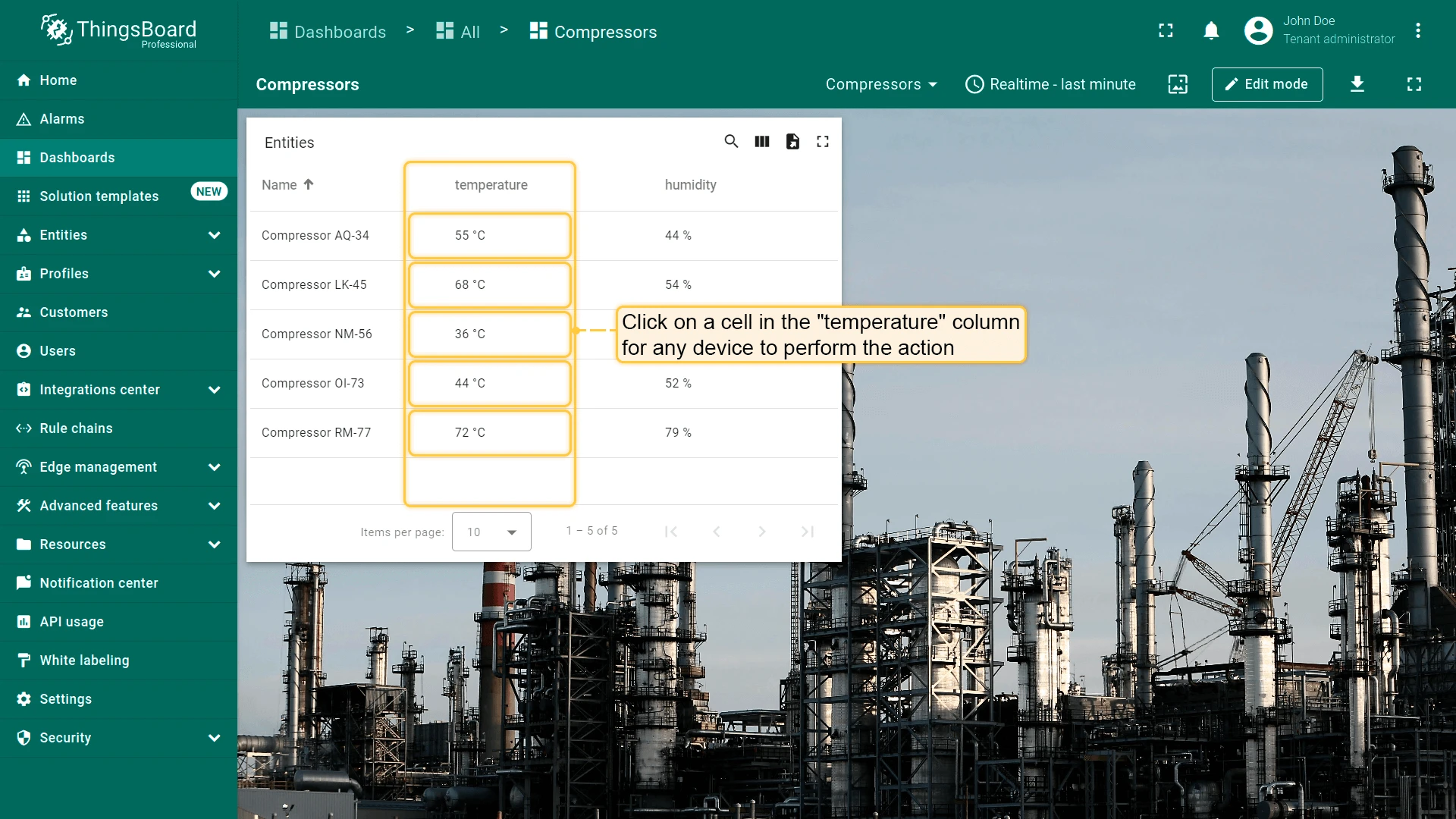
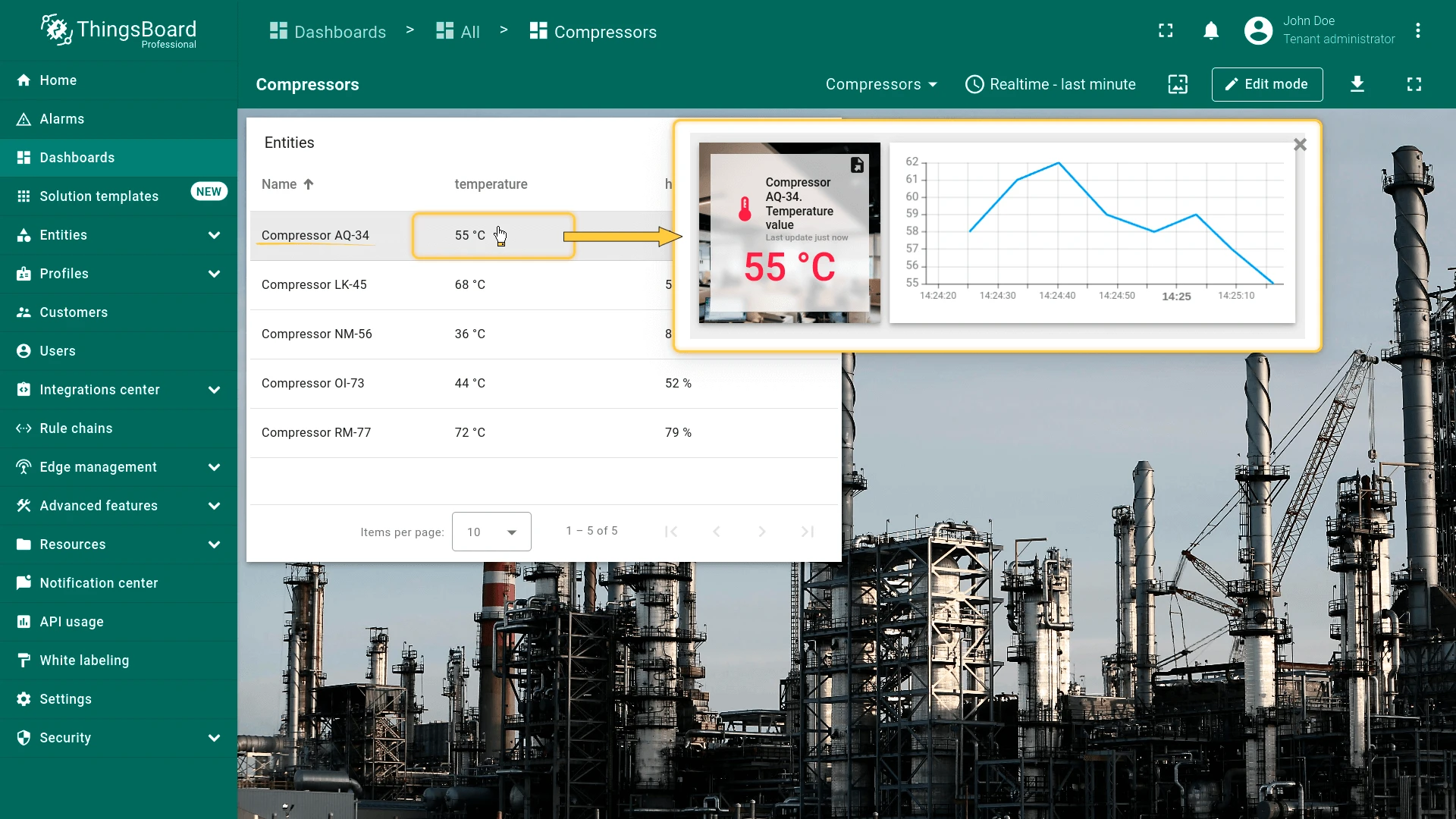
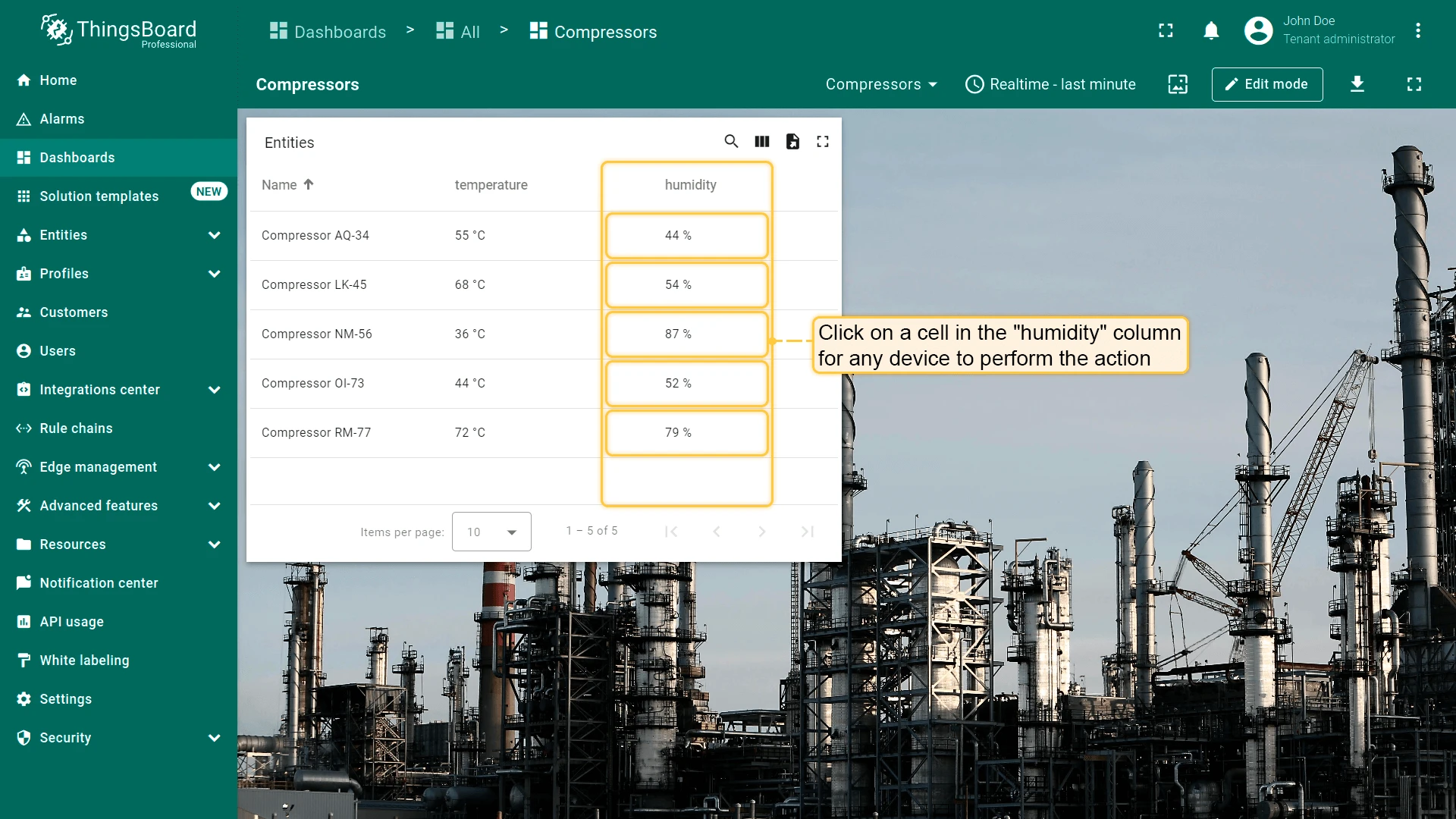
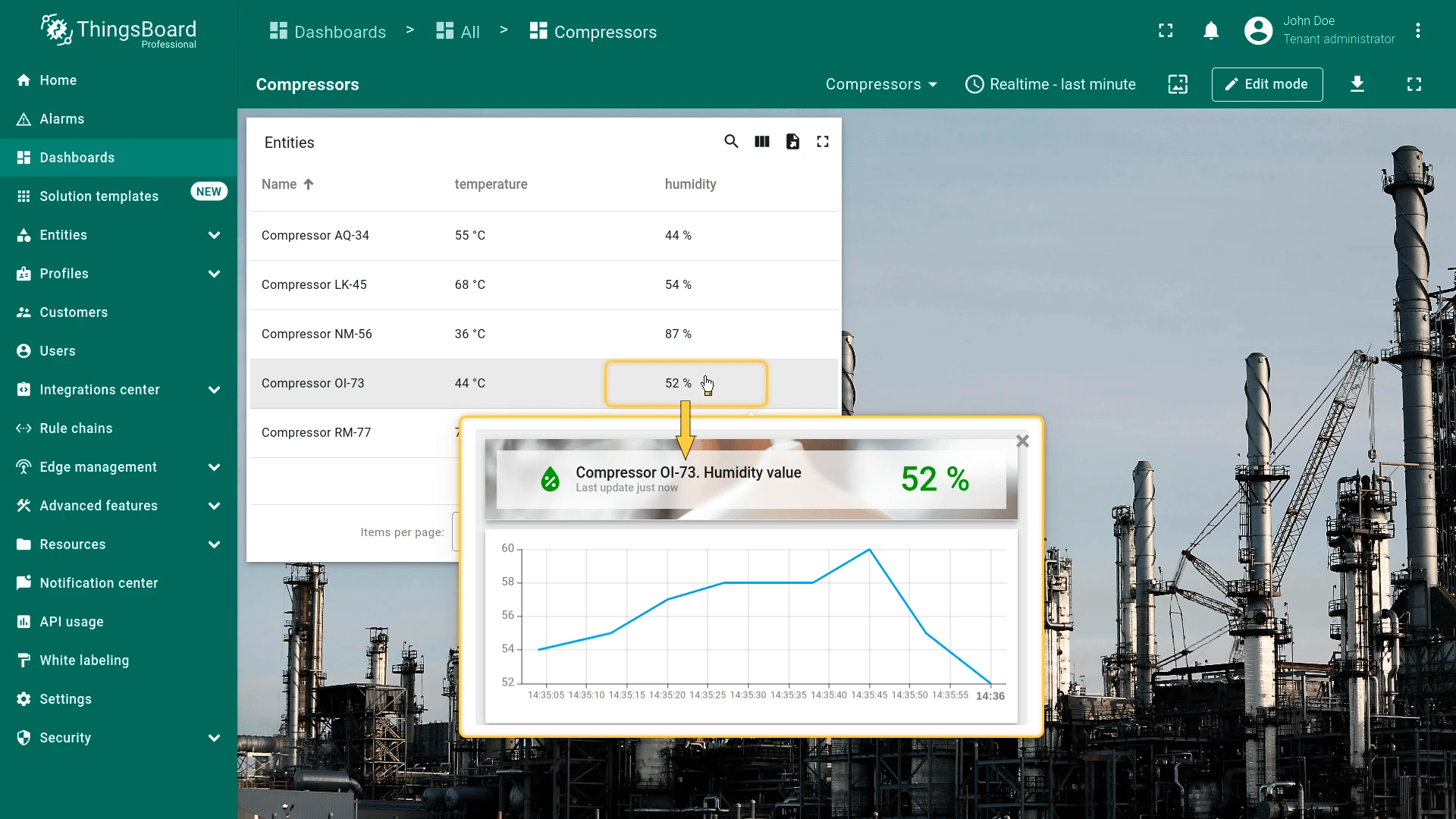
Triggers when the user clicks a cell in a specific column, selected by column index. Unlike On row click, each column can have its own action — for example, a temperature cell opens a temperature popover and a humidity cell opens a humidity popover.
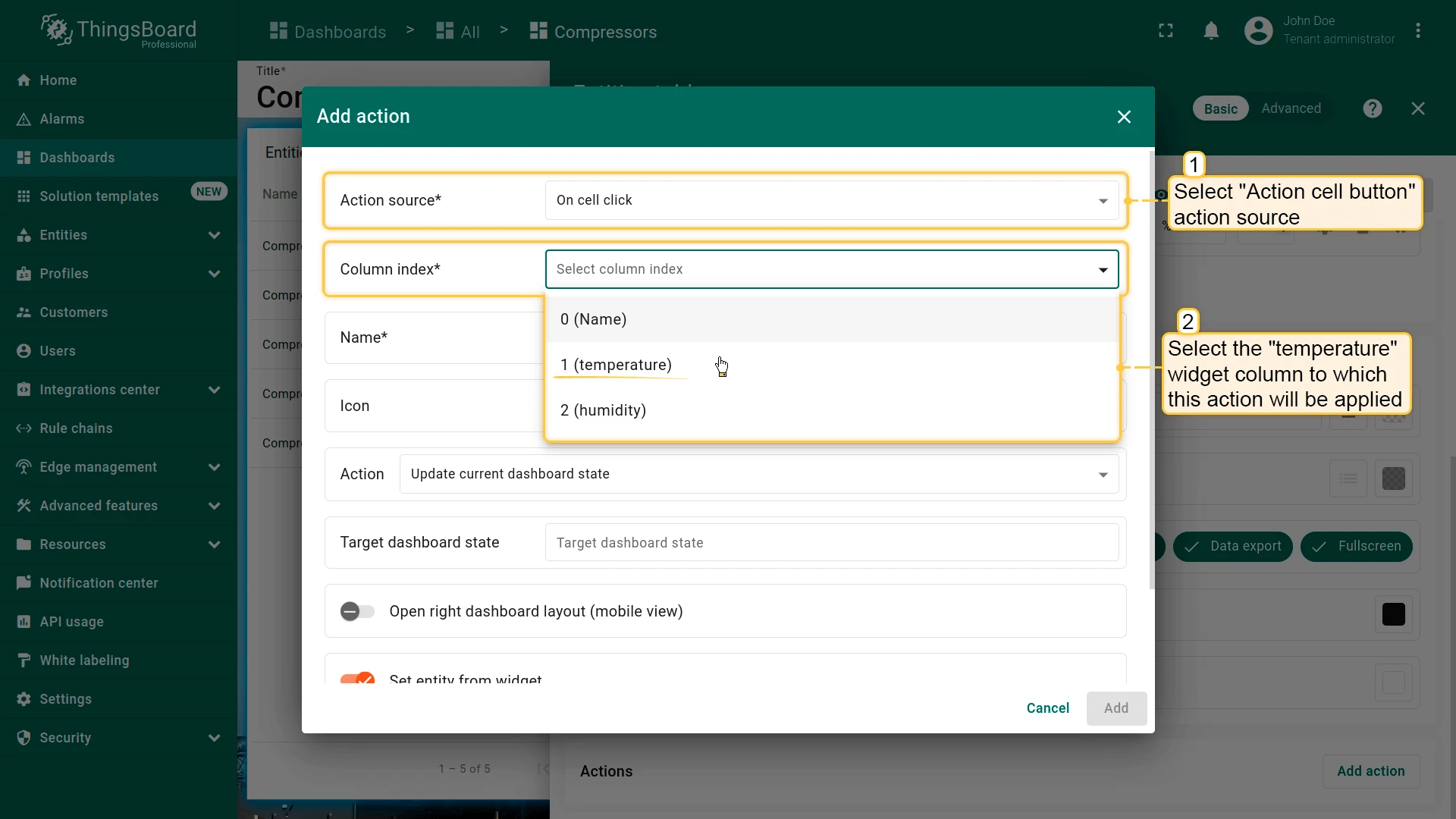
Configure the temperature column action:
- Open the widget in edit mode, go to the Actions tab, and click +.
- Select On cell click as the action source.
- From the Column index dropdown, select the temperature column.
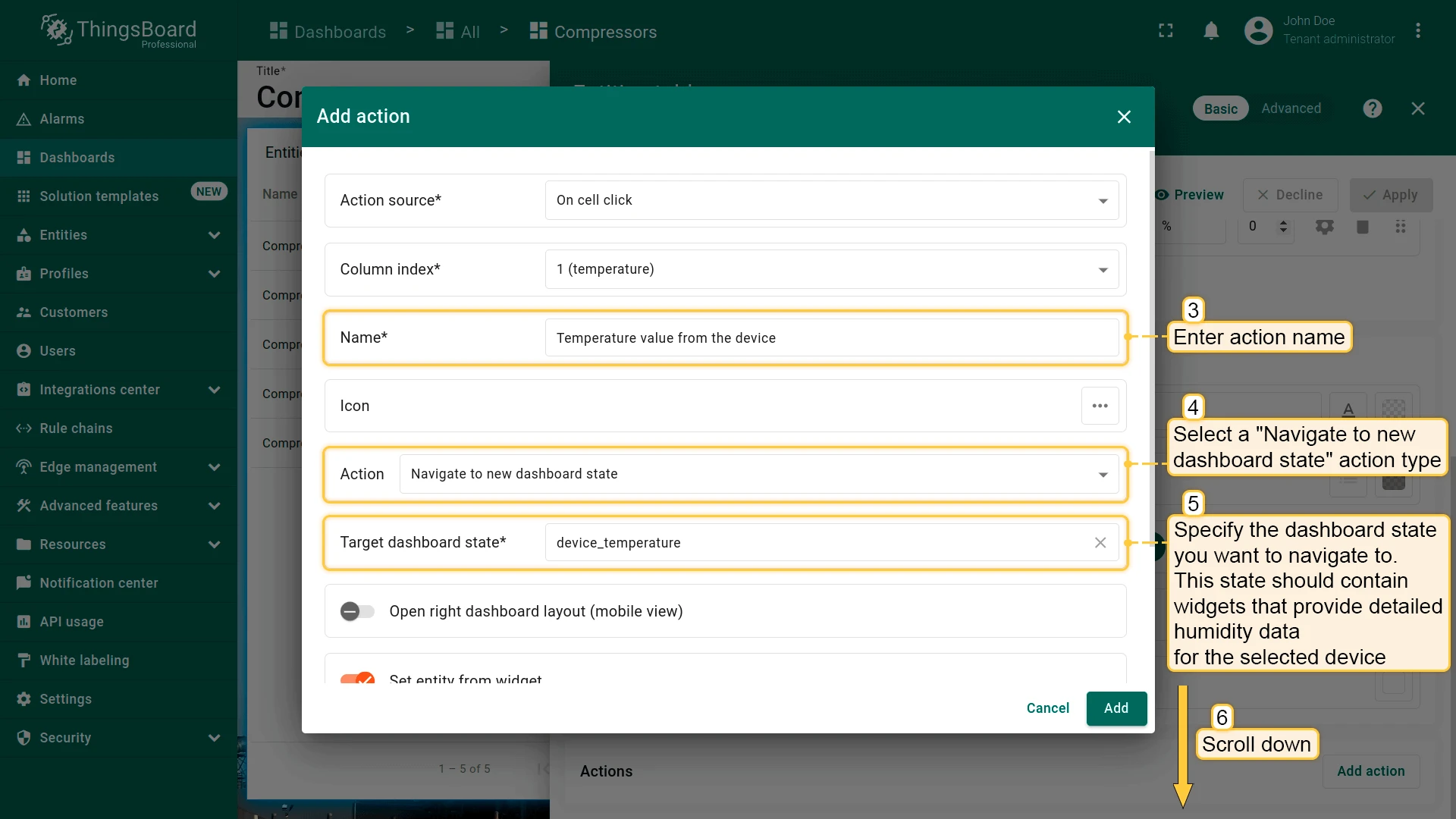
- Enter an action name, select Navigate to new dashboard state, and choose the target state.
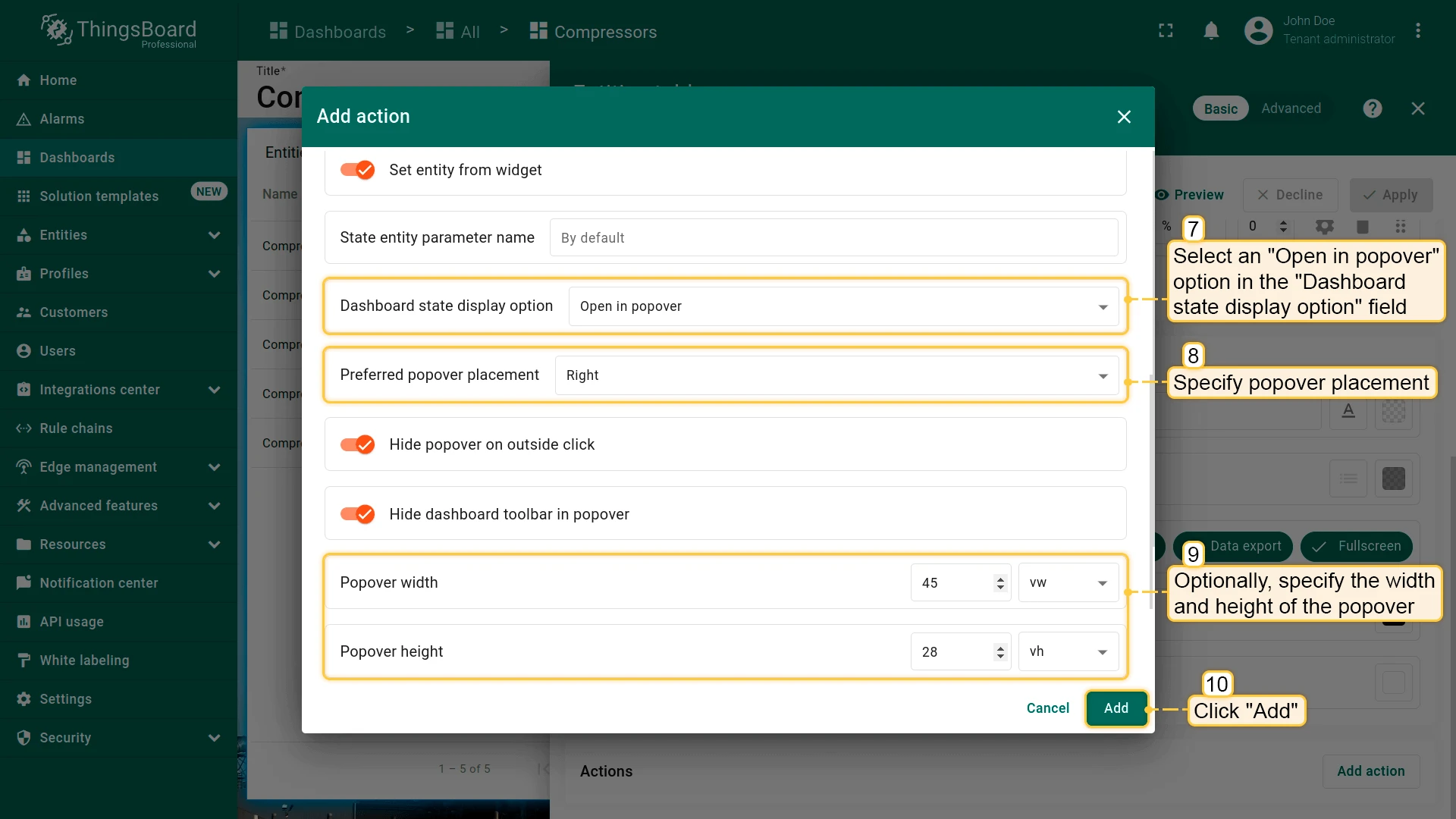
- In Dashboard state display option, select Open in popover, set placement to Right, and specify width/height.
- Click Add.
Configure the humidity column action:
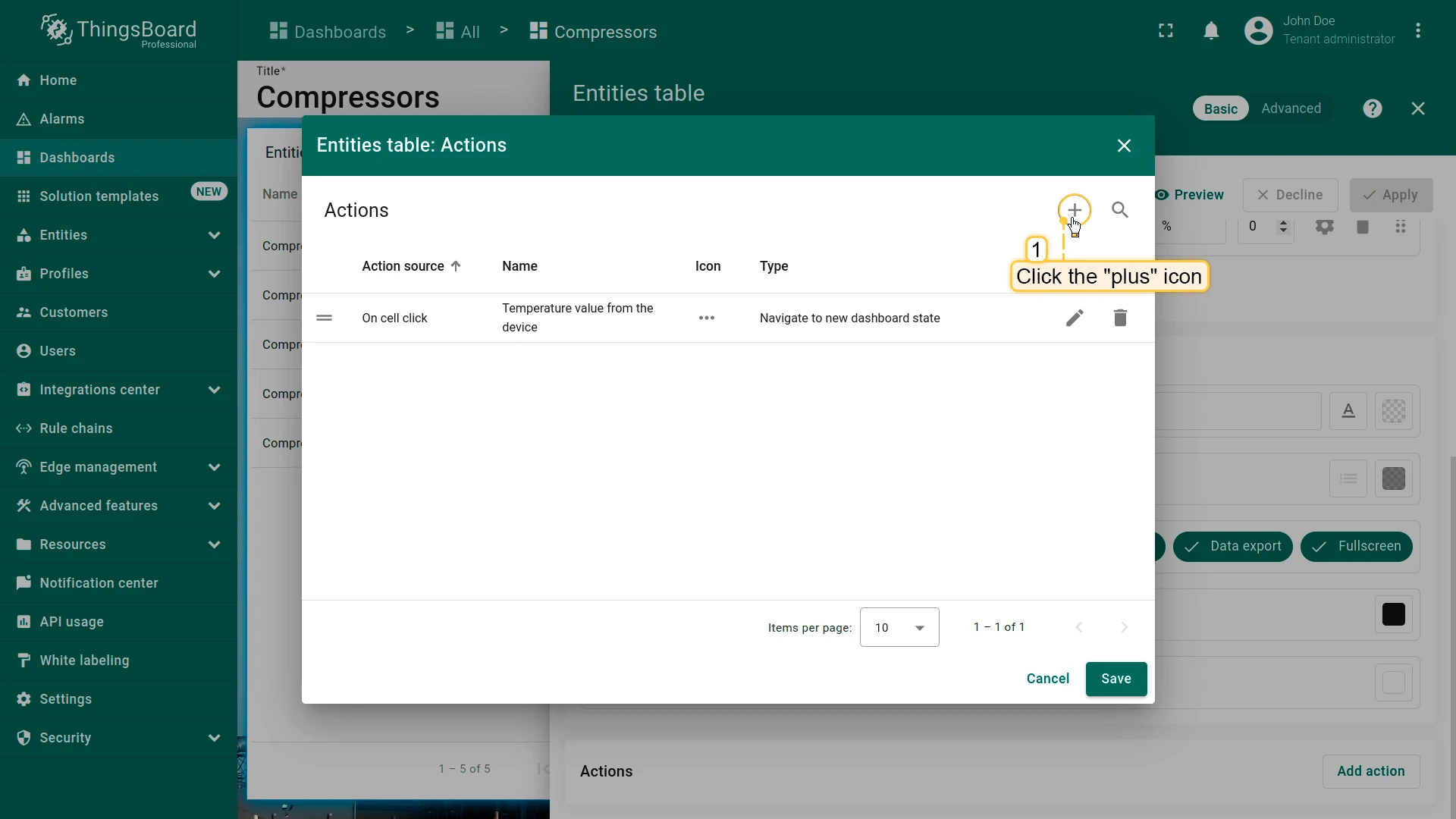
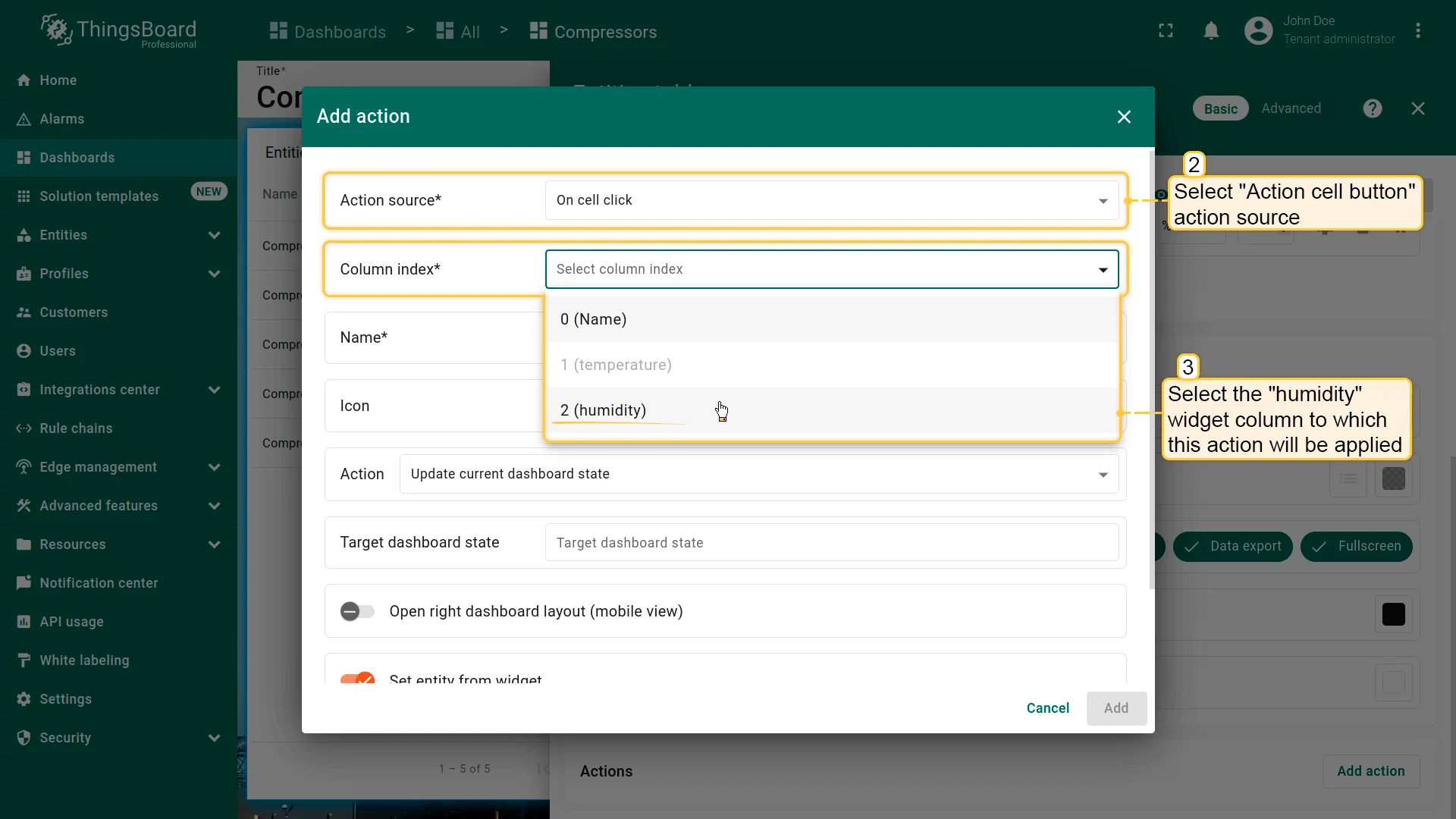
- Click + to add another action.
- Select On cell click as the action source.
- From the Column index dropdown, select the humidity column.
- Enter an action name, select Navigate to new dashboard state, and choose the target state.
- In Dashboard state display option, select Open in popover, set placement to Bottom, and specify width/height.
- Click Add, then Save and Apply to save the widget settings.
- Click Save in the dashboard toolbar to save the dashboard.
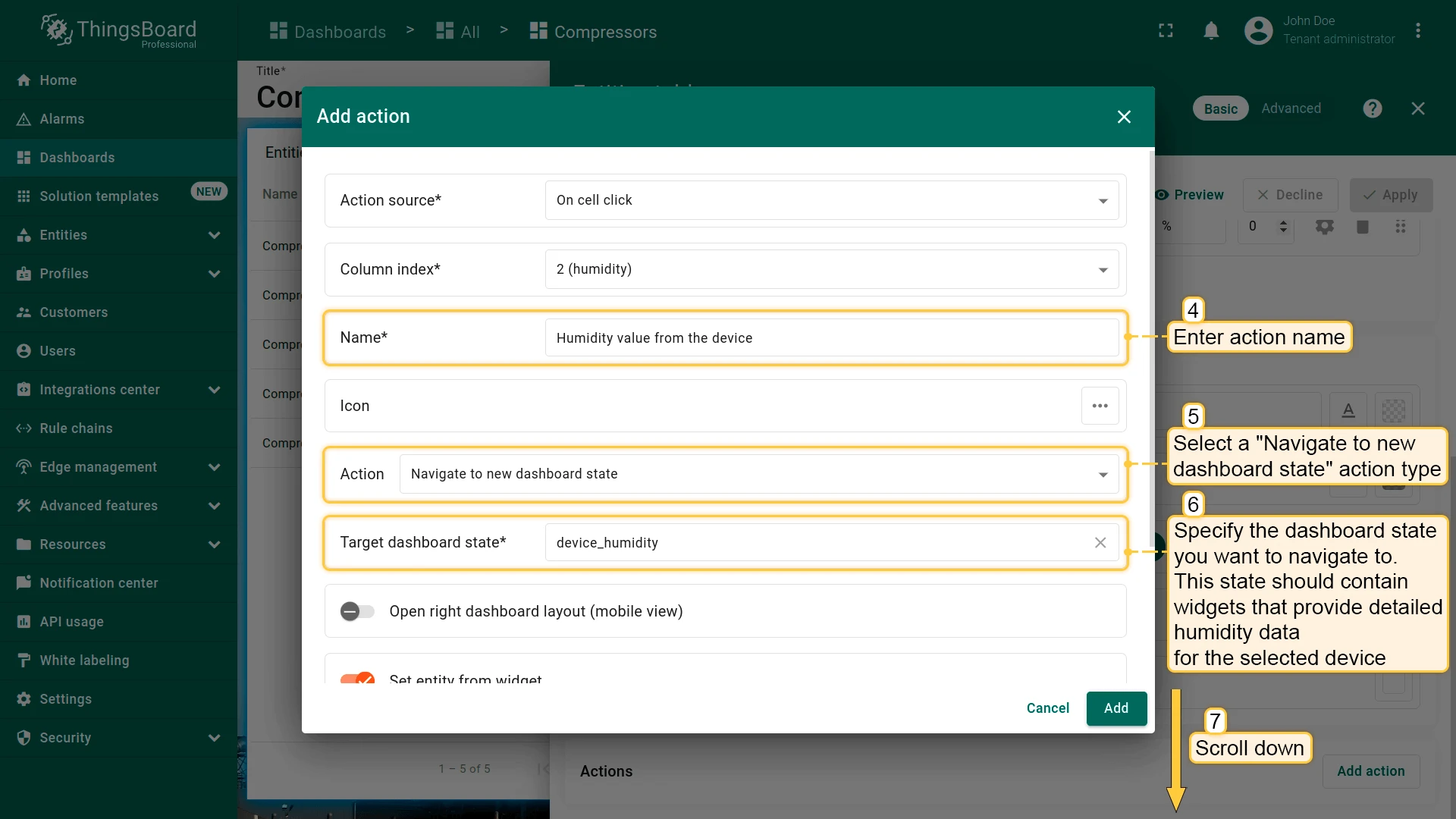
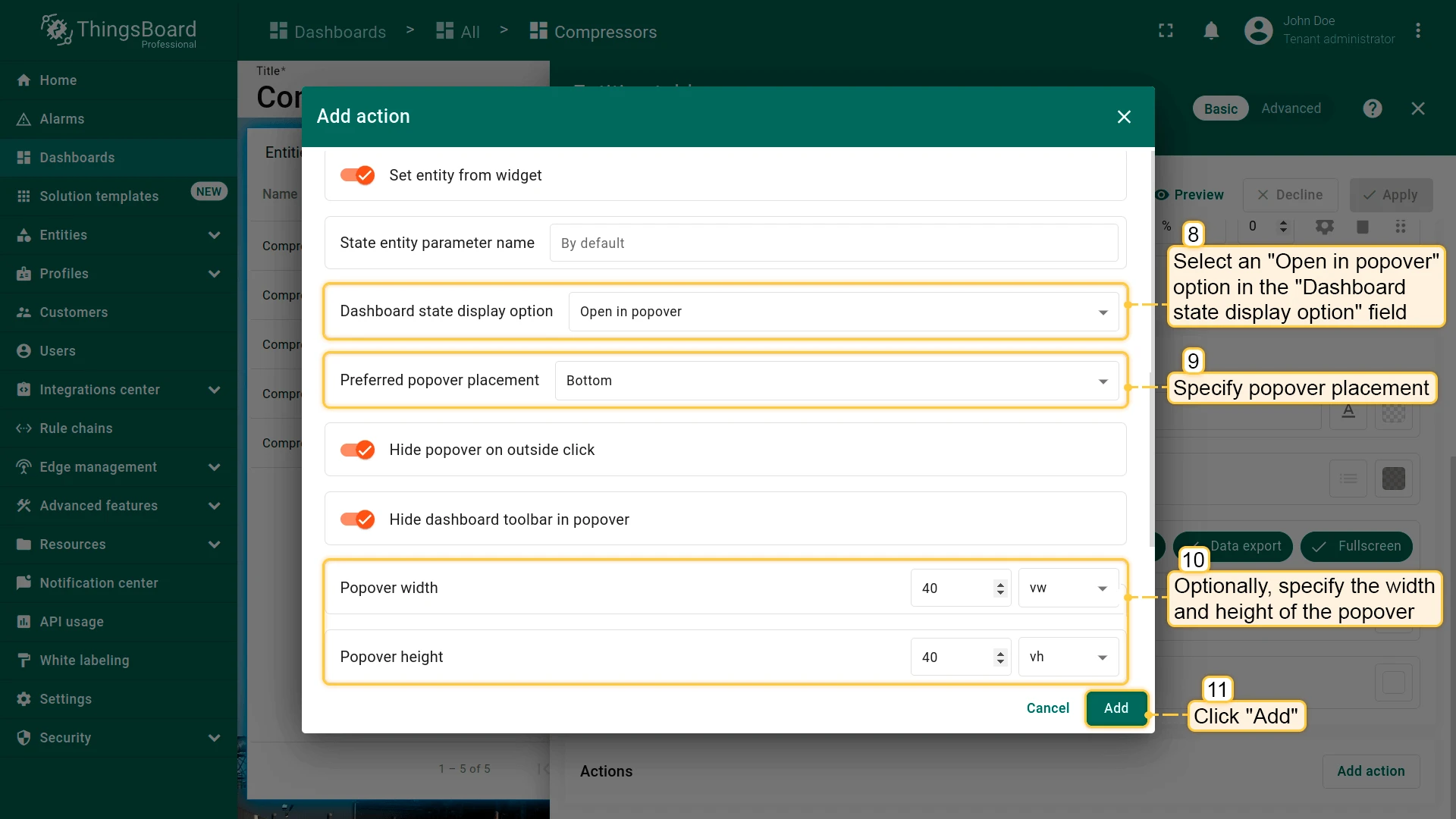
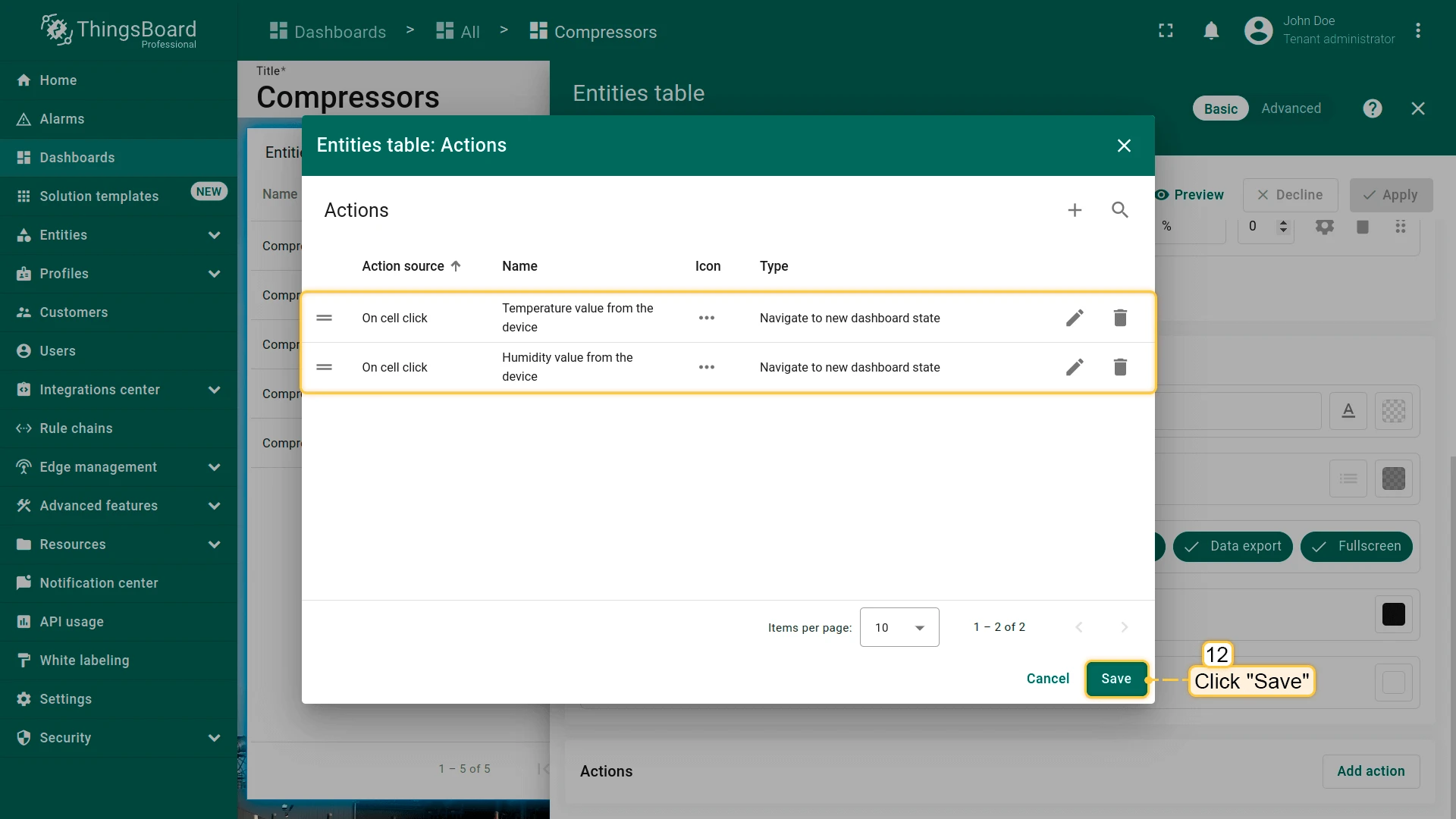
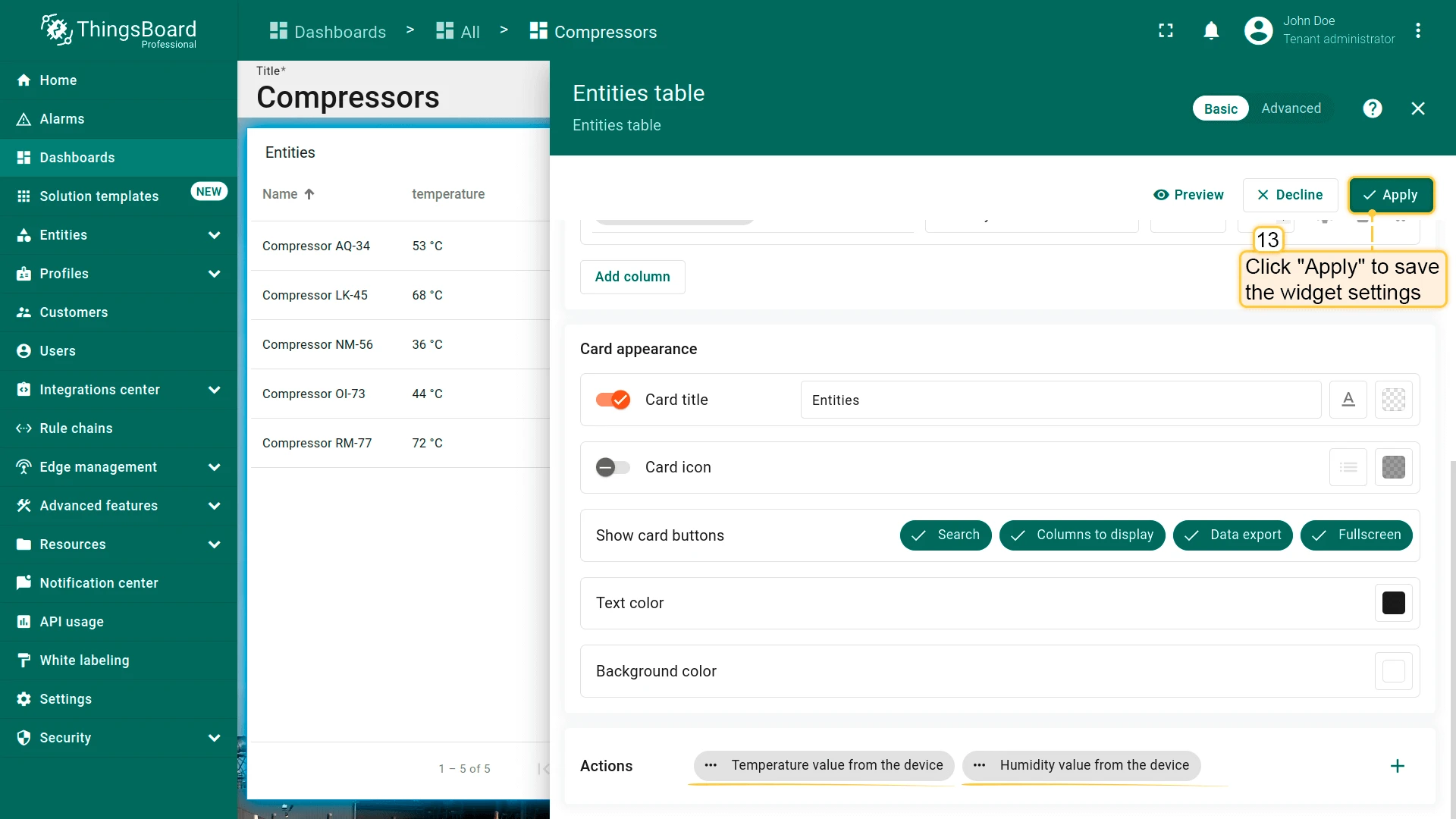
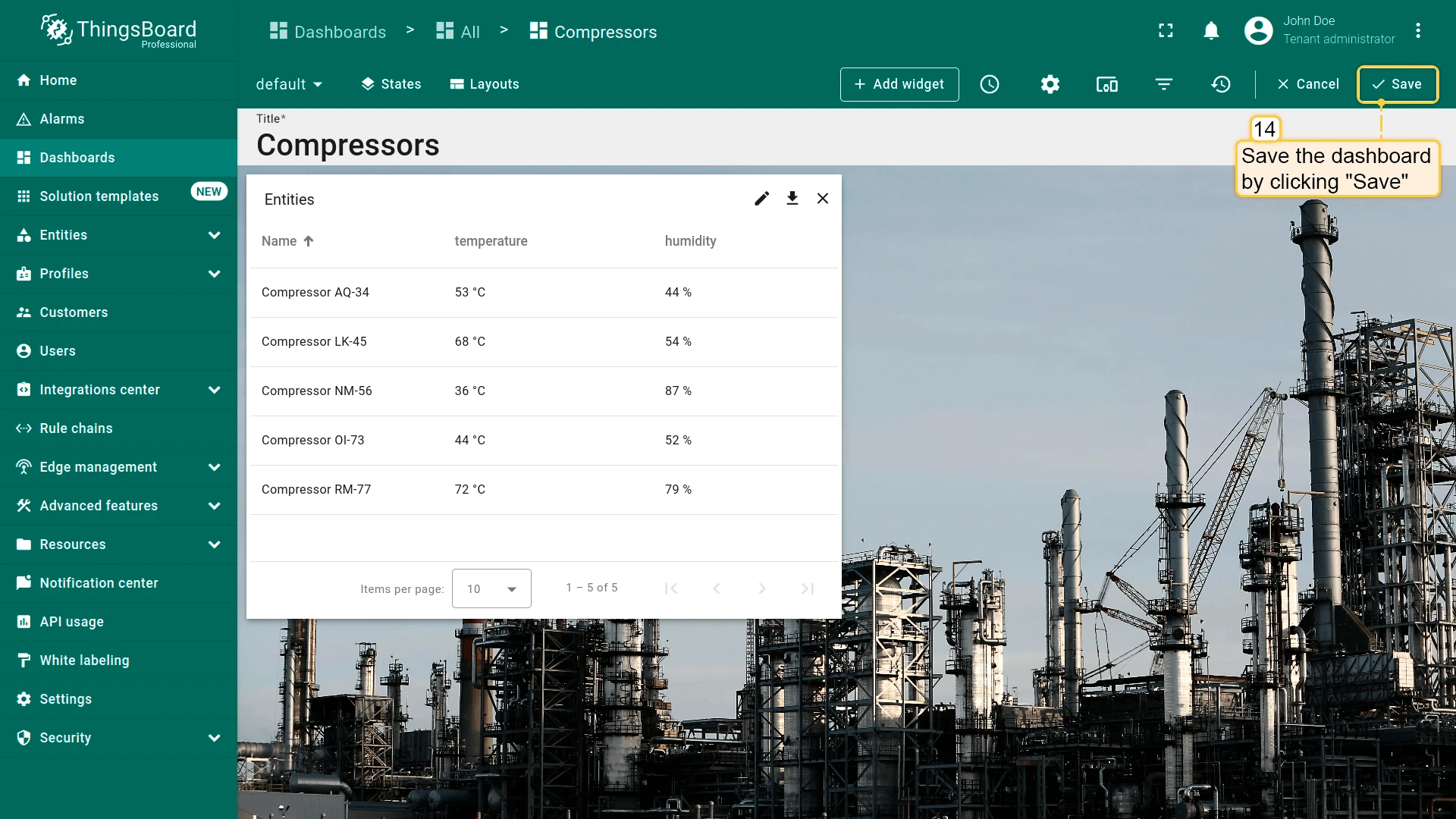
Clicking a temperature or humidity cell now opens the matching popover for that device.
On Node Selected
Section titled “On Node Selected”| Only for Entities hierarchy widget |
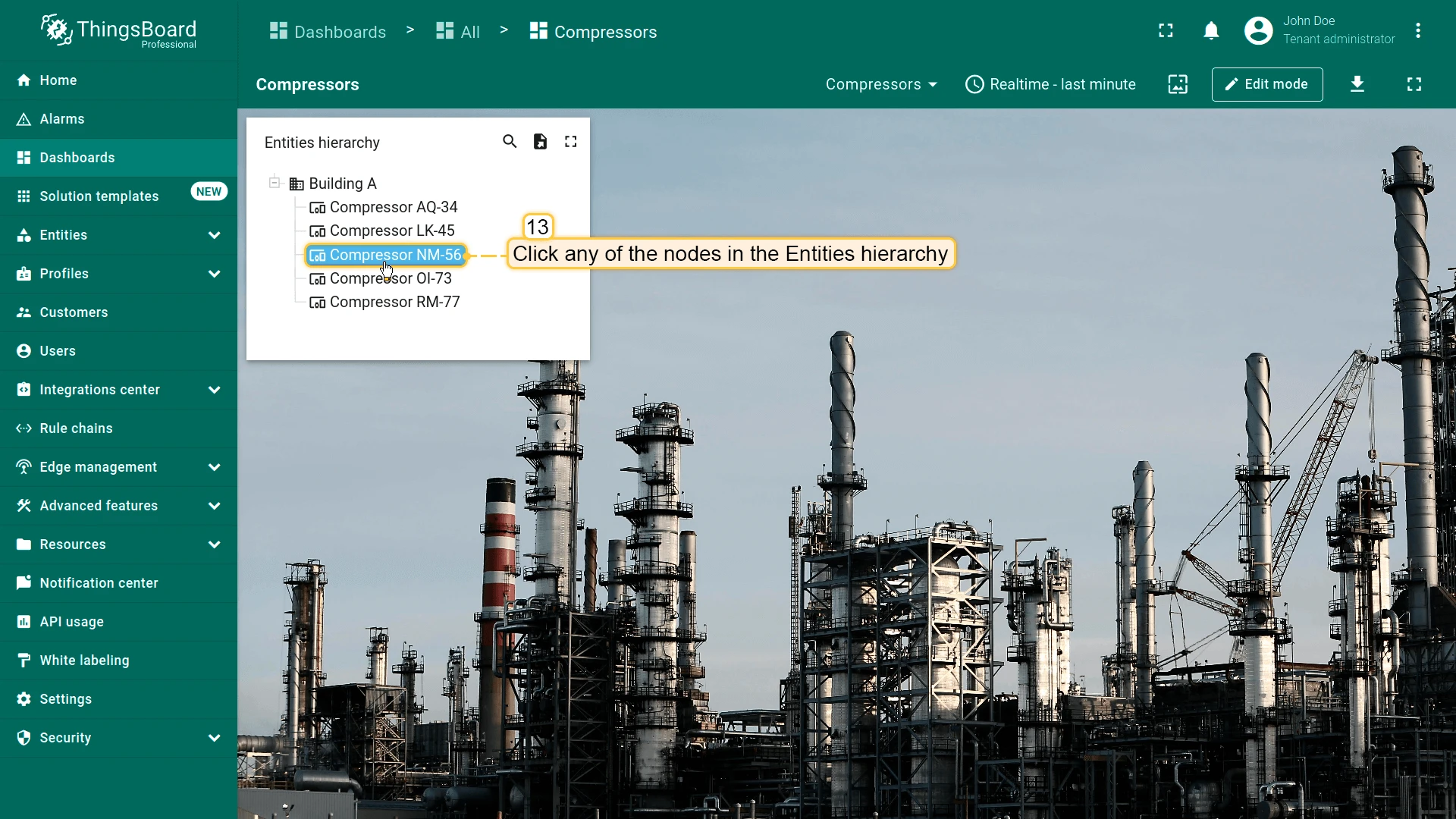
Triggers when the user selects a node in the Entities hierarchy widget, which shows entities and their relations as a tree. The action runs for the selected node’s entity.
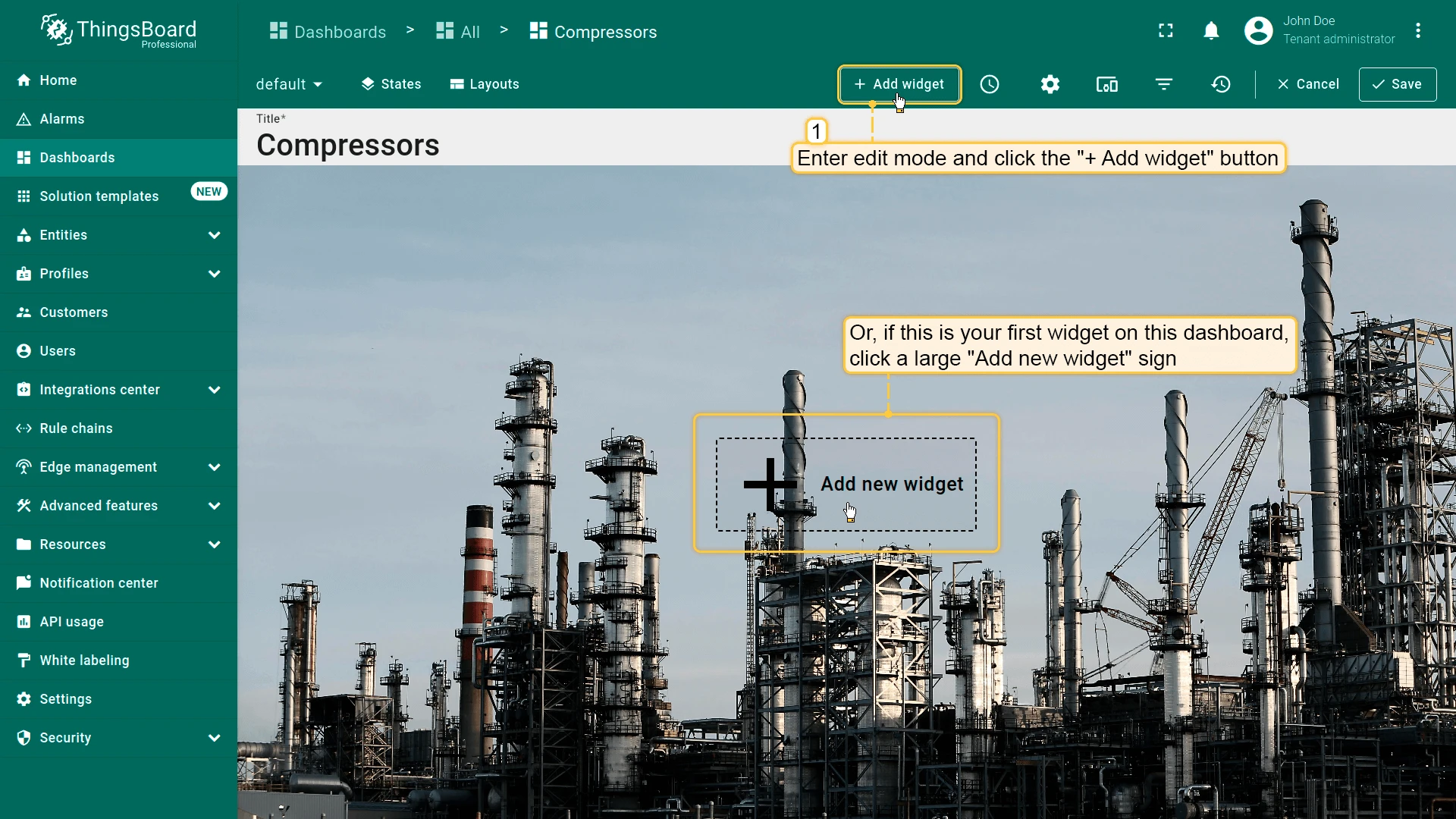
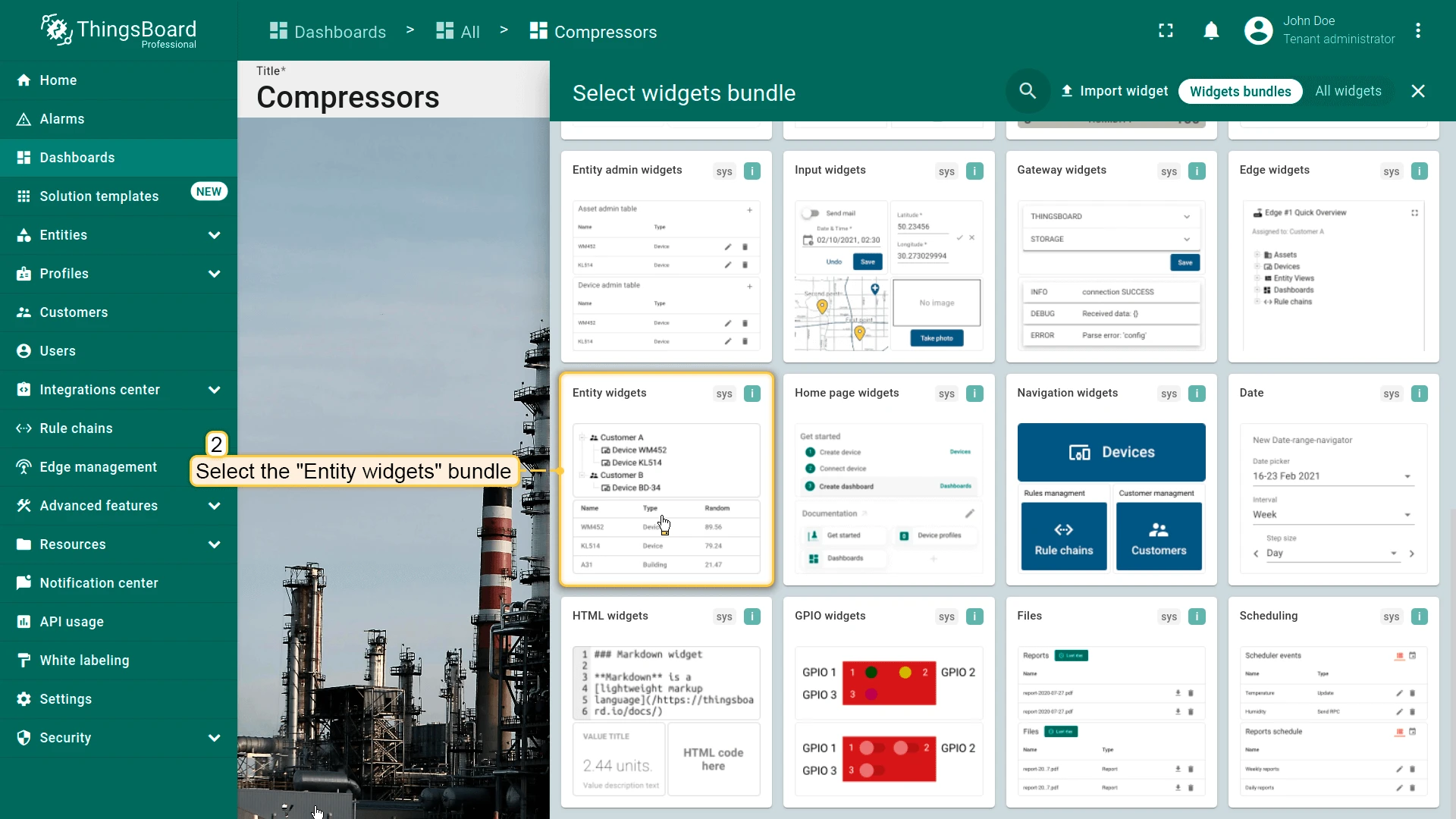
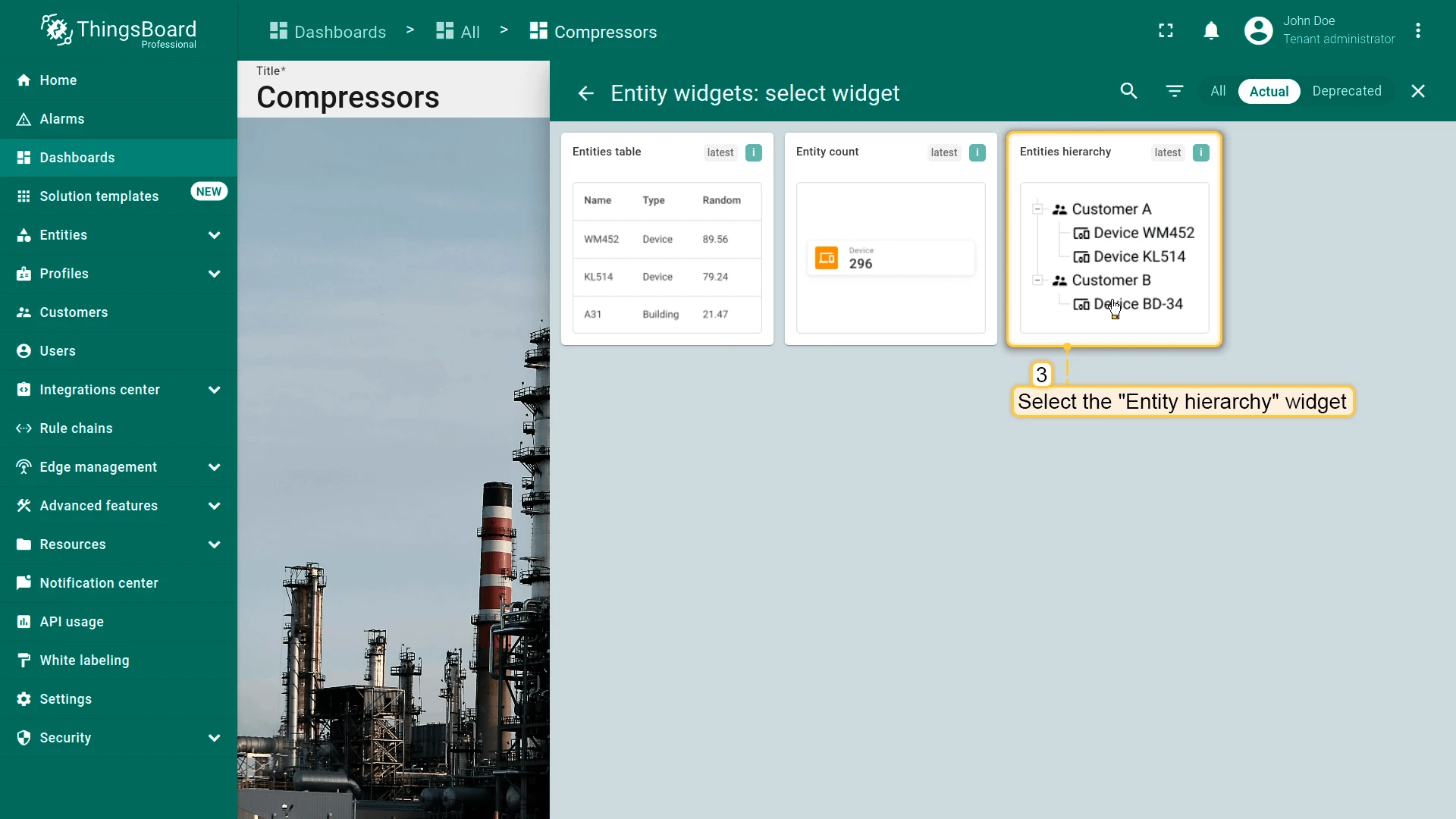
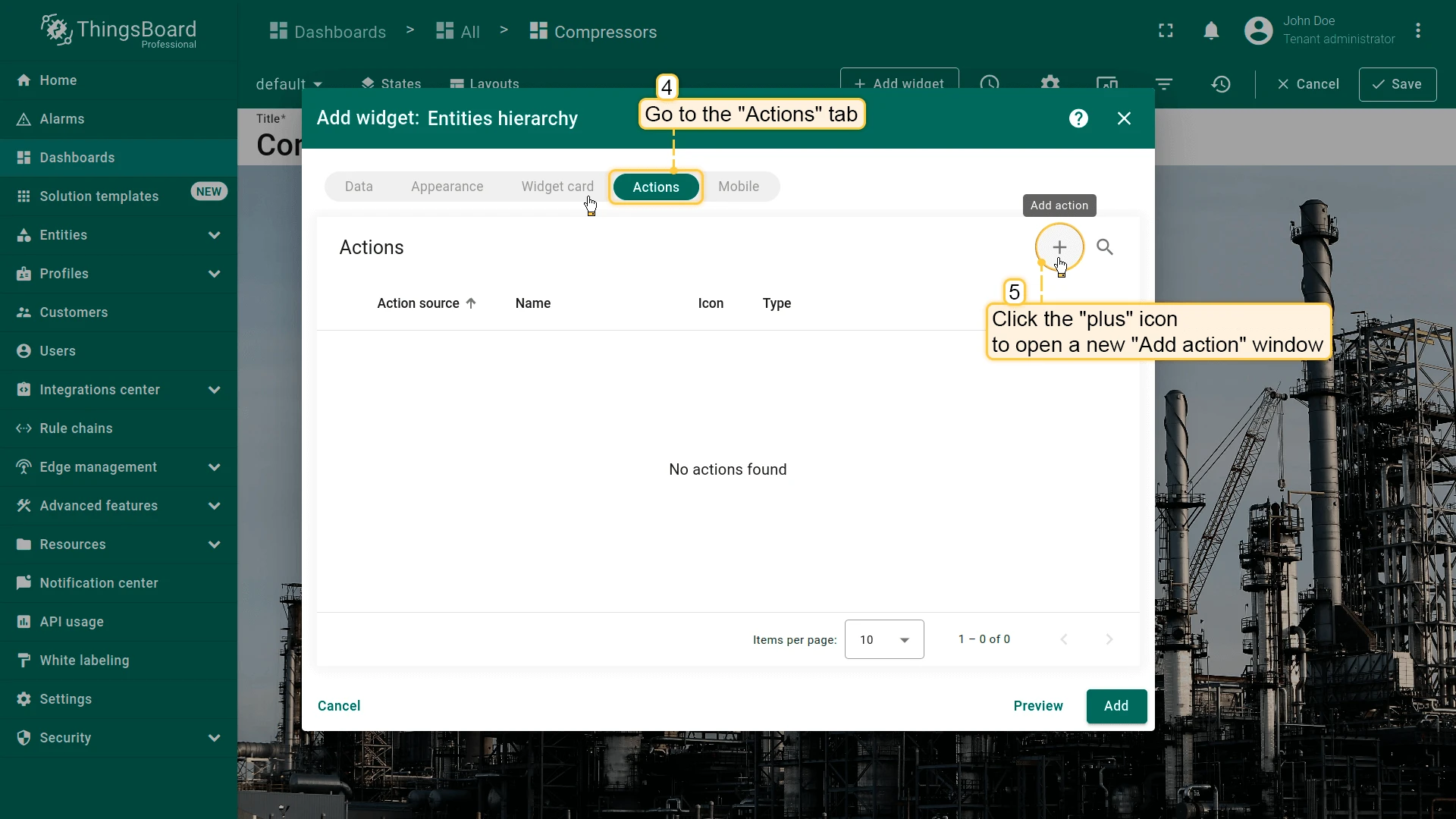
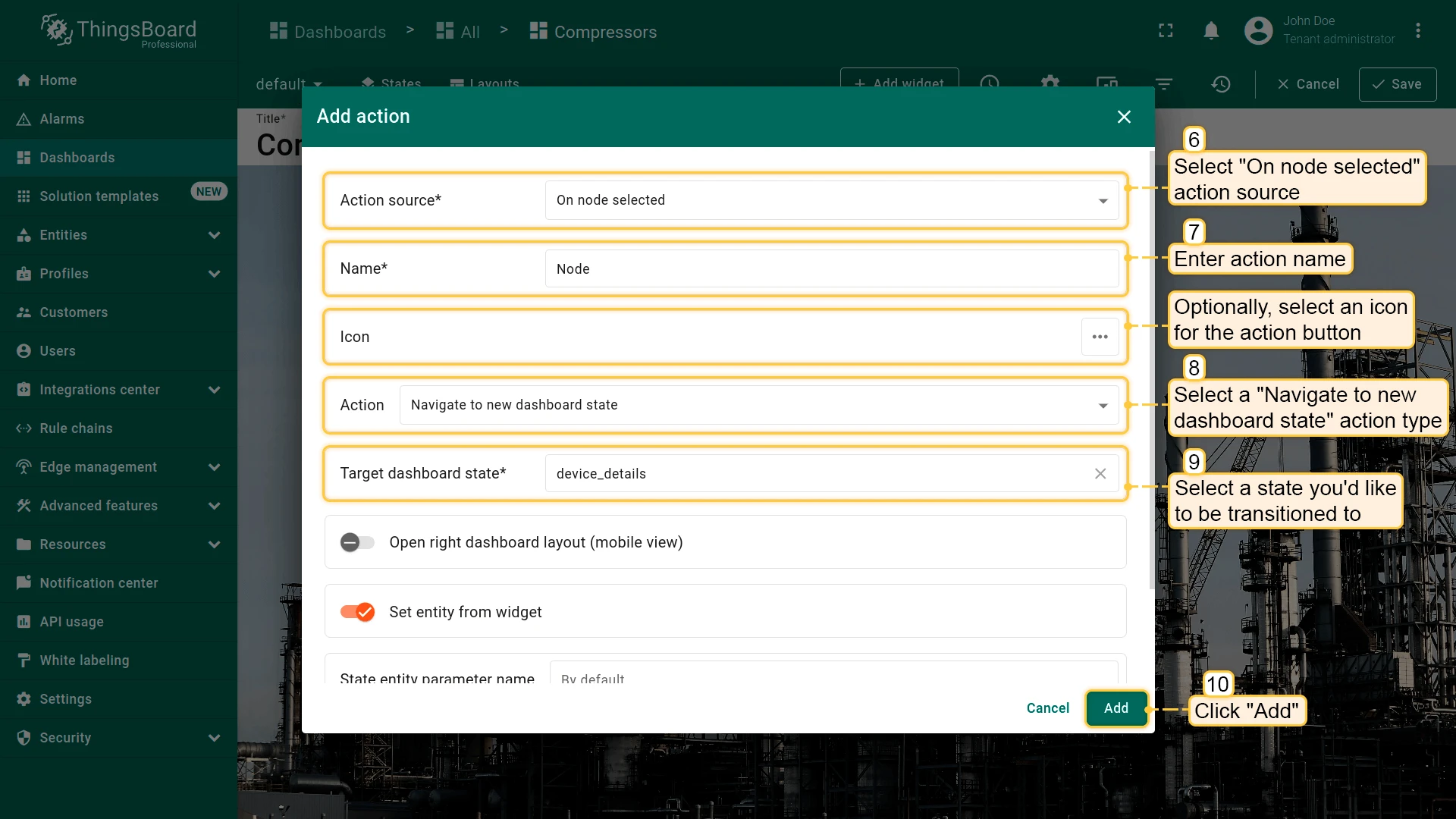
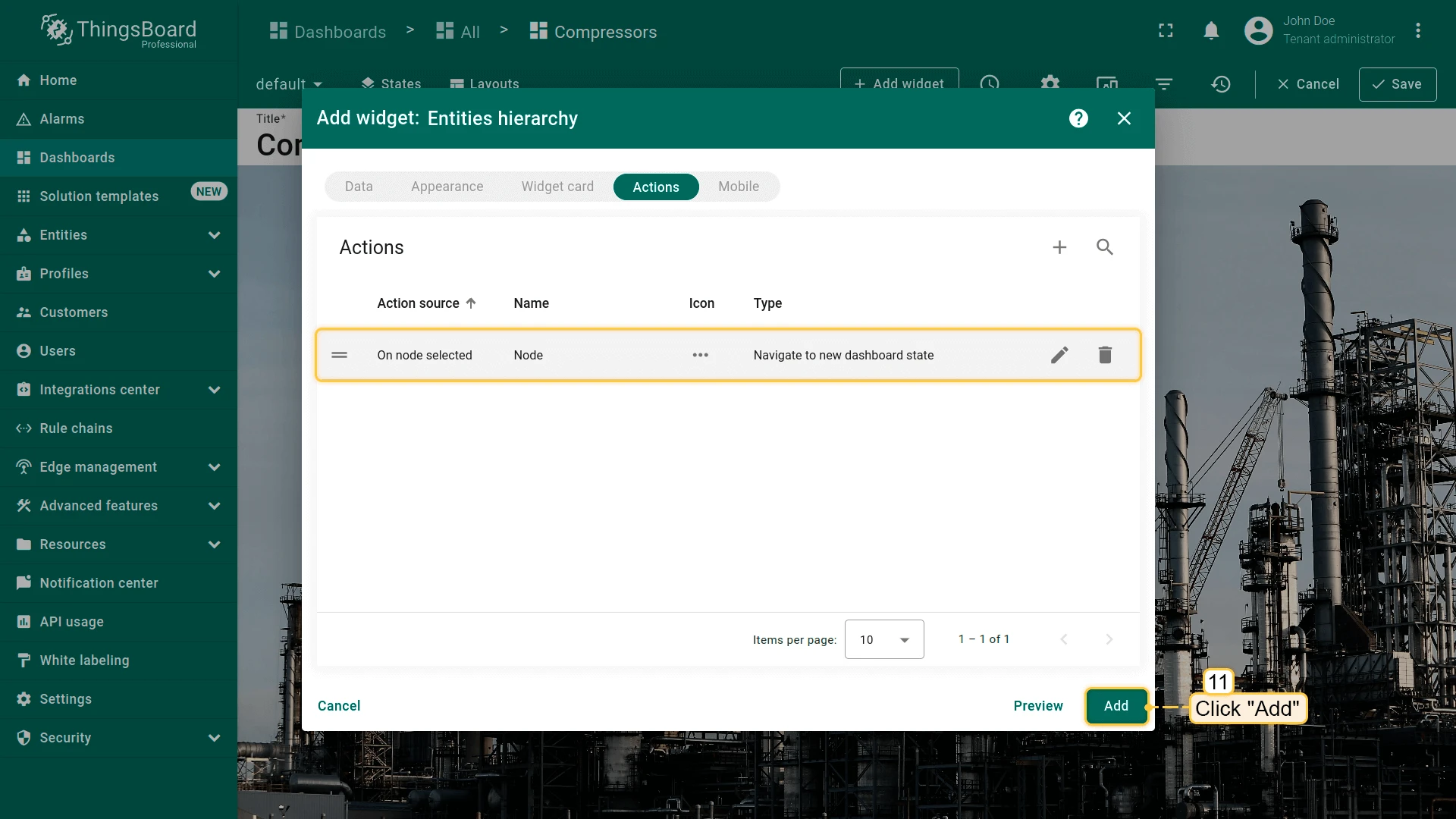
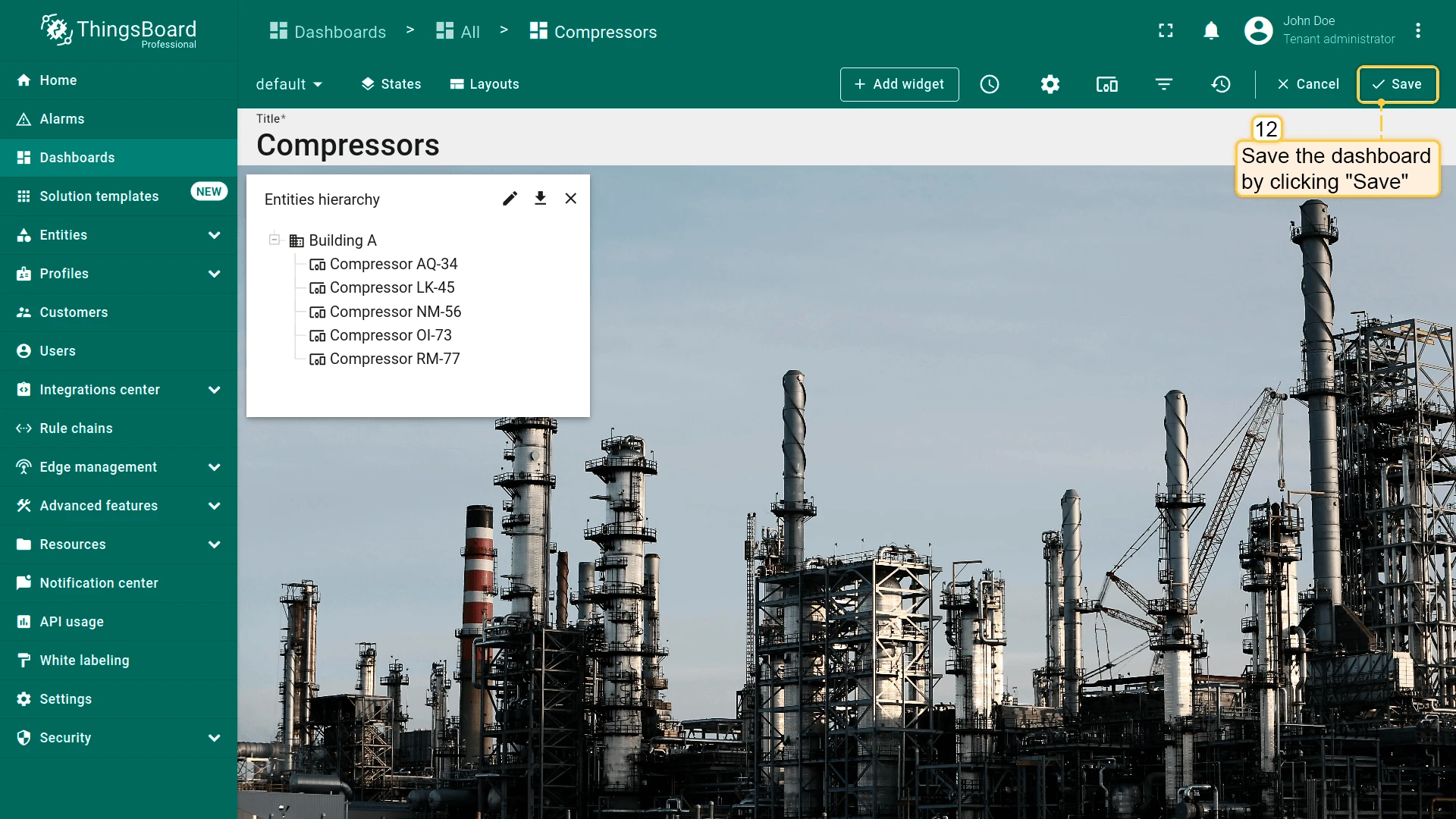
In this example, selecting a node opens a state with that node’s details.
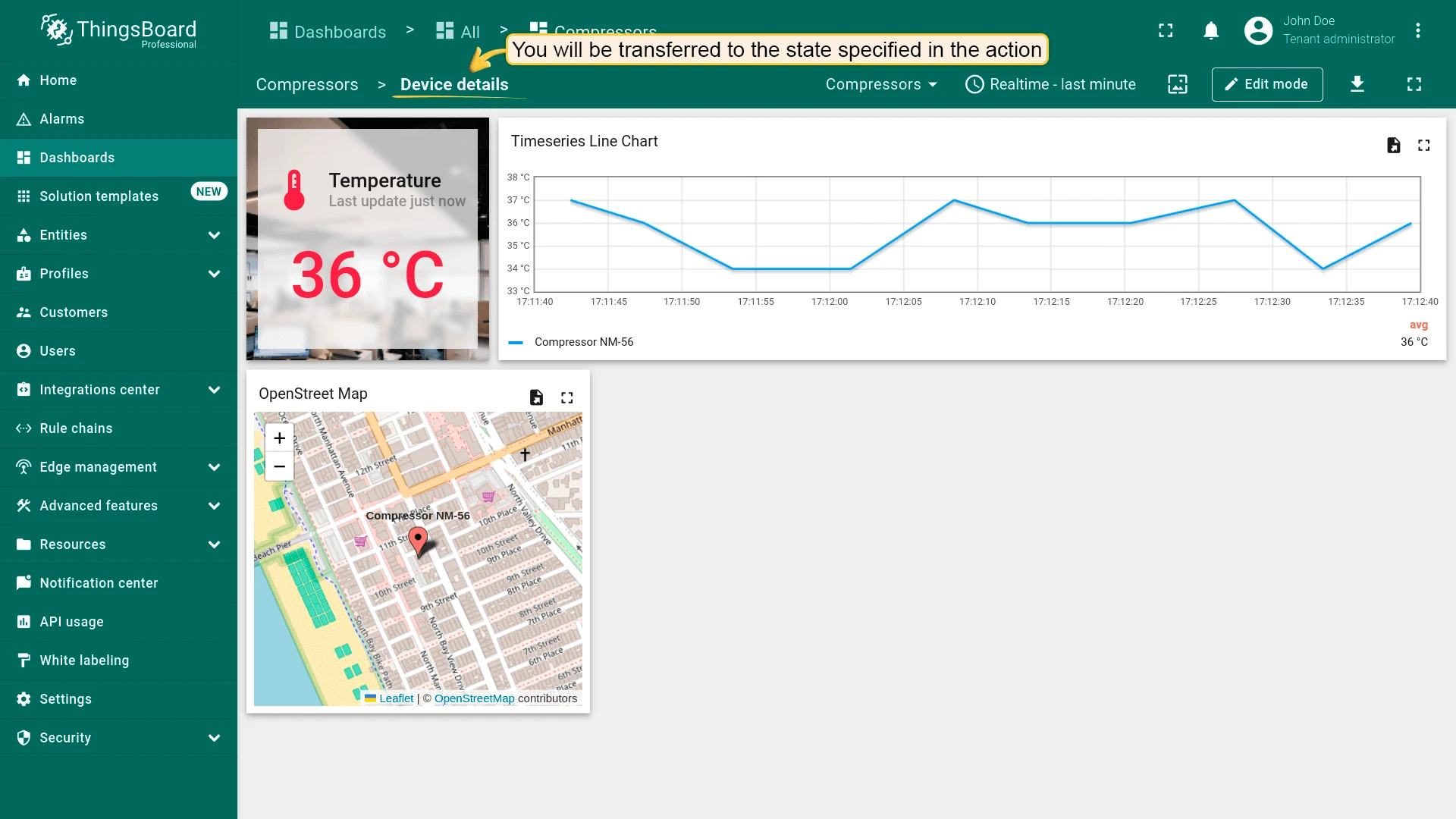
On HTML Element Click
Section titled “On HTML Element Click”| Only for HTML widgets |
On HTML element click triggers an action when the user clicks a marked element in the widget’s HTML template.
How it works
The id attribute links an element in the widget’s HTML to an action on the Actions tab.
Assign the id to any element, such as <div>, <span>, <p>, <h1>, or <button>. Apply it to a container such as <p> or <div> to make the entire block clickable.
<p id="details" class="blue-box"> Current temperature: <span>22.5 °C</span></p>Tips
- For tables, charts, and other widgets, use their own action sources (On row click, On cell click, On node selected, etc.).
- The
idattribute must match the action Name exactly (case-sensitive). - For dialogs and forms, use Custom action (with HTML template), widgetContext.dialogs, or widgetContext.customDialog in widgets that support them.
Configuration
- Open the widget in edit mode, go to the Actions tab, and click +.
- Select On HTML element click as the action source.
- Enter a Name — it also serves as the
idof the target HTML element. - Choose the action type (for example, Navigate to new dashboard state) and specify the target state.
- Click Add.
- Go to the Appearance tab, open the HTML section, and add an
idattribute to the target element that exactly matches the action name. - Click Apply to save the widget settings, then Save in the dashboard toolbar.
ThingsBoard then runs the action when the user clicks an element whose id matches the action name.
Example: Markdown/HTML Card widget — click the blue area
Preparation:
- Add a Markdown/HTML Card widget to your dashboard using the HTML and CSS provided below.
- Create a dashboard state that shows the device’s temperature details.
Alternative: You can download a pre-configured dashboard with the Markdown/HTML Card widget and the details state already set up, then import it.
Add the Markdown/HTML Card
Markdown/HTML pattern:
const entity = data[0];const color = entity.temperature > 25 ? "red" : entity.temperature > 20 ? 'green' : 'blue'const entityName = `### Temperature value card\n - Current entity: <span >${entity.entityName}</span>\n `const temp = `- Current temperature: <span style="color:${color};">${entity.temperature.toFixed(1)} °C</span>\n `return entityName + temp;Markdown/HTML CSS:
.office-card {  box-sizing: border-box;  padding: 16px;  margin: 6px 0;  text-align: center;  font-family: system-ui, -apple-system, Segoe UI, Roboto, Arial, "Noto Sans";}
.office-card h3 {  margin: 0 0 12px;  font-size: 24px;}
.blue-box {  background: #2196F31A;  border: 2px solid #2196F3;  border-radius: 10px;  padding: 10px;  margin: 8px 0;  font-weight: 700;}
.green-box {  background: #4CAF501A;  border: 2px solid #4CAF50;  border-radius: 10px;  padding: 10px;  margin: 6px 0;  font-weight: 700;}
.temp-value,.hum-value { font-weight: 700; font-variant-numeric: tabular-nums;}Add the action
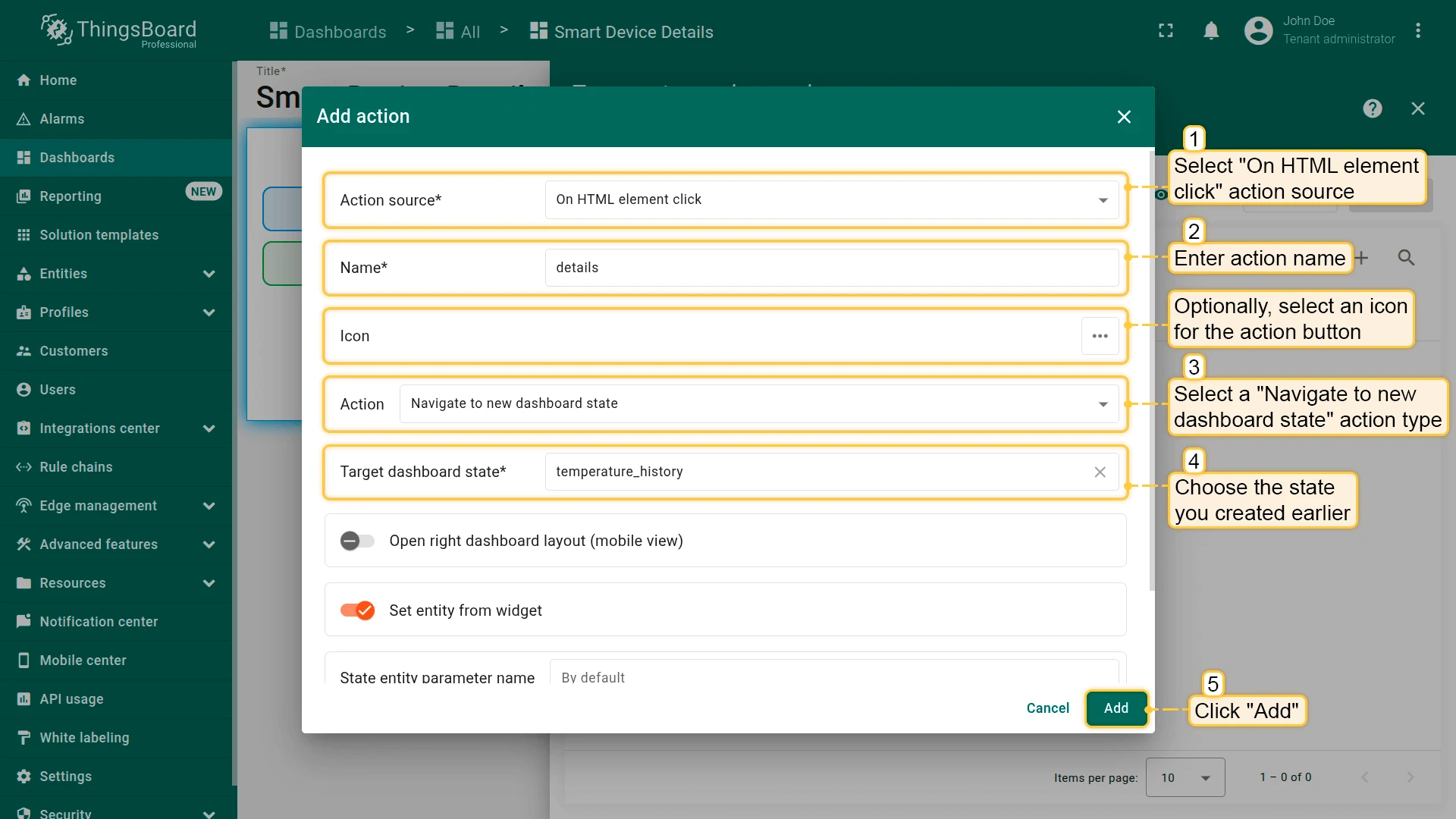
- Open the widget in edit mode, go to the Actions tab, and click +.
- Select On HTML element click as the action source.
- Enter details as the action name.
- Select Navigate to new dashboard state as the action type.
- In Target dashboard state, select the state you created earlier.
- Click Add.
Add id to the HTML
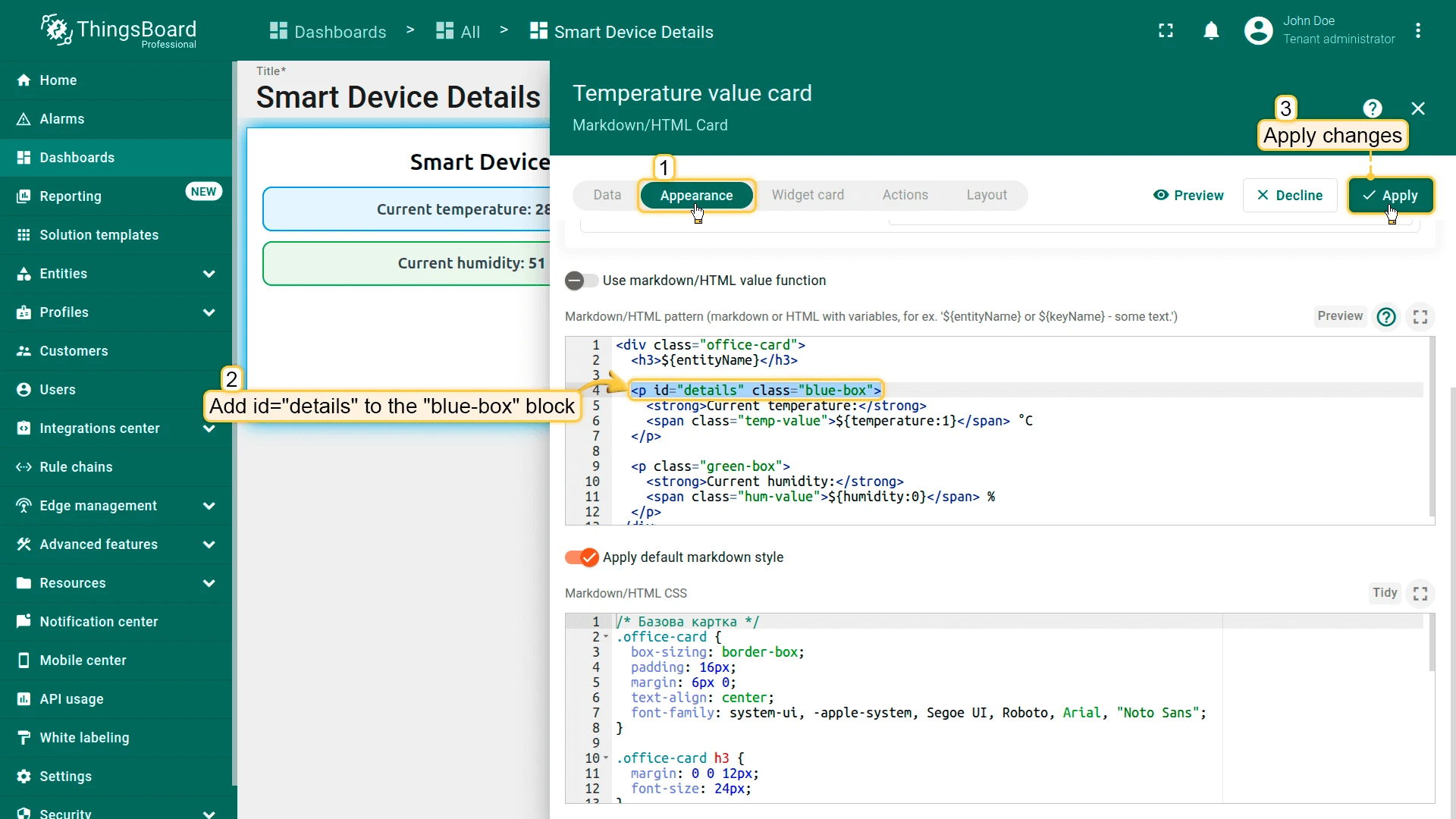
-
Go to the Appearance tab and open the HTML section.
-
Add
id="details"to the<p class="blue-box">element. Replace it with:<p id="details" class="blue-box">The entire blue box is now clickable and linked to the details action.
-
Click Apply, then Save in the dashboard toolbar.
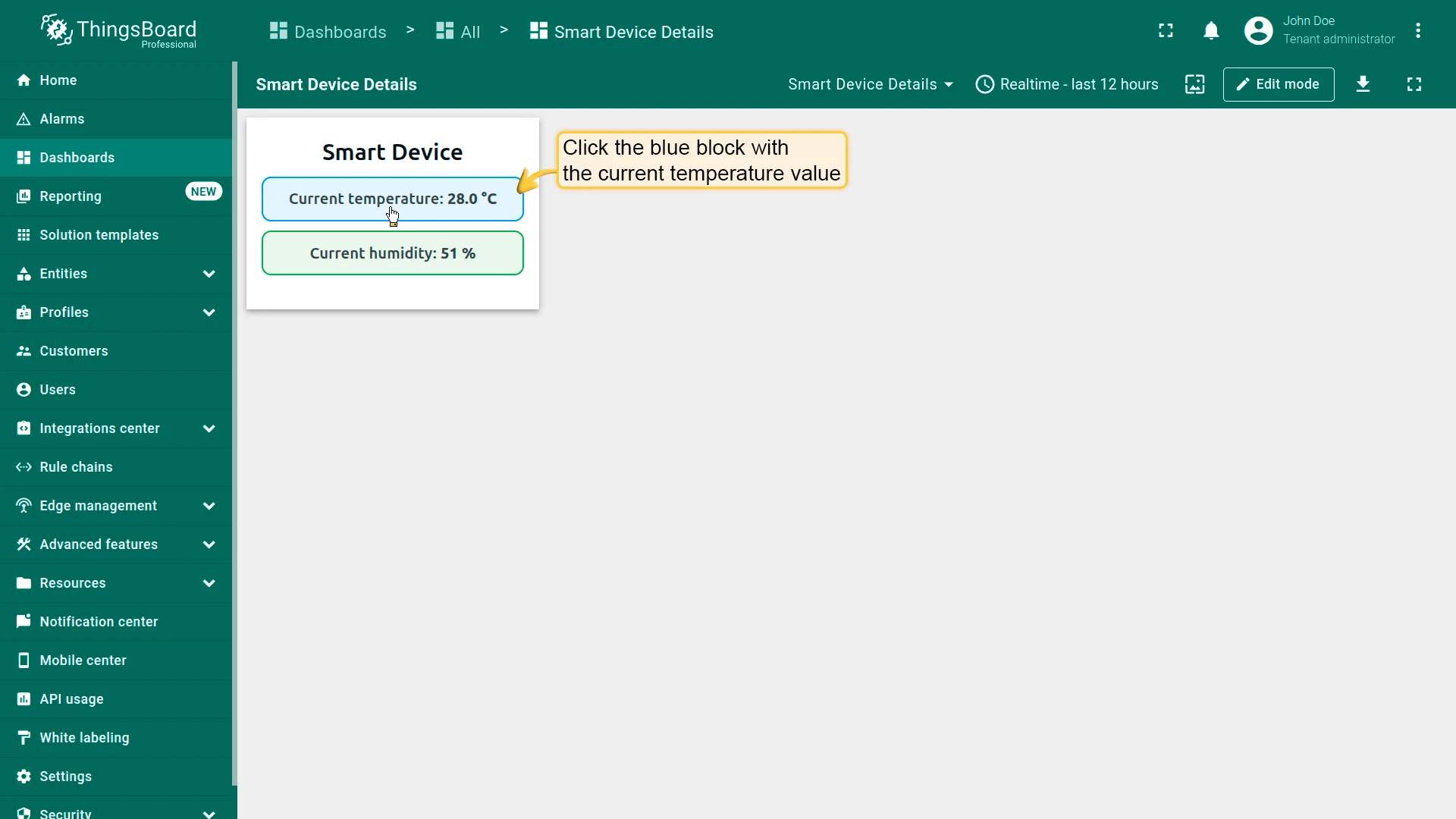
Result
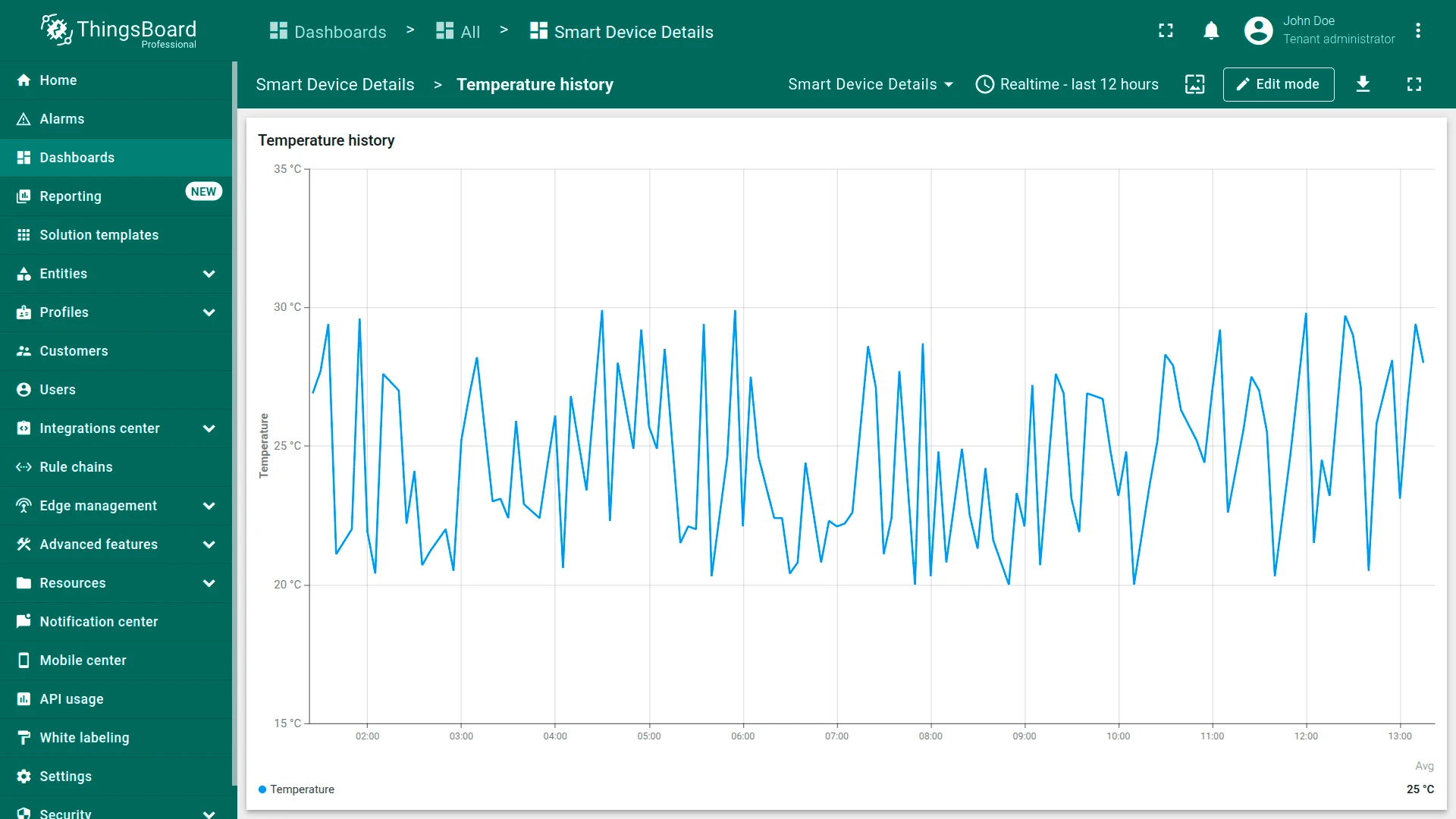
Clicking the blue block with the current temperature opens the target state.
Map Widget Action Sources
Section titled “Map Widget Action Sources”Map widgets provide action sources for their interactive elements: markers, circles, polygons, polylines, and tooltip links. The examples below assume you already have a Map widget and a target dashboard state set up.
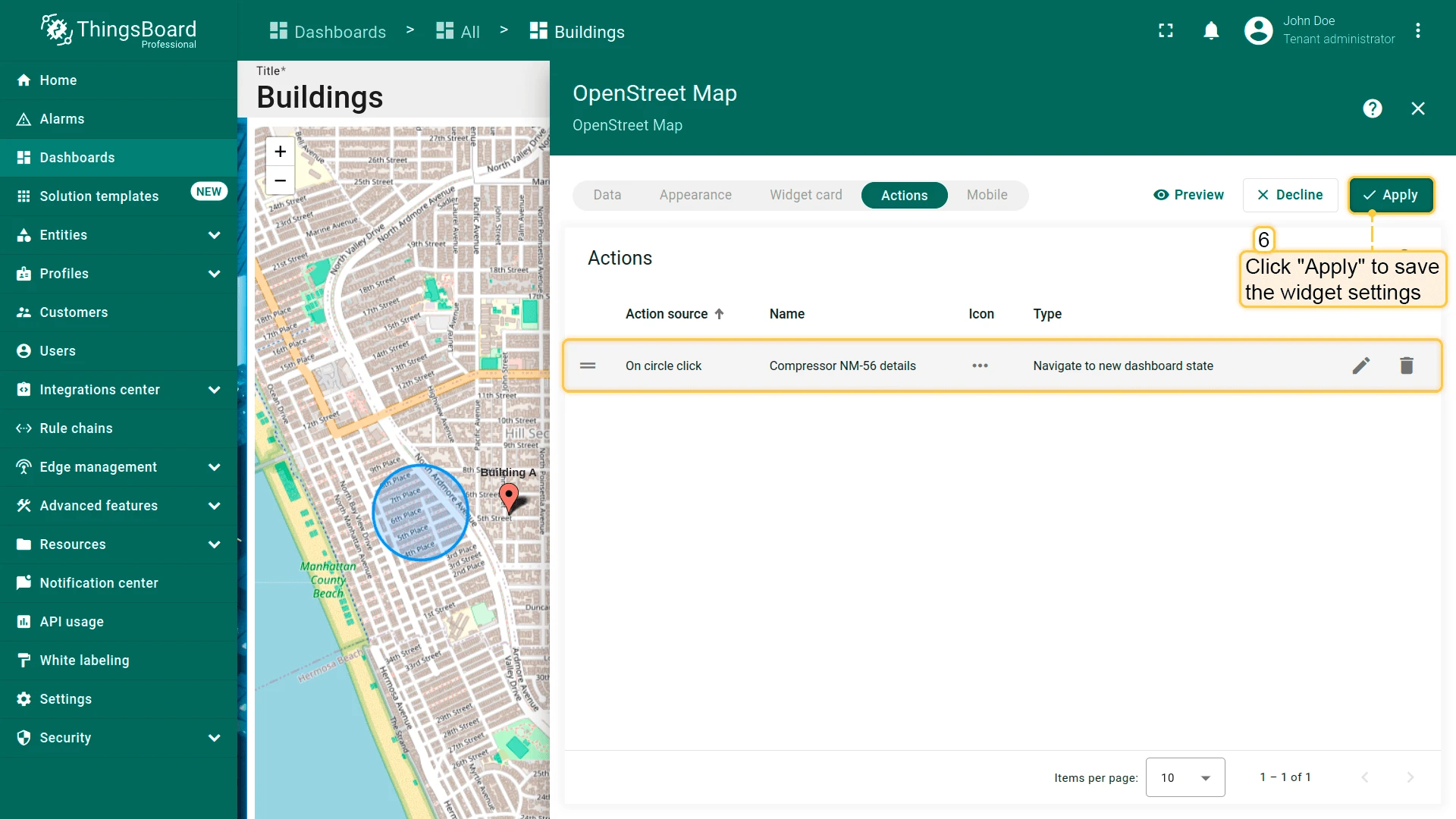
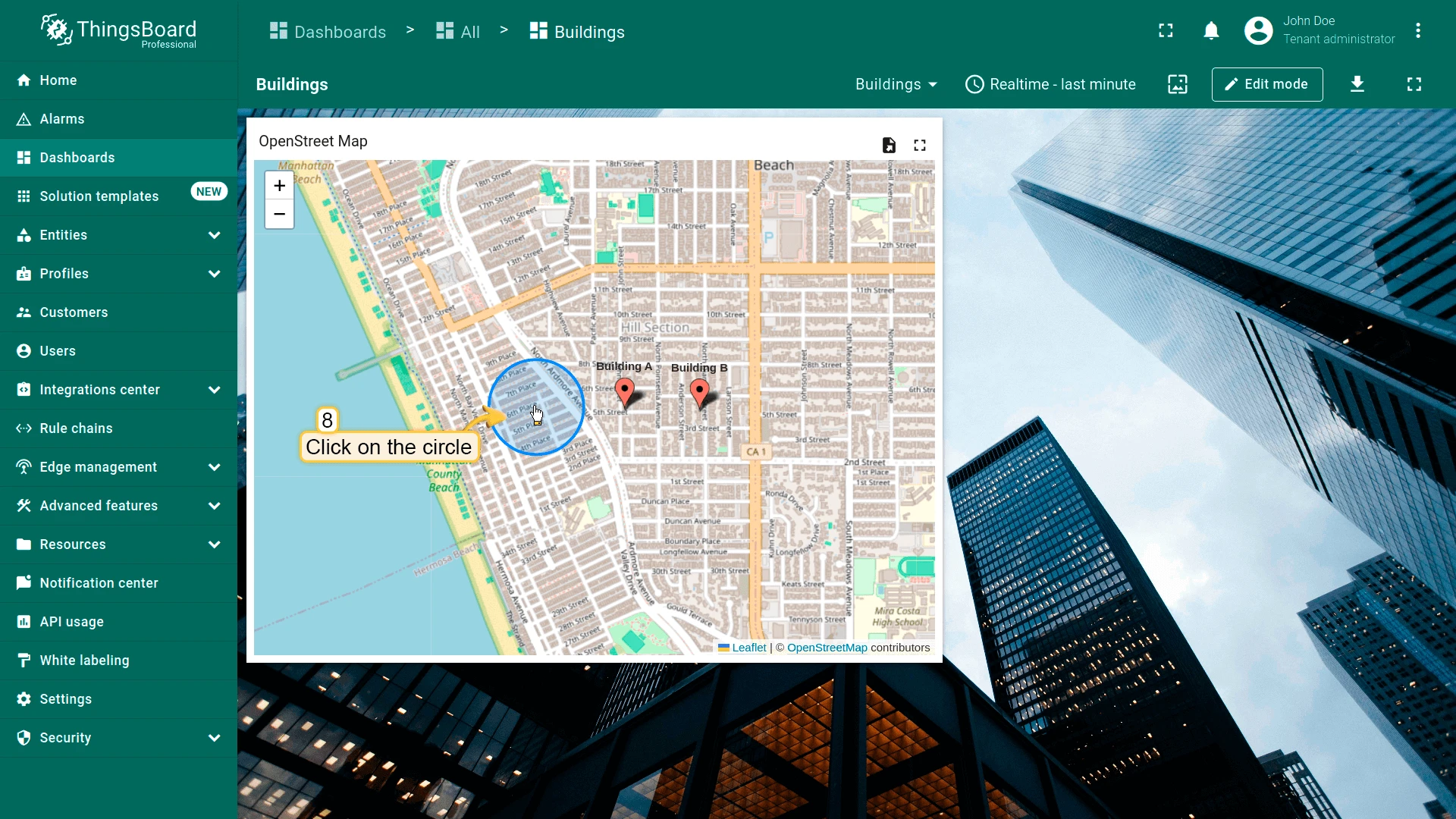
On Circle Click
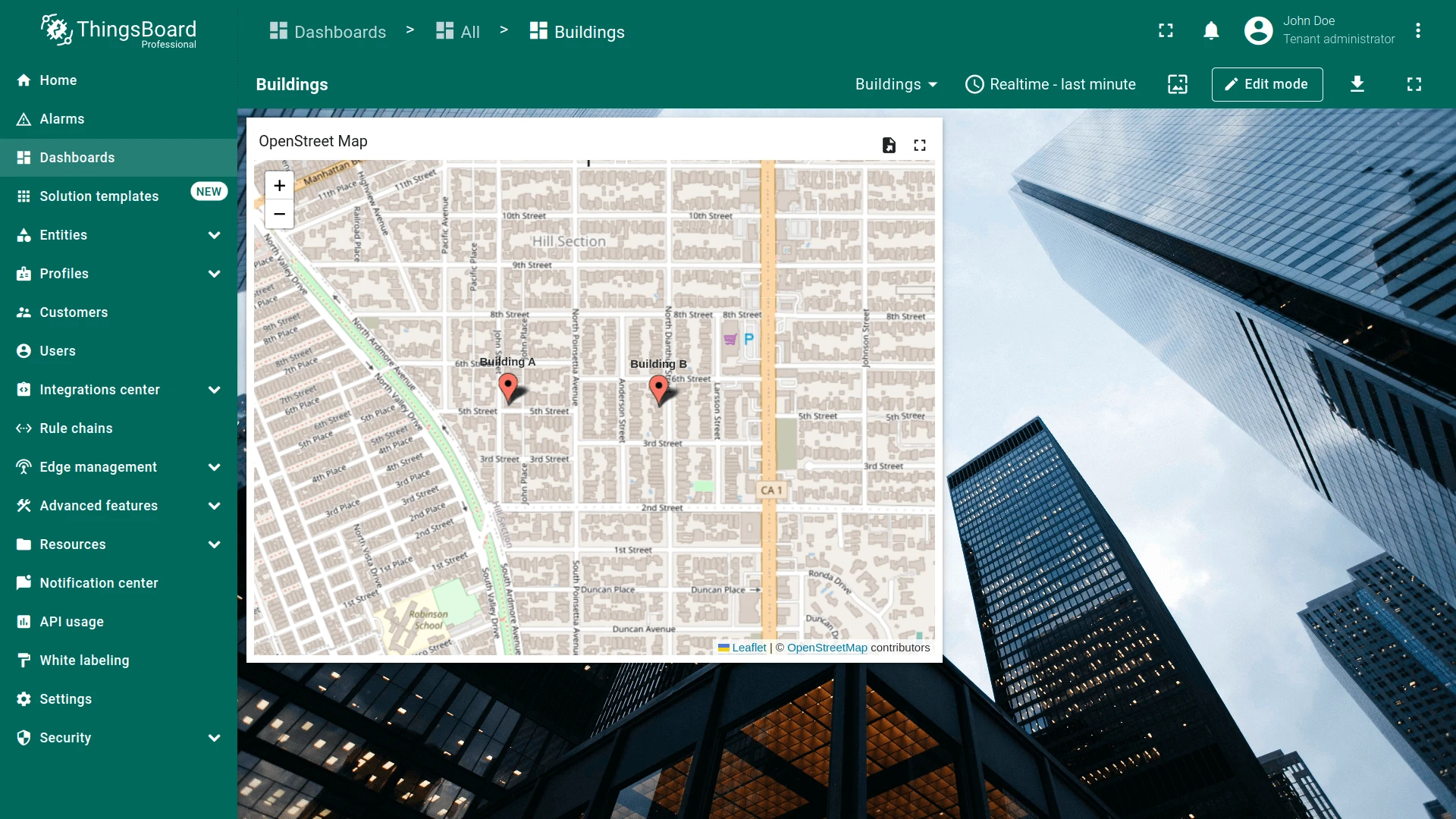
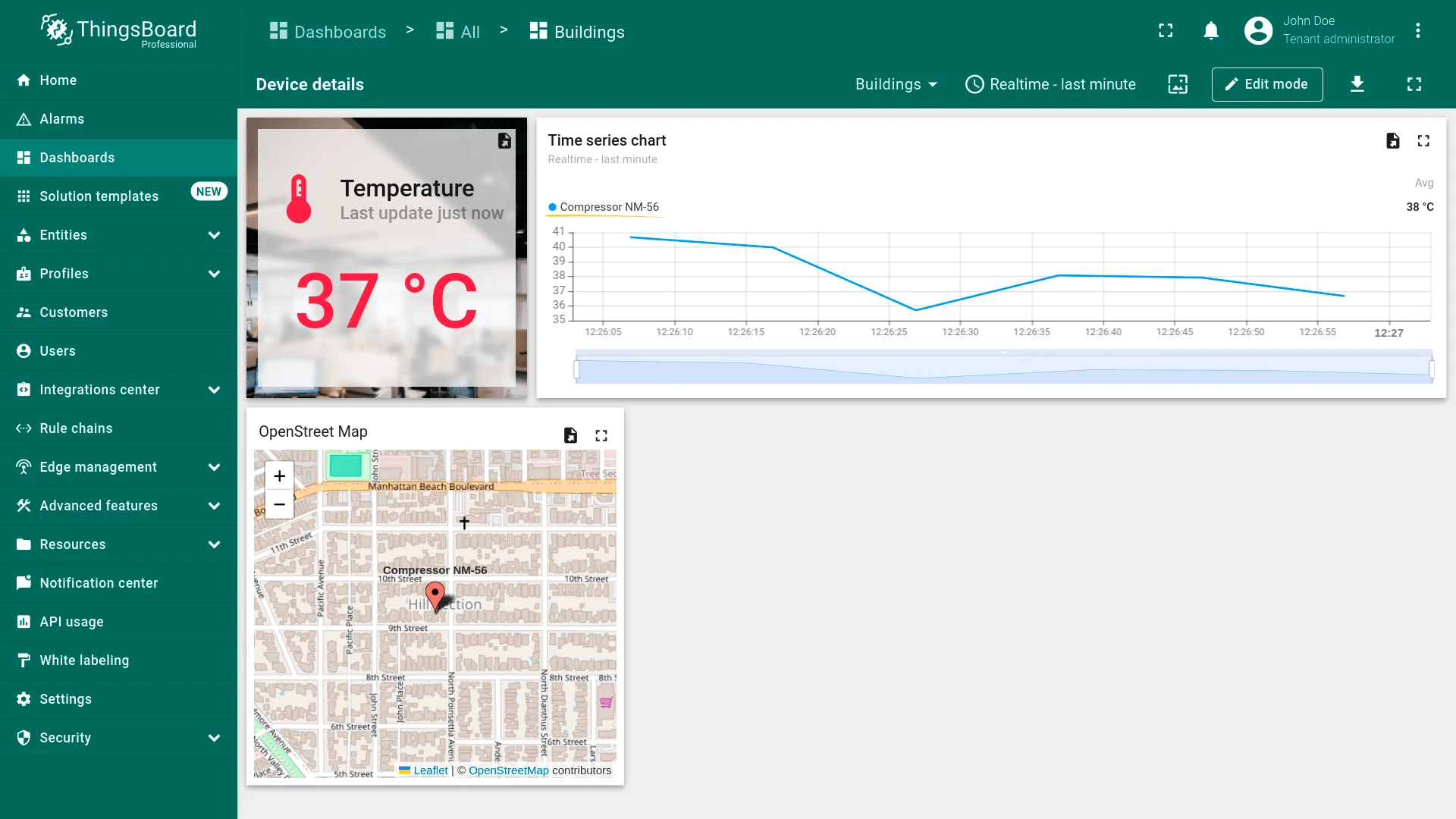
Section titled “On Circle Click”Triggers when the user clicks a circle on the map. A circle is defined by a JSON entity attribute: {"latitude": ..., "longitude": ..., "radius": ...} (radius in meters). The circle’s entity is passed to the target state. See Map widget configuration for setup details.
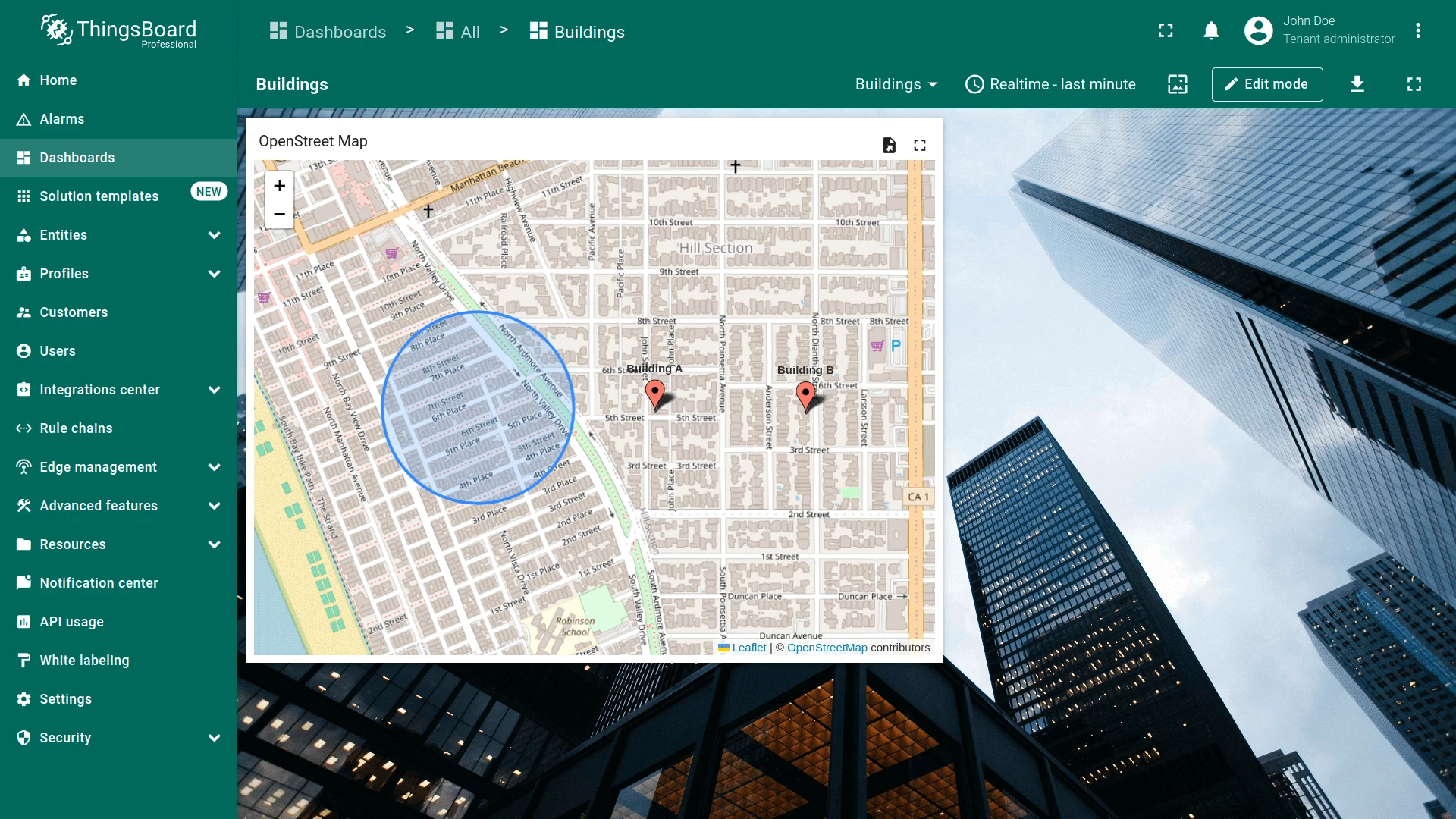
- Open the widget in edit mode, go to the Actions tab, and click +.
- Select On circle click as the action source.
- Enter an action name. Optionally, choose an icon.
- Select Navigate to new dashboard state as the action type, then choose the target state.
- Click Add, then Apply to save the widget settings.
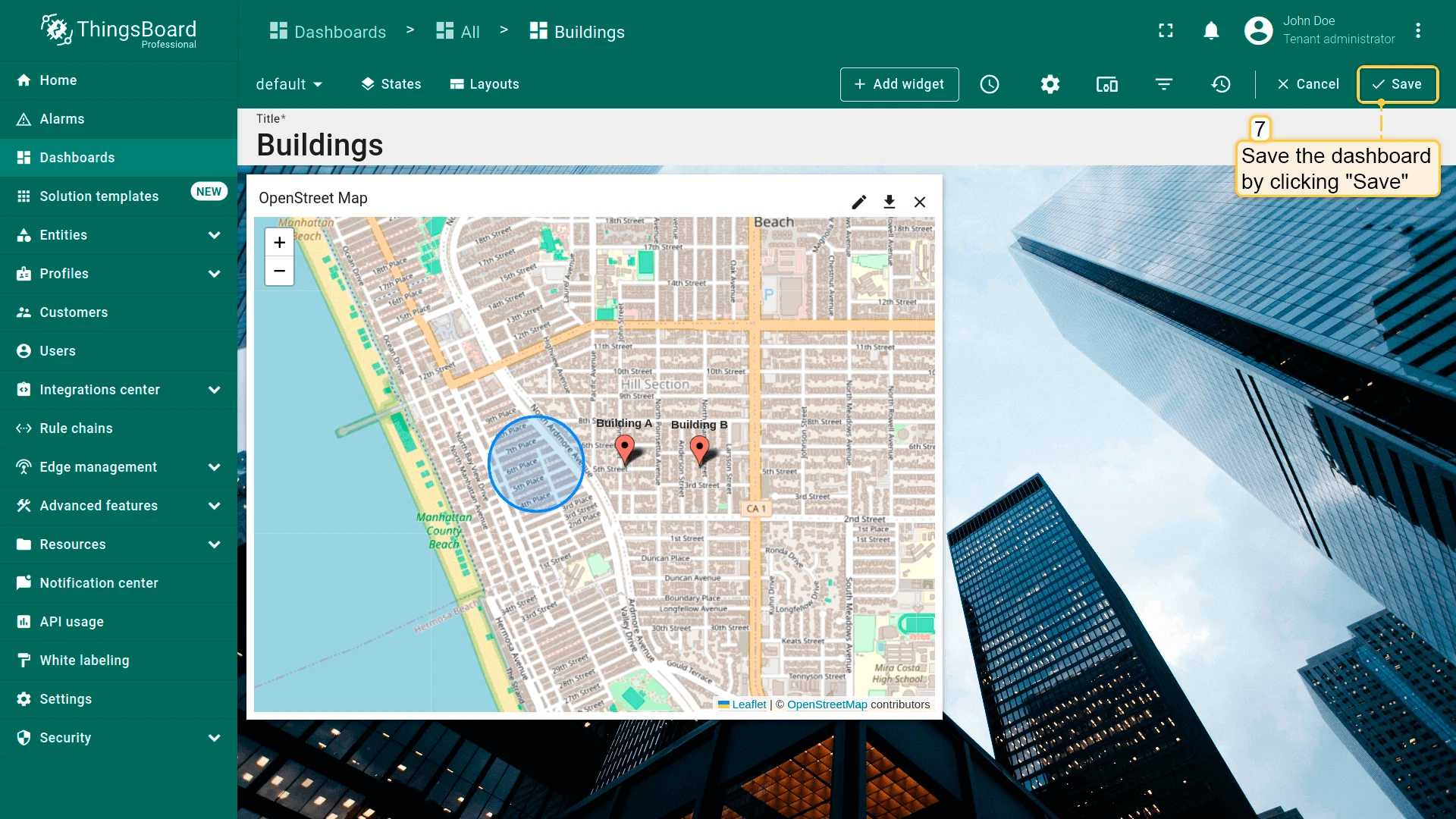
- Click Save in the dashboard toolbar to save the dashboard.
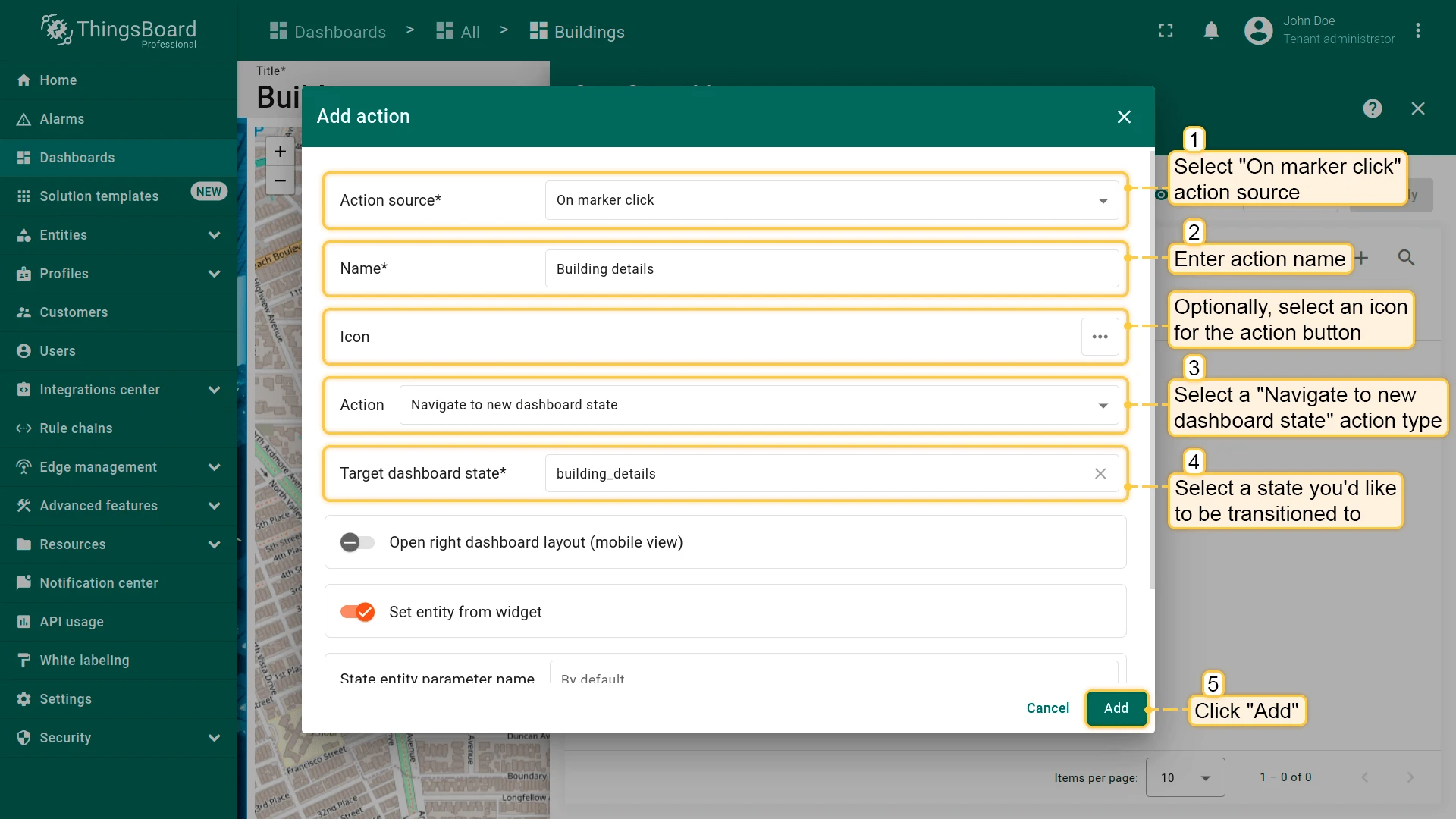
On Marker Click
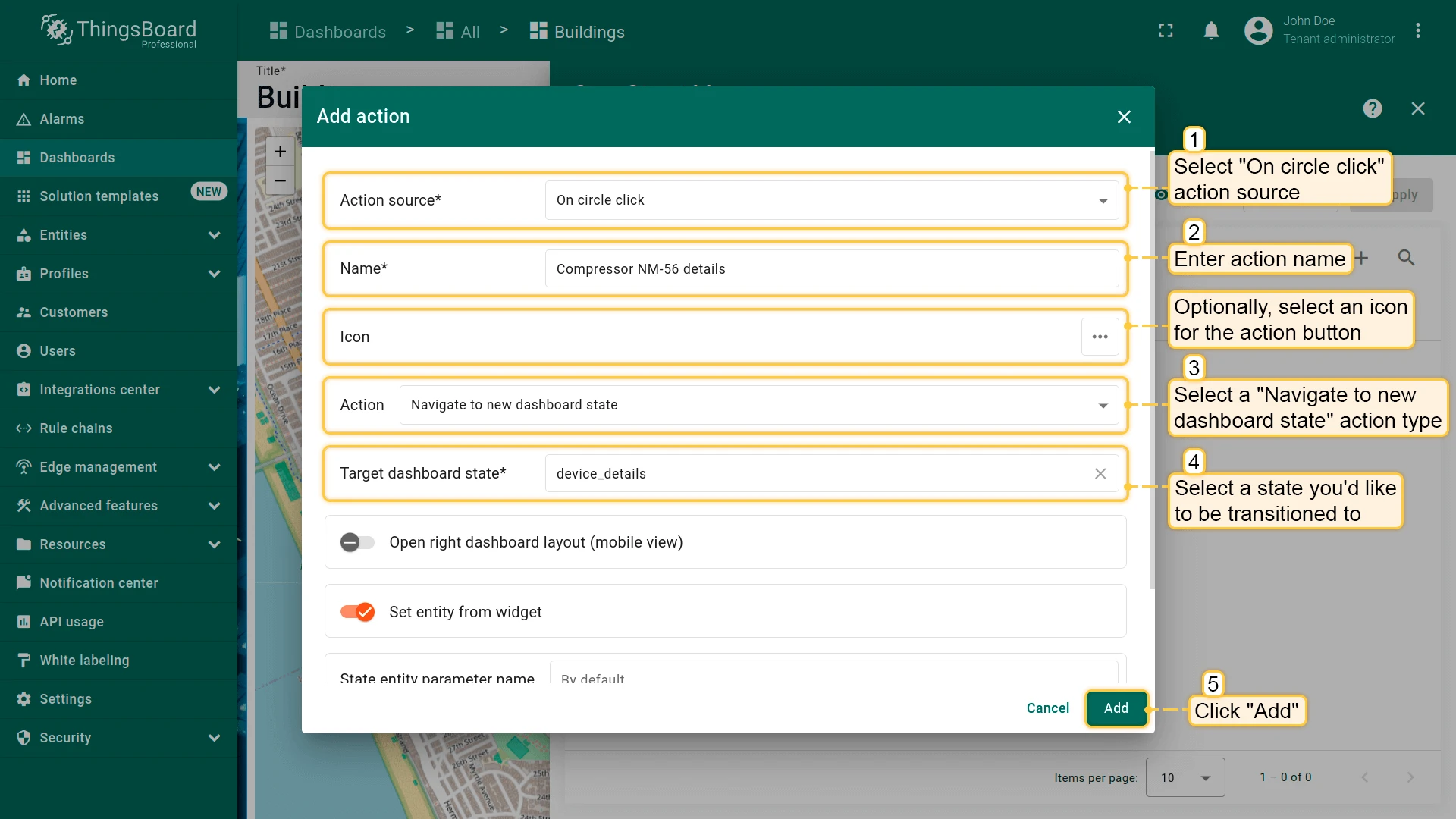
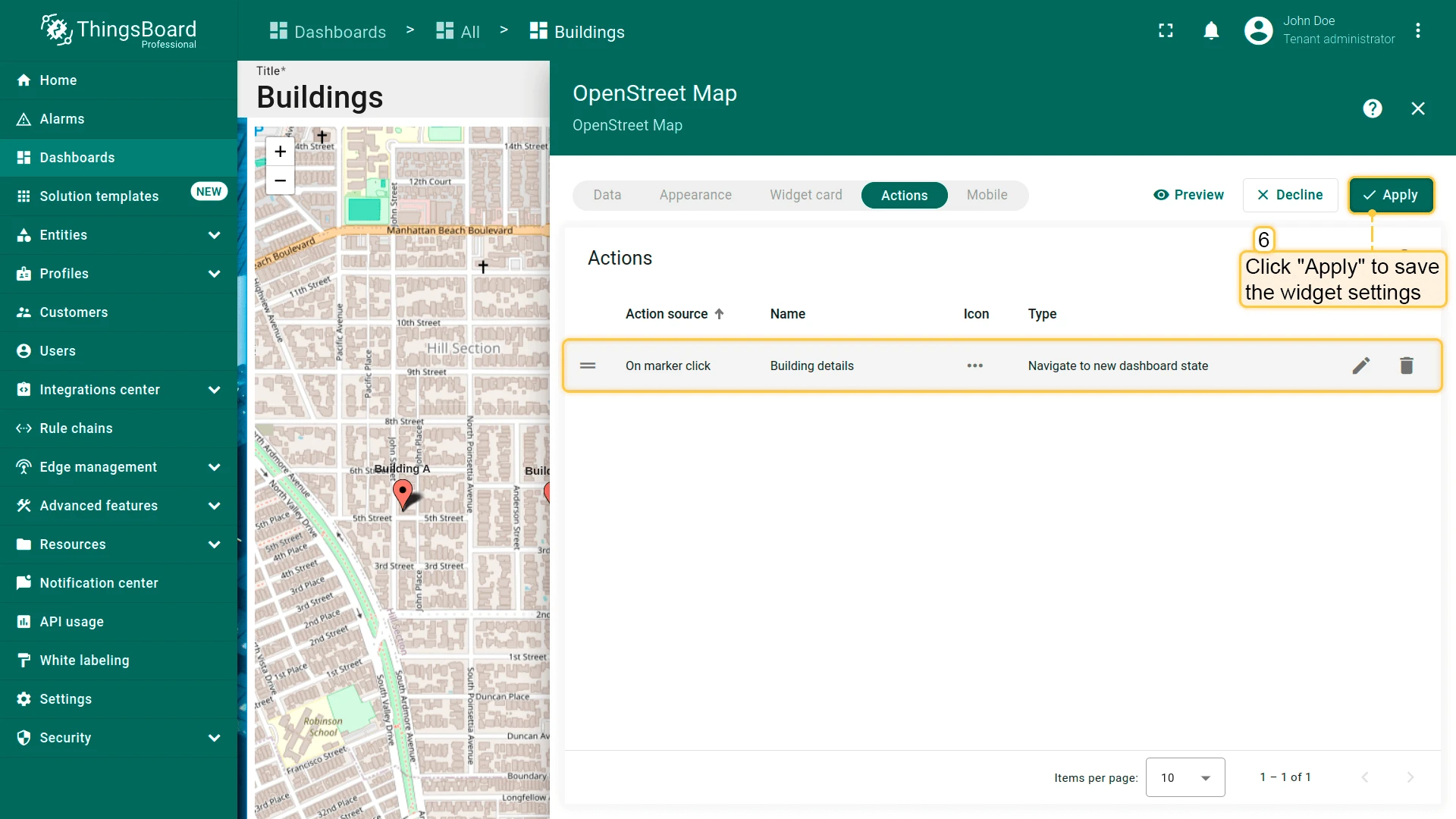
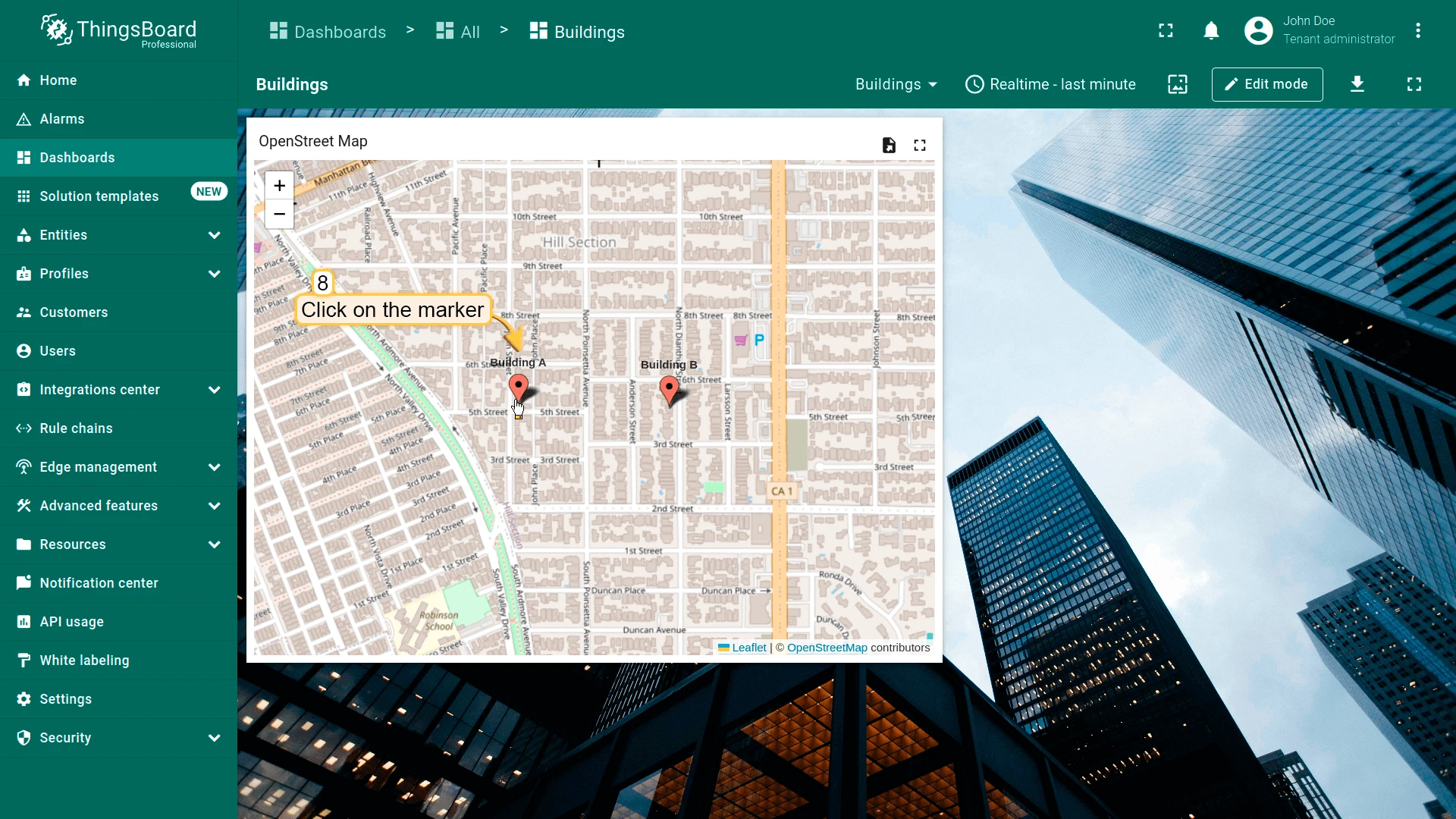
Section titled “On Marker Click”Triggers when the user clicks an entity marker on the map. Markers appear for every entity with latitude and longitude coordinates. The marker’s entity is passed to the target state.
- Open the widget in edit mode, go to the Actions tab, and click +.
- Select On marker click as the action source.
- Enter an action name. Optionally, choose an icon.
- Select Navigate to new dashboard state as the action type, then choose the target state.
- Click Add, then Apply to save the widget settings.
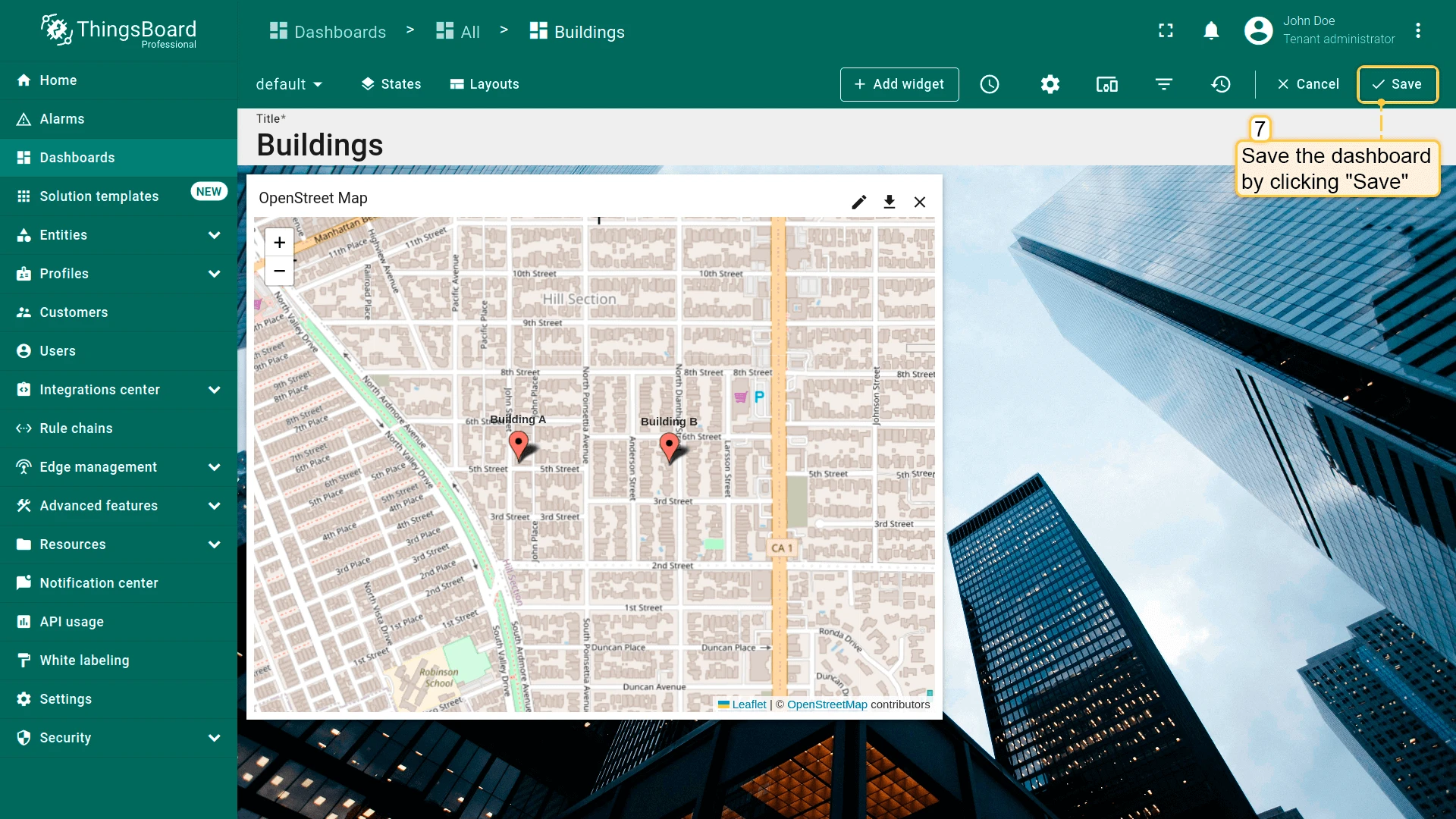
- Click Save in the dashboard toolbar to save the dashboard.
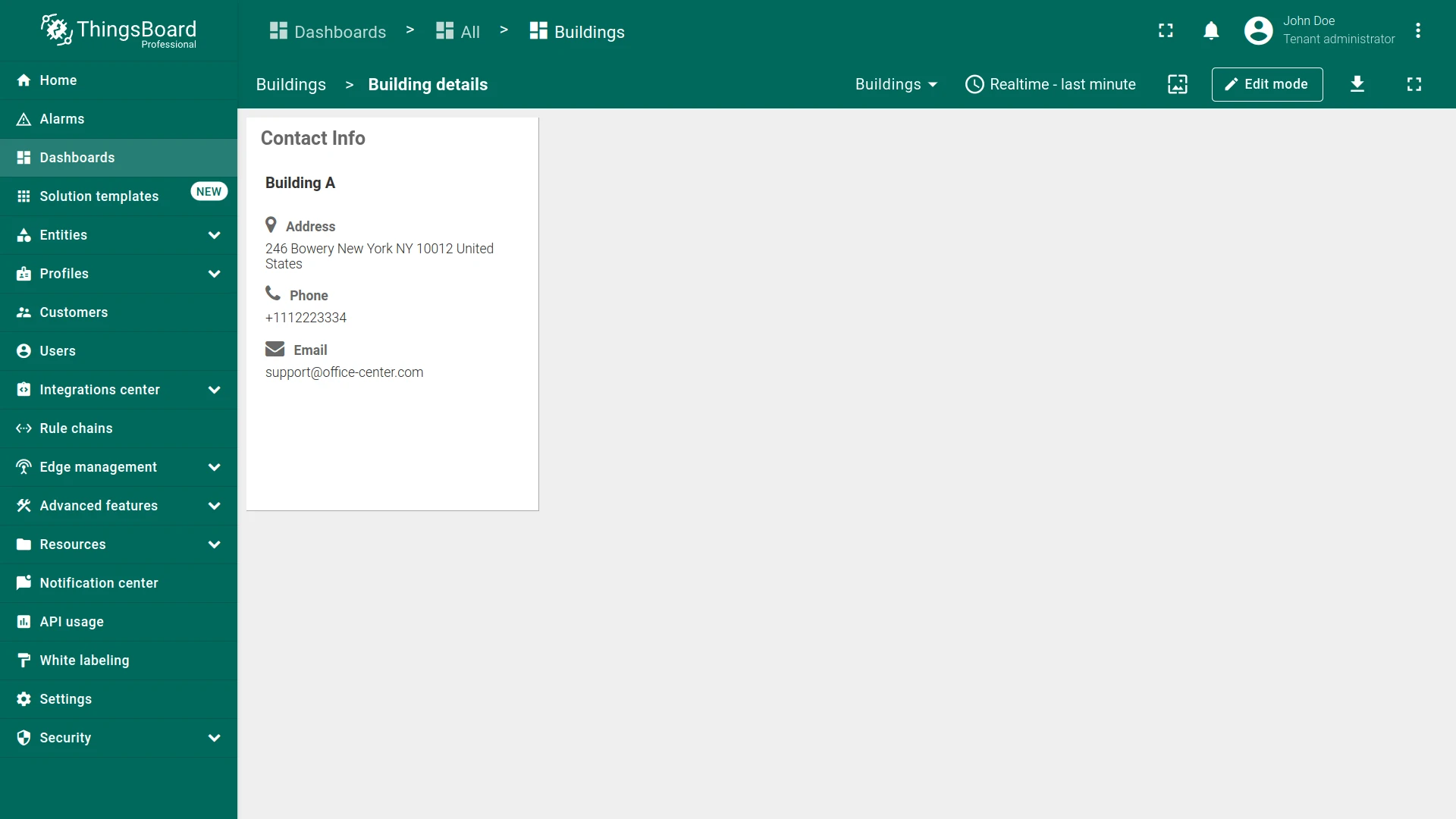
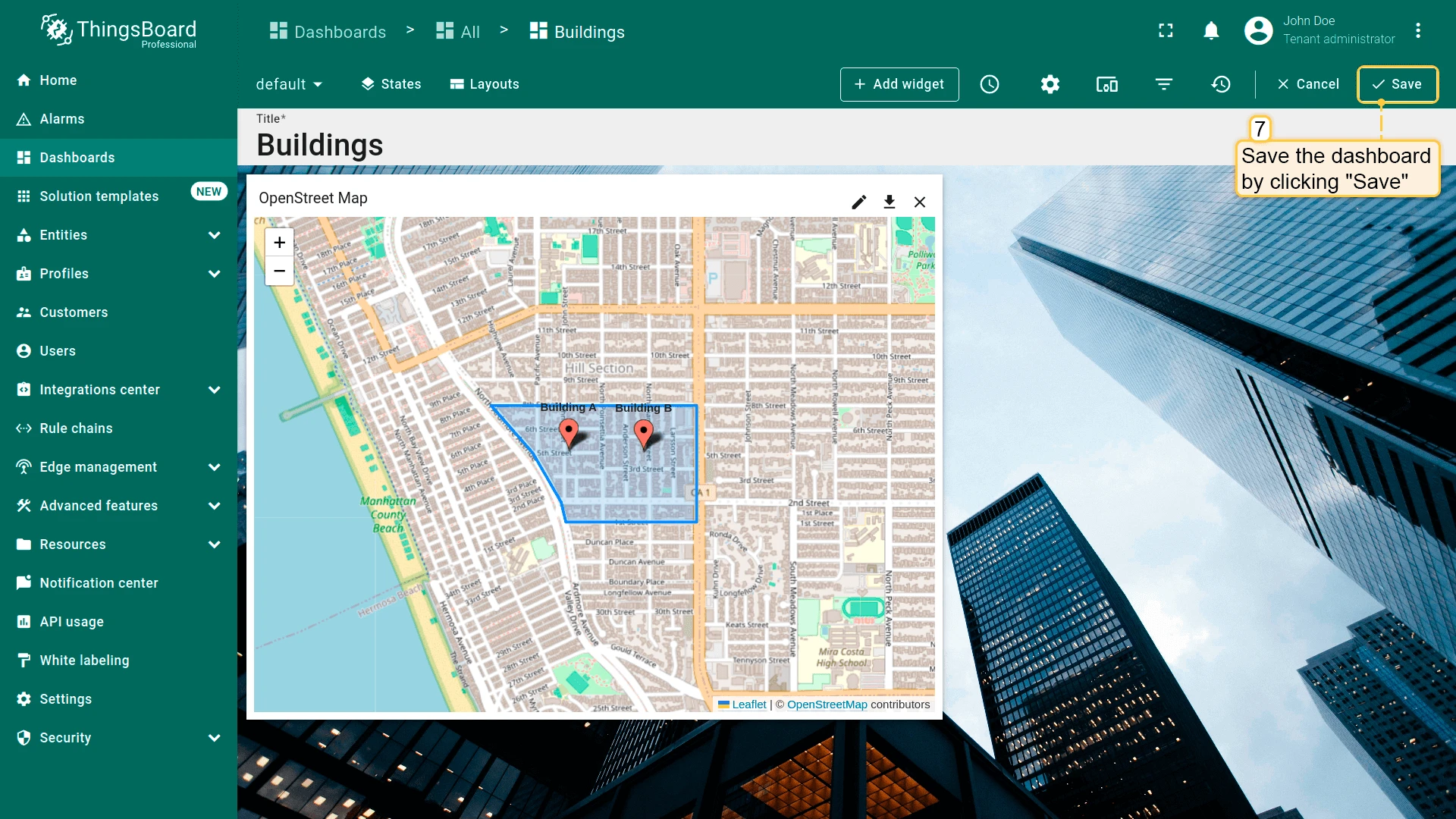
On Polygon Click
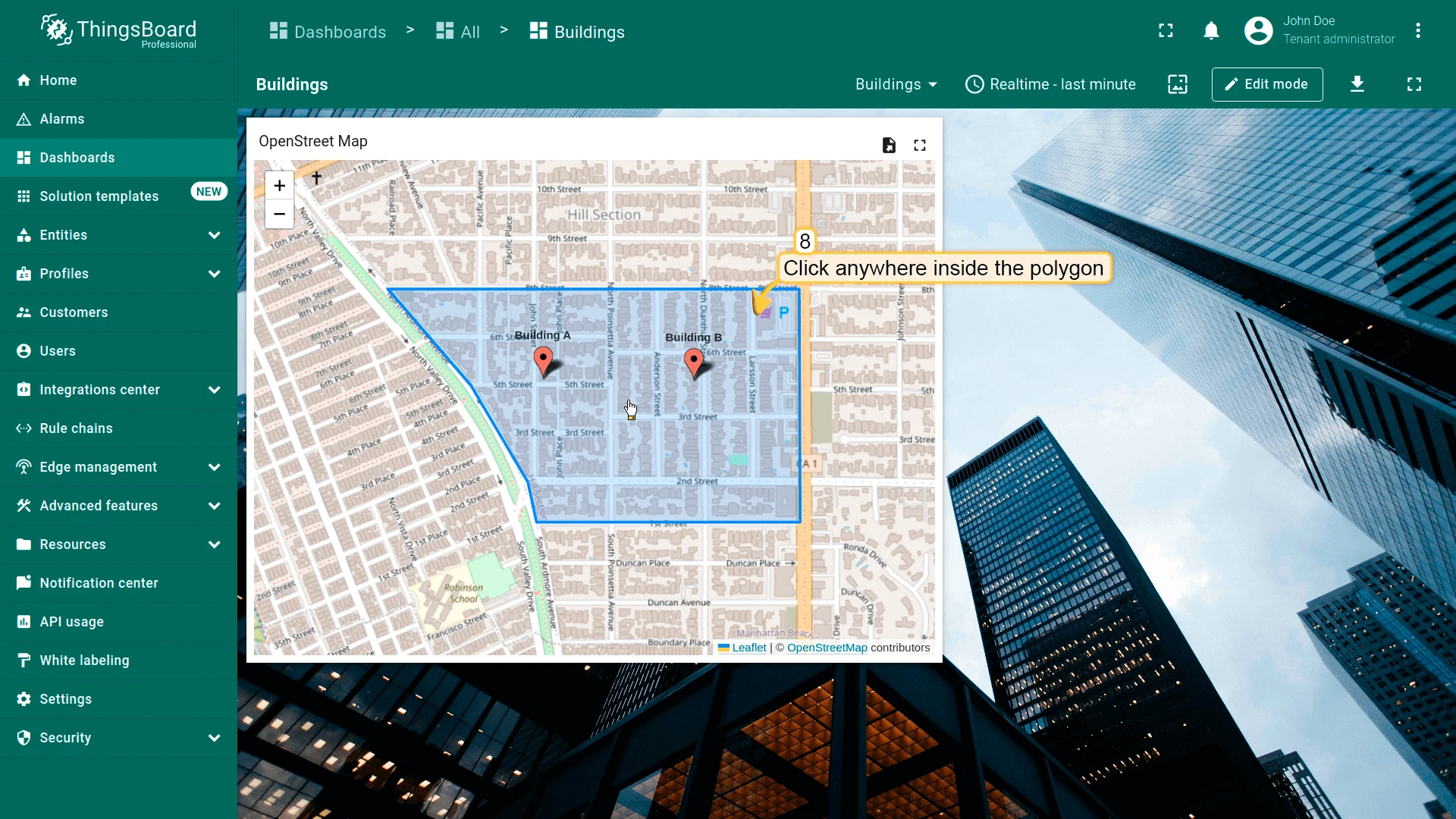
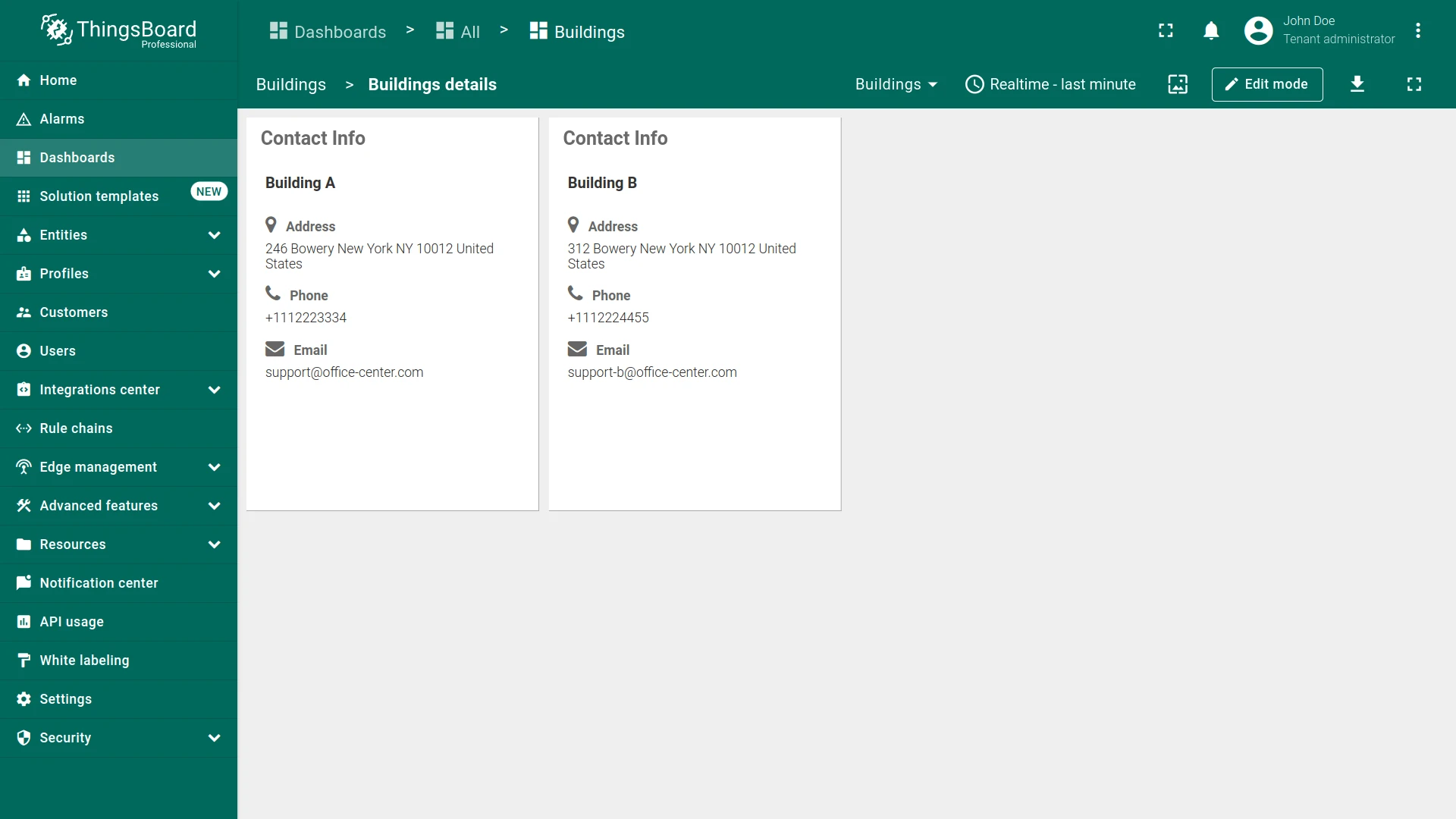
Section titled “On Polygon Click”Triggers when the user clicks inside a polygon on the map. A polygon is defined by a JSON array of coordinate pairs [[lat, lng], [lat, lng], ...] in an entity attribute and can represent a building, district, or any bounded area. The polygon’s entity is passed to the target state. See Map widget configuration for setup details.
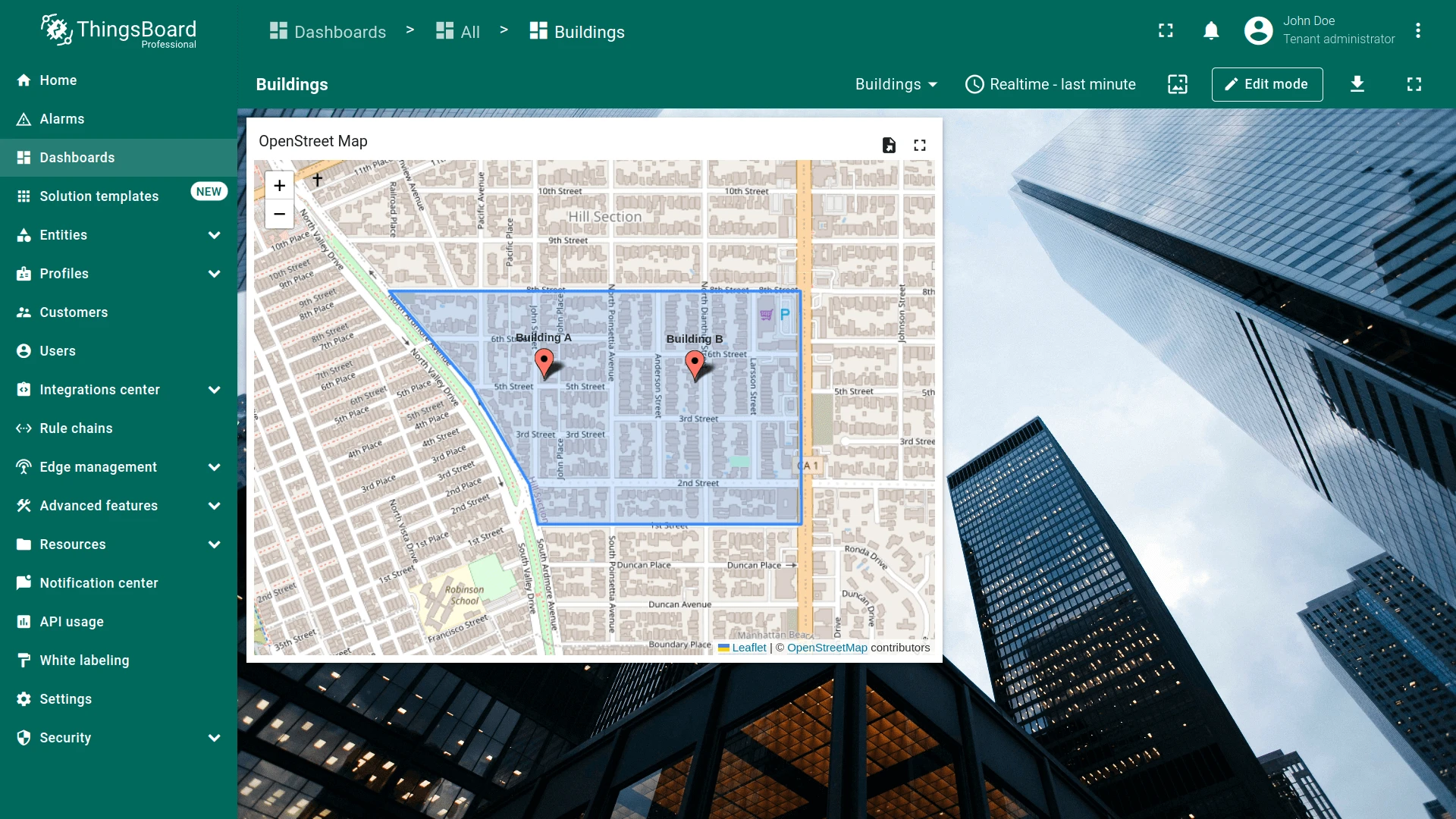
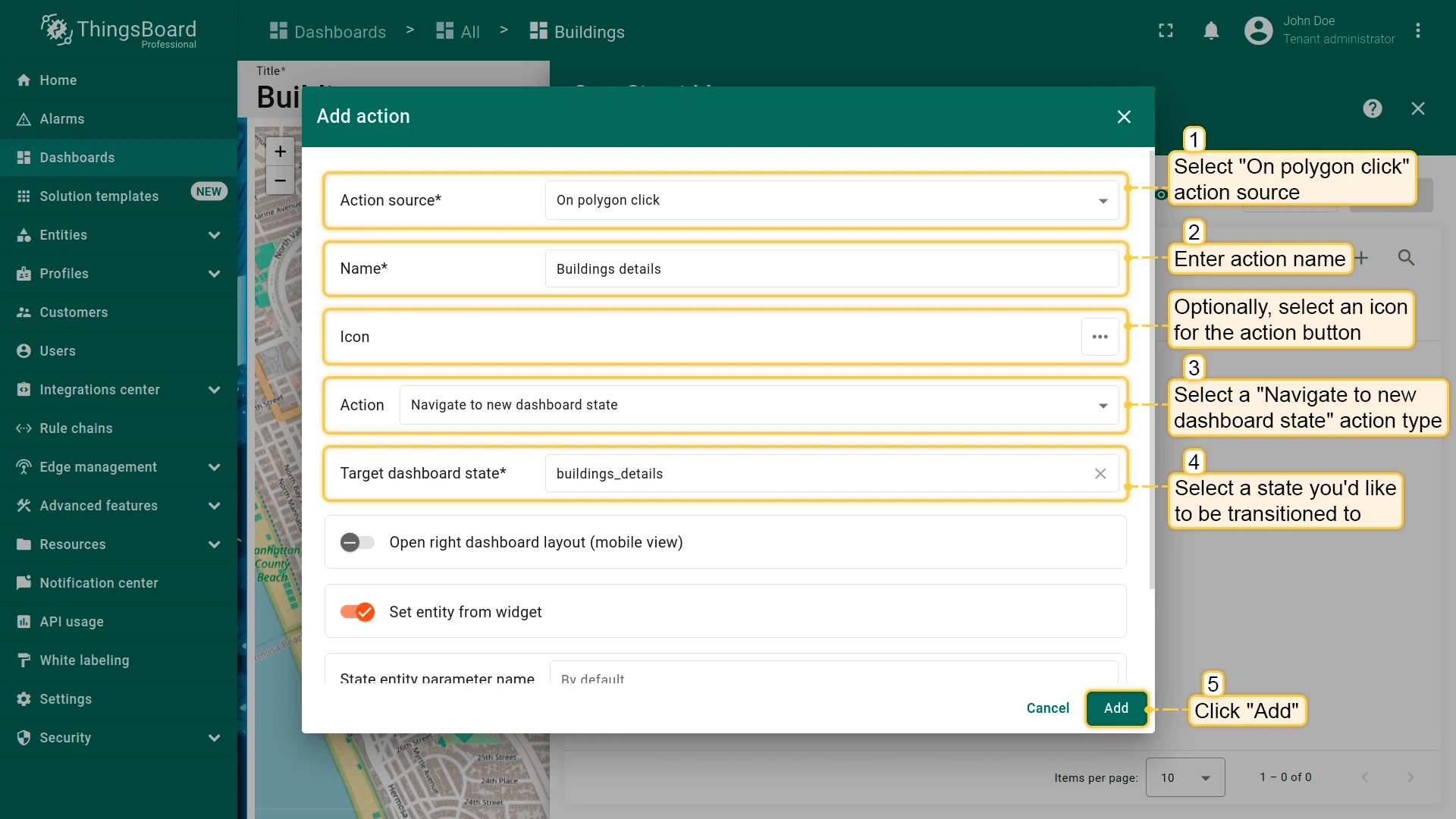
- Open the widget in edit mode, go to the Actions tab, and click +.
- Select On polygon click as the action source.
- Enter an action name. Optionally, choose an icon.
- Select Navigate to new dashboard state as the action type, then choose the target state.
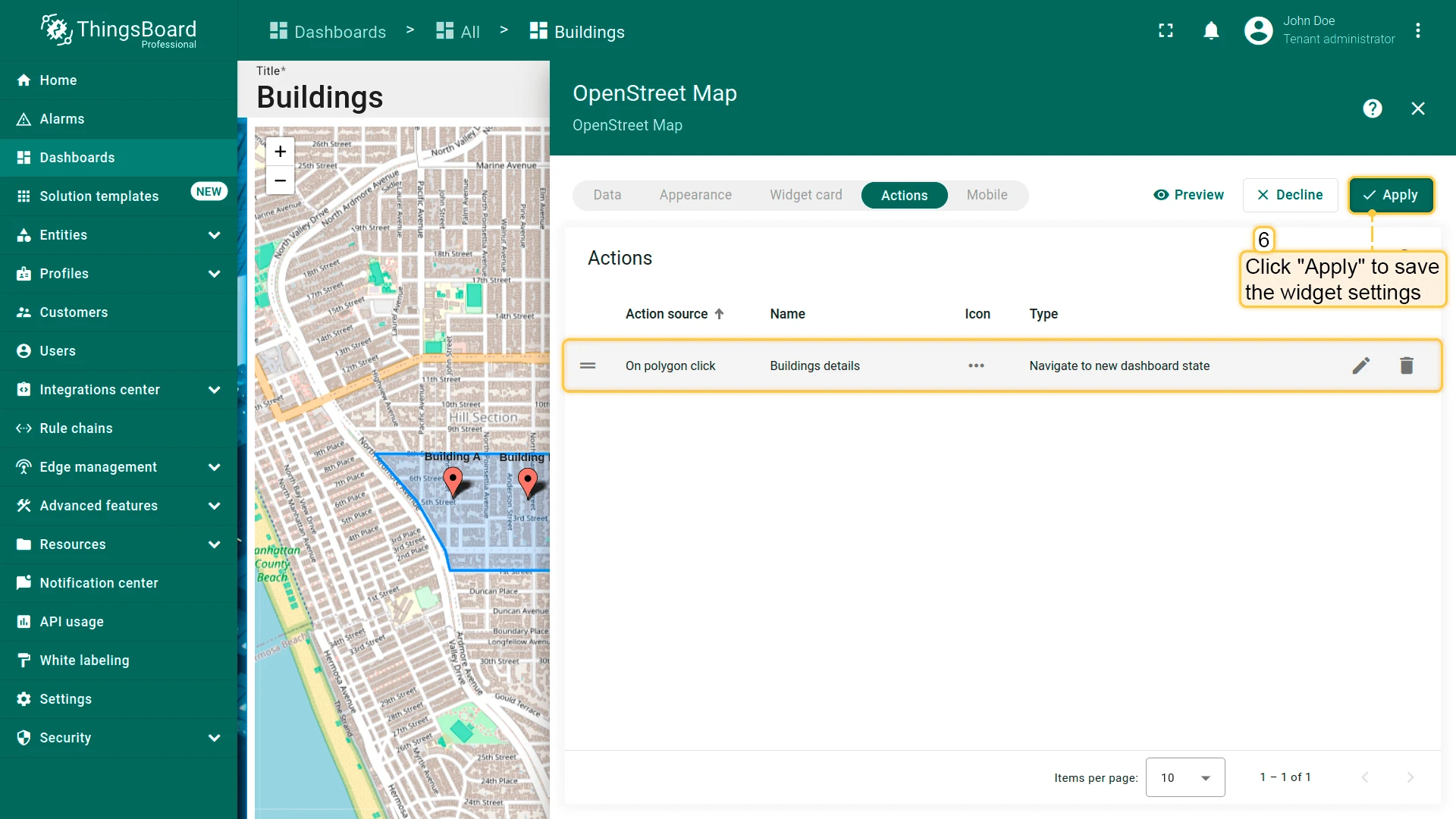
- Click Add, then Apply to save the widget settings.
- Click Save in the dashboard toolbar to save the dashboard.
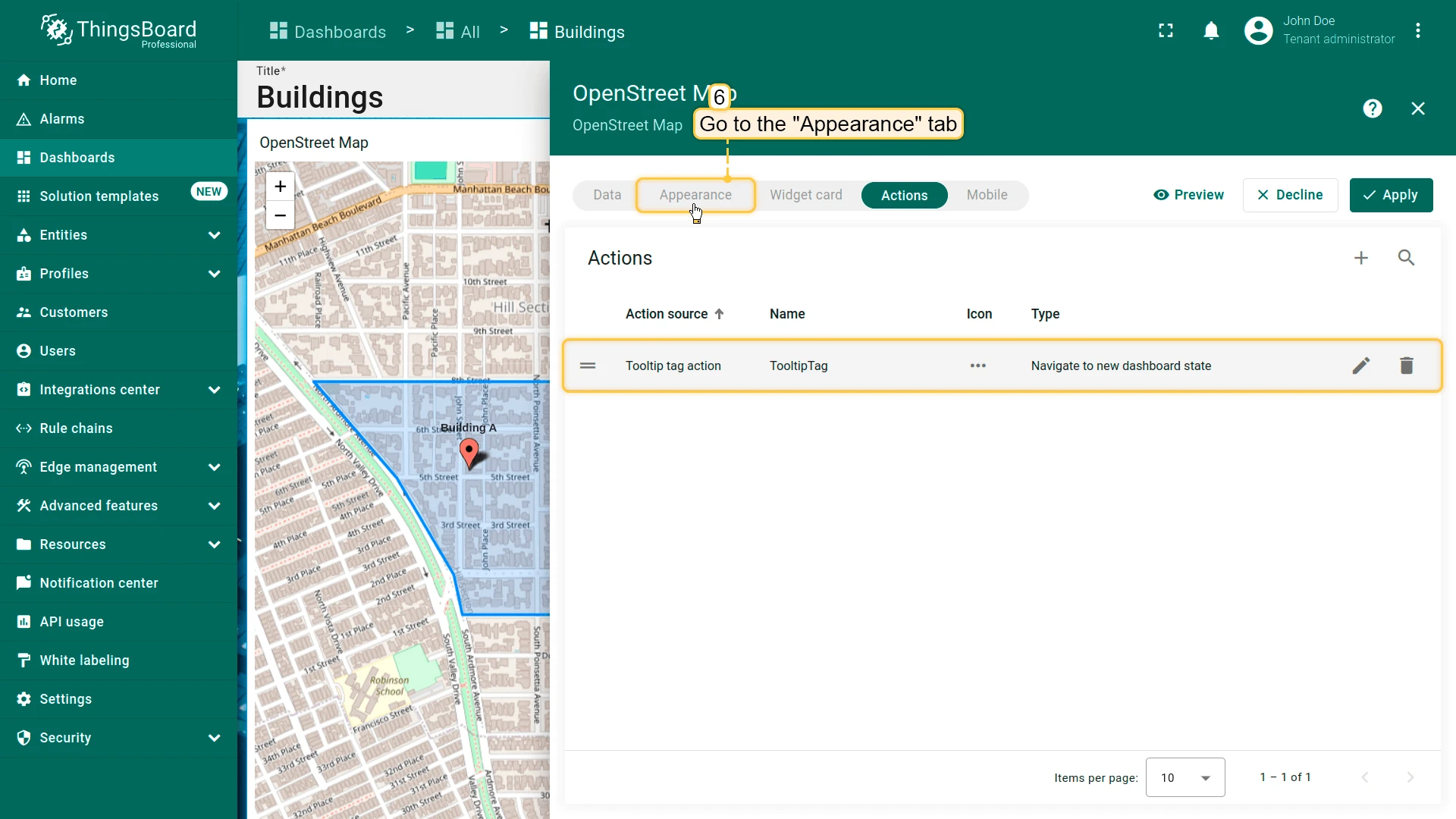
Tooltip Tag Action
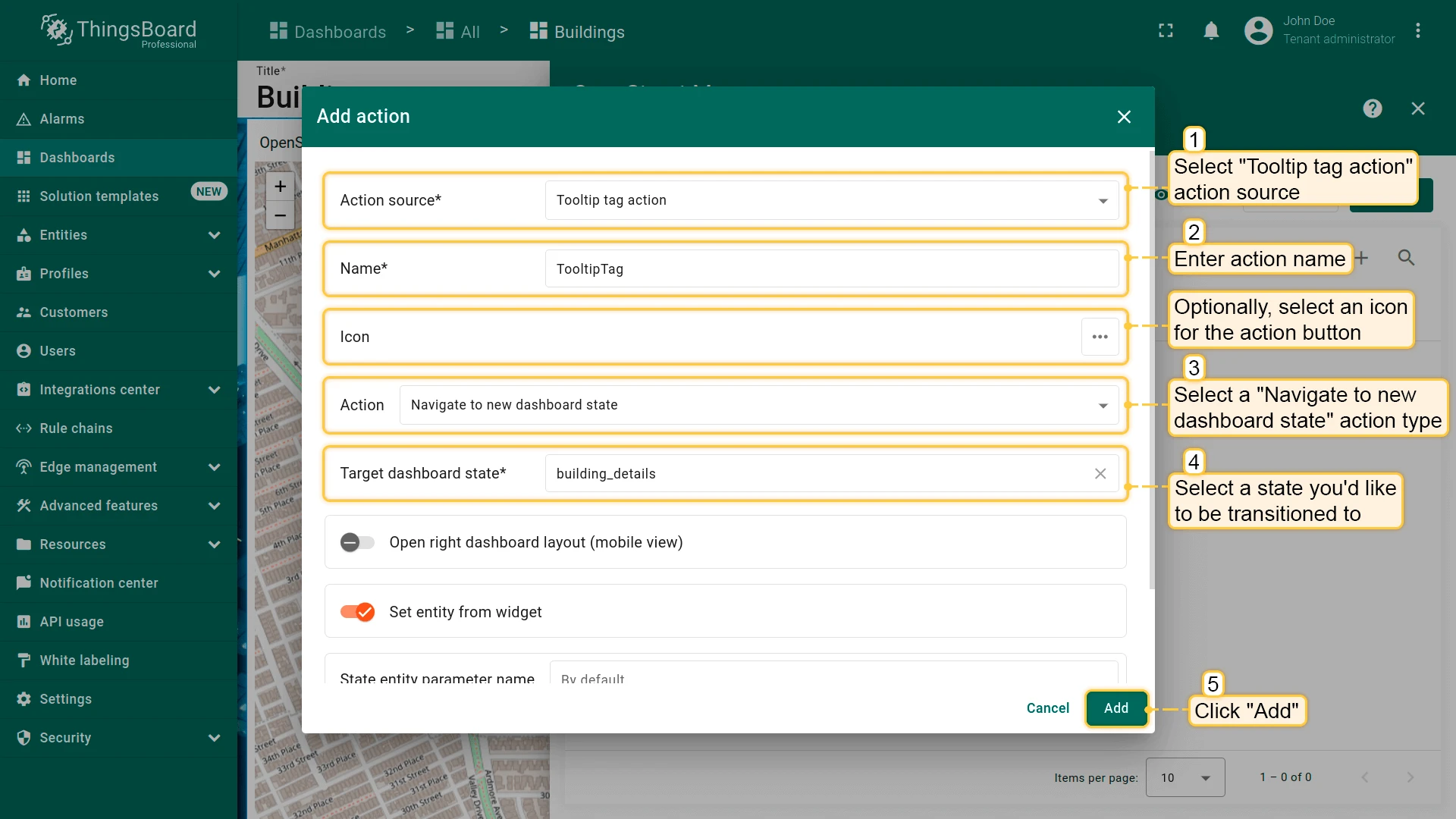
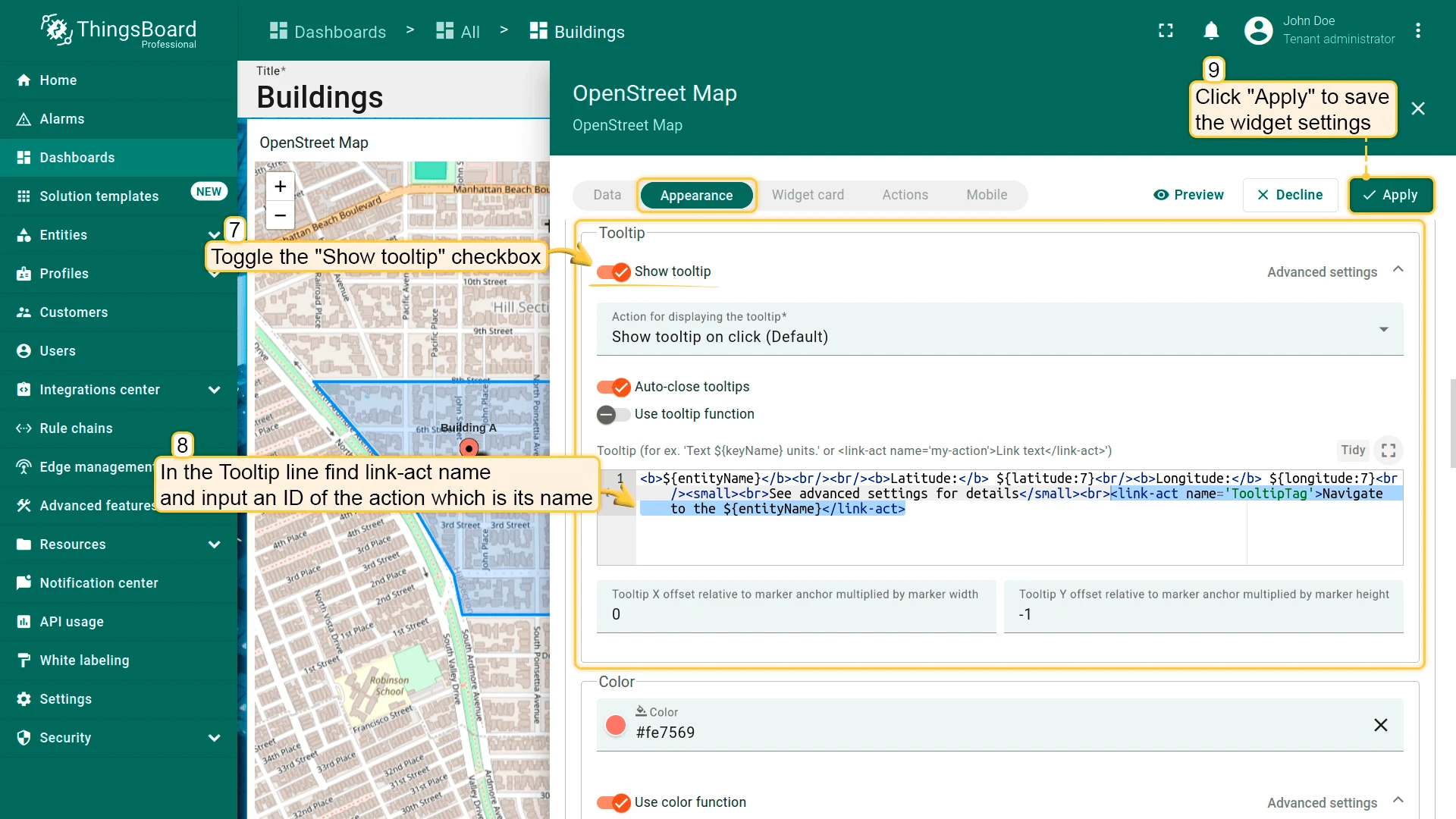
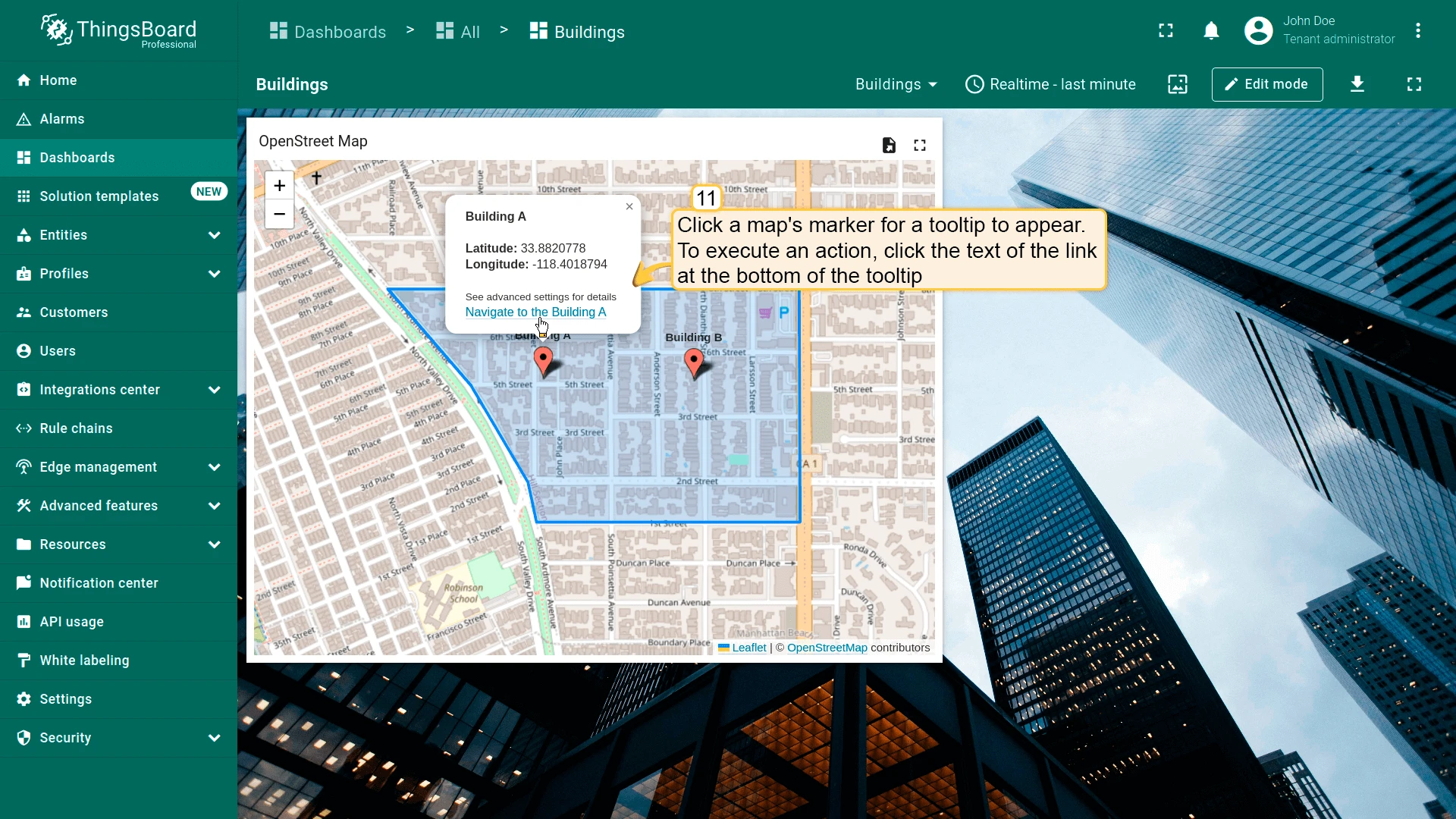
Section titled “Tooltip Tag Action”Adds clickable links to the tooltip shown when a marker is clicked. Each <link-act> tag calls an action by name, so one marker can offer several actions. The tag’s name attribute must match the action name exactly (case-sensitive). For per-entity tooltip content, use tooltip function mode in the map widget’s advanced settings.
-
Open the widget in edit mode, go to the Actions tab, and click +.
-
Select Tooltip tag action as the action source.
-
Enter the action name to use in the
<link-act>tag. Optionally, choose an icon. -
Select Navigate to new dashboard state as the action type, then choose the target state.
-
Click Add.
-
Go to the Appearance tab, enable Show tooltip, and add a
<link-act>tag referencing the action name:<link-act name='TooltipTag'>Navigate to the ${entityName}</link-act>where
TooltipTagis the action name and the element text is the link label shown in the tooltip. -
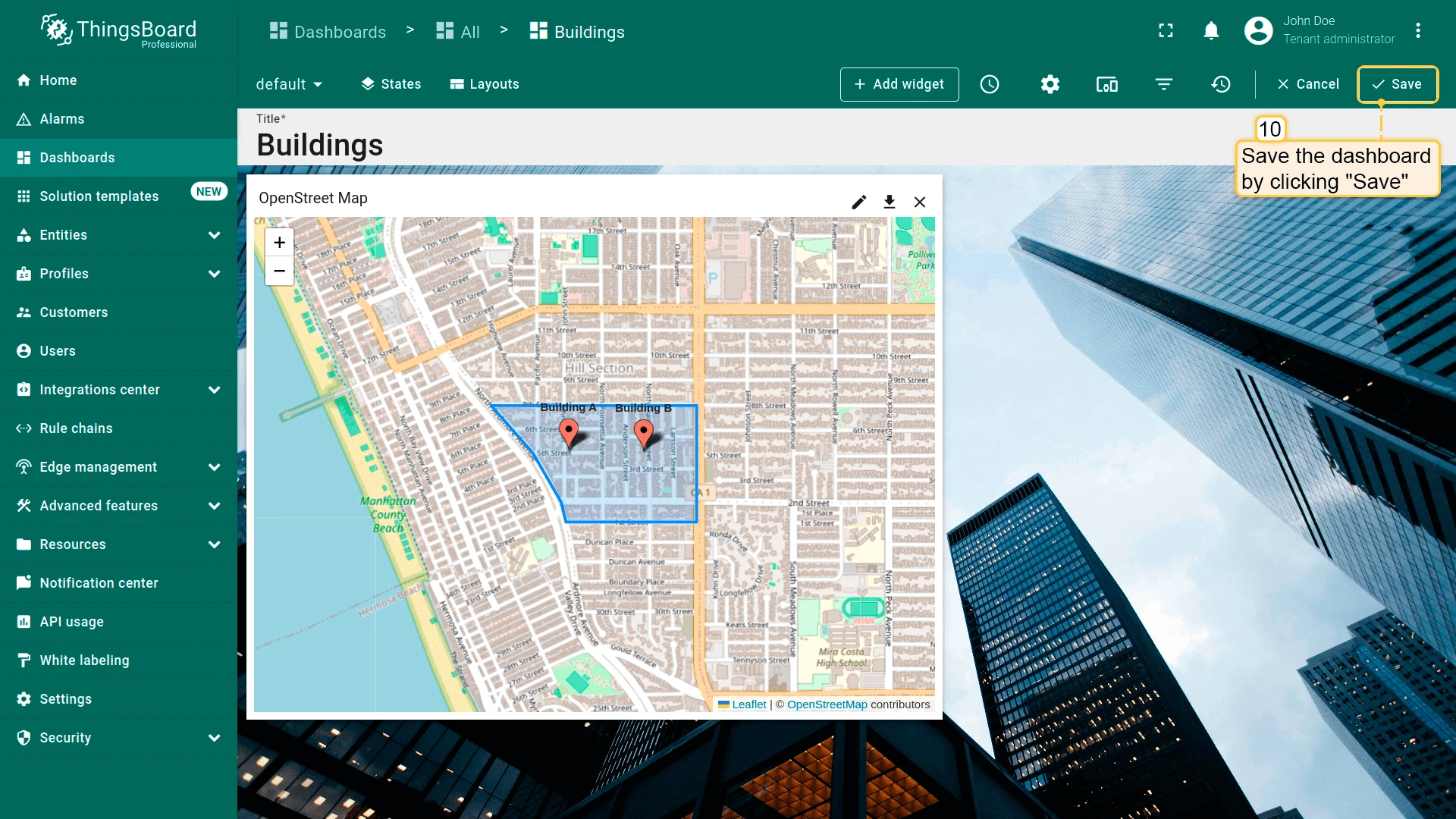
Click Apply to save the widget settings.
-
Click Save in the dashboard toolbar to save the dashboard.
Action Options
Section titled “Action Options”Open Right Dashboard Layout (Mobile View)
Section titled “Open Right Dashboard Layout (Mobile View)”A common pattern is an Entities table with a Time series chart that shows the selected row’s data. On desktop, place the widgets side by side and use the Update current dashboard state action. On mobile, the ThingsBoard PE Mobile Application stacks widgets vertically, so users must scroll down to the chart.
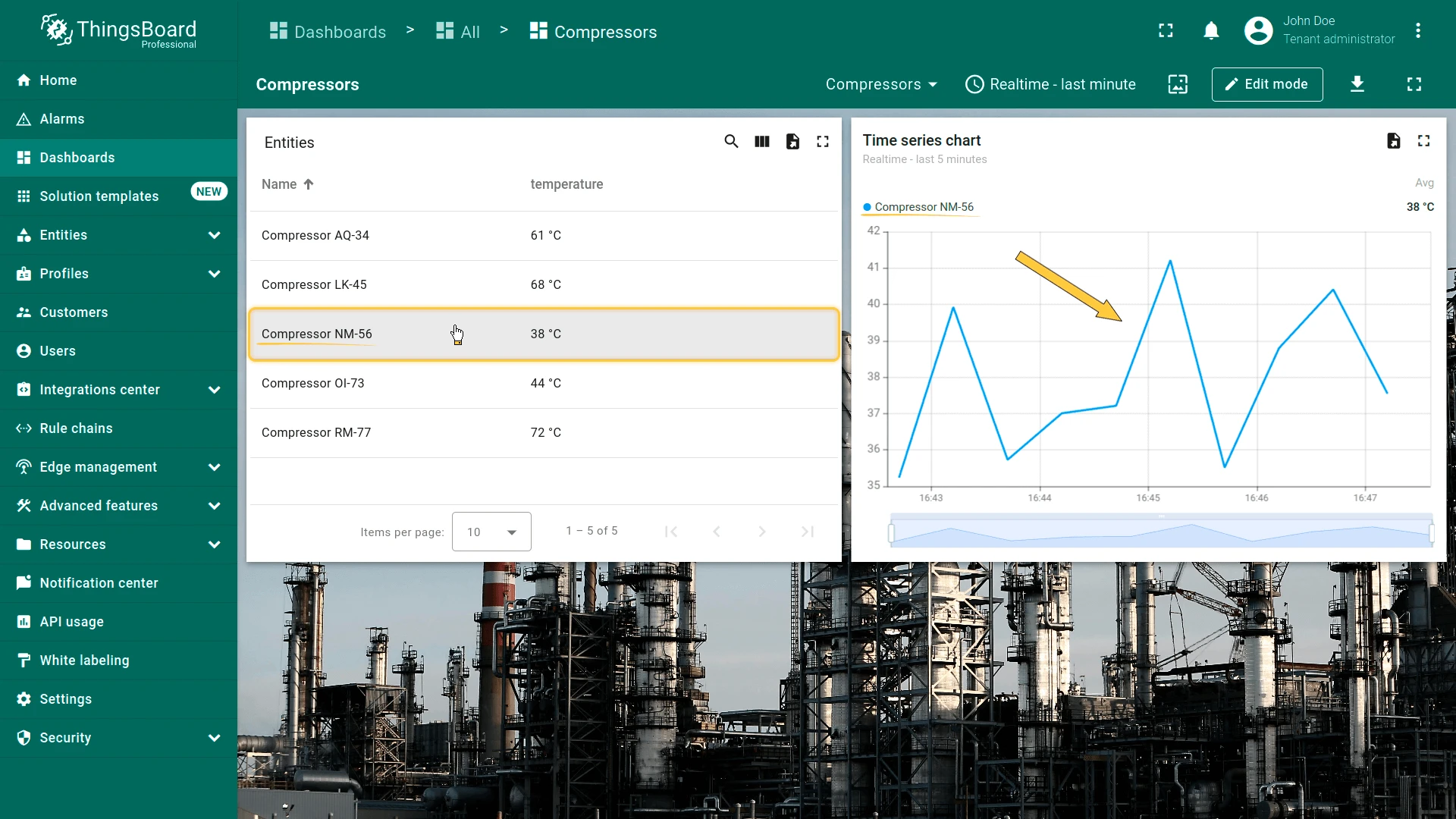
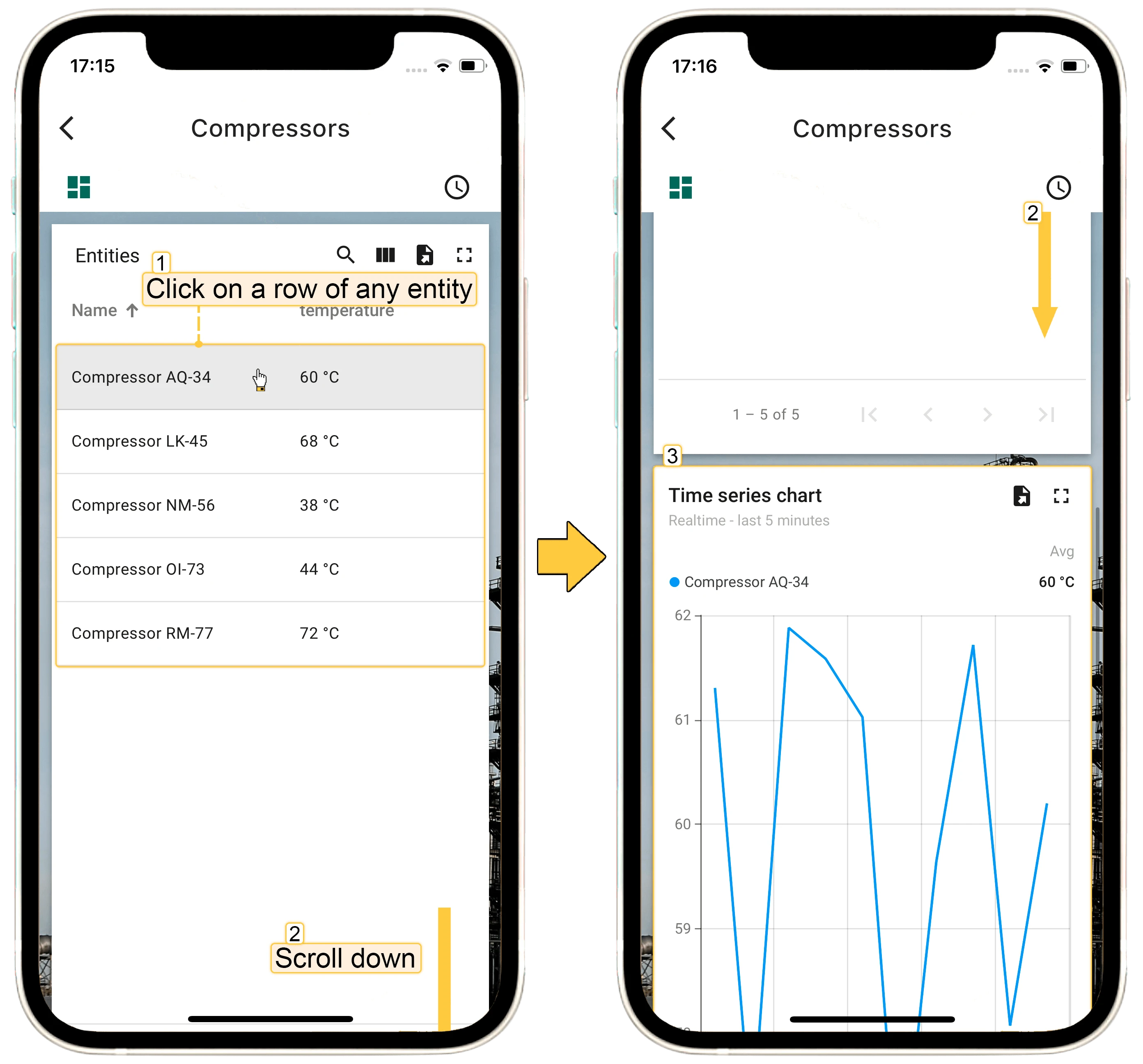
The Layouts feature solves this with a Divider layout:
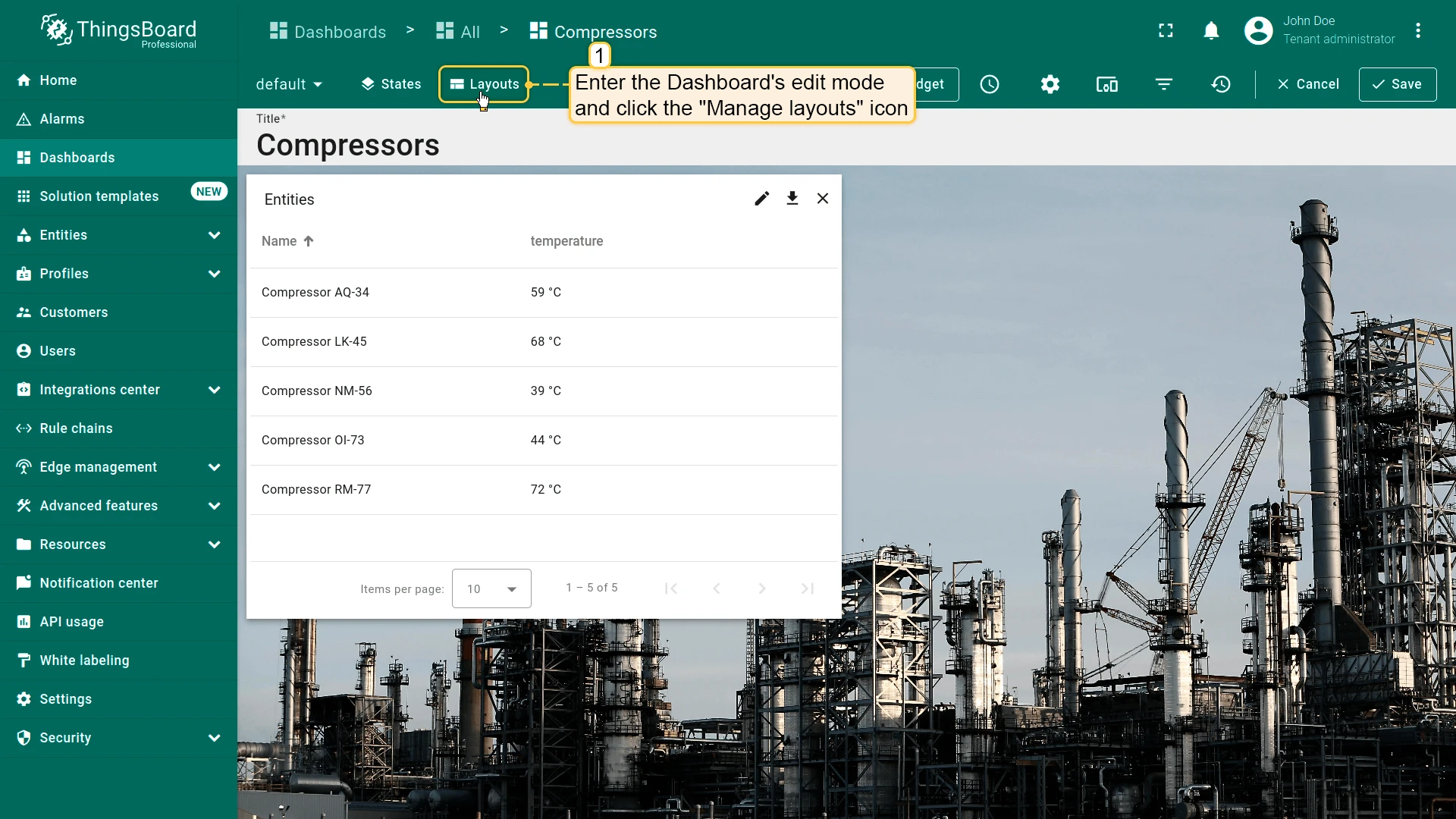
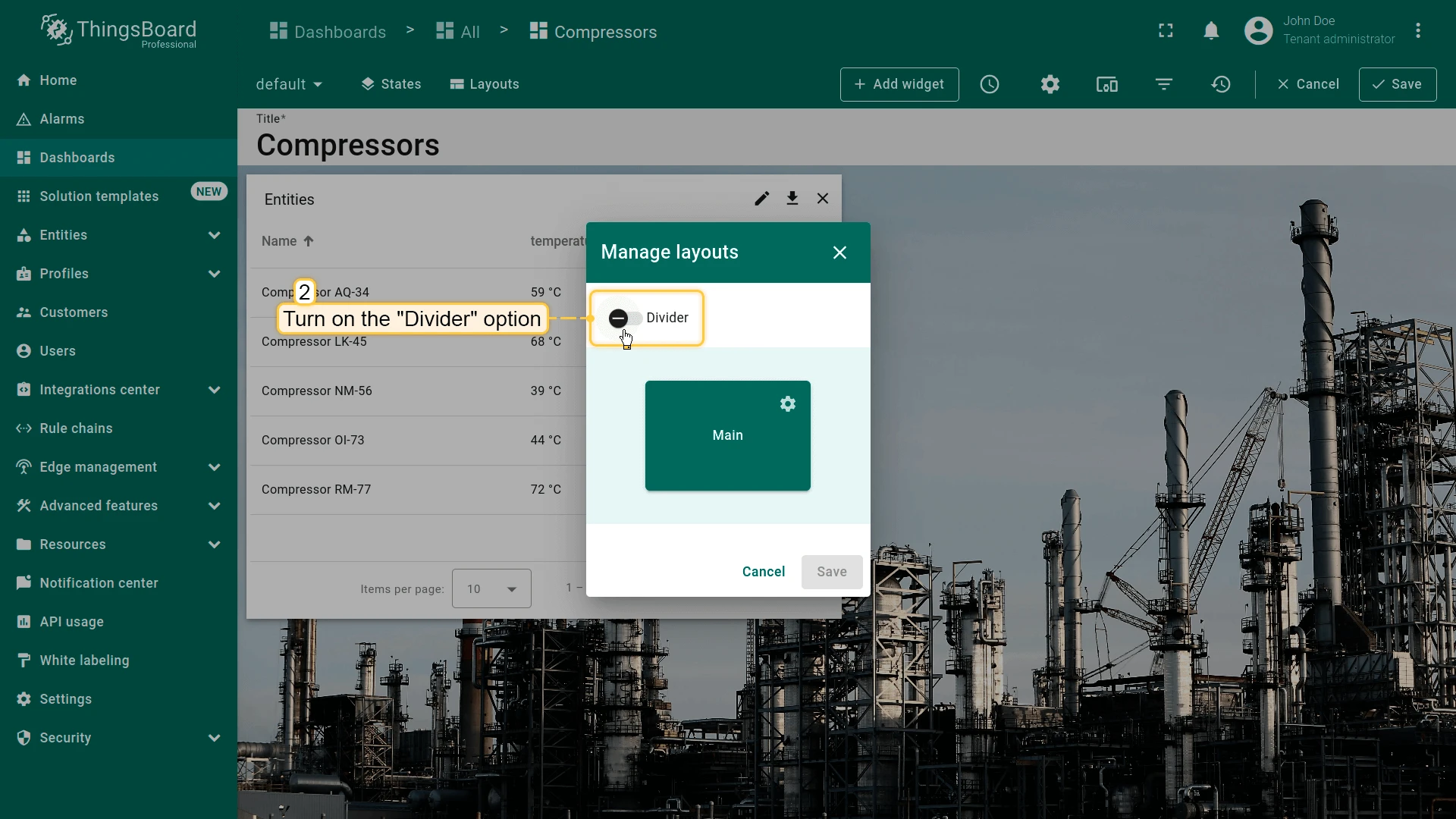
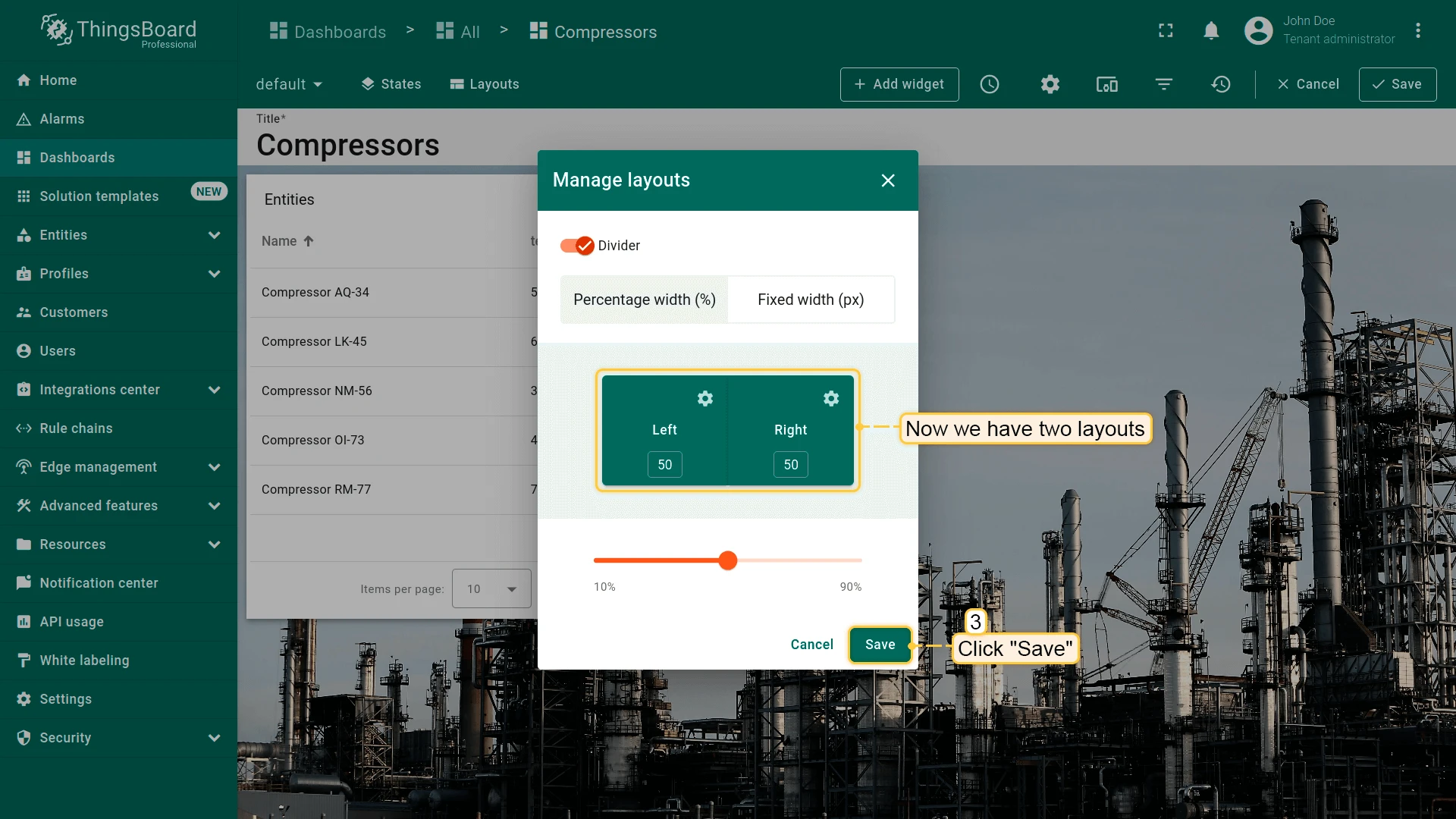
Add the Time series chart widget to the right layout:
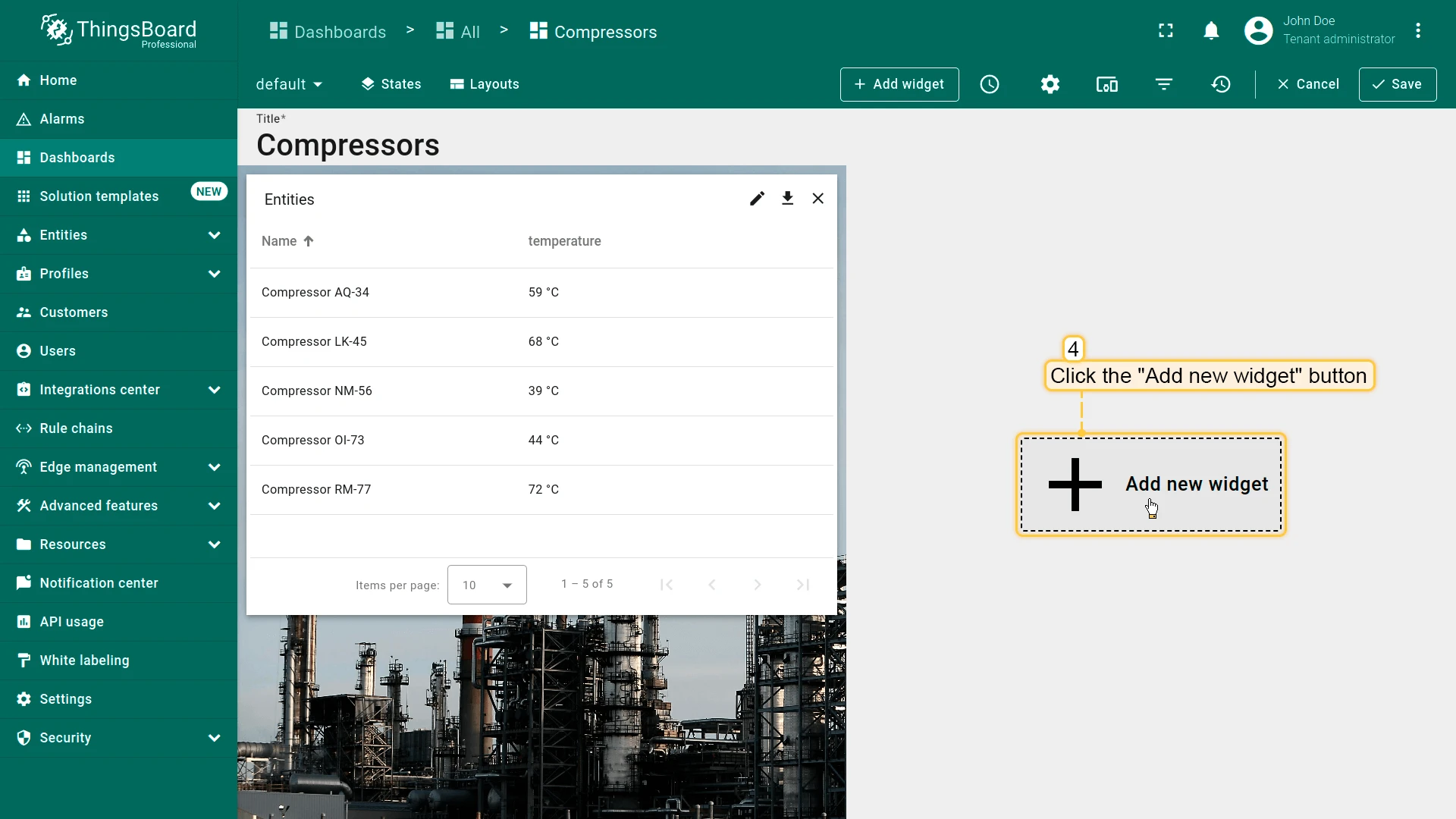
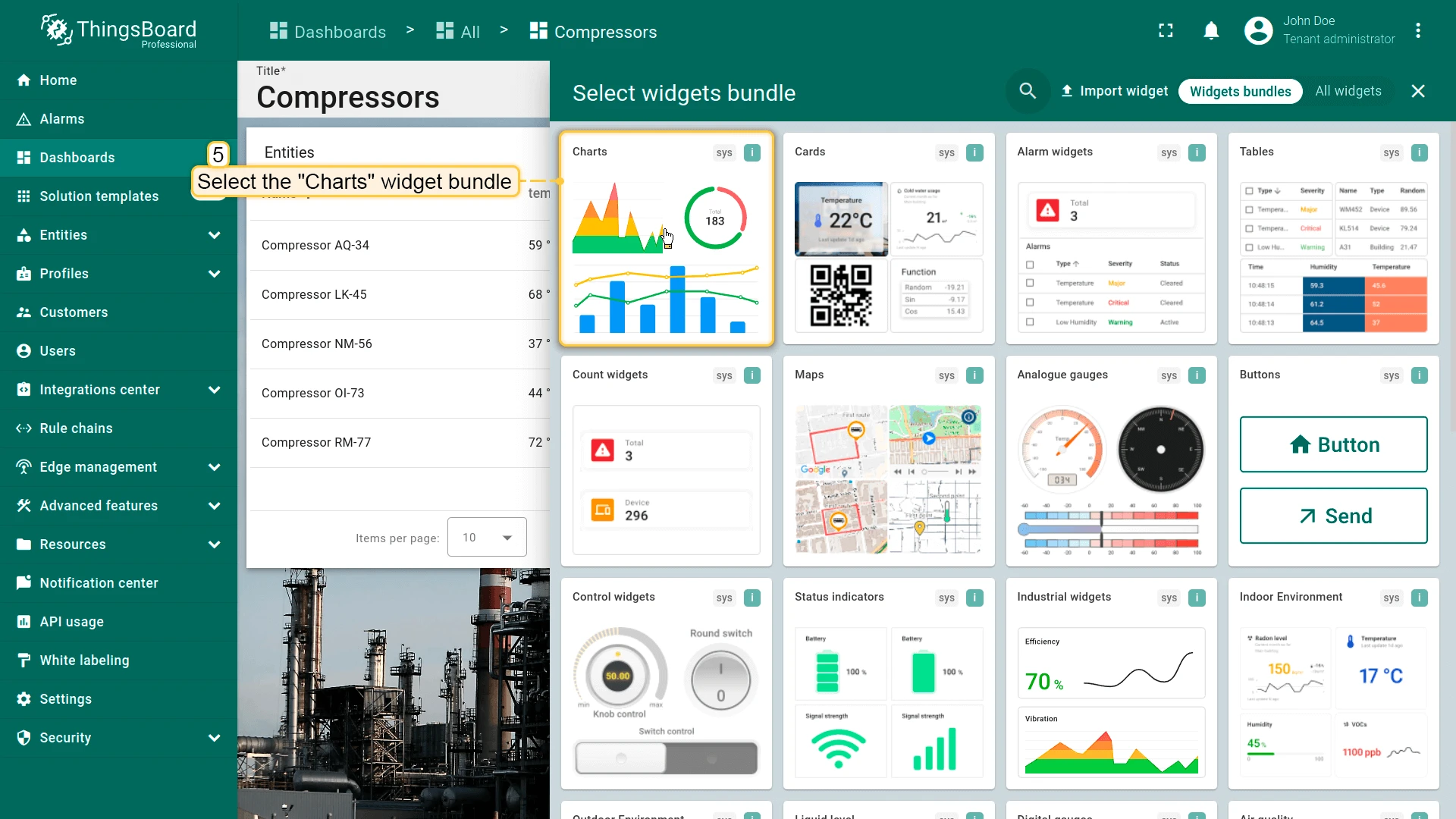
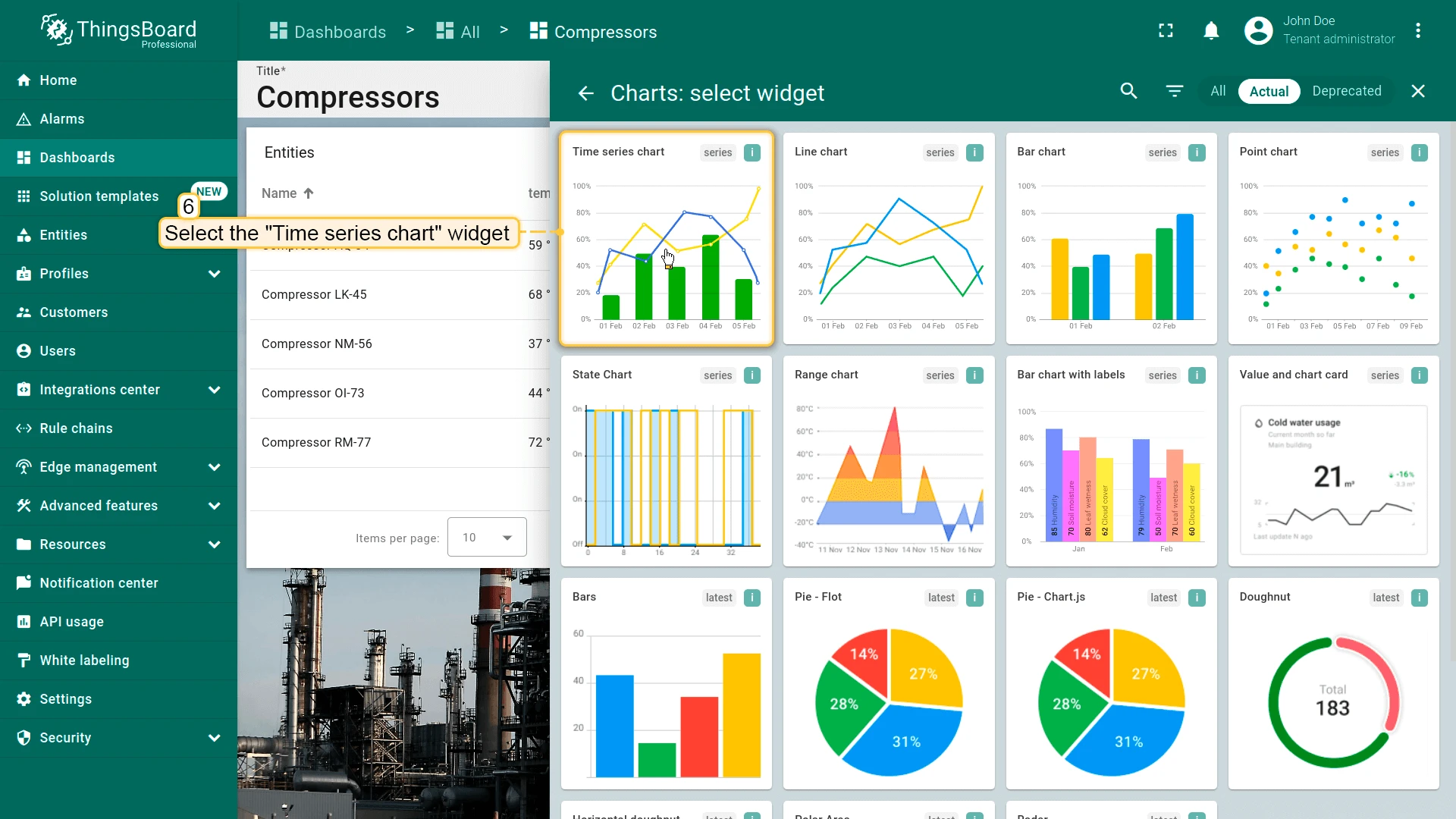
Configure the Time series chart widget to show data for the entity selected in the Entities table:
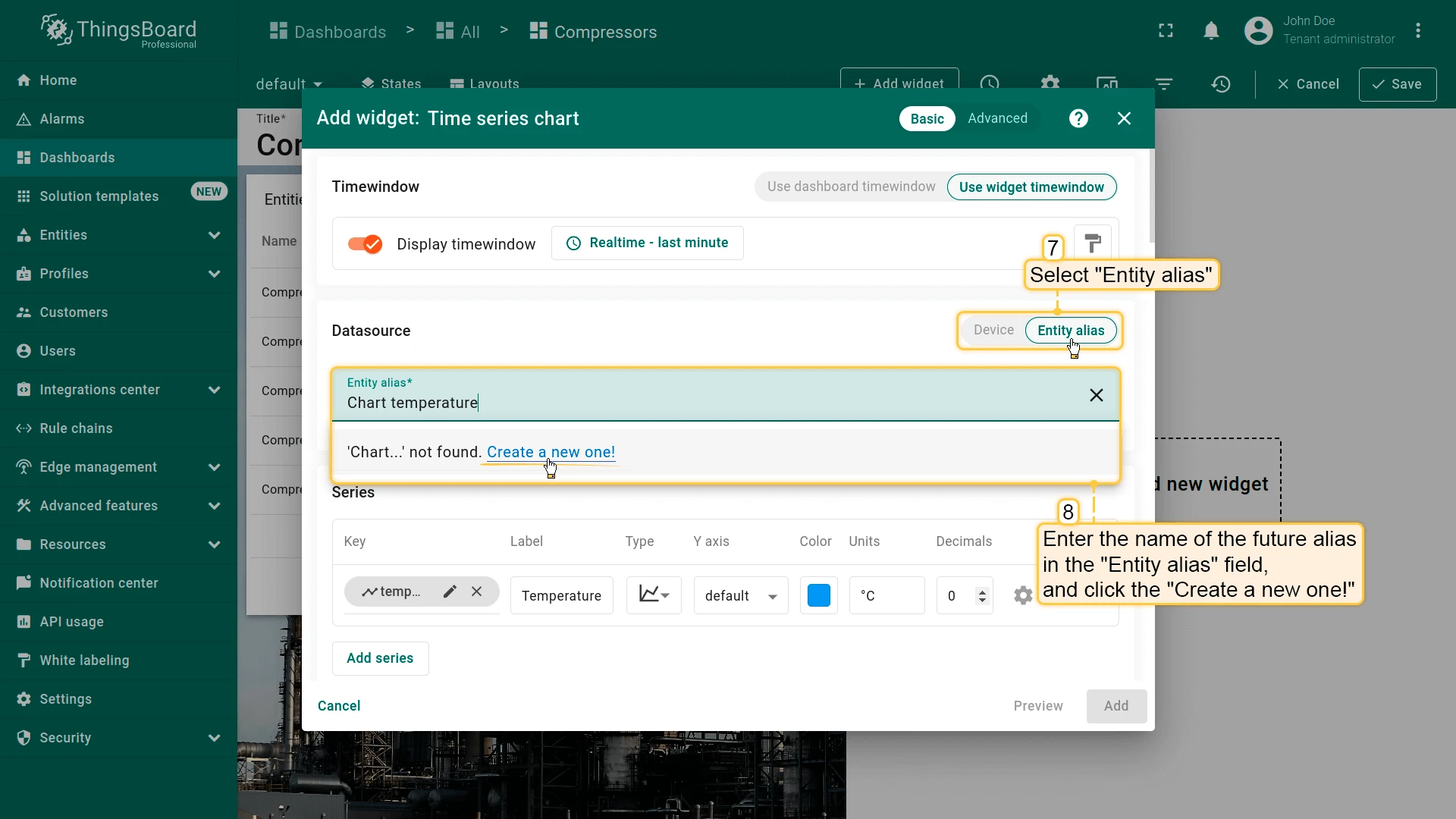
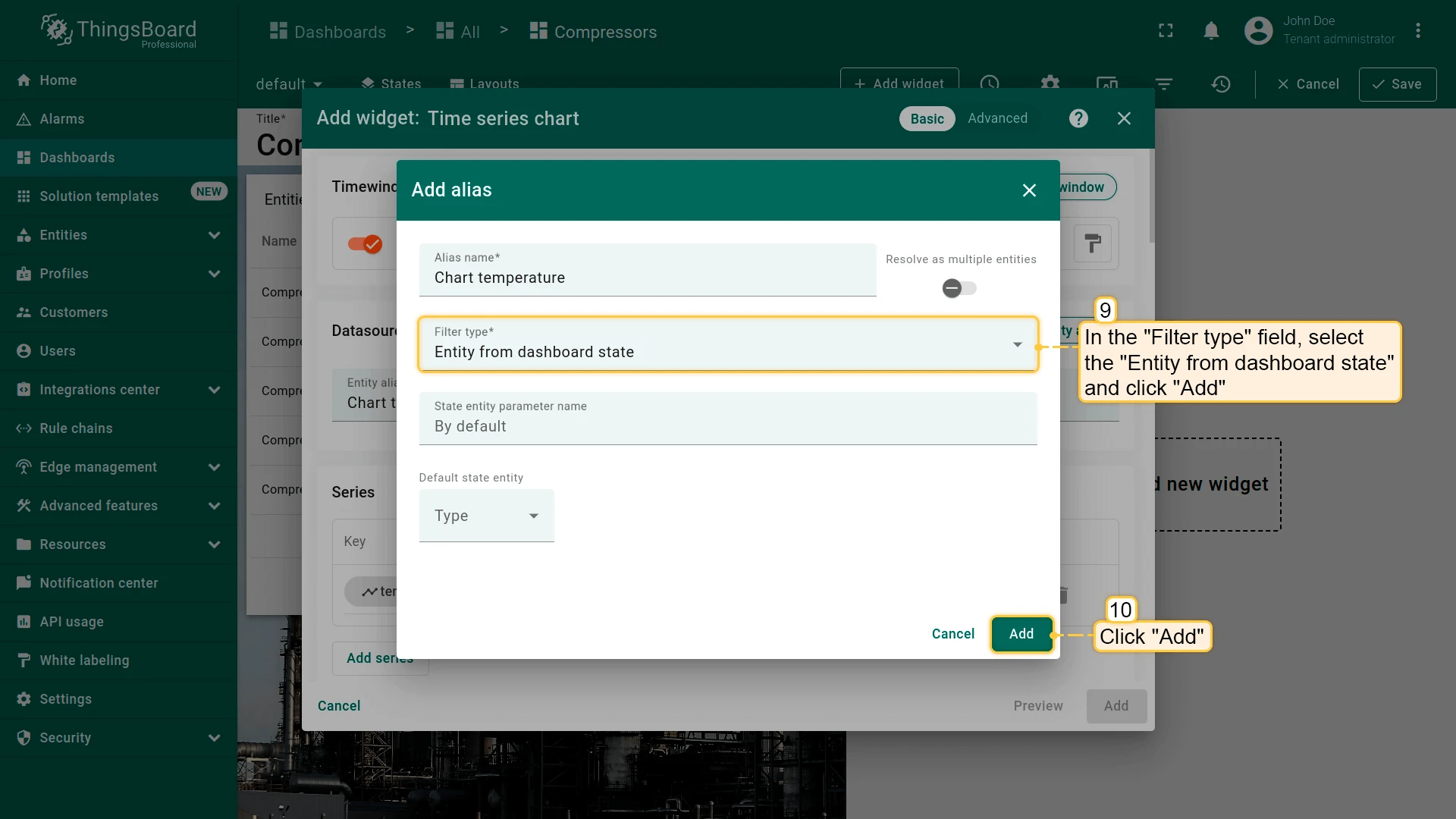
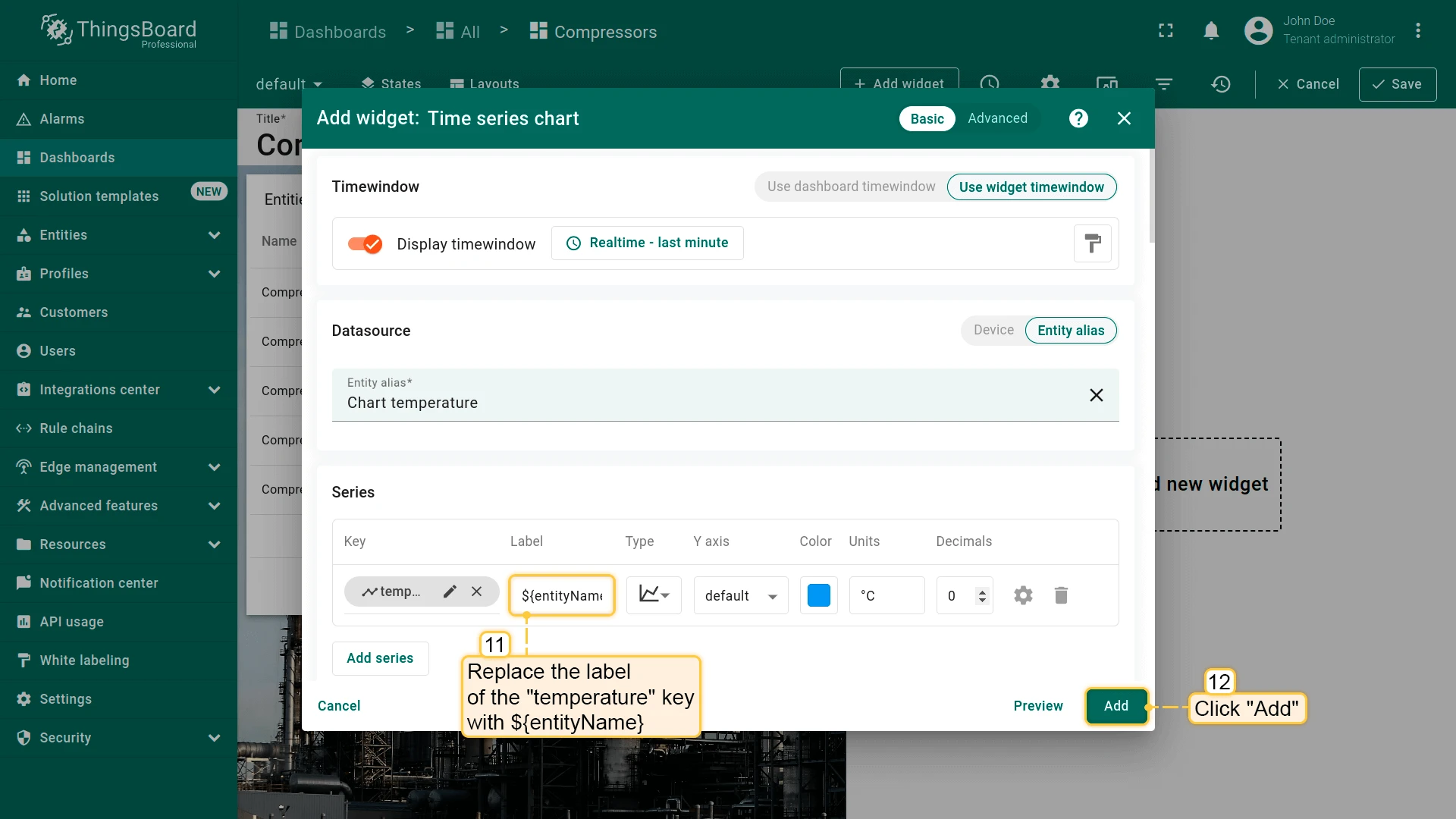
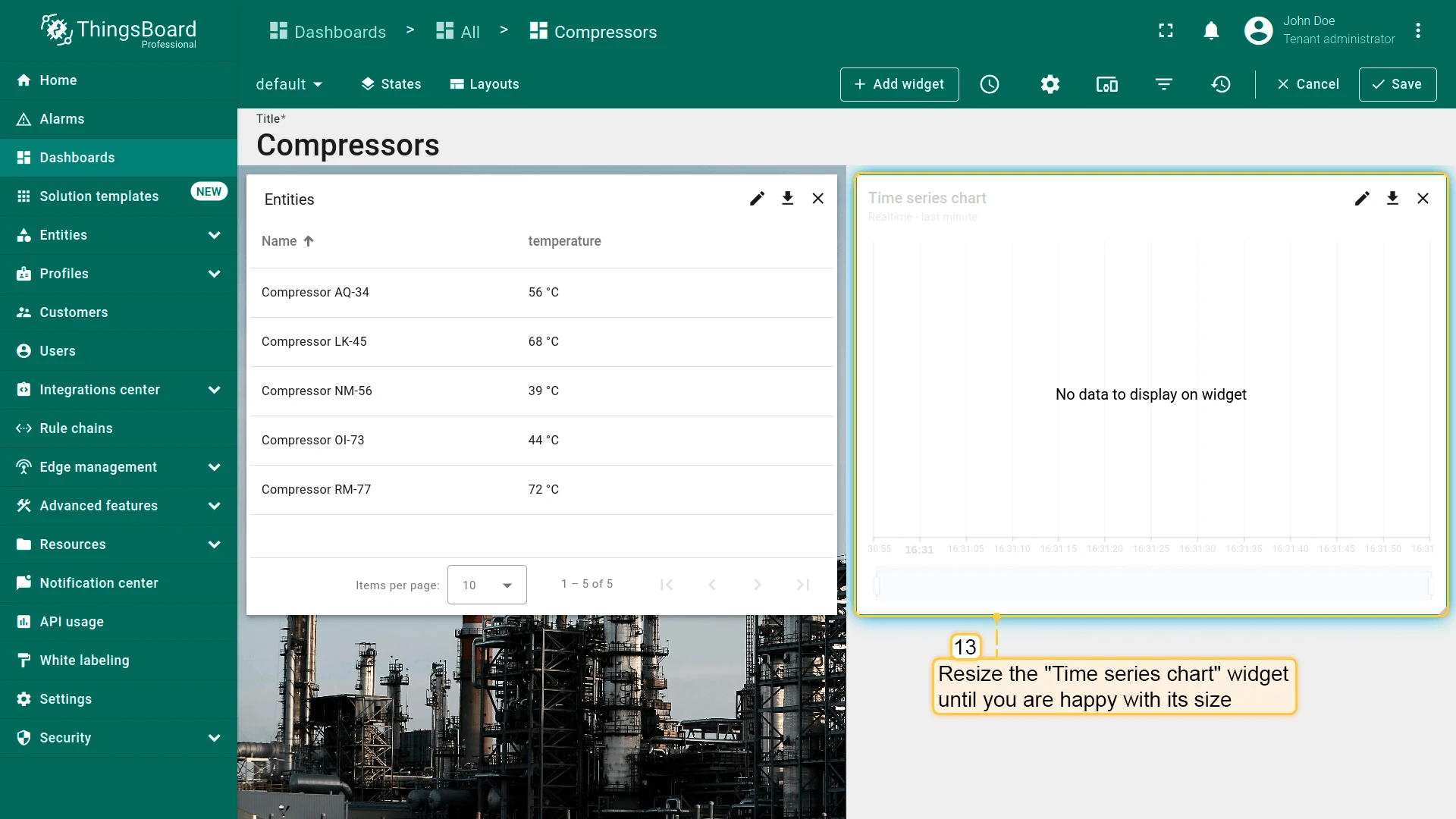
Now add an Update current dashboard state action to the Entities table widget:
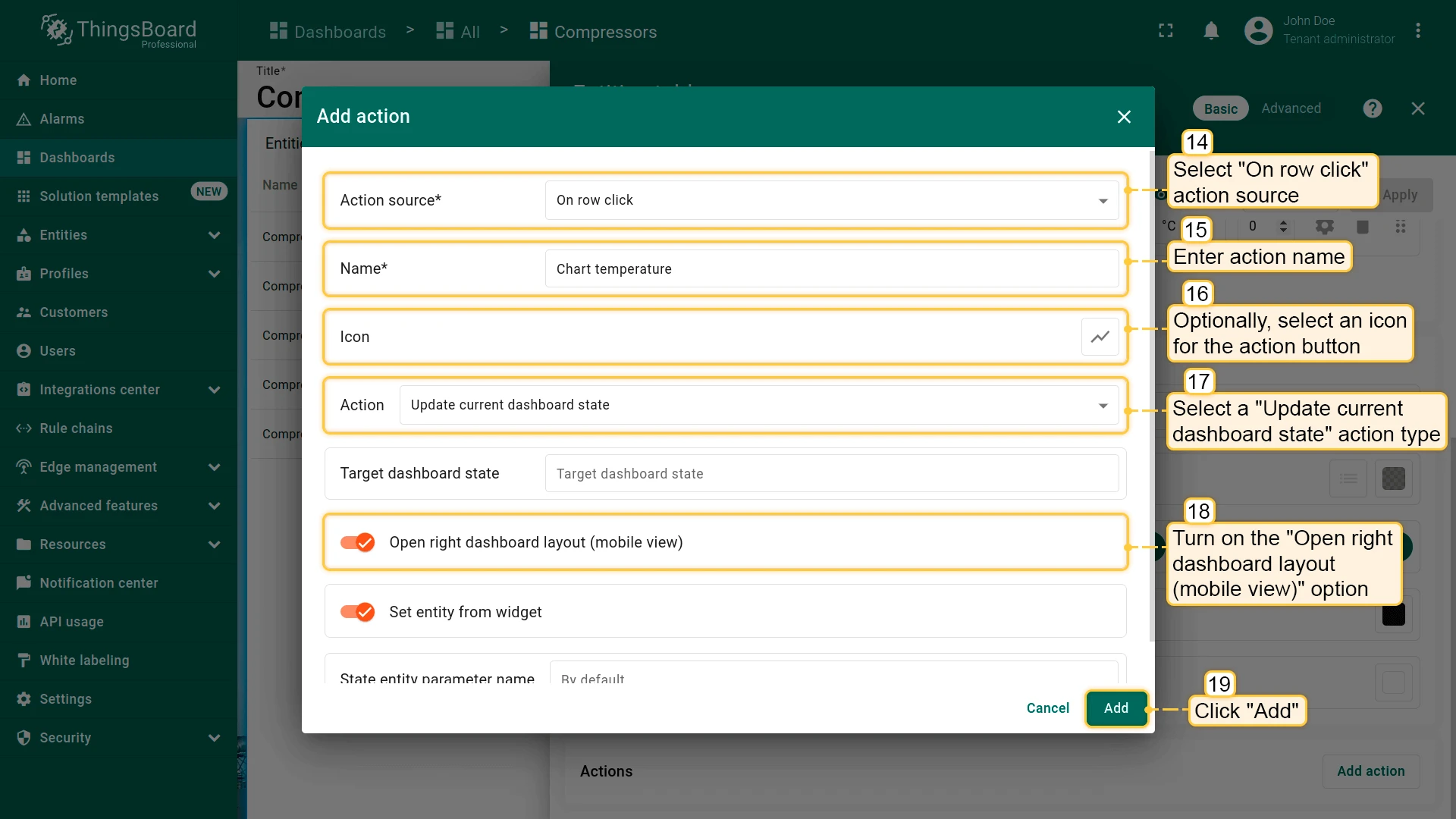
- Open the Entities table widget in edit mode and go to the Actions tab.
- Select On row click as the action source and enter an action name.
- Select Update current dashboard state as the action type.
- Enable Open right dashboard layout (mobile view).
- Click Add, then Save.
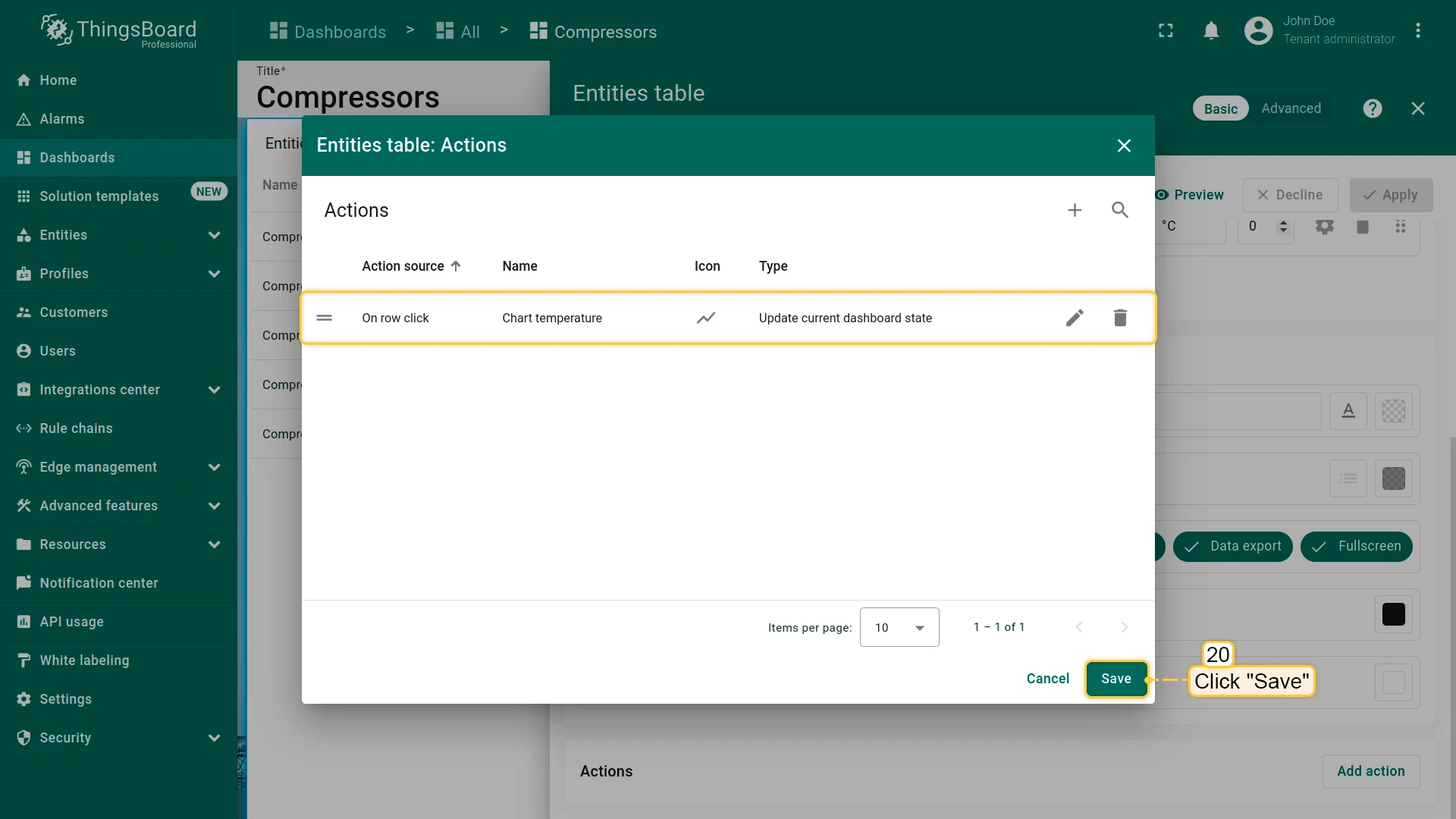
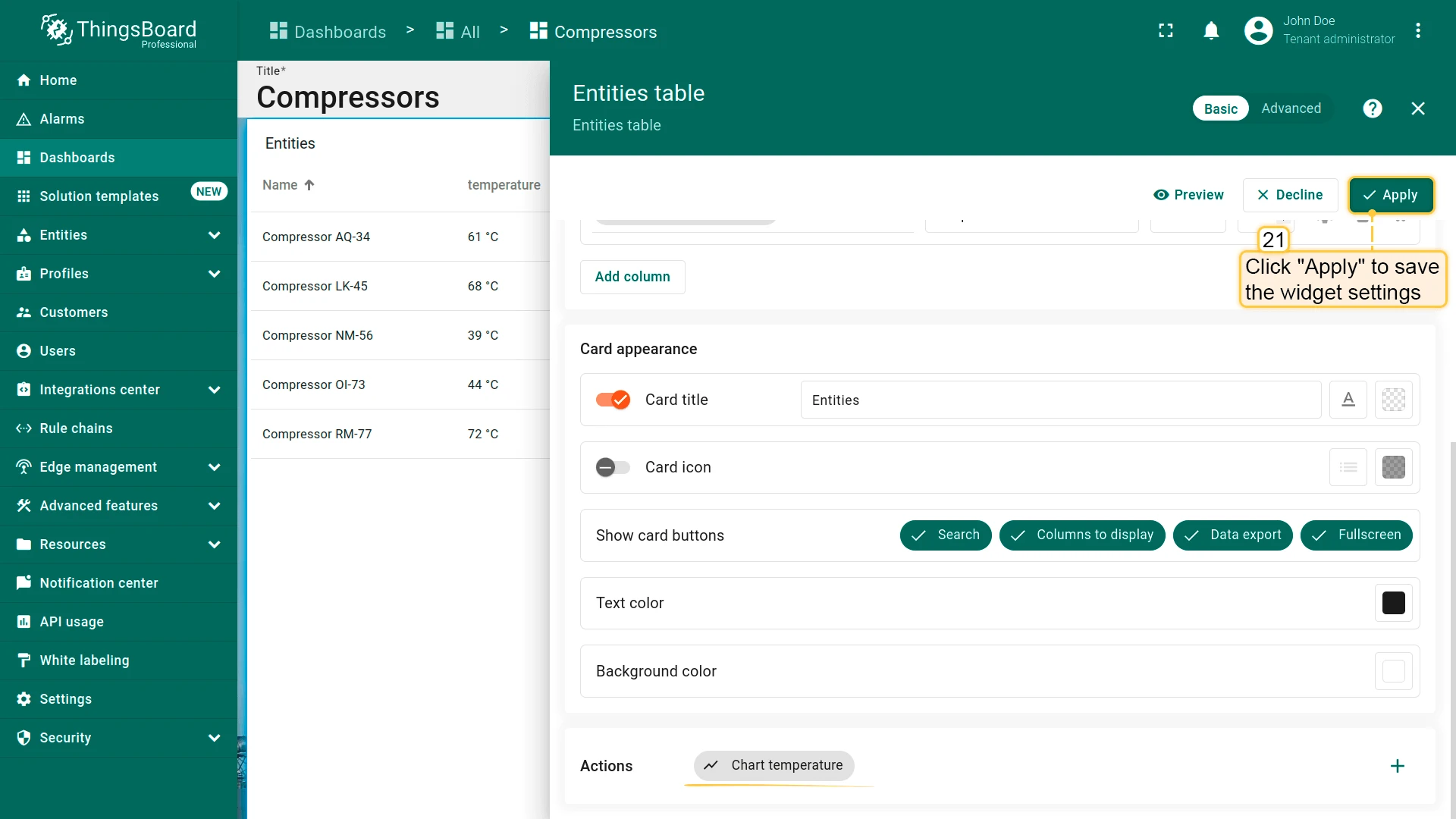
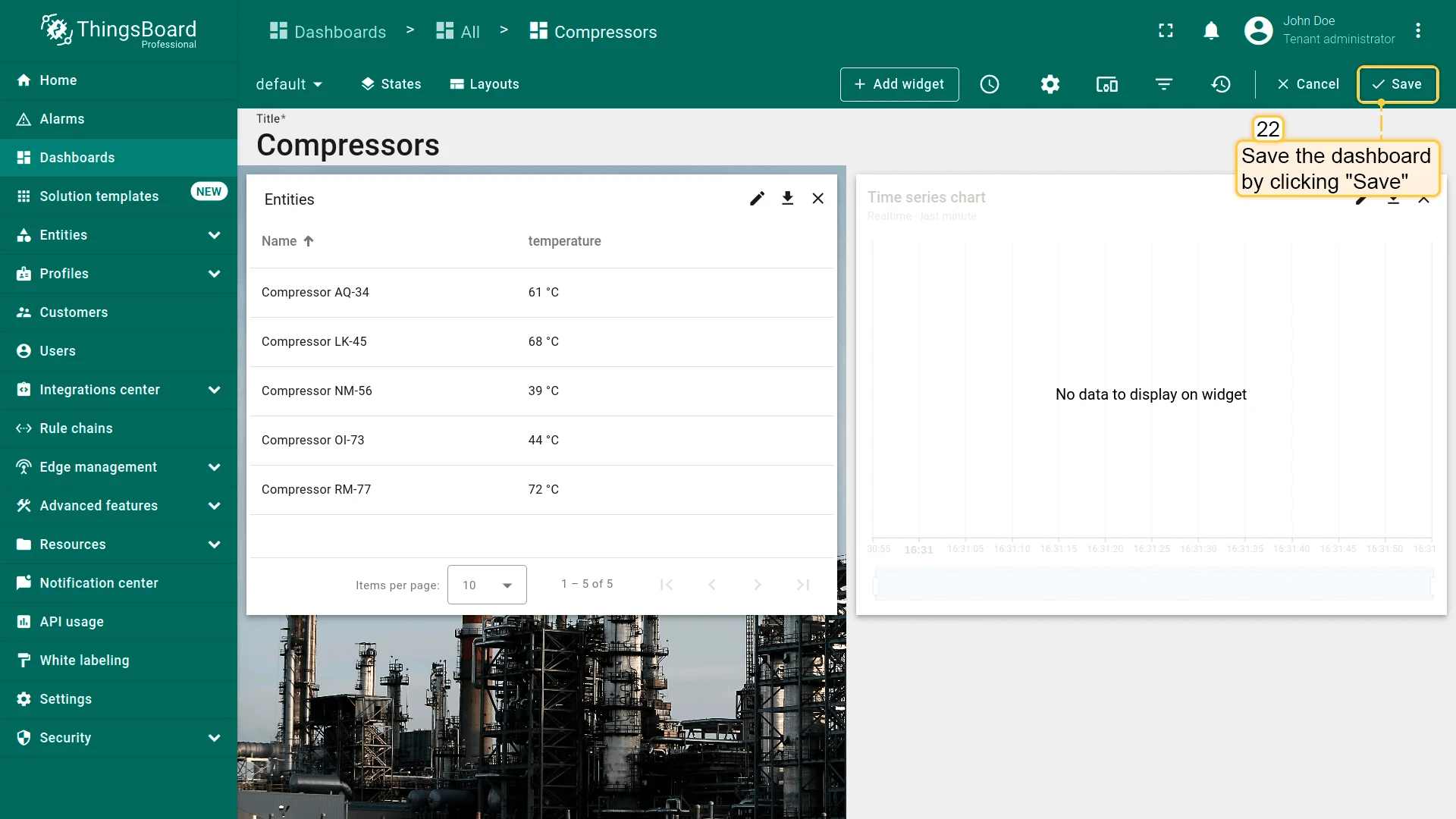
Click Apply, save the dashboard, and test the action. On mobile, tapping an entity row opens the Time series chart in the right layout:
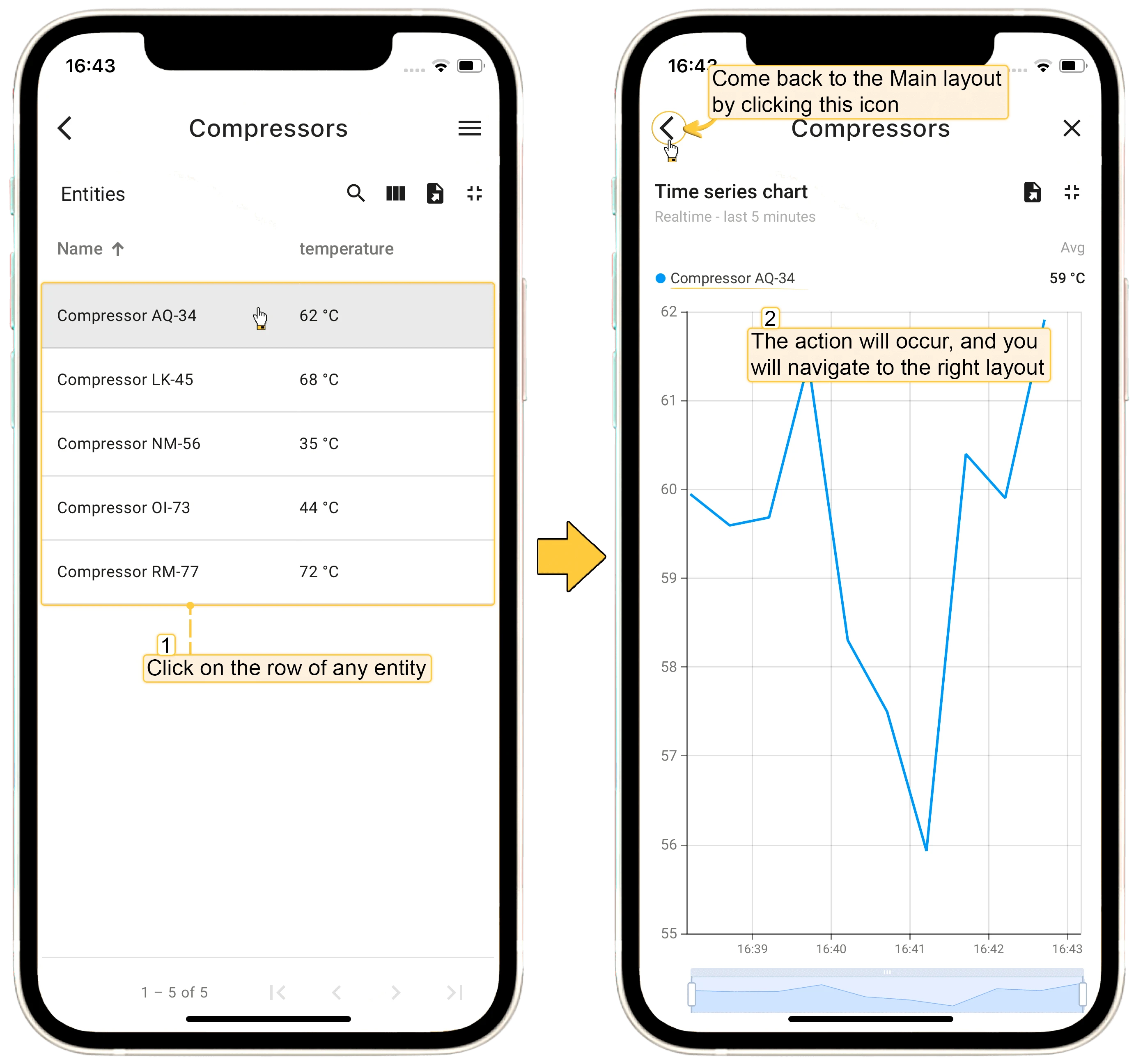
Set Entity from Widget
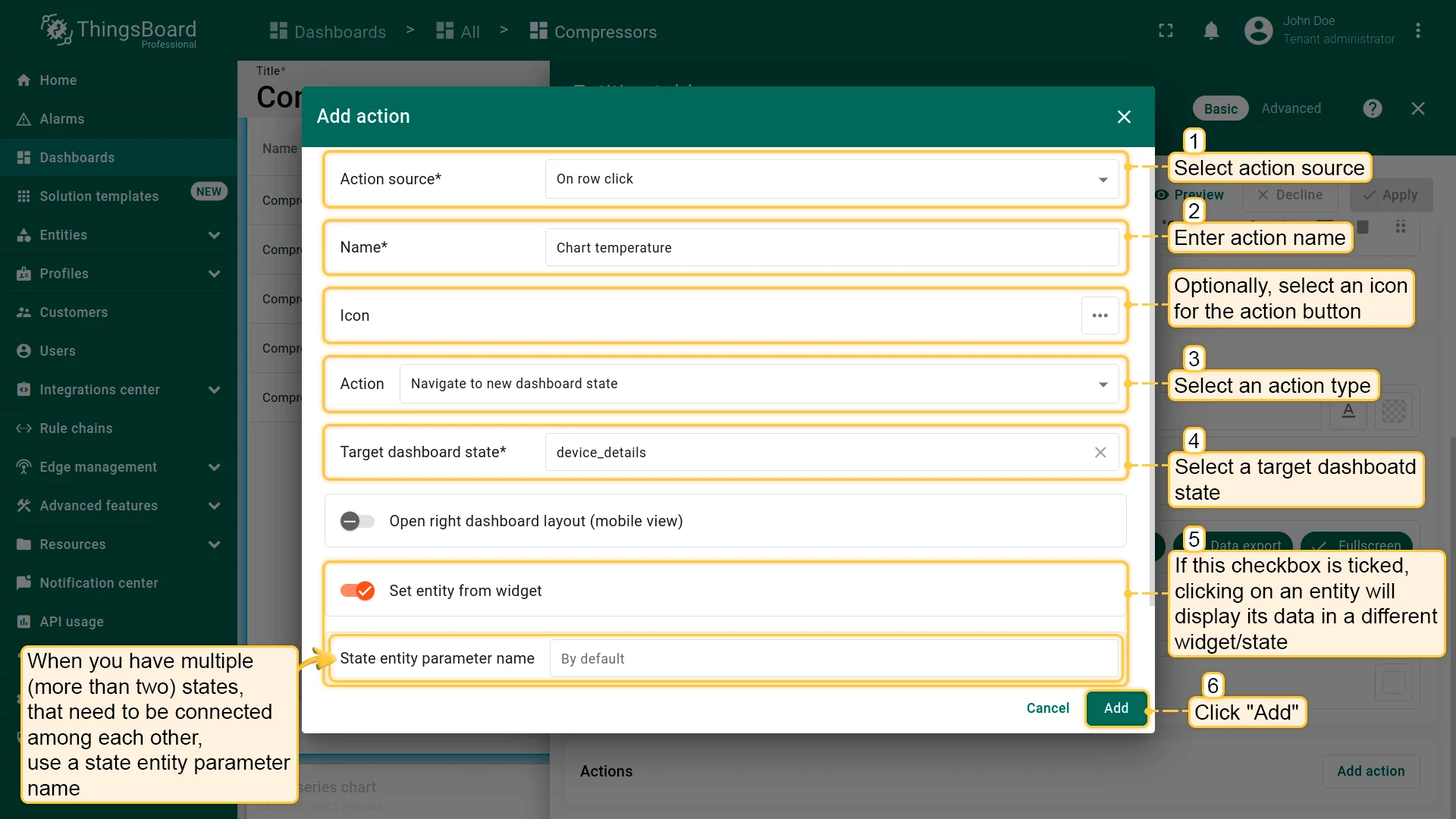
Section titled “Set Entity from Widget”The Set entity from widget checkbox passes the selected entity to the target dashboard state, where widgets can use it through the Entity from dashboard state alias. For example, clicking a device row in an Entities table makes the detail widgets in the next state show that device’s data.
To keep several entities in the state, use separate state entity parameters. For example, to go from a customer list to the customer’s devices and then to a single device, use three states — “Main”, “Customer Devices”, and “Device Details” — with parameters such as currentCustomer and currentDevice on the “Device Details” state.
Was this helpful?